How to Add a Wishlist to Shopify

Most shoppers don't buy on their first visit. They're comparing products, waiting for payday or planning a gift, so they leave the store and the products they liked are gone from view.
When those shoppers come back, they have to search for the same products again, and many never find them. A wishlist lets shoppers save products with a heart or a button and come back to one page that holds every product they saved.
Here are the three ways to add a wishlist to a Shopify store: with a Wishlist app, from your theme settings, or with custom code.
What Is a Wishlist?
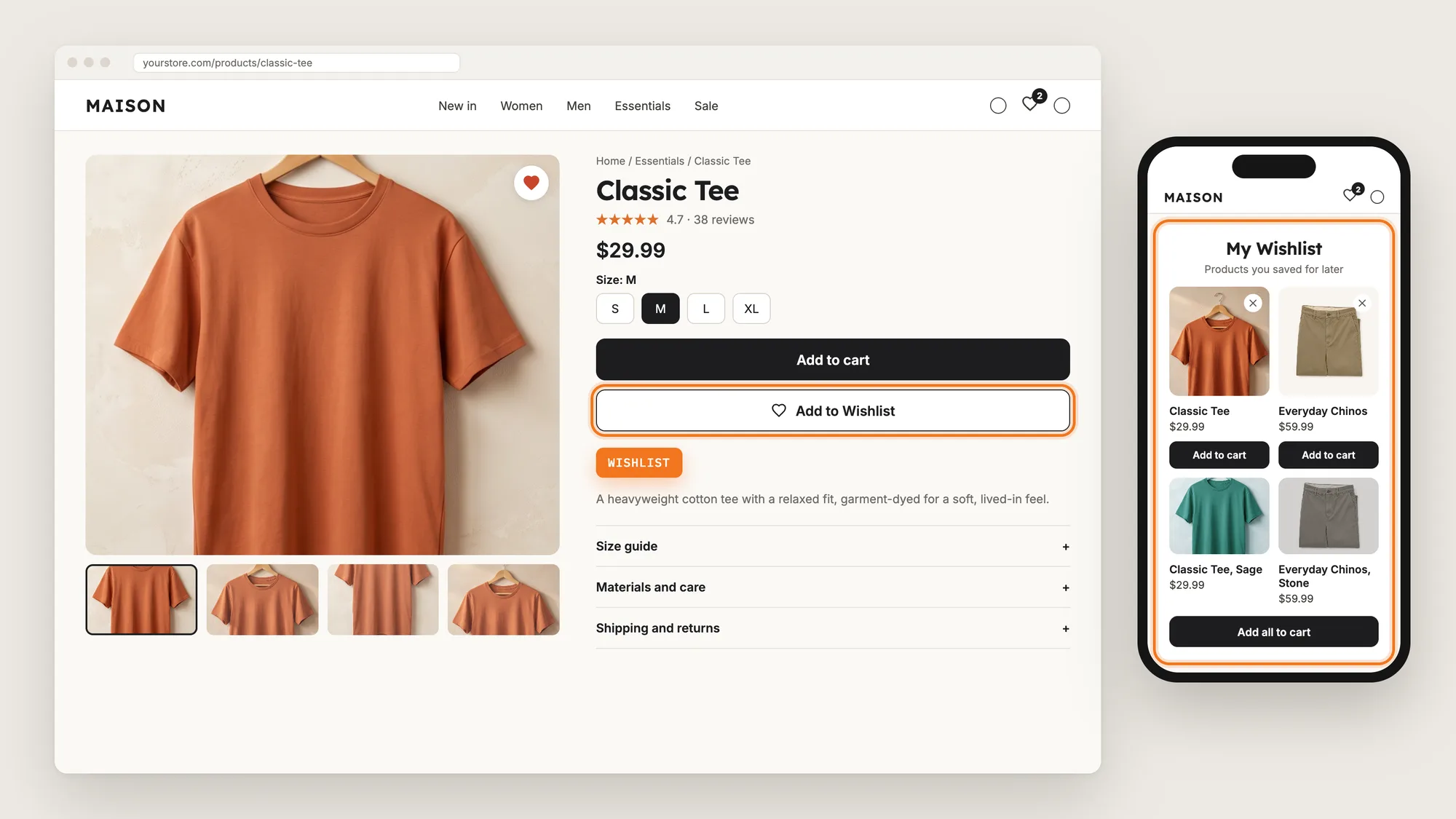
A wishlist is a list of products a shopper saves to buy later. Shoppers save a product with a heart icon or an Add to Wishlist button, then open the wishlist page to see every saved product and add the products to the cart.
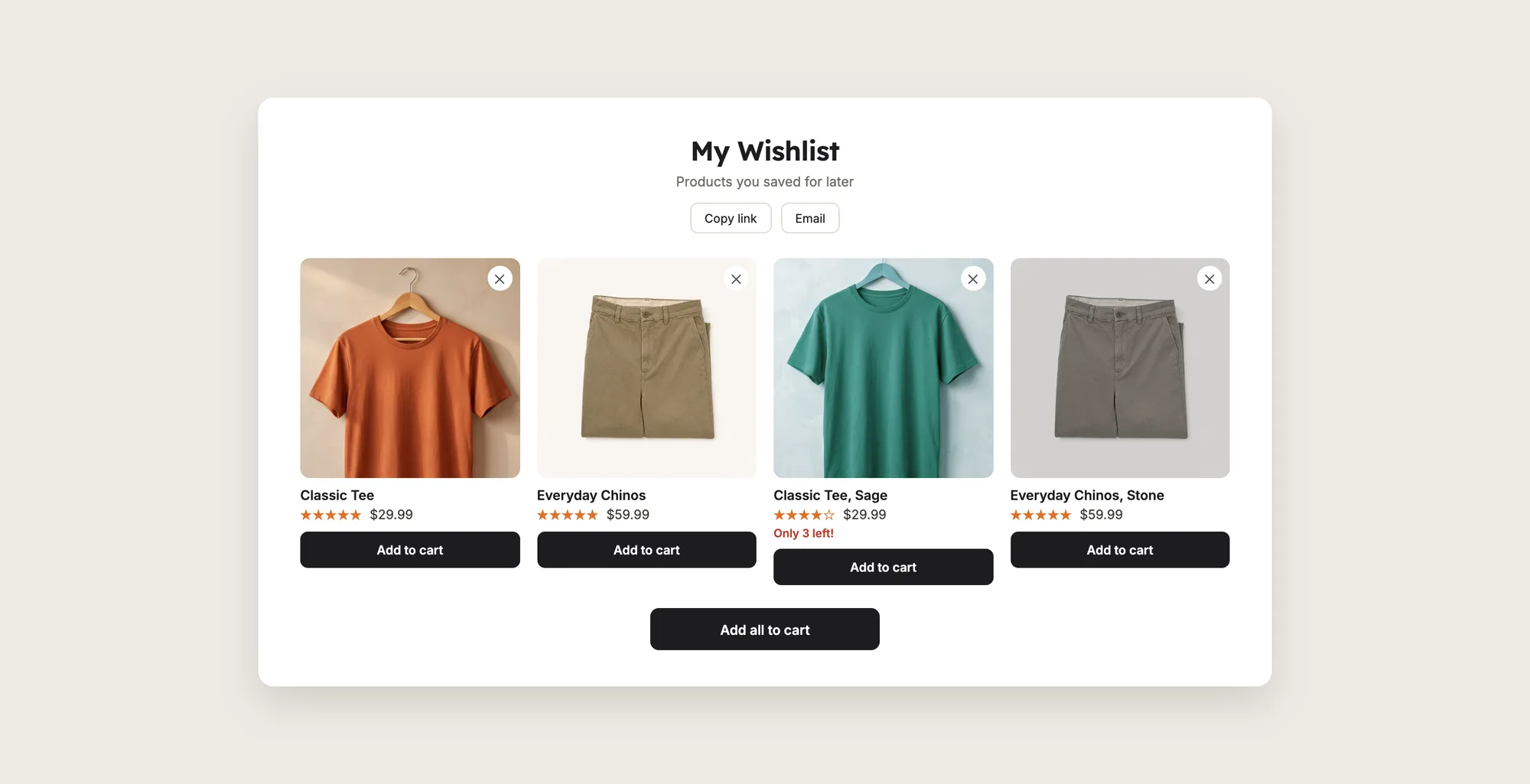
A good wishlist includes:
- Hearts where shoppers browse: A heart on product images and product cards, so shoppers can save a product from any collection or search page.
- A way back: A heart icon in the store header, with a count of saved products, opens the wishlist page in one click.
- Guest saving: Shoppers can save products without creating an account first.
- Buying from the list: Each saved product has its own Add to cart button on the wishlist page.
The wishlist stays in the shopper's browser or customer account, so the saved products are still there when the shopper comes back.
What's the Quickest Way to Add a Wishlist?
- Vitals - All in One App is the quickest way to add a wishlist to most stores
- Vitals also offers 40+ apps, such as product reviews, bundles and back in stock alerts, in one subscription of $29.99/month, so you don't have to install and pay for each app separately
Here's how the three methods compare. If you'd rather weigh several wishlist apps against each other, see our list of the best wishlist apps for Shopify.
How to Add a Wishlist With a Wishlist App?
Install the Vitals - All in One App, open its Wishlist app and click Activate App. Hearts then show on your product images and product cards, a heart icon shows in your store header, and the steps below set who can save, where the hearts and buttons show and what the wishlist page holds.
Step 1: Get the Vitals - All in One App
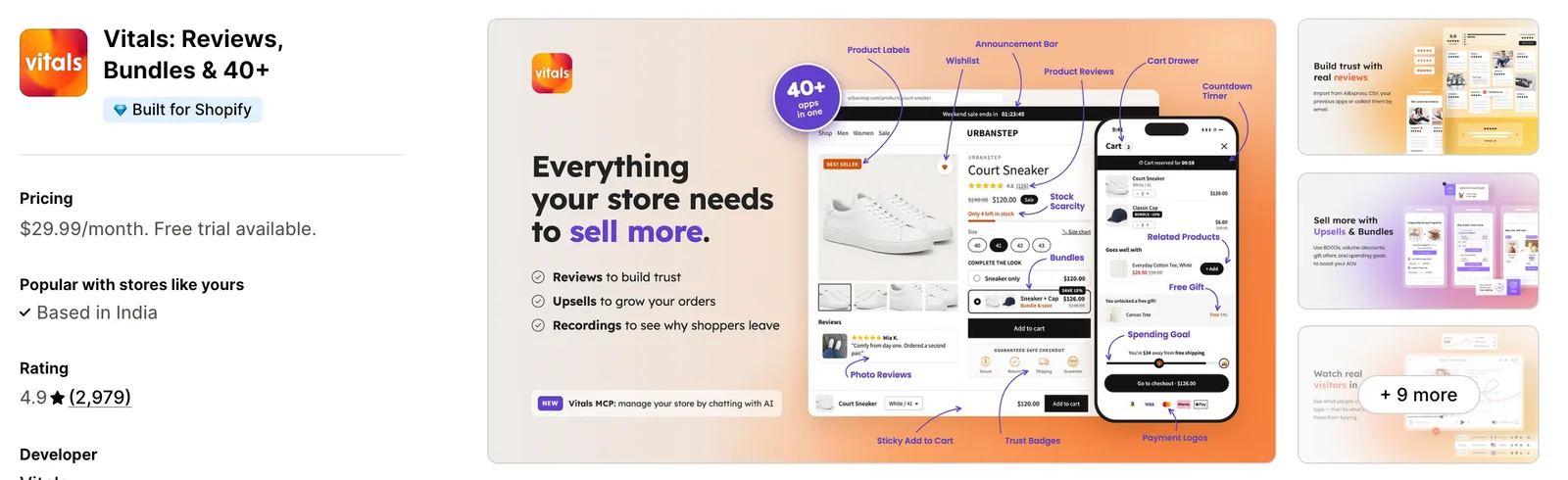
Install the Vitals - All in One App from the Shopify App Store. The 7-day free trial includes the Vitals Wishlist app.
Step 2: Approve the App in Shopify
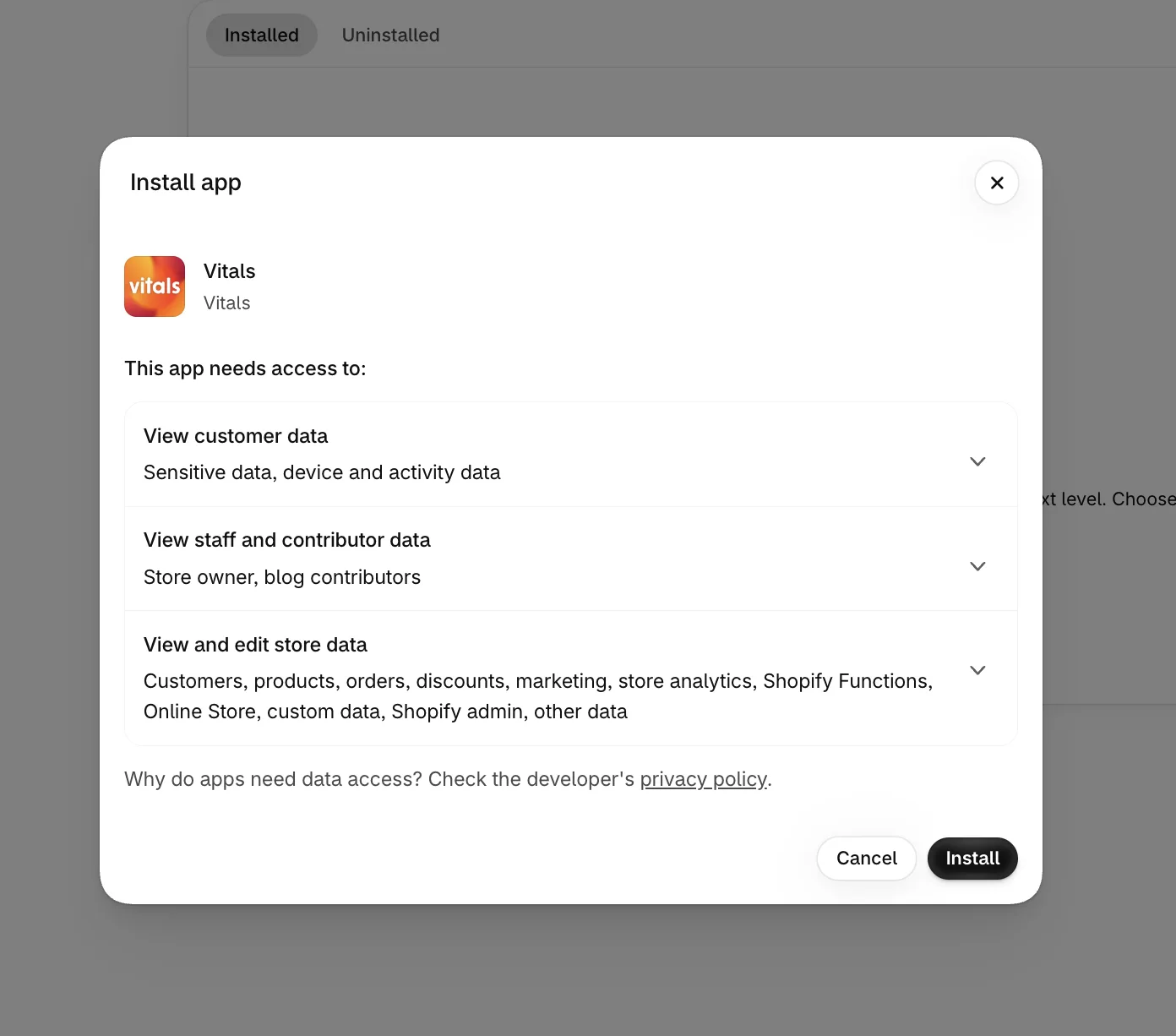
Click Install in the Shopify dialog to approve the data Vitals needs. The Vitals dashboard then opens.
Step 3: Open Wishlist
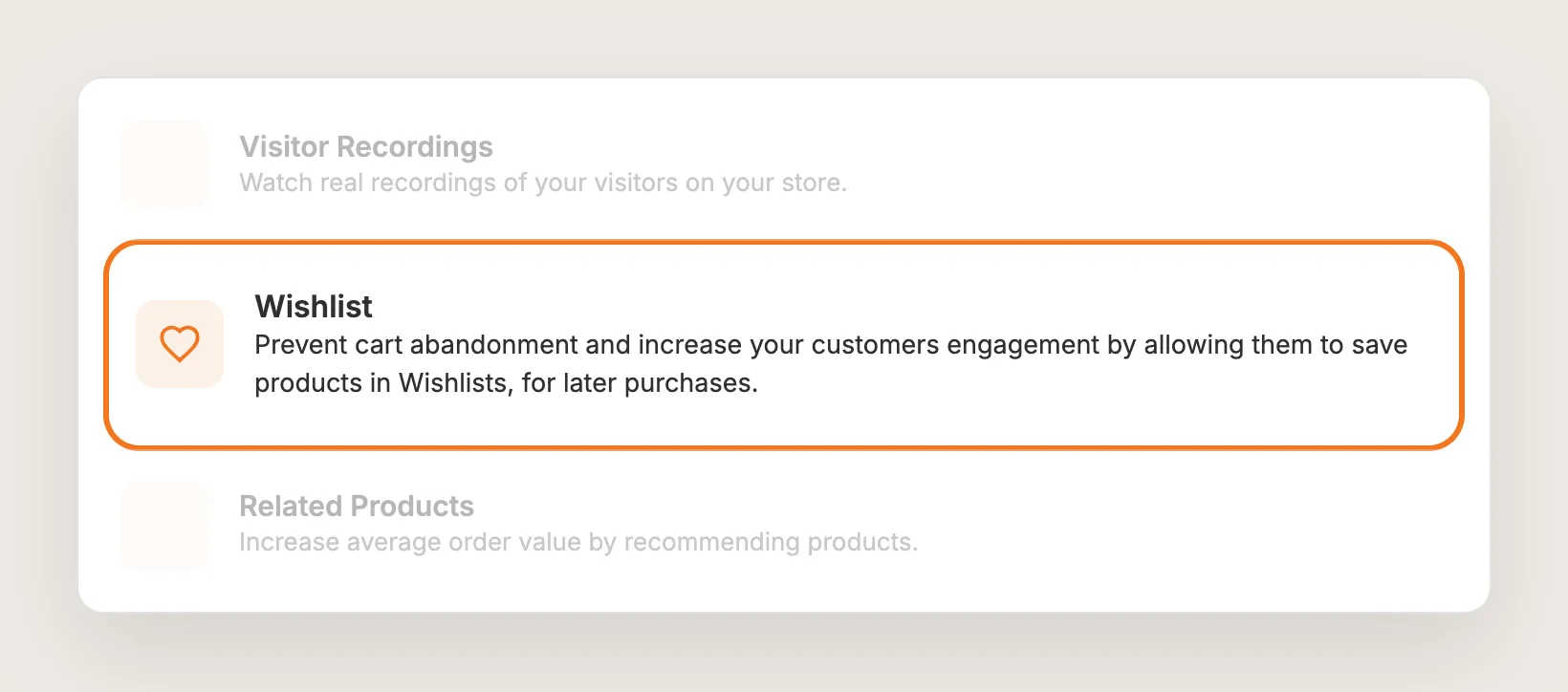
In the Vitals dashboard, find Wishlist in the list of apps and click it.
Step 4: Turn the Wishlist On
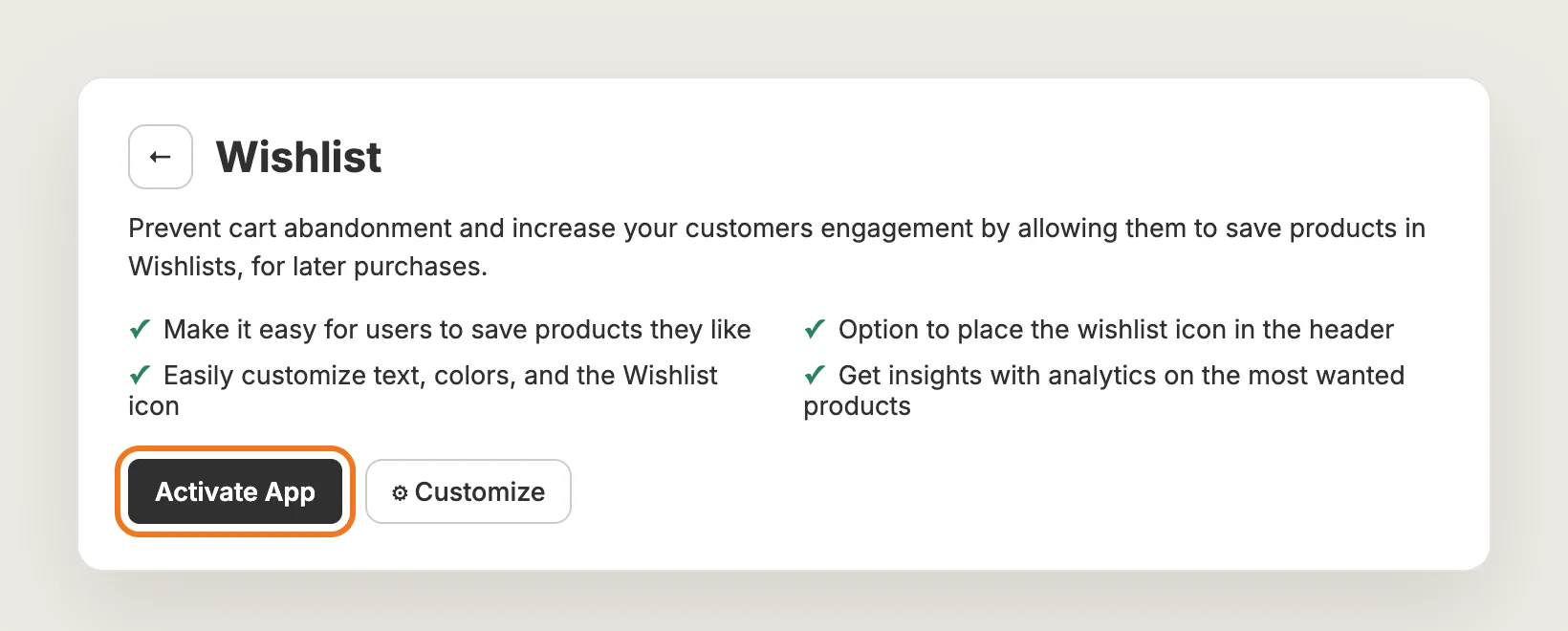
On the Wishlist page, click Activate App to turn the wishlist on. The wishlist works straight away with the default settings. Customize opens the Settings tab used in the steps below, with a live preview of your product, home, collection and wishlist pages.
Step 5: Choose Who Can Save Products
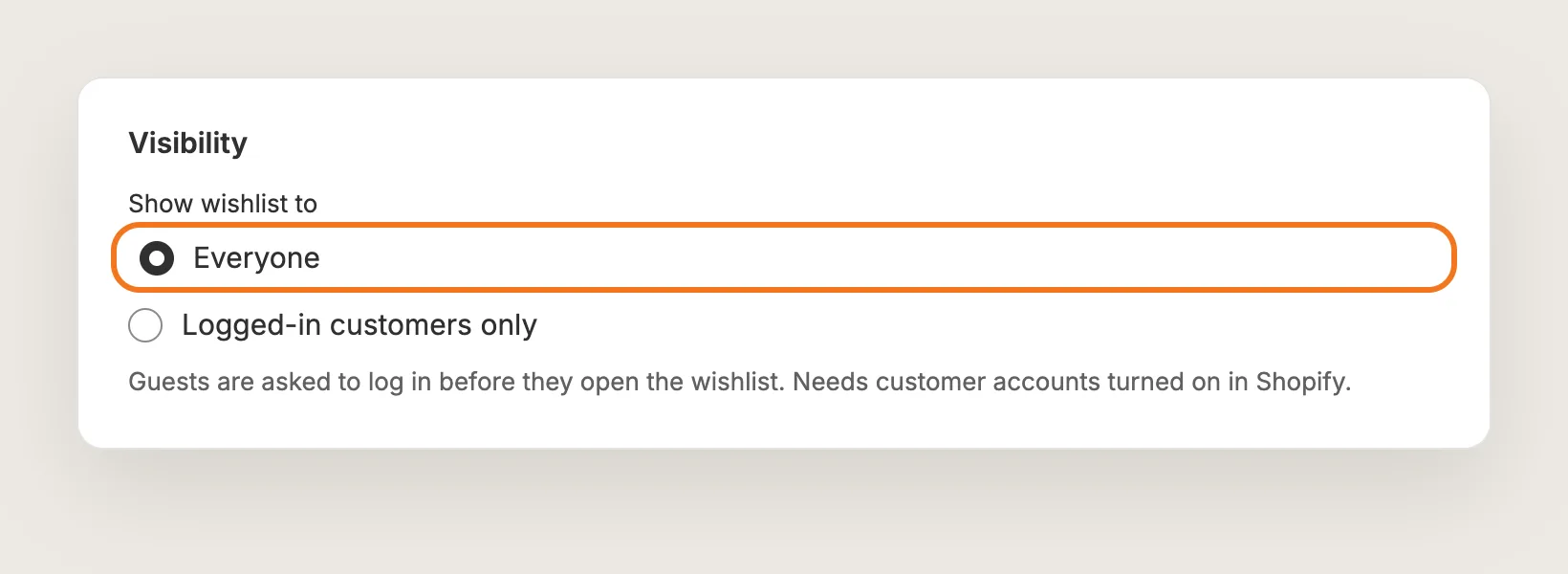
At the top of the Settings tab, Visibility sets Show wishlist to:
- Everyone: The default setting. Guests and logged-in customers can both save products
- Logged-in customers only: Guests see no hearts, buttons or header icon, and they're asked to log in before they open the wishlist page
Guests' wishlists are saved in the browser for 365 days. Logged-in customers' wishlists are saved to their account, so the same wishlist shows on every device they log in from. Logged-in customers only needs customer accounts turned on in Shopify under Settings → Customer accounts.
Step 6: Show a Heart on Product Images
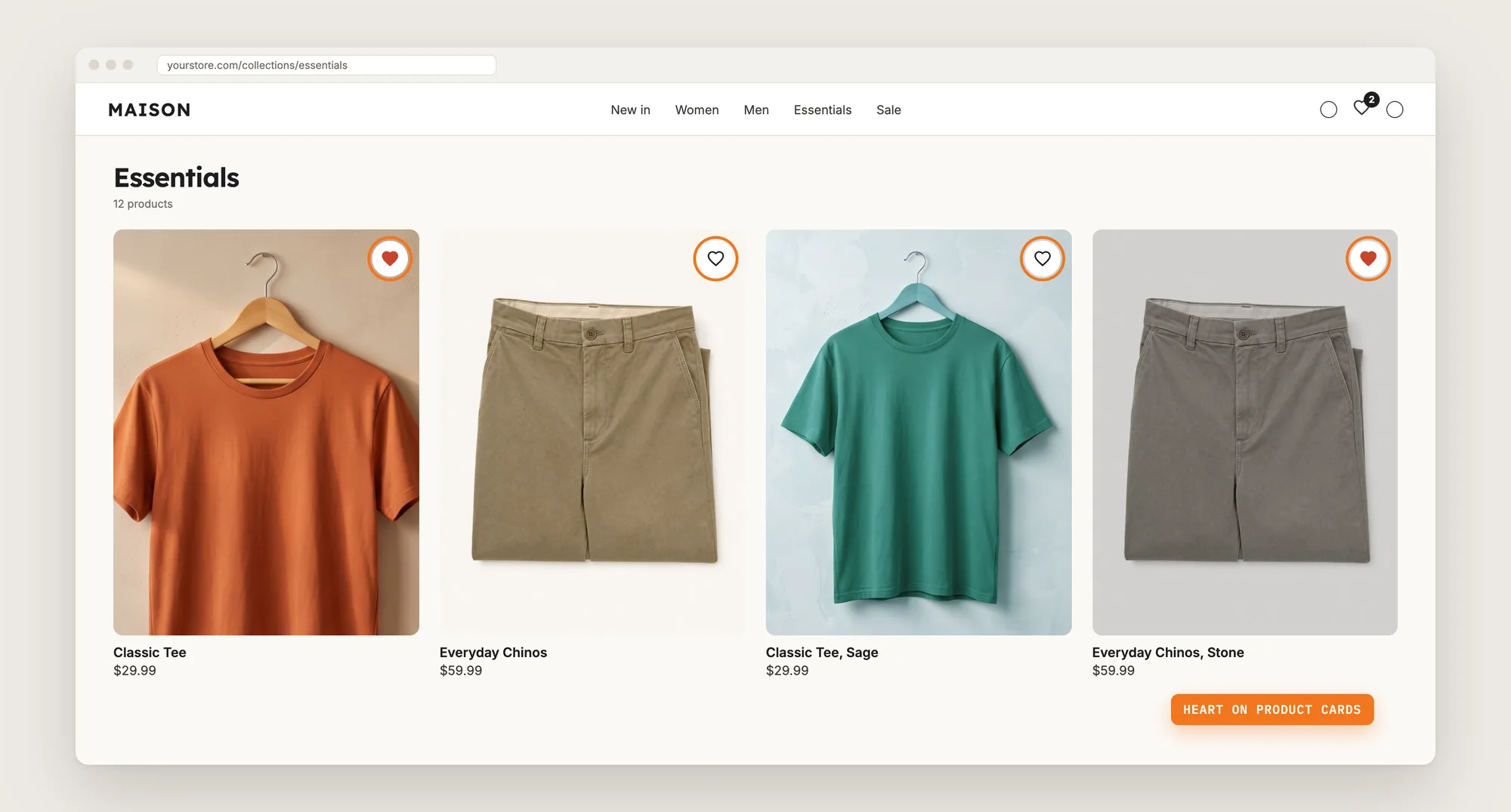
Open Wishlist icon on product images. Three settings are on by default:
- Show icon on product cards (collections, search, and more): A heart on every product card in your collection pages, search results and vendor pages
- Show icon on home page: A heart on product cards in your home page sections
- Show icon on the main image of the product page: A heart over the main product photo
Choose the Heart icon color, then use Move vertically and Move horizontally under Icon position to place the heart. The same position applies to the heart on product cards and on the main product image.
Step 7: Add an Add to Wishlist Button
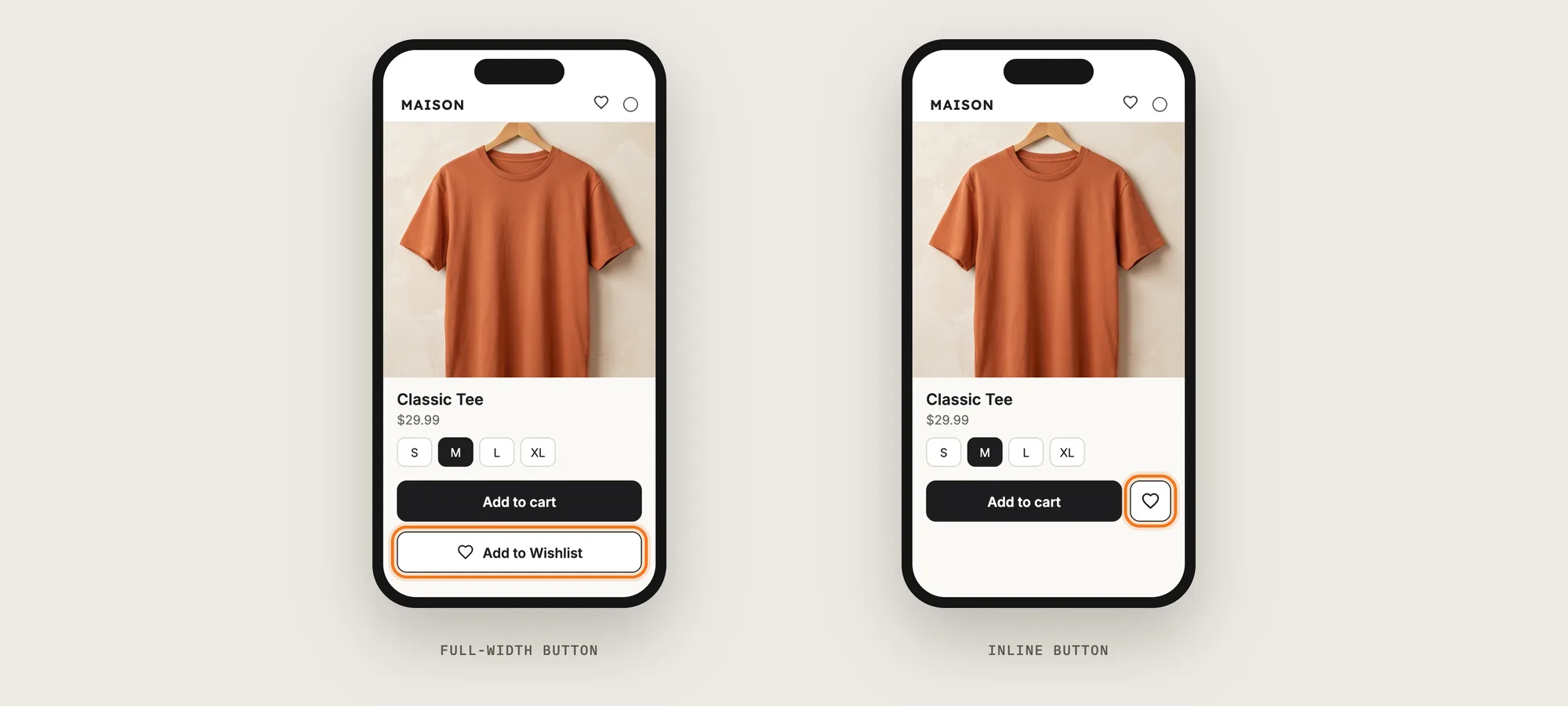
The Add to Wishlist button is off by default. Open Add to Wishlist button and turn on Show the Add to Wishlist button on the product page. Then choose a Button type:
- Full-width button: The default type. A labeled button above or below Add to cart
- Inline button: A compact heart on the same line as Add to cart, to the left or the right of the button
For a full-width button, set the Location and Position, the button text and the button style. For an inline button, set the Button style, the Corner style and the Icon size. Change Remove from Wishlist button text to "Remove from Wishlist", so shoppers know a second click removes the product.
Step 8: Put the Wishlist Icon in the Header
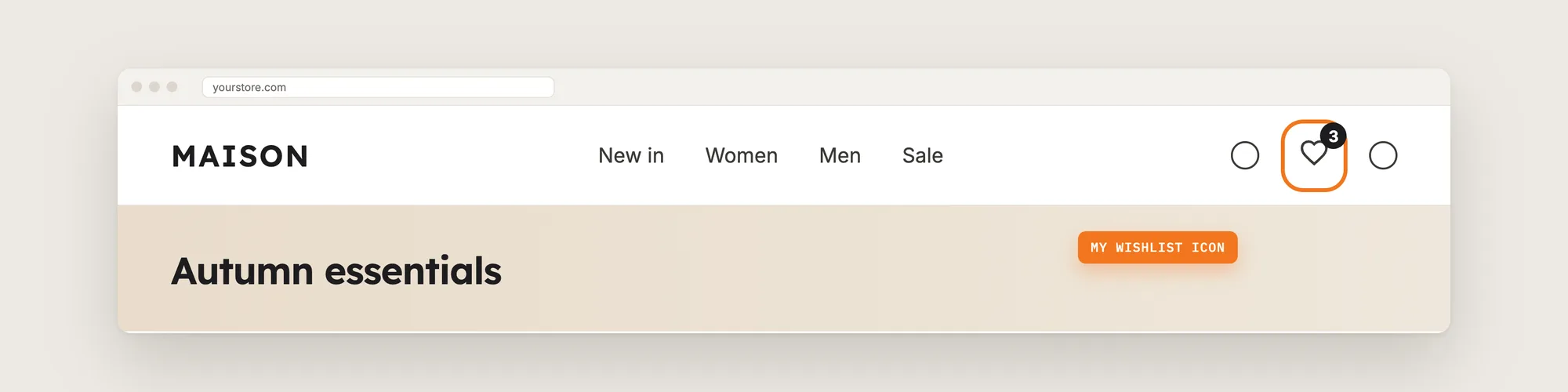
Open My Wishlist button and set Button placement. In the Header, next to the Cart icon is the default setting and shows a heart icon with a live count of saved products. You can also put a My Wishlist button on the product page, or choose Nowhere, I will add the Wishlist button in my menu navigation and add the wishlist page link to your own menu.
Under Wishlist icon, set the icon size, color and Icon thickness. Under Items count badge, set the badge colors, size and position, or clear Show count badge on the header icon to hide the count.
Step 9: Set Up the Wishlist Page
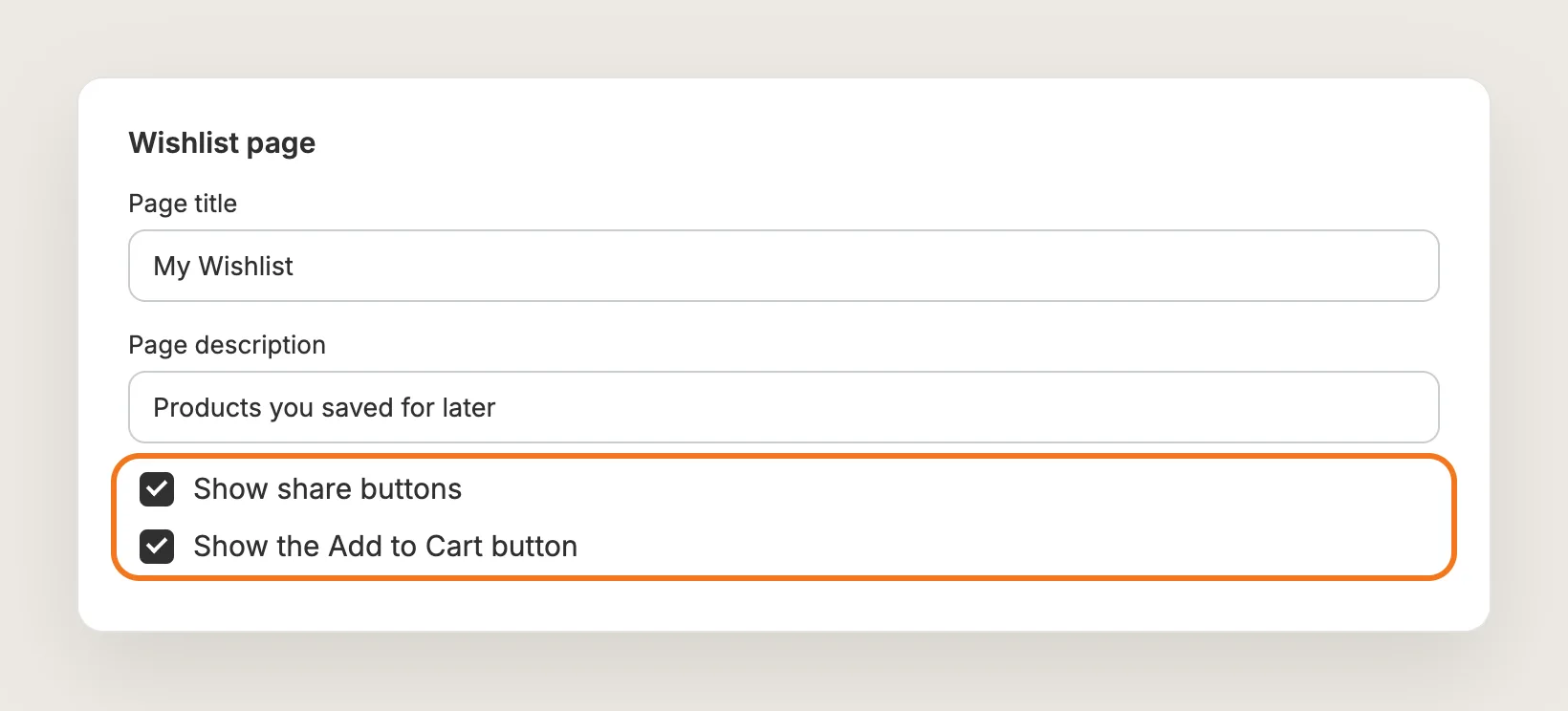
Open Wishlist page to set the Page title and Page description that shoppers see at the top of the wishlist page. Keep two settings on:
- Show share buttons: Shows the Copy link and Email buttons, so shoppers can share the wishlist as a gift list
- Show the Add to Cart button: Adds an Add to cart button to every saved product. The Add all to cart button shows once the wishlist holds three or more in-stock products
A product added to the cart from the wishlist page stays on the wishlist, and its card shows "Added to cart". Shoppers remove a product with the X on its card, or by clicking the heart or the Add to Wishlist button again.
The same section can show star ratings from the Vitals Product Reviews app and a low stock note on saved products with only a few units left.
Step 10: Hide the Wishlist on Some Products (Optional)
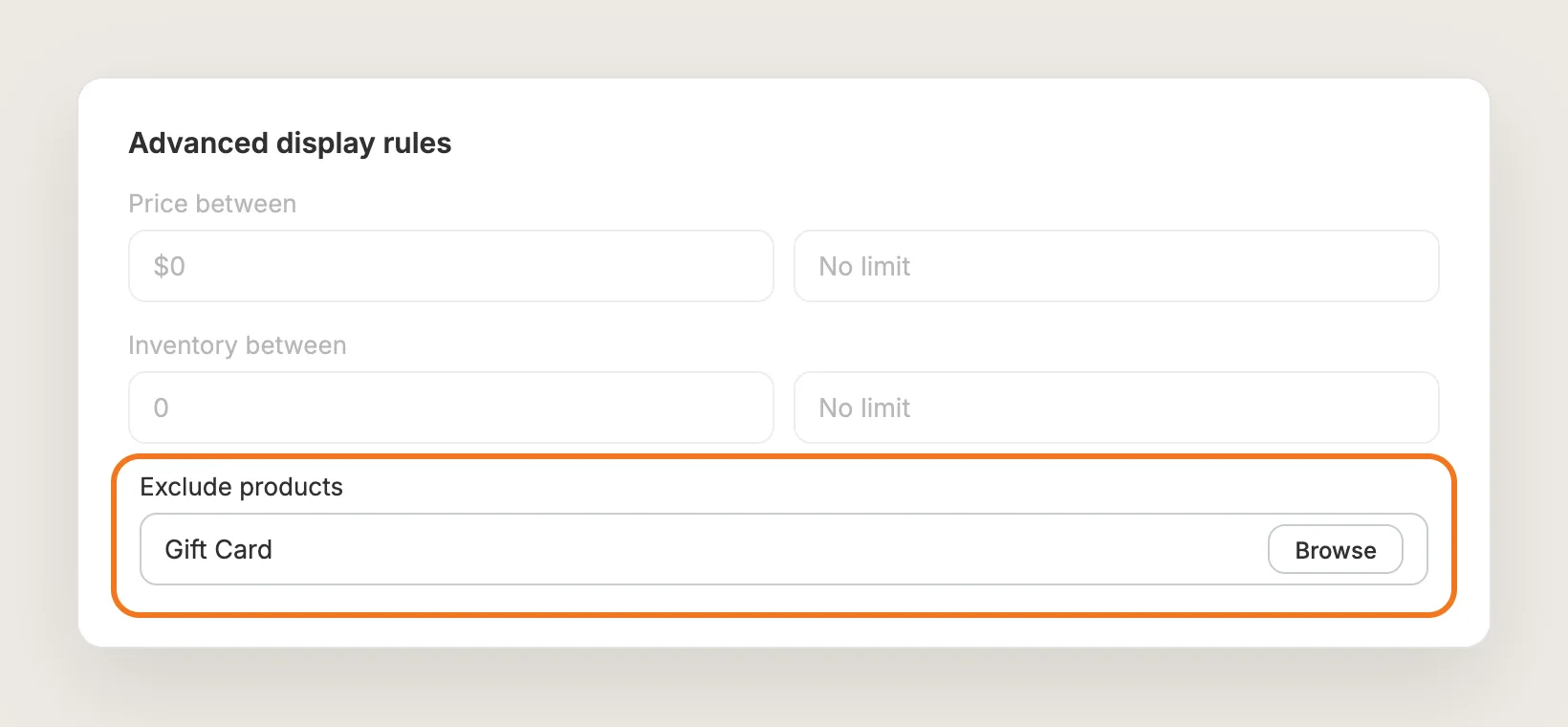
The Add to Wishlist button and the heart on the main product image show on every product by default. Expand Advanced display rules to limit them:
- Show the wishlist only when the product's Price between, Discount between or Inventory between falls in a range you set
- Show the wishlist only on chosen products with Display only on, or hide the wishlist on chosen products, such as gift cards, with Exclude products
Display rules apply to product pages. Hearts on product cards still show for every product.
Step 11: Save, Test on Your Phone and Watch the Saves
Click Save, then open your store on your phone and on desktop. Save a product from a collection page and from a product page, check that the header count goes up, and open the wishlist page to add a saved product to the cart.
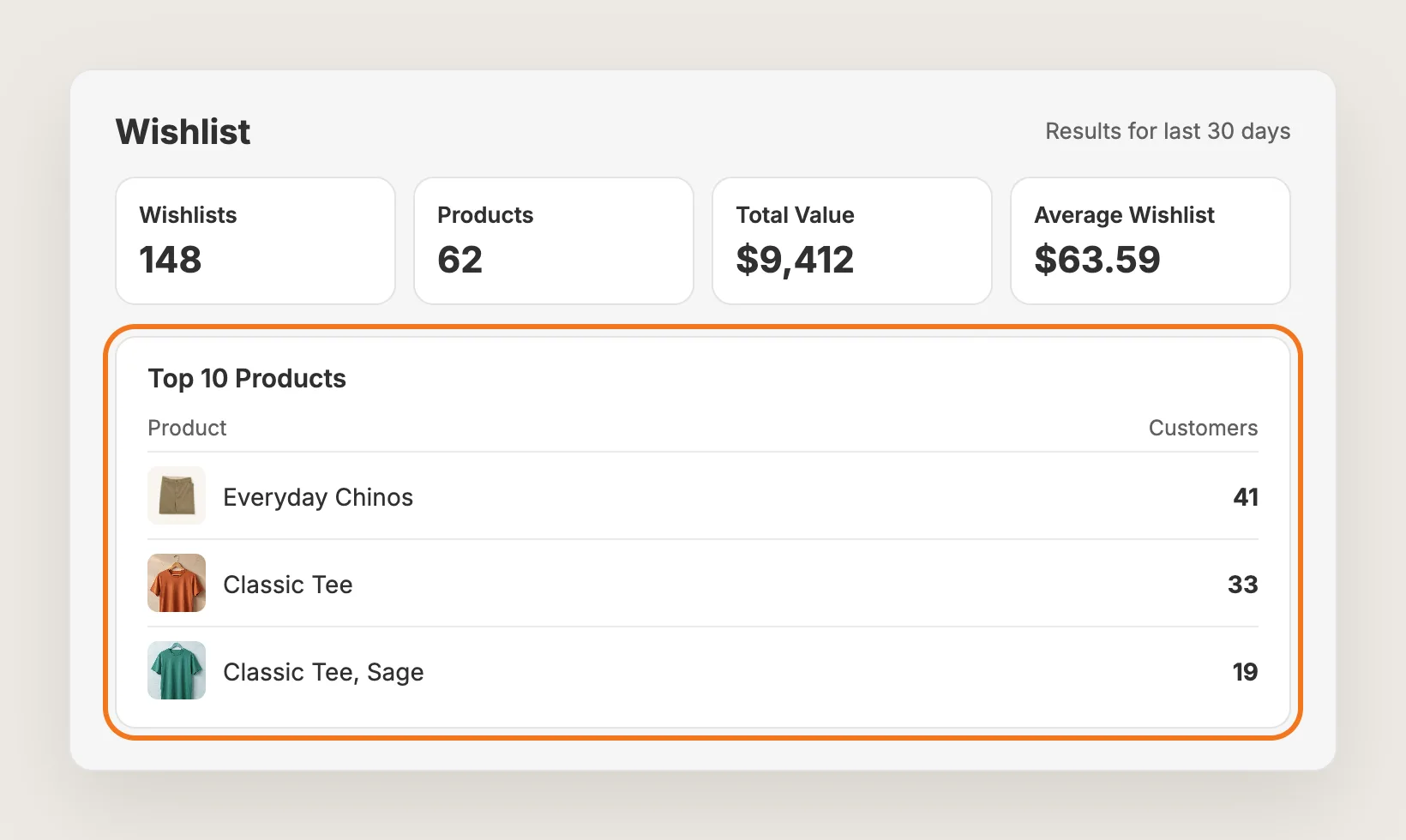
The Top 10 Products tab then shows your most-saved products, with cards for Wishlists, Products, Total Value and Average Wishlist over the last 30 days. The Events tab lists every save, and Export CSV downloads every saved product.
Step 12: Voila, Your Wishlist Is Live on the Store
Your shoppers can now save products with a heart or the Add to Wishlist button and come back to the wishlist page to buy them.
How to Add a Wishlist From Your Theme Settings?
Most Shopify themes don't include a wishlist. A few paid themes include a wishlist or "favorites" option. To check your theme's settings:
- Go to Online Store → Themes in your Shopify admin and click Customize
- Open Theme settings and look for a wishlist or favorites setting
- Open a product page from the page menu at the top and check the Product information section for a wishlist block
If you find a wishlist setting, switch the setting on and test the wishlist on your phone. A theme's built-in wishlist usually saves products only in the shopper's browser, often with no header count, no sharing, no Add to cart on the wishlist page and no record of which products shoppers save. If your theme's wishlist has everything you need, you may not need an app at all.
How to Add a Wishlist Without an App?
Hire a developer to build a wishlist into your theme with Liquid, CSS and JavaScript, plus a place to store each shopper's saved products.
A custom wishlist usually involves:
- Duplicating the theme, so code changes are tested away from the live store
- Adding heart icons to product cards and an Add to Wishlist button to the product page template
- Storing guests' saved products in the browser and logged-in customers' saved products in their customer data, so the wishlist follows them across devices
- Building a wishlist page that lists the saved products with prices and Add to cart buttons
- Adding a header icon with a count of saved products
- Testing every page type and theme section, then publishing the theme copy
Custom code means no extra app, but you or your developer have to maintain it. A theme update can replace the files that hold the code, so the wishlist may need rebuilding after each update. Sharing, analytics and translations all have to be built by hand too.
How to Increase Sales With a Wishlist?
A wishlist increases sales by bringing shoppers back to the products they saved and letting them buy straight from the list. These settings get more saved products into the cart:
- Keep hearts on your collection pages. Shoppers decide what they like while they browse, so save buttons on product cards catch more products. Leave Show icon on product cards (collections, search, and more) on
- Let guests save. A shopper who has to create an account first often leaves without saving. Keep Show wishlist to set to Everyone
- Keep the way back in the header. Shoppers who come back see the count of saved products right away. Keep Button placement set to the header
- Let shoppers buy from the wishlist page. Every extra step loses a sale. Keep Show the Add to Cart button on, so the Add all to cart button shows for wishlists with three or more products
- Let shoppers share their wishlist. Friends and family can buy from a shared gift list. Keep Show share buttons on
- Promote and restock the most-saved products. Products shoppers save are products they want. Check Top 10 Products before a sale or a reorder
Why Isn't My Wishlist Showing or Working?
Check these first when the wishlist isn't working:
- The Add to Wishlist button doesn't show: The button is off by default. Turn on Show the Add to Wishlist button on the product page, then check that Advanced display rules don't exclude that product
- The inline heart disappeared: The inline heart needs room on the same line as your theme's Add to cart button. Set Button type back to Full-width button
- The full-width button doesn't move: Your theme may place the button with an Add To Wishlist app block. Remove the app block from the product template in the theme editor, then set Location and Position again
- The header icon doesn't show: Your theme may use a custom header. Add the Vitals Go to Wishlist app block to your header in the theme editor, or contact Vitals support
- A shopper's wishlist is empty on another device: Guests' wishlists are saved in one browser. Shoppers who log in to a customer account see the same wishlist on every device
Which Wishlist Method Should You Choose?
Vitals - All in One App suits most stores, but the right method depends on your theme and how much you want the wishlist to do.
- Choose Vitals - All in One App if you want hearts on product cards, guest saving and a shareable wishlist page. It also includes 40+ other apps in one subscription of $29.99/month, so you don't have to install and pay for each app separately
- Choose your theme's setting if your theme already includes a wishlist and you don't need sharing, Add to cart from the wishlist page or save analytics
- Choose custom code if a developer can build the wishlist and maintain it after theme updates
If you already use another wishlist app, see our Swym Wishlist Plus alternatives, Wishlist Hero alternatives and Hulk Wishlist alternatives.
Start a 7-day free trial: Install the Vitals - All in One App and add a wishlist
Frequently Asked Questions
1. What is the best way to add a wishlist to Shopify?
Vitals - All in One App is the best way for most stores. Its Wishlist app adds hearts on product images and product cards, an Add to Wishlist button, a header icon and a shareable wishlist page without code.
2. Does Shopify have a built-in wishlist?
No, Shopify doesn't include a wishlist as a store-wide feature. Only a few paid themes include a wishlist. If your theme has no wishlist, you'll need a wishlist app or custom code.
3. Do shoppers need an account to use the wishlist?
No. Guests can save products without an account, and their wishlist is saved in the browser for 365 days. Logged-in customers' wishlists are saved to their account and show on every device. To ask guests to log in first, set Show wishlist to to Logged-in customers only.
4. Can shoppers share their wishlist?
Yes. The wishlist page shows Copy link and Email buttons, so shoppers can send their wishlist to friends and family as a gift list. Clear Show share buttons to hide both buttons.
5. Can I see which products customers add to their wishlist?
Yes. The Top 10 Products tab lists your most-saved products and how many saves each product has. The Events tab lists every save, and Export CSV downloads every saved product as a spreadsheet.
6. Can I move wishlists from another wishlist app?
Yes. The Vitals team imports wishlists for free from a full CSV export of your previous wishlist app. Keep the previous app installed until you've downloaded the export and tested the new wishlist.
7. Can the wishlist show in the customer account?
Yes, with Shopify's new customer accounts. In Shopify, go to Settings → Customer accounts → Customize → Apps → Wishlist, add the wishlist to Accounts and save. Then go to Content → Menus → Customer account menu → Add menu item → Apps → Wishlist and save. Logged-in customers then see a My Wishlist page in their account.