How to Add Recently Viewed Products to Shopify

Most shoppers look at several products before they buy. They open a pair of sneakers, then a shirt, then a pair of chinos, and by the fourth product page the first one is three clicks back.
A shopper who wants to go back to an earlier product has to search for it or click back through the store, and many give up. Recently viewed products keep that shortlist on the page, so shoppers can get back to any product they looked at in one click.
Here are the three ways to add recently viewed products to a Shopify store: with a Recently Viewed app, from your theme settings, or with custom code.
What Are Recently Viewed Products?
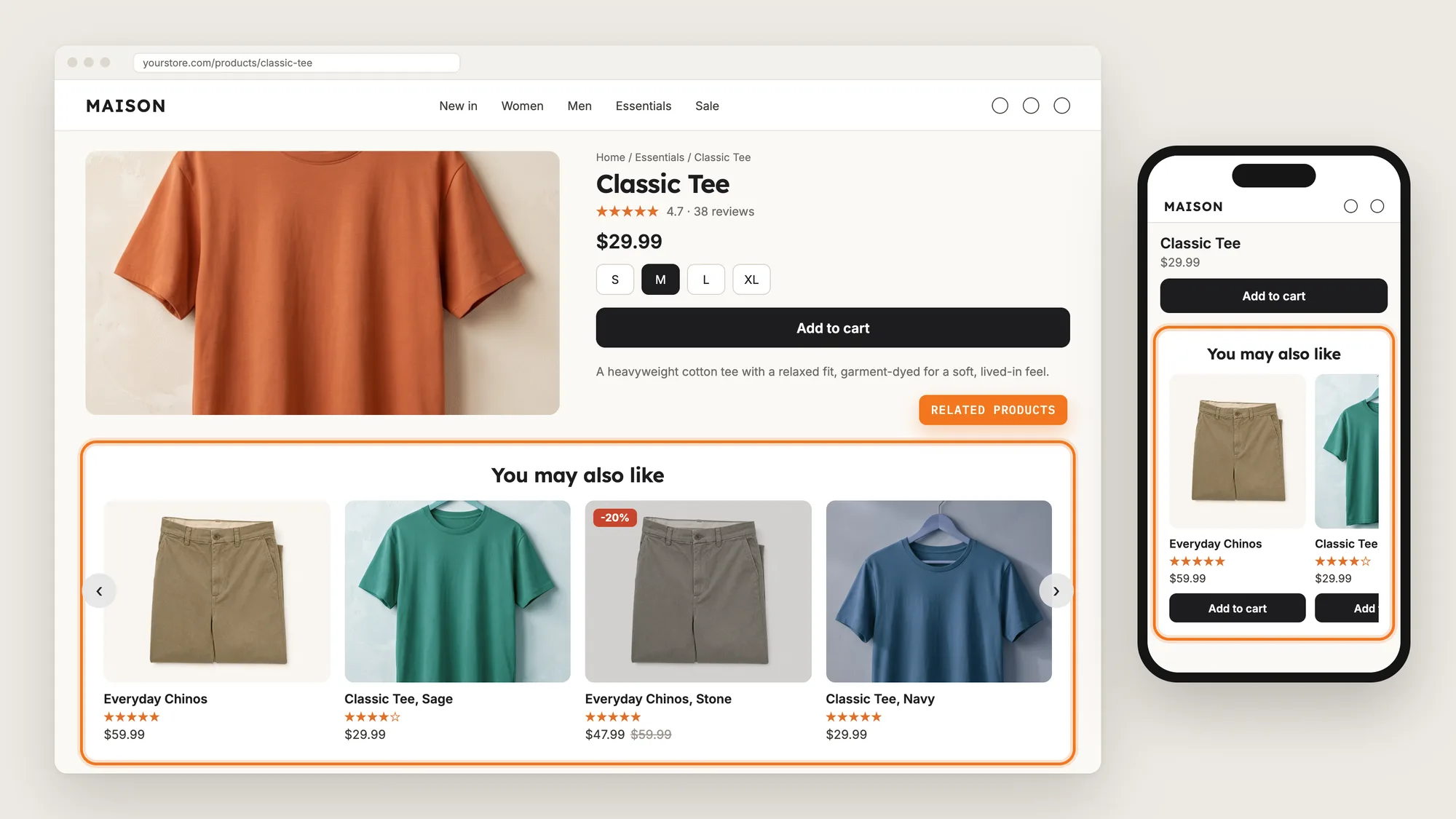
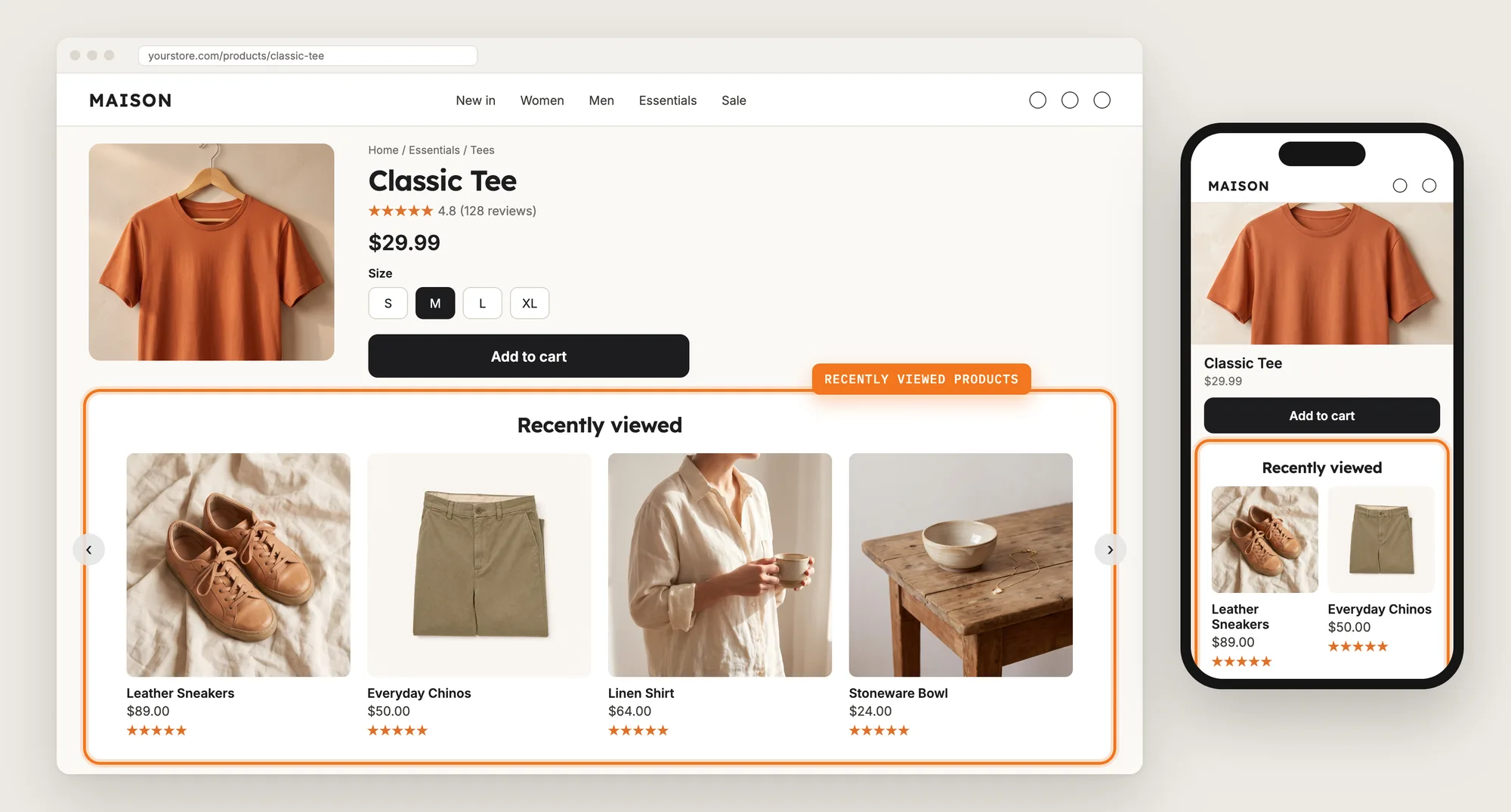
Recently viewed products are a carousel of the products a shopper has already looked at on your store, shown again on later pages. Each shopper sees their own browsing history, so the carousel fills itself with no products to pick.
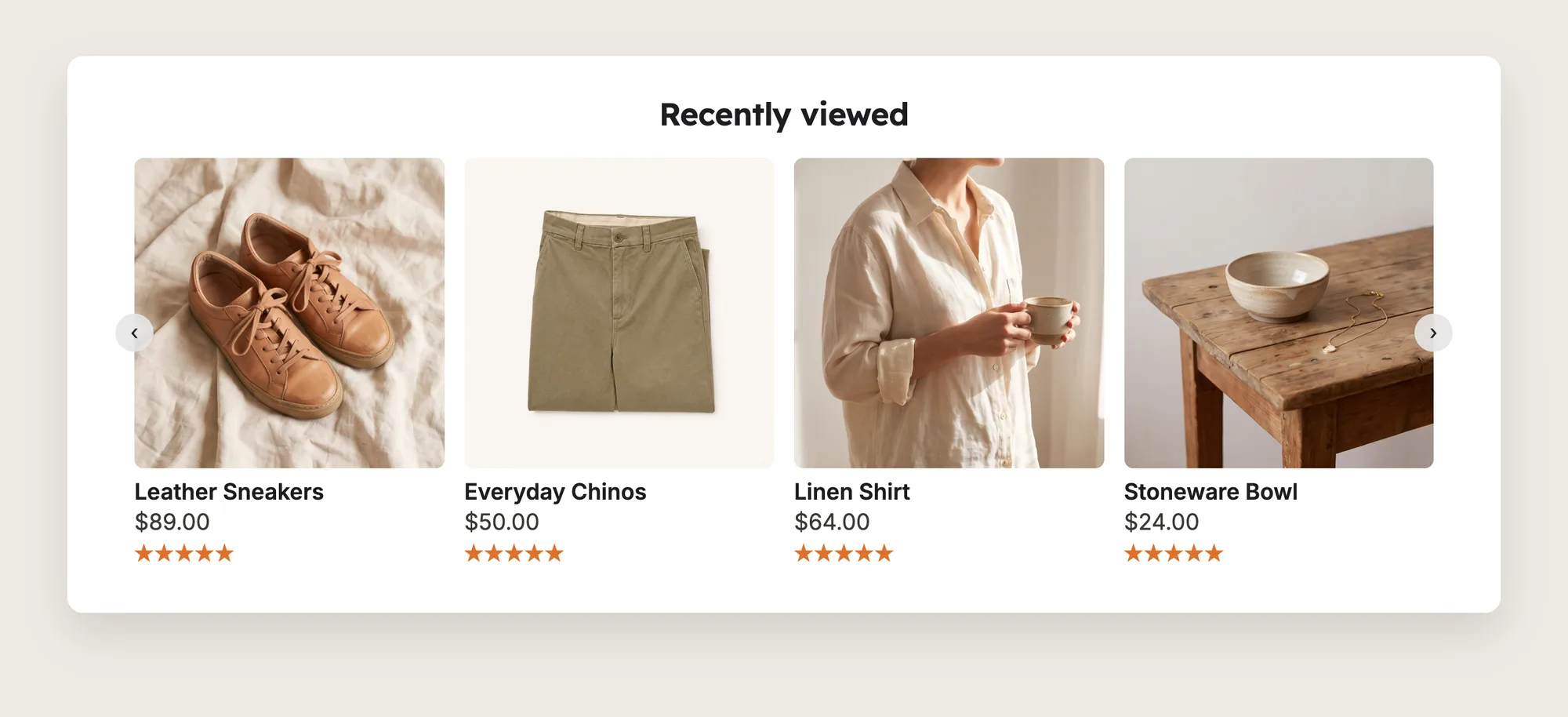
A good recently viewed products carousel includes:
- Product cards: Each card shows the product image, title and price, so shoppers can tell the products apart at a glance.
- Add to cart on the card: Shoppers can add a product from the carousel without opening its page again.
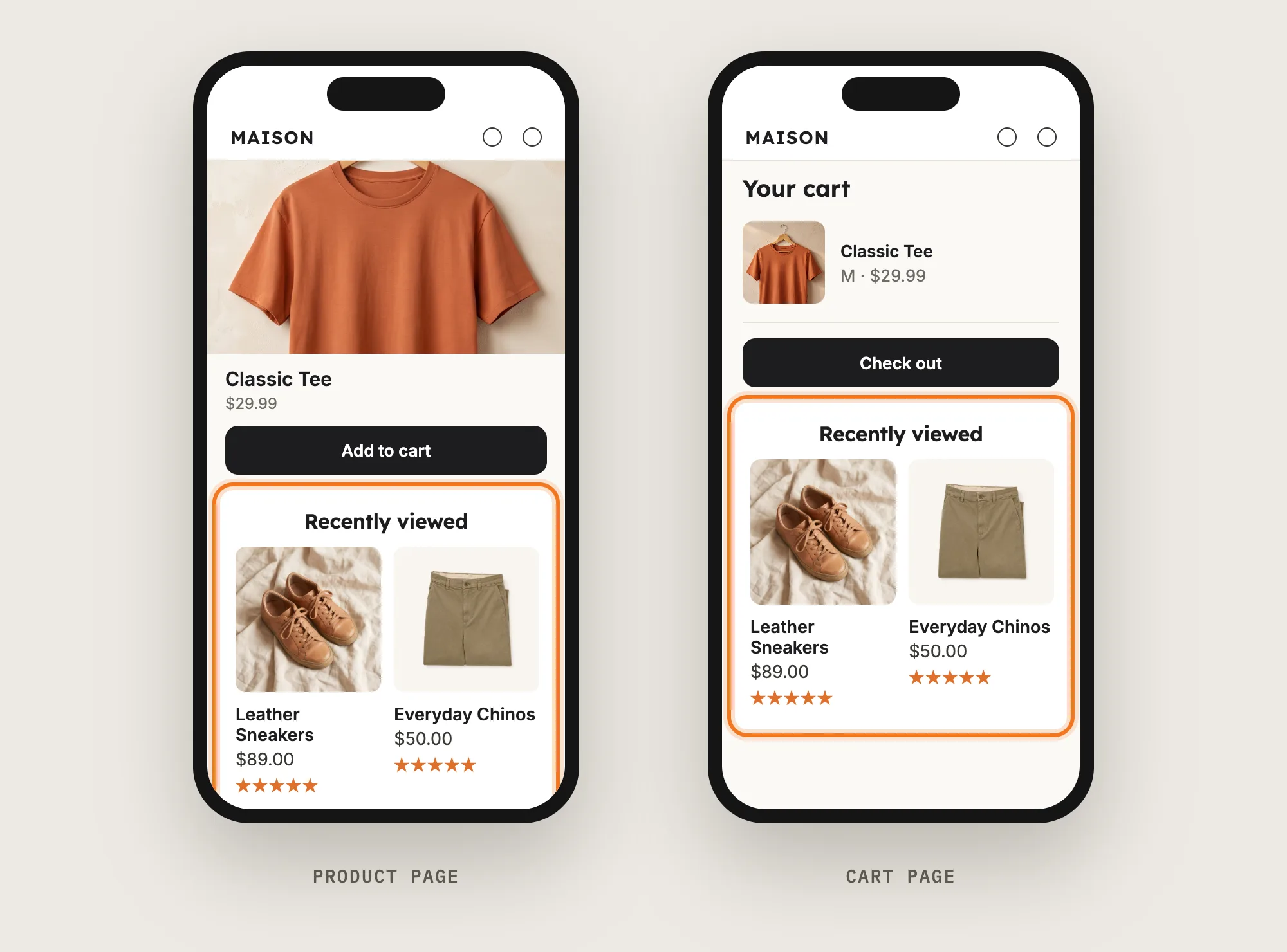
- Product page and cart placement: The carousel shows below the product on product pages and on the cart page.
- A look that matches the theme: The heading, card style and image shape can match the rest of your store.
Recently viewed products show only the products the shopper viewed, with the product on screen left out.
What's the Quickest Way to Add Recently Viewed Products?
- Vitals - All in One App is the quickest way to add recently viewed products for most stores
- Vitals also offers 40+ apps, such as related products, wishlist and product reviews, in one subscription of $29.99/month, so you don't have to install and pay for each app separately
Here's how the three methods compare. If you'd rather weigh several cross-sell apps against each other, see our list of the best related products apps for Shopify.
How to Add Recently Viewed Products With a Recently Viewed App?
Install the Vitals - All in One App, open its Recently Viewed app and click Activate app. Recently viewed products then show on your product pages and cart page, and the steps below set the heading, the cards and the carousel.
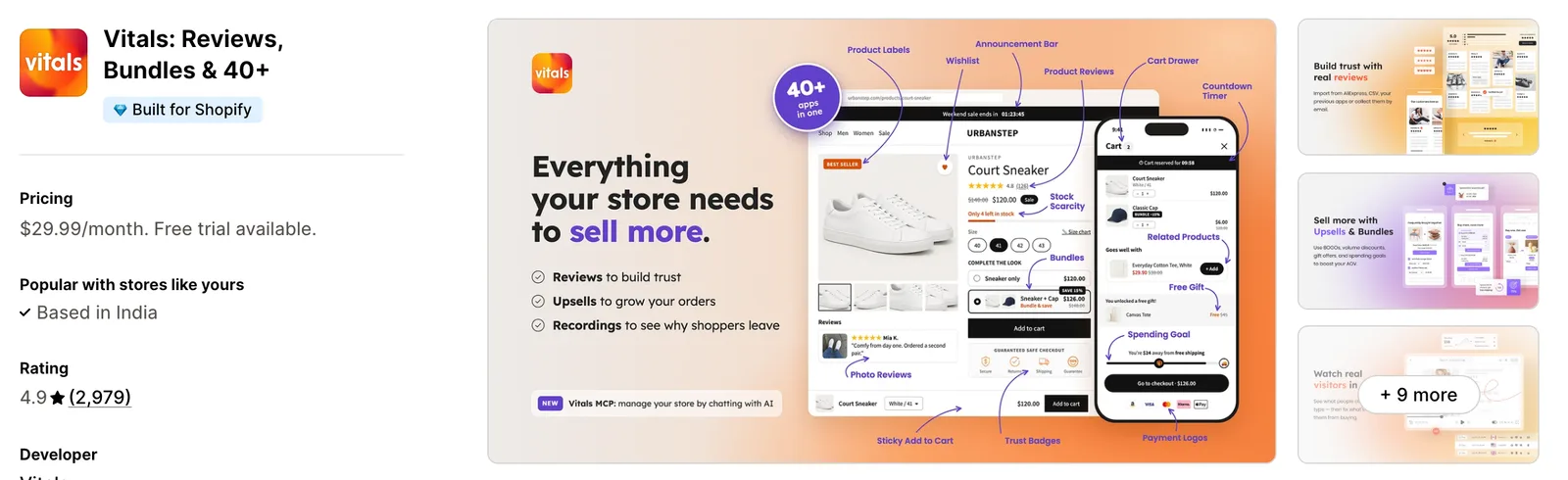
Step 1: Find Vitals on the Shopify App Store
Install the Vitals - All in One App from the Shopify App Store. The 7-day free trial includes the Vitals Recently Viewed app.
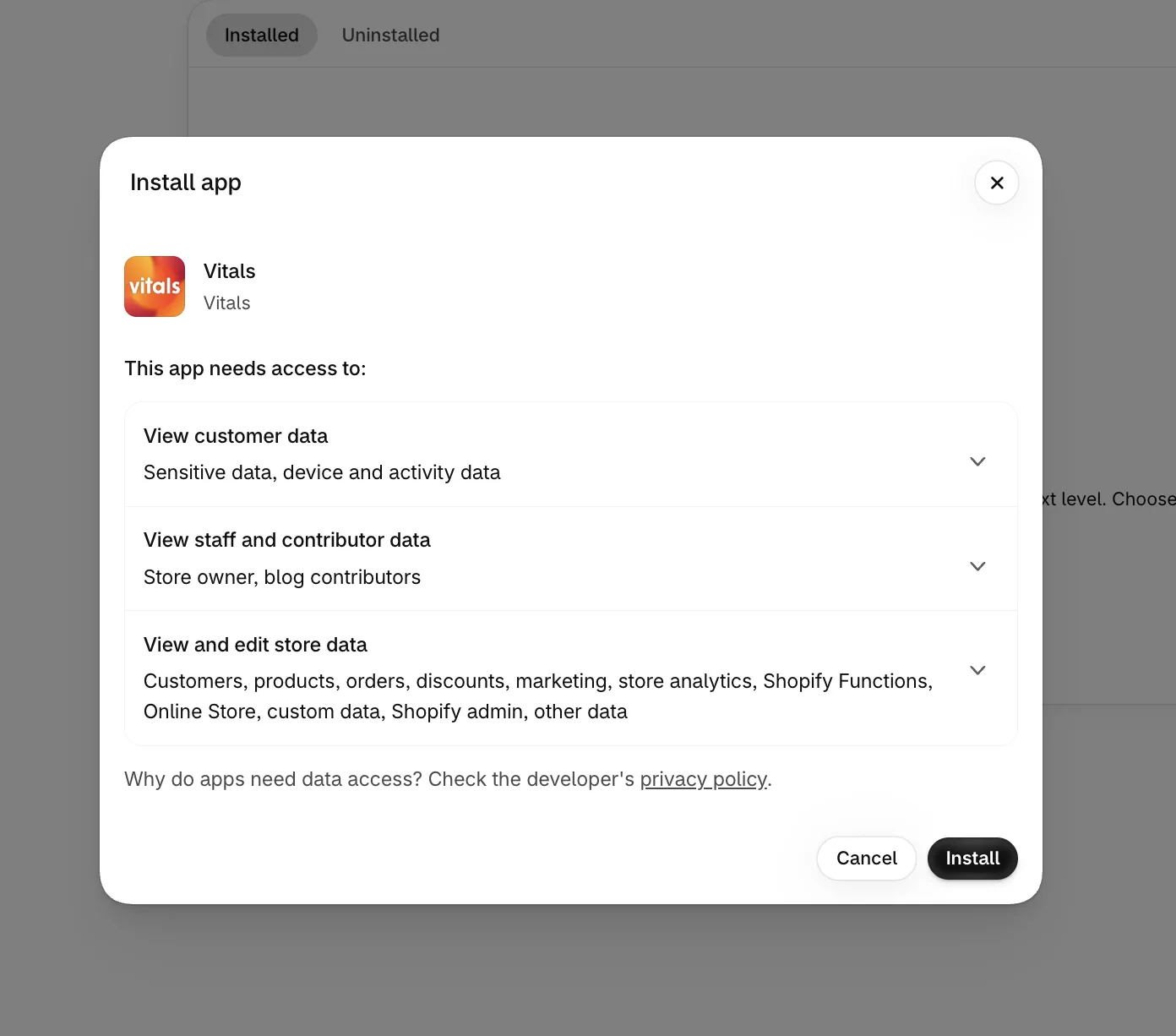
Step 2: Accept the Install in Shopify
Approve the data Vitals needs by clicking Install. The Vitals dashboard opens right after.
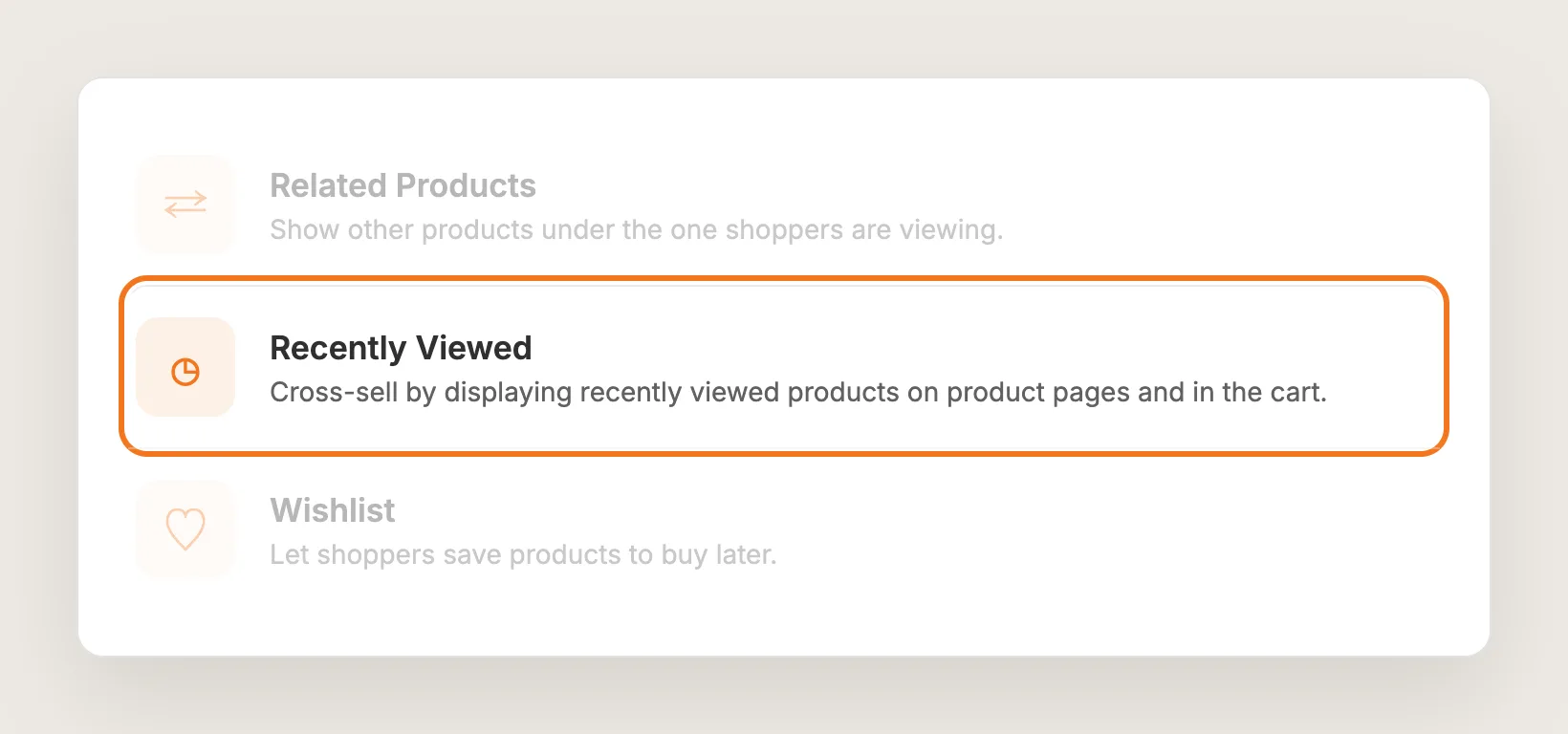
Step 3: Open Recently Viewed
In the Vitals dashboard, find Recently Viewed in the list of apps and click it.
Step 4: Turn On Recently Viewed
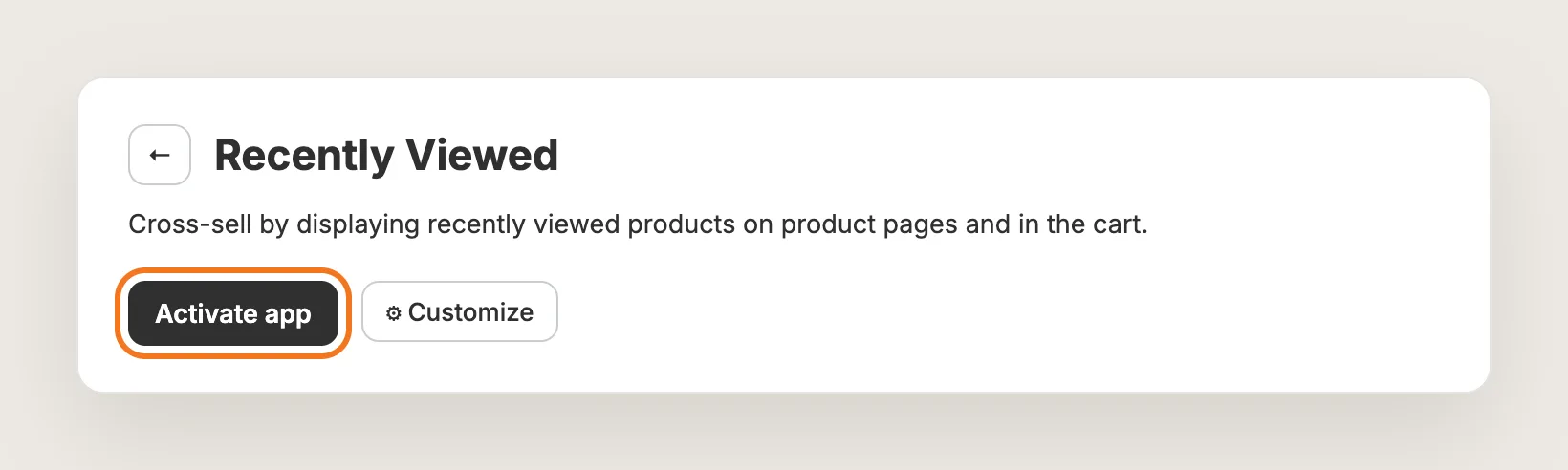
On the Recently Viewed page, click Activate app. The app starts remembering the products each shopper views and shows them in the carousel. Customize opens the settings used in the steps below.
Step 5: Choose the Pages That Show the Carousel
In General settings, Show recently viewed products on the Product page and Show recently viewed products on the Cart page are both on by default. Turn one off to remove the carousel from that page.
To move the carousel on the product page, open Position and change Location and Position under Automatic placement. To show the carousel on your homepage, open the Shopify theme editor and add the Recently Viewed app block to the home page.
Step 6: Write the Carousel Heading
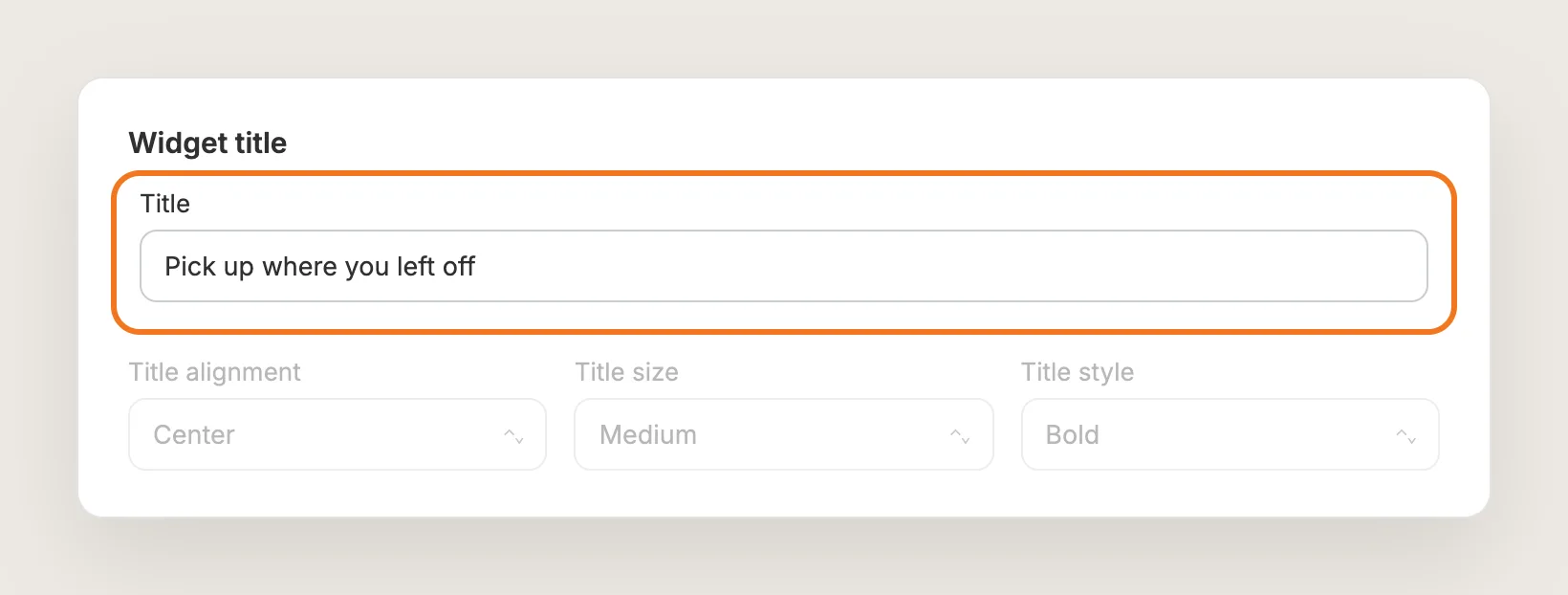
In Widget title, write the Title that shows above the carousel, such as "Pick up where you left off". Title alignment, Title size and Title style set how the heading looks.
Step 7: Pick a Card Style
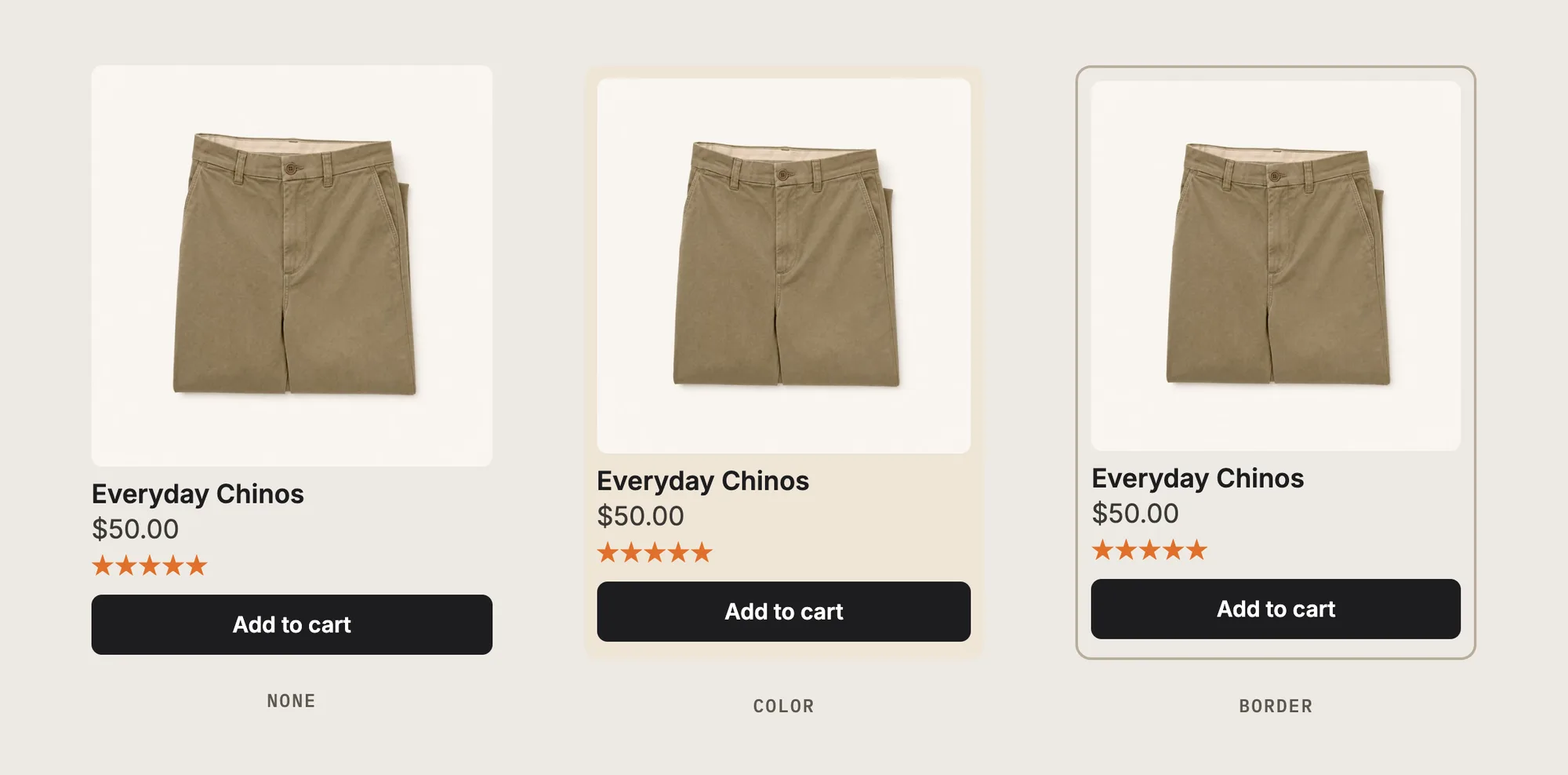
In Product card, Card style has three options:
- None: The default, with no background behind the card
- Color: A card with your own background and text color
- Border: An outlined card with your own border color
Color and Border cards also take a Card corner radius. The same section sets the Image aspect ratio (Original, Square, Portrait or Landscape), the number of title rows, and Show second image on hover, which shows the product's second image when a desktop shopper hovers over the card.
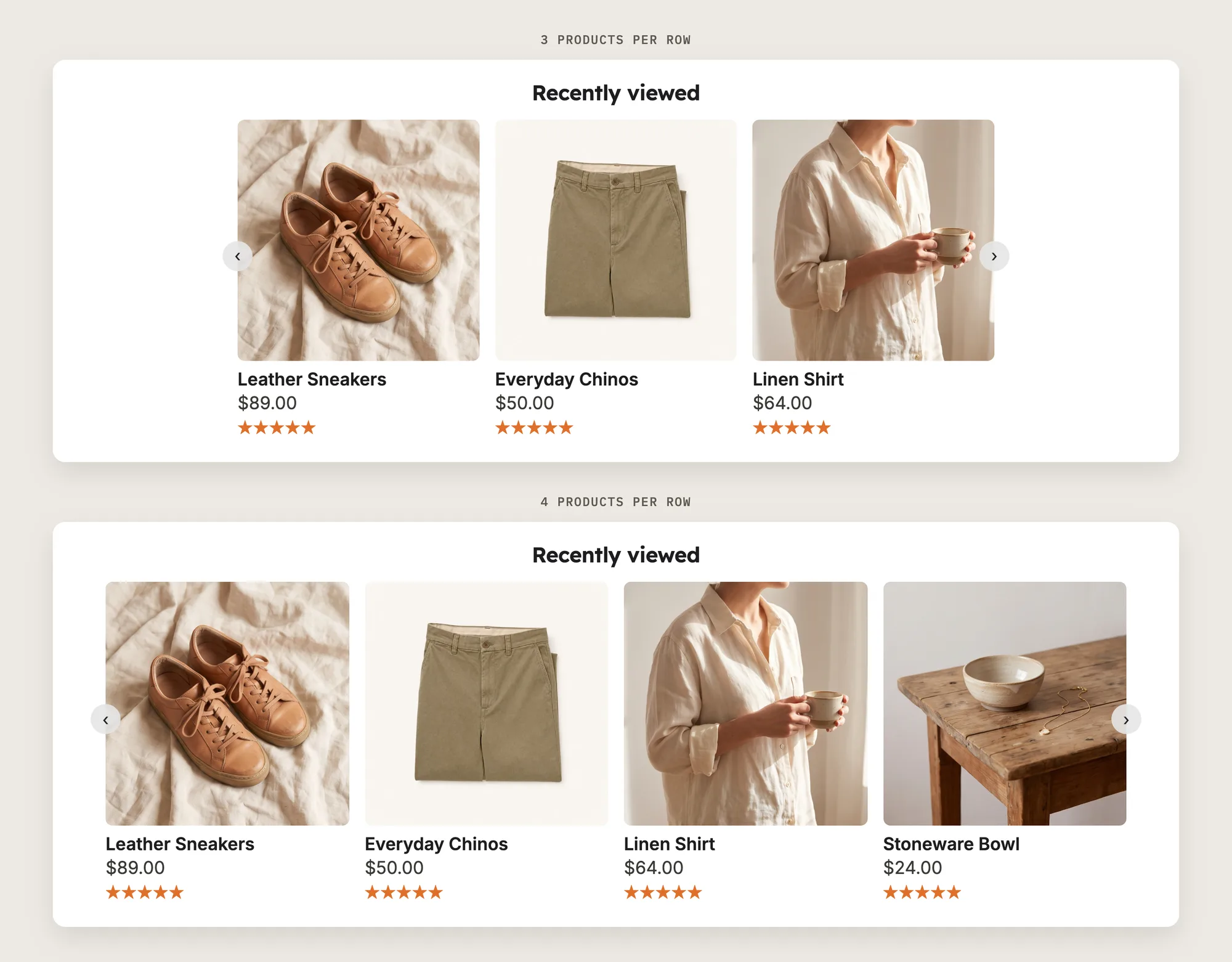
Step 8: Set How Many Products Show per Row
In Carousel, Maximum number of products per row can be Auto, 3 or 4. Card gap (desktop) sets the space between cards, from 16 to 40px, and Widget max width sets the carousel's width, from 1000 to 2000px. Carousel arrows sets the arrow style.
Step 9: Choose What Each Card Shows
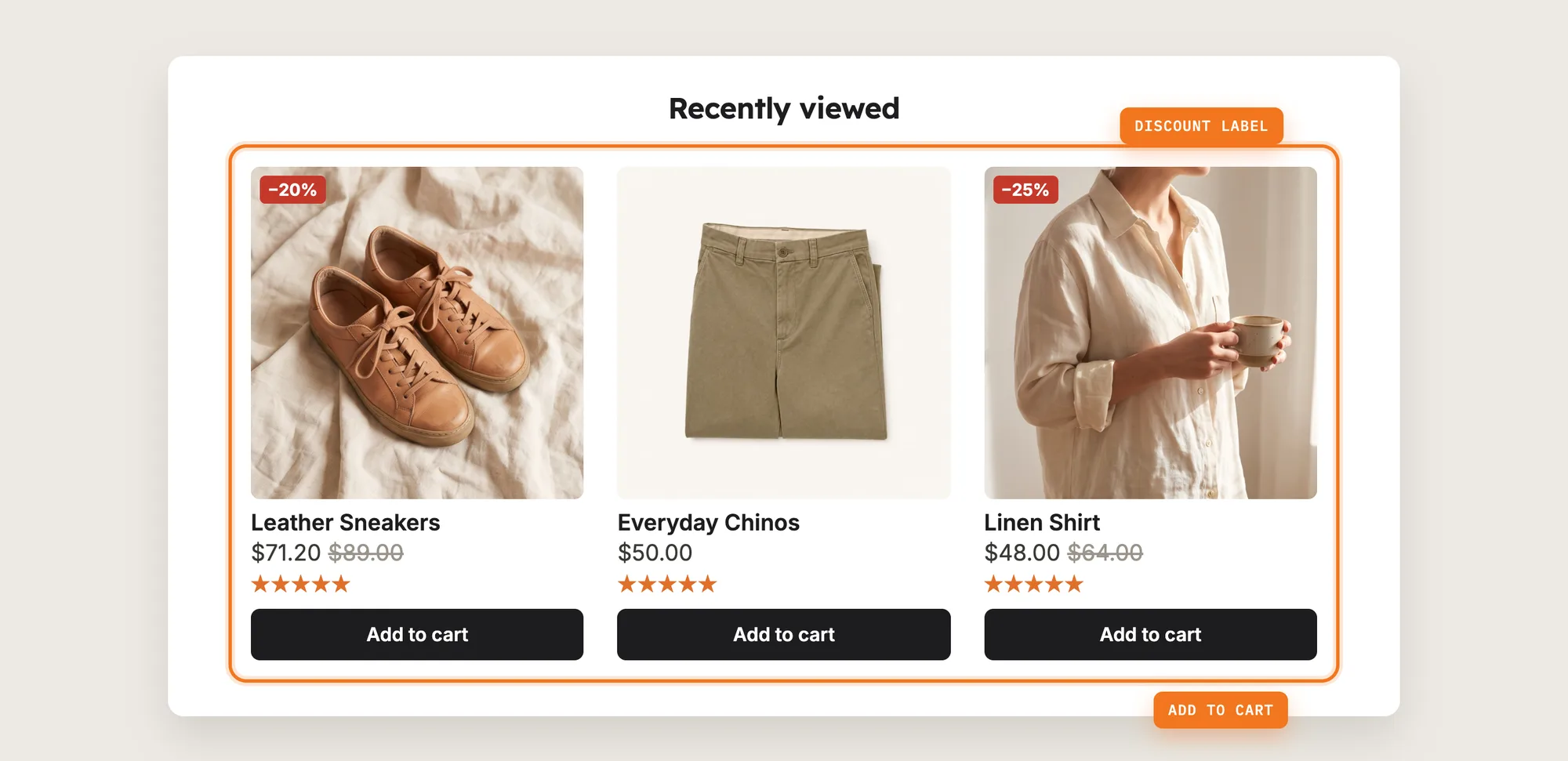
In Visibility, turn on the extras you want on each card:
- Let customers add to cart from the widget: Adds a variant selector and an Add to cart button to every card
- Show the discount label: Shows how much a product is marked down, with its own colors, position and shape
- Show compare-at price: Shows the original price struck through next to the current price
- Show Product Reviews star ratings: Shows stars from the Vitals Product Reviews app
- Hide out of stock products: Keeps sold-out products out of the carousel
With a Color or Border card, the variant selector and button become one button: Add to cart for products with one variant, or Choose options for products with variants, which opens a quick-add window.
Step 10: Limit the Carousel to Certain Products (Optional)
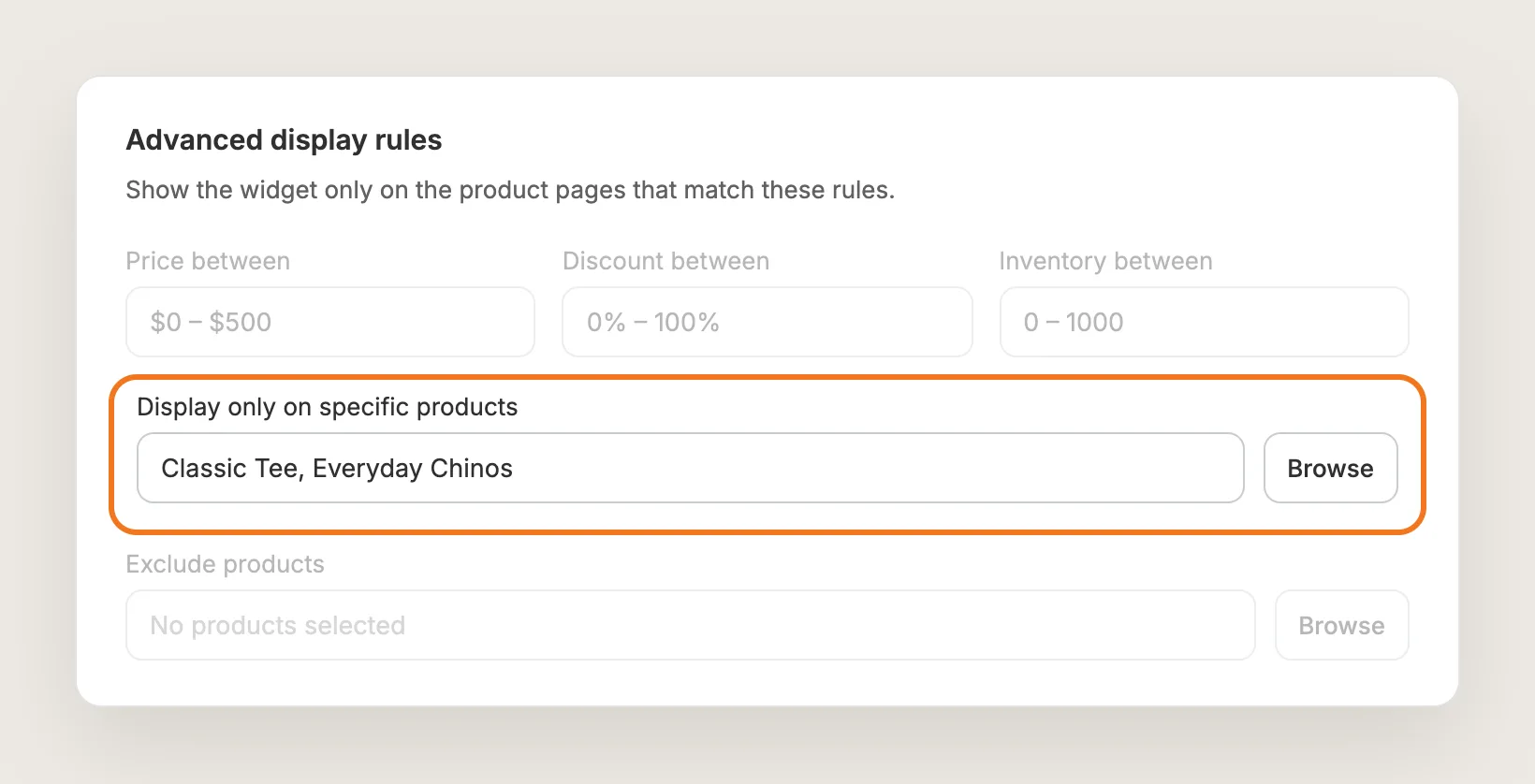
The carousel shows on every product page by default. Expand Advanced display rules to choose which product pages show the carousel:
- Show the carousel only when the product's Price between, Discount between or Inventory between falls in a range you set
- Show the carousel only on chosen products with Display only on specific products, or hide the carousel on chosen products with Exclude products
Display rules choose the pages that show the carousel, not the products inside it.
Step 11: Save, Test on Your Phone and Watch the Clicks
Save, then open three or four products on your phone and on desktop. Check that the products you opened appear in the carousel on the next product page and on the cart page, and that the Add to cart button adds the right variant.
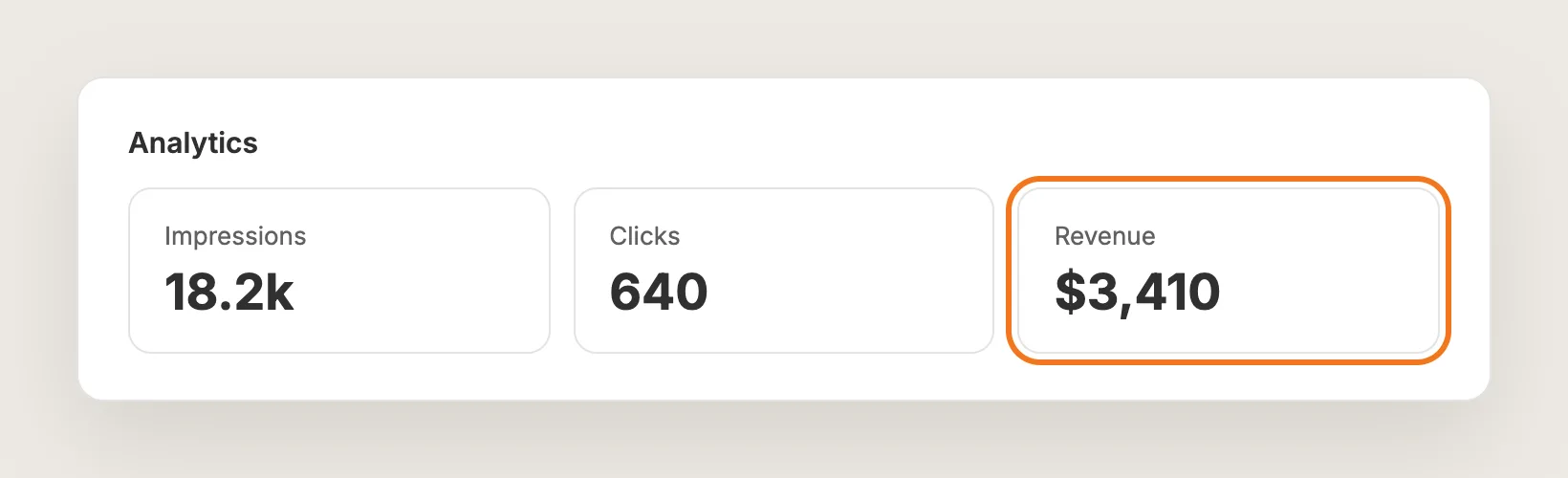
The Analytics tab then shows how often shoppers see and click the carousel, and the revenue the carousel helps bring in.
Step 12: Voila, Your Recently Viewed Products Are Live on the Store
Your shoppers now see the products they looked at on every product page and in the cart, so they can get back to any product in one click.
How to Add Recently Viewed Products From Your Theme Settings?
Some Shopify themes, mostly paid themes, include a recently viewed products section. To check your theme:
- Go to Online Store → Themes and click Customize on your live theme
- Choose a product page from the top page menu
- Click Add section and look for a "Recently viewed" or "Recently viewed products" section
If you find a recently viewed products section, add the section below the product and test it on your phone. A theme's built-in recently viewed section is usually simpler than an app, often with no cart page placement, no add to cart button on the cards and no click tracking. If your theme's recently viewed section has everything you need, you may not need an app at all.
How to Add Recently Viewed Products Without an App?
Hire a developer to build recently viewed products into your theme with Liquid, CSS and JavaScript. A script saves each product the shopper opens in the browser, then loads those products into a carousel on later pages.
A custom recently viewed carousel usually involves:
- Testing the code on a duplicate theme, not the live theme
- Writing a script that saves the handle of each product the shopper views in the browser
- Fetching each saved product's image, title and price from Shopify on later pages
- Building the carousel layout for mobile and desktop
- Waiting for cookie consent where your store's privacy rules need it, then publishing the theme copy
Custom code means no extra app, but you or your developer have to maintain it. A theme update can replace the files the code is in, so the carousel may need rebuilding after each update. Add to cart buttons, sold-out filtering and click tracking all have to be built by hand too.
How to Increase Sales With Recently Viewed Products?
Recently viewed products drive sales when a shopper can buy a product from the carousel the moment they remember it, so most of the gain comes from what the cards show and where the carousel appears.
- Let shoppers add to cart from the carousel. A shopper who has already looked at the product doesn't need its page again. Turn on Let customers add to cart from the widget
- Keep the carousel on the cart page. A shopper at the cart is about to pay, and a product they looked at earlier can join the same order. Keep Show recently viewed products on the Cart page on
- Show the markdown on sale products. A product the shopper skipped at full price can look different with the saving in view. Turn on Show the discount label and Show compare-at price
- Show review stars on the cards. Stars remind shoppers why a product caught their eye. Turn on Show Product Reviews star ratings, which needs the Vitals Product Reviews app
- Hide sold-out products. A card a shopper can't buy takes a spot from one they can. Turn on Hide out of stock products
- Write a heading that says what the carousel is. A heading such as "Pick up where you left off" tells shoppers these are their own products. Change the Title in Widget title
Why Aren't My Recently Viewed Products Showing or Working?
Most recently viewed problems come from one of these:
- The carousel doesn't show at all: Check that the app is activated, and that Show recently viewed products on the Product page or Show recently viewed products on the Cart page is on for the page you're testing
- The carousel is empty on the first product: The carousel shows products the shopper viewed before, with the current product left out. Open two or three other products first, then check again
- Some shoppers never see the carousel: Where a cookie consent banner applies, Recently Viewed records and shows products only after the shopper accepts tracking
- The carousel doesn't show on the homepage: There is no homepage switch in General settings. Add the Recently Viewed app block to the home page in the Shopify theme editor
- Only a few products show: The carousel remembers the last 6 products a shopper viewed in that browser, so up to 5 show on a product page and up to 6 on the cart page. Maximum number of products per row changes the products per row, not the total
- A product I want to hide still shows: There's no setting to exclude products from the carousel. Hide out of stock products removes sold-out products, and Advanced display rules only choose which pages show the carousel
- A new setting seems to do nothing: Check your theme's custom CSS first, since an older CSS snippet that styles the same thing wins over the setting
Which Recently Viewed Products Method Should You Choose?
Vitals - All in One App suits most stores, but the right method depends on your theme and what you want the carousel to do.
- Choose Vitals - All in One App if you want recently viewed products on product and cart pages, with add to cart on every card and click tracking. Vitals also includes 40+ other apps in one subscription of $29.99/month, so you don't have to install and pay for each app separately
- Choose your theme's setting if your theme already includes a recently viewed section and you only need it on product pages
- Choose custom code if you have a developer and don't mind fixing the code after theme updates
If you already use another cross-sell app, see our Wiser alternatives, K Cross-sell alternatives and Tipo Related Products alternatives.
Start a 7-day free trial: Install the Vitals - All in One App and show recently viewed products
Frequently Asked Questions
1. What is the best way to add recently viewed products to Shopify?
Vitals - All in One App is the best way for most stores. It adds recently viewed products to product pages and the cart page without code, with add to cart on every card, review stars and click tracking.
2. Does Shopify have built-in recently viewed products?
No, Shopify doesn't include recently viewed products as a store-wide feature. Some themes include a recently viewed section, mostly paid themes. If your theme has no recently viewed section, you'll need an app or custom code.
3. How many recently viewed products can the carousel show?
The Vitals Recently Viewed app remembers the last 6 products a shopper viewed in that browser. On a product page the current product is left out, so up to 5 show. On the cart page, up to 6 show.
4. Can I show recently viewed products on the homepage?
Yes. On an Online Store 2.0 theme, open the Shopify theme editor, go to the home page and add the Recently Viewed app block. On older themes, use the homepage placement under Position in the app settings.
5. Can customers add a product to the cart from the carousel?
Yes. In Vitals, go to Visibility and turn on Let customers add to cart from the widget. Each card then gets a variant selector and an Add to cart button.
6. Why don't some shoppers see recently viewed products?
Where a cookie consent banner applies, the app waits until the shopper accepts tracking before it records and shows viewed products. A shopper who declines or ignores the banner doesn't see the carousel.
7. Can I hide certain products from the recently viewed carousel?
You can hide sold-out products with Hide out of stock products in Visibility. There's no setting to exclude other products, since the carousel shows the products each shopper actually viewed.