How to Add Product Reviews to Shopify

Shoppers can't hold the product before they buy it, so they look for what other customers said about it. A product page with no reviews gives them nothing to go on, and many leave to check the product somewhere else.
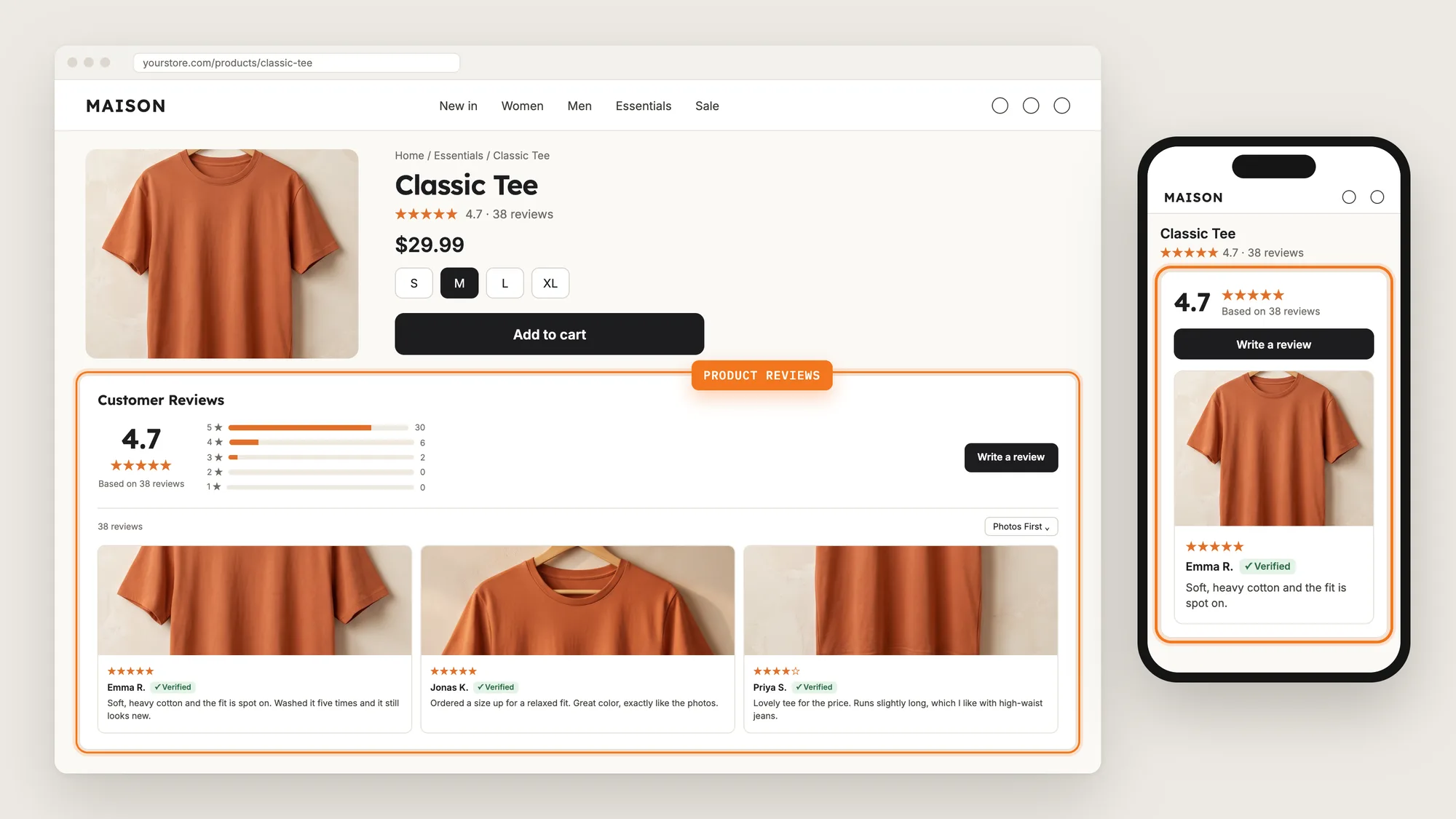
Product reviews put that proof on the page, with a star rating under the product name, an average score, and reviews with photos from people who bought the product.
Here are the three ways to add product reviews to a Shopify store: with a Product Reviews app, from your theme settings, or with custom code.
What Are Product Reviews?
Product reviews are ratings and written feedback from customers, shown on the product page and across the store. Each review has a star rating, the reviewer's name and the review text, often with a photo or video of the product.
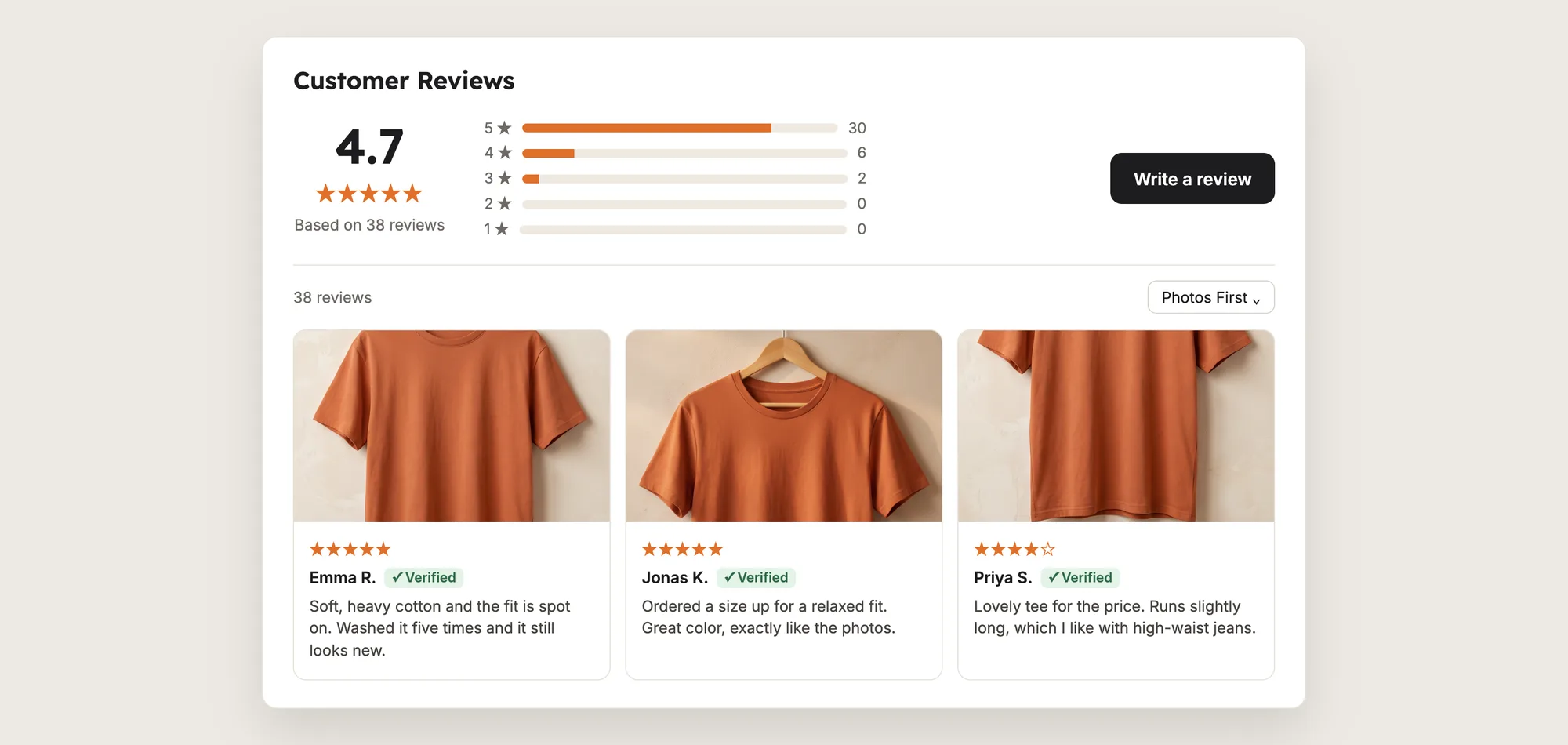
A good product reviews widget includes:
- An average rating: Shoppers see the overall score and the number of reviews at a glance.
- Rating bars: A bar for each star level shows how the reviews split.
- Photo and video reviews: Pictures from customers show the product in real life.
- A Verified badge: The badge marks reviews from people who bought the product.
Product reviews also show as star ratings under the product name, on collection pages and in Google search results.
What's the Quickest Way to Add Product Reviews?
- Vitals - All in One App is the quickest way to add product reviews to most stores
- Vitals also offers 40+ apps, such as product bundles, trust badges and a sticky add to cart button, in one subscription of $29.99/month, so you don't have to install and pay for each app separately
Here's how the three methods compare. If you'd rather weigh several review apps against each other, see our list of the best review apps for Shopify.
How to Add Product Reviews With a Product Reviews App?
Install the Vitals - All in One App and open its Product Reviews app. Product Reviews is active from the start, so the reviews widget shows on your product pages, and the steps below import your reviews, set the look and start collecting new reviews.
Step 1: Install Vitals and Start the Free Trial
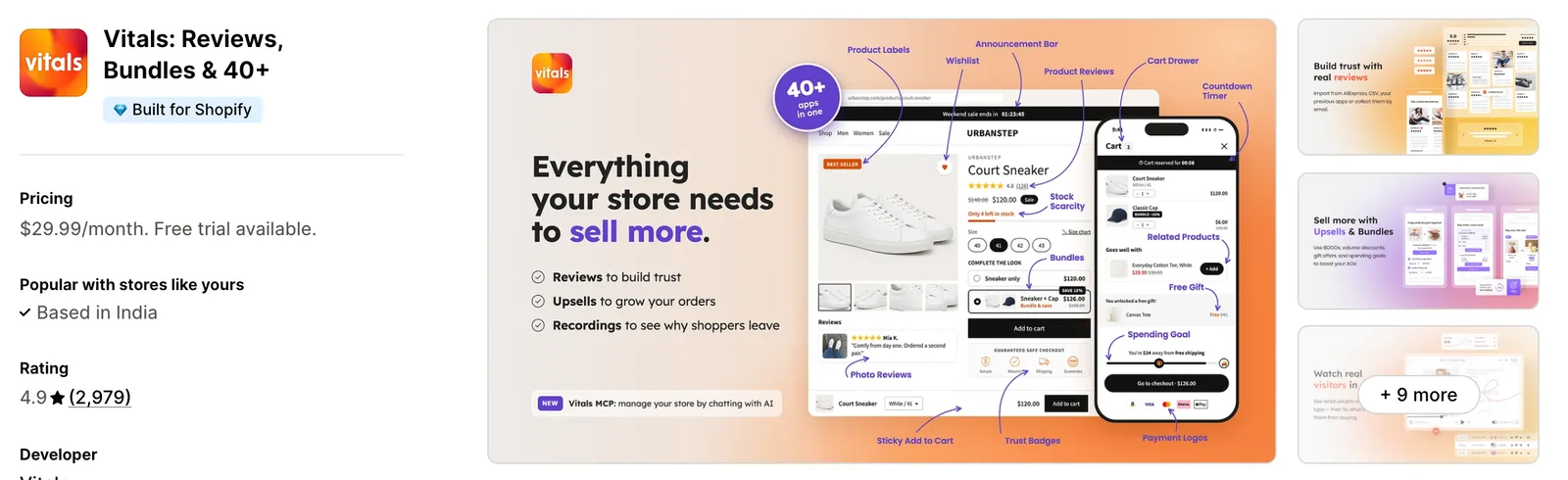
Install the Vitals - All in One App from the Shopify App Store. The 7-day free trial includes the Vitals Product Reviews app.
Step 2: Approve the Vitals Install
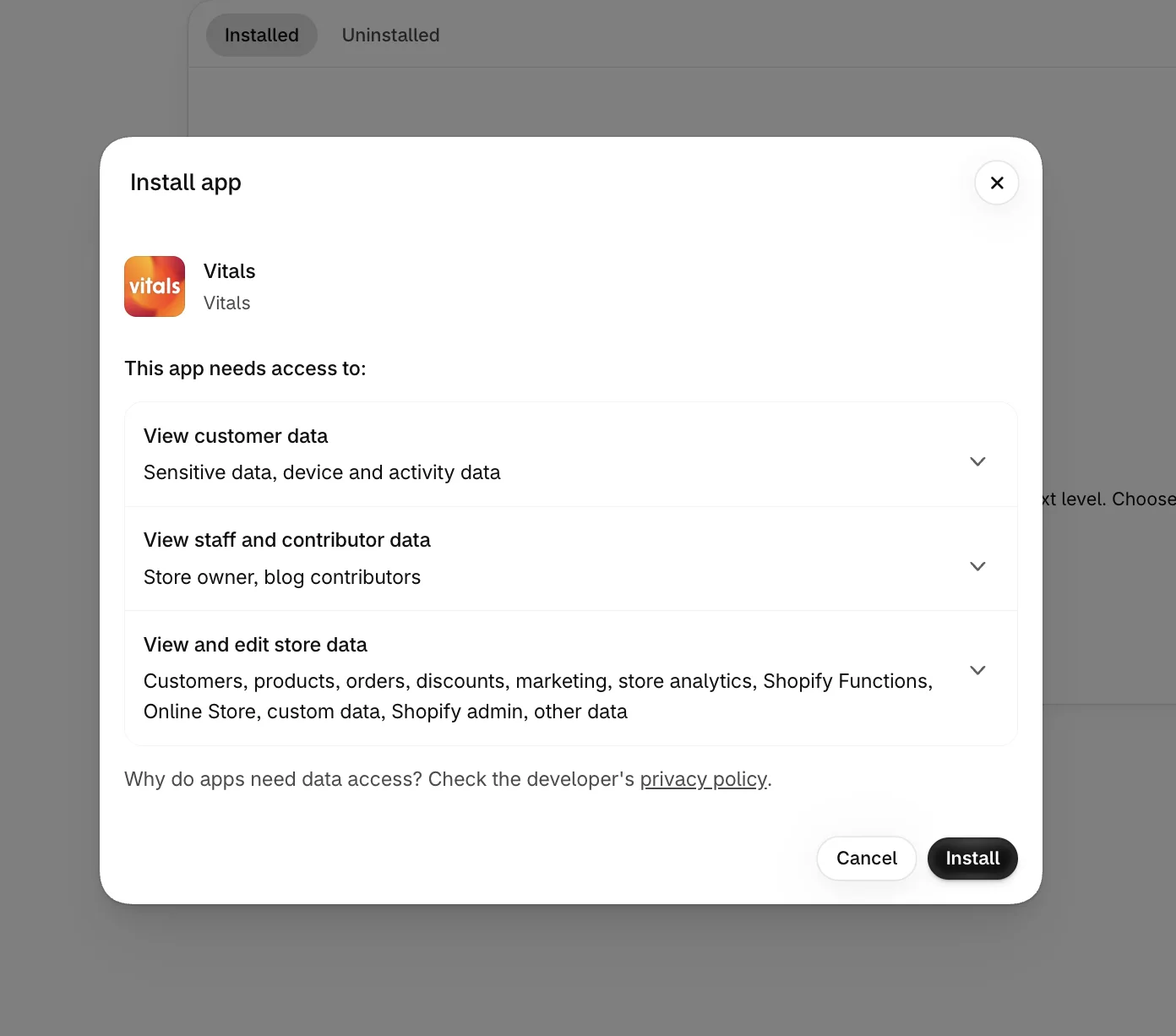
Shopify shows which store data Vitals can use. Click Install, and the Vitals dashboard opens in your Shopify admin.
Step 3: Open Product Reviews
In the Vitals dashboard, find Product Reviews in the list of apps and click it.
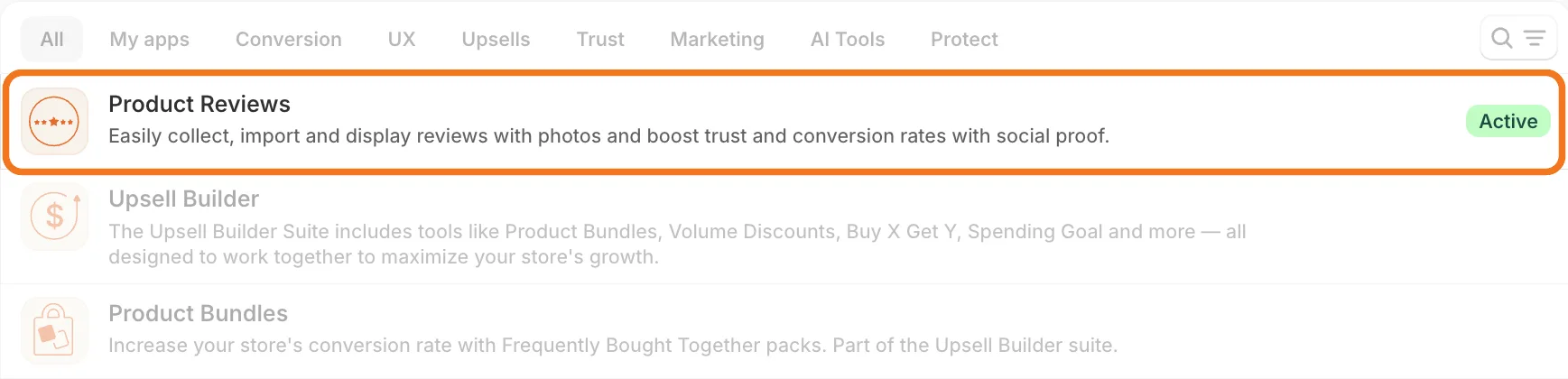
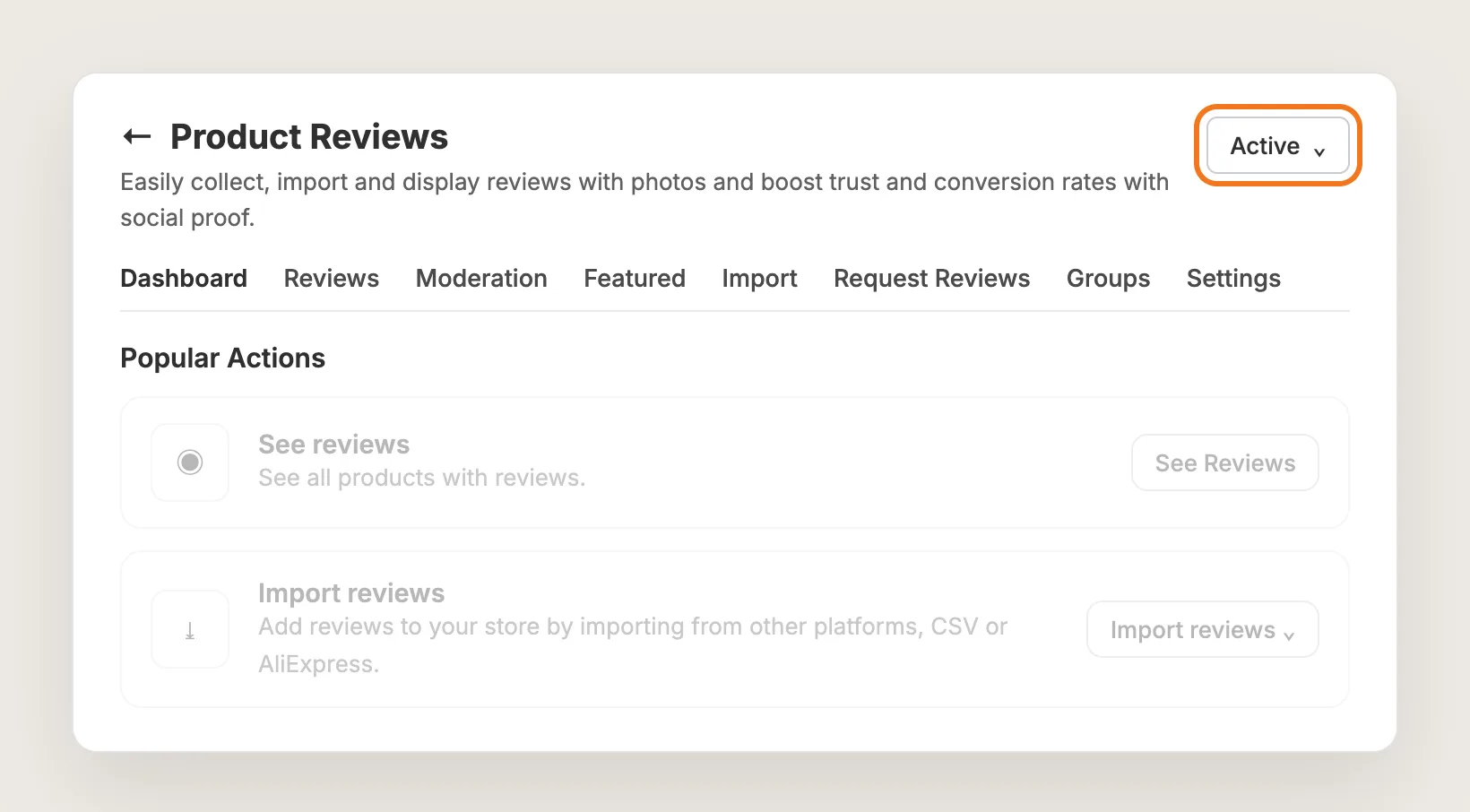
Step 4: Check That Product Reviews Is Active
The dropdown at the top right of the Product Reviews page shows Active, so the reviews widget is already on your product pages. The tabs under it hold everything else: Reviews, Moderation, Import, Request Reviews, Settings and more.
Step 5: Import Your Existing Reviews
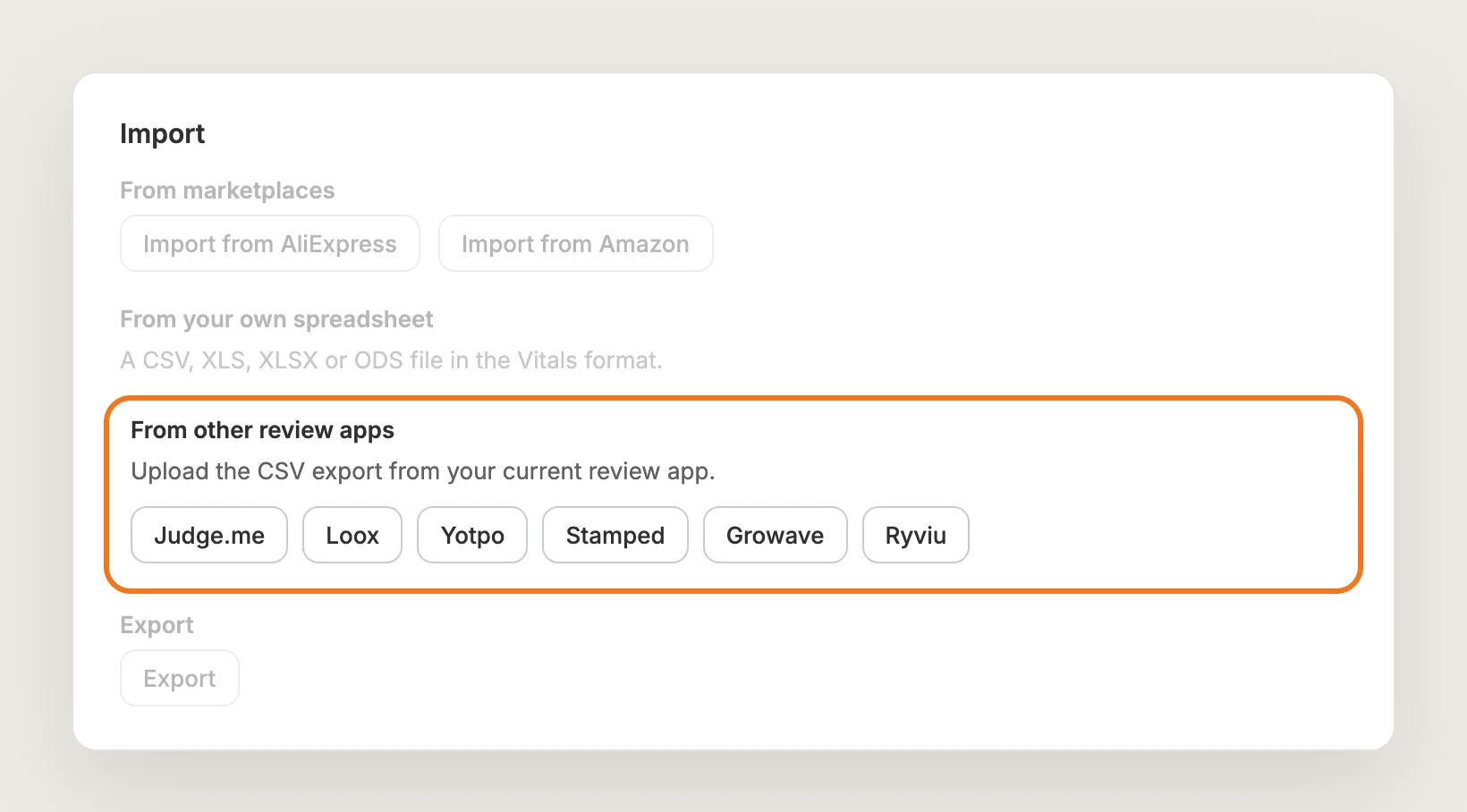
Open the Import tab. Under From other review apps, upload the CSV export from Judge.me, Loox, Yotpo, Stamped, Growave, Ryviu or Shopify Product Reviews. From your own spreadsheet takes a file in the Vitals format, with up to 10,000 reviews per file.
From marketplaces imports reviews from AliExpress and Amazon. Skip this step if your store has no reviews yet; Step 9 starts collecting them.
Step 6: Choose the Reviews Widget Layout
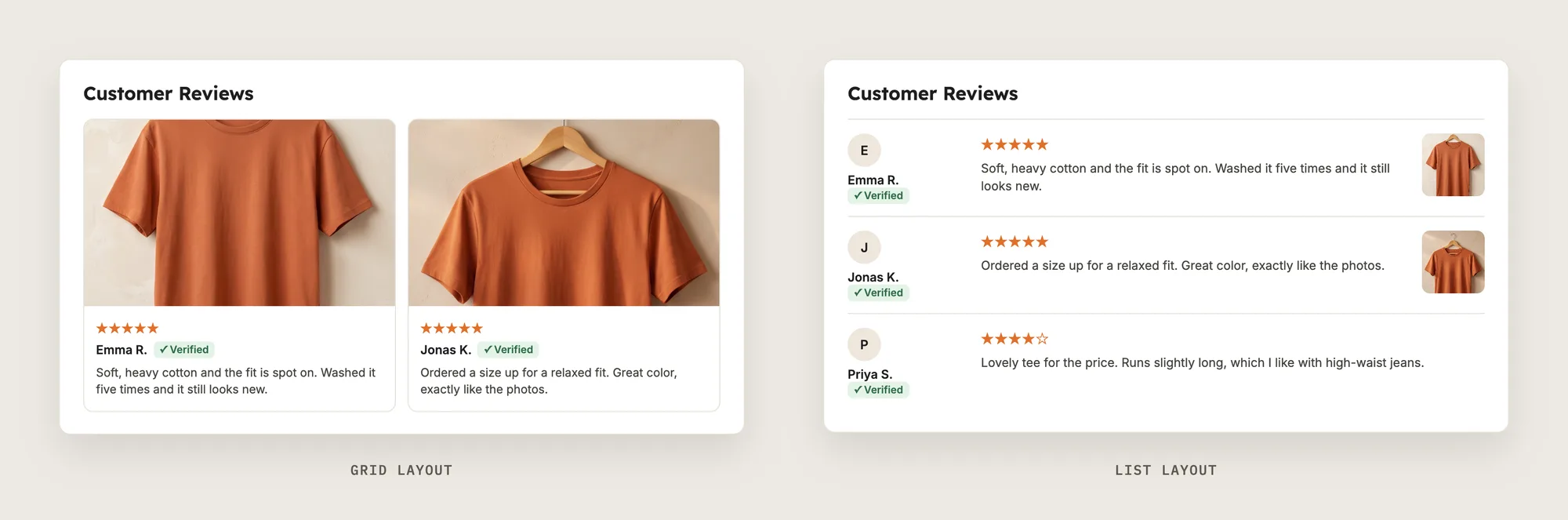
Go to Settings, click Customize on the Reviews Widget card and pick a layout in the Layout card:
- Grid: Shows reviews as cards in columns, with the photo on top
- List: Shows one review per row, with the reviewer's name on the left
- Slider: Shows the reviews in a row that shoppers swipe through
The Global settings card on the same page sets the star shape, the star color and how reviewer names show.
Step 7: Show Star Ratings on Collection Pages
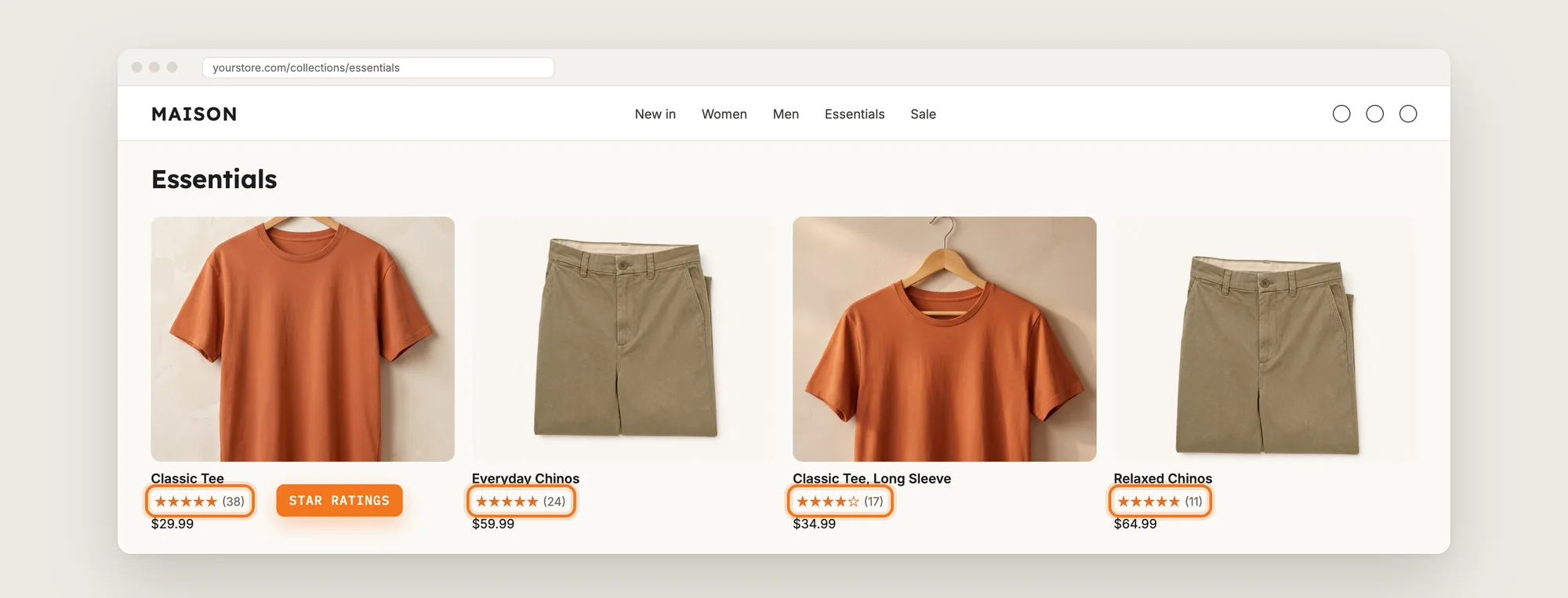
Go to Settings, click Customize on the Star Ratings card and turn on Display stars on homepage and collection pages. Display Star Ratings on product page in the On product page card puts the stars under the product name.
Stars only show on products that have at least one review.
Step 8: Let Customers Add Photos and Videos
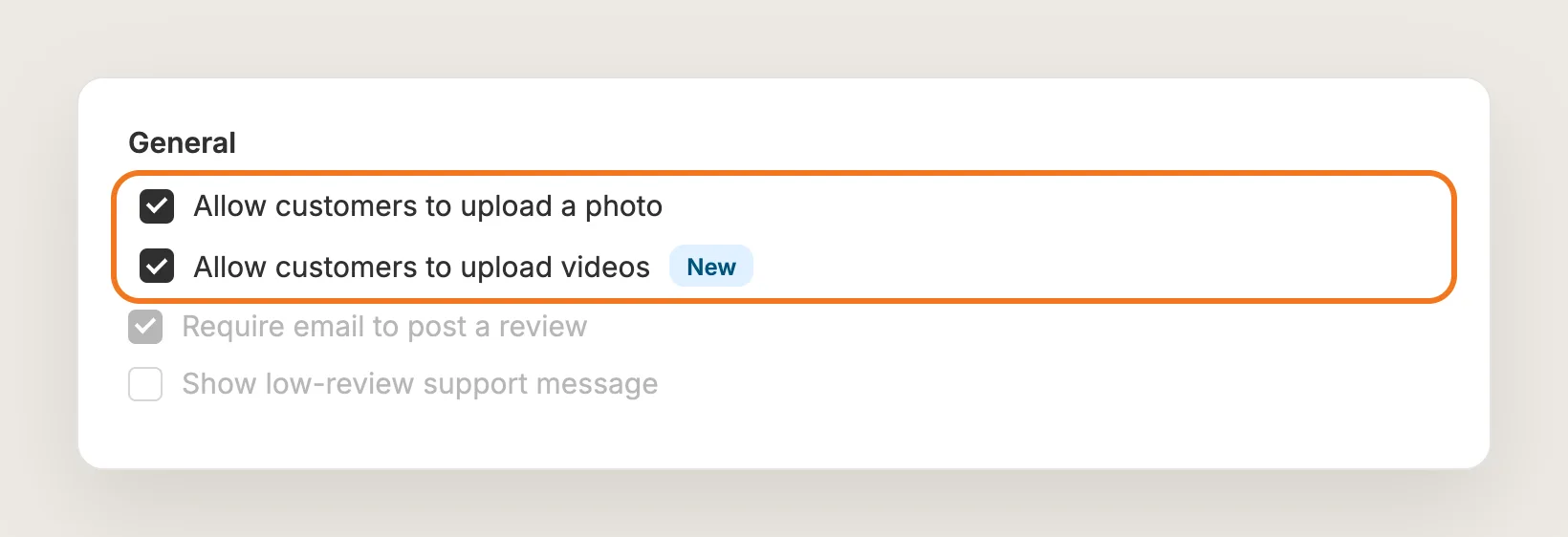
Go to Settings, click Customize on the Write a review card and tick Allow customers to upload a photo and Allow customers to upload videos in the General card. Customers can add up to 5 images to a review, up to 10 MB each.
Step 9: Send Review Request Emails
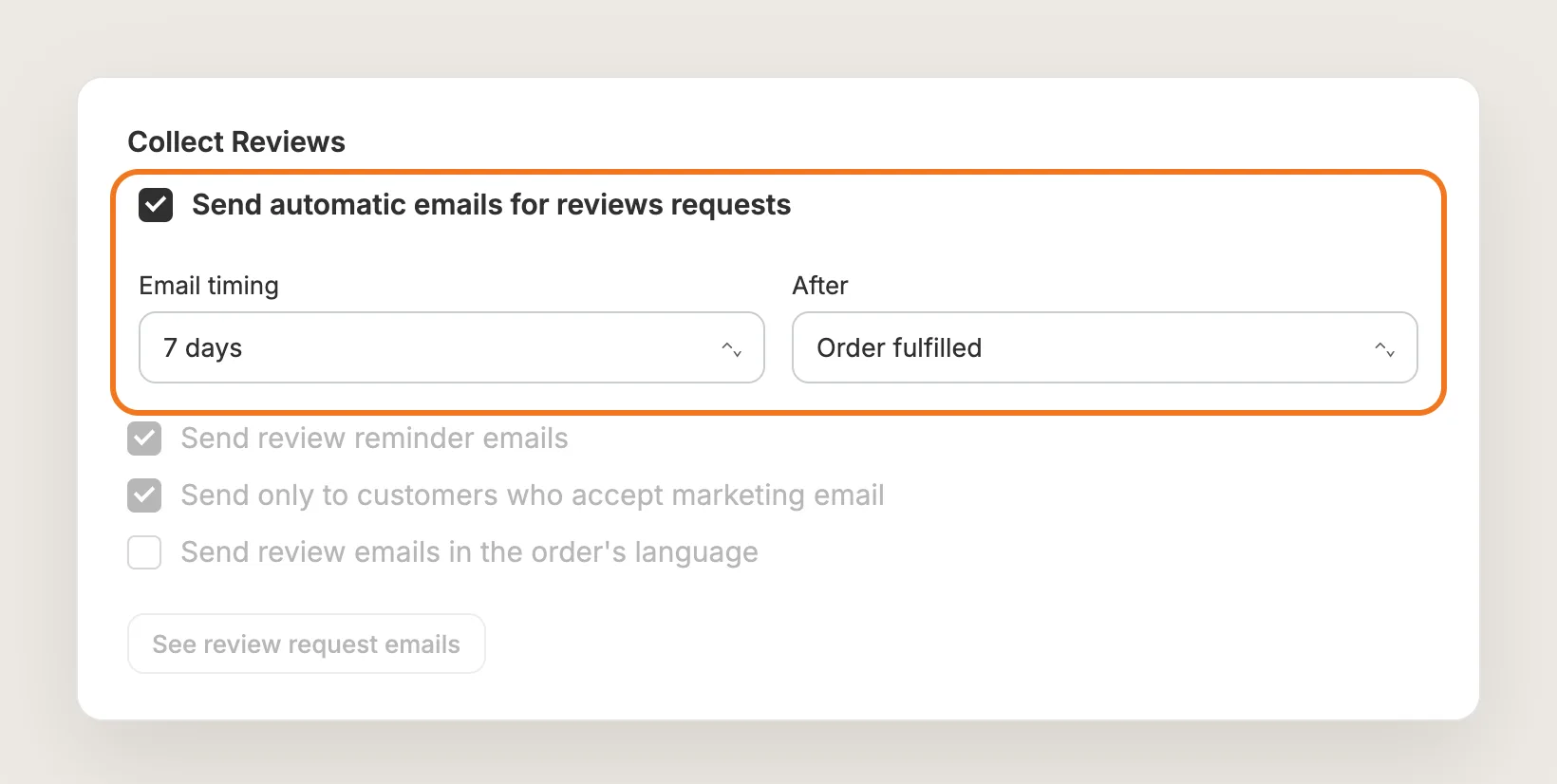
Open the Request Reviews tab. In the Collect Reviews card, set Email timing and After, such as 7 days after Order fulfilled, then tick Send automatic emails for reviews requests. After also offers Purchased and Order delivered.
Tick Send review reminder emails to follow up with customers who haven't reviewed yet, with up to 2 reminders. When you turn the emails on, orders placed in the 30 days before are included.
Step 10: Offer a Discount for Reviews (Optional)
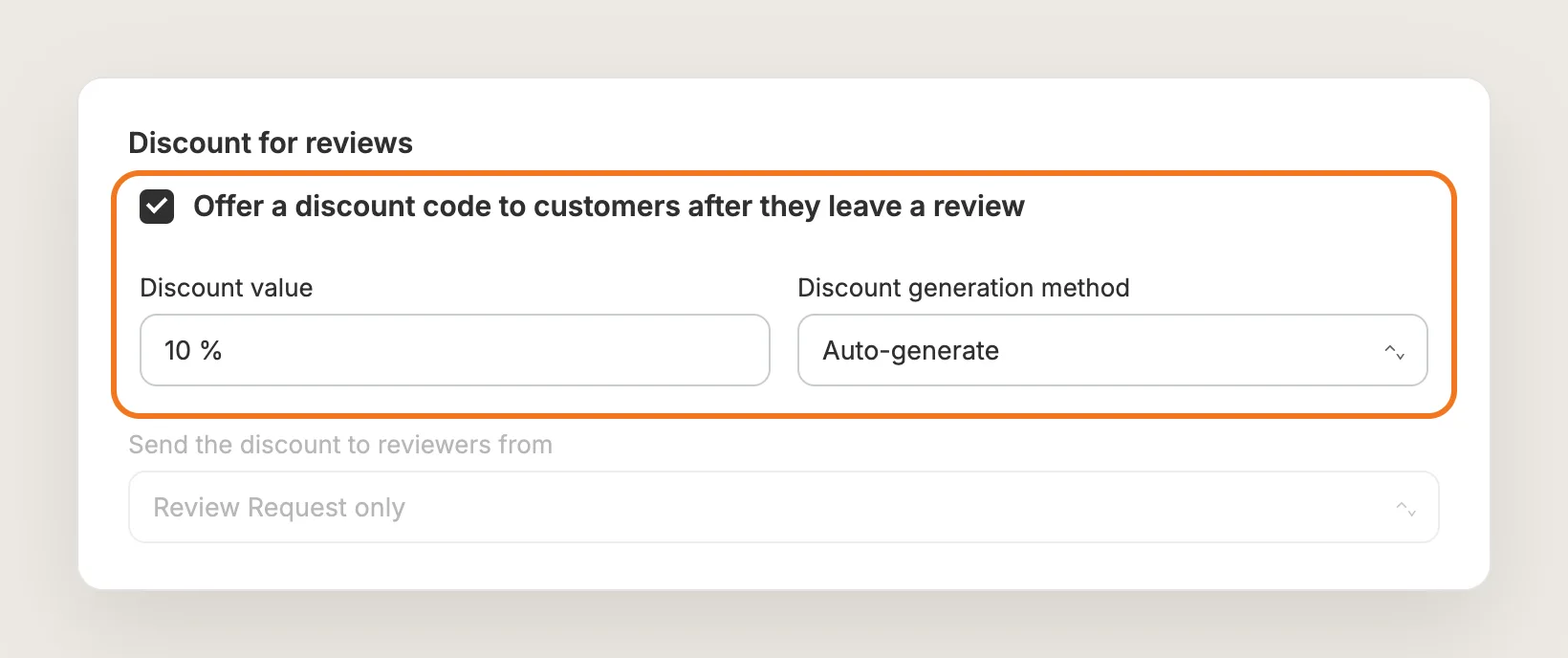
In the Discount for reviews card on the same tab, tick Offer a discount code to customers after they leave a review and set the Discount value. With Auto-generate, Vitals creates a unique code for each review, valid for 30 days. Single Shopify discount sends the same Shopify code to every reviewer.
Step 11: Choose How New Reviews Are Published
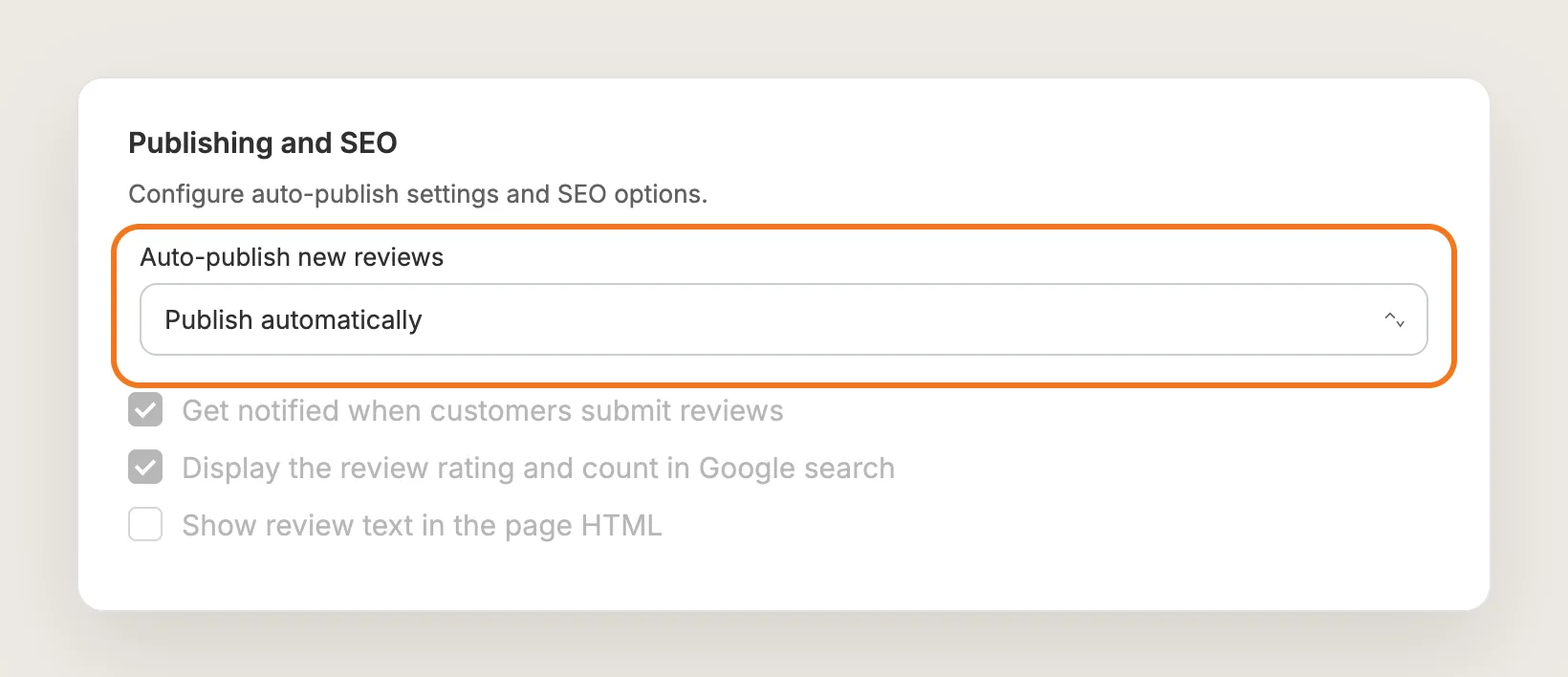
Go to Settings and open Publishing and SEO. Auto-publish new reviews offers Publish automatically, which puts new reviews live at once, or Don't autopublish, which holds them in the Moderation tab until you click Publish.
Keep Display the review rating and count in Google search ticked, so your star rating can show in Google search results.
Step 12: Show Reviews on the Homepage (Optional)
Go to Settings, click Customize on the Reviews Carousel card and turn on Display automatically on your homepage. Under Add reviews to carousel, Automatically shows your most recent 5-star reviews, and Manually shows the reviews you send to the carousel from the Reviews tab.
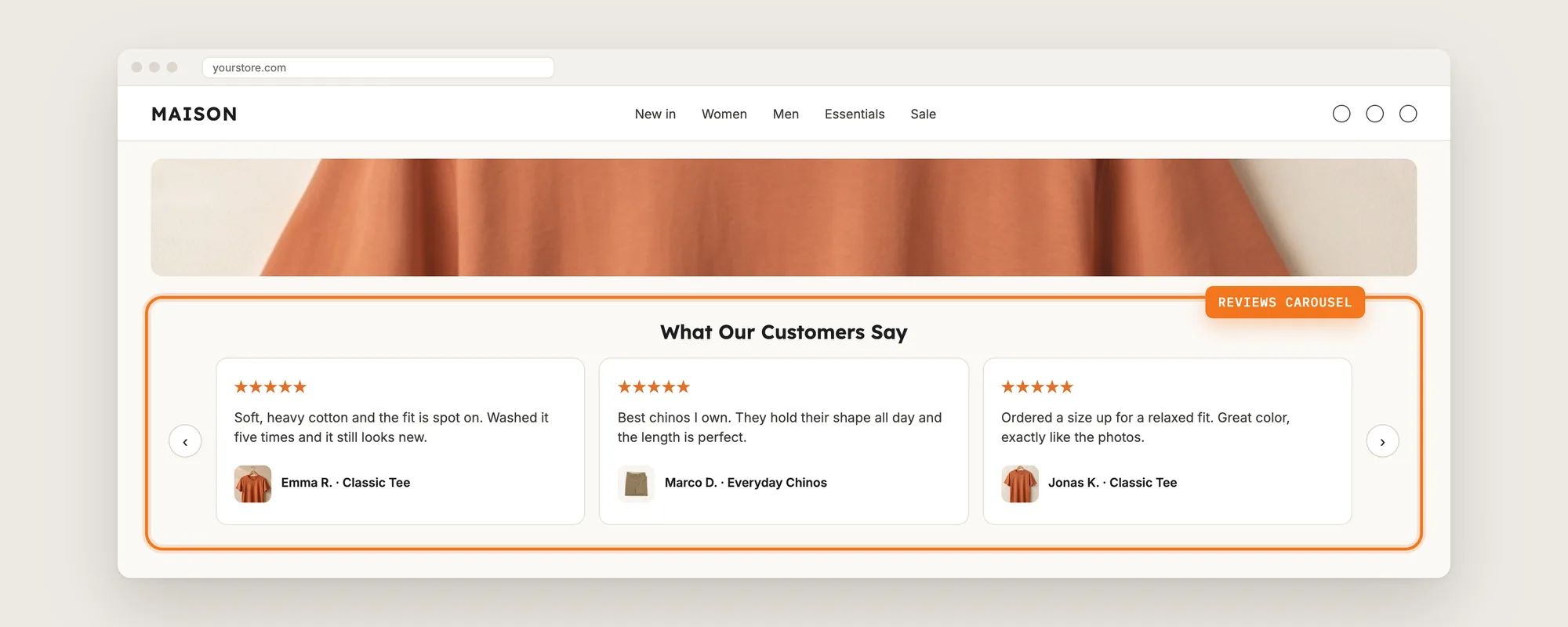
Step 13: Save, Test on Your Phone and Watch the Collected Reviews
Save your changes, then open a product page on your phone and on desktop. Check the stars under the product name, the reviews widget and the Write a review form. Review changes can take up to 5 minutes to show on the store.
The Analytics tab shows impressions, clicks, review request emails, collected reviews and revenue, so you can see how many reviews the emails bring in.
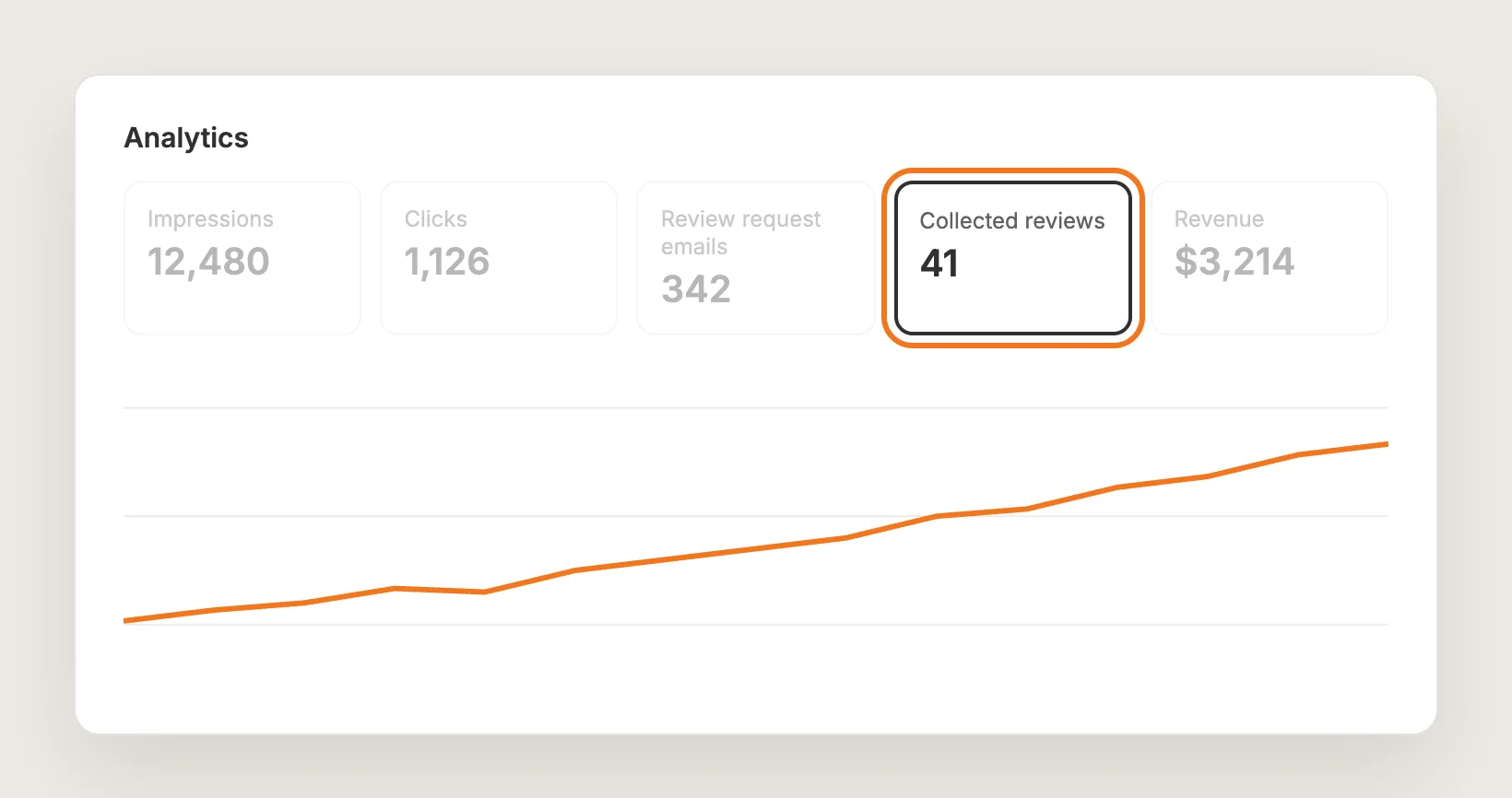
Step 14: Voila, Your Product Reviews Are Live on the Store
Your shoppers now see product reviews with star ratings, photos and Verified badges on your product pages, so they can check what other customers think before they buy.
How to Add Product Reviews From Your Theme Settings?
Shopify themes don't collect product reviews, and Shopify's own Product Reviews app was retired in 2024. Many themes include a Product rating block that shows the star rating a reviews app saves to the product. To check your theme's settings:
- In Shopify, open Online Store → Themes, then click Customize
- Switch to a product page in the page menu at the top
- Click Add block in the Product information section and look for Product rating
The Product rating block only shows stars. It has no review form, no review list, no photos and no review request emails, and it stays empty until a reviews app fills it. To add product reviews from scratch, you need a reviews app or custom code.
How to Add Product Reviews Without an App?
Hire a developer to build a product reviews system into your theme with Liquid, CSS and JavaScript, plus somewhere to store the reviews, such as Shopify metaobjects.
A custom product reviews build usually involves:
- Duplicating your theme to test the code safely
- Building a review form with a star rating, text and photo uploads
- Storing each review and linking it to its product
- Adding a moderation step, so spam and fake reviews never go live
- Showing the reviews, the average rating and the stars on product and collection pages
- Adding review structured data, so Google can show the star rating
- Setting up review request emails after each order
- Testing every template on mobile and desktop, then publishing the theme copy
Custom code means no extra app, but you or your developer have to maintain it. A theme update can replace the files that hold the code, and spam filtering, photo storage and review emails all have to be kept working by hand.
Do Product Reviews Increase Sales?
We looked at 8,832 Shopify stores using the Vitals Product Reviews app between July and October 2026. Together they recorded 166 million review impressions and 4.8 million clicks, and 106,317 orders worth $10.5 million involved the reviews widget.
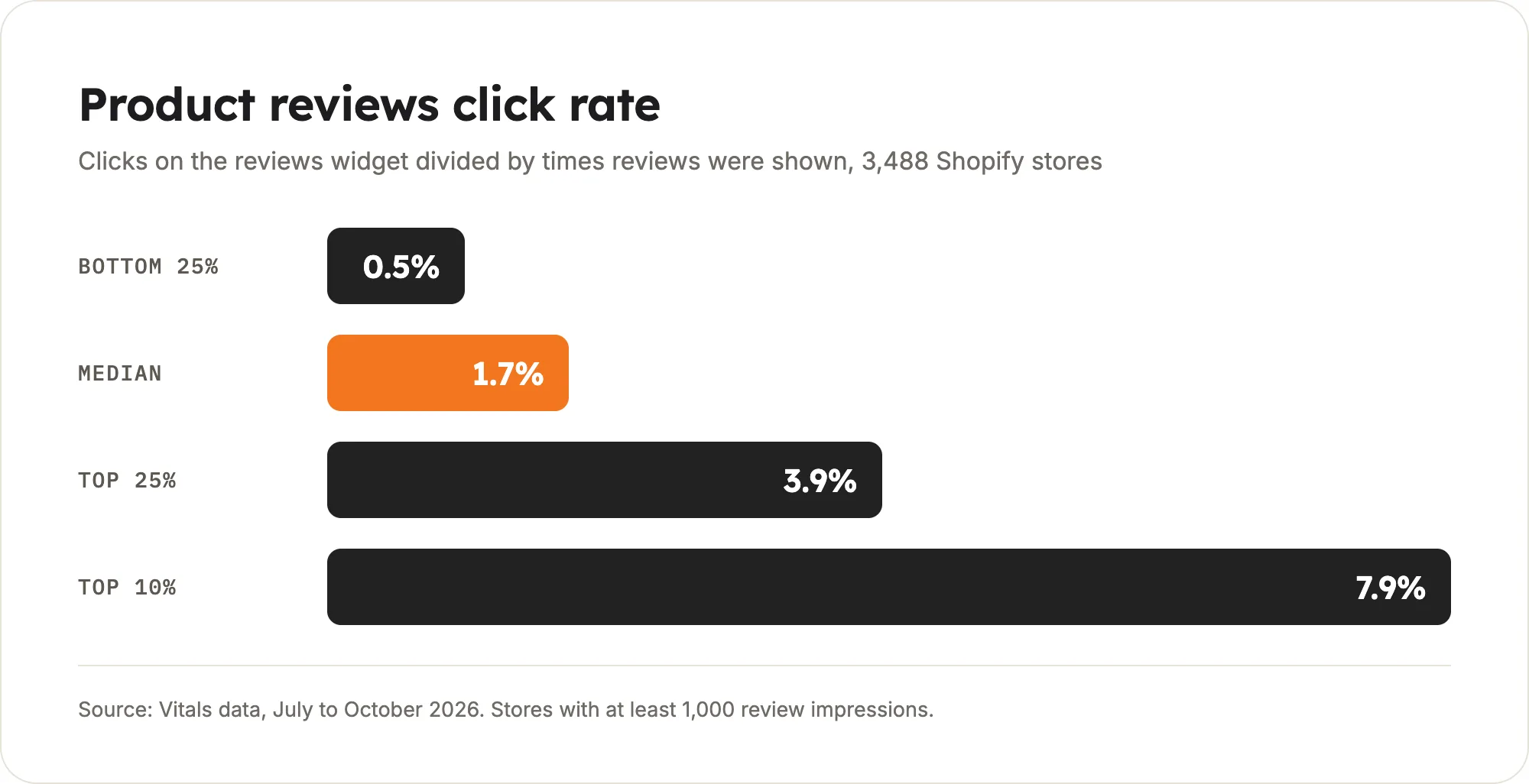
- The median store gets a 1.7% click rate on its product reviews
- A store needs 3.9% to be in the top quarter, and 7.9% to be in the top tenth
- The median store makes $14 for every 1,000 times its reviews are shown, and the top 10% make $167
At the median store, the reviews widget is part of 0.8% of orders. In the top 10% of stores, the reviews widget is part of 5.0% of orders, one in twenty.
These figures are attribution, not a controlled test. They only count orders where the shopper clicked the reviews widget, so shoppers who read the star rating without clicking aren't included.
Shoppers act on product reviews they trust, which is what the next section focuses on.
How to Increase Trust With Product Reviews?
Product reviews build trust by showing shoppers that real customers bought the product and liked it. These settings make that proof stronger:
- Ask every customer for a review. More reviews give shoppers a fuller picture. Turn on Send automatic emails for reviews requests in the Request Reviews tab
- Send the email once the product has arrived. Customers can only judge a product they've used. Set After to Order delivered
- Follow up once or twice. Tick Send review reminder emails, so customers who missed the first email still get asked
- Show the Verified badge. Shoppers trust reviews from real buyers more. Turn on Show 'Verified' badge under Global settings → Review card on the Reviews Widget page
- Put customer photos first. Photos show the product in real life. Turn on photo uploads and keep Sort order on Photos First
- Show stars before the product page. Turn on Display stars on homepage and collection pages, so shoppers see the rating while they browse
- Get your stars into Google. Keep Display the review rating and count in Google search ticked. Once you have 50 eligible reviews, add the Google Shopping feed from the Google Shopping section in Settings to Google Merchant Center
- Reply to reviews. A reply shows shoppers that a real person stands behind the store. Click the Write a reply icon on a review in the Reviews tab
Why Aren't My Product Reviews Showing or Working?
Check these first when product reviews don't show:
- The reviews widget doesn't show on the product page: Open the Reviews Widget settings and check that Hide widget on product page in the General card is off
- A new review doesn't show: With Don't autopublish, new reviews wait in the Moderation tab until you publish them. A test review you write shows in your own browser even before it's published, so check in a private window
- A change doesn't show yet: Review changes reach the store about 5 minutes after your last edit
- Stars don't show on collection pages: Turn on Display stars on homepage and collection pages in the Star Ratings settings. Stars only show on products that have reviews
- A product is missing from the Reviews tab: The tab only lists published products that have reviews. Products with no reviews show up when you import reviews for them
- Reviewer names are missing: The name color may match the card background. Change the reviewer name color under Global settings on the Reviews Widget page
- A customer can't upload photos: A review takes up to 5 images, up to 10 MB each
Which Product Reviews Method Should You Choose?
Vitals - All in One App suits most stores, but the right method depends on whether you already collect reviews somewhere else.
- Choose Vitals - All in One App if you want photo and video reviews, review request emails and stars in Google. It also includes 40+ other apps in one subscription of $29.99/month, so you don't have to install and pay for each app separately
- Choose your theme's setting if a reviews app already collects your reviews and you only want to move the star rating on the product page
- Choose custom code if you have a developer, want no app at all, and are happy to maintain the review form, moderation and emails yourself
If you already use another review app, see our Loox alternatives, Reviews.io alternatives and AfterShip Product Reviews alternatives.
Start a 7-day free trial: Install the Vitals - All in One App and collect product reviews
Frequently Asked Questions
1. What is the best way to add product reviews to Shopify?
Vitals - All in One App is the best way for most stores. Its Product Reviews app adds product reviews without code, with photo and video reviews, review request emails, imports from other review apps and star ratings on product and collection pages.
2. Does Shopify have built-in product reviews?
No. Shopify's own Product Reviews app was retired in 2024, and themes don't collect reviews. Some themes include a Product rating block, but it only shows the stars a reviews app saves to the product.
3. Can I import my reviews from Judge.me, Loox or Yotpo?
Yes. Export your reviews to CSV from Judge.me, Loox, Yotpo, Stamped, Growave, Ryviu or Shopify Product Reviews and upload the file in the Import tab of the Vitals Product Reviews app.
4. Can customers add photos and videos to product reviews?
Yes. Tick Allow customers to upload a photo and Allow customers to upload videos in the Write a review settings. Customers can add up to 5 images to a review, up to 10 MB each.
5. How do I get verified product reviews?
Turn on review request emails in the Request Reviews tab. Reviews from those emails are matched to an order and show the Verified badge.
6. Can product reviews show star ratings in Google?
Yes. Keep Display the review rating and count in Google search ticked for the stars in Google search results. For Google Shopping, add the Vitals feed to Google Merchant Center once you have 50 eligible reviews; reviews imported from AliExpress or Amazon don't count toward the 50.
7. Can I write or edit product reviews myself?
No. Writing reviews in the admin was removed to follow Shopify's policies, and reviews customers submit through Vitals can't be edited. You can fix small mistakes, such as typos, in reviews you imported.