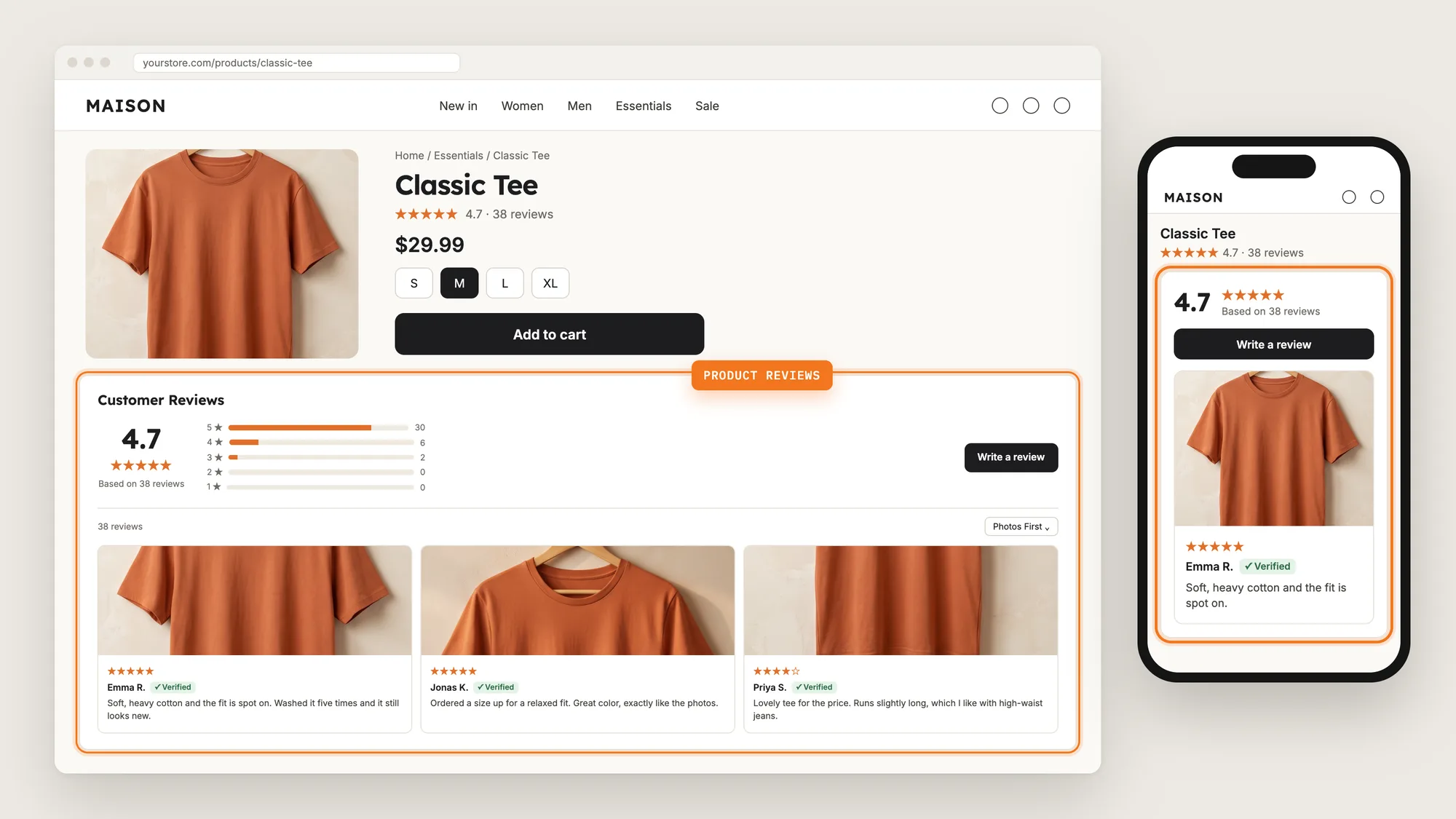
How to Add a Review Carousel on Shopify

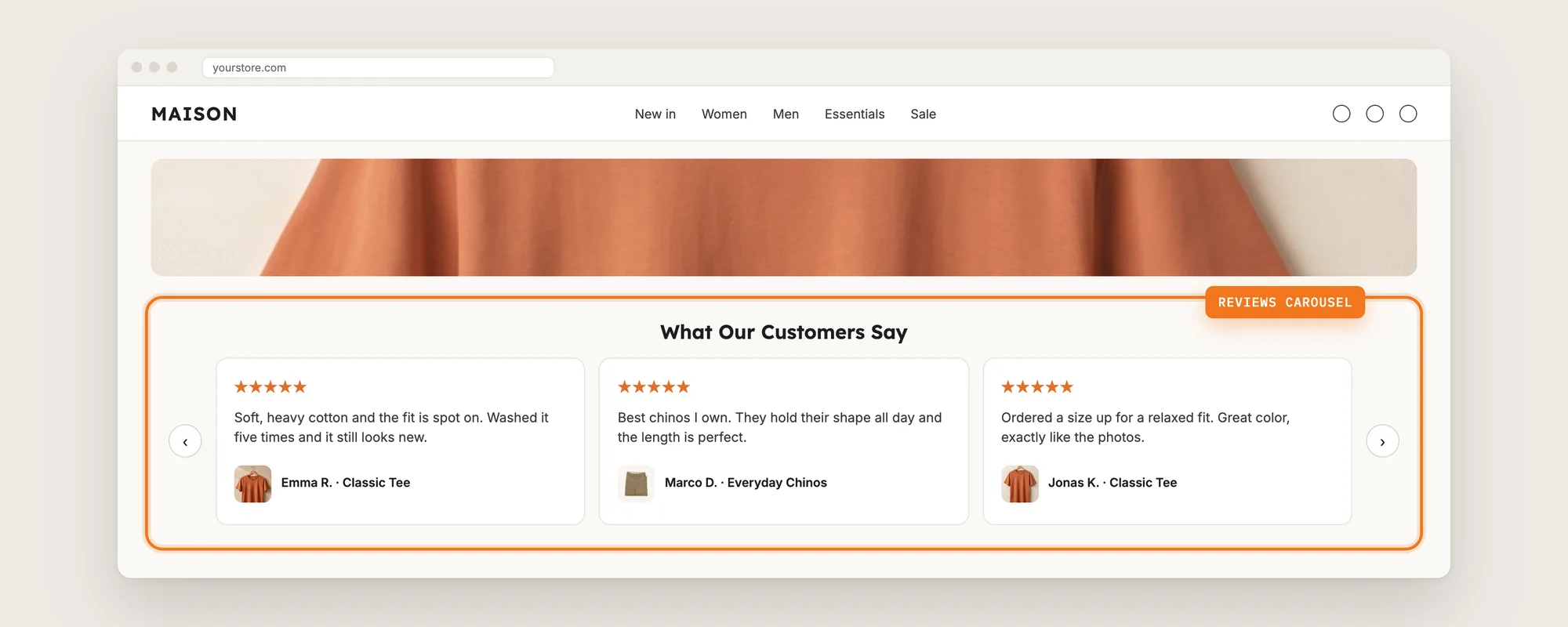
Your best reviews are often at the bottom of a product page, where most shoppers never scroll. A shopper who lands on your homepage sees none of them.
A review carousel puts your best reviews in one row that shoppers swipe or click through, on the homepage or on product pages, so the proof is in front of them before they decide.
Here are the three ways to add a review carousel to a Shopify store: with a Product Reviews app, from your theme settings, or with custom code.
What Is a Review Carousel?
A review carousel is a row of customer reviews that shoppers move through with arrows on desktop or by swiping on phones. Each card shows the star rating, the review text and the reviewer's name, and some layouts lead with the customer's photo.

A good review carousel includes:
- Your best reviews: The carousel shows recent 5-star reviews or the reviews you pick by hand.
- Customer photos: Photo reviews show the product in real life.
- A Verified badge: The badge marks reviews from people who bought the product.
- Arrows and swipe: Shoppers move through the reviews at their own pace on any screen.
A review carousel works on the homepage, on product pages, or on both.
What's the Quickest Way to Add a Review Carousel?
- Vitals - All in One App is the quickest way to add a review carousel for most stores
- Vitals also offers 40+ apps, such as product bundles, trust badges and a sticky add to cart button, in one subscription from $29.99/month, so you don't have to install and pay for each app separately
Here's how the three methods compare. If you'd rather weigh several review apps against each other, see our list of the best review apps for Shopify.
How to Add a Review Carousel With a Product Reviews App?
Install the Vitals - All in One App, open its Product Reviews app and go to Settings, then click Customize on the Reviews Carousel card. The steps below choose which reviews show, set the layout and place the review carousel on your homepage or product pages.
Step 1: Install the Vitals - All in One App
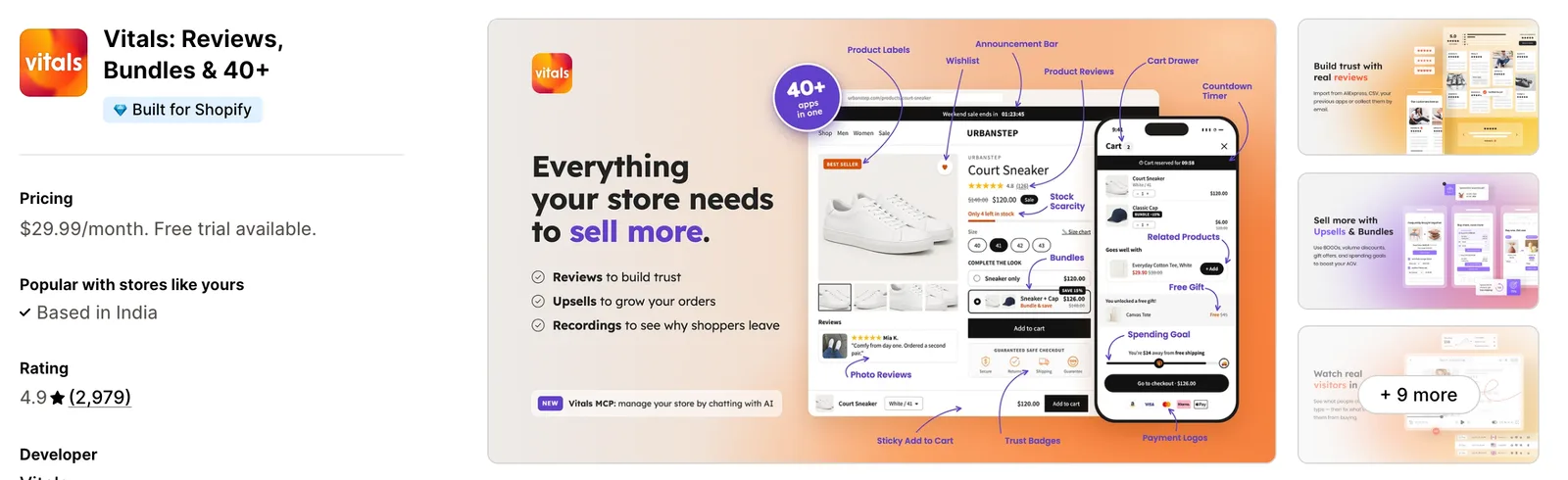
Install the Vitals - All in One App from the Shopify App Store. The 7-day free trial includes the Vitals Product Reviews app.
Step 2: Approve the Install in Shopify
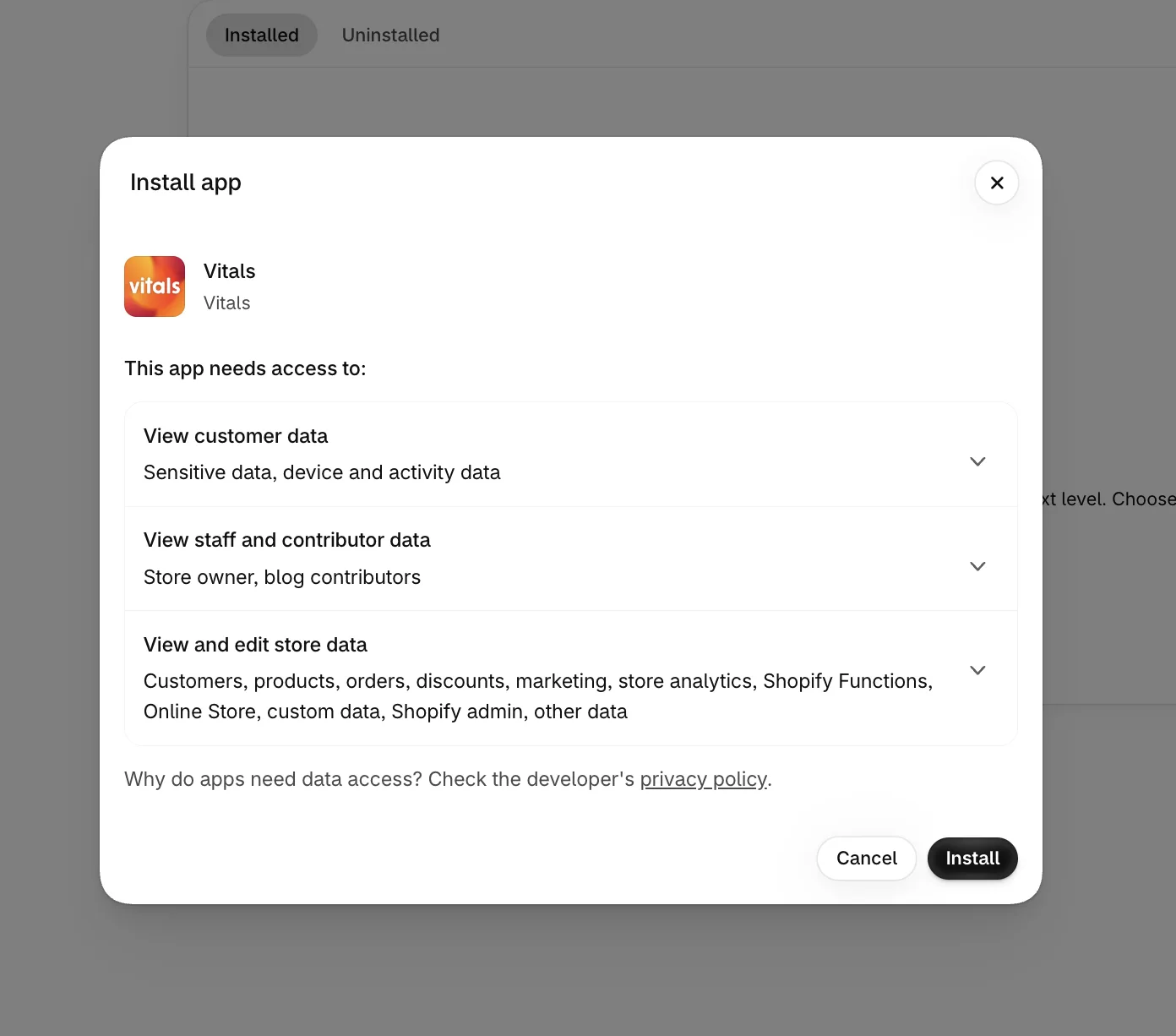
Shopify shows which store data Vitals can use. Click Install, and the Vitals dashboard opens in your Shopify admin.
Step 3: Open Product Reviews
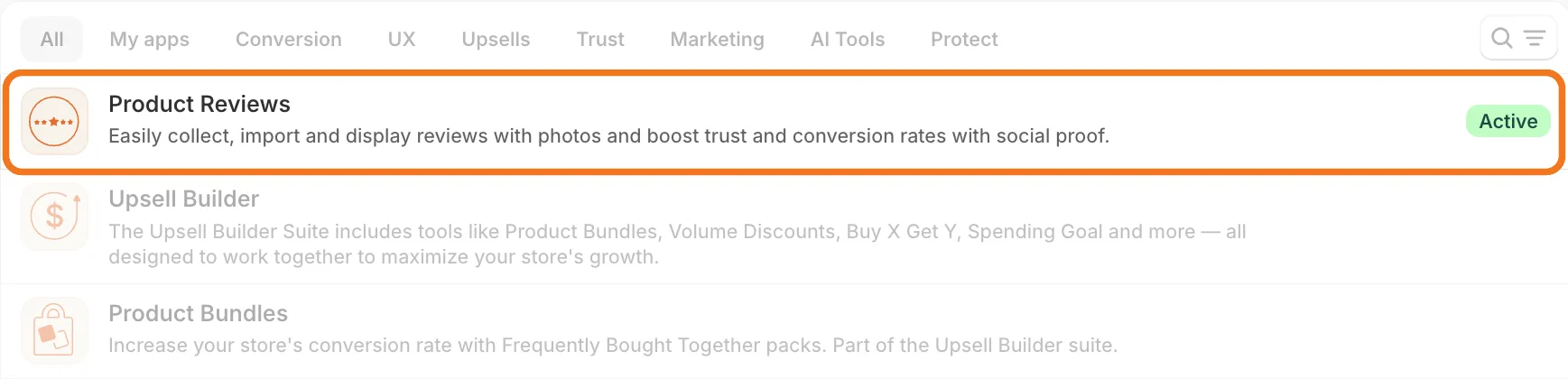
In the Vitals dashboard, find Product Reviews in the list of apps and click it.
Step 4: Check That Product Reviews Is Active
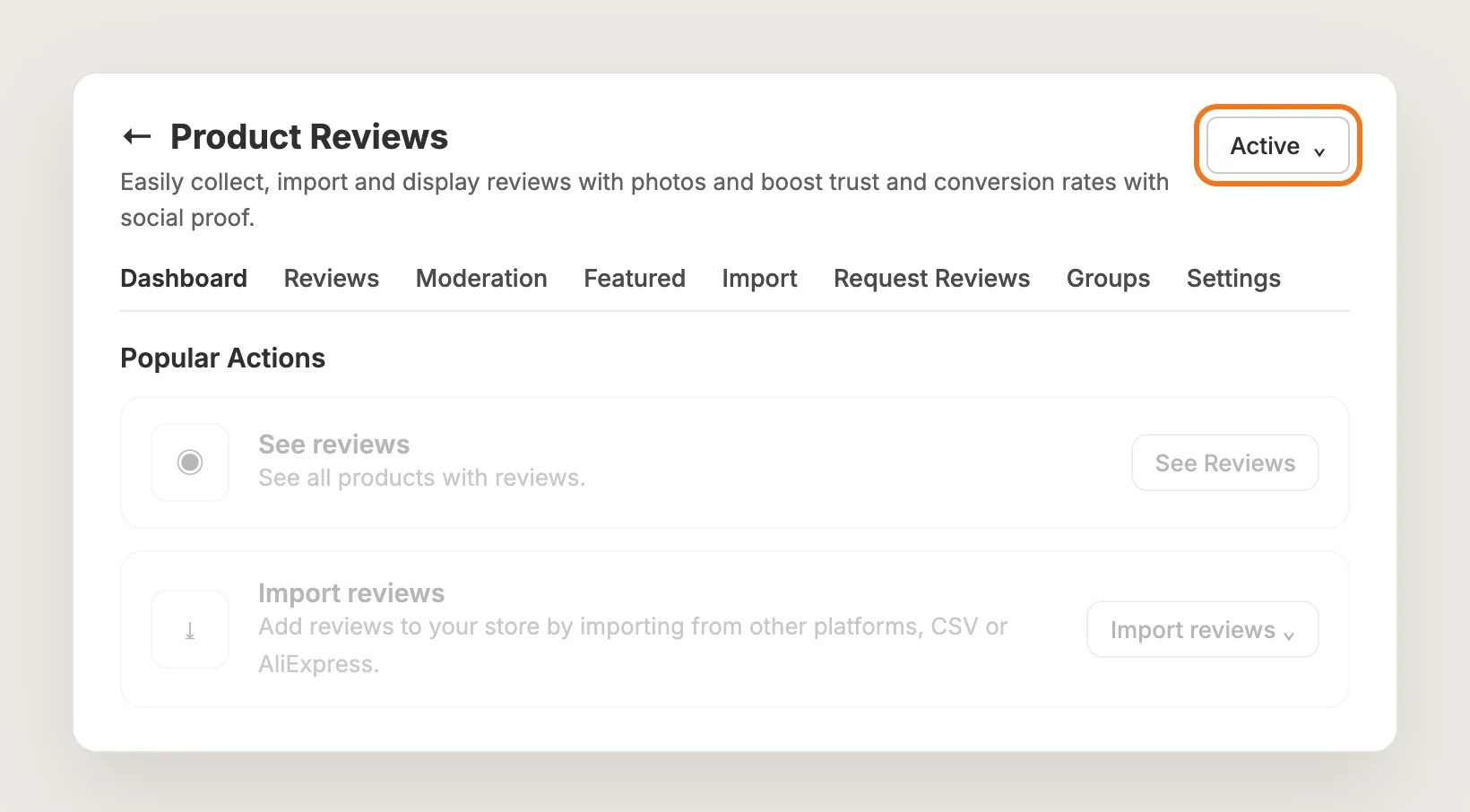
The dropdown at the top right of the Product Reviews page shows Active. The review carousel is part of the Product Reviews app, so the app has to be active for the carousel to show.
Step 5: Choose Which Reviews Show in the Carousel
Open the Settings tab, click Customize on the Reviews Carousel card and pick an option in the Add reviews to carousel card:
- Automatically: Shows your most recent 5-star reviews, up to 15. This is the default
- Manually: Shows up to 15 reviews you send to the carousel yourself
- Current product: Shows only that product's reviews on product pages, with an optional Minimum rating. On the homepage and collection pages, it shows reviews from the whole store
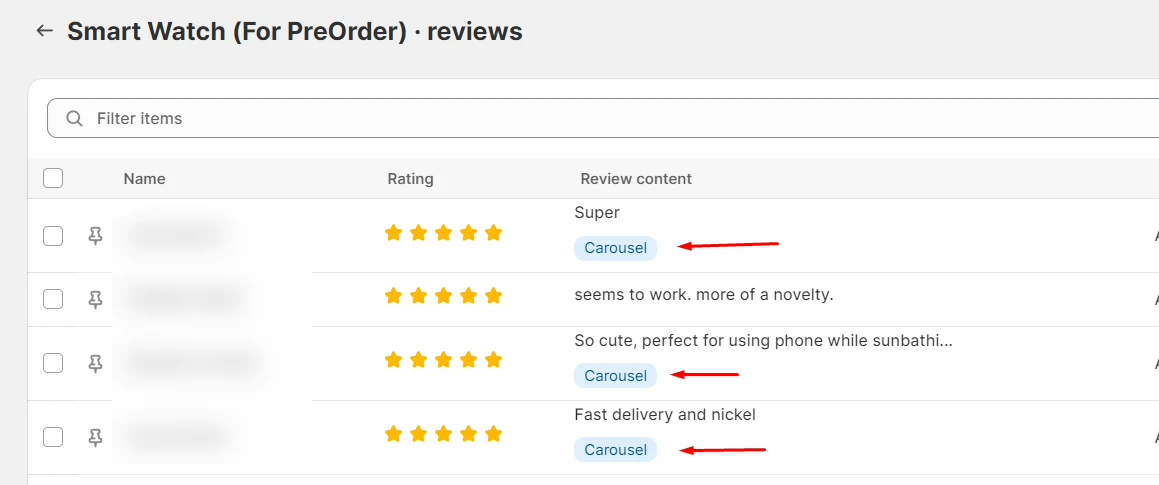
To send reviews by hand, open the Reviews tab, open a product, tick the reviews and choose More actions → Send to carousel. The review you send last shows first.
Step 6: Pick the Layout and Style the Cards, Arrows and Title
In the Layout card, choose how each review looks:
- Media Cards: Leads with the customer's photo. Only reviews with photos show in this layout
- Text Cards: Shows the review text, for stores whose best reviews have no photos yet
- Testimonial: Gives long, detailed reviews more room
The same card holds options such as Review text alignment and Media aspect ratio.
The rest of the Reviews Carousel page sets the look:
- Review card: The border color and rounded corners of each review
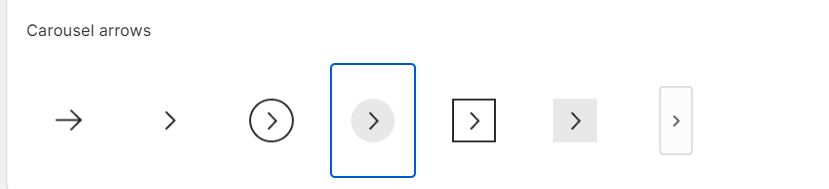
- Carousel: The number of columns, the arrow style, Arrow color and Arrow background
- Widget title: The heading above the carousel
- Spacing: The space around the carousel
Under Global settings → Review card, turn on Show 'Verified' badge to mark reviews from real buyers. The badge settings apply to all your reviews widgets.
Step 7: Show the Review Carousel on Your Homepage and Test It
In the Publish and position card, open the Home page tab and turn on Display automatically on your homepage. Vitals then places the review carousel just above the footer of your homepage. The setting is off by default.
Open the Product page tab in the same card to show the review carousel on your product pages too.
Optional: on an Online Store 2.0 theme, the Shopify theme editor puts the review carousel anywhere on any page, such as right under the homepage banner:
- In Shopify, open Online Store → Themes and click Customize on your live theme
- Open the page you want, click Add block in a section, or Add section and then Apps
- Search for Product Reviews Carousel, select it and drag it into place, then click Save
Click Save on the Reviews Carousel page, then open your homepage on your phone and on desktop. Swipe through the review carousel on the phone and click the arrows on desktop. Review changes can take up to 5 minutes to show on the store.
Your shoppers now see your best reviews in a review carousel, before they reach the product page or before they scroll to the reviews.
How to Add a Review Carousel From Your Theme Settings?
Shopify themes don't collect product reviews, and Shopify's own Product Reviews app was retired in 2024, so a theme can't fill a review carousel with your real reviews by itself. Some themes include a section for customer quotes that you type in by hand. To check your theme:
- In Shopify, open Online Store → Themes, then click Customize
- Click Add section on the homepage
- Look for a section for testimonials or customer quotes
A theme section shows only the quotes you type, so it has no star ratings from real orders, no photos from customers, no Verified badge and no new reviews unless you add them yourself. To show real reviews in a review carousel, you need a reviews app or custom code.
How to Add a Review Carousel Without an App?
Hire a developer to build a review carousel into your theme with Liquid, CSS and JavaScript, plus a place to store the reviews, such as Shopify metaobjects.
A custom review carousel usually involves:
- Duplicating your theme to test the code safely
- Storing each review with its rating, text, photo and product
- Building a review form or importing reviews from a CSV file
- Choosing which reviews the carousel shows
- Building the carousel with arrows on desktop and swipe on phones
- Testing it on mobile and desktop, then publishing the theme copy
Custom code means no extra app, but you or your developer have to maintain it. A theme update can replace the files that hold the code, and new reviews have to be added to the carousel by hand.
What Other Ways Can You Show Reviews in a Carousel?
Vitals Product Reviews has two more ways to show reviews in a row:
- Media Reviews Carousel: Shows only your photo and video reviews from the whole store. Find it in Settings → Media Reviews Carousel. Turn on Display automatically on homepage, or paste its Using HTML Snippet code into a Custom Liquid block in the theme editor
- Slider layout: Shows the reviews widget on the product page in a row that shoppers swipe through. Pick it in Settings → Reviews Widget → Layout
Other review apps also include carousels. Our list of the best review apps for Shopify compares them side by side.
How to Increase Trust With a Review Carousel?
A review carousel builds trust by putting real customers' words and photos where shoppers look first. These settings make that proof stronger:
- Ask customers for photos. Photo reviews show the product in real life. Tick Allow customers to upload a photo in the Write a review settings and use the Media Cards layout
- Pick the reviews yourself. Choose Manually under Add reviews to carousel and send the reviews that answer shoppers' doubts, such as fit, quality or delivery
- Put your strongest review first. The review you send to the carousel last shows first, so send your strongest review last
- Show the product's own reviews on product pages. Choose Current product and set a Minimum rating, so shoppers read about the product in front of them
- Show the Verified badge. Turn on Show 'Verified' badge under Global settings → Review card, so shoppers can tell real buyers apart
- Place the carousel high on the homepage. Add the Product Reviews Carousel block under the banner in the theme editor, so shoppers see it before they scroll
- Add your average rating next to it. Add the All Reviews Badge block right above or below the carousel in the theme editor to show your overall rating and review count
Why Isn't My Review Carousel Showing or Working?
Check these first when the review carousel doesn't show:
- The carousel isn't on the homepage: The review carousel isn't added by default. Turn on Display automatically on your homepage under Publish and position, or add the Product Reviews Carousel block in the theme editor
- The carousel is empty with Media Cards: Media Cards shows only reviews with photos. If your carousel reviews are text only, switch the Layout to Text Cards or Testimonial
- The carousel is empty in Manually mode: Manually shows only the reviews you send to it. Send reviews from the Reviews tab with More actions → Send to carousel; sent reviews show a Carousel tag
- The carousel doesn't show at all: The Product Reviews app has to be active. Check the dropdown at the top right of the Product Reviews page
- A product's reviews are missing: With Apply these lists everywhere reviews appear turned on under Advanced display rules, excluded products stay out of review carousels too
- The carousel doesn't move by itself: The review carousel doesn't rotate or loop on its own. Shoppers use the arrows on desktop or swipe on phones
- The carousel shows on every product page: The Product page placement applies to every product. To show the carousel on some products only, set it to Hidden, create a product template in the theme editor with the Product Reviews Carousel block and assign that template to those products
Which Review Carousel Method Should You Choose?
Vitals - All in One App suits most stores, but the right method depends on where your reviews come from.
- Choose Vitals - All in One App if you want a review carousel filled with real reviews and photos, with no code. It also includes 40+ other apps in one subscription from $29.99/month, so you don't have to install and pay for each app separately
- Choose your theme's setting if you only want a few customer quotes on the homepage and are happy to type and update them by hand
- Choose custom code if you have a developer, want no app at all, and are happy to maintain the carousel and the reviews yourself
If you already use another review app, see our Judge.me alternatives, Loox alternatives and Reviews.io alternatives. To collect more reviews for the carousel, read how to get more reviews, and for the full reviews setup, read how to add product reviews to Shopify.
Frequently Asked Questions
1. What is the best way to add a review carousel on Shopify?
Vitals - All in One App is the best way for most stores. Its Product Reviews app adds a review carousel without code, filled with your recent 5-star reviews or the reviews you pick, on the homepage or on product pages.
2. Does Shopify have a built-in review carousel?
No. Shopify themes don't collect product reviews, and Shopify's own Product Reviews app was retired in 2024. Some themes include a section for customer quotes, but you type each quote by hand.
3. How many reviews does the review carousel show?
Up to 15. In Automatically mode, the carousel shows your 15 most recent 5-star reviews. In Manually mode, it shows the 15 reviews you sent to it most recently.
4. Does the review carousel rotate automatically?
No. The review carousel doesn't rotate, scroll or loop on its own. Shoppers move through the reviews with the arrows on desktop or by swiping on phones.
5. Can I show only photo reviews in the carousel?
Yes. Choose the Media Cards layout, which shows only reviews with photos, or use the Media Reviews Carousel, which shows only photo and video reviews from the whole store.
6. Can the review carousel show only the reviews of the product being viewed?
Yes. Under Add reviews to carousel, choose Current product. On product pages, the carousel then shows only that product's reviews. On pages without a product, such as the homepage, it shows reviews from the whole store.
7. Can I show the review carousel on product pages instead of the main reviews widget?
Yes. Show the carousel on product pages from the Product page tab under Publish and position, then turn on Hide widget on product page in Settings → Reviews Widget. The product page then shows the review carousel only.