How to Add an Instagram Feed to Shopify

Your Instagram account already shows your products on real people, in real rooms and in good light. Most shoppers never see those posts, because they land on your store from an ad or a search and never open Instagram.
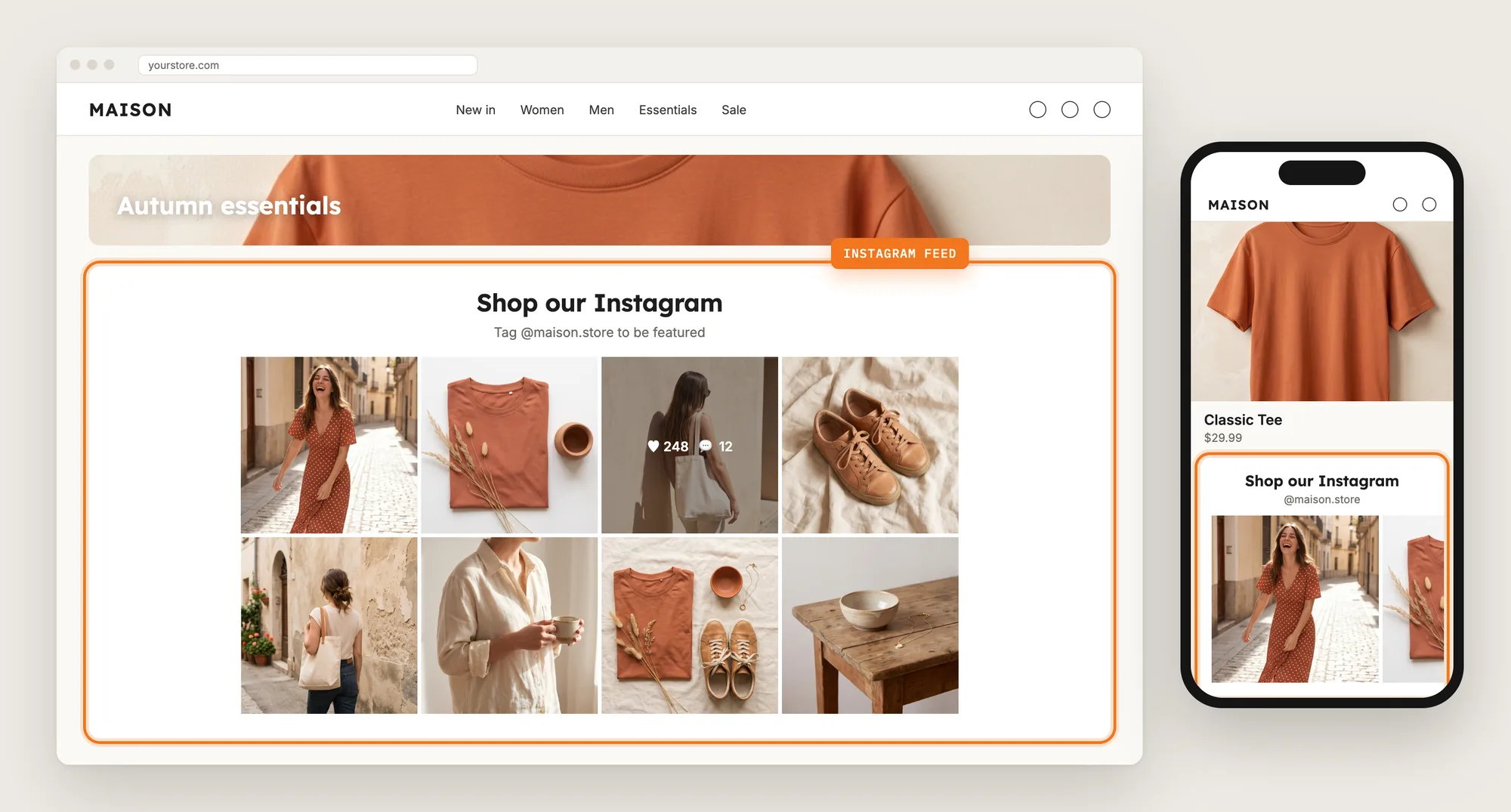
An Instagram feed brings those posts onto your store as a grid or slider. With product tags on each post, a shopper can go from a photo of your product in use to its product page in one click.
Here are the three ways to add an Instagram feed to a Shopify store: with an Instagram Feed app, from your theme settings, or with custom code.
What Is an Instagram Feed?
An Instagram feed is a section on your store that shows the latest posts from your Instagram account as a grid or a slider. New posts appear on the store automatically, so the section stays fresh without uploads.
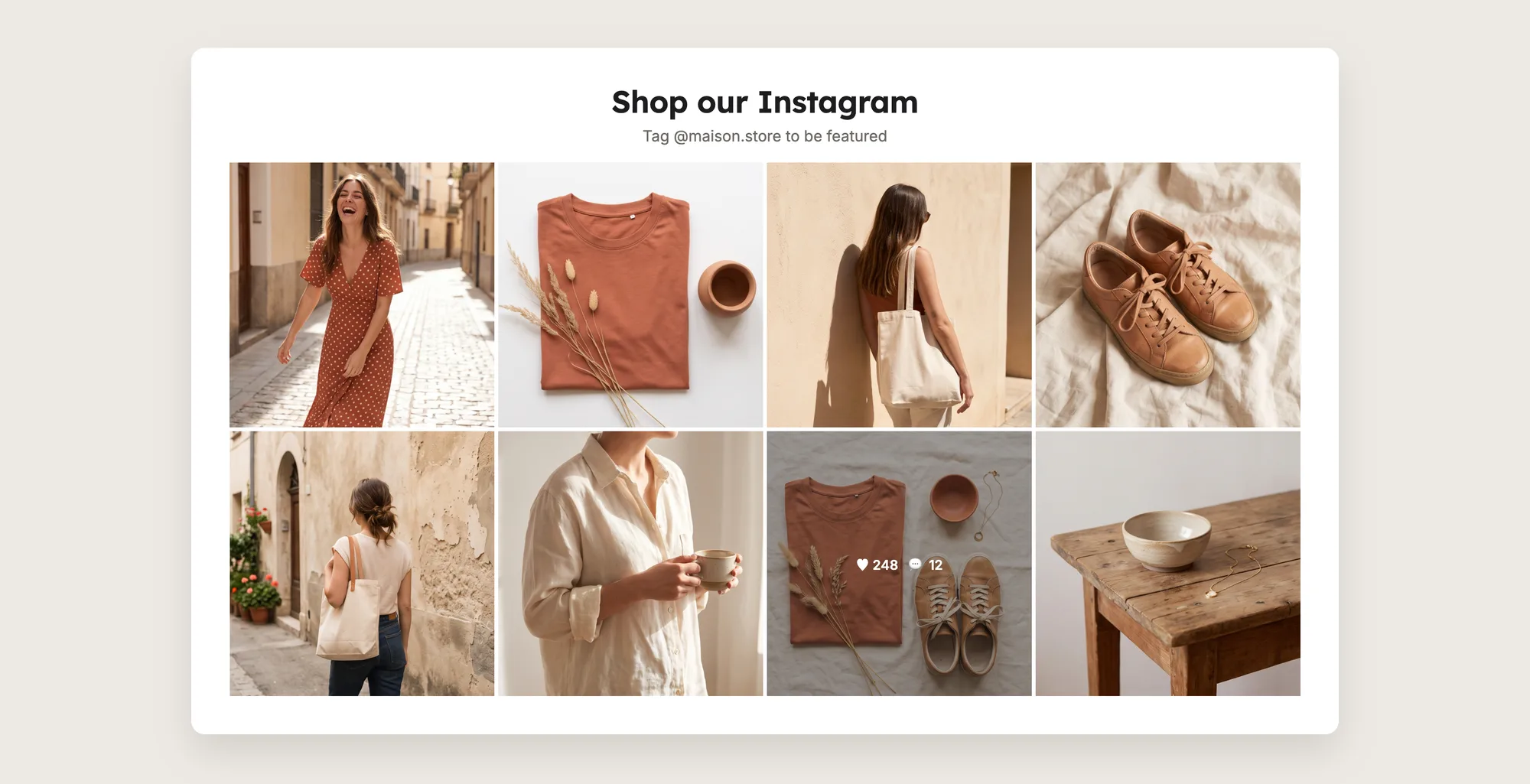
A good Instagram feed includes:
- Automatic sync: New posts from your account appear on the store without uploading them again.
- Product tags: Shoppers can open a post and click through to the products in the photo.
- Separate mobile and desktop layouts: A grid can show on desktop and a slider on phones.
- Placement control: The feed can show on the homepage, on product pages, or anywhere you place it in the theme editor.
An Instagram feed shows the posts you published on your connected account, in the order Instagram shows them.
What's the Quickest Way to Add an Instagram Feed?
- Vitals - All in One App is the quickest way to add an Instagram feed for most stores
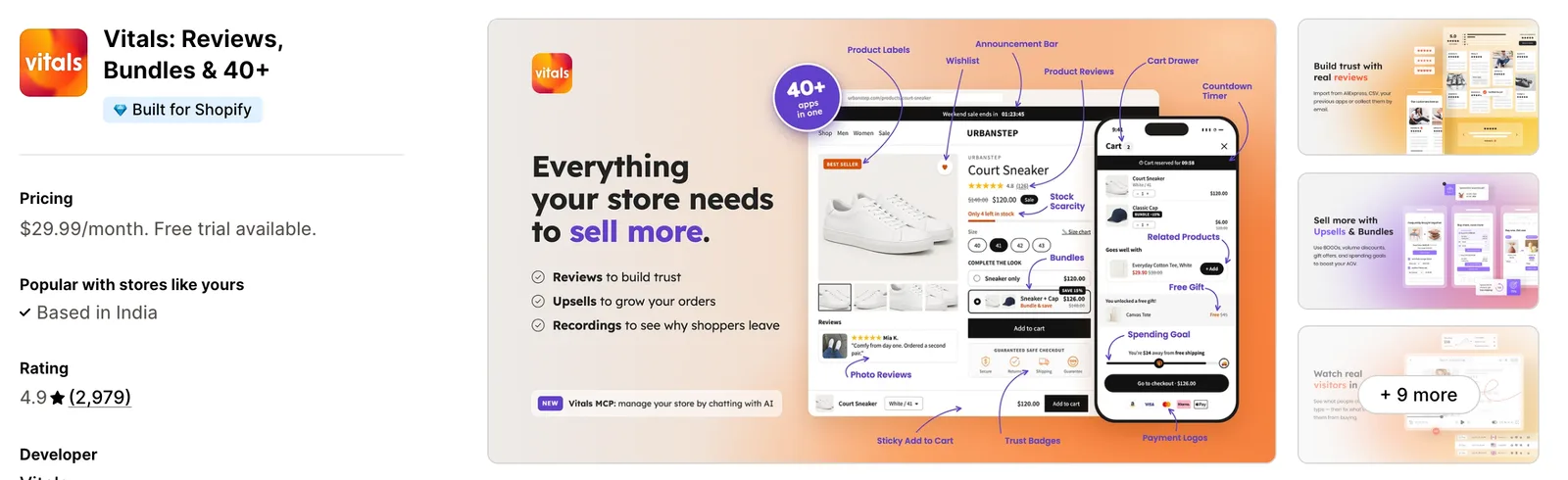
- Vitals also offers 40+ apps, such as product reviews, social media buttons and recent sales notifications, in one subscription of $29.99/month, so you don't have to install and pay for each app separately
Here's how the three methods compare. If you'd rather weigh several Instagram feed apps against each other, see our list of the best shoppable Instagram feed apps for Shopify.
How to Add an Instagram Feed With an Instagram Feed App?
Install the Vitals - All in One App, open its Shoppable Instagram Feed app and click Connect with Instagram. Your posts then show on your homepage and product pages, and the steps below set the layout, the look and the product tags.
Step 1: Install Vitals on Your Shopify Store
Install the Vitals - All in One App from the Shopify App Store. The 7-day free trial includes the Vitals Shoppable Instagram Feed app.
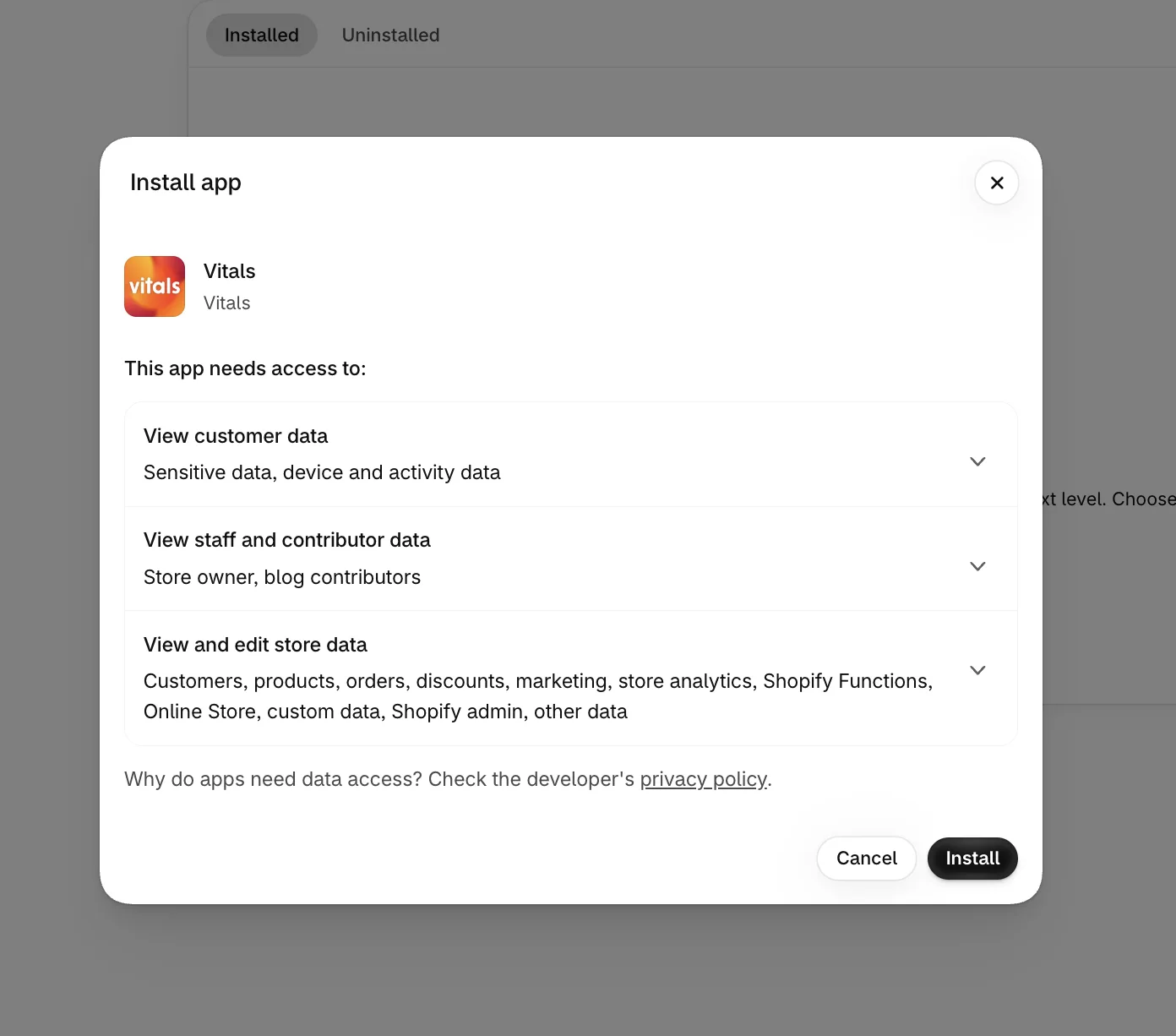
Step 2: Confirm Vitals in Your Shopify Admin
Shopify shows the data Vitals needs to work on your store. Click Install to approve it and open the Vitals dashboard.
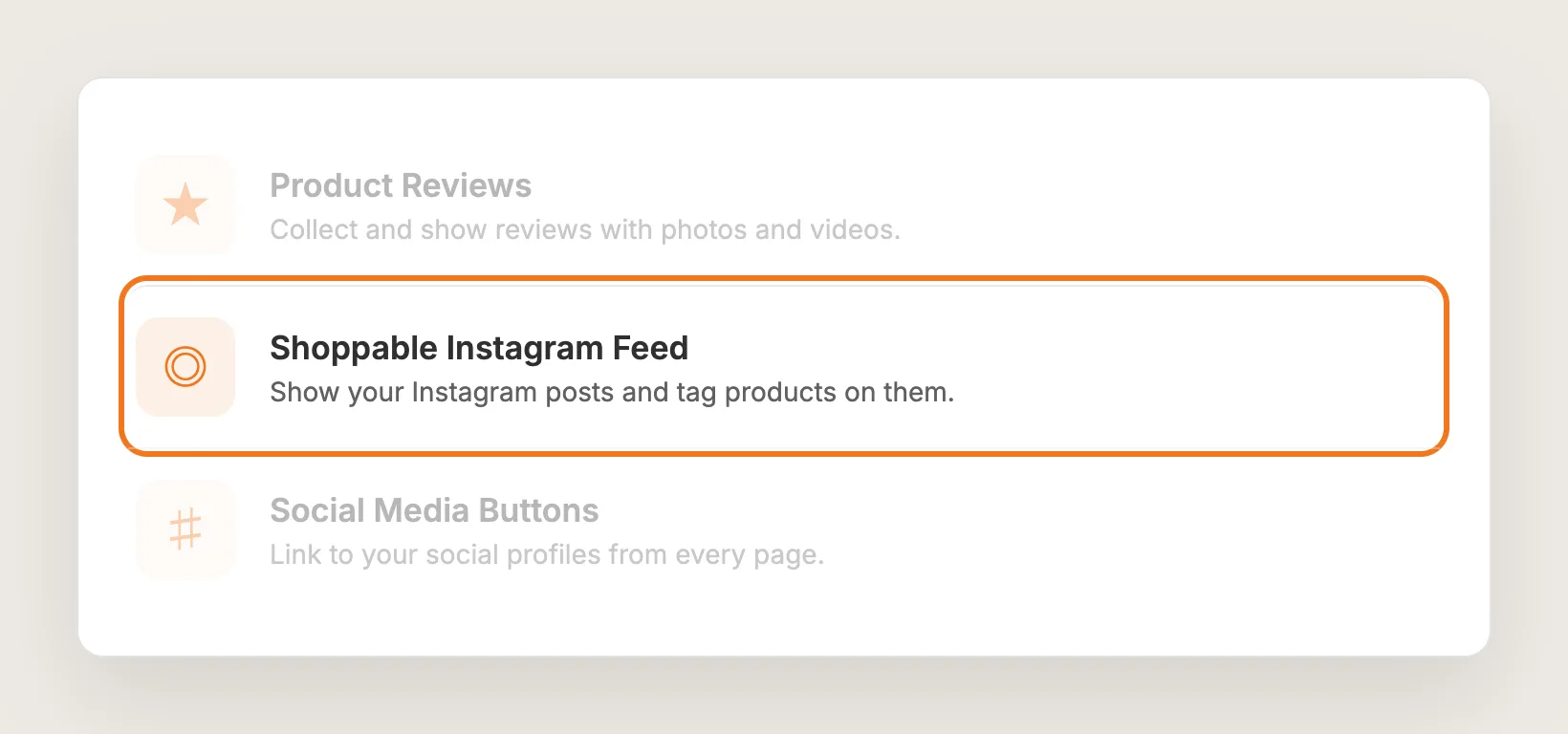
Step 3: Open Shoppable Instagram Feed
In the Vitals dashboard, find Shoppable Instagram Feed in the list of apps and click it. The app opens on its Settings tab.
Step 4: Connect Your Instagram Account
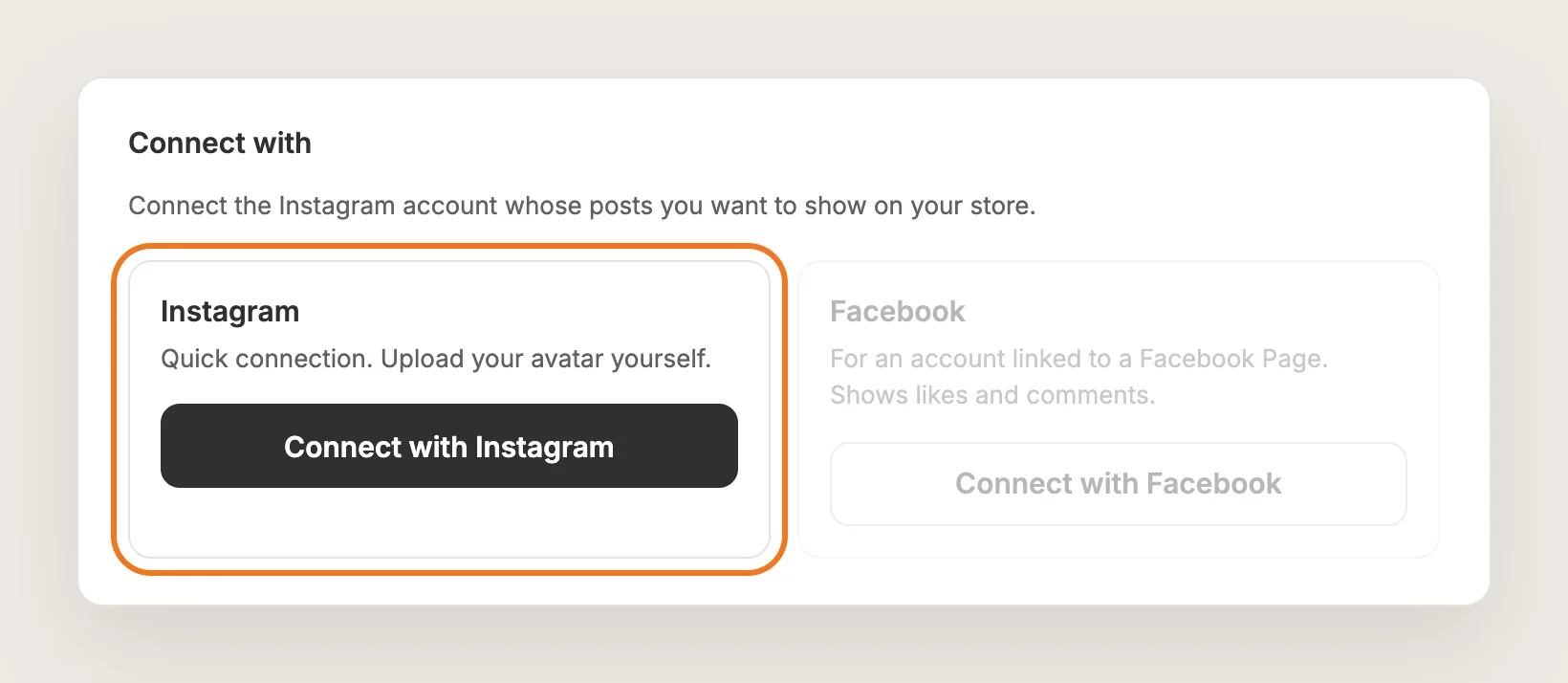
Under Connect with, click Connect with Instagram and log in to the account you want to show. One Instagram account can be connected per store.
Connect with Facebook is the other option, for an Instagram professional account linked to a Facebook Page. The Facebook connection also shows like and comment counts and your avatar. With the Instagram connection, you upload the avatar yourself.
Step 5: Choose Where the Feed Shows
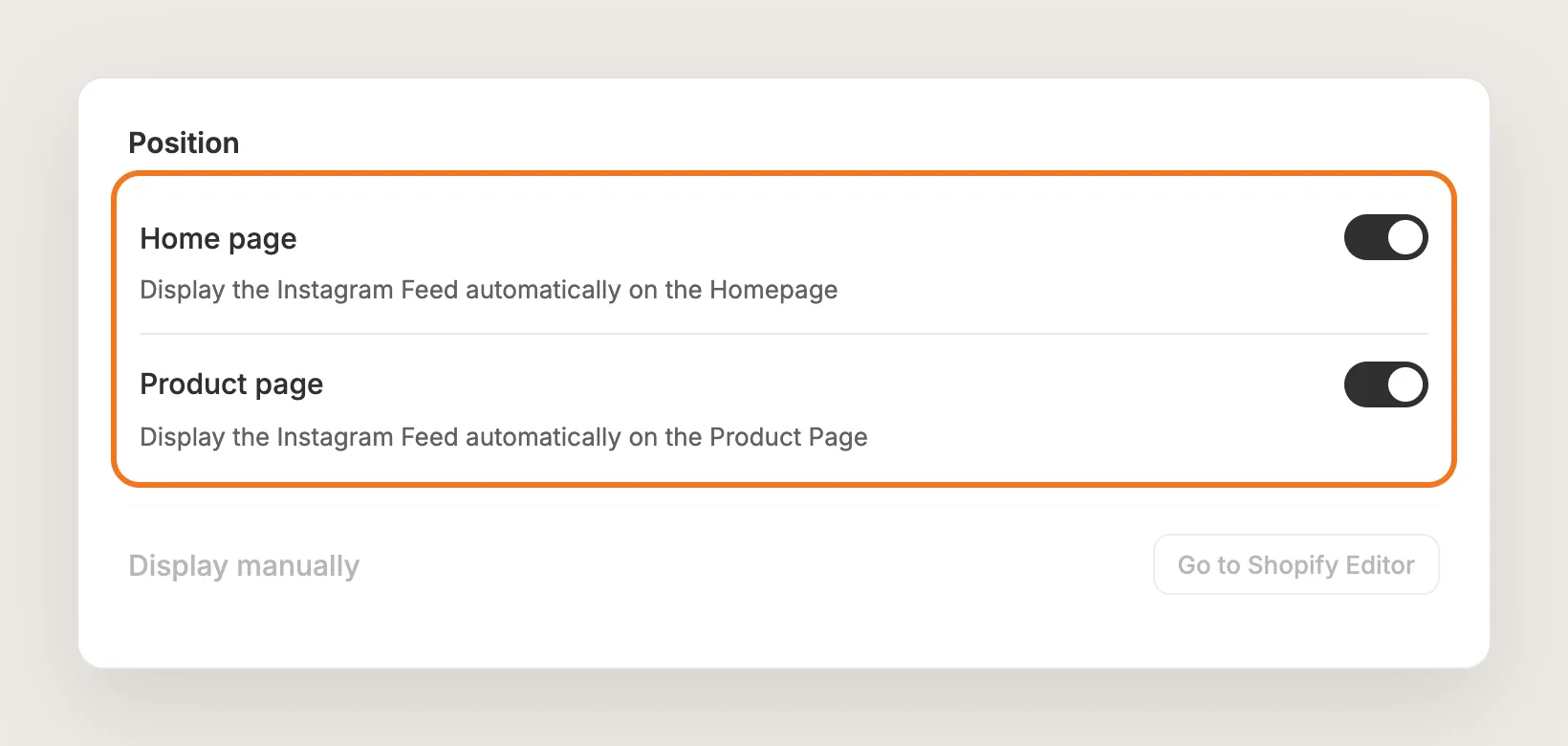
In the Position card, the Home page and Product page switches are both on by default. On the homepage, the feed is placed near the end of the page. Turn a switch off to remove the feed from that page.
To place the feed somewhere else on an Online Store 2.0 theme, click Display manually, then Go to Shopify Editor, and add the feed as an app block.
Step 6: Pick a Layout for Desktop and Mobile
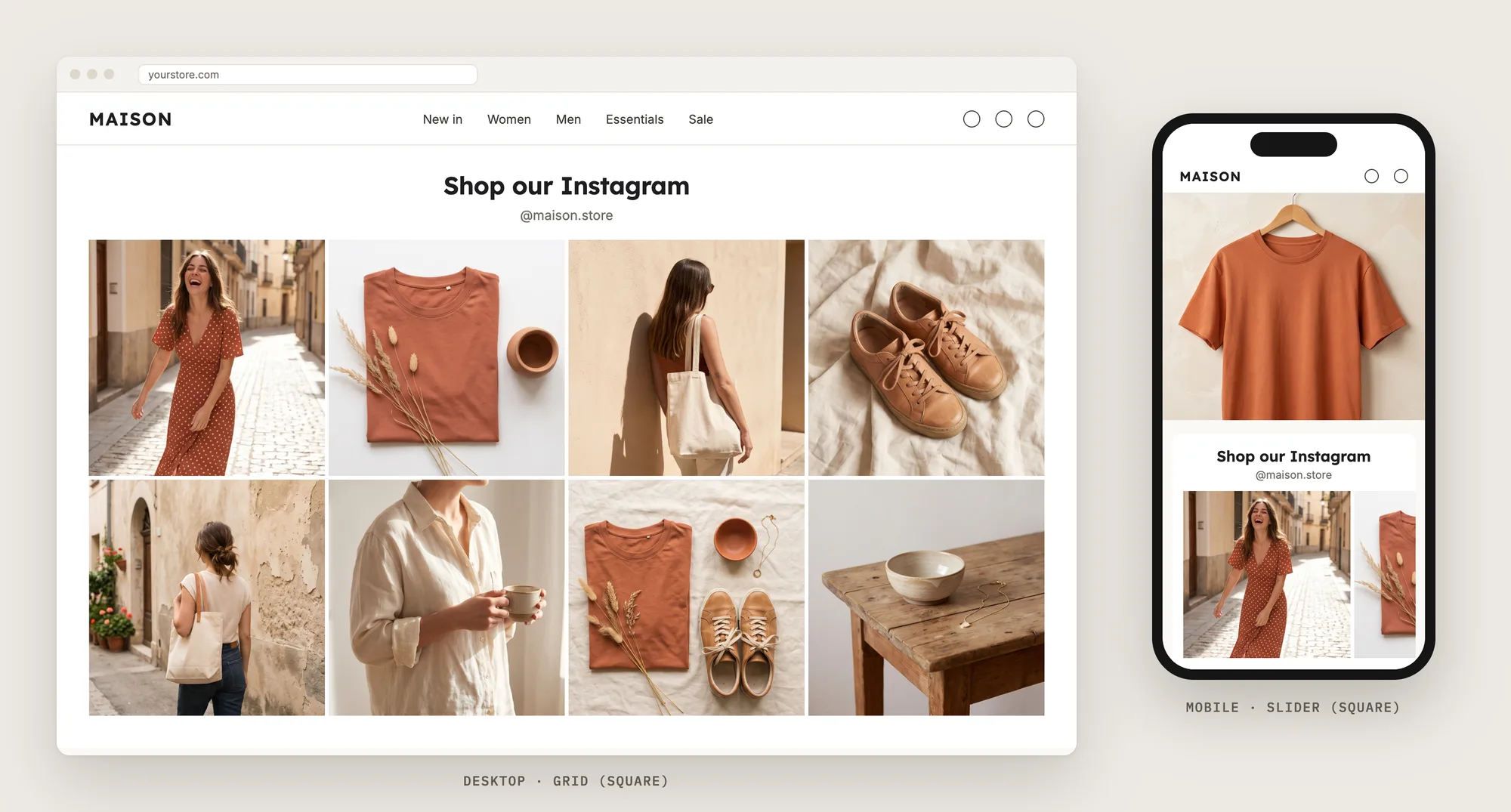
The Desktop layout and Mobile layout cards each have a Feed layout setting with five options:
- Grid (square) and Grid (portrait)
- Grid auto-layout
- Slider (square) and Slider (portrait)
The defaults are Grid (square) on desktop and Slider (square) on mobile. A slider fits a long row of posts into a small space on a phone.
Step 7: Set Columns, Rows and Spacing
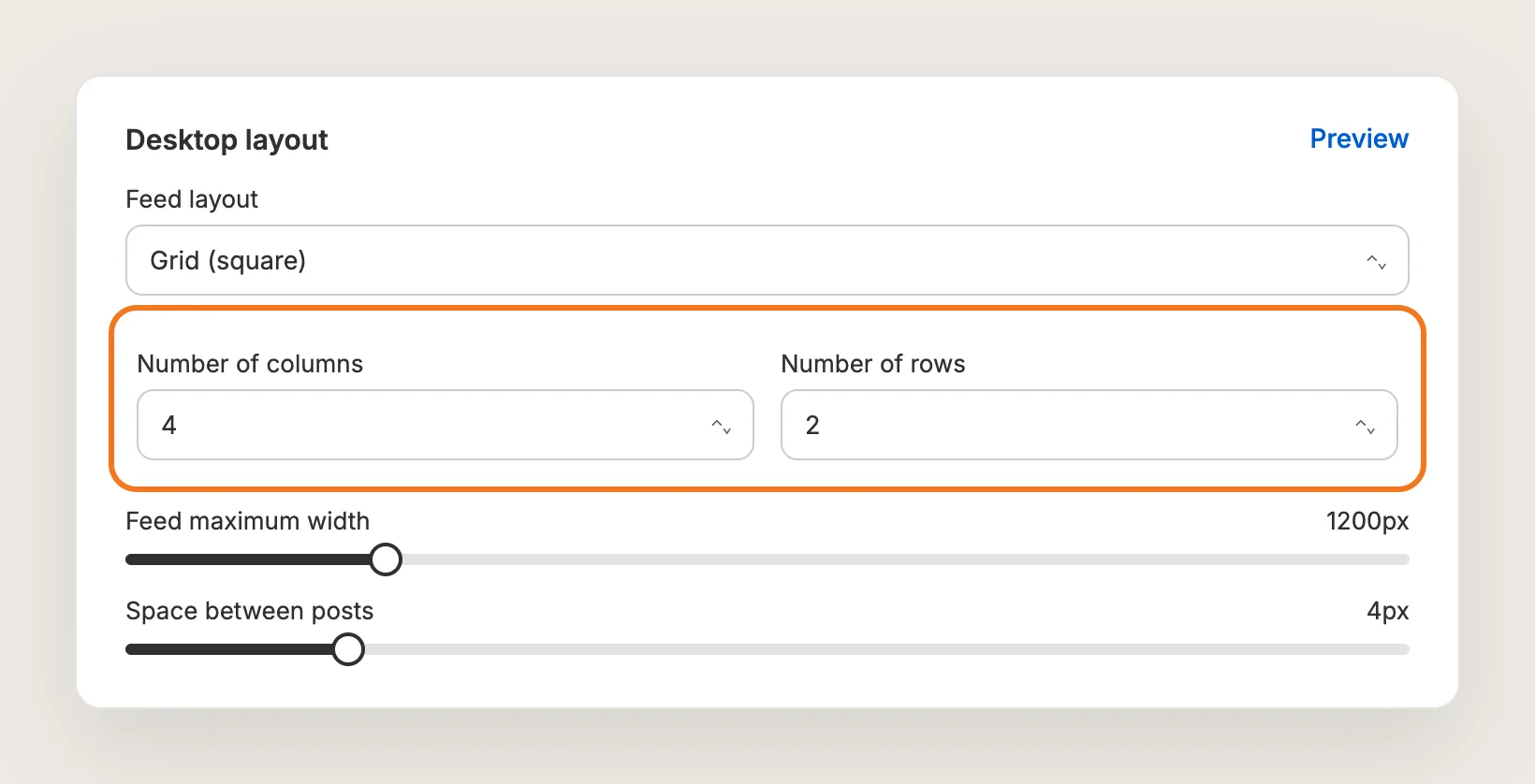
For a grid, set Number of columns and Number of rows: 3 to 8 columns and 1 to 12 rows on desktop, 1 to 4 columns and 1 to 5 rows on mobile. A slider and Grid auto-layout use Number of posts instead.
Space between posts sets the gap between tiles, from 0 to 24px. On desktop, Feed maximum width sets the feed's width from 1000px to 2000px for every layout except Grid auto-layout. Click Preview on the card to check the result.
Step 8: Edit the Title and Colors
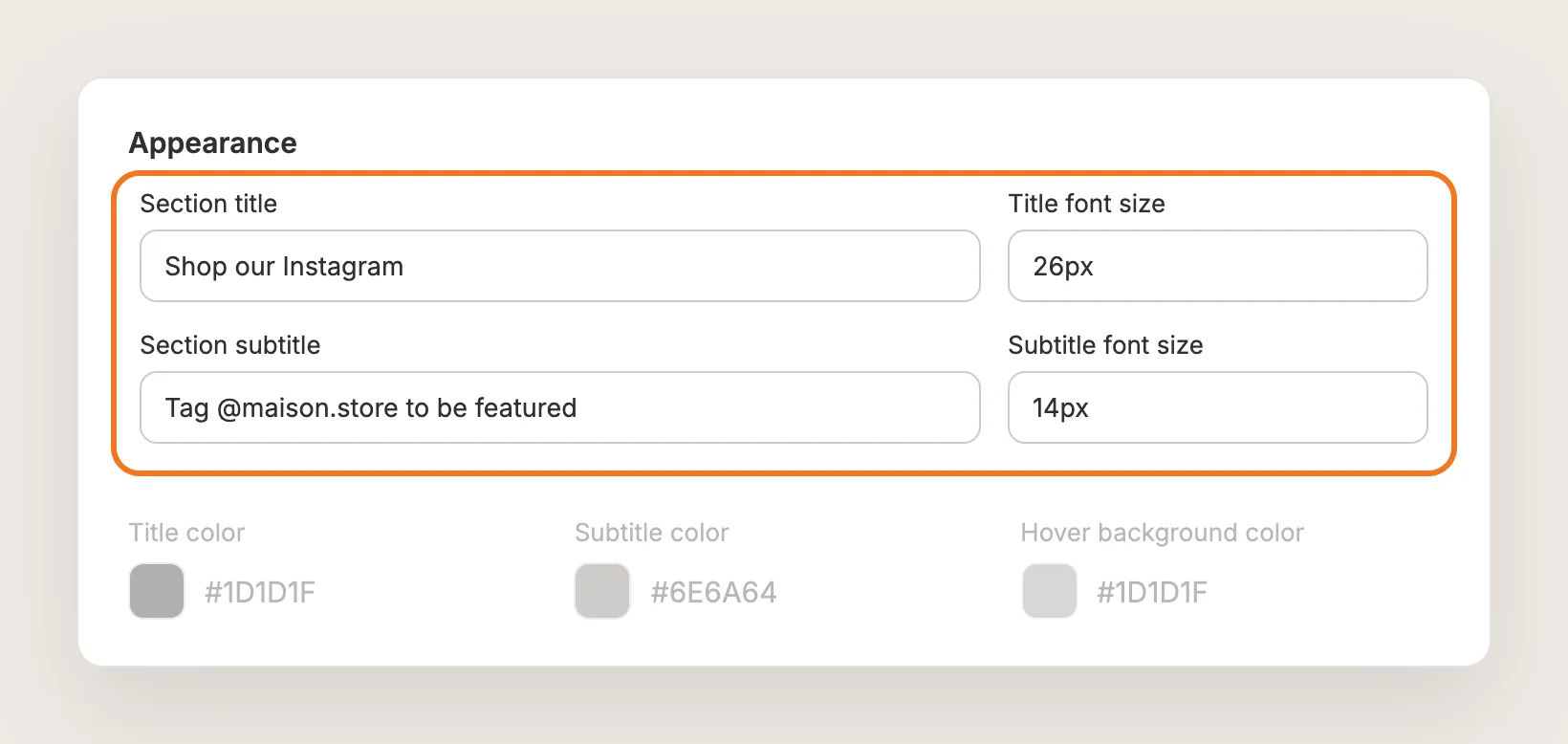
In the Appearance card, write the Section title and Section subtitle that show above the feed, and set each one's font size. The same card sets the title color, subtitle color and the hover background color of the tiles. The feed uses your theme's font.
Step 9: Tag Products on Your Posts
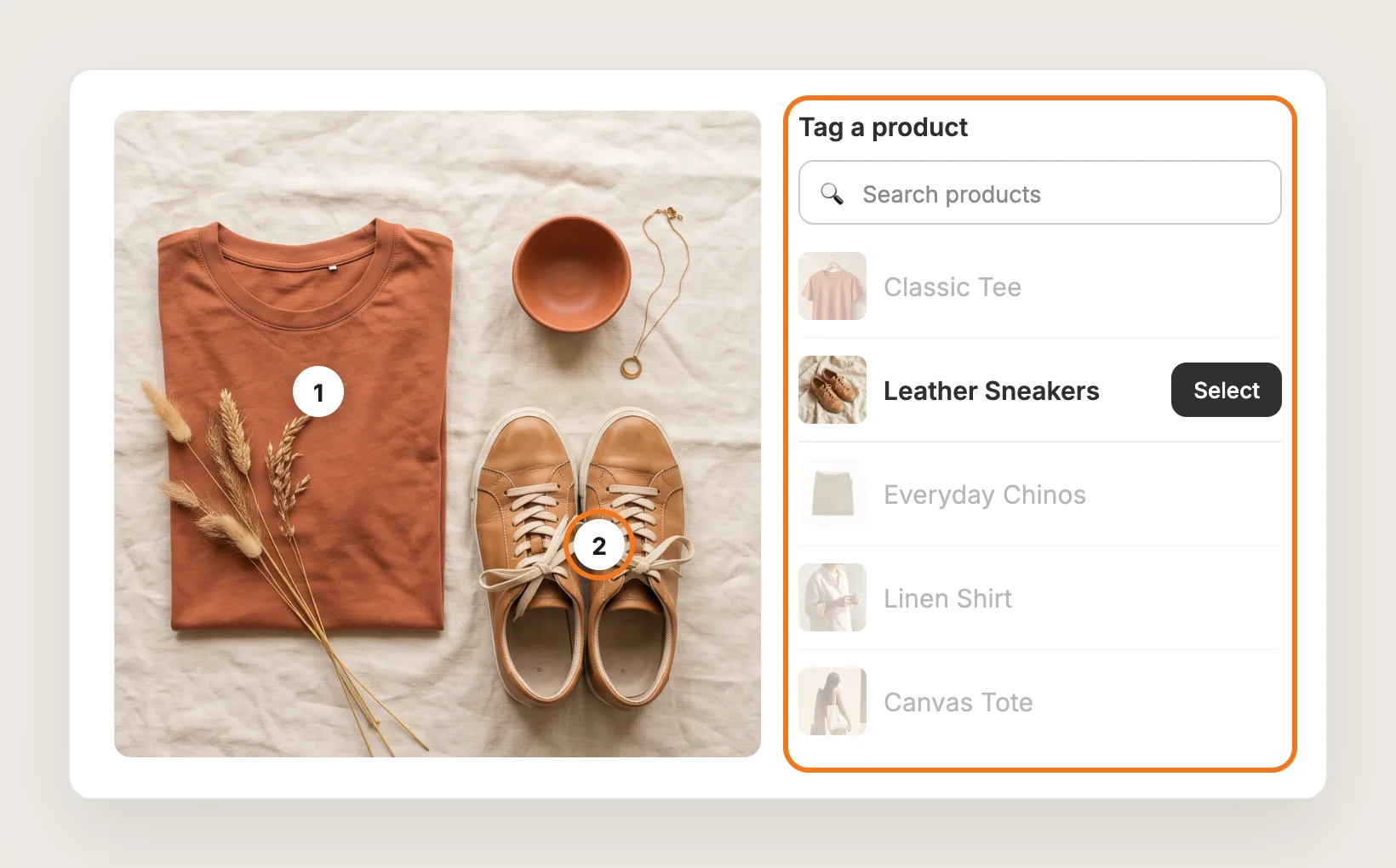
Open the Posts tab and click a post. Click the spot on the image where the product shows, then pick the product in Tag a product. Click another spot to tag a second product. Product tags are free, and new tags take 2 to 3 minutes to appear on your store.
Step 10: Check the Post Window on Your Store
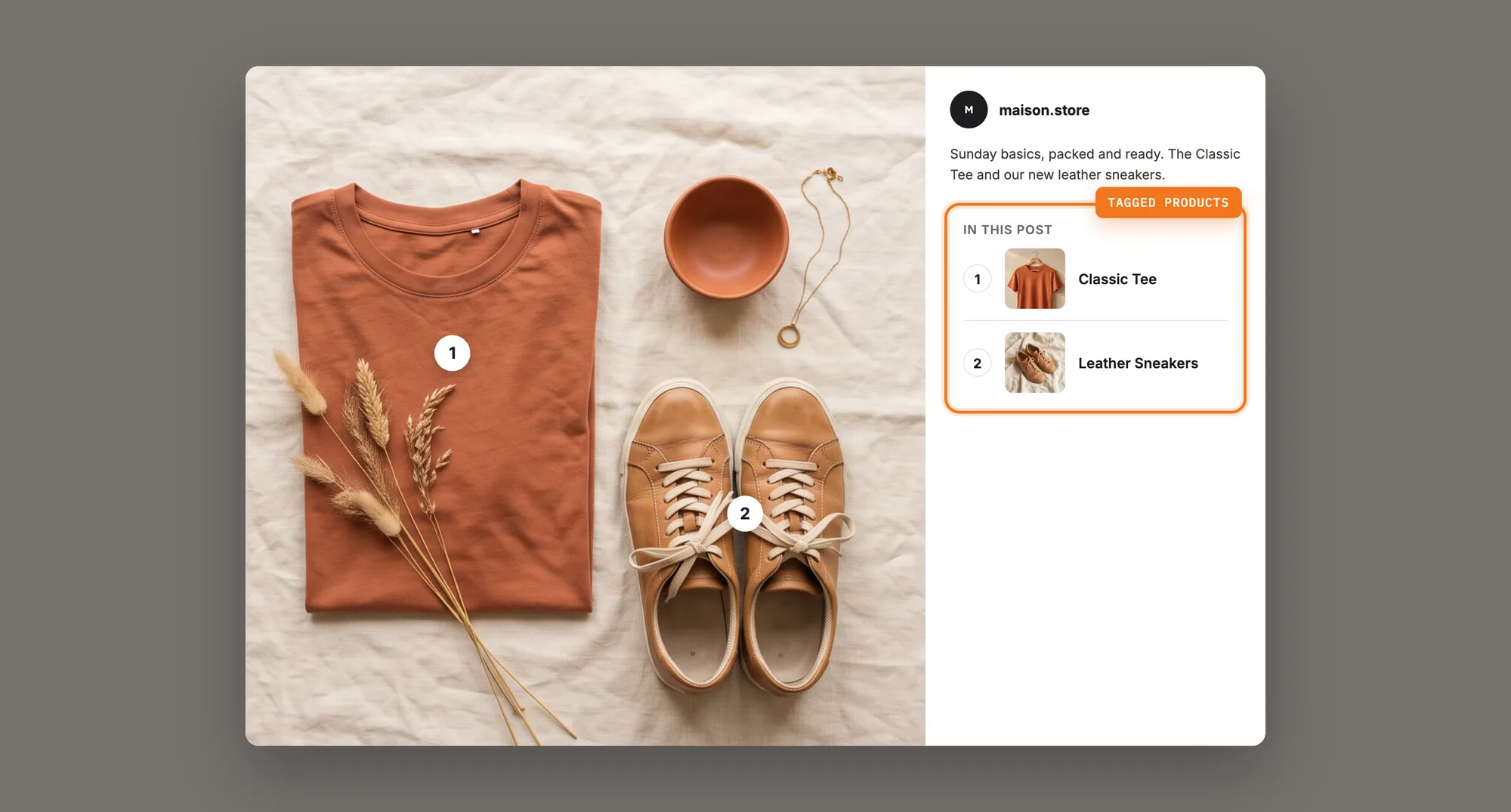
On your store, clicking a post opens it in a window. Each tag shows as a numbered marker on the image, with a matching numbered product beside it. Clicking a product opens its product page in a new tab.
Step 11: Choose Which Posts Show (Optional)
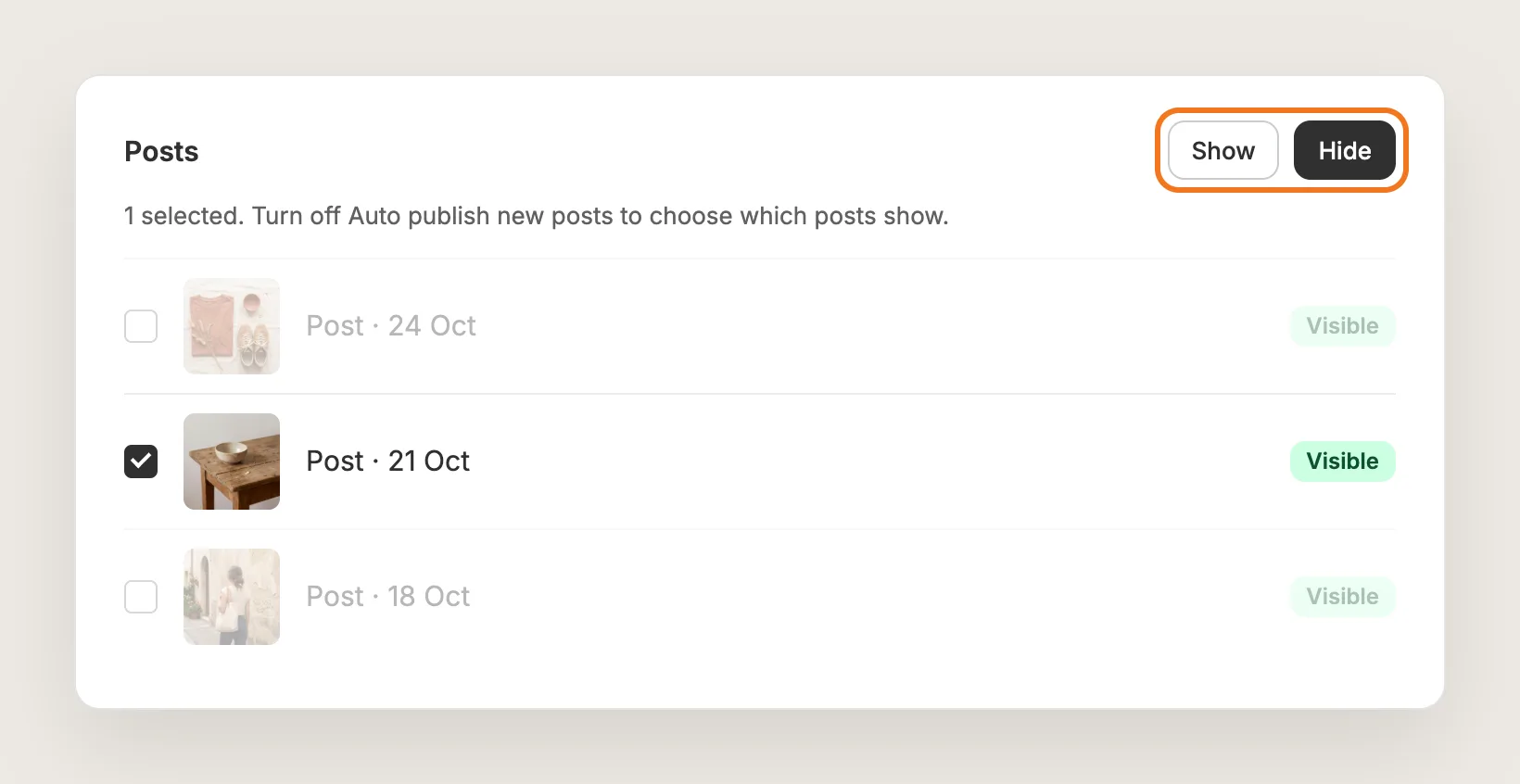
Auto publish new posts is on by default, so every new post appears on your store. To pick posts yourself, turn Auto publish new posts off in the Settings card. Then open the Posts tab, tick the posts you want to change and click Show or Hide.
Step 12: Save, Test on Your Phone and Watch the Tag Clicks
Save, then open your homepage and a product page on your phone and on desktop. Check the layout, open a tagged post and click a product to make sure it opens the right page.
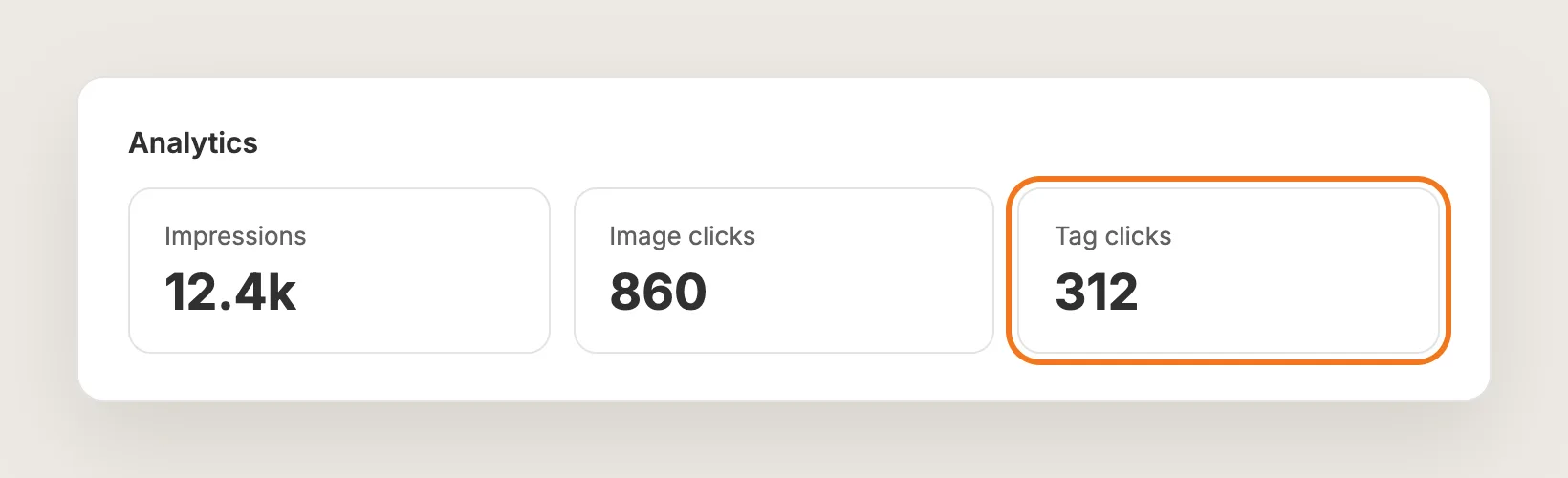
The Analytics tab then shows the feed's impressions, image clicks and tag clicks, so you can see how many shoppers go from a post to a product.
Step 13: Voila, Your Instagram Feed Is Live on the Store
Your shoppers now see your latest Instagram posts on your store, and every tagged post leads to the product in the photo.
How to Add an Instagram Feed From Your Theme Settings?
Few Shopify themes include an Instagram feed section, but most have an image section such as Image gallery, Collage or Multicolumn that can hold photos you upload from Instagram by hand. To check your theme:
- In your Shopify admin, open Online Store → Themes and click Customize
- Click Add section on the homepage and look for an Instagram, gallery or collage section
- Add the section, upload your Instagram photos and link each photo to a product, if the section allows links
A manual gallery shows the photos you upload and nothing more. New posts don't appear until you upload them, and there is no post window, no product tags and no click tracking. If you post rarely and only want a few photos on the homepage, a manual gallery may be enough.
How to Add an Instagram Feed Without an App?
Hire a developer to build an Instagram feed into your theme with Instagram's API, Liquid, CSS and JavaScript. The code fetches your latest posts from Instagram and lays them out on the page.
A custom Instagram feed usually involves:
- Creating a Meta developer app and connecting your Instagram professional account to it
- Storing an access token and refreshing it before it expires
- Fetching your latest posts on a schedule, so the store doesn't call Instagram on every page view
- Building the grid or slider layout for mobile and desktop
- Building product tags and a post window by hand, if you want the feed to be shoppable
Custom code means no extra app, but you or your developer have to maintain it. Instagram changes its API from time to time, and an expired token or an API change stops the feed until someone fixes the code.
How to Increase Sales With an Instagram Feed?
An Instagram feed drives sales when shoppers can click from a post to the product in it, so most of the gain comes from tagging posts and putting the feed where shoppers decide.
- Tag products on every post that shows one. An untagged post is a nice photo with no next step. Open each post in the Posts tab and tag every product in it, carousel posts included
- Show the feed on product pages. Shoppers deciding on a product can see it worn or used. Keep Product page on in the Position card
- Limit the product page feed to products with posts. Use Advanced display rules and Display only on specific products to show the feed on the products your posts feature
- Hide posts that show no products. Turn off Auto publish new posts, then hide quotes, announcements and other posts with nothing to buy
- Turn on video autoplay for Reels. Autoplay videos in the feed plays videos and Reels muted in their tiles on the live store, one at a time for 6 seconds each
- Check tag clicks after each change. Compare Tag clicks with Impressions in the Analytics tab to see whether a change sends more shoppers to products
Why Isn't My Instagram Feed Showing or Working?
Most Instagram feed problems come from one of these:
- The feed doesn't show at all: Check that your account appears under Connected Instagram Account and isn't asking you to Reconnect. Then check the Home page and Product page switches in the Position card
- The feed disappeared after working: Instagram or Facebook can disconnect the account, for example after a password change. Click Reconnect under Connected Instagram Account
- A new post isn't showing: Posts sync from Instagram about every 6 hours. If Auto publish new posts is off, show the post yourself in the Posts tab
- Posts I'm tagged in don't show: The feed shows only posts published by your connected account, so collaboration posts and posts by other accounts don't appear
- An "already connected to a Shopify Store" error appears: The error comes from Shopify's Facebook & Instagram sales channel, not from Vitals. In Vitals, use Connect with Instagram instead of Connect with Facebook
- Like and comment counts don't show: Counts show only when the account is connected with Connect with Facebook
- A new product tag doesn't show: Tags take 2 to 3 minutes to appear. Wait, then hard refresh the page
Which Instagram Feed Method Should You Choose?
Vitals - All in One App suits most stores, but the right method depends on how often you post and whether you want the feed to be shoppable.
- Choose Vitals - All in One App if you want a shoppable feed that syncs on its own and tracks tag clicks. It also includes 40+ other apps in one subscription of $29.99/month, so you don't have to install and pay for each app separately
- Choose your theme's setting if you post rarely and only want a few hand-picked photos on the homepage
- Choose custom code if you have a developer, want no app at all, and are happy to fix the feed when Instagram changes its API
If you already use another Instagram feed app, see our Instafeed alternatives, RPTR Instagram Feed alternatives and GSC Instagram Feed alternatives.
Start a 7-day free trial: Install the Vitals - All in One App and add an Instagram feed
Frequently Asked Questions
1. What is the best way to add an Instagram feed to Shopify?
Vitals - All in One App is the best way for most stores. It adds a synced Instagram feed without code, with separate mobile and desktop layouts, shoppable product tags and tag click tracking.
2. Does Shopify have a built-in Instagram feed?
No, Shopify doesn't include an Instagram feed as a store-wide feature. You can upload Instagram photos to an image gallery section by hand, but new posts won't appear on their own. For a feed that syncs, you'll need an app or custom code.
3. Can customers shop directly from my Instagram posts?
Yes. In Vitals, tag store products on a post in the Posts tab. Shoppers who open the post on your store see the tagged products, and each product opens its product page in a new tab.
4. How often does the Instagram feed update?
New posts sync from Instagram about every 6 hours. With Auto publish new posts on, they appear on your store automatically. With it off, you choose which posts to show in the Posts tab.
5. Can the feed show posts I'm tagged in or posts from a hashtag?
No. The Vitals Shoppable Instagram Feed app shows only posts published by your connected account. Posts by other accounts, collaboration posts and hashtag feeds don't appear.
6. Can I connect more than one Instagram account?
No. One Instagram account can be connected per store. To switch accounts, click Disconnect under Connected Instagram Account, then connect the other account.
7. Does the Instagram feed show Reels and videos?
Yes. Turn on Autoplay videos in the feed in the Settings card to play videos and Reels muted in their tiles, one at a time for 6 seconds each. Visitors who use reduced motion or data saving see a still image instead.