How to Add a Shop the Look Section on Shopify

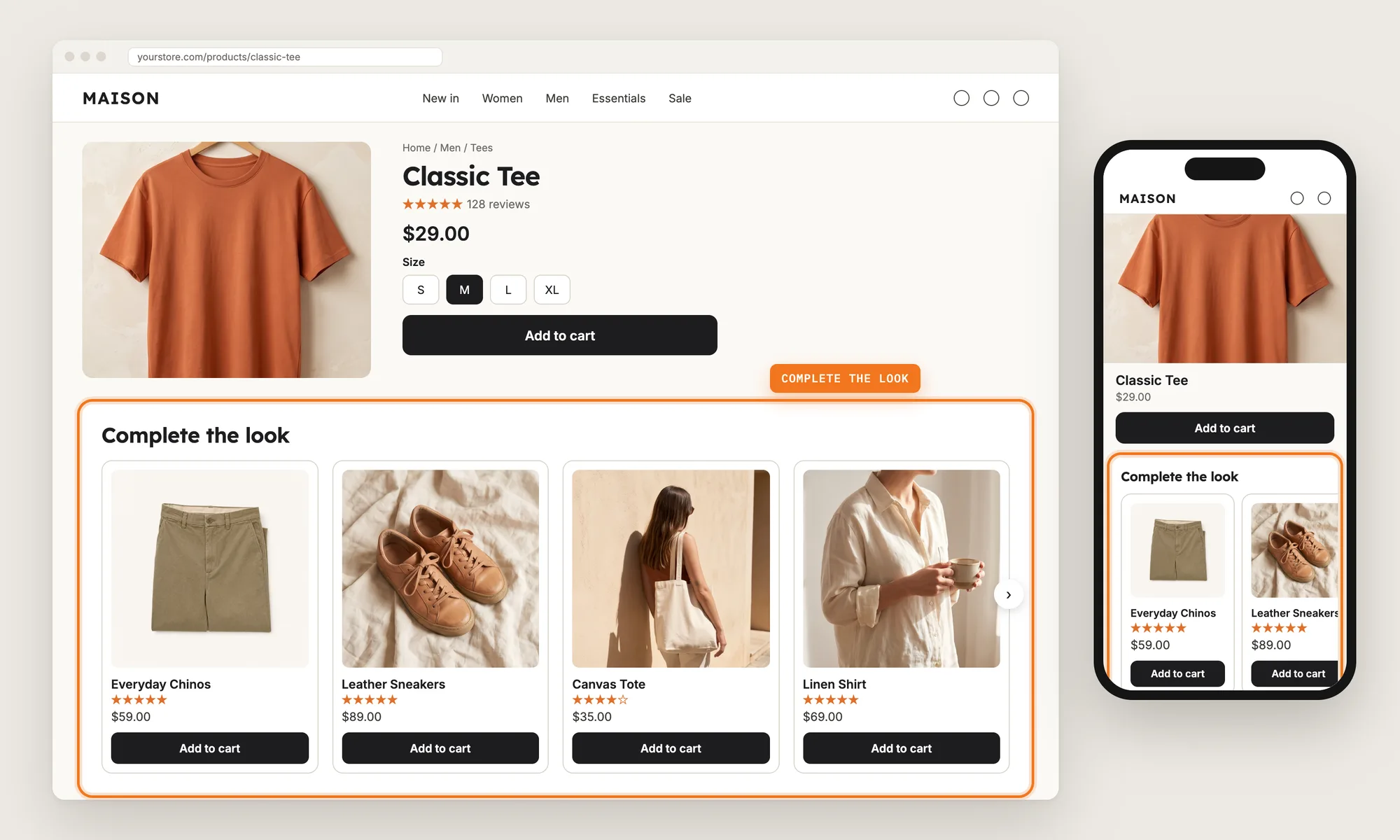
A shopper on your Classic Tee page likes the tee, but can't picture what to wear with it. The chinos, sneakers and tote from your photos are three clicks away, in three different collections.
A shop the look section puts those products right under the tee, so the shopper can see the full outfit and add each piece to the cart without leaving the page. Some stores call the same section "complete the look".
Here are the three ways to add a shop the look section to a Shopify store: with a Related Products app, from your theme settings, or with custom code.
What Is a Shop the Look Section?
A shop the look section is a row of products on a product page that go with the product the shopper is viewing, such as the trousers, shoes and bag that complete an outfit. It is also called a complete the look section, and it usually shows as a carousel under the product.
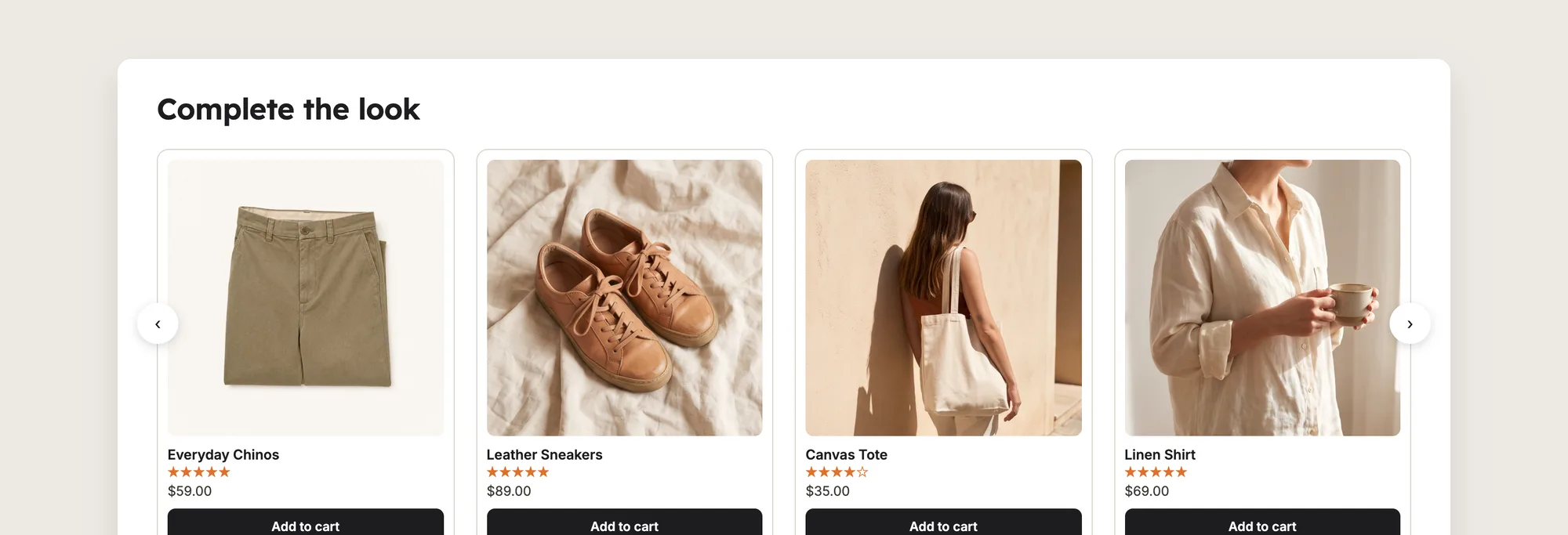
A good shop the look section includes:
- Hand-picked products: You choose the products that make up the look, so the section shows an outfit, not random items.
- Add to cart buttons: Shoppers can add each piece to the cart from the section.
- Your own heading: The section can say "Shop the look" or "Complete the look" instead of a generic title.
- Placement control: The section can show under the buy buttons or at the end of the product page.
A shop the look section links the products of one look to each other, so every product in the look shows the other pieces on its page.
What's the Quickest Way to Add a Shop the Look Section?
- Vitals - All in One App is the quickest way to add a shop the look section for most stores
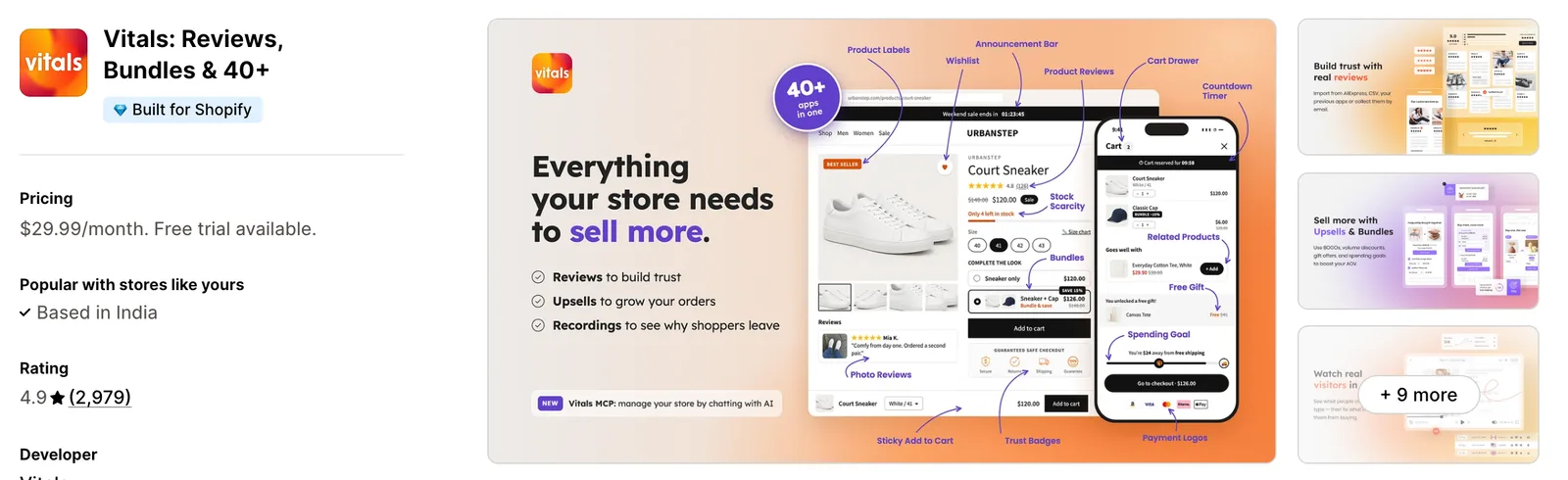
- Vitals also offers 40+ apps, such as product bundles, product reviews and a wishlist, in one subscription of $29.99/month, so you don't have to install and pay for each app separately
Here's how the three methods compare. If you'd rather weigh several recommendation apps against each other, see our list of the best related products apps for Shopify.
How to Add a Shop the Look Section With a Related Products App?
Install the Vitals - All in One App, open its Related Products app and click Activate app. A related products carousel then shows on your product pages, and the steps below turn it into a shop the look section with your own hand-picked looks.
Step 1: Add the Vitals - All in One App to Your Store
Install the Vitals - All in One App from the Shopify App Store. The Vitals Related Products app is part of the 7-day free trial.
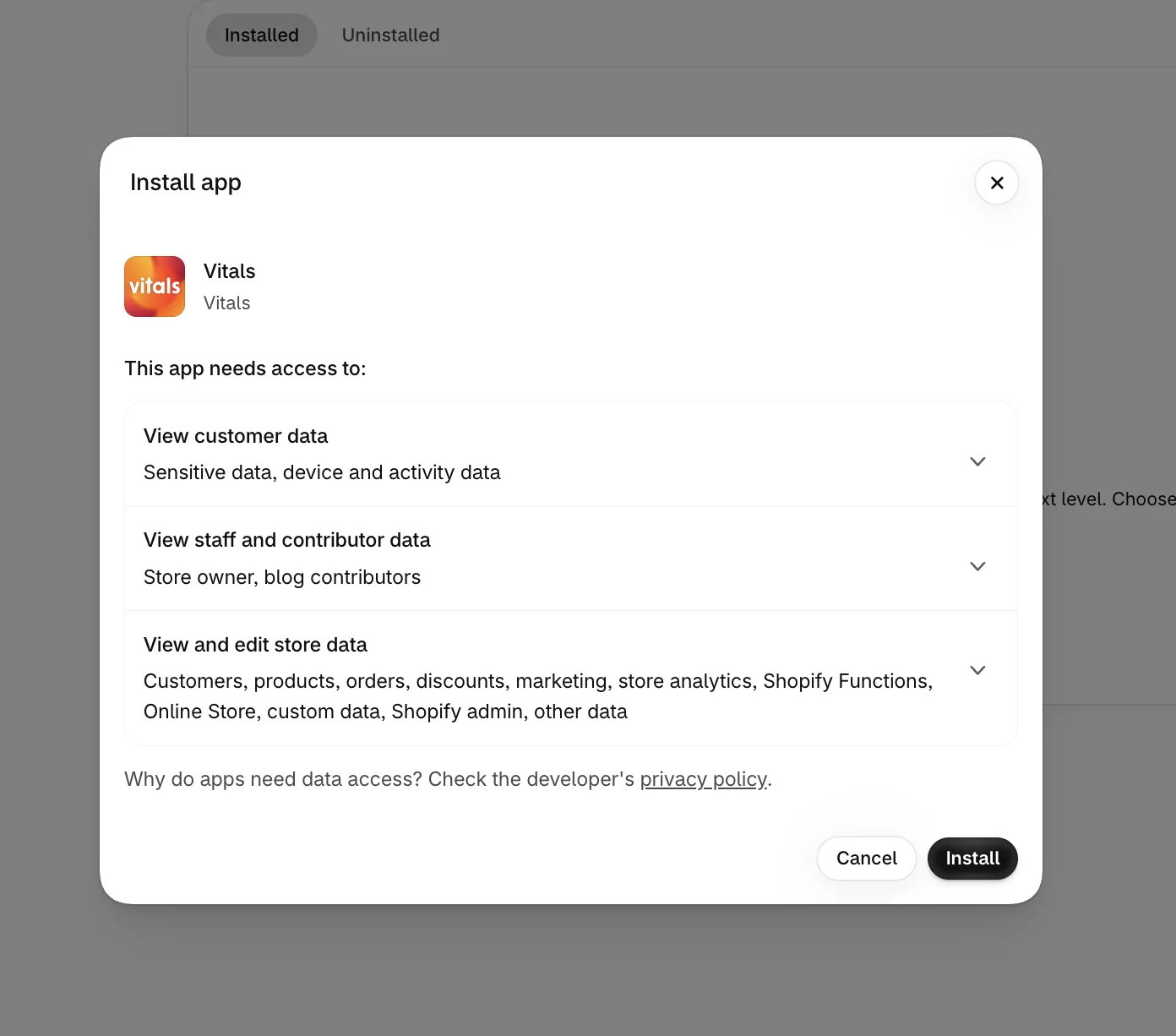
Step 2: Confirm the Install
Shopify asks you to approve the data Vitals works with. Click Install to confirm and open the Vitals dashboard.
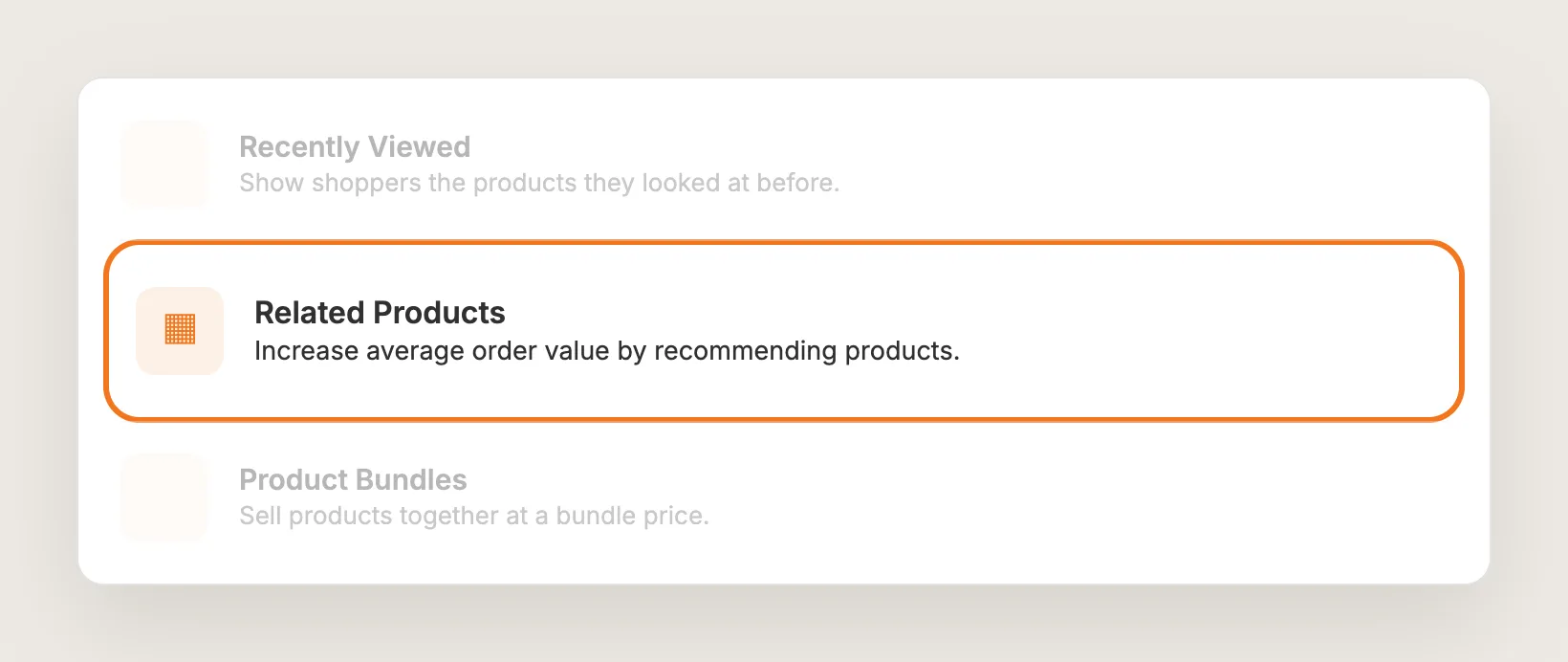
Step 3: Find Related Products in Vitals
Click Related Products in the list of apps on the Vitals dashboard.
Step 4: Activate Related Products
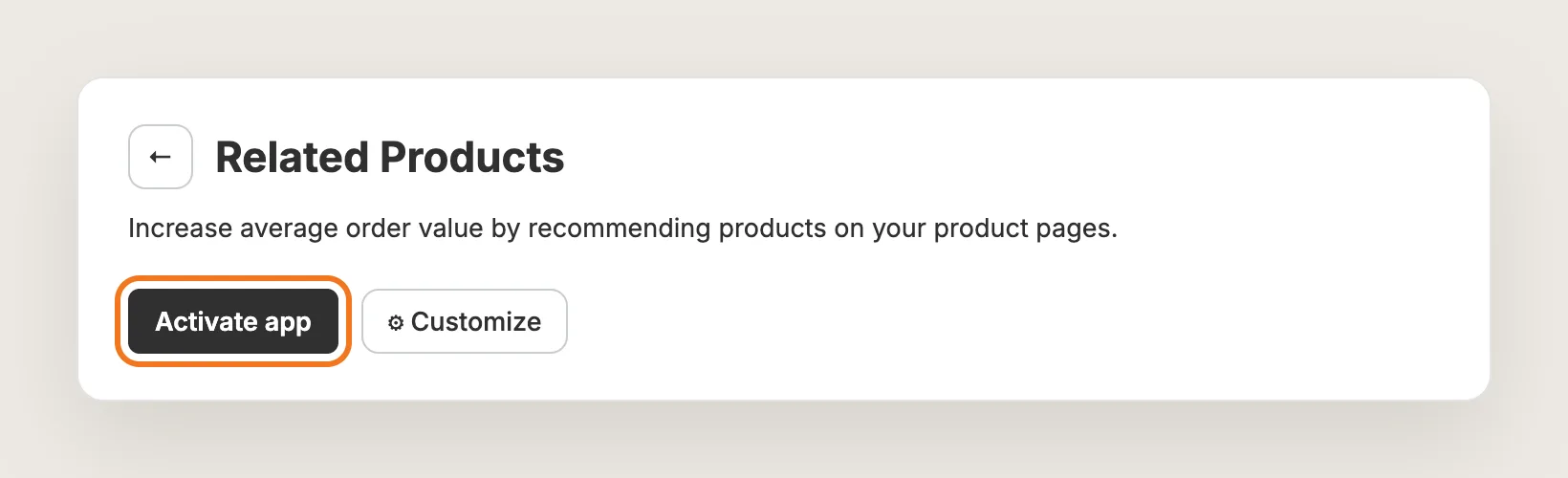
On the Related Products page, click Activate app. Customize opens the settings used in the steps below.
Step 5: Create the Look as an Individual Product Set
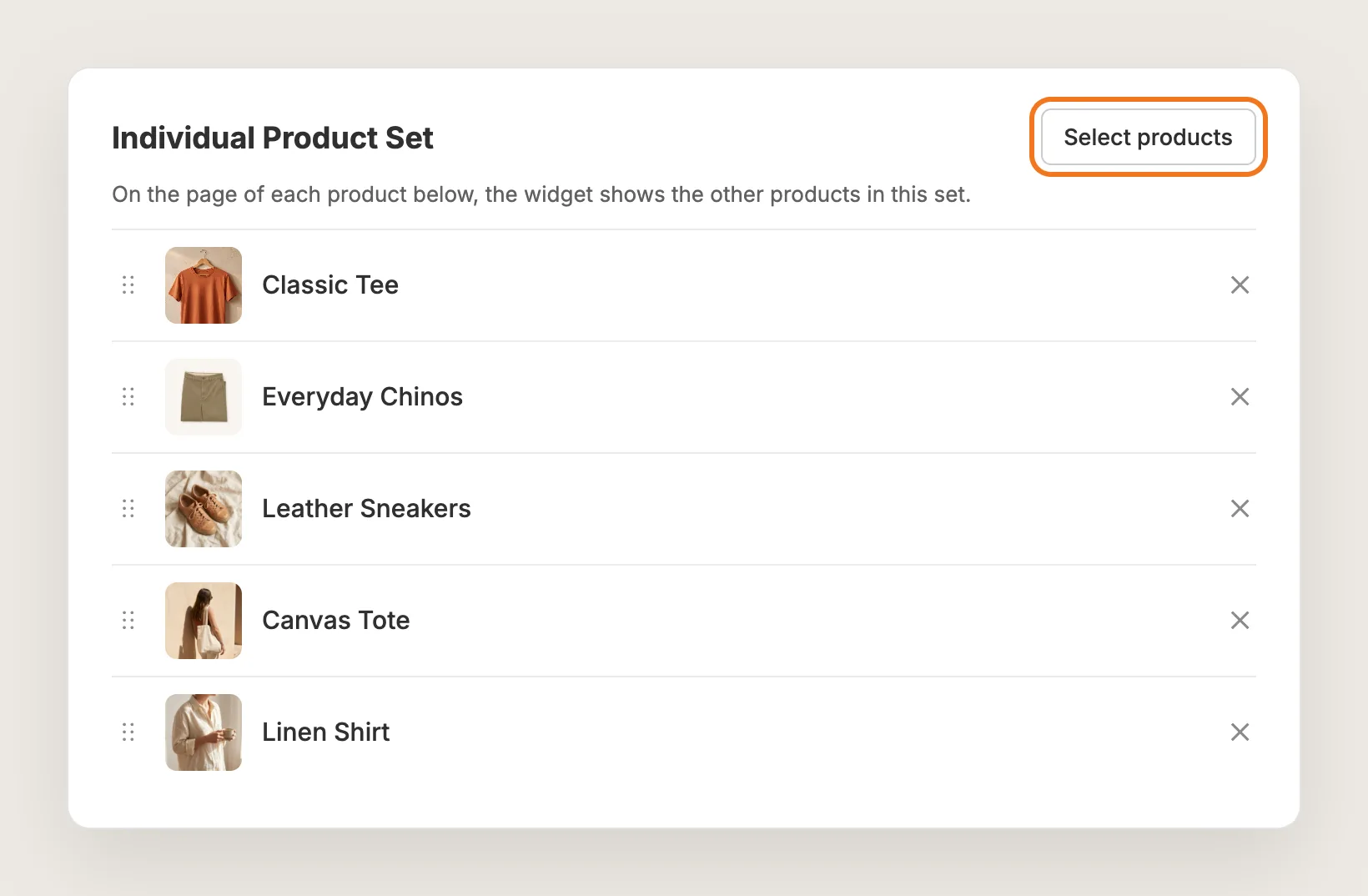
Open the Individual Product Sets tab and click Create New Set. Click Select products, pick every product in the look, then click Save. Drag the rows to set the order the products show in.
A set works in every direction. On the page of each product in the set, the section shows the other products of the set. The Classic Tee page shows the chinos, sneakers, tote and shirt, and the sneakers page shows the tee, chinos, tote and shirt. Create one set per look.
Step 6: Put Individual Product Sets First
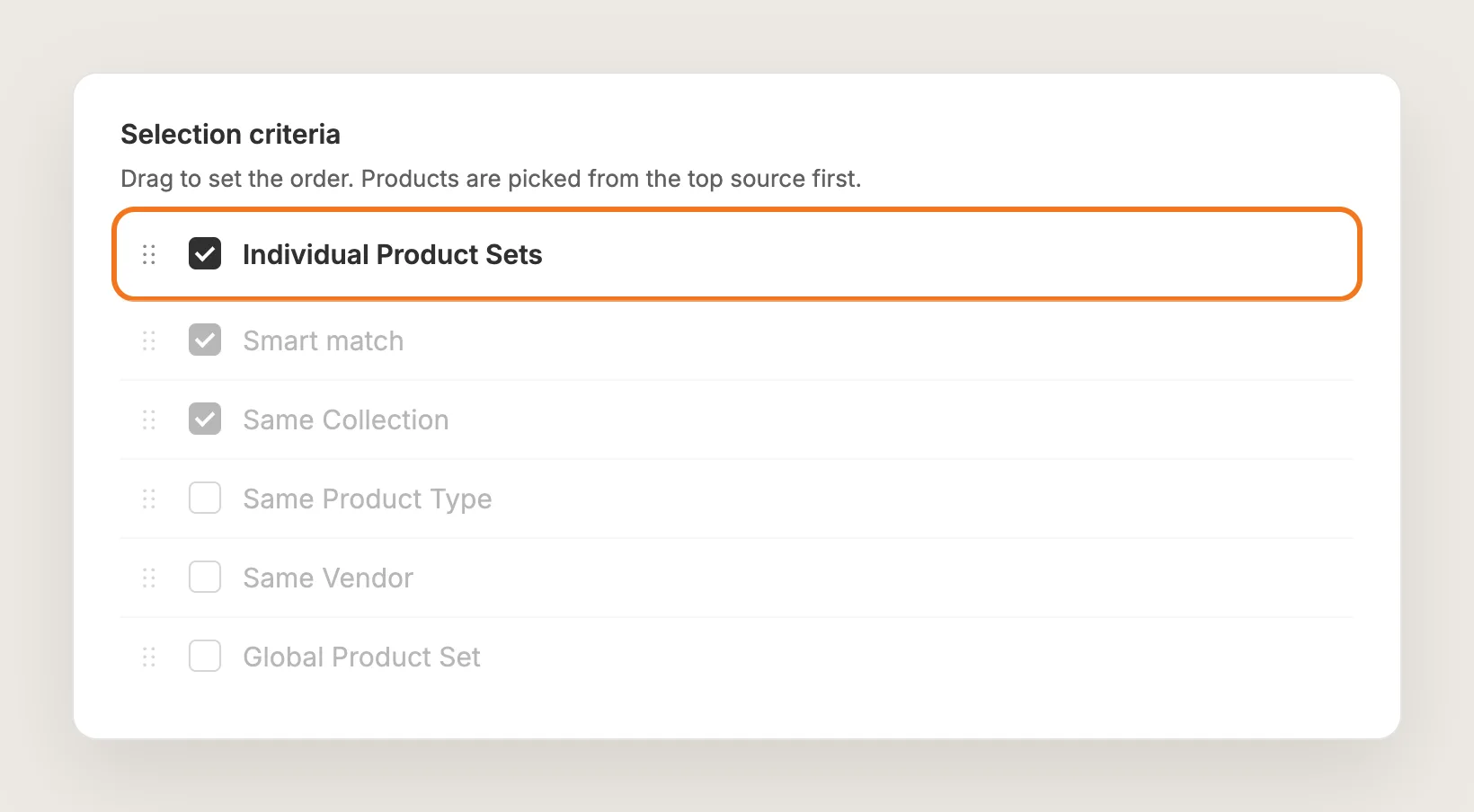
Open Settings, then Selection criteria. Tick Individual Product Sets and drag it to the top of the list. The section is filled from the top source first, so your looks show before the automatic picks.
To show only hand-picked looks, untick the automatic sources such as Smart match and Same Collection. To fill empty slots on products with no look, keep one automatic source ticked below your sets.
Step 7: Rename the Title to Complete the Look
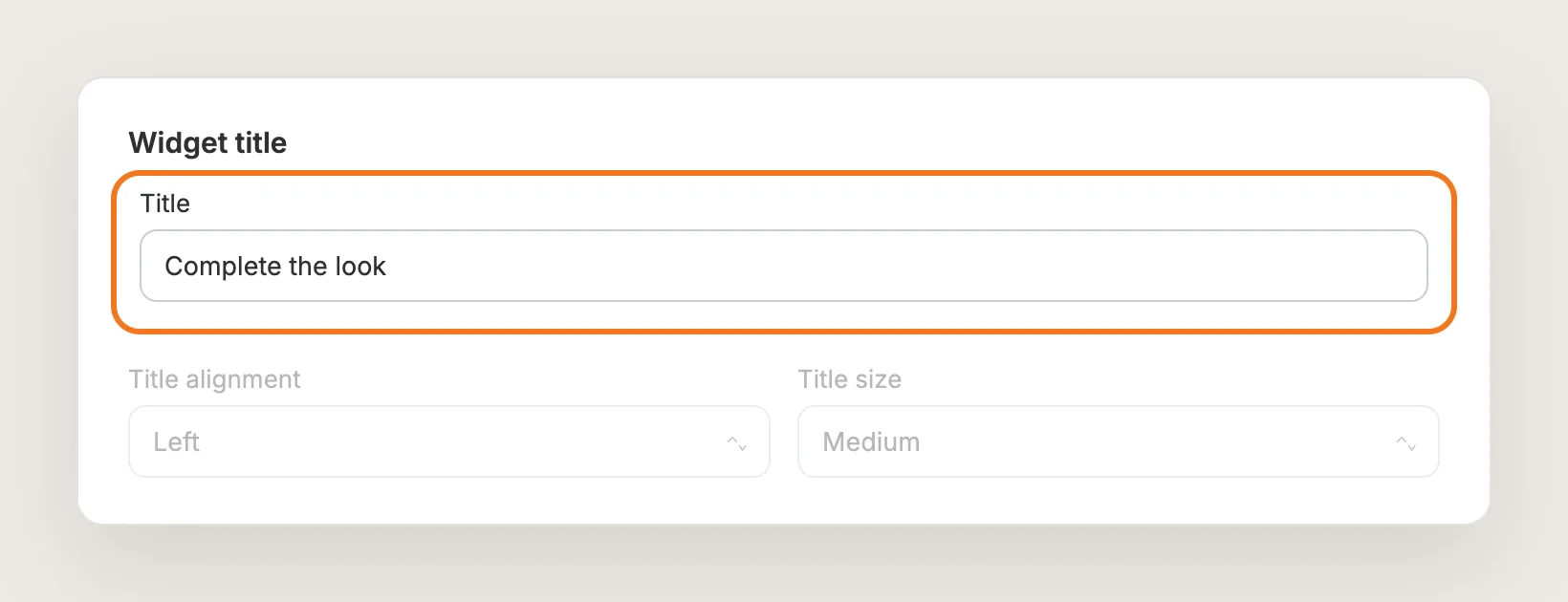
Under Widget title, replace the default Title, "Customers who bought this also bought", with "Complete the look" or "Shop the look". The same card sets Title alignment and Title size.
Step 8: Let Shoppers Add the Look to Cart
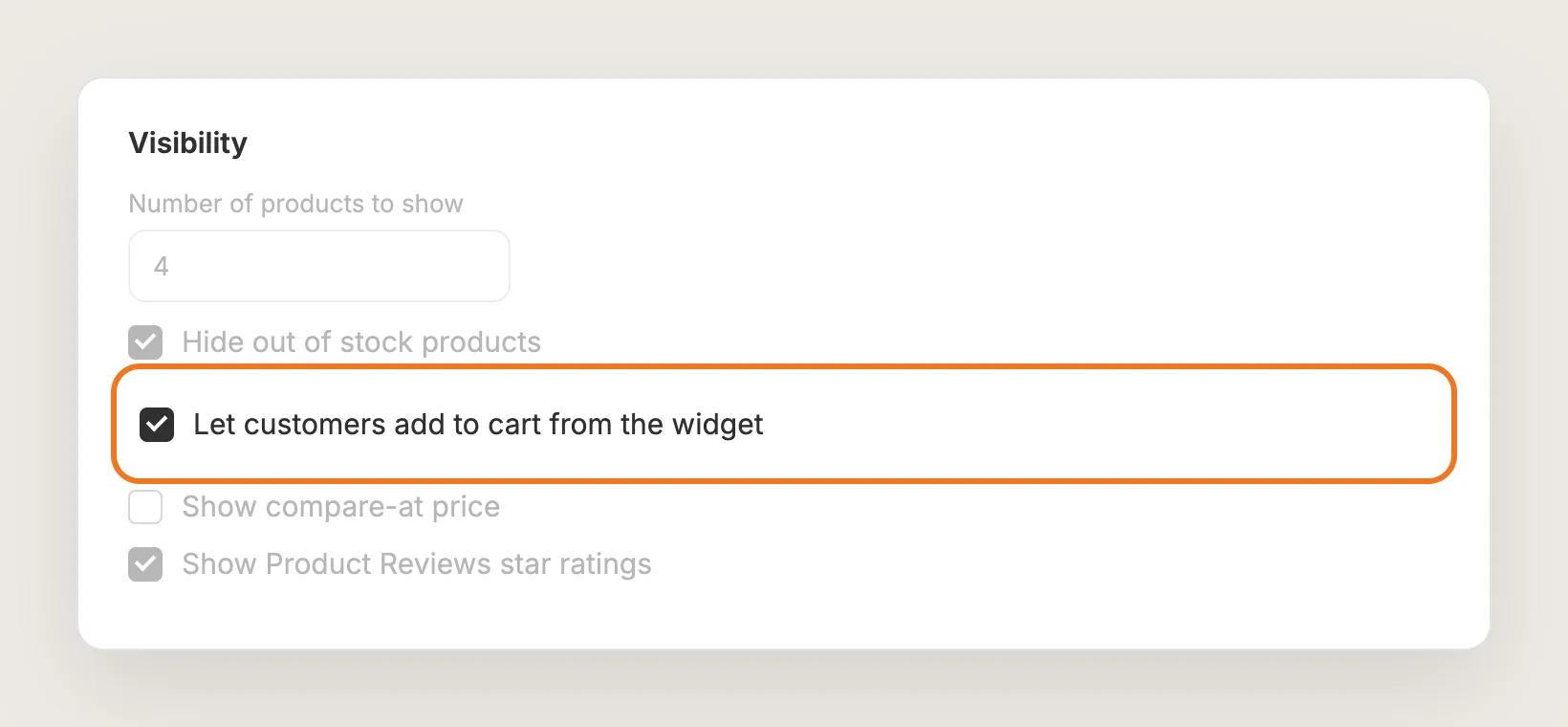
Under Visibility, tick Let customers add to cart from the widget, so every product card gets an Add to cart button. Set Number of products to show to the number of other products in your biggest look, up to 16.
The same card can show review stars from the Vitals Product Reviews app with Show Product Reviews star ratings, and the compare-at price with Show compare-at price.
Step 9: Choose Where the Look Shows
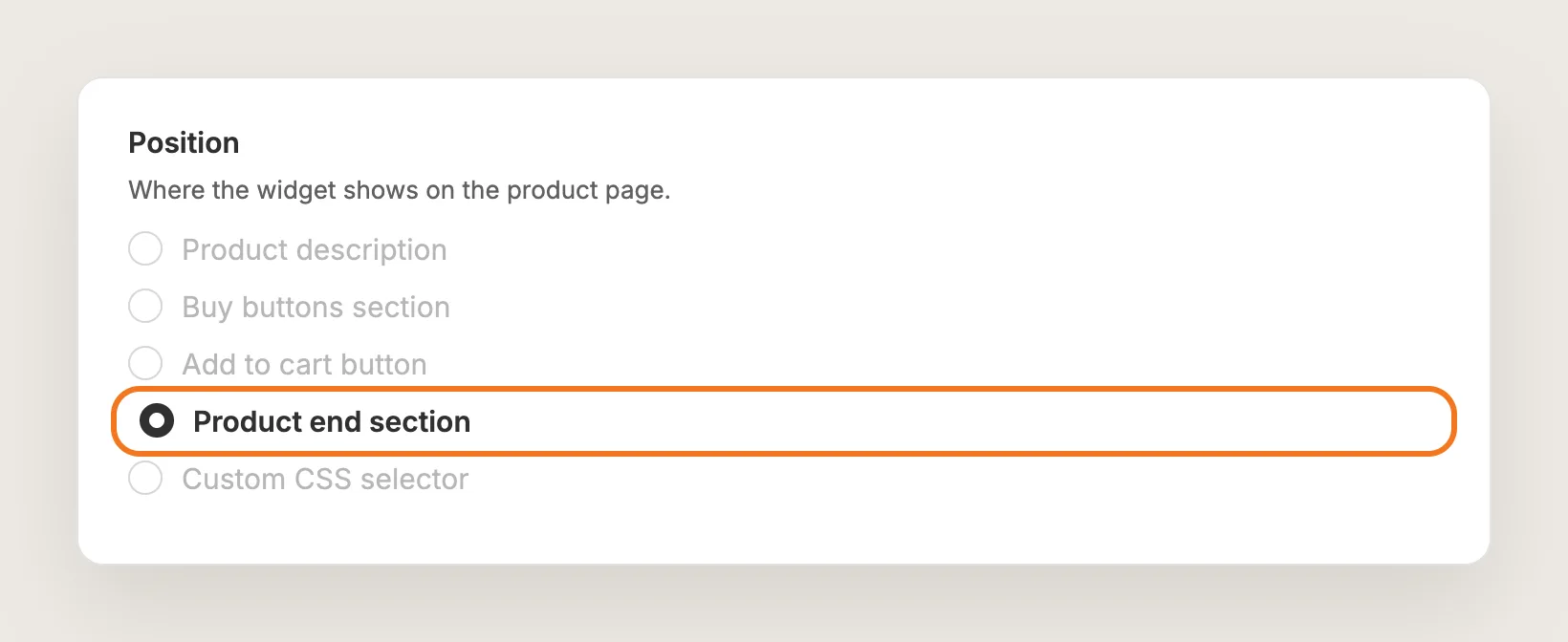
Under Position, choose where the section shows on the product page: Product description, Buy buttons section, Add to cart button or Product end section. Custom CSS selector places the section next to any element you name.
On an Online Store 2.0 theme, you can also add the section as an app block. Open a product template in the theme editor, click Add block, then Apps, then Related Products.
Step 10: Save, Check the Section on Your Phone and Watch the Clicks
Save, then open a product from one of your looks on your phone and on desktop. Check that the section shows the other products of the look, and add a product to the cart from the section.
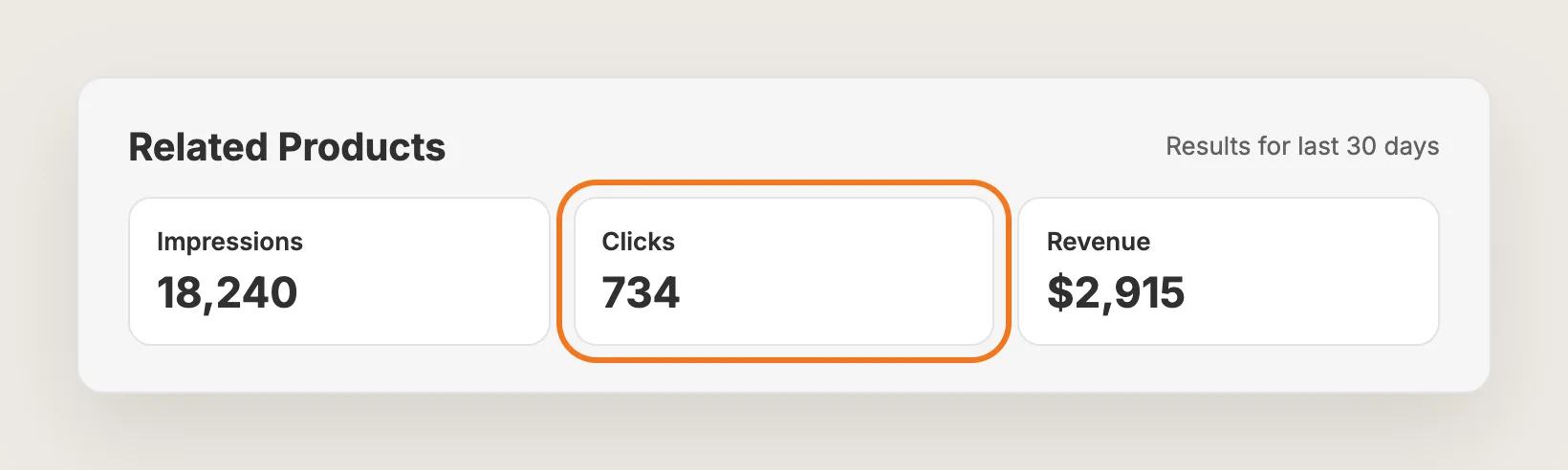
The Analytics tab then shows how often shoppers see and click the section, and the revenue it brings in.
Step 11: Voila, Your Shop the Look Section Is Live on the Store
Your shoppers now see the full look on every product in it, and can add each piece to the cart from the product page.
How to Add a Shop the Look Section From Your Theme Settings?
Many Shopify themes include a Complementary products block for the product page. The block shows products you link in Shopify's free Search & Discovery app. To check your theme:
- Install the Shopify Search & Discovery app, open Recommendations, pick a product and add its complementary products
- In Shopify, go to Online Store → Themes, click Customize and open a product template
- Click Add block in the product information section and look for Complementary products
The Complementary products block works, but you link products one product at a time. Linking the tee to the sneakers doesn't link the sneakers back to the tee, so a five-piece look means five separate lists. The block has no click tracking, and its heading and layout depend on your theme. Some paid themes also include a shop the look section with product dots on a lifestyle photo, which suits a few hero looks on the homepage.
How to Add a Shop the Look Section Without an App?
Hire a developer to build a shop the look section into your theme with Liquid, metafields, CSS and JavaScript. The code reads the products linked to the current product and shows them as a carousel.
A custom shop the look section usually involves:
- Creating a product metafield that holds the products of each look
- Filling the metafield on every product in every look, in both directions
- Building the carousel layout for mobile and desktop
- Building add to cart buttons and variant pickers for each product card
- Hiding sold-out products, so the section doesn't show products shoppers can't buy
Custom code means no extra app, but you or your developer have to maintain it. Every new look means editing metafields by hand, and a theme update can overwrite the code until someone adds it back.
How to Increase AOV With a Shop the Look Section?
A shop the look section raises AOV when shoppers add a second and third piece of the outfit to the same order. Most of the gain comes from showing the right pieces and making each piece easy to add.
- Build one set per real outfit. A set with the trousers, shoes and bag from your product photos gives shoppers a look to buy, while a set of loosely related products reads like random recommendations
- Put Individual Product Sets first. Drag Individual Product Sets to the top of Selection criteria, so the look fills the section before automatic picks
- Turn on Add to cart in the section. Let customers add to cart from the widget lets shoppers add each piece without opening another page
- Show only the pieces of the look. Set Number of products to show to the size of your looks, so extra products don't push the look out of view
- Show review stars on the cards. Show Product Reviews star ratings adds the ratings from the Vitals Product Reviews app to each piece of the look
- Place the look near the buy buttons. Buy buttons section in Position shows the look while the shopper is deciding, instead of at the end of the page
- Check clicks after each change. Compare clicks with impressions in the Analytics tab to see whether a change sends more shoppers to the pieces of the look
Why Isn't My Shop the Look Section Showing or Working?
Most shop the look problems have one of these causes:
- The section shows other products, not the look: Tick Individual Product Sets in Selection criteria and drag it above the automatic sources. A newly ticked source is added at the bottom of the list
- The section shows fewer products than the look: A set shows the other products of the set, so a five-product set shows four. Raise Number of products to show if the set is bigger than the limit, and note that sold-out products are hidden while Hide out of stock products is on
- A product in the look doesn't show: Products saved as drafts in Shopify don't show until they are published
- The app won't turn on: Choose at least one selection criterion. If Individual Product Sets is ticked, create at least one set first
- The section isn't in the theme editor's app blocks: The Related Products block is offered on product templates only. Open a product template, not a collection, home or cart template
- The cards have no Add to cart button: Tick Let customers add to cart from the widget under Visibility
Which Shop the Look Method Should You Choose?
Vitals - All in One App suits most stores, but the right method depends on how many looks you sell and whether you want to track clicks.
- Choose Vitals - All in One App if you want hand-picked looks with add to cart buttons on each card and click tracking. It also includes 40+ other apps in one subscription of $29.99/month, so you don't have to install and pay for each app separately
- Choose your theme's setting if you have a few looks, are happy to link each product by hand in Search & Discovery and don't need click tracking
- Choose custom code if you have a developer, want no app at all, and are happy to edit metafields for every new look
If you already use another recommendation app, see our Wiser alternatives, K: Cross Sell alternatives and LC Manual Related Products alternatives.
Start a 7-day free trial: Install the Vitals - All in One App and build a shop the look section
Frequently Asked Questions
1. What is the best way to add a shop the look section on Shopify?
Vitals - All in One App is the best way for most stores. Its Related Products app adds a shop the look section without code, with hand-picked looks, add to cart buttons on each card and click tracking.
2. What's the difference between shop the look and complete the look?
There is no real difference. Both names describe a section that shows the products that go with the product a shopper is viewing. Stores use "shop the look" or "complete the look" as the heading, and in Vitals you can set either one in Widget title.
3. Does Shopify have a built-in shop the look section?
No, Shopify doesn't include a shop the look section as a store-wide feature. Many themes include a Complementary products block that shows products you link in the free Search & Discovery app, one product at a time. For looks that link every product to each other, you'll need an app or custom code.
4. Can one product be in more than one look?
Yes. A product can be in any number of Individual Product Sets. Its page then shows the products of every set it belongs to in one carousel, newest set first, with duplicates removed.
5. Can I give a discount when shoppers buy the whole look?
The Vitals Related Products app shows the look without a discount. To sell the look at a set price, create a bundle in the Vitals Product Bundles app, which is in the same subscription.
6. Can the shop the look section show on collection pages?
No. The Vitals shop the look section shows on product pages only, because it shows the products that go with the product being viewed.
7. Can I show the section on only some products?
Yes. Products that are in no set show nothing from your sets. To limit the section to chosen products, expand Advanced display rules and use Display only on specific products.