How to Add WhatsApp Chat Button on Shopify

Shoppers often have one last question before they buy, such as whether a tee fits, when it will arrive or how returns work. If the only way to ask is a contact form or an email address, many shoppers close the tab instead of waiting for an answer.
A WhatsApp chat button lets shoppers ask that question in the app they already use every day. One tap on the button opens a WhatsApp chat with your store's number, and you reply from your own phone.
Here are the three ways to add a WhatsApp chat button to a Shopify store: with a WhatsApp chat app, from your theme settings, or with custom code.
What Is a WhatsApp Chat Button?
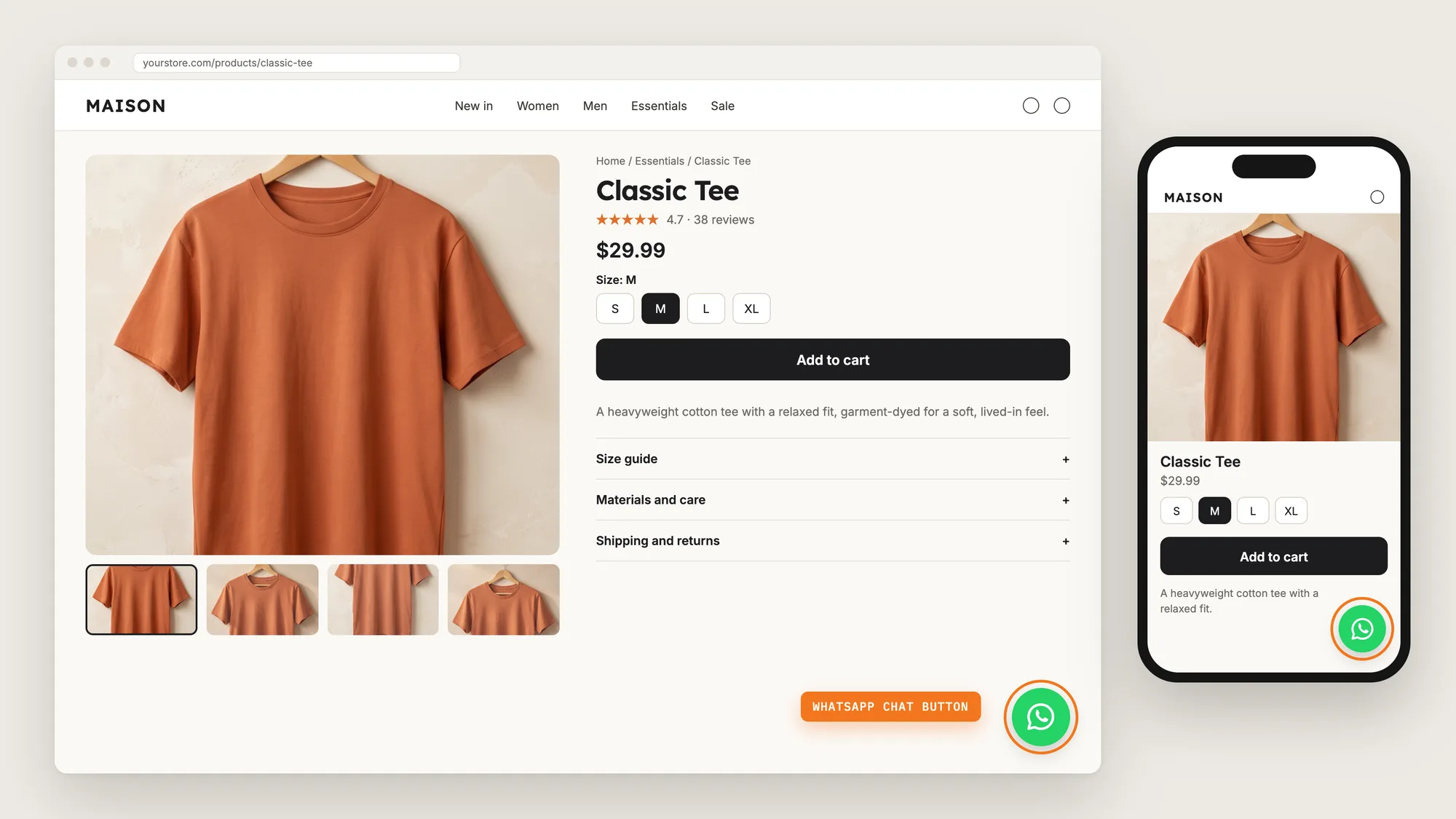
A WhatsApp chat button is a floating button in the corner of a store's pages that opens a WhatsApp chat with the store. The shopper taps the button, WhatsApp opens on their phone or computer, and the conversation happens there. It's also called a WhatsApp chat widget or a click-to-chat button.
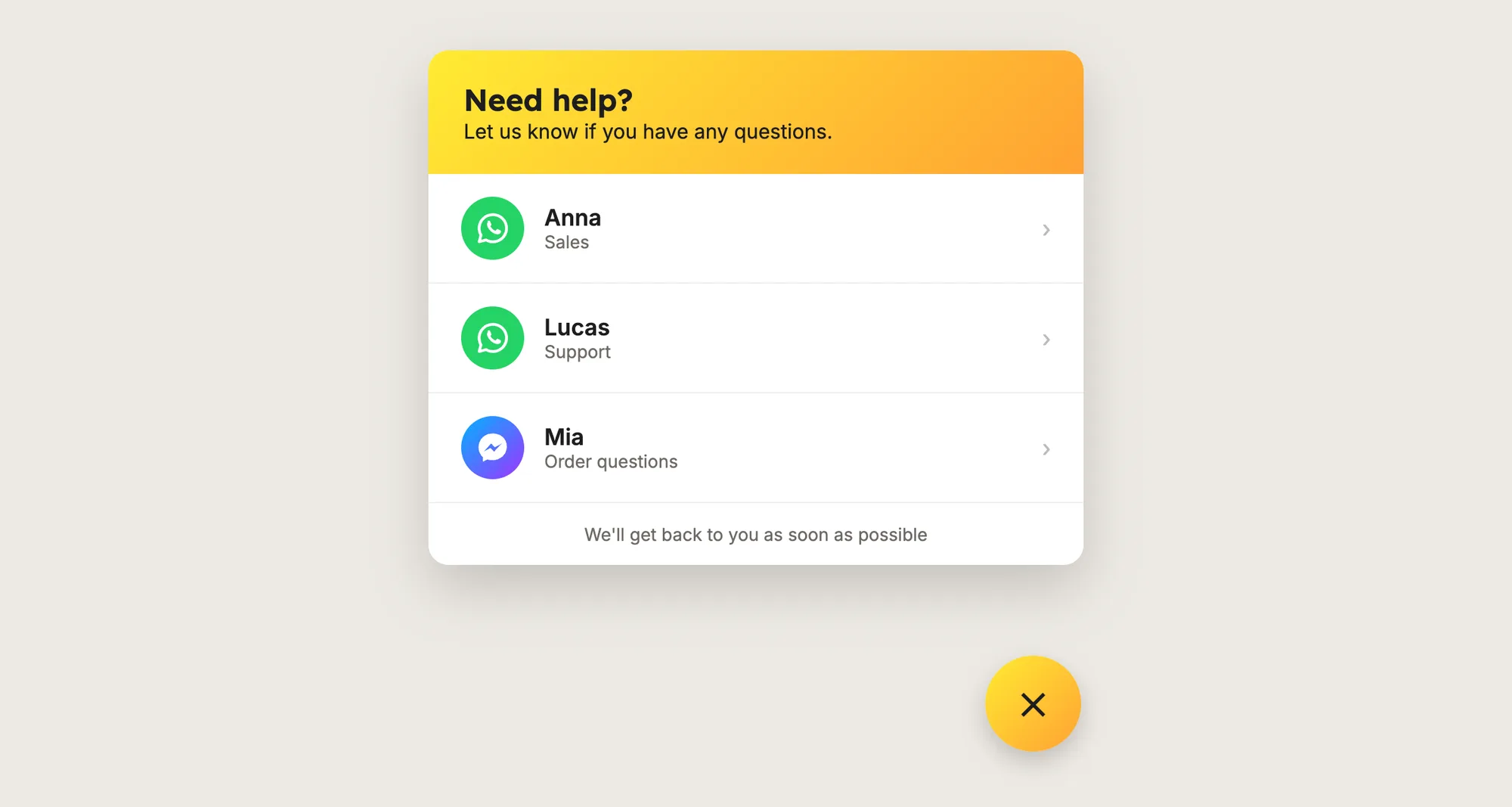
A good WhatsApp chat button includes:
- Your real WhatsApp number: The button opens a chat with a number someone on your team answers.
- A name and role: Shoppers see who they're writing to, such as "Anna, Sales".
- Opening hours: The button shows while someone is there to reply.
- A place on every device: The button shows on phones as well as on desktop, since most shoppers browse on their phones.
A WhatsApp chat button doesn't move your conversations into Shopify. The chat stays in WhatsApp, on both sides.
What's the Quickest Way to Add a WhatsApp Chat Button?
- Vitals - All in One App is the quickest way to add a WhatsApp chat button for most stores
- Vitals also offers 40+ apps, such as product reviews, a cart drawer and trust badges, in one subscription of $29.99/month, so you don't have to install and pay for each app separately
Here's how the three methods compare.
How to Add a WhatsApp Chat Button With a WhatsApp Chat App?
Install the Vitals - All in One App, open its Live Chat app and click Create Agent. The WhatsApp chat button then shows on your store, and the steps below set the number, the hours, the look and where the button appears.
Step 1: Add Vitals to Your Shopify Store
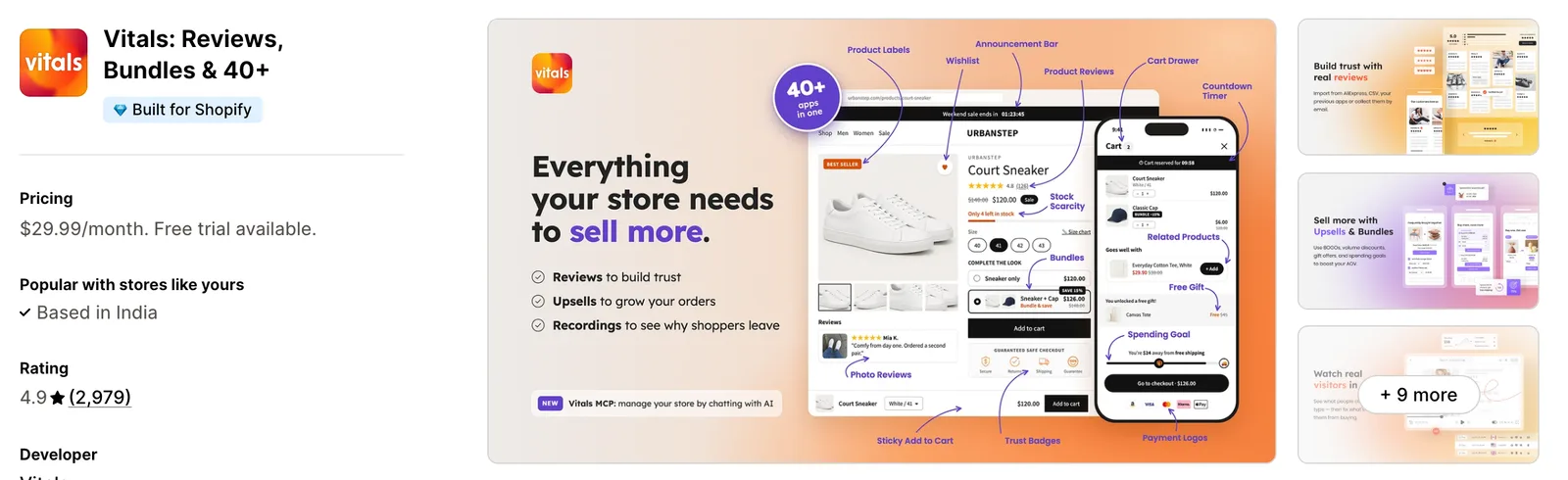
Install the Vitals - All in One App from the Shopify App Store. The 7-day free trial includes the Vitals Live Chat app.
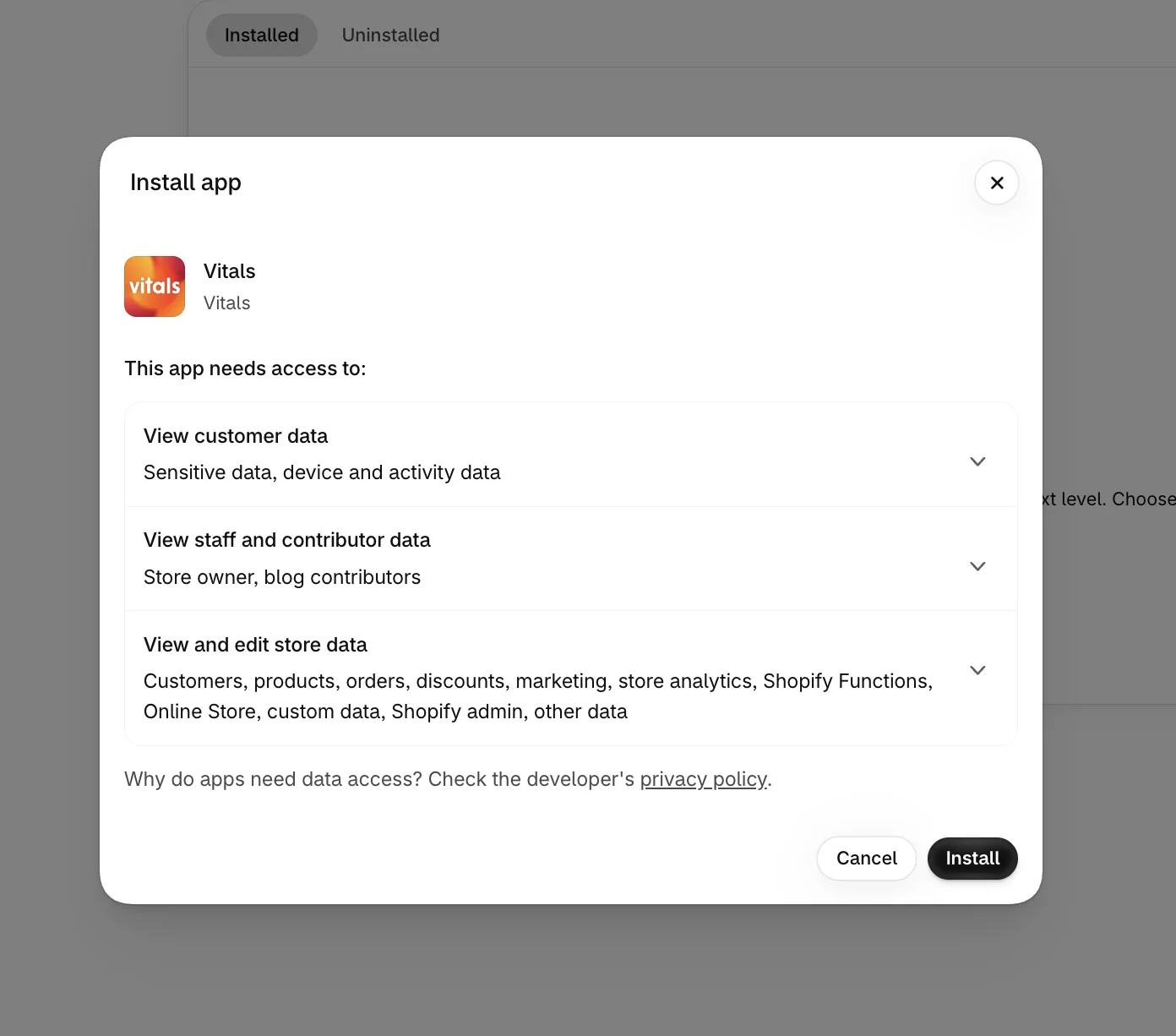
Step 2: Confirm the Install in Shopify
Click Install to approve the store data Vitals uses. Shopify then takes you to the Vitals dashboard.
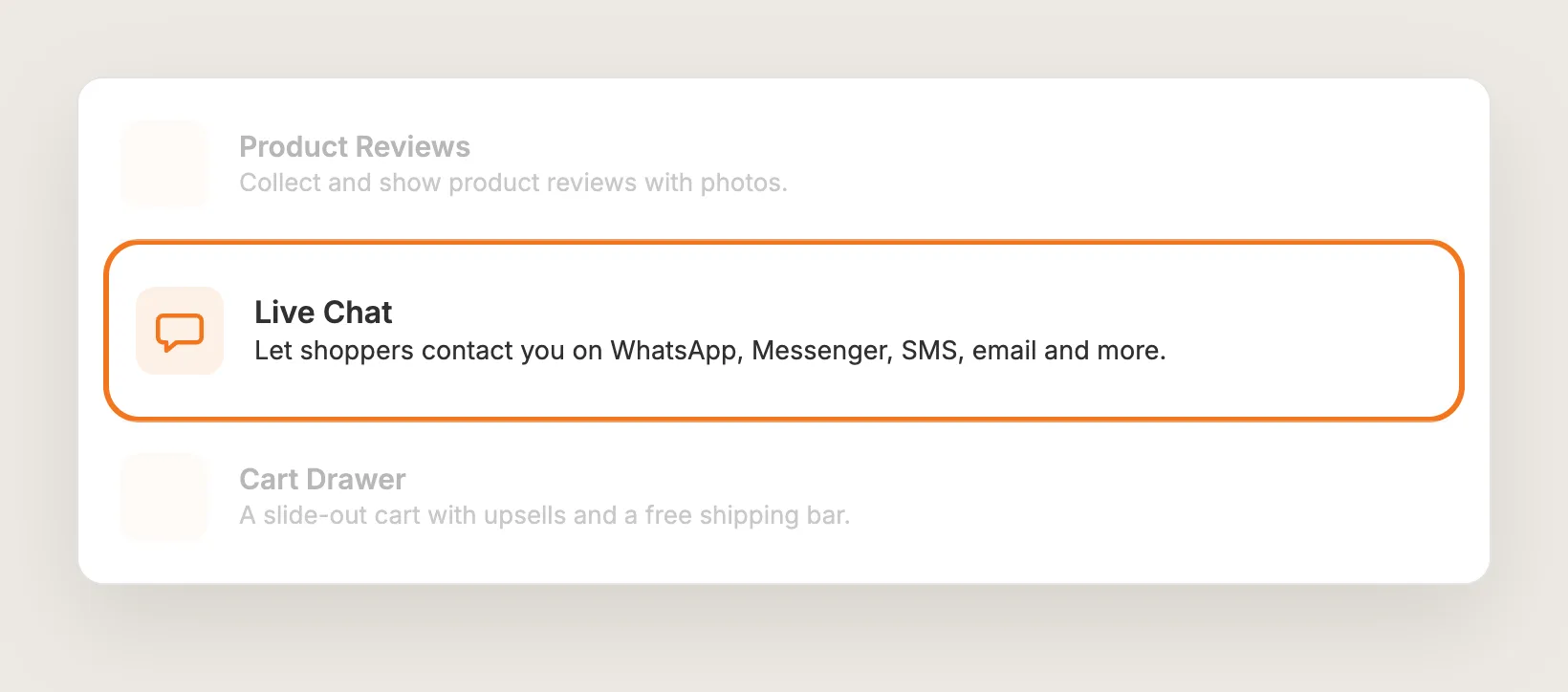
Step 3: Open Live Chat
In the Vitals dashboard, find Live Chat in the list of apps and click it.
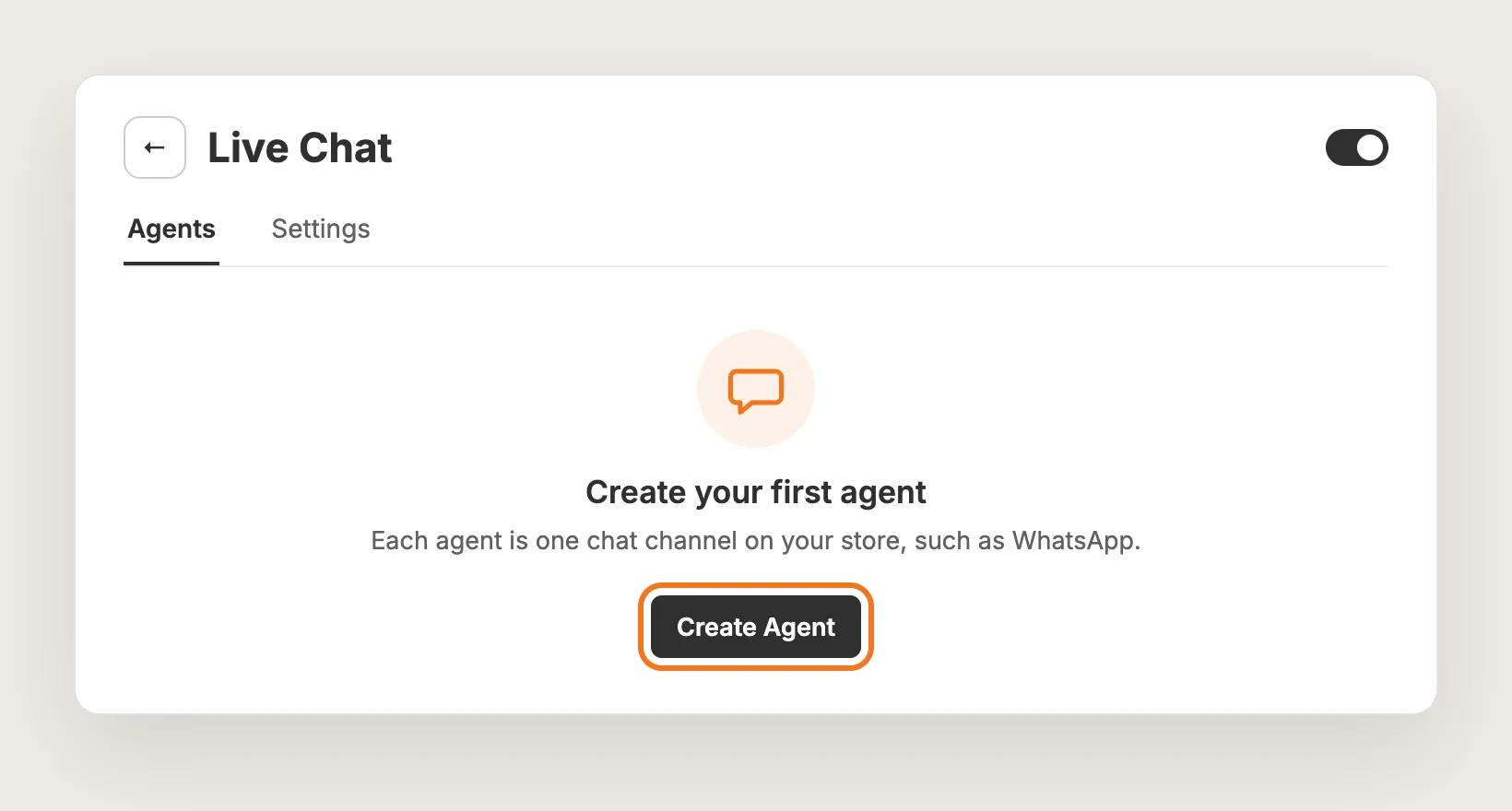
Step 4: Create Your First Agent
On the Agents tab, click Create Agent. Each agent is one button inside the chat, with its own channel, name and hours. The chat doesn't show on your store until at least one agent exists. The app's on and off switch is in the page header.
Step 5: Choose WhatsApp and Add Your Number
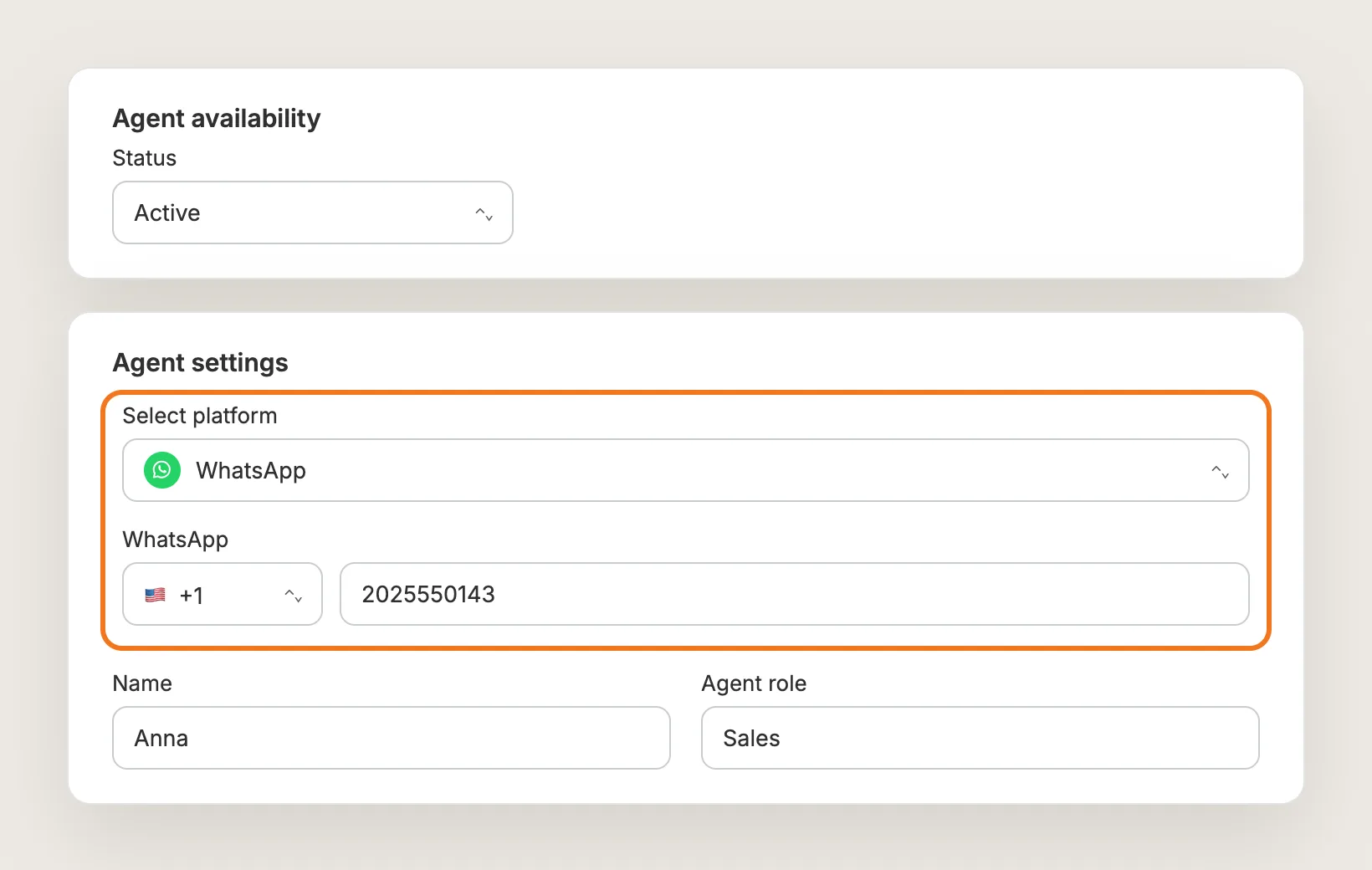
In the Agent settings card, set Select platform to WhatsApp. In the WhatsApp field, pick your country code and type your WhatsApp number, with no spaces. Then fill in:
- Name: The name shoppers see, such as Anna
- Agent role: The role under the name, such as Sales or Support
Leave Status in the Agent availability card on Active so the agent shows once you save.
Step 6: Set the Agent's Opening Hours
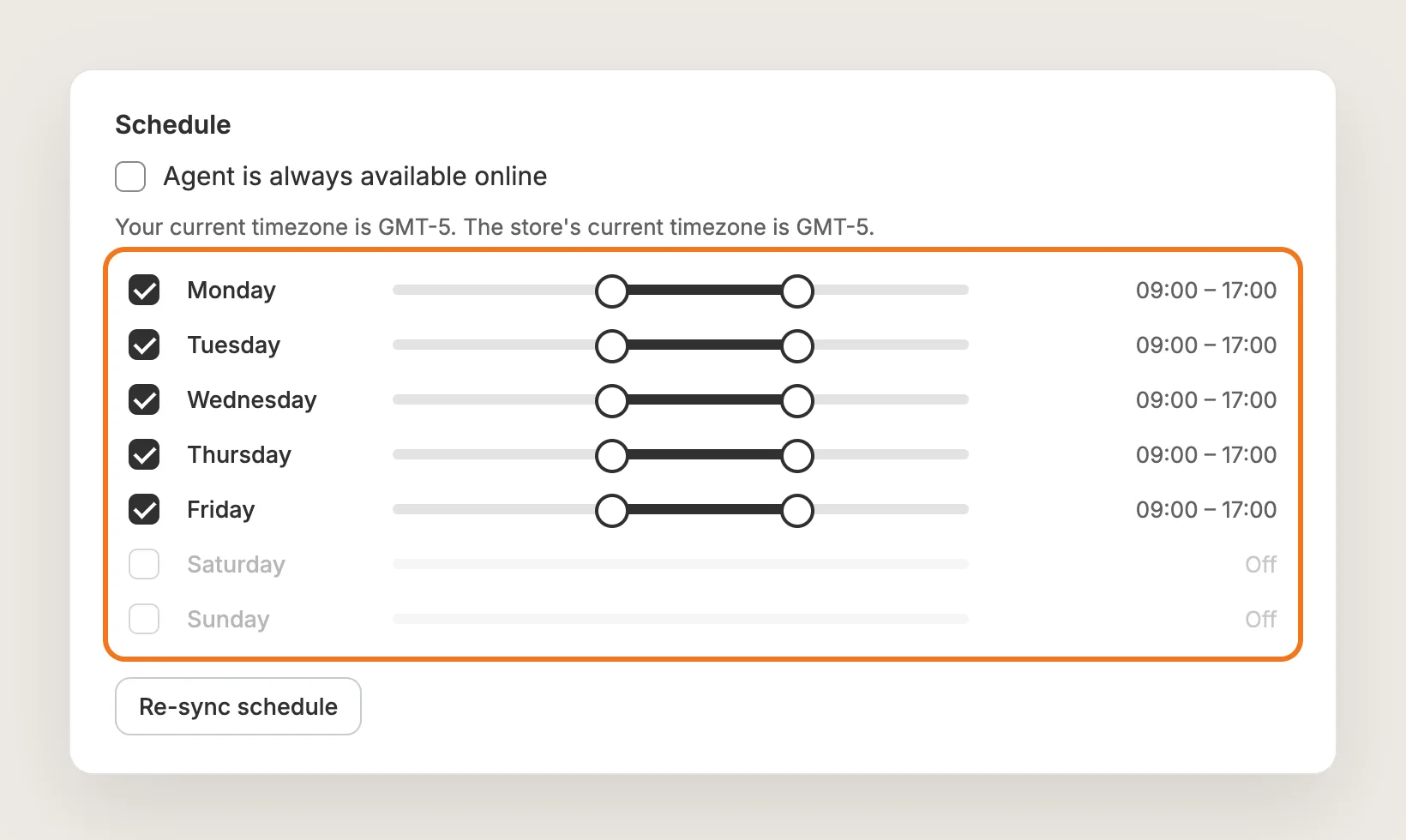
In the Schedule card, leave Agent is always available online ticked if someone answers WhatsApp at all hours. To set hours, untick the box, tick the days the agent works and drag each slider to the hours. The hours use the timezone of the computer you're on, and the card shows the store's time next to each day.
By default, Hide the chat bubble when all agents are offline is on, so the button disappears outside every agent's hours. Change this in Settings → Agent settings. After a clock change for daylight saving, open the agent and click Re-sync schedule. Click Save when you're done.
Step 7: Show the WhatsApp Chat Button on Mobile
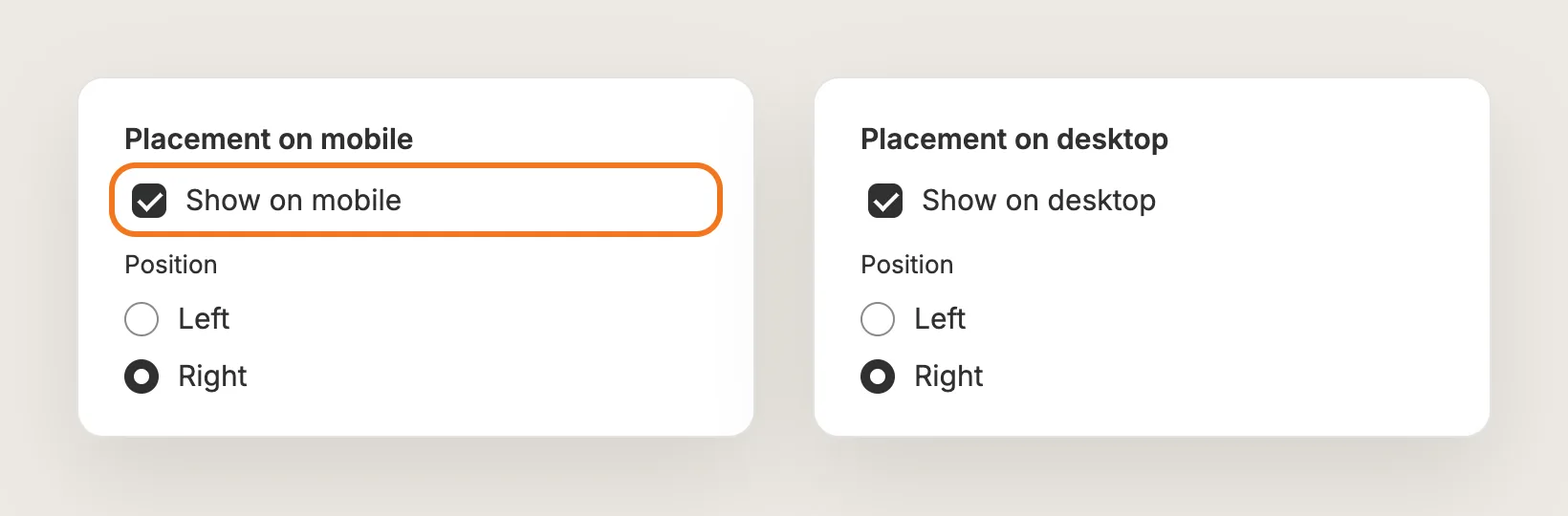
Open the Settings tab. In Placement on mobile, tick Show on mobile, since it's off by default. Placement on desktop has Show on desktop on already. Under Position, pick Left or Right for each device. The button always shows at the bottom of the screen.
Step 8: Turn the Chat Into a One-Tap WhatsApp Button
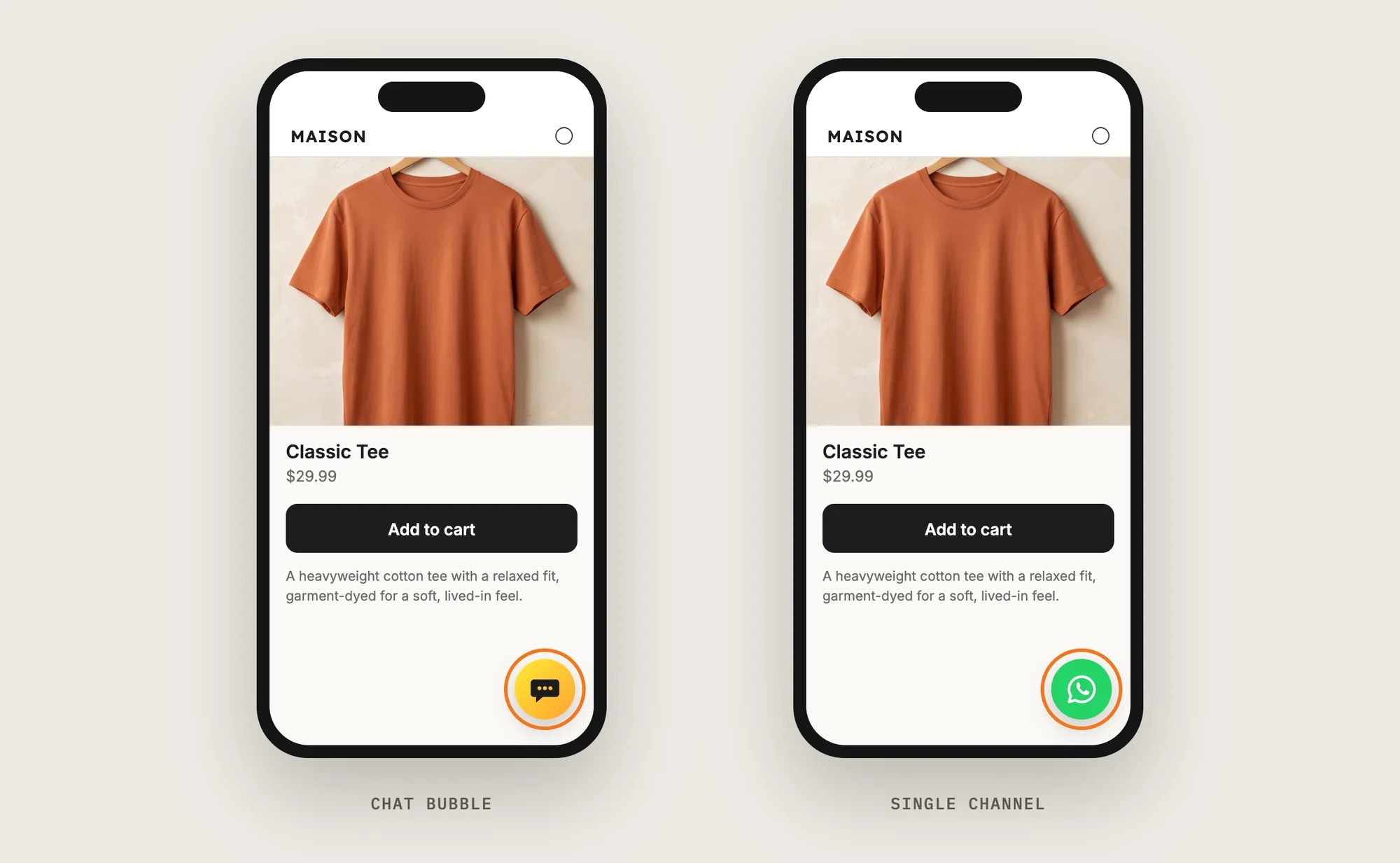
In the Single channel card, tick Show a single channel as the chat button. With WhatsApp as your only available agent, the store then shows a WhatsApp button instead of the chat bubble, and one tap opens WhatsApp. With two or more available agents, shoppers still see the chat bubble with every agent inside.
Step 9: Prefill the WhatsApp Message
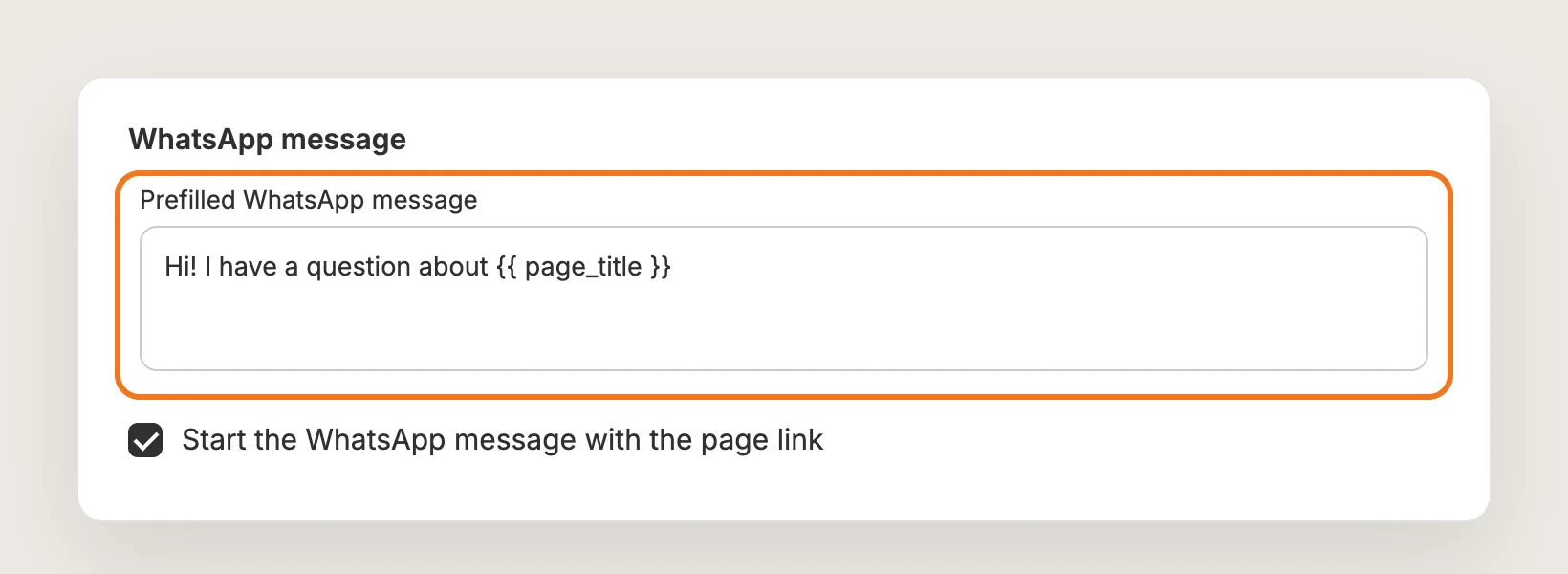
In the WhatsApp message card, write the first message shoppers send in Prefilled WhatsApp message. Use {{ page_title }} to add the name of the page the shopper is on, such as "Hi! I have a question about {{ page_title }}". Tick Start the WhatsApp message with the page link to add the link to that page, so you know which product the shopper means.
Step 10: Style the Chat Bubble
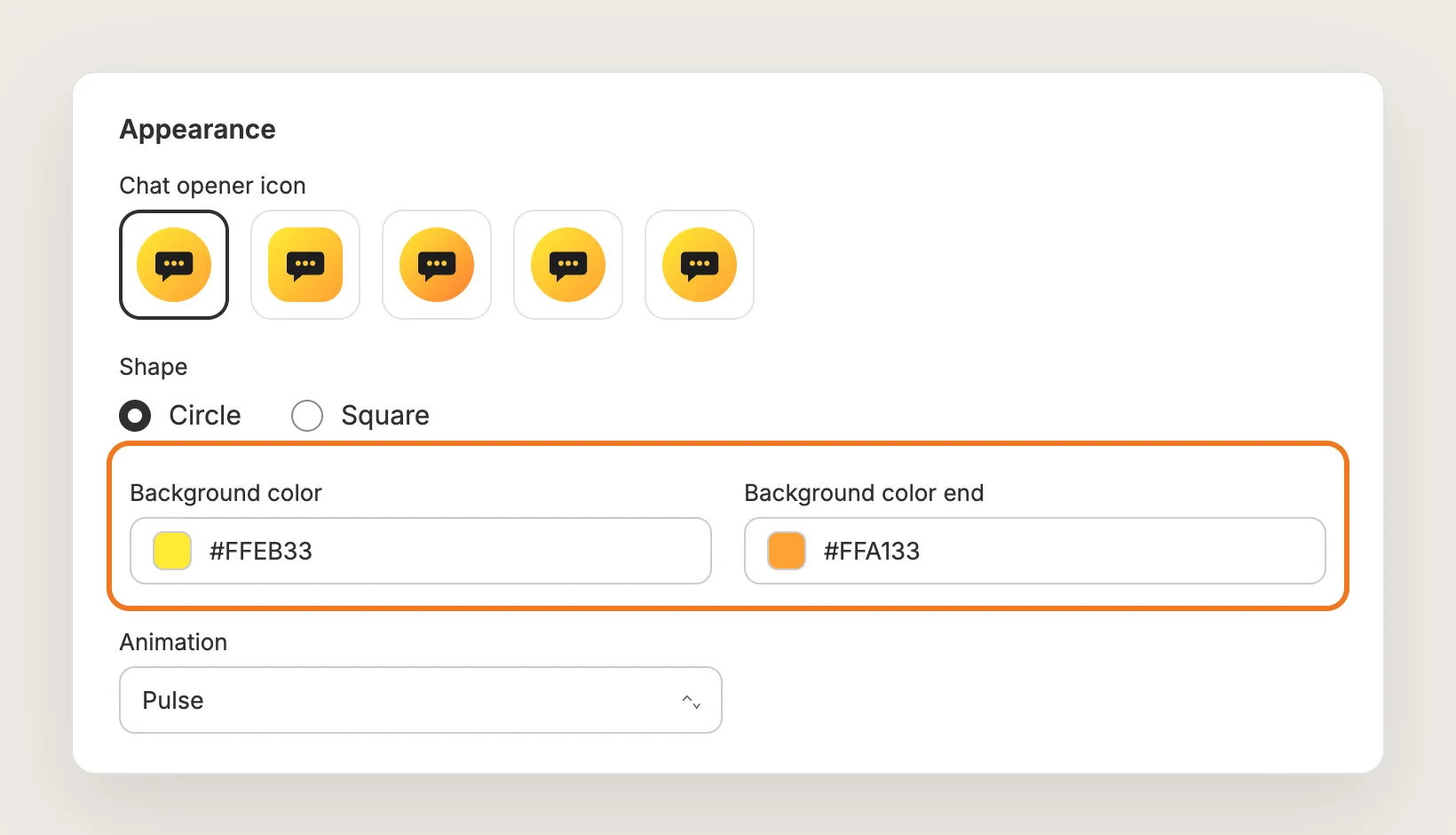
In the Appearance card, set how the chat bubble looks:
- Chat opener icon: One of five bubble icons
- Shape: Circle or Square
- Background color and Background color end: The two colors of the bubble's gradient, which also color the chat window's header
- Animation: None, Shake, Pulse, Jello Shake, Wobble, Vibrate or Swing, to draw the eye to the bubble
Step 11: Write the Greeting and Welcome Header
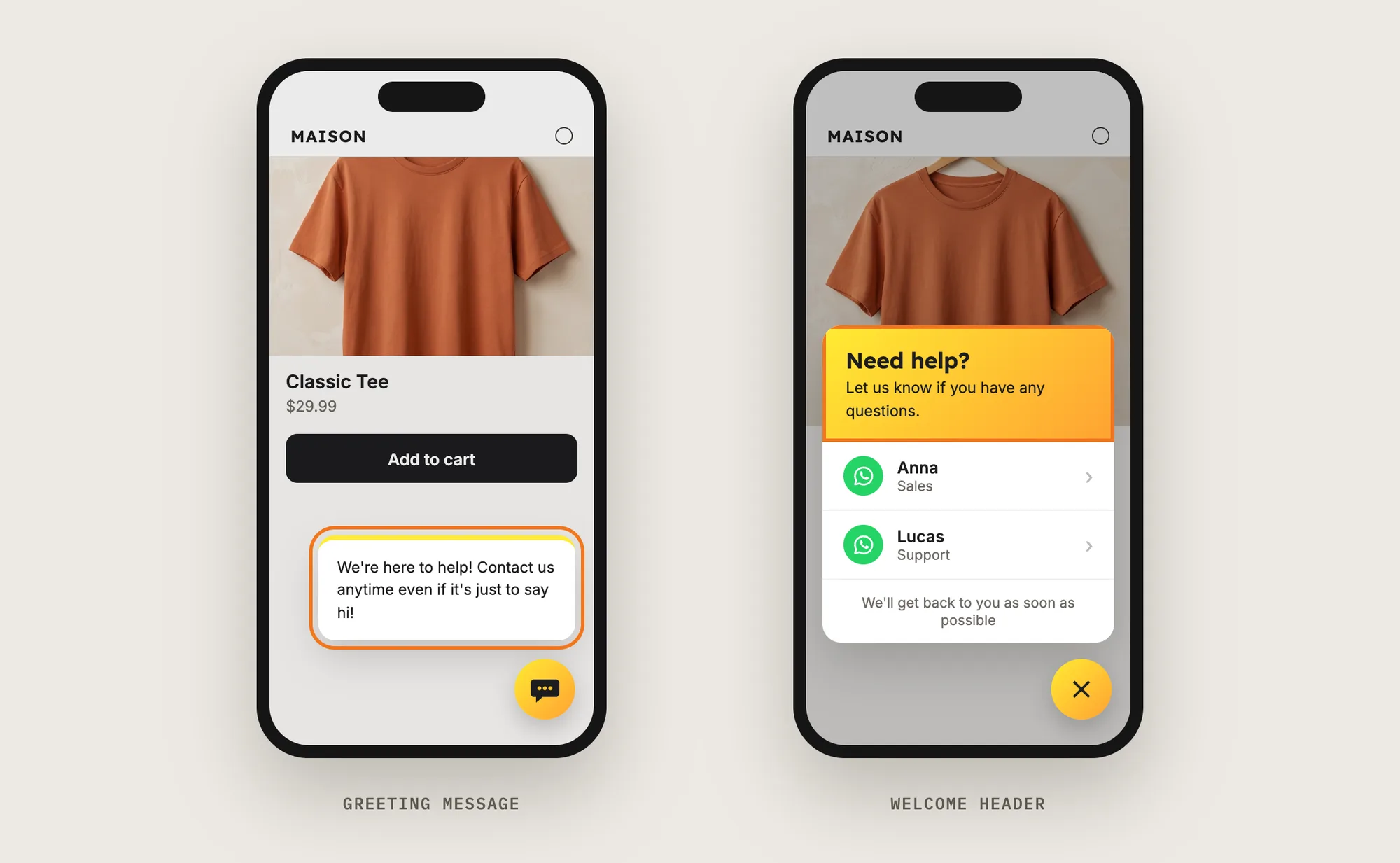
In the Greeting message card, write a short hello in Greeting message and set Delay (seconds), the time before it pops up. The greeting shows once per browser session. In the Welcome header card, write the Heading, Message and Note shoppers see when they open the chat.
Step 12: Save and Test on Your Phone
Click Save, then open a product page on your phone and on desktop. Tap the WhatsApp chat button and check that WhatsApp opens a chat with the right number and the prefilled message. Test again outside your opening hours to see how the button behaves when every agent is offline.
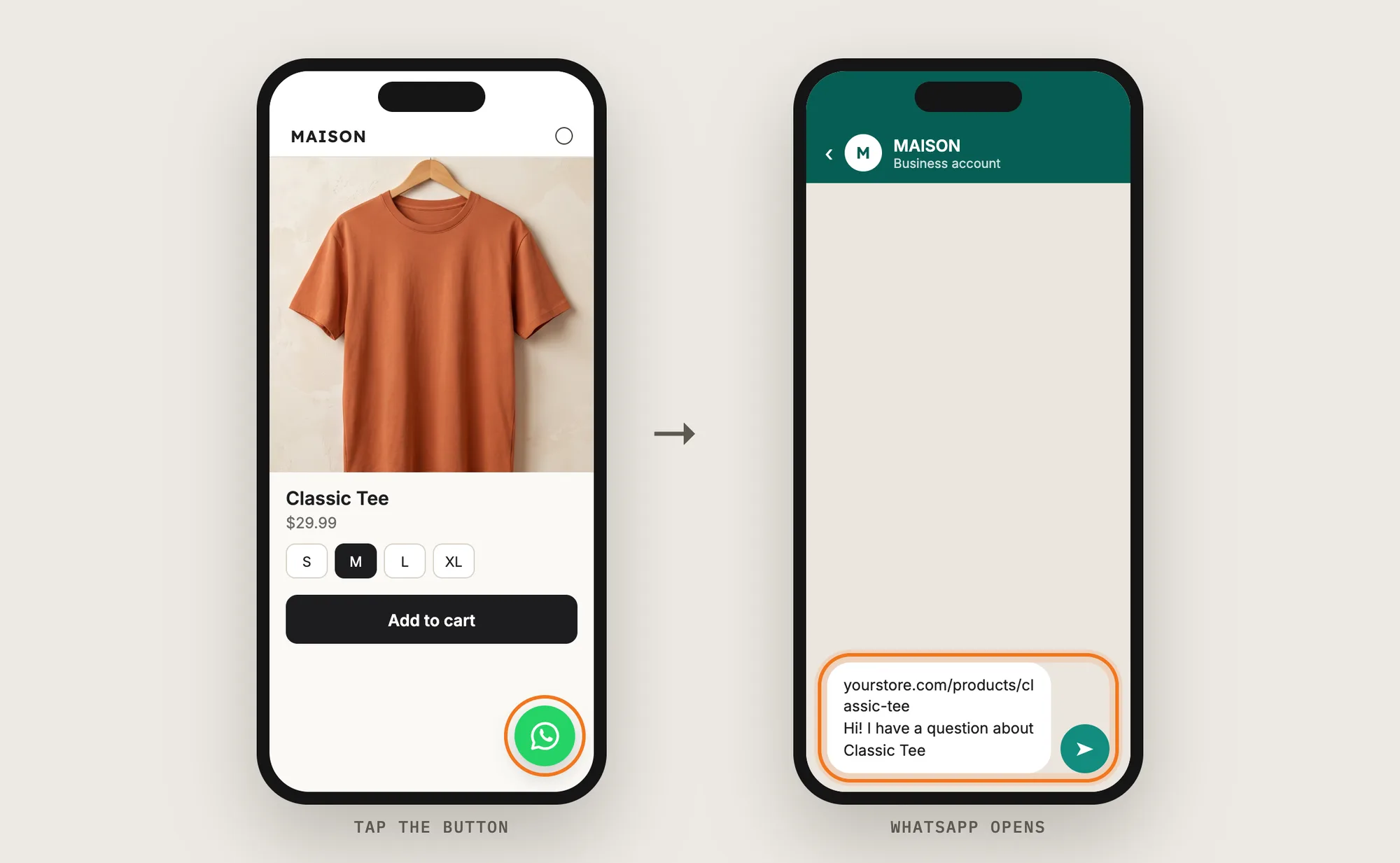
Step 13: Voila, Your WhatsApp Chat Button Is Live on the Store
Your shoppers can now ask their question on WhatsApp from any page of your store, and you answer from your own phone.
How to Add a WhatsApp Chat Button From Your Theme Settings?
Most Shopify themes don't include a floating WhatsApp chat button, but many Shopify themes include social media links in the header or footer. To check your theme's settings:
- Click Customize next to your theme in Online Store → Themes
- Click Theme settings and look for Social media, or click the Footer section
- If your theme lists WhatsApp, add your WhatsApp link, then click Save
A theme's social link shows as a small icon in the header or footer, not as a button that follows the shopper down the page. It has no opening hours, no greeting and no prefilled message. If a WhatsApp icon in the footer is all you need, the theme setting is enough on its own.
How to Add a WhatsApp Chat Button Without an App?
Hire a developer to build a floating WhatsApp chat button into your theme. WhatsApp's click-to-chat links open a chat with any number, so the button is a styled link to your number.
A custom WhatsApp chat button usually involves:
- Copying your theme first, so the live store isn't affected
- Adding a snippet with a floating button that links to your WhatsApp number
- Styling the button for size, color and position on mobile and desktop
- Adding a prefilled message or opening hours, if you want them
- Testing on every page template, then publishing the theme copy
Custom code means no extra app, but you or your developer have to maintain it. A theme update can replace the files the snippet is in, so the button may need adding back after each update. Opening hours, more channels and a greeting each need extra code too.
How to Increase Sales With a WhatsApp Chat Button?
A WhatsApp chat button increases sales by answering a shopper's last question before they leave the product page. These settings help:
- Show the button on phones. Most shoppers who have a question are browsing on their phone. Tick Show on mobile in Placement on mobile
- Make WhatsApp a one-tap button. One tap straight to WhatsApp is faster than opening a list first. Tick Show a single channel as the chat button when WhatsApp is your only agent
- Prefill the product name and link. You know which product the shopper means without asking. Use {{ page_title }} and tick Start the WhatsApp message with the page link
- Split sales and support agents. Shoppers with a question before buying reach the right person. Create one WhatsApp agent with the Agent role Sales and one with Support
- Show the button only when someone can reply. A fast reply keeps the shopper on the page. Set each agent's Schedule and keep Hide the chat bubble when all agents are offline on
- Use the greeting to invite questions. A short hello tells shoppers you're there to help. Write it in Greeting message and set a short Delay (seconds)
Why Isn't My WhatsApp Chat Button Showing or Working?
These are the usual causes when a WhatsApp chat button doesn't show or doesn't open WhatsApp:
- The button doesn't show at all: Create at least one agent and set its Status to Active. The chat doesn't load until an agent exists
- The button doesn't show on phones: Show on mobile is off by default. Tick it in Settings → Placement on mobile
- The button disappears in the evening or at the weekend: Every agent is outside their hours, and Hide the chat bubble when all agents are offline is on. Tick Agent is always available online or widen the Schedule
- The hours are an hour off: Daylight saving isn't applied automatically. Open the agent and click Re-sync schedule
- The number won't save: The number can't contain spaces. Saving with a space shows "Please add a valid channel username."
- WhatsApp opens the wrong chat: Check the country code and number in the agent's WhatsApp field, then test the button again
- The chat bubble shows instead of the WhatsApp button: Show a single channel as the chat button works only with one available agent. Deactivate the other agents or keep the bubble
- You want the button only on some pages: Live Chat has no page or product rules, so the button shows on every page
Which WhatsApp Chat Button Method Should You Choose?
Vitals - All in One App suits most stores, but the right method depends on how much control you want over the WhatsApp chat button.
- Choose Vitals - All in One App if you want a WhatsApp chat button on every page, with opening hours, a prefilled message and more channels such as Messenger, SMS and email. It also includes 40+ other apps in one subscription of $29.99/month, so you don't have to install and pay for each app separately
- Choose your theme's setting if a WhatsApp icon in the header or footer is enough
- Choose custom code if you'd rather build the button by hand and keep it working through theme updates
Start a 7-day free trial: Install the Vitals - All in One App and add a WhatsApp chat button
Frequently Asked Questions
1. What is the best way to add a WhatsApp chat button on Shopify?
Vitals - All in One App is the best way for most stores. Its Live Chat app adds a WhatsApp chat button without code, with opening hours for each agent, a prefilled message and a one-tap WhatsApp button. The same chat can also offer Messenger, SMS, Instagram, email and phone.
2. Does Shopify have a built-in WhatsApp chat button?
No. Shopify doesn't add a WhatsApp chat button to your store on its own. Many Shopify themes have social media links in the header or footer, but not a floating WhatsApp chat button that follows shoppers down the page.
3. Where do I reply to WhatsApp messages from the chat button?
In your own WhatsApp app. The WhatsApp chat button opens a chat with your number, and the conversation happens in WhatsApp on both sides. Vitals doesn't host a shared inbox.
4. Can I add more than one WhatsApp number?
Yes. In the Vitals Live Chat app, create one agent for each number, such as a Sales agent and a Support agent. Shoppers then see both agents in the chat bubble, each with their own name, role and hours.
5. Can the WhatsApp chat button show only during business hours?
Yes. Untick Agent is always available online in the agent's Schedule card and set the days and hours. With Hide the chat bubble when all agents are offline on, the button hides outside those hours.
6. Can I add Messenger, SMS or email next to WhatsApp?
Yes. Live Chat offers 12 channels: WhatsApp, Facebook Messenger, Email, Instagram, Twitter, Phone, SMS, LinkedIn, Telegram, Snapchat, TikTok and Apple. Create one agent per channel, and shoppers pick their channel from the chat bubble.
7. Does the WhatsApp chat button send automated replies?
No. The Live Chat app links shoppers to your WhatsApp and doesn't send, automate or broadcast messages. You or your team reply to every message yourselves in WhatsApp.