How to Add Order Tracking Page on Shopify

Customers who have paid for an order want to know where the order is. Without an order tracking page on your store, they open the carrier's website, lose track of your brand, or email you to ask "Where is my order?".
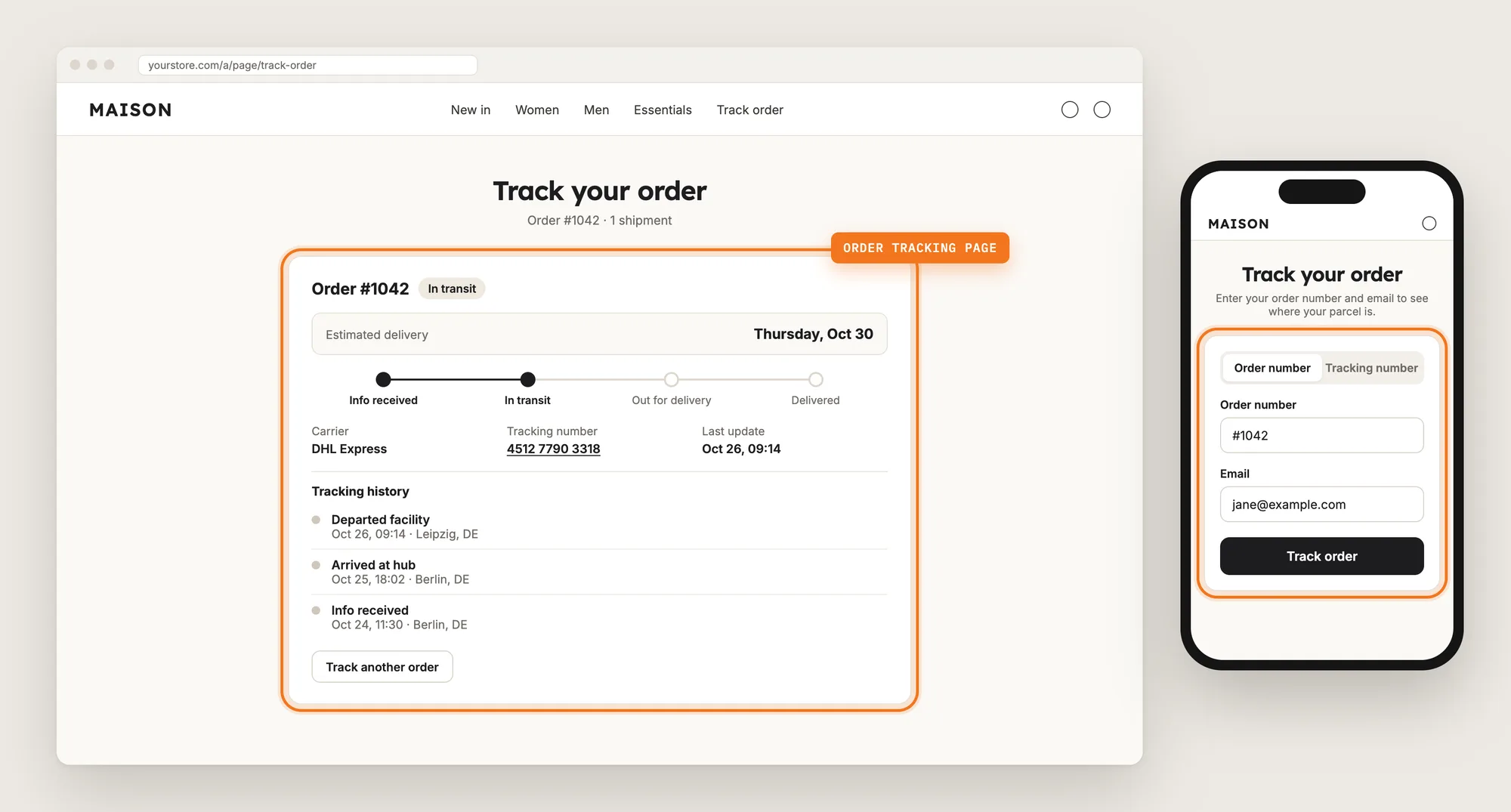
An order tracking page puts that answer on your own store. Customers enter their order number and email, then follow every carrier update through to delivery under your own header and domain.
Here are the three ways to add an order tracking page to a Shopify store: with an Order Tracking app, from your theme settings, or with custom code.
What Is an Order Tracking Page?
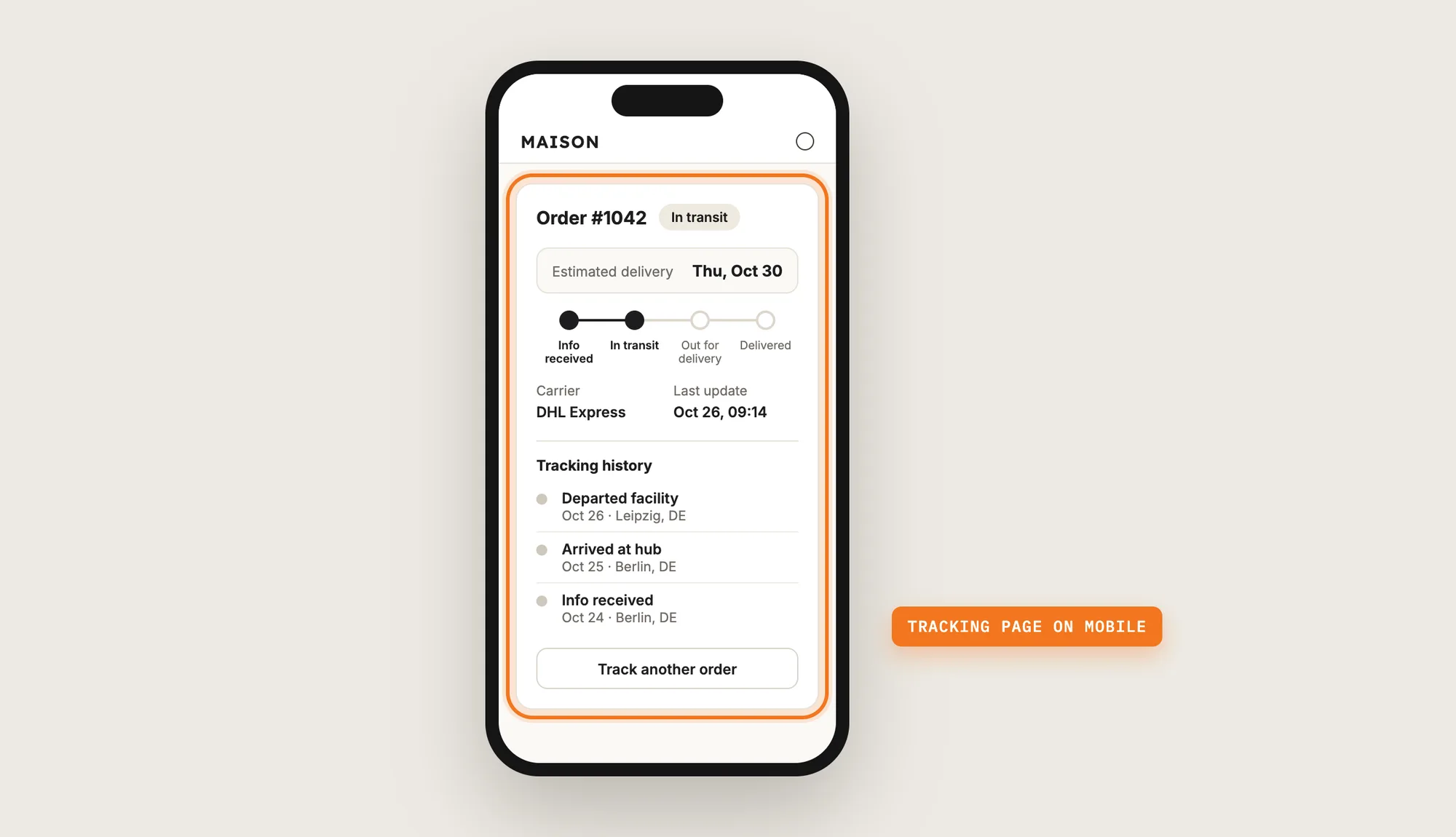
An order tracking page is a page on your store where customers look up an order and see its delivery status, the carrier's updates and the expected delivery date. Customers find the order with their order number and email, or with the tracking number from the carrier.
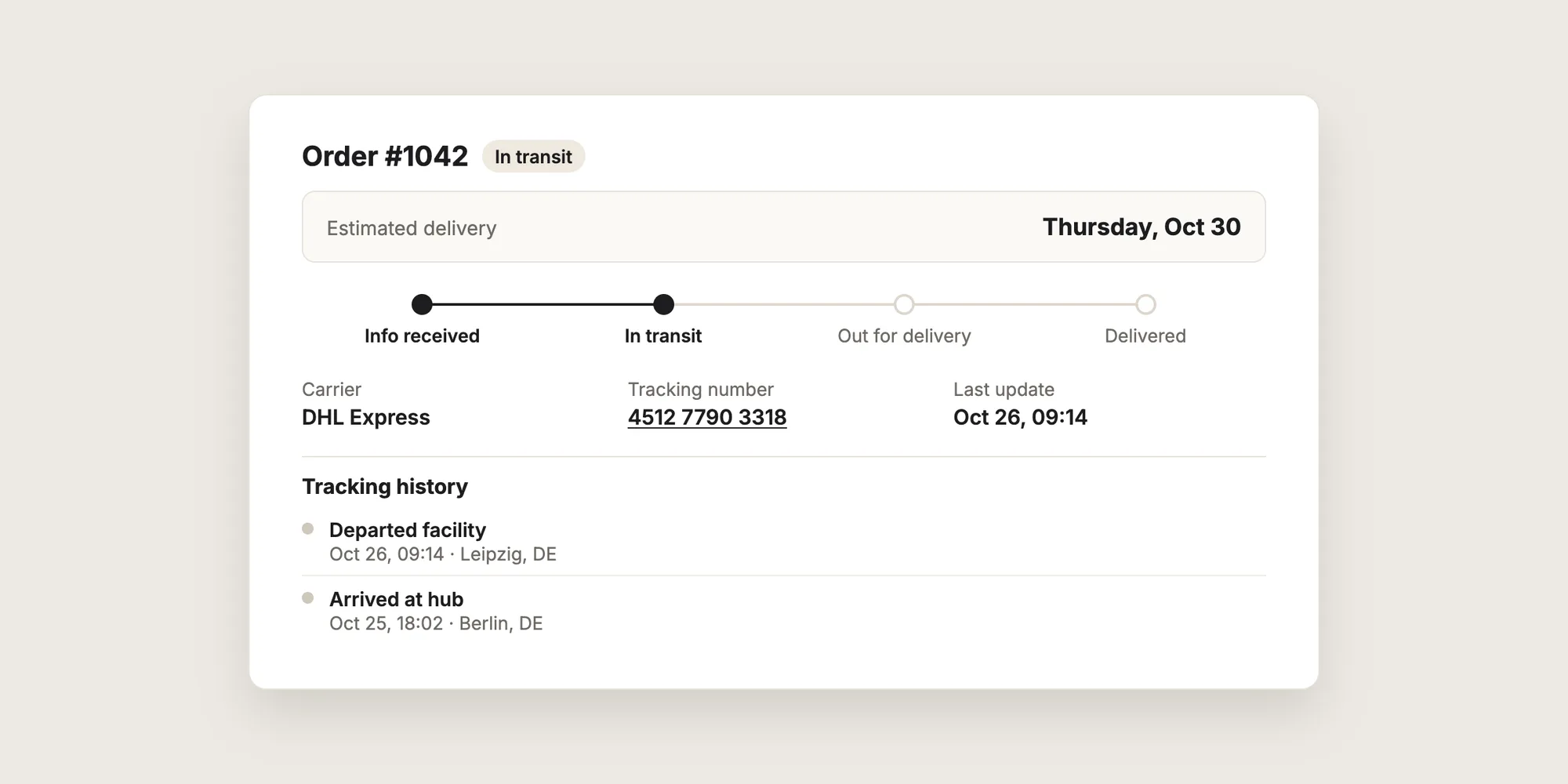
A good order tracking page includes:
- Two ways to look up an order: Customers can search by order number and email, or by tracking number.
- The current status: A status such as In transit or Out for delivery shows where the parcel is at a glance.
- The estimated delivery date: Customers see when the parcel should arrive, when the carrier gives a reliable date.
- The full tracking history: Every carrier update is listed with its date and time.
An order tracking page doesn't change how you ship. It shows customers the carrier's updates on your store instead of the carrier's website.
What's the Quickest Way to Add an Order Tracking Page?
- Vitals - All in One App is the quickest way to add an order tracking page for most stores
- Vitals also offers 40+ apps, such as product reviews, live chat and shipping information, in one subscription of $29.99/month, so you don't have to install and pay for each app separately
Here's how the three methods compare. If you'd rather weigh several tracking apps against each other, see our list of the best order tracking apps for Shopify.
How to Add an Order Tracking Page With an Order Tracking App?
Install the Vitals - All in One App, open its Order Tracker app and click Activate app. The order tracking page then goes live on your store at /a/page/track-order, and the steps below link it from your menu and your shipping email and set what customers see.
Step 1: Add Vitals to Your Shopify Store
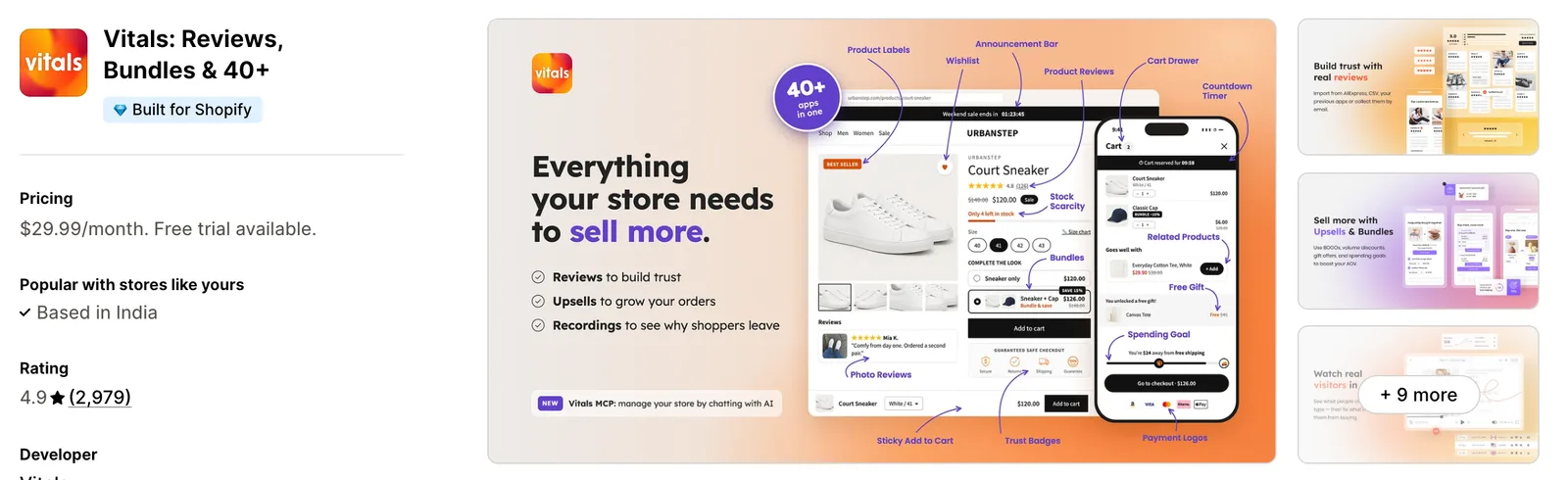
Install the Vitals - All in One App from the Shopify App Store. The 7-day free trial includes the Vitals Order Tracker app.
Step 2: Confirm the Install in Shopify
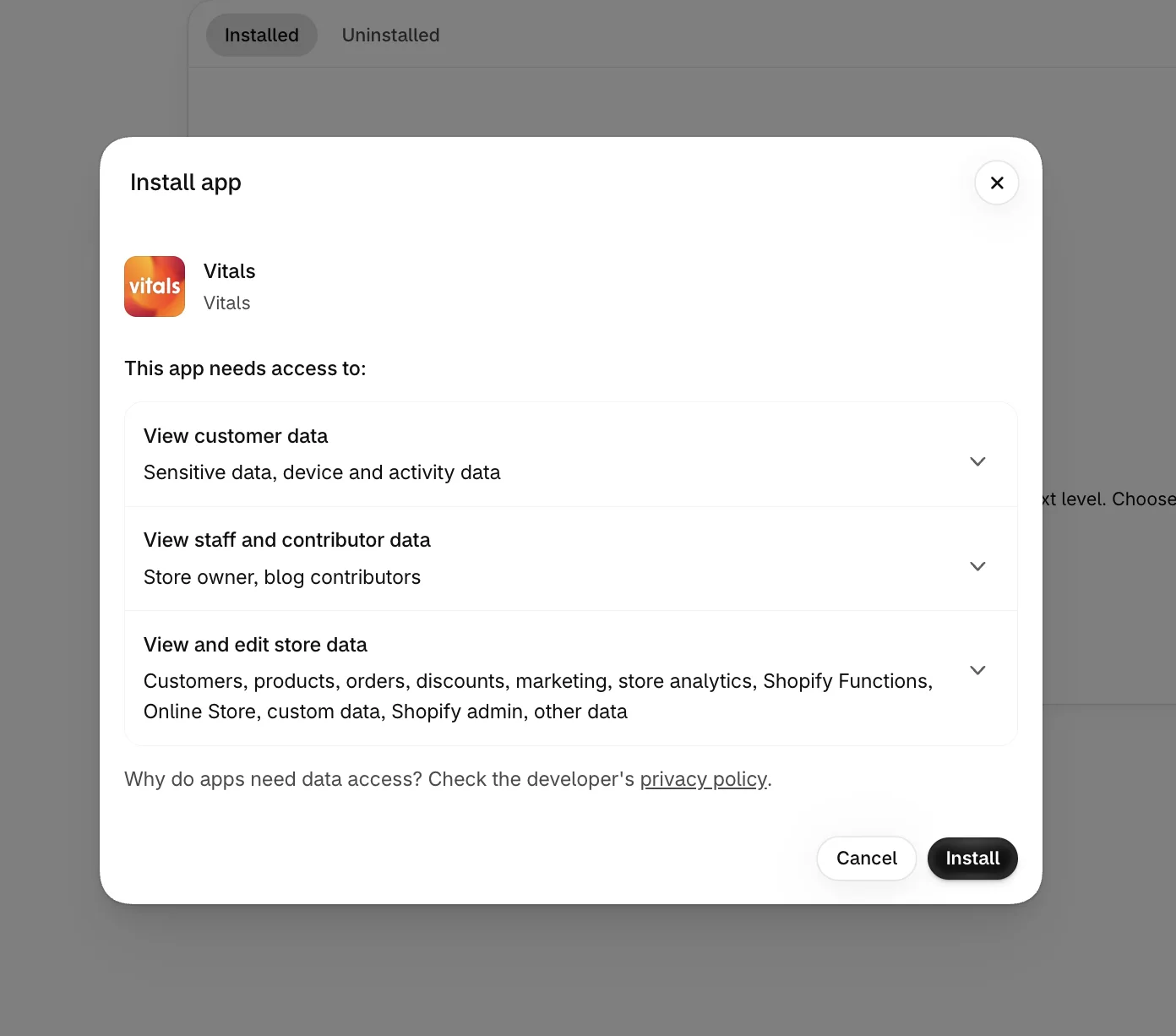
Click Install to approve the store data Vitals uses. Shopify then takes you to the Vitals dashboard.
Step 3: Open Order Tracker
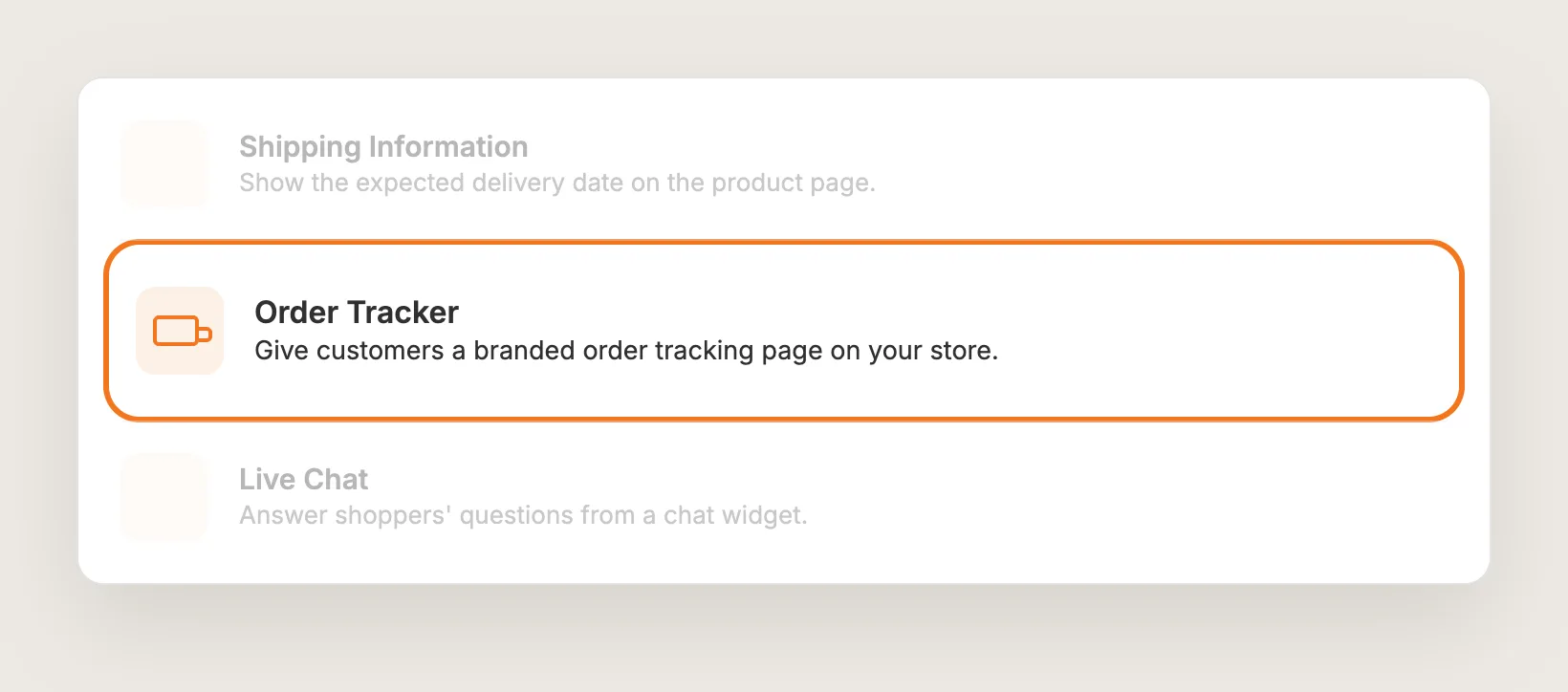
In the Vitals dashboard, go to Apps, then Conversion, and click Order Tracker.
Step 4: Activate Order Tracker
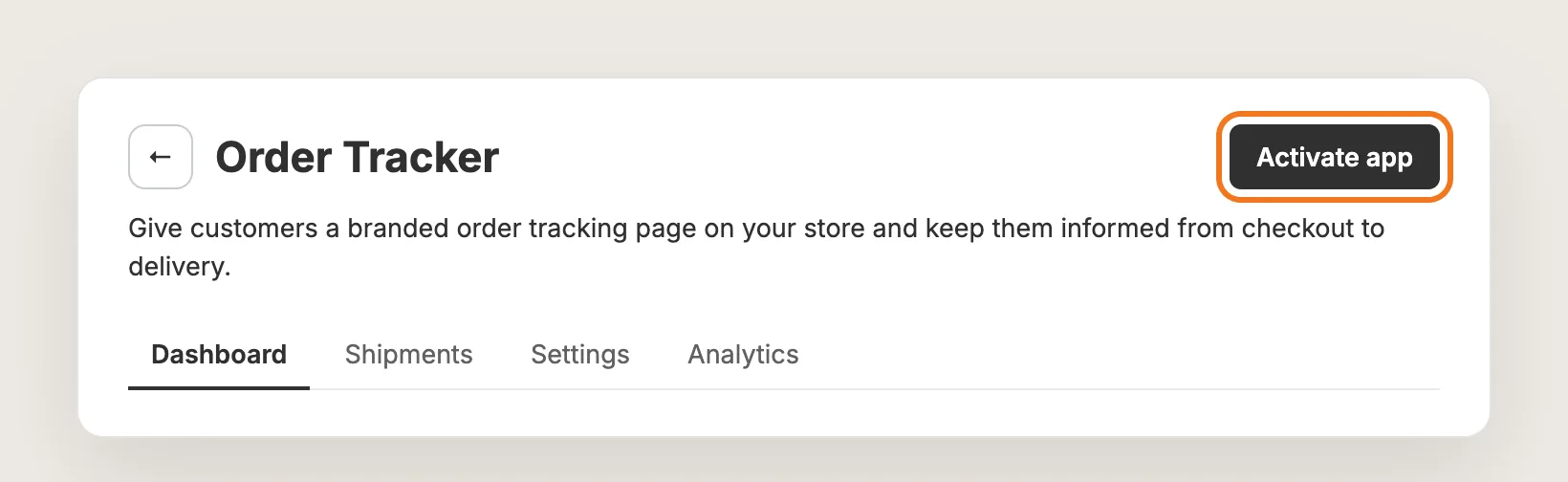
On the Order Tracker page, click Activate app at the top. The app has four tabs: Dashboard, Shipments, Settings and Analytics. Order Tracker follows every shipment you fulfill from this point on.
Step 5: Copy Your Tracking Page Link
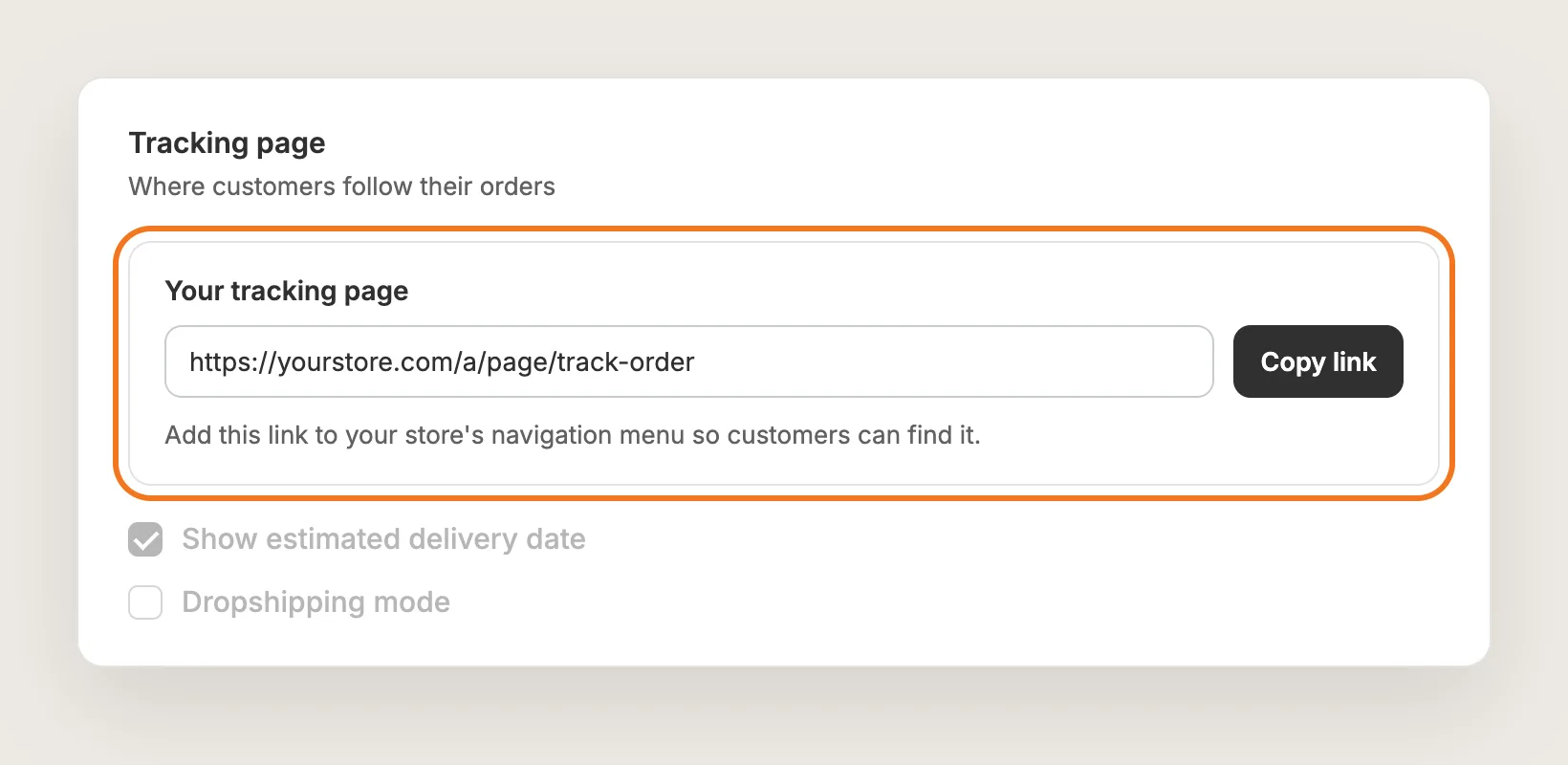
Open the Settings tab. Under Tracking page, find the Your tracking page box and click Copy link. The link is your store's domain followed by /a/page/track-order. The settings have a live preview of the order tracking page, with a switch between mobile and desktop.
Step 6: Add the Order Tracking Page to Your Store Menu
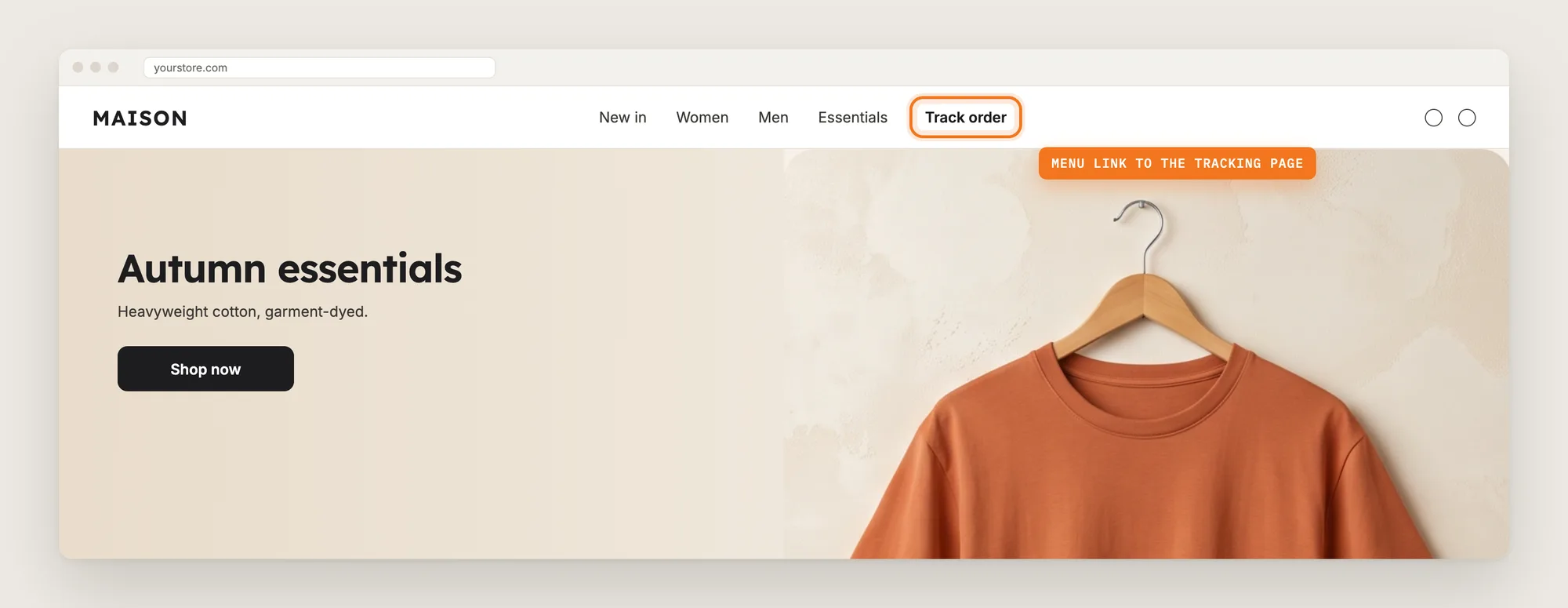
Add the link to your header or footer menu so customers can find the order tracking page any time:
- In your Shopify admin, go to Content → Menus (Online Store → Navigation in older admins)
- Open your main menu or footer menu
- Click Add menu item, name the item, such as "Track order", and paste the link
- Click Save
Step 7: Show the Estimated Delivery Date
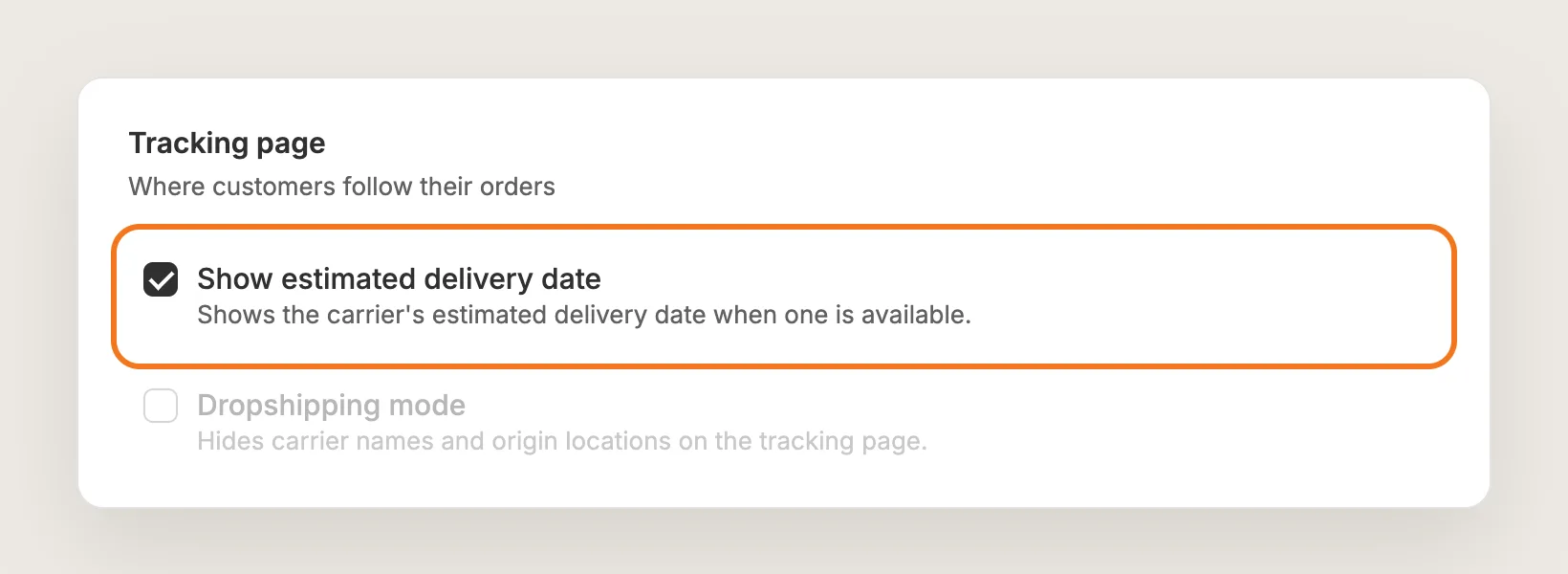
In the Tracking page section, Show estimated delivery date is on by default. The order tracking page then shows the carrier's estimated delivery date when one is available. Vitals leaves the date out when the carrier's estimate isn't reliable enough, so customers don't see a date that's likely to be wrong.
Step 8: Turn On Dropshipping Mode (Optional)
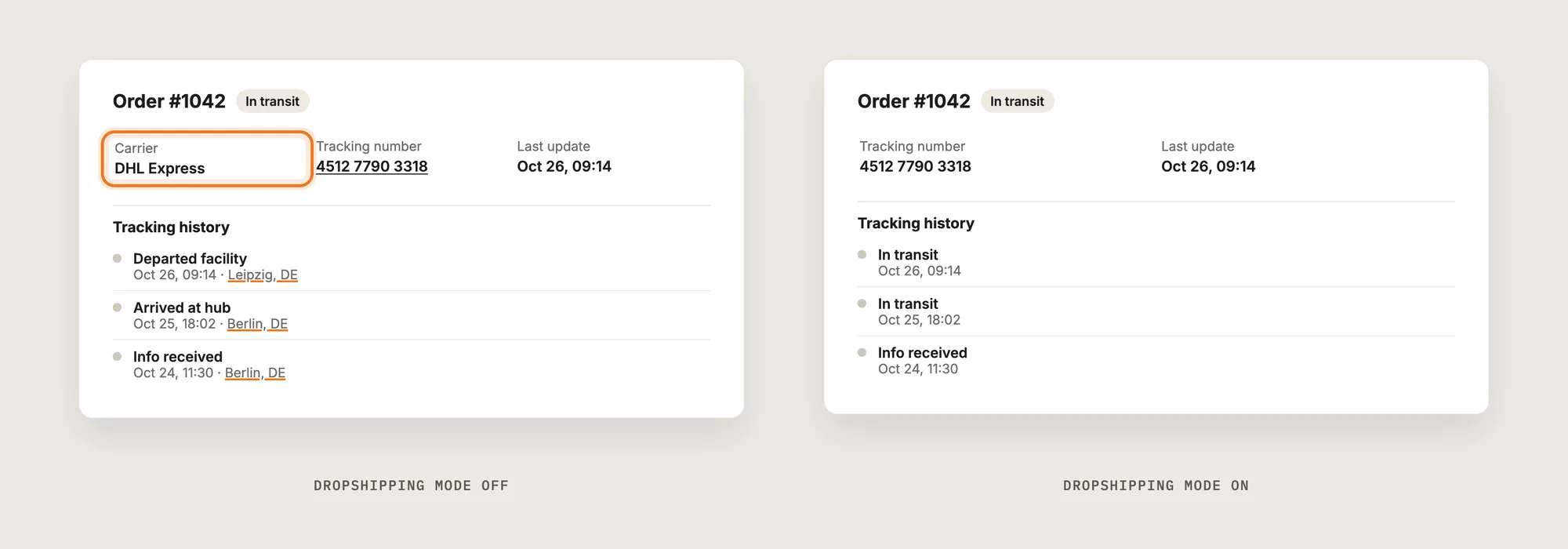
If your parcels ship from a supplier abroad, tick Dropshipping mode in the same section. The order tracking page then hides the carrier name, the link to the carrier's website, and the wording and location of each scan. Customers still see each status and when it happened.
Step 9: Add the Tracking Link to Your Shipping Confirmation Email
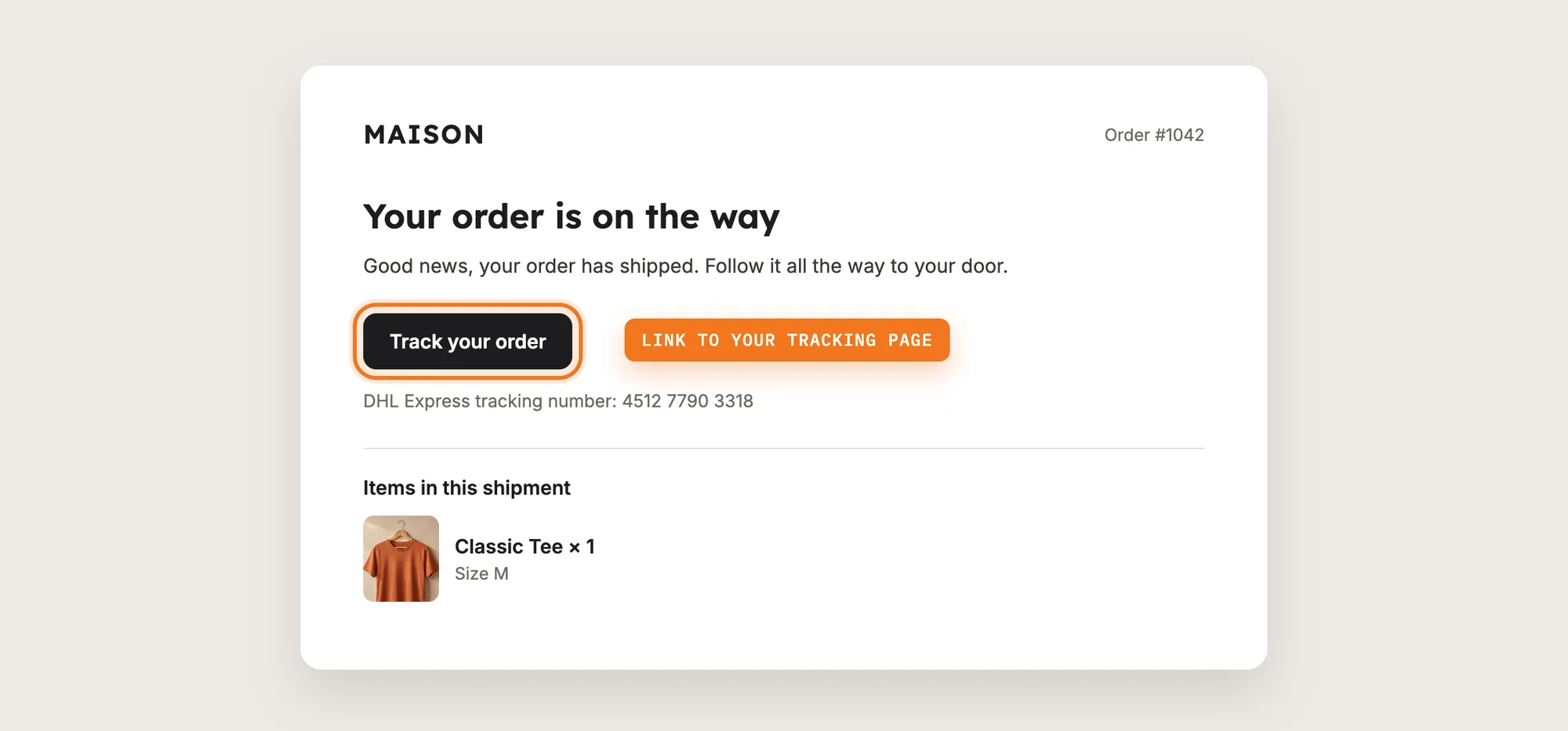
Shopify's shipping confirmation email links to the carrier's website, and Vitals doesn't replace that link on its own. Add a link to your order tracking page with the snippet from Order Tracker:
- In Order Tracker, open Settings → Shopify email template and click Copy snippet
- In your Shopify admin, go to Settings, then Notifications
- Open the Shipping confirmation template
- Paste the snippet where you want the link to show, then save
The link reads "Track your order" and opens your order tracking page with the order number already filled in. The customer then enters the email used for the order. If you'd like help editing the template, the section also has Discuss with ChatGPT and Discuss with Claude links.
Step 10: Reword the Order Tracking Page (Optional)
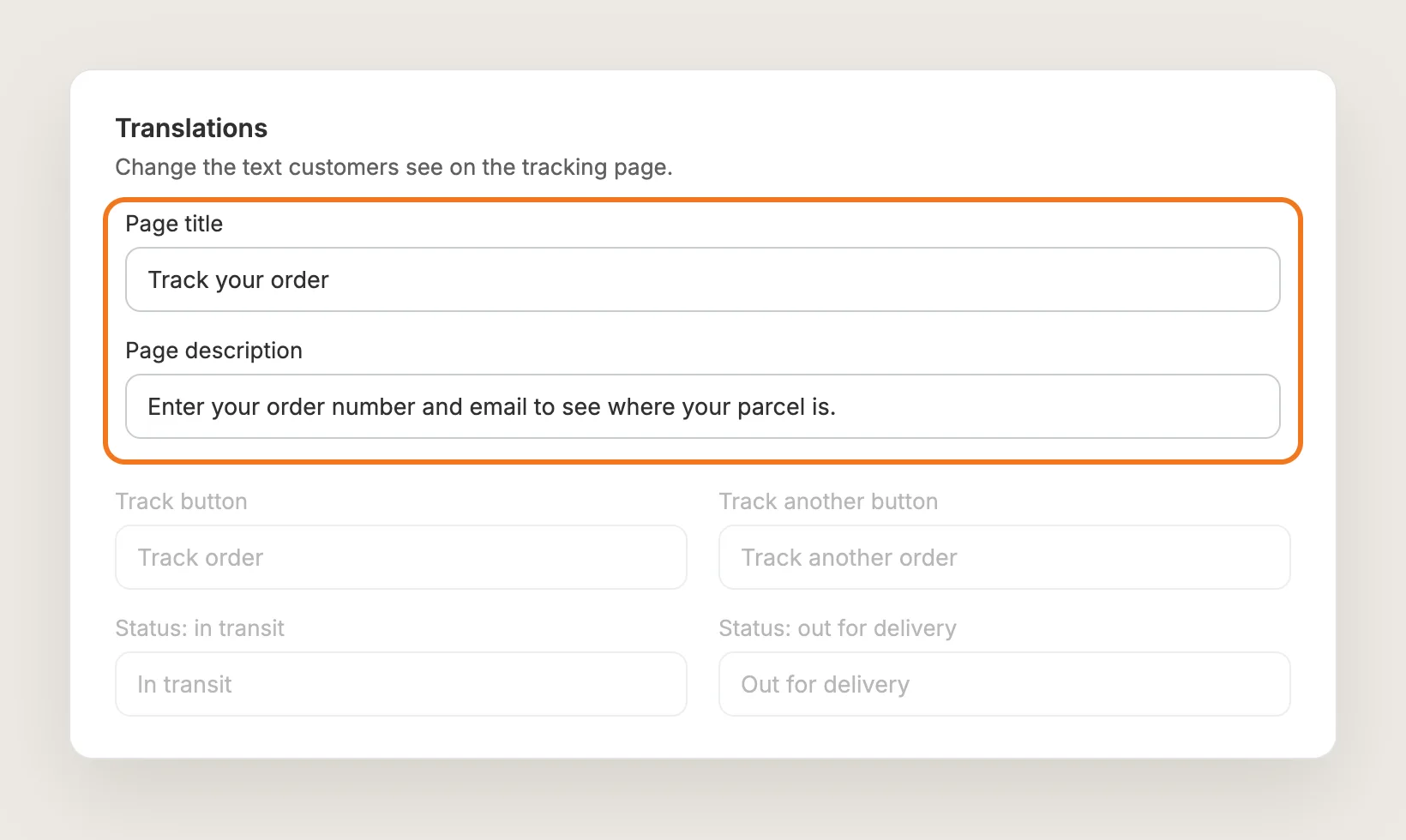
Open Settings → Translations to change the text customers see, such as the Page title, the Page description, the button labels, the status names and the error messages. The translations page linked at the top of the section holds the same texts in other languages. If a text is missing in a customer's language, the order tracking page shows the English default.
Step 11: Save and Test on Your Phone
Click Save, then open your order tracking page on your phone and on desktop. Look up a recent shipped order with its order number and email, then with its tracking number. Check that the status, the estimated delivery date and the tracking history show as you expect, and that the menu link and the email link both open the page.
Step 12: Watch Your Shipments and Order Searches
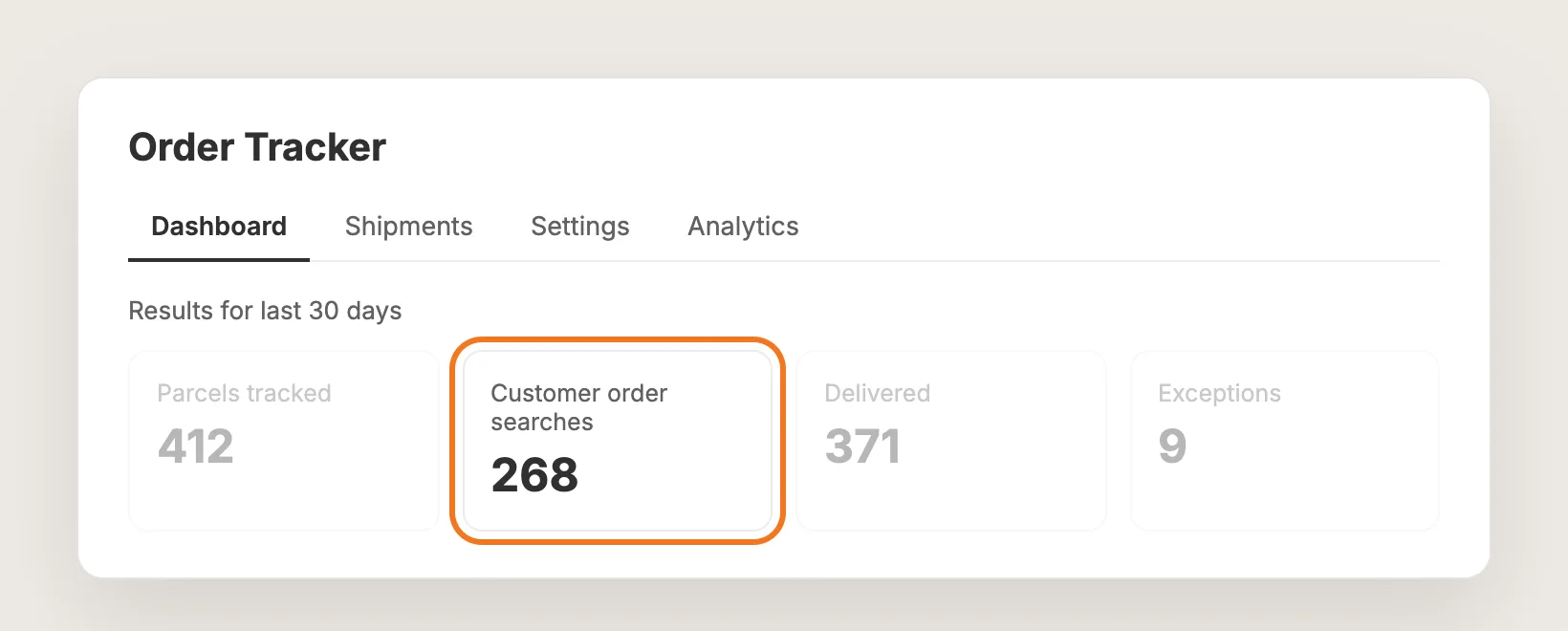
Open the Dashboard tab to see how customers use the order tracking page. For the last 30 days, it shows Parcels tracked, Customer order searches, Delivered and Exceptions. Customer order searches counts how many times customers looked up an order on your order tracking page. The Shipments tab lists every shipment, with a Needs attention filter for parcels the carrier reported a problem with or that haven't had an update in a long time.
Step 13: Voila, Your Order Tracking Page Is Live on the Store
Your customers now follow their orders on your own store, from the menu or straight from the shipping email, without a trip to the carrier's website.
How to Add an Order Tracking Page From Your Theme Settings?
Most Shopify themes don't include an order tracking page. Shopify instead links customers to its own order status page and to the carrier's website from the shipping confirmation email. To check what your theme offers:
- Click Customize next to your theme in Online Store → Themes
- Open the page menu at the top and look for an order tracking or order lookup template
- Click Add section on a page and look for an order tracking section, then click Save if you add one
Shopify's order status page shows the order and the carrier's tracking link, but customers reach it from the email, not from a lookup form on your store. The carrier link then takes them to the carrier's website. If your customers rarely ask where their order is, Shopify's order status page is enough on its own.
How to Add an Order Tracking Page Without an App?
Hire a developer to build an order tracking page with a carrier tracking API and a page on your store. The page looks up the order, asks the carrier for the latest updates and shows them in your store's design.
A custom order tracking page usually involves:
- Signing up with a multi-carrier tracking service, or with each carrier you ship with
- Building a lookup form that checks the order number and email against your Shopify orders
- Registering each new shipment with the tracking service when you fulfill an order
- Showing the status, the estimated delivery date and the tracking history on a page in your theme
- Adding the page link to your menu and your shipping confirmation email
Custom code means no extra app, but you or your developer have to maintain it. Carrier APIs change, tracking services charge for lookups, and a theme update can replace the files the page is in, so the order tracking page needs testing after each change.
How to Increase Trust With an Order Tracking Page?
An order tracking page builds trust by answering "where is my order?" on your own store, before the customer has to ask. These settings help:
- Link the order tracking page from your menu. Customers who look for their order find it on your store first. Add the Copy link URL to your header or footer menu
- Add the link to the shipping confirmation email. Customers land on your store from the first email they get. Paste the snippet from Shopify email template into the Shipping confirmation template
- Show the estimated delivery date. Customers who know when the parcel will arrive have less reason to write in. Keep Show estimated delivery date on
- Keep the tracking under your own brand. Customers of a dropshipping store see your store, not a supplier's carrier and origin. Turn on Dropshipping mode
- Write the page in your customers' language. Customers trust a page that reads like the rest of your store. Reword or translate the texts in Translations
- Contact customers before they contact you. A delayed parcel is easier to explain when you raise it first. Check the Needs attention filter in the Shipments tab
Why Isn't My Order Tracking Page Showing or Working?
These are the usual causes when an order tracking page doesn't work:
- The order tracking page doesn't load: Check that Order Tracker is activated. Then check Settings → Tracking page URL: the URL path must match the app proxy URL for Vitals in your Shopify settings. Click Reset to default if you're not sure
- A customer can't find an older order: Order Tracker follows shipments from the day you turn it on and doesn't import older orders. The customer can switch to the Tracking number tab and enter the tracking number from their shipping email
- The shipping email still links to the carrier: Shopify's own tracking links aren't replaced automatically. Add the snippet from Settings → Shopify email template to the Shipping confirmation template
- The email field is empty after clicking the email link: The link fills in the order number only, for the customer's privacy. The customer enters the email used for the order, or uses the Tracking number tab
- No estimated delivery date shows: The date only shows when the carrier gives one and it's reliable enough. Check that Show estimated delivery date is on
- A customer sees "This is taking longer than expected": The carrier was slow to answer a first lookup. Vitals keeps looking in the background, so trying again a minute later usually shows the tracking details
- A tracking link is no longer active: Email tracking links stop working about six months after delivery. The customer can still look the order up with the form on the same page
Which Order Tracking Page Method Should You Choose?
Vitals - All in One App suits most stores, but the right method depends on how much tracking you want on your own store.
- Choose Vitals - All in One App if you want an order tracking page on your own domain, linked from the menu and the shipping email, with a dashboard of every shipment. It also includes 40+ other apps in one subscription of $29.99/month, so you don't have to install and pay for each app separately
- Choose your theme's setting if Shopify's order status page and the carrier's tracking link are enough for your customers
- Choose custom code if you have a developer and would rather build and maintain the tracking page and carrier connection yourself
Start a 7-day free trial: Install the Vitals - All in One App and add an order tracking page
Frequently Asked Questions
1. What is the best way to add an order tracking page on Shopify?
Vitals - All in One App is the best way for most stores. Its Order Tracker app adds an order tracking page on your own domain without code, where customers look up an order by order number and email or by tracking number. You can link the page from your menu and your shipping confirmation email.
2. Does Shopify have an order tracking page?
Shopify has an order status page that customers open from their order emails, and the shipping confirmation email links to the carrier's website. Most Shopify themes don't include an order tracking page where customers look up an order themselves.
3. Where is my order tracking page in Vitals?
The order tracking page is at /a/page/track-order on your store's domain. The exact link is in Order Tracker under Settings → Tracking page, in the Your tracking page box, with a Copy link button.
4. Can customers track orders placed before I added the order tracking page?
Yes, by tracking number. Order Tracker doesn't import orders that shipped before you turned it on, so those orders can't be found by order number and email. Customers can switch to the Tracking number tab and enter the tracking number from their shipping email.
5. How do I add the order tracking page to the shipping confirmation email?
In Order Tracker, open Settings → Shopify email template and click Copy snippet. Then, in your Shopify admin, go to Settings → Notifications, open Shipping confirmation, paste the snippet and save. The email then shows a "Track your order" link to your order tracking page.
6. Can I hide the carrier name on the order tracking page?
Yes. Tick Dropshipping mode under Settings → Tracking page. The order tracking page then hides the carrier name, the carrier link, and the wording and location of each scan, while customers still see each status and when it happened.
7. Can I translate the order tracking page?
Yes. Open Settings → Translations in Order Tracker to change the page title, buttons, statuses and messages. The translations page linked from that section holds the texts in other languages, and a missing text shows the English default instead of a blank.