How to Add Notify When Back in Stock on Shopify

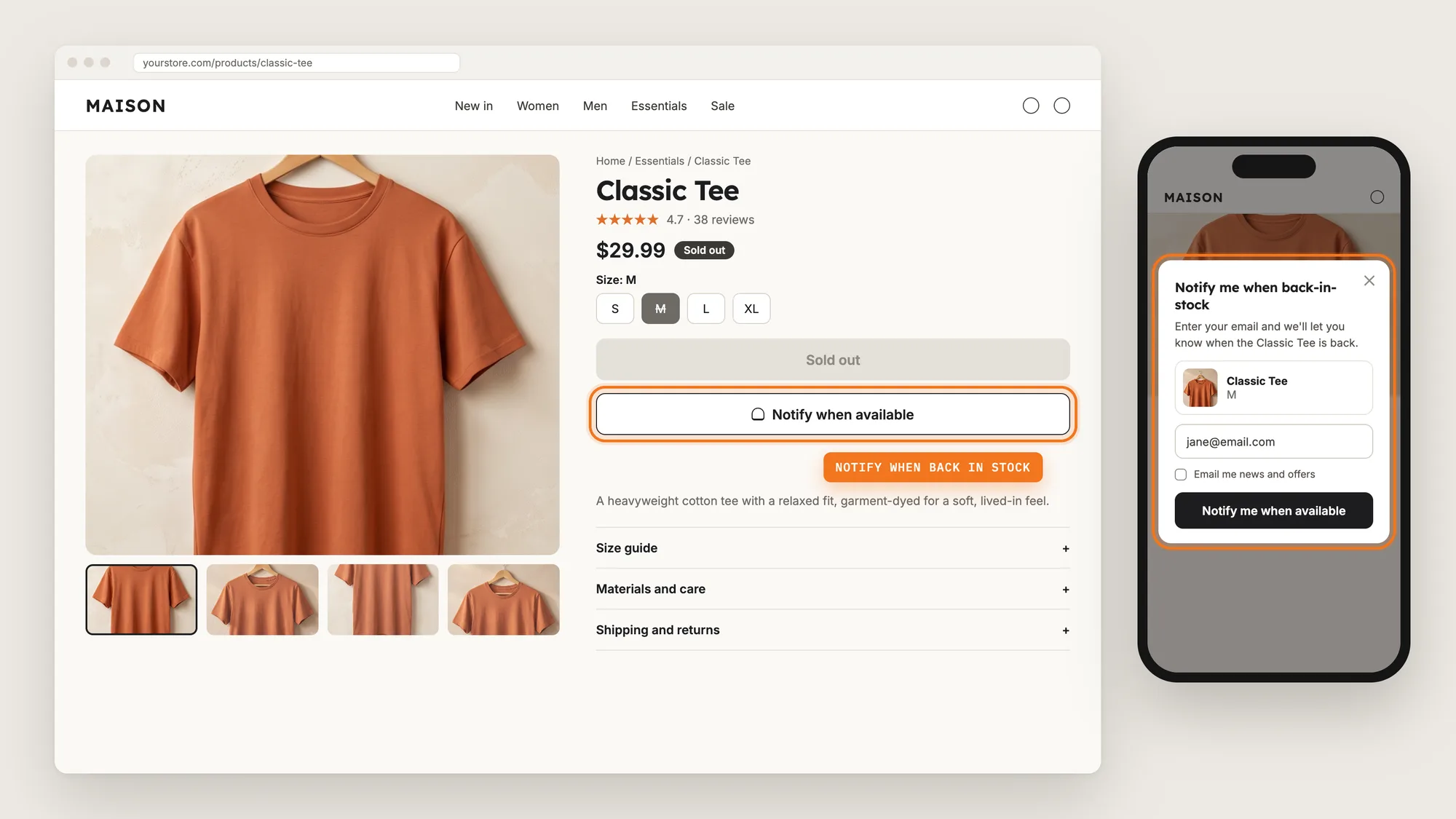
A shopper who lands on a sold-out product sees a gray Sold out button and nothing else to do. Most of them leave, and the store has no way to tell them when the size they wanted comes back.
A notify when back in stock button keeps that shopper. It replaces the dead end with a short sign-up form, saves the email address or phone number for the exact variant, and sends an alert the moment the stock returns.
Here are the three ways to add notify when back in stock to a Shopify store: with a Back in Stock app, from your theme settings, or with custom code.
What Is a Notify When Back in Stock Button?
A notify when back in stock button is a button on a sold-out product that lets shoppers sign up for an alert when that product is restocked. Shoppers click it, enter an email address or phone number in a small form, and get an email or text once the variant they picked is available again. It's also called a back in stock alert, a restock alert or a "notify me" button.
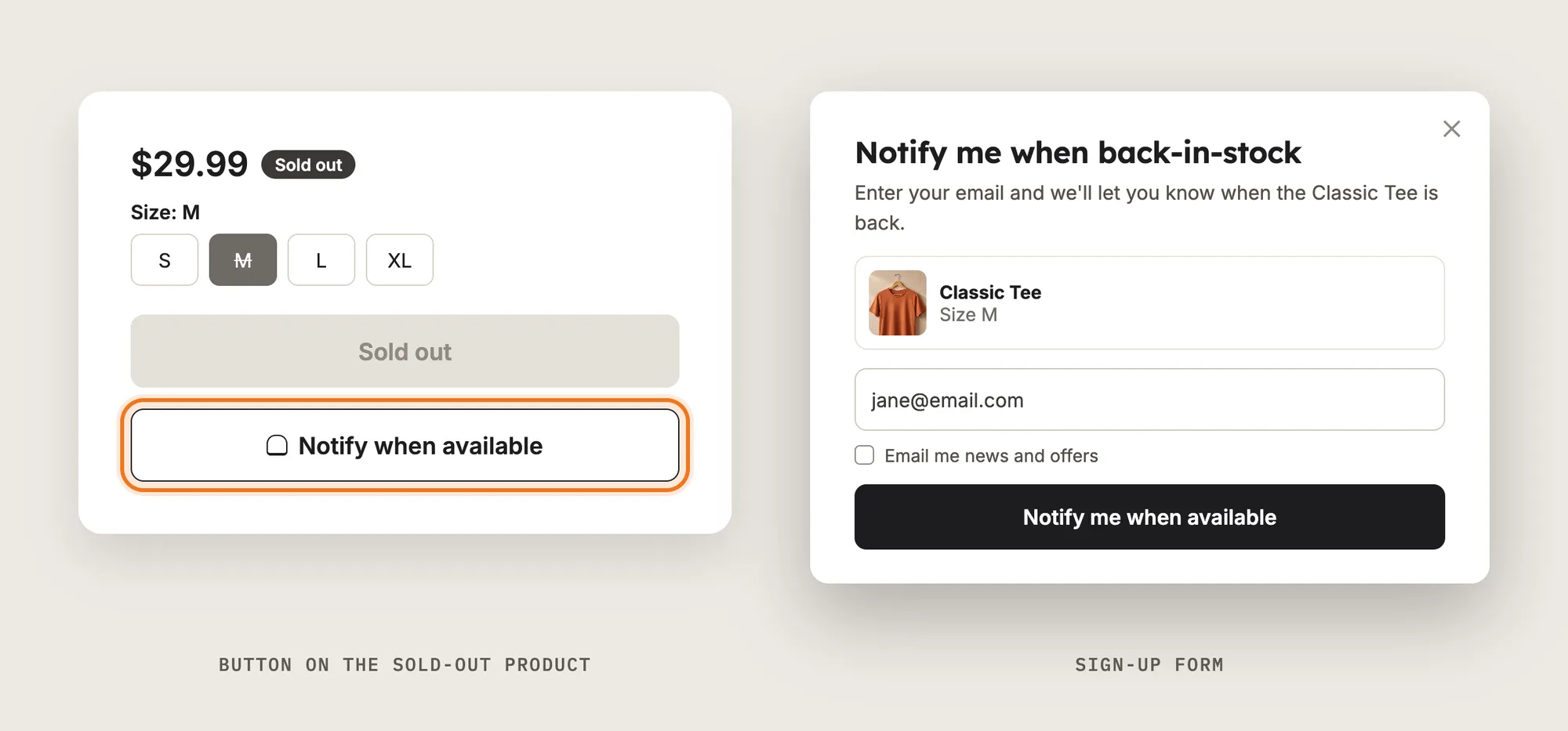
A good notify when back in stock button includes:
- Variant-level sign-ups: The alert is tied to the size or color the shopper picked, not just the product.
- A short sign-up form: One field and one button, so signing up takes a few seconds on a phone.
- An automatic alert: The email or text goes out on its own when the stock returns, with no manual sending.
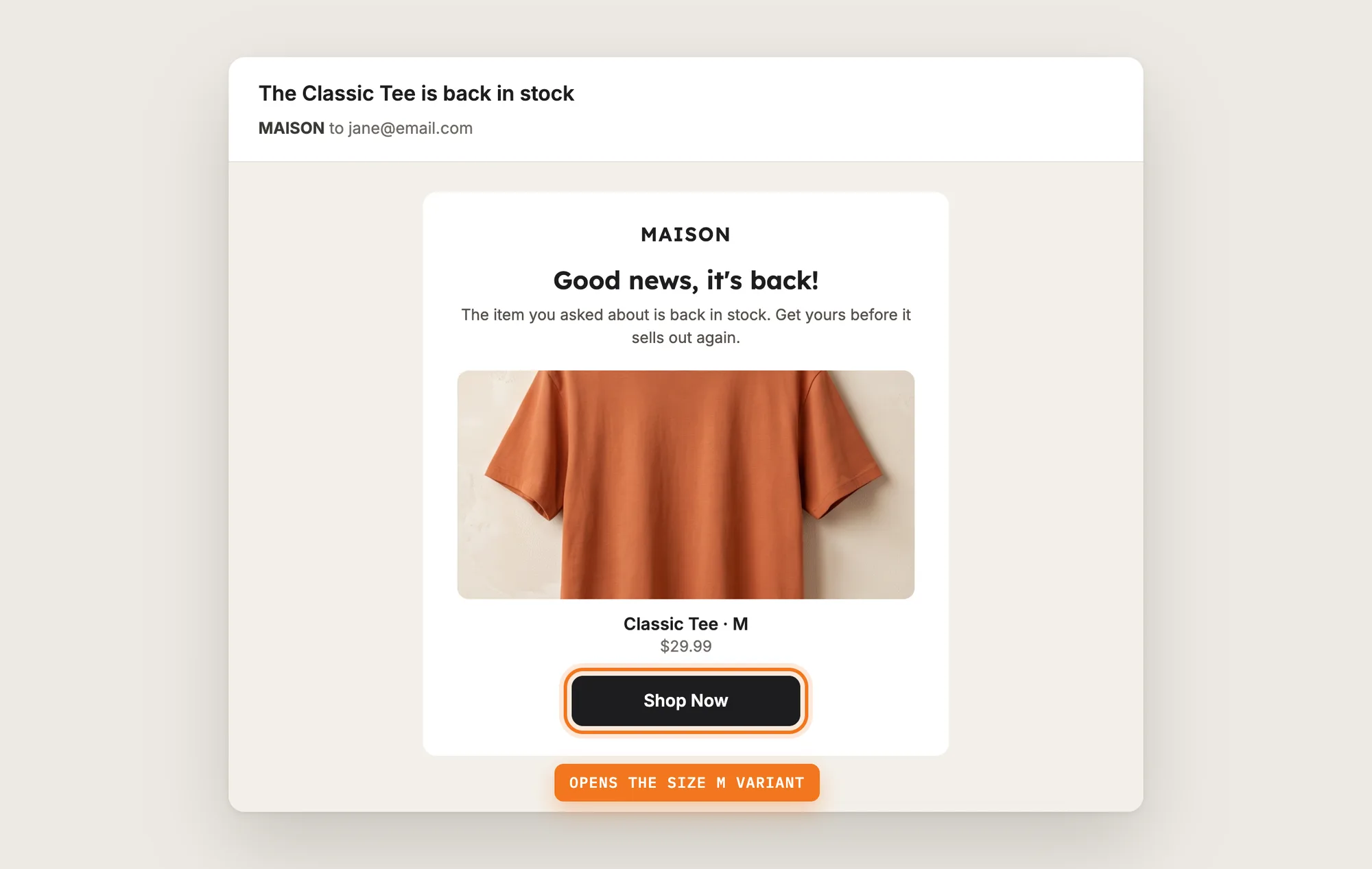
- A direct link back: The alert opens the product page with the right variant already selected.
A notify when back in stock button doesn't change your inventory or checkout. It turns a sold-out page into a list of shoppers who want the product.
What's the Quickest Way to Add Notify When Back in Stock?
- Vitals - All in One App is the quickest way to add notify when back in stock for most stores
- Vitals also offers 40+ apps, such as product reviews, product bundles and a cart drawer, in one subscription of $29.99/month, so you don't have to install and pay for each app separately
Here's how the three methods compare. If you'd rather weigh several restock apps against each other, see our list of the best back in stock apps for Shopify.
How to Add Notify When Back in Stock With a Back in Stock App?
Install the Vitals - All in One App, open its Back in Stock app and click Activate app. The notify when back in stock button then shows on your sold-out product pages, near the Add to cart button, and the steps below set who sees it, what it says and which alerts shoppers get.
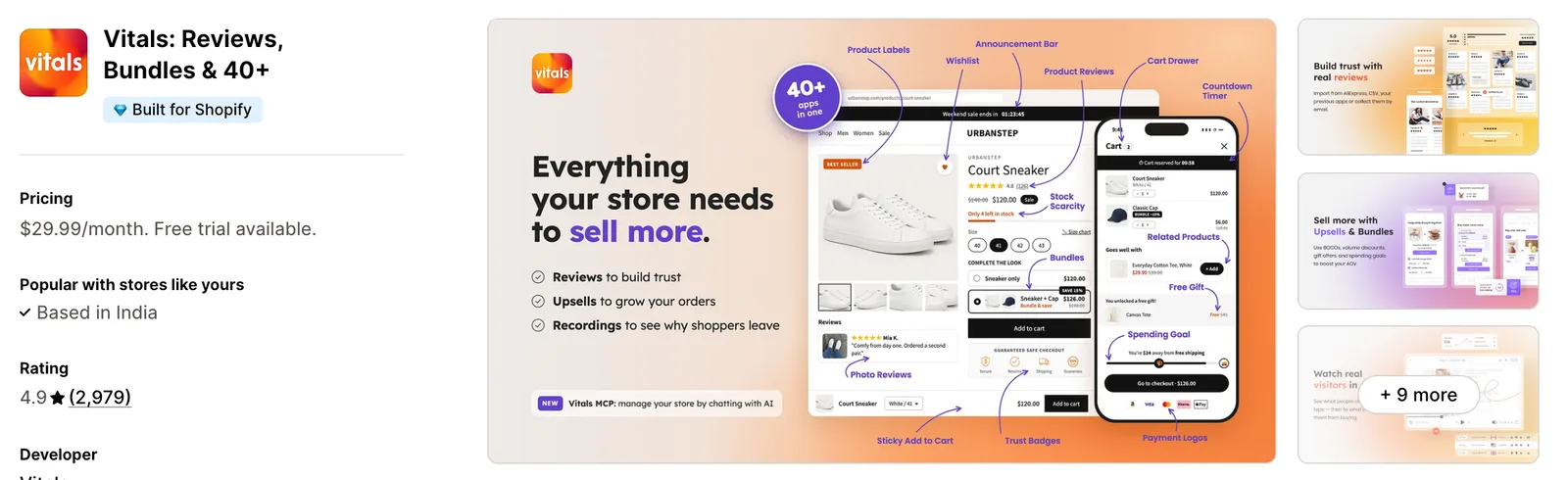
Step 1: Add Vitals to Your Shopify Store
Install the Vitals - All in One App from the Shopify App Store. The 7-day free trial includes the Vitals Back in Stock app.
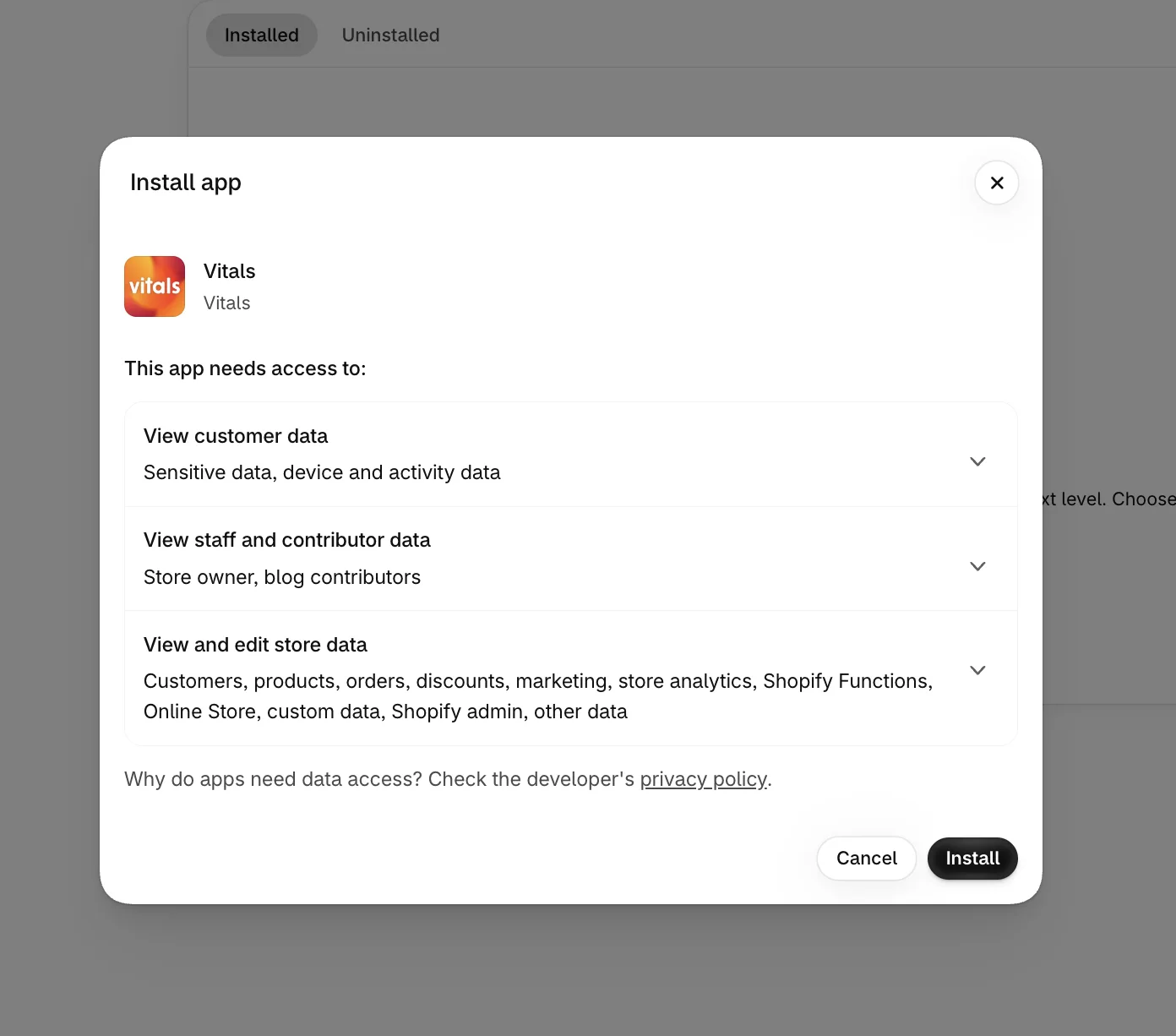
Step 2: Confirm the Install in Shopify
Click Install to approve the store data Vitals uses. Shopify then takes you to the Vitals dashboard.
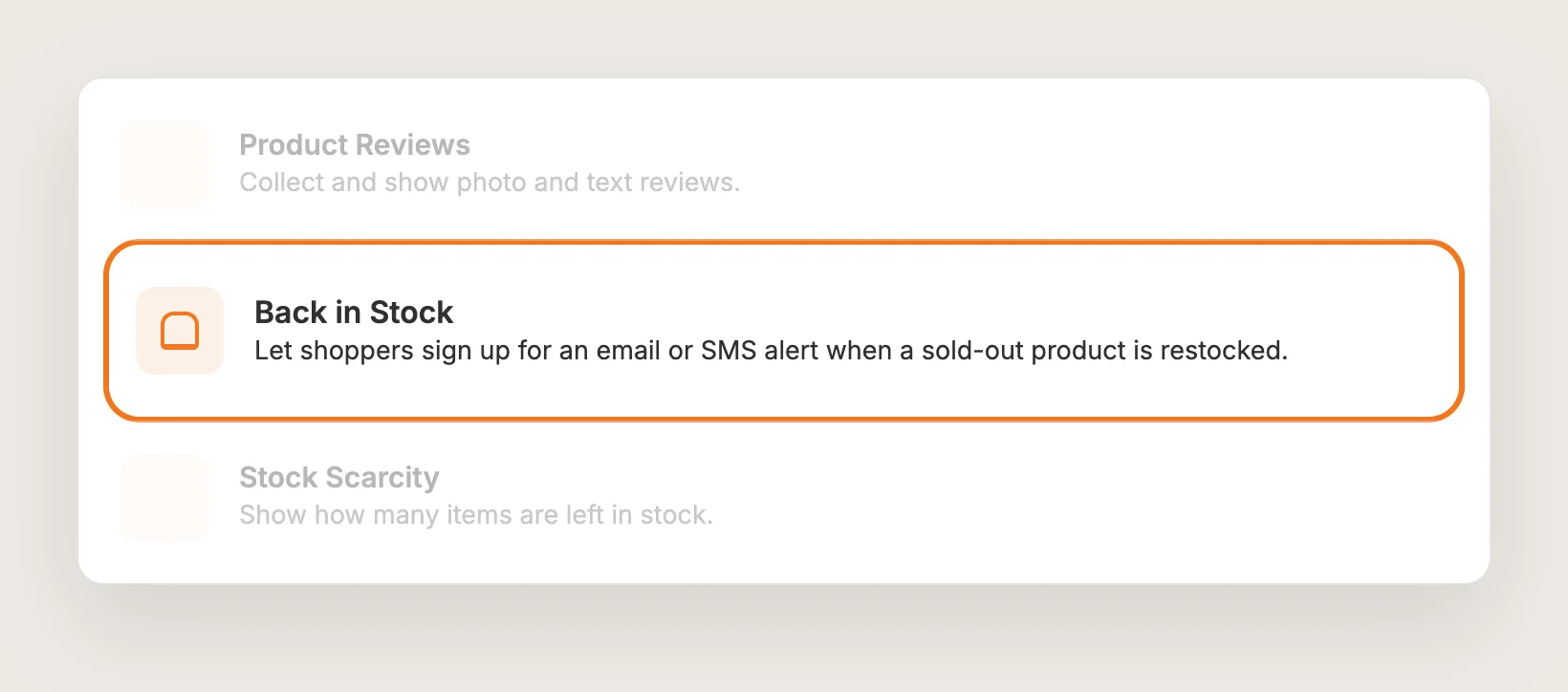
Step 3: Open Back in Stock
In the Vitals dashboard, find Back in Stock in the list of apps and click it.
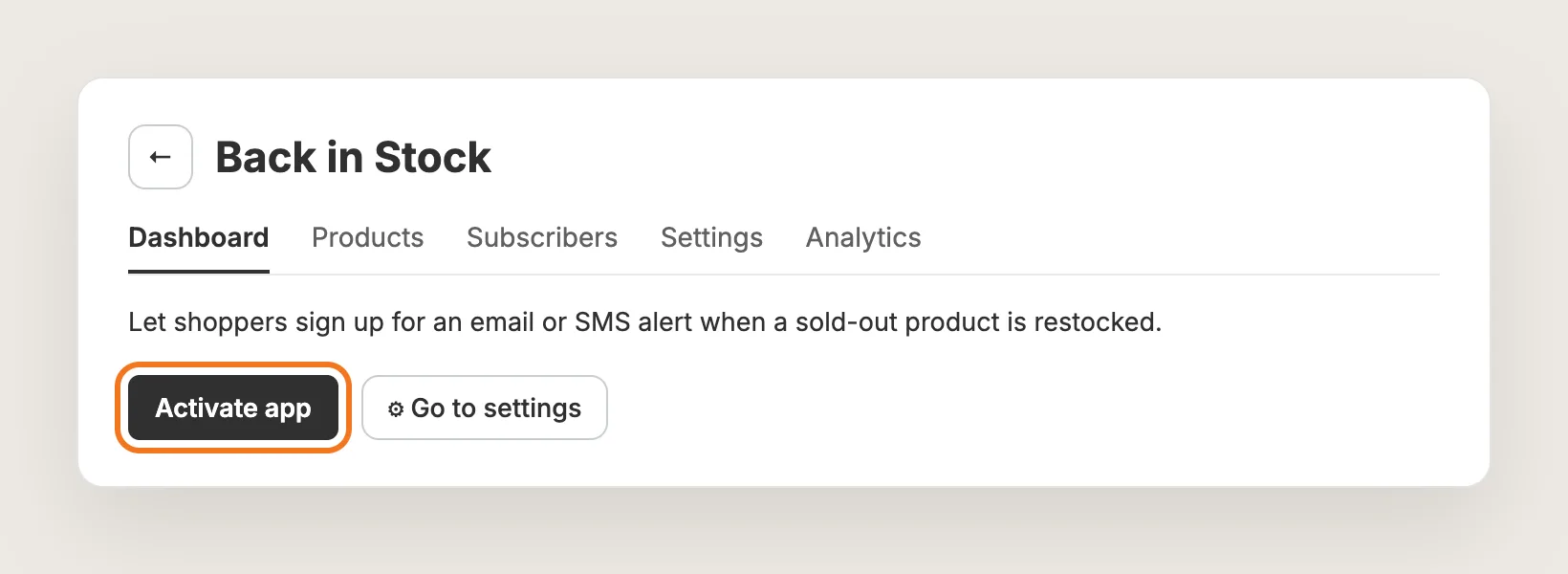
Step 4: Activate Back in Stock
On the Back in Stock page, click Activate app to turn the notify when back in stock button on. The app has five tabs: Dashboard, Products, Subscribers, Settings and Analytics. Every step below happens in the Settings tab.
Step 5: Choose Which Products Show the Button
The notify when back in stock button shows on a variant when Shopify tracks its inventory and the stock is 0 or below. In Settings → Visibility, Show on products with inventory policy sets which sold-out products qualify:
- Stop selling when out of stock: Products that stop selling at 0, the default
- Continue selling when out of stock: Products that keep selling at 0, such as pre-orders
- Both: Every sold-out product, whatever its inventory policy
Use Exclude products or collections to hide the button on products you don't plan to restock.
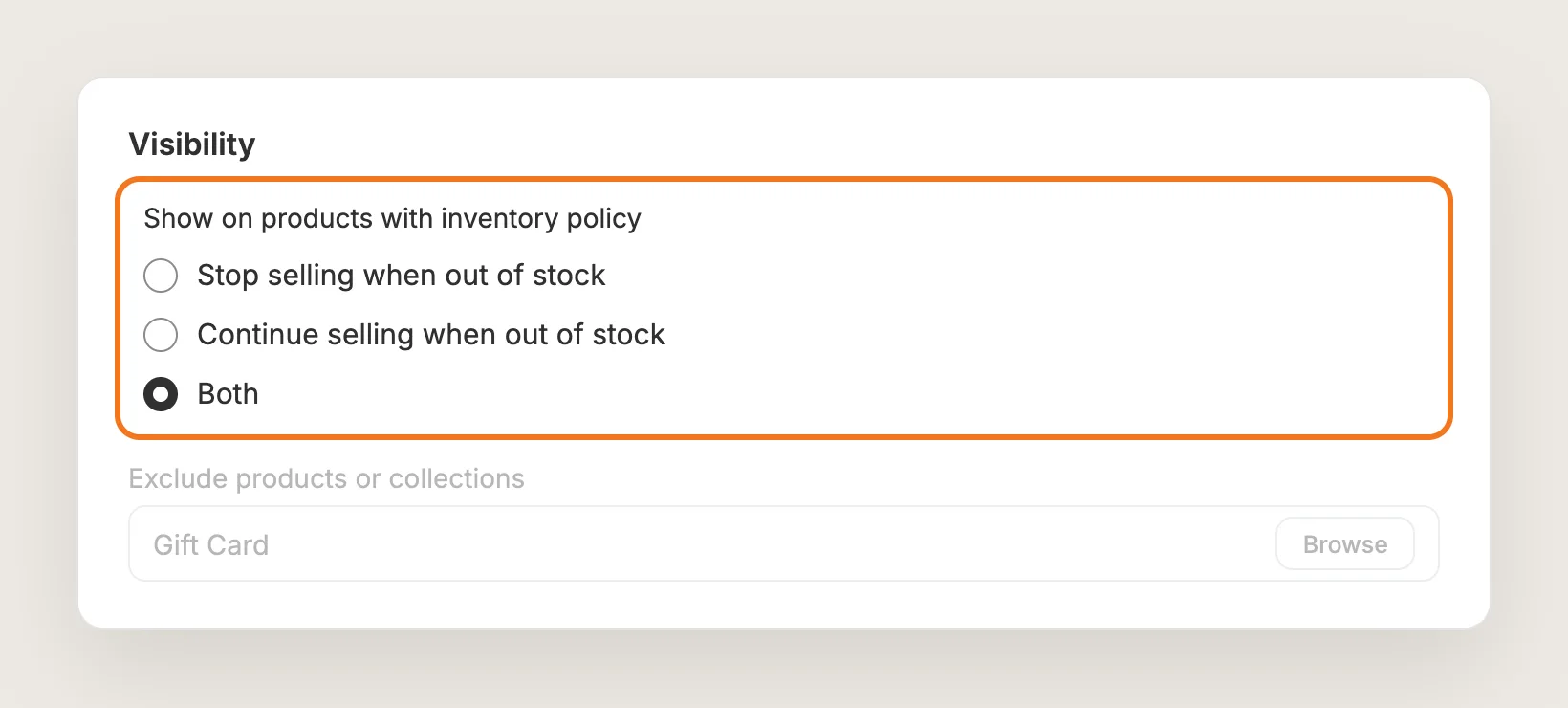
Step 6: Style the Notify When Back in Stock Button
In Button style, write the label in Button text. The default is "Notify when available". Button style then sets the look: Filled, Outline or Display only a link. The same card sets the font size, colors, border radius and margin, and can make the button full width.
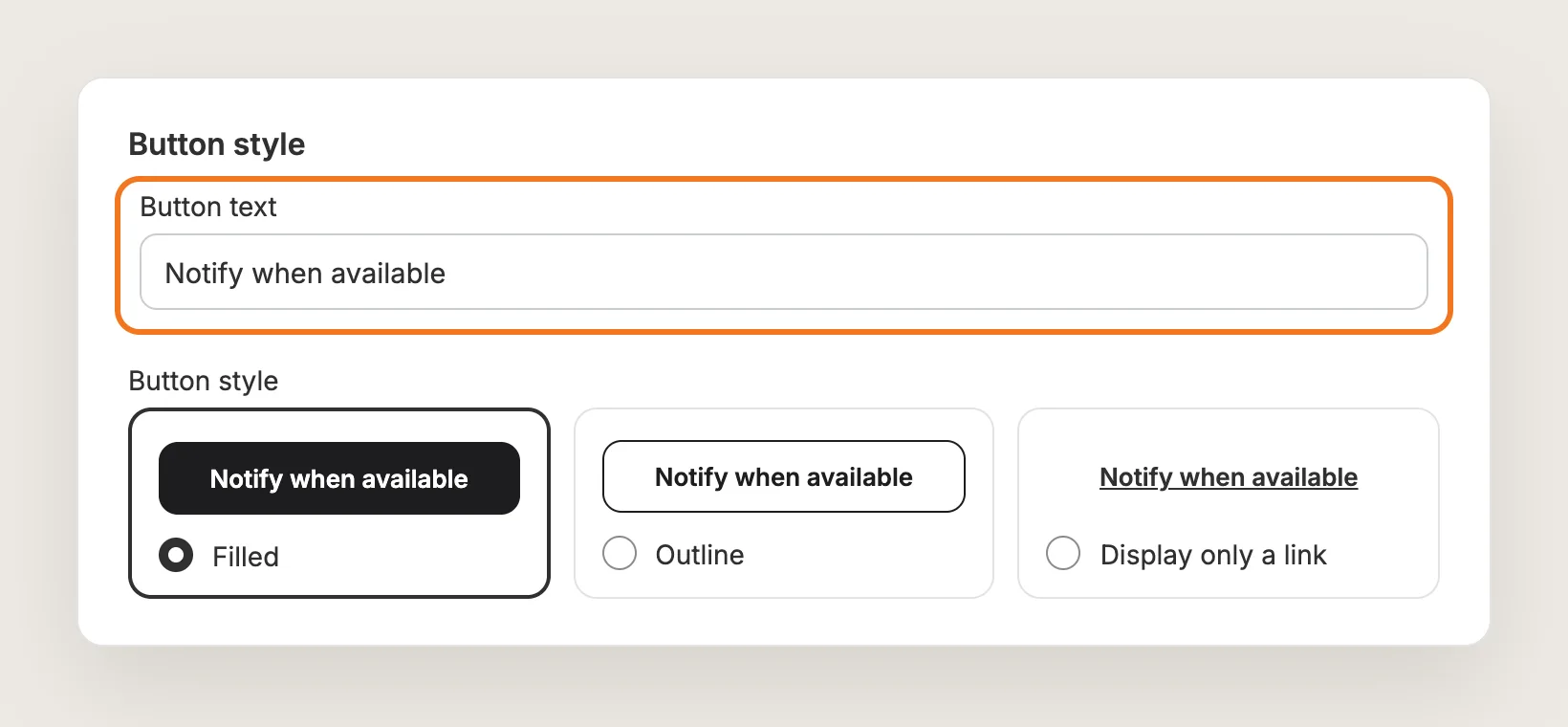
Step 7: Write the Sign-Up Form
The sign-up form opens when a shopper clicks the notify when back in stock button. In Modal style, set the Modal headline, the Body text and the Modal button text, plus a line of Privacy information under the button. The same card sets the form's text, button and background colors to match your store.
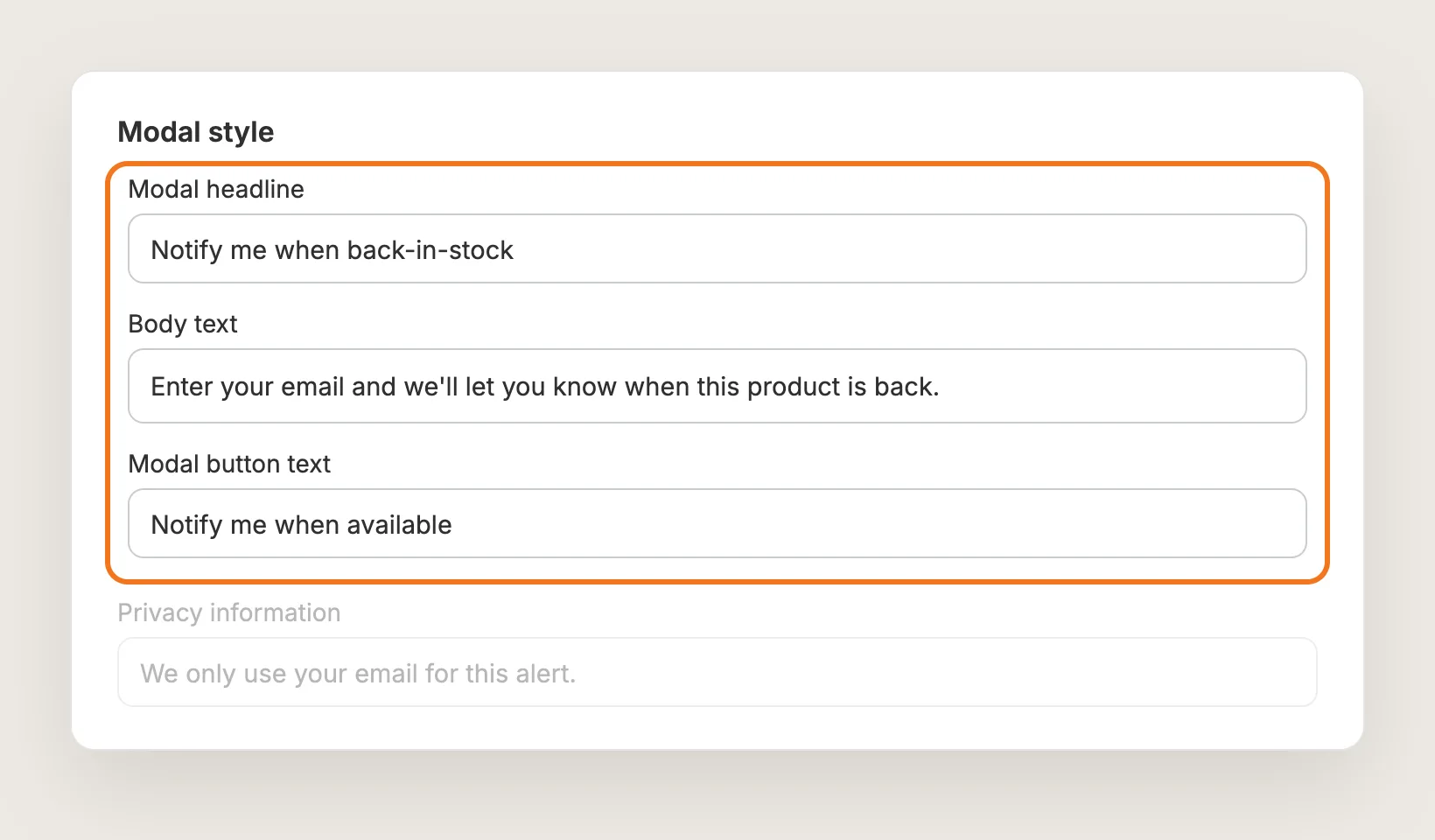
Step 8: Ask for Marketing Consent (Optional)
In Marketing consent, turn on Show a marketing consent checkbox to add an opt-in box to the sign-up form. Write the label in Checkbox text. A shopper who ticks the box is saved as subscribed to email marketing on their Shopify customer record. Tick the box by default pre-ticks it, but only a box the shopper ticks counts as consent in Shopify.
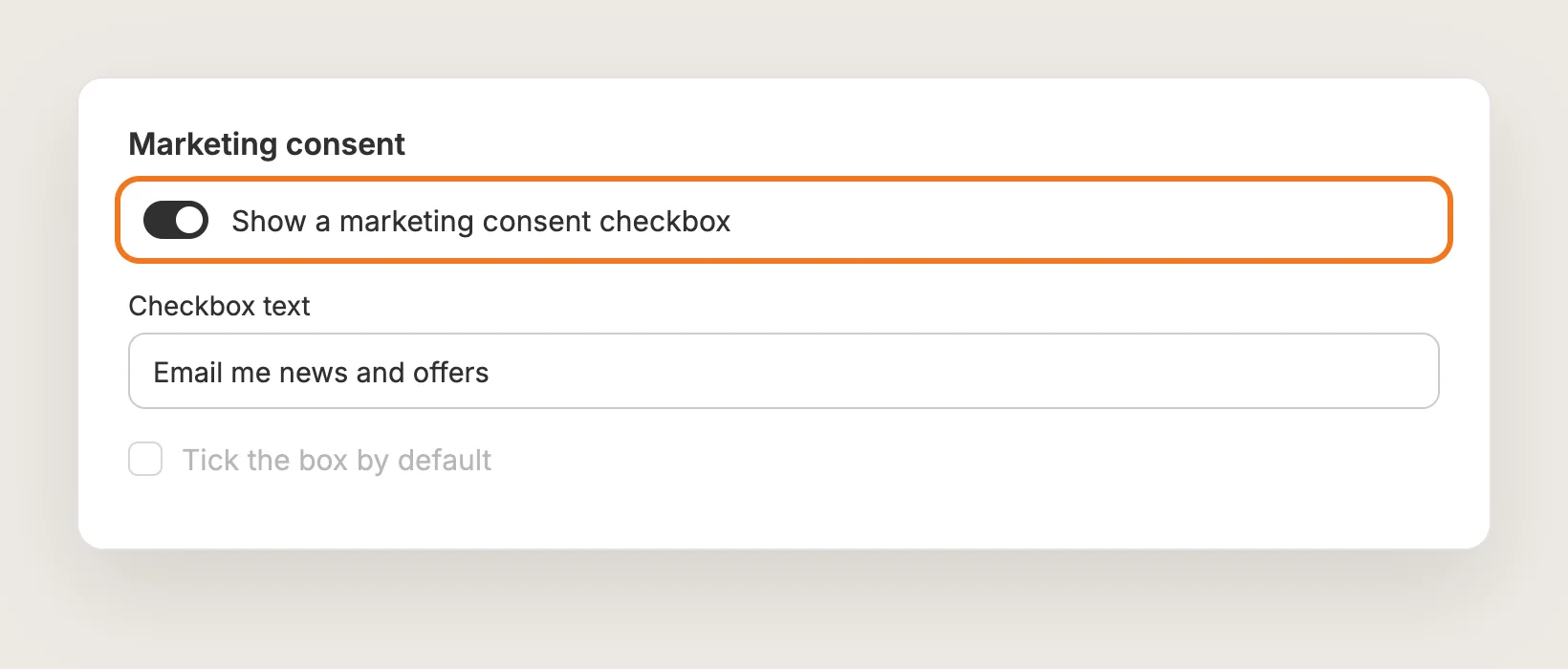
Step 9: Choose the Emails Shoppers Get
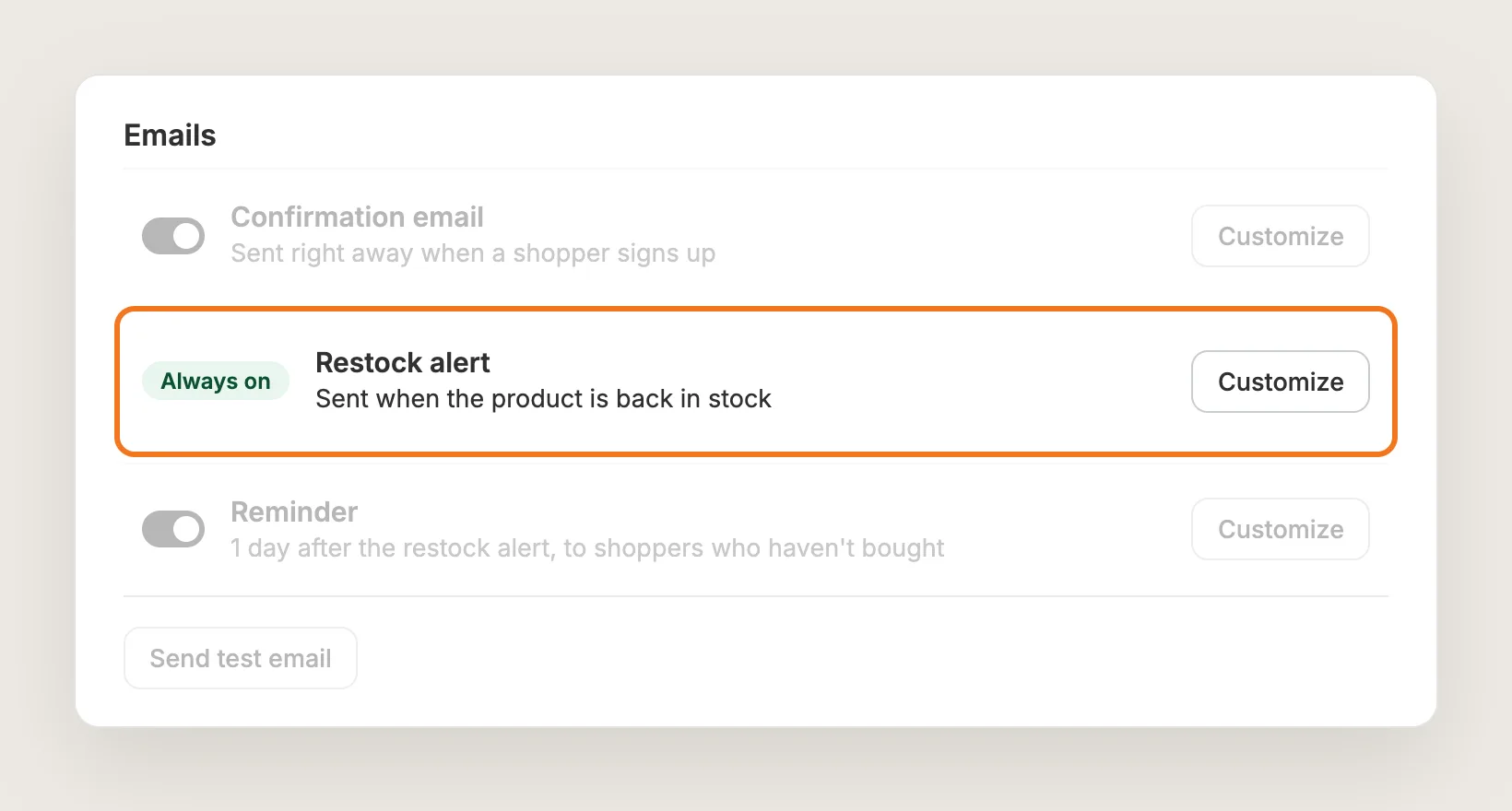
In Emails, pick which emails go out:
- Confirmation email: Sent right away when a shopper signs up, with an optional Show product suggestions block of related products
- Restock alert: Sent when the product is back in stock, always on
- Reminder: Sent 1 to 5 days after the restock alert, to shoppers who haven't bought yet
Switch the confirmation email and the reminder on or off with the switch on each row.
Step 10: Customize the Restock Alert Email
Click Customize on the Restock alert row to edit the Sender name, Subject, Reply-to address, Preview text and body. Then click Send test email to see the email in your own inbox. When a shopper clicks Shop Now in the alert, the product page opens with the variant they wanted already selected.
Step 11: Turn On SMS Alerts (Optional)
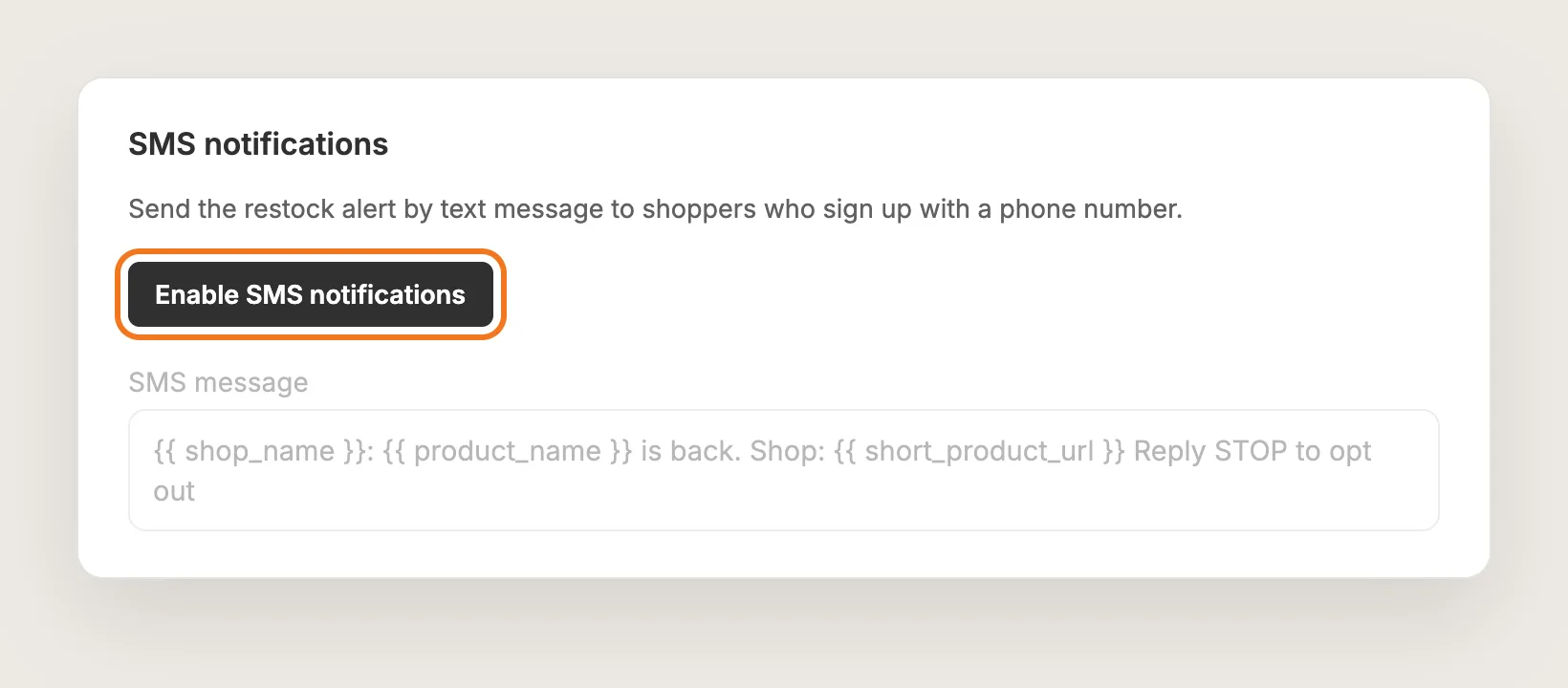
In SMS notifications, click Enable SMS notifications and approve the SMS charges in Shopify. Then set Status to Active and write the SMS message. The message can be up to 115 characters, has to include {{ product_name }}, {{ shop_name }} and {{ short_product_url }}, and can't include emojis. SMS needs a paid Vitals plan, so the button stays disabled during the free trial.
Step 12: Set When Restock Alerts Are Sent
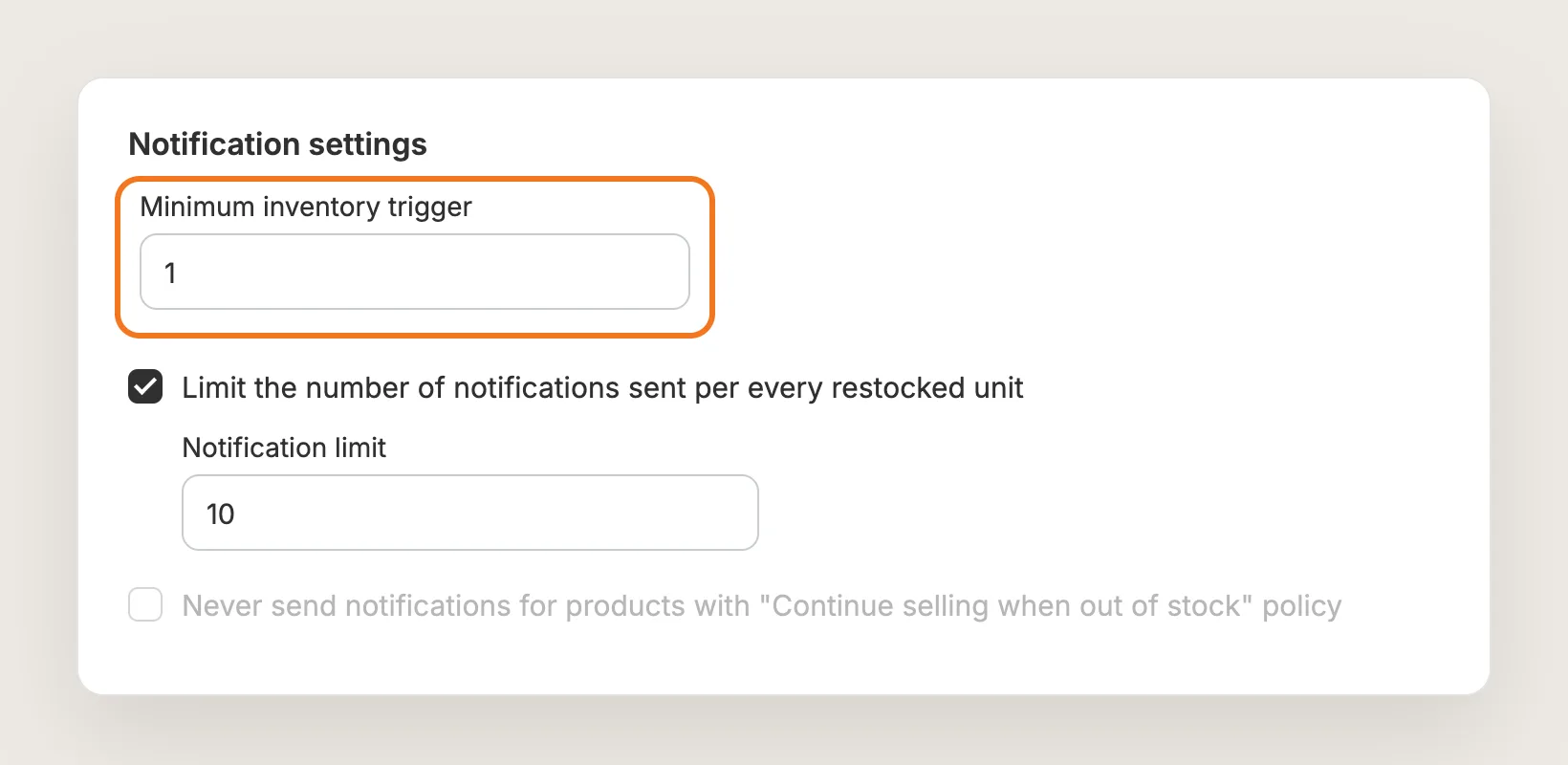
In Settings → Notification settings, Minimum inventory trigger sets how many units have to come back before the alerts go out. The default is 1. Tick Limit the number of notifications sent per every restocked unit and set a Notification limit to alert only as many shoppers as you can sell to, most recent subscribers first. For pre-orders, Never send notifications for products with "Continue selling when out of stock" policy keeps the button but stops the alerts.
Step 13: Save, Test on Your Phone and Watch the Sign-Ups
Click Save, then open a sold-out product on your phone and on desktop. Pick the sold-out variant, click the notify when back in stock button and sign up with your own email. Your sign-up then shows in the Subscribers tab, the most requested products show in Products, and Analytics shows impressions, clicks, subscribers and revenue by email.
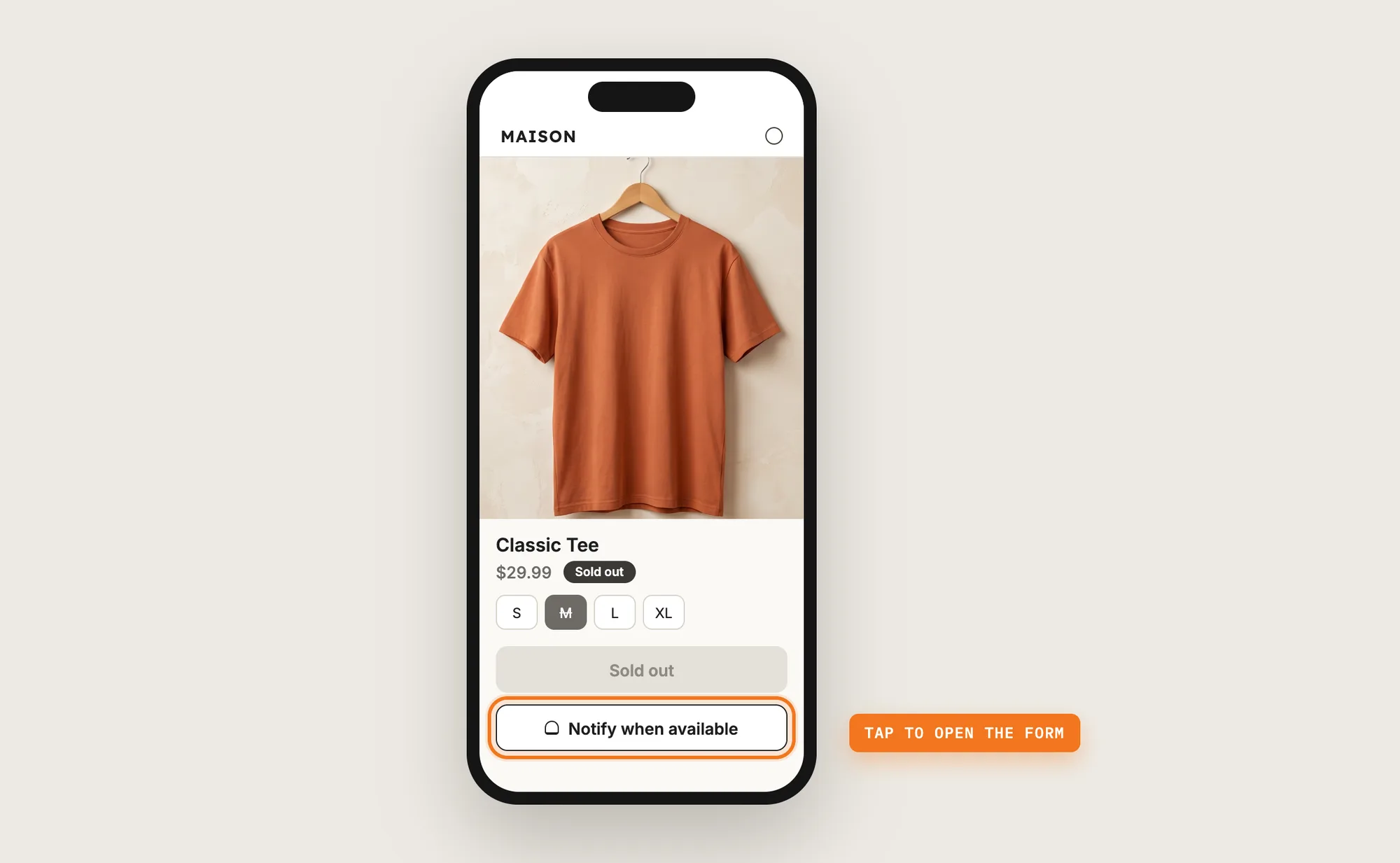
Step 14: Voila, Your Notify When Back in Stock Button Is Live on the Store
Shoppers who find a sold-out product now leave their email or phone number instead of leaving the store, and they hear from you the moment it's back.
How to Add Notify When Back in Stock From Your Theme Settings?
Most Shopify themes don't include a notify when back in stock button; they show a disabled Sold out button instead. Some themes include a contact form for sold-out products. To check your theme's settings:
- Click Customize next to your theme in Online Store → Themes
- Open a product page from the page menu at the top and click the product information section
- Look for a sold-out, back in stock or contact form option, then click Save
A theme form sends the shopper's request to your store's inbox, and you email each shopper by hand once the stock returns. It doesn't track variants, send alerts on its own or offer SMS. If you restock rarely and get only a few requests, the theme form can be enough.
How to Add Notify When Back in Stock Without an App?
Hire a developer to build a notify when back in stock button, a sign-up form and an alert system for your store. The button is the easy part; the alerts need a server that watches your inventory.
A custom build usually involves:
- Copying your theme first, so the live store isn't affected
- Adding a button that shows only when the selected variant is sold out
- Building a sign-up form that saves the email address and the variant
- Storing the sign-ups in a database or an email platform
- Listening for Shopify inventory updates and sending the alert when a variant is restocked
- Testing on every product template, then publishing the theme copy
Custom code means no extra app, but you or your developer have to maintain the button, the database and the sending. A theme update can remove the button, and missed inventory updates mean shoppers never get their alert.
How to Increase Sales With Notify When Back in Stock?
A notify when back in stock button increases sales by turning shoppers who would leave a sold-out page into buyers once the product returns. These settings help:
- Show the button on pre-order products too. Shoppers on a continue-selling product can still sign up. Set Show on products with inventory policy to Both
- Send a reminder to shoppers who didn't buy. Some shoppers miss the first alert. Turn on Reminder in Emails
- Suggest other products while shoppers wait. A shopper who can't buy now may buy something similar. Turn on Show product suggestions in the Confirmation email
- Reach shoppers by text. Some shoppers read a text sooner than an email. Turn on SMS notifications
- Grow your marketing list from every sign-up. Shoppers who opt in can get your other emails. Turn on Show a marketing consent checkbox
- Alert only as many shoppers as you have stock for. Shoppers who get an alert and find the product sold out again lose trust. Set a Notification limit
- Restock what shoppers ask for most. The Products tab lists the products with the most sign-ups. Reorder those first
Why Isn't My Notify When Back in Stock Button Showing or Working?
These are the usual causes when the notify when back in stock button doesn't show or alerts don't go out:
- The button doesn't show at all: Check that the app is activated and that the selected variant has 0 or less stock. The button works per variant, so it only shows once a sold-out variant is selected
- The button doesn't show on some products: Turn on inventory tracking for the product in Shopify. Vitals skips variants that aren't tracked
- The button doesn't show on pre-order products: Set Show on products with inventory policy to Continue selling when out of stock or Both
- Shoppers can't pick the sold-out variant: Some Shopify themes hide sold-out variants or make them unselectable. Change that in your theme settings
- The button shows in the wrong spot: Move it in Settings → Position, or with the Vitals block in the Shopify theme editor
- Alerts didn't go out after a restock: Check Minimum inventory trigger. A trigger of 5 sends nothing when you restock 1 to 4 units. Only stock at locations that fulfill online orders counts
- Pre-order alerts still go out: Never send notifications for products with "Continue selling when out of stock" policy works only when the visibility setting is Continue selling when out of stock, not Both
- A subscription shows Limit reached: The store hit its monthly notification limit, and those alerts aren't sent later on their own. Contact Vitals support to send them
- Subscribers are missing: Deleting a variant or a product removes its subscribers, and so does setting a product to draft
Which Notify When Back in Stock Method Should You Choose?
Vitals - All in One App suits most stores, but the right method depends on how often you restock and how many requests you get.
- Choose Vitals - All in One App if you want a notify when back in stock button with automatic email and SMS alerts per variant, and a list of the products shoppers want most. It also includes 40+ other apps in one subscription of $29.99/month, so you don't have to install and pay for each app separately
- Choose your theme's setting if your theme has a sold-out contact form and you're happy to email each shopper by hand
- Choose custom code if you have a developer to build and maintain the button, the sign-ups and the alerts
If you already use another restock app, see our Swym Back in Stock alternatives, Notify Back in Stock alternatives and Kbite Back in Stock alternatives.
Start a 7-day free trial: Install the Vitals - All in One App and add notify when back in stock
Frequently Asked Questions
1. What is the best way to add notify when back in stock on Shopify?
Vitals - All in One App is the best way for most stores. Its Back in Stock app adds a notify when back in stock button to sold-out variants without code, collects email addresses or phone numbers, and sends the restock alert automatically.
2. Does Shopify have a notify when back in stock button built in?
No. Shopify shows a Sold out button on products with no stock, and most themes don't add a sign-up form. Some themes include a contact form for sold-out products, but you answer each request by hand.
3. When does the restock alert get sent?
The alert goes out automatically when the variant's stock at a location that fulfills online orders reaches the Minimum inventory trigger, 1 by default. Stock added only at a retail or point-of-sale location doesn't send alerts.
4. Can shoppers get a back in stock text message?
Yes. In the Vitals Back in Stock app, click Enable SMS notifications, approve the SMS charges in Shopify and set Status to Active. SMS alerts need a paid Vitals plan, so they aren't available during the free trial.
5. Can I show the notify when back in stock button on pre-order products?
Yes. Set Show on products with inventory policy to Continue selling when out of stock or Both. To show the button without sending alerts, choose Continue selling when out of stock and tick Never send notifications for products with "Continue selling when out of stock" policy.
6. Can I send back in stock sign-ups to Klaviyo?
Yes. Connect Klaviyo in Vitals Integrations, then turn on Back in Stock under Klaviyo events and click Save. Shoppers who sign up by email and tick the marketing consent box reach Klaviyo as events you can use in flows. Vitals still sends the restock alert itself.
7. Can I export my back in stock subscribers?
Yes. Go to Back in Stock → Subscribers and click Export subscribers to download a CSV of every subscriber, with the product, variant, sign-up date and status. These shoppers only agreed to restock alerts, so check your privacy rules before you email them anything else.