How to Add Size Chart in Shopify

Shoppers can't try clothes or shoes on before they buy online. A shopper who can't tell whether a medium fits either guesses and maybe sends the order back, or leaves the page to find sizing somewhere else.
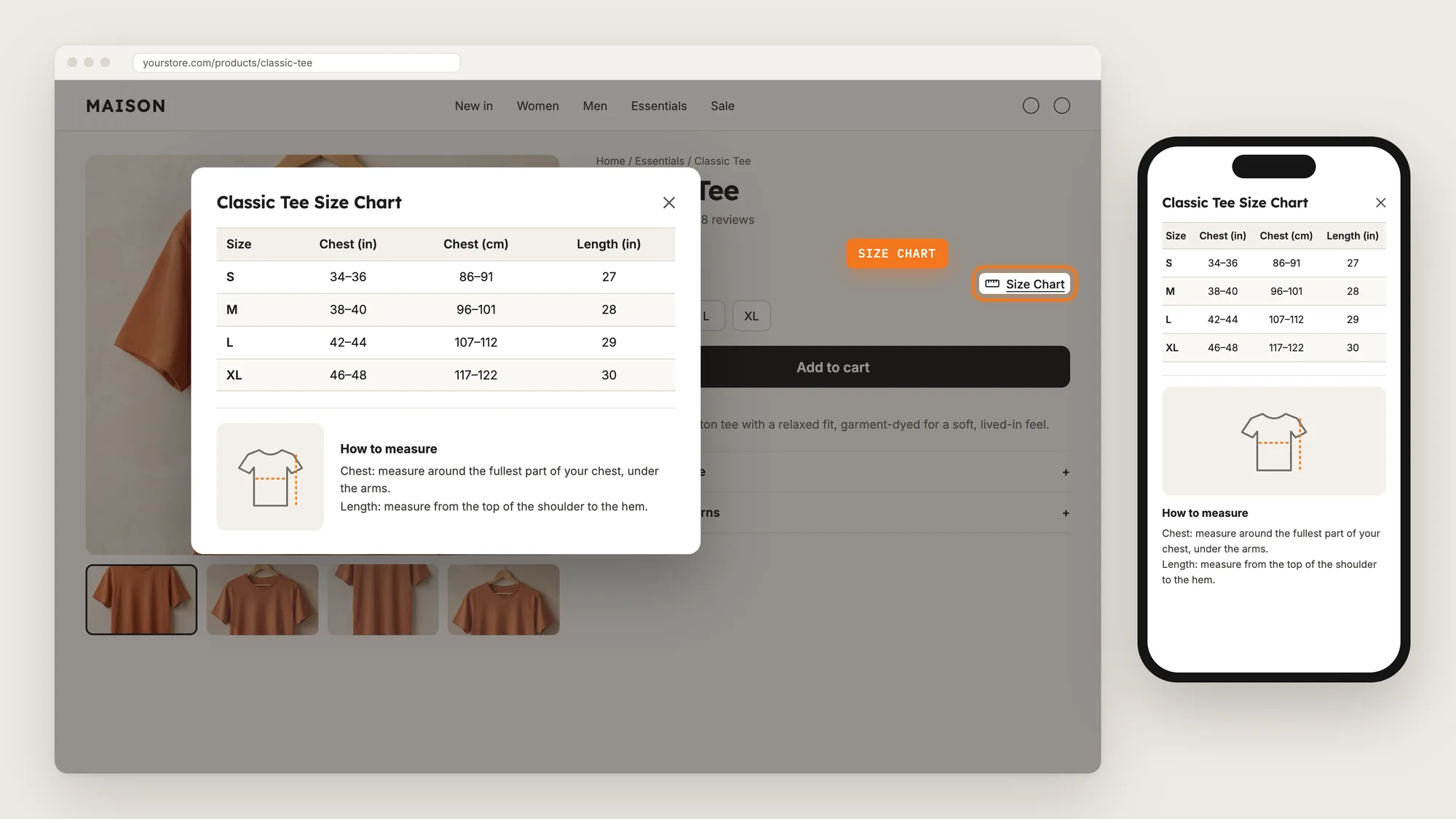
A size chart answers that question on the product page. A small Size Chart button next to the size options opens a pop-up with the measurements for each size, and a short guide on how to measure.
Here are the three ways to add a size chart in Shopify: with a Size Chart app, from your theme settings, or with custom code.
What Is a Size Chart?
A size chart is a table of the body or garment measurements for each size a product comes in, such as chest, waist and length for S, M, L and XL. On a Shopify store, the size chart usually opens in a pop-up from a button or link near the size options. It's also called a size guide.
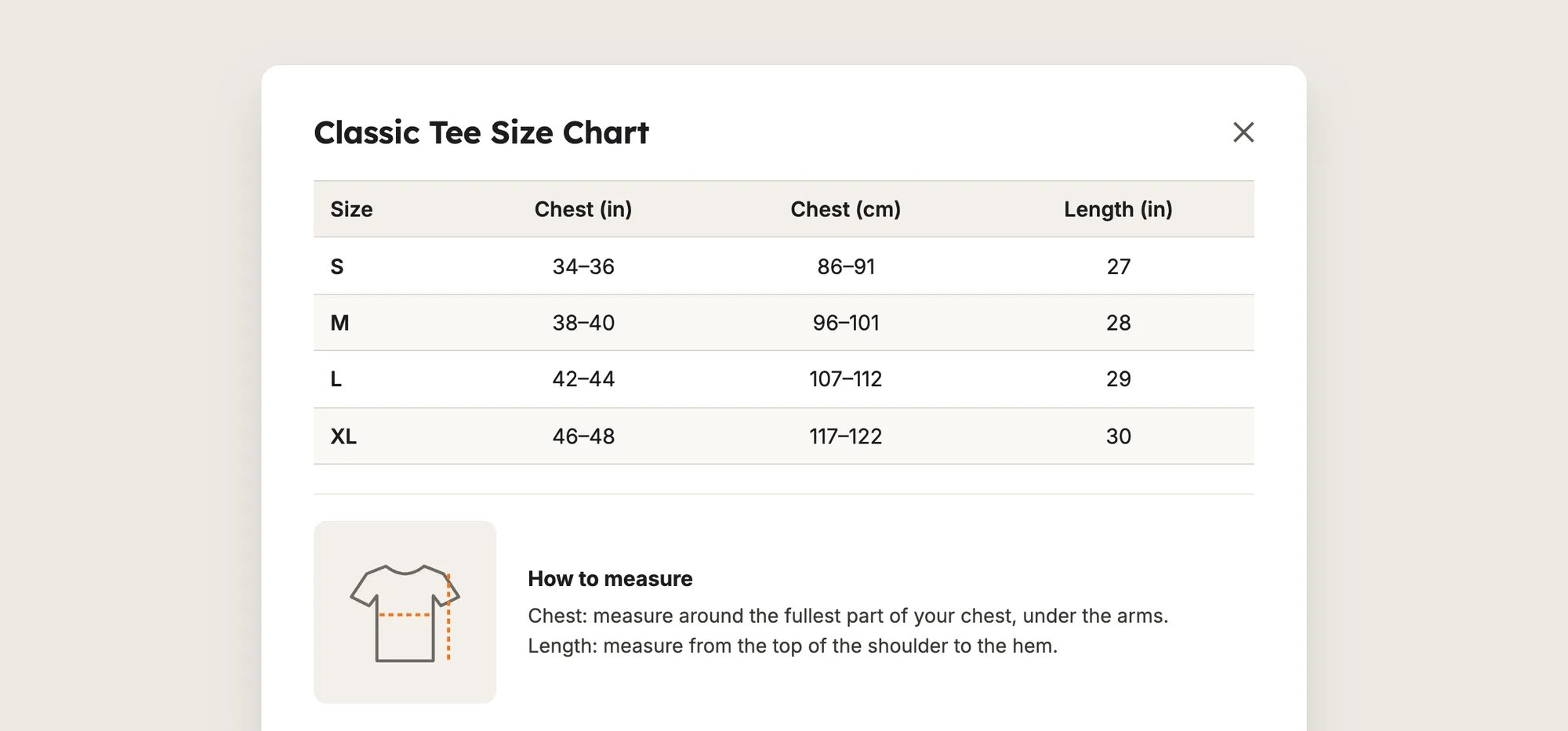
A good size chart includes:
- The measurements shoppers check: Chest, waist, hips, length or foot length, depending on the product.
- Both units when you sell abroad: Inches and centimetres side by side, so shoppers don't have to convert.
- A how to measure guide: A short note and a picture showing where to measure.
- A button next to the size options: Shoppers find the size chart at the moment they pick a size.
A size chart doesn't change your variants or inventory. It only shows shoppers which size to pick.
What's the Quickest Way to Add a Size Chart?
- Vitals - All in One App is the quickest way to add a size chart for most stores
- Vitals also offers 40+ apps, such as product reviews, sticky add to cart and product bundles, in one subscription of $29.99/month, so you don't have to install and pay for each app separately
Here's how the three methods compare. If you'd rather weigh several size chart apps against each other, see our list of the best size chart apps for Shopify.
How to Add a Size Chart With a Size Chart App?
Install the Vitals - All in One App, open its Size Chart app and click Activate app. Then click Create Size Chart to build your first chart. The Size Chart button then shows near the Add to cart button on your product pages, and the steps below set the chart, the products it shows on and how the button looks.
Step 1: Add Vitals to Your Shopify Store
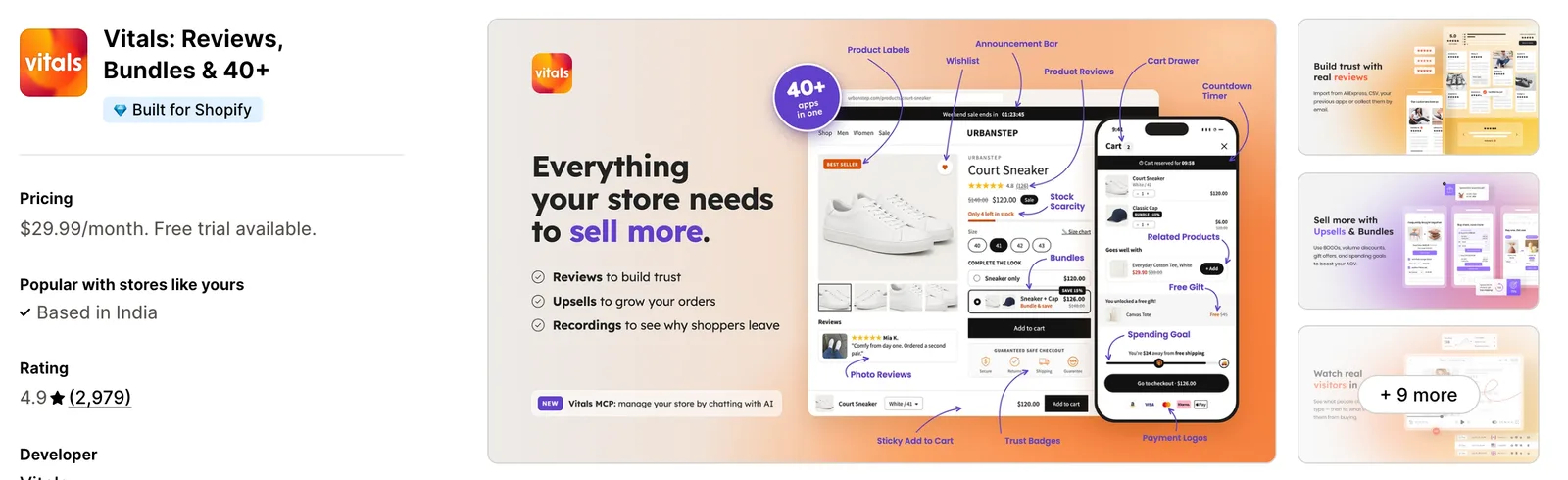
Install the Vitals - All in One App from the Shopify App Store. The 7-day free trial includes the Vitals Size Chart app.
Step 2: Confirm the Install in Shopify
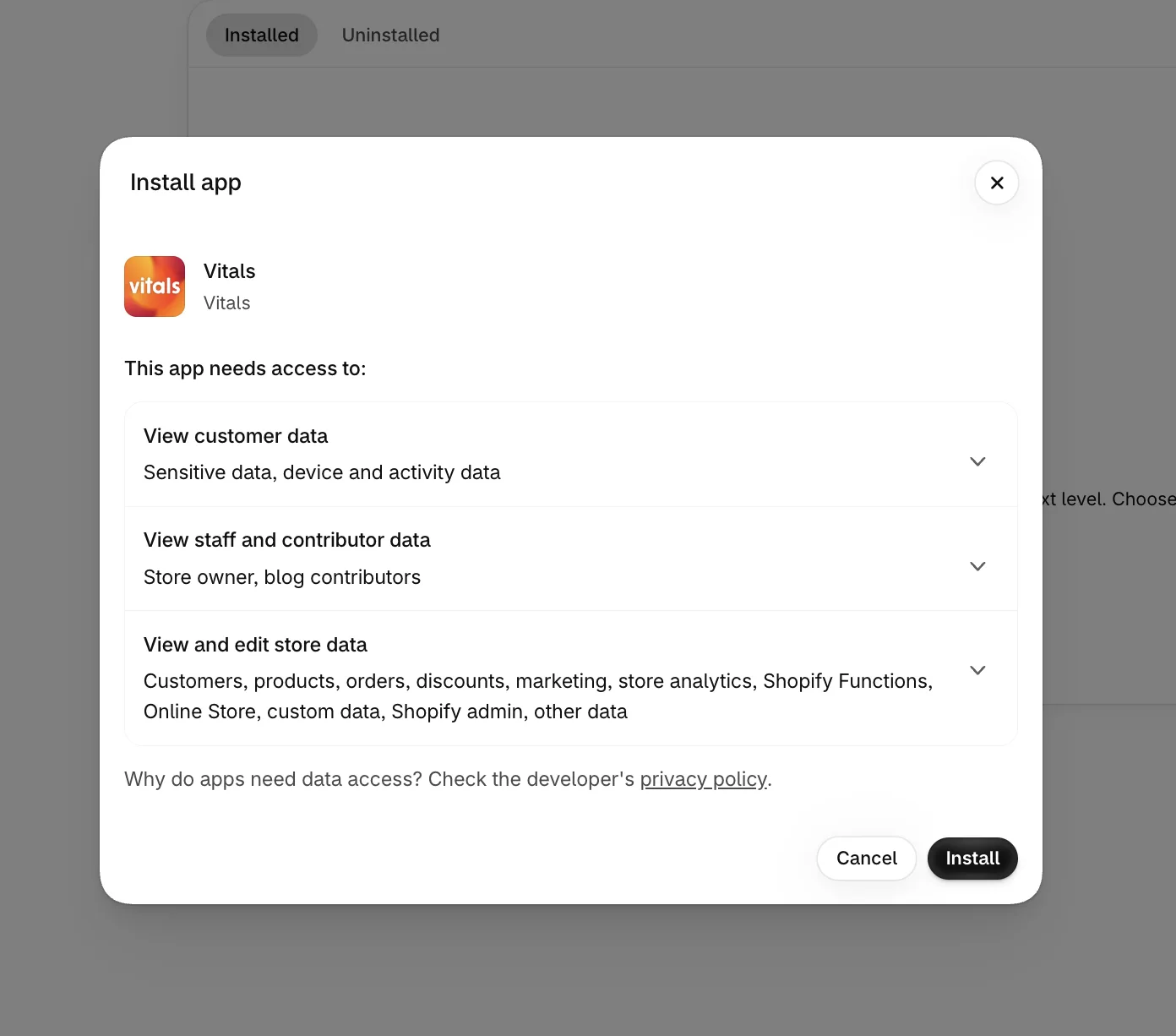
Click Install to approve the store data Vitals uses. Shopify then takes you to the Vitals dashboard.
Step 3: Open Size Chart
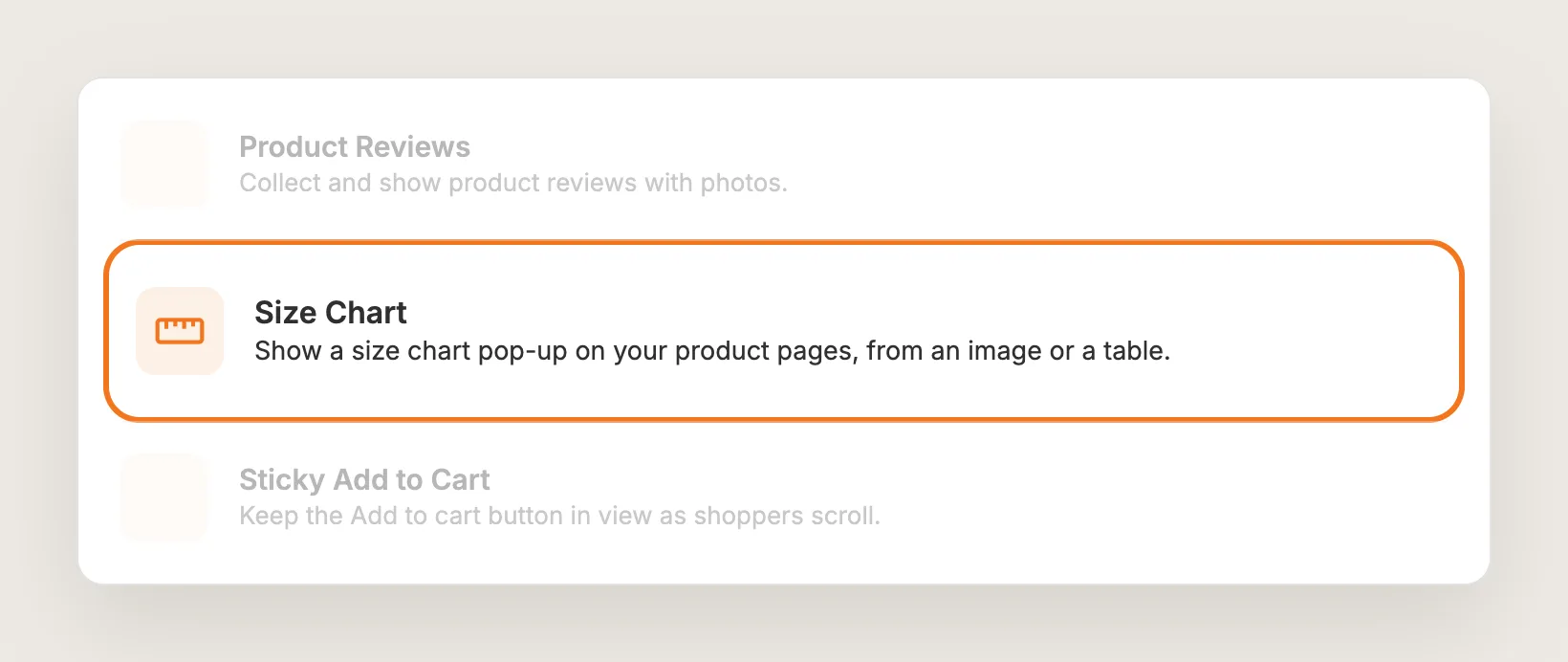
In the Vitals dashboard, find Size Chart in the list of apps and click it.
Step 4: Activate Size Chart
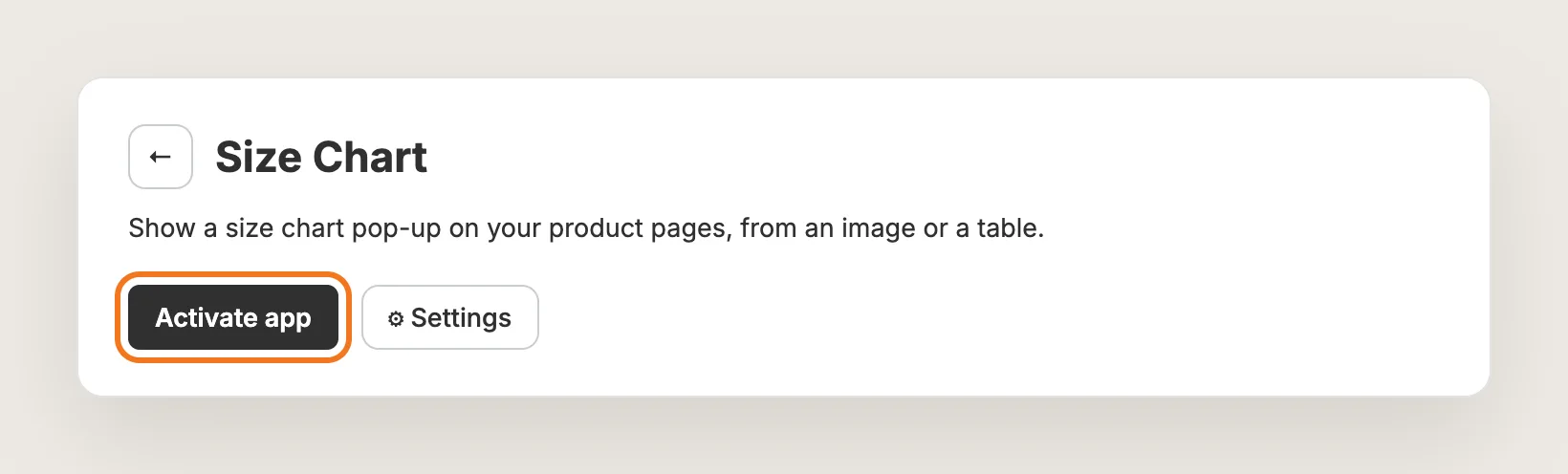
On the Size Chart page, click Activate app. Your size charts show on the store only while the app is active.
Step 5: Create a New Size Chart
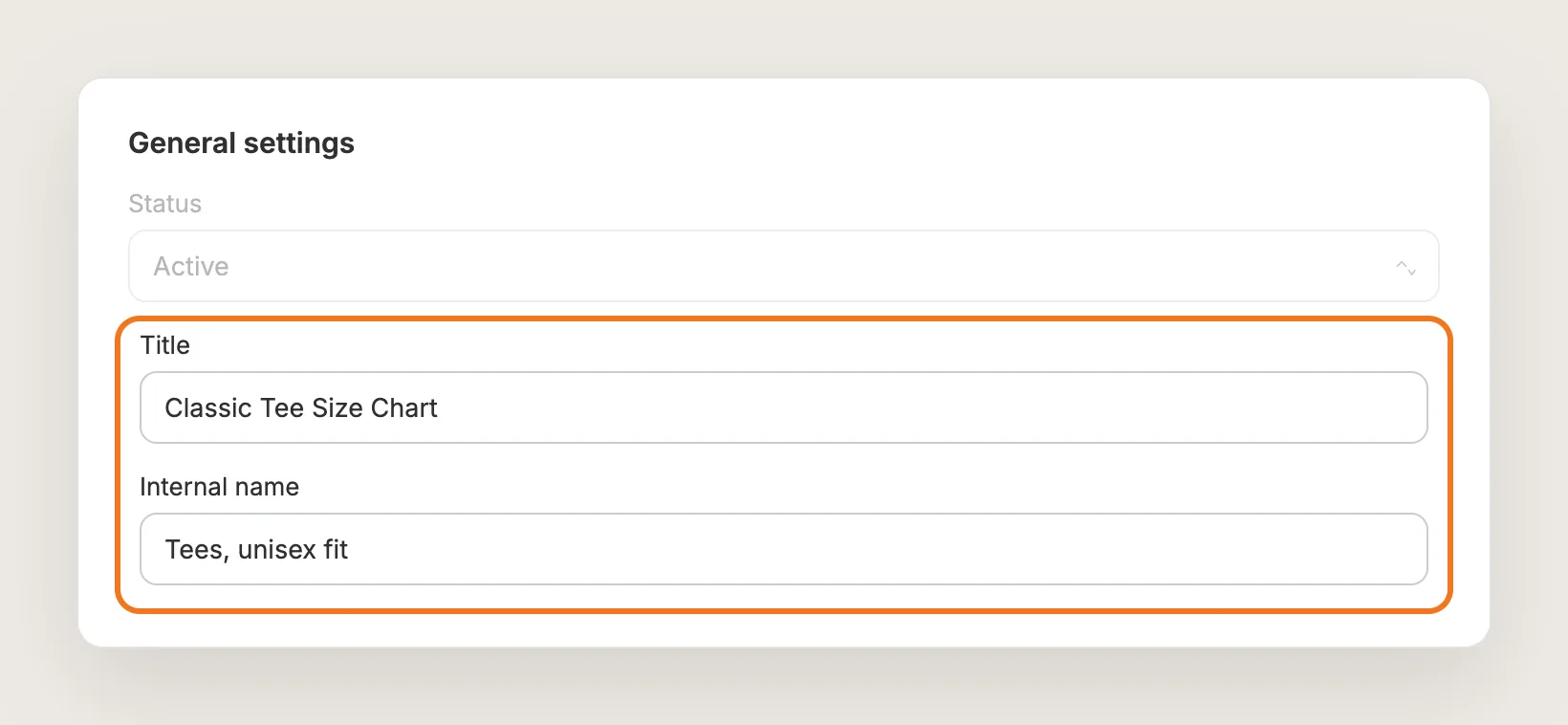
In the Size Charts tab, click Create Size Chart. Under General settings, enter the Title shoppers see at the top of the pop-up, such as "Classic Tee Size Chart", and an Internal name for your own list. Both fields are required to save the size chart.
Step 6: Choose Which Products Show the Size Chart
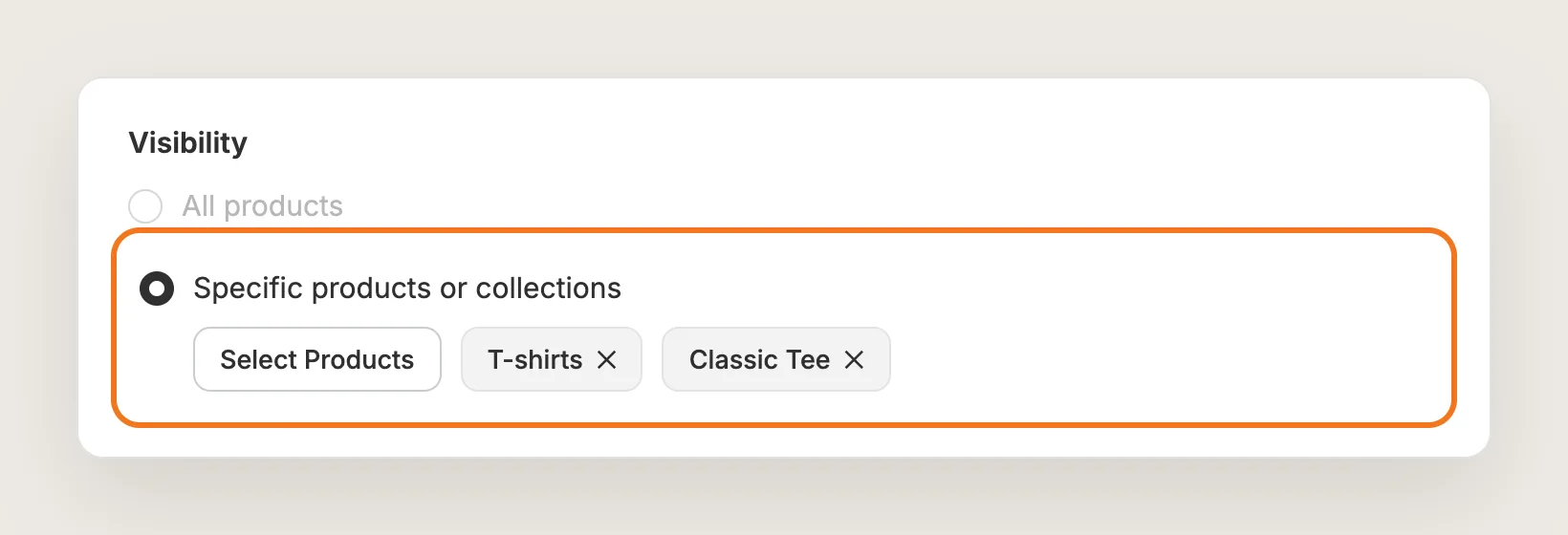
In the Visibility card, keep All products to show the size chart on every product page. To show the size chart on part of your catalog, pick Specific products or collections, click Select Products and choose the products or collections it belongs to.
You can create as many size charts as you need, such as one for tops and one for shoes. When two size charts target the same product, the more specific size chart shows, so a chart for a product beats a chart for its collection or for all products. Between two equal charts, the most recently updated one shows.
Step 7: Build the Size Chart Table or Upload an Image
In the Pop-up content card, choose how to create the size chart:
- Create table: Type the sizes and measurements into the table editor. Right-click the table, or use the toolbar, to add or remove rows and columns
- From image: Upload a size chart you already have as a .png, .webp, .jpeg, .jpg or .gif image
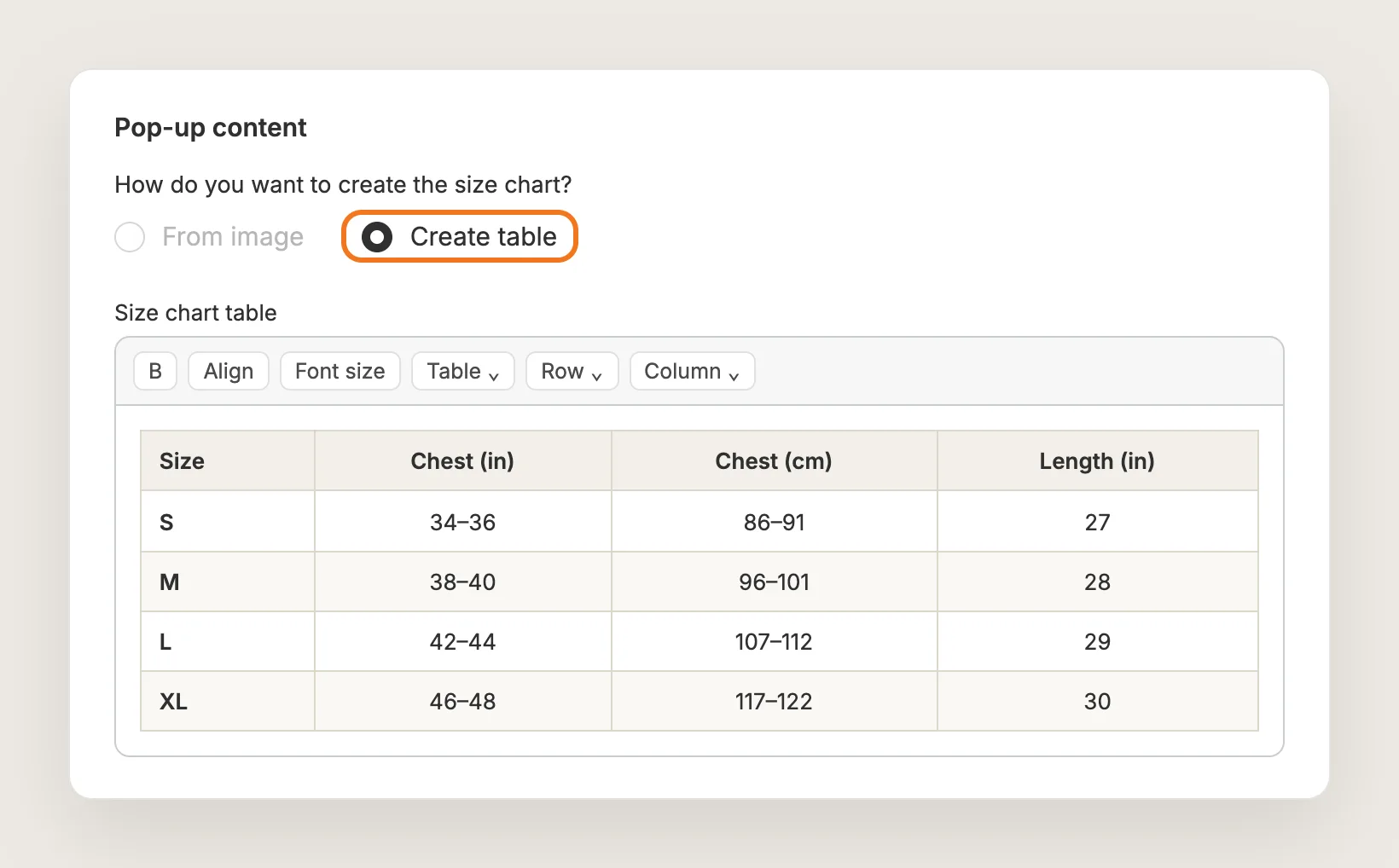
Vitals shows the size chart exactly as you create it and doesn't convert units, so add inch and centimetre columns if your shoppers need both. You can only pick the image or table option when you create the size chart. To switch later, create a new size chart.
Step 8: Add a How to Measure Guide (Optional)
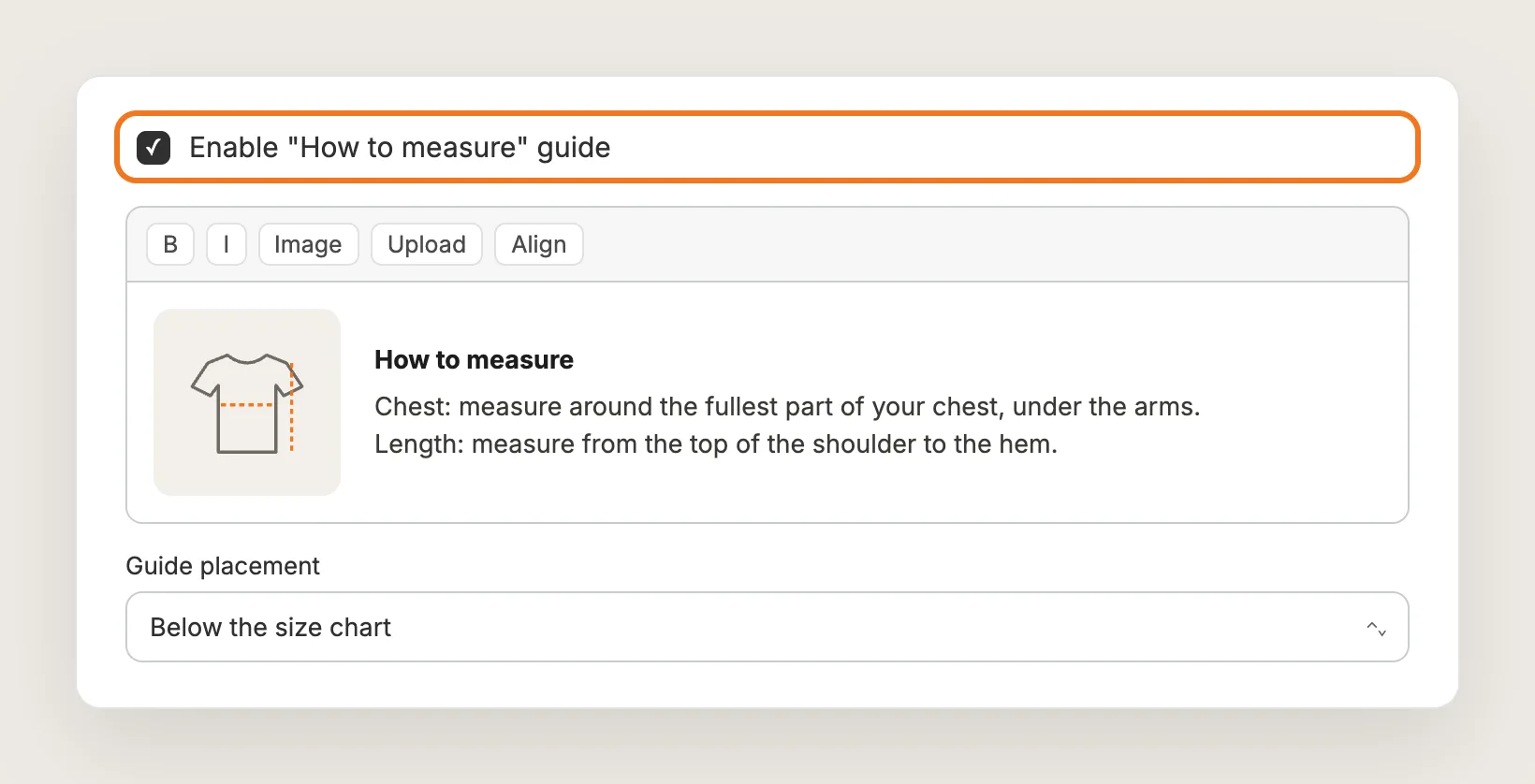
Tick Enable "How to measure" guide in the same card. Edit the text and picture in the editor, or upload your own image with the upload option. Then set Guide placement to Below the size chart or Above the size chart.
Step 9: Publish the Size Chart
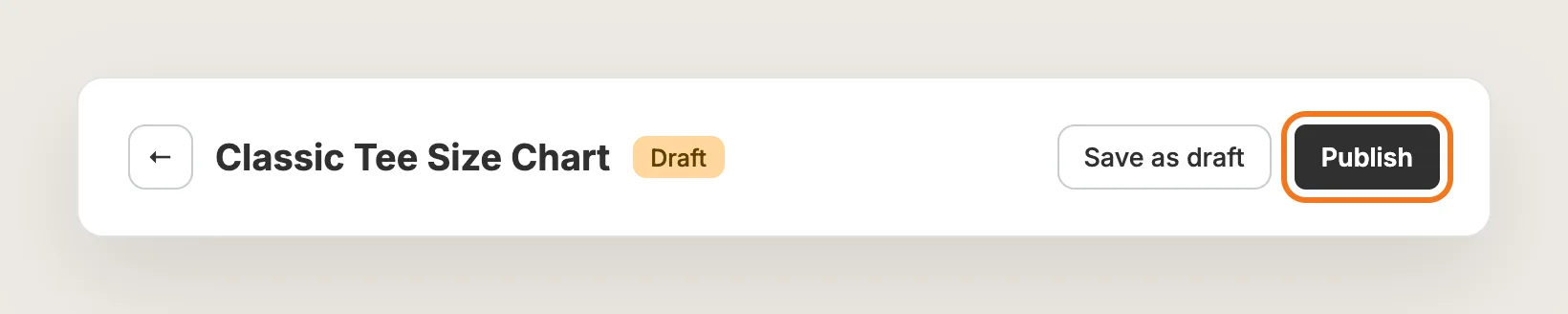
Click Publish at the top of the page. You can also click Save as draft and publish the size chart later, or set Status to Active under General settings.
Step 10: Style the Size Chart Button
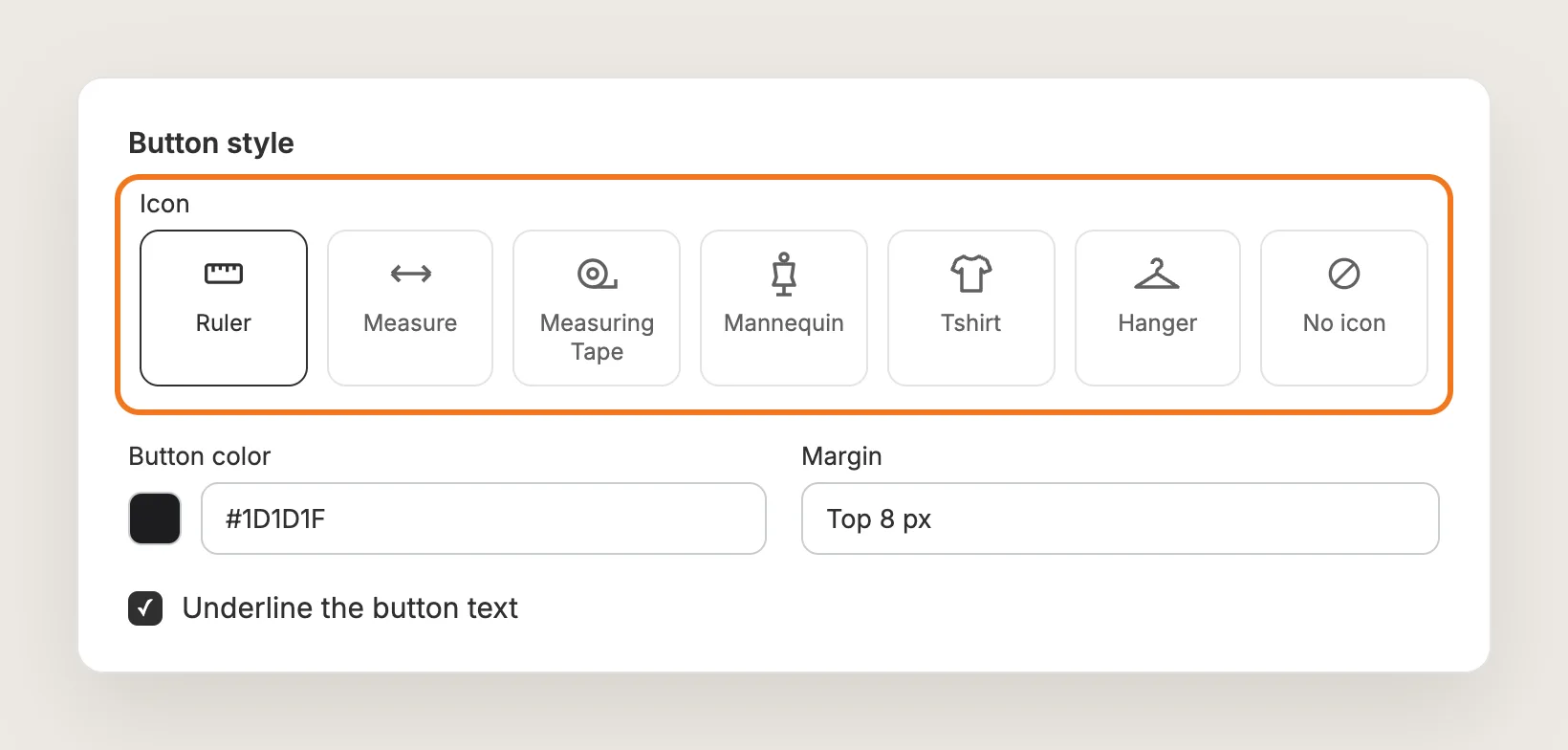
Open the Settings tab and go to Button style. Set:
- Icon: Ruler, Measure, Measuring Tape, Mannequin, Tshirt, Hanger or No icon
- Button color: The color of the button text and icon together
- Underline the button text: On by default; untick it for plain text
- Margin: The space around the button
To change the button text from "Size Chart" to something like "Size guide", scroll to Translations in the same tab and edit Button text. The button style and text apply to every size chart.
Step 11: Choose a Table Design
Still in Settings, go to Table style and pick a design under Choose a table design: Horizontal borders (the default), Vertical borders or Simple. Then set Border thickness (Thin, Regular or Bold) and Border color, plus the striped row background color for the two striped designs. Under Modal style, set the pop-up's Background color and Text color.
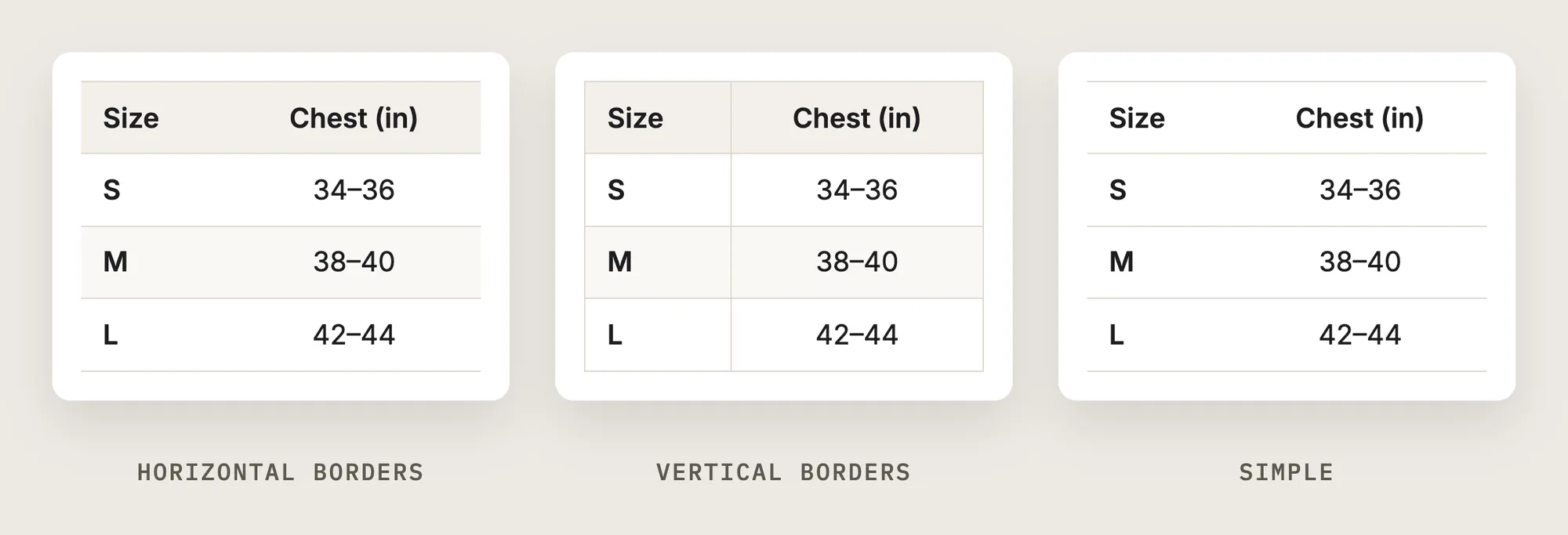
The table style shows on your store only, not in the table editor, and applies to every size chart. To style one size chart differently, use the cell properties in its table editor.
Step 12: Turn On the Size Calculator (Optional)
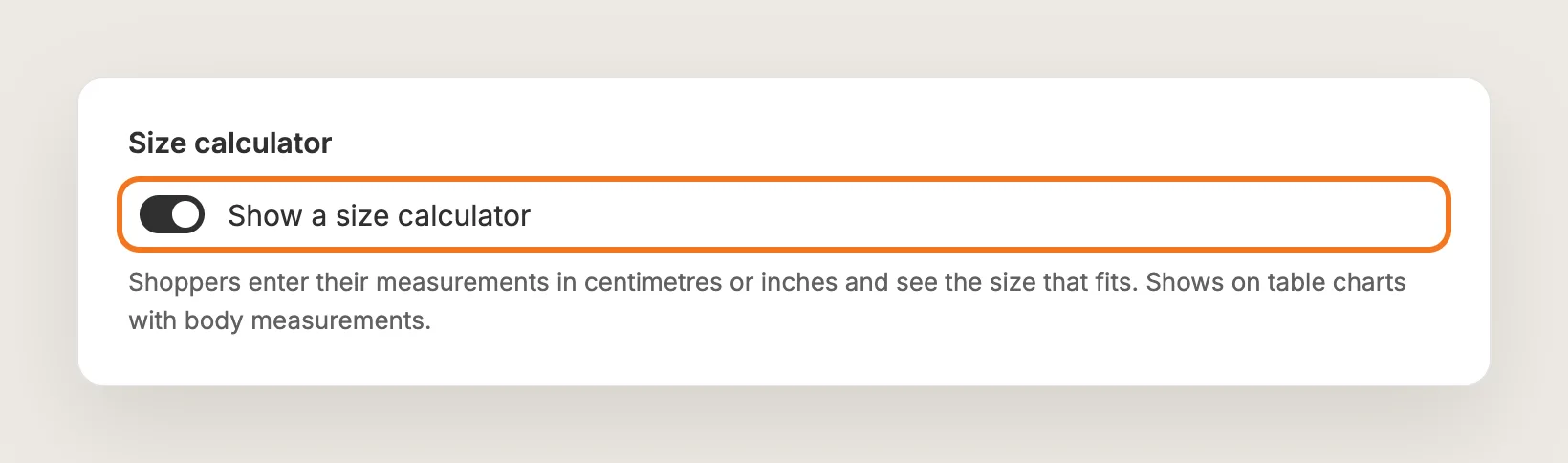
In Settings, open Size calculator and turn on Show a size calculator. Shoppers can then pick centimetres or inches, enter their measurements and see the size that fits. The calculator shows on table size charts that list body measurements, when Vitals can tell the chart's unit from the chart or its values.
Step 13: Move the Size Chart Button (Optional)
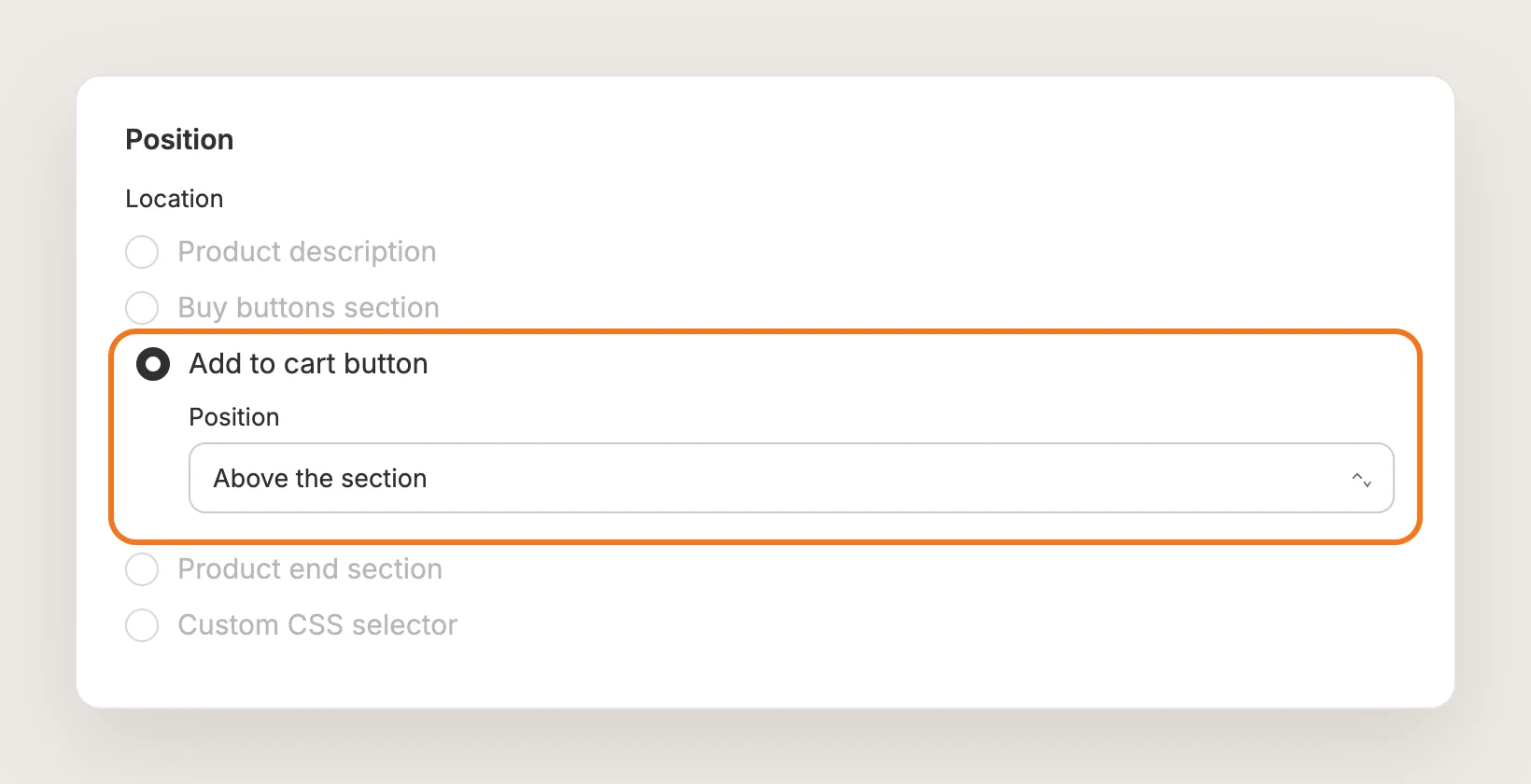
The Size Chart button shows near the Add to cart button by default. In Settings → Position, pick a different Location: Product description, Buy buttons section, Add to cart button or Product end section, then place the button above or below that part. To put the button right next to the size options, pick Custom CSS selector and enter the selector of that element.
Step 14: Save and Test on Your Phone
Click Save, then hard refresh a product page the size chart targets, on your phone and on desktop. Check that the button shows next to the size options, that the pop-up opens, and that every column of the table is readable. On phones, the pop-up fills the whole screen. Then open the Analytics tab to see the size chart's impressions, button clicks and clickthrough.
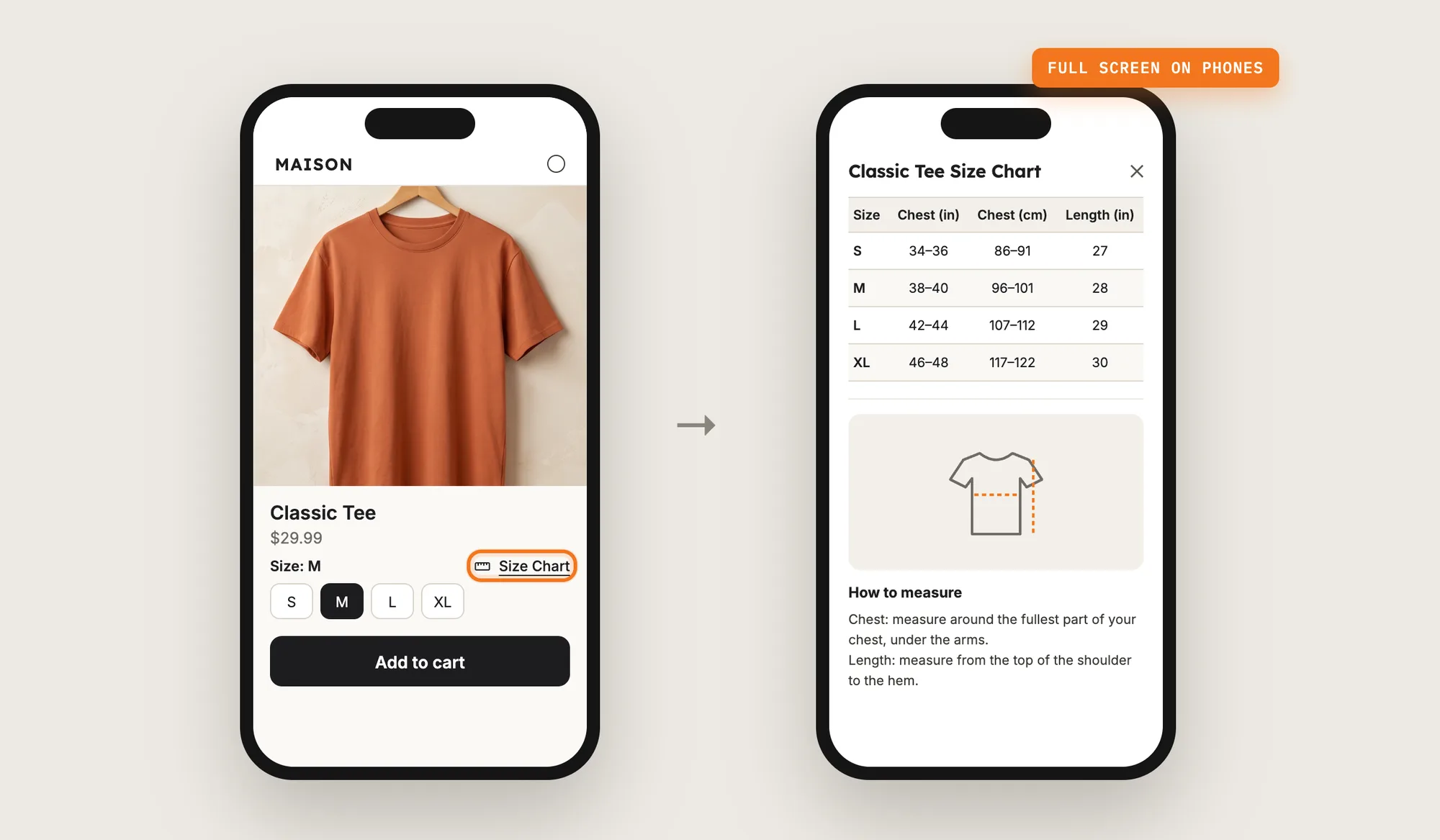
Step 15: Voila, Your Size Chart Is Live on the Store
Your shoppers now find the right size on the product page, one tap from the size options.
How to Add a Size Chart From Your Theme Settings?
Some Shopify themes include a pop-up or collapsible tab block for the product page that can show a size chart from a store page. To check your theme's settings:
- Create a page with your size chart table in Online Store → Pages
- Click Customize next to your theme in Online Store → Themes and open a product page
- Click Add block in the product information section, look for a pop-up or collapsible tab block, pick the size chart page and click Save
The built-in block shows the same size chart page on every product that uses the template, so different charts for tops, bottoms and shoes need separate product templates. You build the table in the page editor, without table designs, a how to measure option or click tracking. If you sell one product type with one set of sizes, the theme block can be enough on its own.
How to Add a Size Chart Without an App?
Hire a developer to add a size chart to your product pages with Liquid, CSS and JavaScript. The developer can store each size chart in a page or a metafield and show the right one per product.
A custom size chart usually involves:
- Copying your theme first, so the live store isn't affected
- Storing each size chart as a page or a product metafield
- Adding a Size Chart link next to the size options on the product template
- Building the pop-up that opens the size chart and closes again
- Styling the table so it scrolls or fits on phones
- Testing on every product template, then publishing the theme copy
Custom code means no extra app, but you or your developer have to maintain the size chart. A theme update can replace the files the code is in, so the size chart may need adding back after each update. Each new product type also needs its chart added by hand.
How to Increase Sales With a Size Chart?
A size chart increases sales by removing the doubt about fit that stops shoppers at the size options. These settings help:
- Put the button next to the size options. Shoppers look for sizing at the moment they pick a size. Use Custom CSS selector in Position to anchor the button there
- Give every product type its own size chart. A shoe chart on a T-shirt page sends shoppers away. Target each size chart to its collection in Visibility
- Show inches and centimetres. Shoppers abroad buy faster when they don't have to convert. Add a column for each unit in the table editor
- Add a how to measure guide. Shoppers who measure themselves pick the right size more often. Tick Enable "How to measure" guide and add a picture
- Turn on the size calculator. Shoppers who don't want to read a table can enter their measurements instead. Turn on Show a size calculator in Settings
- Name the button the way shoppers search. A label such as "Size guide" or "Find your size" is easy to spot. Edit Button text under Translations
Why Isn't My Size Chart Showing or Working?
These are the usual causes when a size chart doesn't show:
- The button doesn't show at all: Check that Size Chart is activated, that the size chart's Status is Active, and that Visibility includes the product you're testing. Then hard refresh the page
- Vitals doesn't show on the store at all: The Vitals app embed may be off in your theme. Turn on Vitals under App embeds in the theme editor
- The wrong size chart shows: A more specific or more recently updated size chart wins. Check which size charts target the product and narrow their Visibility
- The button shows in the wrong spot: Change Location and Position in Settings → Position, or use Custom CSS selector to anchor the button to a specific element
- Table style changes don't show in the editor: Table style applies on your store only. Open a product page to see the change
- The table is cramped on phones: The pop-up fills the screen on phones, and a wide table scrolls sideways. Keep the table to a few columns, or contact Vitals support about a mobile layout
- The size calculator doesn't show: The calculator needs a table size chart with body measurements and a unit Vitals can read. Put the unit, such as "in" or "cm", in the column headers
- The button text is in the wrong language: The button label is global. Edit Button text under Settings → Translations, and use the translations page linked there for other languages
Which Size Chart Method Should You Choose?
Vitals - All in One App suits most stores, but the right method depends on how many product types you sell and how much control you want.
- Choose Vitals - All in One App if you want a size chart pop-up on product pages today, with a different size chart per collection or product and a how to measure guide. It also includes 40+ other apps in one subscription of $29.99/month, so you don't have to install and pay for each app separately
- Choose your theme's setting if you sell one product type and one size chart page is enough
- Choose custom code if you'd rather build the size chart by hand and keep it working through theme updates
Start a 7-day free trial: Install the Vitals - All in One App and add a size chart
Frequently Asked Questions
1. What is the best way to add a size chart in Shopify?
Vitals - All in One App is the best way for most stores. Its Size Chart app adds a size chart pop-up to your product pages without code, from a table you build or an image you upload, with an optional how to measure guide.
2. Does Shopify have a built-in size chart?
Shopify doesn't add a size chart to product pages on its own. Some themes include a pop-up or collapsible tab block that can show a size chart page, while an app such as the Vitals Size Chart app adds a size chart button and pop-up to any theme.
3. Can I show different size charts for different products?
Yes. In the Vitals Size Chart app, create several size charts and set each one's Visibility to all products or to specific products or collections. A size chart for a single product takes priority over a size chart for its collection or for all products.
4. Can I upload my own size chart image?
Yes. When you create a size chart in Vitals, pick From image in Pop-up content and upload a .png, .webp, .jpeg, .jpg or .gif image.
5. Does the size chart convert between inches and centimetres?
Vitals shows the size chart exactly as you create it, so add both units to your table or image if your shoppers need them. The optional size calculator lets shoppers enter their measurements in centimetres or inches and converts them to the size chart's unit.
6. How do I change the Size Chart button text?
In the Vitals Size Chart app, go to Settings → Translations and edit Button text. The new label, such as "Size guide", shows on every size chart button.
7. How do I move the size chart button next to the size options?
In the Vitals Size Chart app, go to Settings → Position. Pick a preset Location, or pick Custom CSS selector and enter the selector of your size options to place the button right next to them.