How to Add Cart Drawer in Shopify

Every time a shopper clicks Add to cart and lands on a separate cart page, the page they were browsing disappears. Some shoppers go back to keep looking, and some never find their way back to the product they were about to buy.
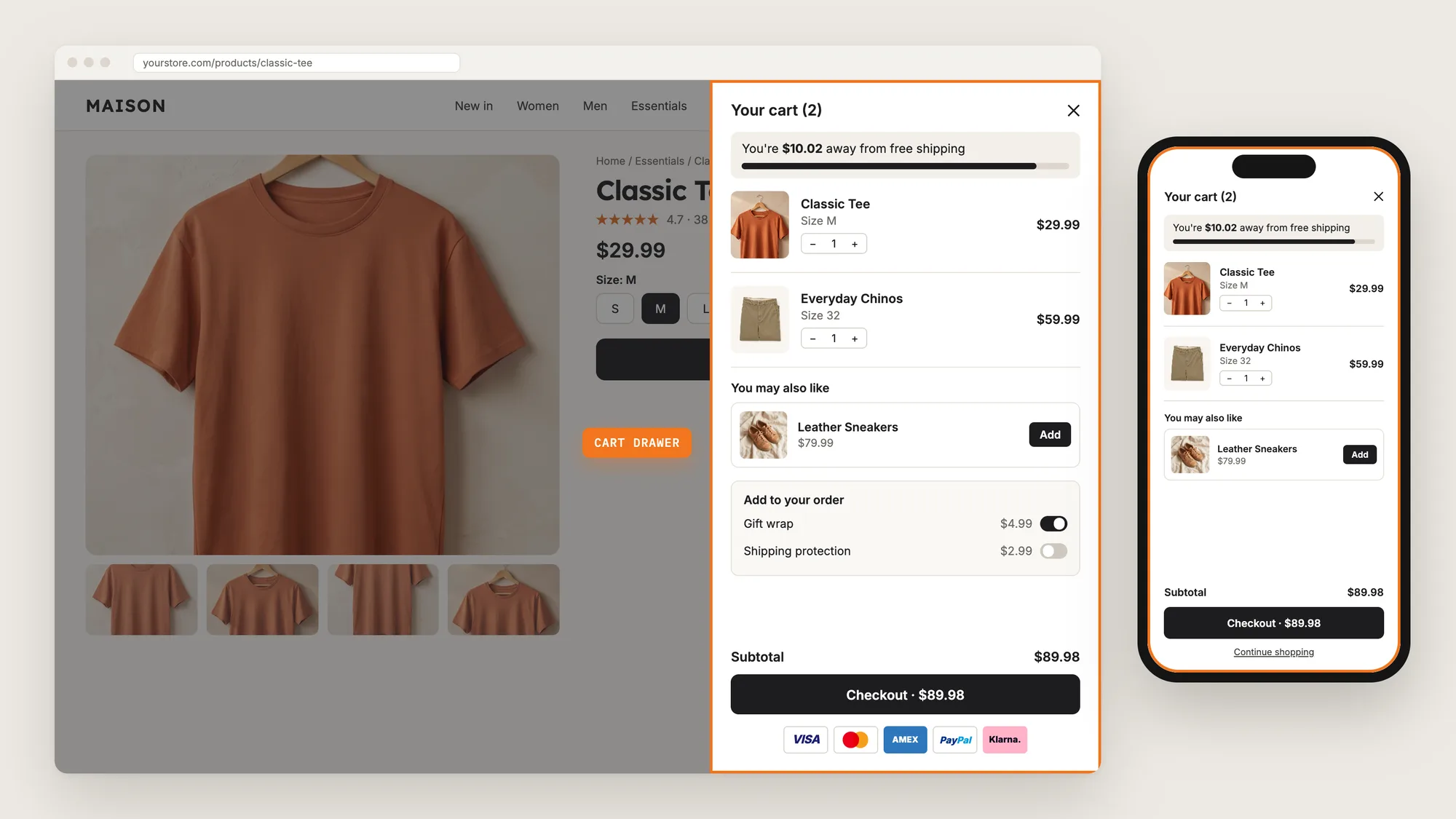
A cart drawer keeps shoppers where they are. The cart slides out over the page, so shoppers can check the order, change a quantity and click checkout, or close the drawer and keep shopping. The space above the checkout button also gives you room for a free shipping bar, product suggestions and add-ons.
Here are the three ways to add a cart drawer to a Shopify store: with a Cart Drawer app, from your theme settings, or with custom code.
What Is a Cart Drawer?
A cart drawer is a cart that slides out from the side of the page when a shopper adds a product or clicks the cart icon. It's also called a slide cart, side cart, slide-out cart or mini cart.
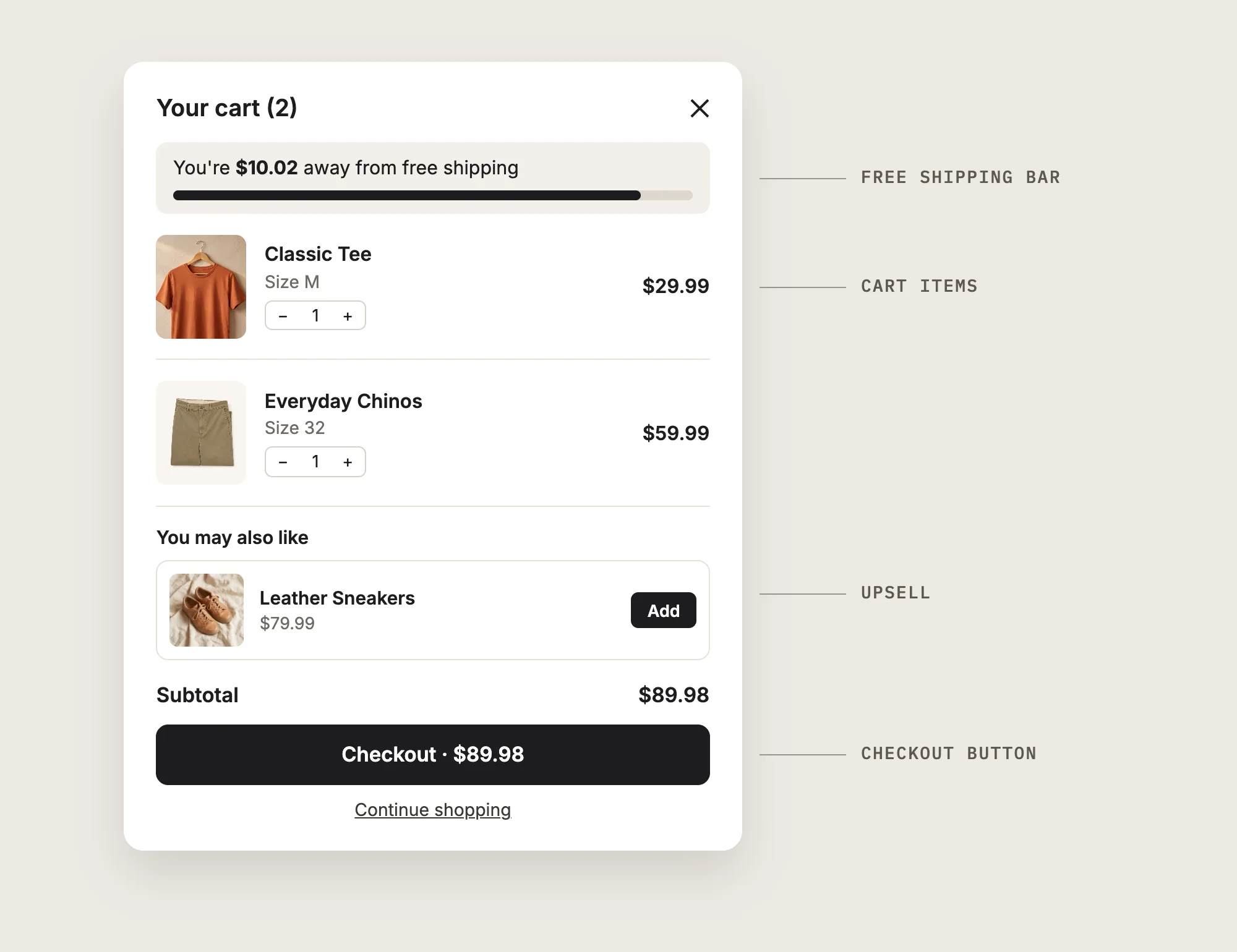
A good cart drawer includes:
- Editable cart items: Shoppers can change quantities or remove a product without a page reload.
- A clear checkout button: The button stays at the bottom of the drawer, one click from checkout.
- A reason to add more: A free shipping bar or a product suggestion shows shoppers what to add next.
- A way back to shopping: A Continue shopping link closes the drawer and keeps the shopper on the page.
A cart drawer doesn't replace your checkout. It shortens the path from Add to cart to the checkout page.
What's the Quickest Way to Add a Cart Drawer?
- Vitals - All in One App is the quickest way to add a cart drawer for most stores
- Vitals also offers 40+ apps, such as product bundles, an announcement bar and payment logos, in one subscription of $29.99/month, so you don't have to install and pay for each app separately
Here's how the three methods compare. If you'd rather weigh several apps against each other, see our list of the best cart drawer apps for Shopify.
How to Add a Cart Drawer With a Cart Drawer App?
Install the Vitals - All in One App, open its Cart Drawer app and click Activate app. The cart drawer then opens on your store when a shopper adds a product to the cart or clicks the cart icon, and the steps below set how the drawer looks and what it shows.
Step 1: Add Vitals to Your Shopify Store
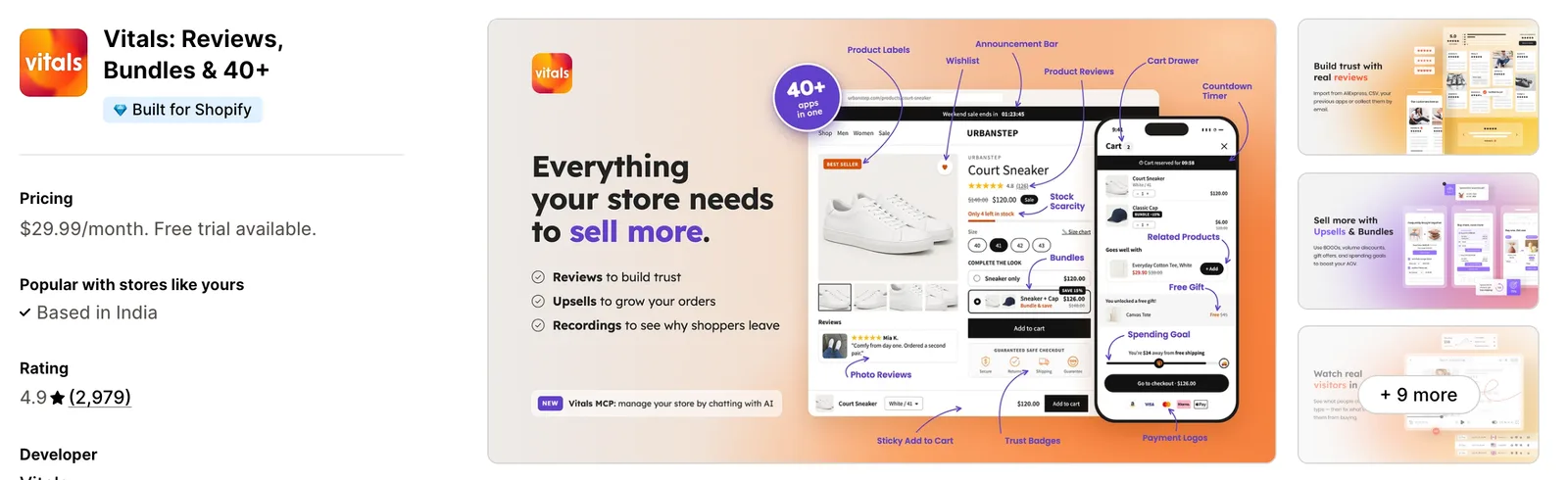
Install the Vitals - All in One App from the Shopify App Store. The 7-day free trial includes the Vitals Cart Drawer app.
Step 2: Confirm the Install in Shopify
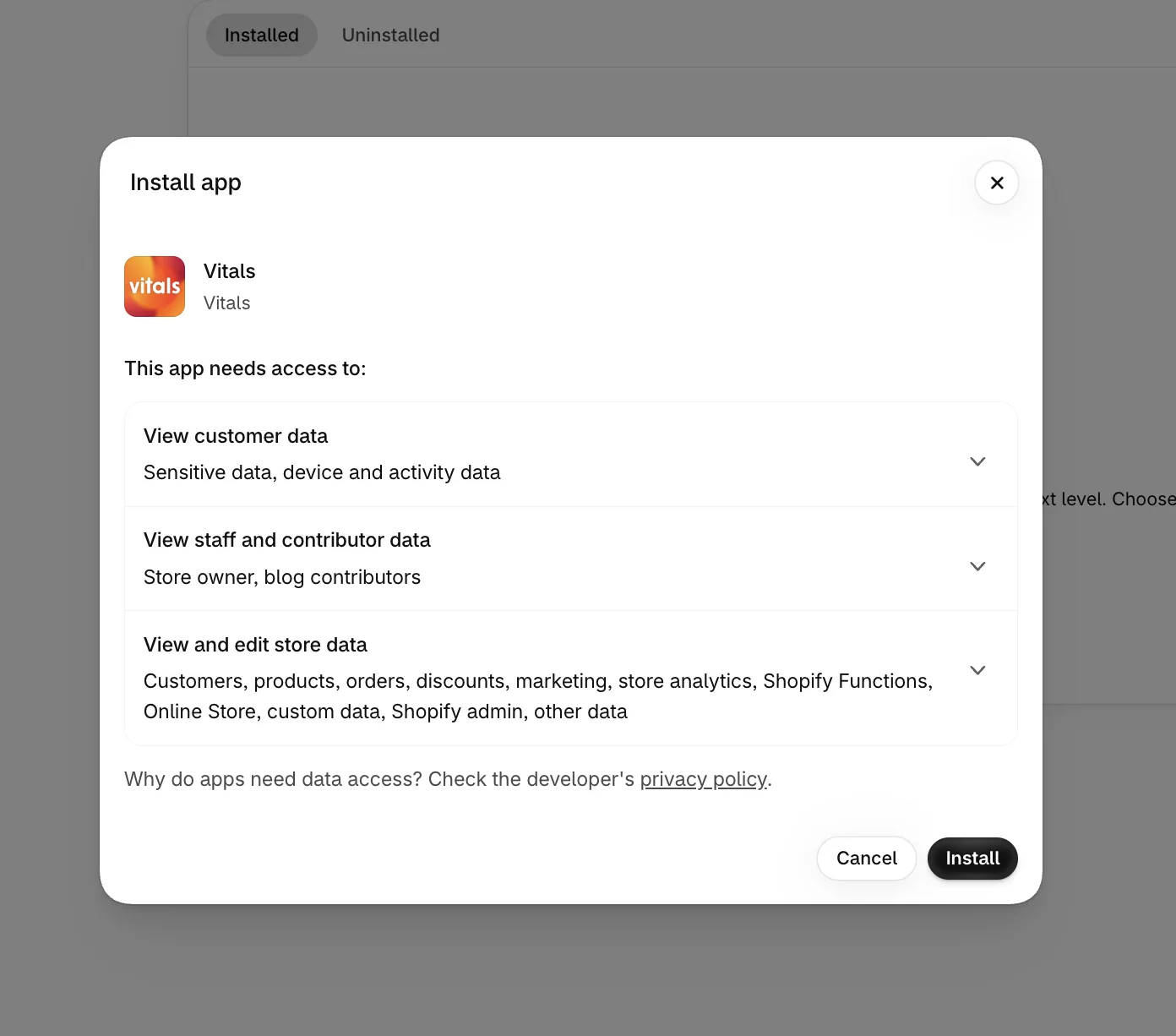
Click Install to approve the store data Vitals uses. Shopify then takes you to the Vitals dashboard.
Step 3: Open Cart Drawer
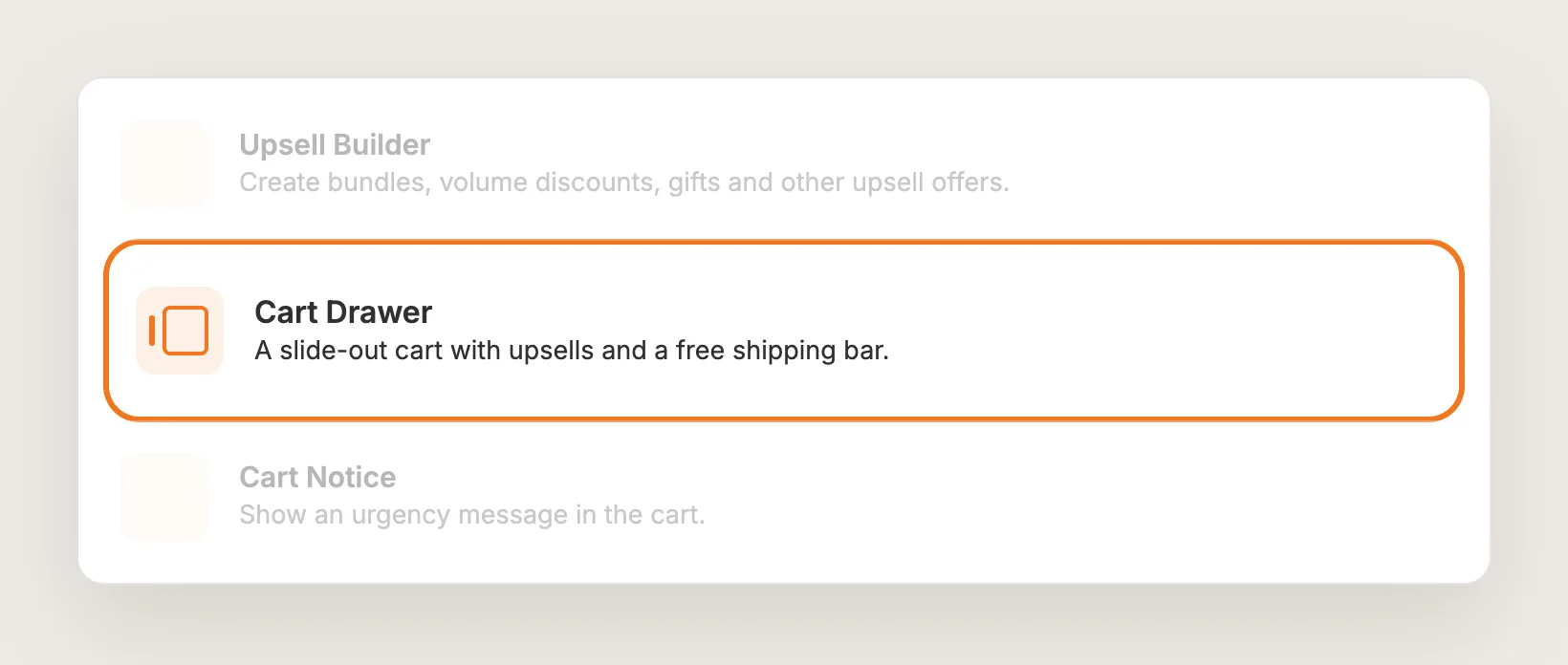
In the Vitals dashboard, go to Apps → Upsells and click Cart Drawer.
Step 4: Activate Cart Drawer
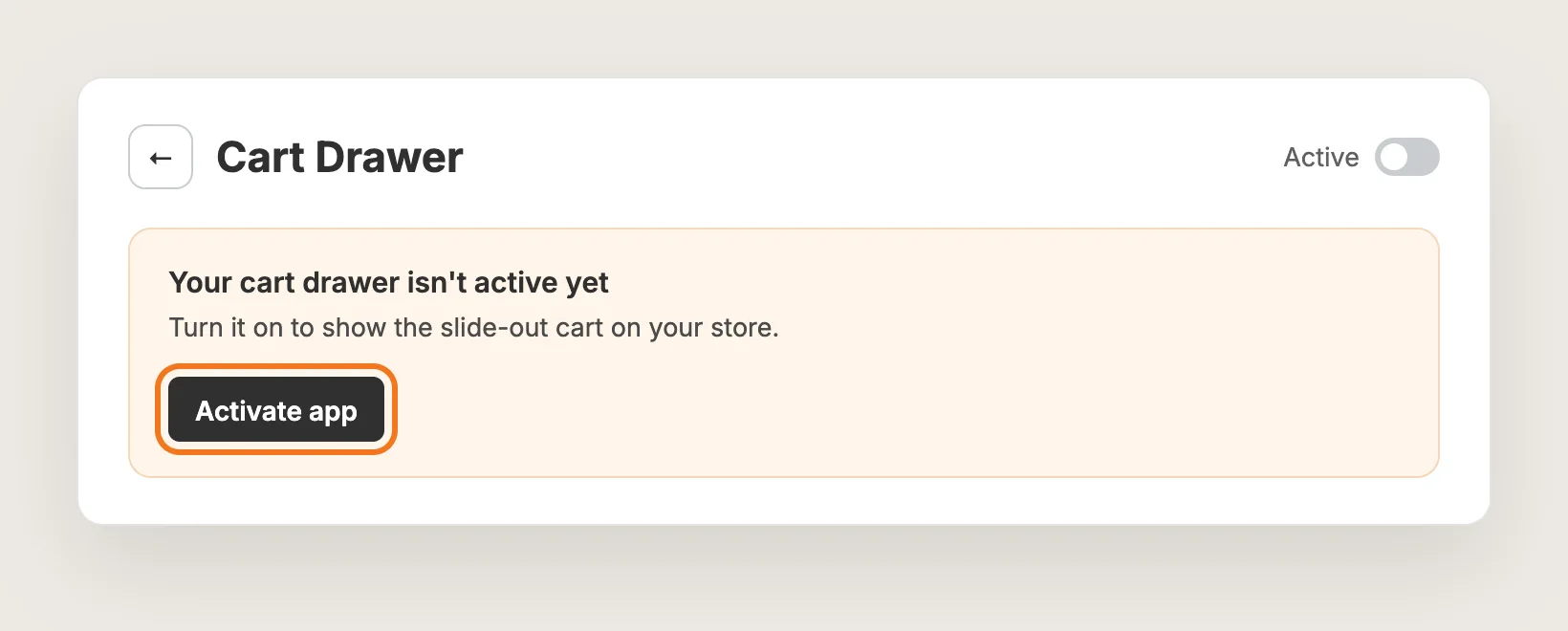
On the Cart Drawer page, click Activate app to turn the cart drawer on. The settings below have a live preview, with a switch between mobile and desktop.
Step 5: Match the Drawer to Your Store
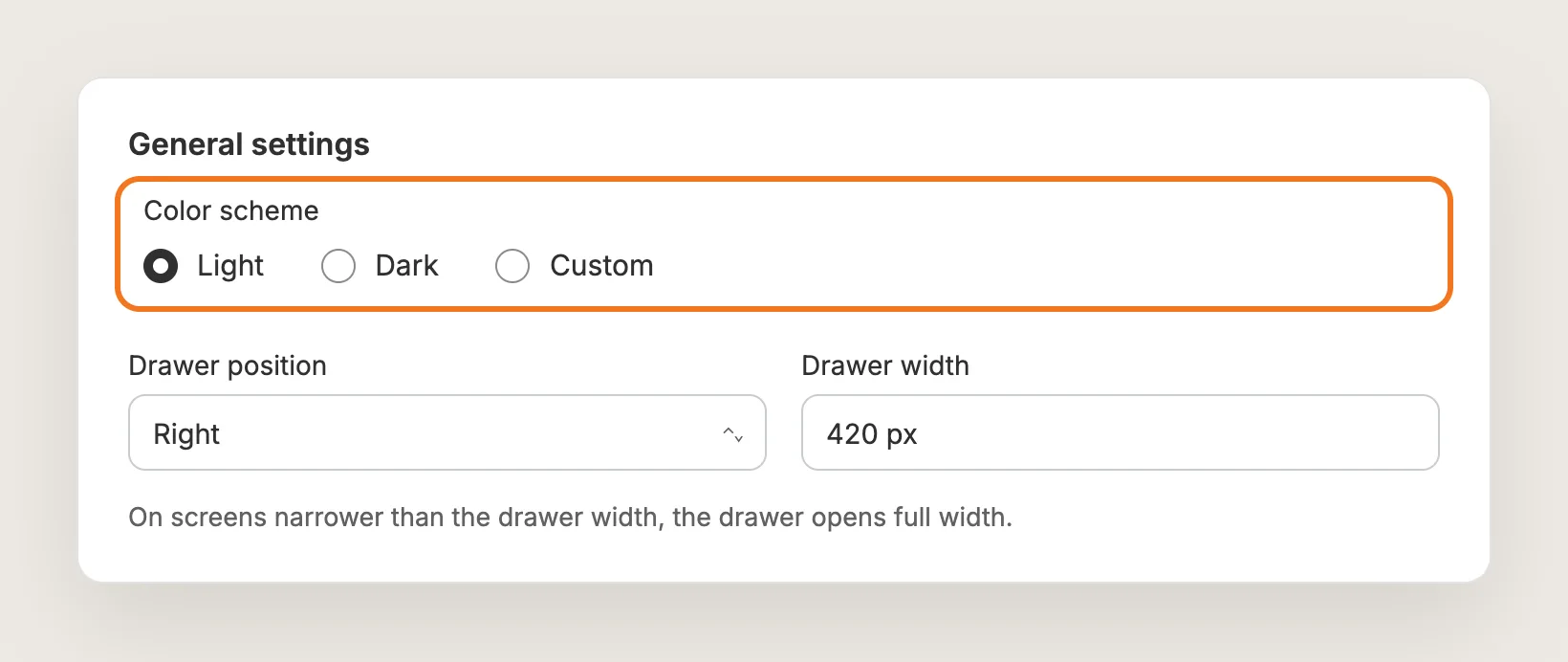
Open General settings and pick a Color scheme: Light, Dark or Custom. Custom lets you set the drawer background, text, footer and checkout button colors. Then set:
- Drawer position: The side the drawer opens from, right by default or left
- Drawer width: The desktop width, from 368 px to 480 px
On screens narrower than the drawer width, such as phones, the cart drawer opens full width.
Step 6: Choose Whether the Drawer Opens After Add to Cart
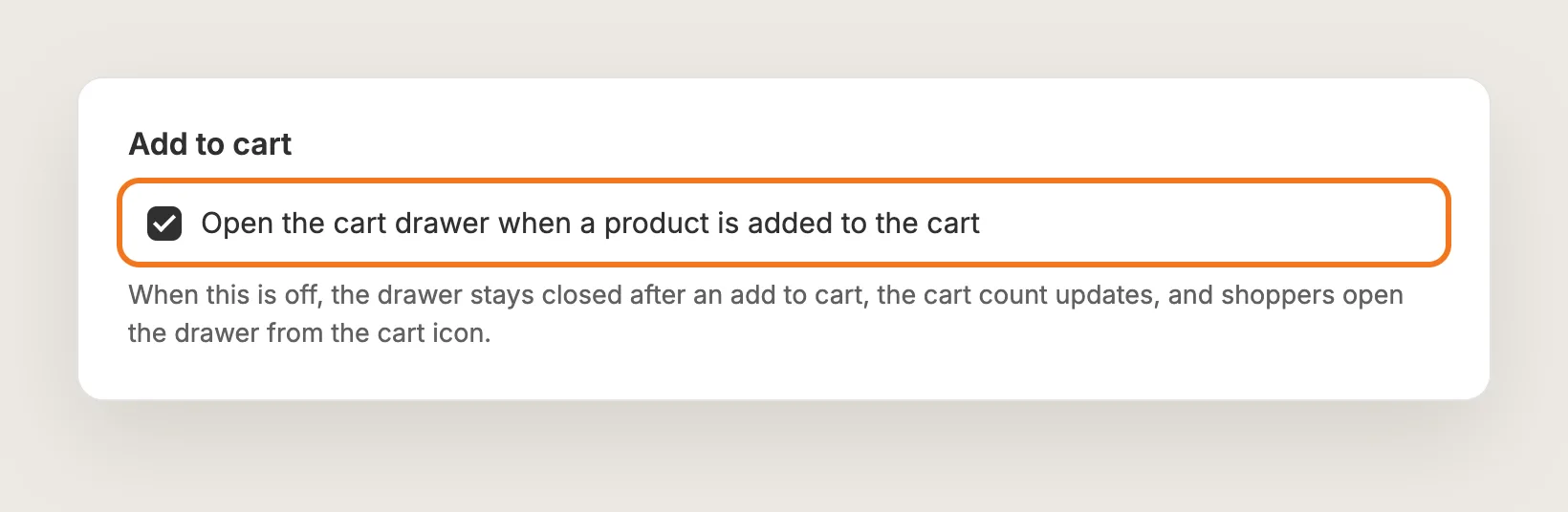
In General settings → Add to cart, keep Open the cart drawer when a product is added to the cart ticked to open the drawer after every add. Untick it to keep the drawer closed. The cart count still updates, and shoppers open the cart drawer from the cart icon.
Step 7: Add an Order Note Field
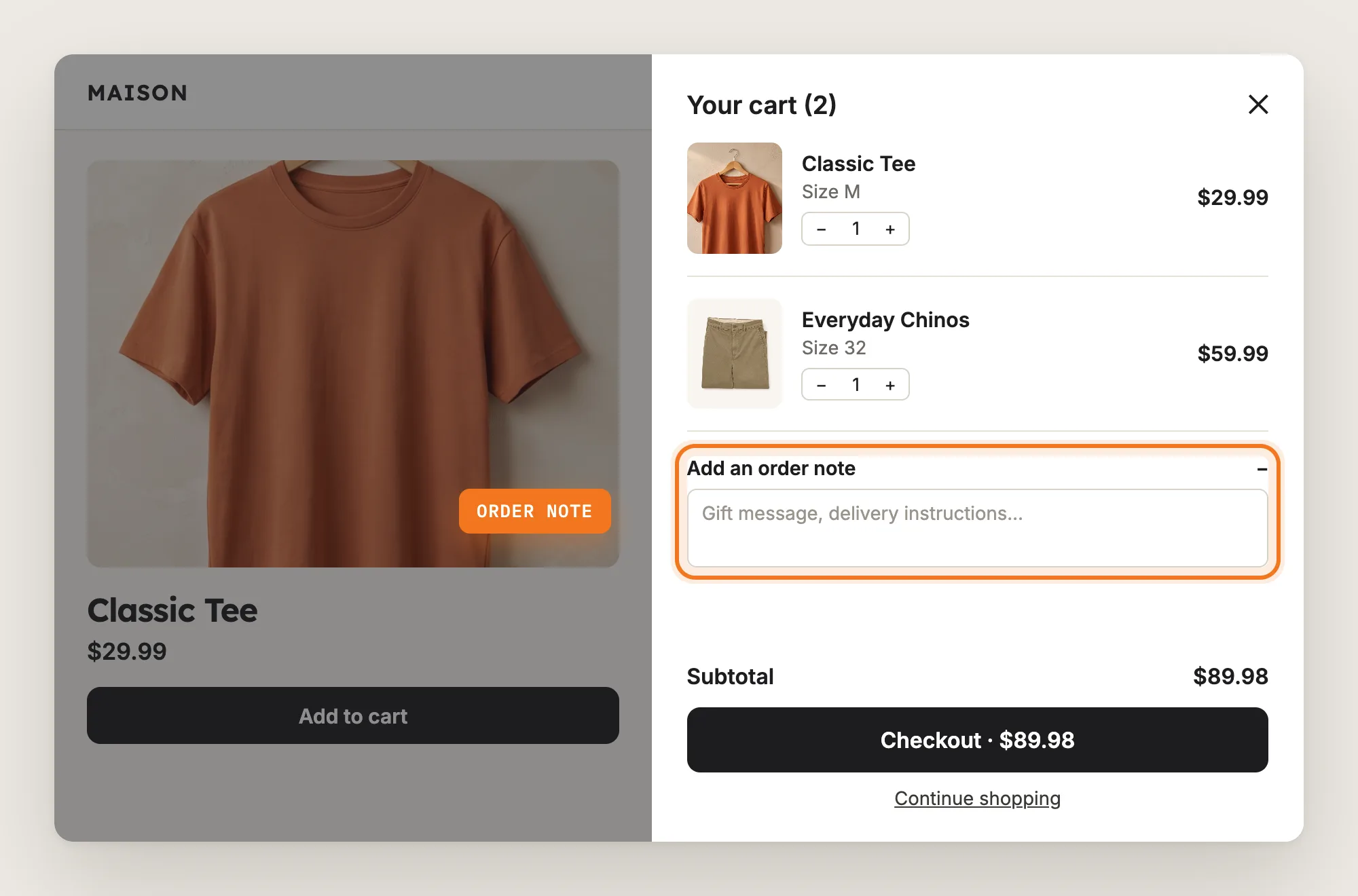
In General settings → Order note, turn on Show order note to let shoppers leave a note with their order, such as a gift message or delivery instructions. Then set the Label and Placeholder text, and choose whether the note is expanded by default.
Step 8: Add a Discount Code Box
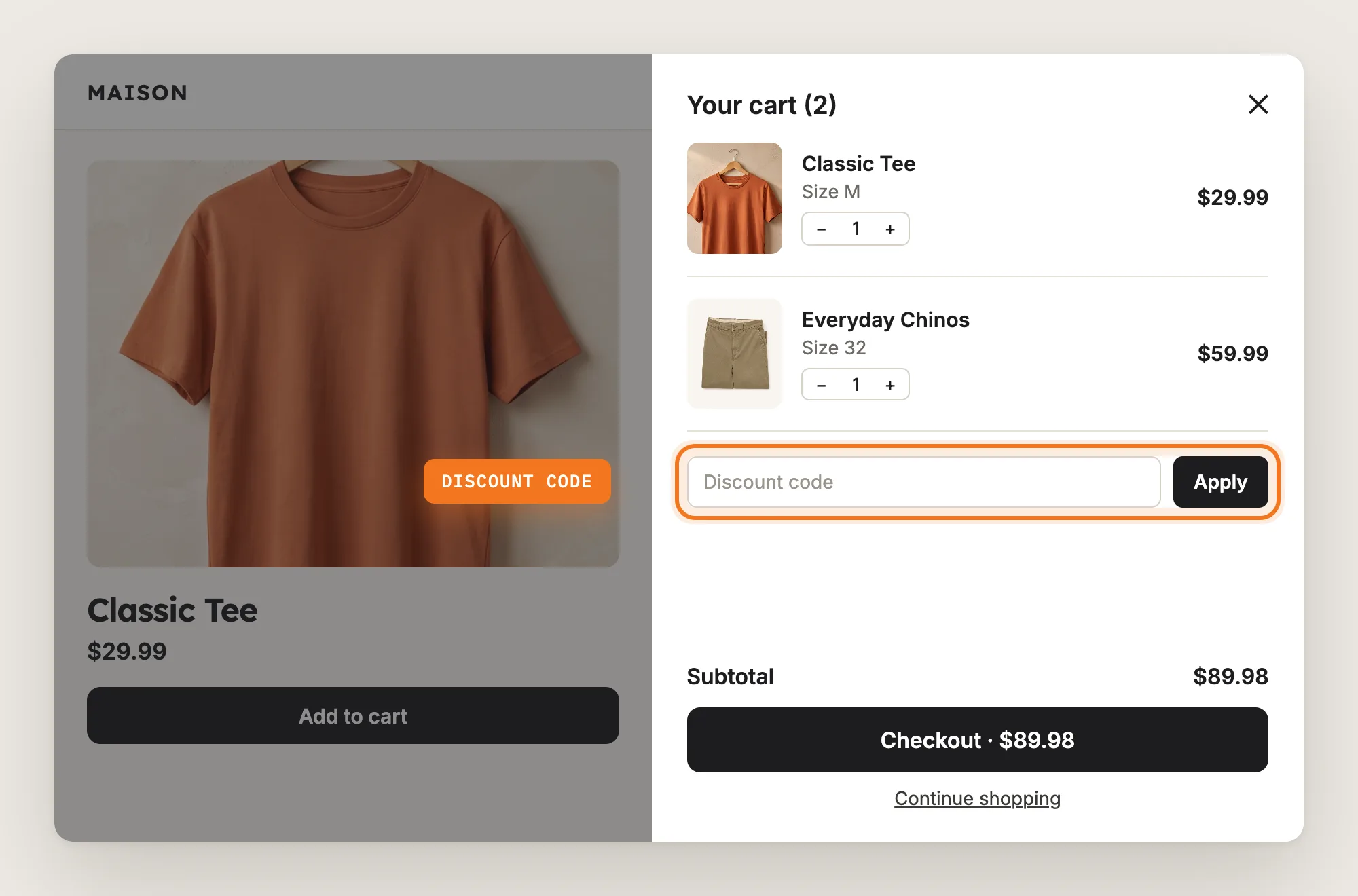
In General settings → Discount code, turn on Show Discount Code. Under Display, choose Collapsible to show the box behind a toggle, or Always visible to show the field at all times.
Step 9: Set the Checkout Button
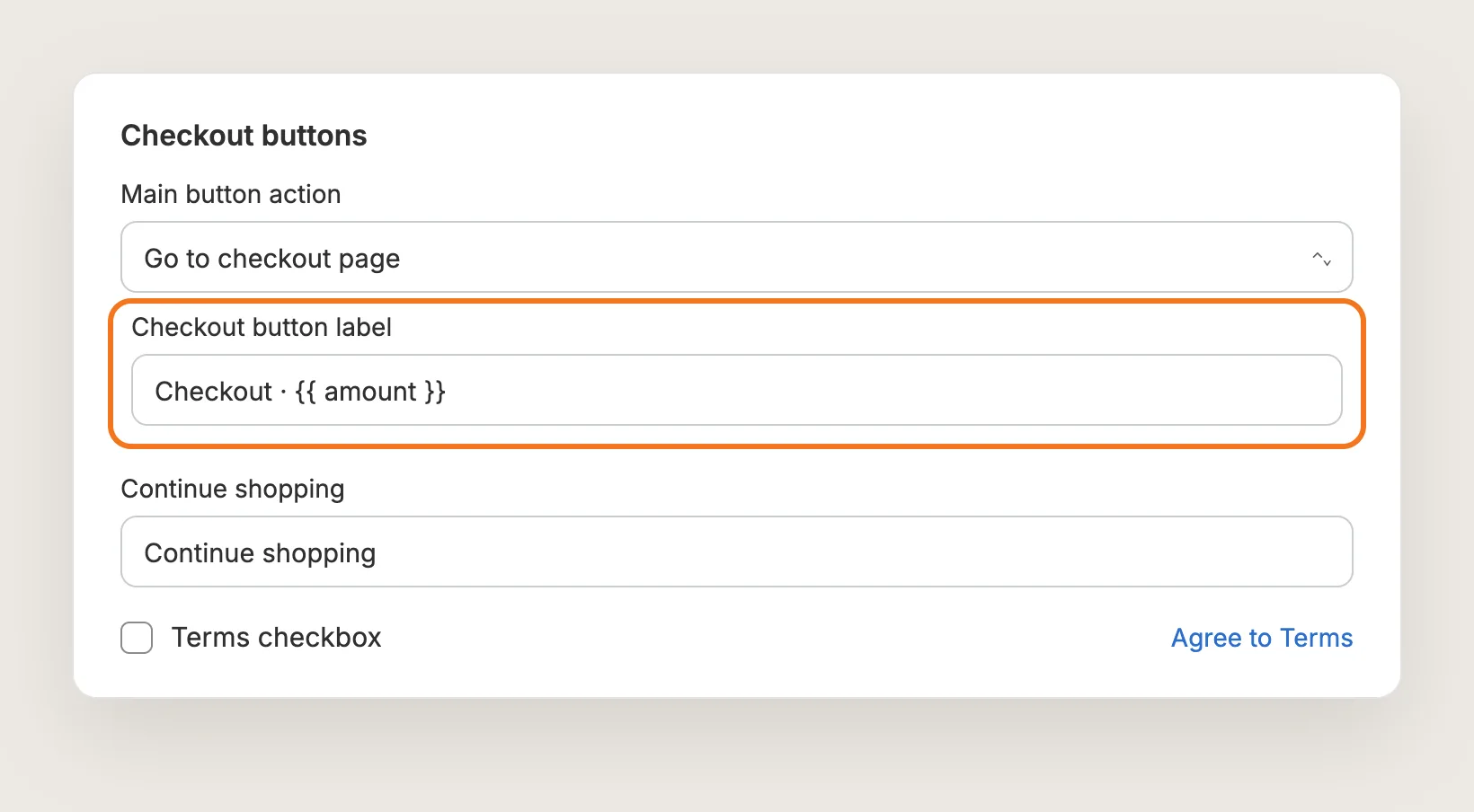
In General settings → Checkout buttons, choose the Main button action: Go to checkout page or Go to cart page. Then write your own Checkout button label and Continue shopping text. Add `{{ amount }}` to the label to show the cart total on the button.
With Go to checkout page selected, Terms checkbox asks shoppers to accept your terms before checkout. The checkbox shows only while the Vitals Agree to Terms Checkbox app is active.
Step 10: Add a Disclaimer Under the Checkout Button
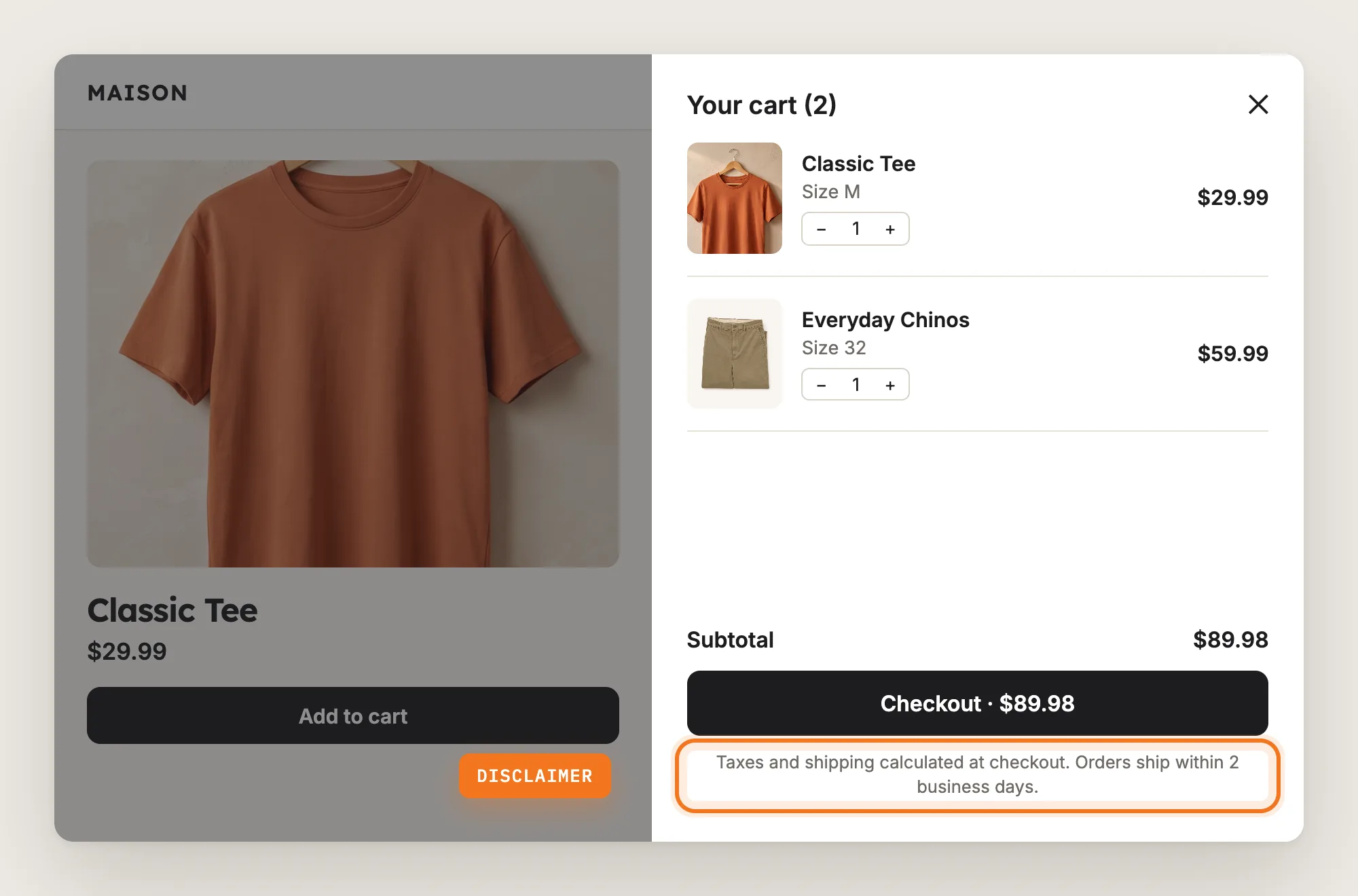
In General settings → Disclaimer, turn on Show disclaimer and write your text in Shipping and discounts disclaimer. Use the disclaimer for shipping times, taxes or legal notes.
Step 11: Show Your Announcement Bar and Cart Notice
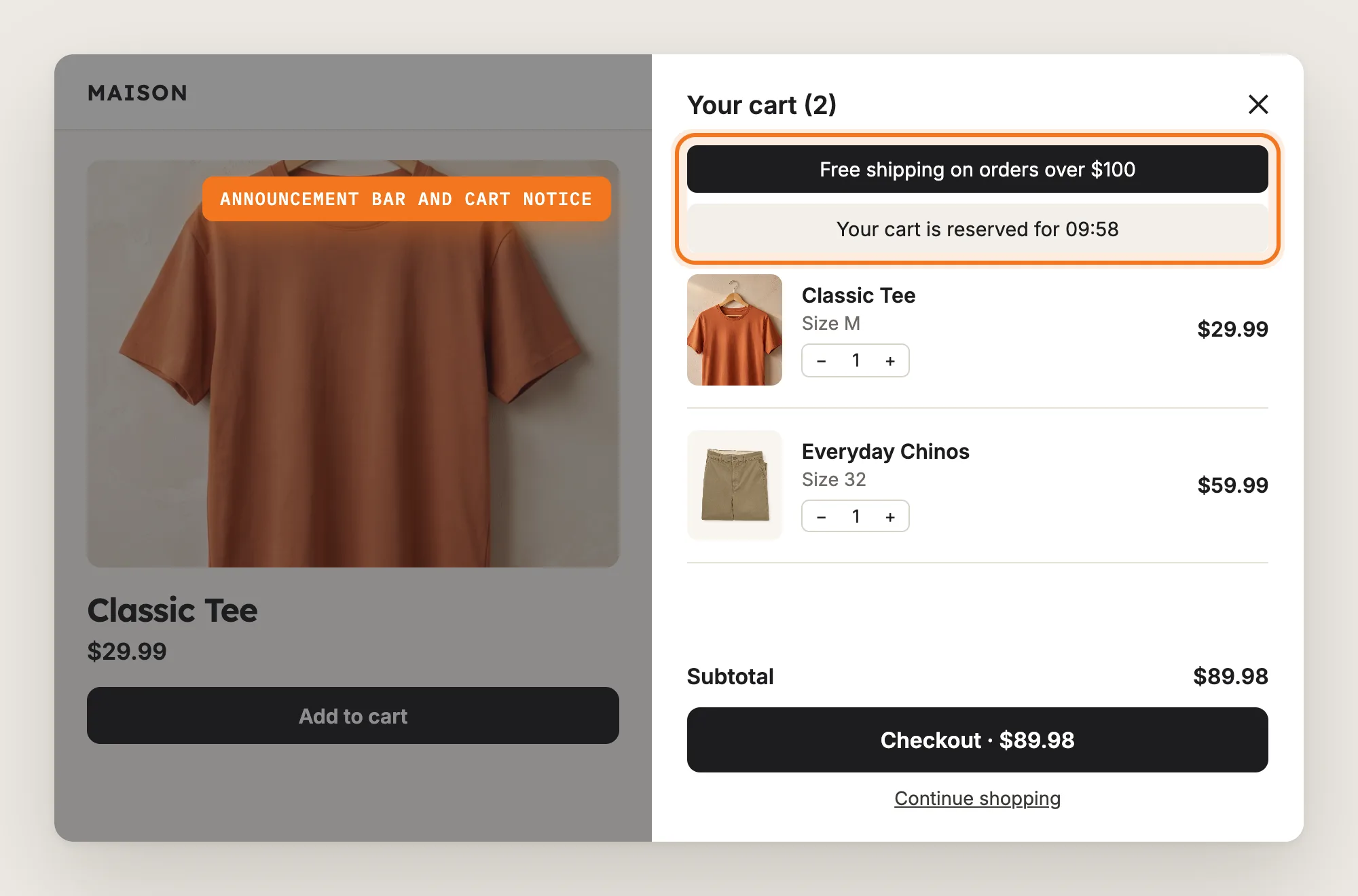
In the Announcement bars section, tick Show messages from the Announcement Bar app to repeat your store's announcement bar inside the cart drawer. Tick Show the Cart Notice app message to add the message from the Vitals Cart Notice app too. Both are off by default, and Go to app opens each app to set the message.
Step 12: Show Product Upsells
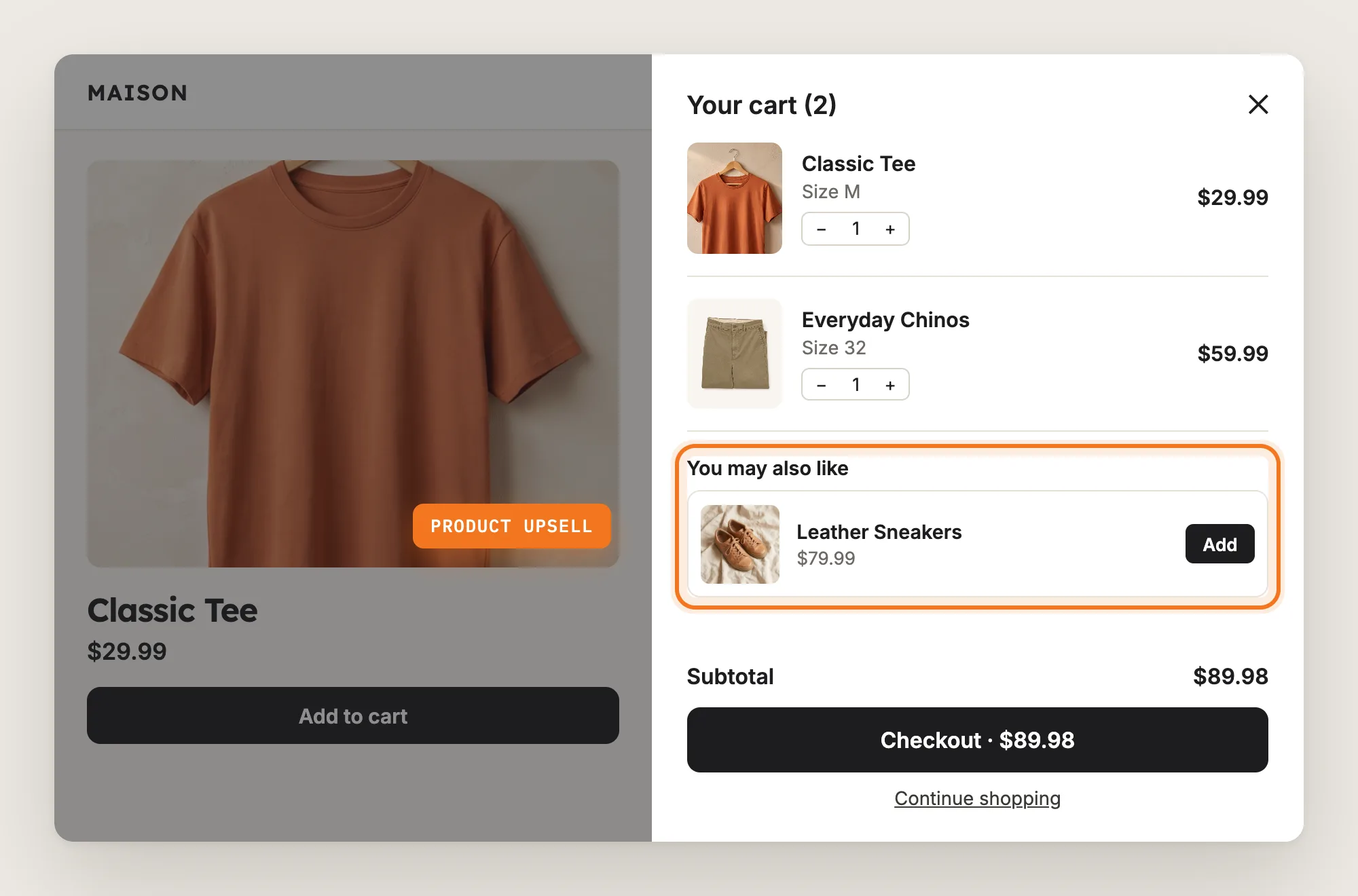
Create a cart offer in the Vitals Upsell Builder app with Placements → Cart page turned on. Then, in Cart Drawer, open Product upsells and recommendations and check that Show product upsells is ticked. It's on by default. Then set:
- Layout: Carousel or List
- Position: Above checkout, the default, or After items
- Button text: The wording on the add button
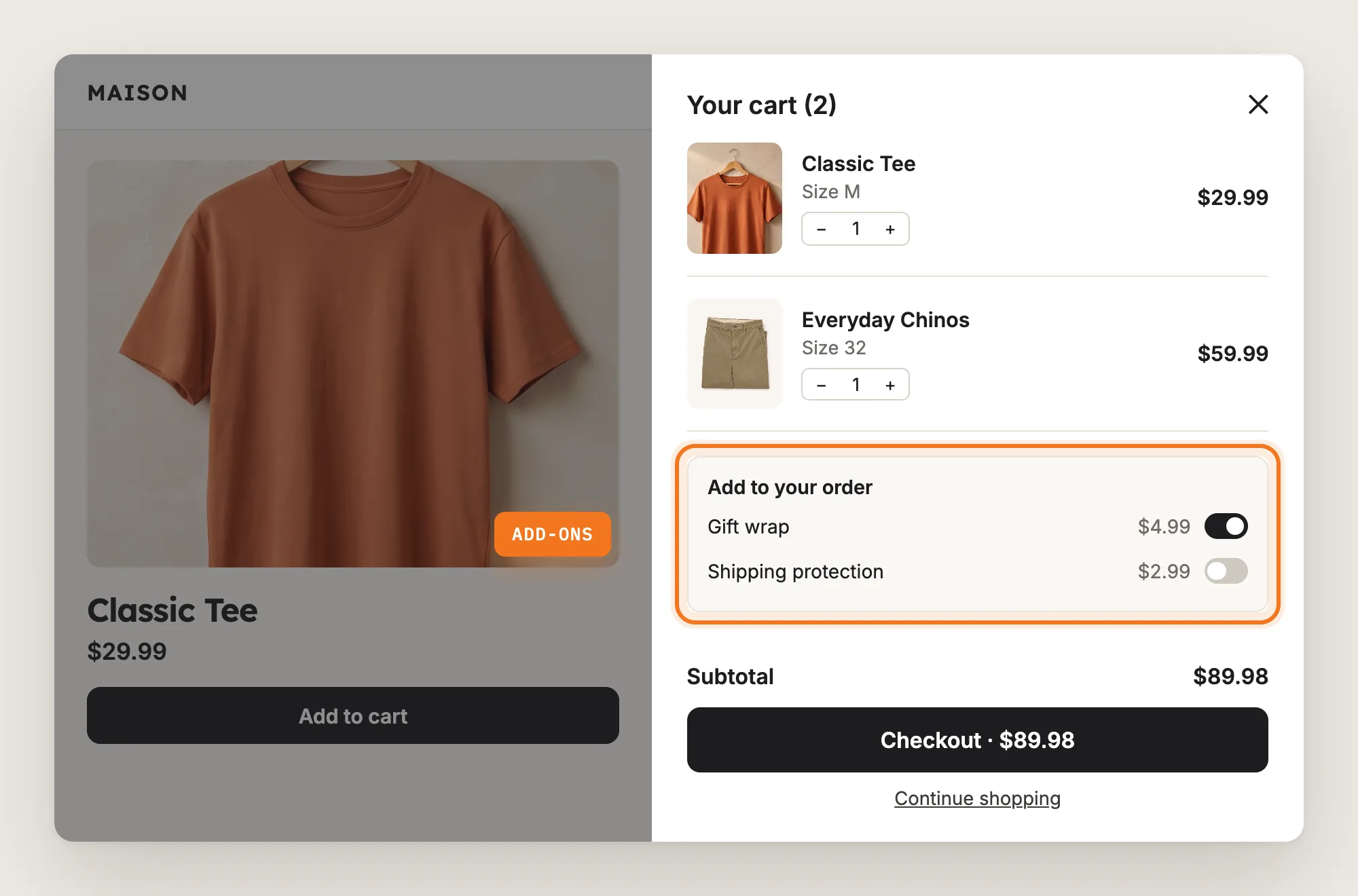
Step 13: Offer Add-Ons Such as Gift Wrap
In the Add-ons section, turn on Show add-ons and pick the products in Add-on products, such as gift wrap or shipping protection. Then set:
- Offer title: The heading of the add-ons box, "Add to your order" by default
- Shoppers can choose: Multiple choice or Single choice
- Style: Toggles or Checkboxes, with multiple choice
- Products to show: From 1 to 5
- Add a note field: An optional note, with its own placeholder and character limit
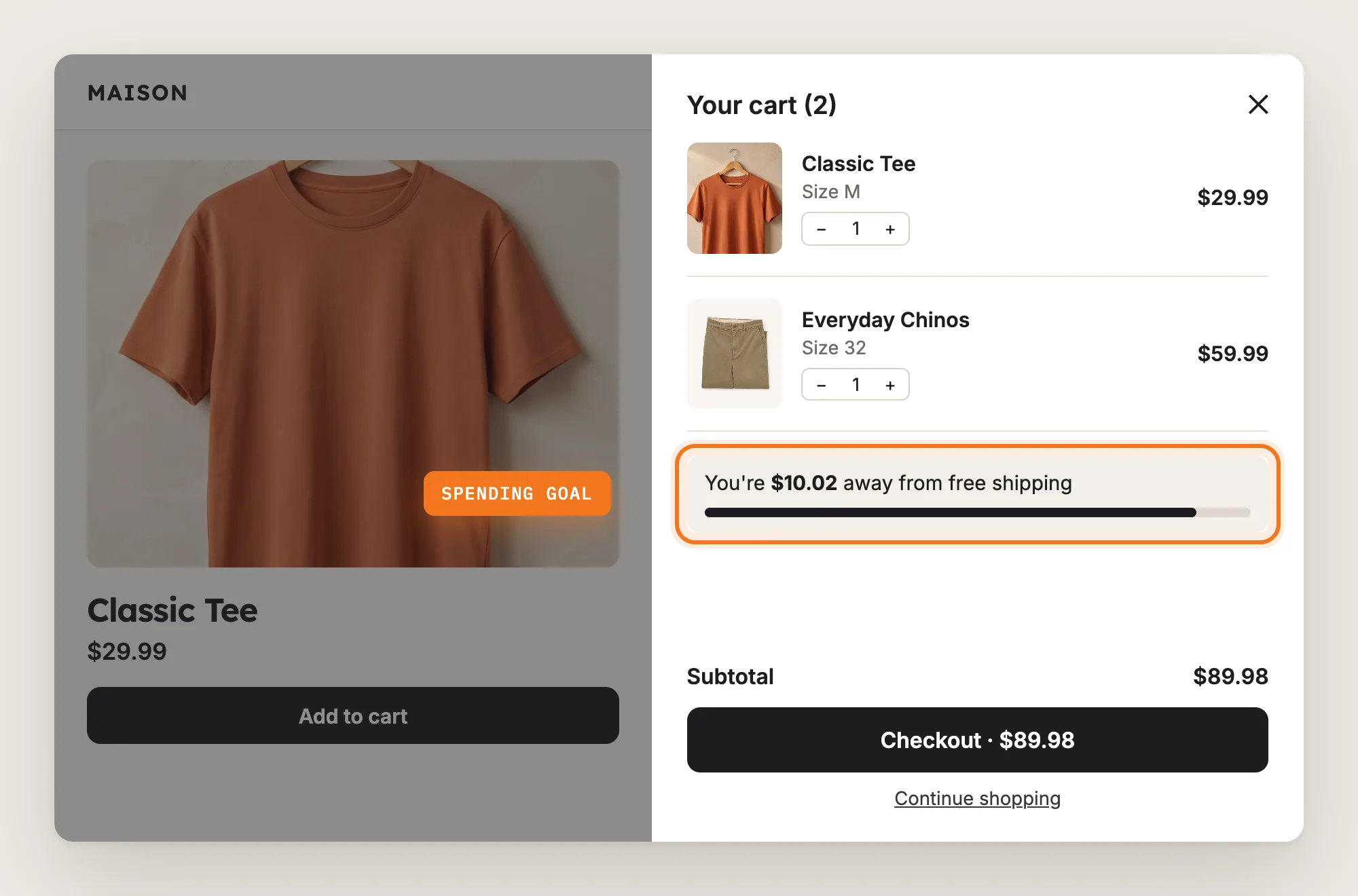
Step 14: Show a Spending Goal or Free Shipping Bar
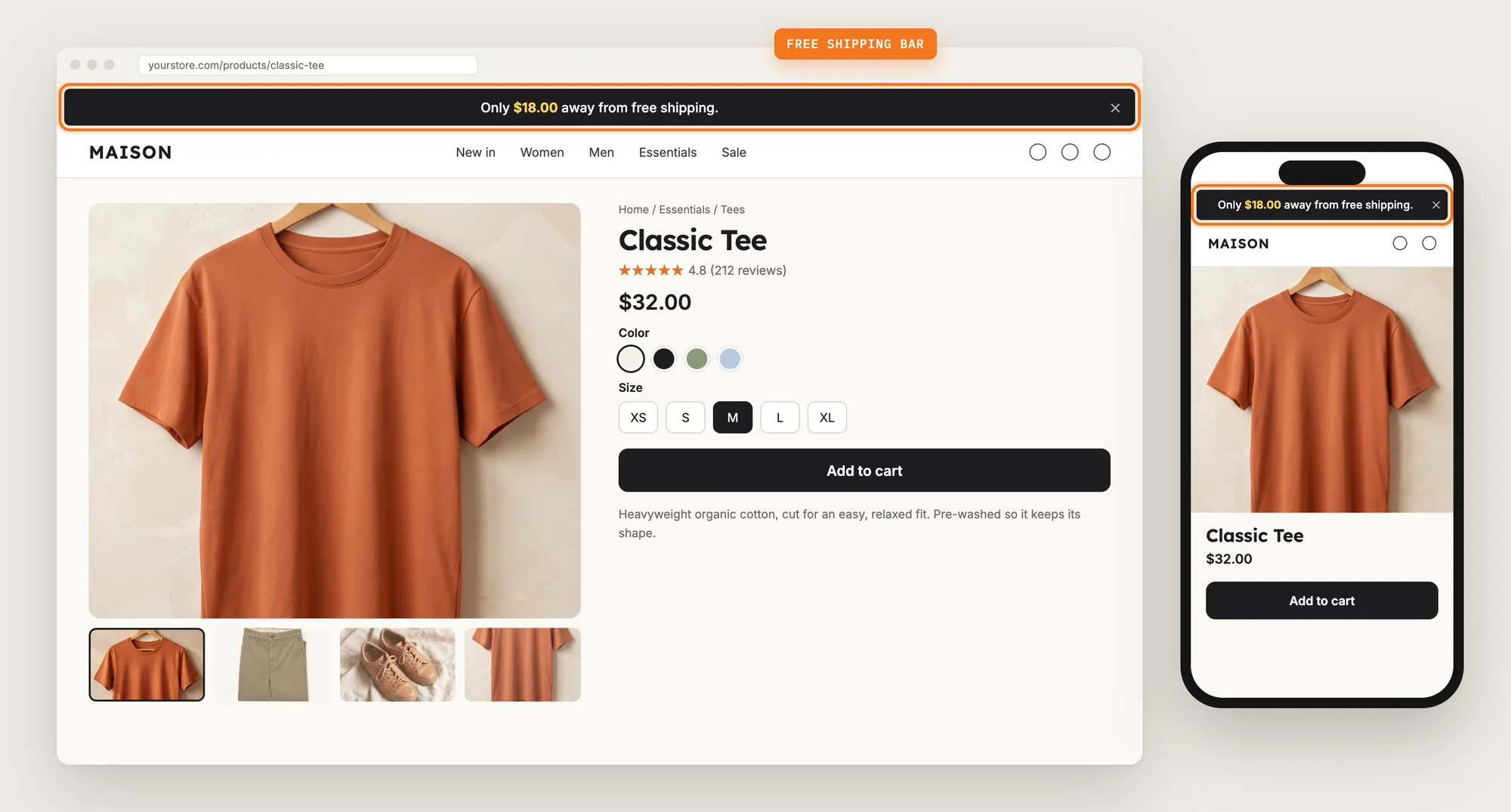
Create and activate a Spending Goal offer in the Vitals Upsell Builder app. Then, in Cart Drawer, open Spending goal and turn on Show goals. The progress bar shows how much more a shopper needs to spend to reach free shipping or a discount. Set Position to Bottom, the default, to keep the goal above the checkout area, or to Top to show it above the products.
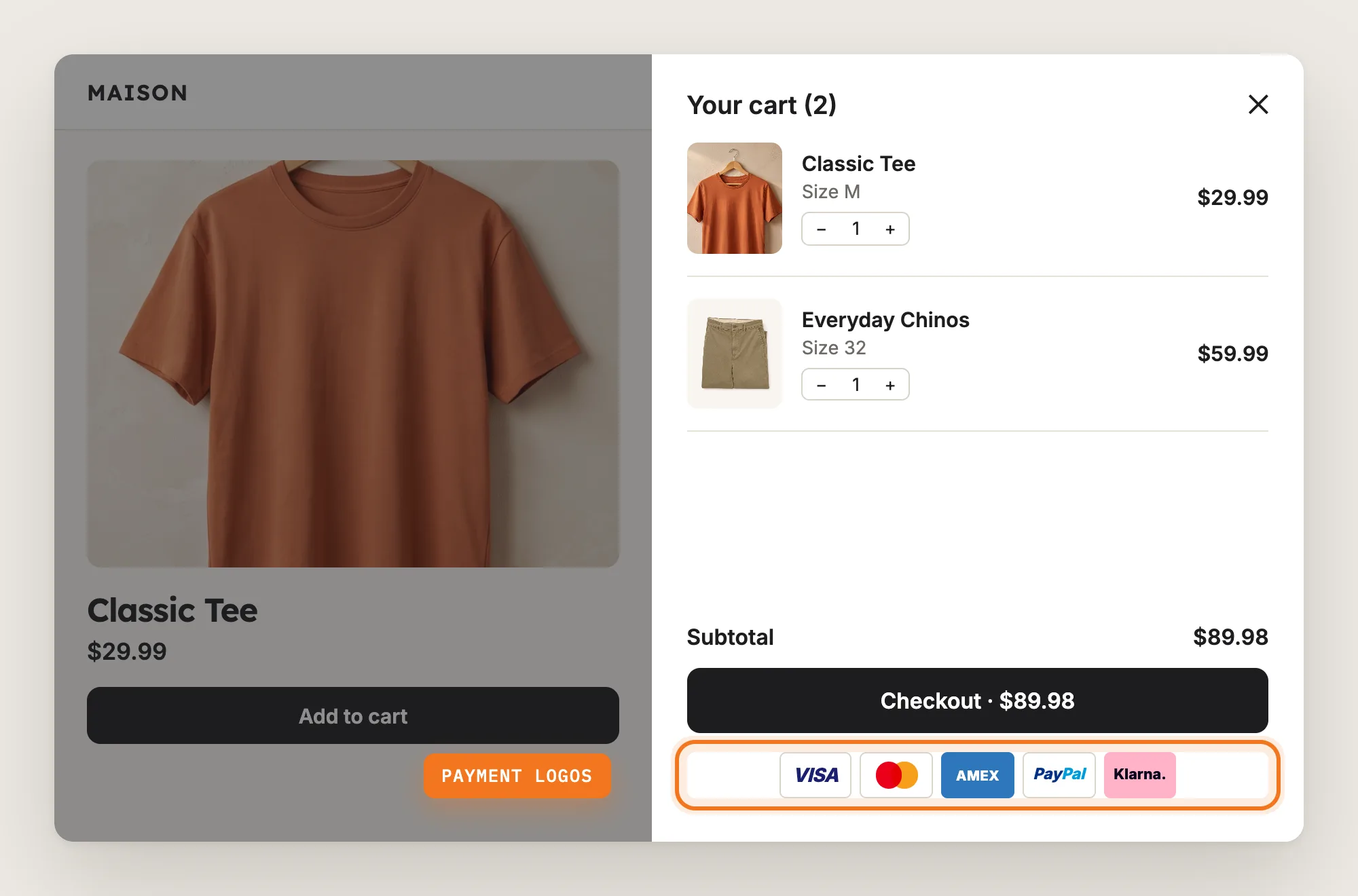
Step 15: Show Payment Logos in the Drawer
In the Payment logos section, tick Show payment logos. Set Placement to Below the checkout button or Below the disclaimer text. The drawer shows the logos you pick in the Vitals Payment Logos app, and Go to app opens it.
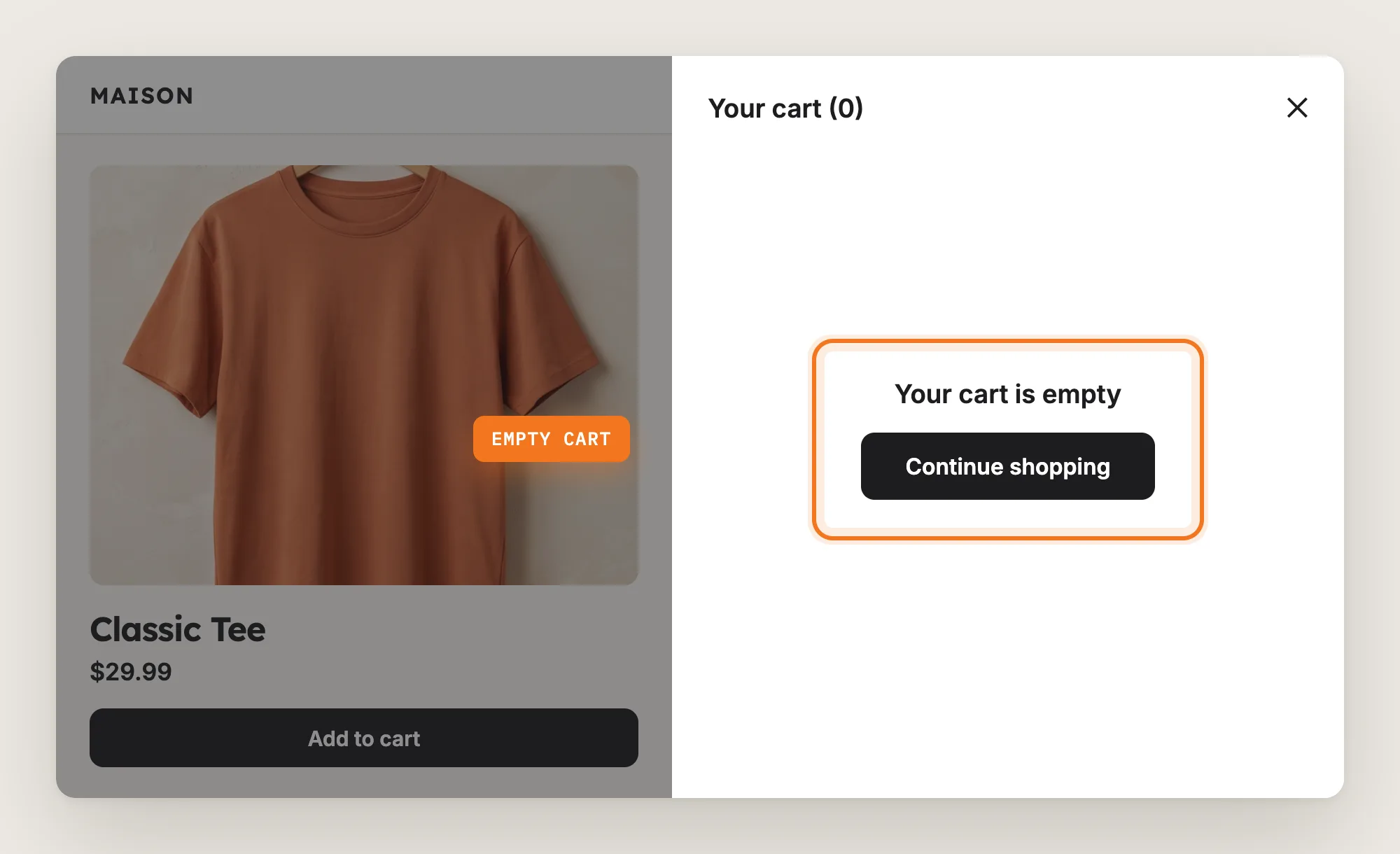
Step 16: Customize the Empty Cart
In the Empty state section, write the Title and Continue shopping text that show when the cart is empty. The preview switches to the empty cart while this section is open.
Step 17: Save and Test on Your Phone
Click Save, then add a product to the cart on your phone and on desktop. Check that the Vitals cart drawer opens instead of your theme's cart, that the cart count in the header matches, and that the checkout button goes where you expect. Then try the cart icon and an Add to cart button on a collection page.
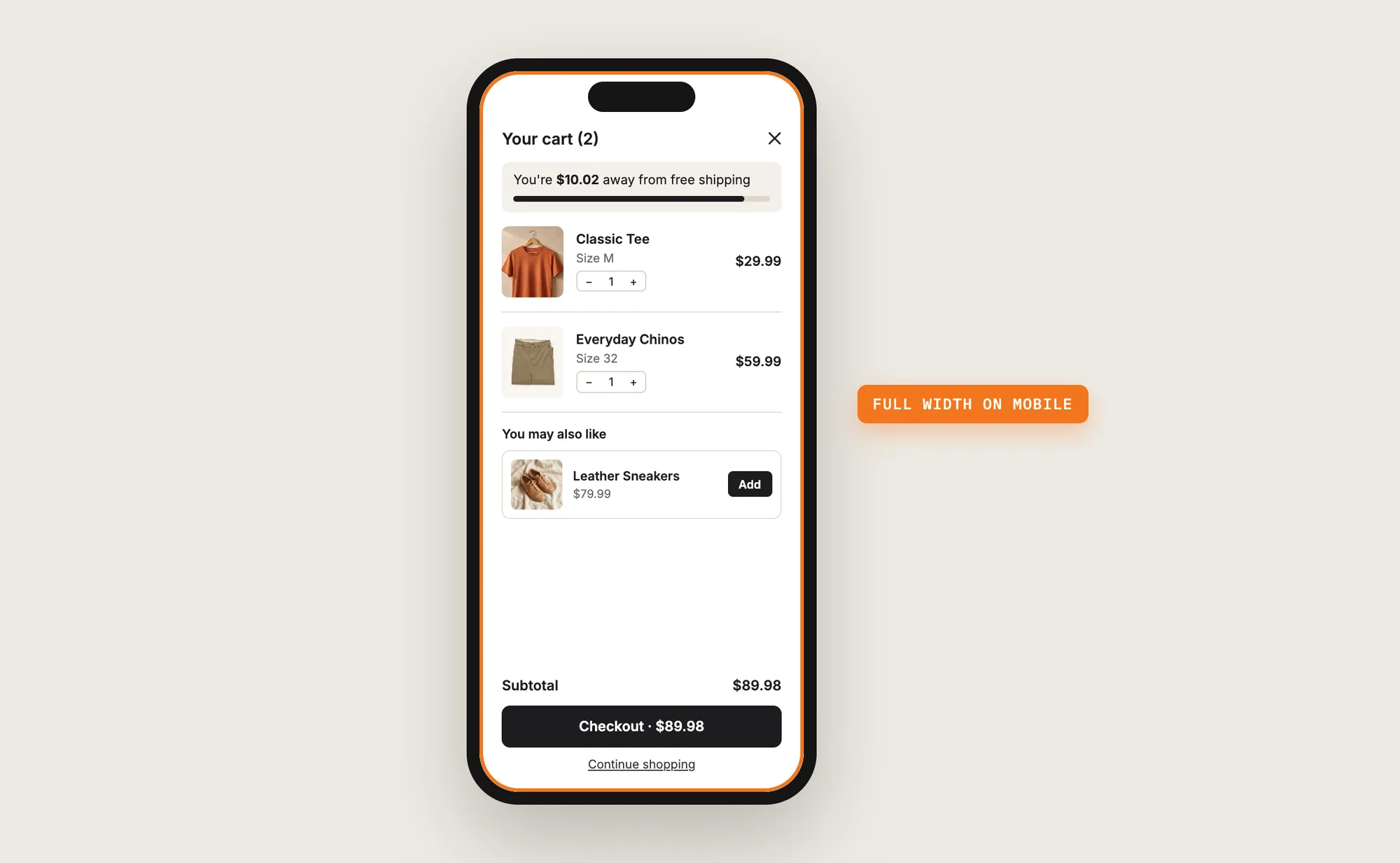
Step 18: Voila, Your Cart Drawer Is Live on the Store
Your shoppers now check their cart, add a suggestion and head to checkout without leaving the page they're on.
How to Add a Cart Drawer From Your Theme Settings?
Many Shopify themes include a built-in cart drawer. To check your theme's settings:
- Click Customize next to your theme in Online Store → Themes
- Click Theme settings in the left sidebar and open the Cart section
- Set Cart type to Drawer, then click Save
The built-in cart drawer usually shows the cart items, the subtotal and a checkout button, and some Shopify themes add an order note or product suggestions. Most themes don't include a spending goal bar, add-ons or upsell offers in the cart drawer. If a plain cart drawer is all you need, the theme setting is enough on its own.
How to Add a Cart Drawer Without an App?
Hire a developer to build a cart drawer with Liquid, JavaScript and Shopify's Ajax Cart API. The drawer reads and updates the cart without reloading the page.
A custom cart drawer usually involves:
- Copying your theme first, so the live store isn't affected
- Building the drawer panel with the cart items, quantity controls, subtotal and checkout button
- Opening the drawer from every Add to cart button and from the cart icon
- Keeping the header cart count in sync after every change
- Styling the drawer for mobile and desktop
- Testing on every product and collection template, then publishing the theme copy
Custom code means no extra app, but you or your developer have to maintain it. A theme update can replace the files the drawer is in, and every new feature, such as a free shipping bar or product suggestions, means more code to build and test.
How to Increase AOV With a Cart Drawer?
A cart drawer increases AOV by putting offers next to the checkout button, at the moment the shopper reviews the order. These settings help:
- Show a free shipping goal. Shoppers close to the threshold add one more item to reach free shipping. Turn on Show goals with a Spending Goal offer from Upsell Builder
- Suggest a product above the checkout button. A matching product is one click from the cart. Keep Position on Above checkout in Product upsells and recommendations
- Offer add-ons. Gift wrap or shipping protection is an easy yes at the last step. Turn on Show add-ons and pick the products
- Reward bigger carts with a gift. A free gift at a spending threshold gives shoppers a target. Turn on Show Gifts with a Gift offer from Upsell Builder
- Show the savings. Shoppers see what a discount saves them. Tick Show compare-at price in Order discounts
- Let shoppers complete a bundle. A bundle suggestion with one missing product can let shoppers pick that product. Tick Let shoppers pick bundle products
Why Isn't My Cart Drawer Showing or Working?
These are the usual causes when the cart drawer doesn't show or work:
- The cart drawer doesn't show at all: Check that the app is active with the Active toggle at the top of the Cart Drawer page
- The theme's cart opens instead of the Vitals cart drawer: Turn off your theme's own drawer. In the theme editor, open Theme settings → Cart and set Cart type to Page
- Items don't show in the header cart count until a refresh: Two cart drawers are on at once. Set your theme's Cart type to Page so the Vitals cart drawer takes over
- A banner says another cart drawer app might be causing a conflict: Keep one cart drawer. Uninstall the other app and remove any code it left in your theme
- Add to cart goes to the cart page or checkout: In Vitals, open Preferences → What shoppers see → After Add to cart. Choose Auto detect your theme settings (supported themes) or Stay on the same page
- The drawer opens behind the header or other elements: Raise Overlay priority in General settings. The default is 1000
- Product upsells don't show: Check that the Upsell Builder offer is active with Placements → Cart page turned on, and that Show product upsells is ticked
- The free shipping bar, announcement bar or payment logos don't show: Show goals, Show messages from the Announcement Bar app, Show the Cart Notice app message, Show Gifts and Show payment logos are off by default. Turn on each setting you need
Which Cart Drawer Method Should You Choose?
Vitals - All in One App suits most stores, but the right method depends on what you want the cart drawer to show.
- Choose Vitals - All in One App if you want a cart drawer with a free shipping bar, upsells, add-ons and order notes, without code. It also includes 40+ other apps in one subscription of $29.99/month, so you don't have to install and pay for each app separately
- Choose your theme's setting if you want a plain cart drawer and your theme includes one
- Choose custom code if you'd rather build the cart drawer by hand and keep it working through theme updates
Start a 7-day free trial: Install the Vitals - All in One App and add a cart drawer
Frequently Asked Questions
1. What is the best way to add a cart drawer in Shopify?
Vitals - All in One App is the best way for most stores. Its Cart Drawer app adds a slide-out cart without code, with a free shipping bar, product upsells, add-ons, order notes and a discount code box.
2. Does Shopify have a cart drawer built in?
Shopify doesn't add a cart drawer on its own, but many Shopify themes include one. Go to Online Store → Themes → Customize → Theme settings → Cart and look for Cart type. If Drawer is an option, your theme has a built-in cart drawer.
3. Can the cart drawer open from the left side?
Yes. In the Vitals Cart Drawer app, go to General settings and set Drawer position to Left. The cart drawer opens from the right by default.
4. Can I show a free shipping bar in the cart drawer?
Yes. Create and activate a Spending Goal offer in the Vitals Upsell Builder app, then open Cart Drawer → Spending goal and turn on Show goals. The bar shows at the bottom of the drawer by default, or at the top if you set Position to Top.
5. Does the cart drawer open from collection pages and the homepage?
Yes. The Vitals cart drawer opens when a shopper adds a product from a product page, the homepage or a collection page, and when they click the cart icon. On some themes, the theme's own cart can still open, so check your store after you turn the app on.
6. Can I keep the cart drawer closed after Add to cart?
Yes. In Cart Drawer → General settings → Add to cart, untick Open the cart drawer when a product is added to the cart. The cart count still updates, and shoppers open the cart drawer from the cart icon.
7. Can I use my theme's cart drawer and Vitals at the same time?
Use one cart drawer at a time. With both on, the two drawers can show different items until the page reloads. Set your theme's Cart type to Page to use the Vitals cart drawer, or turn off the Vitals Cart Drawer app to keep your theme's drawer.