How to Add a Free Shipping Bar to Shopify

Most shoppers expect free shipping, and many abandon their cart when shipping costs show up at checkout. Offering free shipping above a minimum order only works if shoppers know the minimum exists.
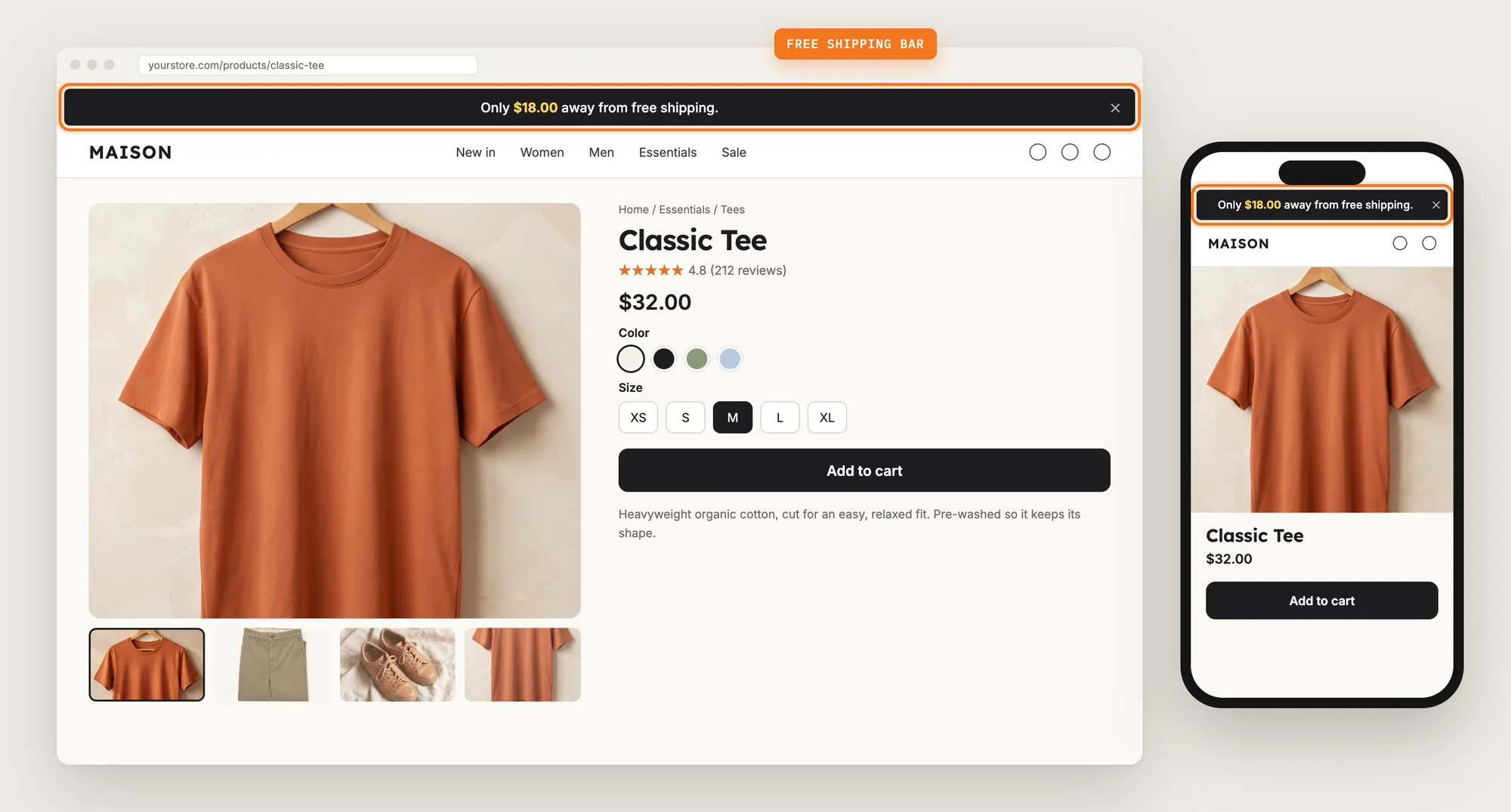
A free shipping bar tells every visitor how much they need to spend for free shipping, then updates as they add products to the cart. A shopper $18 away from the minimum is more likely to add one more item than to pay for shipping.
Here are the three ways to add a free shipping bar to a Shopify store: with a Free Shipping Bar app, from your theme settings, or with custom code.
What Is a Free Shipping Bar?
A free shipping bar is a thin bar across the top or bottom of your store that shows how far the shopper's cart is from your free shipping minimum. The message changes as the cart total changes, from the minimum itself, to the amount left, to a confirmation once the shopper qualifies.
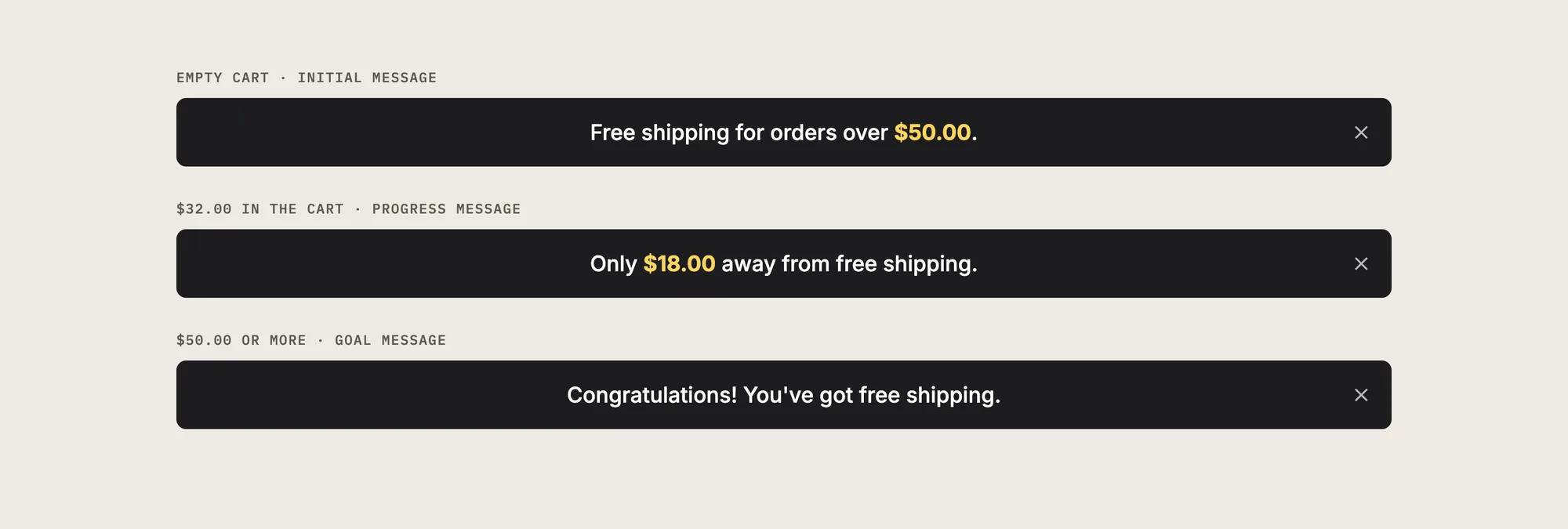
A good free shipping bar includes:
- Live progress: The amount left updates every time the shopper adds or removes a product.
- Your real shipping rates: The free shipping minimum comes from your Shopify shipping settings, so the bar and checkout always agree.
- Per-country minimums: Each visitor sees the minimum for their own country.
- A goal message: The bar confirms free shipping once the shopper's cart qualifies.
A free shipping bar only shows a message. The free shipping itself comes from the free shipping rate you set in Shopify.
What's the Quickest Way to Add a Free Shipping Bar?
- Vitals - All in One App is the quickest way to add a free shipping bar for most stores
- Vitals also offers 40+ apps, such as a cart drawer, product bundles and product reviews, in one subscription of $29.99/month, so you don't have to install and pay for each app separately
Here's how the three methods compare.
How to Add a Free Shipping Bar With a Free Shipping Bar App?
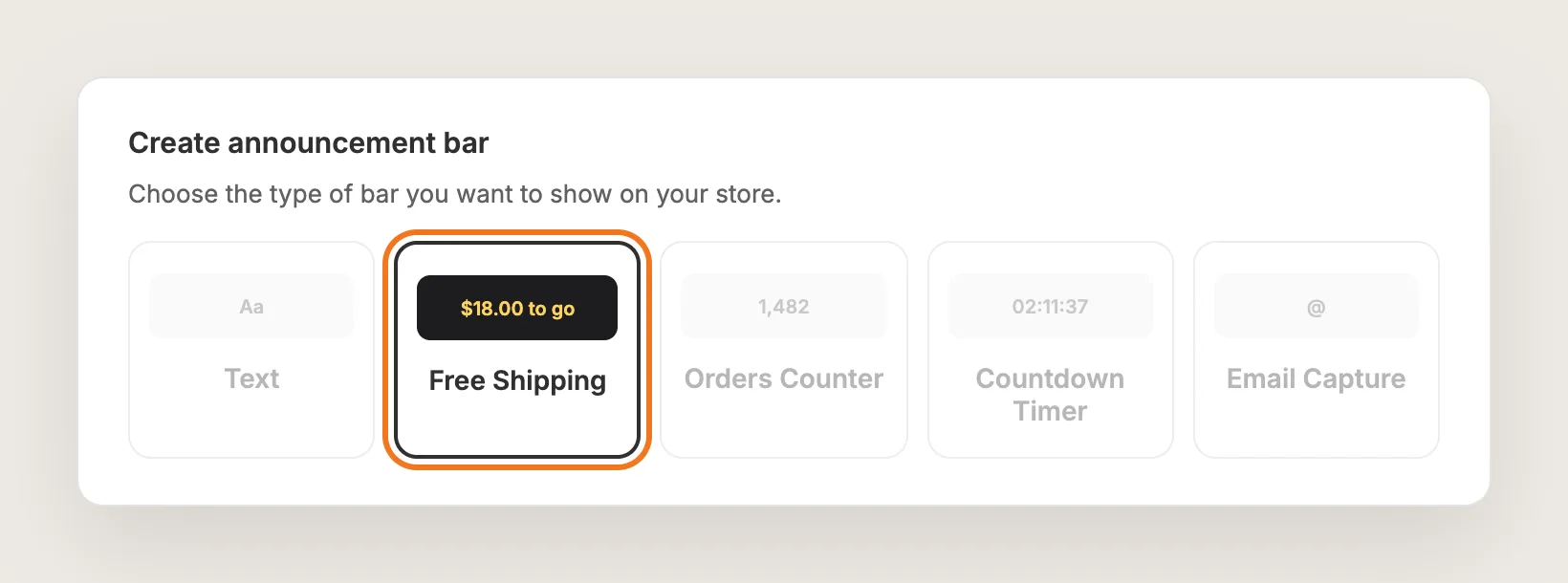
Install the Vitals - All in One App, open its Announcement Bars app, click Create and choose Free Shipping. The free shipping bar then shows across your store, and the steps below sync your shipping rates and set the messages, look and position.
Step 1: Install Vitals From the Shopify App Store
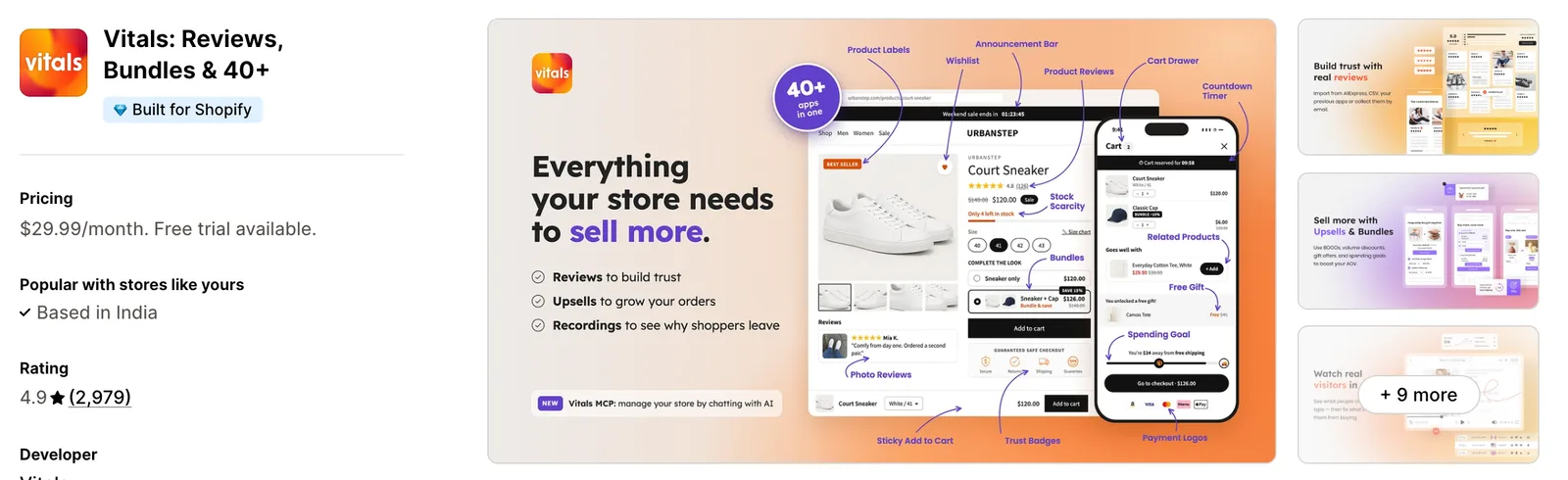
Install the Vitals - All in One App from the Shopify App Store. The 7-day free trial includes the Vitals Announcement Bars app.
Step 2: Approve Vitals in Shopify
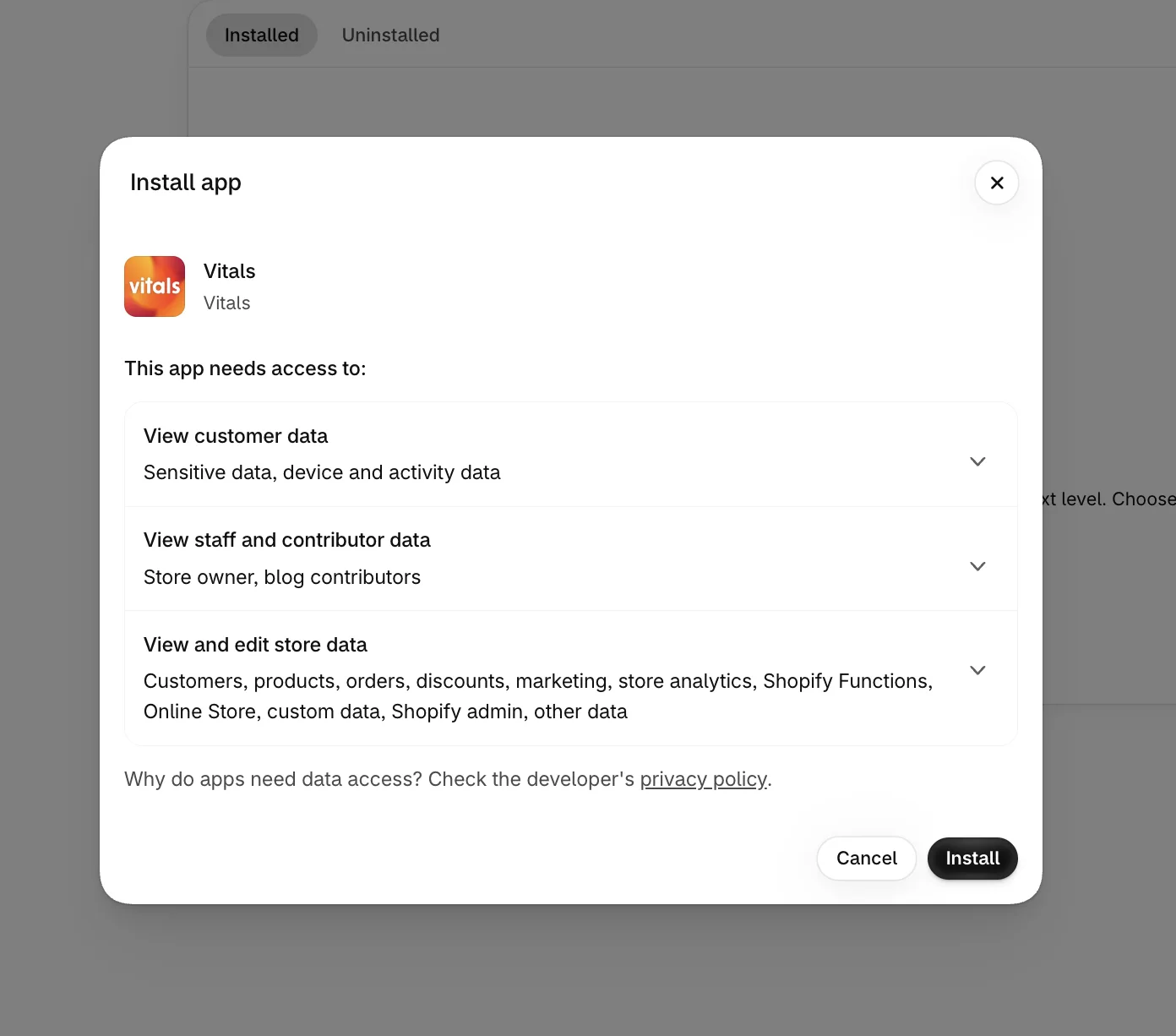
Shopify lists the store data Vitals uses. Click Install to approve it, and the Vitals dashboard opens.
Step 3: Open Announcement Bars
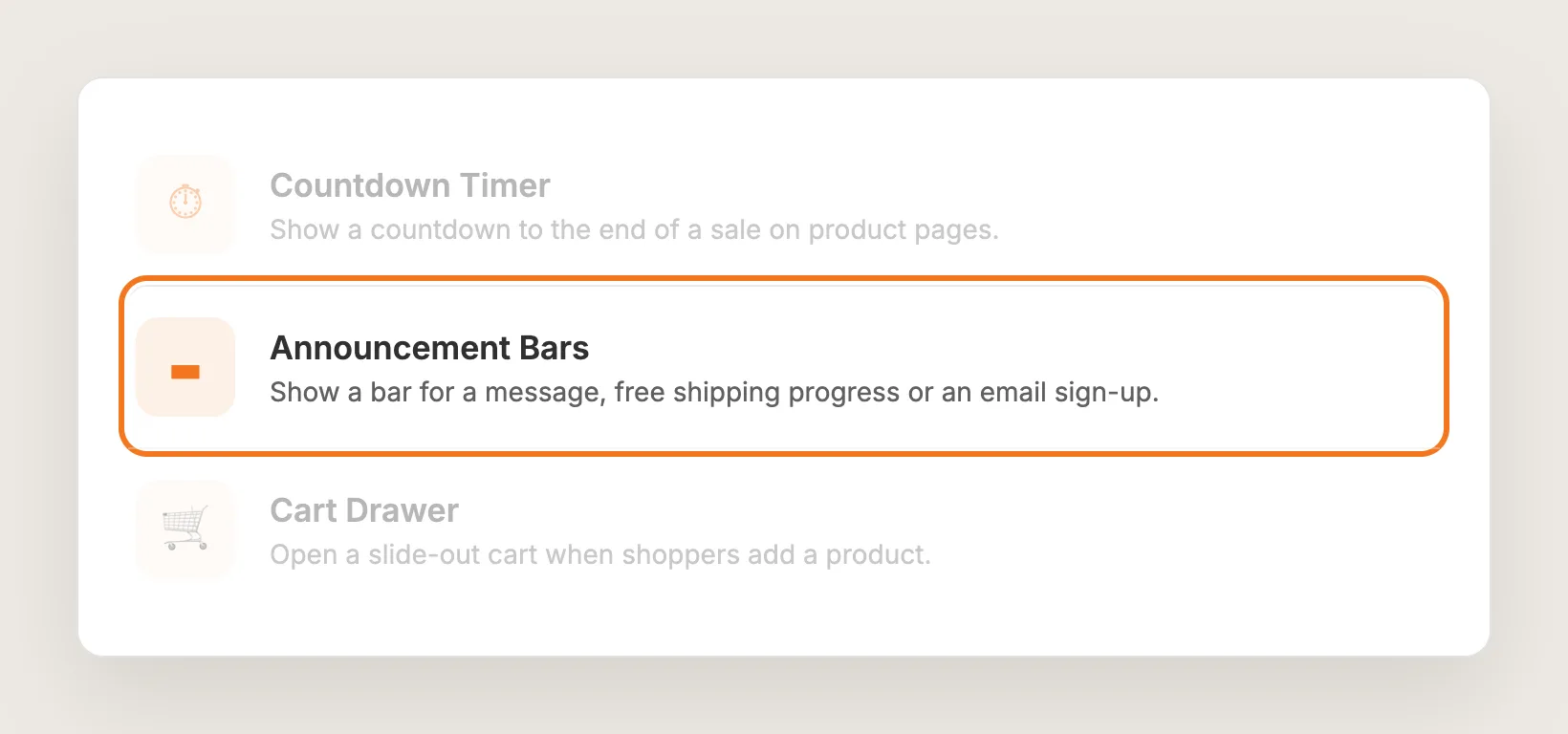
In the Vitals dashboard, find Announcement Bars in the list of apps and click it. The free shipping bar is one of the five bar types in this app.
Step 4: Create a New Free Shipping Bar
On the Announcement bars tab, click Create and choose Free Shipping. Give the bar a Name so you can find it in the list later. Only you see the name.
Step 5: Sync Your Shopify Shipping Rates
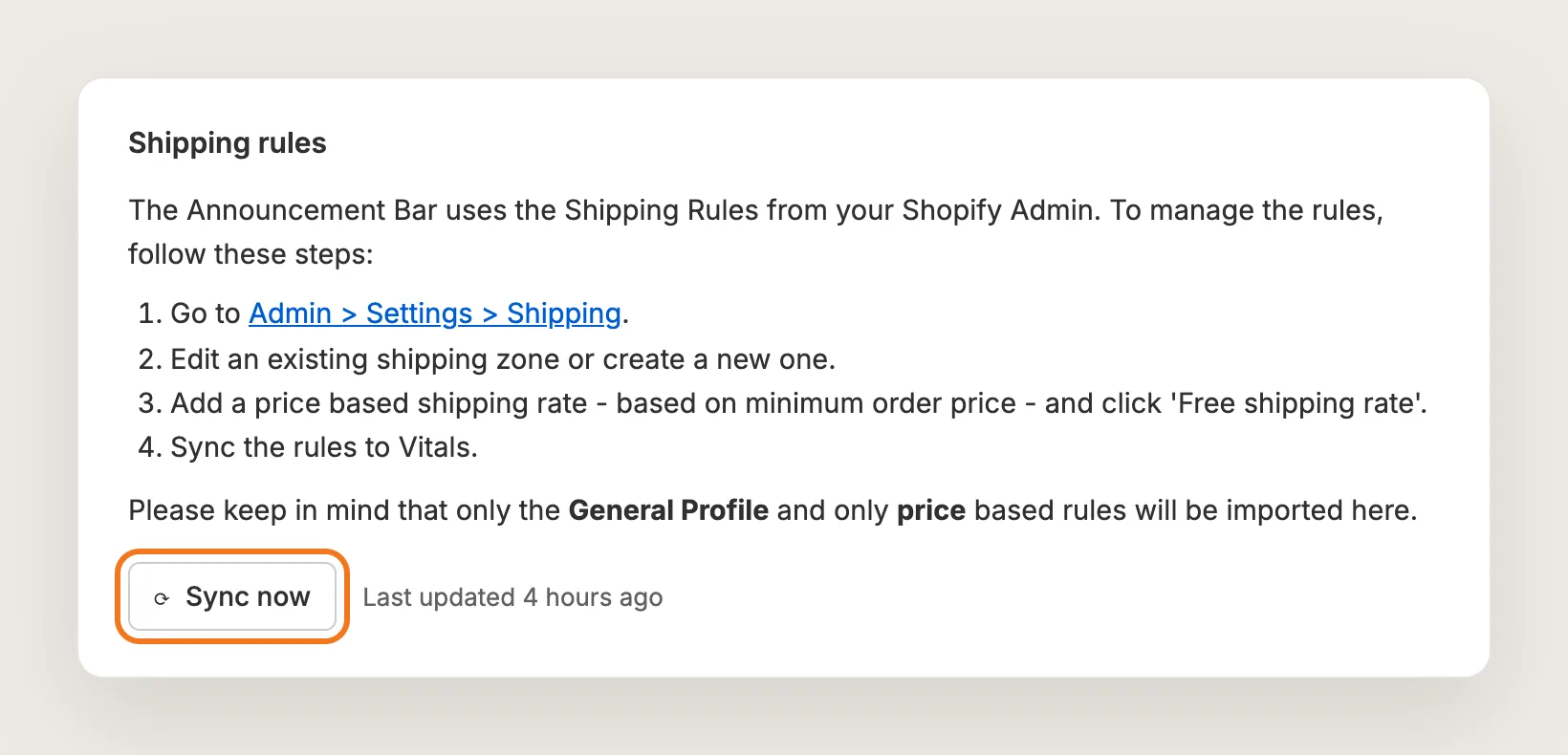
The free shipping bar takes its minimum from your Shopify shipping settings, so set the rate there first:
- In Shopify, go to Settings → Shipping and delivery and open the General shipping profile
- Edit a shipping zone, or create a new one
- Add a rate based on the order price, set the minimum order price and choose the free shipping rate
Then go back to the bar and click Sync now in the Shipping rules card. Vitals imports price-based rates from the General profile only. Set the minimum in your store's default currency; the bar converts it into each visitor's currency.
Step 6: Write the Bar's Three Messages
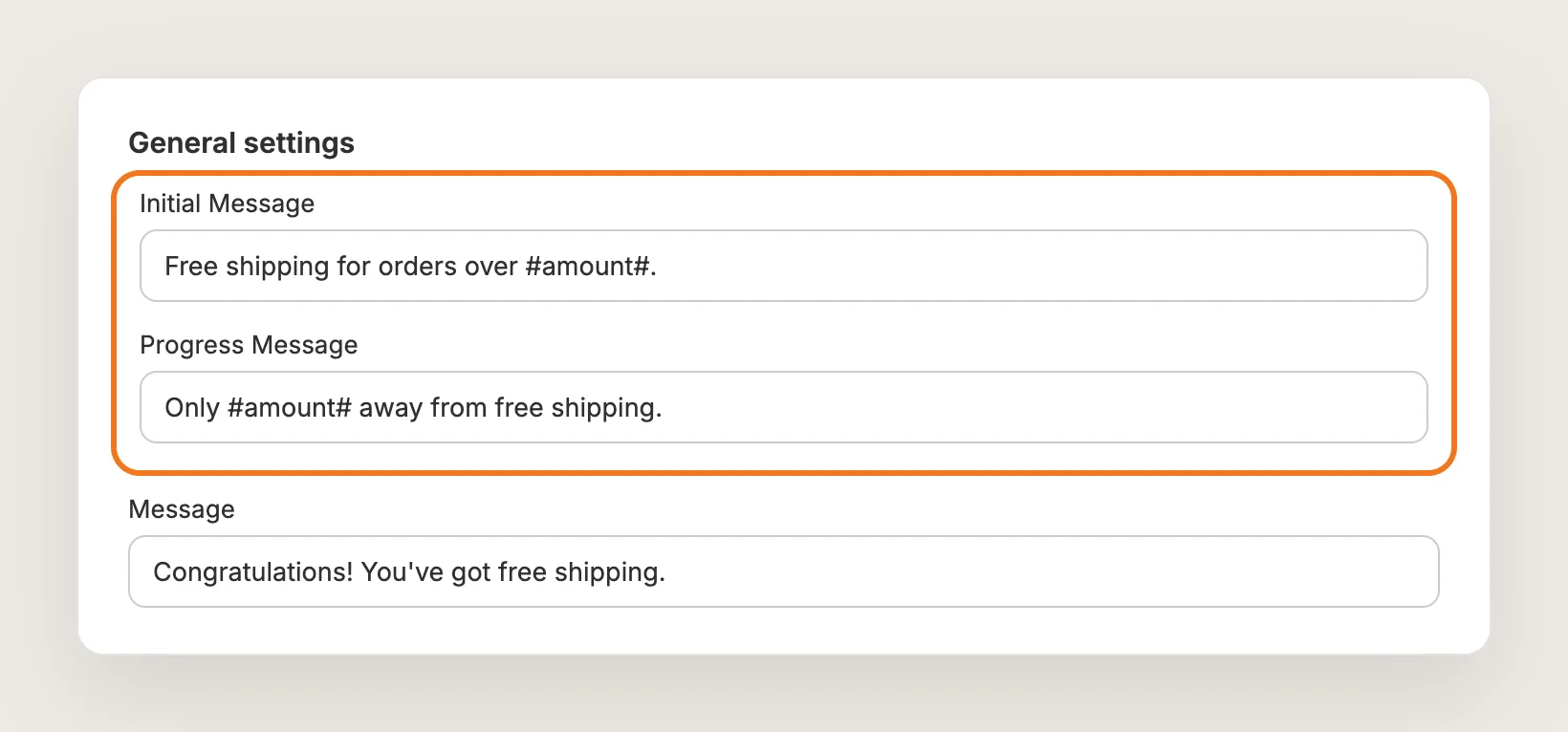
Under General settings, the free shipping bar has three messages:
- Initial Message: Shows before the shopper adds anything, for example "Free shipping for orders over #amount#."
- Progress Message: Shows once the cart has products, for example "Only #amount# away from free shipping."
- Message: Shows once the cart reaches the minimum, for example "Congratulations! You've got free shipping."
Keep the #amount# variable in the Initial Message and the Progress Message. The amount appears where the variable is, and deleting the variable hides the amount.
Step 7: Pick a Theme Style
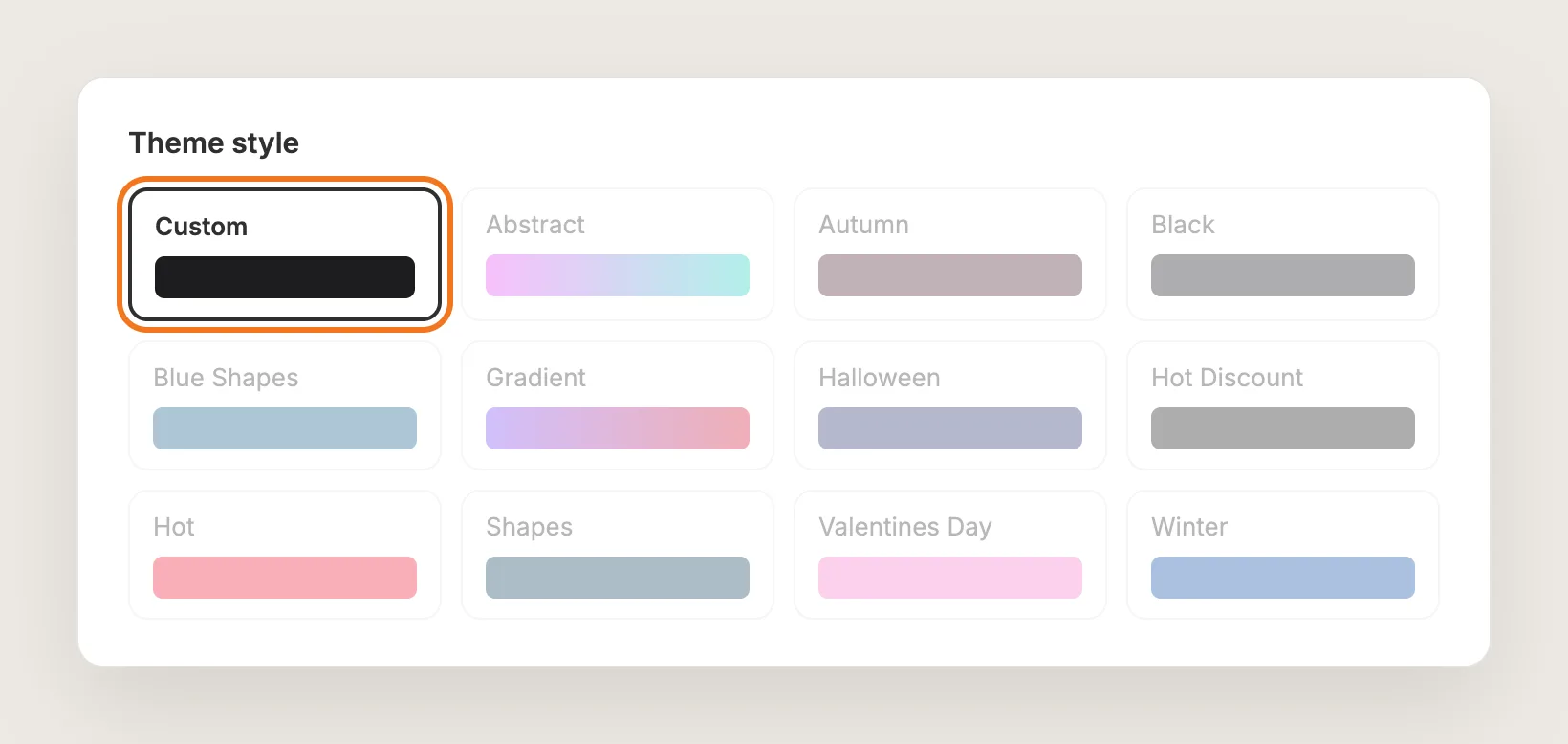
Under Theme style, choose Custom to set your own colors, or pick one of the 11 preset styles, such as Black, Gradient or Winter. The live preview beside the settings shows the bar as you change it.
Step 8: Set the Bar's Colors
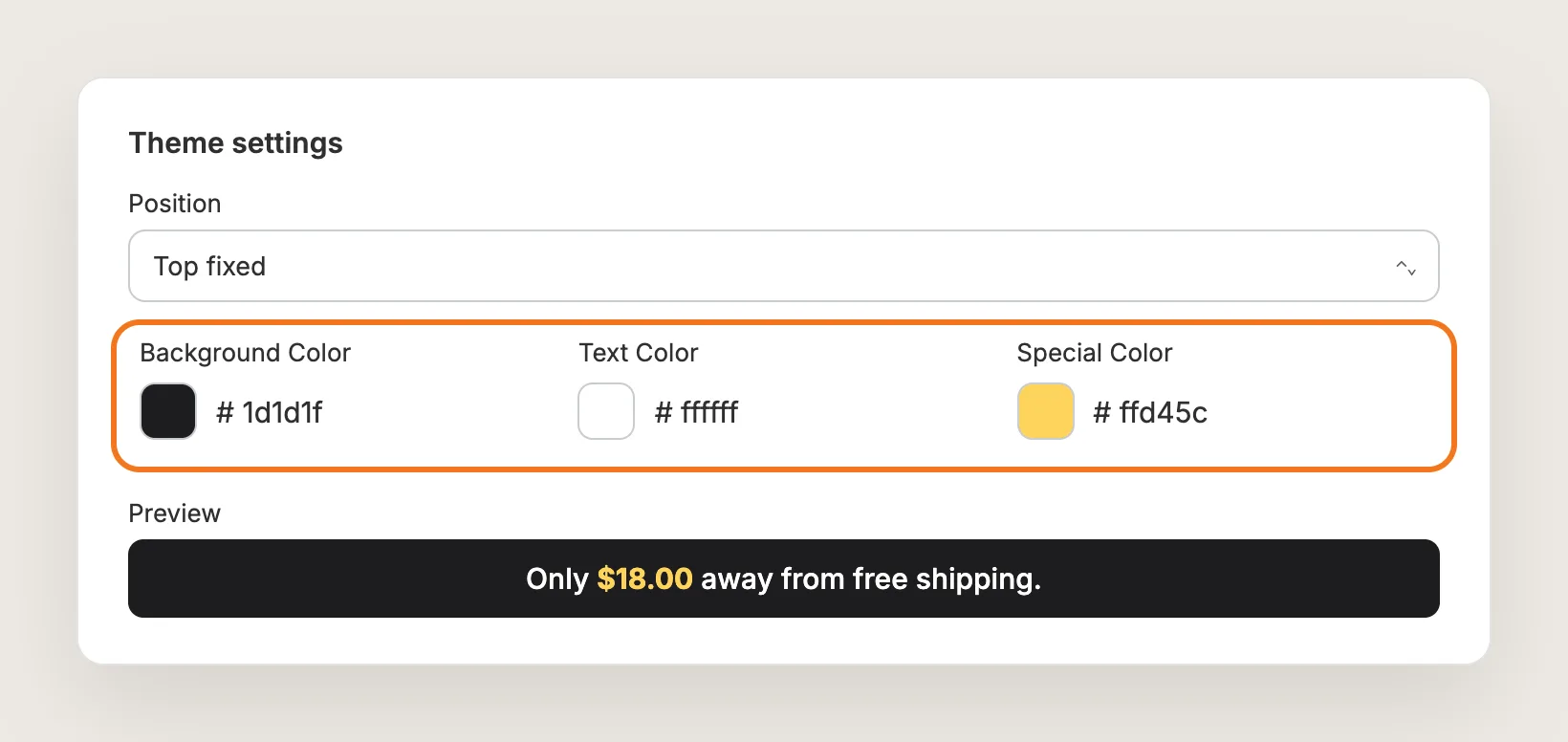
With the Custom style, Theme settings shows three colors:
- Background Color: The color of the bar
- Text Color: The color of the message
- Special Color: The color of the amount, so the number stands out from the rest of the message
Step 9: Choose Where the Bar Shows
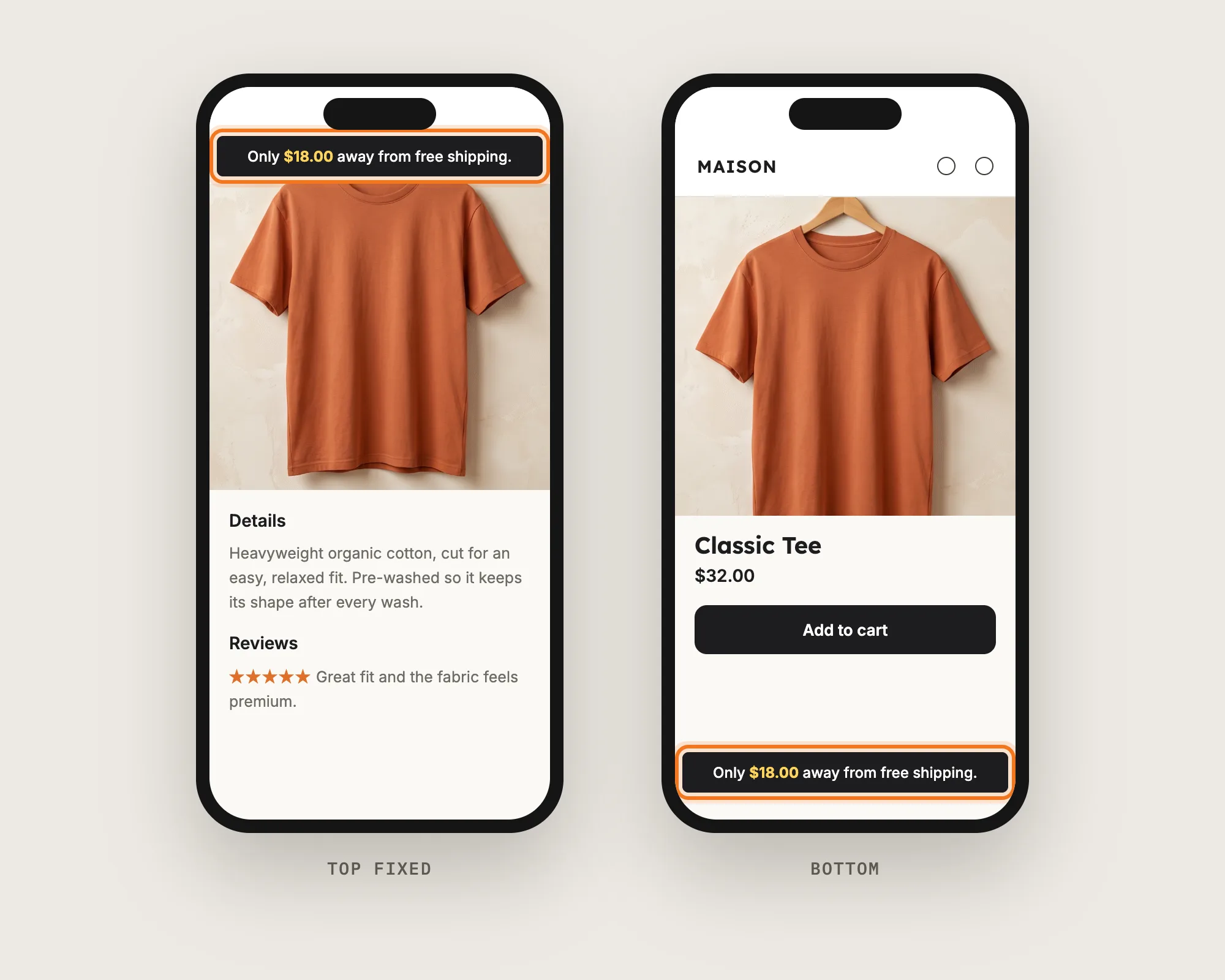
Under Theme settings, Position has three options:
- Top relative: The bar shows above the page content and scrolls away with the page
- Top fixed: The bar stays at the top of the screen while the shopper scrolls
- Bottom: The bar stays at the bottom of the screen
The free shipping bar shows on every page of your store. Announcement Bars can't limit a bar to certain pages.
Step 10: Show the Bar in the Cart Drawer (Optional)
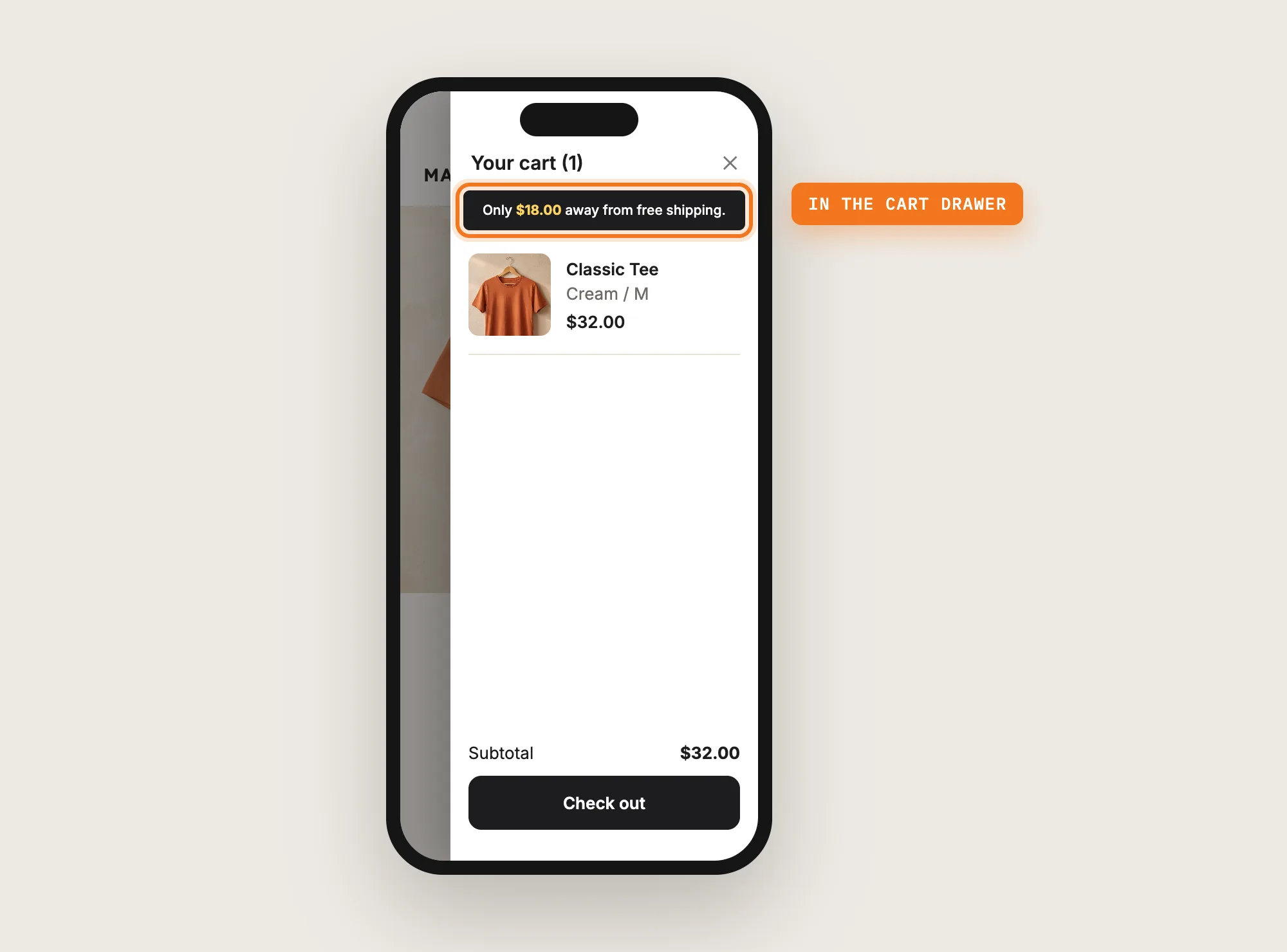
The free shipping bar can also show inside the Vitals Cart Drawer app, where shoppers see their cart total. In Cart Drawer, turn on Show messages from the Announcement Bar app under Announcement bars. The bar then shows on the store and in the drawer.
To show the bar in the drawer only, tick Display this only in Cart-Drawer under the bar's General settings. The drawer then styles the bar, so the theme style and color settings are hidden.
Step 11: Let Shoppers Close the Bar (Optional)
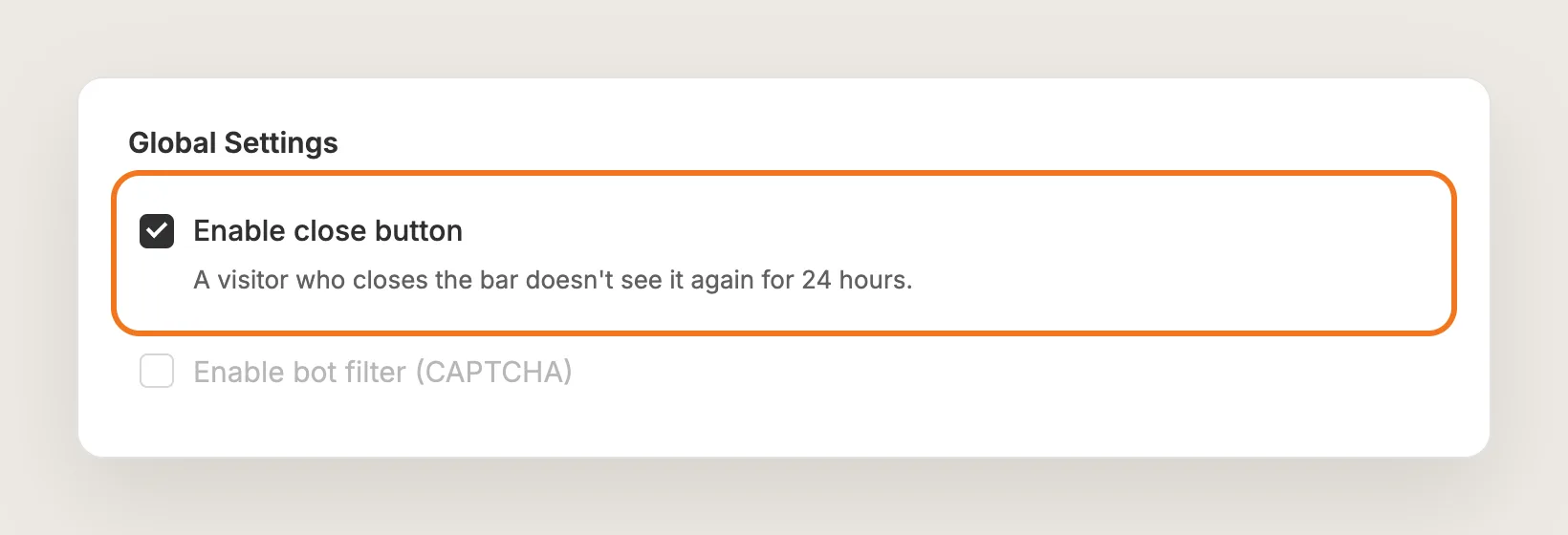
On the Announcement Bars Settings tab, tick Enable close button to add an X to the bar. A visitor who closes the bar doesn't see the bar again for 24 hours. This setting applies to every bar in the app.
Step 12: Save, Test on Your Phone and Watch the Impressions
Set Status to Active and save. Only one bar shows on the store at a time, so the free shipping bar replaces any other active bar. Then open your store from a country in your free shipping zone, add a product and check that the amount drops.
The Analytics tab then shows how many times visitors saw the bar.
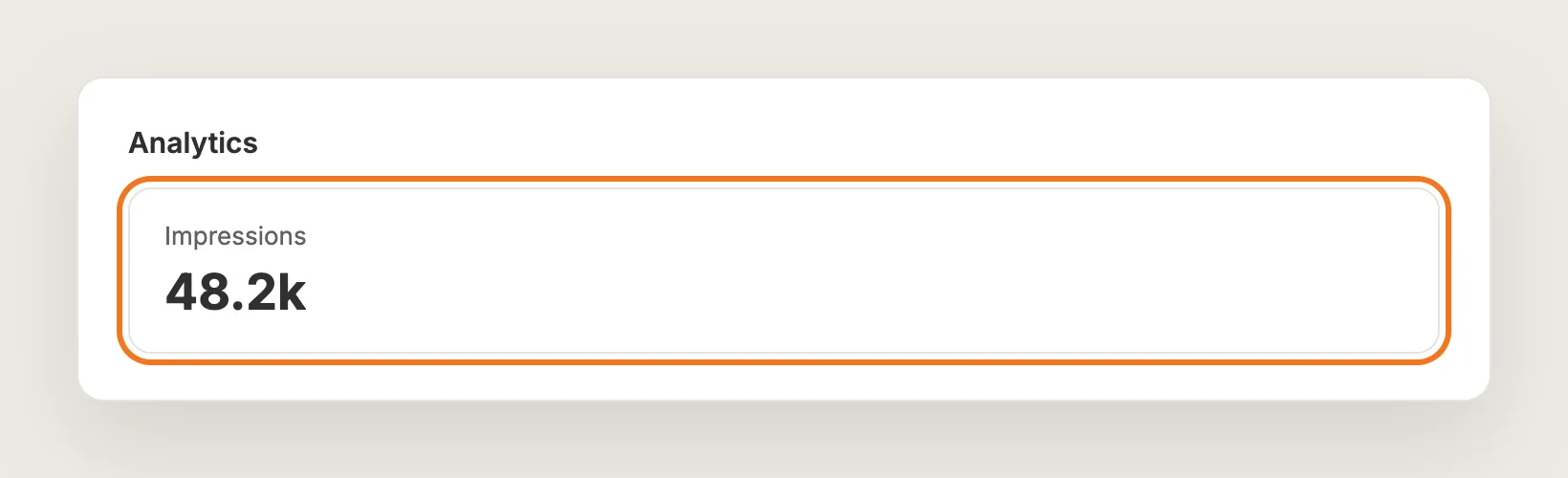
Step 13: Voila, Your Free Shipping Bar Is Live on the Store
Your shoppers now see how close they are to free shipping on every page, and the amount updates as they shop.
How to Add a Free Shipping Bar From Your Theme Settings?
Most Shopify themes include an announcement bar section that shows a fixed text message. To check your theme's settings:
- Open Online Store → Themes in Shopify and click Customize
- Click the Announcement bar section at the top of the page, in the header group
- Type your free shipping message, such as "Free shipping on orders over $50", and save
A theme's announcement bar shows the same text to every shopper. It can't show how much is left in the shopper's cart, can't change the minimum by country and doesn't confirm when the shopper qualifies. Some paid themes add a free shipping progress bar inside their cart drawer, so check your theme's cart settings too. If a static message is all you need, the theme setting may be enough.
How to Add a Free Shipping Bar Without an App?
Hire a developer to build a free shipping bar into your theme with Liquid, CSS and JavaScript. A script reads the cart total and compares it with your free shipping minimum.
A custom free shipping bar usually involves:
- Making a copy of your theme, so the live store stays untouched during testing
- Adding the bar's markup to the theme layout or header
- Writing a script that reads the cart total and updates the message every time the cart changes
- Storing the free shipping minimum, and a separate minimum for each country if your rates differ
- Converting the minimum into each visitor's currency on stores that sell in several currencies
- Testing the bar with the cart page and the cart drawer, then publishing the theme copy
Custom code means no extra app, but you or your developer have to maintain it. The minimum in the code doesn't update when you change your Shopify shipping rates, so the bar and checkout can disagree until someone edits the code. A theme update can also replace the files the code is in.
How to Increase AOV With a Free Shipping Bar?
A free shipping bar raises average order value (AOV) by showing shoppers below the minimum exactly how much more to add. These settings help the free shipping bar move AOV:
- Set the free shipping minimum just above your typical order. Shoppers who are close to the minimum are the ones who add one more item. Change the minimum price on the free shipping rate in Shopify, then click Sync now
- Keep #amount# in the Progress Message. "Only $18.00 away" gives shoppers a number to aim for, while "Spend more for free shipping" doesn't
- Make the amount stand out. Choose the Custom theme style and set a Special Color that contrasts with the background
- Keep the free shipping bar on screen while shoppers browse. Set Position to Top fixed or Bottom, so the bar doesn't scroll away on long product pages
- Show the free shipping bar in the cart drawer. The drawer is where shoppers see their total and decide whether to add another product. Turn on Show messages from the Announcement Bar app in the Vitals Cart Drawer app
- Write a goal message that confirms the reward. "Congratulations! You've got free shipping." tells shoppers the extra spend paid off, right before checkout
Why Isn't My Free Shipping Bar Showing or Working?
These fixes solve most free shipping bar problems:
- The bar doesn't show for my country: The free shipping bar shows only to visitors whose country has a free shipping rate in your synced Shopify shipping zones. Test from a country in the zone, for example with a VPN in a new incognito window
- The bar doesn't show at all: Check that the bar's Status is Active. Only one bar shows at a time, so another active bar can replace the free shipping bar
- The amount is wrong after I changed my rates: Click Sync now in the bar's Shipping rules card. Vitals imports only price-based rates from the General shipping profile
- Visitors see an odd converted amount in their currency: The bar converts the minimum from your store's default currency. To show a fixed amount, remove #amount# and write the amount into the message, for example "Free shipping on orders over £60"
- A free shipping message still shows after I turned the bar off: Check the Vitals Upsell Builder app for an active Spending Goal offer and the Vitals Shipping Information app for Show free shipping message. If both are off, the message comes from your theme or another app
- The bar doesn't show in the cart drawer: Turn on Show messages from the Announcement Bar app in the Vitals Cart Drawer app, and add a product to the cart. The bar doesn't show in a theme's own cart drawer
Which Free Shipping Bar Method Should You Choose?
Vitals - All in One App suits most stores, but the right method depends on how your shipping rates are set up.
- Choose Vitals - All in One App if you want a free shipping bar that updates with the cart and uses your Shopify shipping rates for each country. It also includes 40+ other apps in one subscription of $29.99/month, so you don't have to install and pay for each app separately
- Choose your theme's setting if a static free shipping message is enough and you don't need progress or per-country minimums
- Choose custom code if you have a developer, want no app at all, and are happy to update the code every time your shipping rates change
Start a 7-day free trial: Install the Vitals - All in One App and add a free shipping bar
Frequently Asked Questions
1. What is the best way to add a free shipping bar to Shopify?
Vitals - All in One App is the best way for most stores. Its Announcement Bars app adds a free shipping bar without code, takes the minimum from your Shopify shipping rates and updates the amount left as shoppers add products.
2. Does Shopify have a built-in free shipping bar?
No, Shopify doesn't include a free shipping progress bar as a store-wide feature. Most themes include an announcement bar that can show a fixed free shipping message, but the message doesn't change with the cart. For a bar that shows the amount left, you'll need an app or custom code.
3. Does the free shipping bar offer free shipping on its own?
No. The free shipping bar only shows the message. Free shipping comes from the free shipping rate in your Shopify shipping settings, and the bar reads that rate's minimum when you click Sync now.
4. Can the free shipping bar show a different minimum in each country?
Yes. The Vitals free shipping bar reads the minimum for each of your Shopify shipping zones and shows each visitor the minimum for their country. Visitors from a country with no free shipping rate don't see the bar.
5. Can I show the free shipping bar only on certain pages?
No. The Vitals free shipping bar shows on every page of your store. You can show the bar only inside the Vitals Cart Drawer app by ticking Display this only in Cart-Drawer.
6. Can the free shipping bar link to my shipping policy?
No, the Free Shipping bar has no link setting. If you need a clickable bar, create a Text bar instead and add the link under General settings → Link. A Text bar shows a fixed message, not the amount left.
7. Can I show more than one announcement bar at a time?
You can create as many bars as you like, but only one bar shows on your store at a time. Set the free shipping bar's Status to Active to show the free shipping bar in place of your other bars.