How to Set Up Post-Purchase Upsells on Shopify

A shopper who has just paid is the easiest shopper to sell to. They trust the store, their card is already in, and they're still on the page.
Most Shopify stores send that shopper straight to the thank-you page. A post-purchase upsell shows one more offer between payment and the thank-you page, and adds whatever the shopper accepts to the order they just placed, with no second checkout.
Here are the two ways to set up post-purchase upsells on a Shopify store: with a post-purchase upsell app or with custom code.
What Is a Post-Purchase Upsell?
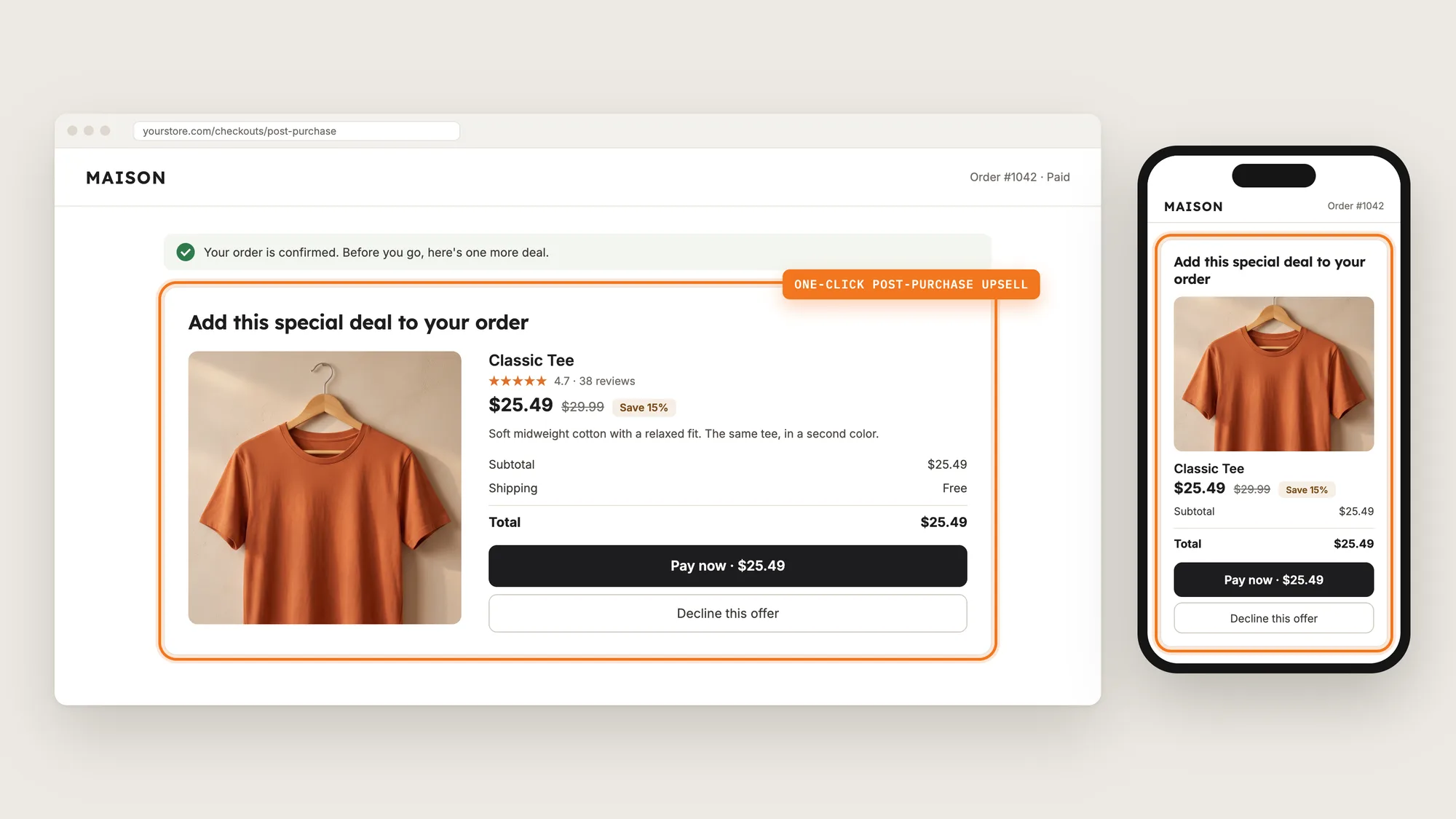
A post-purchase upsell is an offer that shows after the shopper presses Pay now and before the thank-you page. The shopper accepts the offer in one click, and the product is added to the order they just paid for, so they don't enter their card details again.
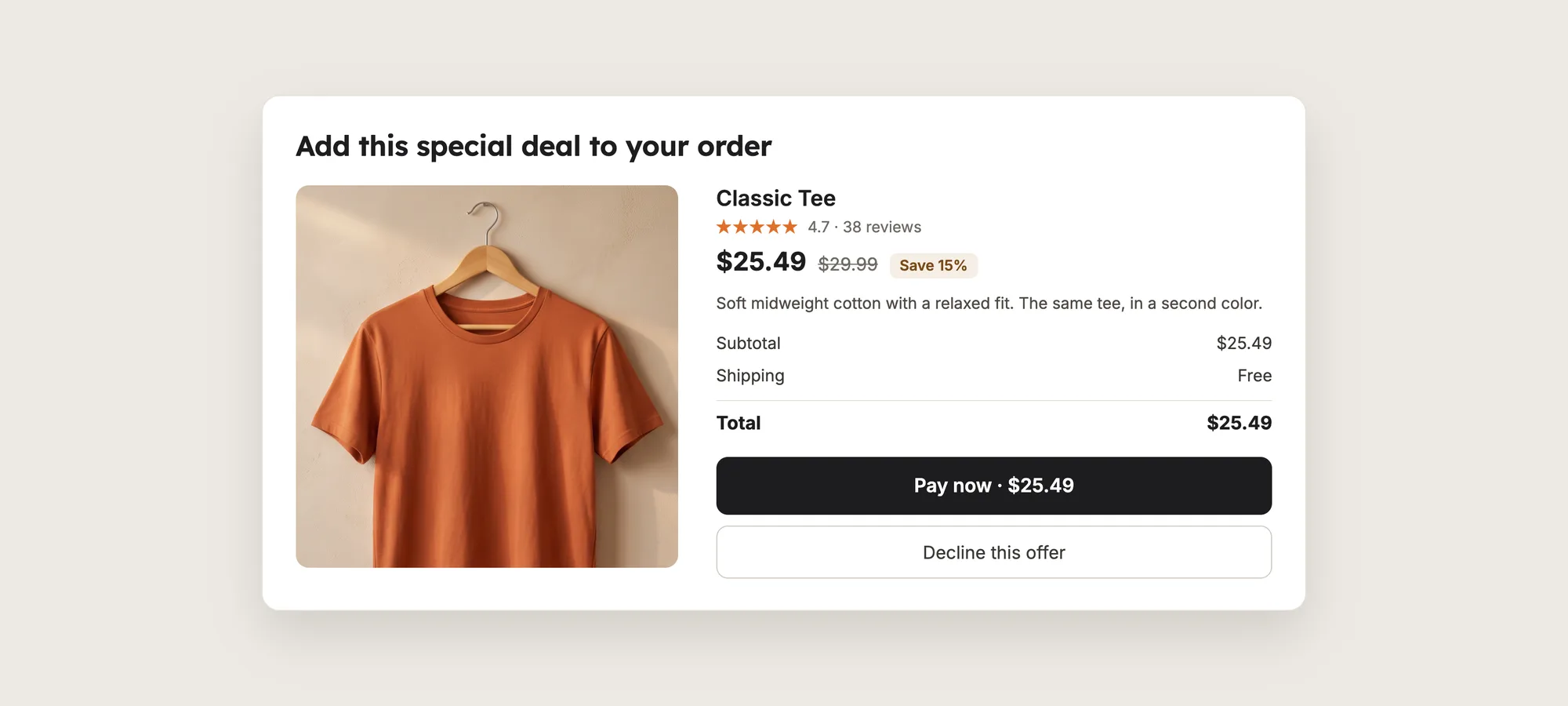
A good post-purchase upsell includes:
- One-click payment: The product is added to the same order, with no second checkout and no second payment.
- A product that fits the order: A second unit of what the shopper bought, or a product that goes with it.
- A clear deal: The discounted price shown against the original price.
- An easy way out: A decline link that takes the shopper straight to the thank-you page.
A post-purchase upsell can only show on Shopify's post-purchase page, which needs an app to fill it.
What's the Quickest Way to Set Up Post-Purchase Upsells?
- Vitals - All in One App is the quickest way to set up post-purchase upsells for most stores
- Vitals also offers 40+ apps, such as product bundles, volume discounts and product reviews, in one subscription of $29.99/month, so you don't have to install and pay for each app separately
Here's how the two methods compare. If you'd rather weigh several upsell apps against each other, see our list of the best upsell apps for Shopify.
How to Set Up Post-Purchase Upsells With a Post-Purchase Upsell App?
Install the Vitals - All in One App, open its One Click Post-Purchase app, click Create bundle and choose One Click Post-Purchase. Then set Vitals as your post-purchase app in Shopify, and the steps below set which orders see the offer, the products, the discount and how the offer looks.
Step 1: Add the Vitals App to Shopify
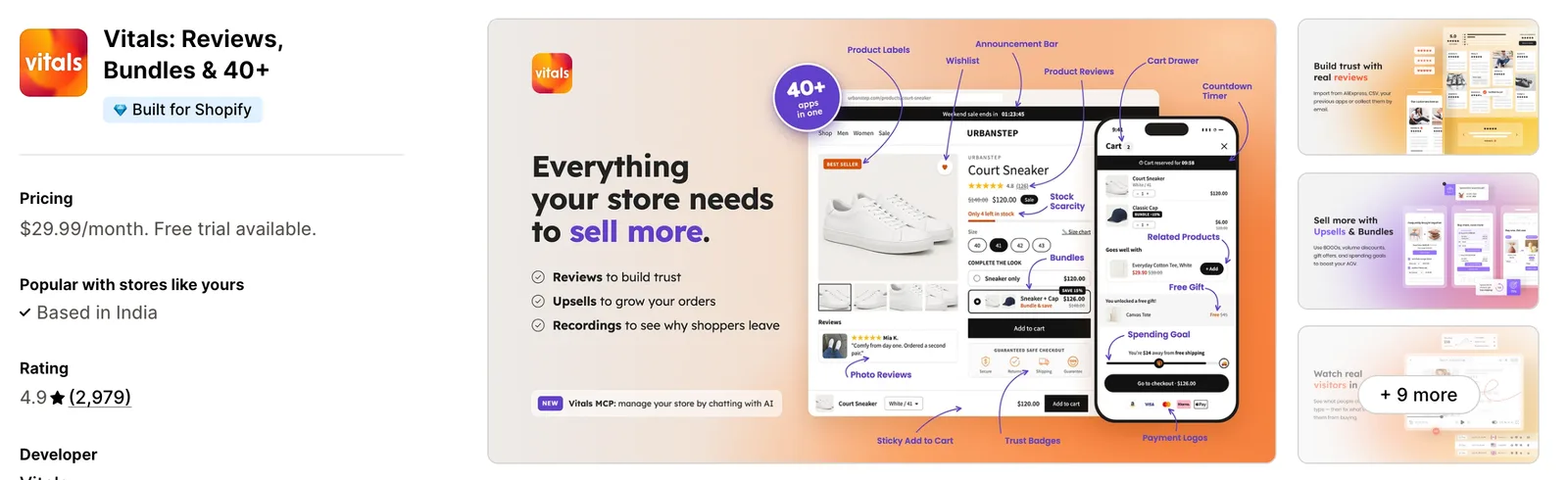
Install the Vitals - All in One App from the Shopify App Store. The 7-day free trial includes the Vitals One Click Post-Purchase app.
Step 2: Approve Vitals in the Shopify Dialog
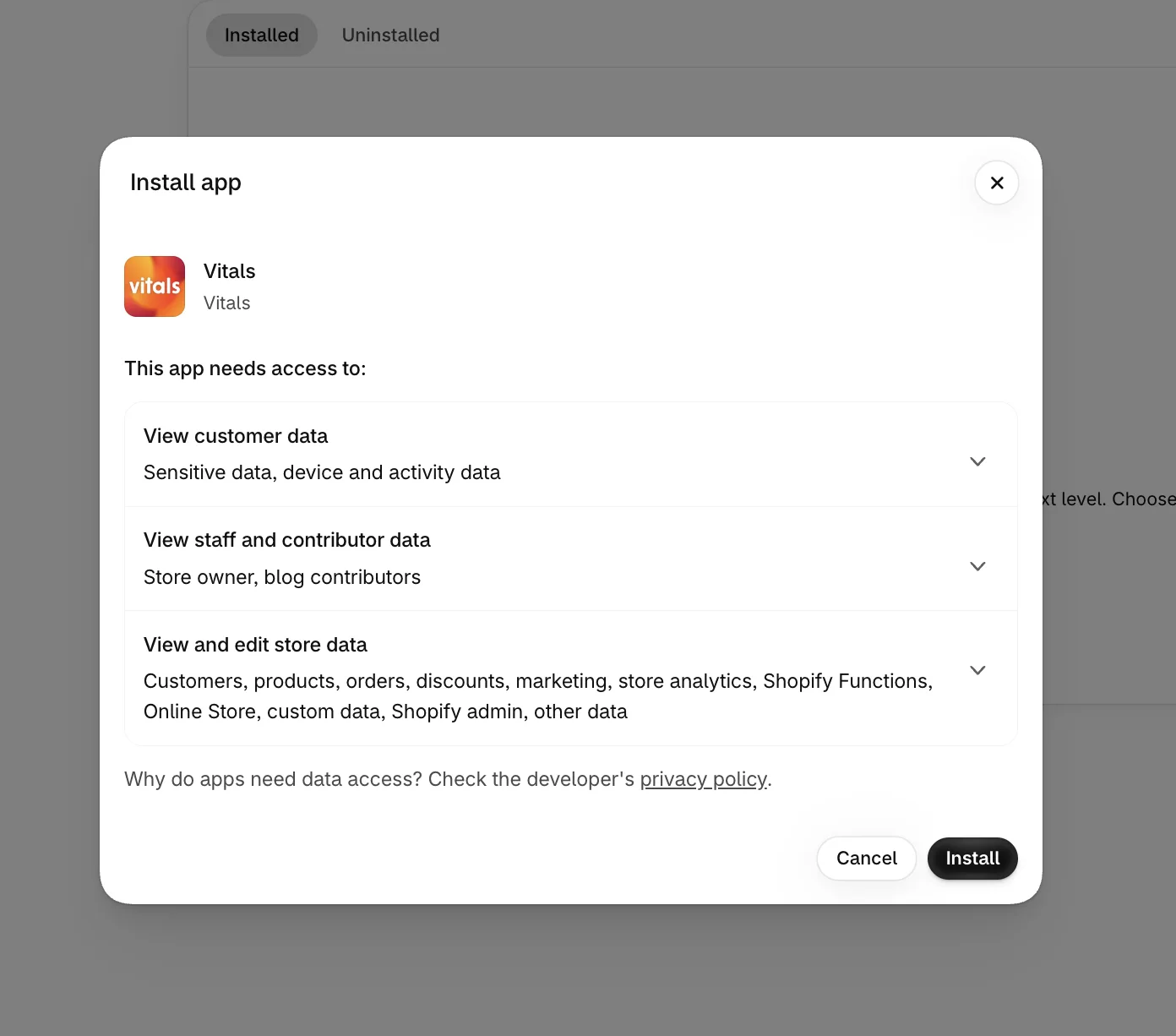
Shopify shows the permissions Vitals needs. Click Install to approve them and open the Vitals dashboard.
Step 3: Open One Click Post-Purchase
In the Vitals dashboard, find One Click Post-Purchase in the list of apps and click it.

Step 4: Create a New Post-Purchase Offer
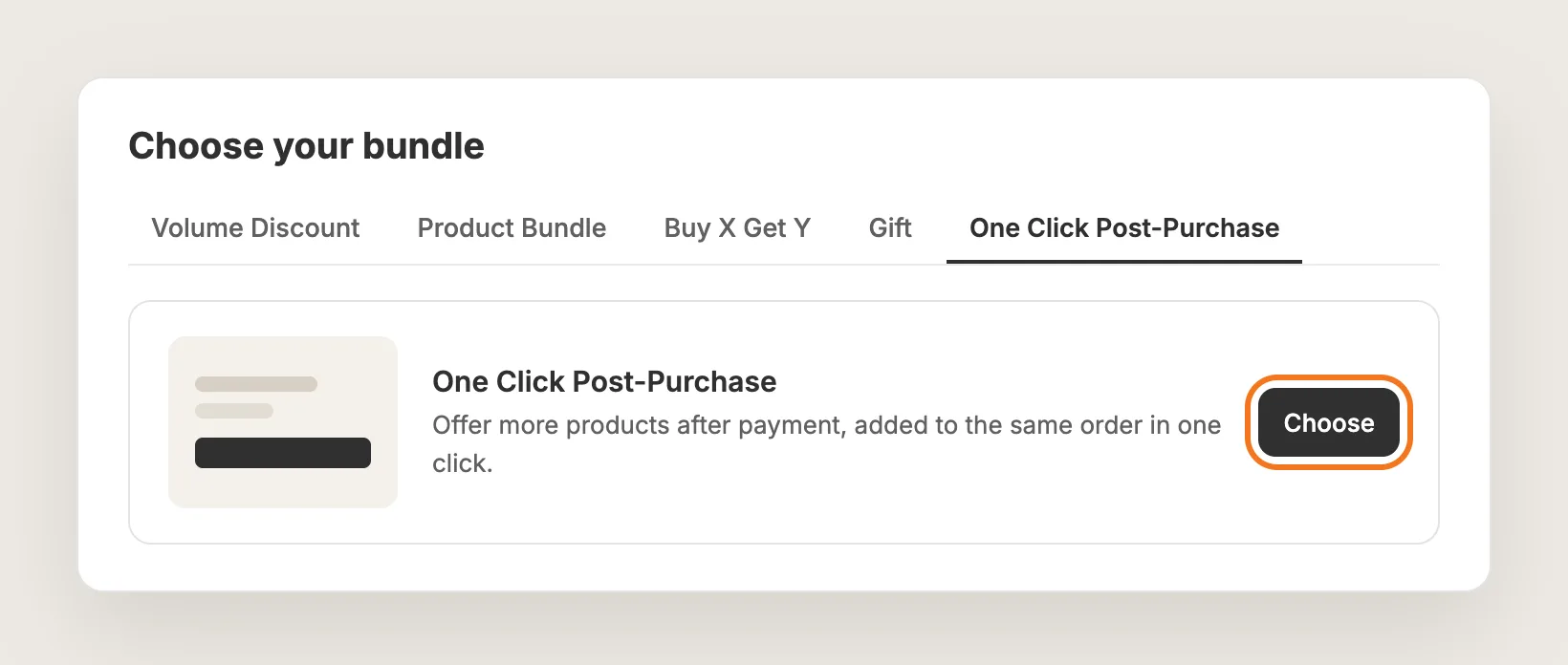
Click Create bundle. On the Choose your bundle page, open the One Click Post-Purchase tab and click Choose. The offer editor opens on one page, with the settings on the left and a preview on the right.
Step 5: Set Vitals as Your Post-Purchase App in Shopify
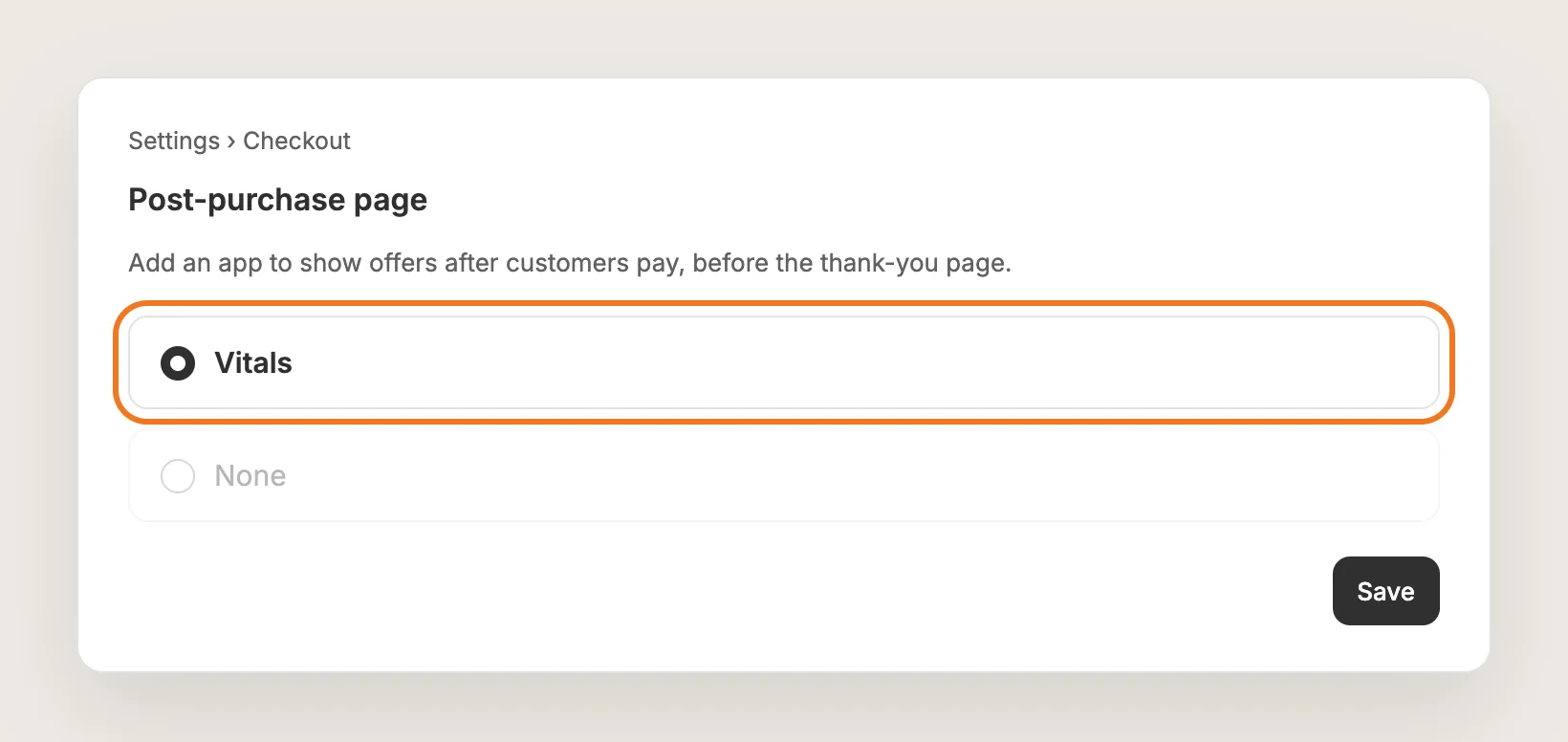
Shopify shows one app on the post-purchase page, so pick Vitals for it. In Shopify, go to Settings → Checkout, scroll to the Post-purchase page section, select Vitals and click Save.
Until you do, the offer editor shows a Set Vitals as your Post-Purchase upsell app card with a Go to Shopify settings button that takes you there. The card disappears once the setting is saved.
Step 6: Choose Which Orders See the Offer
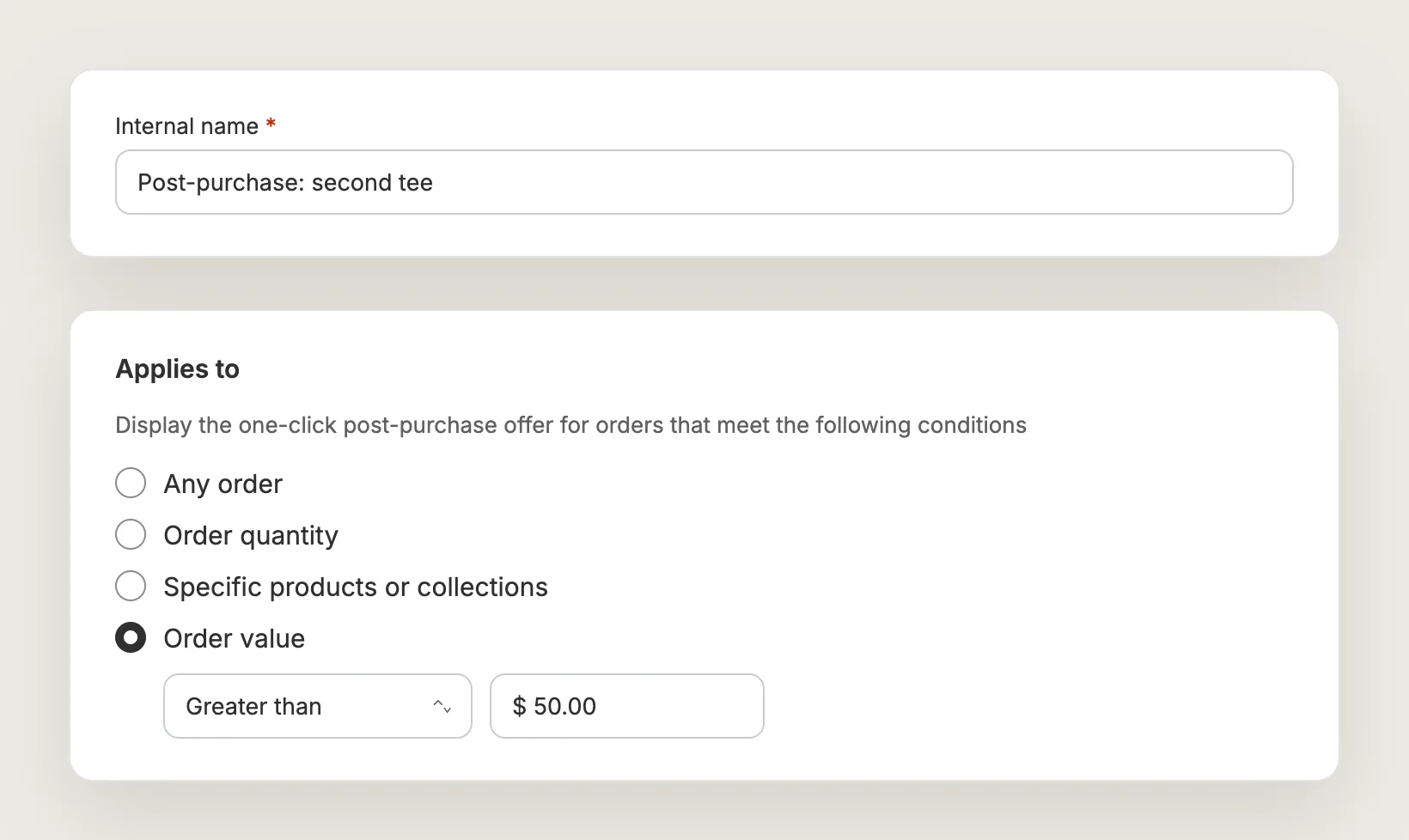
Give the offer an Internal name. Only you see the internal name. Then pick a trigger under Applies to:
- Any order: The offer shows after every order
- Order quantity: The offer shows when the number of items in the order is greater than, less than or equal to a number you set
- Specific products or collections: The offer shows when the order contains products or collections you pick
- Order value: The offer shows when the order total is above or below an amount you set
Step 7: Choose the Product to Offer
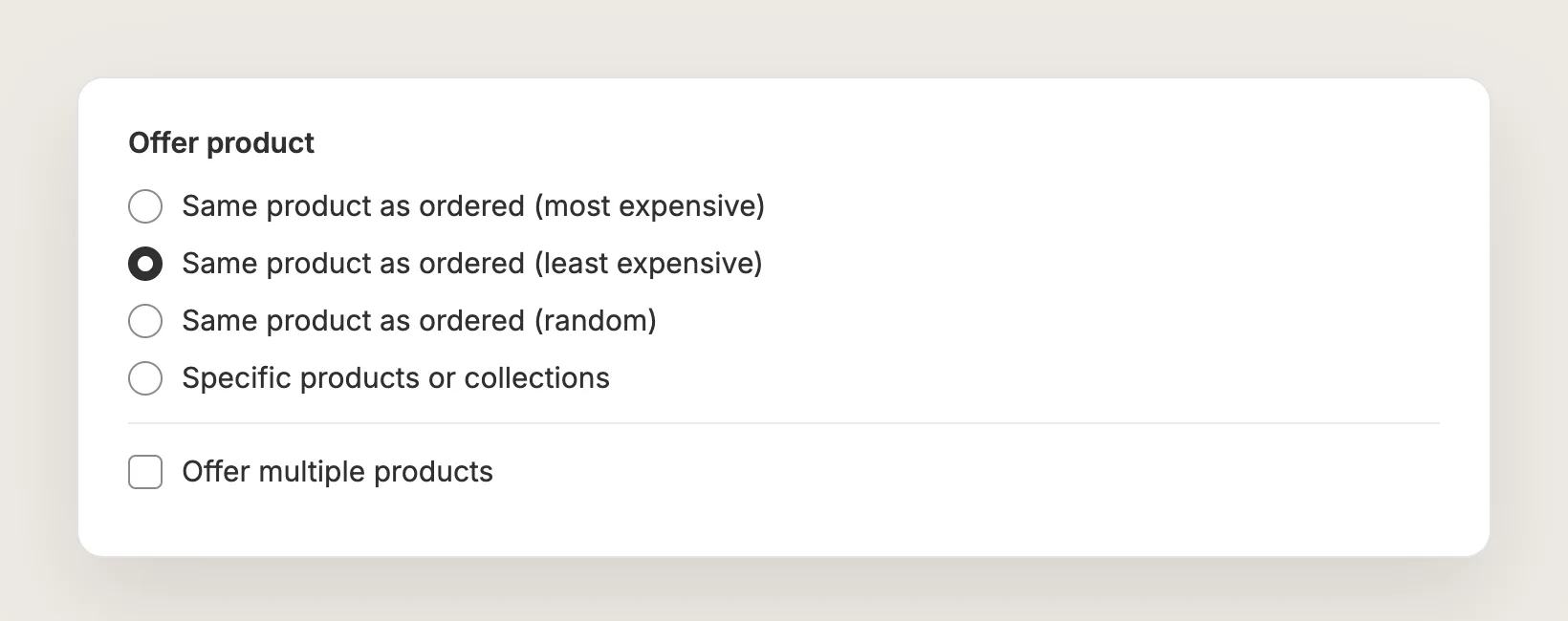
The Offer product card decides what the post-purchase page shows:
- Same product as ordered (least expensive): Offers the cheapest item from the order again
- Same product as ordered (most expensive): Offers the most expensive item from the order again
- Same product as ordered (random): Offers one item from the order at random
- Specific products or collections: Offers a product you pick
If you pick a collection or several products here, only one of them shows to the shopper.
Step 8: Offer Up to Five Products (Optional)
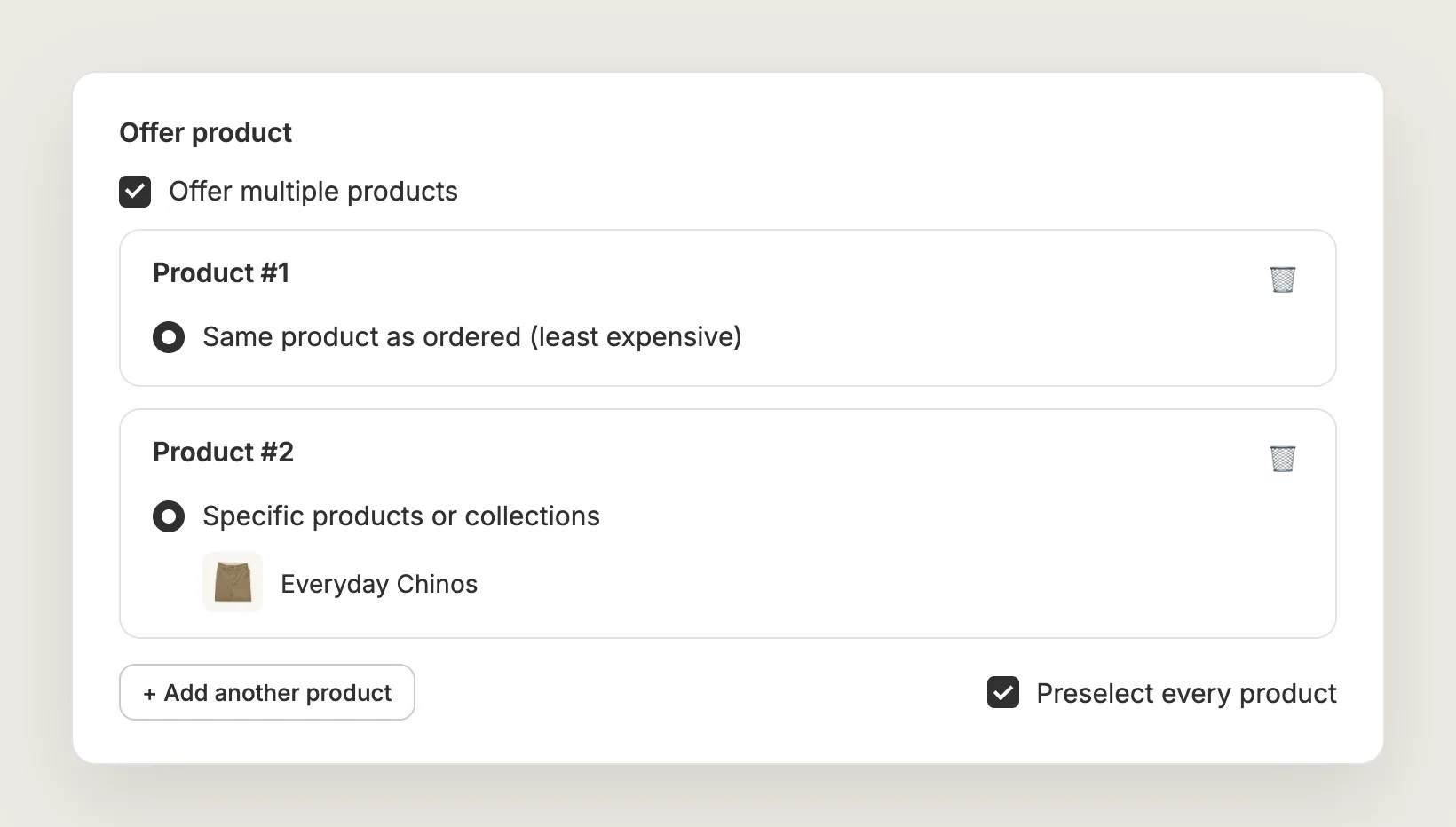
Tick Offer multiple products to show up to 5 products on the same page. Each Product # card has the same options as Step 7, and Add another product adds the next one.
Preselect every product decides how the page opens. Leave it ticked and every product starts selected, so the shopper unticks what they don't want. Products that are out of stock when the offer shows are skipped.
Step 9: Set the Discount
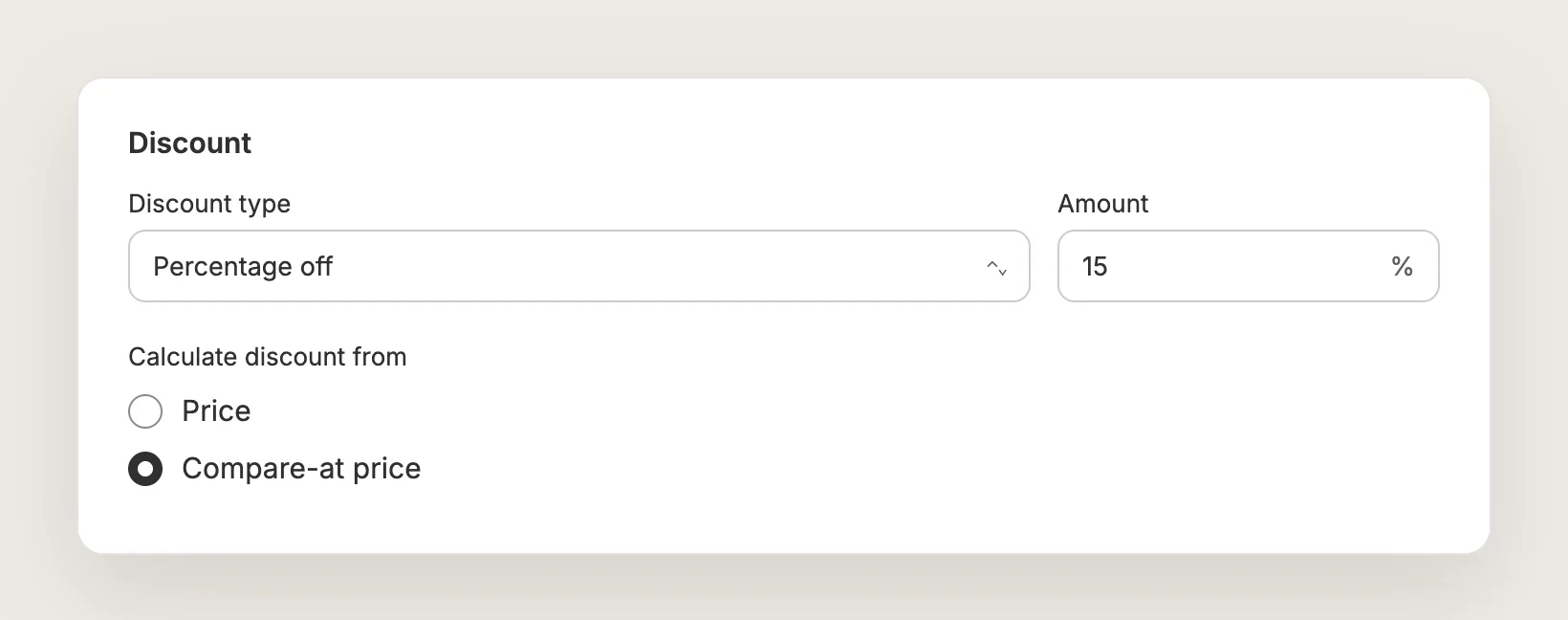
In the Discount card, pick a Discount type:
- No discount: Recommends the product at its normal price
- Percentage off: Takes a percentage off each product, such as 15%
- Amount off: Takes a set amount off each product
- Fixed price: Sets one price for each product
The discount applies to every product on the page. Calculate discount from decides the struck-through price: Price or Compare-at price. The setting changes only the price the deal is compared against, never the amount the shopper pays.
Step 10: Schedule the Offer and Choose Who Sees It (Optional)
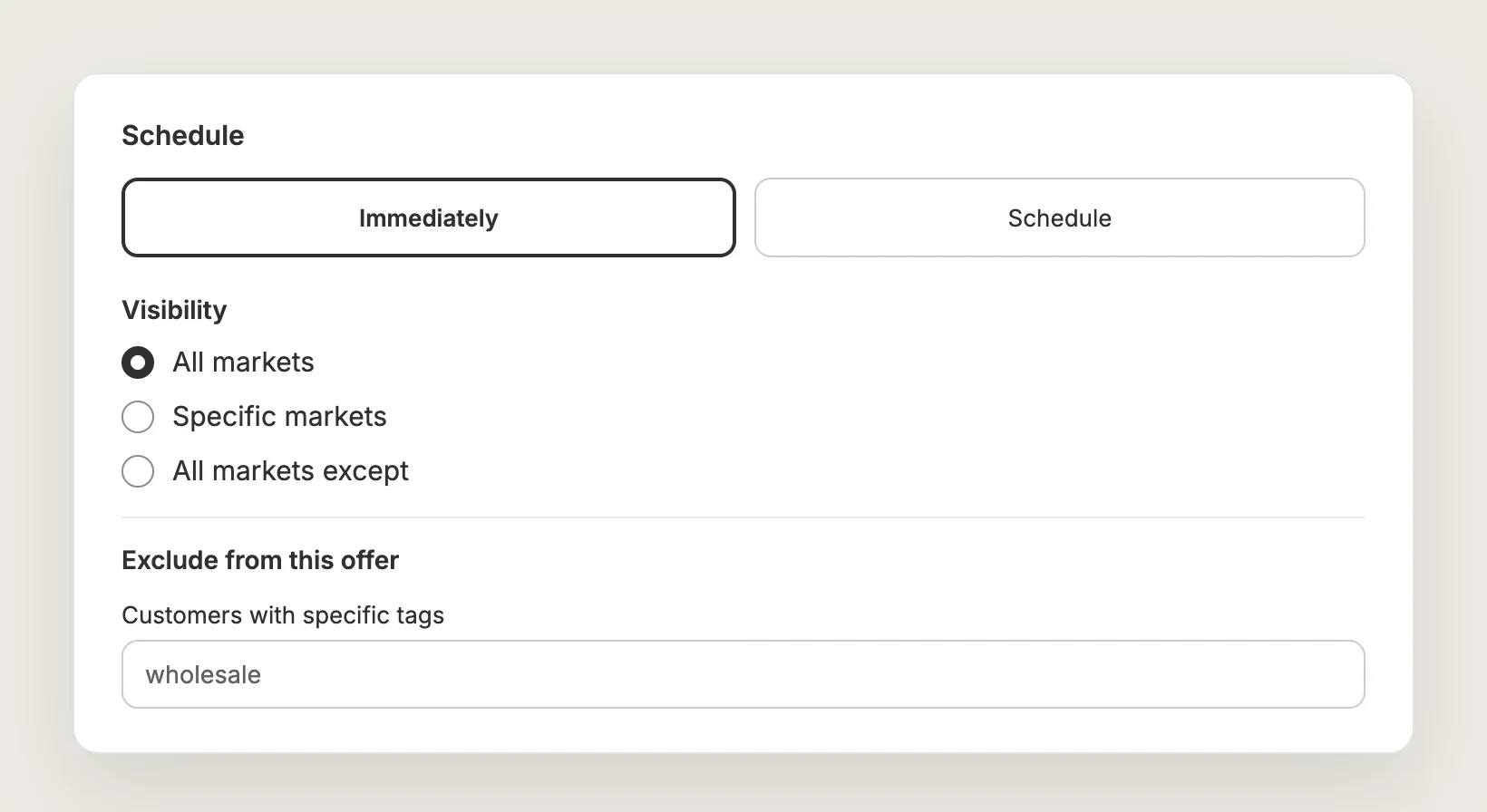
The Schedule card starts on Immediately. Switch it to Schedule to set a start date, and tick Set end date to end the offer on a set day, such as the last day of a sale.
Visibility shows the offer in All markets, Specific markets or All markets except the markets you pick. Under Exclude from this offer, Customers with specific tags hides the offer from logged-in customers with those Shopify tags, such as wholesale customers.
Step 11: Write the Headline and Style the Offer
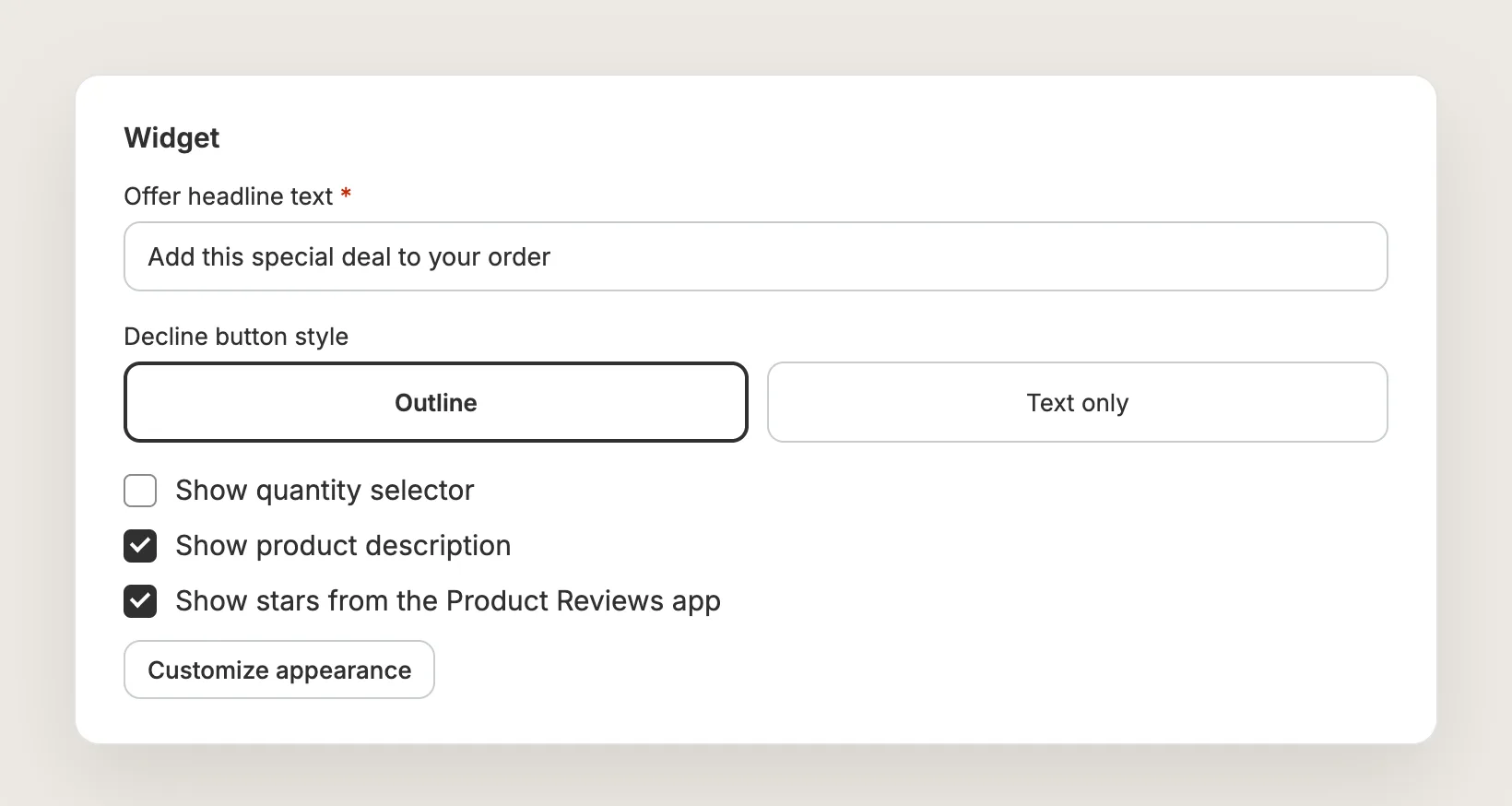
In the Widget card, the Offer headline text is the line above the offer. New offers start with "Add this special deal to your order". Then set:
- Decline button style: Outline or Text only
- Show quantity selector: Lets the shopper change the quantity of each product
- Show product description: Shows the product description under the product
- Show stars from the Product Reviews app: Shows review stars when the Vitals Product Reviews app is active
Customize appearance opens a full-screen editor with a larger preview and a desktop and mobile switch.
Step 12: Publish, Place a Test Order and Watch the Orders
Click Publish to make the offer live, or Save as draft to finish it later. The editor preview uses example products, so place a test order to see the real offer:
- In Shopify, go to Settings → Payments and turn on the Test payment gateway
- Place an order that matches the offer's Applies to, with a shipping address and a total of at least $0.50
- Pay by card with card number 1, any CVV and a future expiry date, then check that the offer shows after payment
- Switch your payment provider back
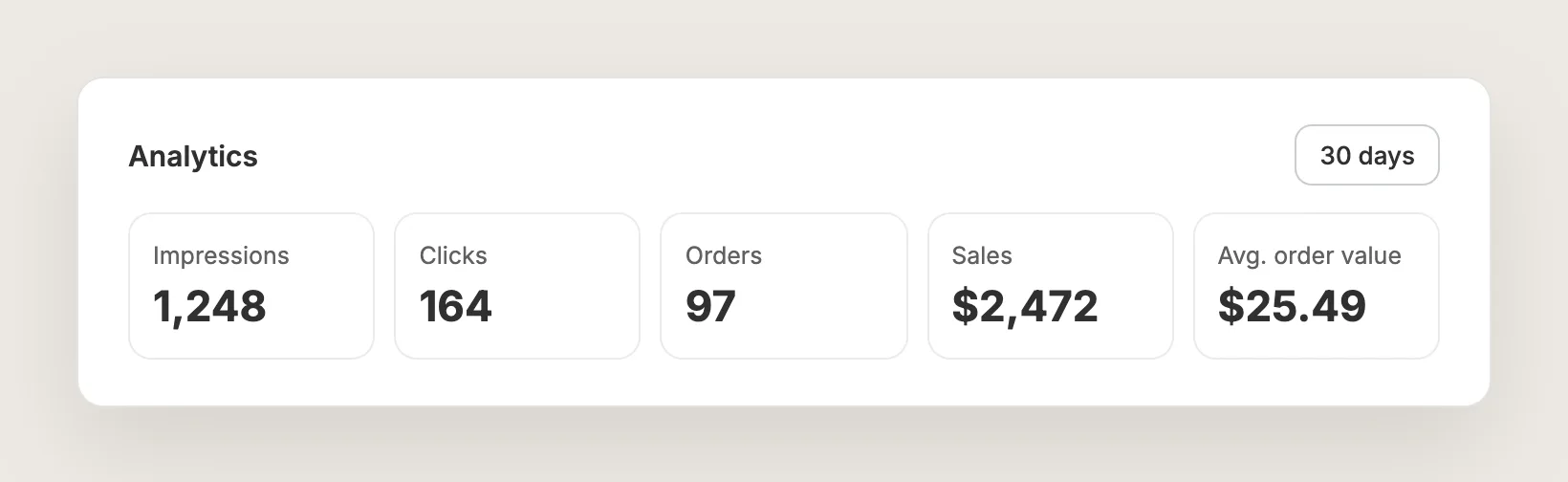
The Analytics tab then shows the offer's impressions, clicks, orders, sales and average order value.
Step 13: Voila, Your Post-Purchase Upsell Is Live on the Store
Your shoppers now see the post-purchase upsell right after they pay, so they can add one more product to their order in one click.
How to Set Up Post-Purchase Upsells Without an App?
Hire a developer to build a private Shopify app with a post-purchase checkout extension. The extension shows your offer after payment and adds the accepted product to the order.
A custom post-purchase upsell usually involves:
- Creating a custom app for your store and adding a post-purchase checkout extension to the app
- Writing the logic that decides which orders see the offer and which product they're offered
- Building the offer page, with the price, the discount, an accept button and a decline link
- Adding the accepted product to the paid order and charging the shopper's card for it
- Hosting the app, selecting the app in Settings → Checkout → Post-purchase page, then testing with test orders
Custom code means no extra app subscription, but you or your developer have to host and maintain the app. Changes to Shopify's checkout can break the extension, and offer rules, discounts, analytics and translations all have to be built by hand.
How to Increase AOV With Post-Purchase Upsells?
A post-purchase upsell increases AOV by adding products to orders that are already paid, so every accepted offer makes that order bigger. These settings help more shoppers say yes:
- Offer the cheapest item from the order again. Same product as ordered (least expensive) is a low-risk offer the shopper already chose once
- Show several products in one offer. Tick Offer multiple products to show up to five products, so the shopper can add any mix of them in one click
- Let shoppers start with everything selected. Leave Preselect every product ticked, so the shopper only unticks what they don't want
- Match the offer to the order size. Use the Order value trigger to show a lower-priced product on small orders and a higher-priced product on large orders, with a different Applies to for each offer
- Show the full saving. Set Calculate discount from to Compare-at price when your products have a compare-at price
- Add review stars. Turn on Show stars from the Product Reviews app, so the shopper sees the product's rating before they decide
- Let shoppers buy more than one. Turn on Show quantity selector, so the shopper can add two or three of the product
Why Isn't My Post-Purchase Upsell Showing or Working?
Check these first when a post-purchase upsell doesn't show:
- The offer doesn't show on any order: Check that Vitals is selected in Settings → Checkout → Post-purchase page. The Vitals offers list shows a Your post-purchase offers aren't live yet banner with a Manage in Shopify button when Vitals isn't selected
- The offer shows on some orders only: Shopify shows the post-purchase page only for standard card payments. Orders paid with wallets or instalments (such as Apple Pay, Google Pay, Klarna or Afterpay), cash on delivery or gift cards skip it
- International orders skip the offer: Shopify skips orders in a currency other than your default currency and orders with duties
- Local, digital or small orders skip the offer: Shopify skips orders without a shipping address (local pickup, local delivery, digital products), orders under $0.50 USD and orders from other sales channels
- A second offer doesn't show after the first: Only one post-purchase offer can show per order. When several offers match, the offer with the largest possible discount shows. Give each offer a different Applies to, or use Offer multiple products in one offer
- Preview opens the home page: A post-purchase offer shows only after a checkout, so place a test order with the test payment gateway to see it
- Orders wait before fulfillment: Shopify holds fulfillment until the shopper accepts or declines the offer, for up to one hour. To avoid the hold, save the offer as a draft
- Ad pixels show only the first purchase: Pixels such as Google Analytics, Facebook and Pinterest report the purchase value of the original order, not the accepted offer. The Analytics tab in the Vitals One Click Post-Purchase app tracks the offer's orders and sales
Which Post-Purchase Upsell Method Should You Choose?
Vitals - All in One App suits most stores, since no theme includes post-purchase upsells.
- Choose Vitals - All in One App if you want a post-purchase upsell with order triggers, up to five products, a discount and order tracking. It also includes 40+ other apps in one subscription of $29.99/month, so you don't have to install and pay for each app separately
- Choose custom code if you have a developer, want no app subscription, and are happy to host and maintain a private app
If you already use another upsell app, see our Candy Rack alternatives.
Start a 7-day free trial: Install the Vitals - All in One App and set up post-purchase upsells
Frequently Asked Questions
1. What is the best way to set up post-purchase upsells on Shopify?
Vitals - All in One App is the best way for most stores. Its One Click Post-Purchase app shows an offer after payment, with order triggers, up to five products and a discount, and adds what the shopper accepts to the same order.
2. Does Shopify have built-in post-purchase upsells?
No. Shopify includes a post-purchase page in checkout, but the page shows offers only from an app you select in Settings → Checkout → Post-purchase page. No Shopify theme includes post-purchase upsells.
3. Do customers pay twice for a post-purchase upsell?
No. The accepted products are added to the order the shopper just placed, with the discount applied. There's no second order and the shopper doesn't enter their card details again.
4. Can I offer more than one product after checkout?
Yes. In Vitals, tick Offer multiple products in the Offer product card to show up to five products. The shopper can accept any mix of them in one click. Only one post-purchase offer can show per order.
5. What's the difference between a post-purchase upsell and a thank-you page upsell?
A post-purchase upsell shows after payment and before the thank-you page, and adds the product to the same order. A thank-you page upsell shows on the thank-you page itself. In Vitals, the Thank you page placement on a Product Bundle, Volume Discount or Buy X Get Y offer lets the shopper complete an offer they only partly met in their order.
6. Will post-purchase upsells delay my order fulfillment?
Shopify holds fulfillment until the shopper accepts or declines the offer. If the shopper leaves without choosing, Shopify releases the hold up to one hour after checkout. Vitals can't shorten the hold.
7. How do I test a post-purchase upsell?
Turn on the Test payment gateway in Settings → Payments, then place an order that matches the offer's trigger, with a shipping address and a total of at least $0.50. Pay with card number 1, any CVV and a future expiry date. The offer shows after payment, before the thank-you page.