How to Send Web Push Notifications on Shopify

Most shoppers leave a store without buying and without giving you an email address. Once they close the tab, you have no way to bring them back to the cart they left or tell them about next week's sale.
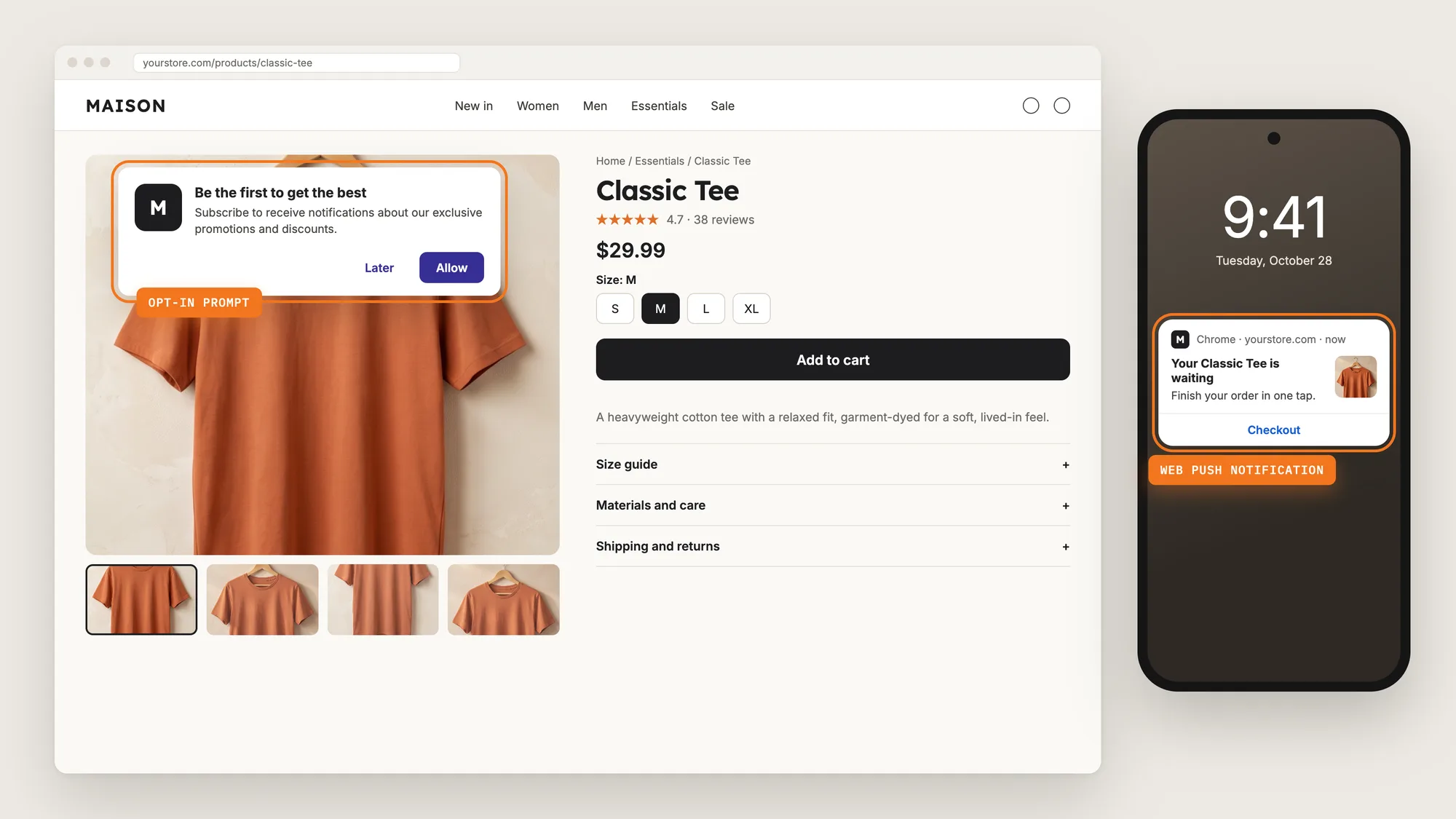
Web push notifications give you that way back. A shopper clicks Allow on a small prompt, and from then on your store can send short browser notifications that reach them after they've left, on desktop, Android and iPhone, with no email address needed.
Here are the three ways to send web push notifications from a Shopify store: with a Web Push Notifications app, from your theme settings, or with custom code.
What Are Web Push Notifications?
Web push notifications are short messages a store sends through the shopper's browser, such as Chrome or Firefox, after the shopper has agreed to receive them. They show up like app notifications, on the desktop or the phone's lock screen, even when the store isn't open in a tab.
Good web push notifications include:
- A clear opt-in prompt: A short prompt with your logo explains what shoppers get before they click Allow.
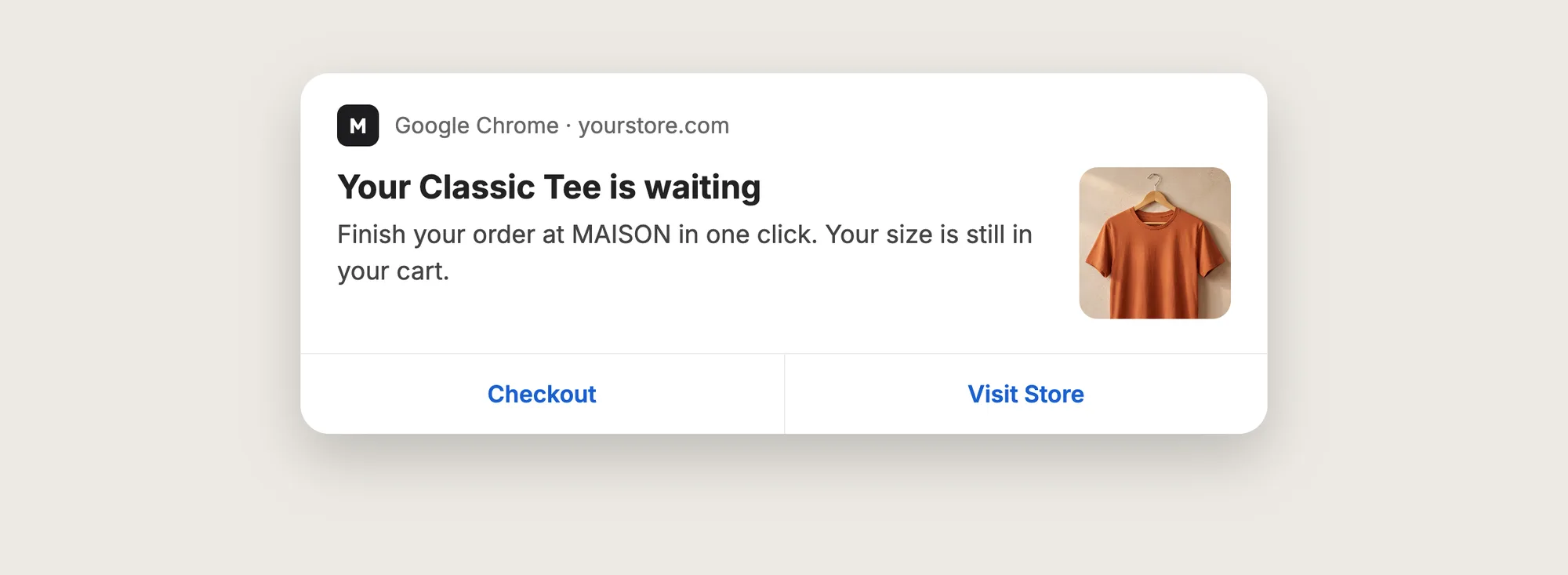
- A short title and message: The title and message fit on a lock screen without being cut off.
- One main link: A click on the notification opens the page the message is about, such as the cart.
- The right moment: Automated pushes go out after a set wait, such as an hour after a shopper leaves a cart.
Web push notifications aren't on-site pop-ups. They reach shoppers who are no longer on your store.
What's the Quickest Way to Send Web Push Notifications?
- Vitals - All in One App is the quickest way to send web push notifications for most stores
- Vitals also offers 40+ apps, such as email marketing, product reviews and a cart drawer, in one subscription of $29.99/month, so you don't have to install and pay for each app separately
Here's how the three methods compare. If you'd rather weigh several push apps against each other, see our list of the best push marketing apps for Shopify.
How to Send Web Push Notifications With a Web Push Notifications App?
Install the Vitals - All in One App, open its Push Marketing app and click Activate app. The opt-in prompt then shows on your store, and the steps below set how the prompt looks, which pushes go out on their own and how to send a campaign.
Step 1: Add Vitals to Your Shopify Store
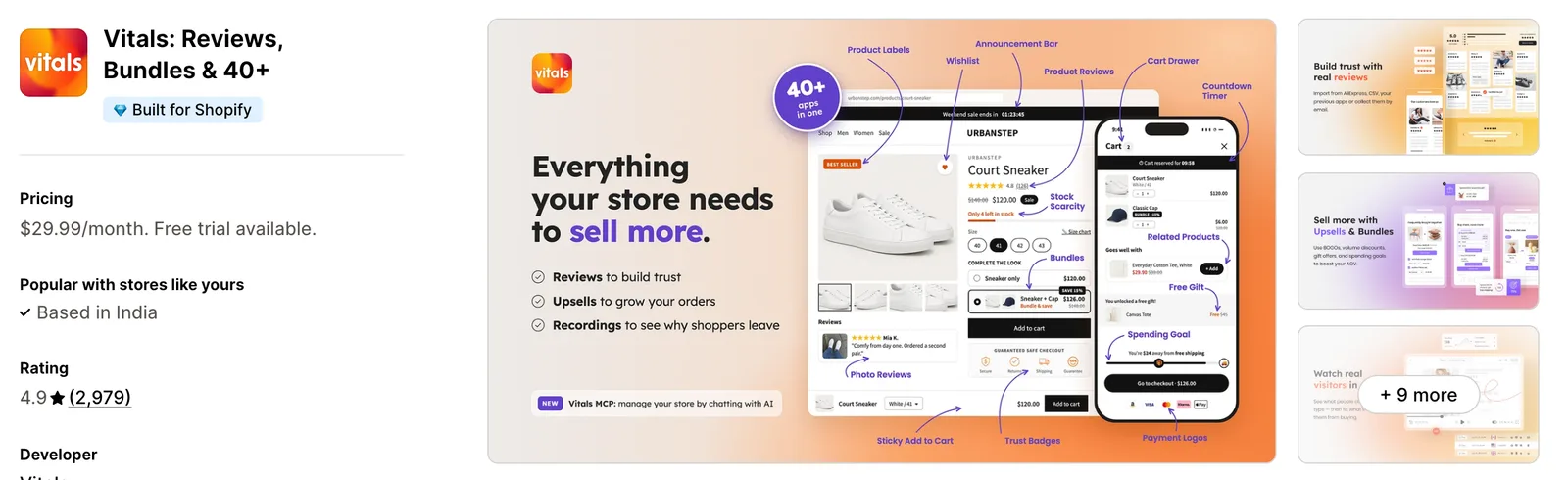
Install the Vitals - All in One App from the Shopify App Store. The 7-day free trial includes the Vitals Push Marketing app.
Step 2: Confirm the Install in Shopify
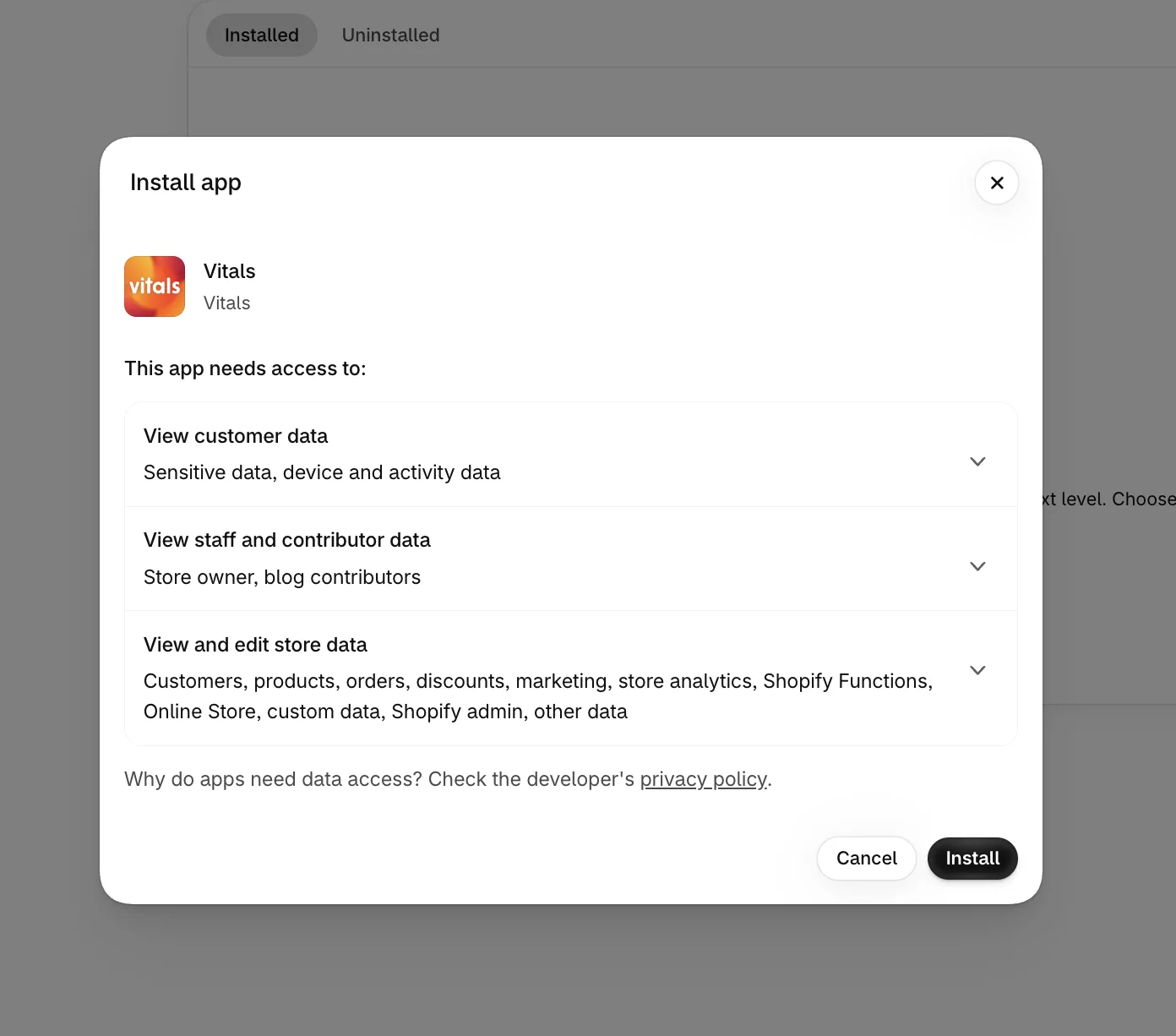
Click Install to approve the store data Vitals uses. Shopify then takes you to the Vitals dashboard.
Step 3: Open Push Marketing
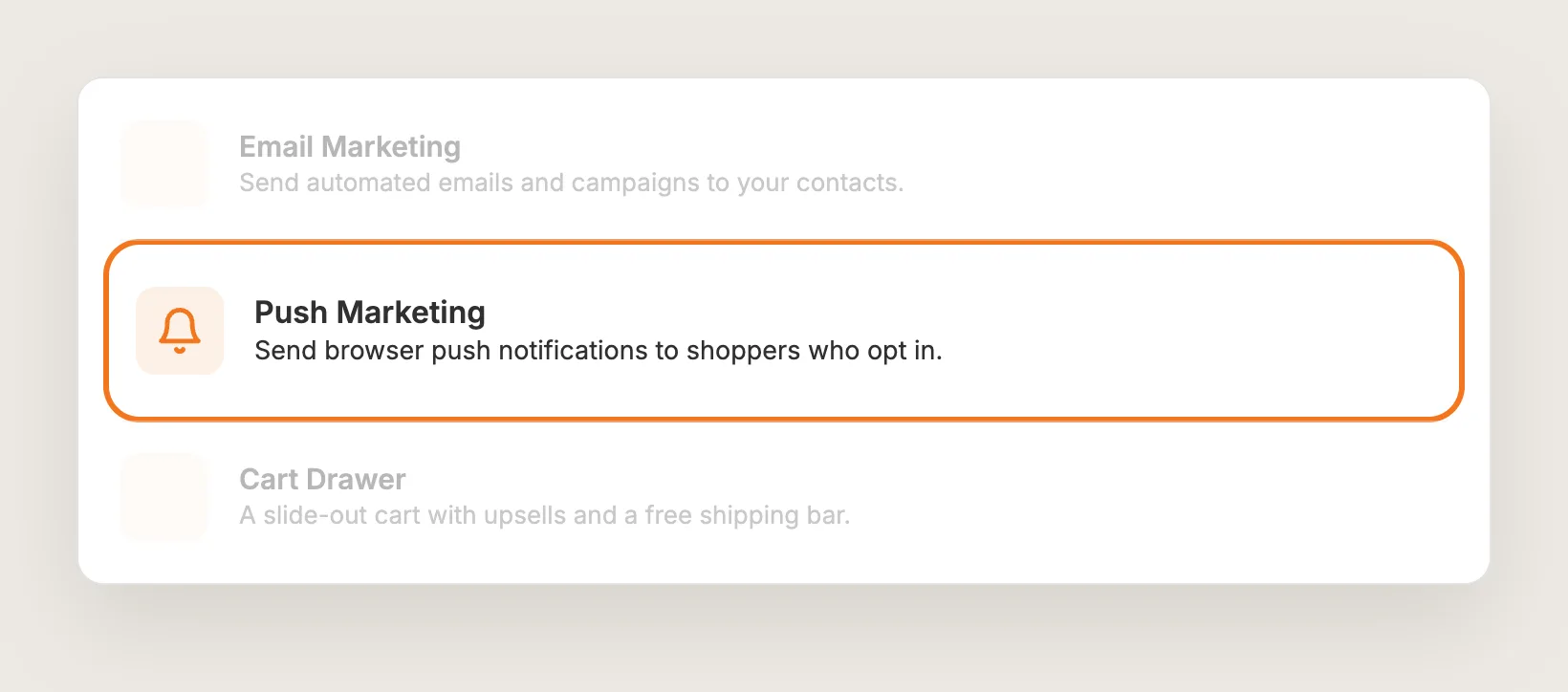
In the Vitals dashboard, find Push Marketing in the list of apps and click it.
Step 4: Activate Push Marketing
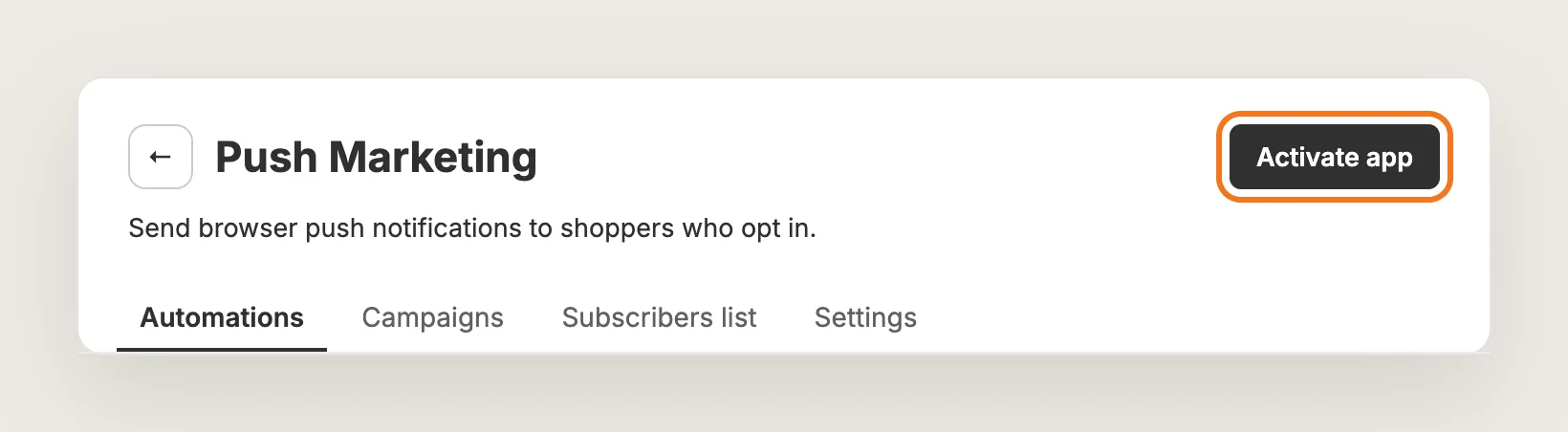
On the Push Marketing page, click Activate app to turn web push notifications on. The page has four tabs: Automations, Campaigns, Subscribers list and Settings.
Step 5: Choose the Opt-In Prompt Style
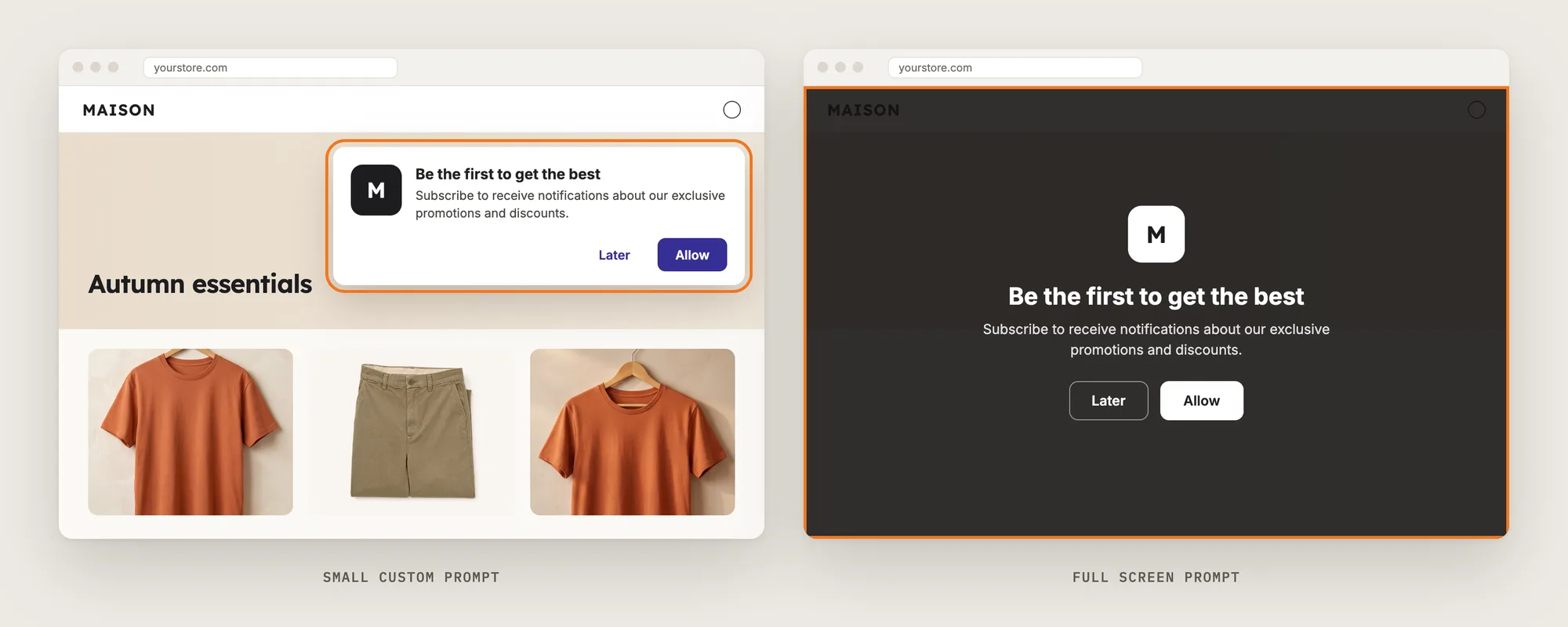
Go to Settings and pick a Dialog display mode in the Opt-in Prompt Layout card. Small Custom Prompt, the default, shows a small box at the top of the page. Full Screen Prompt fills the page with your message and the Allow and Later buttons.
Both are soft prompts that your store controls. A shopper who clicks Later can see the prompt again, while a shopper who blocks the browser's own prompt never sees it again unless they change their browser settings.
Step 6: Set When the Prompt Shows
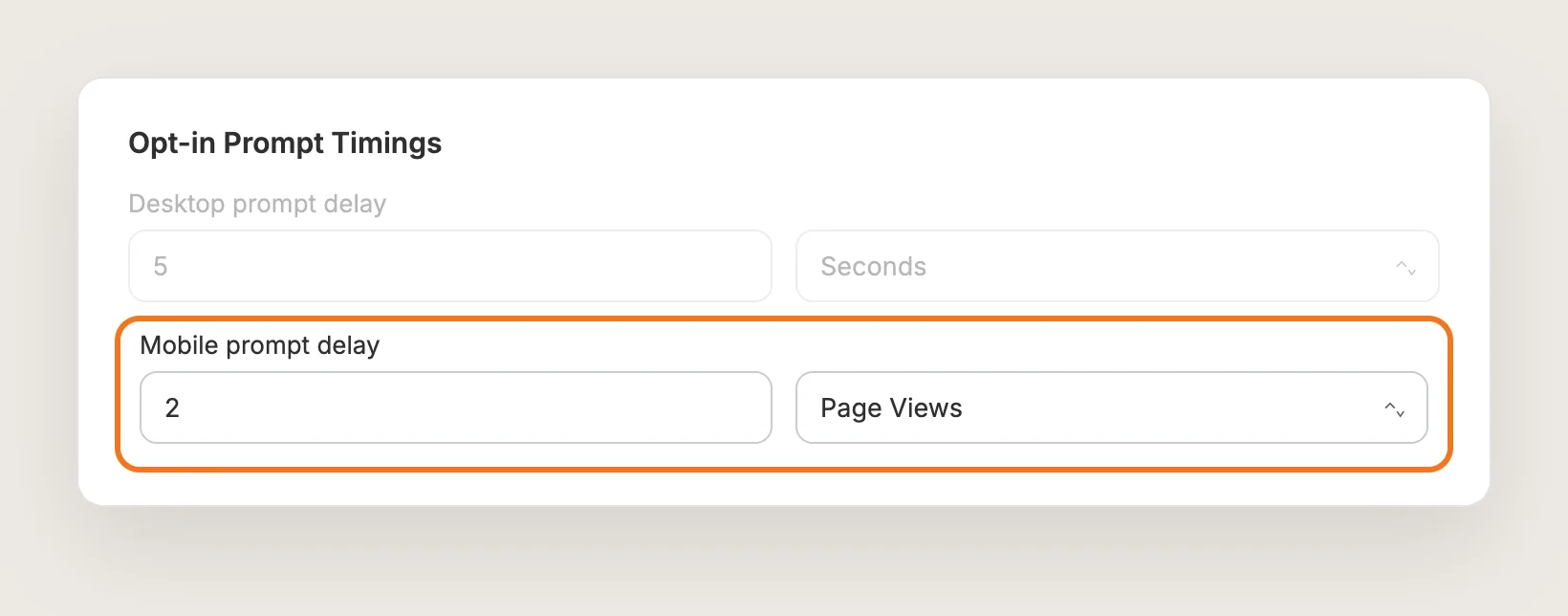
In the Opt-in Prompt Timings card, set Desktop prompt delay and Mobile prompt delay. Each delay counts in Seconds or Page Views, and both start at 5 seconds. A delay in page views lets shoppers look around the store before you ask.
Step 7: Add Your Logo and Wording
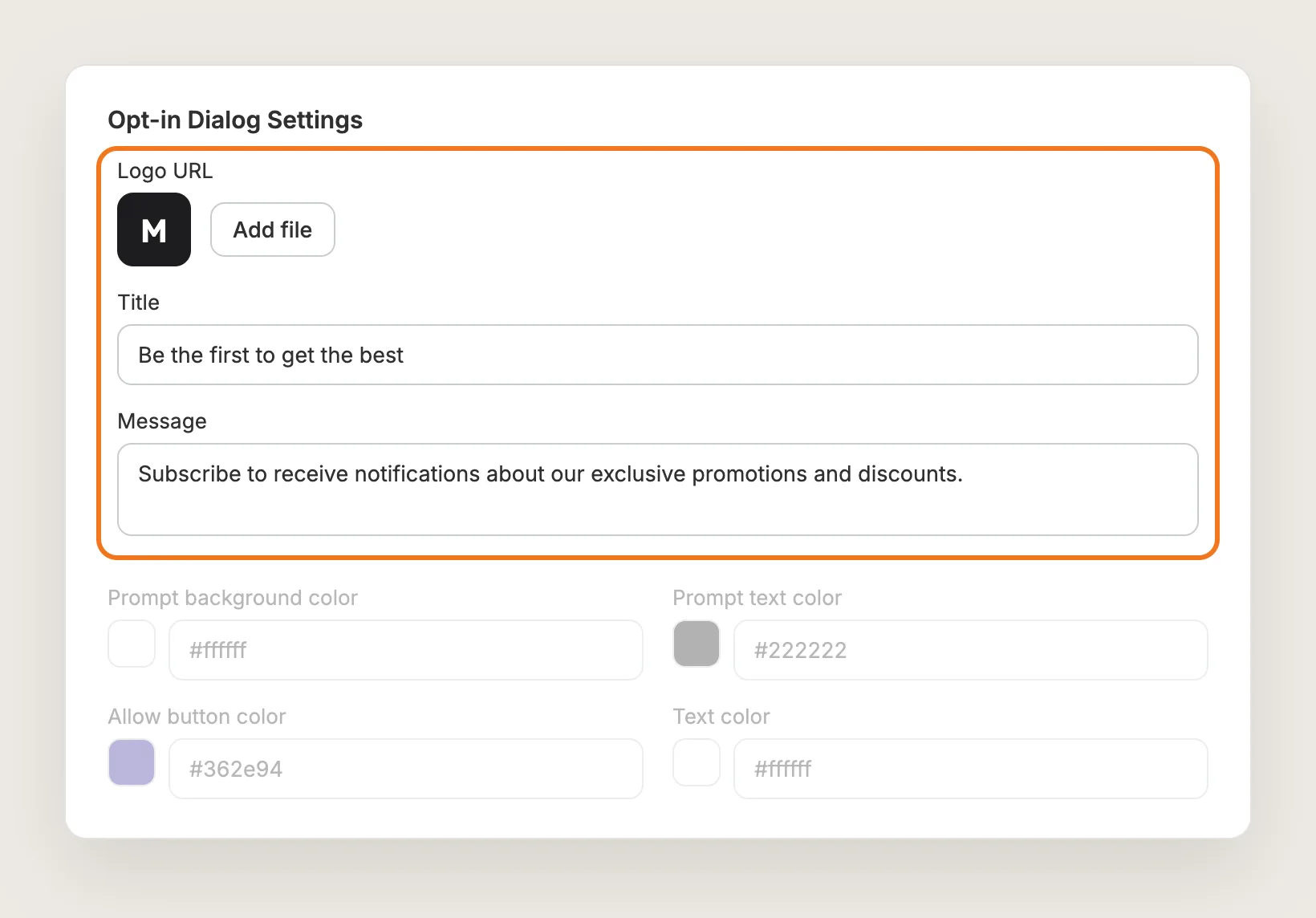
In the Opt-in Dialog Settings card, click Add file under Logo URL to upload your logo. The same logo shows as the icon on your web push notifications. Then write the prompt's Title and Message, and set the prompt colors to match your store. To change the Allow and Later button text, use the Translations card below.
Step 8: Turn On the Abandoned Cart and Welcome Automations
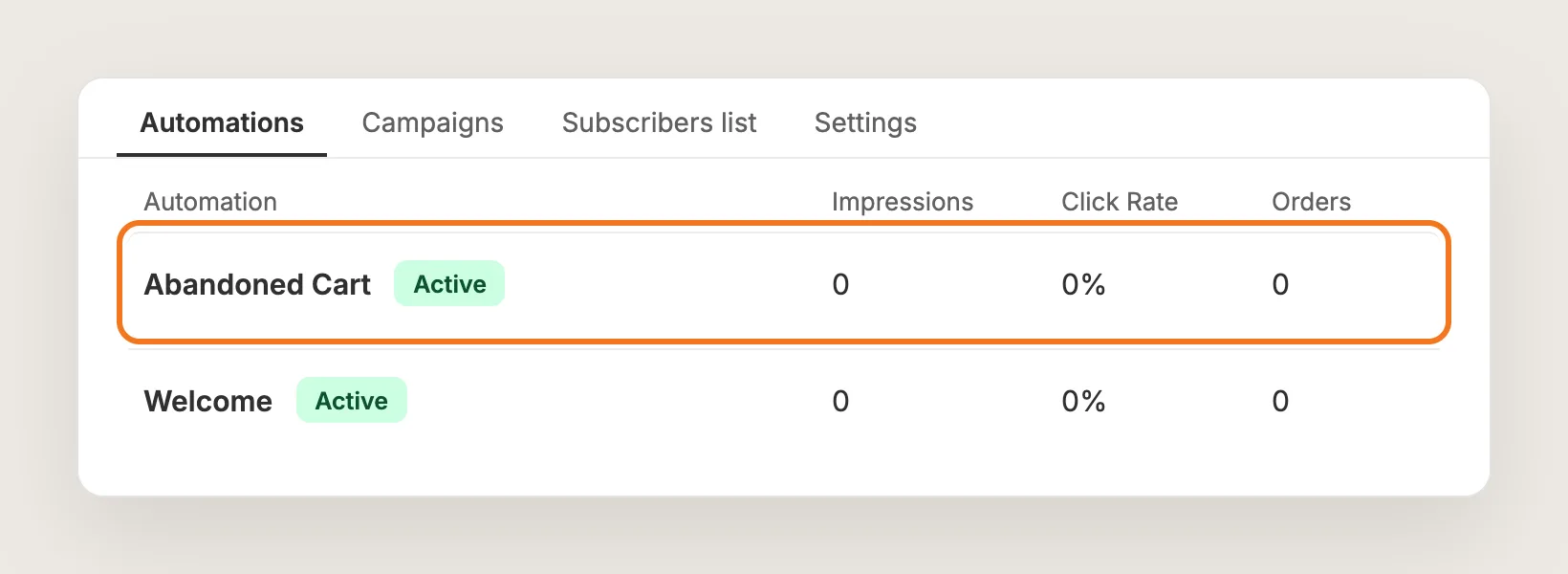
Open the Automations tab. It holds two automations, Abandoned Cart and Welcome, and both start as Inactive. Click each one, set Status to Active and click Save.
- Abandoned Cart: Starts when a subscriber adds the first product to the cart, and stops when that subscriber places an order
- Welcome: Starts when a visitor clicks Allow and becomes a subscriber
Step 9: Set the Wait Between Messages
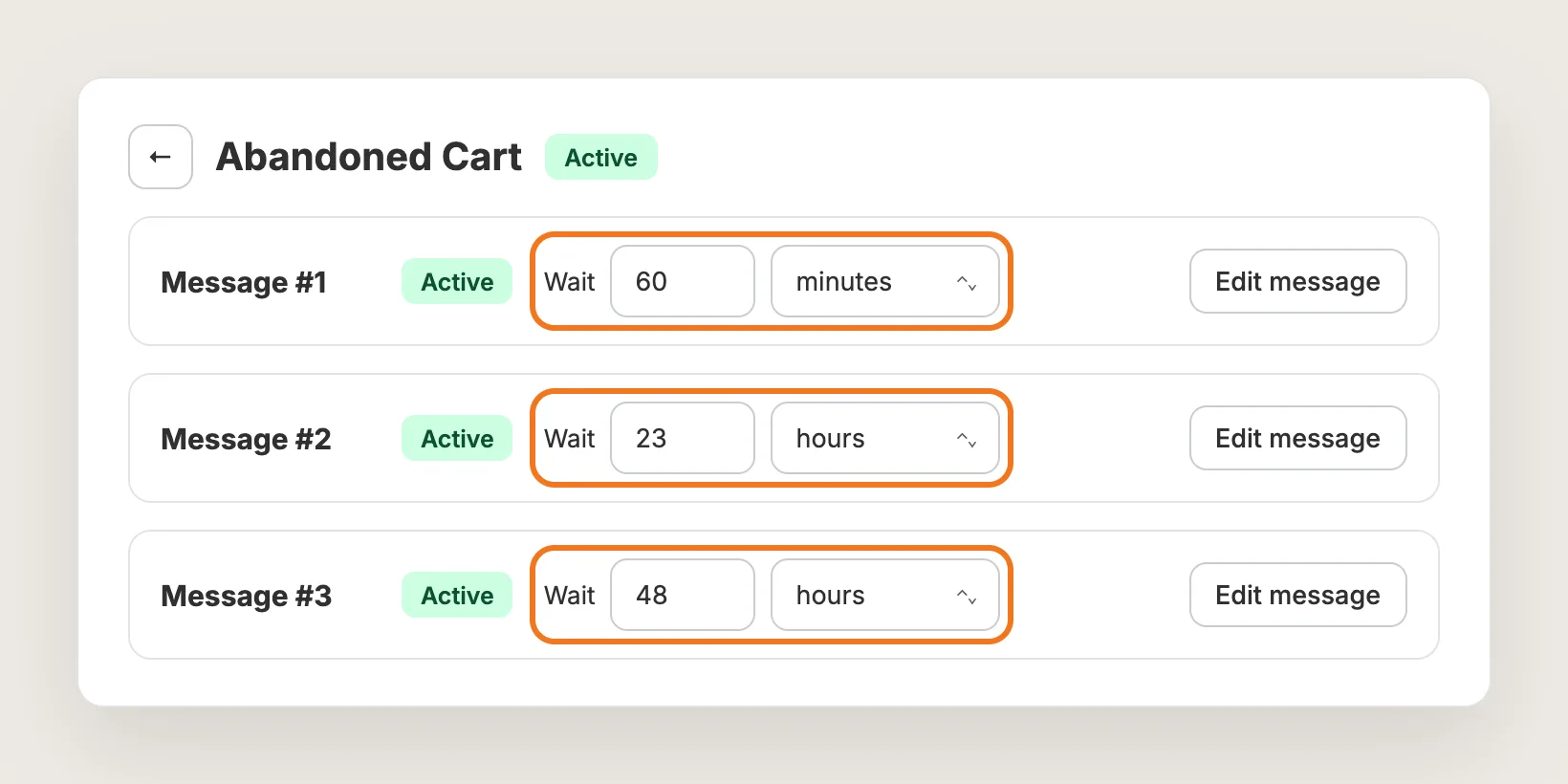
Each automation sends up to three messages, Message #1 to Message #3. Set each message's Wait in minutes, hours or days, or switch a message to Inactive to skip it. The first message's wait counts from the trigger, and each later wait counts from the message before it.
The Abandoned Cart automation starts with waits of 60 minutes, 23 hours and 48 hours.
Step 10: Write the Push Message
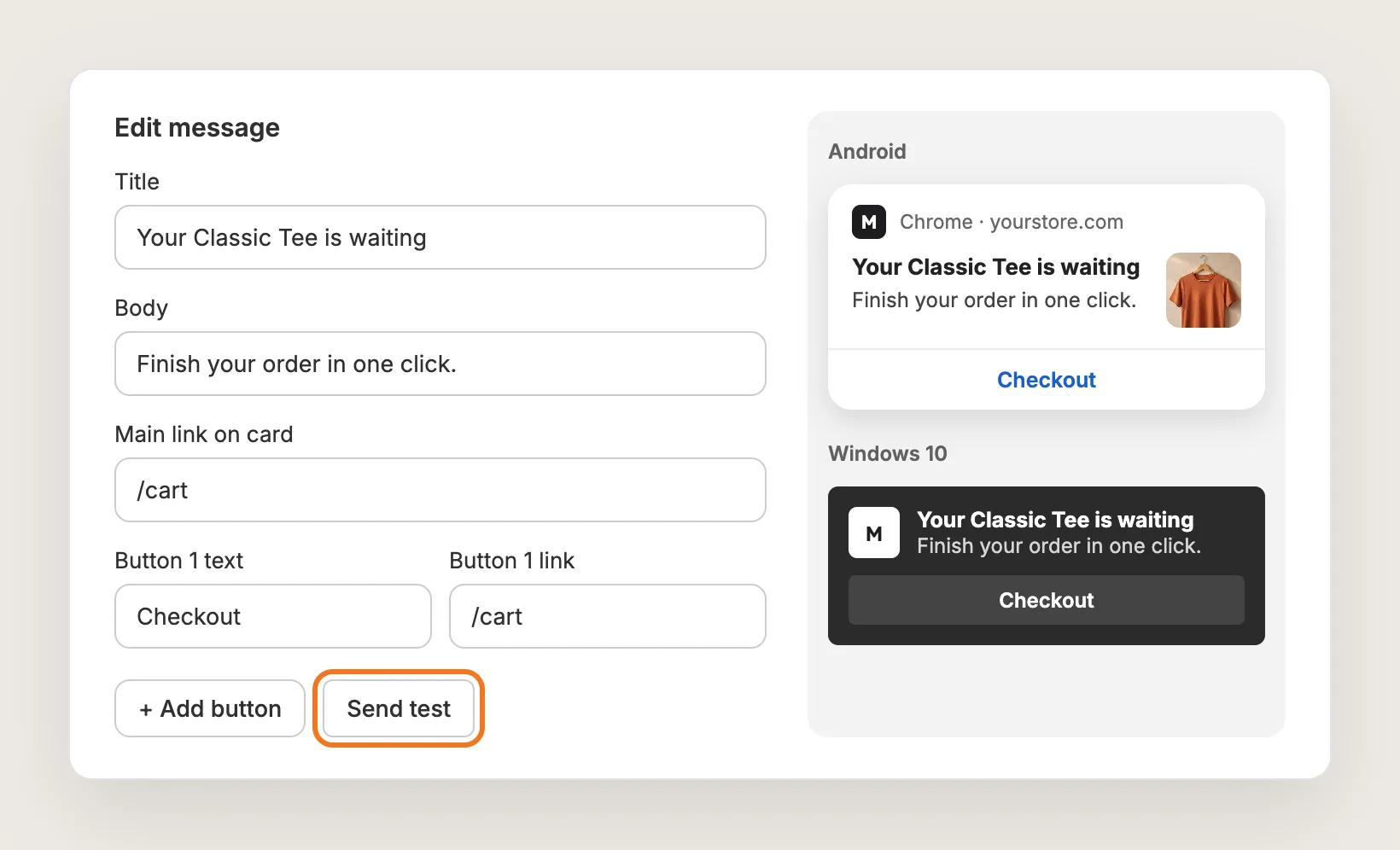
Click Edit message on any message to open the editor. Write a Title under 200 characters and a Body under 500, then set the Main link on card. You can add up to two buttons with Add button, each with its own text and link. The previews on the right show the message on Android, Windows and Mac.
Welcome messages and campaigns can also carry a Mobile hero image (720x240) and a Desktop hero image (728x360). Abandoned cart messages use the image of the first product in the cart instead. Click Send test to get the message in your own browser.
Step 11: Send a Push Campaign
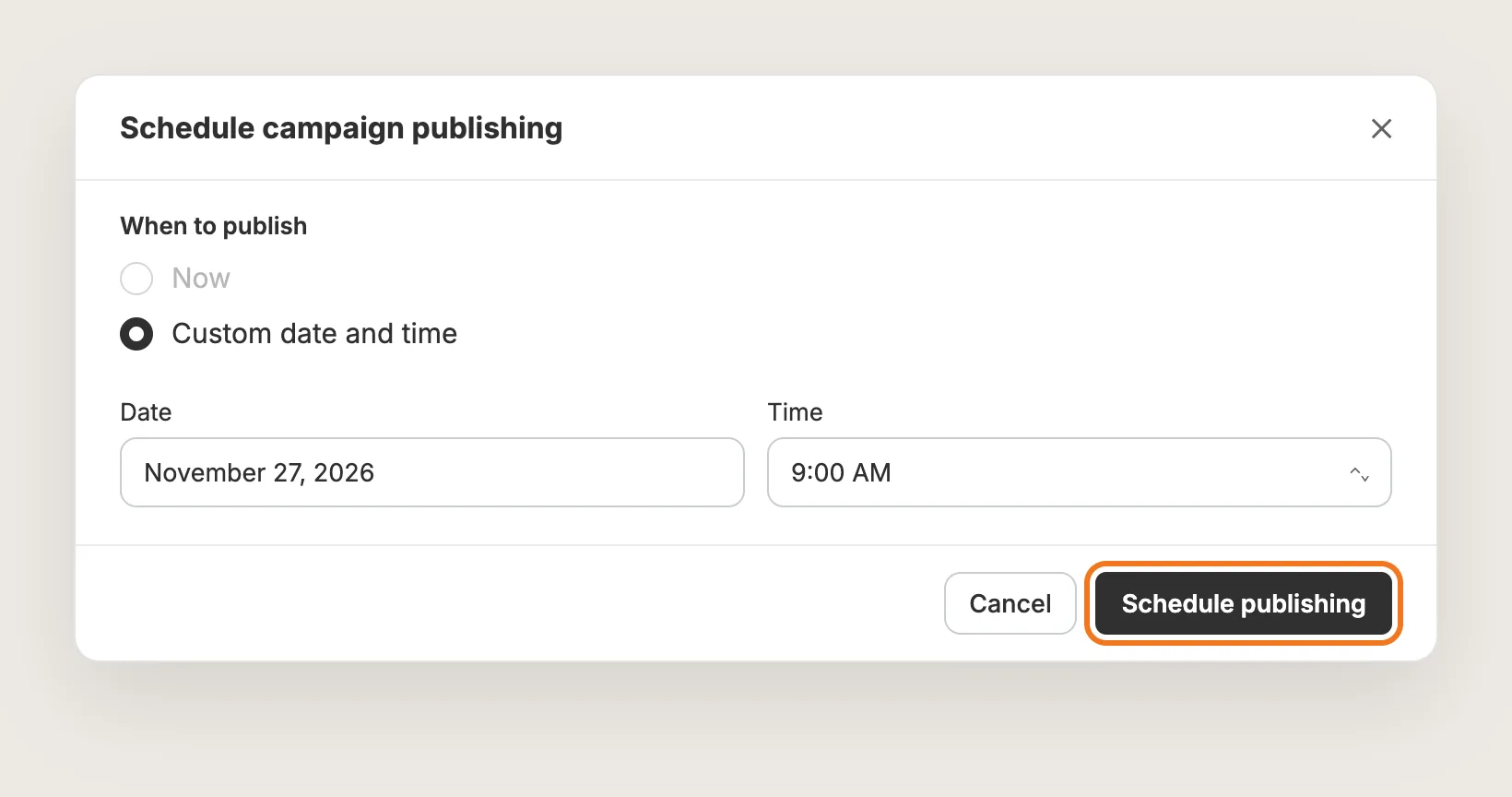
Open Campaigns and click Create new campaign to announce a sale or a new arrival. Click Edit message to write the push, then click Send campaign. Under When to publish, pick Now and click Send now, or pick Custom date and time and click Schedule publishing.
A campaign goes to every subscriber on your list. The schedule follows the local time of your browser when you create the campaign.
Step 12: Test on Your Phone and Watch the Sales
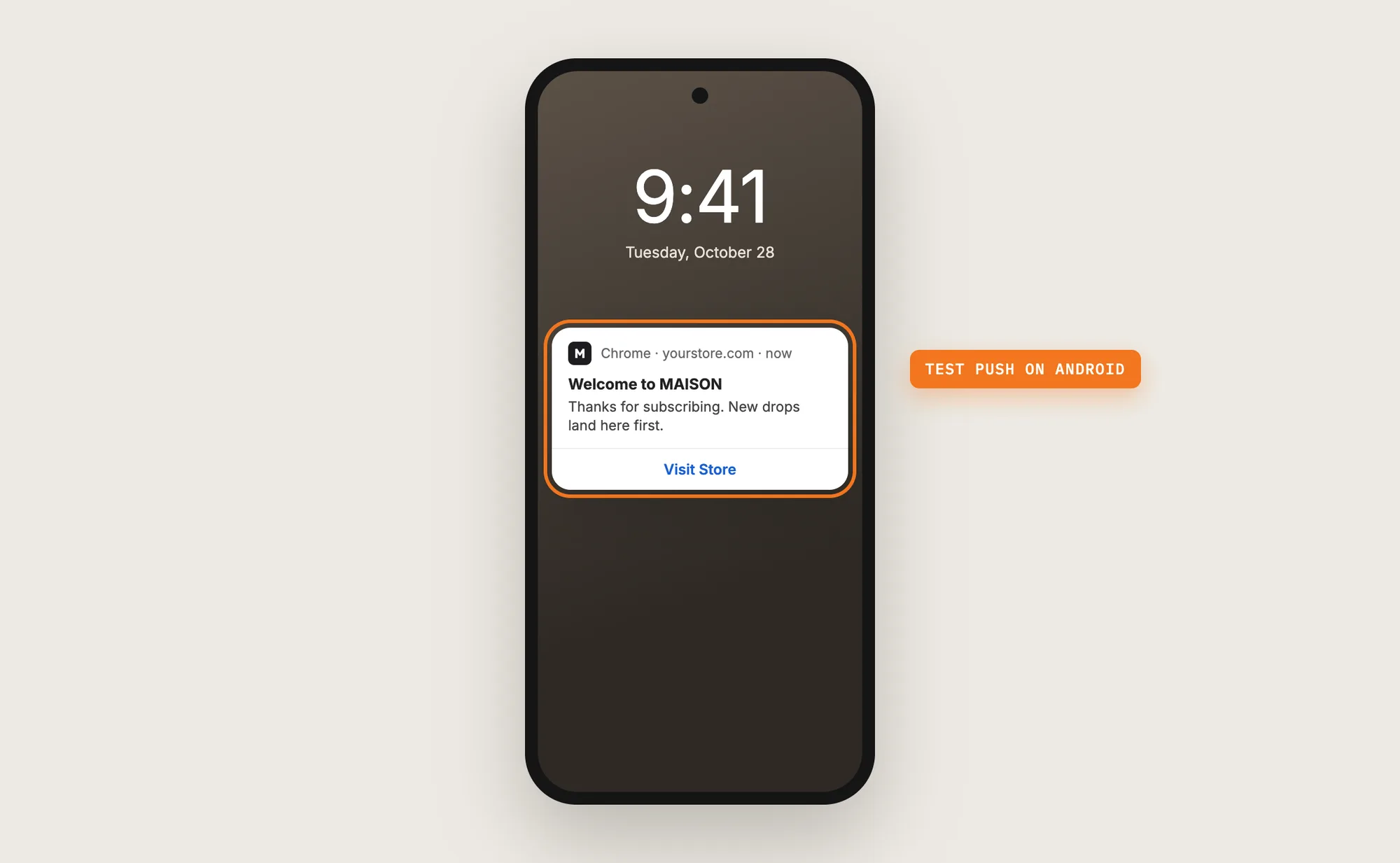
Open your store in Chrome on an Android phone, wait for the prompt and click Allow. With the default wait of 0 minutes, the first Welcome push arrives right away. Back in Push Marketing, the Subscribers, Impressions and Sales cards at the top of every tab show your subscriber count, the pushes shown this period and the revenue from orders that started with a push click.
Step 13: Voila, Your Web Push Notifications Are Live on the Store
Your shoppers now see an opt-in prompt on your store, and your subscribers get web push notifications after they leave, from a welcome message to a reminder about the cart they left.
How to Send Web Push Notifications From Your Theme Settings?
Shopify themes don't include a web push notifications setting. To check your own theme:
- Click Customize next to your theme in Online Store → Themes
- Click the gear icon to open Theme settings and look through the sections
- Open the App embeds list, which shows only the apps you've installed
A theme can show a newsletter sign-up form or a pop-up, but it can't ask the browser for notification permission, keep a list of push subscribers or send a message once the shopper has left the store. Web push notifications need an app or a custom build that handles the browser permission and sends the pushes.
How to Send Web Push Notifications Without an App?
Hire a developer to build web push notifications on the browser's Push API. The build needs code on your store and a server that stores subscribers and sends the pushes.
A custom web push build usually involves:
- Writing a service worker, the browser script that receives and shows the notifications
- Generating the keys that let your server send pushes to browsers
- Building an opt-in prompt and saving each subscription on a server
- Connecting Shopify cart and order events, so abandoned cart pushes start and stop at the right time
- Building a way to write, schedule and send campaigns
- Testing in Chrome, Firefox, Edge and Safari on desktop, Android and iPhone
Custom code means no extra app, but you or your developer have to host the server and maintain the build. Browser changes can affect how permission prompts and notifications behave, so the build needs checking after browser updates.
How to Increase Sales With Web Push Notifications?
Web push notifications drive sales by bringing shoppers back to your store after they've left, often to a cart that's already filled. These settings help:
- Turn on the Abandoned Cart automation first. Shoppers who left a cart are the closest to buying. Set Status to Active on Abandoned Cart
- Link the first abandoned cart push to the cart. A click that lands on the cart turns into a checkout faster than a click on the home page. Keep Main link on card and the Checkout button pointing to `/cart`
- Put the main action on the card, not on a button. Mac users don't see notification buttons. Use Main link on card for the page you most want shoppers to open
- Ask for permission after shoppers have looked around. A prompt that shows too early is easy to dismiss. Set the delay in Page Views instead of Seconds
- Welcome new subscribers with a reason to come back. A welcome push that points to new arrivals or a sale brings subscribers back while they still remember the store. Edit the Welcome messages and add a hero image
- Announce sales and new arrivals as campaigns. Subscribers hear about a sale the moment it starts. Schedule the campaign under Custom date and time so it goes out when the sale opens
Why Aren't My Web Push Notifications Showing or Working?
These are the usual causes when web push notifications don't show:
- The opt-in prompt doesn't show: The prompt shows only to visitors whose browser hasn't been asked before. A visitor who already allowed or blocked notifications doesn't see the prompt, and a visitor who clicks Later doesn't see the prompt again for 7 days
- Chrome hides the permission request: Chrome blocks the request for shoppers who usually block notifications, and on sites with a very low opt-in rate
- The prompt doesn't show after a set number of page views: On stores with a cookie banner, page views count only after the shopper accepts cookies. Switch the delay to Seconds if most shoppers don't accept
- Shoppers on iPhone can't subscribe: On iPhone, web push notifications work only after the shopper adds your store to their home screen. They don't work in private browsing or inside the Facebook, Instagram and TikTok browsers
- Buttons don't show on a Mac: Mac users get the notification without buttons. Put the most important link in Main link on card
- Send test doesn't arrive: Your own browser has to allow notifications from the Vitals admin. Allow them when Send test asks, and use Chrome, Firefox or Safari
- An abandoned cart push has no hero image: Abandoned Cart messages use the image of the first product in the cart, so the hero image fields aren't there
- A campaign can't be edited: Campaigns that are sending, sent or canceled are read-only. Click Duplicate to reuse the message
Which Web Push Notifications Method Should You Choose?
Vitals - All in One App suits most stores, since Shopify themes can't send web push notifications and a custom build needs a server.
- Choose Vitals - All in One App if you want an opt-in prompt, abandoned cart and welcome pushes, and campaigns without code. It also includes 40+ other apps in one subscription of $29.99/month, so you don't have to install and pay for each app separately
- Choose your theme's setting if you only need a newsletter sign-up form, since themes have no web push setting
- Choose custom code if you have a developer who can build, host and maintain the push server and service worker
Start a 7-day free trial: Install the Vitals - All in One App and send web push notifications
Frequently Asked Questions
1. What is the best way to send web push notifications on Shopify?
Vitals - All in One App is the best way for most stores. Its Push Marketing app collects subscribers with an opt-in prompt, sends welcome and abandoned cart pushes on its own, and sends one-off campaigns to all your subscribers, without code.
2. Does Shopify have built-in web push notifications?
No. Shopify and Shopify themes don't include a web push notifications setting. You need an app such as the Vitals Push Marketing app, or a custom build with a service worker and a push server.
3. Do shoppers need to give an email address to get web push notifications?
No. Shoppers subscribe by clicking Allow on the opt-in prompt and confirming in their browser. Web push notifications reach shoppers who never signed up for your emails.
4. Can I send abandoned cart web push notifications?
Yes. In the Vitals Push Marketing app, open Automations, click Abandoned Cart and set Status to Active. The automation starts when a subscriber adds the first product to the cart, sends up to three messages, and stops when that subscriber places an order.
5. Do web push notifications work on iPhone?
Yes, once the shopper adds your store to their home screen. Web push notifications from the Vitals Push Marketing app work in Chrome, Firefox and Safari on desktop and on Android phones, but not in private browsing or inside social media apps' browsers.
6. Can I send a web push notification to only some subscribers?
No. A campaign in the Vitals Push Marketing app goes to your whole subscriber list. The Abandoned Cart and Welcome automations go only to the subscribers who trigger them.
7. Can I schedule a web push notification campaign?
Yes. On the campaign page, click Send campaign, pick Custom date and time, choose the date and time and click Schedule publishing. The schedule follows the local time of your browser when you create the campaign.