How to Add Spin the Wheel Pop-Up on Shopify

Most first-time visitors leave a store without buying and without leaving an email address. A plain newsletter form asks them for something and gives little back, so many shoppers close the form and move on.
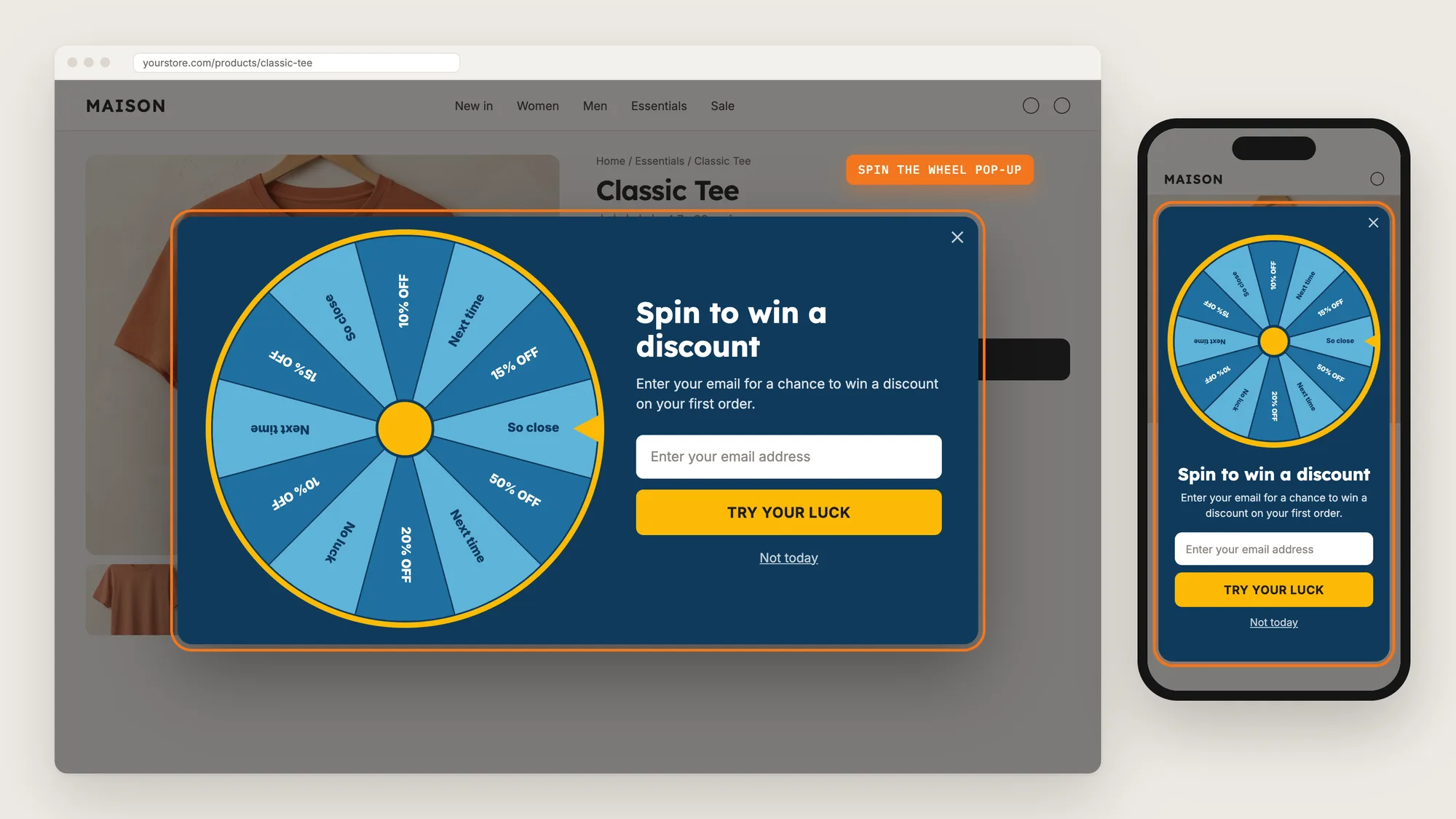
A spin the wheel pop-up turns the same ask into a game. The shopper enters an email address or phone number, spins the wheel and wins a discount code to use on the first order, and the store keeps the contact for later emails.
Here are the three ways to add a spin the wheel pop-up to a Shopify store: with a Spin the Wheel app, from your theme settings, or with custom code.
What Is a Spin the Wheel Pop-Up?
A spin the wheel pop-up is a spin-to-win window that trades a discount code for a shopper's email address or phone number. The shopper enters a contact detail, spins a wheel of prize slices and sees the code they won right away. It's also called a spin to win pop-up, a wheel of fortune pop-up or a discount wheel.
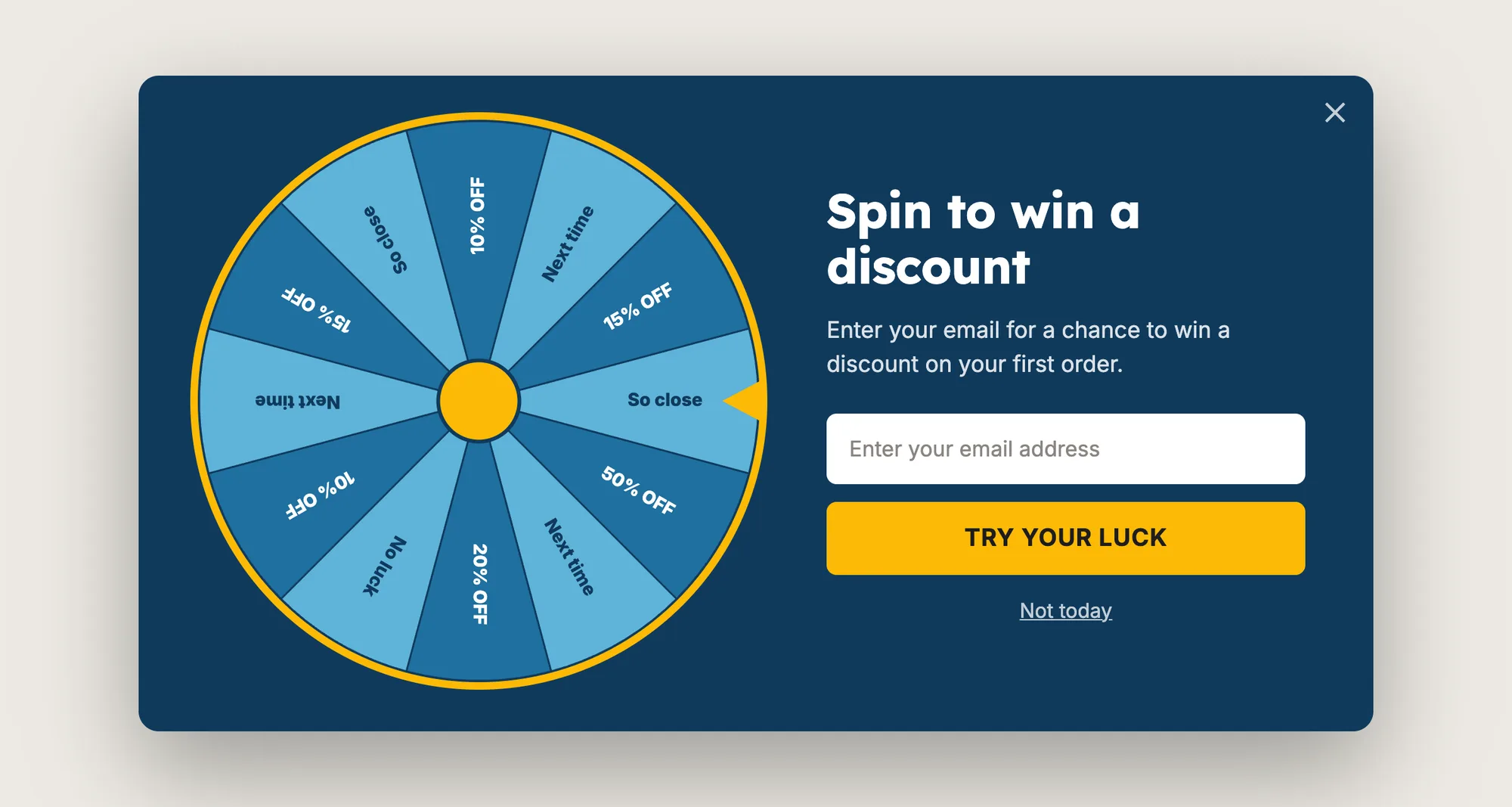
A good spin the wheel pop-up includes:
- Real prizes: Several slices hold discount codes that work at checkout.
- One short ask: One field for an email address or phone number, and one button.
- The right moment: The wheel opens when the shopper is about to leave or has had time to look around, not the second the page loads.
- A way out: A clear close link, such as "Not today", for shoppers who don't want to play.
The spin the wheel pop-up doesn't change your checkout. The shopper copies the won code and enters it at checkout like any other Shopify discount code.
What's the Quickest Way to Add a Spin the Wheel Pop-Up?
- Vitals - All in One App is the quickest way to add a spin the wheel pop-up for most stores
- Vitals also offers 40+ apps, such as pop-ups, product reviews and product bundles, in one subscription of $29.99/month, so you don't have to install and pay for each app separately
Here's how the three methods compare. If you'd rather weigh several wheel apps against each other, see our list of the best spin the wheel apps for Shopify.
How to Add a Spin the Wheel Pop-Up With a Spin the Wheel App?
Install the Vitals - All in One App, open its Spin the Wheel app and click Activate app. The spin the wheel pop-up then shows on your homepage, product pages and collection pages, and the steps below set the prizes, when the wheel opens and how it looks.
Step 1: Add Vitals to Your Shopify Store
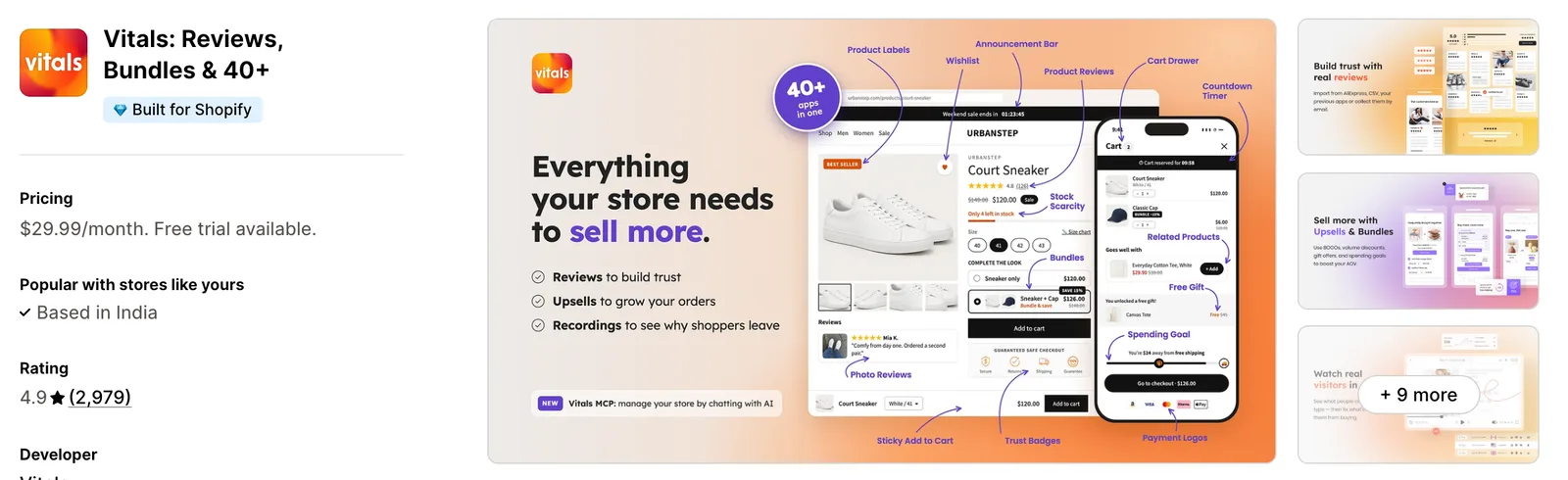
Install the Vitals - All in One App from the Shopify App Store. The 7-day free trial includes the Vitals Spin the Wheel app.
Step 2: Confirm the Install in Shopify
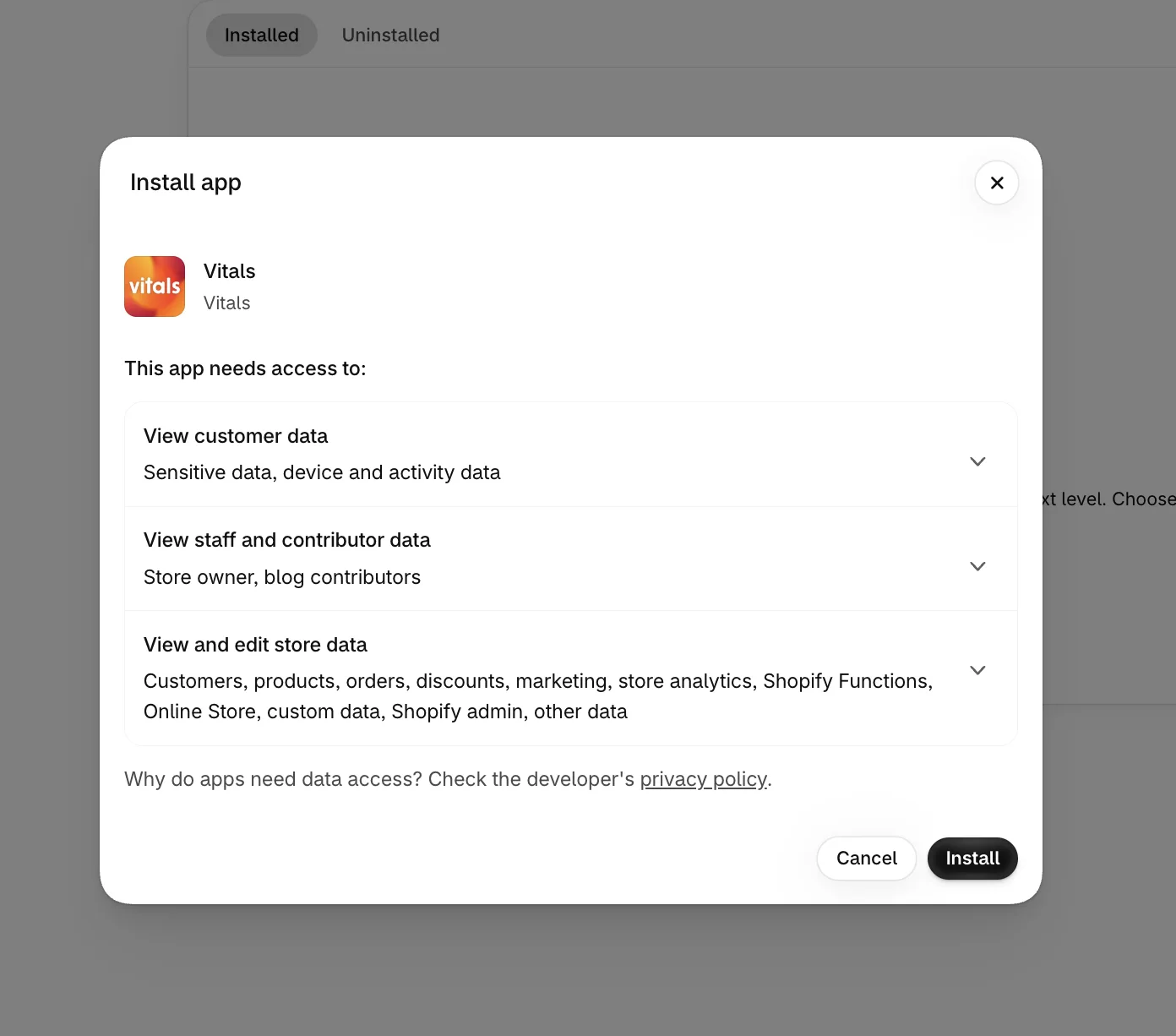
Click Install to approve the store data Vitals uses. Shopify then takes you to the Vitals dashboard.
Step 3: Open Spin the Wheel
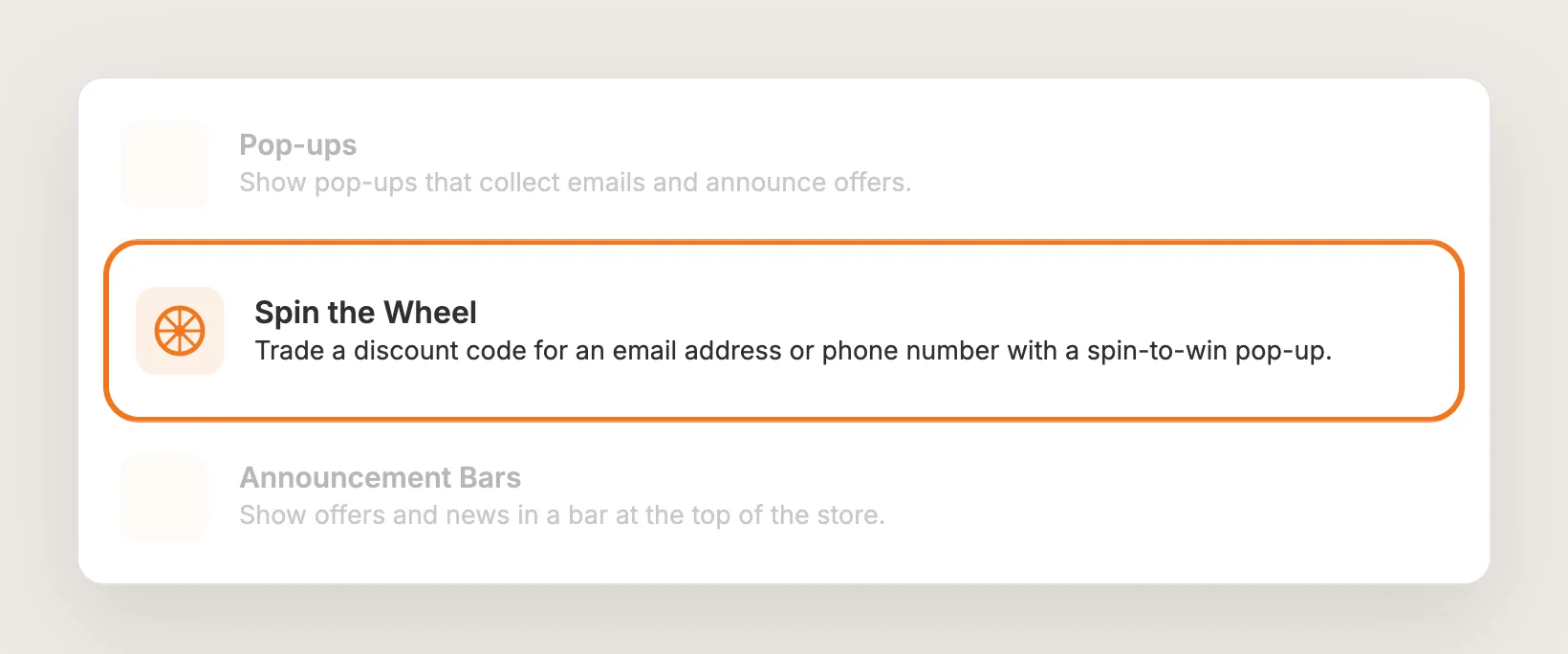
In the Vitals dashboard, find Spin the Wheel in the list of apps and click it.
Step 4: Activate Spin the Wheel
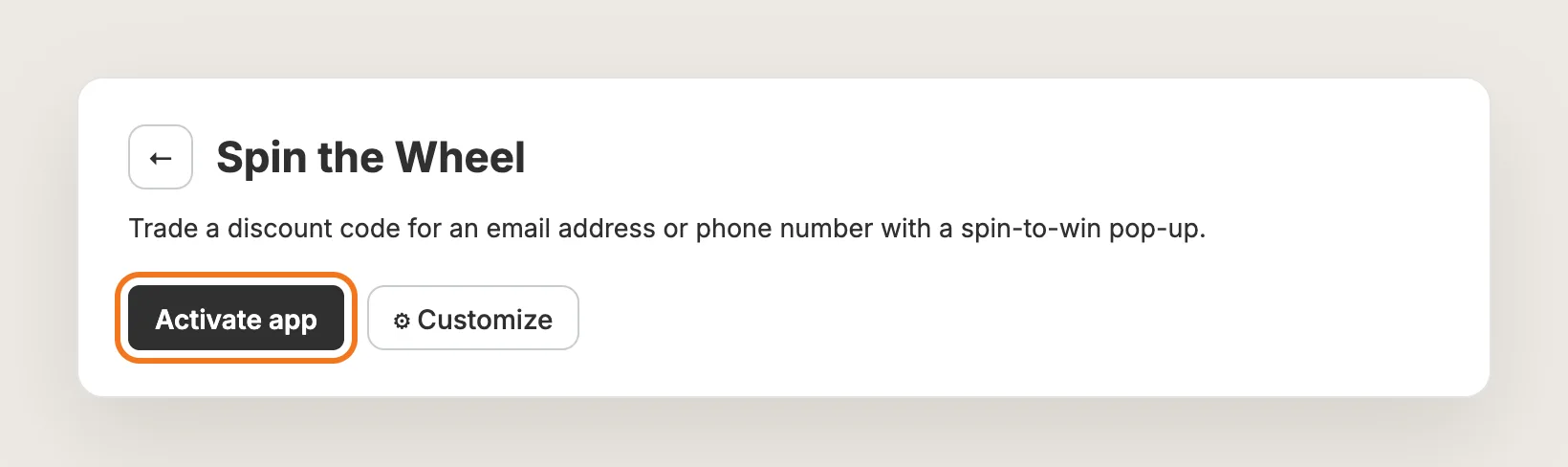
On the Spin the Wheel page, click Activate app to turn the spin the wheel pop-up on. The settings below have a live preview.
Step 5: Set Up the Wheel Slices
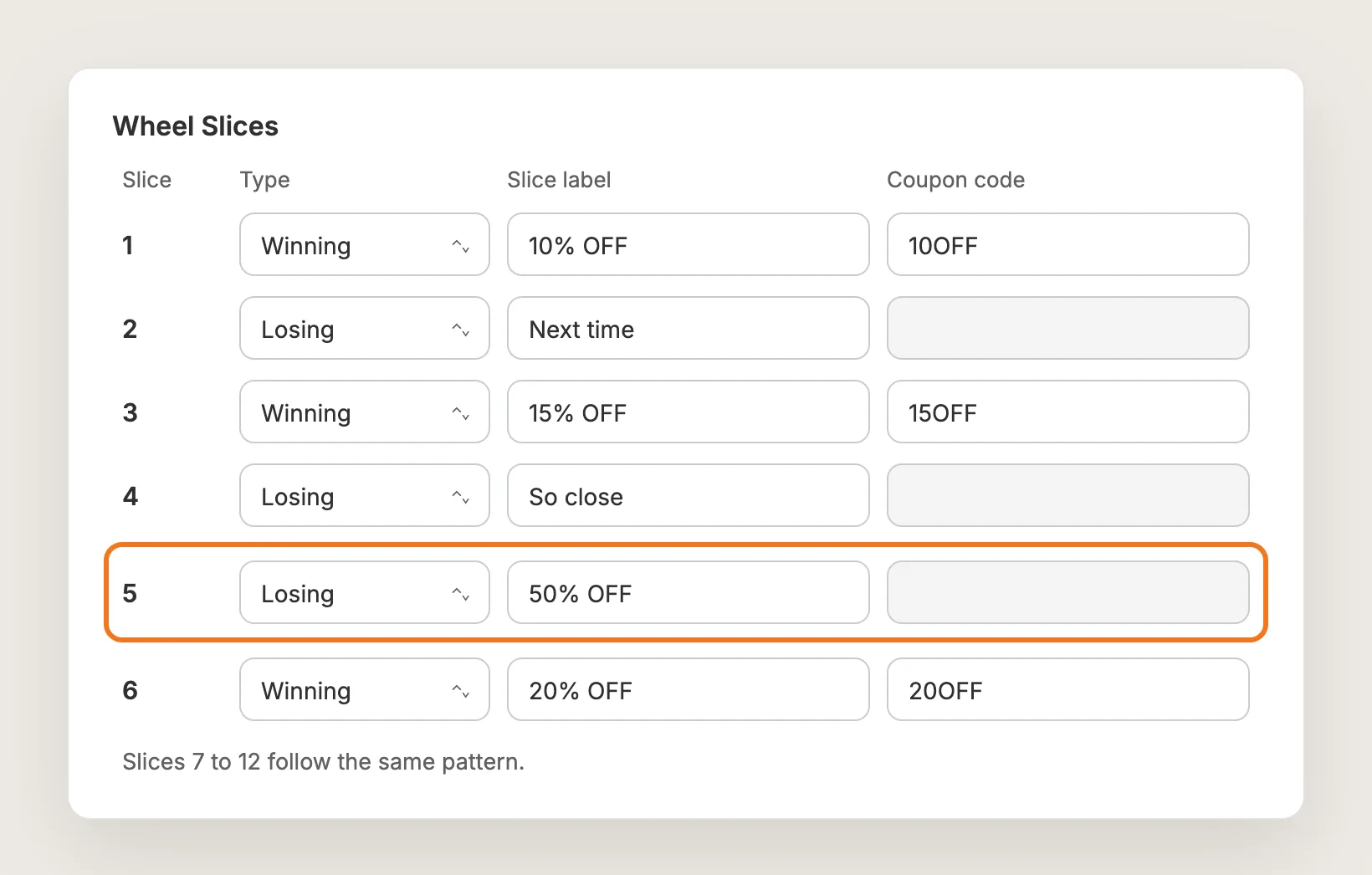
The wheel has 12 slices. In the Wheel Slices card, set each slice's Type to Winning or Losing, then write its Slice label, such as "15% OFF" or "Next time". Only winning slices can be won, and the chance of winning splits evenly across them. Losing slices are there for the look and are never won, so a "50% OFF" losing slice never hands out 50% off.
Step 6: Create the Discount Codes
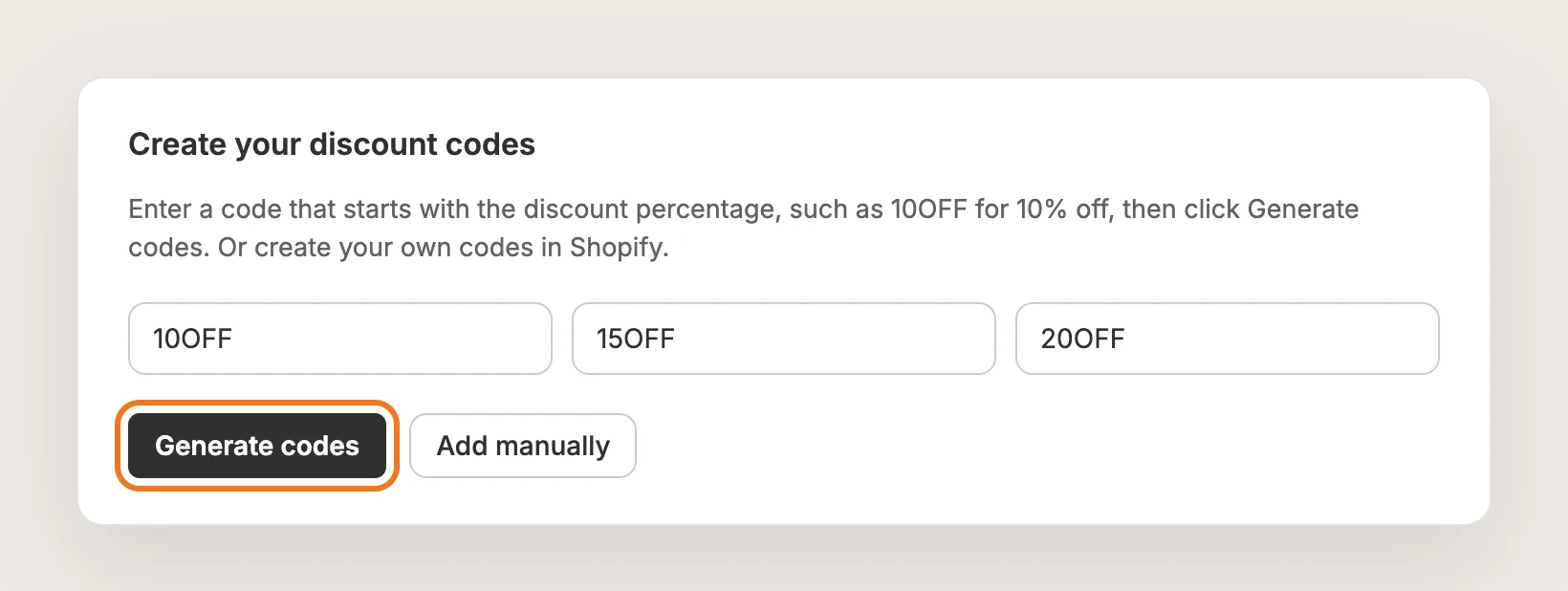
Each winning slice needs a Coupon code. Under Create your discount codes, enter a code that starts with the discount percentage, such as 10OFF for 10% off or 20OFF for 20% off, then click Generate codes. Vitals creates the percentage-off codes in Shopify for you, and each generated code can be used once per customer.
To use your own code or a code you already have, click Add manually instead. This opens Shopify admin > Discounts, where you create the code and set its usage limits.
Step 7: Choose When the Wheel Opens
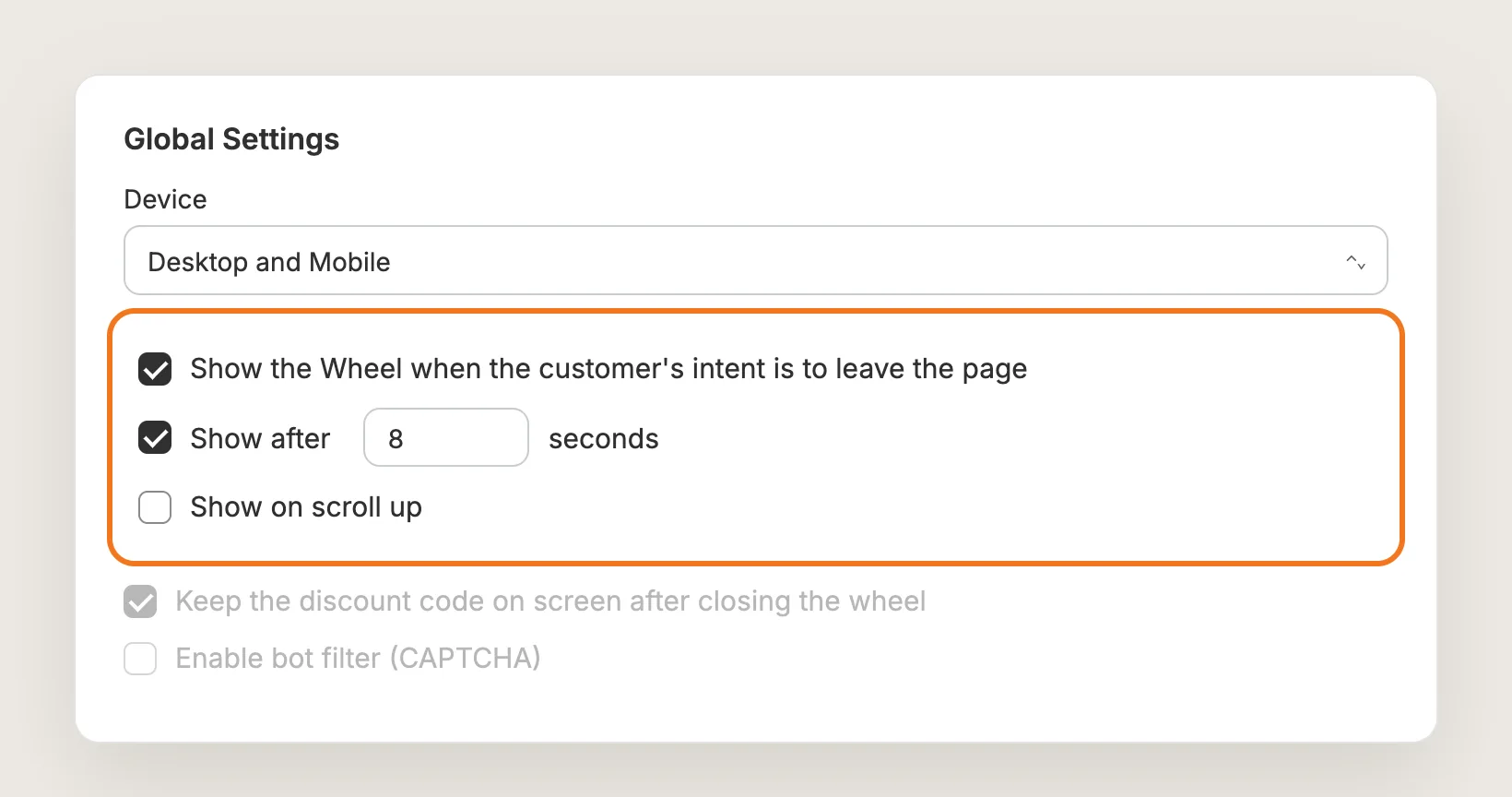
In the Global Settings card, Device sets where the spin the wheel pop-up shows: Desktop and Mobile, Desktop or Mobile. Then pick one or more triggers:
- Show the Wheel when the customer's intent is to leave the page: Opens the wheel when the shopper moves to leave. On phones, this fires when the shopper scrolls up
- Show after: Opens the wheel after the number of seconds you set
- Show on scroll up: Opens the wheel when a desktop shopper scrolls back up the page
Leave Keep the discount code on screen after closing the wheel ticked, so the won code stays in a small widget the shopper can copy during the visit.
Step 8: Turn the Wheel Opener On or Off
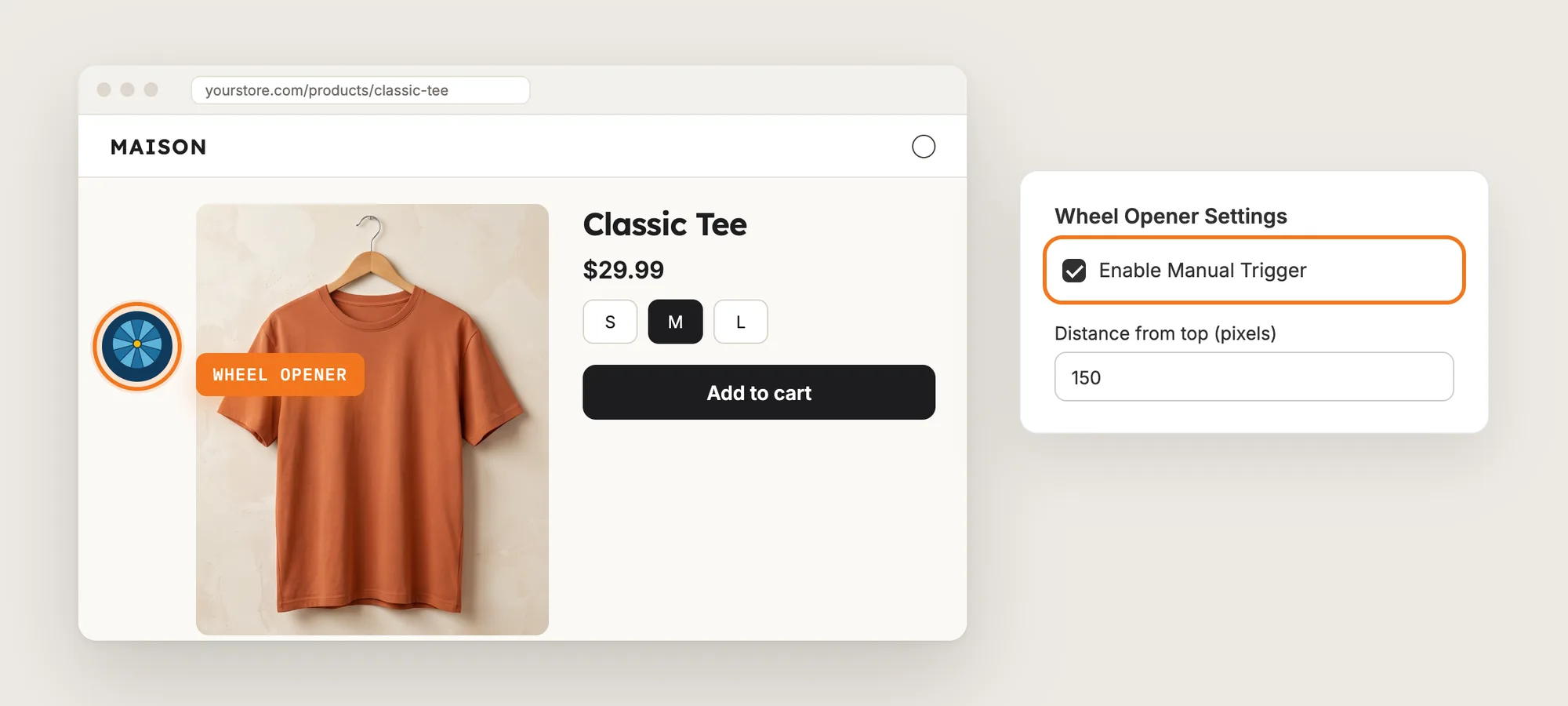
In the Wheel Opener Settings card, Enable Manual Trigger is on by default. It shows a small opener on the side of the page that shoppers click to open the wheel themselves, and Distance from top (pixels) sets its height. Pick the opener's look in the Wheel Opener Image card, from 14 images.
While Enable Manual Trigger is on, Show after is ignored, but exit intent and Show on scroll up still open the wheel. Turn the opener off if you want Show after to work.
Step 9: Write the Text and Pick the Contact Fields
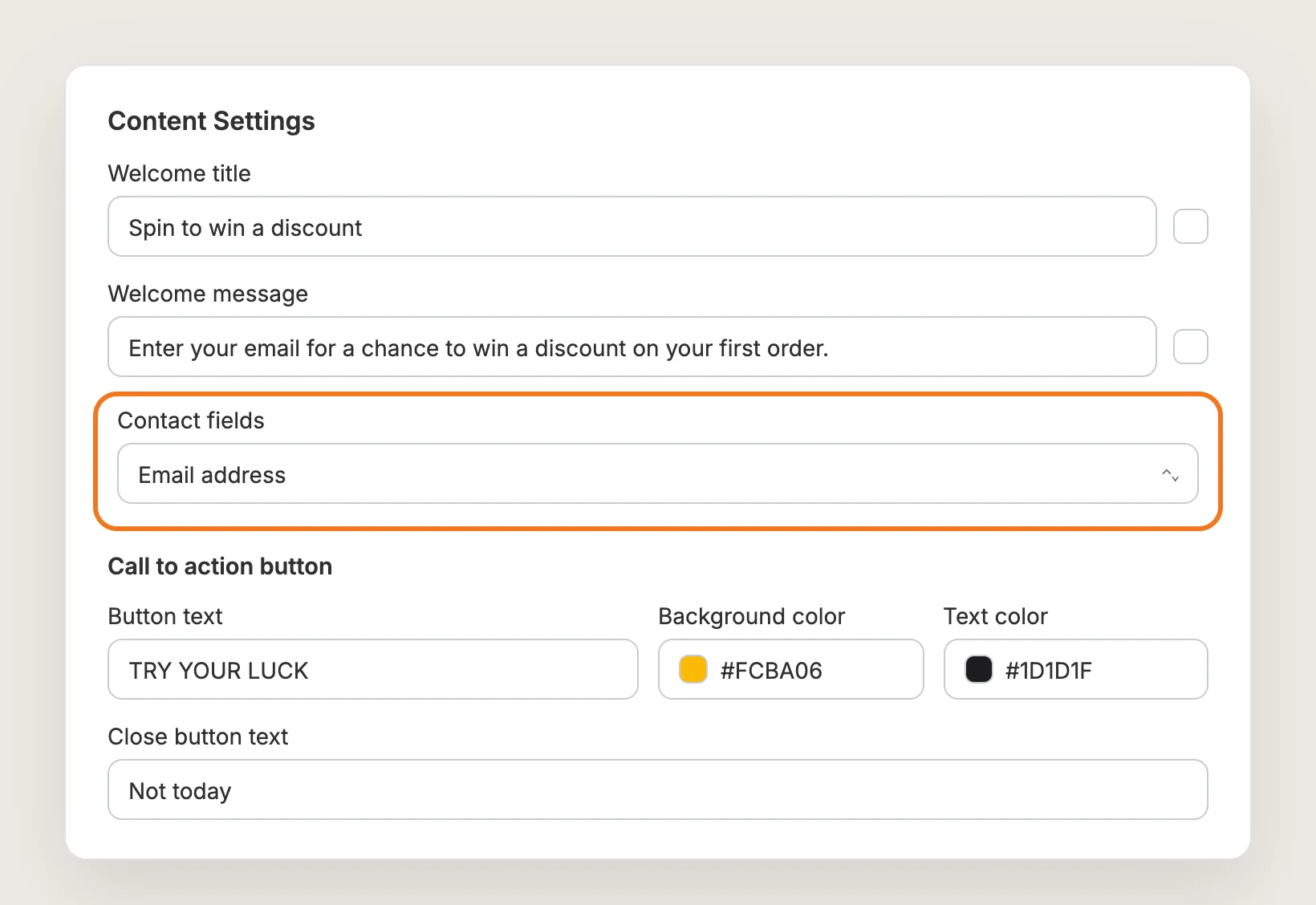
In the Content Settings card, write the Welcome title and Welcome message, each with its own color. Contact fields sets what the wheel asks for: Email address, Phone number, or Email address and phone number. Under Call to action button, set the Button text, Background color and Text color, then write the Close button text, such as "Not today".
Step 10: Pick a Color Theme
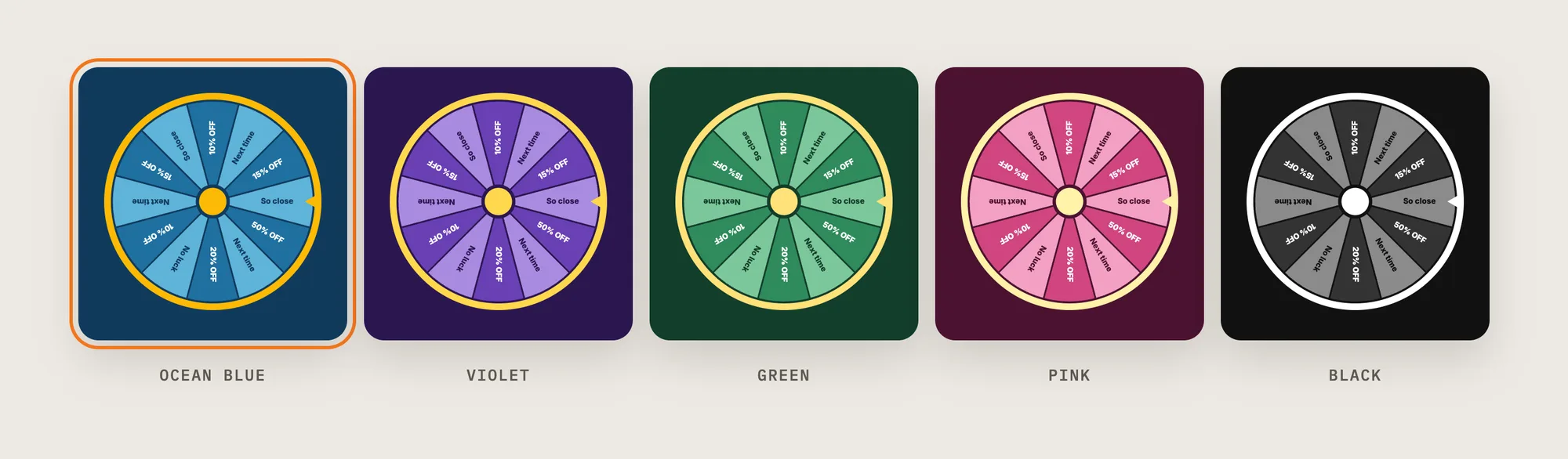
In the Color theme card, pick one of 13 themes for the wheel and the pop-up, including Ocean Blue, Violet, Green, Pink and Black. Pick the theme closest to your store's colors, then fine-tune the text and button colors in Content Settings.
Step 11: Schedule the Wheel (Optional)
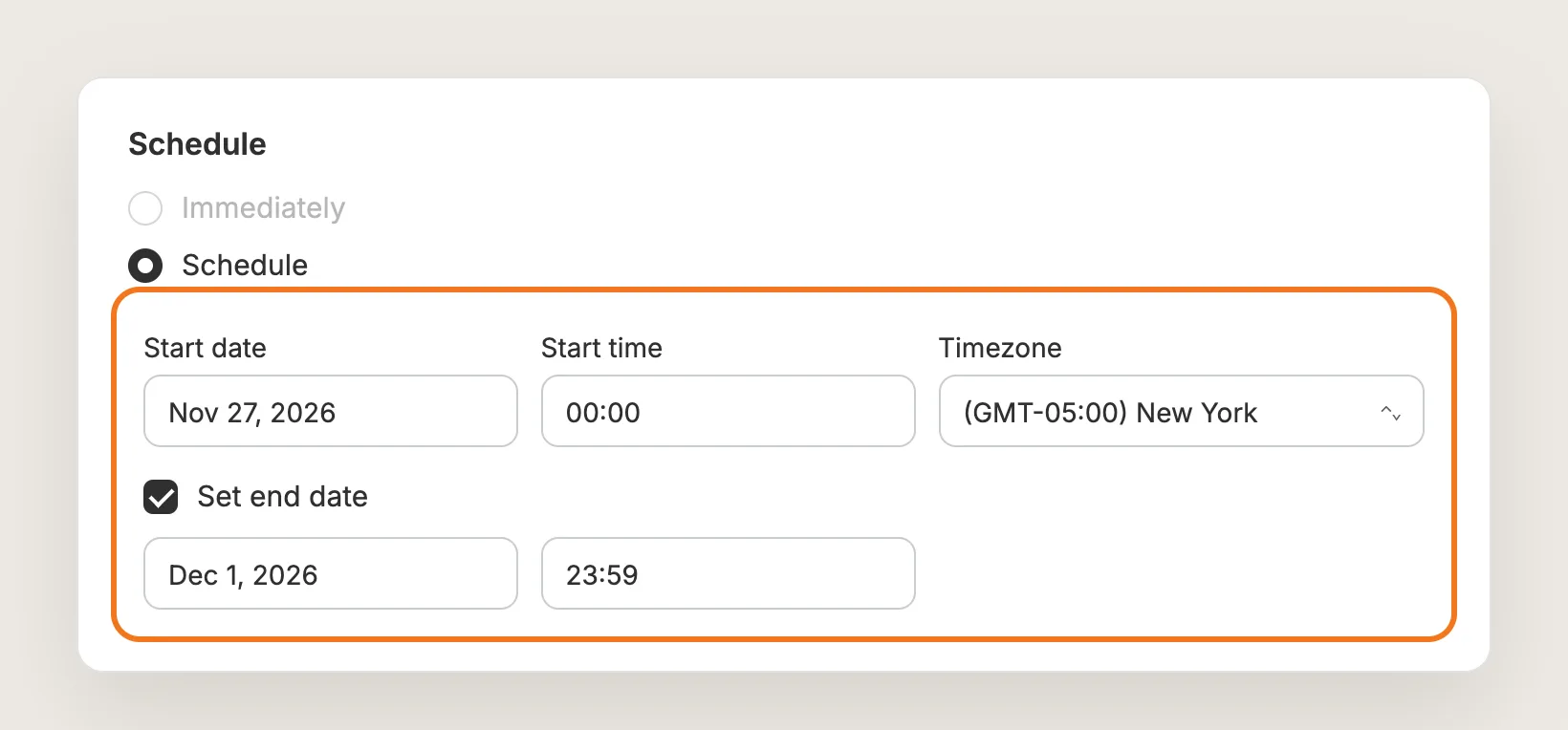
The spin the wheel pop-up shows right away by default. To show the wheel only during a sale, open the Schedule card, choose Schedule, then set the start date, time and timezone. Tick Set end date to stop the wheel on a set day.
Step 12: Ask European Shoppers for Consent (Optional)
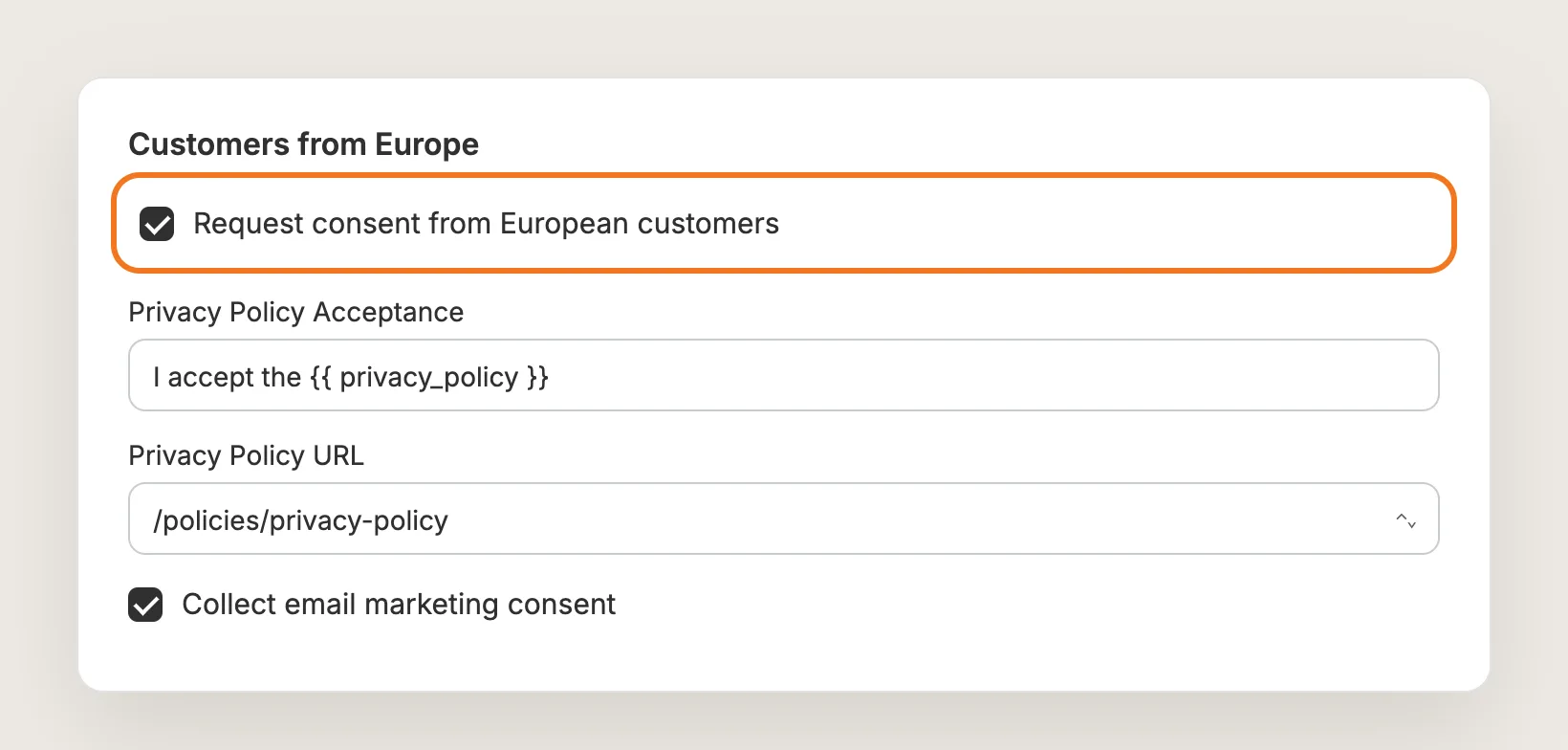
If you sell in Europe, open Customers from Europe and tick Request consent from European customers. Write the Privacy Policy Acceptance text, keeping `{{ privacy_policy }}`, and pick your Privacy Policy URL. Tick Collect email marketing consent to add a marketing consent checkbox.
Step 13: Find Your New Contacts in Shopify
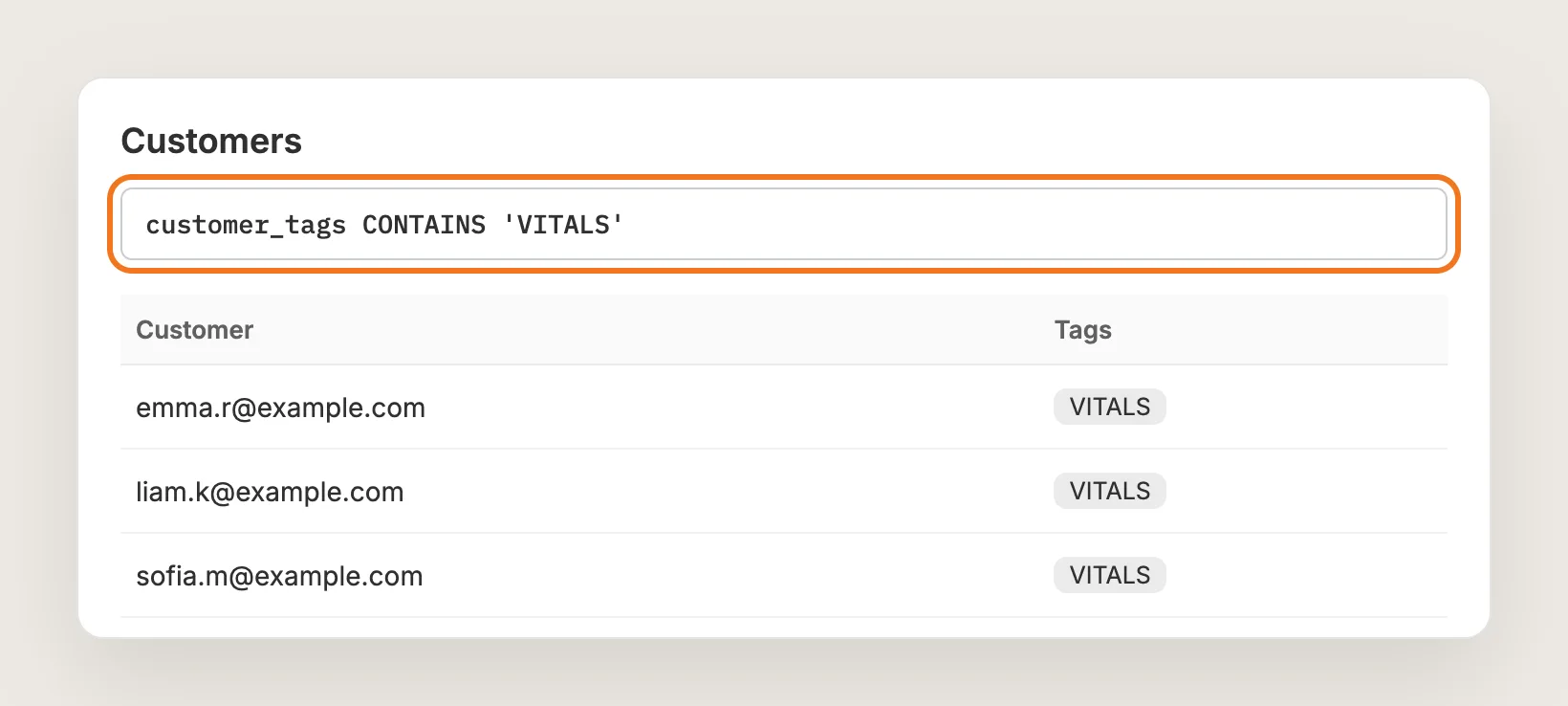
Every email address and phone number the wheel captures goes to Shopify admin > Customers, tagged VITALS. To see only the wheel's contacts, type `customer_tags CONTAINS 'VITALS'` in the segment bar on the Customers page, then click Export for a CSV. The same tag is used for contacts from the Vitals Pop-ups app and the Vitals Announcement Bars app.
To send the emails on to Klaviyo or Mailchimp, click connect third party services in the Leads storage banner at the top of the settings, or open Integrations in Vitals. Phone-only contacts stay in Shopify and aren't forwarded.
Step 14: Save, Test on Your Phone and Watch the Orders
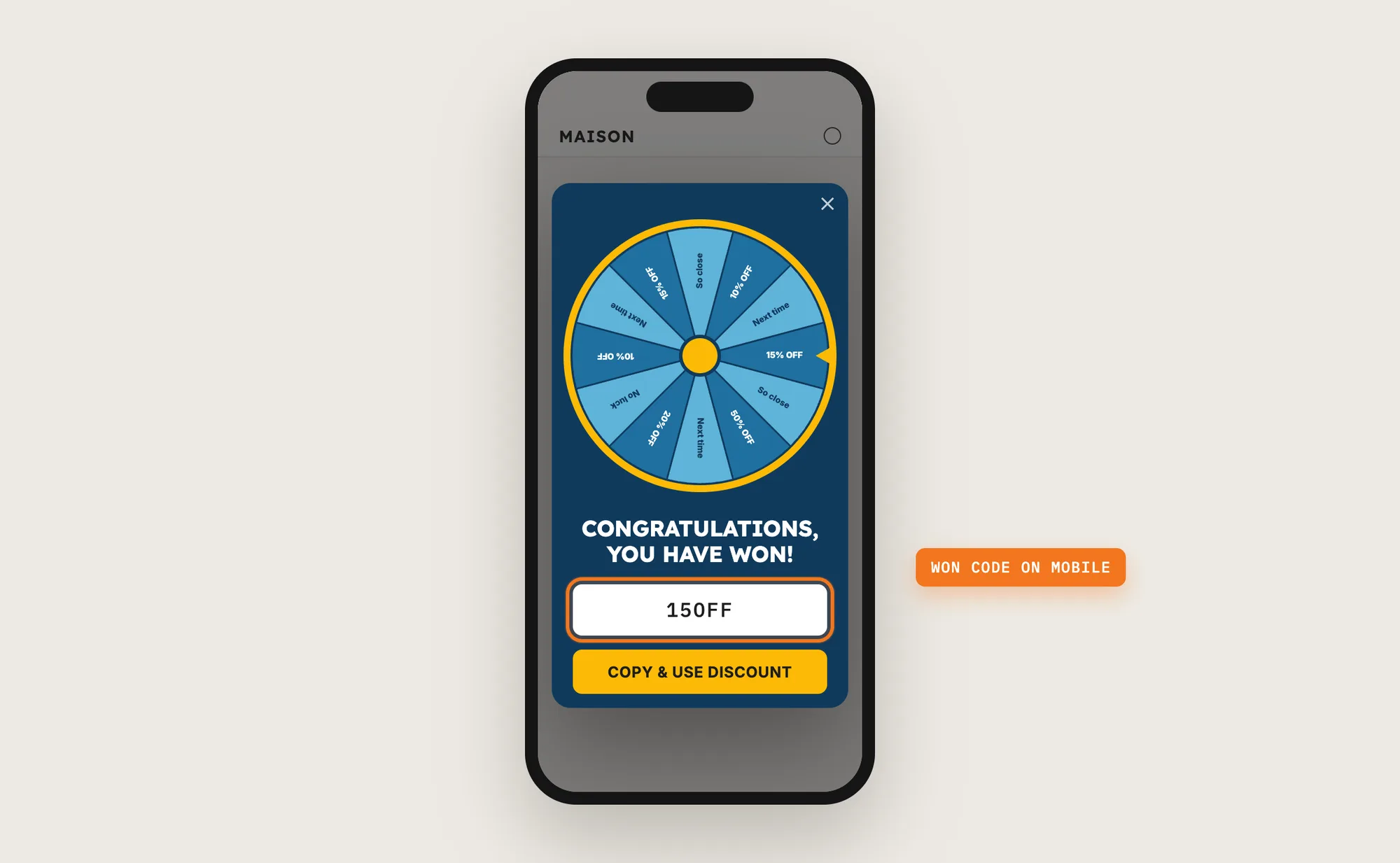
Click Save, then open your store in a new incognito window on your phone and on desktop. Close every incognito window and open a new one before each test, so the wheel opens again. Spin the wheel, check that the won code shows on screen and works at checkout.
Then open the Analytics tab in Spin the Wheel. It shows the captured emails, the orders and revenue from shoppers who used their wheel code within 30 days, and assisted orders placed without the code within 7 days of signing up.
Step 15: Voila, Your Spin the Wheel Pop-Up Is Live on the Store
Your visitors now get a fun reason to share their email address, and a discount code to use on their first order.
How to Add a Spin the Wheel Pop-Up From Your Theme Settings?
Shopify themes don't include a spin the wheel pop-up, but many Shopify themes include a plain newsletter pop-up. To check your theme's settings:
- Click Customize next to your theme in Online Store → Themes
- Open Theme settings or the Popup section in the left sidebar
- Look for a newsletter or email signup pop-up, turn it on, then click Save
A theme newsletter pop-up collects emails into Shopify Customers, but it has no wheel, no prize slices and no generated discount codes. Most theme pop-ups show one fixed message and one trigger, and some Shopify themes have no pop-up at all. If a plain signup form is all you need, the theme setting is enough on its own.
How to Add a Spin the Wheel Pop-Up Without an App?
Hire a developer to build a spin the wheel pop-up with Liquid, JavaScript and CSS. The build has to draw and spin the wheel, pick a prize and save the shopper's contact to Shopify.
A custom spin the wheel pop-up usually involves:
- Copying your theme first, so the live store isn't affected
- Building the pop-up, the wheel animation and the email or phone field
- Picking the winning prize in code, with your own odds
- Creating the discount codes in Shopify and showing the won code to the shopper
- Sending each contact to Shopify Customers or your email platform
- Adding the triggers, such as exit intent or a delay, and a cookie so the wheel doesn't open on every page
- Testing on mobile and desktop, then publishing the theme copy
Custom code means no extra app, but you or your developer have to maintain it. A theme update can replace the files the wheel is in, and any change to the prizes or the design means another round of code.
How to Increase Sales With a Spin the Wheel Pop-Up?
A spin the wheel pop-up drives sales by giving new visitors a discount code they can use on their first order. These settings help:
- Make every winning slice worth using. A small prize that still feels like a win gets used at checkout. Set the percentages in the codes you create with Generate codes
- Catch shoppers on the way out. Exit intent reaches shoppers who were about to leave without buying. Tick Show the Wheel when the customer's intent is to leave the page
- Keep the won code in view. A shopper who closes the wheel can still copy the code at checkout. Leave Keep the discount code on screen after closing the wheel ticked
- Give shoppers time to browse first. A wheel that opens after a short delay reaches shoppers who are already interested. Turn off Enable Manual Trigger and set Show after
- Match the wheel to your sales. A wheel that shows during a sale adds a reason to buy that week. Set the dates in the Schedule card
- Follow up with the shoppers who didn't buy. Captured emails can get a reminder of their code. Connect Klaviyo or Mailchimp under Integrations
- Check which orders the wheel brought in. The Analytics tab shows orders and revenue from wheel codes. Change the prizes or triggers and compare
Why Isn't My Spin the Wheel Pop-Up Showing or Working?
These are the usual causes when the spin the wheel pop-up doesn't show or work:
- The wheel doesn't show at all: Check that the app is activated and that the Vitals app embed is turned on in your theme. Then test in a new incognito window, since the wheel doesn't open again for a shopper who has already seen it
- The wheel never opens by itself: Enable Manual Trigger is on, so Show after is ignored. Turn on exit intent, or turn off the manual trigger so Show after works
- The wheel doesn't show on the cart or blog pages: The wheel loads on the homepage, product pages and collection pages only
- The wheel shows on the homepage despite a product filter: Advanced display rules apply to product pages only. The homepage and collection pages always show the wheel
- The wheel shows on the wrong device: Change Device in Global Settings
- The app won't load the wheel: At least one slice has to be set to Winning
- Many customers used the same code: Each winning slice has one code that every winner of that slice shares. Codes from Generate codes can be used once per customer; for your own codes, set usage limits in Shopify admin > Discounts
- A shopper didn't get the code by email: The wheel doesn't email the code. It stays on screen in a small widget during the visit
- Phone numbers don't reach Klaviyo or Mailchimp: Phone-only contacts stay in Shopify Customers and aren't forwarded
Which Spin the Wheel Pop-Up Method Should You Choose?
Vitals - All in One App suits most stores, but the right method depends on how much of the wheel you want to set up yourself.
- Choose Vitals - All in One App if you want a spin the wheel pop-up with your own prizes, triggers and design, and contacts sent straight to Shopify. It also includes 40+ other apps in one subscription of $29.99/month, so you don't have to install and pay for each app separately
- Choose your theme's setting if a plain newsletter pop-up without a wheel or prizes is enough
- Choose custom code if you want full control over the wheel and have a developer to keep the code working through theme updates
Start a 7-day free trial: Install the Vitals - All in One App and add a spin the wheel pop-up
Frequently Asked Questions
1. What is the best way to add a spin the wheel pop-up on Shopify?
Vitals - All in One App is the best way for most stores. Its Spin the Wheel app adds a 12-slice spin-to-win pop-up without code, creates the discount codes for you and sends every captured contact to Shopify Customers.
2. Does Shopify have a built-in spin the wheel pop-up?
No. Shopify and its themes don't include a spin the wheel pop-up. Many Shopify themes include a plain newsletter pop-up, but a wheel with prizes needs an app or custom code.
3. Can each winner get a unique discount code?
Not in the Vitals Spin the Wheel app. Each winning slice has one code that every winner of that slice shares. Codes created with Generate codes can be used once per customer, and for your own codes you set usage limits in Shopify admin > Discounts.
4. Where do the emails from the spin the wheel pop-up go?
Every email address and phone number goes to Shopify admin > Customers, tagged VITALS. Emails can also go to Klaviyo or Mailchimp once you connect them under Integrations in Vitals.
5. Can I control the odds of winning?
Yes, through the slice types. Only slices set to Winning can be won, and the chance splits evenly across them, so two winning slices give each a 50% chance. Losing slices are never won.
6. Is the discount code sent to the shopper by email?
No. The won code shows on screen, and with Keep the discount code on screen after closing the wheel ticked, the code stays in a small widget the shopper can copy during the visit.
7. Can I show the spin the wheel pop-up on certain pages only?
Partly. The wheel loads on the homepage, product pages and collection pages. Advanced display rules can limit which product pages show the wheel, and Device can limit the wheel to desktop or mobile. The homepage and collection pages always show the wheel.