How to Add Announcement Bar in Shopify

Shoppers skim a store page in seconds, so a sale, a new collection or a shipping delay buried in a banner or a blog post goes unseen. The top of the screen is the one place every visitor looks on every page.
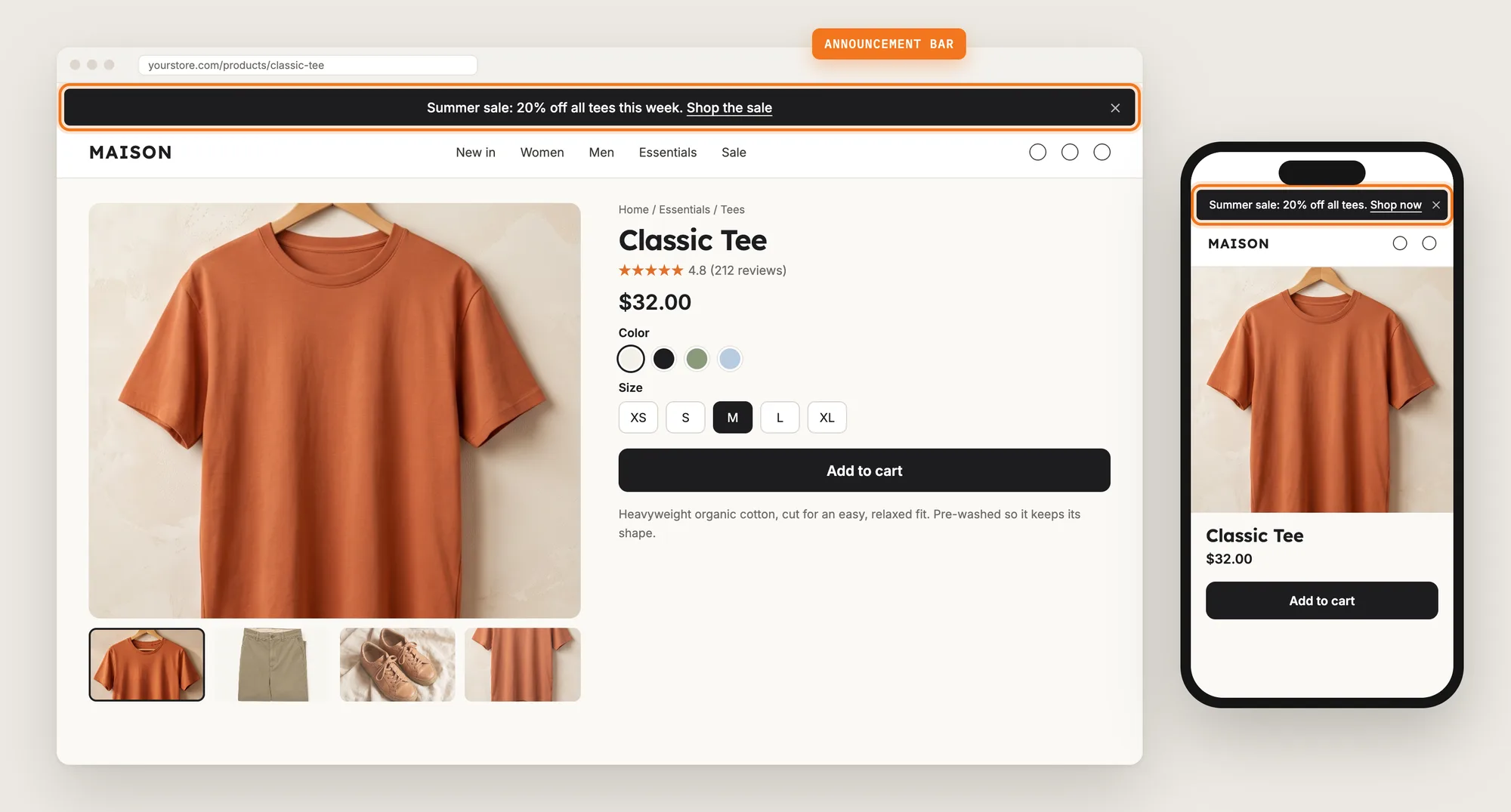
An announcement bar puts a short message in that spot across your whole store. A link in the bar takes shoppers straight to the sale or the collection the message is about.
Here are the three ways to add an announcement bar in Shopify: with an Announcement Bar app, from your theme settings, or with custom code.
What Is an Announcement Bar?
An announcement bar is a thin, full-width bar at the top or bottom of a store that shows a short message on every page. Stores use the announcement bar for sales, new arrivals, shipping updates and store news.
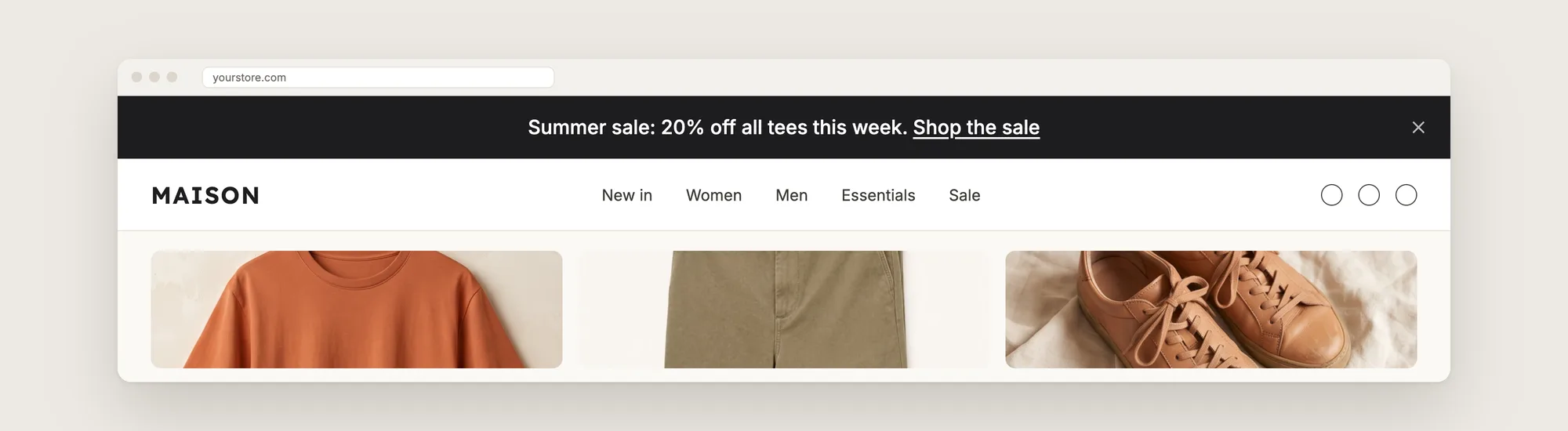
A good announcement bar includes:
- One short message: A single line that reads in a glance, on desktop and on a phone.
- A link: The announcement bar opens the page the message is about, such as the sale collection.
- Colors that stand out: The bar contrasts with your header, so shoppers notice the bar without it clashing with your brand.
- The right timing: The message matches what's live on the store, and comes down when the sale ends.
An announcement bar only shows a message. Any discount it mentions still has to be set up in Shopify.
What Types of Announcement Bar Can You Add?
The Vitals Announcement Bars app offers five types of announcement bar, each for a different job.
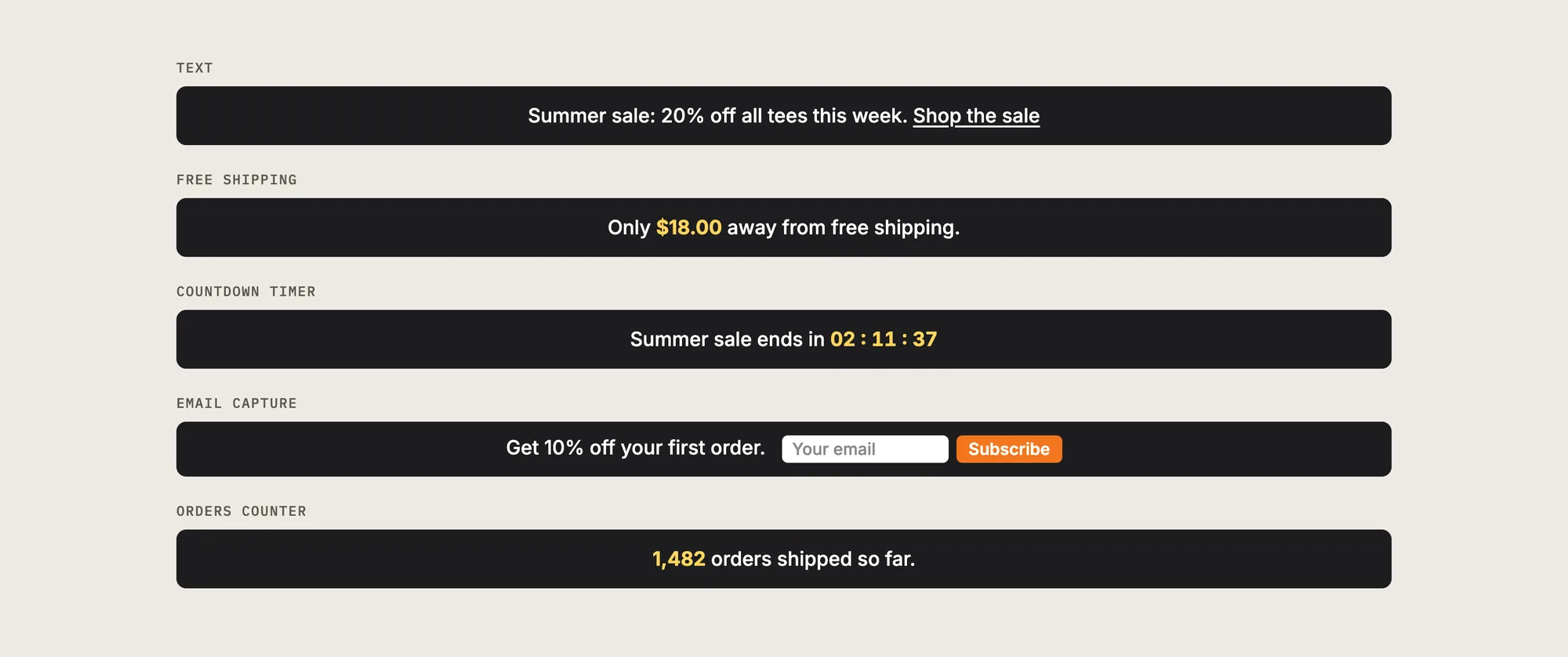
- Text: A fixed message, such as a sale, a shipping delay or store news, with an optional link
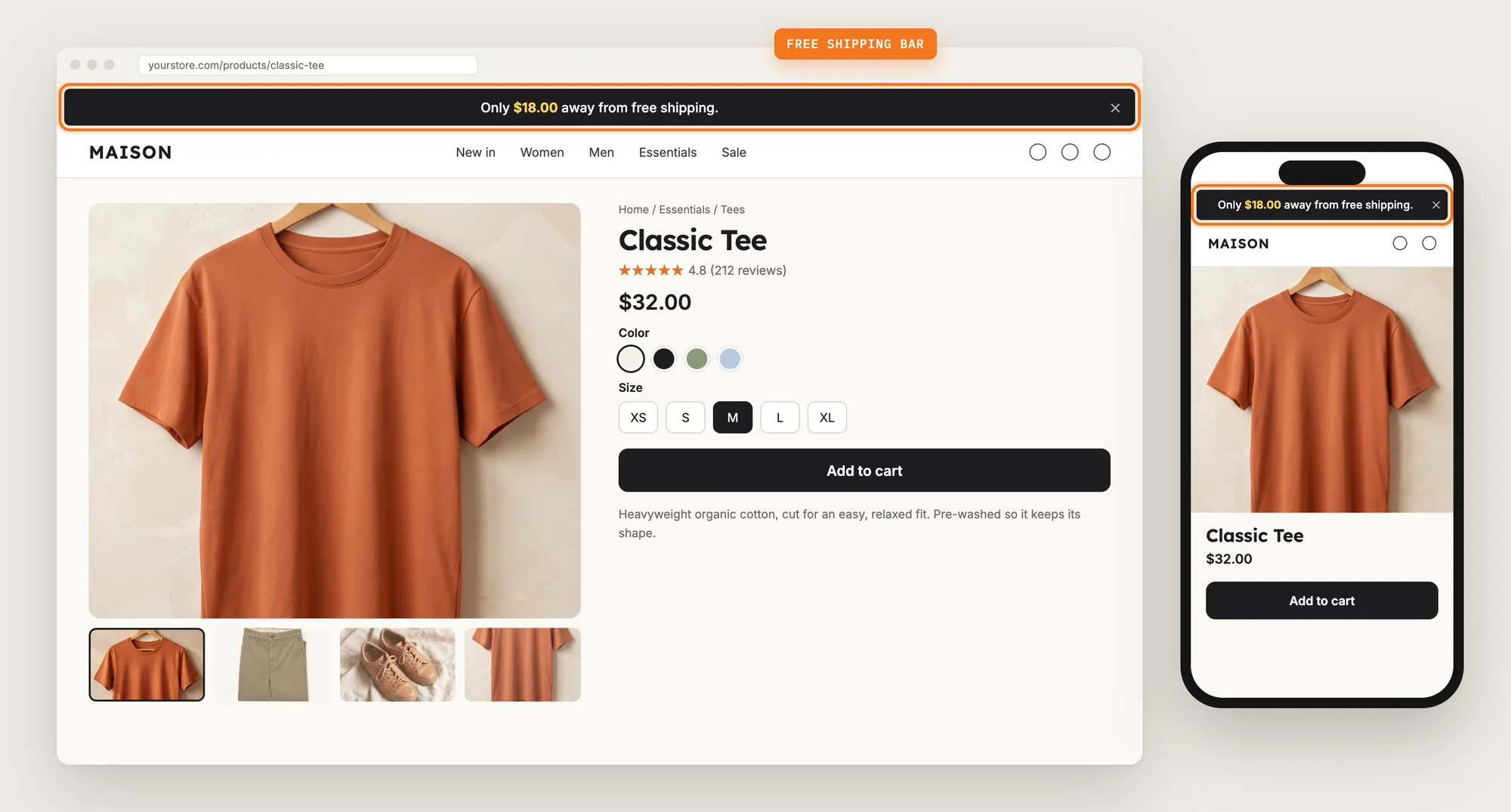
- Free Shipping: Shows how far the shopper's cart is from free shipping. See our guide on how to add a free shipping bar to Shopify
- Countdown Timer: Counts down to the end of a sale, and shows only between the start and end times you set
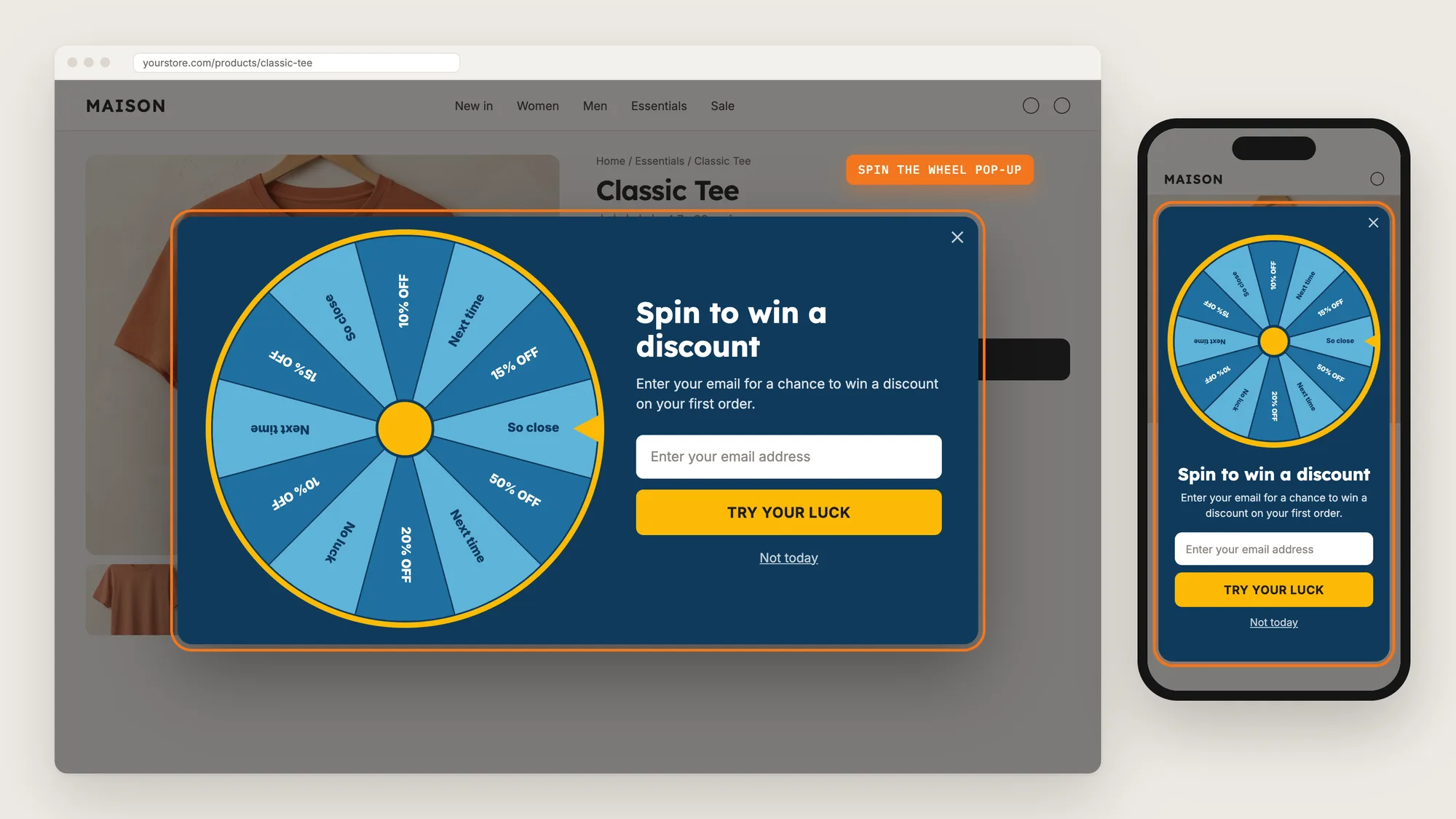
- Email Capture: Collects email addresses and gives the shopper a discount code in return
- Orders Counter: Shows how many orders your store has, using your real Shopify order count
This guide sets up a Text announcement bar, then shows how to schedule a sale message with the Countdown Timer bar.
What's the Quickest Way to Add an Announcement Bar?
- Vitals - All in One App is the quickest way to add an announcement bar for most stores
- Vitals also offers 40+ apps, such as pop-ups, a cart drawer and product reviews, in one subscription of $29.99/month, so you don't have to install and pay for each app separately
Here's how the three methods compare.
How to Add an Announcement Bar With an Announcement Bar App?
Install the Vitals - All in One App, open its Announcement Bars app, click Create and choose Text. The announcement bar then shows across your store, and the steps below set the message, link, look and position.
Step 1: Install the Vitals - All in One App
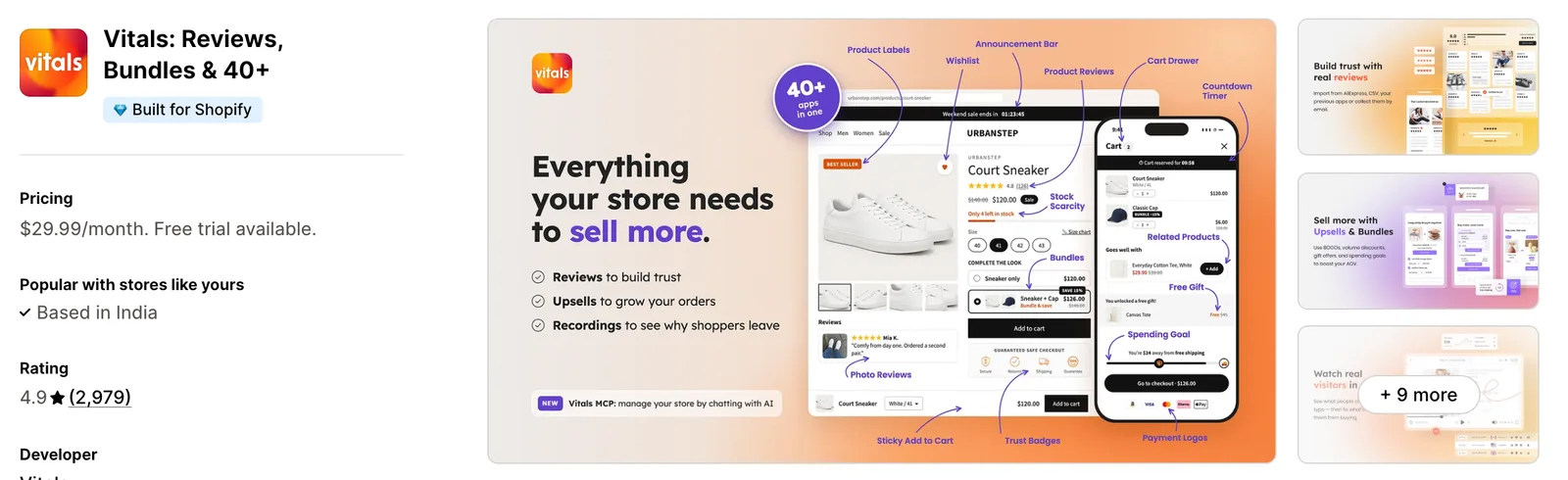
Install the Vitals - All in One App from the Shopify App Store. The 7-day free trial includes the Vitals Announcement Bars app.
Step 2: Approve the Install in Shopify
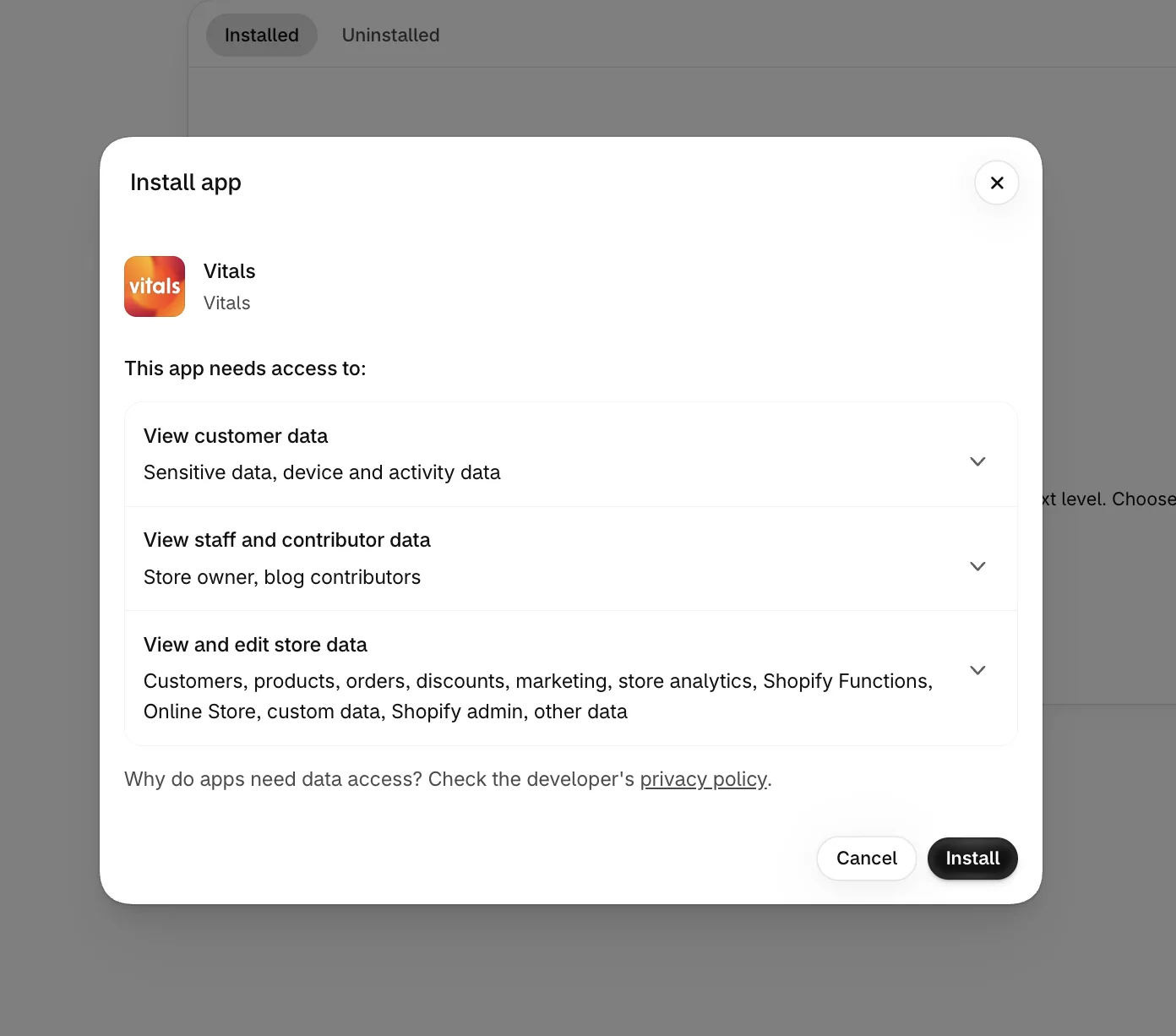
Click Install to approve the store data Vitals uses. Shopify then opens the Vitals dashboard.
Step 3: Open Announcement Bars
In the Vitals dashboard, find Announcement Bars in the list of apps and click it.
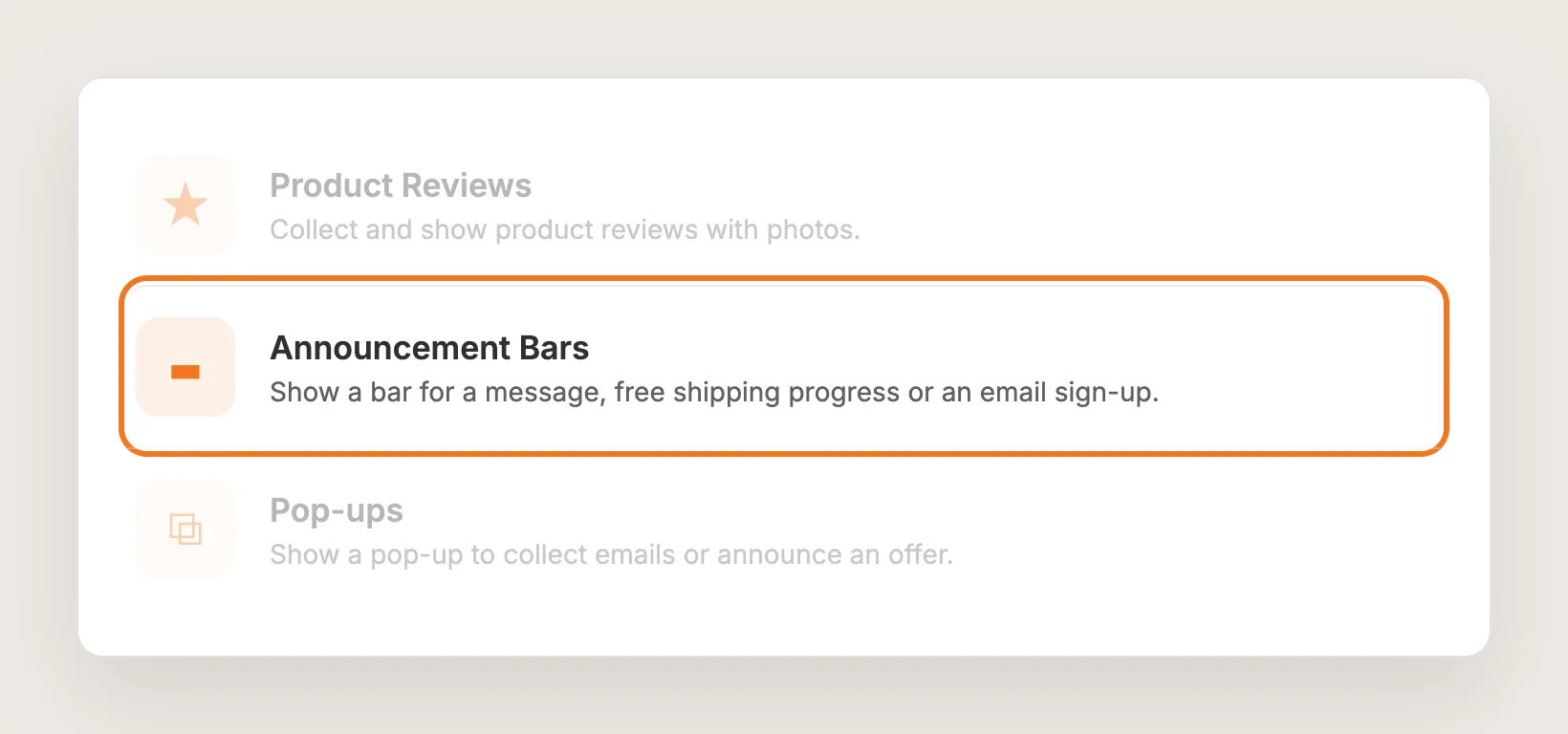
Step 4: Create a New Announcement Bar
On the Announcement bars tab, click Create and choose Text. Give the bar a Name so you can find the bar in the list later. Only you see the name.
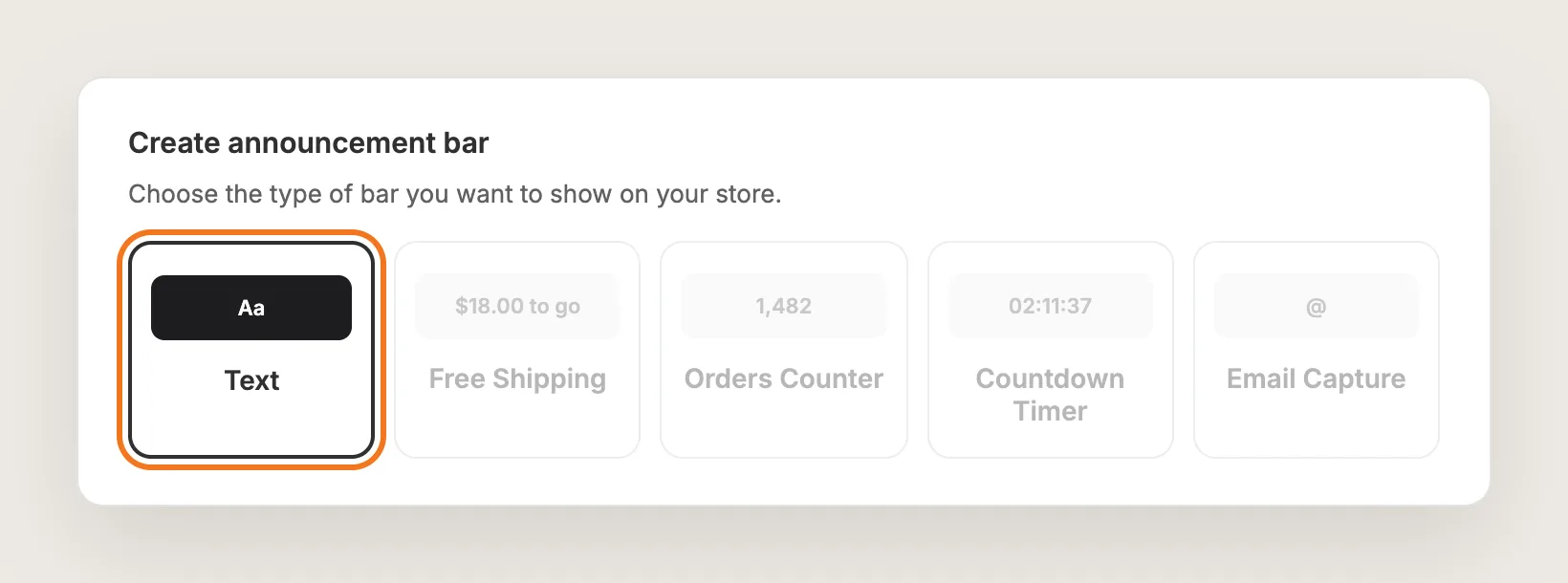
Step 5: Write the Message
Under General settings, type the announcement in Message. Keep the message to one short line, such as "Summer sale: 20% off all tees this week."
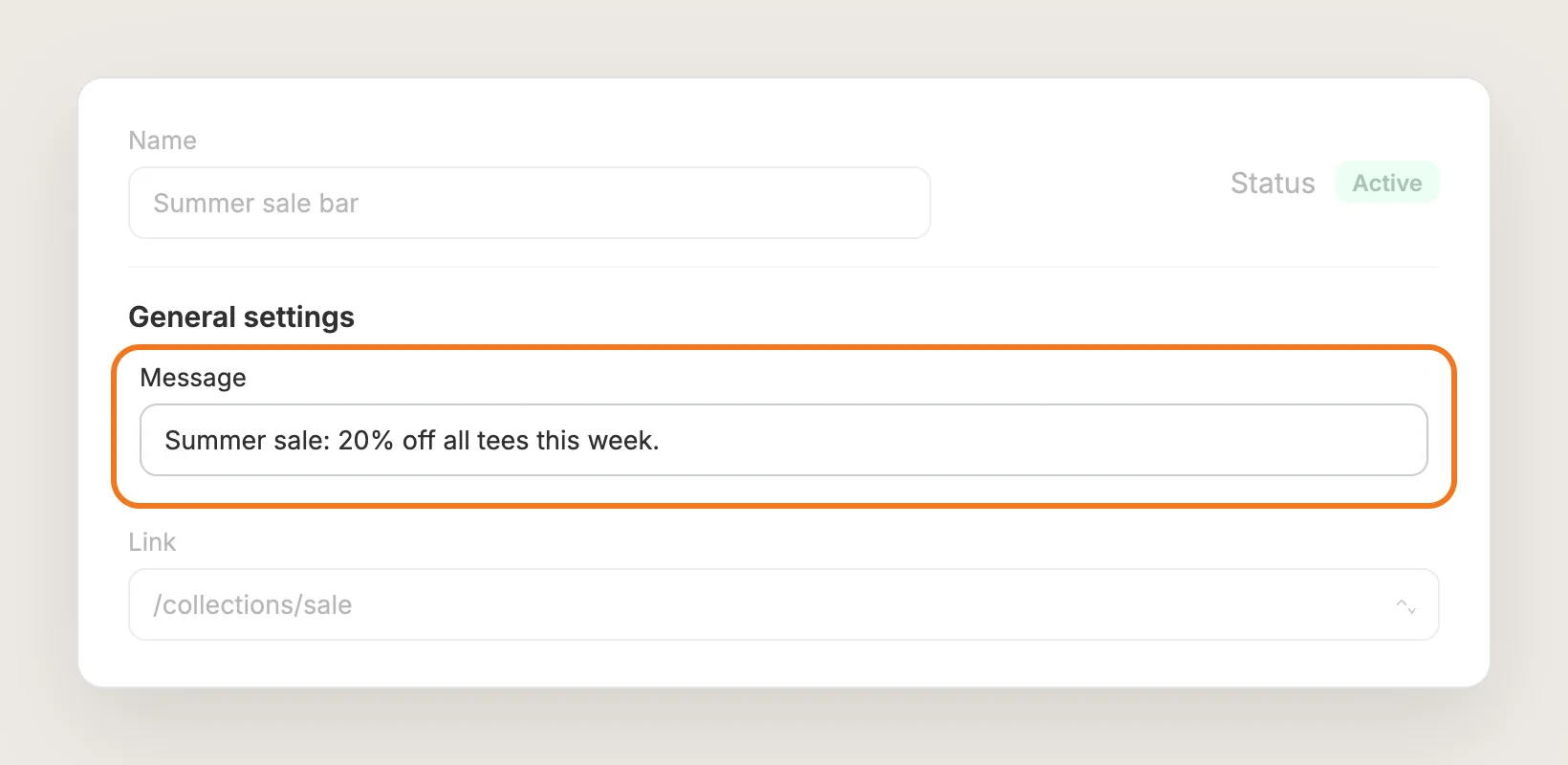
Step 6: Add a Link
In Link, pick a page from your store or paste a URL. Shoppers who click the announcement bar then land on that page, such as the sale collection. Link is available on Text bars only.
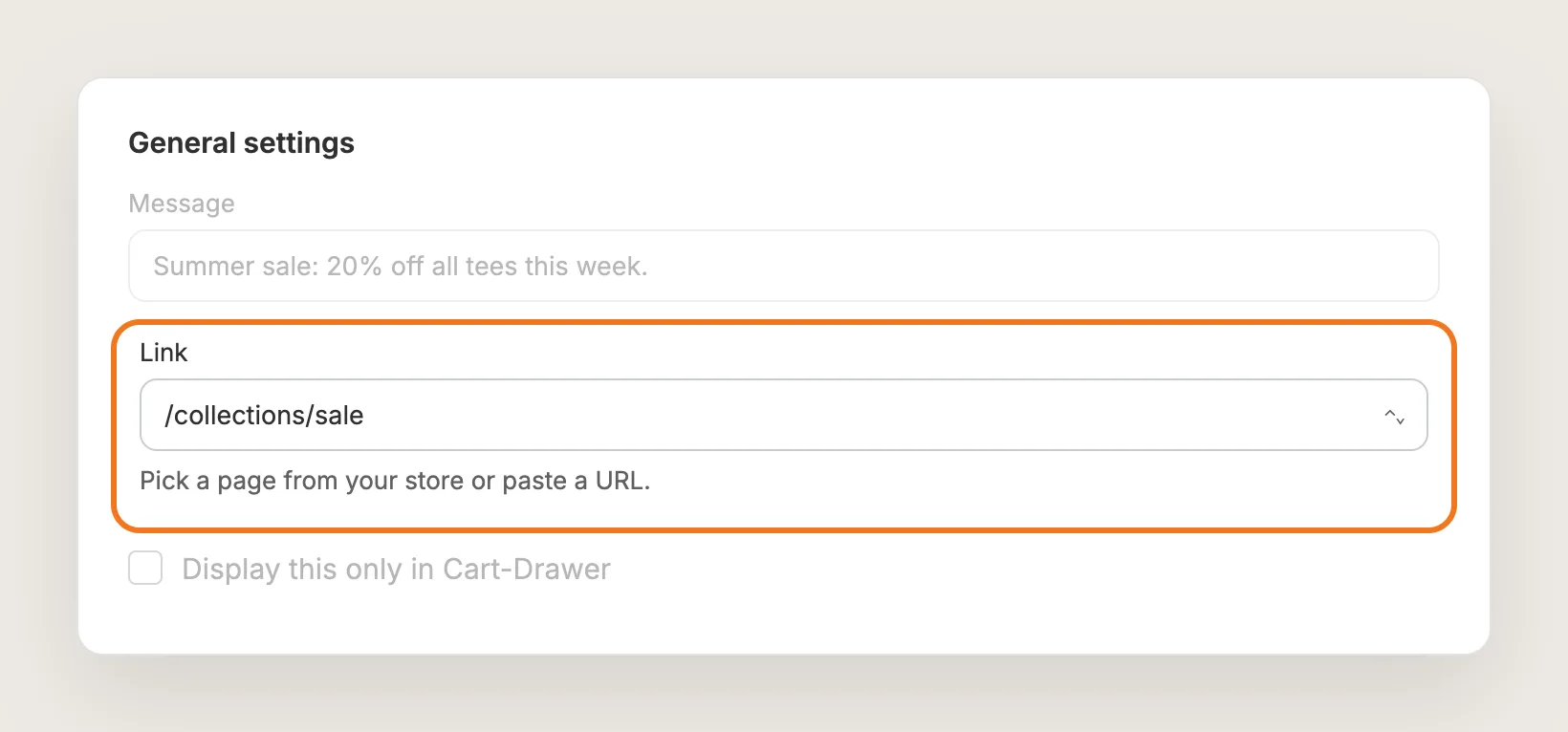
Step 7: Pick a Theme Style
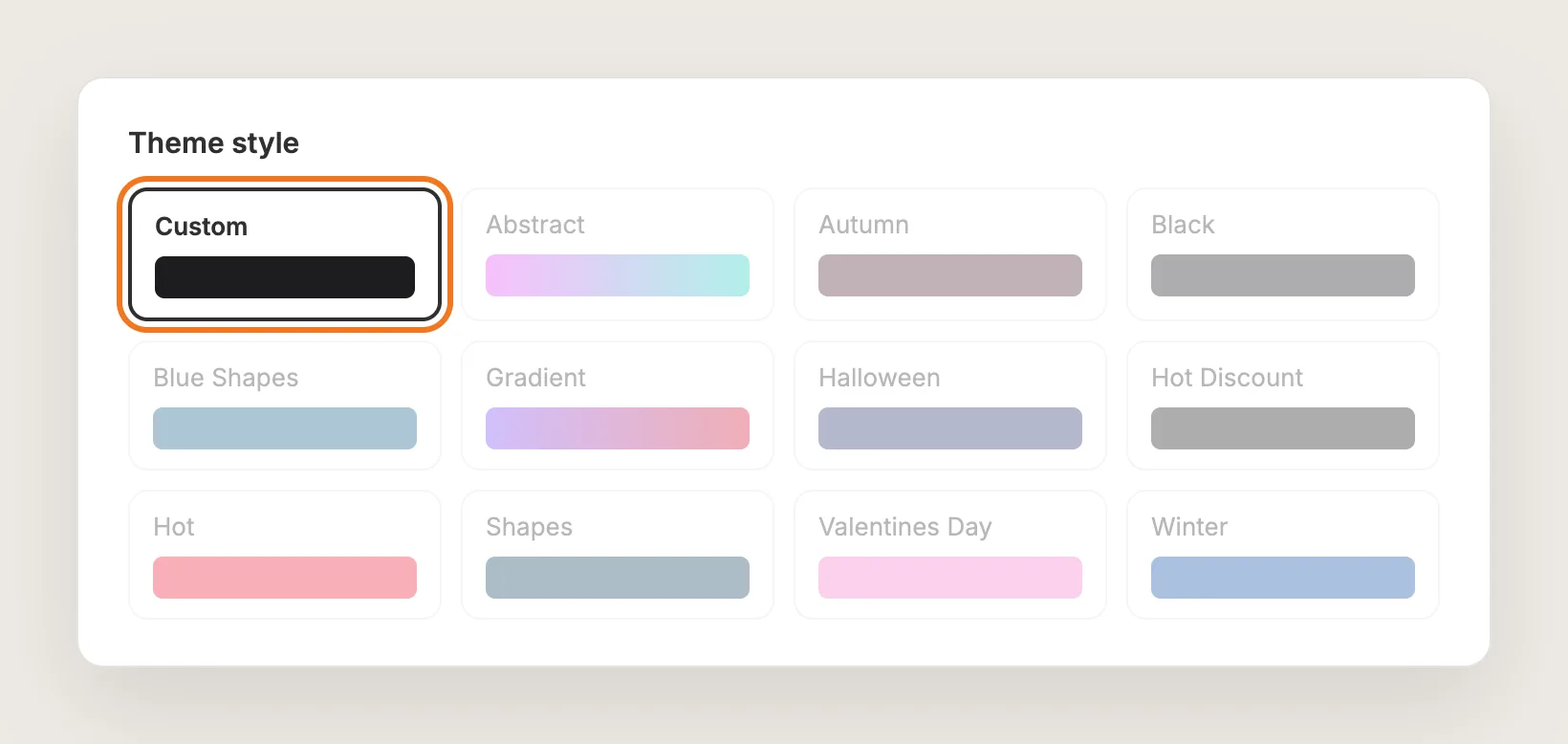
Under Theme style, choose Custom to set your own colors, or pick one of the 11 preset styles, such as Black, Gradient or Winter. The live preview shows the bar as you change it.
Step 8: Set the Bar's Colors
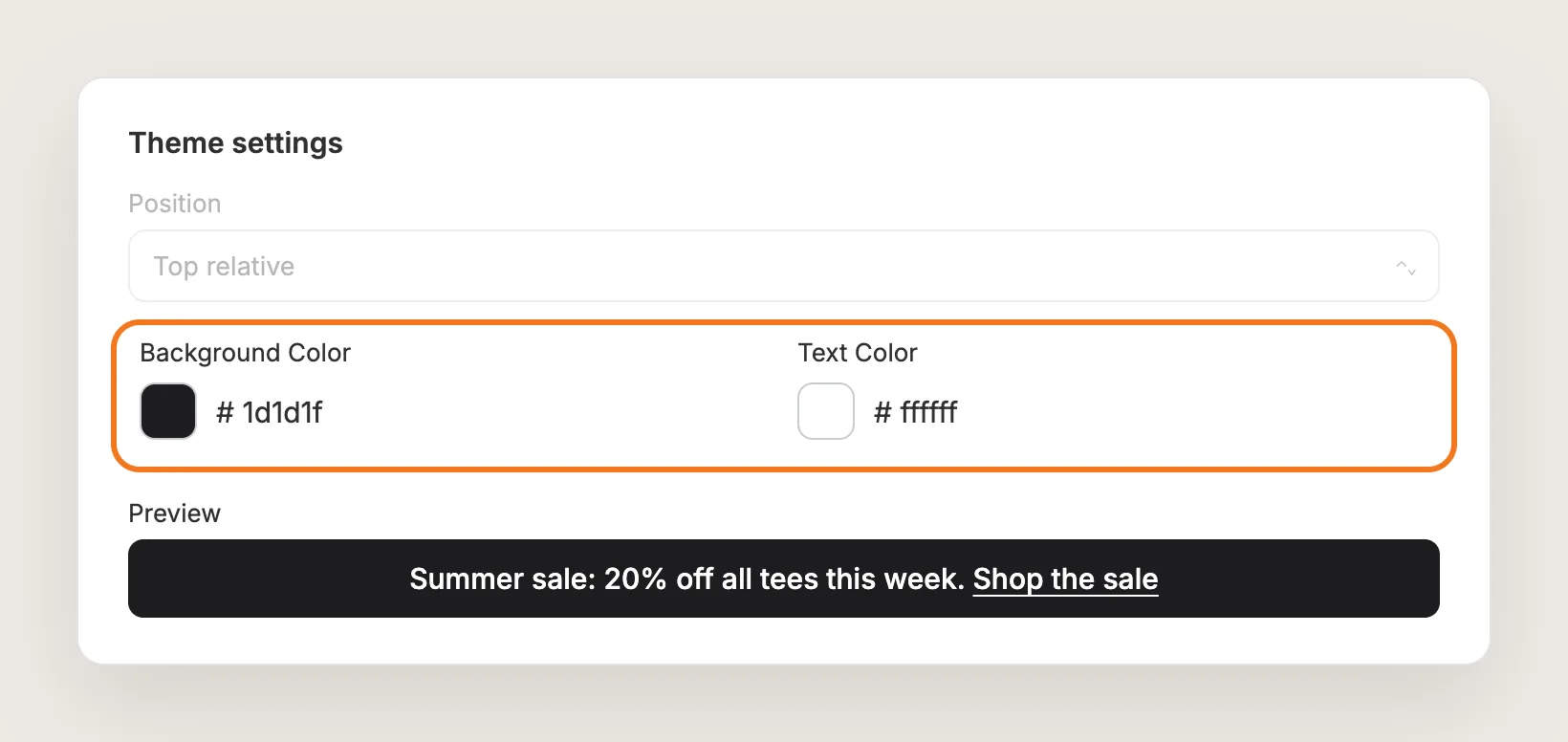
With the Custom style, Theme settings shows Background Color and Text Color. Pick a background that contrasts with your header, and a text color that reads clearly on that background.
Step 9: Choose Where the Bar Shows
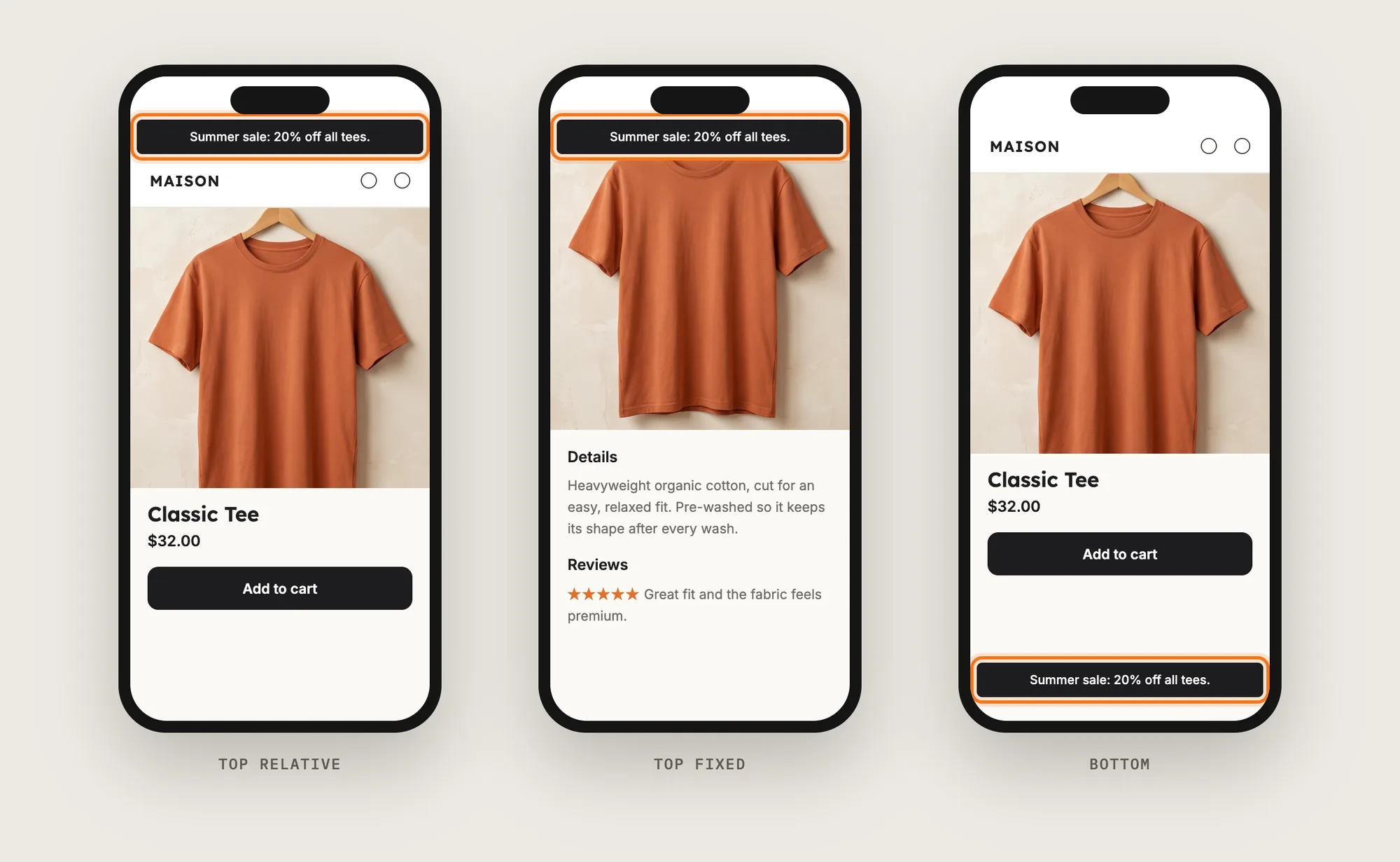
Under Theme settings, Position has three options:
- Top relative: The bar shows above the page content and scrolls away with the page
- Top fixed: The bar stays at the top of the screen while the shopper scrolls
- Bottom: The bar stays at the bottom of the screen
The announcement bar shows on every page of your store.
Step 10: Schedule a Sale With a Countdown Timer Bar (Optional)
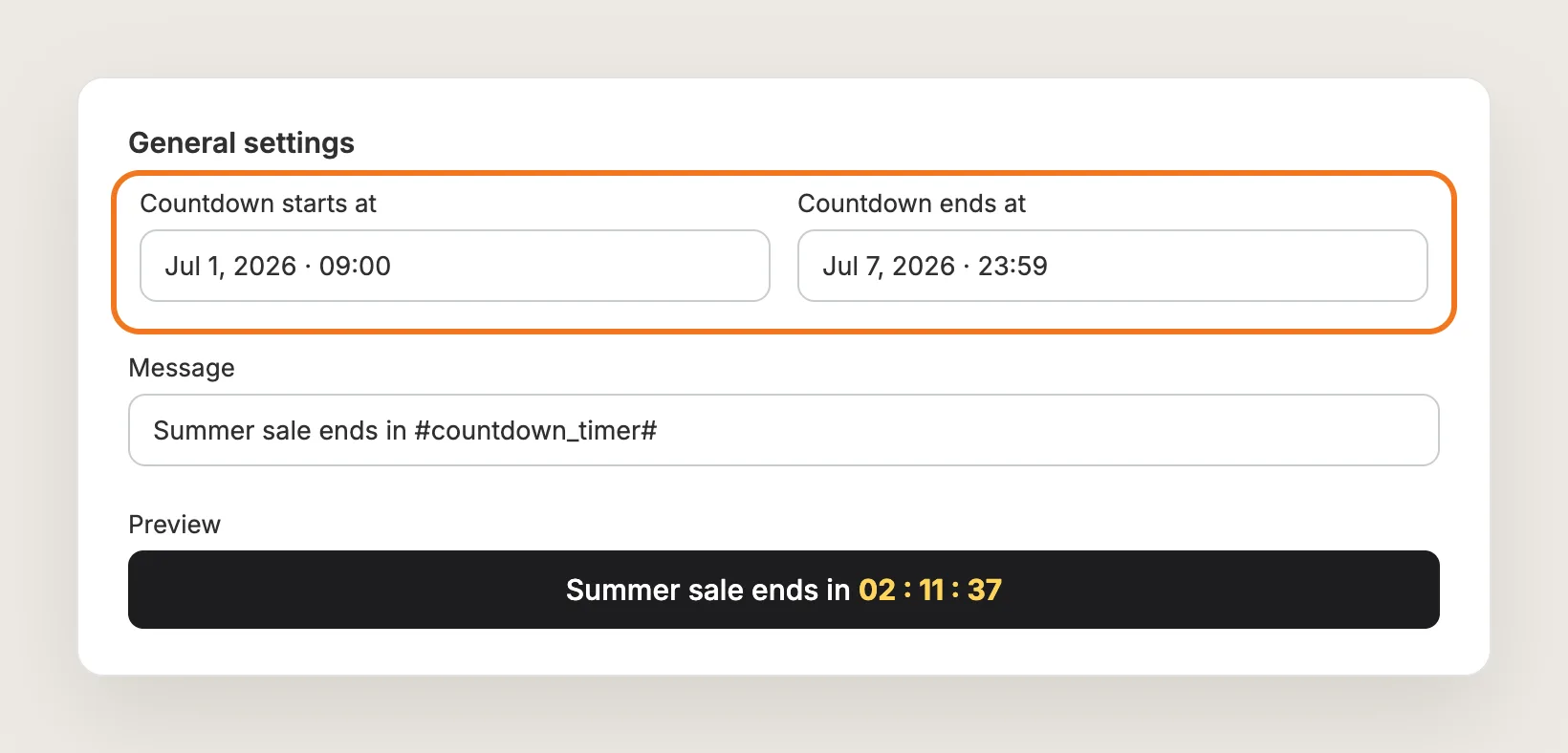
For a sale with an end date, create a second bar with Create and choose Countdown Timer. Set Countdown starts at and Countdown ends at, then write the Message with the #countdown_timer# variable where the time left should show. The Countdown Timer bar shows only between those two times, so the announcement bar goes up and comes down on its own.
Step 11: Let Shoppers Close the Bar (Optional)
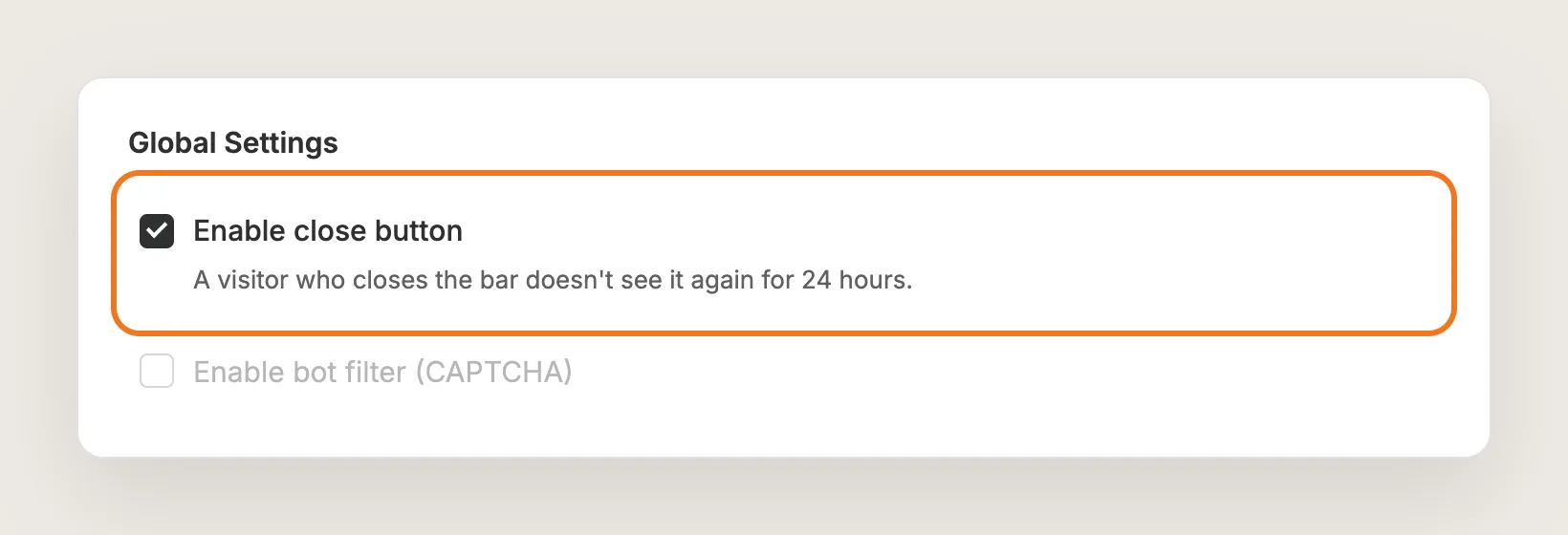
On the Announcement Bars Settings tab, tick Enable close button to add an X to the bar. A visitor who closes the bar doesn't see the bar again for 24 hours. This setting applies to every bar in the app.
Step 12: Save, Test on Your Phone and Watch the Impressions
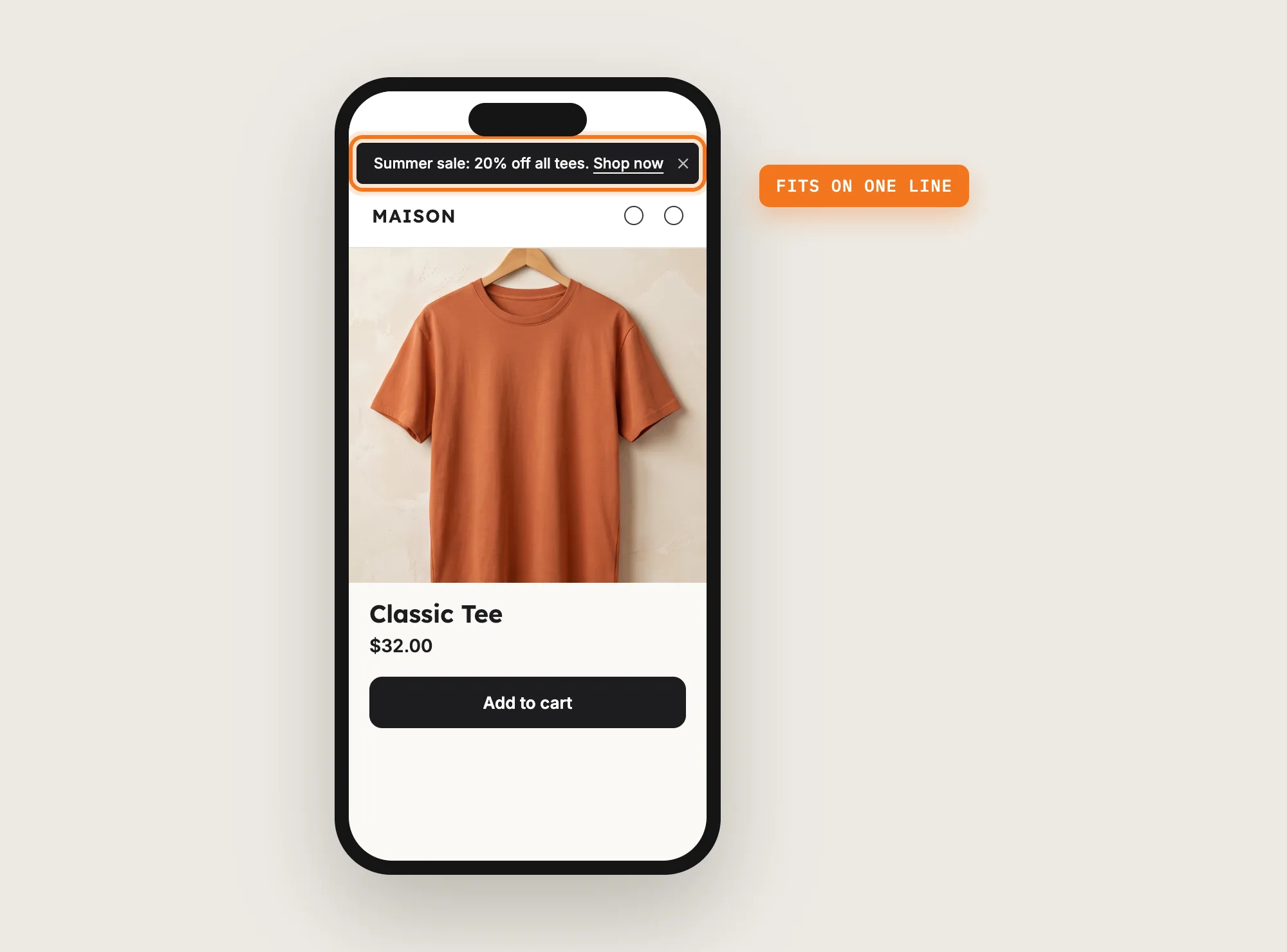
Set Status to Active and save. Only one bar shows on the store at a time, so the new announcement bar replaces any other active bar. Then open your store on your phone and check that the message fits on one line and the link opens the right page.
The Analytics tab then shows how many times visitors saw the bar.
Step 13: Voila, Your Announcement Bar Is Live on the Store
Your shoppers now see your announcement at the top of every page, one click away from the sale.
How to Add an Announcement Bar From Your Theme Settings?
Most Shopify themes include an announcement bar section in the header. To check your theme's settings:
- Open Online Store → Themes in Shopify and click Customize
- Click the Announcement bar section at the top of the page, in the header group
- Type your message, add a link if the section offers one, and click Save
A theme's announcement bar is plain text in your theme's colors. Some Shopify themes let you add several announcements that rotate, but most can't schedule a message, count down to the end of a sale or collect emails, and none report how many shoppers saw the bar. If a fixed message is all you need, the theme setting may be enough.
How to Add an Announcement Bar Without an App?
Hire a developer to build an announcement bar into your theme with Liquid and CSS. The bar is a small section added above the header in the theme layout.
A custom announcement bar usually involves:
- Making a copy of your theme, so the live store stays untouched during testing
- Adding the bar's markup to the theme layout, above the header
- Adding theme settings for the message, link and colors, so you can edit the bar without code
- Styling the bar for desktop and phones, including a close button if you want one
- Adding a script for a scheduled message or a countdown, if you need one
- Testing the bar on every page template, then publishing the theme copy
Custom code means no extra app, but you or your developer have to maintain it. Every new sale means editing the message by hand, and a theme update can replace the files the code is in.
How to Increase Sales With an Announcement Bar?
An announcement bar raises sales by putting your current offer in front of every visitor and linking straight to the products on sale. These settings help the announcement bar move sales:
- Link the announcement bar to the sale. A shopper who clicks lands on the products the message promises. Set the page in Link on a Text bar
- Lead with the offer. "20% off all tees this week" tells shoppers what they get before they read on. Put the offer at the start of Message
- Add a deadline to the sale. A visible end time gives shoppers a reason to buy now. Use a Countdown Timer bar with #countdown_timer# in the message
- Keep the announcement bar on screen while shoppers browse. Set Position to Top fixed or Bottom, so the offer doesn't scroll away on long product pages
- Make the announcement bar stand out from the header. Choose the Custom theme style and set a Background Color that contrasts with your header
- Grow your email list with a discount. An Email Capture bar gives shoppers a code for signing up, so you can bring them back with your next sale
Why Isn't My Announcement Bar Showing or Working?
These fixes solve most announcement bar problems:
- The bar doesn't show at all: Check that the bar's Status is Active and that the Announcement Bars app is on. Only one bar shows at a time, so another active bar can replace the bar you're testing
- The bar disappeared after I closed it: With Enable close button on, a visitor who closes the bar doesn't see the bar again for 24 hours. Test in a new incognito window
- A Countdown Timer bar doesn't show: The bar shows only between Countdown starts at and Countdown ends at. Check both dates, and keep #countdown_timer# in the message
- The bar doesn't show on the cart page: Email Capture and Orders Counter bars never show on the cart page. Use a Text bar if you need a message there
- An Orders Counter bar doesn't show: The bar stays hidden until your store has at least one order, and the message has to keep #orders_count#
- The bar shows only in the cart drawer: Untick Display this only in Cart-Drawer under the bar's General settings
- I want the bar on some pages only: Announcement Bars can't limit a bar to certain pages. The announcement bar shows on every page of your store
Which Announcement Bar Method Should You Choose?
Vitals - All in One App suits most stores, but the right method depends on what the announcement bar needs to do.
- Choose Vitals - All in One App if you want a clickable announcement bar with your own colors, plus countdown, email capture and free shipping bars and impression tracking. It also includes 40+ other apps in one subscription of $29.99/month, so you don't have to install and pay for each app separately
- Choose your theme's setting if a plain text message in the header is enough and you don't need scheduling or analytics
- Choose custom code if you have a developer, want no app at all, and are happy to edit the code for every new message
Start a 7-day free trial: Install the Vitals - All in One App and add an announcement bar
Frequently Asked Questions
1. What is the best way to add an announcement bar in Shopify?
Vitals - All in One App is the best way for most stores. Its Announcement Bars app adds an announcement bar without code, with a link, your own colors and a choice of top or bottom position, plus countdown, email capture, free shipping and orders counter bars.
2. Does Shopify have a built-in announcement bar?
Shopify doesn't add an announcement bar on its own, but most Shopify themes include an announcement bar section in the header. Open Online Store → Themes → Customize and click Announcement bar to edit the message.
3. Can I make the announcement bar clickable?
Yes. On a Text bar in the Vitals Announcement Bars app, go to General settings → Link and pick a page or paste a URL. Shoppers who click the announcement bar then open that page.
4. Can I schedule an announcement bar for a sale?
Yes, with a Countdown Timer bar. Set Countdown starts at and Countdown ends at, and the bar shows only between those two times. Text, Free Shipping, Email Capture and Orders Counter bars have no date window, so switch their Status on and off by hand.
5. Can I show more than one announcement bar at a time?
You can create as many bars as you like, but only one bar shows on your store at a time. For several rotating messages, some Shopify themes offer rotating announcements in their own announcement bar section.
6. Can I show the announcement bar only on certain pages?
No. The Vitals announcement bar shows on every page of your store. You can show a bar only inside the Vitals Cart Drawer app by ticking Display this only in Cart-Drawer.
7. Can I translate the announcement bar?
Yes. Open a saved bar in the Vitals Announcement Bars app and click Translate at the top of the editor to add the message in other languages.