How to Add Social Media Icons on Shopify

New shoppers look for signs that a store is real before they place a first order. An active Instagram or TikTok profile is one of those signs, but most visitors won't search for your profiles on their own.
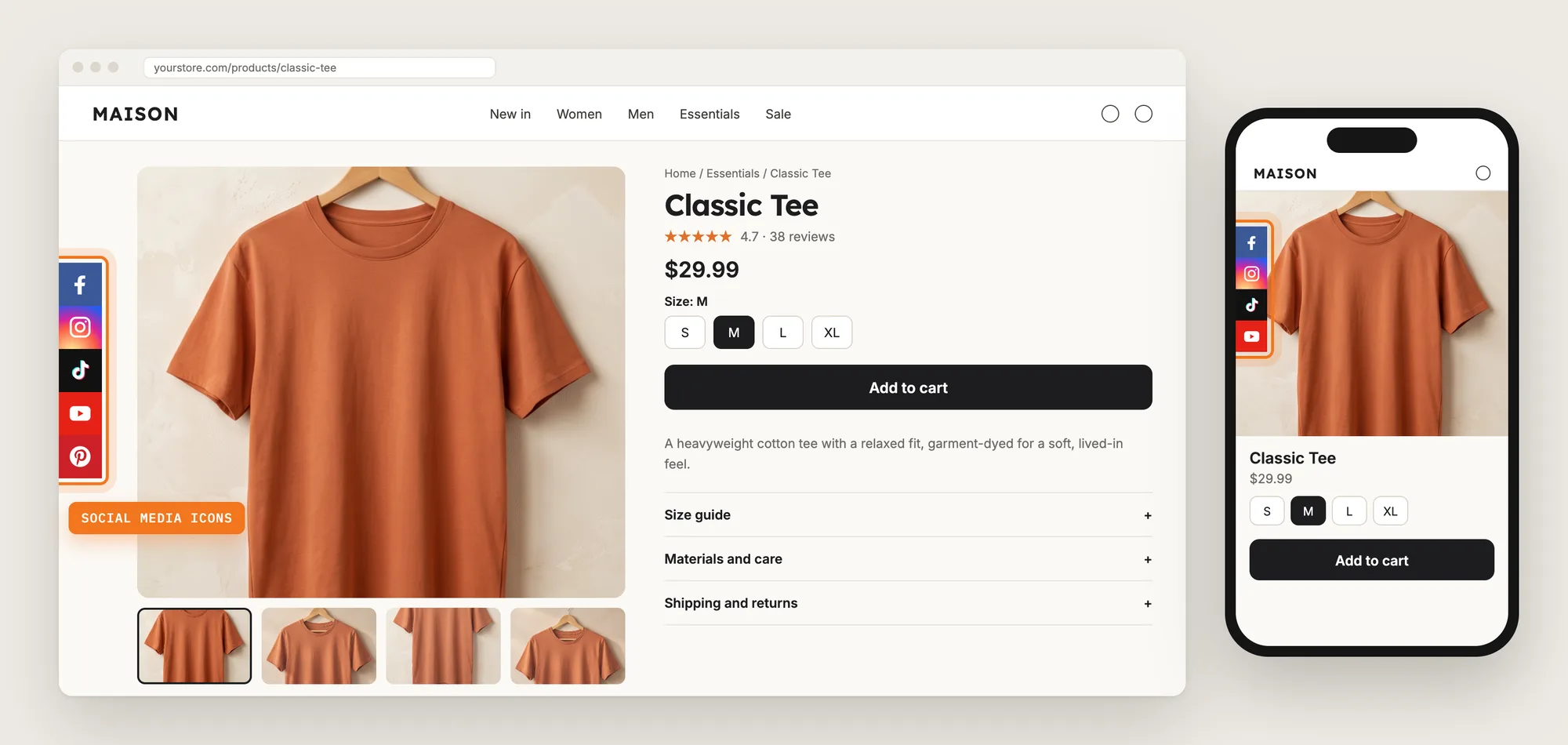
Social media icons put those profiles one click away. A column of Facebook, Instagram, TikTok and YouTube icons on the edge of the page shows shoppers where to find you, on every page they browse.
Here are the three ways to add social media icons to a Shopify store: with a Social Media Icons app, from your theme settings, or with custom code.
What Are Social Media Icons?
Social media icons are small buttons with the logos of the social networks a store is on, such as Instagram, Facebook, TikTok and YouTube. Each icon links to the store's own profile on that network. They're also called social media buttons or social icons.
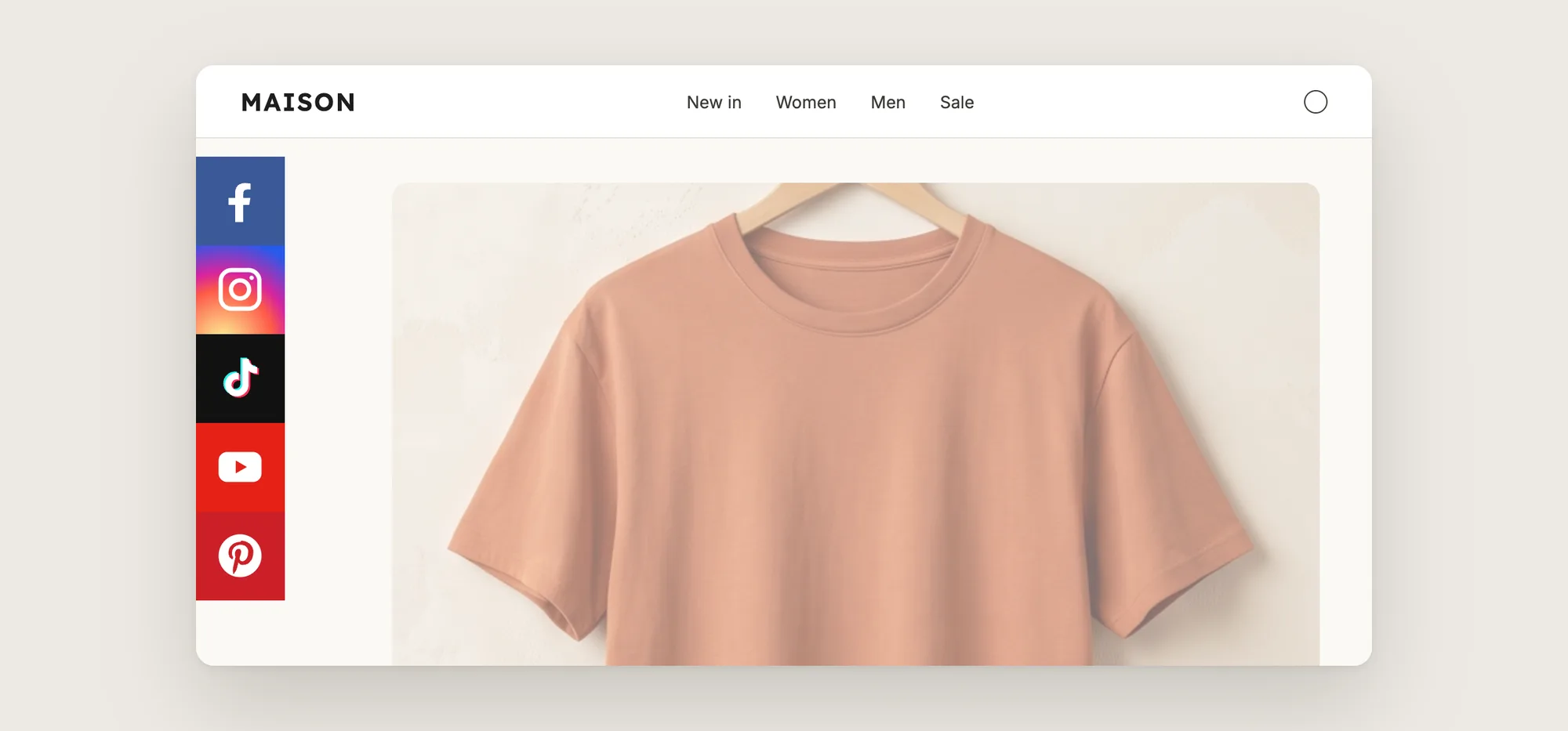
Good social media icons include:
- Only your active profiles: Every icon links to a profile you post on, not an empty account.
- Full profile links: Each icon opens your profile page, not the network's home page.
- A place shoppers can find: The icons show in the same spot on every page.
- Phone visibility: Shoppers on phones see the icons too, not only desktop visitors.
Social media icons are follow links. They send shoppers to your profiles, while share buttons let shoppers post your product on their own profiles.
What's the Quickest Way to Add Social Media Icons?
- Vitals - All in One App is the quickest way to add social media icons for most stores
- Vitals also offers 40+ apps, such as product reviews, trust badges and a cart drawer, in one subscription of $29.99/month, so you don't have to install and pay for each app separately
Here's how the three methods compare.
How to Add Social Media Icons With a Social Media Icons App?
Install the Vitals - All in One App, open its Social Media Buttons app and click Activate app. The social media icons then show on the edge of your store pages, and the steps below set which profiles they link to, which side they show on and whether phones show them.
Step 1: Add Vitals to Your Shopify Store
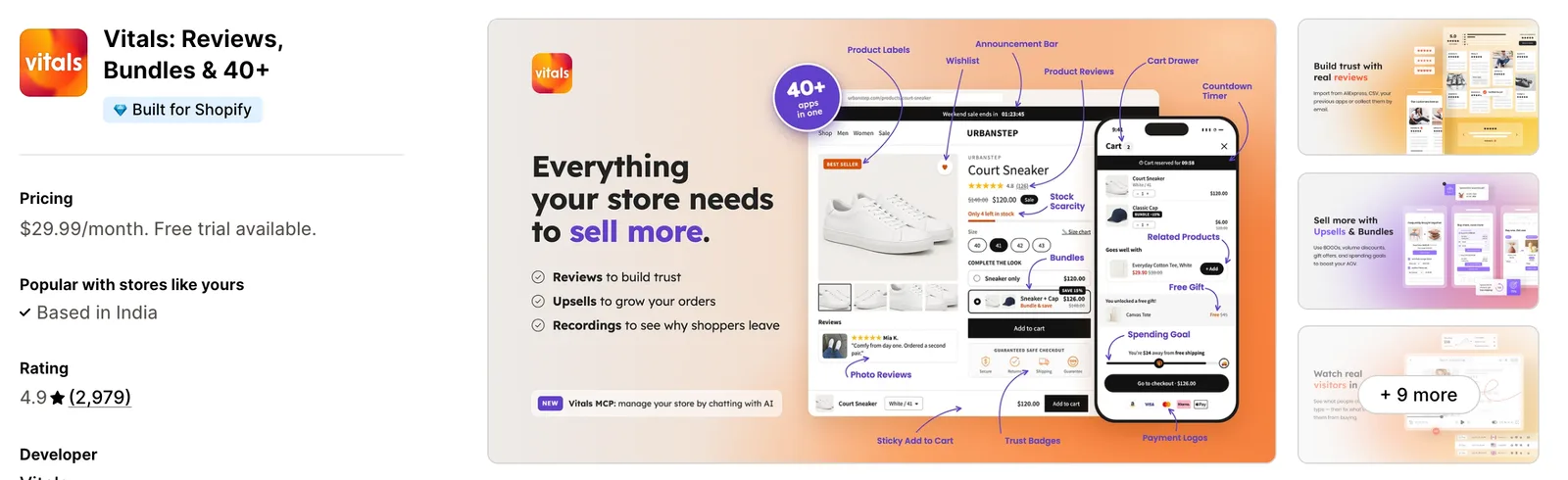
Install the Vitals - All in One App from the Shopify App Store. The 7-day free trial includes the Vitals Social Media Buttons app.
Step 2: Confirm the Install in Shopify
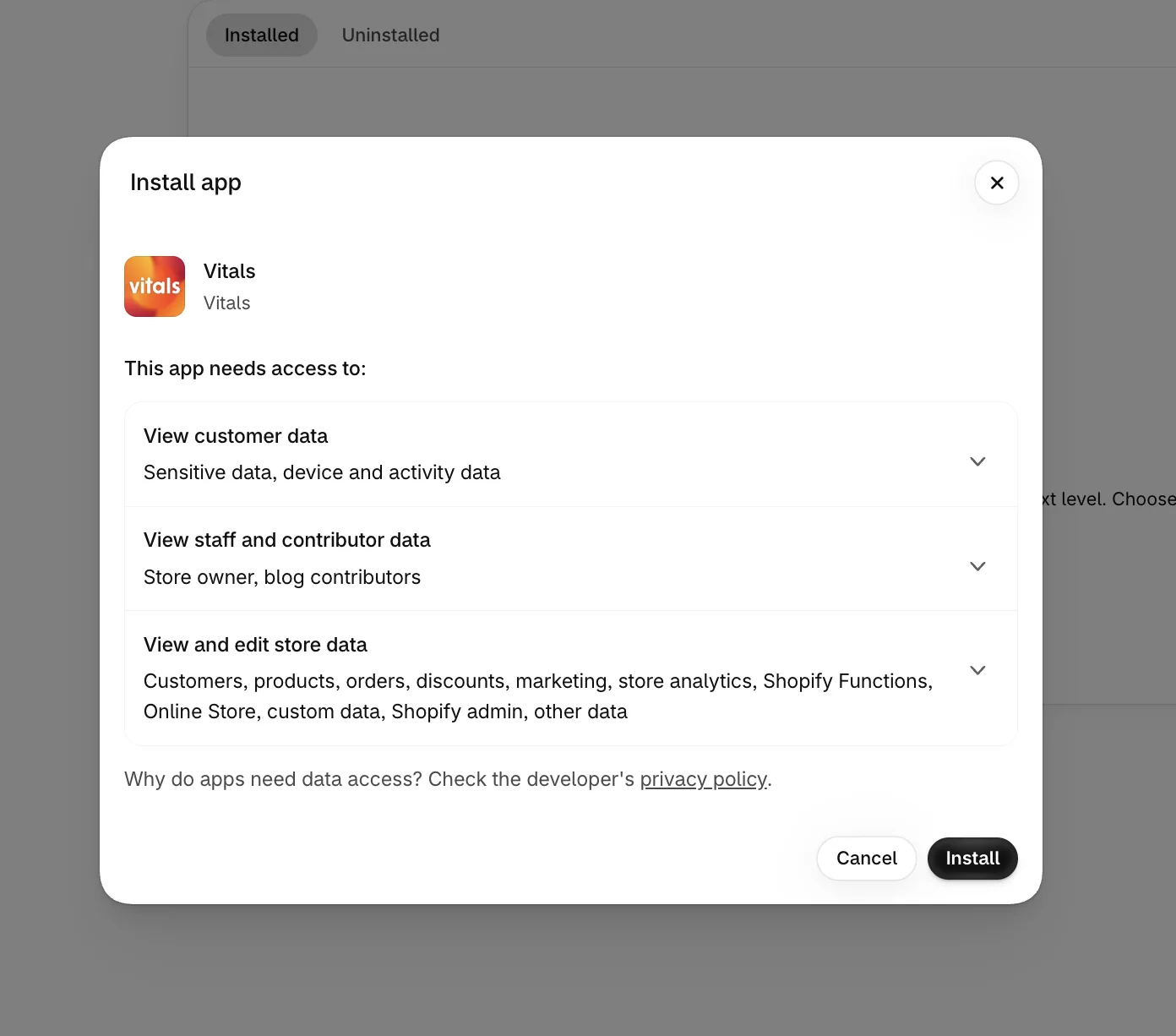
Click Install to approve the store data Vitals uses. Shopify then takes you to the Vitals dashboard.
Step 3: Open Social Media Buttons
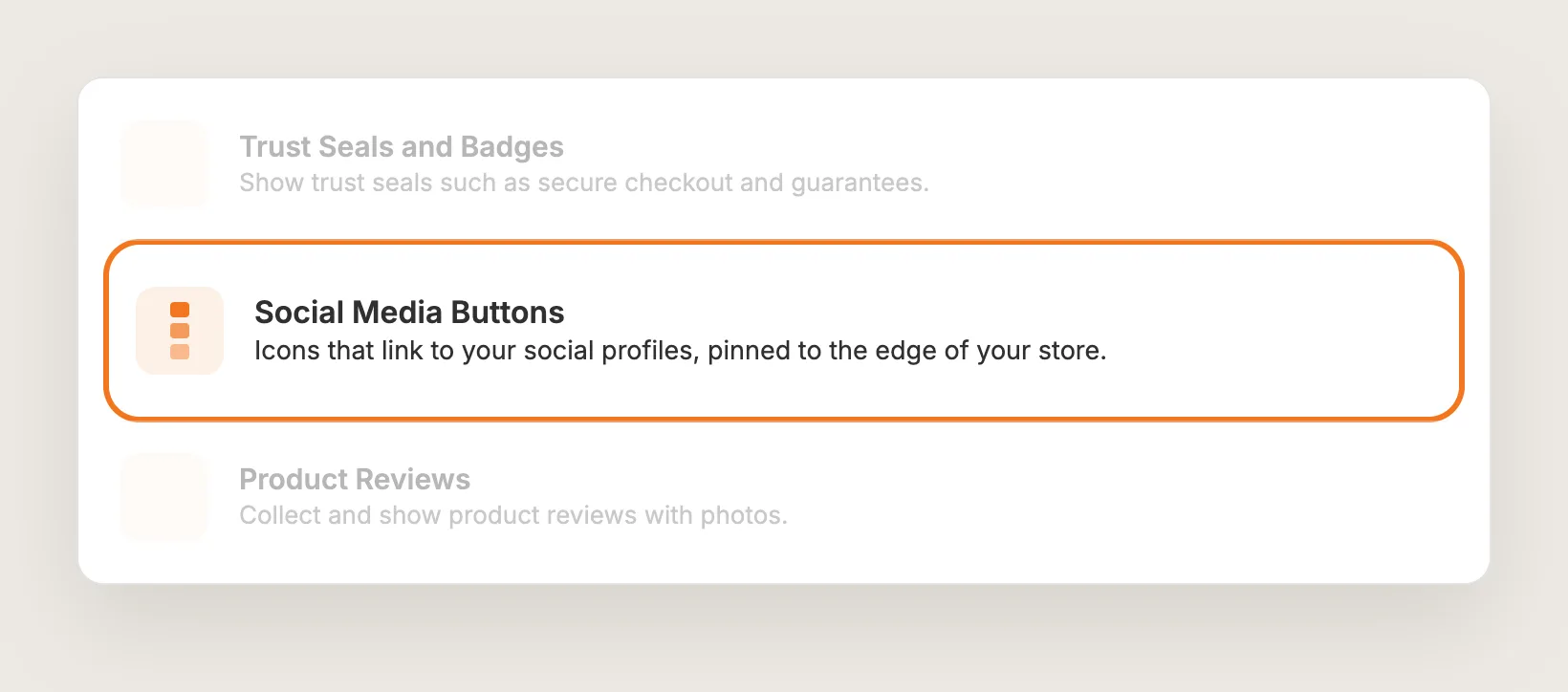
In the Vitals dashboard, find Social Media Buttons in the list of apps and click it.
Step 4: Activate Social Media Buttons
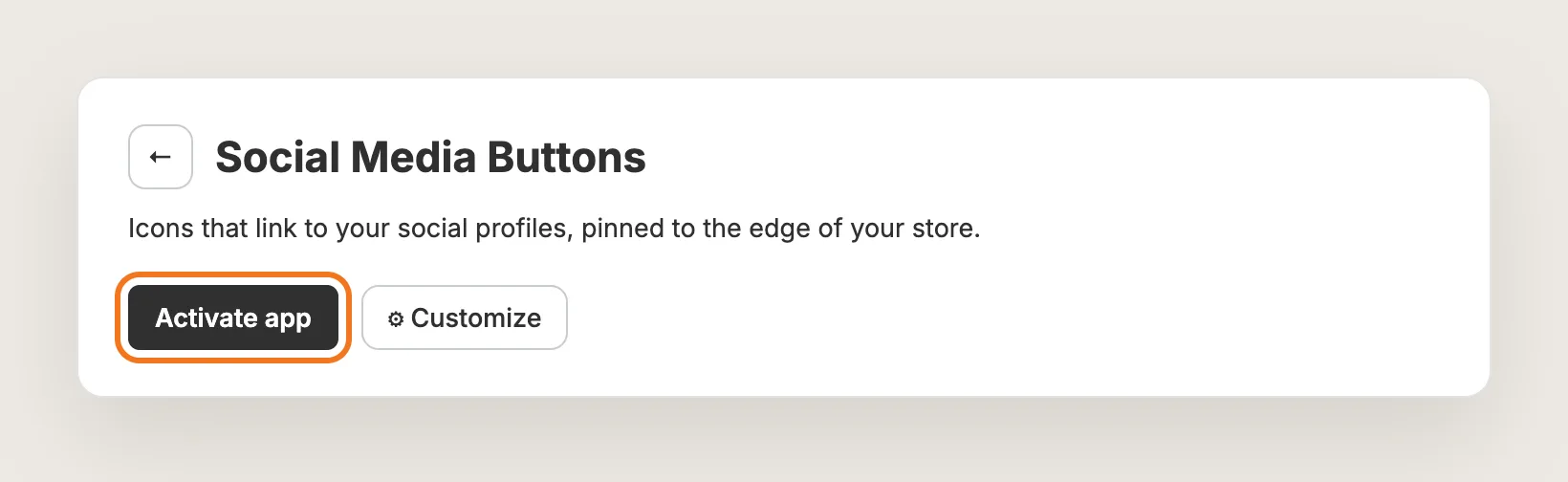
On the Social Media Buttons page, click Activate app to turn the social media icons on. Click Customize instead if you want to add your links before the icons go live. The settings page has a Settings card, a Social Media card and a live preview with a switch between mobile and desktop.
Step 5: Paste Your Social Profile Links
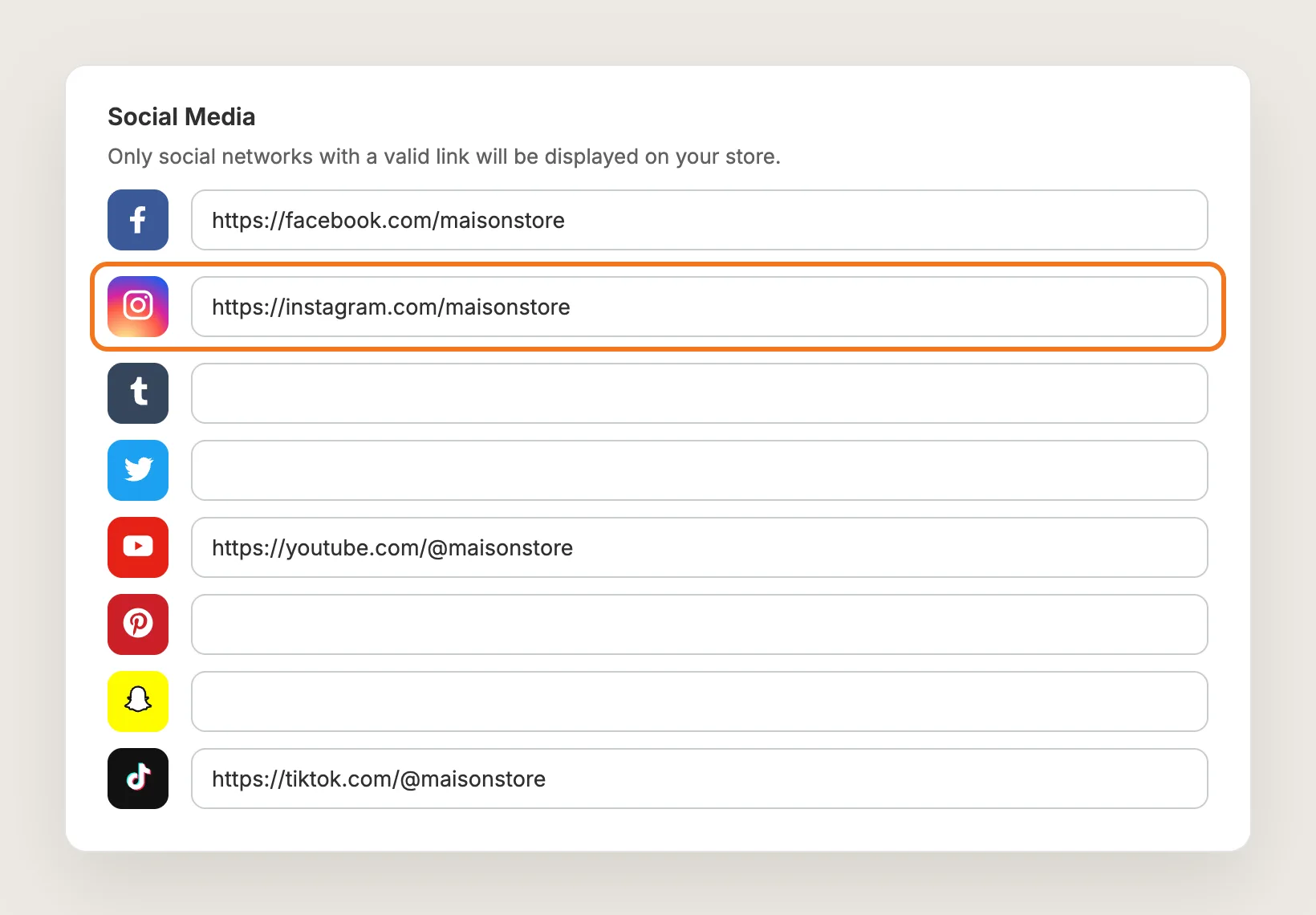
In the Social Media card, paste the full link to each profile in the field next to that network's icon, such as https://instagram.com/yourstore. The card lists eight networks: Facebook, Instagram, Tumblr, Twitter (X), YouTube, Pinterest, Snapchat and TikTok. Leave a field empty to hide that network, since only networks with a link show on your store.
Step 6: Choose the Left or Right Side of the Page
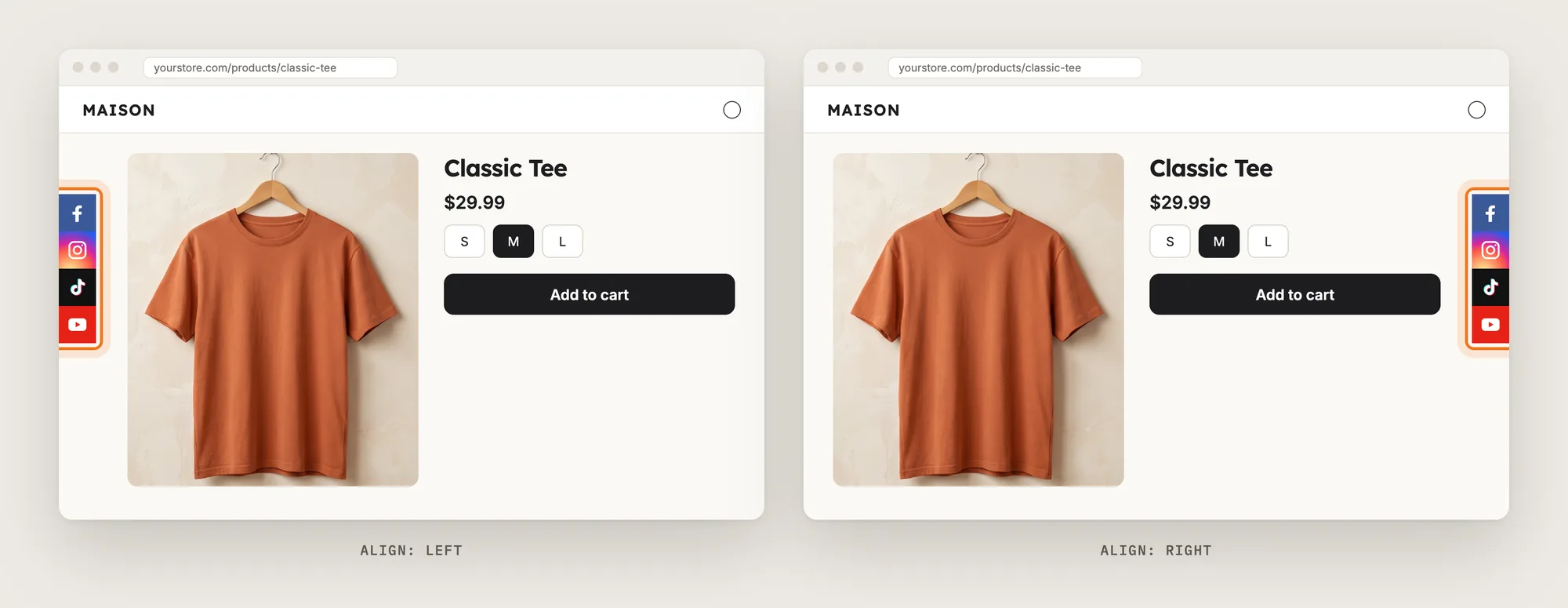
In the Settings card, set Align to Left or Right. The social media icons show as a column on that edge of the page. Left is the default, so pick Right if a chat button or another widget already uses the left edge.
Step 7: Set How Far From the Top the Icons Show
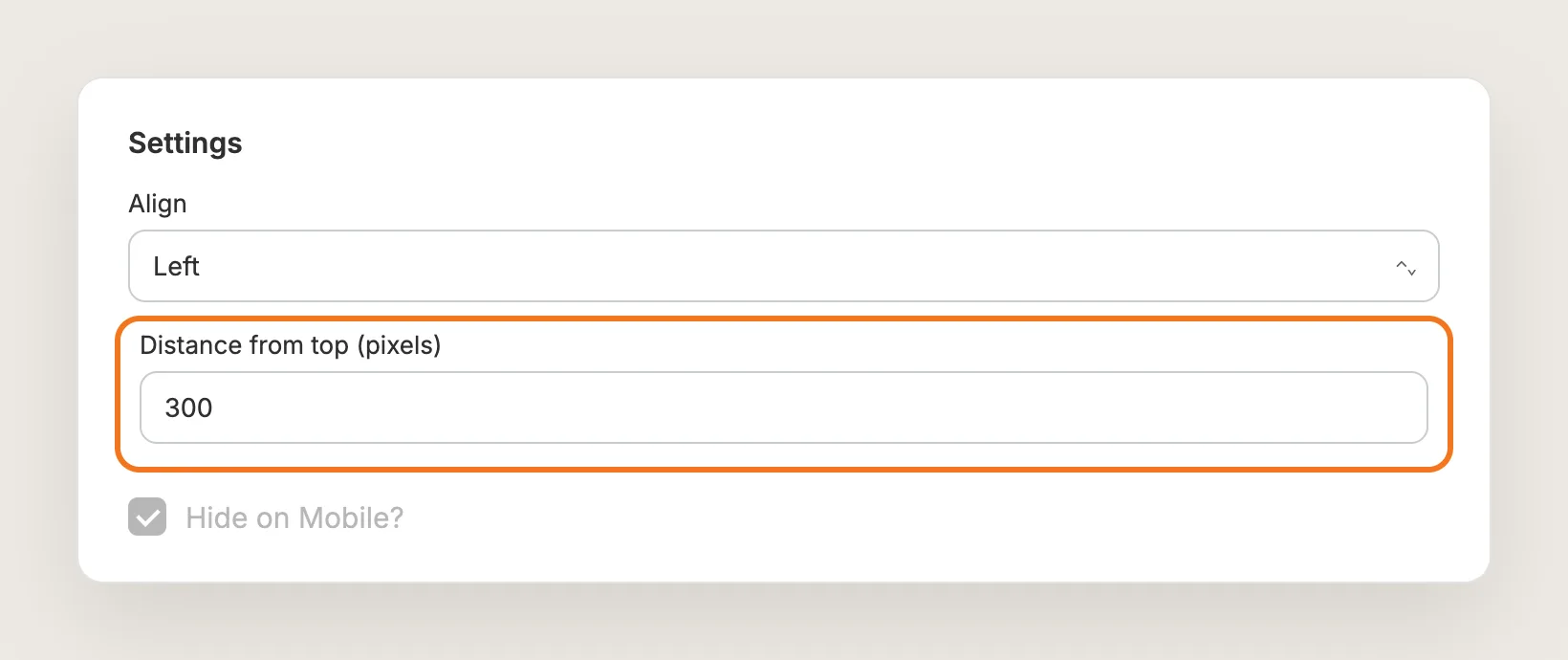
In the same card, enter a number in Distance from top (pixels). The default is 300, which puts the column below most store headers. Raise the number to move the icons down the page, or lower it to move them up.
Step 8: Show the Icons on Mobile
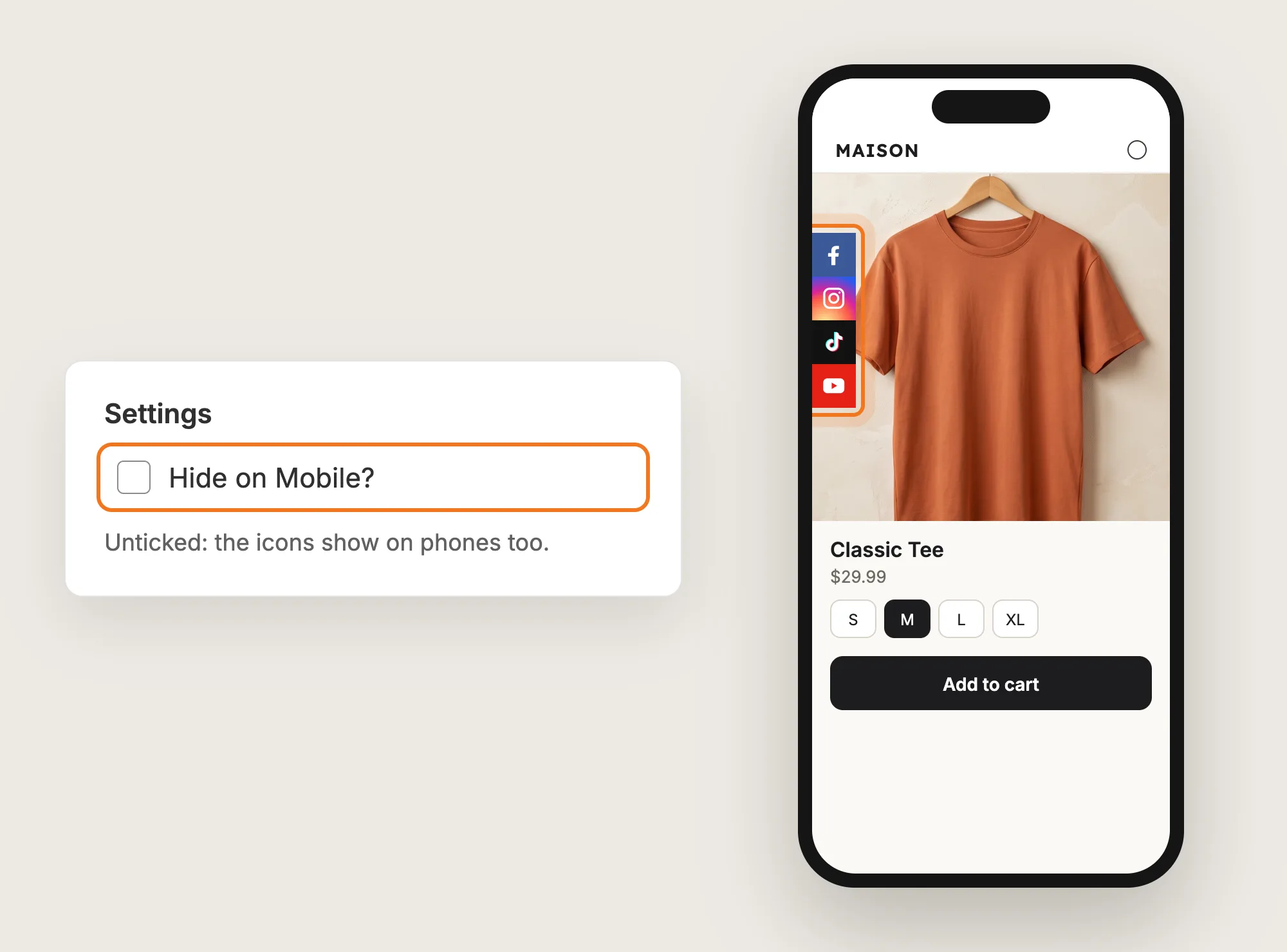
Hide on Mobile? is ticked by default, so shoppers on phones don't see the social media icons. Untick Hide on Mobile? in the Settings card to show the icons on phones too.
Step 9: Save, Test on Your Phone and Watch the Clicks
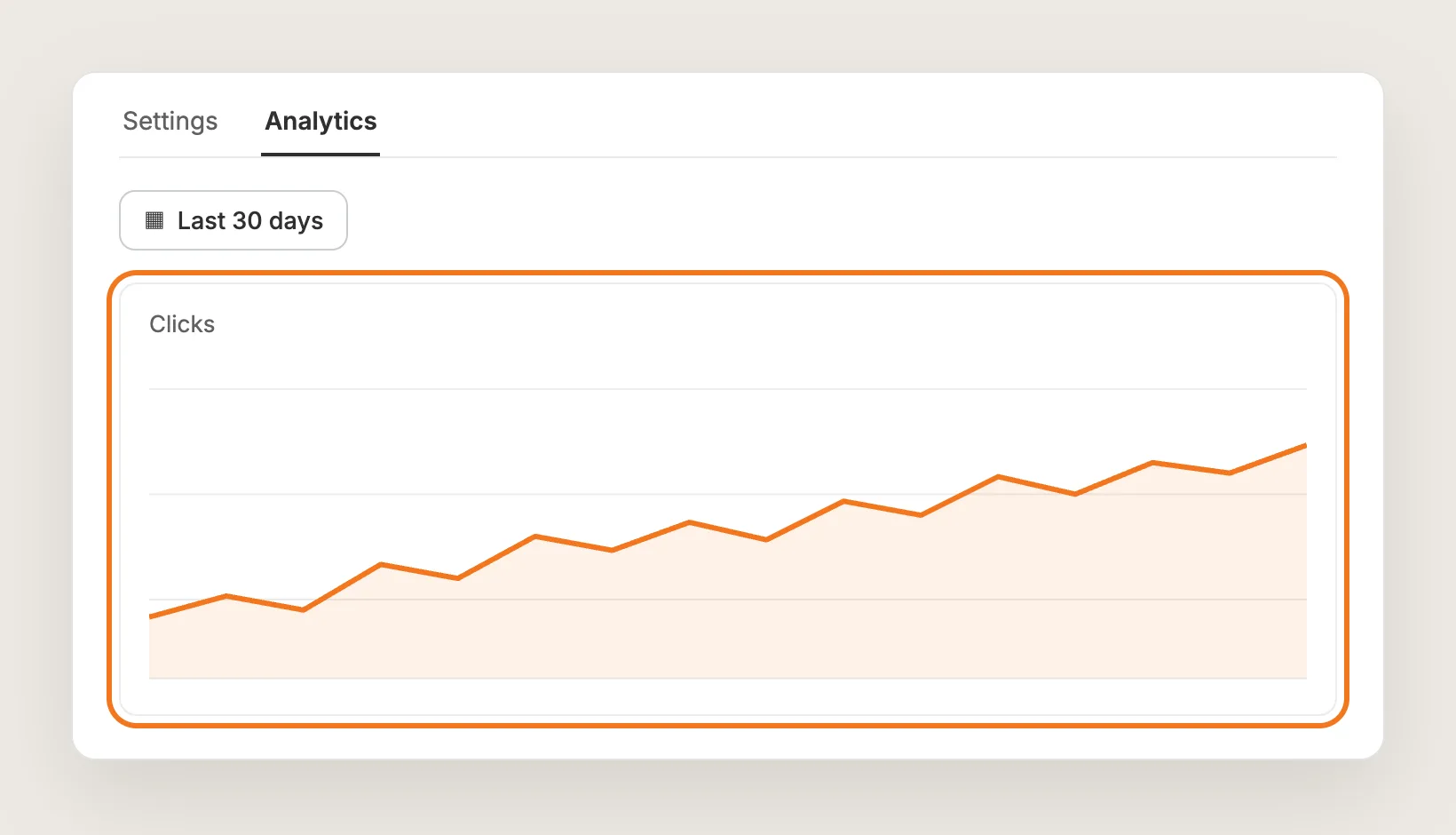
Save your changes, then open your store on desktop and on your phone. Check that every icon opens the right profile and that the column doesn't hide a chat button or another widget. Then open the Analytics tab to see how many clicks the social media icons get over a date range.
Step 10: Voila, Your Social Media Icons Are Live on the Store
Your shoppers now see your social profiles on the edge of every page, one click away from proof that your store is active.
How to Add Social Media Icons From Your Theme Settings?
Many Shopify themes include social media icons in the footer, and some in the header too. To check your theme's settings:
- Click Customize next to your theme in Online Store → Themes
- Open Theme settings and look for Social media, then paste your profile links
- Click the Footer section and tick the option to show social media icons, if your theme has one, then click Save
The theme icons follow your theme's design, so their style, size and place depend on the theme. Most themes show them in the footer only, where shoppers see them after scrolling to the bottom of the page. If footer icons are all you need, the theme setting is enough on its own.
How to Add Social Media Icons Without an App?
Hire a developer to add social media icons to your store with Liquid, HTML and CSS. The build places a set of linked icons in your theme, on every page or only on certain templates.
Custom social media icons usually involve:
- Copying your theme first, so the live store isn't affected
- Adding icon images or SVGs for each network you're on
- Linking each icon to your profile, opening in a new tab
- Placing the icons in the layout, such as a fixed column on the edge of the page
- Styling the icons for size and spacing on mobile and desktop, then publishing the theme copy
Custom code means no extra app, but you or your developer have to maintain it. A theme update can replace the files the code is in, so the icons may need adding back after each update. Adding a new network or changing a link also means editing the code.
How to Increase Trust With Social Media Icons?
Social media icons build trust by showing new shoppers that a real, active brand stands behind the store. These settings help:
- Link only the profiles you post on. An empty or old profile costs more trust than it gains. Fill in only those networks in the Social Media card
- Use the full link to each profile. An icon that opens the wrong page looks careless. Paste the full profile URL, such as https://instagram.com/yourstore
- Show the icons on phones. Shoppers on phones look for the same proof as desktop shoppers. Untick Hide on Mobile?
- Keep the icons clear of other buttons. A column on top of a chat button or a cart icon makes both harder to use. Change Align or Distance from top (pixels) to move it
- Check every link after a profile change. A renamed account breaks the old link. Update the field in the Social Media card whenever a handle changes
Why Aren't My Social Media Icons Showing or Working?
These are the usual causes when social media icons don't show:
- The icons don't show at all: Check that the app is activated, and that at least one network in the Social Media card has a link
- The icons don't show on my phone: Hide on Mobile? is ticked by default. Untick it in the Settings card, then check on a real phone
- The preview shows icons I didn't add: With no links saved, the preview shows sample icons. Your store shows only the networks you add a link for
- The preview shows icons on mobile, but my phone doesn't: The preview draws the icons on mobile even with Hide on Mobile? ticked. Untick the box to show them on phones
- An icon opens the wrong page: The field needs the full profile URL, not only your username. Paste a link such as https://instagram.com/yourstore
- The icons don't show on the cart page: The social media icons don't show on the cart page. They show on your other store pages
- The icons hide another button: Change Align to the other side, or change Distance from top (pixels) to move the column
- Mobile taps don't show in Analytics: The Analytics tab counts clicks on desktop only
Which Social Media Icons Method Should You Choose?
Vitals - All in One App suits most stores, but the right method depends on where you want the icons and how much control you need.
- Choose Vitals - All in One App if you want social media icons on every page, on the left or right edge, with click analytics. It also includes 40+ other apps in one subscription of $29.99/month, so you don't have to install and pay for each app separately
- Choose your theme's setting if you only want social media icons in the footer, in your theme's own style
- Choose custom code if you want a fully custom design and can keep the icons working through theme updates
Start a 7-day free trial: Install the Vitals - All in One App and add social media icons
Frequently Asked Questions
1. What is the best way to add social media icons on Shopify?
Vitals - All in One App is the best way for most stores. It adds social media icons to the edge of every store page without code, for up to eight networks. You choose the side of the page, the height and whether phones show the icons.
2. Does Shopify have social media icons built in?
Many Shopify themes include social media icons in the footer. Go to Online Store → Themes → Customize, open Theme settings → Social media and paste your profile links. Where the icons show, and how they look, depends on your theme.
3. Which social networks can I link?
The Vitals Social Media Buttons app links Facebook, Instagram, Tumblr, Twitter (X), YouTube, Pinterest, Snapchat and TikTok. The list is fixed, so networks such as LinkedIn and WhatsApp aren't in it.
4. Why can't I see the social media icons on my phone?
Hide on Mobile? is ticked by default in the Vitals Social Media Buttons app. Untick it in the Settings card to show the icons on phones, then check on a real phone, since the preview shows the icons on mobile either way.
5. Do social media icons let shoppers share my products?
No. Social media icons are follow links that open your own profiles. They don't share the product a shopper is looking at.
6. Can I change the color or size of the social media icons?
Not in the Vitals Social Media Buttons app. Each icon shows in its network's own colors, at a fixed size, in a column on the left or right edge of the page. You can change the side, the height and whether phones show the icons.