How to Add EU Withdrawal Button on Shopify

From 19 June 2026, online stores that sell to consumers in the EU have to give shoppers a clearly visible way to withdraw from a purchase online. A shopper who wants to cancel or return an order can't be sent hunting for a contact address or asked to log in first.
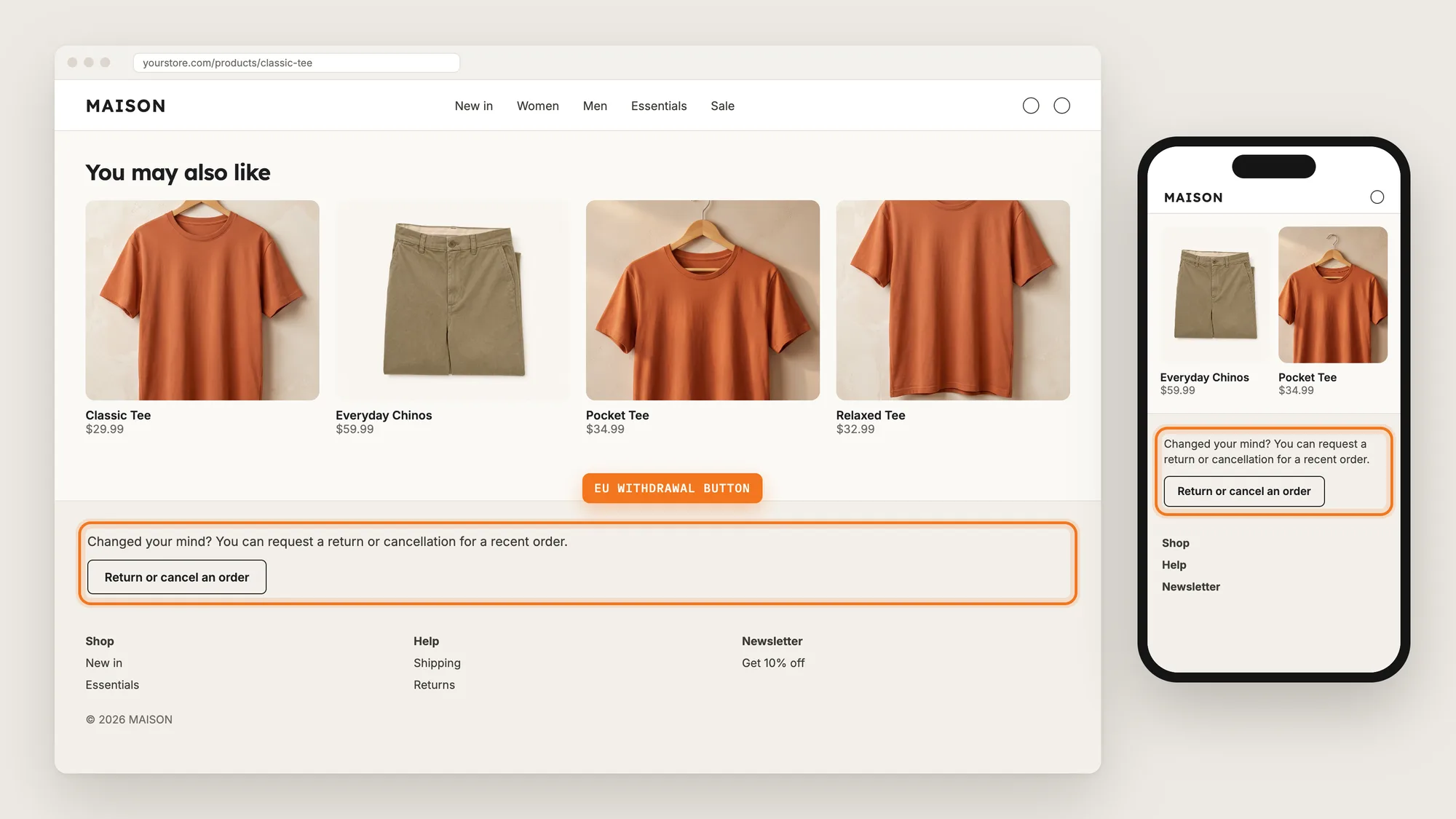
An EU withdrawal button solves that on every page of your store. A short line and a button in the footer open a form where the shopper finds the order, picks the items and submits the request, and an email confirms the request in writing.
Here are the three ways to add an EU withdrawal button to a Shopify store: with an EU Withdrawal Button app, from your theme settings, or with custom code.
What Is an EU Withdrawal Button?
An EU withdrawal button is a button or link that lets a shopper in the EU cancel an order or withdraw from a purchase online, without contacting the store first. EU Directive 2023/2673, which amends the Consumer Rights Directive, asks every business selling online to EU consumers to offer this withdrawal function from 19 June 2026, wherever the business is based.
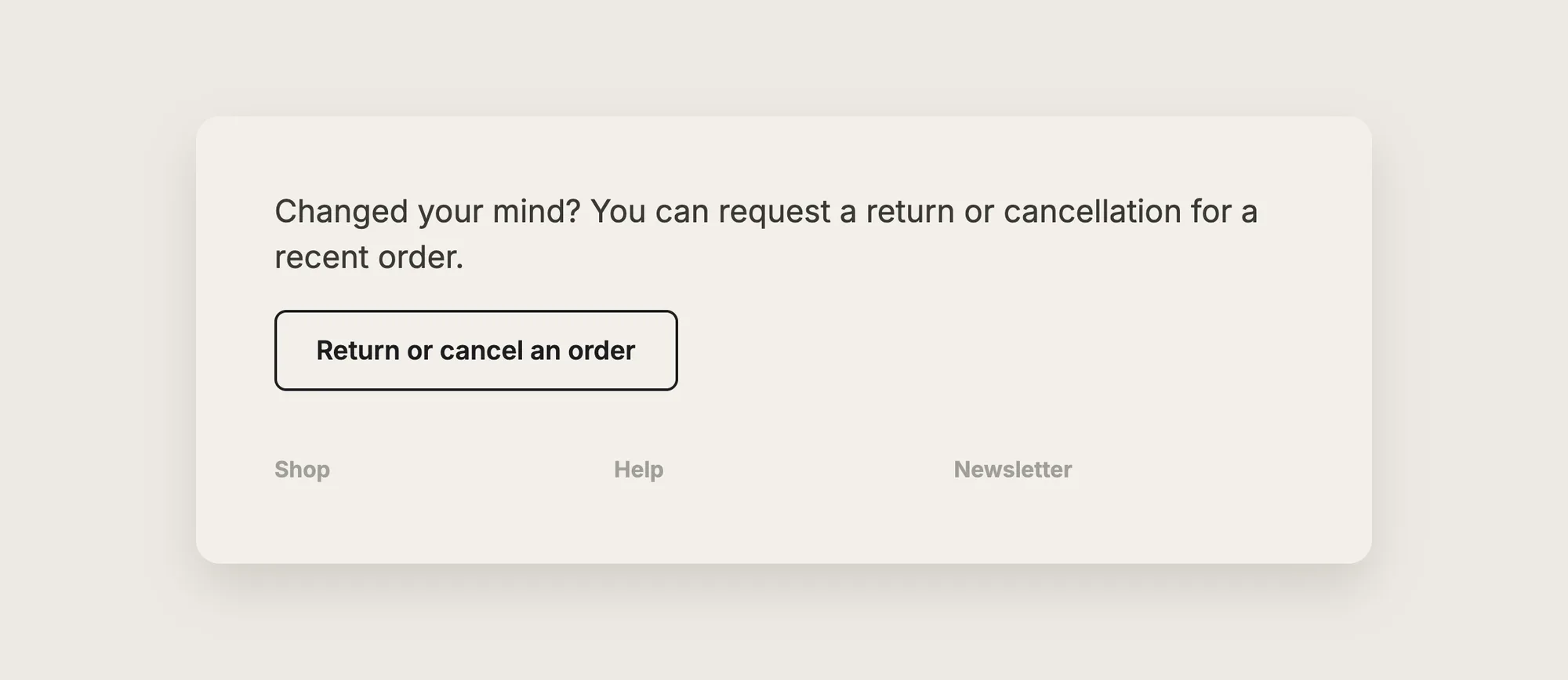
A good EU withdrawal button includes:
- A visible button: The button shows on every page, and shoppers can use it without logging in.
- A two-step confirmation: The shopper first enters the order details, then reviews the order and confirms the request.
- A written confirmation: The shopper gets an email confirming the request, with the date and time the store received it.
- Clear wording: A line such as "Return or cancel an order" tells shoppers at a glance what the button does.
You remain the seller and stay responsible for your store's compliance, including which of your products are exempt. This is general information, not legal advice.
What's the Quickest Way to Add an EU Withdrawal Button?
- Vitals - All in One App is the quickest way to add an EU withdrawal button for most stores
- Vitals also offers 40+ apps, such as a cookie banner, an agree to terms checkbox and product reviews, in one subscription of $29.99/month, so you don't have to install and pay for each app separately
Here's how the three methods compare.
How to Add an EU Withdrawal Button With an EU Withdrawal Button App?
Install the Vitals - All in One App, open its EU Withdrawal Button app and click Activate app. The EU withdrawal button then shows at the top of your store footer on every page, and the steps below set who sees the button, what the button and form say, and how you handle each request.
Step 1: Add Vitals to Your Shopify Store
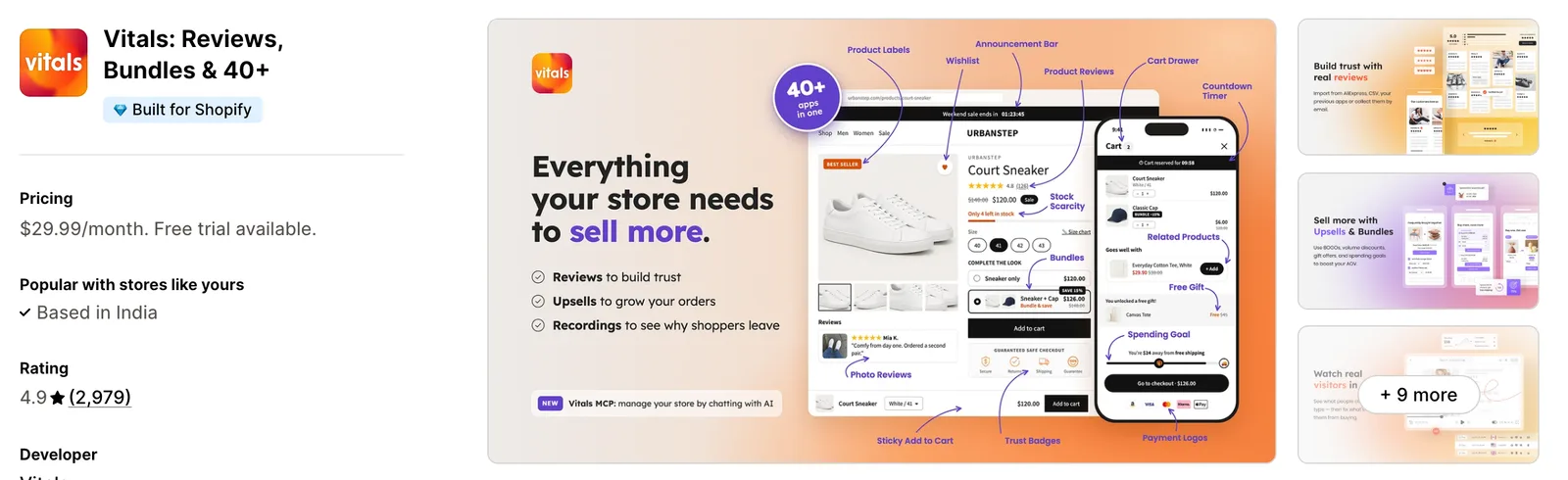
Install the Vitals - All in One App from the Shopify App Store. The 7-day free trial includes the Vitals EU Withdrawal Button app.
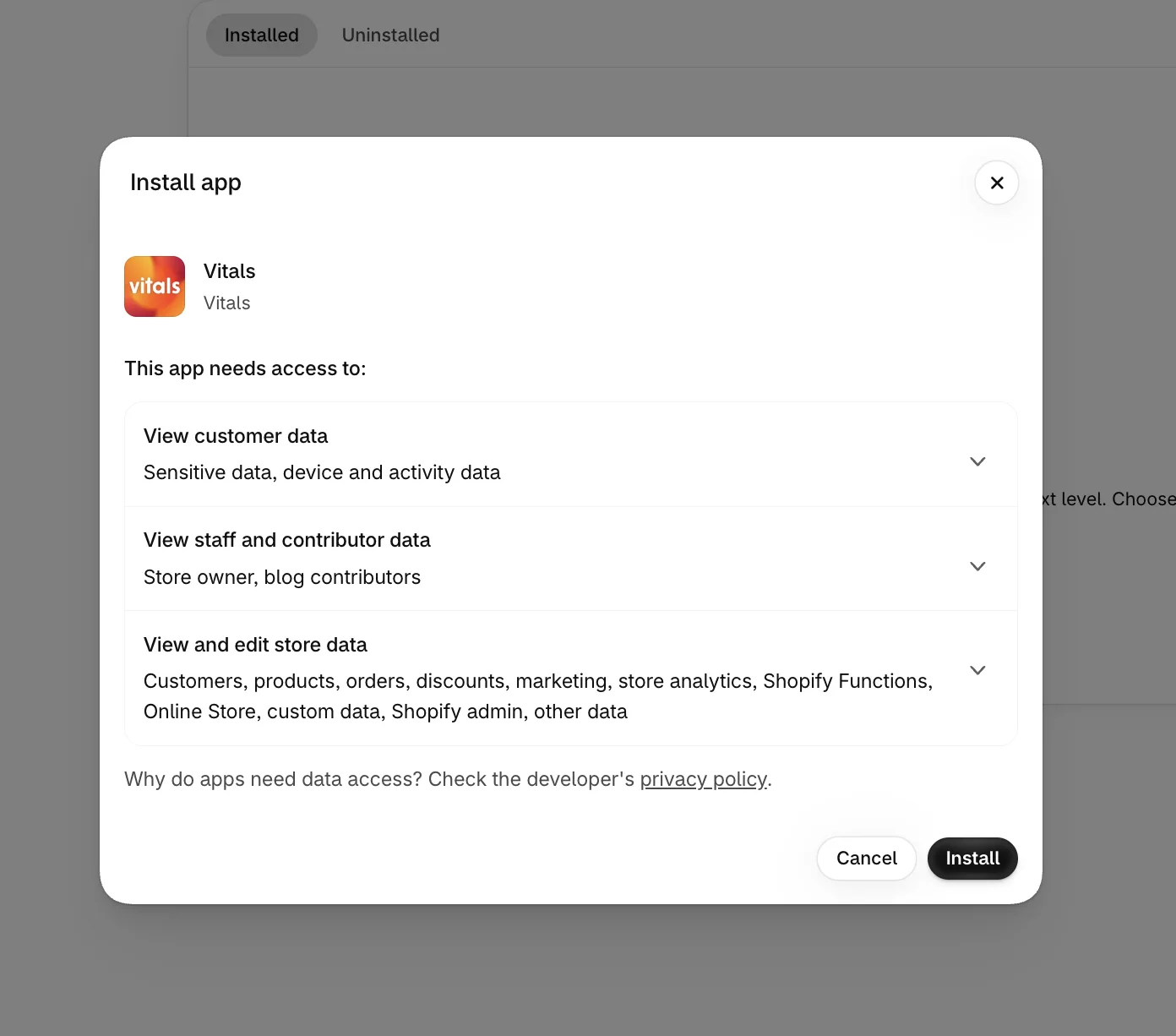
Step 2: Confirm the Install in Shopify
Click Install to approve the store data Vitals uses. Shopify then takes you to the Vitals dashboard.
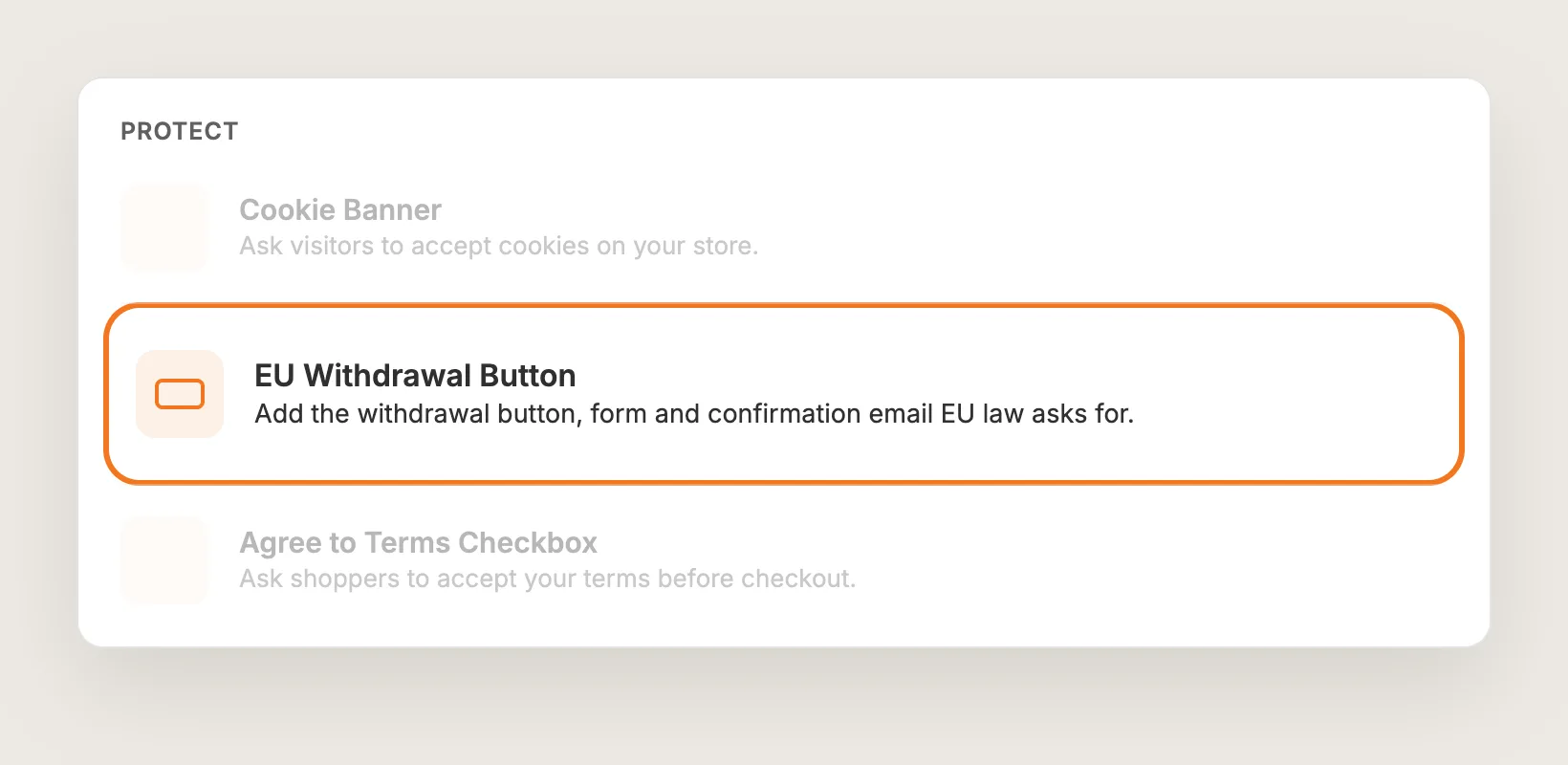
Step 3: Open EU Withdrawal Button
In the Vitals dashboard, find EU Withdrawal Button under the Protect category of the apps list and click it. The app is listed next to Cookie Banner and Agree to Terms Checkbox.
Step 4: Activate EU Withdrawal Button
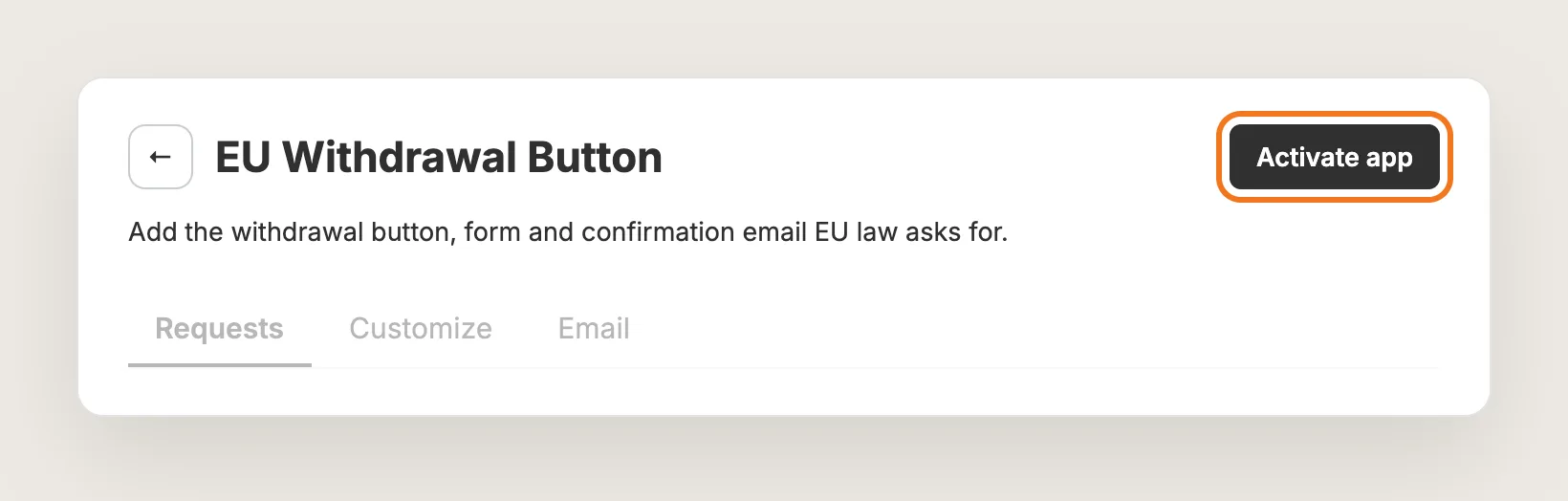
On the EU Withdrawal Button page, click Activate app to turn the EU withdrawal button on. The app has three tabs: Requests, Customize and Email. The withdrawal form page is created for you at `/a/page/withdrawal`, so there's nothing to build.
Step 5: Choose Who Sees the EU Withdrawal Button
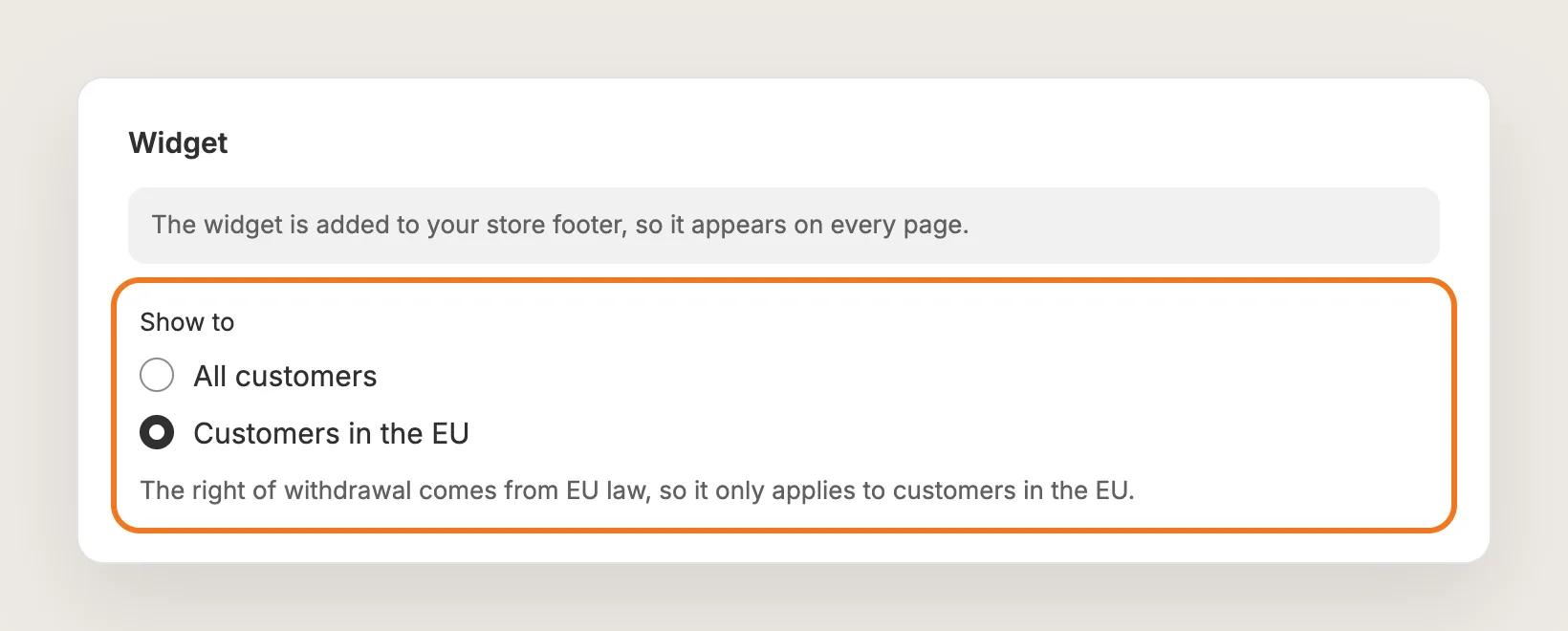
Open the Customize tab. Under Widget, set Show to:
- Customers in the EU: Only shoppers in the 27 EU member states see the button. This is the default
- All customers: Every shopper sees the button, wherever they browse from
Shoppers in Norway, Iceland, Liechtenstein, Switzerland and the United Kingdom don't count as EU for this setting. The setting hides the button only, not the form, so a shopper with the form's address can still submit a request.
Step 6: Edit the Text Shoppers Read
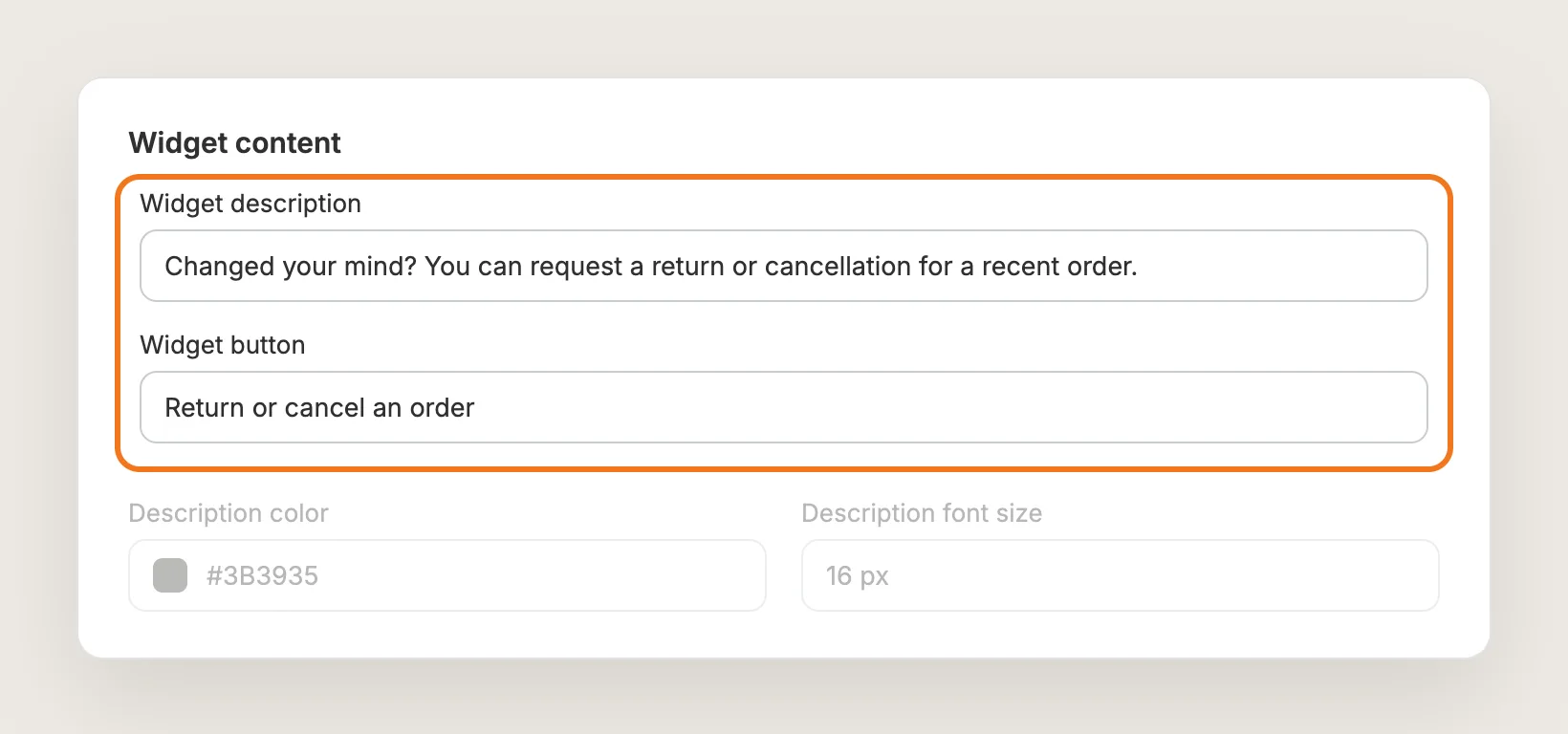
Under Widget content, edit the two lines in your footer:
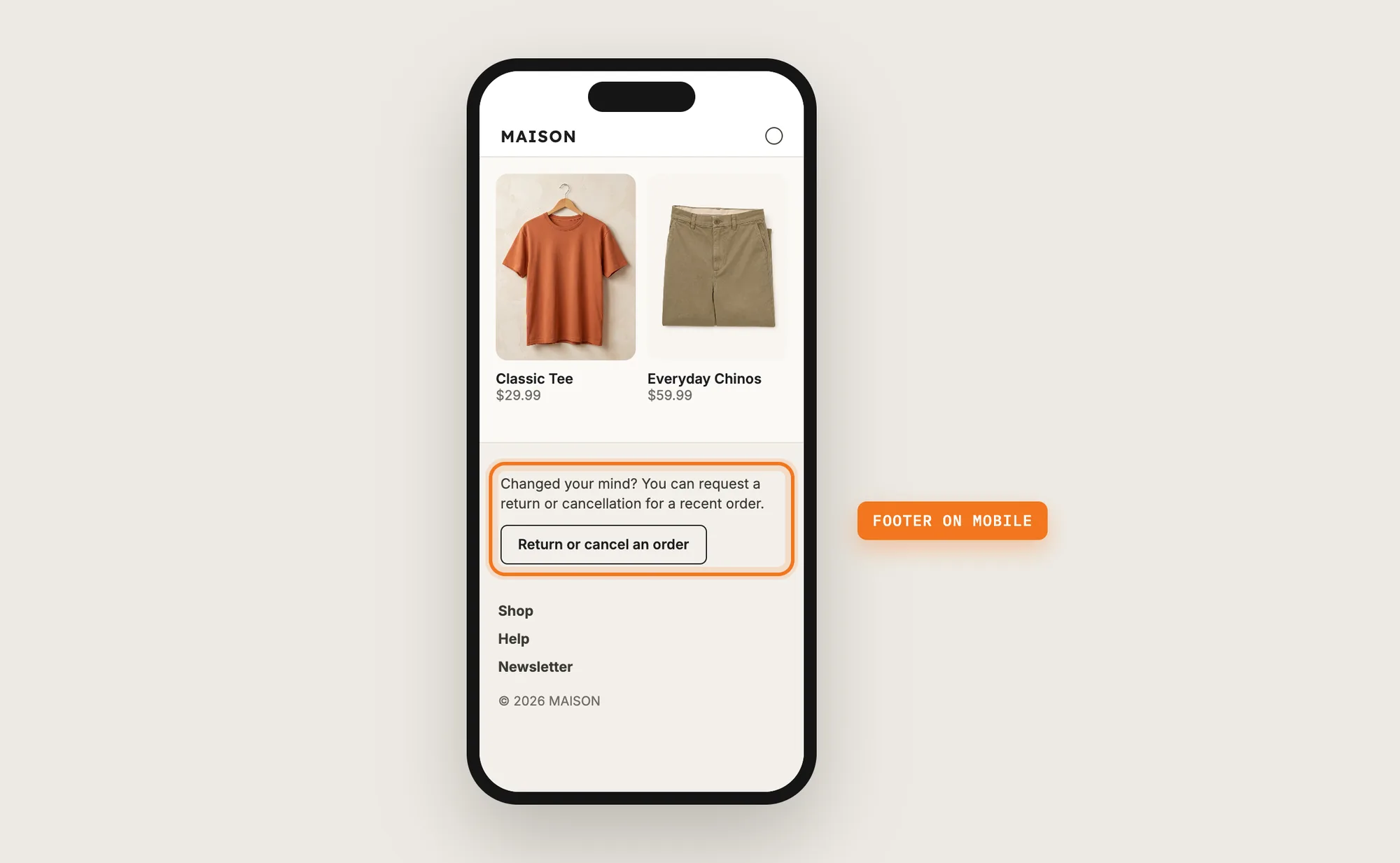
- Widget description: The line above the button. The default is "Changed your mind? You can request a return or cancellation for a recent order."
- Widget button: The button text. The default is "Return or cancel an order"
Description color and Description font size set how the line looks. Keep the wording plain, so a shopper can tell at a glance that this is how to cancel or return an order. To translate every text into your store's other languages, open Translations and follow the link to the translations page.
Step 7: Pick a Button Style
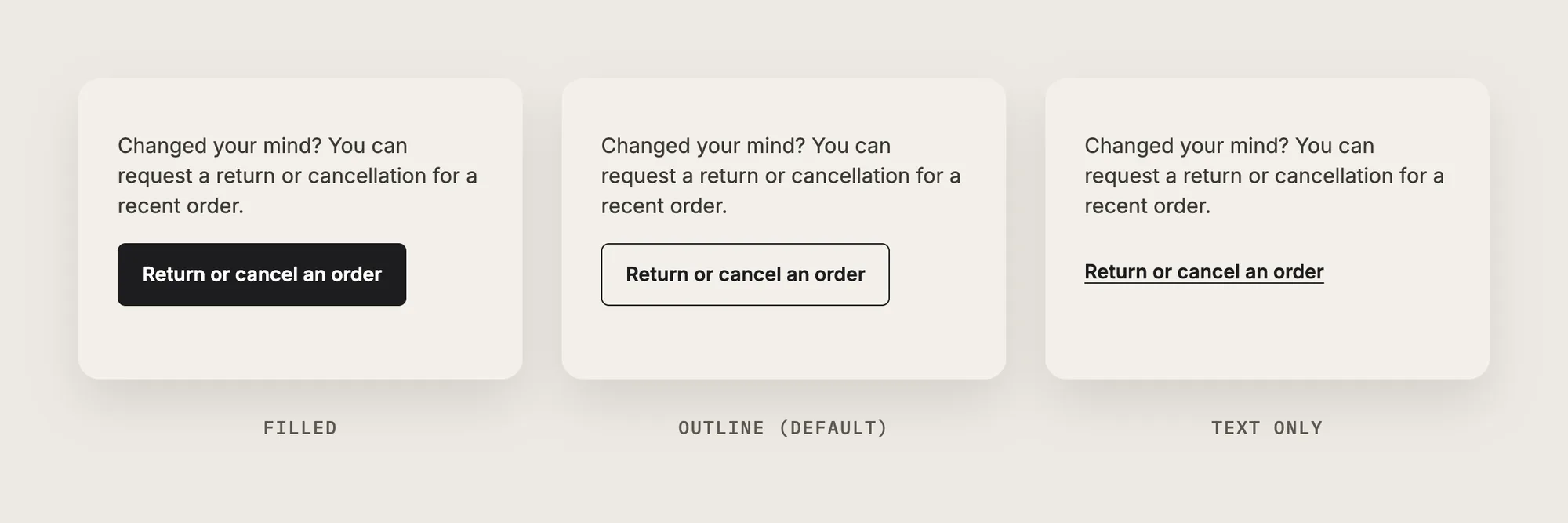
Under Button style, choose Filled, Outline or Text only. Outline is the default, so the EU withdrawal button is clearly visible without competing with your Add to cart button. Then set the colors, Border radius and Font size, and turn on Expand the button to the full width of the section if you want a wider button.
Step 8: Set Up the Withdrawal Form
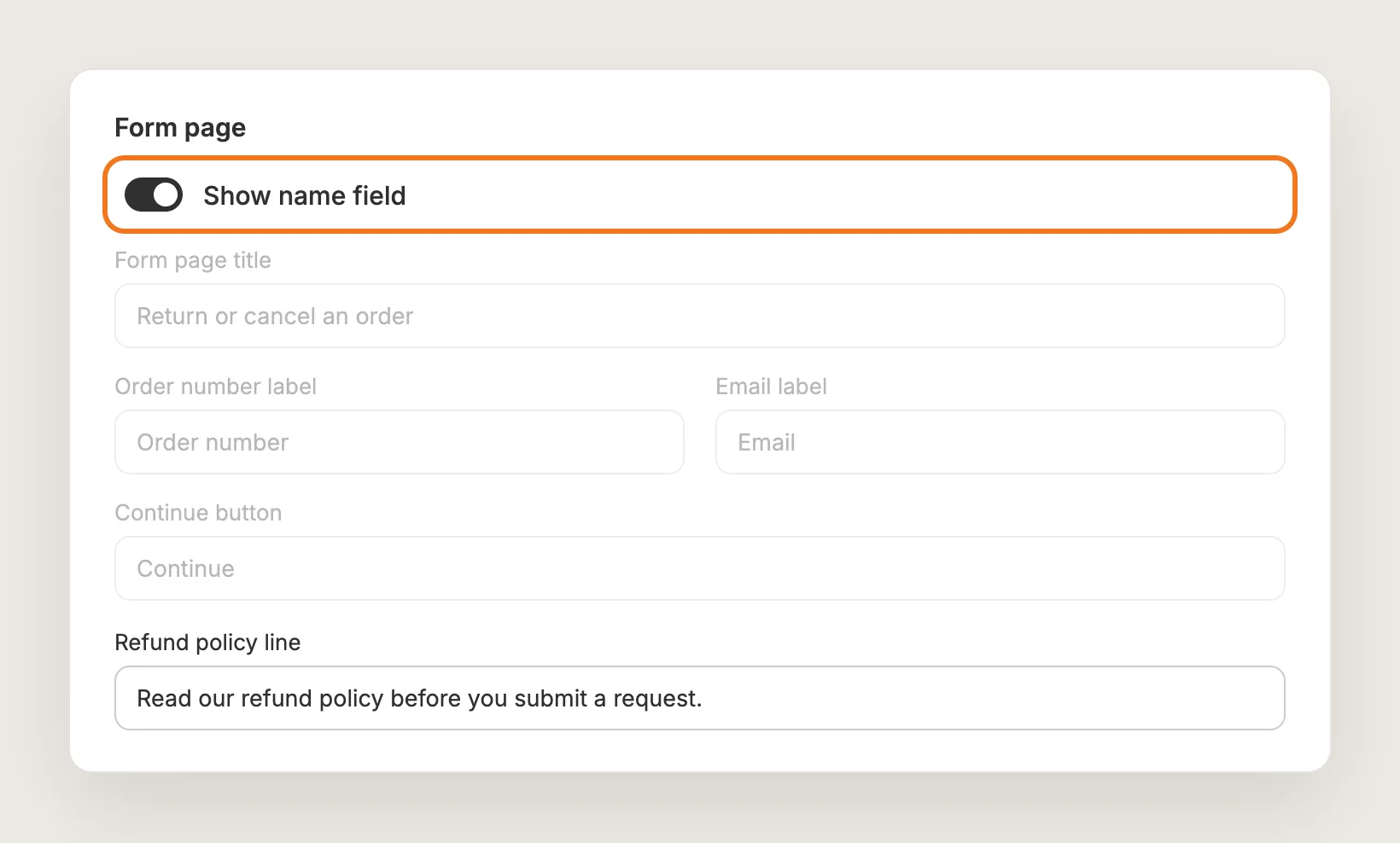
Under Form page, set what the form asks for and says:
- Show name field: Turn this off if you'd rather not ask for a name. The name field is optional for shoppers either way
- Form labels: Edit Form page title, Order number label, Email label and Continue button
- Refund policy line: Add a line that links to your refund policy. The line is empty by default, and the link always points to `/policies/refund-policy`, so check that page exists on your store
Under Review & confirm step and Success page, edit the texts shoppers read on step two and after they submit.
Step 9: Check the Two-Step Form Your Shoppers See
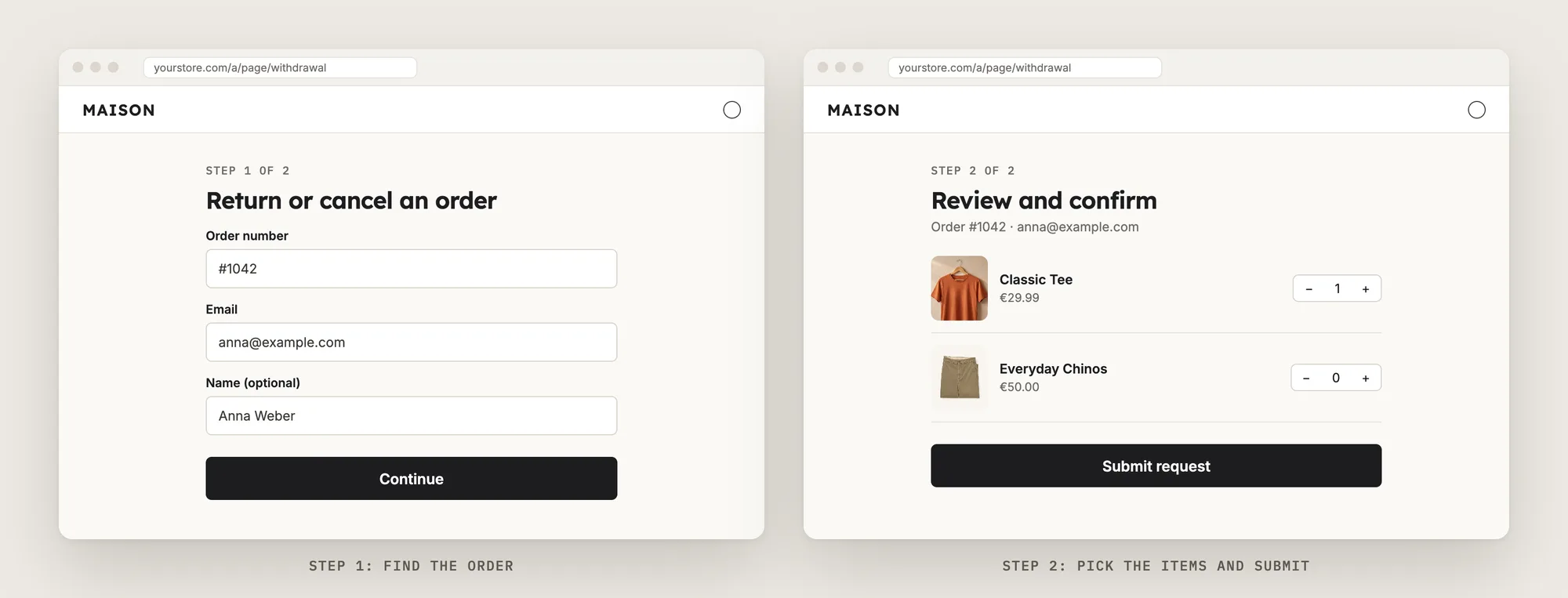
Switch the preview to Returns page and Review & confirm to see the form shoppers reach from the EU withdrawal button. The form has two steps:
- Enter details: The shopper enters the order number and email, and Vitals checks them against your Shopify orders
- Review & confirm: The shopper picks the products and quantities to return, checks the order details and clicks Submit request
Submitting is the formal request, and Vitals timestamps the request. Shoppers can withdraw from part of an order, so they only pick the items they want to return.
Step 10: Review the Confirmation Email
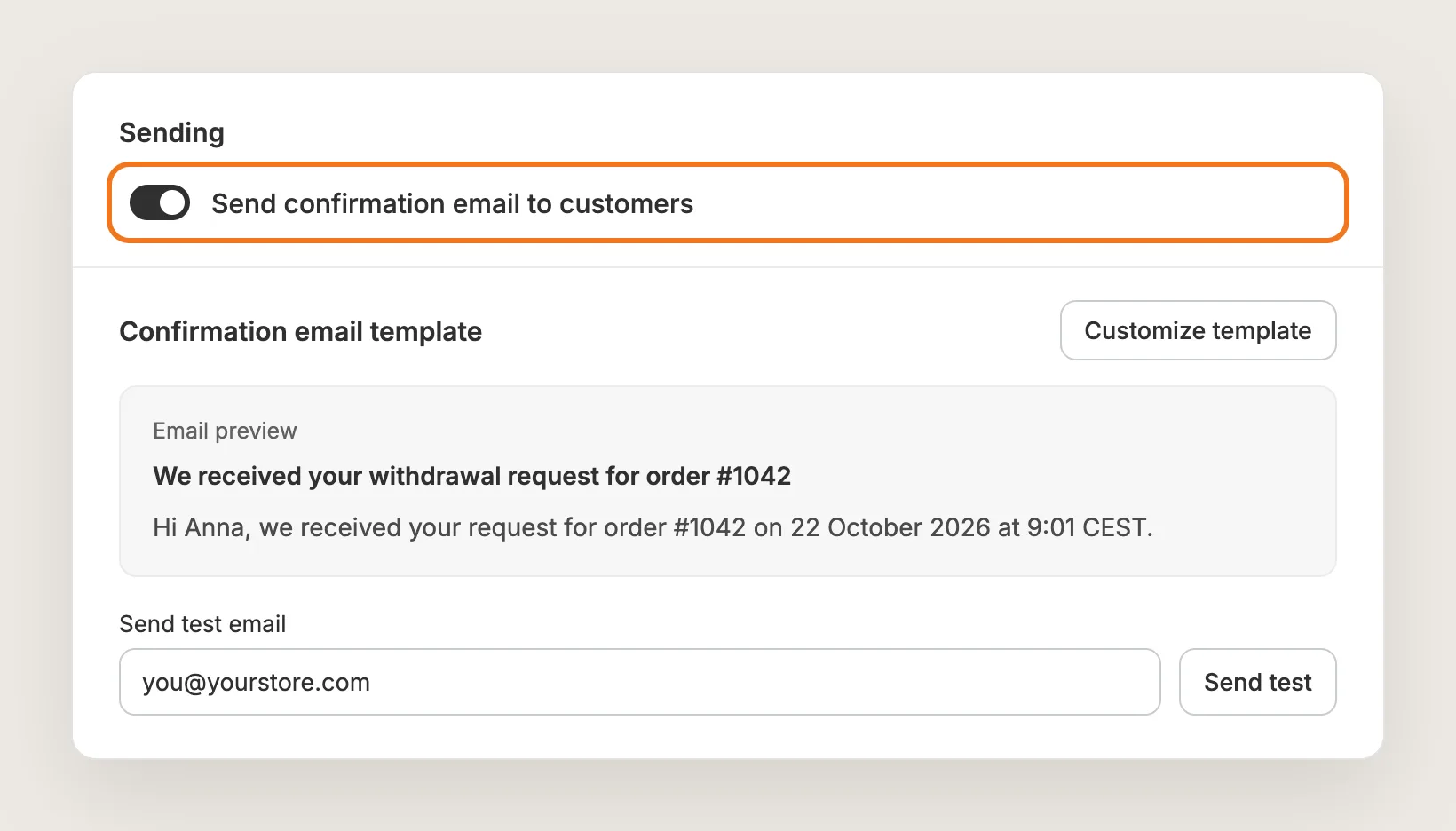
Open the Email tab. Send confirmation email to customers is on by default and sends the written confirmation as soon as a shopper submits a request. Keep the email on unless your store already sends its own confirmation, since EU rules expect shoppers to get written confirmation.
Click Customize template to edit the Subject and Body, and click Dynamic text to copy variables such as `{{ order_number }}` and `{{ request_date }}`. Then enter your address in Send test email and click Send test. The test uses the last saved template, so save your edits first.
Step 11: Move the EU Withdrawal Button With the Theme Block (Optional)
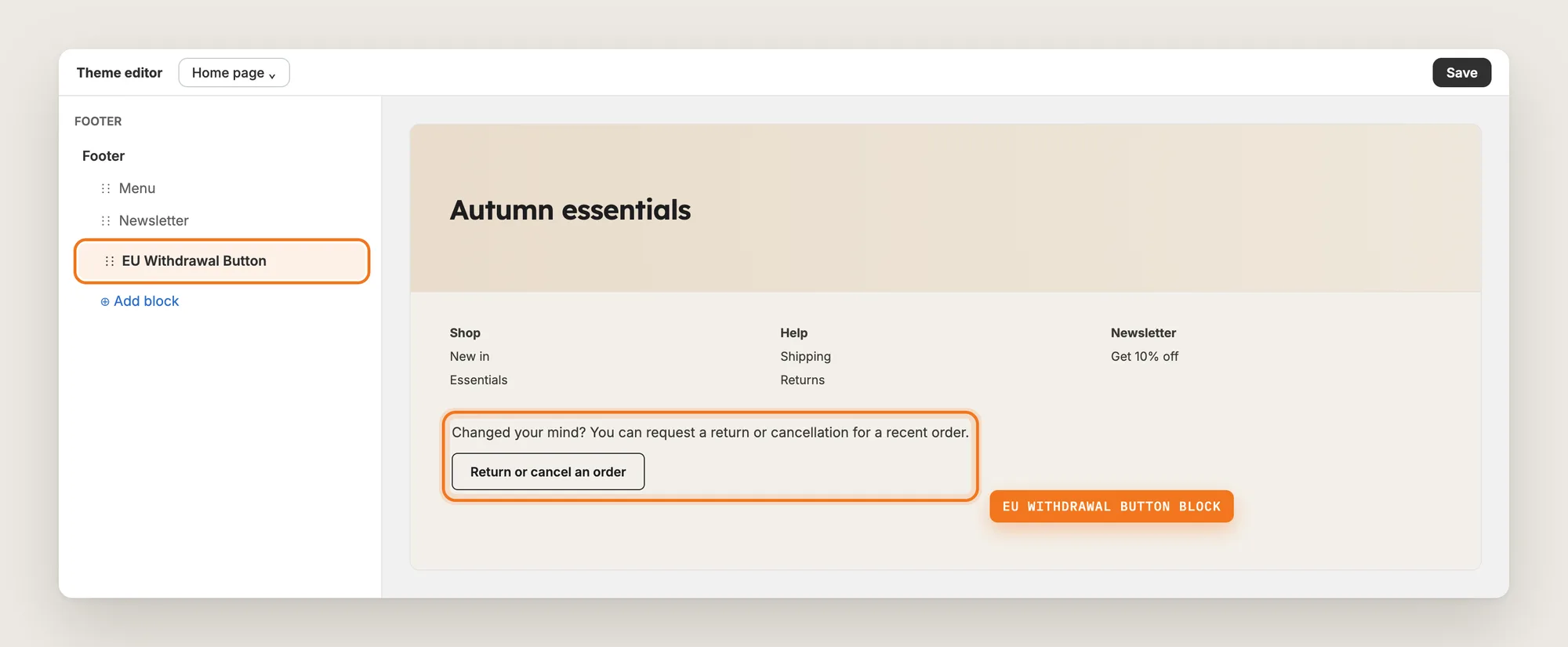
The EU withdrawal button shows at the top of your store footer by default. To place the button somewhere else, add the Vitals EU Withdrawal Button block in the Shopify theme editor:
- Click Customize next to your theme in Online Store → Themes
- Click Add block in the section you want, then pick EU Withdrawal Button under Vitals
- Drag the block where you want the button, then click Save
Once you place the block, Vitals removes the footer copy, so shoppers always see one EU withdrawal button, never two. The block uses the settings from the Customize tab.
Step 12: Approve or Reject Each Request
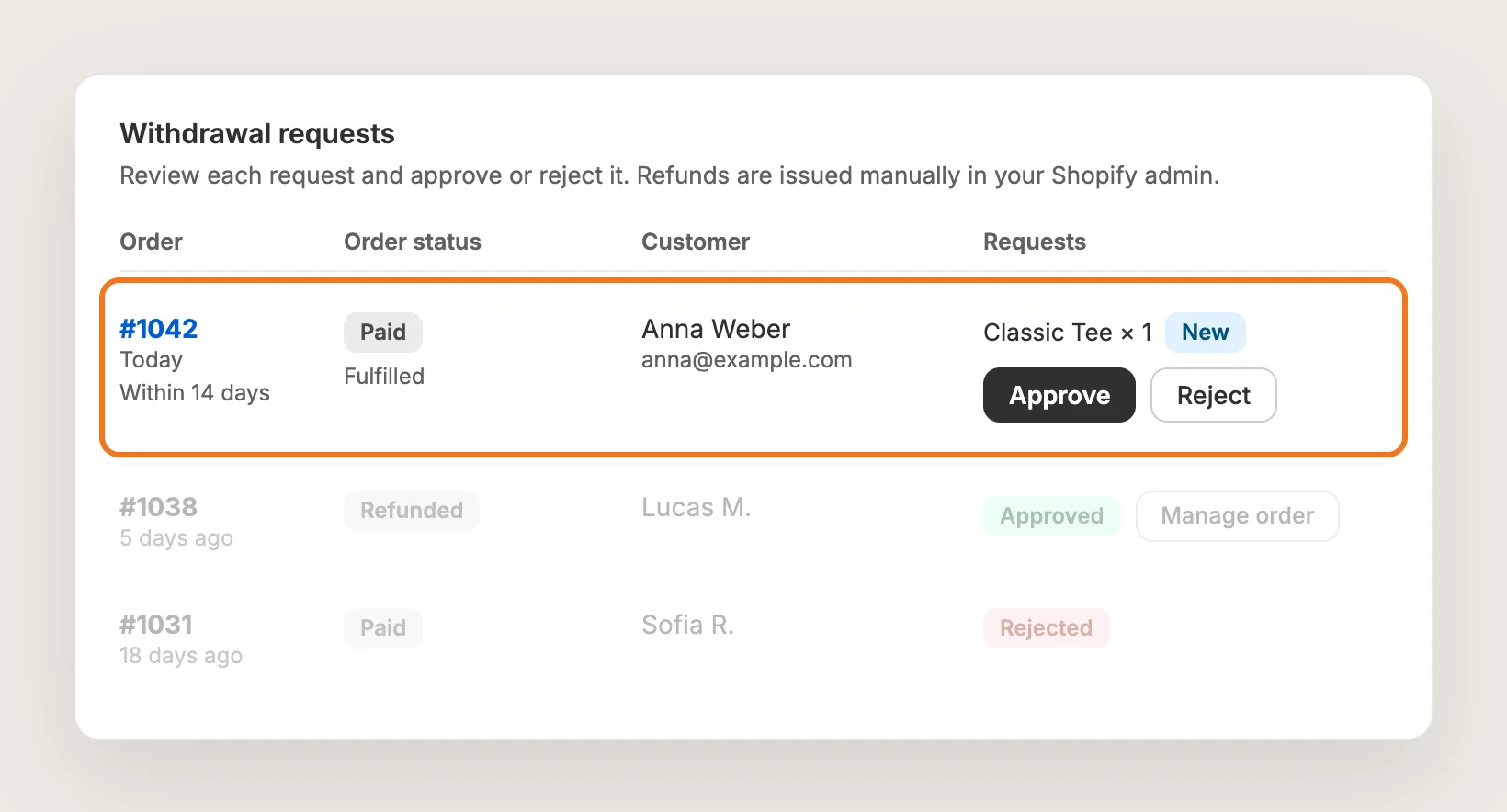
Open the Requests tab to see every withdrawal request, grouped by order and newest first. You also get an email each time a shopper submits a request. Each row shows:
- Order status: The payment, fulfillment and return status, read live from Shopify
- Order age: A Within 14 days or Over 14 days marker, counted from the order date
- Requests: The items the shopper picked and the status, New, Approved or Rejected
Click Approve or Reject to record your decision. Approving doesn't refund the shopper or send an email, so click Manage order to issue the refund, cancellation or return in your Shopify admin.
Step 13: Save and Test on Your Phone
Click Save, then open your store on your phone and on desktop and scroll to the footer. Check that the EU withdrawal button shows, then click the button and test the form with a real order number and email. If Show to is set to Customers in the EU, test from an EU location, or switch to All customers while you test.
Step 14: Voila, Your EU Withdrawal Button Is Live on the Store
Your shoppers in the EU can now cancel or return an order from any page, and every request reaches your Requests tab with a written confirmation sent to the shopper.
How to Add an EU Withdrawal Button From Your Theme Settings?
Most Shopify themes don't include an EU withdrawal button setting. The closest option is a link in your footer menu to a page with a contact form:
- Create a page with a contact form in Online Store → Pages, such as "Return or cancel an order"
- Add a link to that page in your footer menu in Content → Menus
- Check the link in the footer in Online Store → Themes → Customize, then click Save
A footer link is free, but the contact form doesn't check the request against a real order, doesn't let the shopper pick items and doesn't send an automatic written confirmation. Each request also arrives as a plain email, so you track and answer every request by hand.
How to Add an EU Withdrawal Button Without an App?
Hire a developer to build the EU withdrawal button, the withdrawal form and the confirmation email into your theme and store.
A custom EU withdrawal button usually involves:
- Copying your theme first, so the live store isn't affected
- Adding the button to the footer of every page
- Building a form that looks up the order by order number and email
- Adding a review step where the shopper picks the items and confirms
- Sending a confirmation email with the date and time of each request
- Storing every request somewhere you can review and answer
- Testing on mobile and desktop, then publishing the theme copy
Custom code means no extra app, but you or your developer have to maintain the button, the form, the email and the request records. A theme update can replace the files the button is in, so the button may need adding back after each update.
How to Increase Trust With an EU Withdrawal Button?
An EU withdrawal button builds trust by showing shoppers they can change their mind without a fight. These settings help:
- Keep the button on every page. Shoppers find the button wherever they are. Leave the automatic footer placement on, or place the EU Withdrawal Button block in a spot every page shows
- Use plain wording. Shoppers trust a button that says what it does. Keep Widget button close to "Return or cancel an order"
- Keep the button visible but calm. The Outline style stays easy to spot without looking like a sales button
- Send the written confirmation. Shoppers get proof that you received the request. Keep Send confirmation email to customers on
- Speak the shopper's language. Shoppers read the form and the email in the language they browse in. Add your wording in Translations
- Link your refund policy. Shoppers see your terms before they submit. Add a Refund policy line under Form page
- Answer every request. The app doesn't email shoppers your decision, so write to each shopper after you click Approve or Reject
Why Isn't My EU Withdrawal Button Showing or Working?
These are the usual causes when the EU withdrawal button doesn't show or work:
- The button doesn't show at all: Check that the app is activated in Vitals and that the Vitals app embed is on in your theme's App embeds
- The button doesn't show for you: Show to defaults to Customers in the EU, so a visitor outside the EU sees nothing. Test from an EU location or switch to All customers
- The button doesn't show in the footer: On a few themes, Vitals can't detect the footer. Place the EU Withdrawal Button block in the theme editor instead
- The block isn't listed in the theme editor: Some older themes don't accept app blocks. The button still shows at the top of the footer with the app embed on
- The order number doesn't show in a message: A placeholder was changed. Put `{{ order_number }}` back exactly as written, spaces included
- The shopper didn't get the confirmation email: Check that Send confirmation email to customers is on, that the subject and body aren't blank and that the email on the request is correct
- The refund policy link leads nowhere: The link always points to `/policies/refund-policy`. Create that page in Shopify, or clear the Refund policy line
- Approving didn't refund the shopper: Approving records your decision only. Click Manage order and issue the refund in your Shopify admin
Which EU Withdrawal Button Method Should You Choose?
Vitals - All in One App suits most stores, but the right method depends on how you want to handle each request.
- Choose Vitals - All in One App if you want the EU withdrawal button, the two-step form, the confirmation email and a requests list without code. It also includes 40+ other apps in one subscription of $29.99/month, so you don't have to install and pay for each app separately
- Choose your theme's setting if you only want a footer link to a contact page and you'll handle every request by hand
- Choose custom code if you'd rather build the button, form and email yourself and maintain them through theme updates
Start a 7-day free trial: Install the Vitals - All in One App and add an EU withdrawal button
Frequently Asked Questions
1. What is the best way to add an EU withdrawal button on Shopify?
Vitals - All in One App is the best way for most stores. The Vitals EU Withdrawal Button app adds the button to your footer on every page, a two-step form checked against your Shopify orders, a confirmation email and a list where you approve or reject each request.
2. When does the EU withdrawal button rule apply?
The rule applies from 19 June 2026. EU Directive 2023/2673 asks businesses that sell online to consumers in the EU to offer a clearly visible withdrawal function, wherever the business is based. Sellers who only sell to businesses aren't affected. This is general information, not legal advice.
3. Does adding an EU withdrawal button make my store compliant?
An EU withdrawal button gives you the withdrawal function, the written confirmation and a timestamped record of every request. Full compliance also depends on your policies, your wording and your own legal advice, including which of your products are exempt.
4. Do shoppers need an account to use the EU withdrawal button?
No. Shoppers enter their order number and email, and Vitals checks the details against your Shopify orders before they continue. No login is needed.
5. Can shoppers return only part of an order?
Yes. On the review step of the form, shoppers pick the products and quantities they want to return, and you see exactly what they chose on the Requests tab.
6. Does approving a request refund the shopper?
No. Approving records your decision only and sends no email. You issue the refund, cancellation or return in your Shopify admin, and you tell the shopper your decision yourself.
7. Can I move the EU withdrawal button to another part of my store?
Yes. Add the Vitals EU Withdrawal Button block to any section in the Shopify theme editor. The footer copy then disappears, so shoppers only ever see one EU withdrawal button.