How to Add EU Legal Guarantee Notice on Shopify

From 27 September 2026, every store selling physical goods to consumers in the EU has to show the EU legal guarantee notice prominently before the order is placed. The notice is the same for every store. The European Commission fixes its text, colors and QR code, and publishes it in all 24 official EU languages.
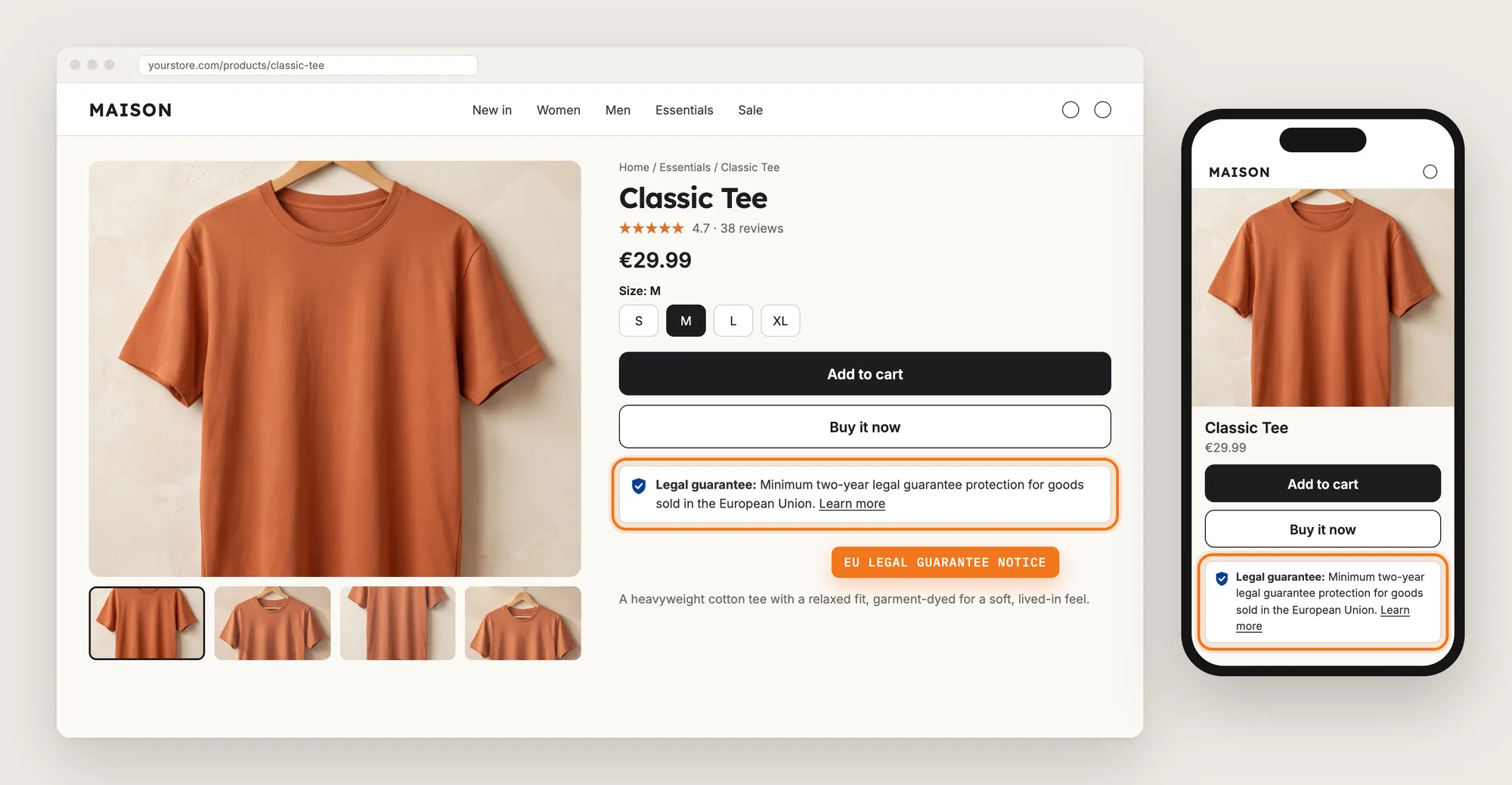
Most Shopify stores have no place for the notice out of the box. You need to show the EU legal guarantee notice near the Add to cart button and in the cart, in the shopper's language, and add it to your order confirmation email too.
Here are the three ways to add the EU legal guarantee notice to a Shopify store: with an EU Legal Guarantee app, from your theme settings, or with custom code.
What Is the EU Legal Guarantee Notice?
The EU legal guarantee notice is the European Union's official, harmonised notice that tells shoppers they have a minimum two-year legal guarantee on goods bought in the EU. If the goods are faulty, shoppers can claim a free repair or replacement from the seller, and in some cases a price reduction or a refund.
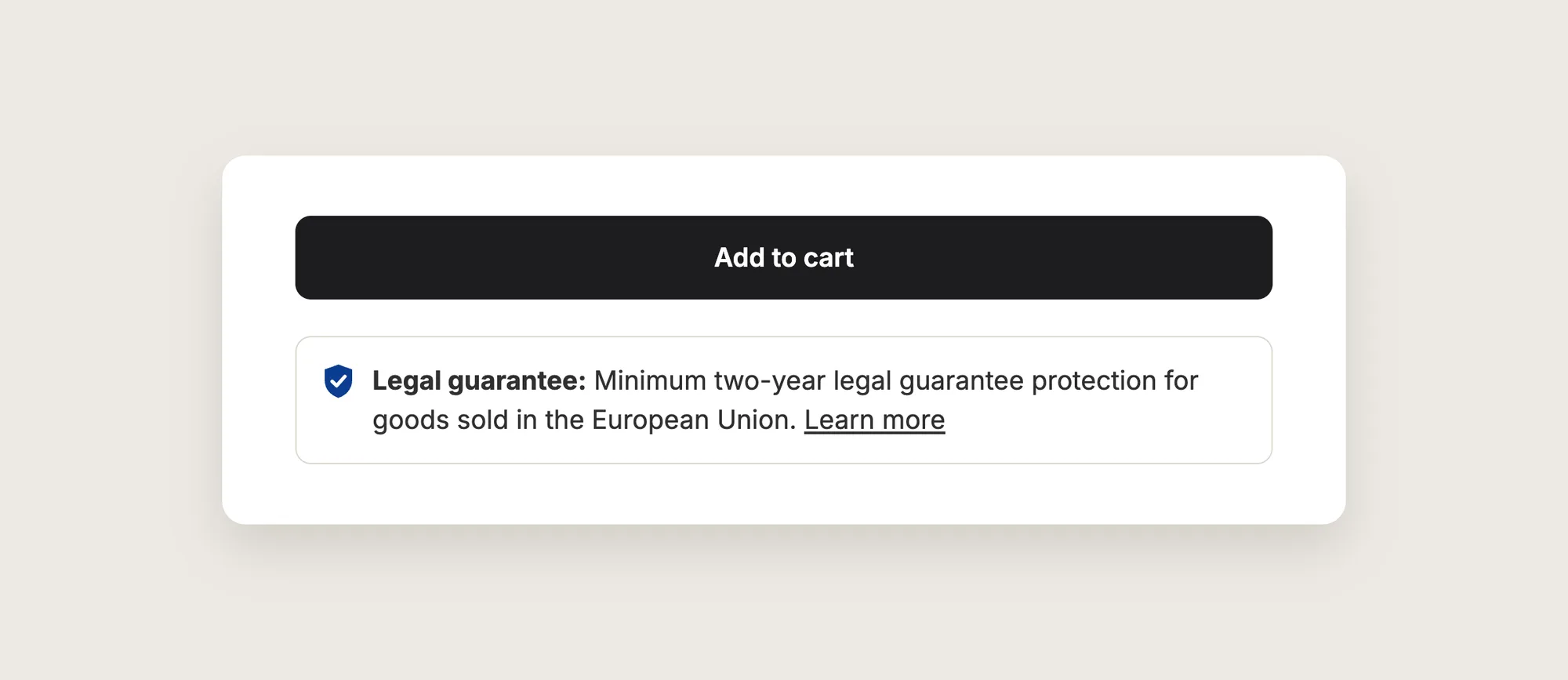
A good EU legal guarantee notice includes:
- The official notice: The European Commission's own artwork and wording, unchanged.
- A prominent place: A short line near the Add to cart button and in the cart, each opening the full notice.
- The shopper's language: The version of the notice in the language your shopper reads, out of the 24 official EU languages.
- The order confirmation: The same notice in the email the shopper gets after the order.
The EU legal guarantee notice is general information about shoppers' rights. It doesn't change your returns policy or your checkout.
What's the Quickest Way to Add the EU Legal Guarantee Notice?
- Vitals - All in One App is the quickest way to add the EU legal guarantee notice for most stores
- Vitals also offers 40+ apps, such as an EU withdrawal button, a cookies banner and an agree to terms checkbox, in one subscription of $29.99/month, so you don't have to install and pay for each app separately
Here's how the three methods compare.
How to Add the EU Legal Guarantee Notice With an EU Legal Guarantee App?
Install the Vitals - All in One App, open its EU Legal Guarantee app and click Activate app. The EU legal guarantee notice then shows on your product pages and in your cart, and the steps below set how the notice looks, who sees it and where else it shows.
Step 1: Add Vitals to Your Shopify Store
Install the Vitals - All in One App from the Shopify App Store. The 7-day free trial includes the Vitals EU Legal Guarantee app.
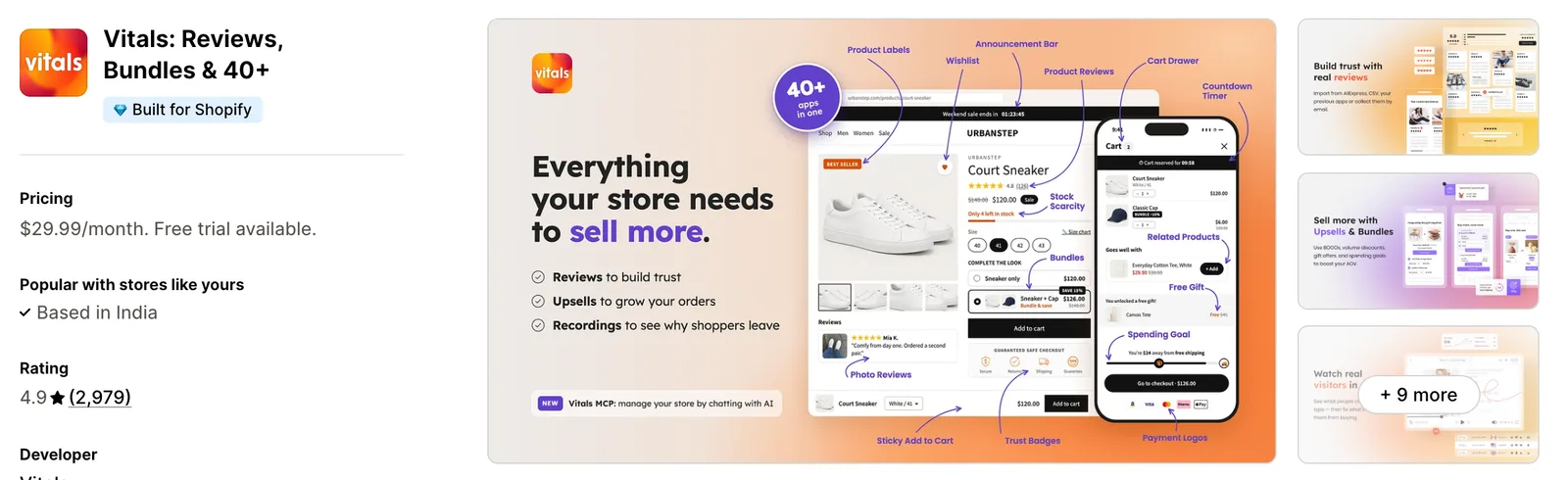
Step 2: Confirm the Install in Shopify
Click Install to approve the store data Vitals uses. Shopify then takes you to the Vitals dashboard.
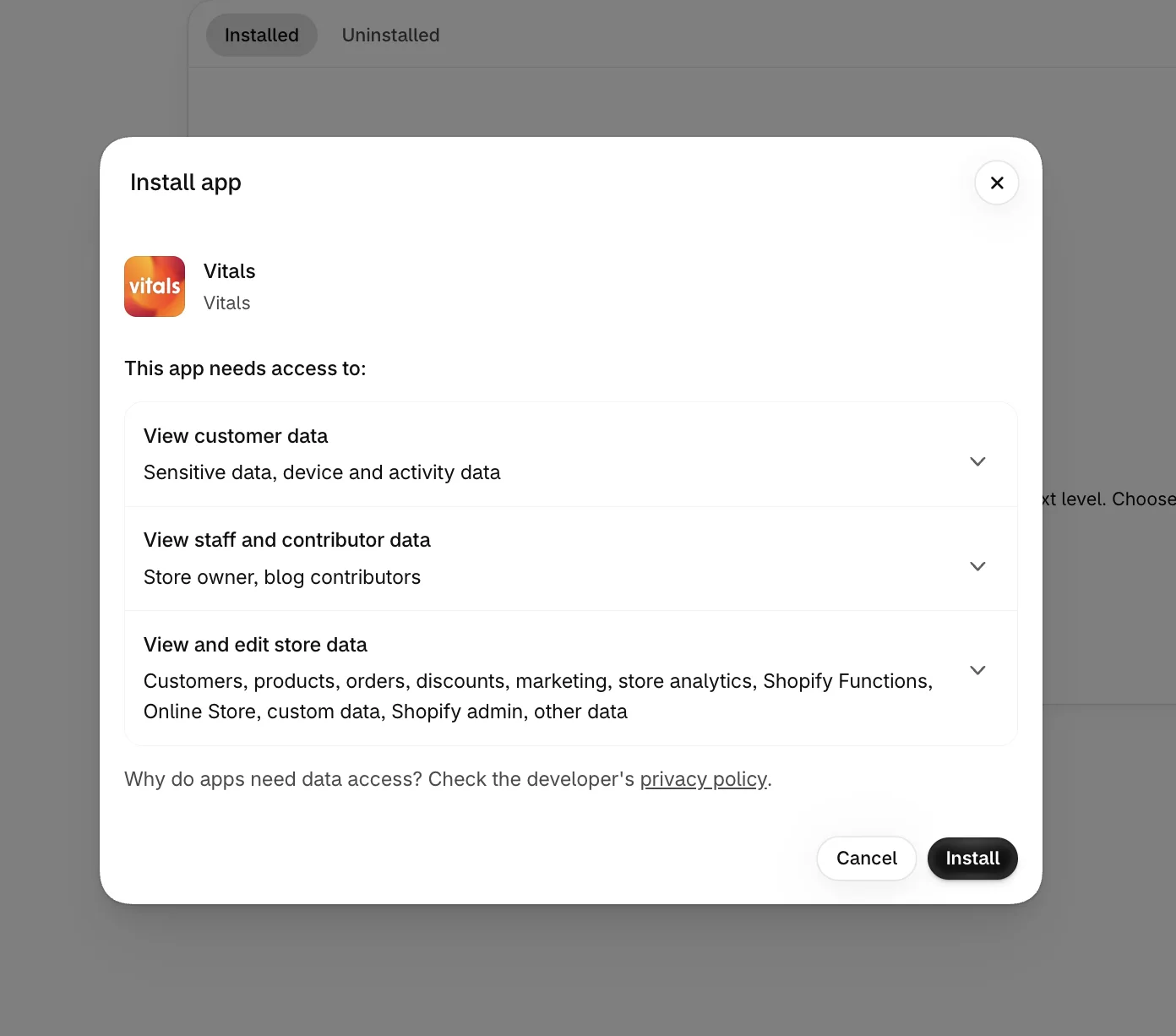
Step 3: Open EU Legal Guarantee
In the Vitals dashboard, open the Protect category in the list of apps and click EU Legal Guarantee, right after the EU Withdrawal Button.
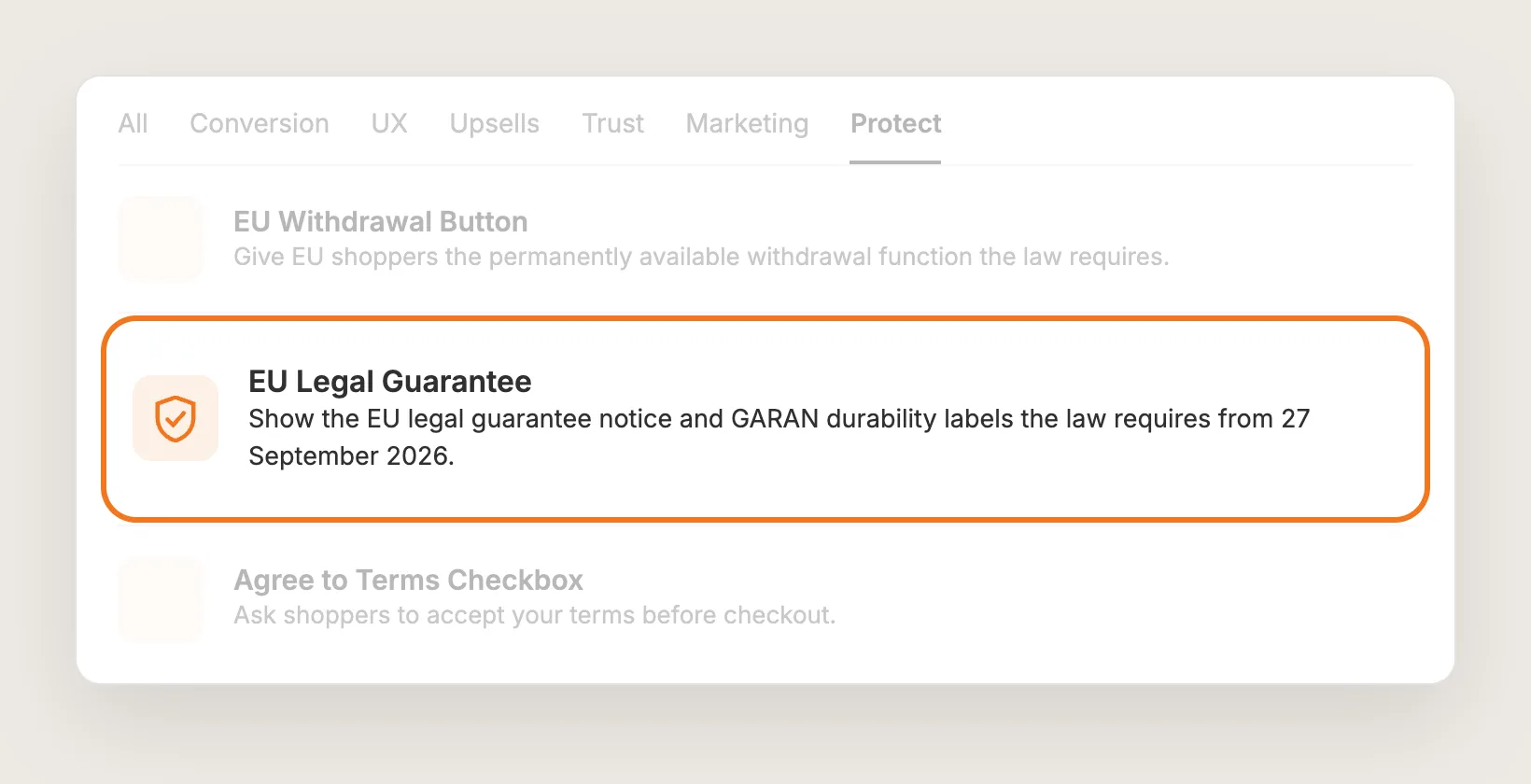
Step 4: Activate EU Legal Guarantee
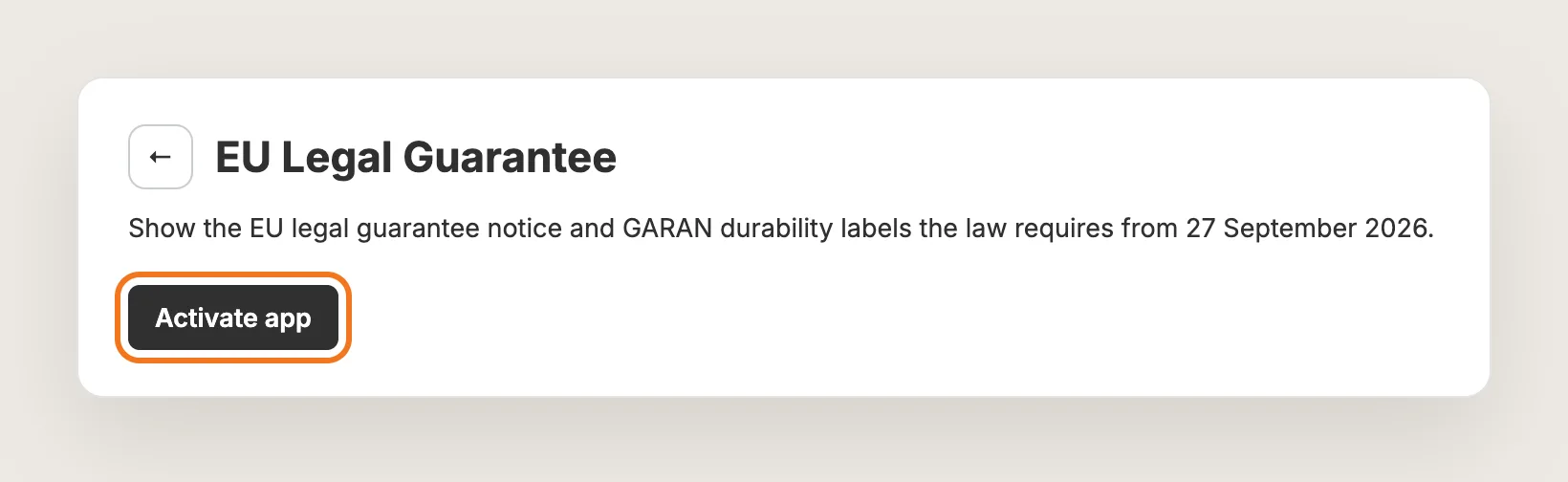
On the EU Legal Guarantee page, click Activate app to turn the notice on. The app opens on the Notice tab, with a live preview that switches between Product page and Cart, on desktop and mobile.
Step 5: Check What EU Law Asks For
At the top of the Notice tab, What EU law asks for lists each requirement with a status icon. A green check means done, a red alert means something to fix, and a blue info icon is a tip that depends on where you sell. Every row you can fix links straight to the setting that fixes it, and the section title shows how much is left, such as "1 to fix".
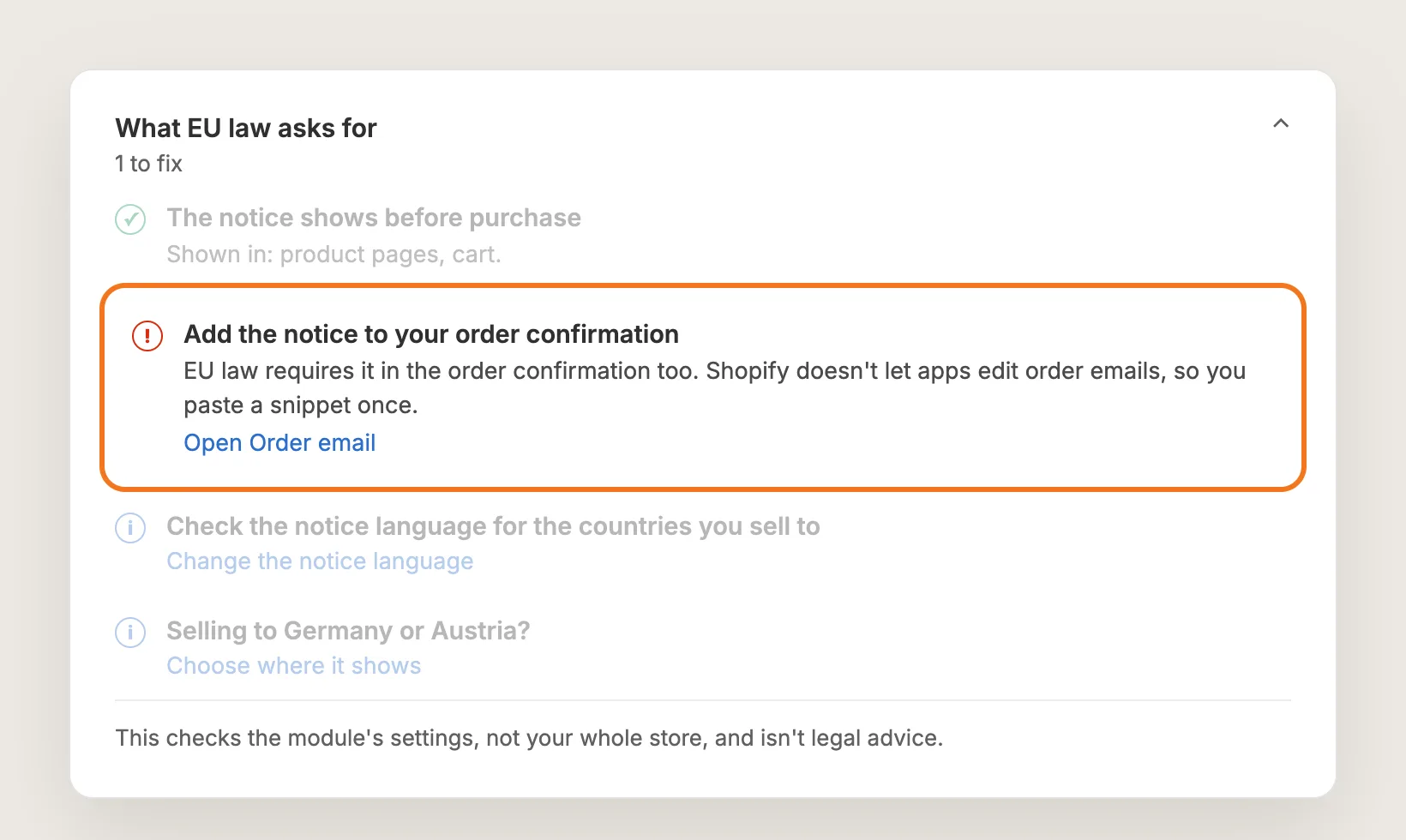
The checklist checks the app's settings, not your whole store, and isn't legal advice.
Step 6: Choose How the Notice Shows on Product Pages and in the Cart
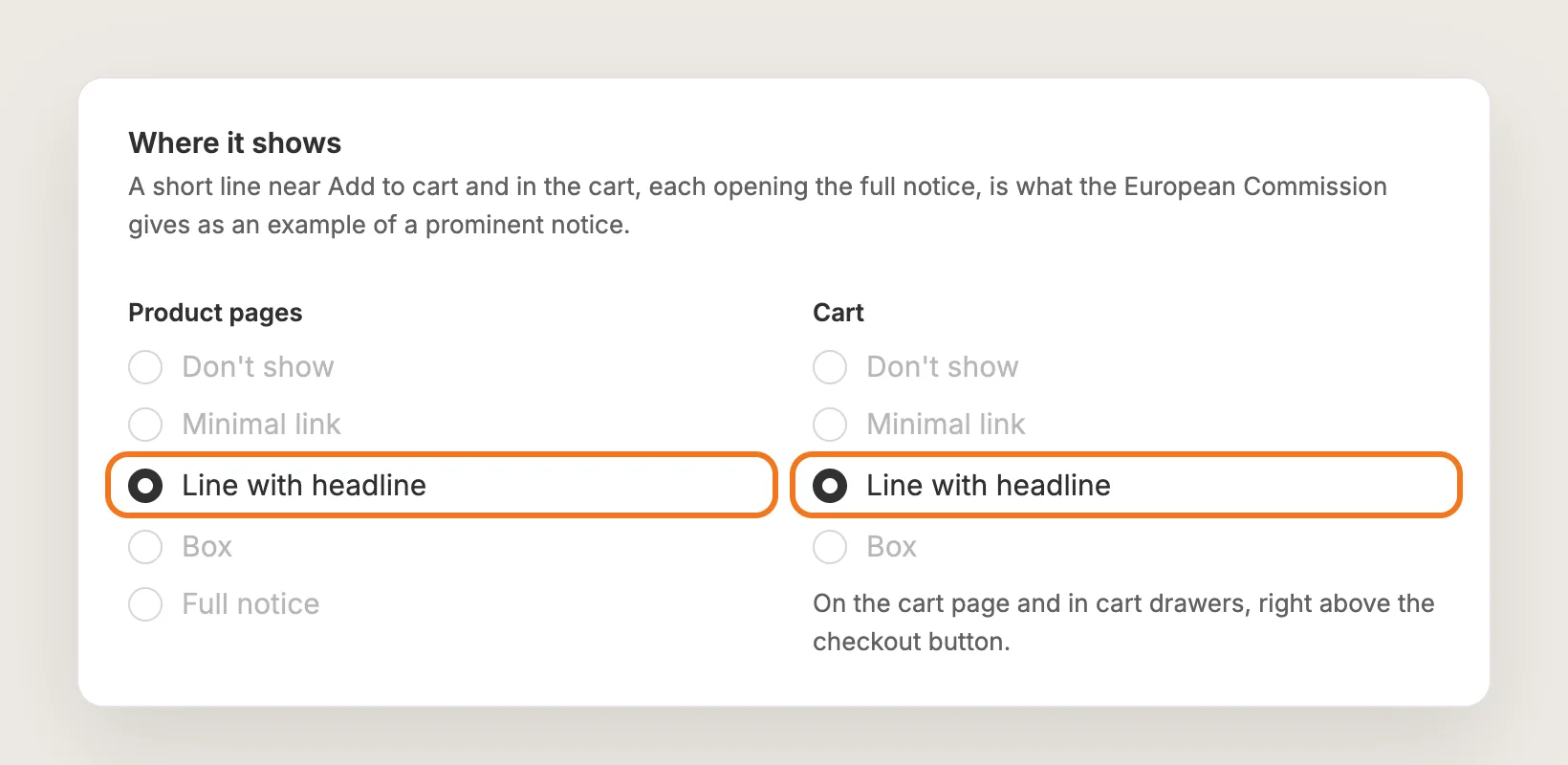
Under Where it shows, pick a style for Product pages and for Cart:
- Don't show: No notice in that place
- Minimal link: A shield icon and the title "Legal guarantee", styled like a link
- Line with headline: The shield, the title, the official headline and a "Learn more" link, on one line. This is the default in both places
- Box: A bordered row with the shield and the title
- Full notice: The official notice image, always visible, on product pages only
Line with headline is what the European Commission gives as an example of a prominent notice. In the cart, the EU legal guarantee notice shows once, right above the checkout button, on the cart page, in the Vitals Cart Drawer app and in most popular theme cart drawers.
Step 7: Choose How the Full Notice Opens
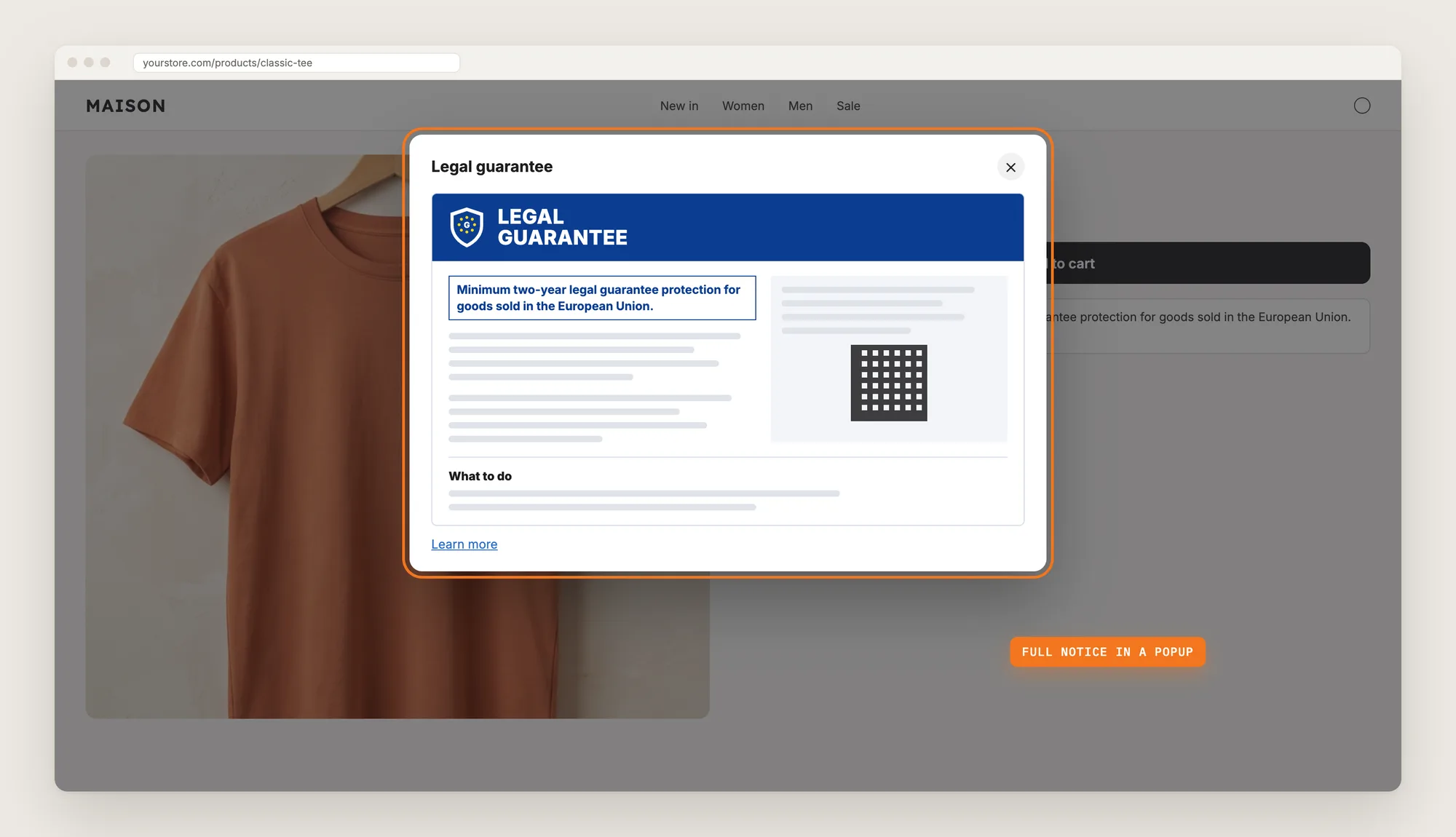
Open the full notice decides what happens when a shopper taps the notice line: In a popup, the default, or In place, below it. The popup shows the official notice with a "Learn more" link to the EU's Your Europe page. Cart drawers always open the full notice in a popup, since it doesn't fit in a drawer.
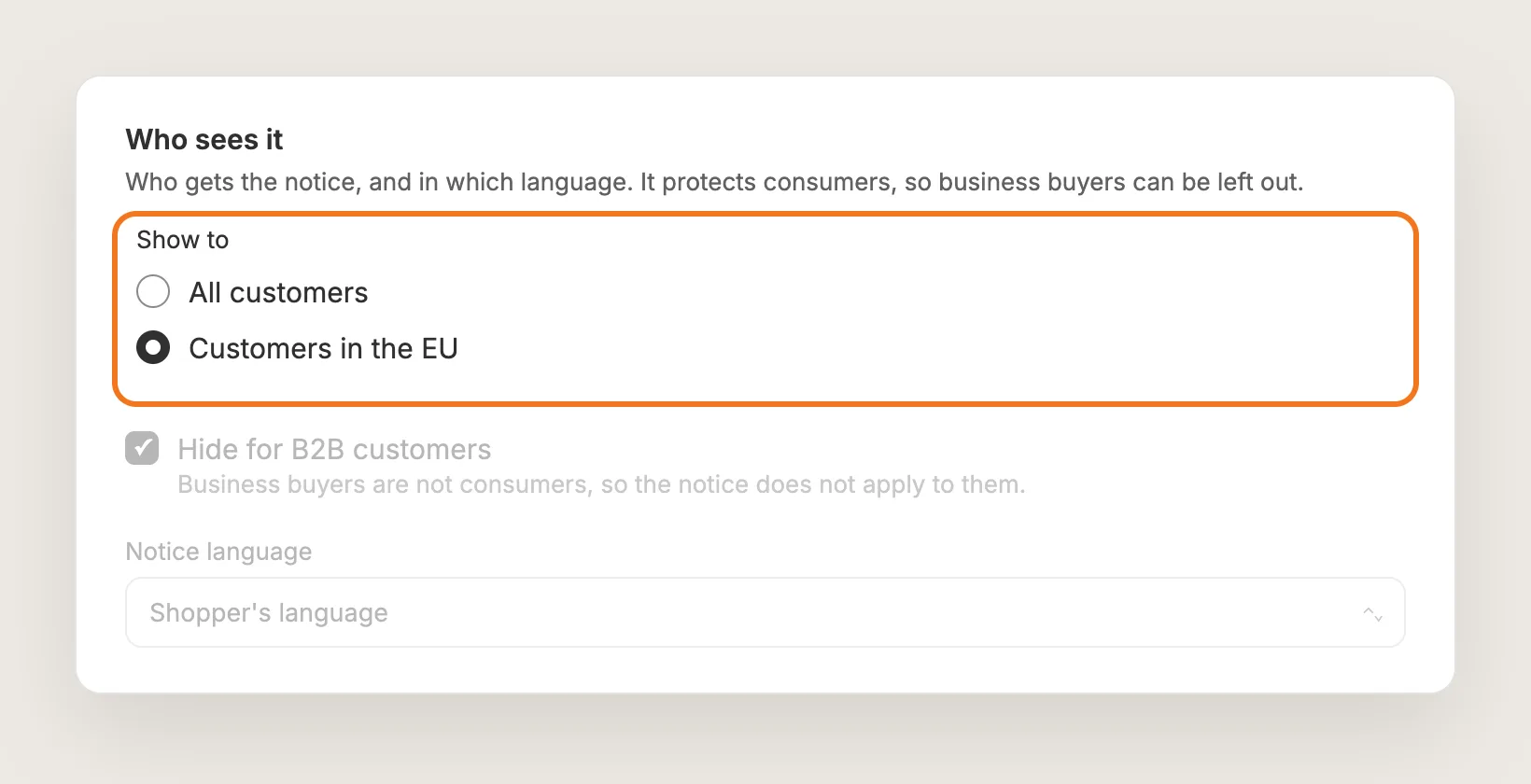
Step 8: Choose Who Sees the Notice and in Which Language
Under Who sees it, set:
- Show to: Customers in the EU, the default, or All customers. EU means the 27 member states, based on the shopper's location
- Hide for B2B customers: On by default, because business buyers are not consumers and the notice doesn't apply to them
- Notice language: Shopper's language, the default, Market country's language, or one fixed language out of the 24
Romania, France, Italy, Spain, Poland and some other EU countries require their own language. If you sell there, set Notice language to Market country's language.
Step 9: Leave Out Products the Notice Doesn't Apply To
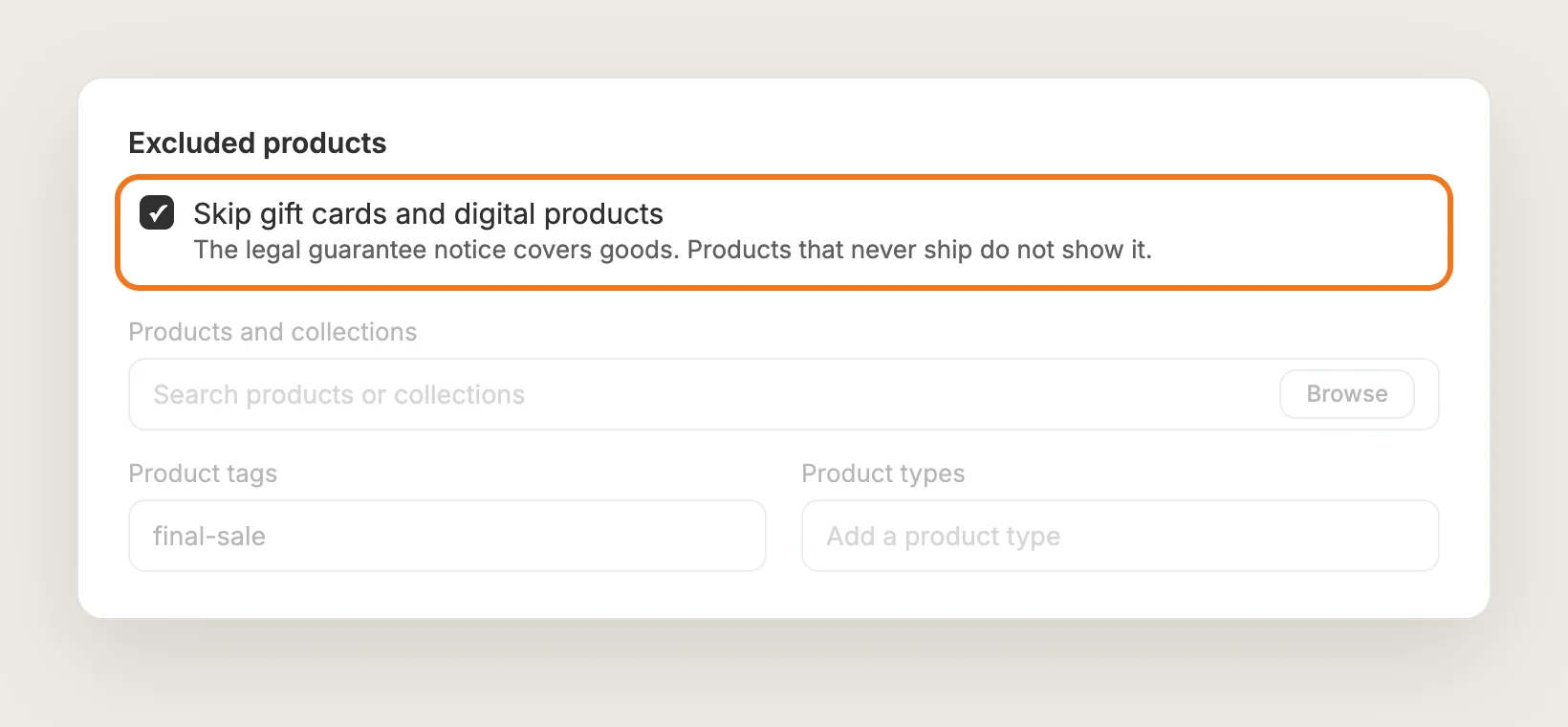
Under Excluded products, Skip gift cards and digital products is on by default, because the legal guarantee is for goods and products that never ship don't show the notice. To leave out more, such as services or tickets, add them under Products and collections, Product tags or Product types. Tags and product types also apply to products you add later.
Step 10: Match the Notice Frame to Your Store
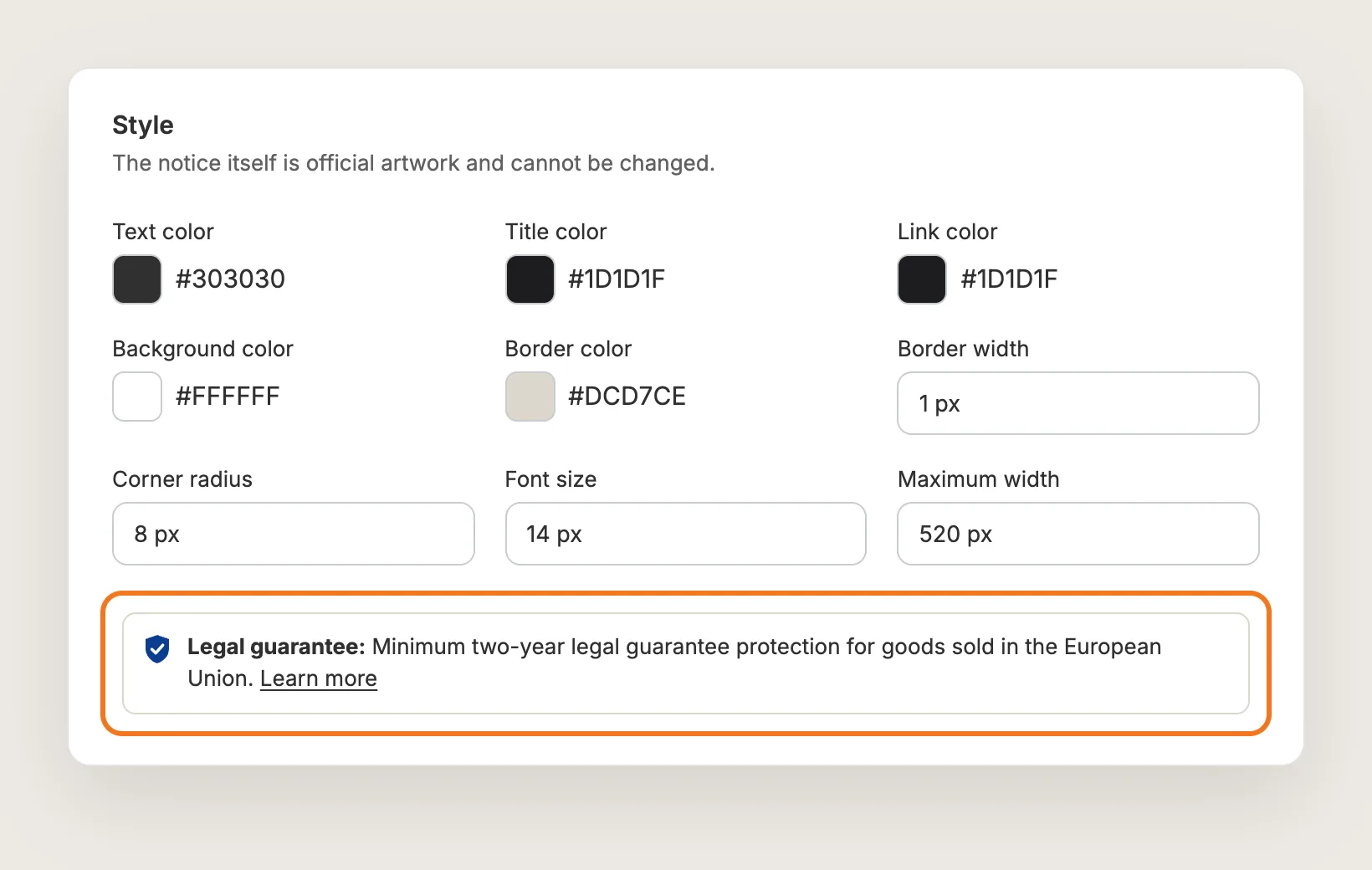
Under Style, set the Text color, Title color, Link color, Icon color, Background color, Border color, Border width, Corner radius, Font size, Maximum width and Margin of the notice line and box. Popup background, Popup text and Popup links color the popup. Every color has a light and a dark default. The official notice artwork itself can't be changed.
Step 11: Add the Notice to Your Order Confirmation Email
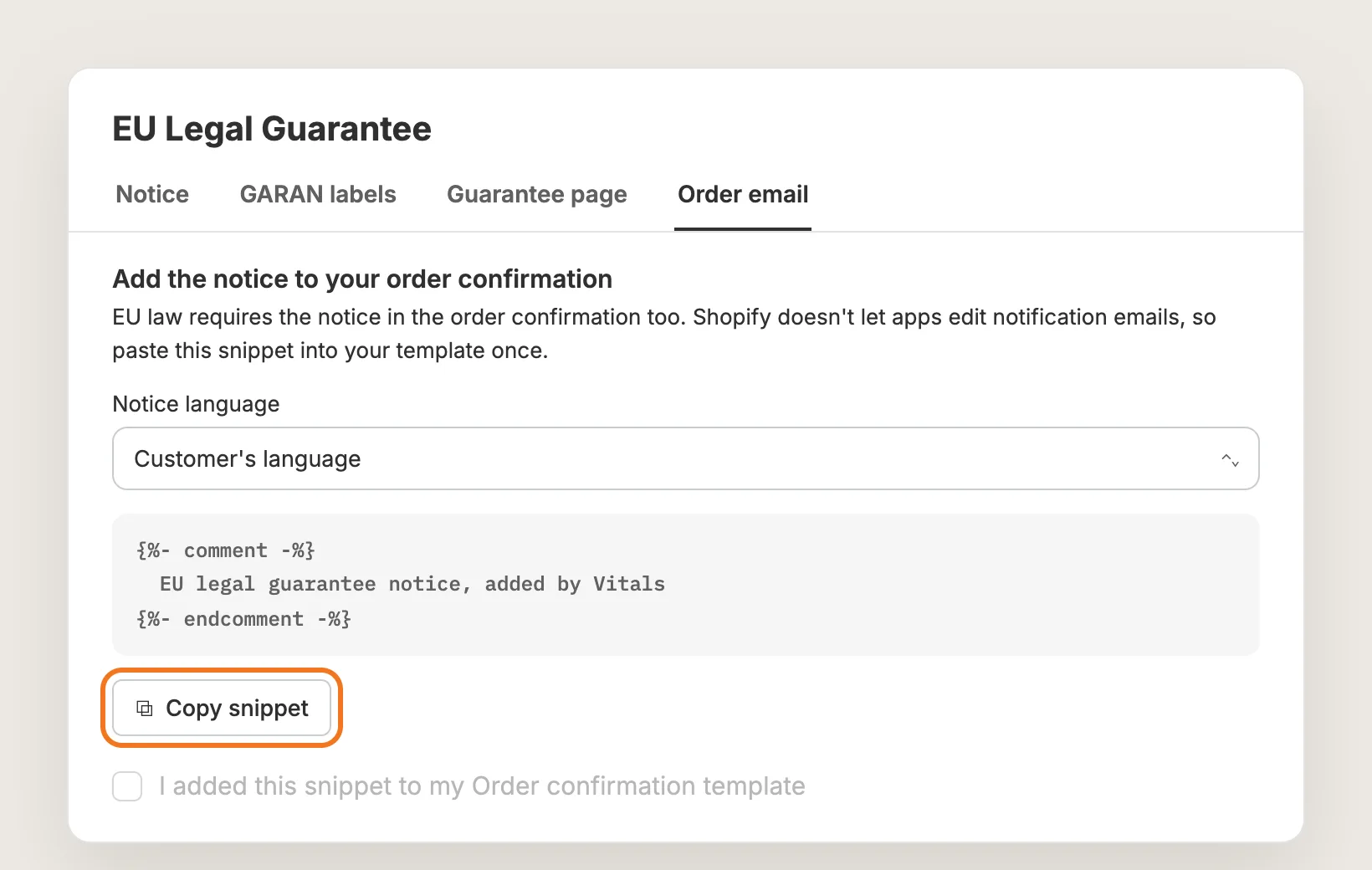
EU law also requires the EU legal guarantee notice in the order confirmation, and Shopify doesn't let apps edit notification emails. Open the Order email tab, pick the Notice language and click Copy snippet. Then:
- Click Open the Order confirmation email in Shopify and click Edit code
- Near the end of the code, find the line `<table class="row footer">`
- Paste the snippet on a new line just above it, or just above `</body>` if your template has no such line
- Save the template in Shopify
- Back in Vitals, tick I added this snippet to my Order confirmation template and click Save
Step 12: Show a Longer Guarantee With GARAN Labels (Optional)
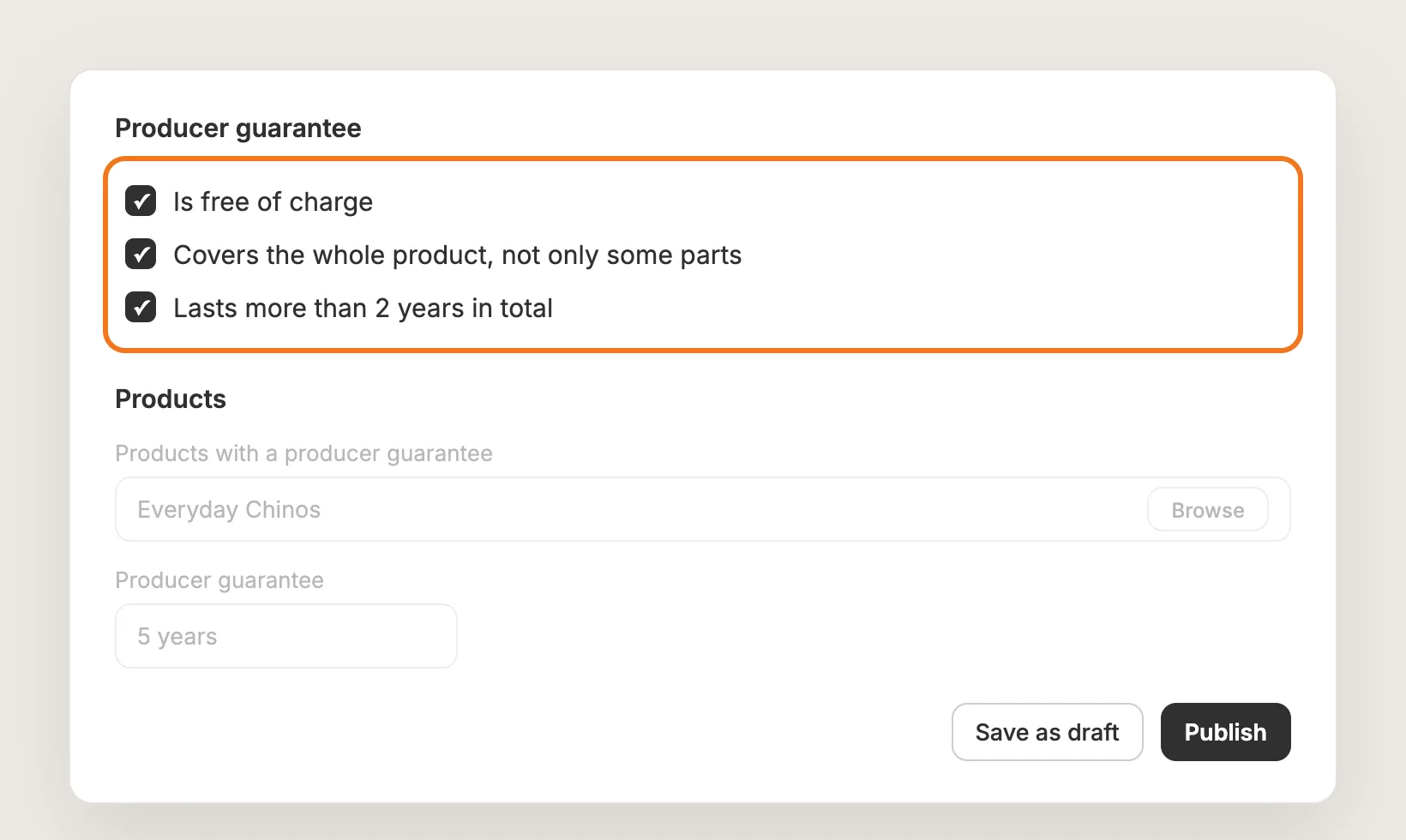
If a producer gives a guarantee longer than two years on some products, open the GARAN labels tab and click Add label. Under Producer guarantee, tick all three boxes to confirm the producer guarantee is free of charge, applies to the whole product and lasts more than 2 years in total. Then pick the products, set the years and click Publish. GARAN labels show on product pages, in the cart and on the thank you and order status pages.
Step 13: Download a Proof of Compliance Record
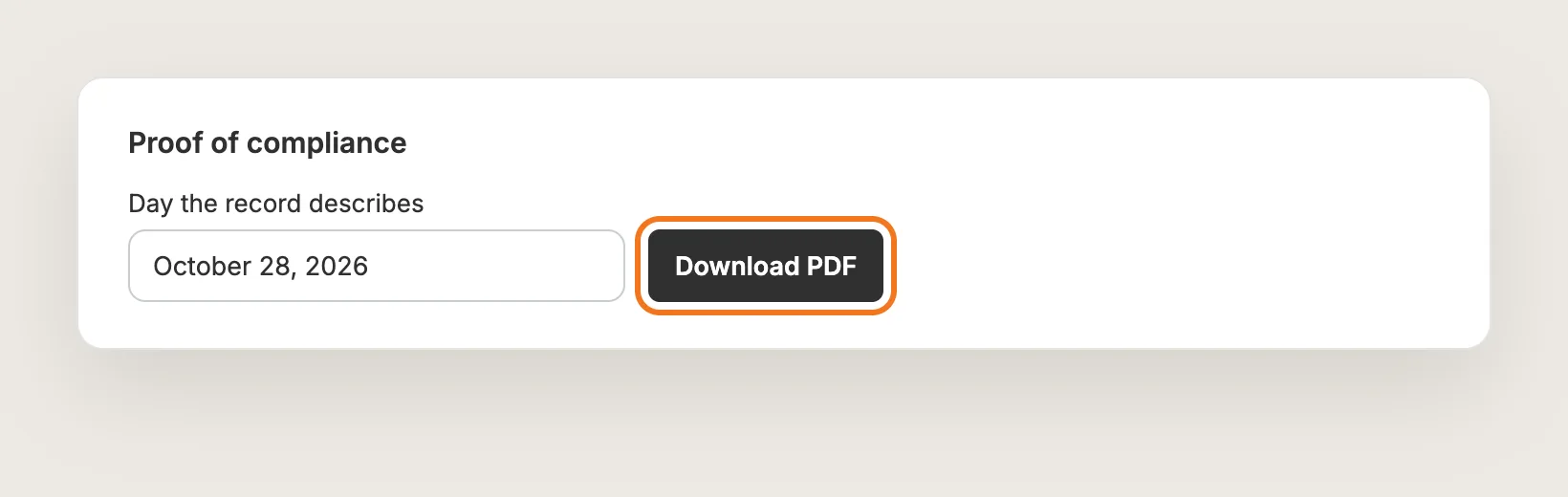
Under Proof of compliance on the Notice tab, pick the Day the record describes and click Download PDF. You get a dated PDF of your notice setup for your records. Save your changes first, so the record matches your store.
Step 14: Save and Test on Your Phone
Click Save, open a product page on your phone and on desktop, and add a product to the cart. You should see the EU legal guarantee notice under the Add to cart button and again right above the checkout button. With Show to on Customers in the EU, you won't see the notice when you browse from outside the EU, so switch to All customers while you test.
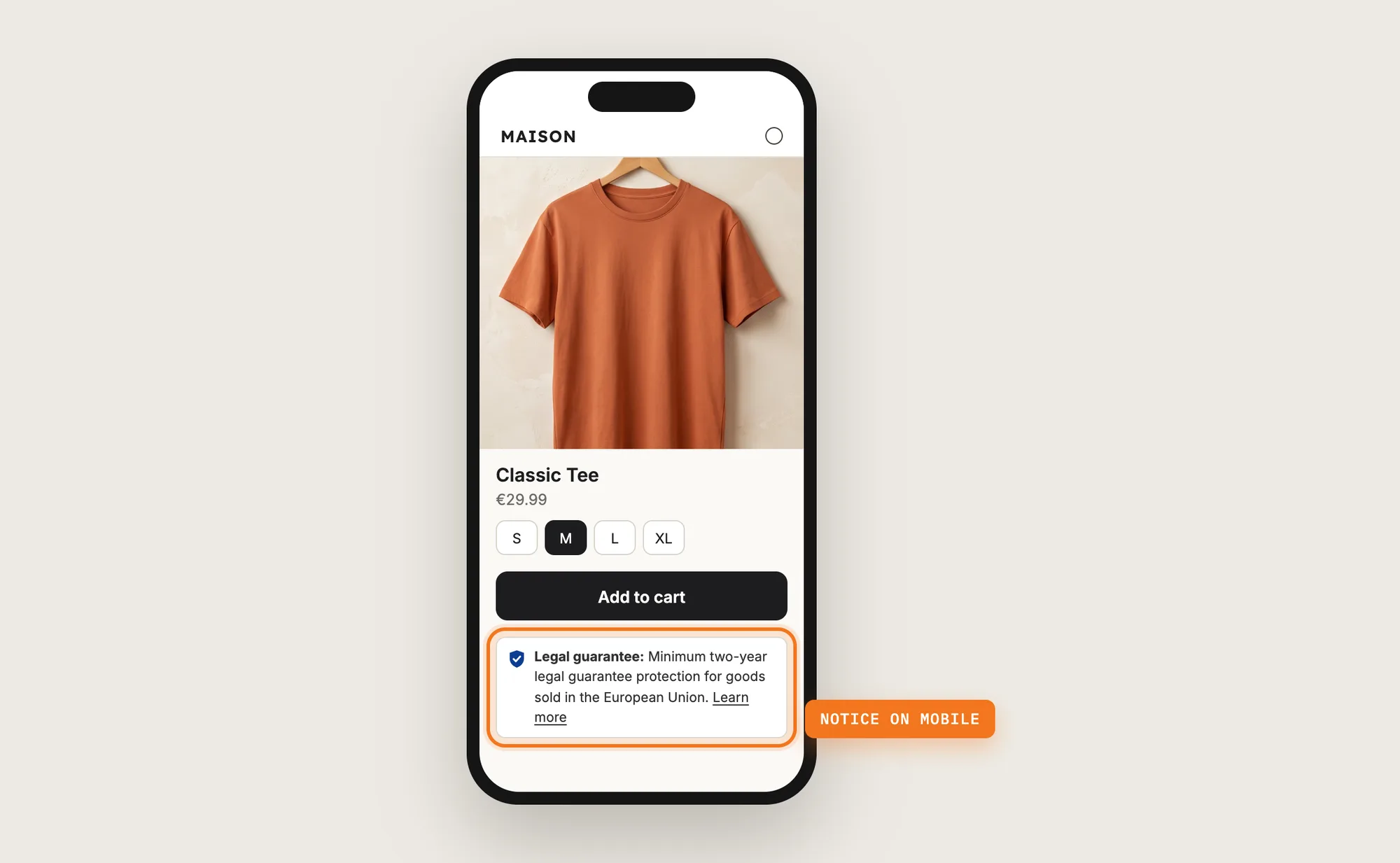
Step 15: Voila, Your EU Legal Guarantee Notice Is Live on the Store
Your EU shoppers now see the EU legal guarantee notice in their own language before they buy, and again in their order confirmation.
How to Add the EU Legal Guarantee Notice From Your Theme Settings?
Most Shopify themes have no setting made for the EU legal guarantee notice, but many Shopify themes let you add an image or text block to the product page. To place the notice with your theme settings:
- Click Customize next to your theme in Online Store → Themes
- Open the product page template and click Add block under the buy buttons
- Add an image block with the official notice in your store's language, link it to the full notice, then click Save
A theme block shows the same notice to every shopper, in one language. It doesn't pick the right one of the 24 EU languages per shopper, doesn't show in the cart or the cart drawer, and doesn't add the notice to your order confirmation email. You also have to check the official files yourself whenever they change.
How to Add the EU Legal Guarantee Notice Without an App?
Hire a developer to add the EU legal guarantee notice to your product page, cart and order confirmation email with Liquid and CSS. The European Commission publishes the official notice files in all 24 EU languages.
A custom EU legal guarantee notice usually involves:
- Copying your theme first, so the live store isn't affected
- Adding the official notice files for each language you sell in
- Placing a notice line near the Add to cart button and above the checkout button, with a popup for the full notice
- Showing the right language for each shopper, and hiding the notice from business buyers and for products that never ship
- Adding the notice to your Shopify Order confirmation template
- Testing on every product template, the cart page and the cart drawer, then publishing the theme copy
Custom code means no extra app, but you or your developer have to maintain it. A theme update can replace the files the notice is in, so the notice may need adding back after each update.
How to Increase Trust With the EU Legal Guarantee Notice?
The EU legal guarantee notice builds trust by telling EU shoppers, in their own language, that the law protects them if the goods turn out faulty. These settings help:
- Show the notice where shoppers decide. A line near the Add to cart button reaches shoppers before they buy. Keep Product pages on Line with headline
- Repeat the notice in the cart. Shoppers see the same line right above the checkout button. Keep Cart on Line with headline
- Speak the shopper's language. A notice in the shopper's own language reads as written for them. Keep Notice language on Shopper's language, or switch to Market country's language for countries that require their own
- Let shoppers read the whole notice. The full notice lists what shoppers can claim. Keep Open the full notice on In a popup
- Match the notice to your store. A notice frame in your store's colors looks like part of the page. Set the colors under Style
- Show a longer producer guarantee. Products with more than two years of producer guarantee can carry a GARAN label. Add one on the GARAN labels tab
Why Isn't My EU Legal Guarantee Notice Showing or Working?
These are the usual causes when the EU legal guarantee notice doesn't show:
- The notice doesn't show at all: Check that the app is activated in Vitals and that the Vitals app embed is active in your theme
- The notice doesn't show when you test: With Show to on Customers in the EU, you only see the notice from an EU location. Switch to All customers to test
- The notice doesn't show on one product: Check that Product pages isn't on Don't show, and that the product isn't a gift card, a product that never ships, or on one of your Excluded products lists
- The notice doesn't show for some shoppers: Hide for B2B customers hides the notice for logged-in business buyers
- The notice doesn't show in the cart: The cart notice shows once at least one product in the cart is a physical good. A cart holding only gift cards or excluded products shows nothing
- The notice doesn't show in your theme's cart drawer: Paste the Place it anywhere snippet into the drawer's custom HTML, or contact Vitals support
- The notice shows twice on the product page: If you placed the notice with the Place it anywhere snippet, set Product pages to Don't show
- The test order email doesn't show the notice: Shopify's Send test email uses a sample order shipped to the United States. Place a test order shipped to an EU country instead
- The checklist still asks for the order email: Tick I added this snippet to my Order confirmation template on the Order email tab and click Save
Which EU Legal Guarantee Notice Method Should You Choose?
Vitals - All in One App suits most stores, but the right method depends on how many EU countries you sell to and where you need the notice.
- Choose Vitals - All in One App if you want the EU legal guarantee notice on product pages, in the cart and in your order email, in each shopper's language. It also includes 40+ other apps in one subscription of $29.99/month, so you don't have to install and pay for each app separately
- Choose your theme's setting if you sell in one language and only want the notice on product pages
- Choose custom code if you have a developer who can build and maintain the notice in every language you sell in
Start a 7-day free trial: Install the Vitals - All in One App and add the EU legal guarantee notice
Frequently Asked Questions
1. What is the best way to add the EU legal guarantee notice on Shopify?
Vitals - All in One App is the best way for most stores. Its EU Legal Guarantee app shows the official EU legal guarantee notice near the Add to cart button and in the cart, in all 24 official EU languages, and gives you a snippet for your order confirmation email.
2. When does the EU legal guarantee notice apply?
From 27 September 2026, stores selling physical goods to consumers in the EU have to show the EU legal guarantee notice prominently before the order is placed. EU law also asks for the notice in the order confirmation.
3. Can I change the wording or design of the EU legal guarantee notice?
The notice itself is the European Commission's official artwork and can't be edited. In the Vitals EU Legal Guarantee app, you can change the frame around it under Style, such as colors, border, font size and width.
4. Which language does a shopper see the EU legal guarantee notice in?
With Shopper's language, the default, shoppers see the notice in the language they browse your store in. If the notice doesn't exist in that language, the app uses the shopper's market country's language, then your store's main language, then English.
5. Does the EU legal guarantee notice show to shoppers outside the EU?
Not by default. Show to is set to Customers in the EU, the 27 member states based on the shopper's location. Switch it to All customers to show the notice to every shopper.
6. Can the EU legal guarantee notice show on the thank you and order status pages?
Yes. Add the EU legal guarantee notice block in Shopify's checkout editor to show the notice on the thank you and order status pages. On Shopify Plus, the block can also show in checkout.
7. Does adding the EU legal guarantee notice make my store compliant?
The Vitals EU Legal Guarantee app shows the notice on your store, helps you add it to your order confirmation email and gives you a checklist of what the app can see. The checklist checks the app's settings, not your whole store, and isn't legal advice.