How to Add an Agree to Terms Checkbox on Shopify

Most shoppers never open a store's terms page on their own. They add products to the cart, click the checkout button and pay, without seeing your shipping, return or refund terms. When a question comes up after the order, you have no sign that the shopper read those terms first.
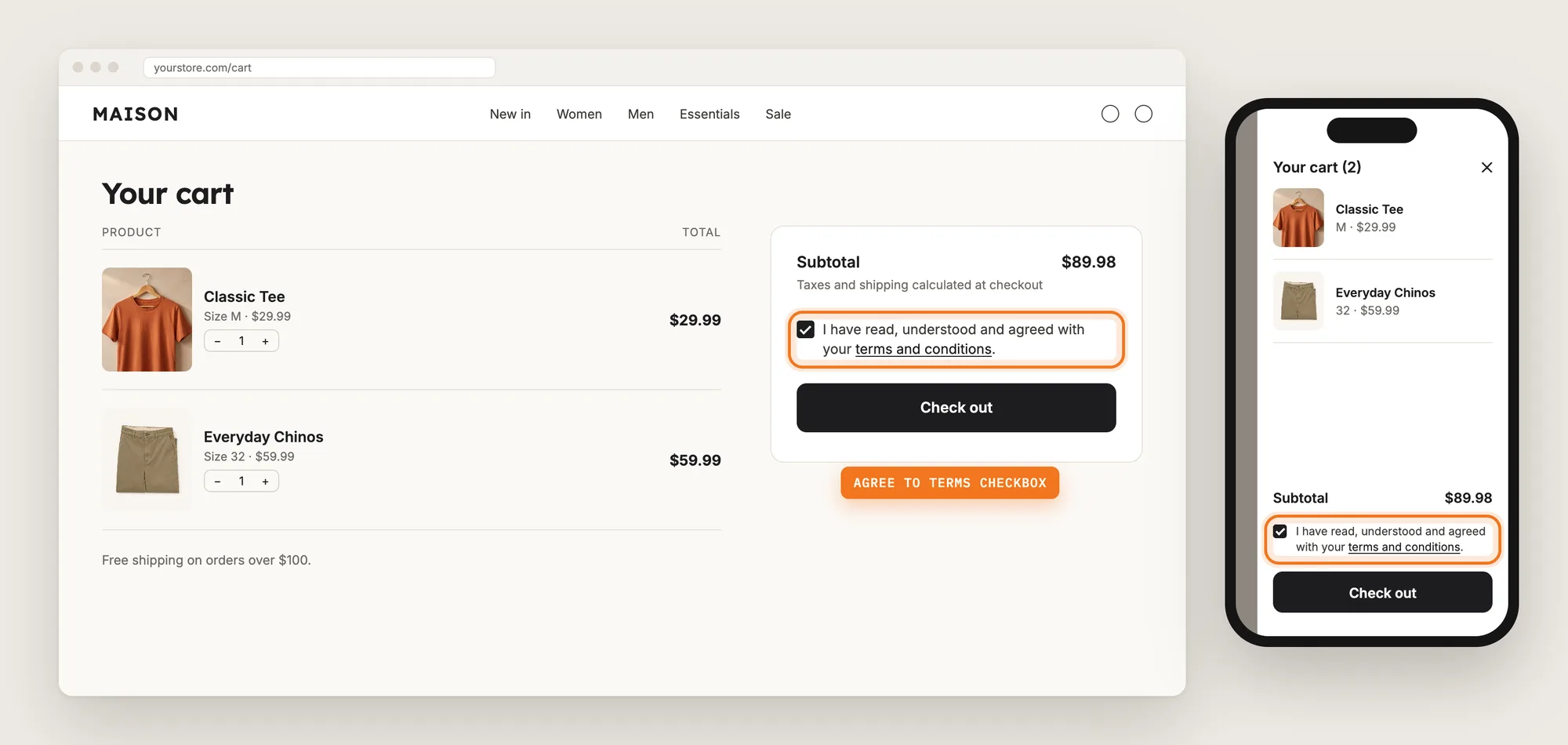
An agree to terms checkbox puts that step right before checkout. A short line with a link to your terms shows above the checkout button, and the shopper has to tick the box before checking out.
Here are the three ways to add an agree to terms checkbox to a Shopify store: with an Agree to Terms Checkbox app, from your theme settings, or with custom code.
What Is an Agree to Terms Checkbox?
An agree to terms checkbox is a box above the cart's checkout button that shoppers tick to confirm they have read and accepted your terms and conditions. Until the box is ticked, the checkout button doesn't take the shopper to checkout. It's also called a terms and conditions checkbox or a terms of service checkbox.
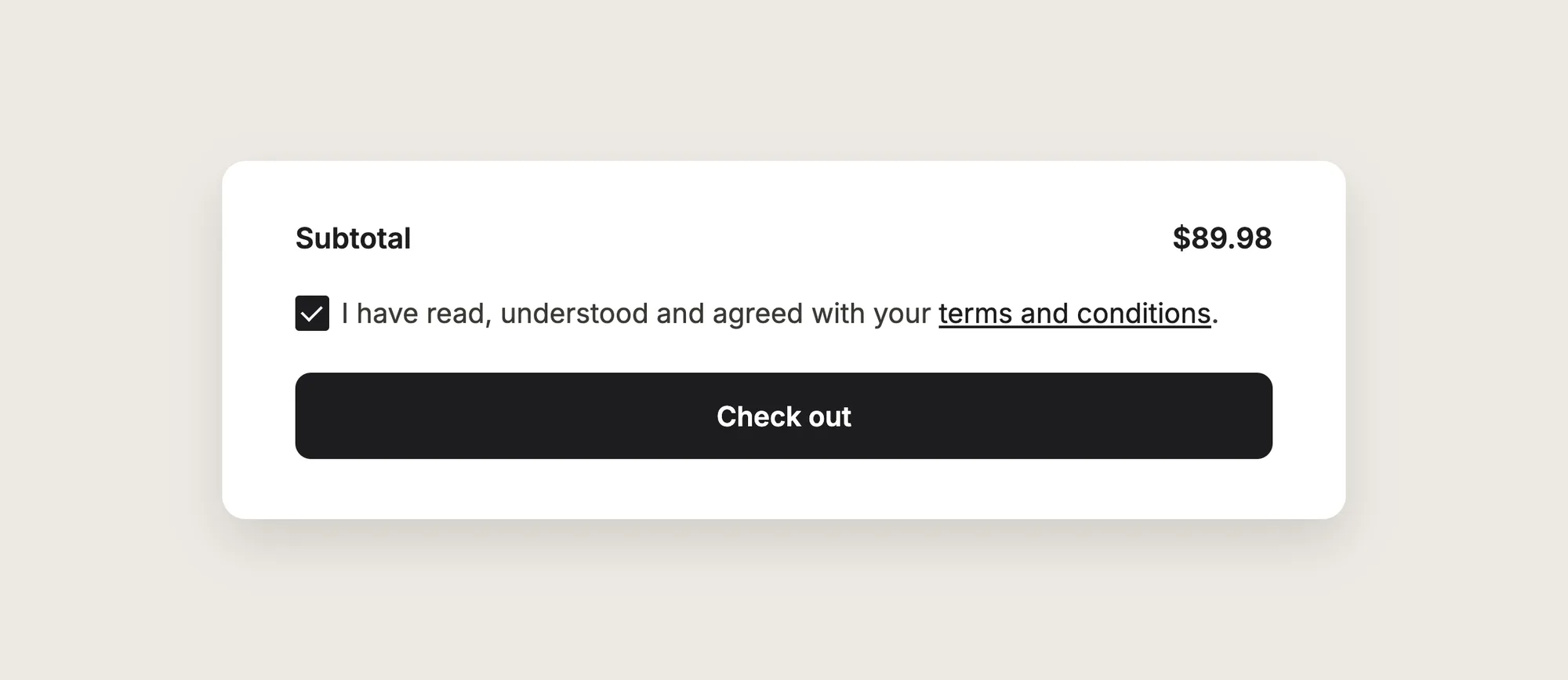
A good agree to terms checkbox includes:
- A short, plain sentence: One line such as "I have read, understood and agreed with your terms and conditions."
- A working link: The words "terms and conditions" link to your real terms page.
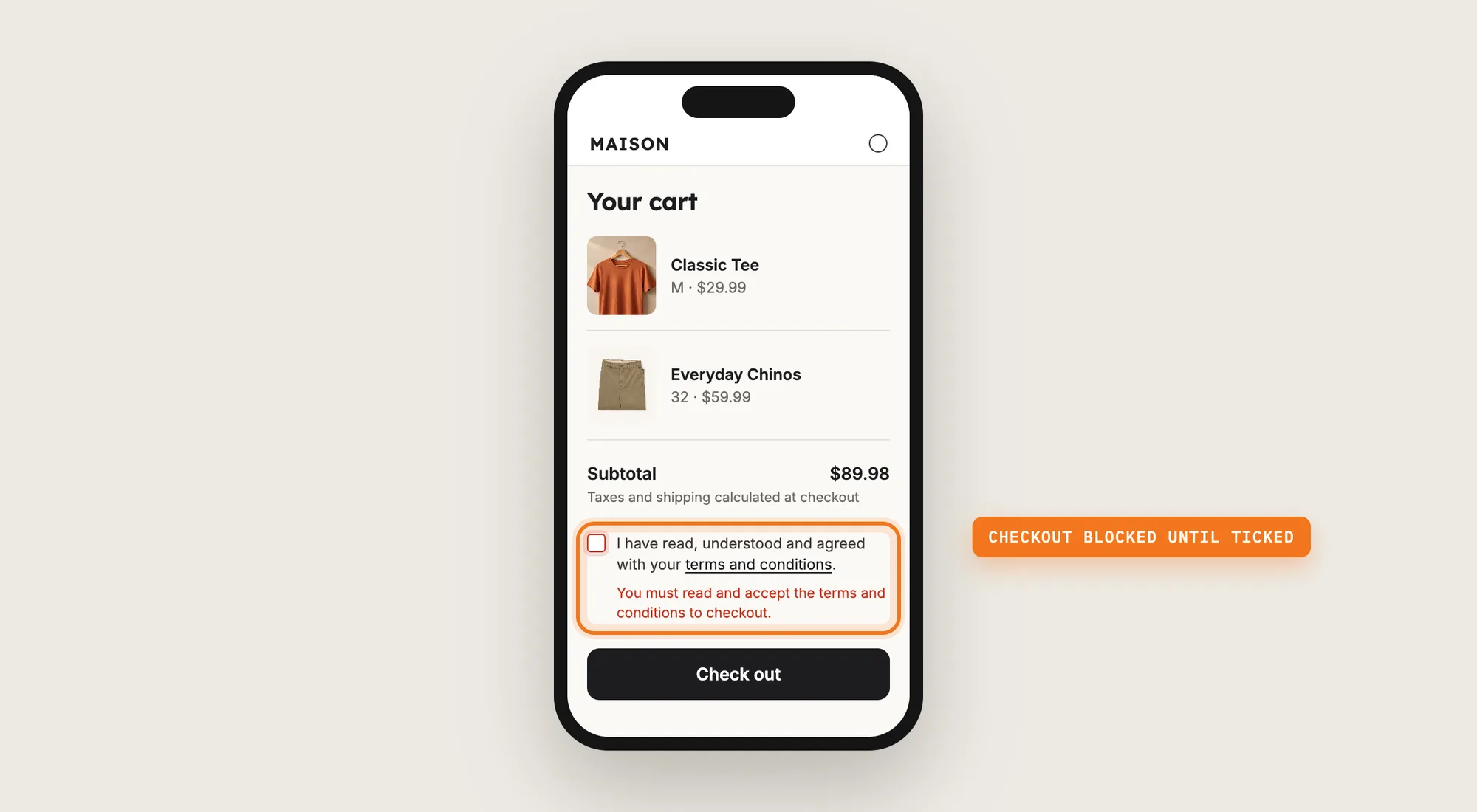
- A clear warning: A shopper who clicks checkout without ticking the box sees a message that says what to do.
- The right place: The checkbox shows right above the checkout button, on the cart page and in the cart drawer.
An agree to terms checkbox confirms your store terms before checkout. It isn't a cookie consent banner, and it isn't legal advice on what your store needs.
What's the Quickest Way to Add an Agree to Terms Checkbox?
- Vitals - All in One App is the quickest way to add an agree to terms checkbox for most stores
- Vitals also offers 40+ apps, such as a cookie banner, an EU withdrawal button and a cart drawer, in one subscription of $29.99/month, so you don't have to install and pay for each app separately
Here's how the three methods compare.
How to Add an Agree to Terms Checkbox With an Agree to Terms Checkbox App?
Install the Vitals - All in One App, open its Agree to Terms Checkbox app and click Activate app. The agree to terms checkbox then shows above the checkout button on your cart page, and the steps below set its text, its link and its warning.
Step 1: Add Vitals to Your Shopify Store
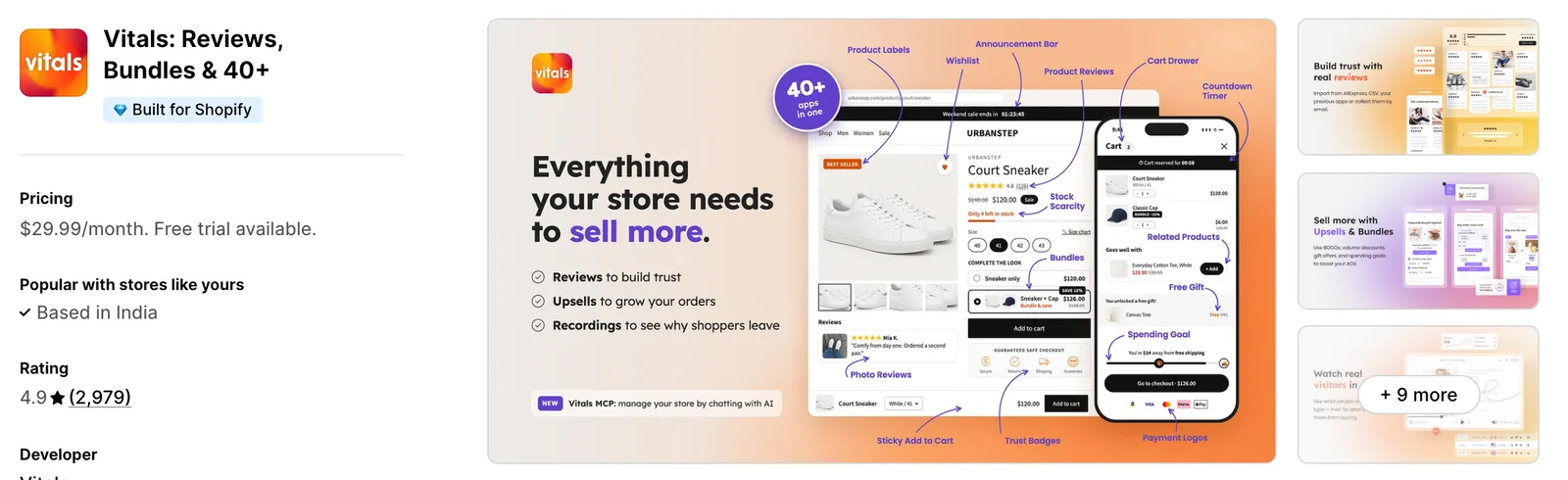
Install the Vitals - All in One App from the Shopify App Store. The 7-day free trial includes the Vitals Agree to Terms Checkbox app.
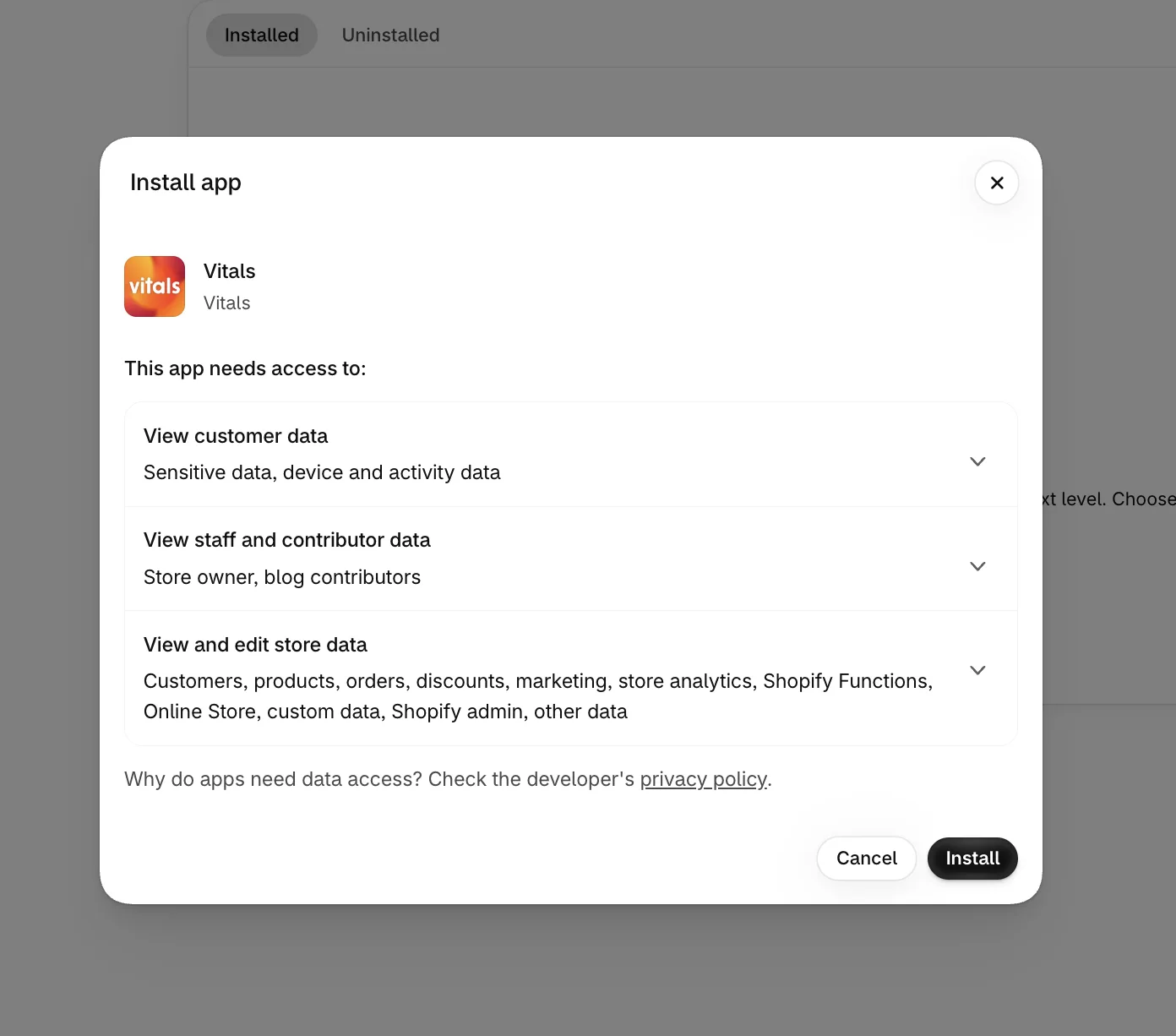
Step 2: Confirm the Install in Shopify
Click Install to approve the store data Vitals uses. Shopify then takes you to the Vitals dashboard.
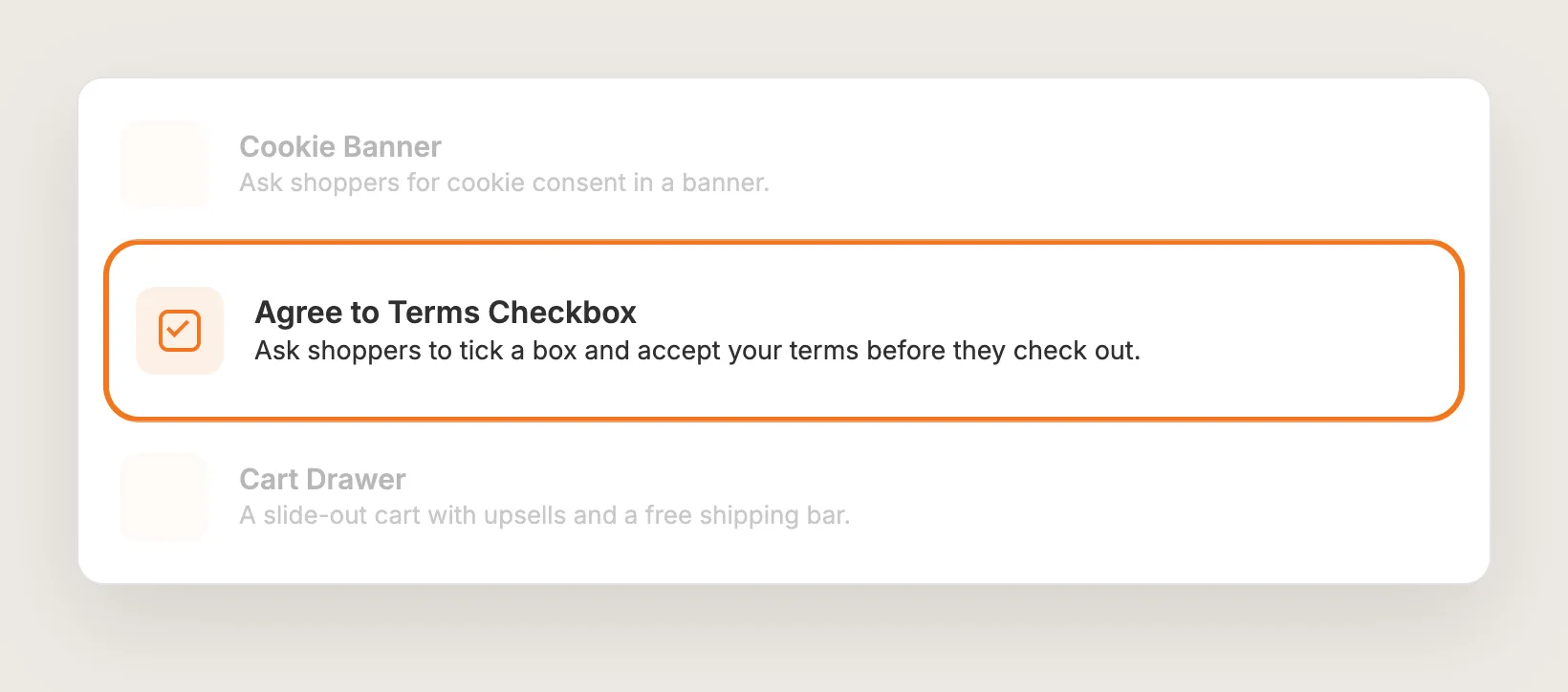
Step 3: Open Agree to Terms Checkbox
In the Vitals dashboard, find Agree to Terms Checkbox in the list of apps and click it.
Step 4: Activate Agree to Terms Checkbox
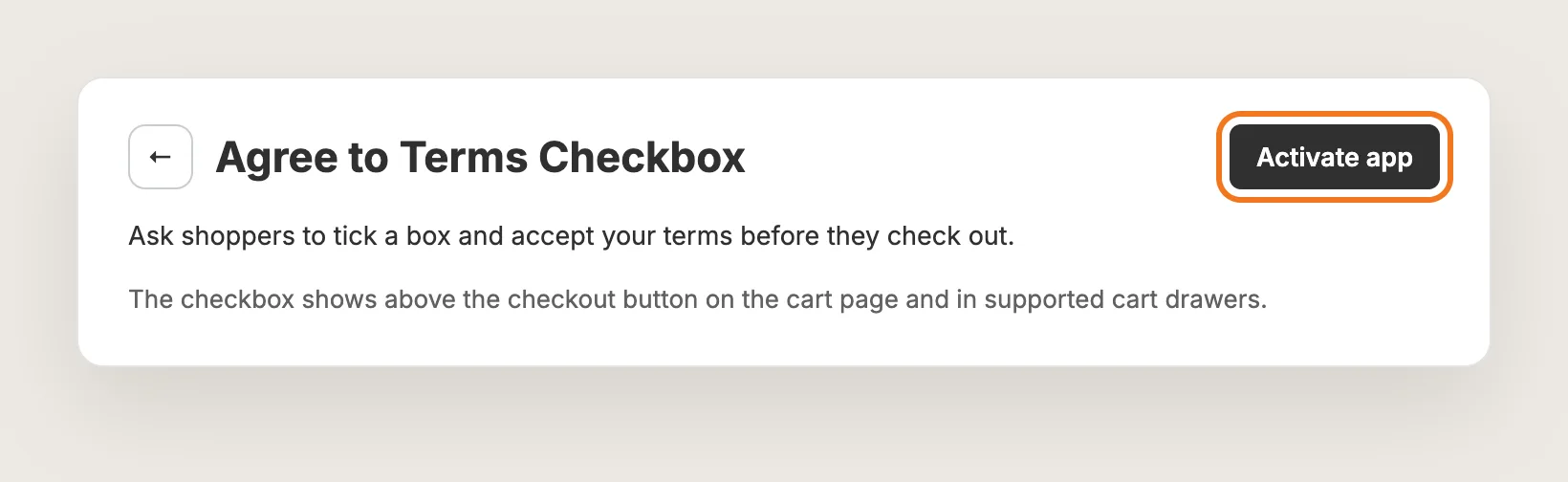
On the Agree to Terms Checkbox page, click Activate app in the page header to turn the checkbox on. The settings have a live preview of the cart page, with a switch between mobile and desktop.
Step 5: Write the Checkbox Text
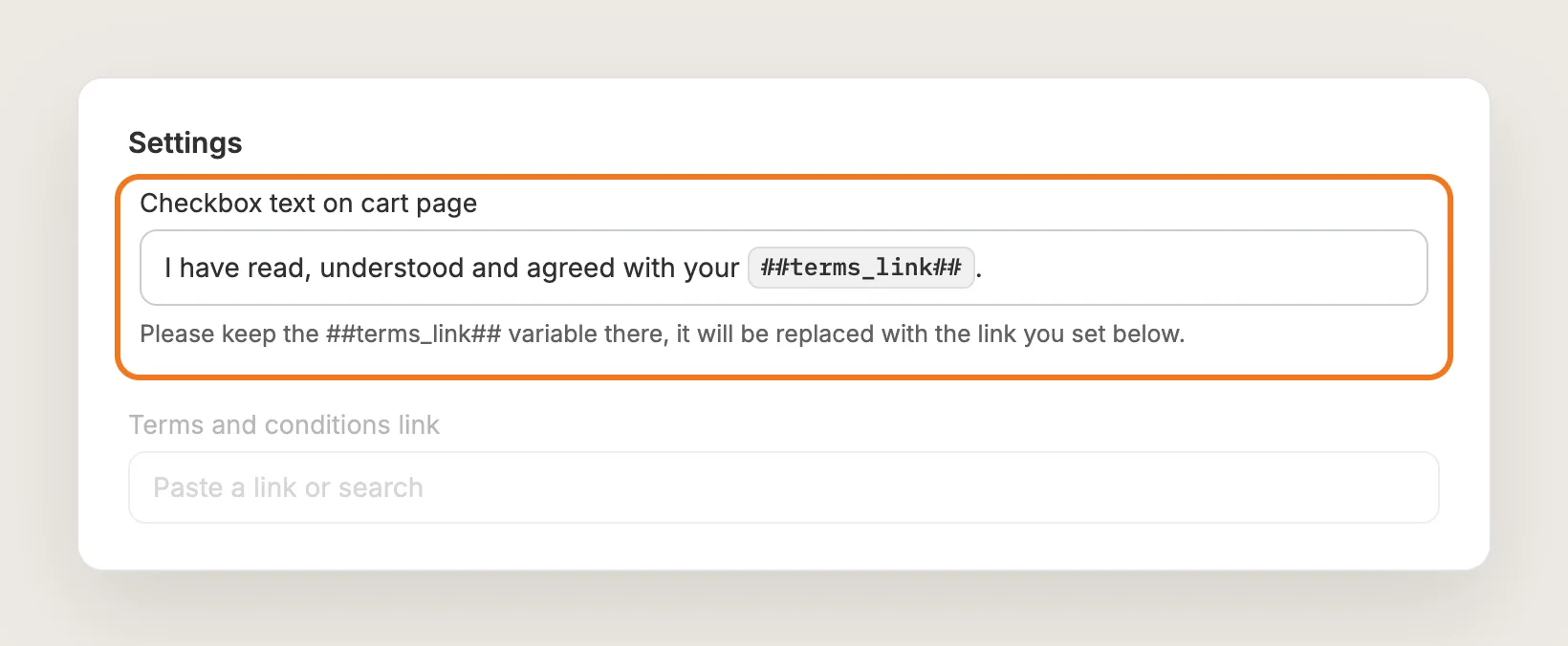
In the Settings card, write the sentence next to the box in Checkbox text on cart page. The default is "I have read, understood and agreed with your terms and conditions." Keep the `##terms_link##` variable in the text, since Vitals replaces it with the link to your terms page. If you delete the variable, the link disappears from the checkbox.
Step 6: Link Your Terms Page
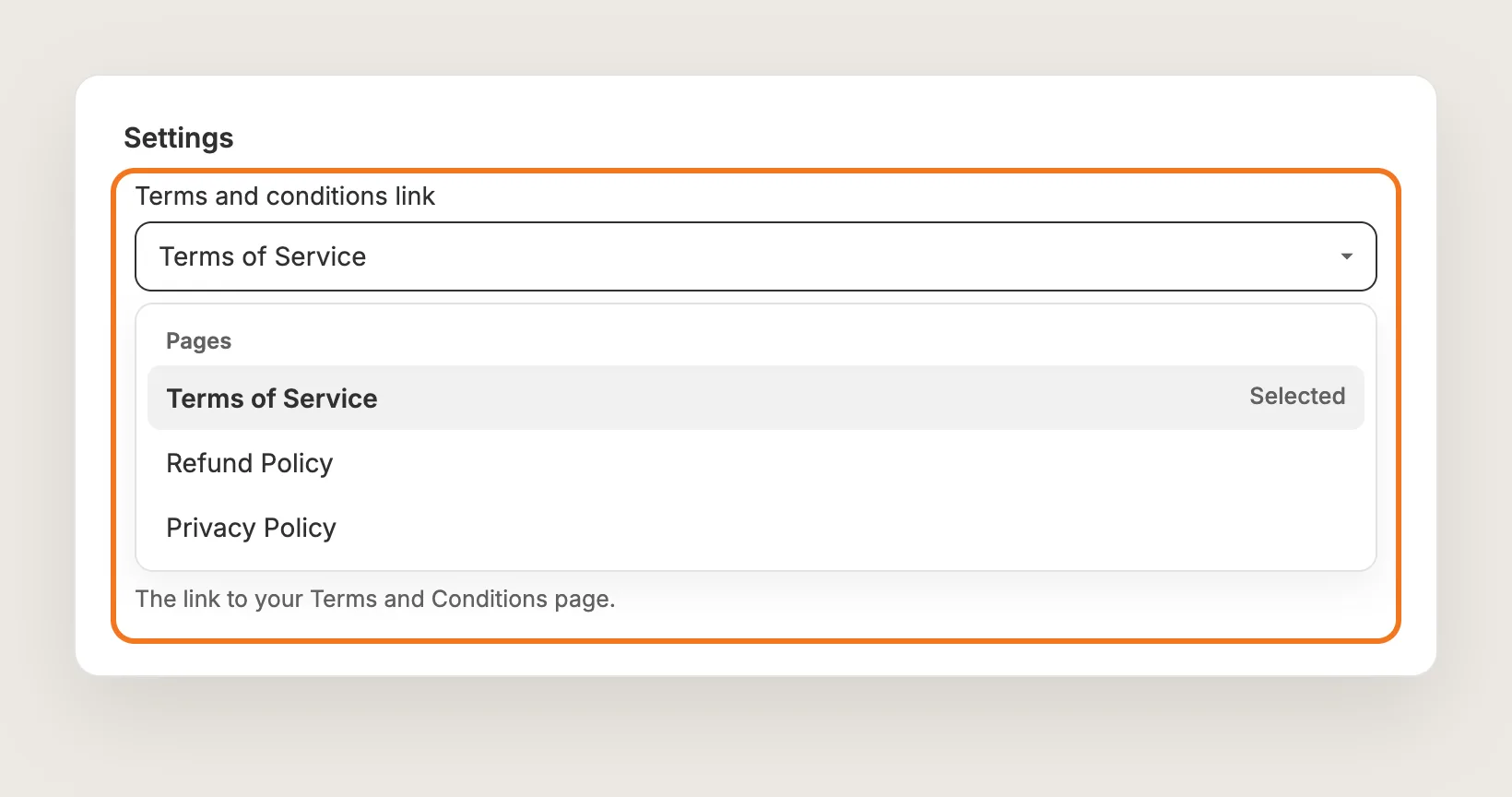
In Terms and conditions link, search for your terms page among your store pages, or paste a URL. The field is empty by default, so the linked words lead nowhere until you set the link.
If your store doesn't have a terms page yet, Shopify's free Terms of Service Generator can create one. Have a lawyer check the terms for your store too.
Step 7: Set the Warning Text
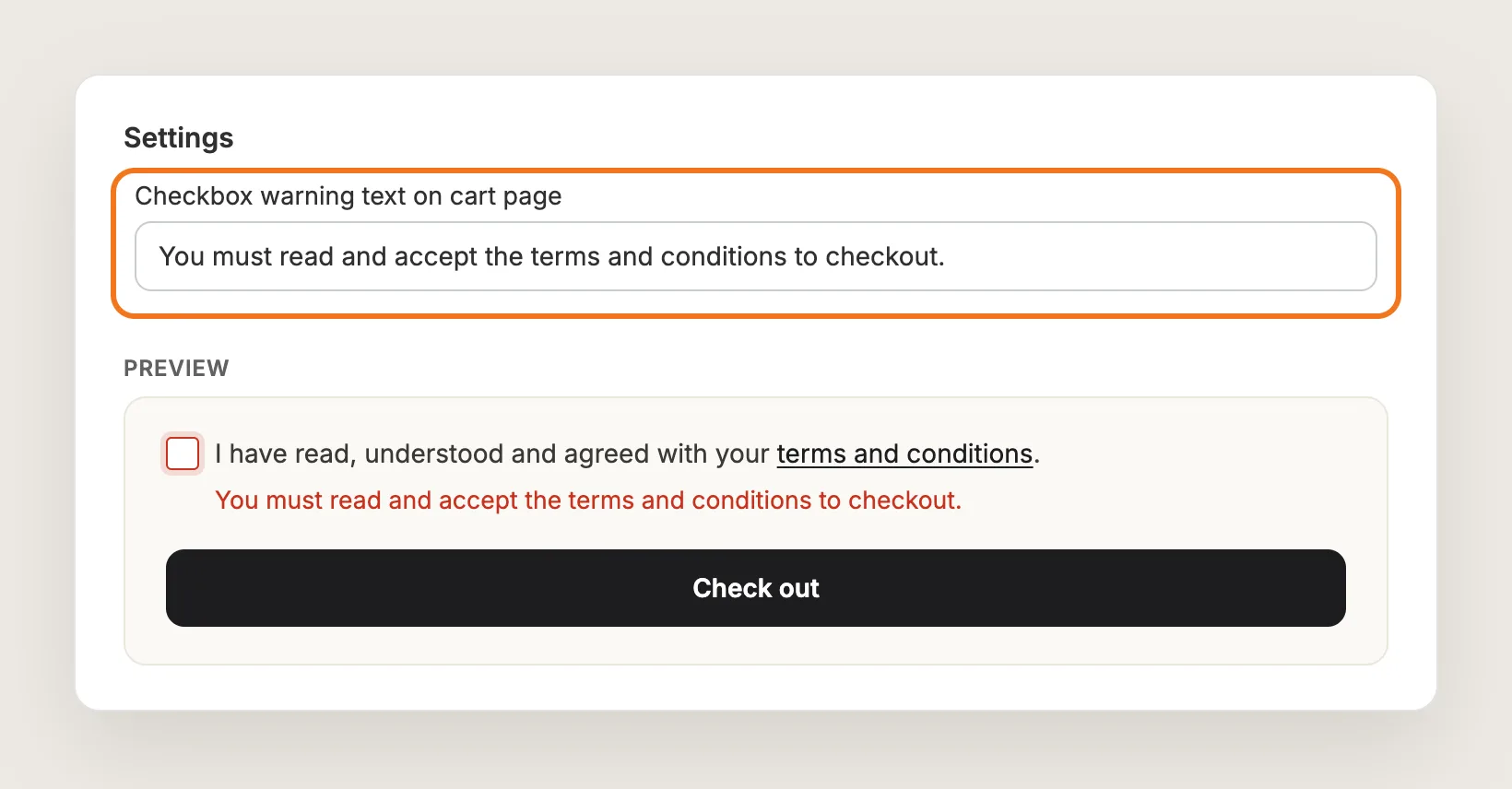
In Checkbox warning text on cart page, write the message shoppers see when they click checkout without ticking the box. The default is "You must read and accept the terms and conditions to checkout." In the preview, click checkout without ticking the box to see the warning.
Step 8: Translate the Checkbox Text (Optional)
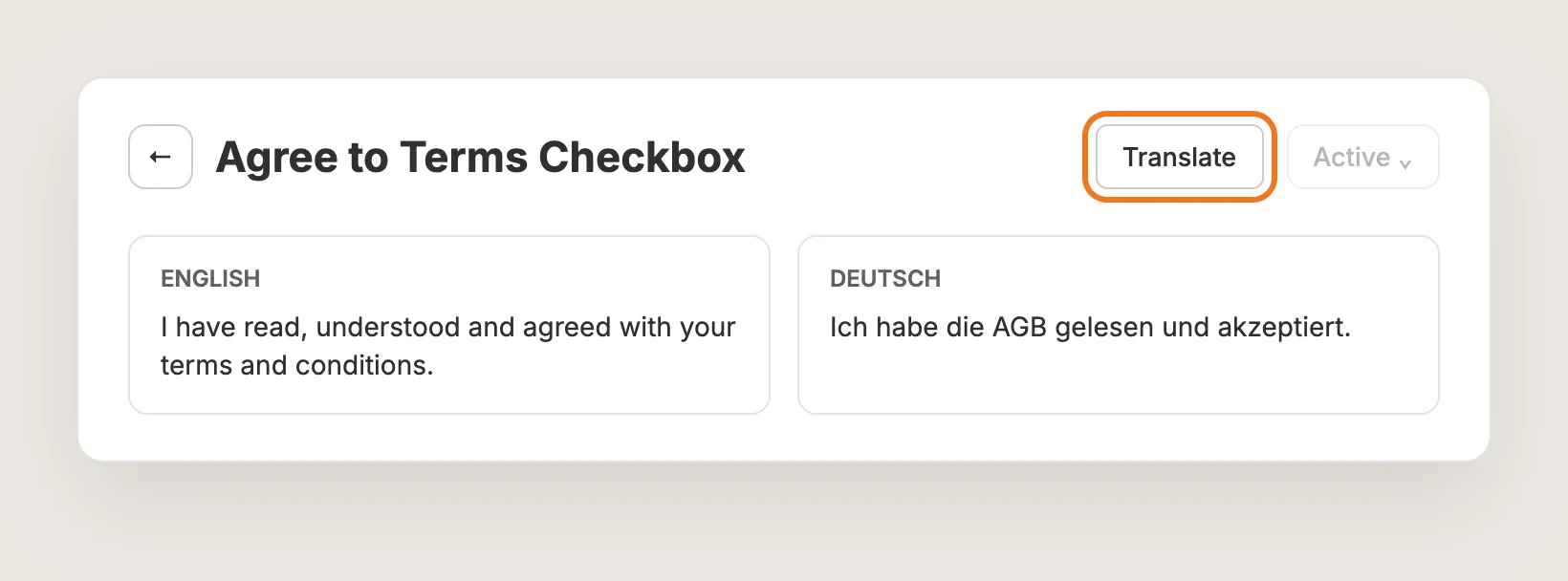
If your store sells in more than one language, click Translate in the page header. Translate the checkbox text and the warning for each language your store sells in. The Translate button shows only on stores with more than one language, or with one language other than English.
Step 9: Show the Checkbox in the Vitals Cart Drawer (Optional)
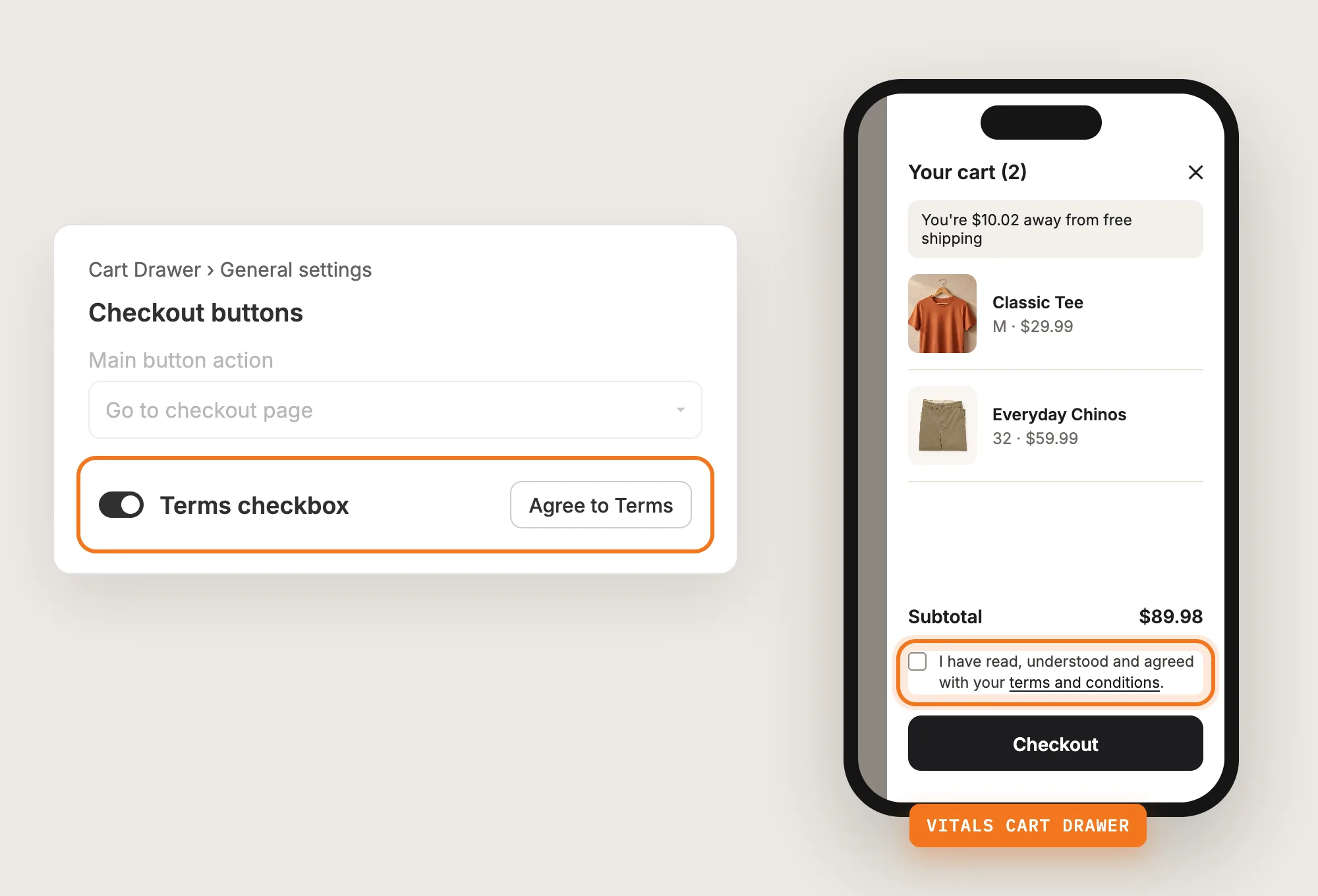
The agree to terms checkbox shows in supported theme cart drawers on its own. If you use the Vitals Cart Drawer app, open Cart Drawer, go to General settings → Checkout buttons and turn on Terms checkbox. The setting is off by default and works when Main button action is set to Go to checkout page.
Step 10: Save and Test on Your Phone
Click Save, then add a product to your cart on your phone and on desktop. Click the checkout button without ticking the box and check that the warning shows. Then tick the box, click the link to check it opens your terms page, and continue to checkout.
Step 11: Voila, Your Agree to Terms Checkbox Is Live on the Store
Your shoppers now confirm your terms right above the checkout button before every checkout from the cart.
How to Add an Agree to Terms Checkbox From Your Theme Settings?
Some Shopify themes include a terms checkbox in their cart settings. To check your theme's settings:
- Click Customize next to your theme in Online Store → Themes
- Open the cart page from the page menu at the top, then click the cart section in the left sidebar
- Look for a terms and conditions checkbox option, turn it on, link your terms page and click Save
A built-in theme checkbox usually shows on the cart page only, and some themes don't add it to the cart drawer. The text, the warning and whether the box really blocks checkout depend on the theme. If your theme's checkbox does what you need on the cart page and in the drawer, the theme setting is enough on its own.
How to Add an Agree to Terms Checkbox Without an App?
Hire a developer to add an agree to terms checkbox to your cart with Liquid, CSS and JavaScript. The code adds the checkbox above the checkout button and stops the button from going to checkout until the box is ticked.
A custom agree to terms checkbox usually involves:
- Copying your theme first, so the live store isn't affected
- Adding the checkbox, its text and the link to your terms page above the cart page's checkout button
- Writing a script that blocks the checkout button and shows a warning until the box is ticked
- Adding the same checkbox and script to the cart drawer
- Testing on mobile and desktop, then publishing the theme copy
Custom code means no extra app, but you or your developer have to maintain it. A theme update can replace the files the code is in, so the checkbox may need adding back after each update. If the script breaks, shoppers can either check out without ticking the box or not check out at all.
How to Increase Trust With an Agree to Terms Checkbox?
An agree to terms checkbox builds trust by showing shoppers your terms before they pay, so nothing in the terms surprises them after the order. These settings help:
- Link the exact terms page. A link that opens your real terms tells shoppers you have nothing to hide. Set Terms and conditions link to your terms page
- Keep the sentence short and plain. Shoppers read one clear line, not a paragraph. Edit Checkbox text on cart page and keep the `##terms_link##` variable
- Write a warning that says what to do. A shopper who skips the box should know the next step right away. Set it in Checkbox warning text on cart page
- Speak the shopper's language. Terms in the shopper's own language are easier to accept. Translate the text with Translate in the page header
- Ask in the cart drawer too. Shoppers who check out from the drawer see the same terms. Turn on Terms checkbox in the Vitals Cart Drawer app
- Send every order through the checkbox. Express-pay buttons such as Amazon Pay skip the checkbox. Hide them with the Vitals Hide Dynamic Checkout Buttons app
Why Isn't My Agree to Terms Checkbox Showing or Working?
These are the usual causes when an agree to terms checkbox doesn't show or doesn't work:
- The checkbox doesn't show at all: Check that the page header of the app shows Active, not Activate app
- The checkbox doesn't show on the product page: The checkbox shows on the cart page and in supported cart drawers only, not on product pages or inside Shopify's checkout
- The terms link doesn't open anything: Terms and conditions link is empty by default. Pick your terms page or paste its URL
- The link is missing from the text: The `##terms_link##` variable was deleted from Checkbox text on cart page. Add it back where the link should show
- The checkbox doesn't show in the cart drawer: In the Vitals Cart Drawer app, turn on Terms checkbox and set Main button action to Go to checkout page. Another app's cart drawer, and some theme drawers, aren't supported
- Shoppers check out without ticking the box: Express-pay buttons such as Amazon Pay aren't blocked by the checkbox. Remove them from the cart with the Hide Dynamic Checkout Buttons app
- The checkbox disappeared from the cart page: If a theme hides or breaks the checkbox, Vitals removes the checkbox and lets checkout continue, so shoppers are never stuck. Contact Vitals support to check the cart page on your theme
- The checkbox looks different from your theme: The app has no color, font or position settings. Custom CSS can restyle the checkbox
- You want the checkbox only in some countries: The app has no country or market targeting. While it's active, every shopper sees the checkbox
Which Agree to Terms Checkbox Method Should You Choose?
Vitals - All in One App suits most stores, but the right method depends on your theme and where shoppers check out.
- Choose Vitals - All in One App if you want an agree to terms checkbox on the cart page and in the cart drawer, with your own text, link and warning. It also includes 40+ other apps in one subscription of $29.99/month, so you don't have to install and pay for each app separately
- Choose your theme's setting if your theme already includes a cart terms checkbox that blocks checkout where you need it
- Choose custom code if you'd rather build the checkbox by hand and keep it working through theme updates
Start a 7-day free trial: Install the Vitals - All in One App and add an agree to terms checkbox
Frequently Asked Questions
1. What is the best way to add an agree to terms checkbox on Shopify?
Vitals - All in One App is the best way for most stores. It adds an agree to terms checkbox above the checkout button on the cart page and in supported cart drawers without code, and blocks checkout until the shopper ticks the box.
2. Does Shopify have a built-in agree to terms checkbox?
Shopify doesn't add an agree to terms checkbox to the cart on its own. Some Shopify themes include one in the cart settings, so check your theme editor first. Otherwise, add the checkbox with an app or custom code.
3. Can the agree to terms checkbox show inside Shopify Checkout?
No. The Vitals Agree to Terms Checkbox app shows the checkbox on the cart page and in supported cart drawers, before the shopper reaches checkout.
4. Can I change the text and the link of the checkbox?
Yes. In the Vitals Agree to Terms Checkbox app, set the sentence in Checkbox text on cart page, the terms page in Terms and conditions link and the error message in Checkbox warning text on cart page. Click Translate to add the text in other store languages.
5. Can I show the agree to terms checkbox only in certain countries?
No. The Vitals Agree to Terms Checkbox app has no country or market targeting. While the app is active, every shopper sees the checkbox wherever it's supported.
6. Does the checkbox block express-pay buttons?
No. The checkbox blocks the cart's checkout button, not express-pay buttons such as Amazon Pay. To send every order through the checkbox, hide those buttons with the Vitals Hide Dynamic Checkout Buttons app.
7. Is an agree to terms checkbox the same as cookie consent?
No. An agree to terms checkbox confirms your store terms before checkout. It doesn't ask for cookie or data-processing consent. For cookie consent, use the Vitals Cookie Banner app.