How to Add Product Labels in Shopify

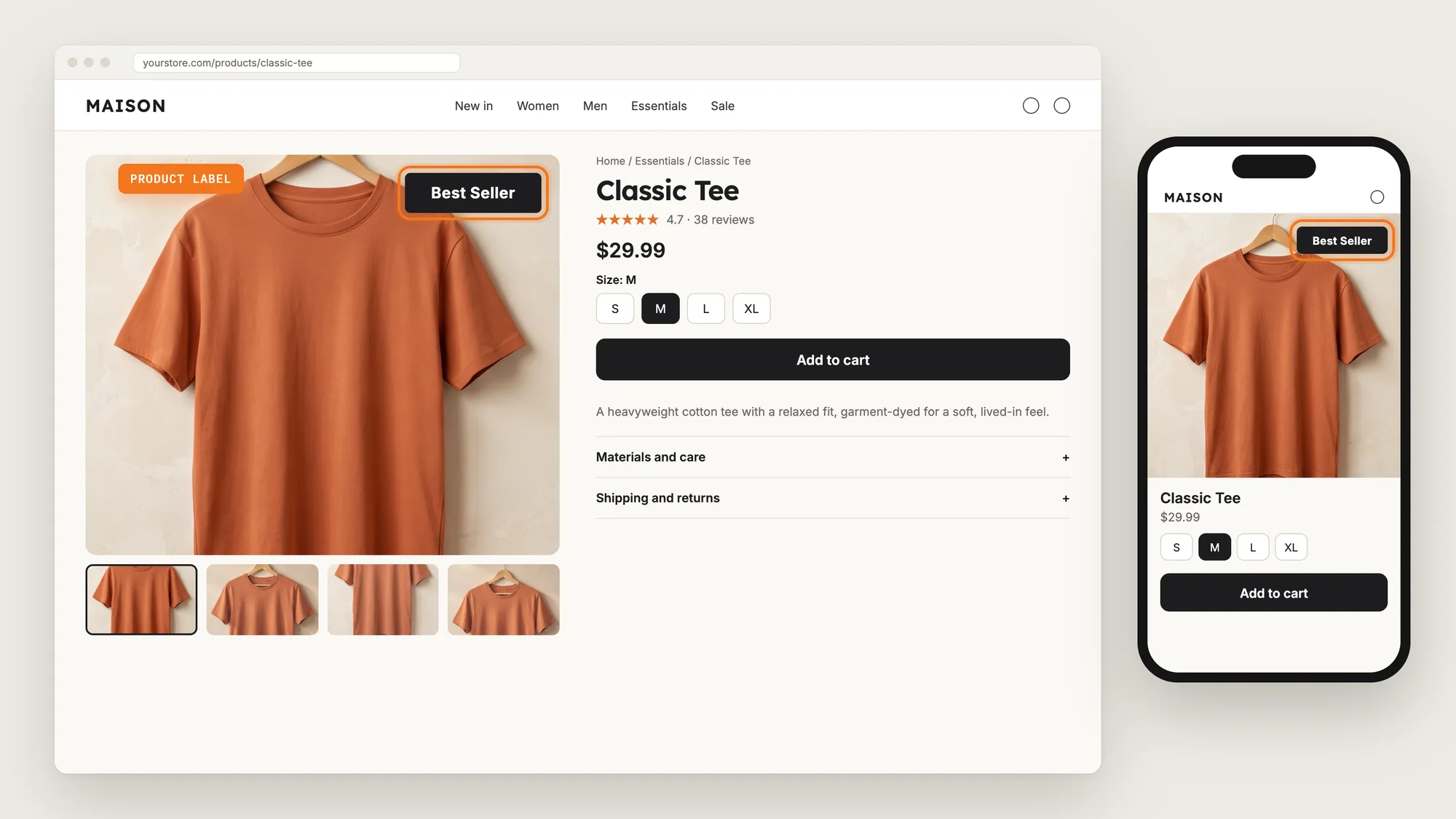
Shoppers scroll past dozens of product photos on a collection page, and most photos look alike. A product that is on sale, brand new or selling fast looks the same as every other product unless something on the photo says so.
Product labels say so. A short badge such as Sale, New or Best Seller on the product image tells shoppers why a product deserves a closer look, right where they're already looking.
Here are the three ways to add product labels in a Shopify store: with a Product Labels app, from your theme settings, or with custom code.
What Are Product Labels?
Product labels are short text badges on top of a product image, such as Sale, New, Best Seller or Limited Stock. Product labels show on the product page, on collection pages and on the homepage, so shoppers spot a product's key selling point before they read the product title.
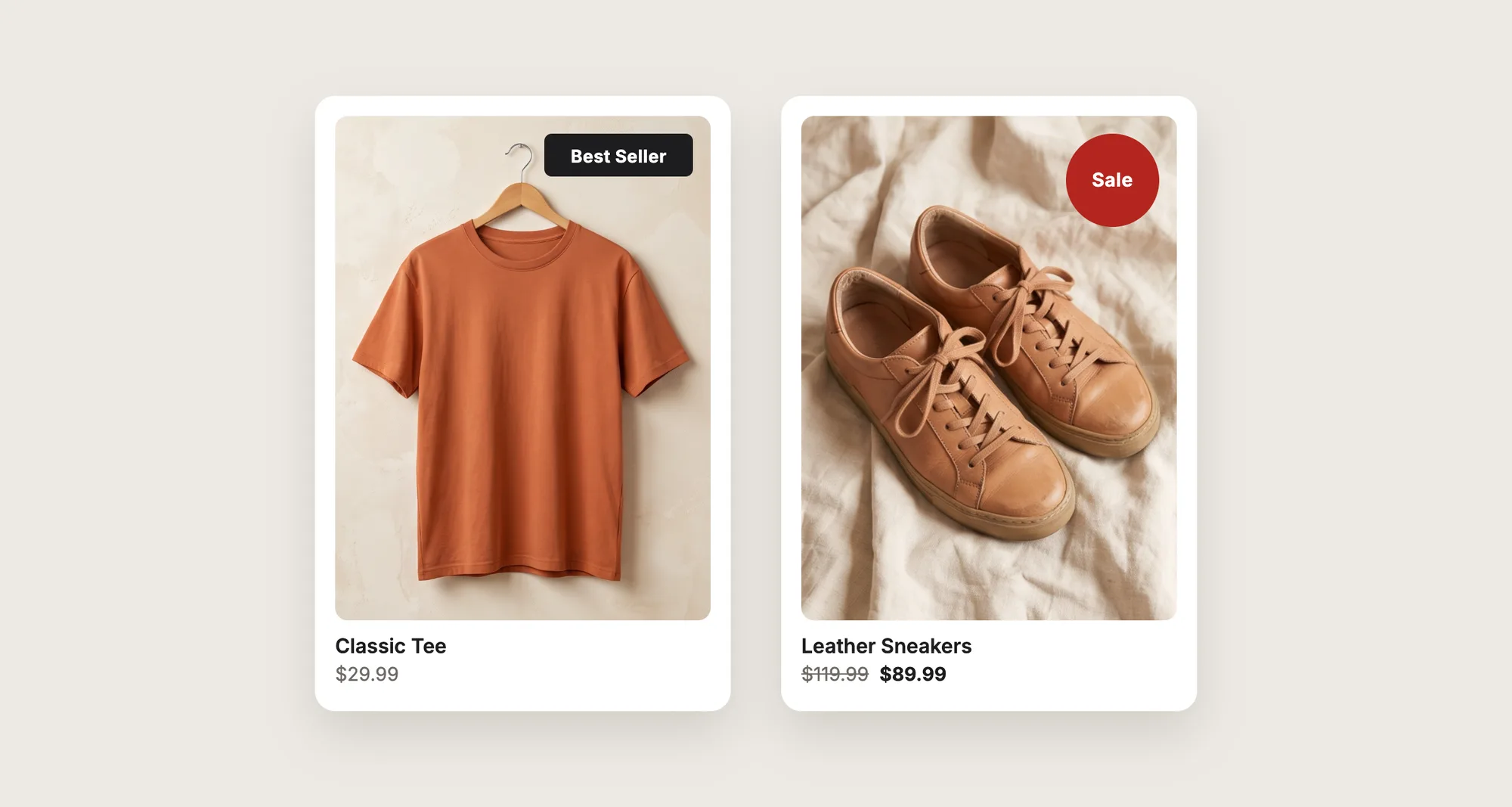
Good product labels include:
- Short text: One to three words, such as "New" or "Best Seller", that read in a glance on a phone.
- Strong contrast: A label color that stands out from the product photo behind it.
- A clear corner: A spot on the image that doesn't hide the product itself.
- Few labeled products: Labels on a small share of the catalog, so each label still stands out.
Trust badges under the Add to cart button are a different widget. See our guide on how to add trust badges to Shopify for those.
What's the Quickest Way to Add Product Labels?
- Vitals - All in One App is the quickest way to add product labels for most stores
- Vitals also offers 40+ apps, such as product reviews, trust badges and a countdown timer, in one subscription of $29.99/month, so you don't have to install and pay for each app separately
Here's how the three methods compare. If you'd rather weigh several apps against each other, see our list of the best product labels apps for Shopify.
How to Add Product Labels With a Product Labels App?
Install the Vitals - All in One App, open its Product Labels app, click Activate app and click Create Product Label. The label then shows on the product images you choose, and the steps below set the layout, the text, the position and the pages.
Step 1: Install the Vitals - All in One App
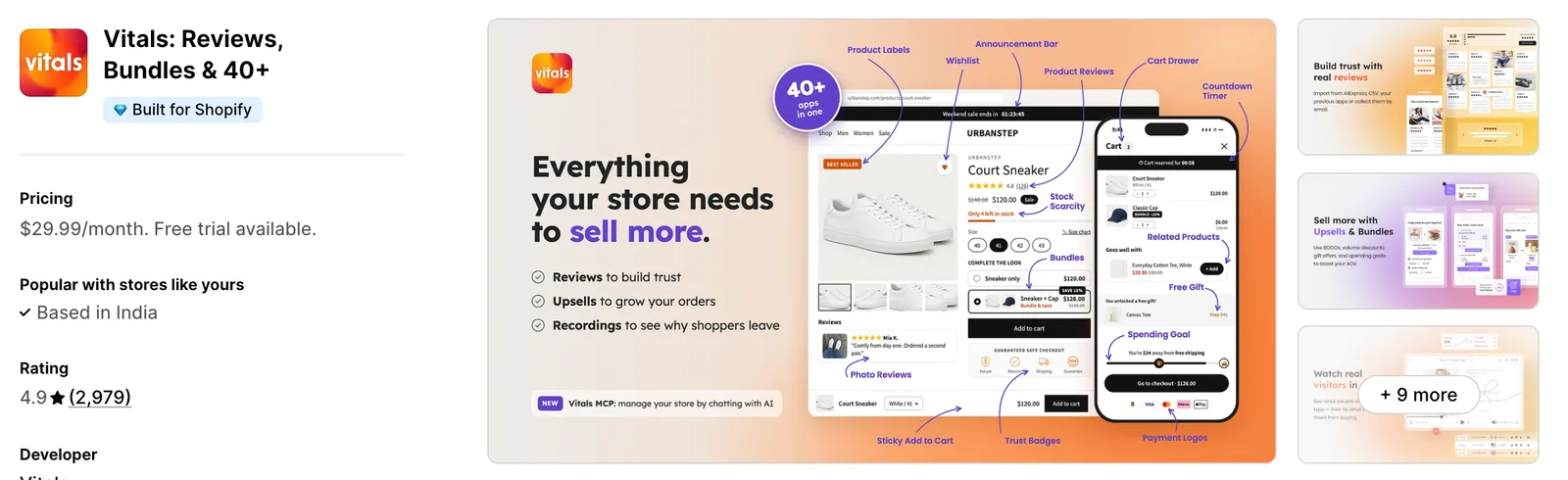
Install the Vitals - All in One App from the Shopify App Store. The 7-day free trial includes the Vitals Product Labels app.
Step 2: Approve the Install in Shopify
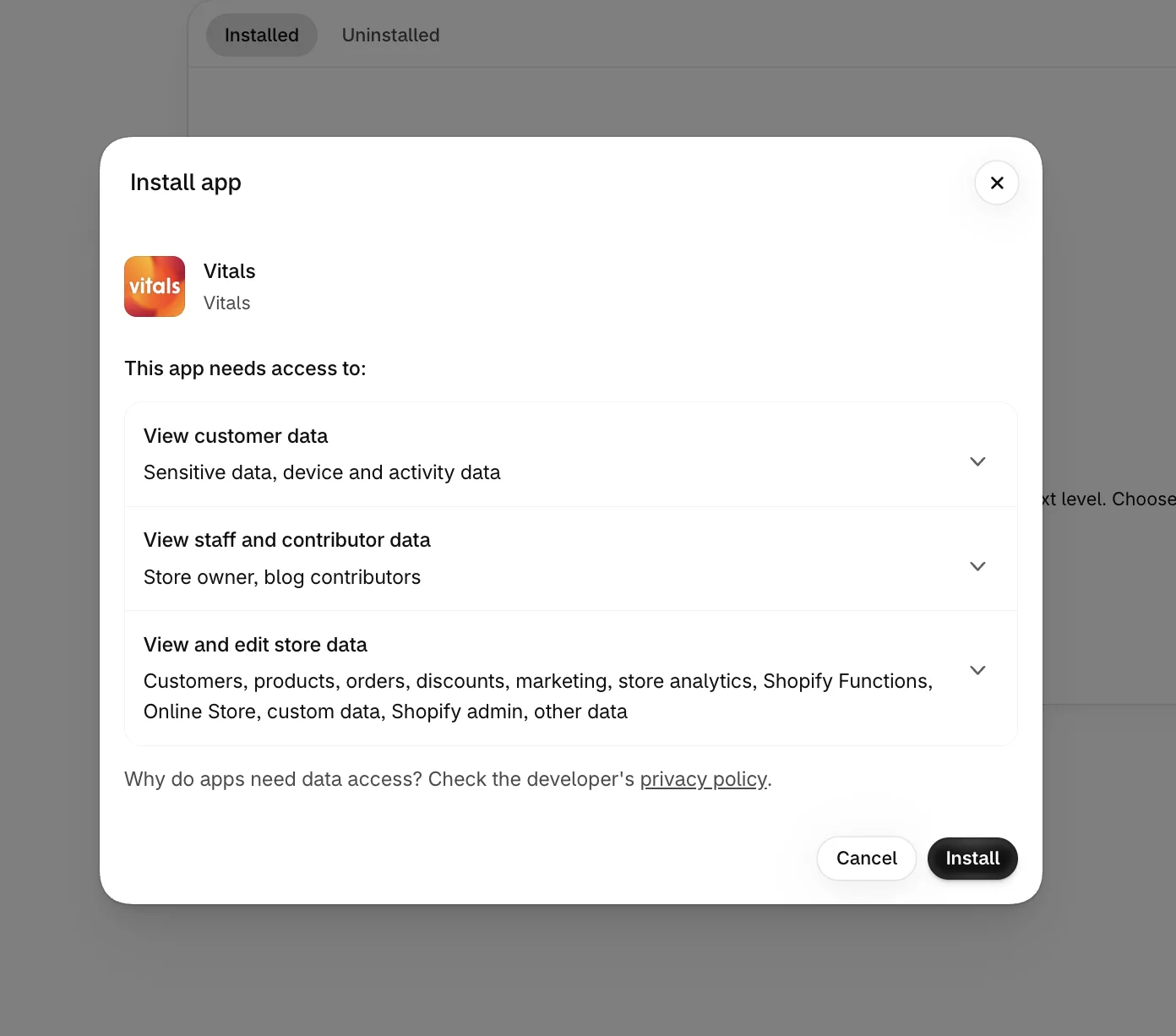
Click Install to approve the store data Vitals uses. Shopify then opens the Vitals dashboard.
Step 3: Open Product Labels
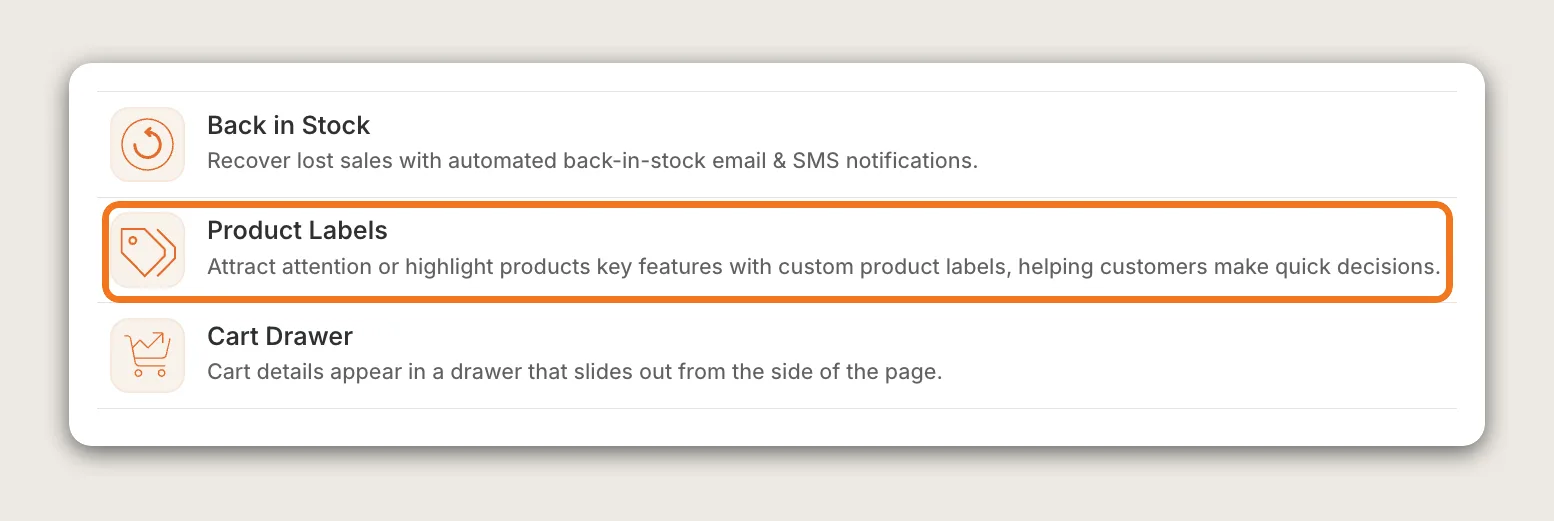
In the Vitals dashboard, find Product Labels in the list of apps and click it.
Step 4: Activate the App
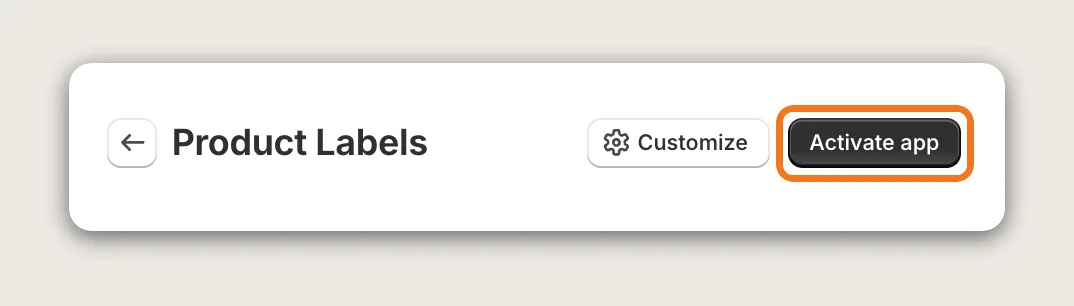
On the Product Labels page, click Activate app to turn product labels on. Customize next to it opens the app's settings.
Step 5: Create a New Product Label
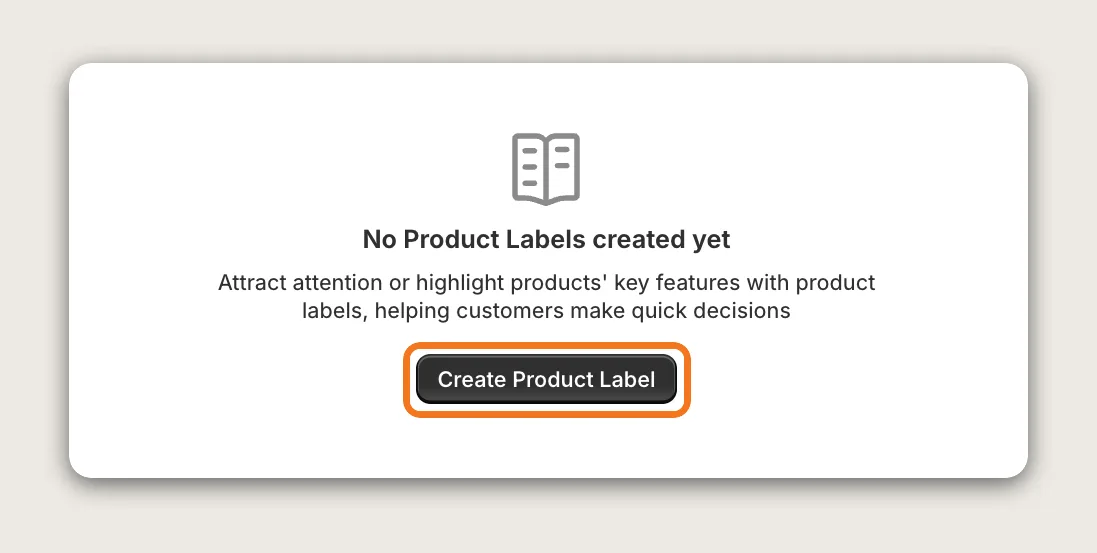
Click Create Product Label under "No Product Labels created yet". Once you have labels, the button reads Create label. The editor opens with a live preview and a starting label that reads "Best Seller".
Step 6: Choose a Layout
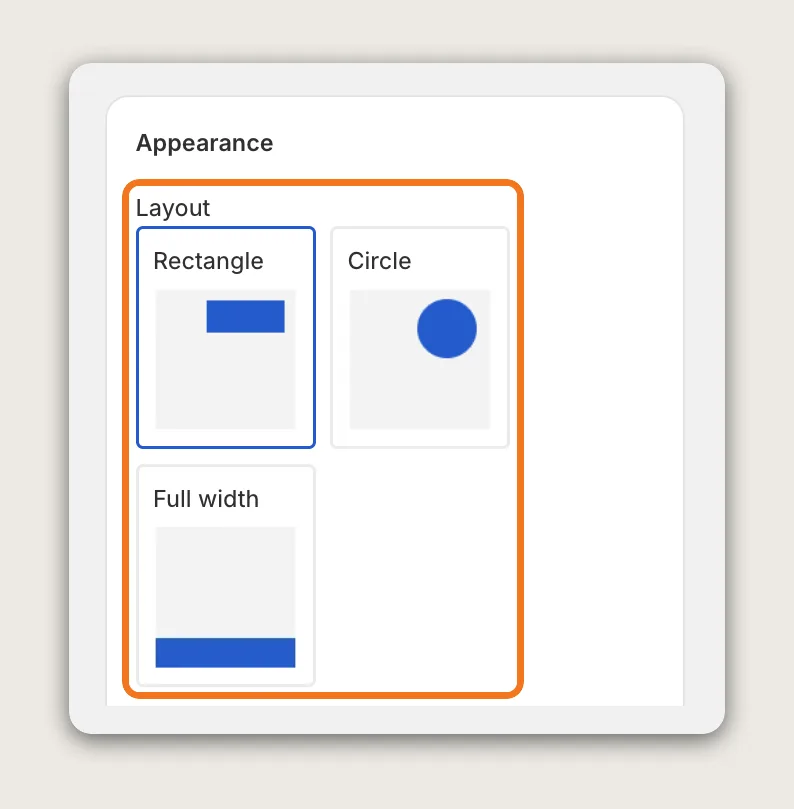
In the Appearance card, pick a Layout: Rectangle, Circle or Full width. A rectangle suits words such as "Best Seller", a circle suits a short word such as "Sale", and a full-width bar spans the top of the image. For a rectangle or a circle, Size type sets a Fixed size in pixels or a Dynamic size that scales with the product image.
Step 7: Write the Label Text and Pick the Colors
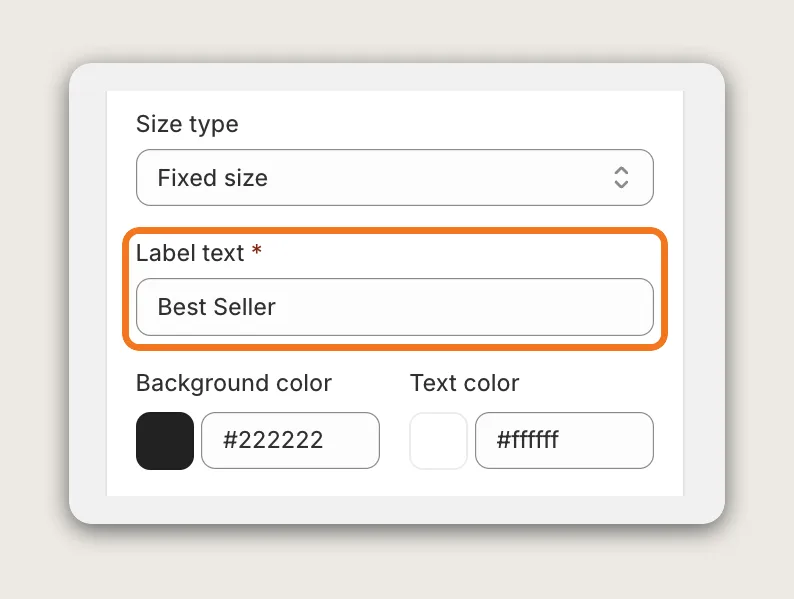
Type the words in Label text, such as "New", "Sale" or "Limited Stock". Then set the Background color and the Text color to match your brand, and change the Text size if needed (10 to 32 px, 12 by default). The label shows the text exactly as you type it.
Step 8: Set the Size and Position on the Image
Set the size with Label width and Label height (or Label size for a circle). Then move the label with Move vertically and Move horizontally. The defaults, 4% and 96%, put the label in the top right corner of the image. Corner radius rounds a rectangle's corners, and Label opacity makes the label more or less see-through.
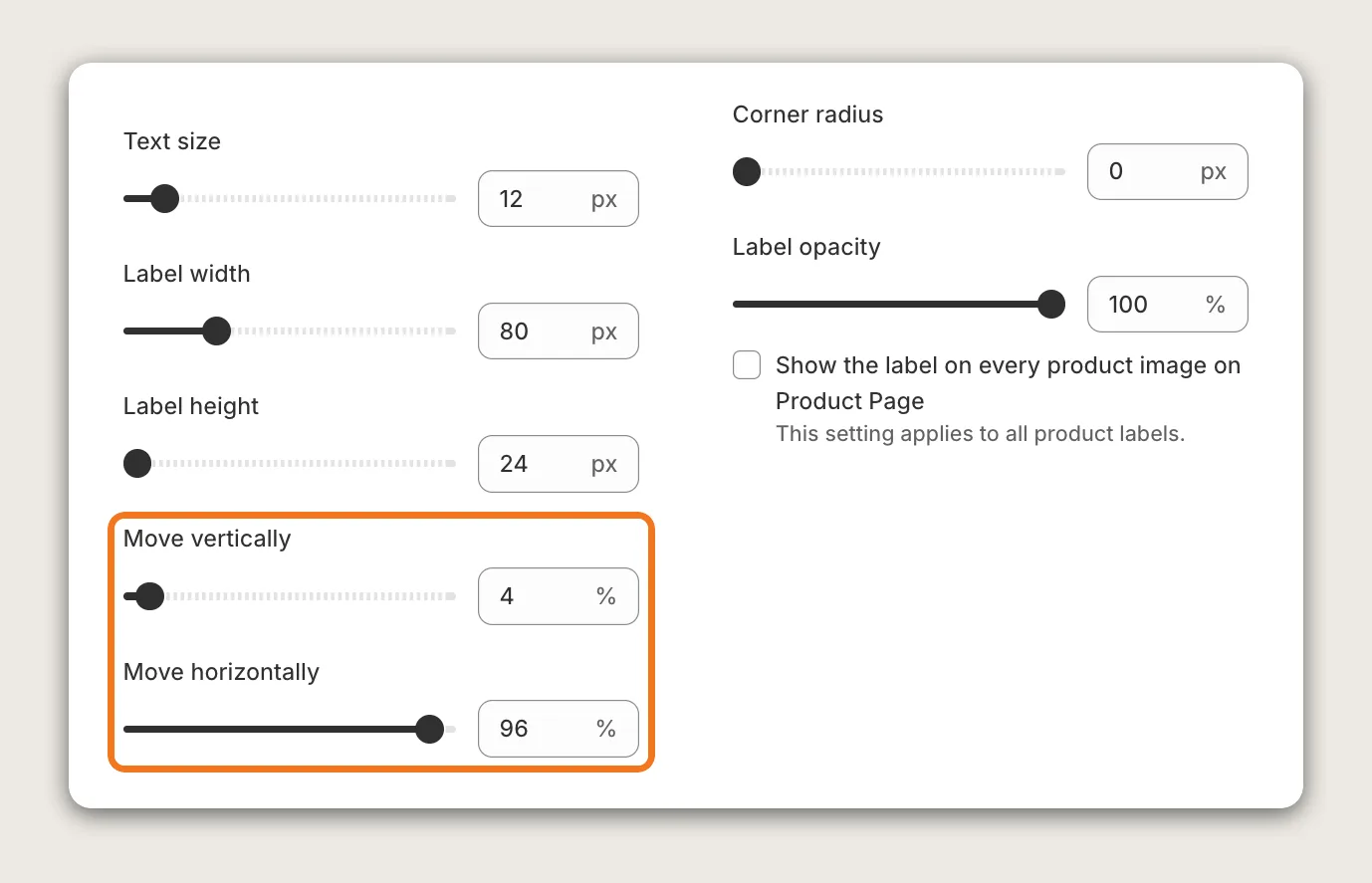
By default the label shows on the first product image. Tick Show the label on every product image on Product Page to show it on every image in the product gallery. This setting applies to all your labels.
Step 9: Choose the Products or Collections
In the Visibility card, pick the products or collections that get the label. A collection is the easiest way to label a group, such as every product in a "Sale" or "New arrivals" collection. A label with no products or collections selected doesn't show anywhere.
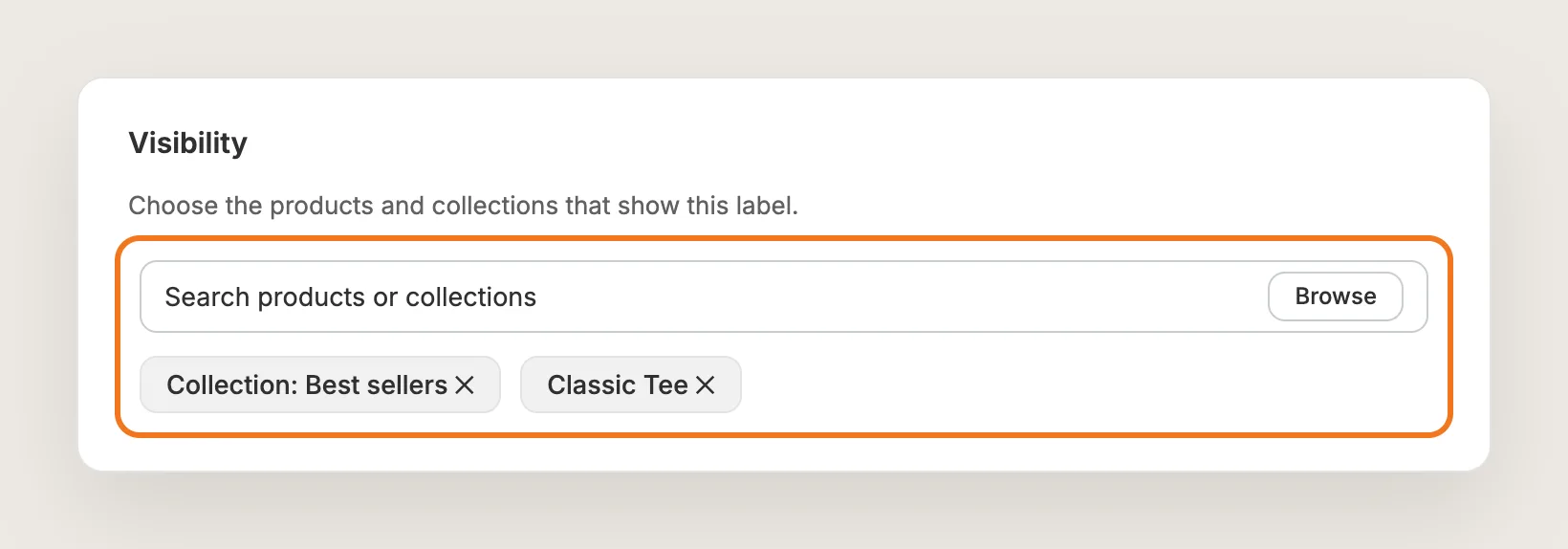
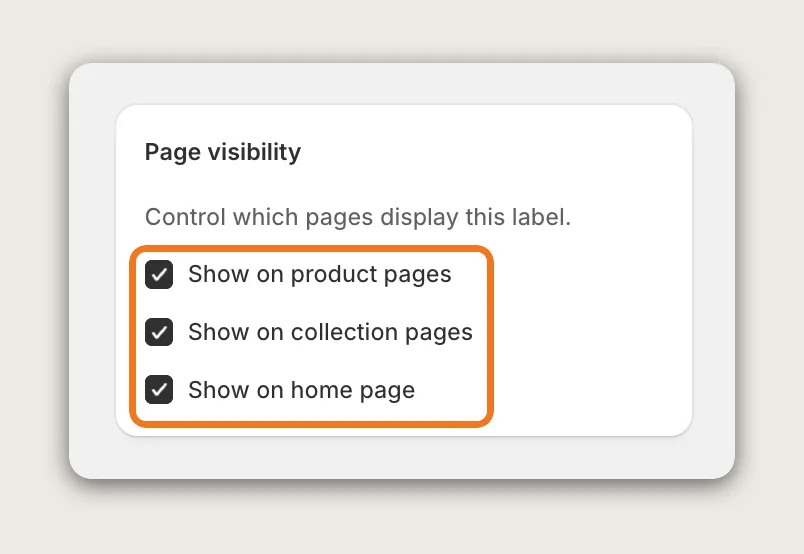
Step 10: Choose the Pages That Show the Label
In the Page visibility card, tick Show on product pages, Show on collection pages and Show on home page. All three are on for a new label. Product labels also show inside the Vitals Recently Viewed app and the Vitals Related Products app.
Step 11: Save and Test on Your Phone
Click Save, then open a collection page and a product page on your phone and on desktop. Check that the label doesn't hide the product, that it doesn't overlap your theme's own Sale badge, and that two labels on the same product don't overlap.
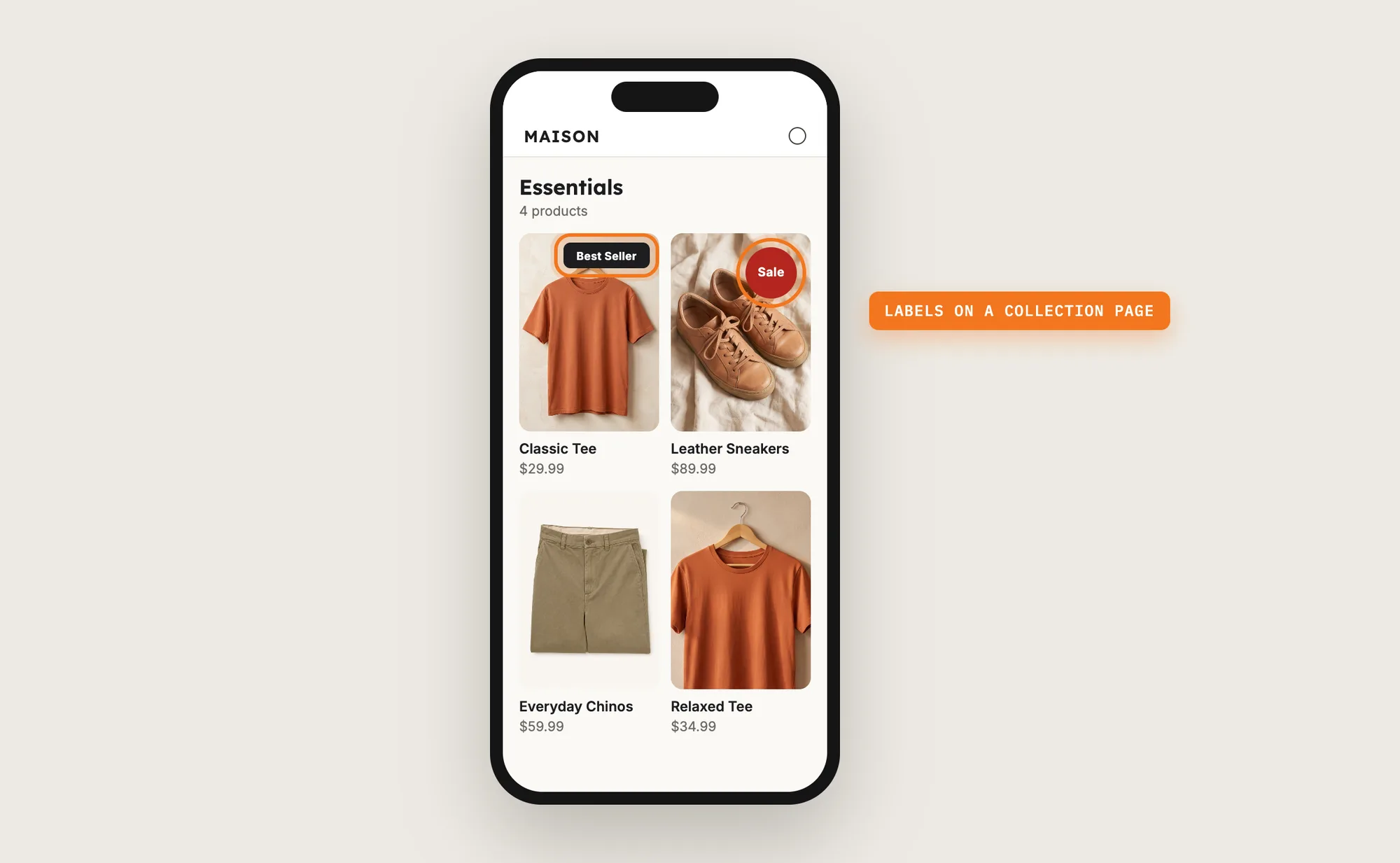
Step 12: Voila, Your Product Labels Are Live on the Store
Your shoppers now see Sale, New or Best Seller right on the product photo, the moment they scroll past it.
How to Add Product Labels From Your Theme Settings?
Many Shopify themes show automatic Sale and Sold out badges on product images, but not custom labels such as New or Best Seller. To check your theme's settings:
- Click Customize next to your theme in Online Store → Themes
- Open Theme settings and look for a Badges or Product cards group
- Set the badge position and color, then click Save
A theme badge shows "Sale" when a product has a compare-at price and "Sold out" when it's out of stock. The words and the rules are fixed by the theme, so you can't add a New or Best Seller label or pick which products get one. If the automatic Sale badge is all you need, the theme setting may be enough.
How to Add Product Labels Without an App?
Hire a developer to add product labels to your theme with Liquid and CSS, usually driven by product tags. Custom code lets you set any rule, such as a "New" label on products tagged "new".
Custom product labels usually involve:
- Copying your theme first, so the live store stays untouched during testing
- Adding a tag or metafield to each product that gets a label
- Editing the product card snippet to read the tag and show the label on the image
- Editing the product page template to show the same label in the gallery
- Styling the label for size, color and position on mobile and desktop
- Testing on every collection and product template, then publishing the theme copy
Custom code means no extra app, but you or your developer have to maintain it. A theme update can replace the snippets the code is in, so the product labels may need adding back after each update.
How to Increase Sales With Product Labels?
Product labels increase sales by pointing shoppers to the products most worth buying right now, such as sale items, new arrivals and best sellers. These settings help:
- Label only a few products. Labels on fewer than 20% of your products stand out, while labels everywhere turn into noise. Pick only those products in the Visibility card
- Put sale items in a collection and label the collection. A "Sale" label on a collection updates as you add or remove products. Select the collection in Visibility
- Keep the label text to a word or two. "Sale" or "Best Seller" reads in a glance on a phone. Write it in Label text
- Use a color that stands out from your photos. A dark label on light photos, or a bright one on dark photos, catches the eye. Set Background color and Text color
- Show the labels where shoppers browse. Collection pages and the homepage are where shoppers pick which product to open. Keep Show on collection pages and Show on home page ticked
- Keep a label clear of the product. A label in a corner draws the eye without hiding what shoppers want to see. Use Move vertically and Move horizontally
- Space out two labels on one product. A Best Seller label and a Limited Stock label in opposite corners both read clearly. Give each label its own position
- Pair a sale label with a deadline. A Sale label with a countdown timer on the same product adds urgency to the offer
Why Aren't My Product Labels Showing or Working?
These fixes solve most product label problems:
- The product label doesn't show at all: Check that the label's Status is Active and that the Visibility card has products or collections selected
- The label shows on the product page but not on the homepage: Open the label and tick Show on home page in Page visibility. If it's ticked and the label still doesn't show, contact Vitals support with your theme name
- The label shows only on the first product image: Tick Show the label on every product image on Product Page in the Appearance card
- Two labels overlap: Give each label its own Move vertically and Move horizontally values
- My product label clashes with my theme's Sale badge: Move the Vitals label to another corner, or turn off the theme's badge in its theme settings
- The label didn't appear on a new sale product: Labels apply only to the products and collections you select, not to rules based on price, tags or stock. Add the product to the labeled collection
- I want to use my own image as a label: Product labels are text on a flat color. Image labels aren't available in the app
Which Product Labels Method Should You Choose?
Vitals - All in One App suits most stores, but the right method depends on the labels you need and how you pick the products.
- Choose Vitals - All in One App if you want custom text labels such as New, Sale or Best Seller on the products and collections you choose, on product, collection and home pages. It also includes 40+ other apps in one subscription of $29.99/month, so you don't have to install and pay for each app separately
- Choose your theme's setting if the automatic Sale and Sold out badges are all you need
- Choose custom code if you want labels driven by tags or stock rules and have a developer to keep them working through theme updates
If you already use another product labels app, see our Fordeer Product Labels alternatives, Labeler alternatives and Sami AI Product Labels alternatives.
Start a 7-day free trial: Install the Vitals - All in One App and add product labels
Frequently Asked Questions
1. What is the best way to add product labels in Shopify?
Vitals - All in One App is the best way for most stores. Its Product Labels app adds text labels such as Sale, New or Best Seller on product images without code, in three layouts and your own colors, for the products or collections you choose.
2. Can product labels show automatically on sale or out of stock products?
Not in the Vitals Product Labels app, which labels only the products and collections you select. To label sale items, put them in a collection and select that collection. Many Shopify themes show an automatic Sale badge for products with a compare-at price.
3. Can I add more than one product label to a product?
Yes. Create a label for each message, such as Best Seller and Limited Stock, and give each one its own position so the labels don't overlap.
4. Can product labels show on collection pages and the homepage?
Yes. Each label has Show on product pages, Show on collection pages and Show on home page in its Page visibility card, and all three are on for a new label.
5. Can I use an image or icon as a product label?
No. Vitals product labels are text on a flat color, with your own text, colors, size, corner radius and opacity.
6. Do product labels work on mobile?
Yes. The same label shows on every device. Choose Dynamic size so the label scales with the product image on smaller screens.
7. How do I make a copy of a product label?
In the Product Labels list, click Duplicate next to the label. The copy opens in the editor with "(Copy)" in its name and starts as Inactive, so set its Status to Active before you save.