How to Add an Animated Button in Shopify

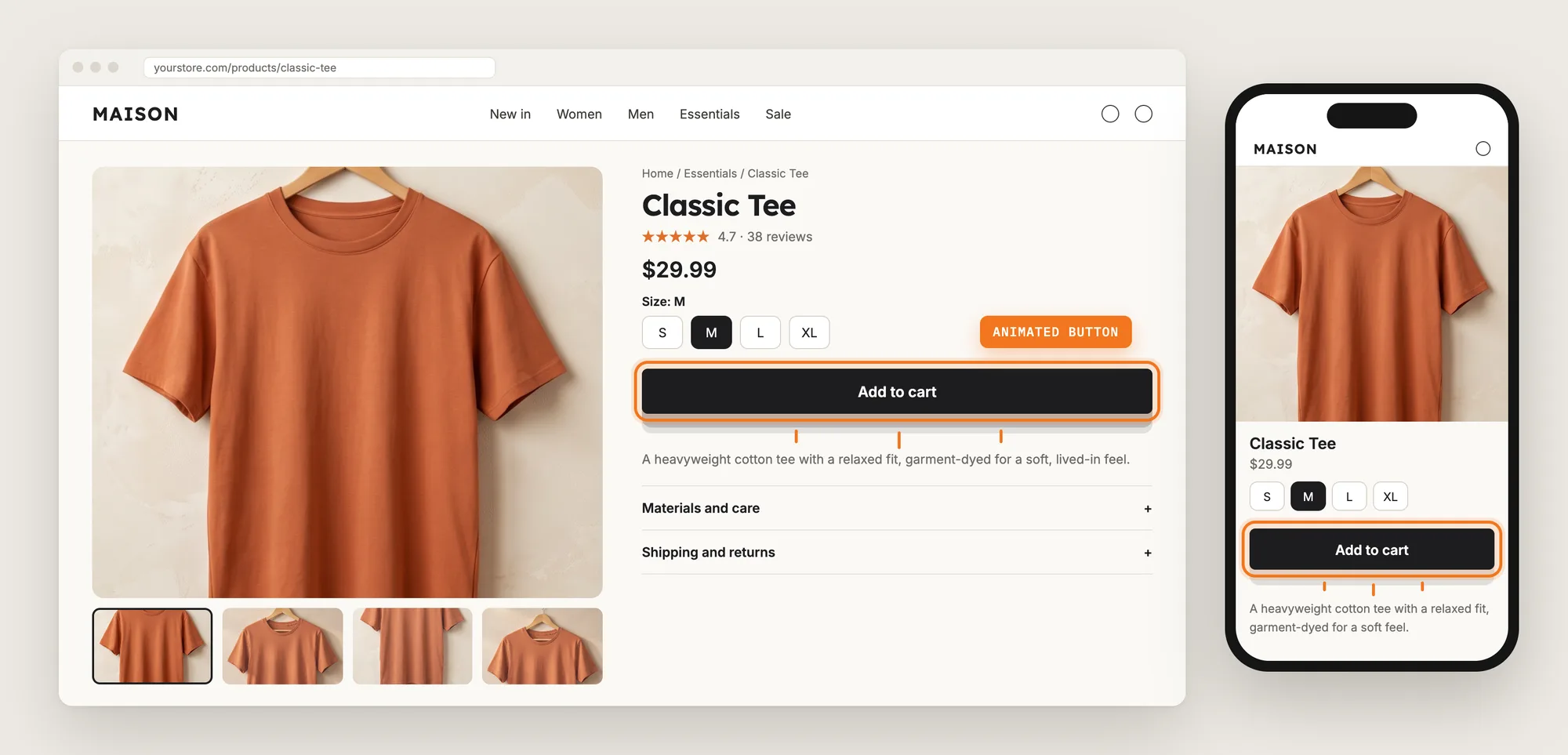
Shoppers scroll a product page looking at photos, reviews and sizes, and the Add to cart button can blend into the rest of the page. A shopper who has to hunt for the button is a shopper who may never click it.
An animated button fixes that with a short bounce, shake or pulse on the Add to cart button. The movement draws the eye to the one button that turns a visit into a sale.
Here are the three ways to add an animated button in a Shopify store: with an Animated Button app, from your theme settings, or with custom code.
What Is an Animated Button?
An animated button is an Add to cart button that plays a short animation, such as a bounce, a shake or a pulse, to catch the shopper's eye. The animated button can play when the shopper's mouse passes over it, every few seconds, or both.
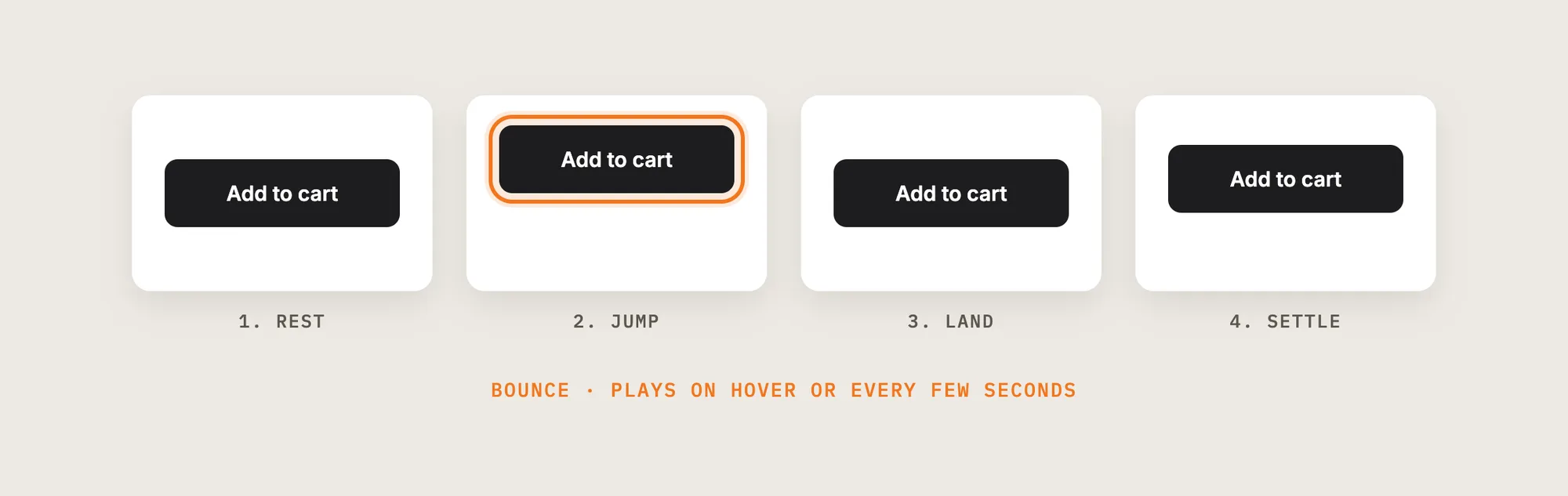
A good animated button includes:
- A subtle style: A short bounce or pulse draws the eye without making the page feel busy.
- A trigger that works on phones: A timed animation plays on phones, where there is no mouse to hover.
- A calm pace: A few seconds between plays keeps the animated button noticeable, not distracting.
- Your theme's own button: The animation moves the button your theme already shows, in your store's colors.
The animated button is the theme's own Add to cart button with motion added, so the rest of the product page stays the same.
What's the Quickest Way to Add an Animated Button?
- Vitals - All in One App is the quickest way to add an animated button for most stores
- Vitals also offers 40+ apps, such as a sticky add to cart bar, product reviews and product bundles, in one subscription of $29.99/month, so you don't have to install and pay for each app separately
Here's how the three methods compare. For more apps that help shoppers click Add to cart, see our list of the best Shopify apps to increase conversion rate.
How to Add an Animated Button With an Animated Button App?
Install the Vitals - All in One App, open its Animated Add to Cart app and click Activate app. The animated button then plays on your product pages, and the steps below set the animation style, when it plays and which products show it.
Step 1: Install the Vitals - All in One App
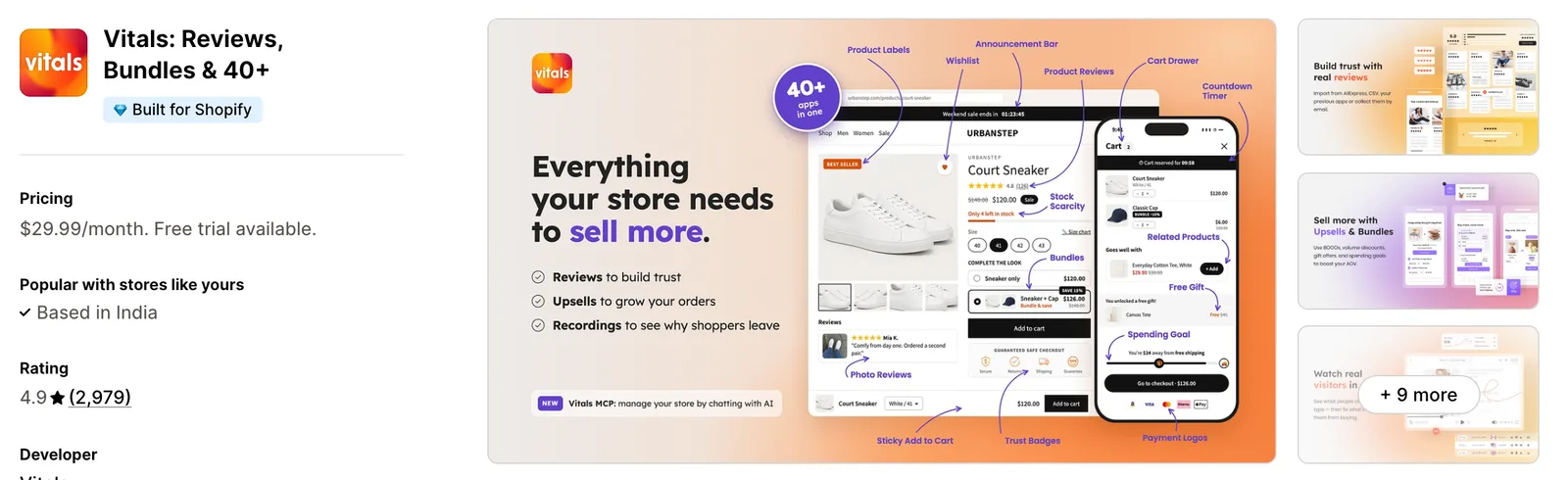
Install the Vitals - All in One App from the Shopify App Store. The 7-day free trial includes the Vitals Animated Add to Cart app.
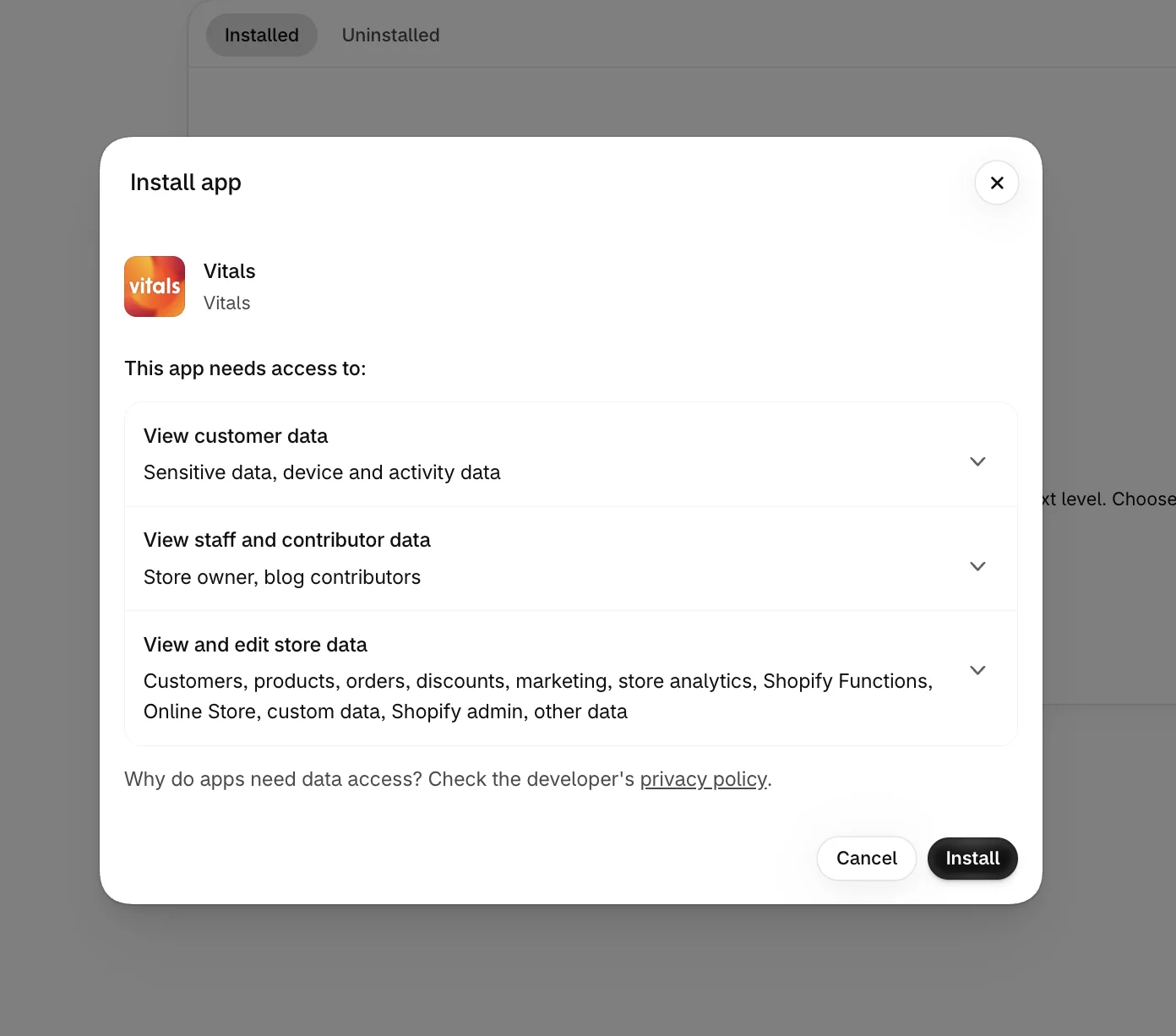
Step 2: Approve the Install in Shopify
Click Install to approve the store data Vitals uses. Shopify then opens the Vitals dashboard.
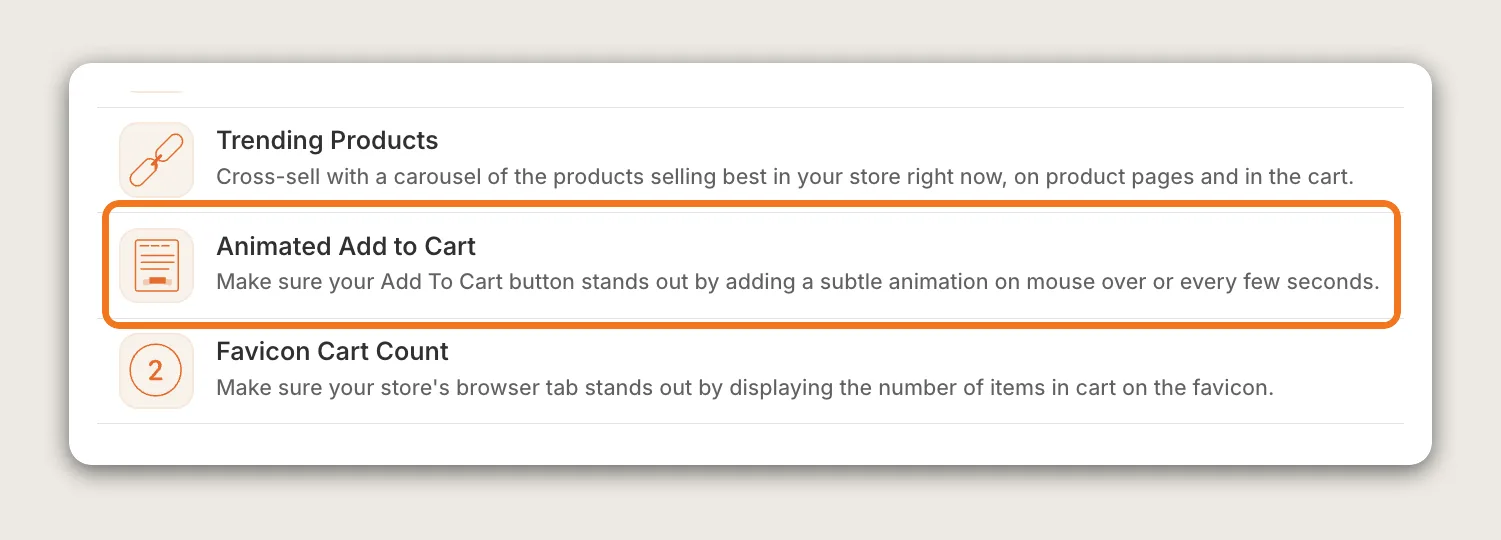
Step 3: Open Animated Add to Cart
In the Vitals dashboard, find Animated Add to Cart in the list of apps and click it.
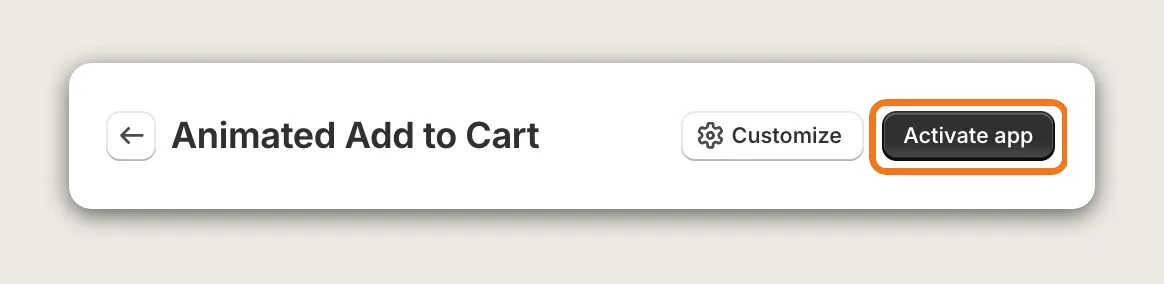
Step 4: Activate the App
On the Animated Add to Cart page, click Activate app in the top right corner to turn the animated button on. The settings page then opens, with the Settings card next to a live preview of a product page for mobile and desktop.
Step 5: Choose When the Animation Plays
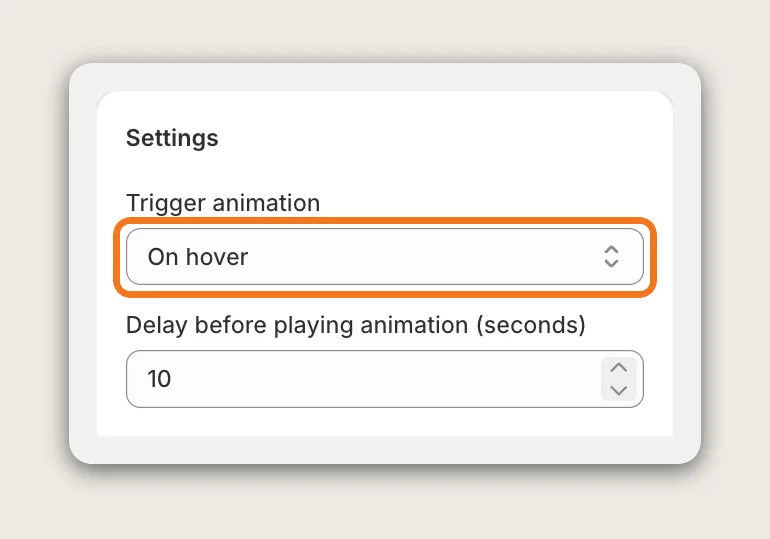
In the Settings card, open Trigger animation and pick On hover, Every few seconds or On hover and every few seconds. On hover is the default, and hover needs a mouse, so it plays only on desktop. Pick an option with every few seconds to show the animated button on phones too.
Step 6: Set the Delay Between Plays
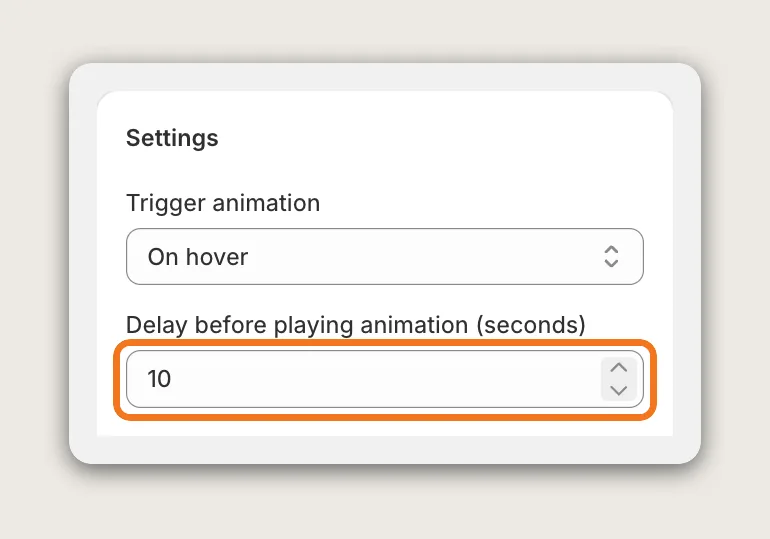
In Delay before playing animation (seconds), enter the number of seconds between timed plays. The default is 10. The delay applies only when the trigger includes every few seconds, and the preview in the app always plays every 3 seconds, so check the real pace on your store.
Step 7: Choose an Animation Style
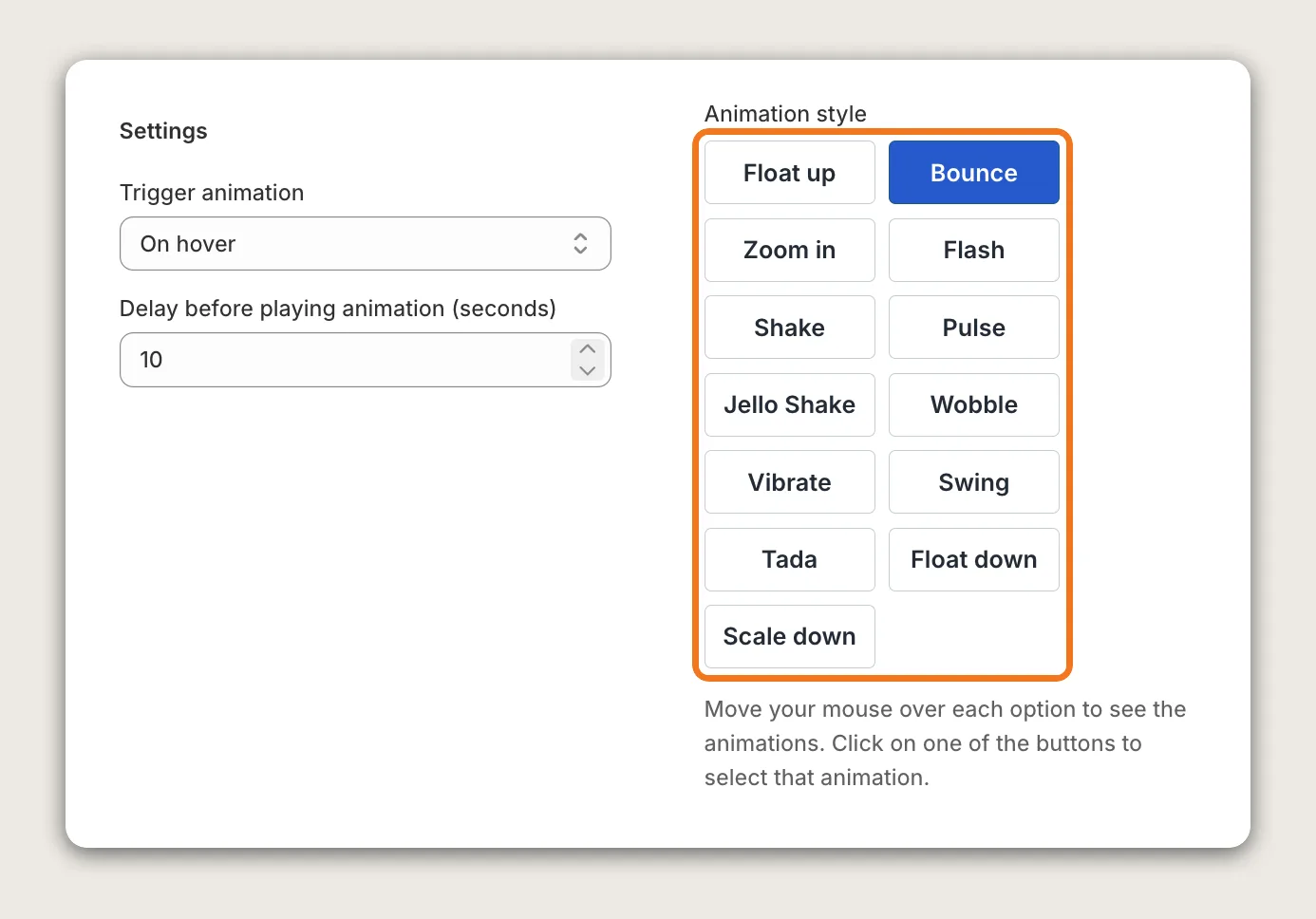
Under Animation style, click one of the 13 buttons: Float up, Bounce, Zoom in, Flash, Shake, Pulse, Jello Shake, Wobble, Vibrate, Swing, Tada, Float down or Scale down. Bounce is the default. Move your mouse over each button to see the animation before you pick it.
Step 8: Animate the Sticky Add to Cart Button Too (Optional)
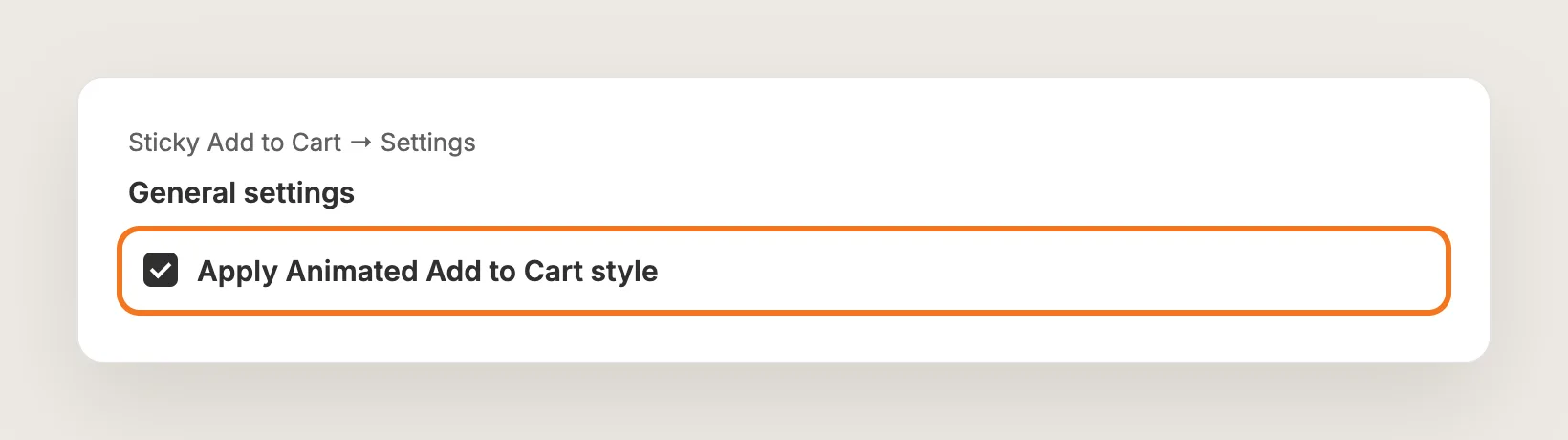
If you use the Vitals Sticky Add to Cart app, open Sticky Add to Cart → Settings → General settings and tick Apply Animated Add to Cart style. The sticky bar's button then plays the same animation. The option is off by default. See our guide on how to add a sticky add to cart button on Shopify for the bar itself.
Step 9: Limit the Animated Button to Certain Products (Optional)
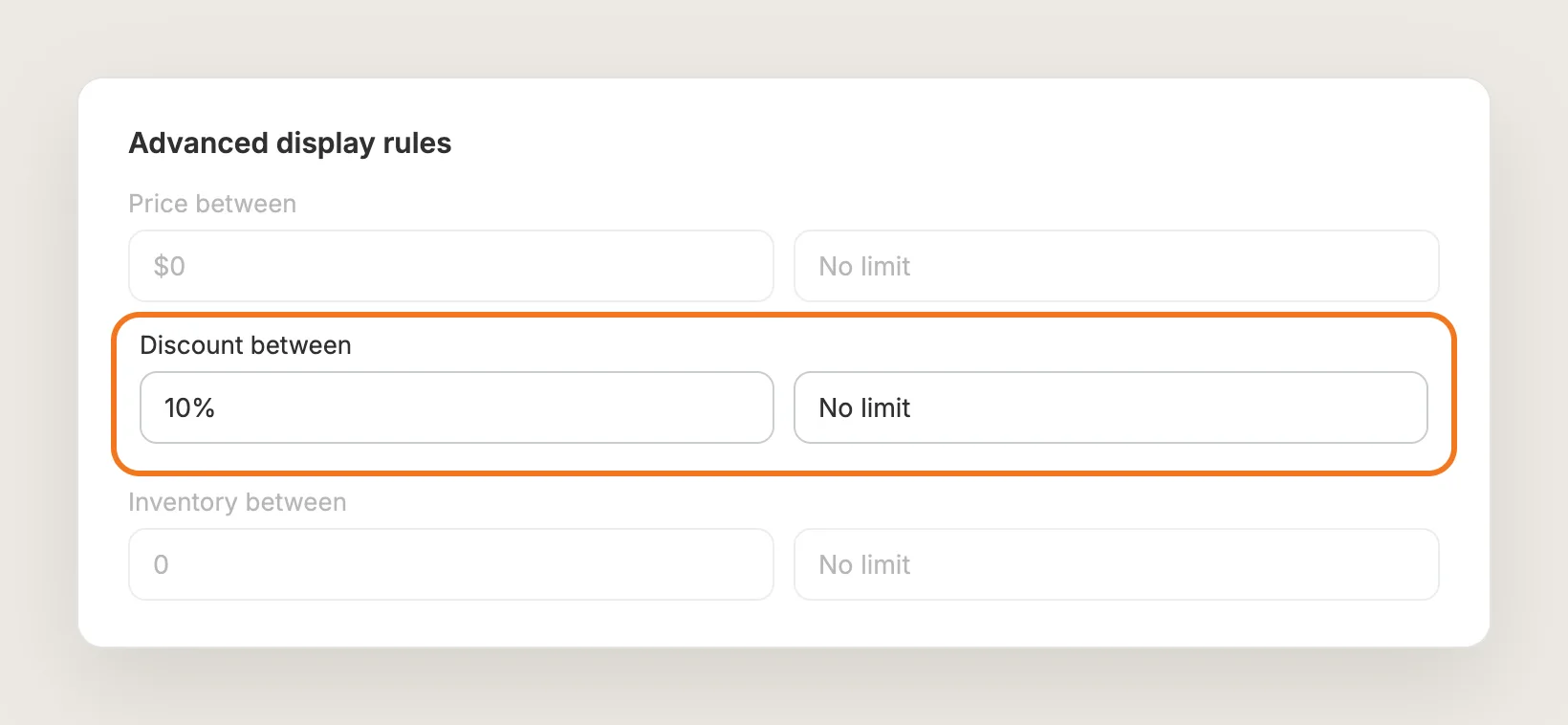
The animated button plays on every product by default. Open Advanced display rules to animate the button only on products within a price, discount or inventory range, only on products you pick, or on every product except the products you exclude.
Step 10: Save and Test on Your Phone
Click Save, then open a product page on your phone and on desktop. On your phone, wait for the delay you set and check that the animated button plays. On desktop, move your mouse over the button if the trigger includes hover.
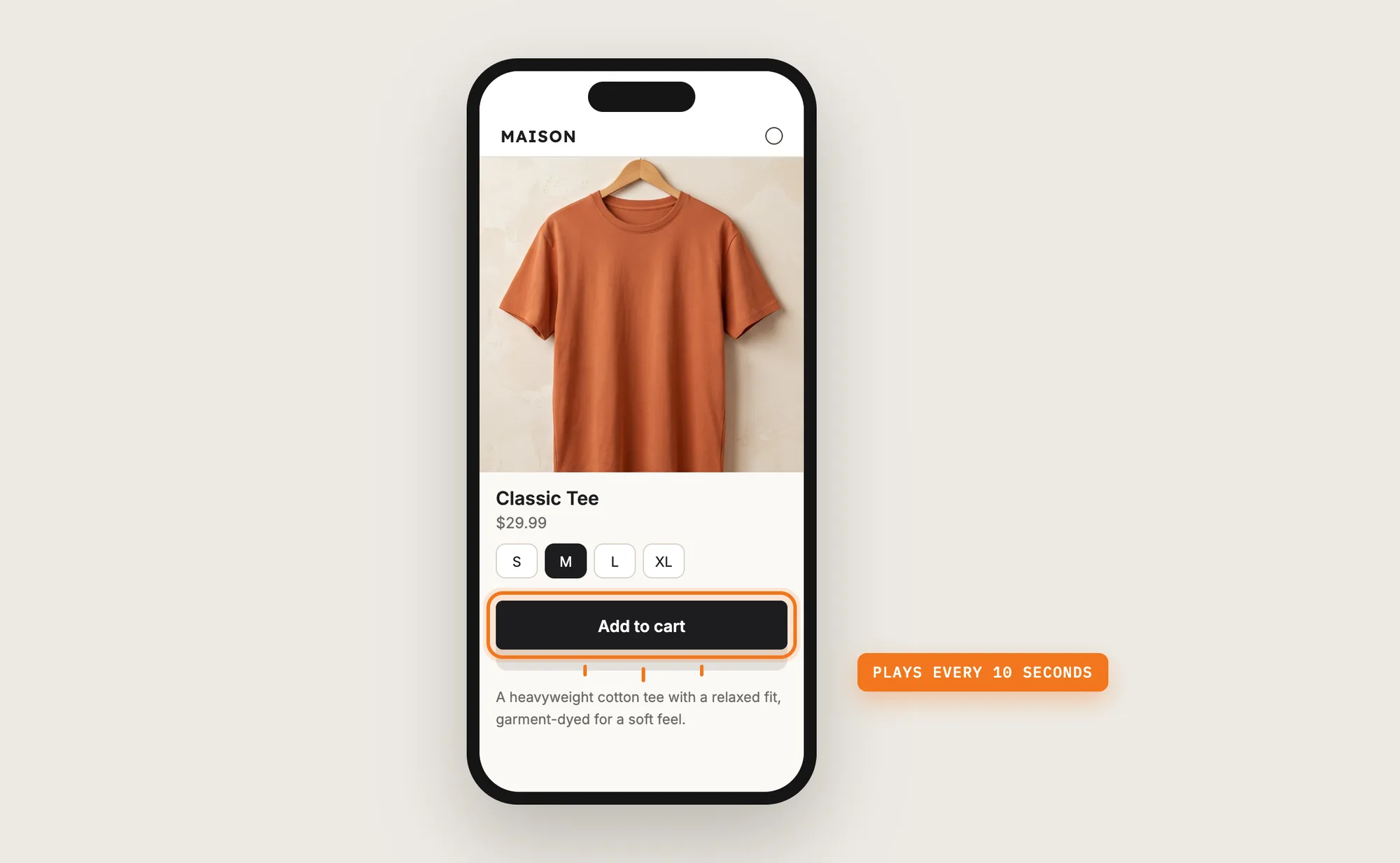
Step 11: Voila, Your Animated Button Is Live on the Store
Your Add to cart button now moves on its own, so shoppers spot it on every product page.
How to Add an Animated Button From Your Theme Settings?
Some Shopify themes include a hover effect for buttons in the theme settings. To check your theme's settings:
- Click Customize next to your theme in Online Store → Themes
- Open Theme settings, the gear icon in the theme editor
- Look for an Animations or Buttons section with a hover effect, pick an effect, then click Save
A theme's hover effect plays only when a mouse passes over the button, so shoppers on phones see no animation. The effect usually applies to every button and card on the store, not only to the Add to cart button, and most themes offer one or two effects rather than a choice of styles. If a light hover effect on desktop is all you need, the theme setting may be enough.
How to Add an Animated Button Without an App?
Hire a developer to add a CSS animation to your theme's Add to cart button. Custom code gives you full control over the motion, the timing and the pages it plays on.
A custom animated button usually involves:
- Copying your theme first, so the live store stays untouched during testing
- Writing CSS keyframes for the animation, such as a bounce or a shake
- Adding the animation to the Add to cart button in the product page template
- Adding a small script to replay the animation every few seconds, since hover doesn't work on phones
- Stopping the animation when the selected variant is sold out
- Respecting the reduce motion setting on shoppers' devices
- Testing on every product template, then publishing the theme copy
Custom code means no extra app, but you or your developer have to maintain it. A theme update can replace the files the code is in, so the animated button may need adding back after each update. A new style or a new trigger means new code.
How to Increase Sales With an Animated Button?
An animated button increases sales by drawing the shopper's eye to the Add to cart button, the one click that moves a visit toward checkout. These settings help:
- Play the animated button every few seconds. Hover never plays on phones. Set Trigger animation to Every few seconds or On hover and every few seconds
- Pick a subtle style. A gentle motion draws the eye without pulling attention from the product photos. Bounce, the default, and Pulse are calm choices in Animation style
- Keep a calm pace. A button that moves all the time starts to feel like noise. Leave Delay before playing animation (seconds) at 10 or raise it
- Animate the sticky bar's button too. Shoppers who scroll past the main button still see the motion. Tick Apply Animated Add to Cart style in the Sticky Add to Cart app
- Put the motion on products you want to push. Use Discount between in Advanced display rules to animate the button only on products on sale
- Leave the button alone on products that don't need a nudge. Exclude products such as gift cards with Exclude products in Advanced display rules
Why Isn't My Animated Button Showing or Working?
These fixes solve most animated button problems:
- The animated button doesn't play on my phone: The default trigger, On hover, needs a mouse. Switch Trigger animation to Every few seconds or On hover and every few seconds
- The animated button doesn't play at all: Check that the app is activated, and that Advanced display rules don't exclude the product you're testing
- The animated button stopped on one product: The animation stops while the selected variant is sold out. Pick a variant in stock to test
- The animation plays less often than in the preview: The preview always plays every 3 seconds. Your store follows Delay before playing animation (seconds), 10 seconds by default
- The delay setting changes nothing: The delay applies only to timed plays. Pick a trigger with every few seconds
- The timed animation pauses: Timed plays pause while the shopper's mouse or keyboard focus is on an Add to cart button, and resume once the shopper moves away
- The animated button is still for some shoppers: Shoppers who turn on reduce motion in their device settings see a still button, whichever style you pick
- The sticky bar's button doesn't animate: Tick Apply Animated Add to Cart style in Sticky Add to Cart → Settings → General settings
- I want to change the button's color or text: The app animates the button your theme shows. Change the button's color, hover color and shape in your theme settings
Which Animated Button Method Should You Choose?
Vitals - All in One App suits most stores, but the right method depends on where your shoppers browse and how much control you need.
- Choose Vitals - All in One App if you want an animated button that plays on desktop and phones, with 13 styles, a timer and product rules. It also includes 40+ other apps in one subscription of $29.99/month, so you don't have to install and pay for each app separately
- Choose your theme's setting if a light hover effect on desktop is enough
- Choose custom code if you want a custom animation and have a developer to keep it working through theme updates
Start a 7-day free trial: Install the Vitals - All in One App and add an animated button
Frequently Asked Questions
1. What is the best way to add an animated button in Shopify?
Vitals - All in One App is the best way for most stores. Its Animated Add to Cart app adds an animated button to your product pages without code, with 13 animation styles that play on hover, every few seconds or both.
2. Which animation styles can the animated button use?
The Vitals Animated Add to Cart app offers 13 styles: Float up, Bounce, Zoom in, Flash, Shake, Pulse, Jello Shake, Wobble, Vibrate, Swing, Tada, Float down and Scale down. Bounce is the default.
3. Does the animated button work on mobile?
Yes, with a timed trigger. Hover animations play only on desktop, so set Trigger animation to Every few seconds or On hover and every few seconds to animate the button on phones.
4. Can I change the color of the animated button?
Not in the Vitals Animated Add to Cart app, which only adds the animation. The button's color, hover color and shape come from your theme settings.
5. Can I animate the sticky add to cart button?
Yes. Tick Apply Animated Add to Cart style in the Vitals Sticky Add to Cart app, under Settings → General settings, and the sticky bar's button plays the same animation.
6. Can I animate the button only on some products?
Yes. Advanced display rules animate the button only on products within a price, discount or inventory range, only on products you pick, or on every product except the products you exclude.
7. Why doesn't the animated button play on sold-out products?
The animation stops while the selected variant is sold out. It plays again when the shopper picks a variant in stock.