How to Disable Right-Click on Shopify

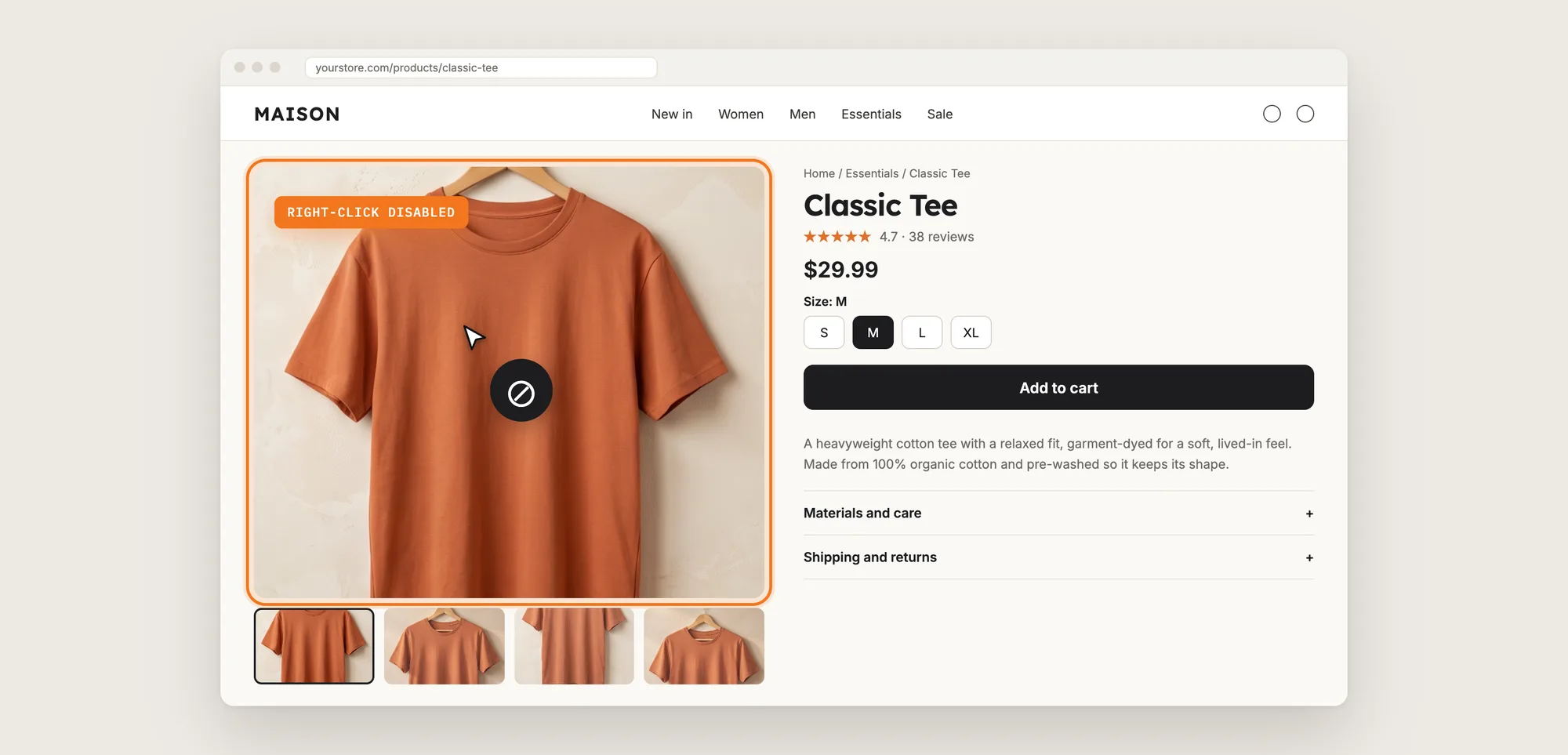
Product photos and descriptions take time and money to make. On a store with no protection, anyone can right-click a photo, click Save image as and use it on their own store a minute later.
When you disable right-click, that menu stops opening on your text and images. Visitors can still browse and buy as normal, but copying your content takes more than two clicks.
Here are the three ways to disable right-click on a Shopify store: with a Content Protection app, from your theme settings, or with custom code.
What Does It Mean to Disable Right-Click?
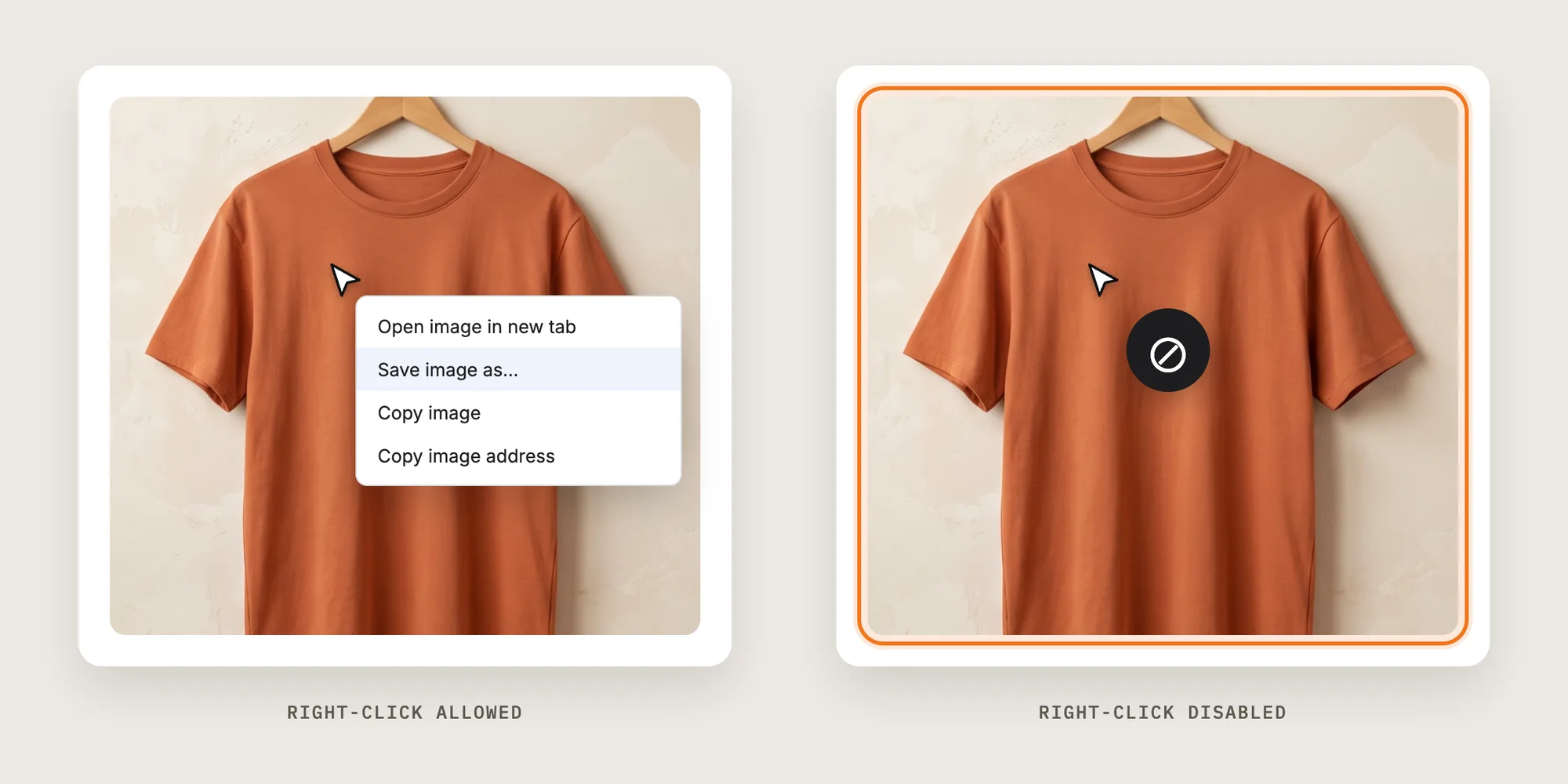
To disable right-click means the browser menu with Save image as and Copy doesn't open when a visitor right-clicks your store's text or images. Stores usually disable right-click together with text selection, copy shortcuts and image dragging, since each of these is another quick way to copy content.
A good way to disable right-click includes:
- Right-click blocked on text and images: The Save image as and Copy menu doesn't open on store content.
- Copy and save shortcuts blocked: Ctrl + C, Ctrl + X, Ctrl + S and Ctrl + U stop working on the page.
- Text selection and dragging blocked: Visitors can't highlight your descriptions or drag photos to their desktop.
- Form fields left alone: Shoppers can still type, copy and paste in search, contact and checkout fields.
Right-click protection stops casual copying. It can't stop screenshots or a developer who knows where to look.
What's the Quickest Way to Disable Right-Click?
- Vitals - All in One App is the quickest way to disable right-click for most stores
- Vitals also offers 40+ apps, such as Best Sellers Protection, product reviews and trust badges, in one subscription of $29.99/month, so you don't have to install and pay for each app separately
Here's how the three methods compare.
How to Disable Right-Click With a Content Protection App?
Install the Vitals - All in One App, open its Content Protection app and click Activate app. Right-click is then disabled across your whole storefront, and the steps below choose which protections are on and whether they apply to you while you're logged in.
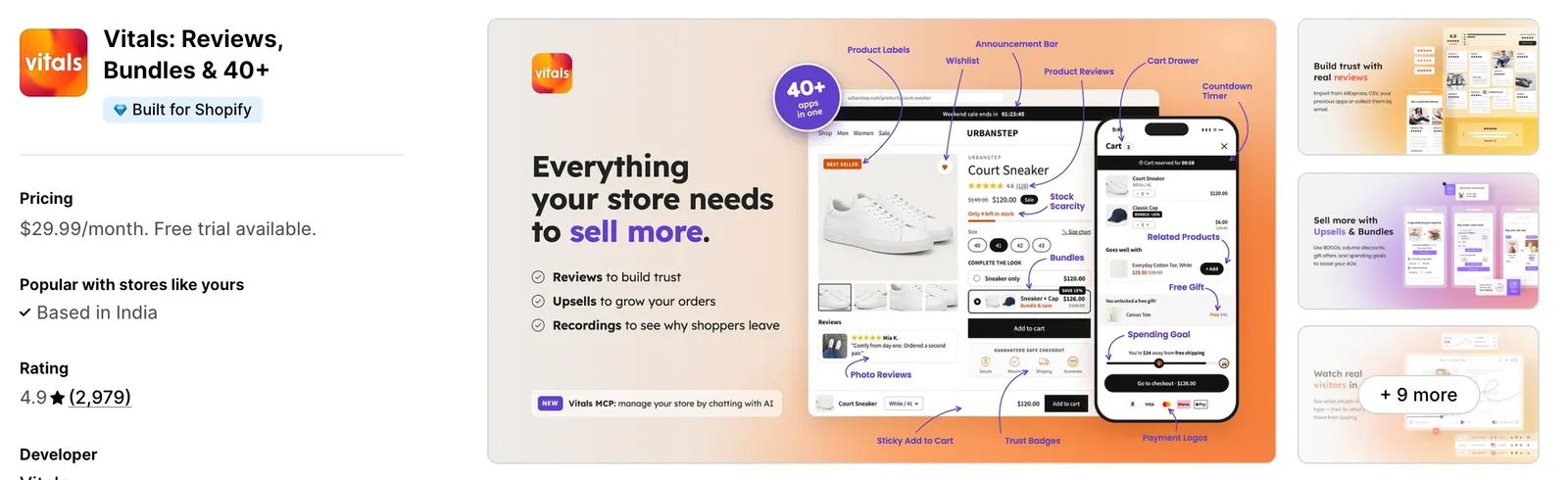
Step 1: Install the Vitals - All in One App
Install the Vitals - All in One App from the Shopify App Store. The 7-day free trial includes the Vitals Content Protection app.
Step 2: Approve the Install in Shopify
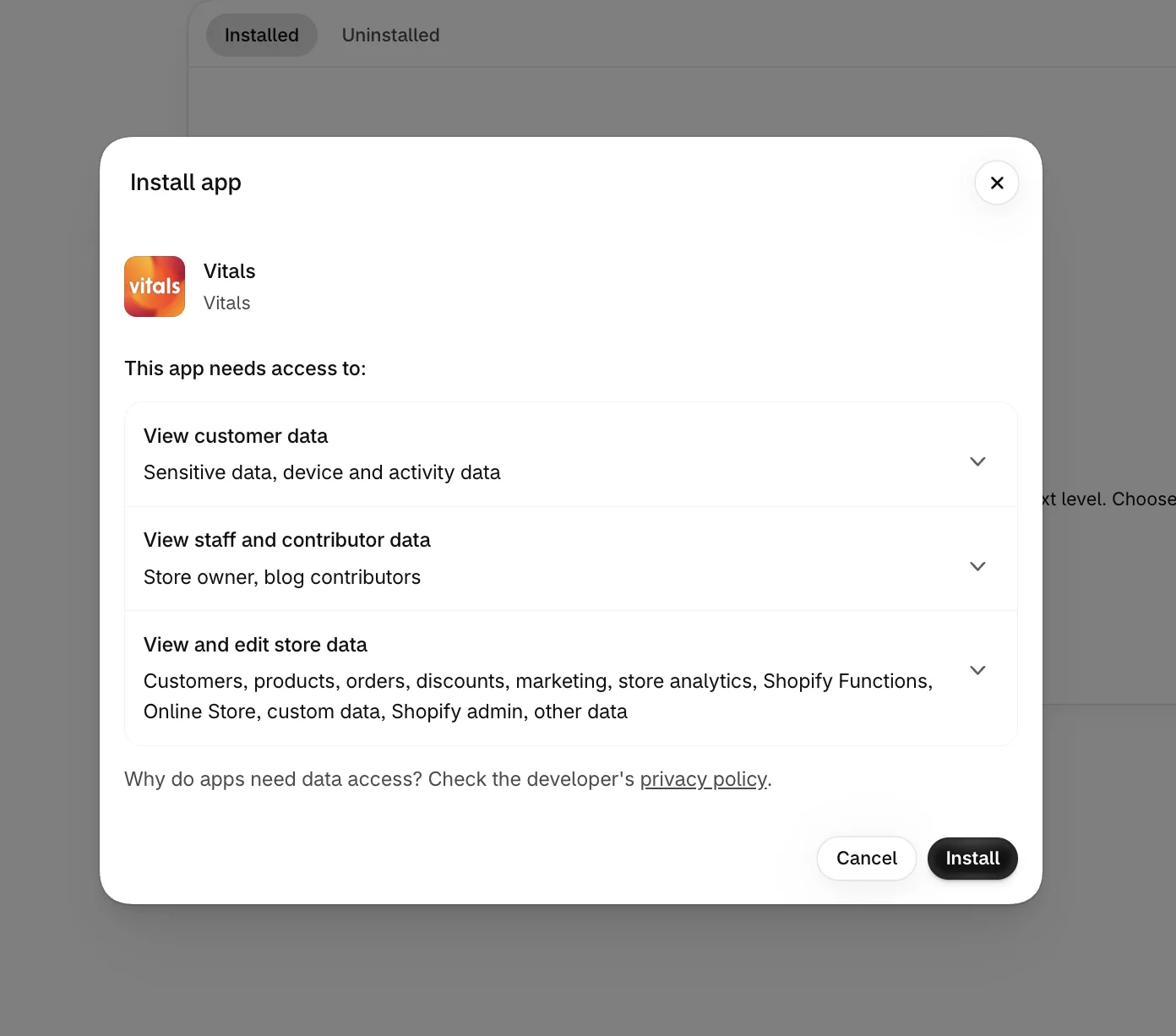
Click Install to approve the store data Vitals uses. Shopify then opens the Vitals dashboard.
Step 3: Open Content Protection
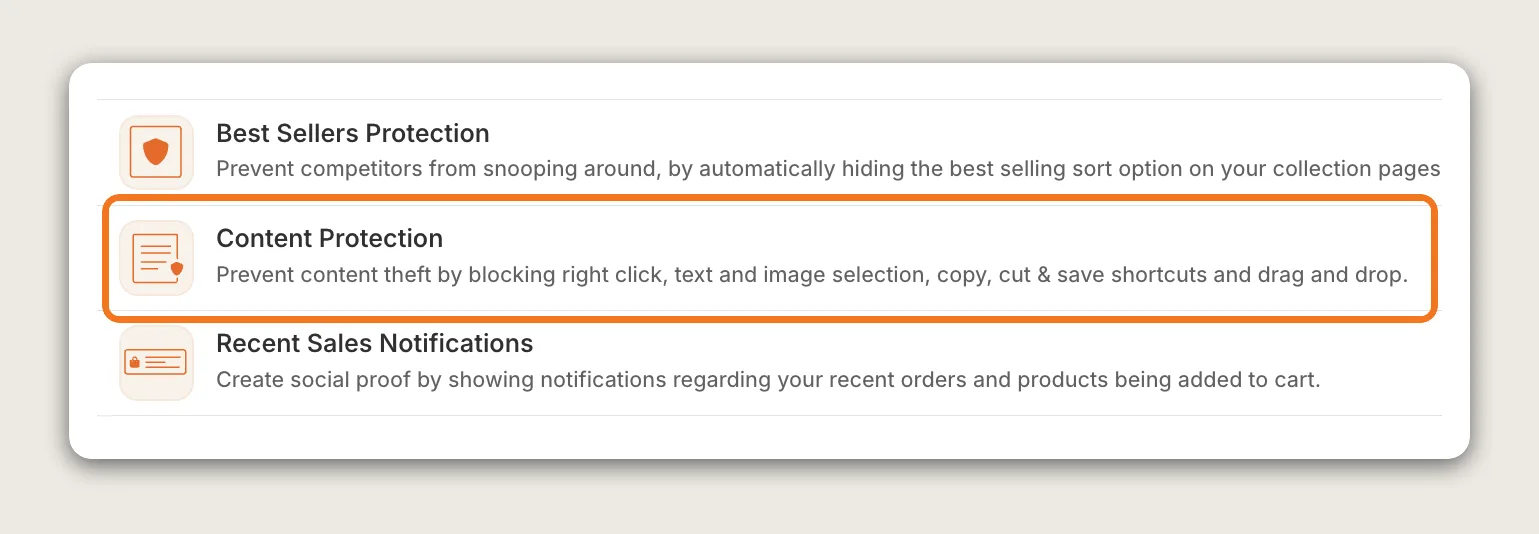
In the Vitals dashboard, find Content Protection in the list of apps and click it.
Step 4: Activate the App
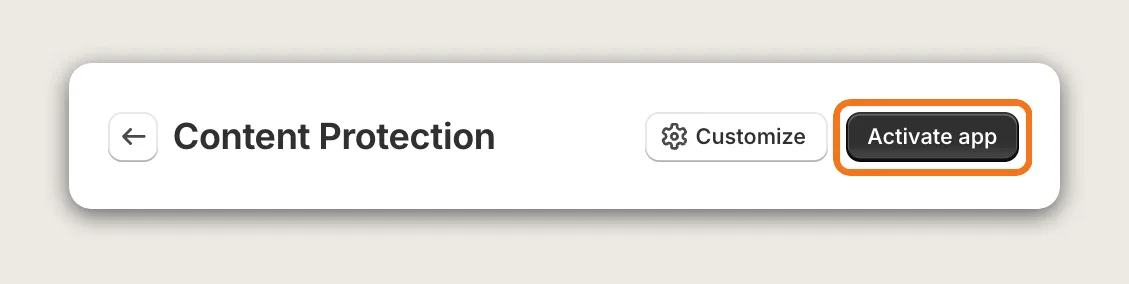
On the Content Protection page, click Activate app in the top right corner. The app is off until you activate it. Once it's on, the settings page opens and the top right corner shows Active.
Step 5: Choose the Protections
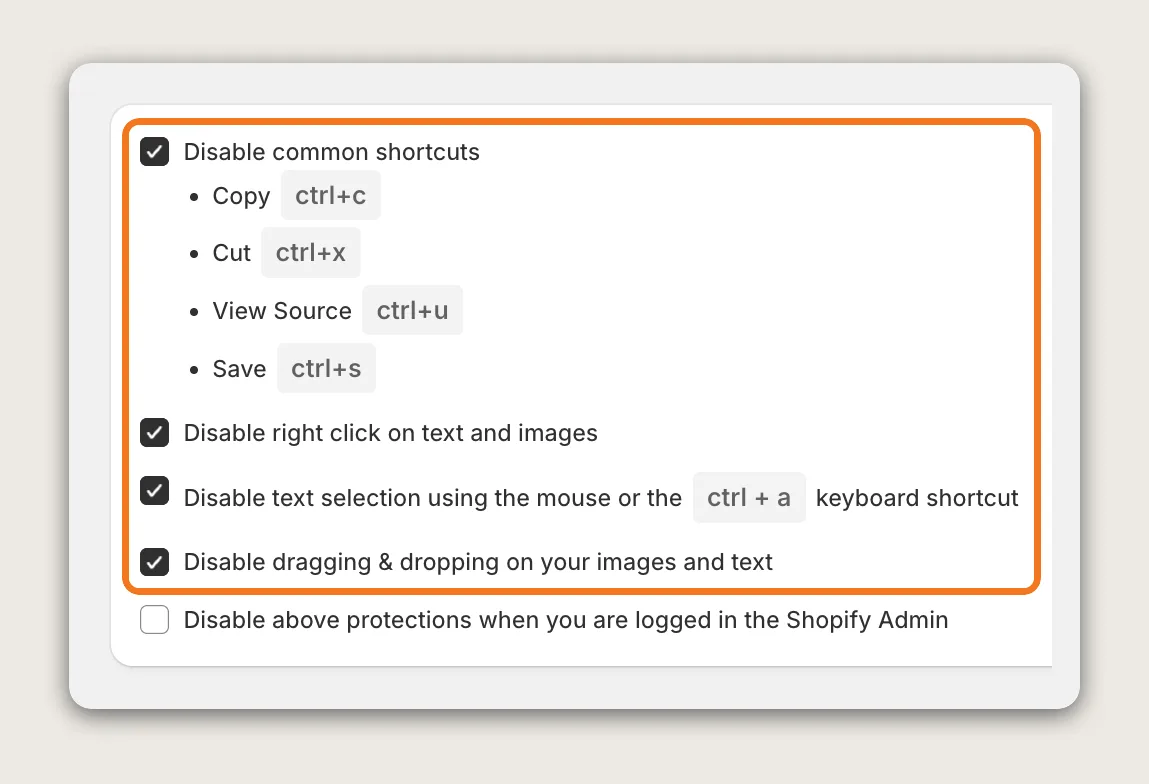
The Settings section has four protections, and all four are on by default:
- Disable common shortcuts: Blocks Copy (Ctrl + C), Cut (Ctrl + X), View Source (Ctrl + U) and Save (Ctrl + S)
- Disable right click on text and images: Stops the right-click menu from opening on your content
- Disable text selection using the mouse or the ctrl + a keyboard shortcut: Stops visitors from highlighting your text
- Disable dragging & dropping on your images and text: Stops visitors from dragging photos off the page
Untick any protection you don't want. For example, untick text selection to let shoppers highlight your text while right-click stays disabled.
Step 6: Decide Whether the Protections Apply to You
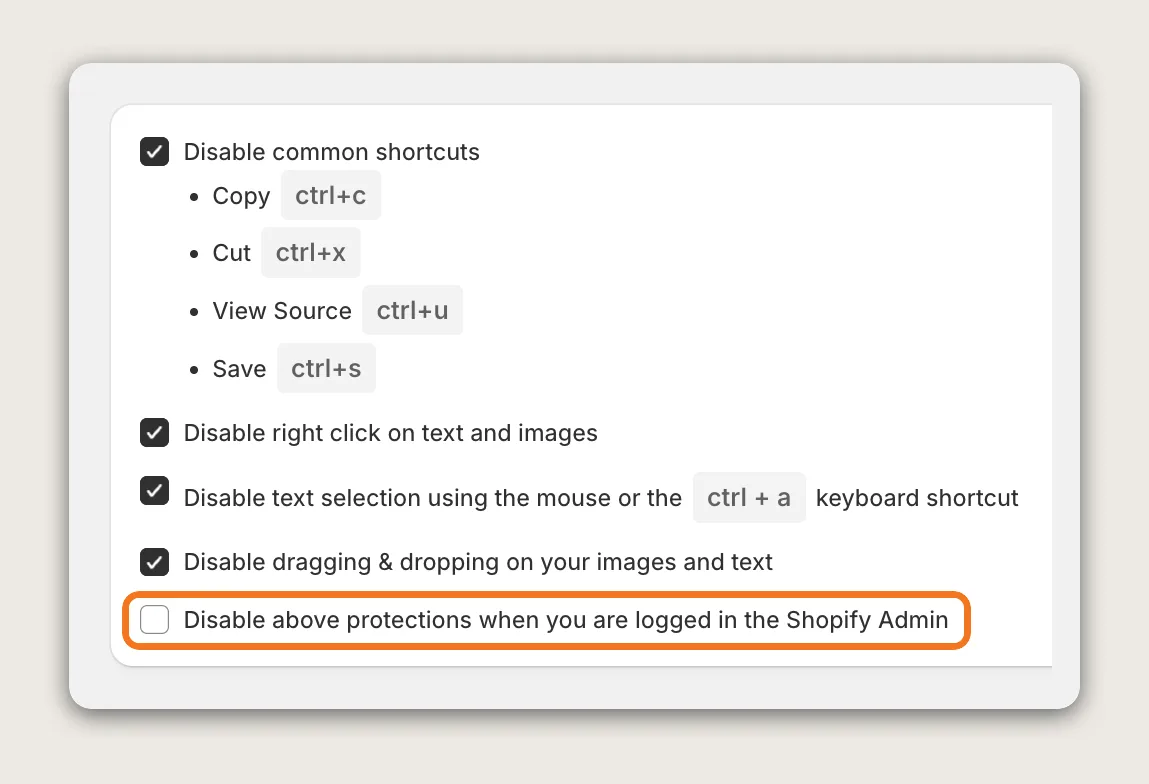
The last checkbox, Disable above protections when you are logged in the Shopify Admin, is off by default, so the protections apply to you too. Tick it to keep right-click and copying working in your own browser while you're logged in to the Shopify admin. Shoppers stay protected either way.
Step 7: Save and Test in a Private Window
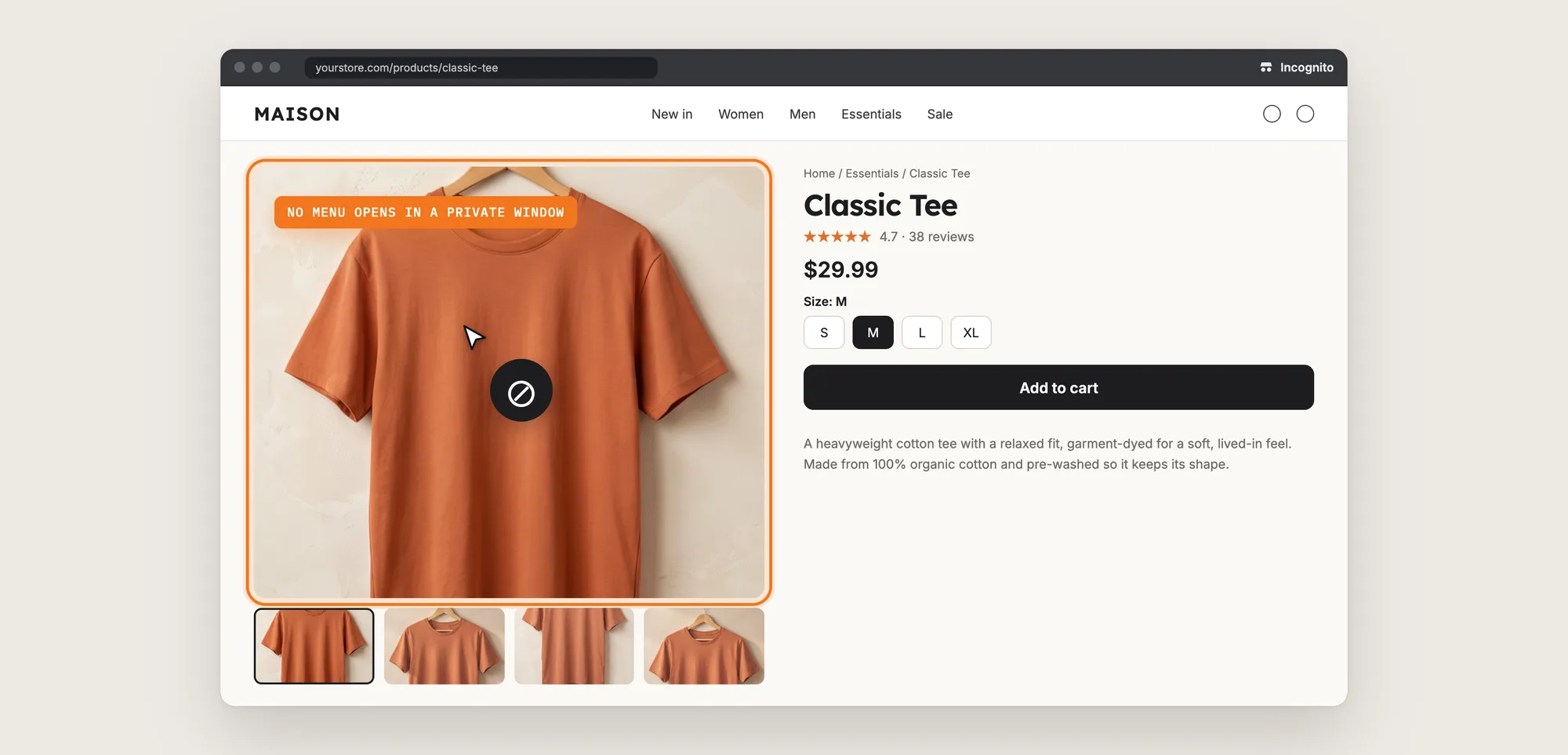
Click Save, then open a product page in a private or incognito window, so the browser isn't logged in to your Shopify admin. Right-click a product photo and try to select the description. No menu should open and no text should highlight.
Step 8: Voila, Right-Click Is Disabled on Your Store
Visitors can still browse and buy, but your photos and descriptions no longer copy with a right-click.
How to Disable Right-Click From Your Theme Settings?
Shopify themes don't include a setting to disable right-click. The nearest option in your theme is the Custom CSS box, which can stop text selection but can't block the right-click menu or image saving. To check your theme:
- Click Customize next to your theme in Online Store → Themes
- Open Theme settings and look for a Custom CSS box
- Search the theme's documentation for a copy or right-click option, since a few premium themes add their own
Custom CSS can stop visitors from highlighting text, but the right-click menu, Save image as, copy shortcuts and image dragging all keep working. If text selection is all you want to stop, Custom CSS may be enough.
How to Disable Right-Click Without an App?
Hire a developer to add JavaScript to your theme that blocks the right-click menu and the copy shortcuts. Custom code gives you full control over which pages and elements are protected.
A custom right-click block usually involves:
- Copying your theme first, so the live store stays untouched during testing
- Adding a script to the theme layout that stops the right-click menu on the page
- Blocking the copy, cut, save and view source shortcuts
- Stopping text selection and image dragging
- Leaving form fields such as search, contact and checkout fields working
- Letting you, the store owner, skip the block while logged in
- Testing on every template and browser, then publishing the theme copy
Custom code means no extra app, but you or your developer have to maintain it. A theme update can replace the file the script is in, so the block may need adding back after each update.
How to Increase Trust With Right-Click Protection?
Right-click protection builds trust by keeping your own photos and descriptions on your store, rather than on copycat stores that sell under your images. These settings help:
- Keep right-click disabled on images. Product photos are the content copied most often. Leave Disable right click on text and images ticked
- Block image dragging too. Dragging a photo to the desktop saves the photo without a right-click. Leave Disable dragging & dropping on your images and text ticked
- Block the save and copy shortcuts. Ctrl + S saves the whole page and Ctrl + C copies selected text. Leave Disable common shortcuts ticked
- Protect your product descriptions. Original descriptions are part of what makes your store your own. Leave Disable text selection using the mouse or the ctrl + a keyboard shortcut ticked
- Keep forms easy to use. Shoppers can still copy and paste in search, contact and checkout fields, so protection doesn't get in the way of buying
Why Isn't My Right-Click Protection Working?
These fixes solve most right-click protection problems:
- I can still right-click when I test my store: Disable above protections when you are logged in the Shopify Admin is probably ticked, so your own logged-in view isn't protected. Test in a private or incognito window, or untick the box
- Right-click still works in a private window: Check that Content Protection shows Active and that Disable right click on text and images is ticked
- Visitors can still select text: Tick Disable text selection using the mouse or the ctrl + a keyboard shortcut
- Visitors can still copy text: Tick Disable common shortcuts, which blocks Copy, Cut, View Source and Save
- I want to protect only some pages: Content Protection applies to the whole storefront. Page or product targeting isn't possible
- Someone still copied my photos: Content Protection can't stop screenshots, the browser's Inspect panel, a saved page from the browser menu or Shopify's product data. It makes copying harder, not impossible
Which Right-Click Method Should You Choose?
Vitals - All in One App suits most stores, but the right method depends on how much you want to block.
- Choose Vitals - All in One App if you want to disable right-click, text selection, copy shortcuts and image dragging across your store in a few clicks. It also includes 40+ other apps in one subscription of $29.99/month, so you don't have to install and pay for each app separately
- Choose your theme's setting if stopping text selection with Custom CSS is all you need
- Choose custom code if you have a developer and want to protect only certain pages or elements
Start a 7-day free trial: Install the Vitals - All in One App and disable right-click
Frequently Asked Questions
1. What is the best way to disable right-click on Shopify?
Vitals - All in One App is the best way for most stores. Its Content Protection app disables right-click on text and images, text selection, copy and save shortcuts and image dragging, with no code.
2. Does Shopify have a built-in setting to disable right-click?
No. Shopify and Shopify themes don't include a setting to disable right-click. You need an app such as the Vitals Content Protection app, or custom code from a developer.
3. Can I disable right-click on images only?
Not in the Vitals Content Protection app, where one setting disables right-click on both text and images. You can untick text selection so shoppers can still highlight your text.
4. Does disabling right-click stop screenshots?
No. Disabling right-click blocks the browser menu and the copy shortcuts, but it can't stop screenshots, the browser's Inspect panel or other determined copying.
5. Can shoppers still fill in forms when right-click is disabled?
Yes. Right-click, copy, cut and drag still work in form fields, select menus and text editors, so shoppers can search, sign up and check out as normal.
6. Why can I still right-click on my own store?
If Disable above protections when you are logged in the Shopify Admin is ticked, the protections are skipped in your own logged-in view. Open your store in a private window to see what shoppers see.
7. Can I disable right-click on some pages only?
Not with the Vitals Content Protection app, which applies to every page of your storefront. Protecting only certain pages needs custom code.