How to Add Sales Pop-Ups in Shopify

New visitors can't see the other shoppers on your store. An empty-looking store makes a first-time visitor wonder whether anyone buys from it at all, and that doubt costs sales.
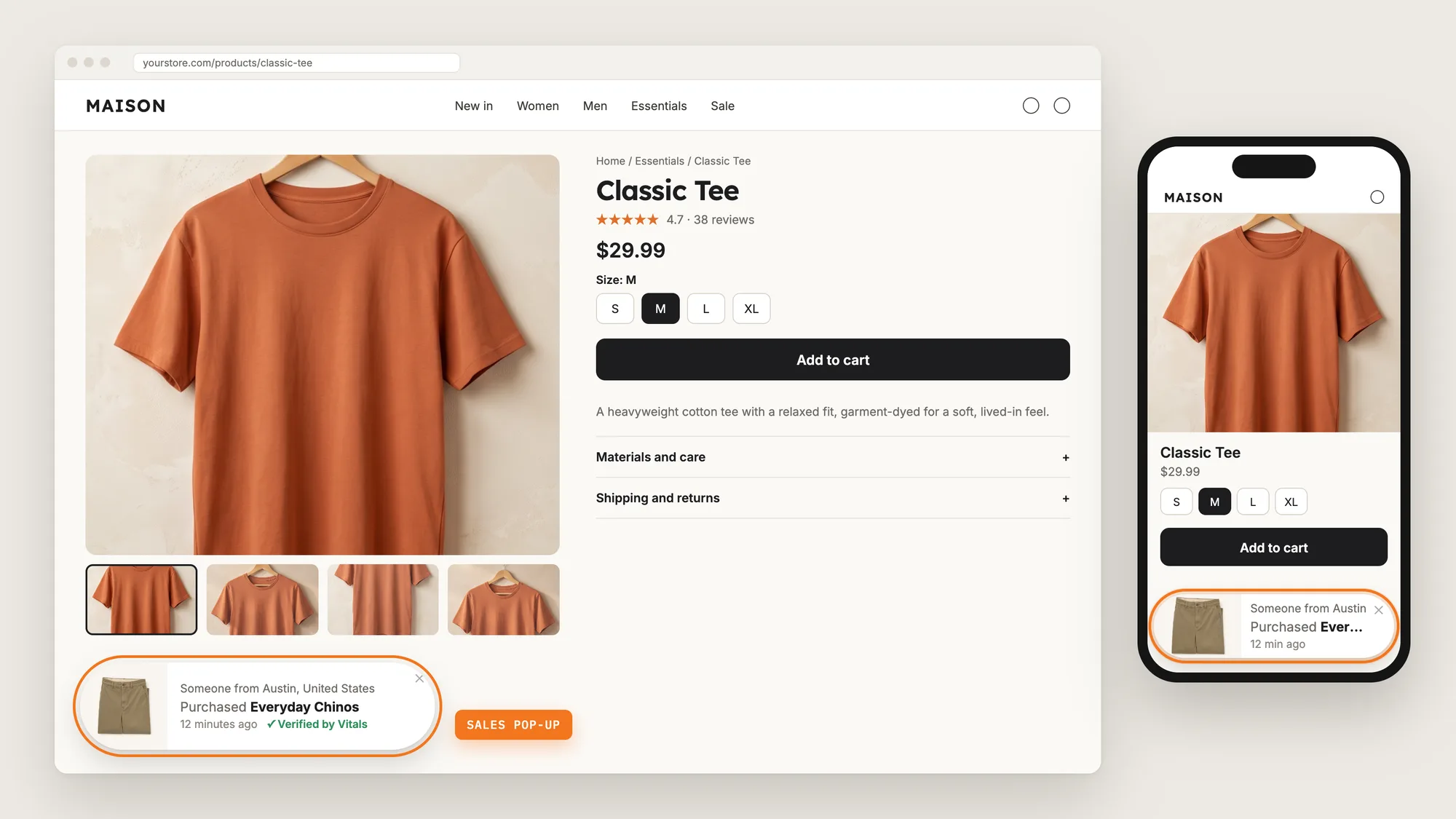
Sales pop-ups show that activity. A small notification such as "Someone from Austin purchased Everyday Chinos 12 minutes ago" tells new visitors that real people order from your store, while they browse.
Here are the three ways to add sales pop-ups to a Shopify store: with a Sales Pop-Ups app, from your theme settings, or with custom code.
What Are Sales Pop-Ups?
Sales pop-ups, also called recent sales notifications, are small notifications that slide into the corner of a store page and show a recent order with the product, where the shopper ordered from and how long ago. Sales pop-ups rotate through several orders while a visitor browses.
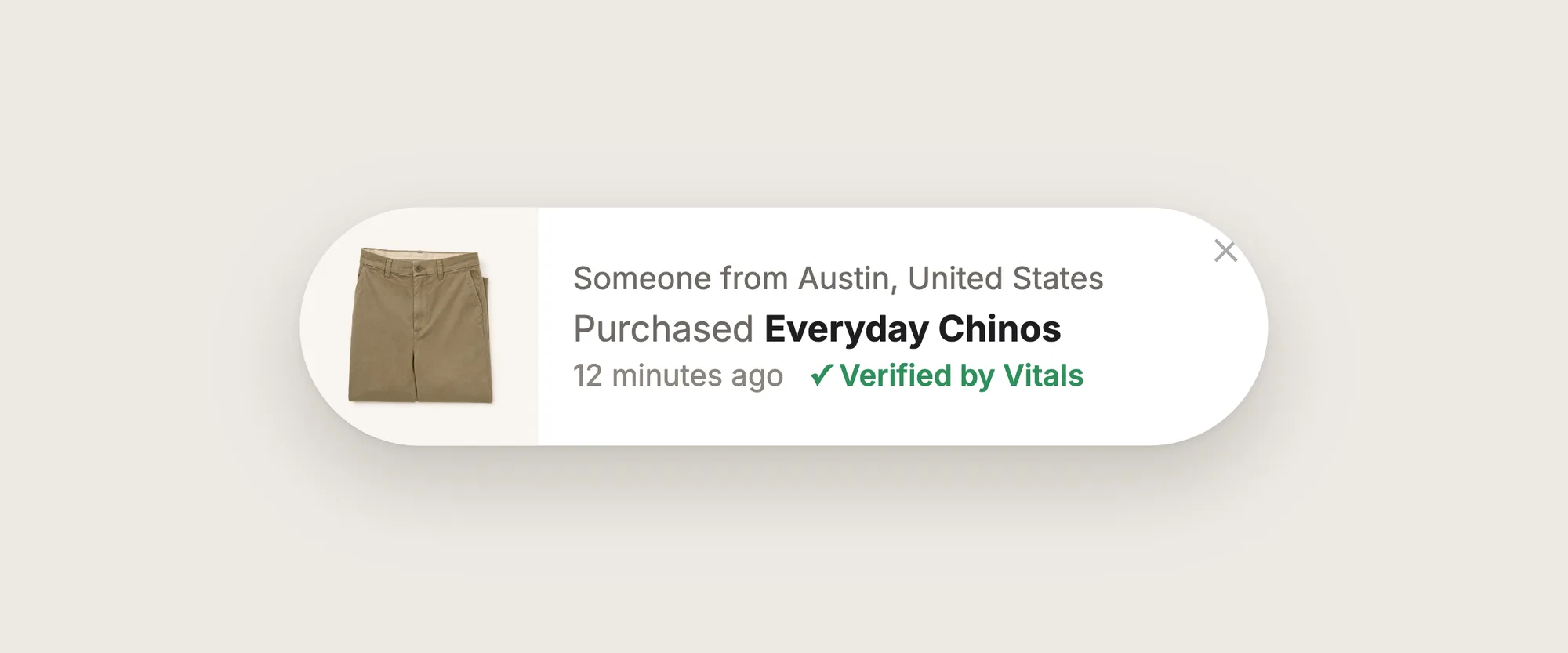
Good sales pop-ups include:
- Real orders only: Every sales pop-up comes from an order your store received, never made-up data.
- The product photo and name: Shoppers see what other people buy and can click through to the product.
- A recent time: A line such as "12 minutes ago" shows the store is busy now.
- Calm timing: A few sales pop-ups per visit, with a gap between them, so the page stays easy to read.
Shopify's Acceptable Use Policy doesn't allow fake sales data, so sales pop-ups have to show real orders.
What's the Quickest Way to Add Sales Pop-Ups?
- Vitals - All in One App is the quickest way to add sales pop-ups for most stores
- Vitals also offers 40+ apps, such as product reviews, trust badges and stock scarcity, in one subscription of $29.99/month, so you don't have to install and pay for each app separately
Here's how the three methods compare. If you'd rather weigh several apps against each other, see our list of the best pop-up apps for Shopify.
How to Add Sales Pop-Ups With a Sales Pop-Ups App?
Install the Vitals - All in One App, open its Recent Sales Notifications app and click Activate app. The sales pop-ups then show real orders across your store pages, and the steps below set the layout, colors, timing and what each sales pop-up shows.
Step 1: Install the Vitals - All in One App
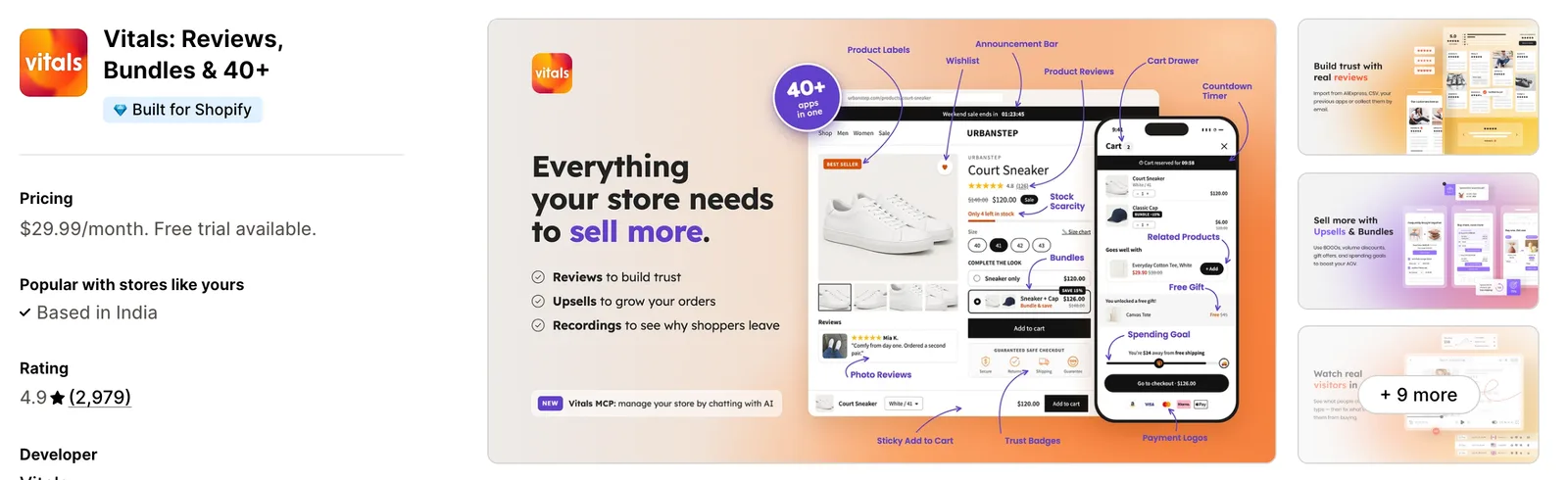
Install the Vitals - All in One App from the Shopify App Store. The 7-day free trial includes the Vitals Recent Sales Notifications app.
Step 2: Approve the Install in Shopify
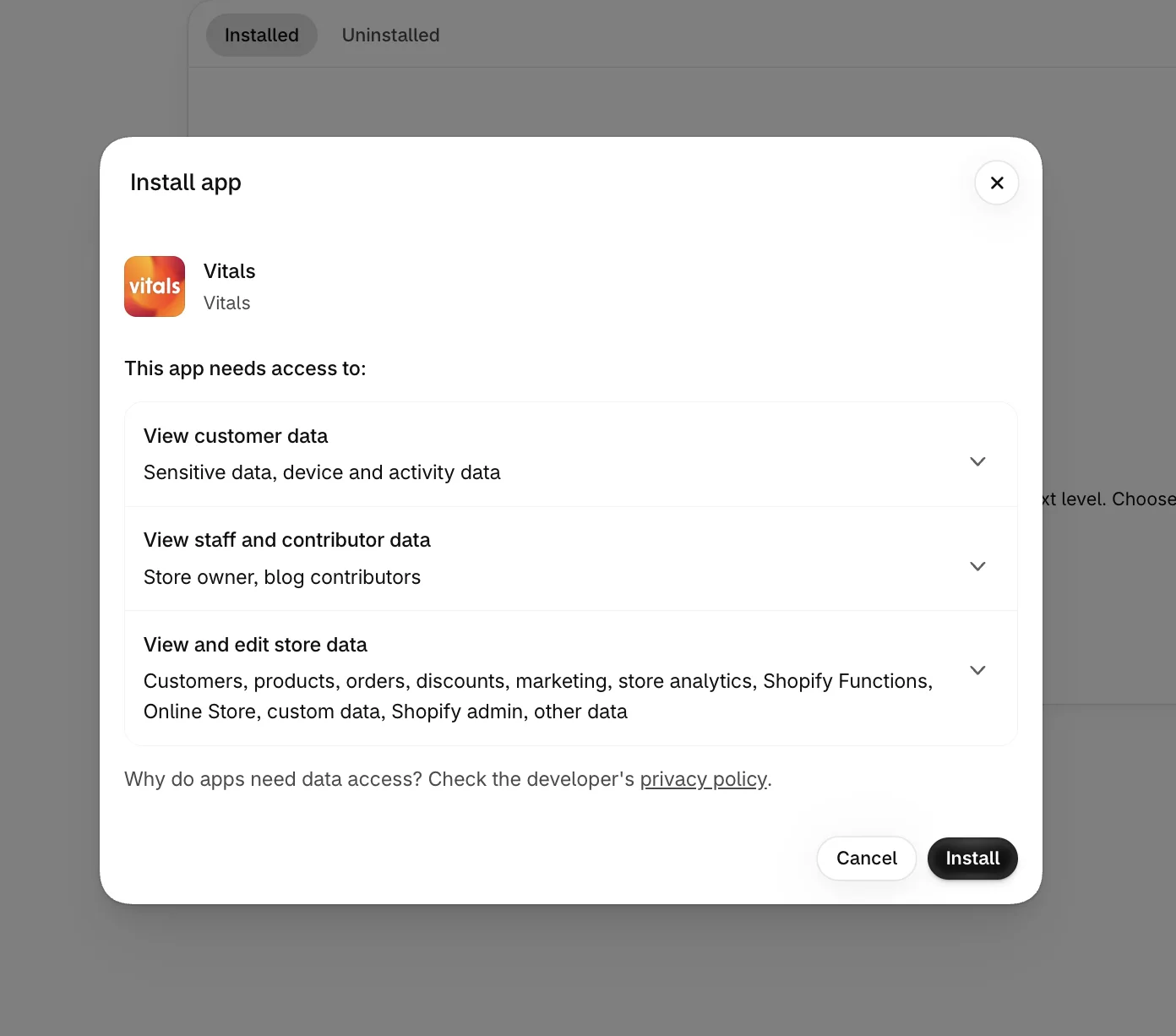
Click Install to approve the store data Vitals uses. Shopify then opens the Vitals dashboard.
Step 3: Open Recent Sales Notifications
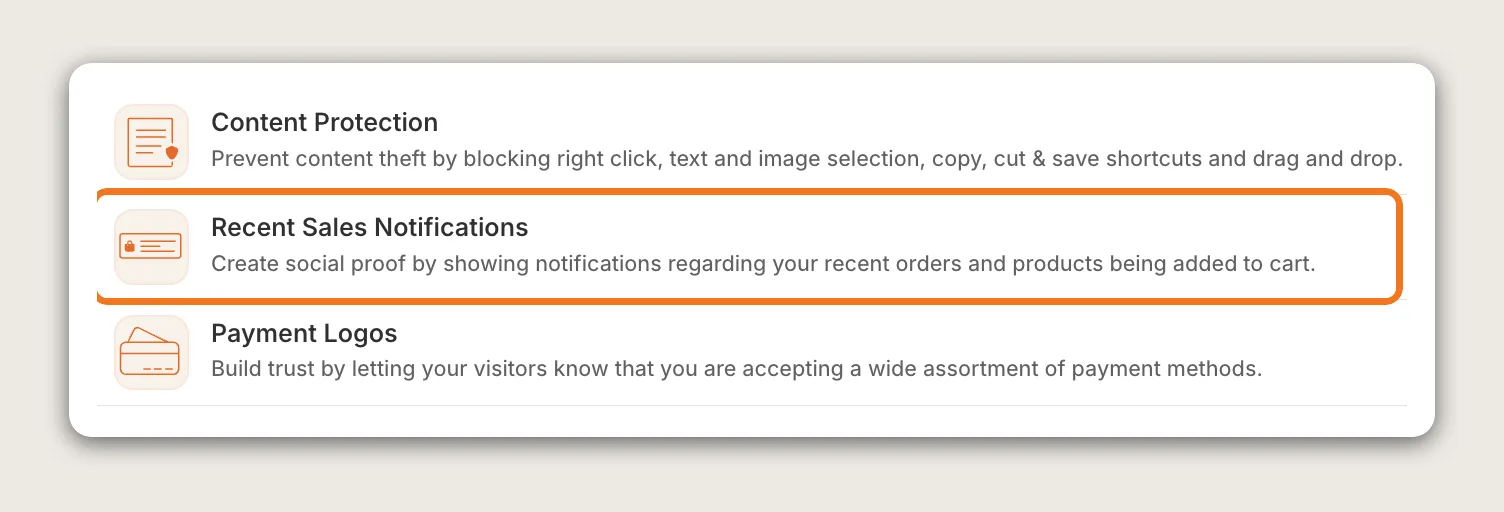
In the Vitals dashboard, find Recent Sales Notifications in the list of apps and click it.
Step 4: Activate the App
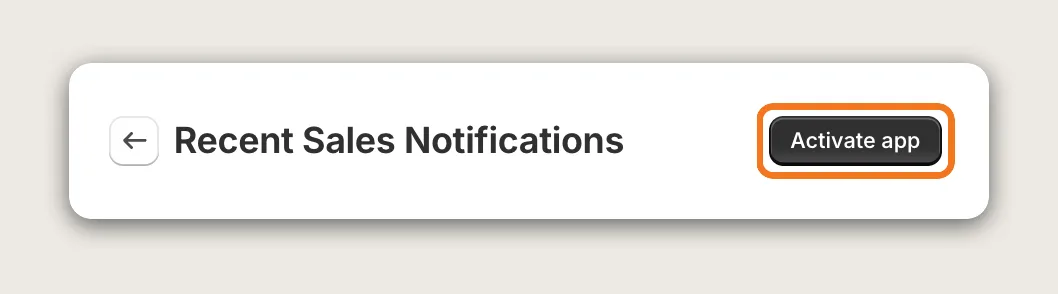
On the Recent Sales Notifications page, click Activate app to turn the sales pop-ups on. All the settings are on one Settings page, with a live preview.
Step 5: Choose a Layout
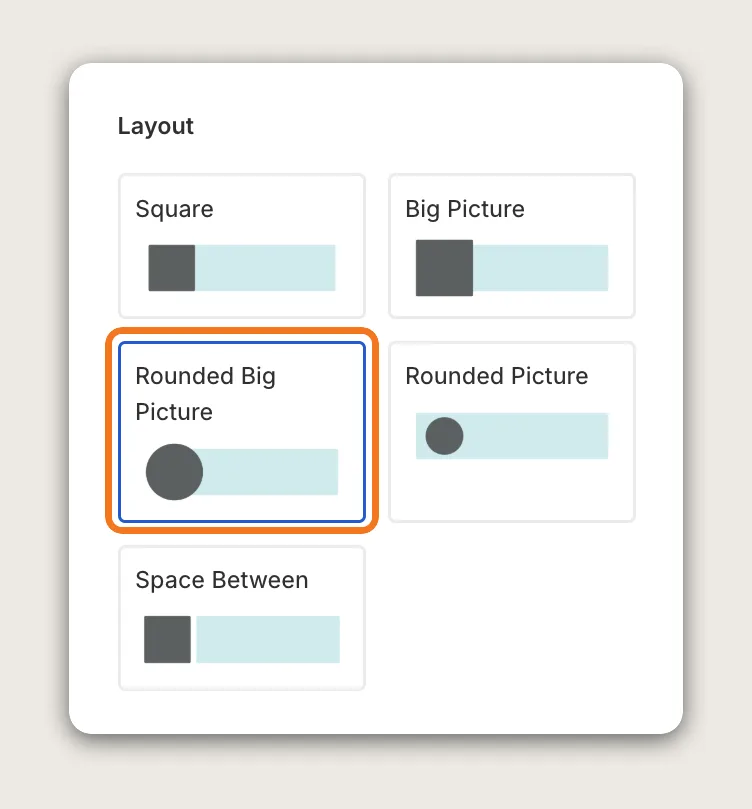
In the Layout card, pick one of the 5 layouts: Square, Big Picture, Rounded Big Picture, Rounded Picture or Space Between. Rounded Big Picture is the default.
Step 6: Pick a Template or Your Own Colors
In the Theme card, choose Custom to set your own background, text, link, purchase time, close button and verified icon colors in the Custom Colors card. Or choose Template to use a ready-made design, such as Winter, Christmas or Black Friday.
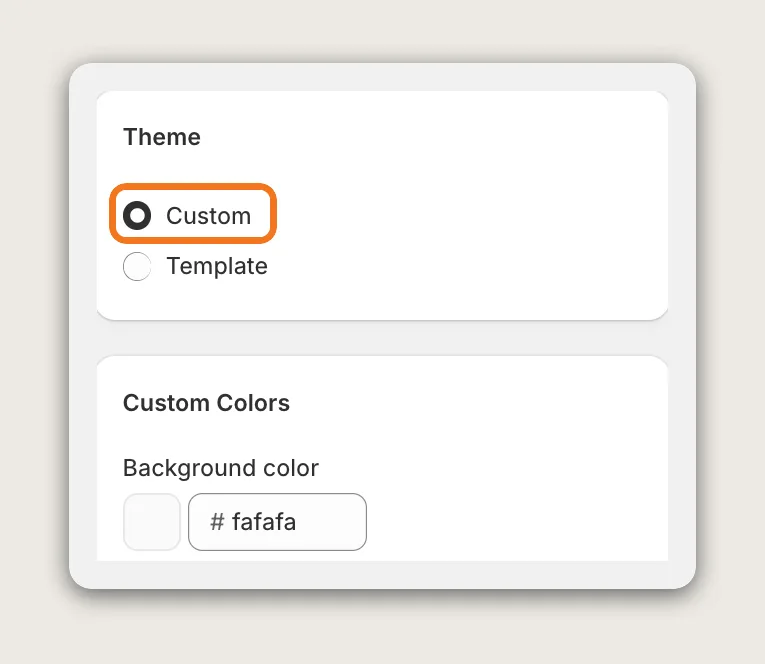
Box size in the same card sets the width on desktop, with 460 pixels as the default. On phones, the sales pop-up always uses 95% of the screen width.
Step 7: Choose Where the Sales Pop-Ups Slide In From
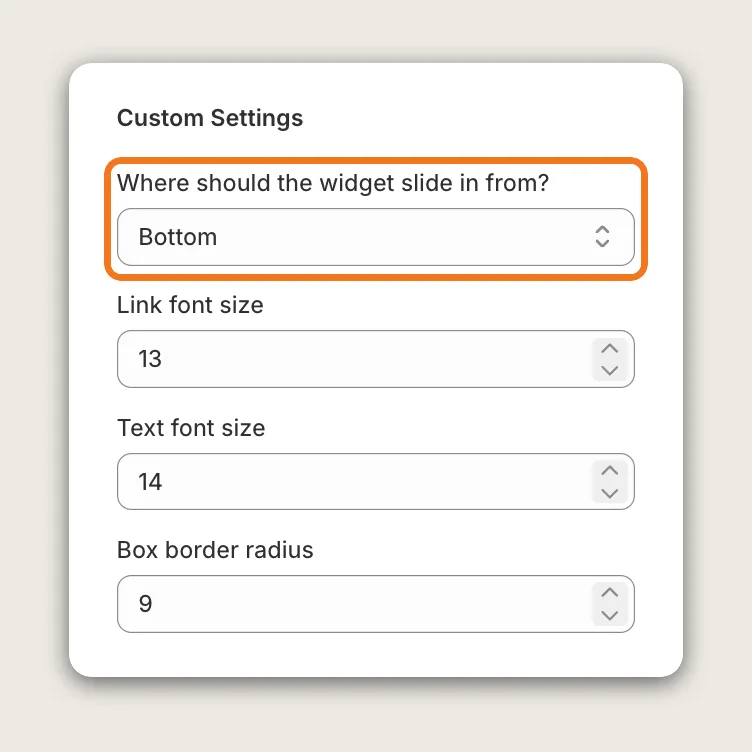
In the Custom Settings card, set Where should the widget slide in from? to Bottom or Left. The same card sets the link font size, the text font size and the box border radius.
Step 8: Set the Timing
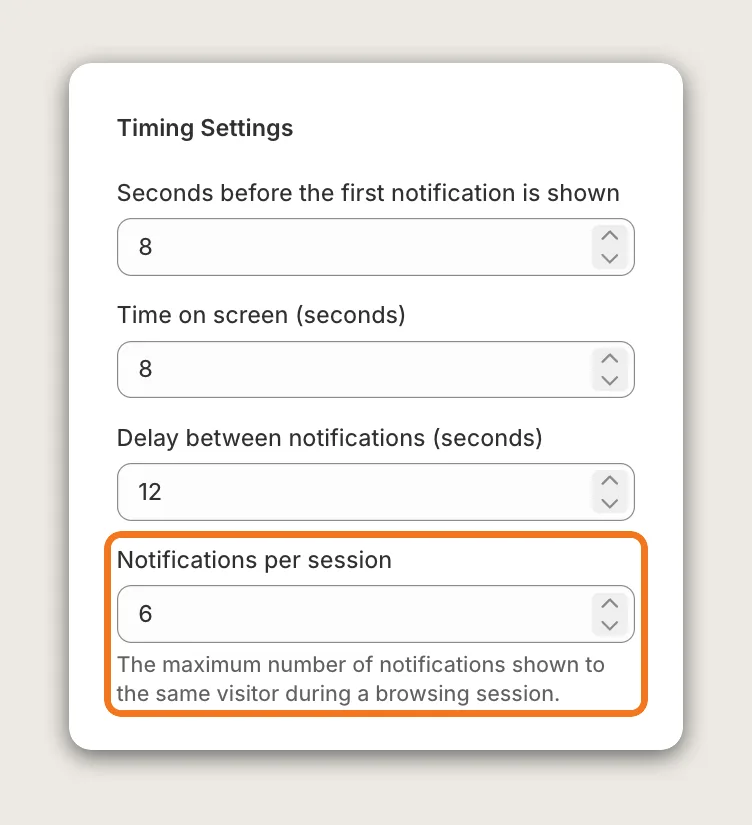
The Timing Settings card controls how often sales pop-ups show:
- Seconds before the first notification is shown: 8 by default
- Time on screen (seconds): 8 by default
- Delay between notifications (seconds): 12 by default
- Notifications per session: The most sales pop-ups one visitor sees in a visit, 6 by default
Step 9: Show Add to Cart Events (Optional)
In the Add To Cart Settings card, turn on Show Add To Cart events to show shoppers adding products to the cart as well as orders. Show grouped Add To Cart events combines them into one line, such as "13 people added this product to cart today", once a product reaches the Minimum number of add to carts for group notifications. Edit the line in "Add To Cart" group notification template, where ##count## is the number of carts.
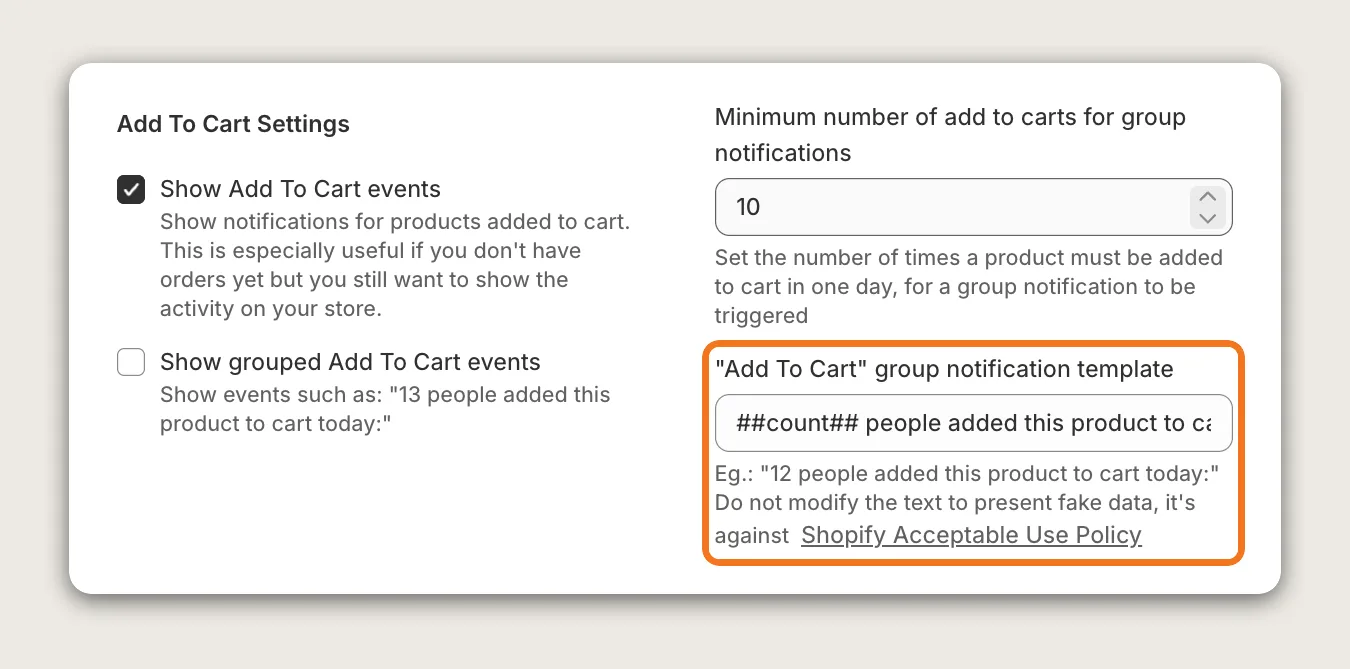
New stores with no orders yet show add to cart events by default, so the sales pop-ups have something real to show from day one.
Step 10: Choose What Each Sales Pop-Up Shows
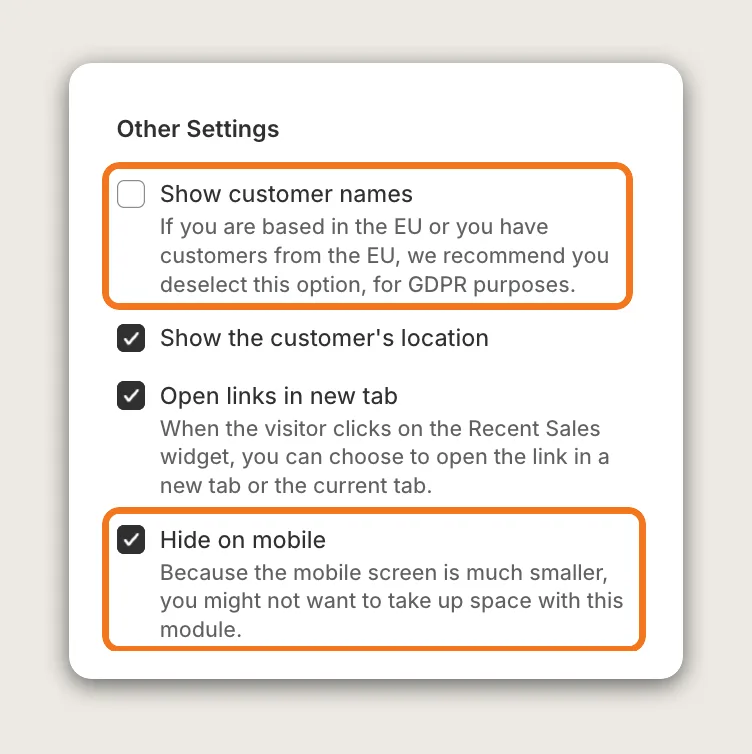
The Other Settings card sets the details:
- Show customer names: Off by default. Keep it off if you sell to shoppers in the EU, for GDPR
- Show the customer's location: Shows the general location of the order, such as a city
- Open links in new tab: On by default, so a click on a sales pop-up opens the product in a new tab
- Hide on mobile: On by default, so sales pop-ups show on desktop only. Untick it to show them on phones
- Show "Verified By Vitals" badge: Adds a verified check to each sales pop-up
- Show when the order was placed: Shows a time such as "2 hours ago"
- Hide the date for events older than (days): Older orders still show, without the time
- Don't show events older than (days): Orders older than this never show, up to 60 days
Step 11: Hide Certain Products or Orders (Optional)
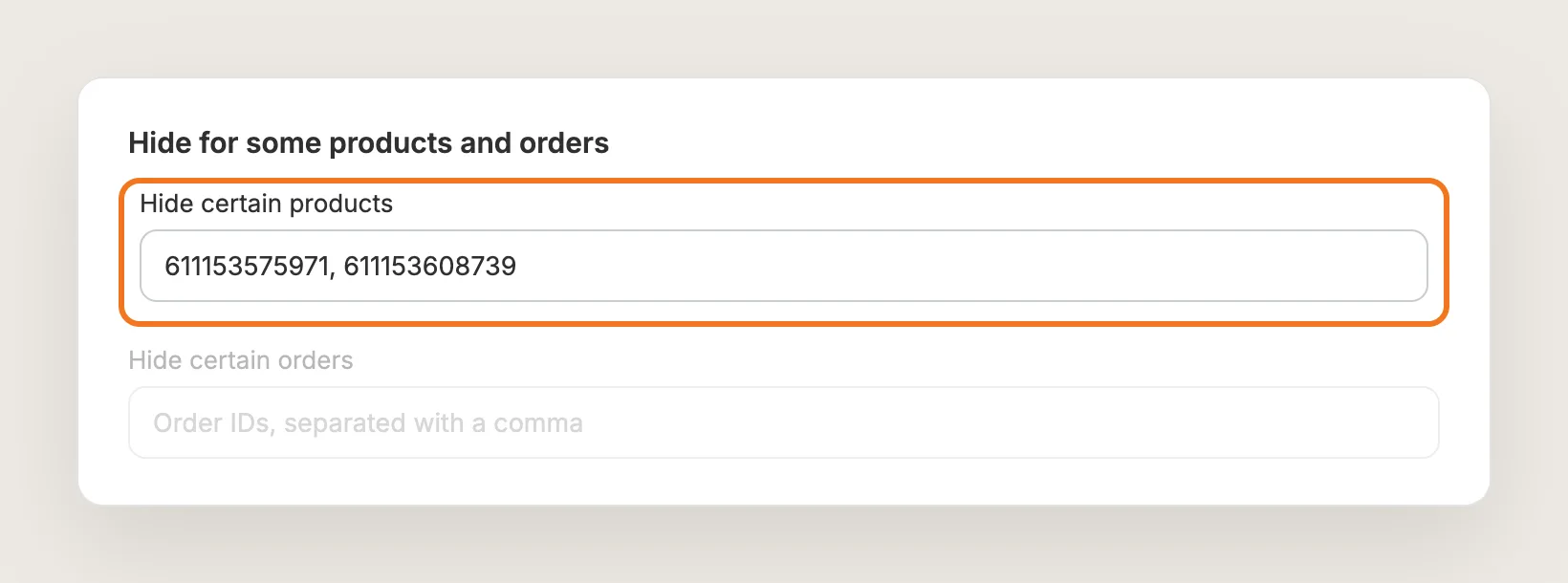
In the Hide for some products and orders card, add product IDs to Hide certain products and order IDs to Hide certain orders, separated with a comma. Find a product ID at the end of the product's page URL in your Shopify admin, and an order ID at the end of the order's page URL.
Step 12: Save, Test on Your Phone and Watch the Clicks
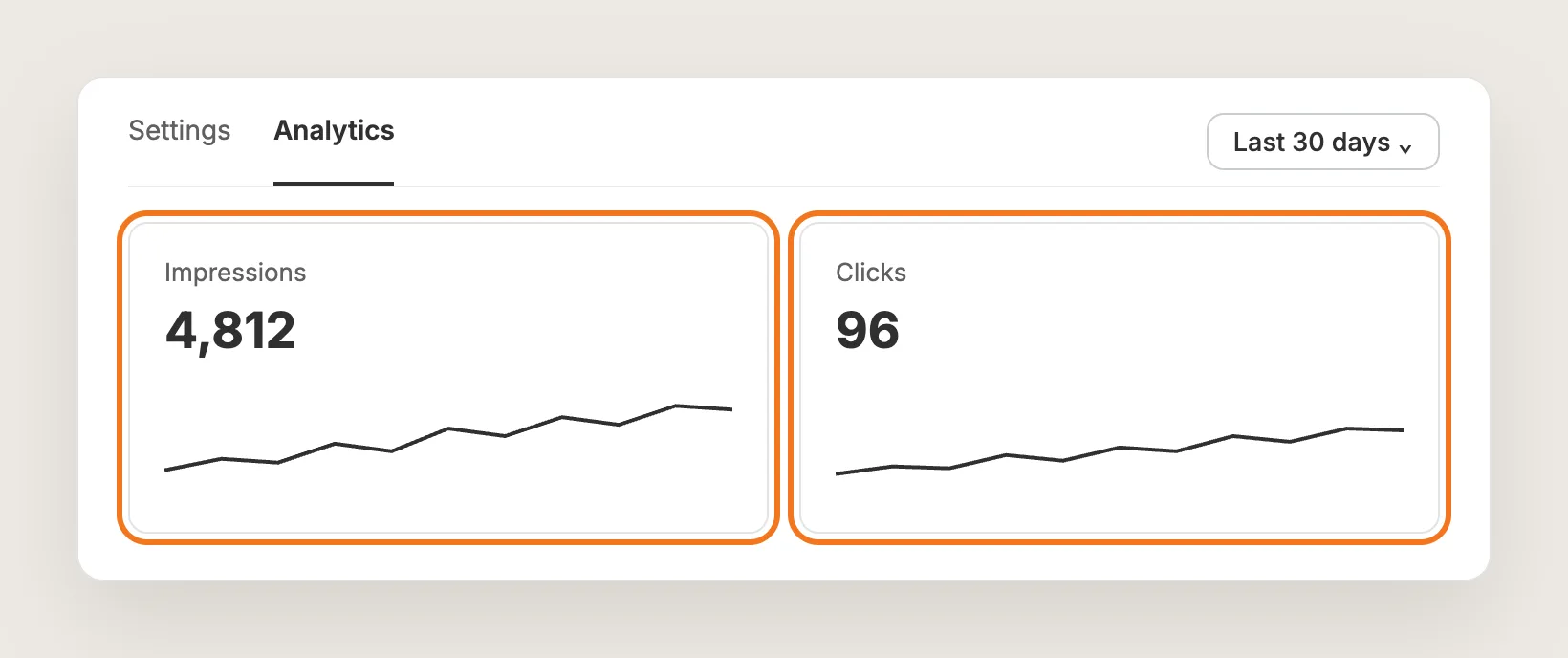
Click Save, then open your store in a private or incognito window on desktop, and on your phone if you turned off Hide on mobile. Wait for the first sales pop-up, then check that the text fits and the Add to cart button stays in view. Track Impressions and Clicks in the Analytics tab.
Step 13: Voila, Your Sales Pop-Ups Are Live on the Store
New visitors now see real orders from your store while they browse.
How to Add Sales Pop-Ups From Your Theme Settings?
Shopify themes don't include sales pop-ups, since a theme can't read your store's orders. The nearest built-in option is a static line of social proof, such as "Over 10,000 orders shipped", in the announcement bar or a text block. To check your theme's settings:
- Click Customize next to your theme in Online Store → Themes
- Click Add section or Add block and look for a pop-up, announcement bar or text option
- Add a short line such as "Over 10,000 orders shipped", then click Save
A static line never changes, so it can't show which products sell or how recent the last order was. It also counts as a claim, so keep the number true and update it by hand.
How to Add Sales Pop-Ups Without an App?
Hire a developer to build sales pop-ups from your store's order data with the Shopify Admin API and JavaScript. A custom build gives you full control over the design and the rules.
Custom sales pop-ups usually involve:
- Creating a custom app in Shopify with access to read orders
- Building a small server or feed that pulls recent orders and strips personal data
- Caching the feed, so every page view doesn't call the Shopify API
- Writing the JavaScript that shows, times and closes each sales pop-up on the storefront
- Styling the sales pop-up for mobile and desktop
- Testing on every page template, then publishing
Custom code means no extra app, but you or your developer have to maintain the server, the API access and the script. A theme update or a Shopify API version change can break the build.
How to Increase Trust With Sales Pop-Ups?
Sales pop-ups build trust by showing new visitors that real people order from your store. These settings help:
- Show only real orders. Fake numbers break Shopify's Acceptable Use Policy and cost trust once shoppers notice. Keep the "Add To Cart" group notification template true to the count
- Show recent orders. Sales from last week say more than sales from last season. Lower Don't show events older than (days) so only recent sales show
- Show the time of the order. A line such as "12 minutes ago" shows the store is active. Keep Show when the order was placed on
- Show where the order came from. A city makes each sales pop-up feel real. Keep Show the customer's location on
- Add the verified check. Turn on Show "Verified By Vitals" badge so shoppers see the order is real
- Protect your customers' privacy. Keep Show customer names off, so shoppers trust your store with their own details
- Keep the sales pop-ups calm. Too many notifications feel pushy. Keep Notifications per session low and the Delay between notifications long
- Hide orders that look odd. Hide gift cards, samples or test orders with Hide certain products and Hide certain orders
Why Aren't My Sales Pop-Ups Showing or Working?
These fixes solve most sales pop-up problems:
- The sales pop-ups don't show on my phone: Hide on mobile is on by default. Untick it in the Other Settings card
- My newest orders don't show yet: Orders refresh from Shopify every few hours, and the storefront feed can be cached for up to about 6 hours, so a delay of several hours is normal. The time in the sales pop-up is when the order was placed
- Older sales show first: Returning visitors see sales pop-ups they already saw moved to the back for 2 days. Check your store in a private or incognito window
- No sales pop-ups show at all: Check that the app is activated, and that Don't show events older than (days) includes at least one order. Orders with a 100% discount don't show
- My store has no orders yet: New stores show add to cart events instead. Check that Show Add To Cart events is on
- A sales pop-up closed and didn't come back: Once a shopper closes a sales pop-up, it stays hidden for that shopper for 2 days
- The text ends with "…": On desktop, the text stays on one line. Lower Text font size and Link font size in the Custom Settings card to fit more words
- The sales pop-ups don't show on the cart page: Sales pop-ups show across the store, except the cart page and the password page
- I want to hide the sales pop-ups on one page: There's no setting for one page. Hide for some products and orders only changes which orders show
- The settings don't apply on my store: If your store has a cookie banner, some settings may only apply once the shopper accepts cookies
Which Sales Pop-Ups Method Should You Choose?
Vitals - All in One App suits most stores, but the right method depends on how much you want to build and maintain.
- Choose Vitals - All in One App if you want sales pop-ups from real orders today, in your colors, with timing, privacy and analytics settings. It also includes 40+ other apps in one subscription of $29.99/month, so you don't have to install and pay for each app separately
- Choose your theme's setting if a static line of social proof is enough
- Choose custom code if you have a developer to build and maintain your own order feed
Start a 7-day free trial: Install the Vitals - All in One App and add sales pop-ups
Frequently Asked Questions
1. What is the best way to add sales pop-ups in Shopify?
Vitals - All in One App is the best way for most stores. Its Recent Sales Notifications app shows sales pop-ups from your store's real orders without code, with 5 layouts, ready-made templates and timing settings.
2. Are sales pop-ups allowed on Shopify?
Yes, when the sales pop-ups show real orders. Shopify's Acceptable Use Policy doesn't allow fake sales data, so the Vitals Recent Sales Notifications app shows only real orders and add to cart events from your store.
3. Can I show sales pop-ups if my store has no orders yet?
Yes. A new store shows add to cart events by default, such as shoppers adding a product to the cart, until the first orders come in.
4. Do sales pop-ups show customer names?
Not by default. Show customer names is off, and Vitals recommends keeping it off if you sell to shoppers in the EU, for GDPR. The sales pop-ups can show the general location instead.
5. Why don't my sales pop-ups show on mobile?
Hide on mobile is on by default, because a sales pop-up takes more space on a small screen. Untick it in the Other Settings card to show sales pop-ups on phones.
6. How many sales pop-ups does a visitor see?
Up to 6 per visit by default, with 12 seconds between them. Change both in the Timing Settings card.
7. Can I translate the sales pop-ups?
Yes. The Translations card at the bottom of the Settings page has a field for each word the sales pop-ups use, such as From, Purchased and Ago.