How to Add Trust Badges to Shopify

Shoppers on a store they've never bought from want proof before they pay. A shopper who can't tell whether checkout is secure, whether shipping is free or whether returns are easy often leaves to look it up, and many don't come back.
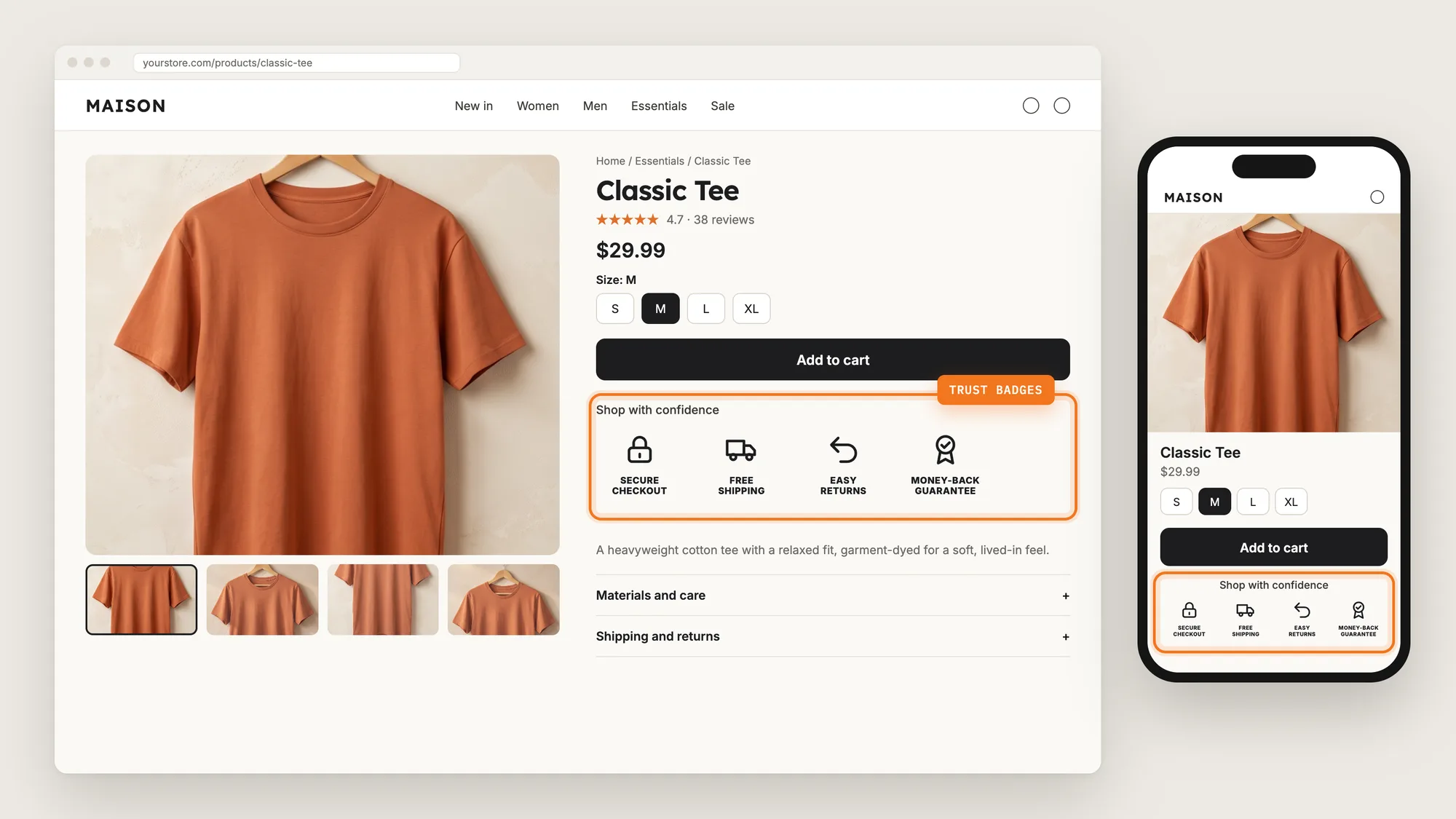
Trust badges answer those questions on the page itself. A row of seals such as Secure checkout, Free shipping and Money-back guarantee under the Add to cart button tells shoppers what to expect at the moment they decide to buy.
Here are the three ways to add trust badges to a Shopify store: with a Trust Badges app, from your theme settings, or with custom code.
What Are Trust Badges?
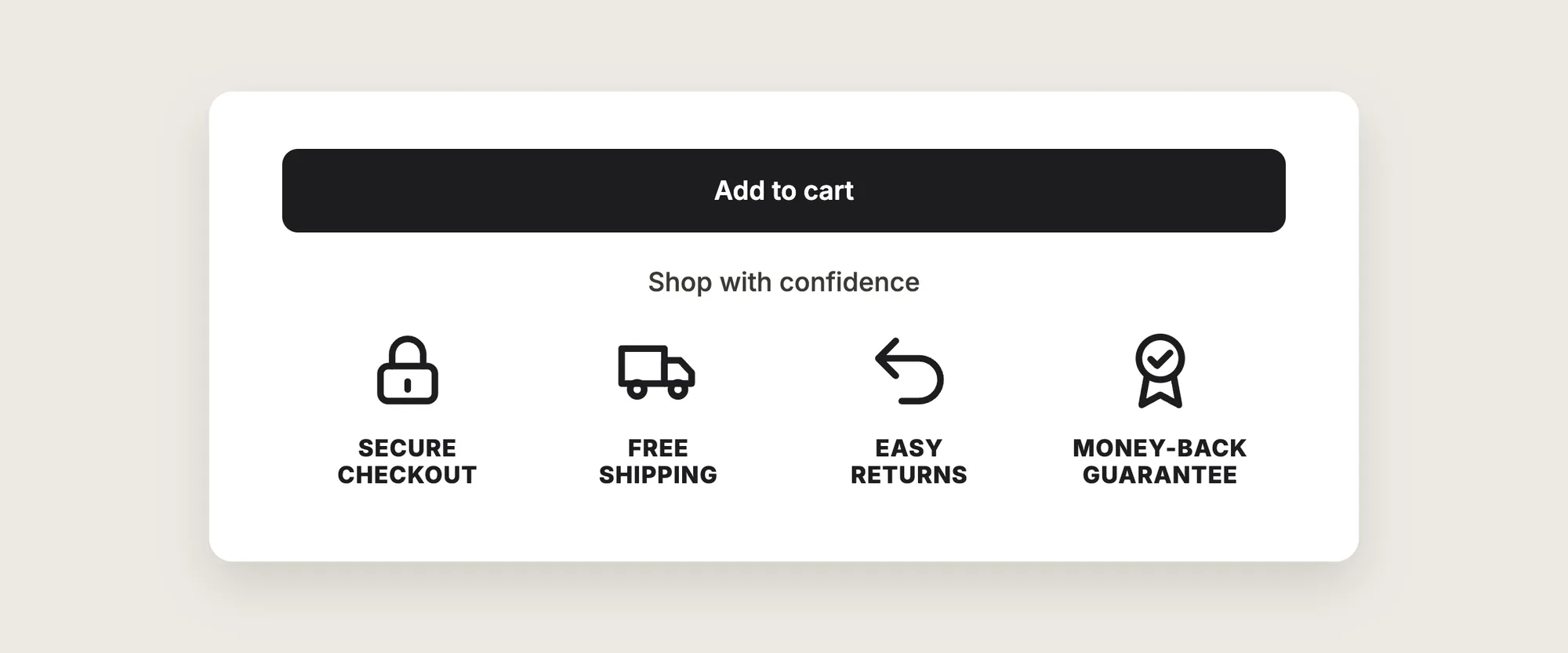
Trust badges are small seals on a store page that show a promise to the shopper, such as secure checkout, free shipping, easy returns or a money-back guarantee. Stores show trust badges near the Add to cart button and before checkout, where shoppers hesitate most.
Good trust badges include:
- True promises only: Every badge matches a policy your store really offers, such as free shipping or a 30-day return window.
- A short row: Up to four trust badges fit in one row on a phone without crowding the page.
- Colors that match your store: The badges use your theme's colors, so the row looks like part of the page.
- A clear spot near the buy button: Shoppers see the trust badges at the moment they decide.
Payment logos such as Visa and PayPal are a separate row. See our guide on how to add payment icons on Shopify for that row.
Where Should You Place Trust Badges on Shopify?
Place trust badges under the Add to cart button on your product page first, since that's where shoppers decide to buy. Then repeat the same row on the cart page, right before checkout.
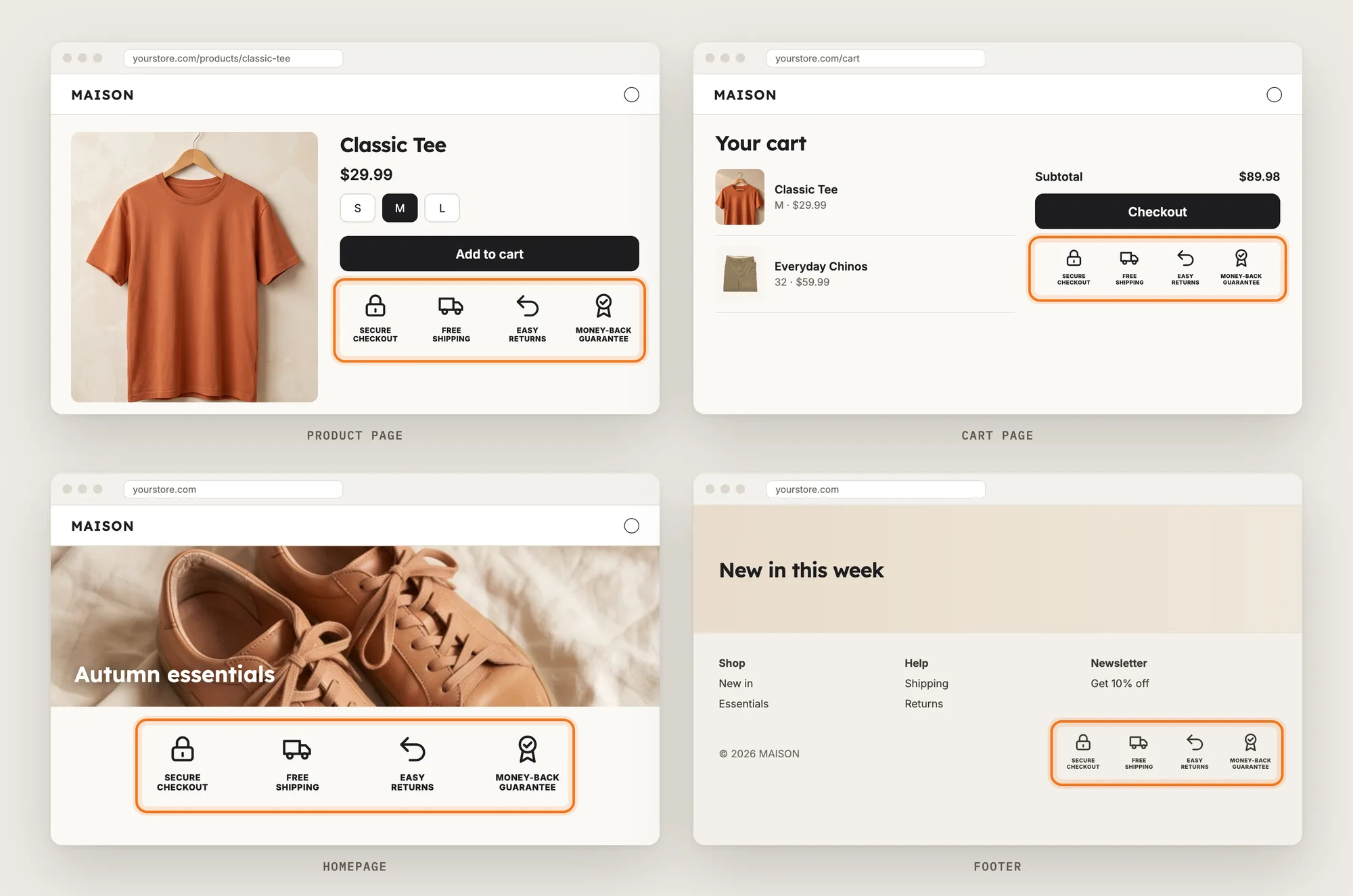
Product Page, Near Add to Cart
The product page is the most important place for trust badges. Shoppers weigh the price, shipping and returns right next to the Add to cart button, so a row of trust badges there answers their doubts before they click. The Vitals Trust Seals and Badges app places the trust badges below the buy buttons by default.
Cart Page
The cart page is the last store page before checkout. A row of trust badges under the Checkout button repeats your promises when the shopper is about to pay. In Vitals, add the Trust Seals and Badges block to the cart page in the Shopify theme editor.
Cart Drawer
A cart drawer opens over the page instead of sending shoppers to the cart page. The Vitals Trust Seals and Badges app doesn't show in the Vitals Cart Drawer app, so stores that use a cart drawer can add the trust badges to the cart page instead.
Homepage
The homepage is where many new visitors land first. A row of trust badges below the hero image tells them about free shipping or easy returns before they browse. In Vitals, add the Trust Seals and Badges block to the homepage in the Shopify theme editor.
Footer
The footer shows on every page, so trust badges there act as a quiet reminder rather than a prompt to buy. Some Shopify themes accept app blocks in the footer, and some don't. Many stores keep the footer for payment icons from their theme settings.
Checkout
Shopify controls the checkout page, so theme code and theme blocks can't add trust badges there. Only apps built with Shopify's checkout UI extensions can add content to the checkout, and on the information, shipping and payment steps that needs Shopify Plus and the checkout editor. The Vitals Trust Seals and Badges app shows trust badges on your store pages, not in the checkout, so place the last row of trust badges on the cart page.
What's the Quickest Way to Add Trust Badges?
- Vitals - All in One App is the quickest way to add trust badges for most stores
- Vitals also offers 40+ apps, such as payment logos, product reviews and a cart drawer, in one subscription of $29.99/month, so you don't have to install and pay for each app separately
Here's how the three methods compare. If you'd rather weigh several apps against each other, see our list of the best trust badges apps for Shopify.
How to Add Trust Badges With a Trust Badges App?
Install the Vitals - All in One App, open its Trust Seals and Badges app and click Activate app. The trust badges then show on your product pages, and the steps below set the style, the badges, the look and where the row shows.
Step 1: Install the Vitals - All in One App
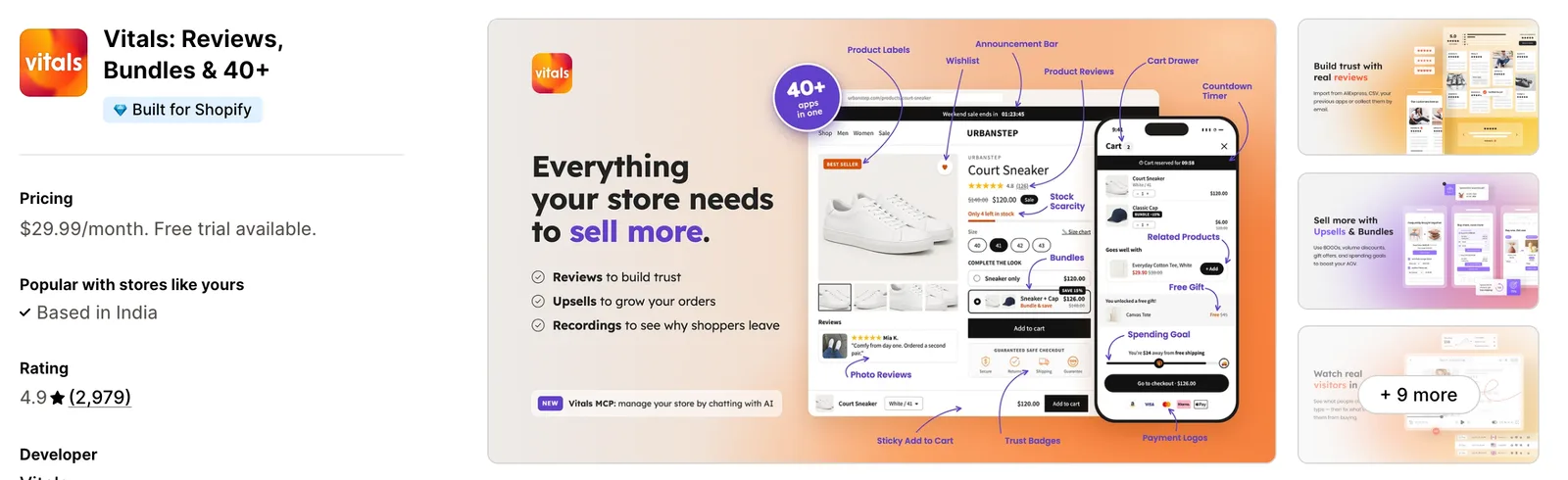
Install the Vitals - All in One App from the Shopify App Store. The 7-day free trial includes the Vitals Trust Seals and Badges app.
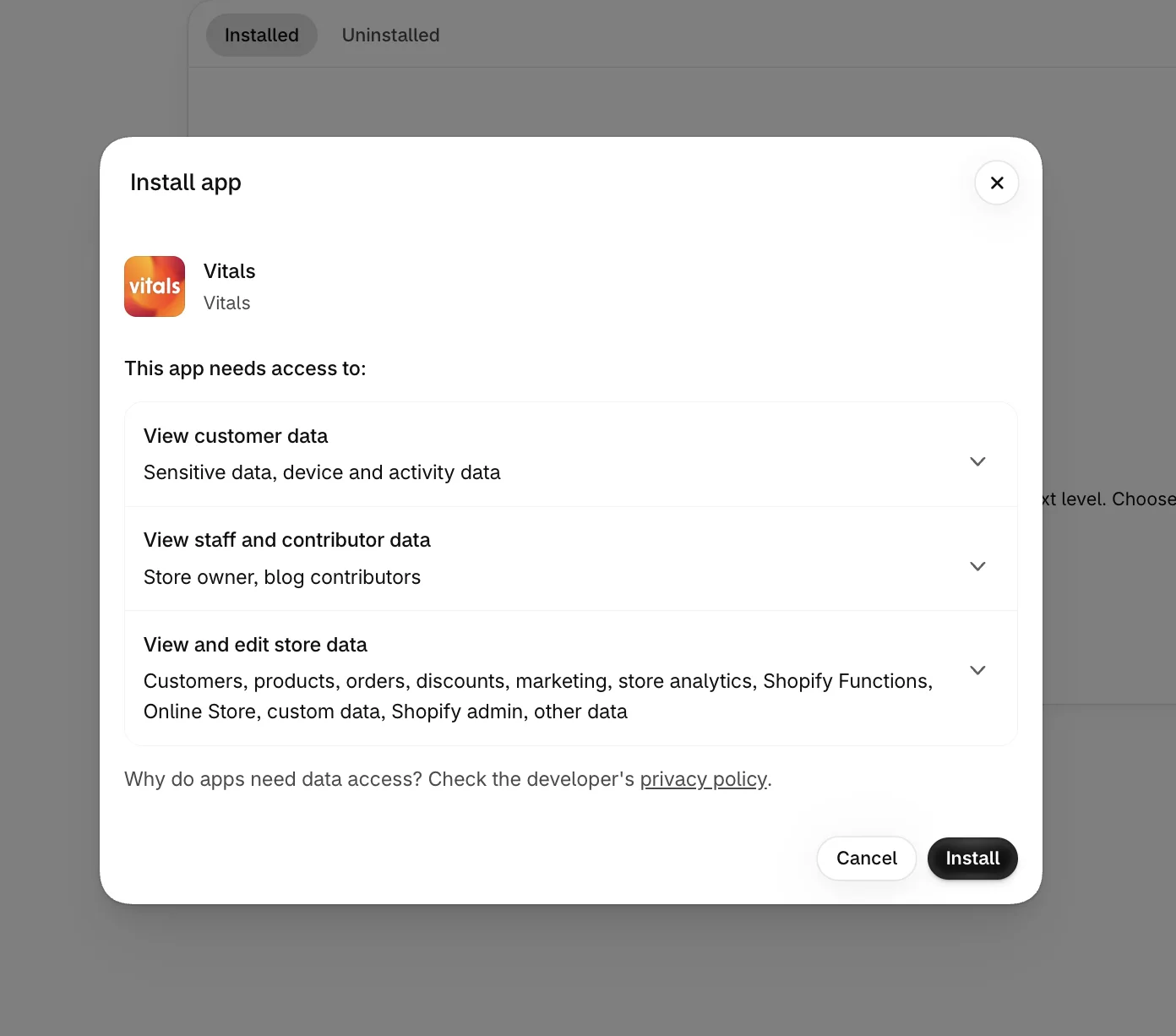
Step 2: Approve the Install in Shopify
Click Install to approve the store data Vitals uses. Shopify then opens the Vitals dashboard.
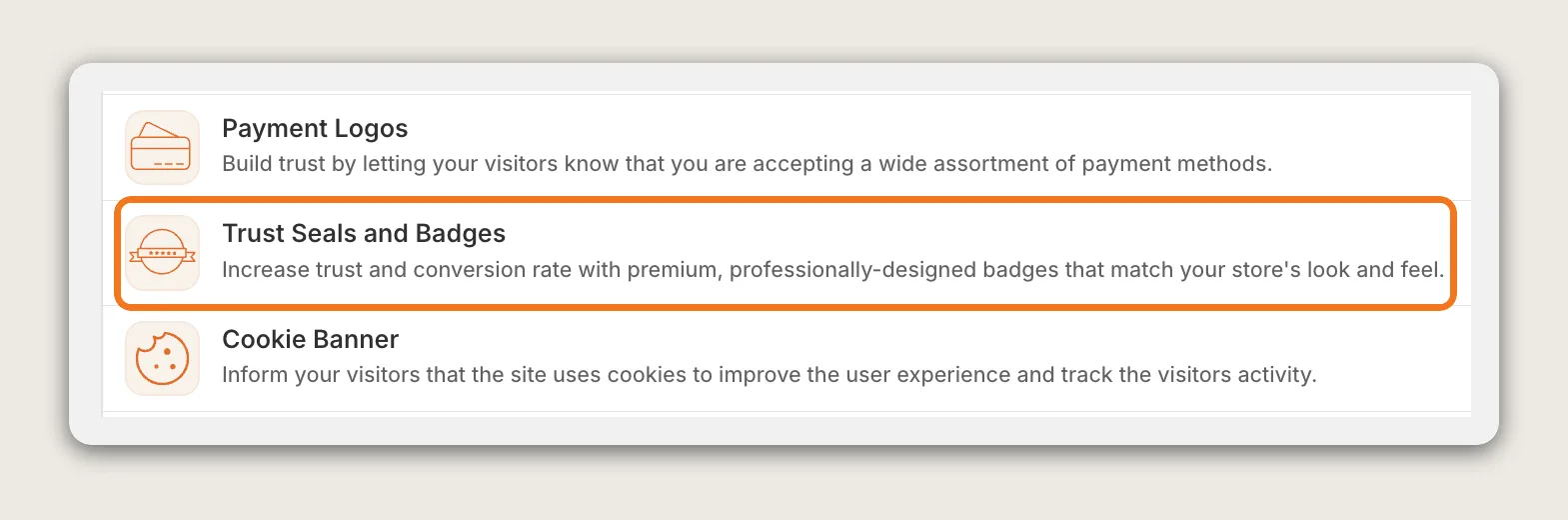
Step 3: Open Trust Seals and Badges
In the Vitals dashboard, find Trust Seals and Badges in the list of apps and click it.
Step 4: Activate the App
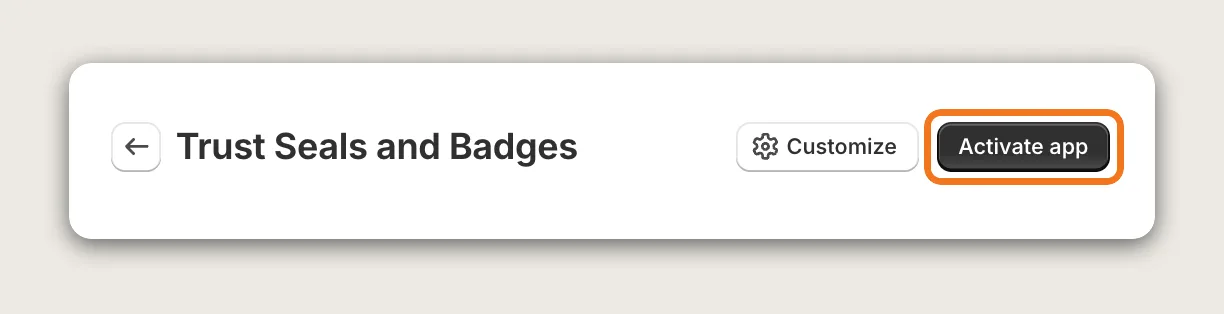
On the Trust Seals and Badges page, click Activate app to turn the trust badges on. Customize next to it opens the settings page, with a live preview for desktop and mobile.
Step 5: Choose a Style
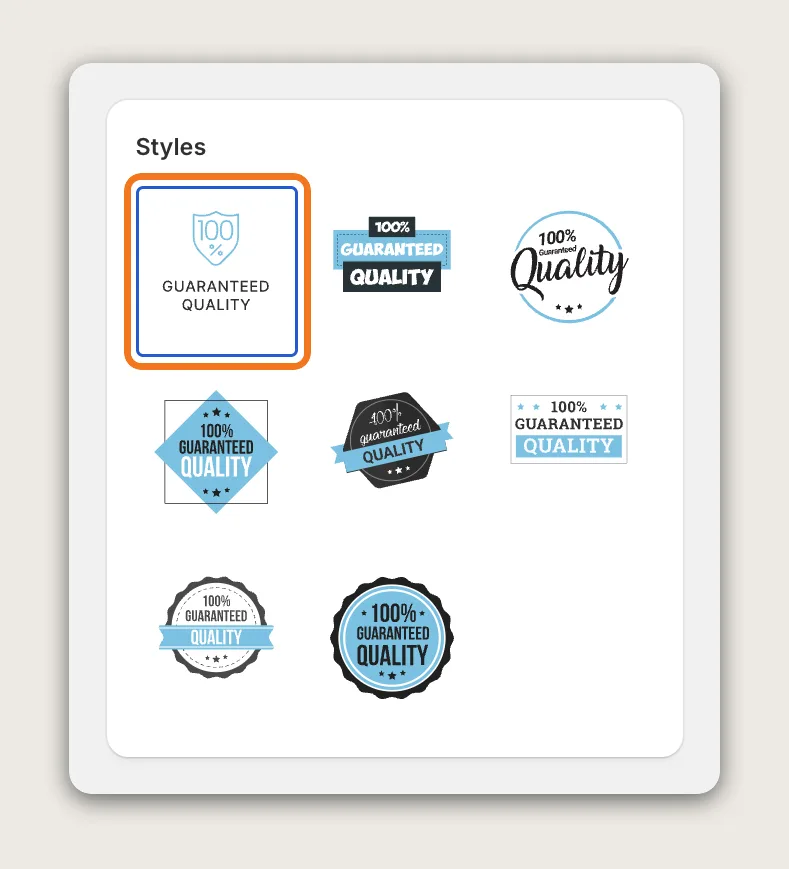
In the Styles card, click one of the 8 style thumbnails. From left to right, the styles are Icon, Block, Circle, Diamond, Ribbon, Square, Stamp Ribbon and Stamp. Icon is the default. The thumbnails have no names in the app, so pick the style by its look.
Step 6: Select Your Trust Badges
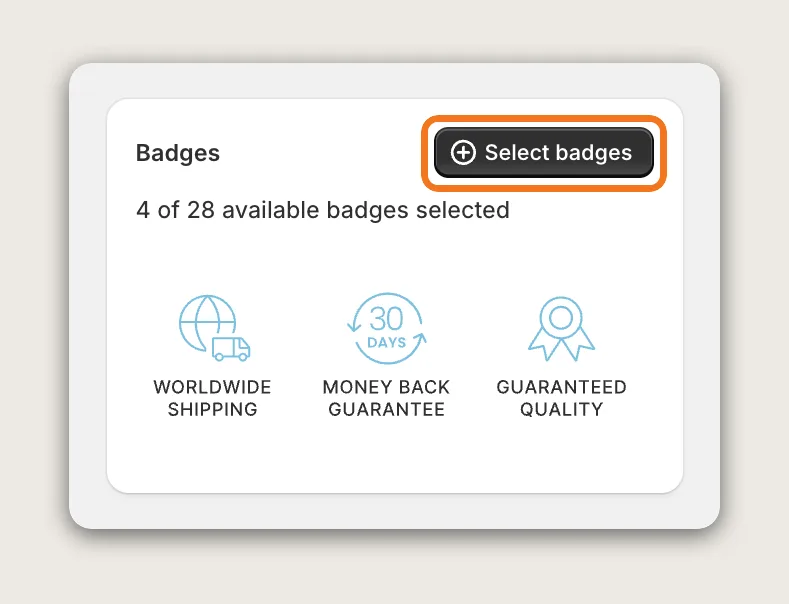
In the Badges card, click Select badges, tick the trust badges you want in the Add badges window and click Save. The library has 28 badges for security, guarantees, shipping and returns, and payment options. Up to four trust badges fit best. Drag the selected badges to change their order.
Step 7: Set the Color, Text, Size and Margin
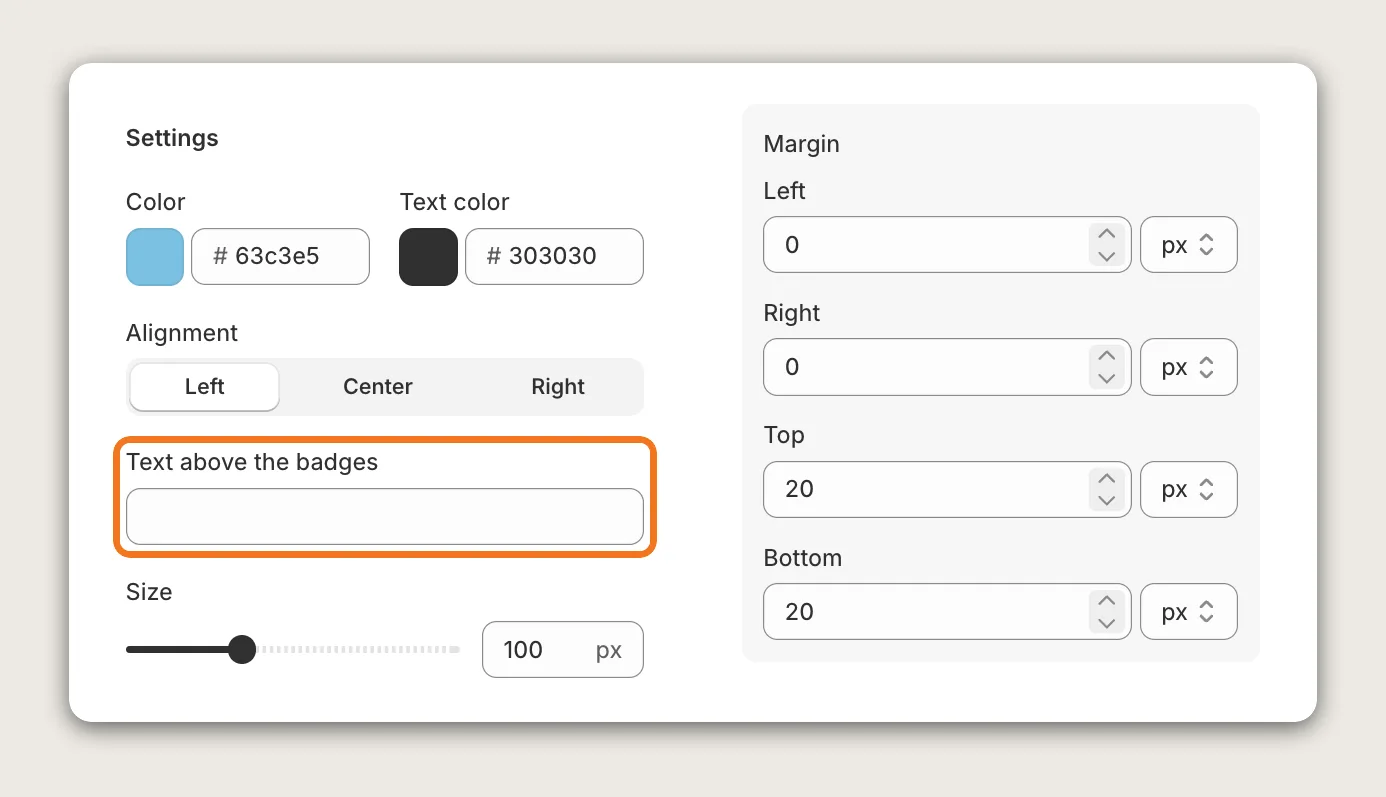
The Settings card sets how the row of trust badges looks:
- Color: The main color of the trust badges
- Text color: The second color, shown only for the Icon style
- Alignment: Left, Center or Right
- Text above the badges: A short line above the row, such as "Shop with confidence"
- Size: From 75 to 150, with 100 as the default
- Margin: The space around the row, set as Left, Right, Top and Bottom in px, one set for all devices
The text inside each badge is part of the artwork and can't be edited. It shows in your store's language automatically, for 17 languages.
Step 8: Choose Where the Badges Show on the Product Page
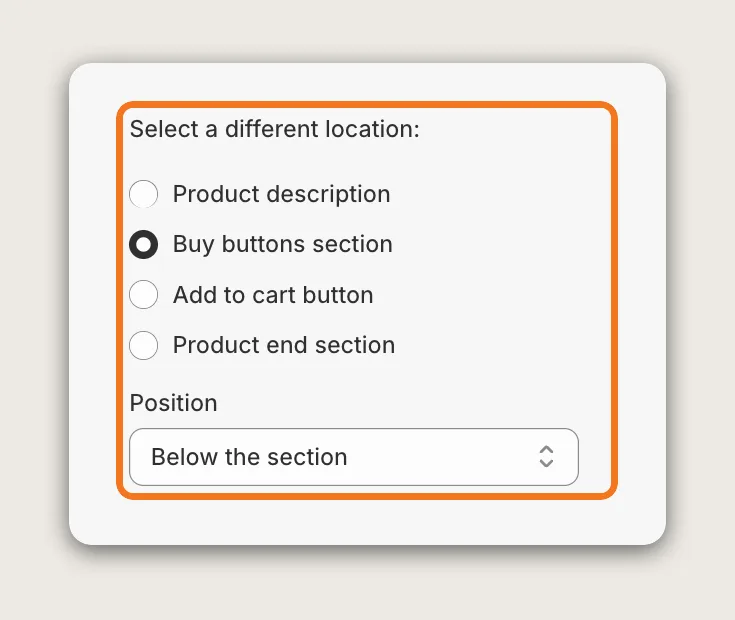
In the Position card, Automatic placement uses two settings. Select a different location sets which part of the product page the trust badges attach to: Product description, Buy buttons section, Add to cart button or Product end section. Position then places the row above or below that part, and some locations also allow inside the section. The default is Buy buttons section and Below the section, which puts the trust badges right under the Add to cart button.
Step 9: Add Trust Badges to the Cart Page and Homepage
Automatic placement works on product pages. To show the same trust badges on the cart page or the homepage, add the Vitals block in the Shopify theme editor:
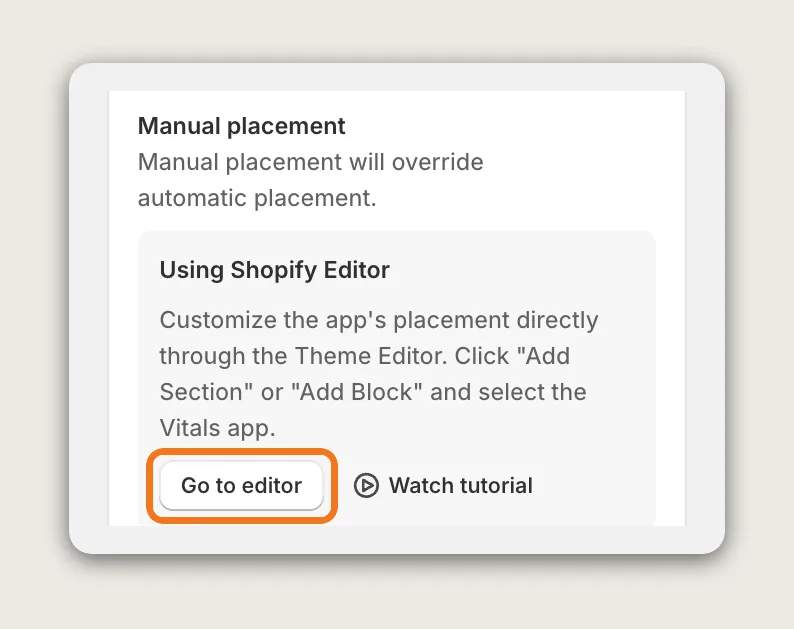
- Click Go to editor under Manual placement in the Position card, or click Customize next to your theme in Online Store → Themes
- Open the cart page or the home page from the page menu at the top
- Click Add block, then pick Trust Seals and Badges under Vitals
- Drag the block next to the checkout button or under the hero image, then click Save
The block has no settings of its own. It shows the same trust badges you set in the app, so every page shows the same set. On older themes without app blocks, copy the `<div id="bundle-trust_badges"></div>` snippet from Using HTML Snippet in the Position card and paste it into a custom HTML section on the homepage.
Step 10: Limit the Trust Badges to Certain Products (Optional)
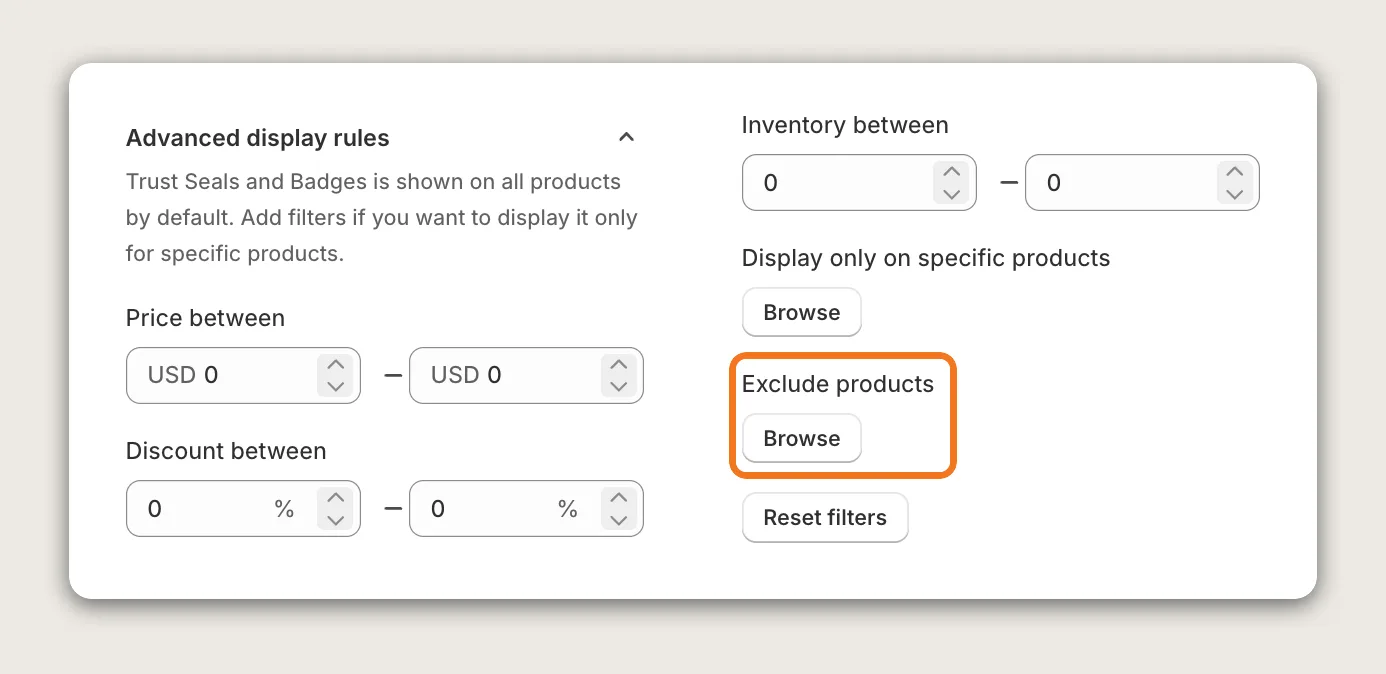
The trust badges show on every product by default. Use Advanced display rules to show them only on products within a price, discount or inventory range, only on products you pick, or on every product except the products you exclude.
Step 11: Save and Test on Your Phone
Click Save, then open a product page on your phone and on desktop. Check that the trust badges fit in one row, that the row doesn't push the Add to cart button down too far, and that every badge matches a policy your store offers. Then check the cart page and the homepage.
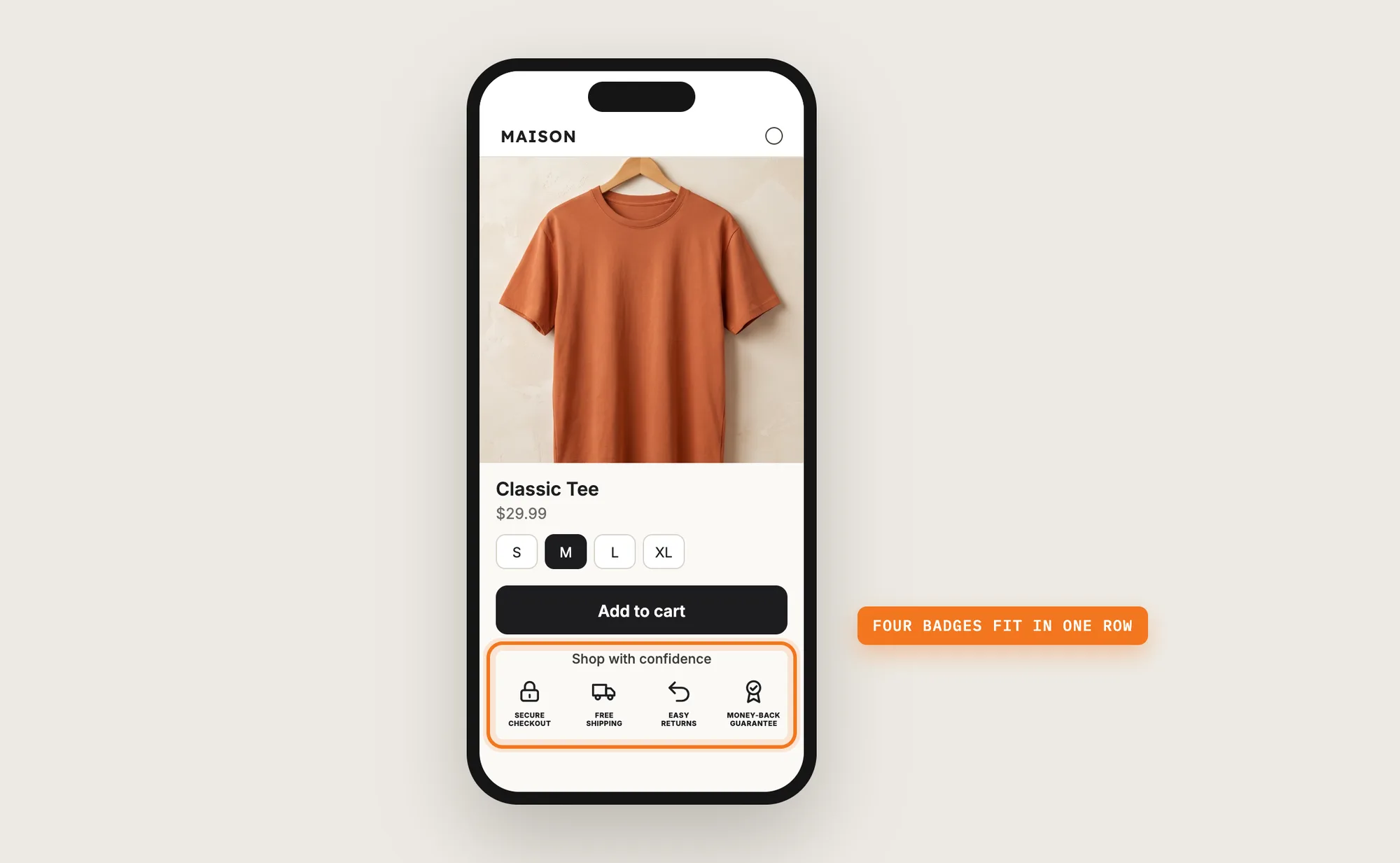
Step 12: Voila, Your Trust Badges Are Live on the Store
Your shoppers now see your store's promises right under the Add to cart button, at the moment they decide to buy.
How to Add Trust Badges From Your Theme Settings?
Some Shopify themes include an icons-with-text section or an icon block that can work as trust badges. To check your theme's settings:
- Click Customize next to your theme in Online Store → Themes
- Open a product page template, then click Add block in the product information section
- Look for an icon, icons-with-text or collapsible row block, add an icon and a short line such as "Free shipping", then click Save
A theme's icon block uses the theme's own small set of icons and plain text, not designed seals. Most themes add the block to one template at a time, and the text doesn't translate on its own unless you edit the theme's translations. If a line of icons and text is all you need, the theme setting may be enough.
How to Add Trust Badges Without an App?
Hire a developer to add your own trust badge images to the theme with Liquid and CSS. Your own images give you full control over the artwork and the text.
Custom trust badges usually involve:
- Copying your theme first, so the live store stays untouched during testing
- Uploading the badge images to Content → Files in Shopify
- Adding the images to the product page template under the Add to cart button
- Adding the same images to the cart page template, next to the checkout button
- Styling the row for size, spacing and alignment on mobile and desktop
- Testing on every product template, then publishing the theme copy
Custom code means no extra app, but you or your developer have to maintain it. A theme update can replace the files the code is in, so the trust badges may need adding back after each update. New text or a new language means new images.
How to Increase Trust With Trust Badges?
Trust badges build trust by answering the shopper's doubts about payment, shipping and returns before they reach checkout. These settings help:
- Put the trust badges right under the Add to cart button. Shoppers see the promises at the moment they decide. Keep the location on Buy buttons section and Position on Below the section
- Show only promises your store keeps. A Free shipping badge on a store that charges shipping costs more trust than it gains. Pick only matching badges in Select badges
- Keep the row to four trust badges. A short row reads in a glance on a phone. Untick extra badges in the Add badges window
- Lead with the badge shoppers worry about most. Drag a Secure checkout or Money-back guarantee badge to the start of the row in the Badges card
- Match the trust badges to your brand. Badges in your theme's colors look like part of the store. Set Color to your brand color
- Add a short line above the row. A line such as "Shop with confidence" tells shoppers what the badges mean. Write the line in Text above the badges
- Repeat the trust badges before checkout. Add the Trust Seals and Badges block to the cart page, so the promises are the last thing shoppers see before they pay
- Hide trust badges that don't apply to a product. Exclude products such as gift cards with Advanced display rules
Why Aren't My Trust Badges Showing or Working?
These fixes solve most trust badge problems:
- The trust badges don't show at all: Check that the app is activated, and that Advanced display rules don't exclude the product you're testing
- The trust badges show in the wrong spot: Change the location and Position in the Position card
- The trust badges don't show on the cart page or homepage: Automatic placement is for product pages only. Add the Trust Seals and Badges block in the Shopify theme editor
- The trust badges don't show in the cart drawer: The Trust Seals and Badges app doesn't show in the Vitals Cart Drawer app. Add the block to the cart page instead
- I can't find Text color: Text color shows only when the style is Icon, the first thumbnail in the Styles card
- The badge text shows in English: The badges switch to your store's language for 17 supported languages, when the language is enabled on your Shopify store. Other languages show the English badges
- I want different trust badges on the cart page: Every placement shows the same set of trust badges. Different badges per page isn't possible
- I want to upload my own badge or edit the badge text: The app uses its own library of 28 badges, and the text is part of the artwork. Add your own images to the theme code instead, as in the no-app method above
Which Trust Badges Method Should You Choose?
Vitals - All in One App suits most stores, but the right method depends on the badges you need and where you want them.
- Choose Vitals - All in One App if you want designed trust badges under the Add to cart button, on the cart page and on the homepage, in your colors and your store's language. It also includes 40+ other apps in one subscription of $29.99/month, so you don't have to install and pay for each app separately
- Choose your theme's setting if a line of plain icons and text in the theme's own section is enough
- Choose custom code if you have your own badge images and a developer to keep them working through theme updates
Start a 7-day free trial: Install the Vitals - All in One App and add trust badges
Frequently Asked Questions
1. What is the best way to add trust badges to Shopify?
Vitals - All in One App is the best way for most stores. Its Trust Seals and Badges app adds trust badges under the Add to cart button without code, with 28 badges in 8 styles, in your colors and your store's language.
2. Where should trust badges go on a Shopify store?
Put trust badges under the Add to cart button on the product page first, then on the cart page next to the Checkout button. The homepage and the footer are good extra spots for promises such as free shipping.
3. Can I add trust badges to the Shopify checkout?
Not with theme code or a theme block, since Shopify controls the checkout page. Apps built with checkout UI extensions can add content to the checkout, and the information, shipping and payment steps need Shopify Plus. Place your last row of trust badges on the cart page instead.
4. Can I show trust badges on the cart page?
Yes. In the Shopify theme editor, open the cart page, click Add block and pick Trust Seals and Badges under Vitals. The block shows the same trust badges you set in the app.
5. Can I upload my own trust badges?
Not in the Vitals Trust Seals and Badges app, which uses its own library of 28 badges. You can add your own badge images to your theme code, or ask a developer to add them.
6. Are trust badges translated into my store's language?
Yes. The Vitals trust badges show in your store's language automatically for 17 languages, including Spanish, French, German and Japanese, when the language is enabled on your Shopify store.
7. Are trust badges the same as payment icons?
No. Trust badges show promises such as secure checkout, free shipping and easy returns. Payment icons show the payment methods you accept, such as Visa and PayPal, and Vitals has a separate Payment Logos app for them.