How to Remove Buy It Now Button in Shopify

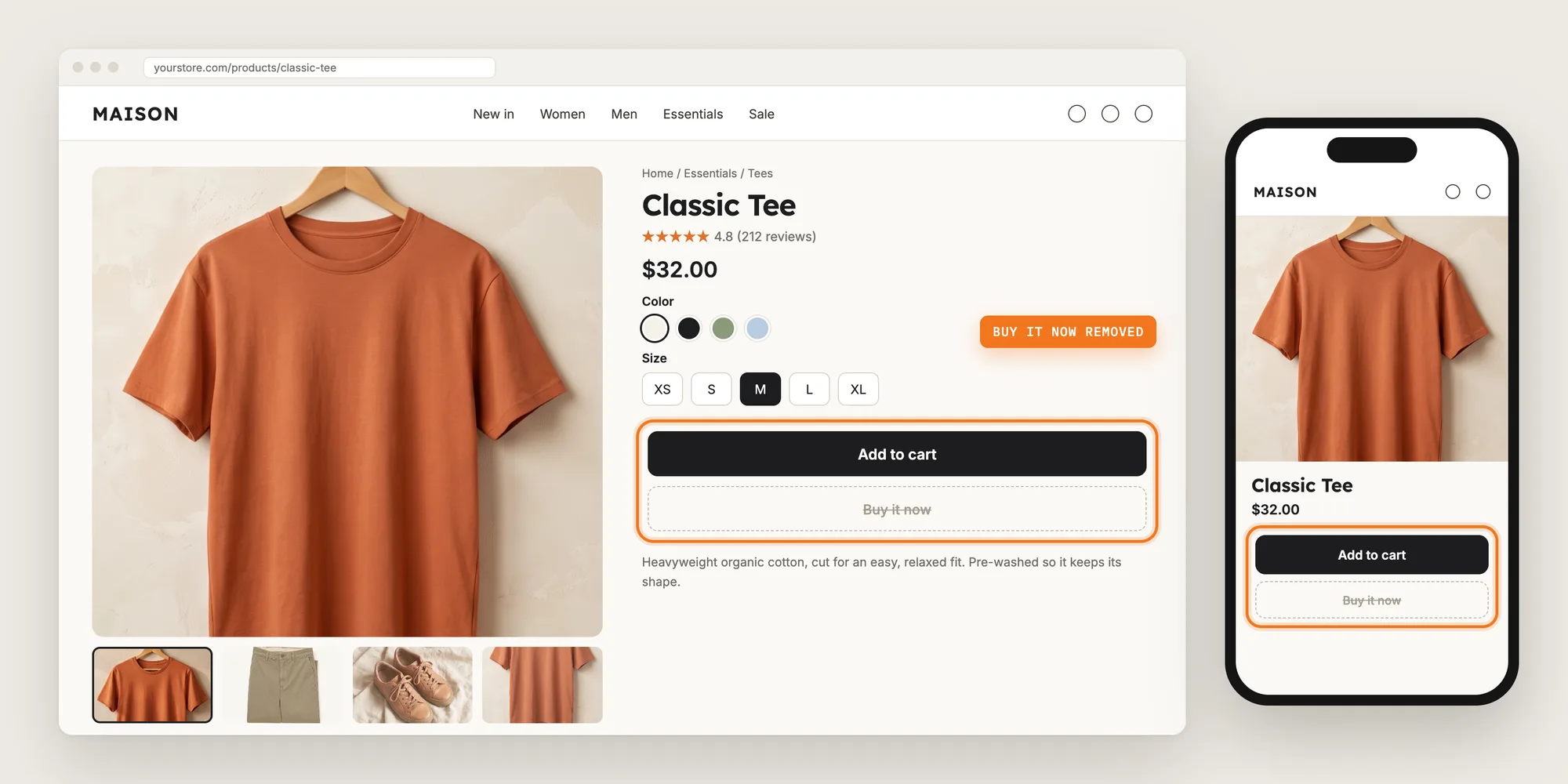
The Buy it now button sends shoppers from the product page straight to checkout. That shortcut skips the cart, so bundle offers, volume discounts and cart upsells never get a chance to apply.
Removing the Buy it now button sends every shopper through the cart first. Shoppers then see the full cart, your cart offers and the discount code field before they pay.
Here are the three ways to remove the Buy it now button in Shopify: with a Hide Checkout Buttons app, from your theme settings, or with custom code.
What Is a Buy It Now Button?
A Buy it now button is the button under Add to cart that takes a shopper from the product page straight to checkout. Shopify calls the Buy it now button a dynamic checkout button. Shopify also decides how the Buy it now button looks for each shopper. Shoppers see a plain Buy it now button, or a wallet button such as Google Pay, Apple Pay, Shop Pay or PayPal when their browser or device has that payment method.
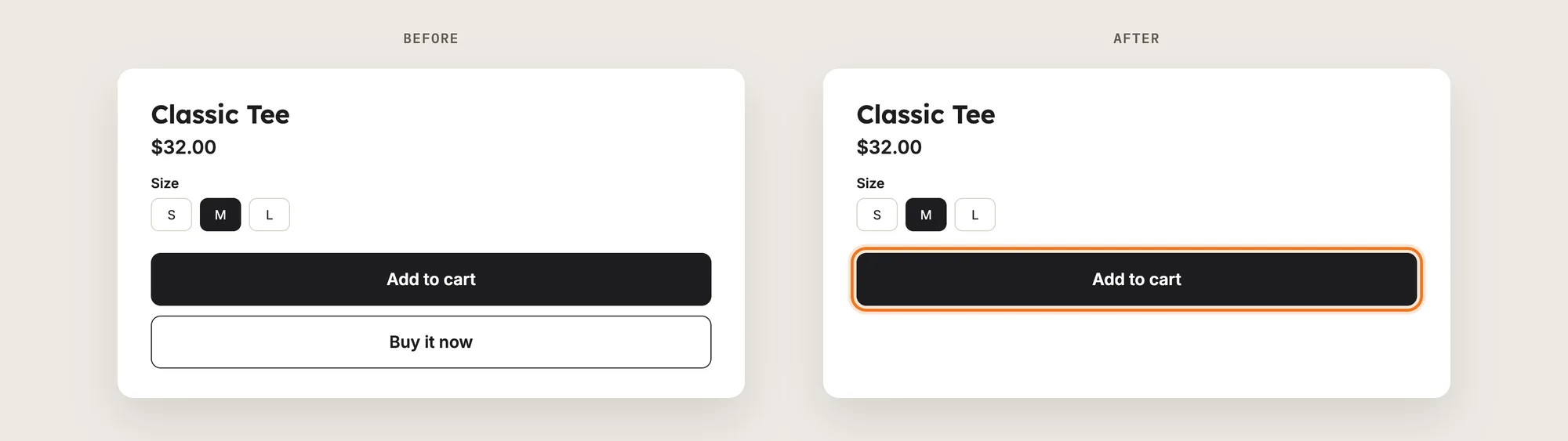
Stores remove the Buy it now button because the shortcut skips the cart:
- Cart discounts don't apply: Shopify lists compatibility issues between dynamic checkout buttons and apps that work with the cart, and upsell apps can't apply their discount at checkout.
- Coupon codes get missed: A shopper who skips the cart can miss the discount code field.
- Shipping isn't in the wallet amount: The amount on a wallet button doesn't include shipping.
- Shoppers can misread the button: Some shoppers think the wallet button is the only way to pay.
Removing the Buy it now button doesn't remove any payment method. Shoppers still see PayPal, Shop Pay, Apple Pay and the rest as payment options on Shopify's checkout page.
What's the Quickest Way to Remove the Buy It Now Button?
- Vitals - All in One App is the quickest way to remove the Buy it now button for most stores
- Vitals also offers 40+ apps, such as Upsell Builder, Cart Drawer and product reviews, in one subscription of $29.99/month, so you don't have to install and pay for each app separately
Here's how the three methods compare.
How to Remove the Buy It Now Button With a Hide Checkout Buttons App?
Install the Vitals - All in One App, open its Hide Dynamic Checkout Buttons app and click Activate app. The Buy it now button and the wallet buttons then disappear from your product pages and cart page, and the steps below check the result.
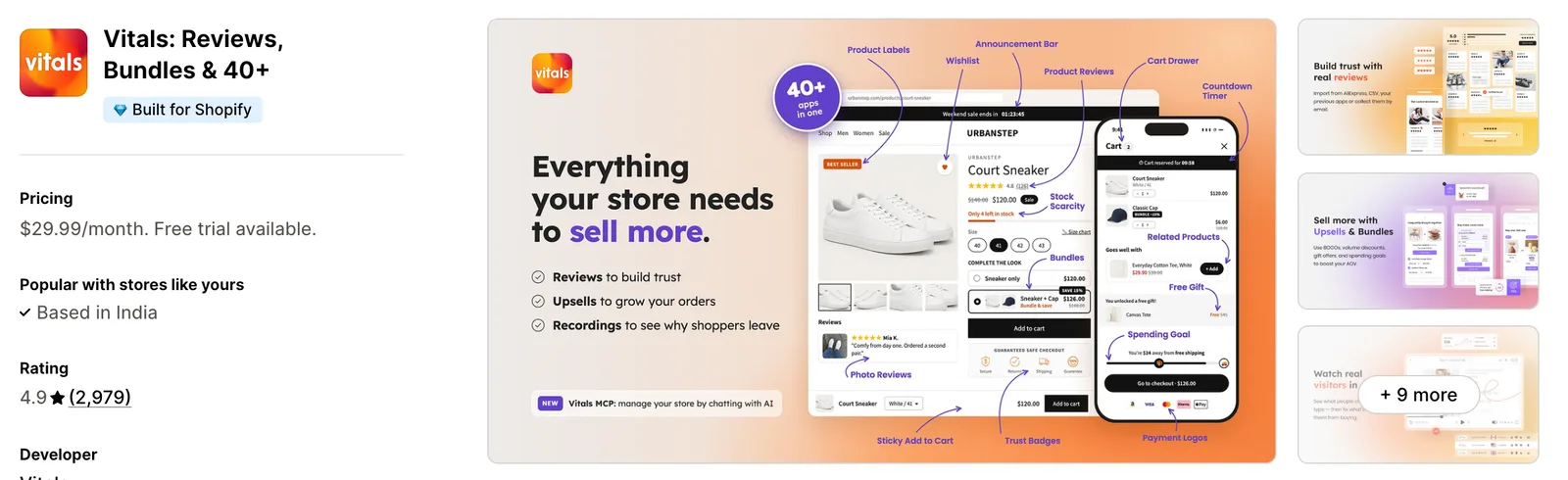
Step 1: Install the Vitals - All in One App
Install the Vitals - All in One App from the Shopify App Store. The 7-day free trial includes the Vitals Hide Dynamic Checkout Buttons app.
Step 2: Approve the Install in Shopify
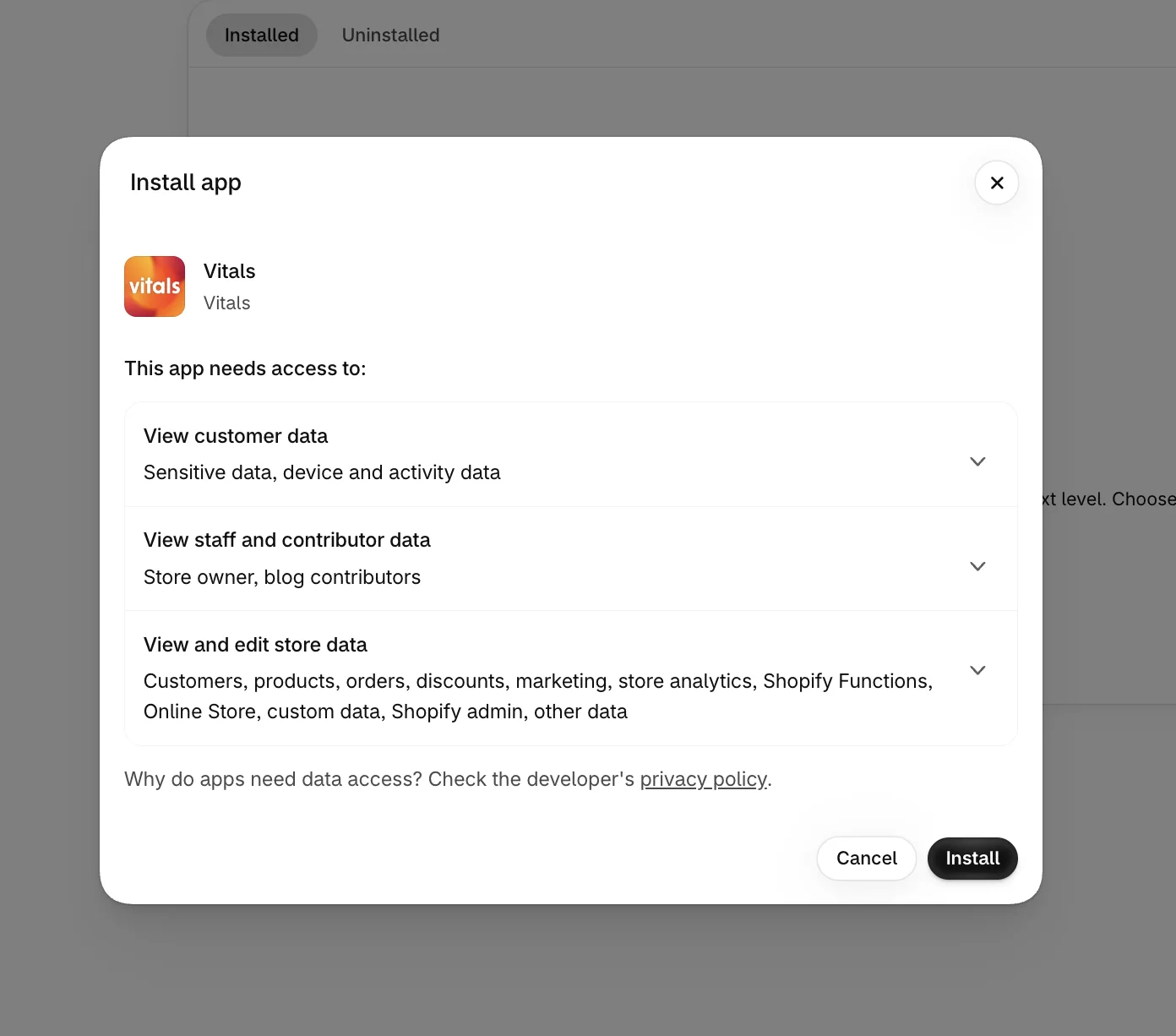
Click Install to approve the store data Vitals uses. Shopify then opens the Vitals dashboard.
Step 3: Open Hide Dynamic Checkout Buttons
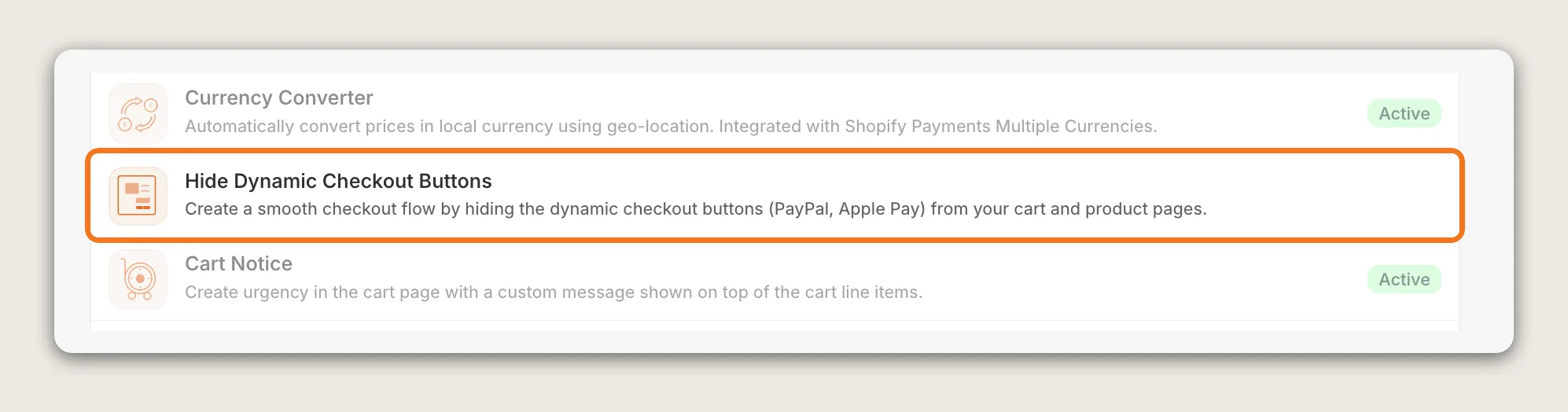
In the Vitals dashboard, find Hide Dynamic Checkout Buttons in the list of apps and click it.
Step 4: Activate the App
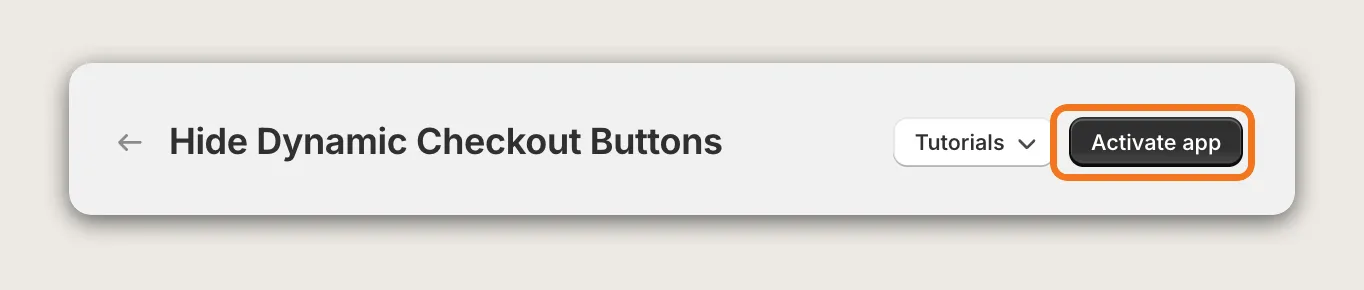
Click Activate app at the top right of the Hide Dynamic Checkout Buttons page. The app has no other settings, and the switch removes every Buy it now and wallet button on your storefront at once.
Step 5: Check the Cart Page
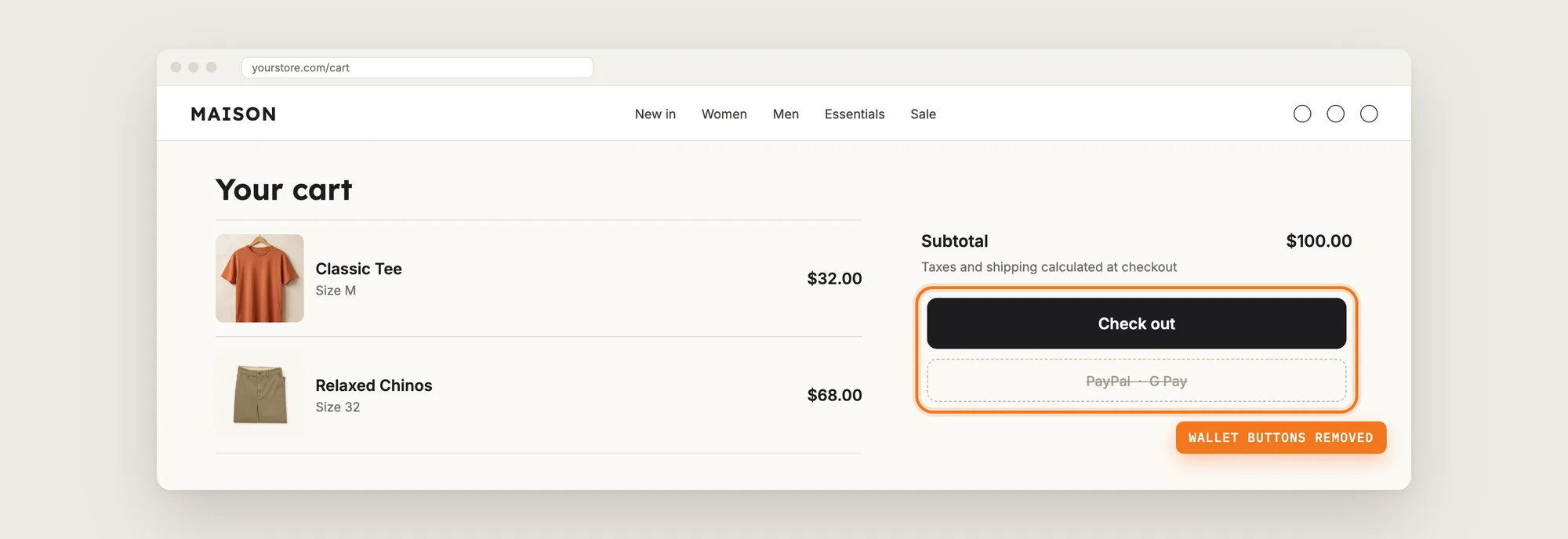
Add a product to the cart and open the cart page. The wallet buttons next to Check out, such as PayPal and Google Pay, are gone too, so shoppers continue to Shopify's checkout with your cart discounts applied.
Step 6: Check the Payment Options at Checkout
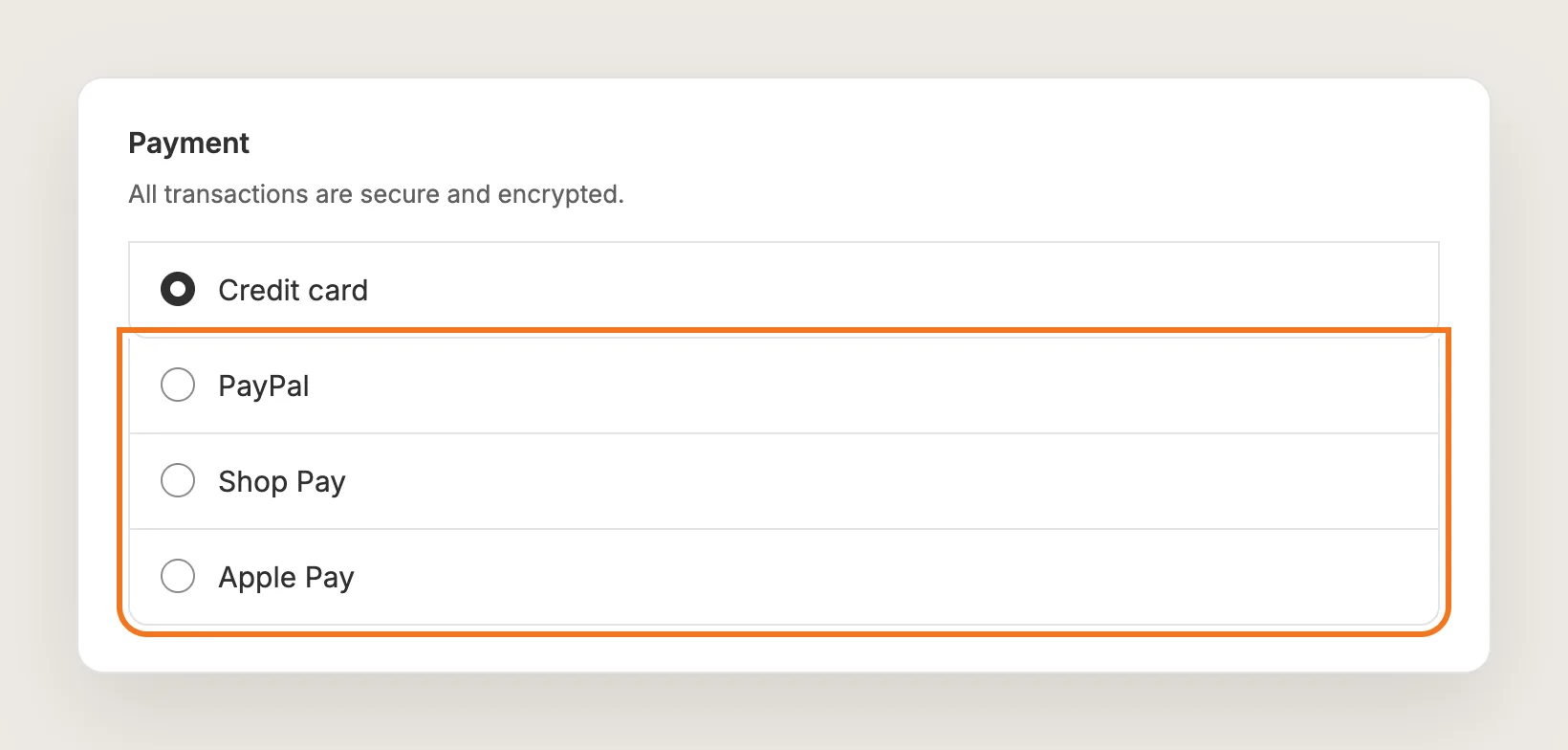
Click Check out and look at the payment step. PayPal, Shop Pay, Apple Pay and your other payment methods are still there, because the Hide Dynamic Checkout Buttons app only removes the shortcut buttons on the store.
Step 7: Test on Your Phone
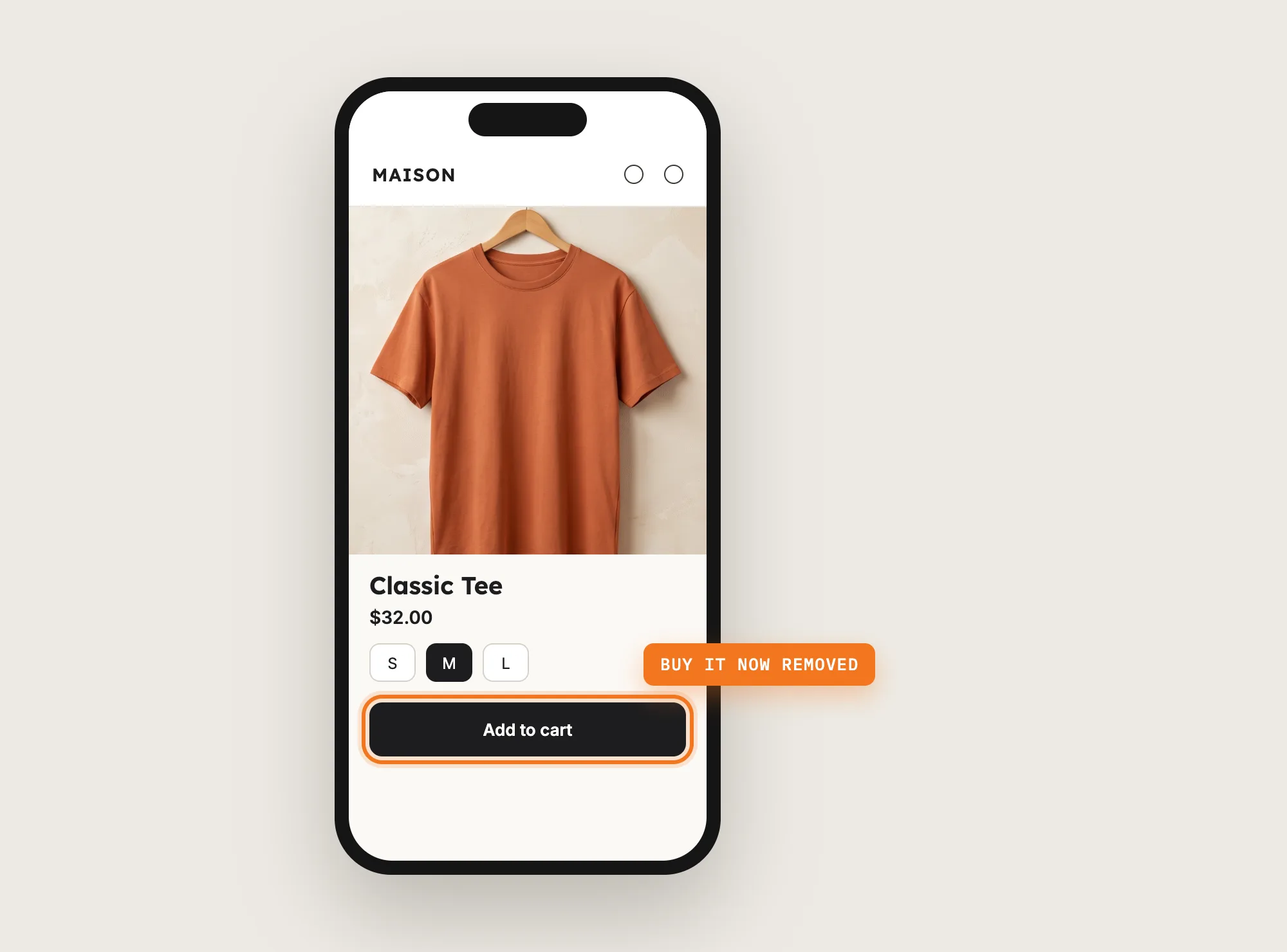
Open a product page on your phone and check that only Add to cart shows under the price. Shopify shows wallet buttons by device, so a phone with Apple Pay or Google Pay is the best test of the Buy it now button being gone.
Step 8: Voila, Your Buy It Now Button Is Gone From the Store
Your shoppers now add products to the cart and check out from there, where your cart offers and discounts apply.
How to Remove the Buy It Now Button From Your Theme Settings?
Many Shopify themes include a Show dynamic checkout button setting in the product section. To check your theme's settings:
- Open Online Store → Themes in Shopify and click Customize
- Pick Product pages from the drop-down at the top, then click the product section in the left sidebar
- Untick Show dynamic checkout button and click Save
Repeat the same steps in the Featured product section if your homepage shows a product with a Buy it now button. The theme setting only removes the Buy it now button from product sections. Themes usually have no setting for the wallet buttons on the cart page, because Shopify adds those buttons based on your payment providers and the shopper's browser.
How to Remove the Buy It Now Button Without an App?
Hire a developer to remove the Buy it now button and the cart page wallet buttons from your theme code. Shopify documents how to remove the additional checkout buttons from the cart page.
A custom change usually involves:
- Making a copy of your theme, so the live store stays untouched during testing
- Removing the dynamic checkout button from the product form in every product template
- Removing the additional checkout buttons from the cart page and the cart drawer
- Checking featured product sections and quick-view pop-ups that have their own Buy it now button
- Testing on several browsers and devices, since Shopify shows different wallet buttons to different shoppers
- Publishing the theme copy
Custom code means no extra app, but you or your developer have to maintain the change. A theme update or a new theme can bring the Buy it now button back.
How to Increase AOV After Removing the Buy It Now Button?
Removing the Buy it now button sends every shopper to the cart, and the cart is where Vitals offers raise the order value. These settings help each order grow:
- Show product upsells in the cart. Shoppers see a product to add before they pay. Turn on Show product upsells in the Vitals Cart Drawer app, with an active Upsell Builder cart page offer
- Offer a bundle discount. A Product Bundle offer in the Upsell Builder app gives shoppers a price for buying products together, and the discount applies when the order goes through the cart
- Reward bigger quantities. A Volume Discount offer in the Upsell Builder app lowers the price as shoppers add more of the same product
- Set a spending goal. A Spending Goal offer shows shoppers how much more to spend for a reward. Turn on Show goals in the Cart Drawer app to show the goal in the cart
- Add a free gift above a cart value. A Gift offer adds a free gift to orders that meet your conditions. Turn on Show Gifts in the Cart Drawer app
- Offer add-ons such as gift wrap. Turn on Show add-ons in the Cart Drawer app and pick the Add-on products shoppers can add to the order
Why Is My Buy It Now Button Still Showing?
These fixes solve most Buy it now button problems:
- The Buy it now button still shows after setup: Check that the Hide Dynamic Checkout Buttons page shows Active at the top. If the page shows Activate app, the app is off
- A wallet button still shows on the store: The Hide Dynamic Checkout Buttons app removes Shopify's own checkout buttons. A wallet button that your theme or another app builds into its own code isn't on that list, so check the button's source
- The buttons still show at checkout: Apps can't change Shopify's checkout page, so PayPal, Apple Pay and the other payment methods stay there. That's expected, and shoppers can still pay with them
- Google Pay shows instead of Buy it now: Shopify picks the button for each shopper by browser, device and saved payment methods. Seeing Google Pay on one device and Buy it now on another is normal
- I want to remove the Buy it now button on some products only: The Hide Dynamic Checkout Buttons app removes every Buy it now and wallet button on the store at once. The app can't keep one wallet or one page
- The Buy it now button didn't come back after I turned the app off: Check Show dynamic checkout button in your theme's product section. The Buy it now button only shows when that setting is on
Which Buy It Now Button Method Should You Choose?
Vitals - All in One App suits most stores, but the right method depends on how much of the express checkout you want to remove.
- Choose Vitals - All in One App if you want the Buy it now button and the cart page wallet buttons gone with one switch, so every order goes through the cart. It also includes 40+ other apps, such as Upsell Builder and Cart Drawer, in one subscription of $29.99/month, so you don't have to install and pay for each app separately
- Choose your theme's setting if you only want the Buy it now button gone from product pages and don't mind wallet buttons on the cart page
- Choose custom code if you have a developer, want no app at all, and are happy to redo the change after theme updates
Start a 7-day free trial: Install the Vitals - All in One App and remove the Buy it now button
Frequently Asked Questions
1. What is the best way to remove the Buy it now button in Shopify?
Vitals - All in One App is the best way for most stores. Its Hide Dynamic Checkout Buttons app removes the Buy it now button from product pages and the wallet buttons from the cart page with one click on Activate app, without code.
2. Can I remove the Buy it now button without an app?
Yes. In many Shopify themes, open Online Store → Themes → Customize, click the product section and untick Show dynamic checkout button. The theme setting only works on product pages, so the cart page wallet buttons stay.
3. Can shoppers still pay with PayPal or Apple Pay after I remove the Buy it now button?
Yes. Removing the Buy it now button only removes the shortcut buttons on your store. PayPal, Shop Pay, Apple Pay and your other payment methods stay available on Shopify's checkout page.
4. Can I remove the Buy it now button on some products only?
No, not with the Hide Dynamic Checkout Buttons app. The app removes every Buy it now and wallet button on your store at once, with no per-product or per-button choice.
5. Why do I see Google Pay instead of the Buy it now button?
Shopify decides what the Buy it now button shows for each shopper. A shopper with Google Pay, Apple Pay or Shop Pay on their device sees that wallet button, and other shoppers see a plain Buy it now button.
6. How do I bring the Buy it now button back?
Open the Hide Dynamic Checkout Buttons app, click Active at the top of the page and choose Deactivate Hide Dynamic Checkout Buttons. Shopify's buttons then show again, as long as your theme's Show dynamic checkout button setting is on.
7. Does removing the Buy it now button help discounts apply?
Yes. A checkout started from the Buy it now button skips the cart, so discount apps such as bundles and volume discounts can't apply. Removing the Buy it now button sends shoppers through the cart, where those discounts apply.