How to Add Scroll to Top Button in Shopify

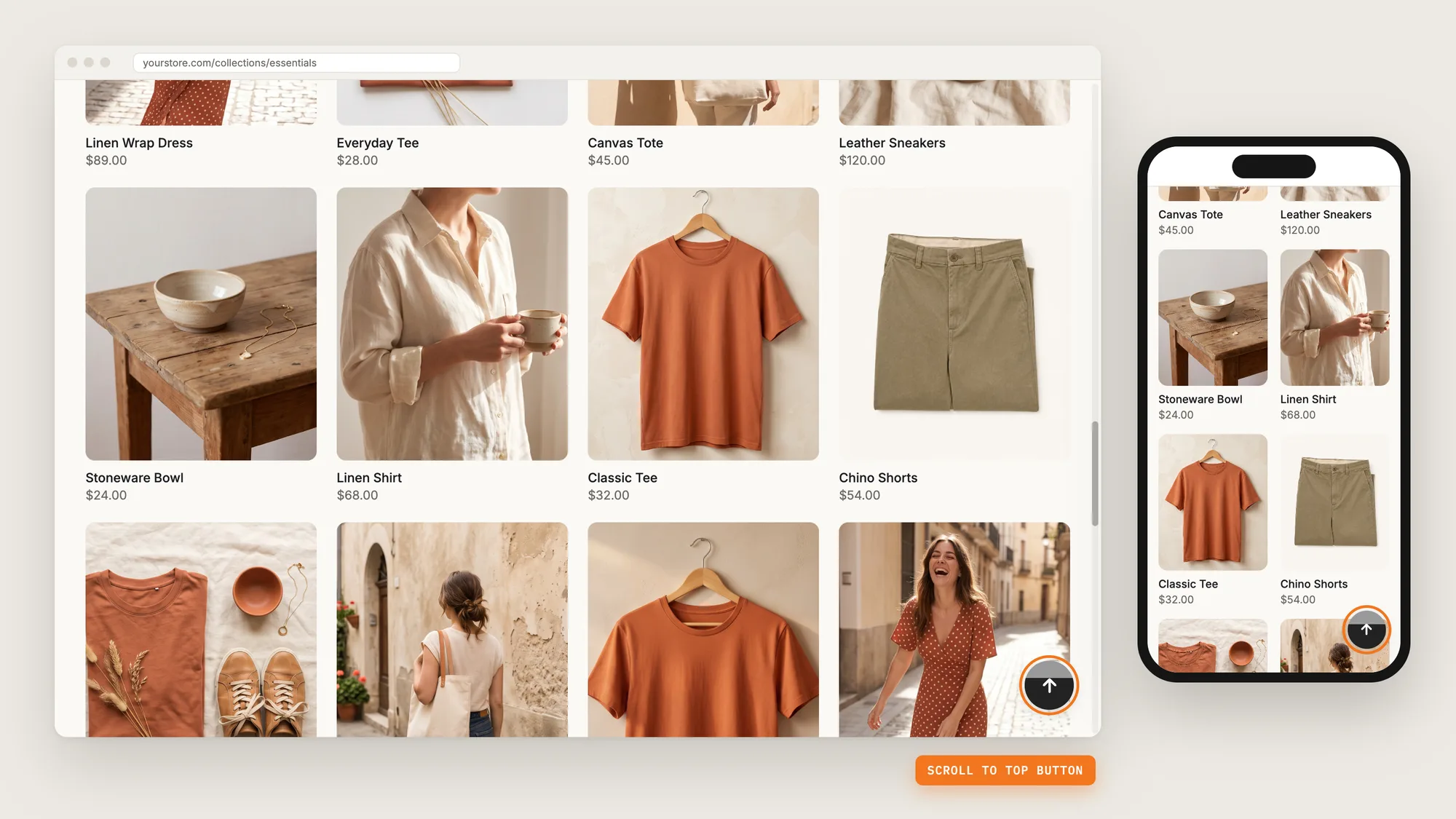
Long collection pages, long product descriptions and long blog posts push the menu, the search bar and the product photos far out of reach. On a phone, getting back to the top of the page can take a lot of swiping.
A scroll to top button floats in the corner of the screen once a shopper scrolls down. One click takes the shopper back to the top of the page, where the menu, the product photos and the purchase options are.
Here are the three ways to add a scroll to top button in Shopify: with a Scroll to Top Button app, from your theme settings, or with custom code.
What Is a Scroll to Top Button?
A scroll to top button is a small floating button that scrolls the page back to the top when a shopper clicks it. The scroll to top button stays hidden at the top of the page and appears once the shopper scrolls down.
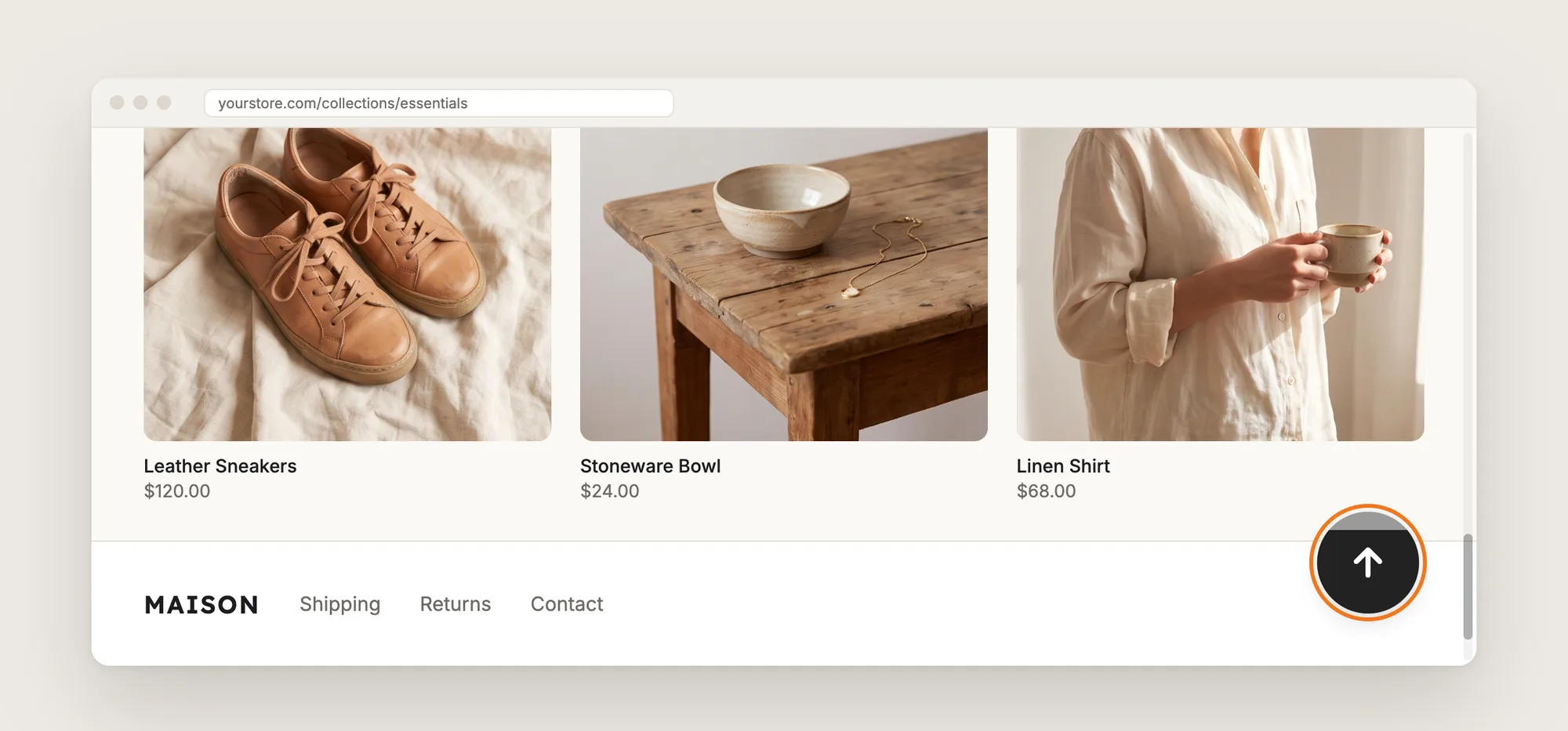
A good scroll to top button includes:
- A clear up arrow: Shoppers know what the button does without reading a label.
- A color that stands out: The scroll to top button shows up against your product photos and your page background.
- The right corner: The button stays clear of chat bubbles and other floating buttons.
- Phone support: The scroll to top button shows on phones, where long pages take the most swiping.
A scroll to top button only moves the page. The scroll to top button doesn't change your menu, your header or your page content.
What's the Quickest Way to Add a Scroll to Top Button?
- Vitals - All in One App is the quickest way to add a scroll to top button for most stores
- Vitals also offers 40+ apps, such as sticky add to cart, a cart drawer and product reviews, in one subscription of $29.99/month, so you don't have to install and pay for each app separately
Here's how the three methods compare.
How to Add a Scroll to Top Button With a Scroll to Top App?
Install the Vitals - All in One App, open its Scroll to Top Button app and click Activate app. The scroll to top button then shows on your store pages, and the steps below set where it shows and how it looks.
Step 1: Install the Vitals - All in One App
Install the Vitals - All in One App from the Shopify App Store. The 7-day free trial includes the Vitals Scroll to Top Button app.
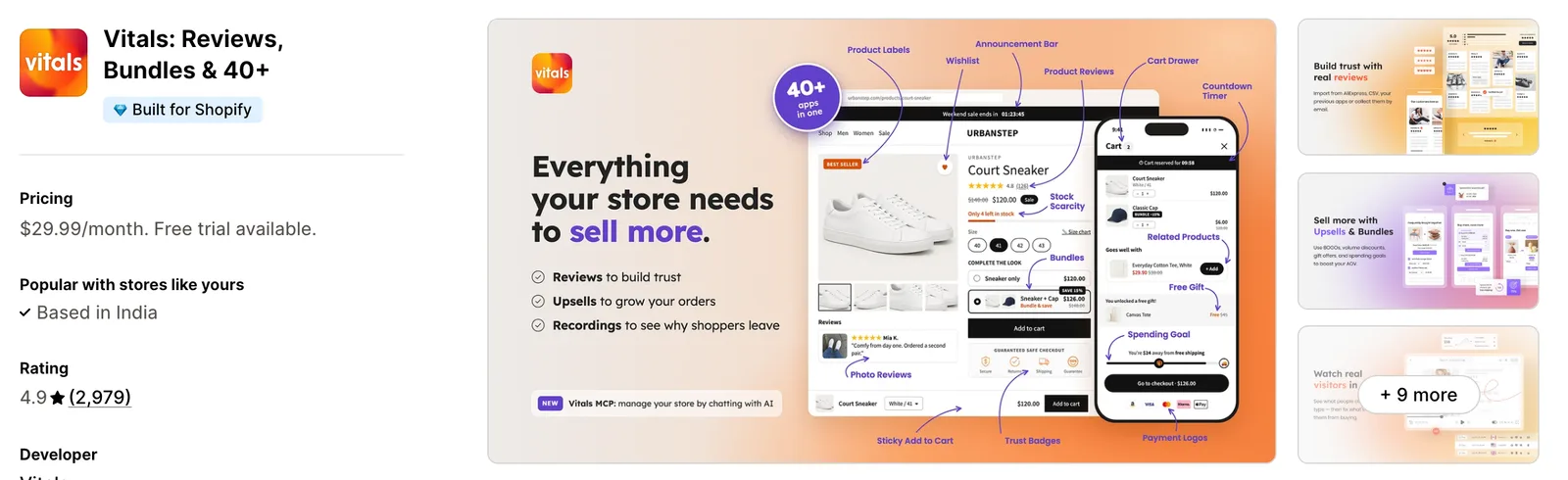
Step 2: Approve the Install in Shopify
Click Install to approve the store data Vitals uses. Shopify then opens the Vitals dashboard.
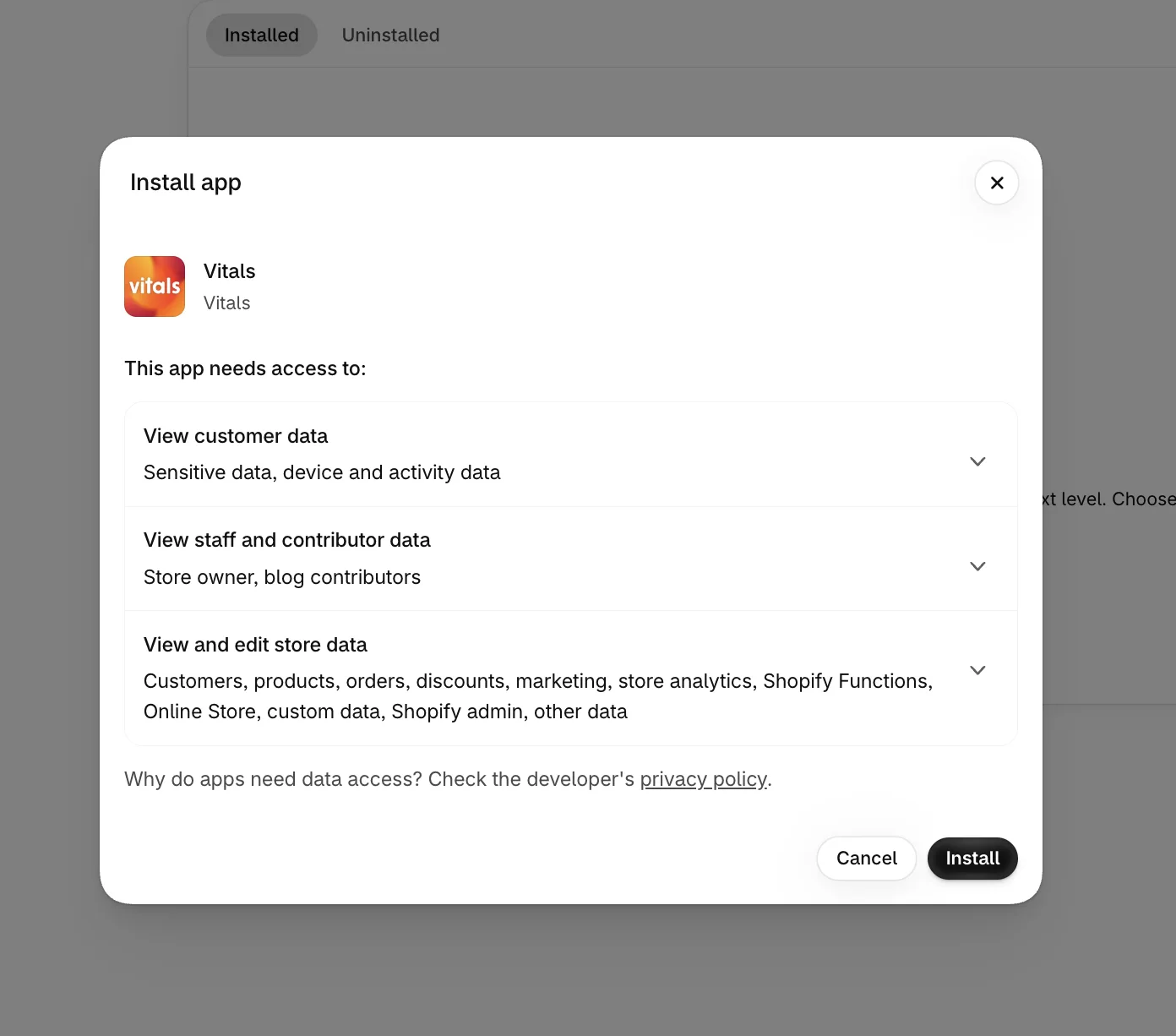
Step 3: Open Scroll to Top Button
In the Vitals dashboard, find Scroll to Top Button in the list and click it.
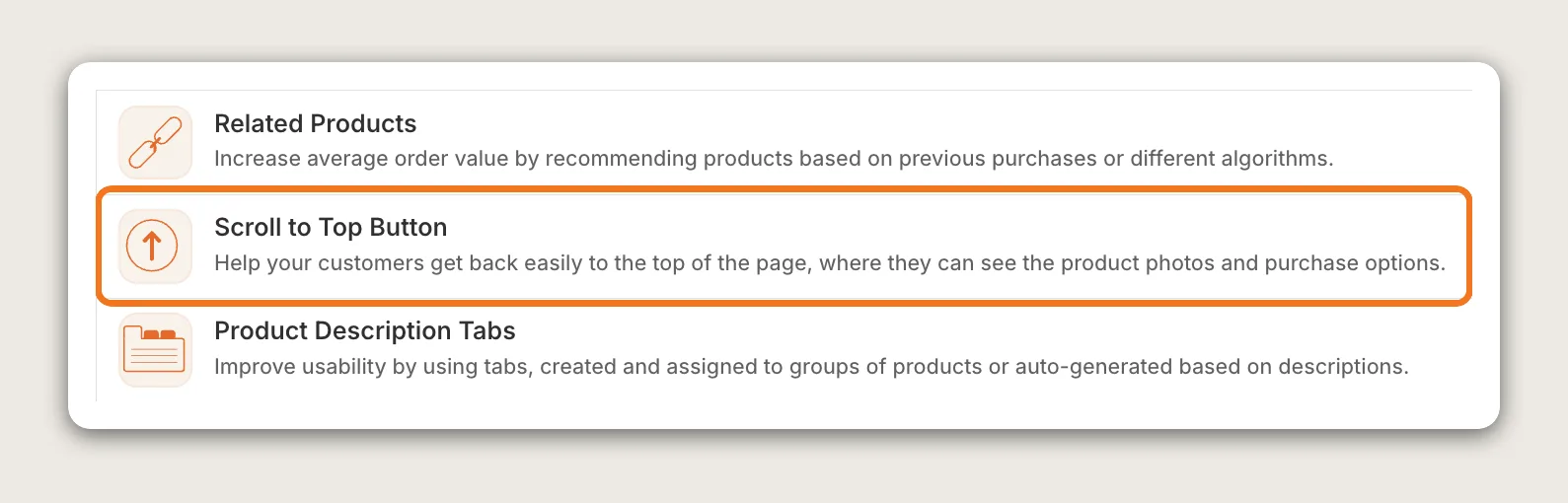
Step 4: Activate the App
Click Activate app at the top right of the page. The button turns into an Active button, and the scroll to top button goes live on your store.
The Scroll to Top Button app then shows one settings page with two cards, Settings and Theme, next to a live preview.
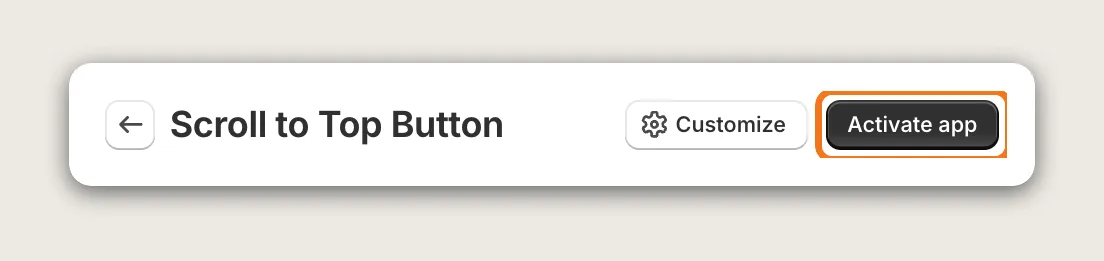
Step 5: Show the Button on Desktop and Mobile
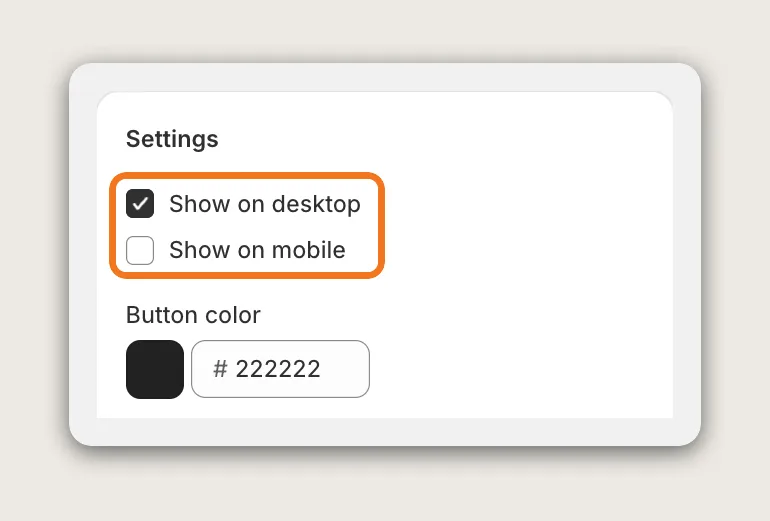
In the Settings card, tick Show on mobile. Show on desktop is on by default, but Show on mobile is off by default, so the scroll to top button doesn't show on phones until you tick it.
Step 6: Pick the Button Color
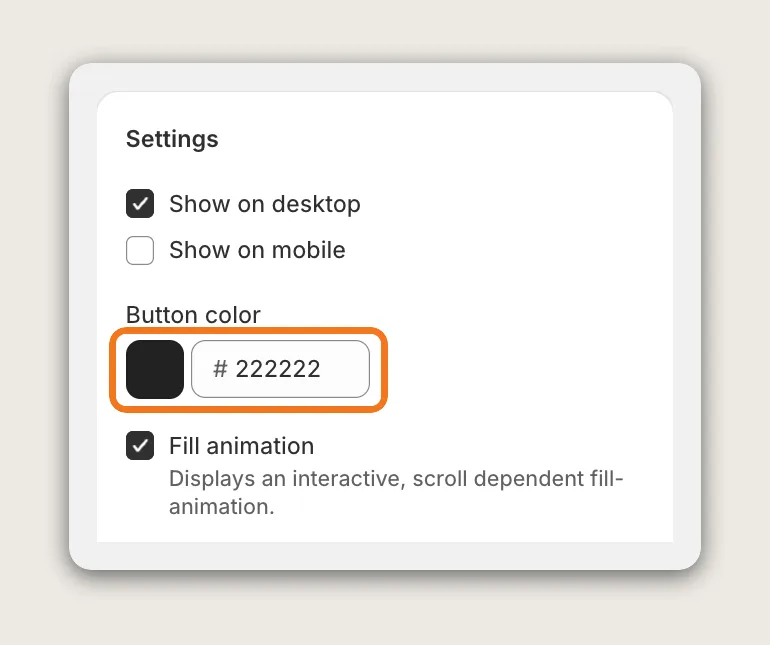
In Button color, pick a color that stands out against your store background and product photos. The default is a dark gray, #222222.
Step 7: Turn the Fill Animation On or Off
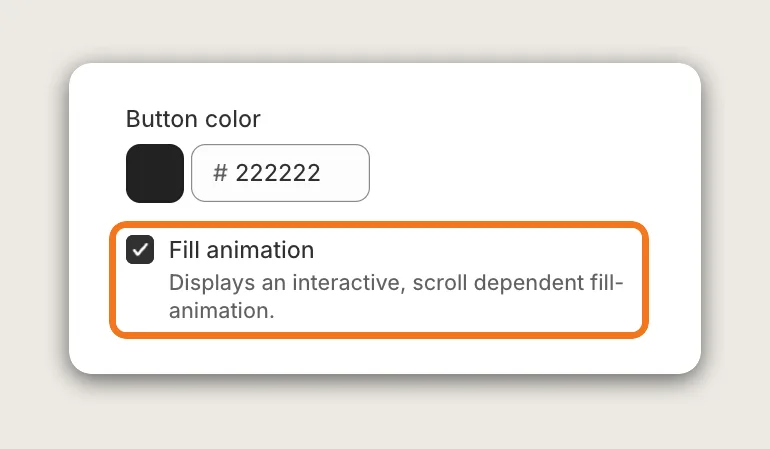
Fill animation fills the scroll to top button as the shopper scrolls down the page. The fill shows shoppers how far down the page they are. Fill animation is on by default; untick it for a plain button.
Step 8: Choose the Button's Alignment
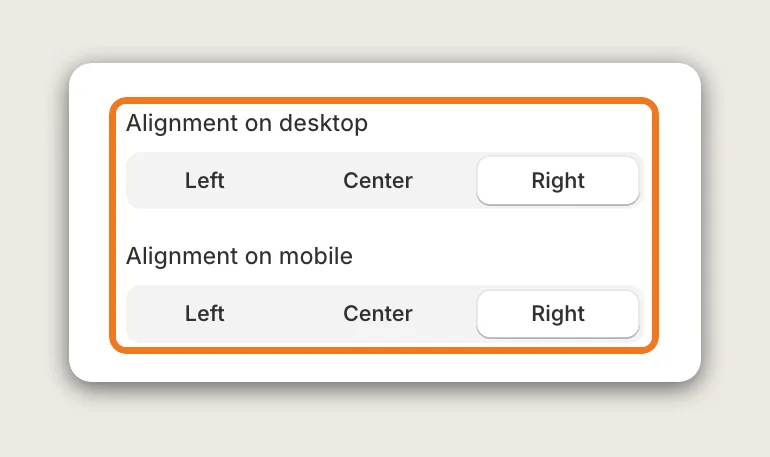
Set Alignment on desktop and Alignment on mobile to Left, Center or Right. Both are Right by default. Set each one, because changing the desktop alignment doesn't move the scroll to top button on phones.
Step 9: Set the Button Size
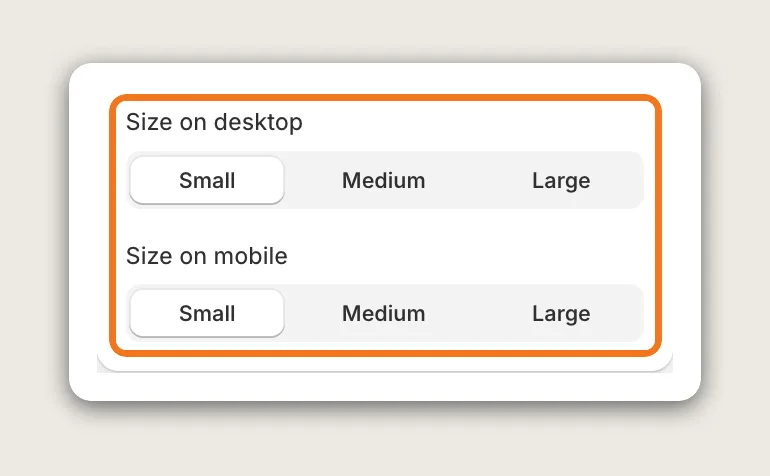
Set Size on desktop and Size on mobile to Small, Medium or Large. Both are Small by default, and each device has its own setting.
Step 10: Pick a Button Style
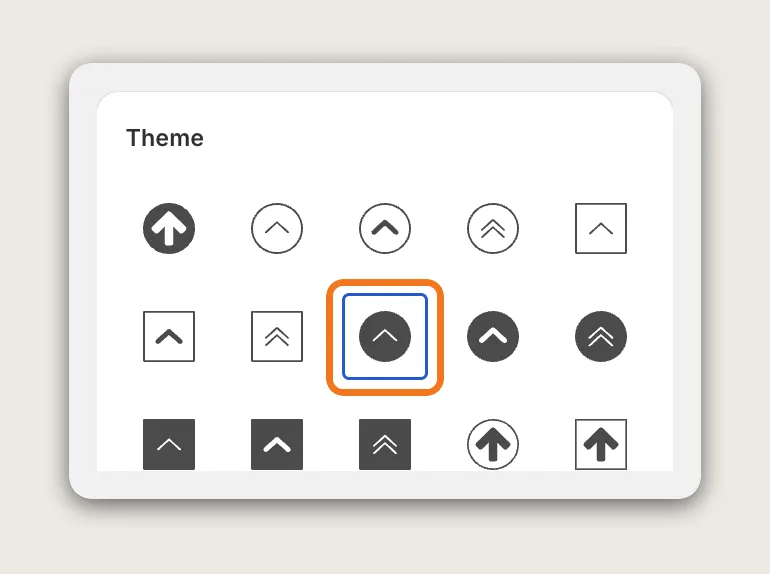
In the Theme card, click one of the 16 button styles. The styles change the shape and the arrow of the scroll to top button, and the live preview updates as you click.
Step 11: Save and Test on Your Phone
Save your changes, then open a long collection page on your phone and scroll down. The scroll to top button appears once you scroll past the first 500 px of the page, and one tap takes you back to the top.
Test on a real phone, not only in the admin preview. The admin's mobile preview shows the scroll to top button even when Show on mobile is unticked.
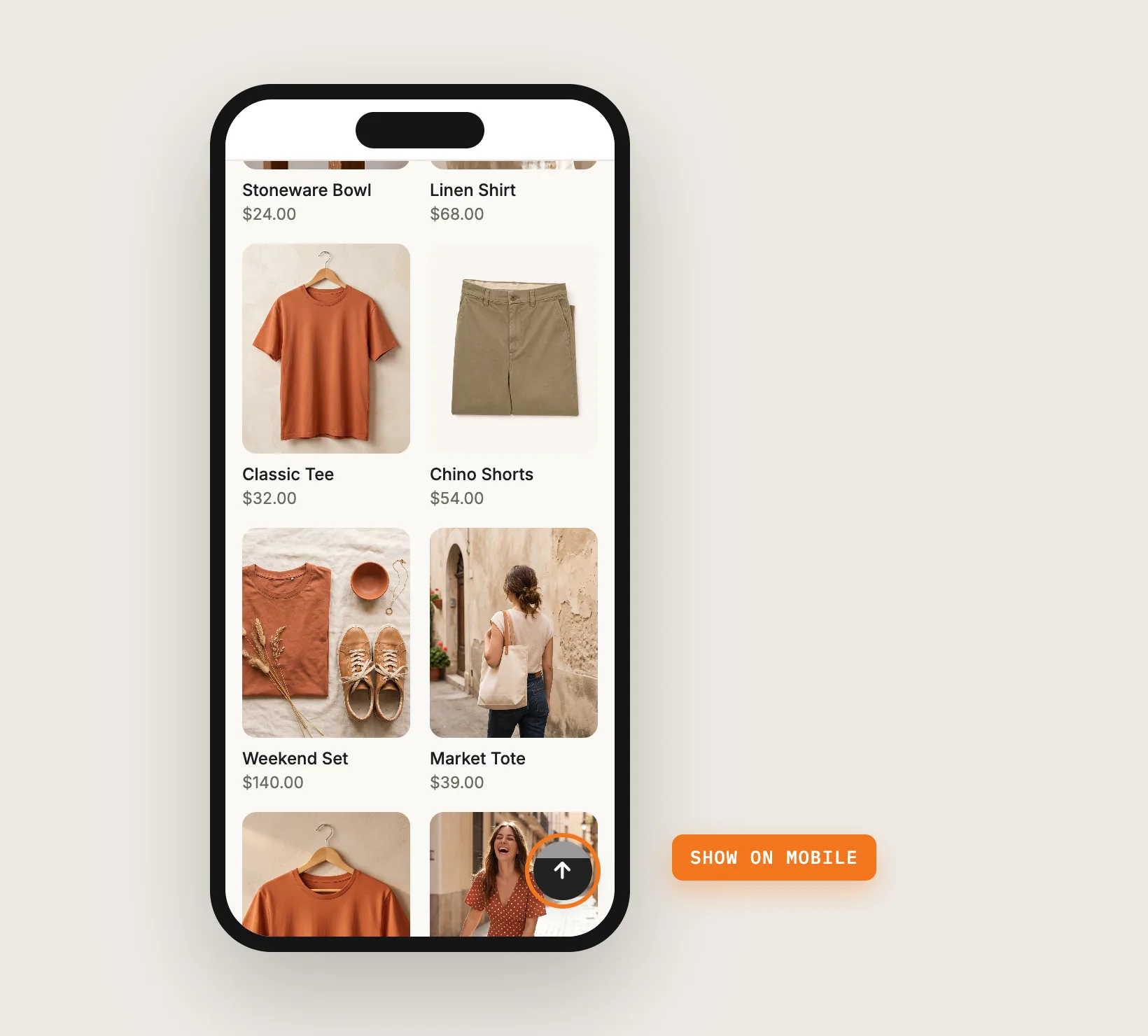
Step 12: Voila, Your Scroll to Top Button Is Live on the Store
Your shoppers can now get back to the top of any long page in one click, on desktop and on mobile.
How to Add a Scroll to Top Button From Your Theme Settings?
Some Shopify themes include a scroll to top button in their theme settings, and many don't. To check your theme's settings:
- Open Online Store → Themes in Shopify and click Customize
- Open Theme settings and look for a "Back to top" or "Scroll to top" option
- Turn the option on if your theme offers it, and click Save
A theme's scroll to top button uses your theme's own look, and the options depend on the theme. Many themes offer only an on and off switch, without a choice of color, style, size or side of the screen, and without separate settings for phones. If your theme has no scroll to top button, add the scroll to top button with an app or custom code.
How to Add a Scroll to Top Button Without an App?
Hire a developer to build a scroll to top button into your theme with Liquid, CSS and JavaScript. The scroll to top button is a small snippet added to the theme layout, so the button shows on every page.
A custom scroll to top button usually involves:
- Making a copy of your theme, so the live store stays untouched during testing
- Adding the button's markup to the theme layout
- Adding a script that shows the button after the shopper scrolls down and scrolls the page back to the top on click
- Styling the button for desktop and phones
- Adding theme settings for the color and position, so you can change the button without code
- Testing the button on every page template, then publishing the theme copy
Custom code means no extra app, but you or your developer have to maintain it. A theme update can replace the files the code is in, and every change to the button's look means editing the code.
How to Increase Sales With a Scroll to Top Button?
A scroll to top button helps sales by taking shoppers on long pages back to the menu, the product photos and the purchase options in one click. These settings help the scroll to top button keep shoppers browsing:
- Show the scroll to top button on phones. Long pages take the most swiping on a phone. Tick Show on mobile, because the setting is off by default
- Keep the scroll to top button clear of other floating buttons. A chat bubble in the same corner can hide the button. Move the button with Alignment on desktop and Alignment on mobile
- Make the scroll to top button easy to spot. Pick a Button color that contrasts with your product photos and your background
- Make the scroll to top button easy to tap. Set Size on mobile to Medium or Large if the small button is hard to tap on your store
- Show shoppers how far down the page they are. Keep Fill animation on, so the button fills as the shopper scrolls
Why Isn't My Scroll to Top Button Showing or Working?
These fixes solve most scroll to top button problems:
- The button doesn't show on phones: Show on mobile is off by default. Tick it in the Settings card
- The button shows in the admin preview but not on my phone: The admin's mobile preview always shows the scroll to top button, even with Show on mobile unticked. Check the setting, then test on a real phone
- The button doesn't show at the top of the page: The scroll to top button appears only after the shopper scrolls past 500 px. Scroll further down the page
- The button never shows on a page: Pages with 500 px or less of scrolling never show the scroll to top button. Test on a long page, such as a collection page
- The button doesn't show at all: Check that the page header shows the green Active button and that Show on desktop is ticked. Then test in an incognito window, so your browser doesn't show a cached page
- I moved the button, but it didn't move on my phone: Alignment on desktop and Alignment on mobile are separate settings. Set Alignment on mobile too
- A scroll to top button shows even though the app is off: The button may come from your theme or from another app. Check your theme settings and your other apps
- The button hides a chat bubble: Move the scroll to top button to another side with Alignment on desktop and Alignment on mobile
Which Scroll to Top Button Method Should You Choose?
Vitals - All in One App suits most stores, but the right method depends on what your theme already offers.
- Choose Vitals - All in One App if you want a scroll to top button with your own color, 16 styles and separate desktop and mobile settings. It also includes 40+ other apps in one subscription of $29.99/month, so you don't have to install and pay for each app separately
- Choose your theme's setting if your theme already includes a scroll to top button and its look fits your store
- Choose custom code if you have a developer, want no app at all, and are happy to maintain the code after theme updates
Start a 7-day free trial: Install the Vitals - All in One App and add a scroll to top button
Frequently Asked Questions
1. What is the best way to add a scroll to top button in Shopify?
Vitals - All in One App is the best way for most stores. Its Scroll to Top Button app adds a scroll to top button without code, with 16 styles, your own color, and separate show, alignment and size settings for desktop and mobile.
2. Does Shopify have a built-in scroll to top button?
Shopify doesn't add a scroll to top button on its own. Some Shopify themes include a scroll to top button in Online Store → Themes → Customize → Theme settings, and many don't.
3. Why doesn't my scroll to top button show on mobile?
In the Vitals Scroll to Top Button app, Show on mobile is off by default. Tick Show on mobile in the Settings card, then test on a real phone, because the admin preview shows the button on mobile even when the setting is off.
4. Can I move the scroll to top button to the left side?
Yes. Set Alignment on desktop and Alignment on mobile to Left, Center or Right. Set both, because changing the desktop alignment doesn't move the button on phones.
5. Can I make the scroll to top button show earlier on the page?
No. The scroll to top button appears once the shopper scrolls past 500 px, and there is no setting to change that point. Pages with 500 px or less of scrolling don't show the button.
6. Can I show the scroll to top button only on certain pages?
No. The Vitals Scroll to Top Button app has no page targeting. The scroll to top button shows on every store page with more than 500 px of scrolling.
7. Can I change the scroll to top button icon?
Yes. In the Theme card of the Vitals Scroll to Top Button app, click one of the 16 button styles. Each style changes the shape and the arrow of the scroll to top button.