How to Add Currency Converter in Shopify

Shoppers from abroad who see prices only in your store's currency have to work out what each product costs in money they know. Making shoppers work out exchange rates is a quick way to lose the sale.
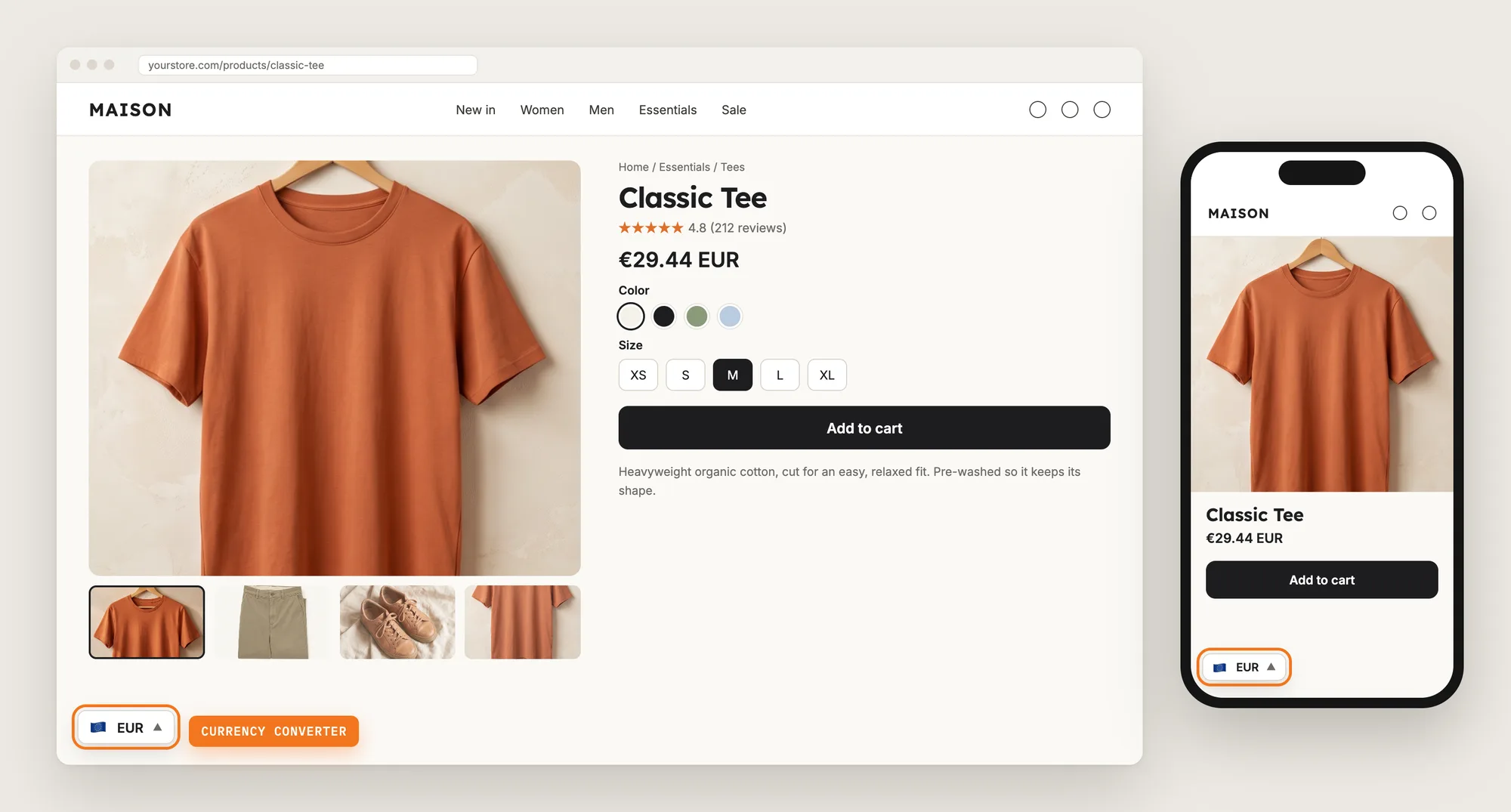
A currency converter shows your prices in each visitor's local currency as soon as they land, and adds a switcher so shoppers can pick another currency.
Here are the three ways to add a currency converter in Shopify: with a Currency Converter app, from your theme settings, or with custom code.
What Is a Currency Converter?
A currency converter is a store feature that shows your product prices in the visitor's local currency, picked from where the visitor is, with a currency switcher to choose another currency. Stores selling to more than one country use the currency converter so shoppers see familiar prices on every page.
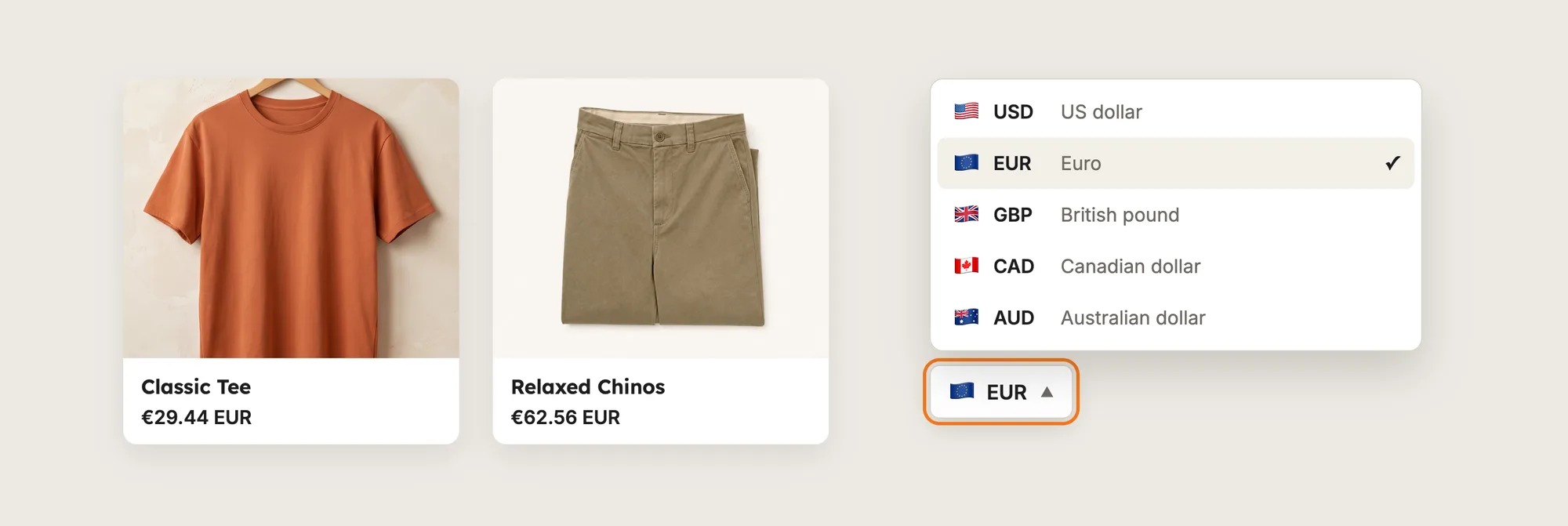
A good currency converter includes:
- Automatic currency by location: Prices switch to the visitor's currency when the visitor arrives, with no click needed.
- A currency switcher: Shoppers can pick another currency from a short list.
- The currencies you sell to: The list holds only the currencies of your shoppers, so nobody scrolls through 160 options.
- A clear checkout currency: Shoppers know before checkout which currency the order is paid in.
A currency converter changes the prices shoppers see on your store pages. The currency shoppers pay in at checkout is set by Shopify.
What's the Quickest Way to Add a Currency Converter?
- Vitals - All in One App is the quickest way to add a currency converter for most stores
- Vitals also offers 40+ apps, such as product reviews, bundles and pop-ups, in one subscription of $29.99/month, so you don't have to install and pay for each app separately
Here's how the three methods compare. For more options, see our list of the best Shopify currency converter apps.
How to Add a Currency Converter With a Currency Converter App?
Install the Vitals - All in One App, open its Currency Converter app, set your store's currency format and click Activate app. The currency converter then shows prices in each visitor's local currency, and the steps below set the currencies, the switcher and the cart notice.
Step 1: Install the Vitals - All in One App
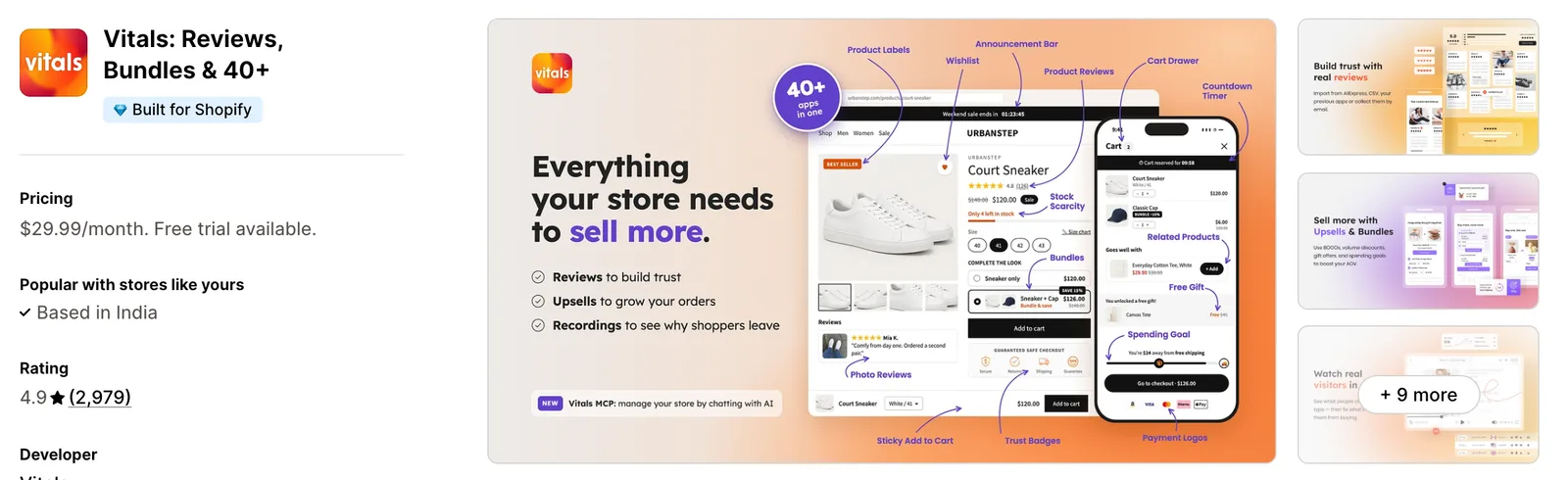
Install the Vitals - All in One App from the Shopify App Store. The 7-day free trial includes the Vitals Currency Converter app.
Step 2: Approve the Install in Shopify
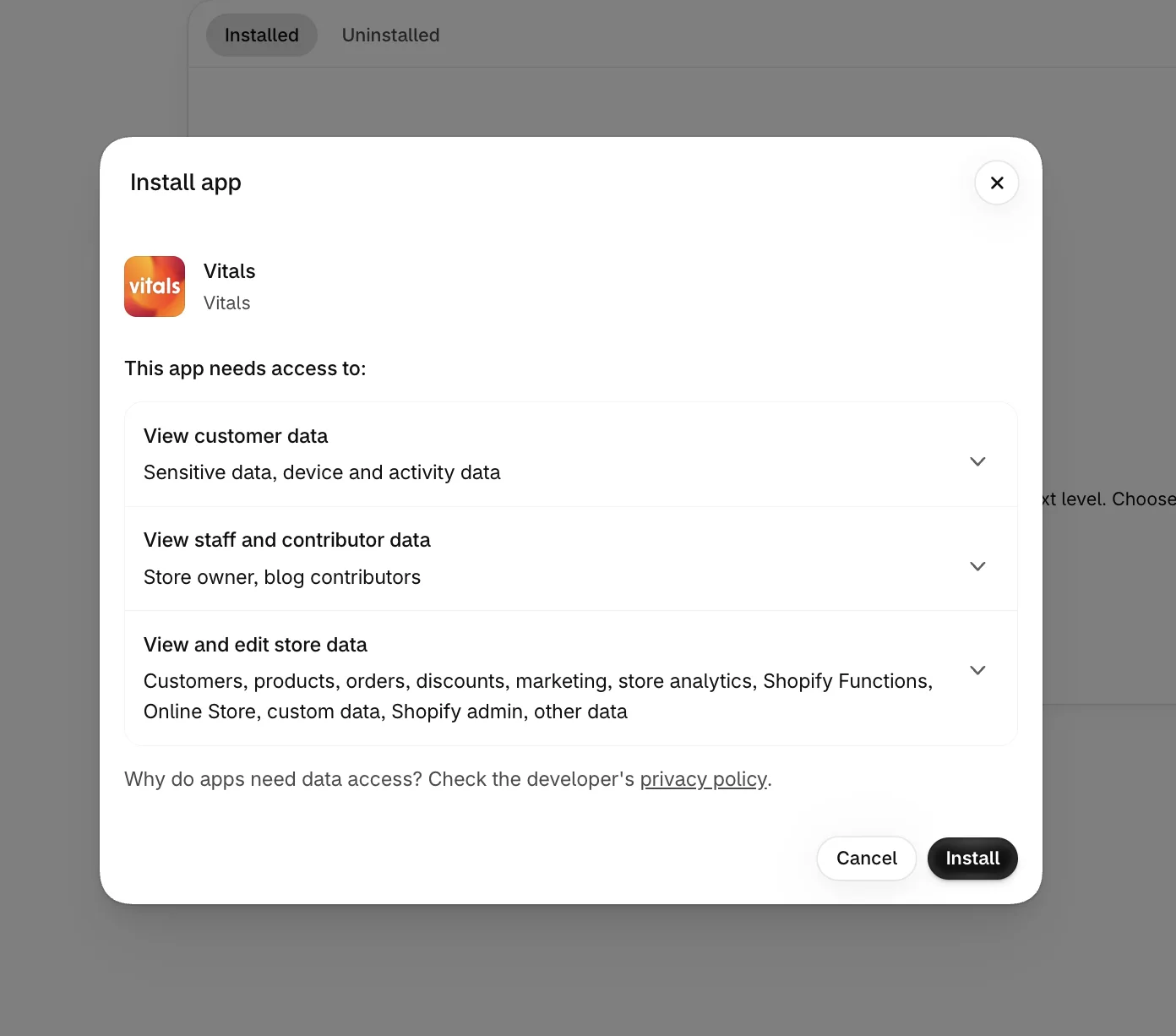
Click Install to approve the store data Vitals uses. Shopify then opens the Vitals dashboard.
Step 3: Open Currency Converter
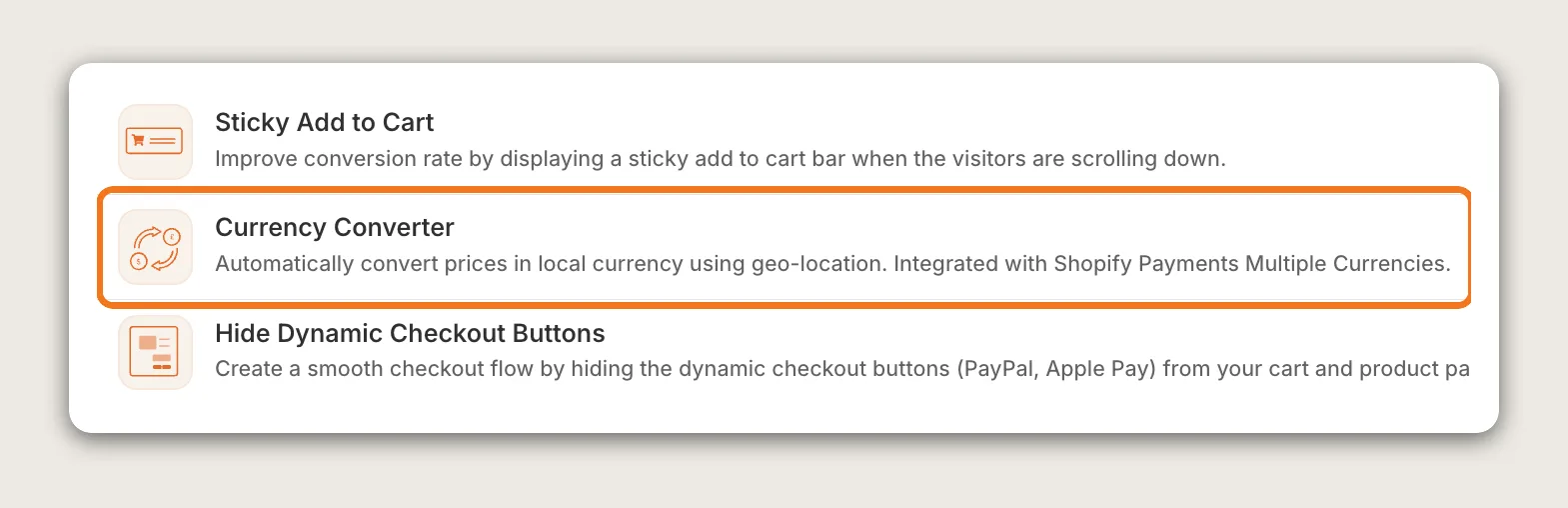
In the Vitals dashboard, find Currency Converter in the list of apps and click it.
Step 4: Set Your Store's Currency Format
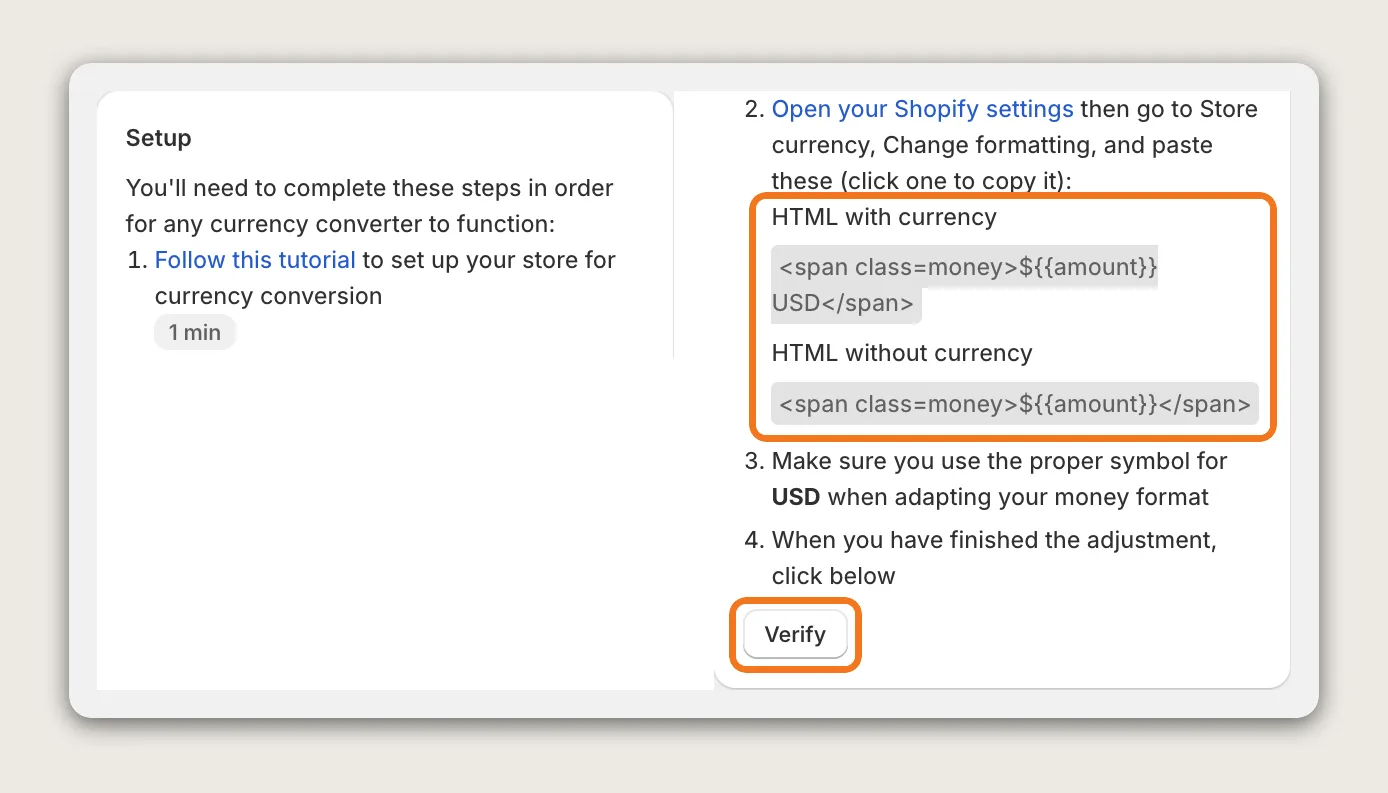
Copy the two currency formats from the Setup box in Currency Converter → Settings into Shopify. The currency converter finds prices by this format, so prices don't convert until the format is set.
- In Vitals, open Currency Converter → Settings and find HTML with currency and HTML without currency in the Setup box. Both are already written for your store's currency
- Click Open your Shopify settings in the Setup box, then go to Store currency and choose Change currency formatting
- Click each format in the Setup box to copy it, paste it into the matching Shopify field and click Save
- Back in Vitals, click Verify
The Setup box shows only until your store's format is set, so a store with the right format already skips this step.
Step 5: Activate the App
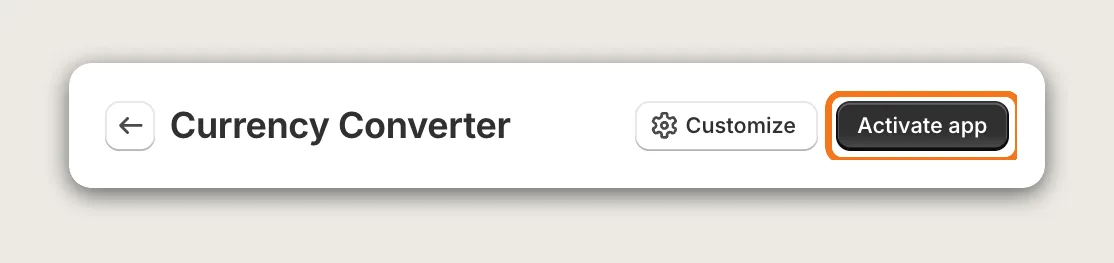
Click Activate app at the top right of the Currency Converter page. The button then turns into an Active button, and the currency converter is on.
Step 6: Choose the Currencies
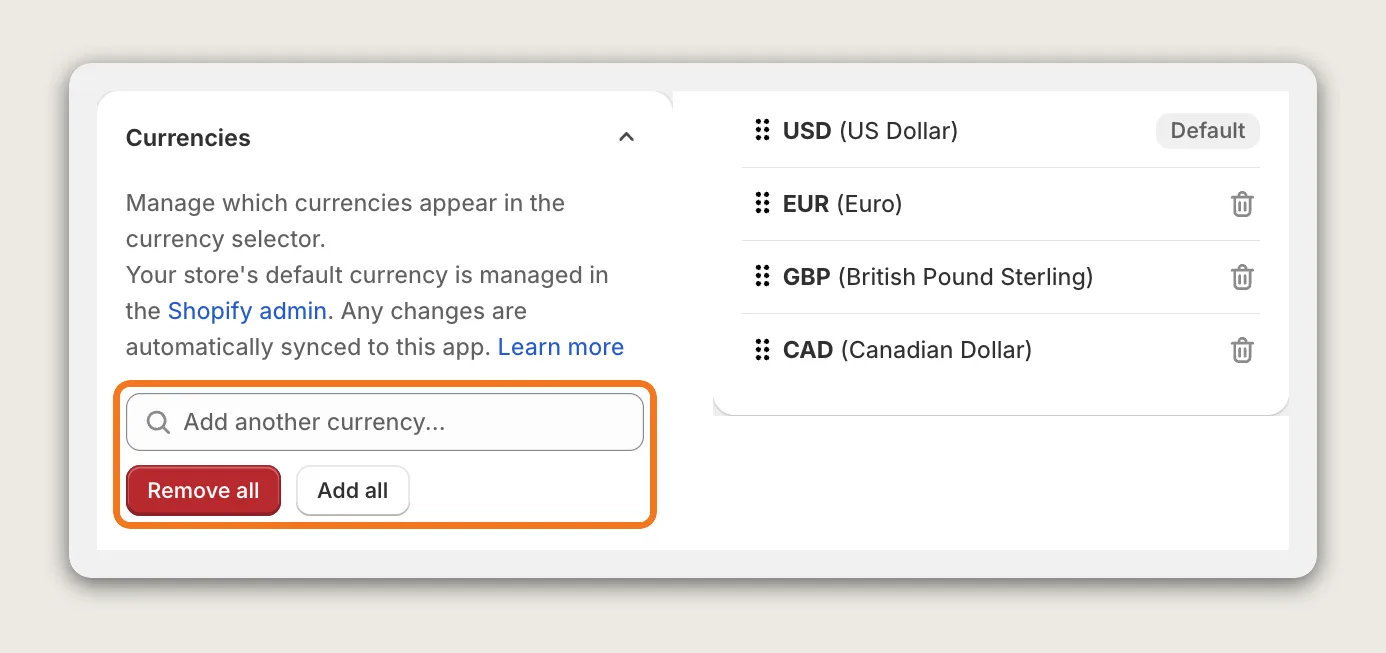
Under Currencies, add the currencies of the countries you sell to with Add another currency..., and drag the rows into the order you want. Your store currency shows with a Default badge and stays in the list.
Add all adds every currency available in Shopify, but a long list makes shoppers scroll to find their currency. Add only the currencies your shoppers use. The currency converter picks each visitor's currency by location anyway.
Step 7: Show the Switcher on Desktop and Mobile
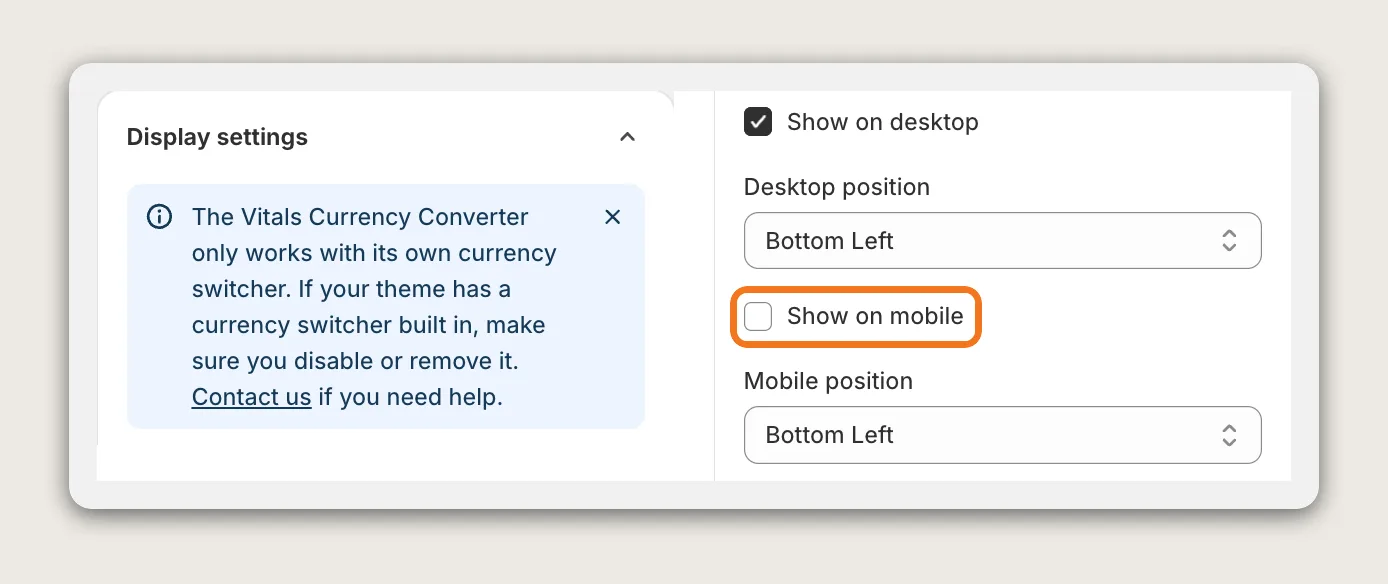
Under Display settings, tick Show on mobile. Show on desktop is on by default, but Show on mobile is off by default, so the currency switcher is missing on phones until you tick Show on mobile.
Step 8: Pick the Switcher's Corner
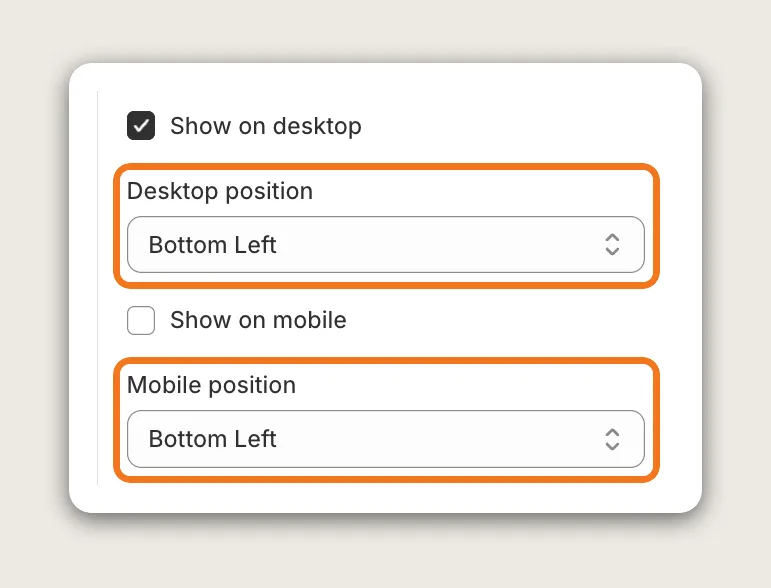
Set Desktop position and Mobile position to one of four corners: Bottom Left, Bottom Right, Top Left or Top Right. The default is Bottom Left. Pick a corner that doesn't hide your chat button or cart icon.
For a currency switcher inside your menu bar, contact the Vitals support team. Placing the currency converter in the menu isn't a setting you can pick yourself.
Step 9: Choose the Switcher's Look
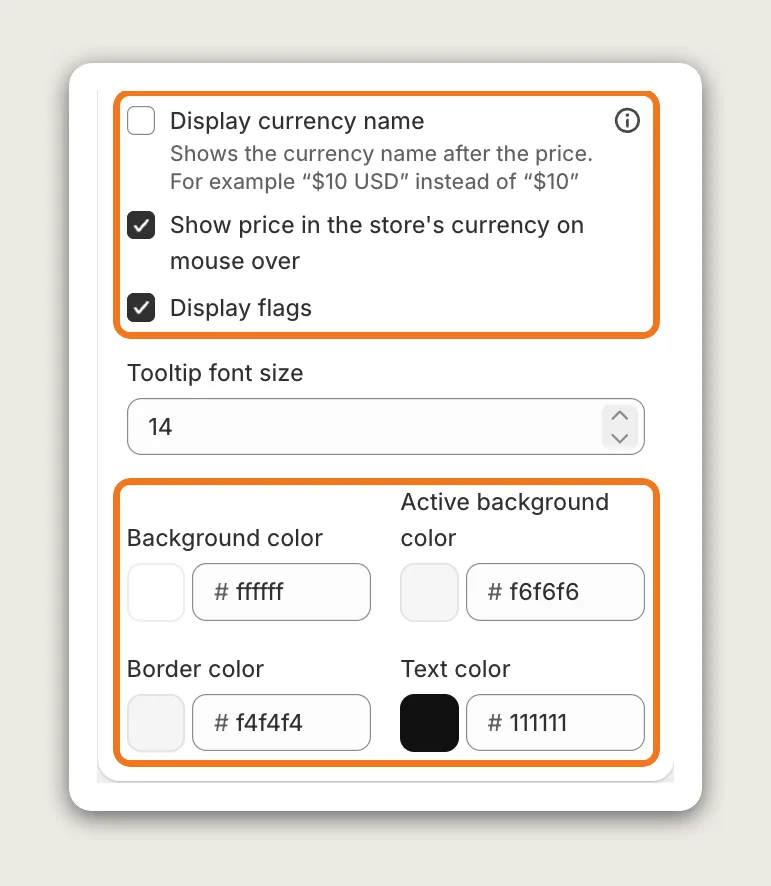
Under Display settings, choose what the currency switcher shows:
- Display flags: Shows a flag next to each currency
- Display currency name: Adds the currency code to prices, such as "$10 USD"
- Show price in the store's currency on mouse over: Shows the original price when a shopper points at a converted price. This is on by default
Then set Background color, Active background color, Border color and Text color to match your store.
Step 10: Convert Prices by Location
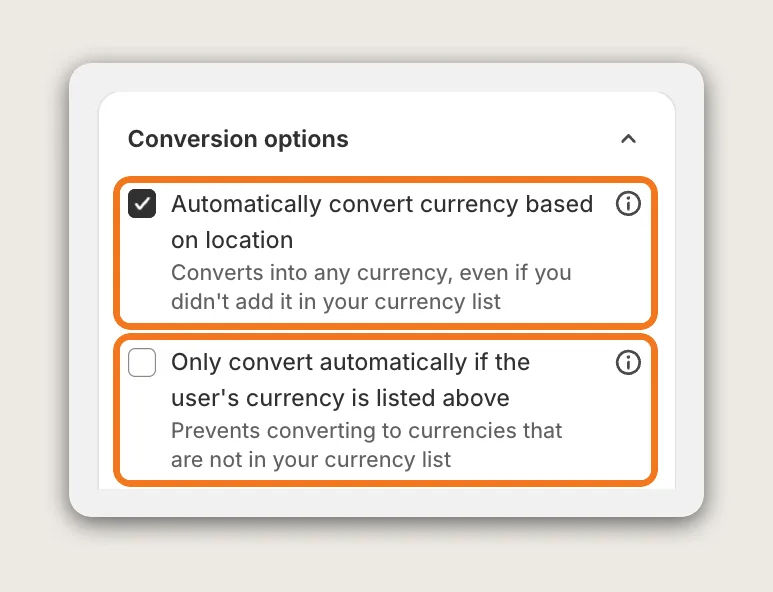
Under Conversion options, keep Automatically convert currency based on location on. The currency converter then switches prices to each visitor's currency as soon as the visitor lands. This setting is on by default.
Tick Only convert automatically if the user's currency is listed above to convert only into the currencies on your list. With this setting on, a visitor whose currency isn't on your list sees your store currency.
Step 11: Round Converted Prices (Optional)
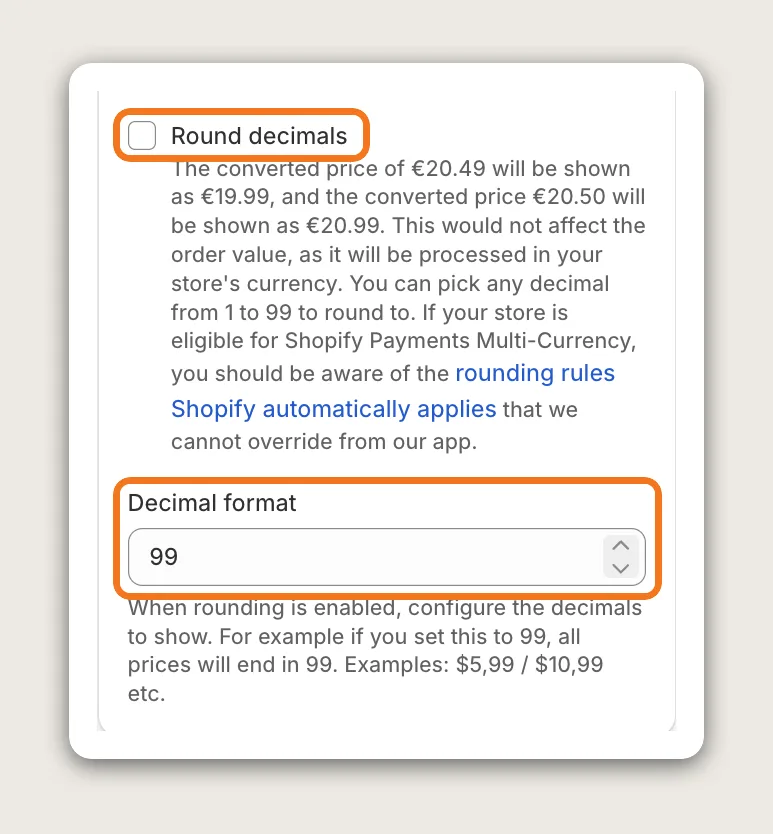
Tick Round decimals and set Decimal format, such as 99, to round converted prices store-wide. With 99, a converted price of €20.50 shows as €20.99, and €20.49 shows as €19.99.
Rounding changes only the prices shoppers see. The order still uses the prices you set in Shopify. Rounding has no effect on currencies that Shopify multi-currency or Shopify Markets converts, because Shopify applies its own rounding rules.
Step 12: Tell Shoppers Which Currency They Pay In
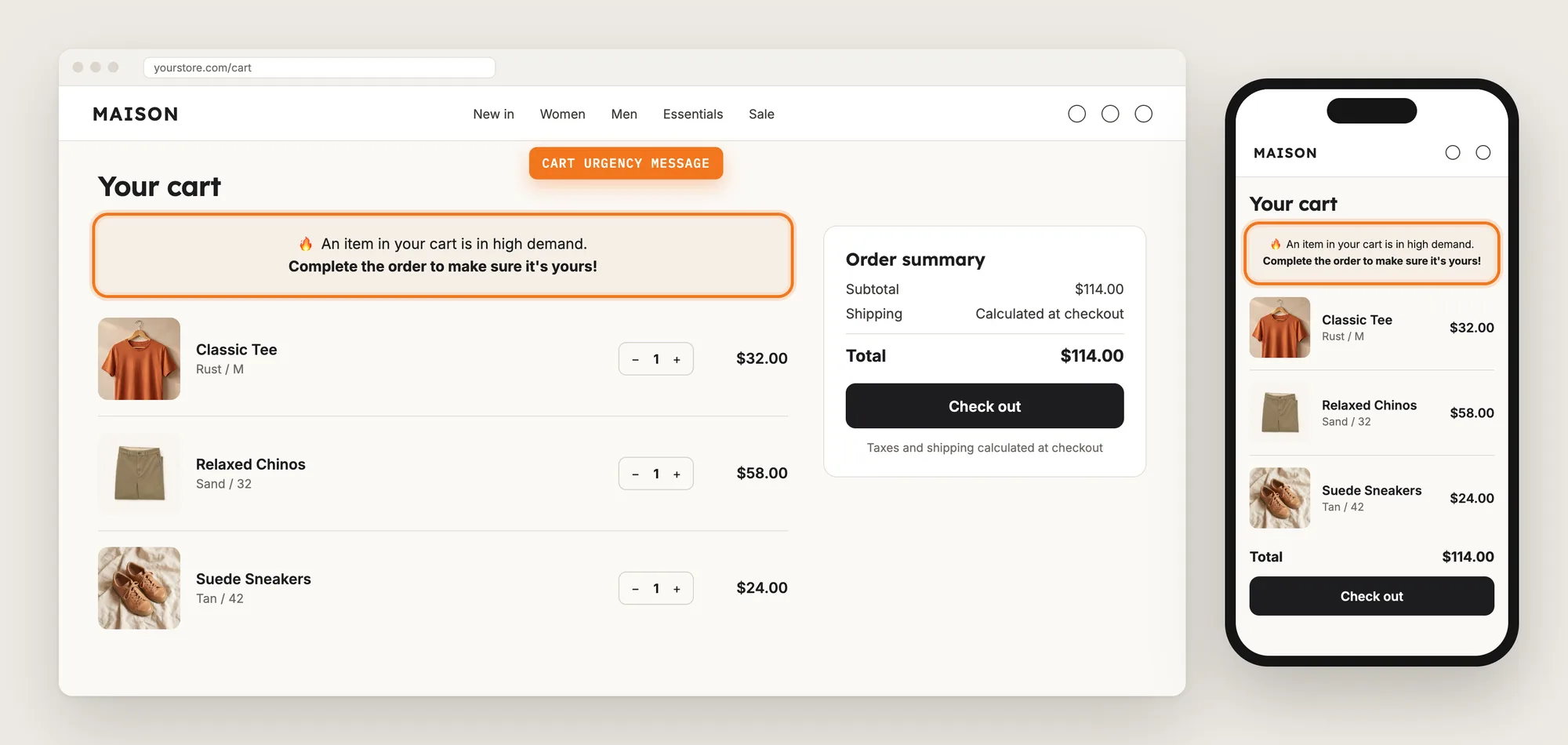
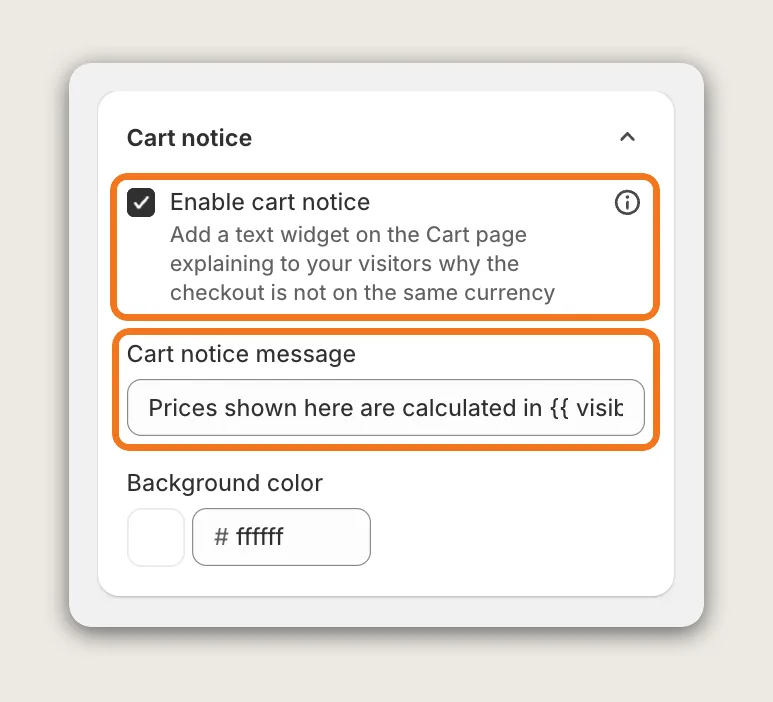
Under Cart notice, keep Enable cart notice on and edit the Cart notice message. The notice shows on the cart page and tells shoppers that the order is paid in your store currency, not in the currency they see.
Keep the {{ visible_currency }} and {{ default_currency }} variables in the message, so the notice names both currencies. Enable cart notice is on by default.
Step 13: Save, Test on Your Phone and Watch the Currency Switches
Save your settings, then test the currency converter on your live store. Turn on a VPN set to another country, open your store in a new incognito window and check that prices show in that country's currency. Then open your store on your phone and check that the currency switcher shows in the corner you picked.
The Analytics tab then shows how many times shoppers switched currency.
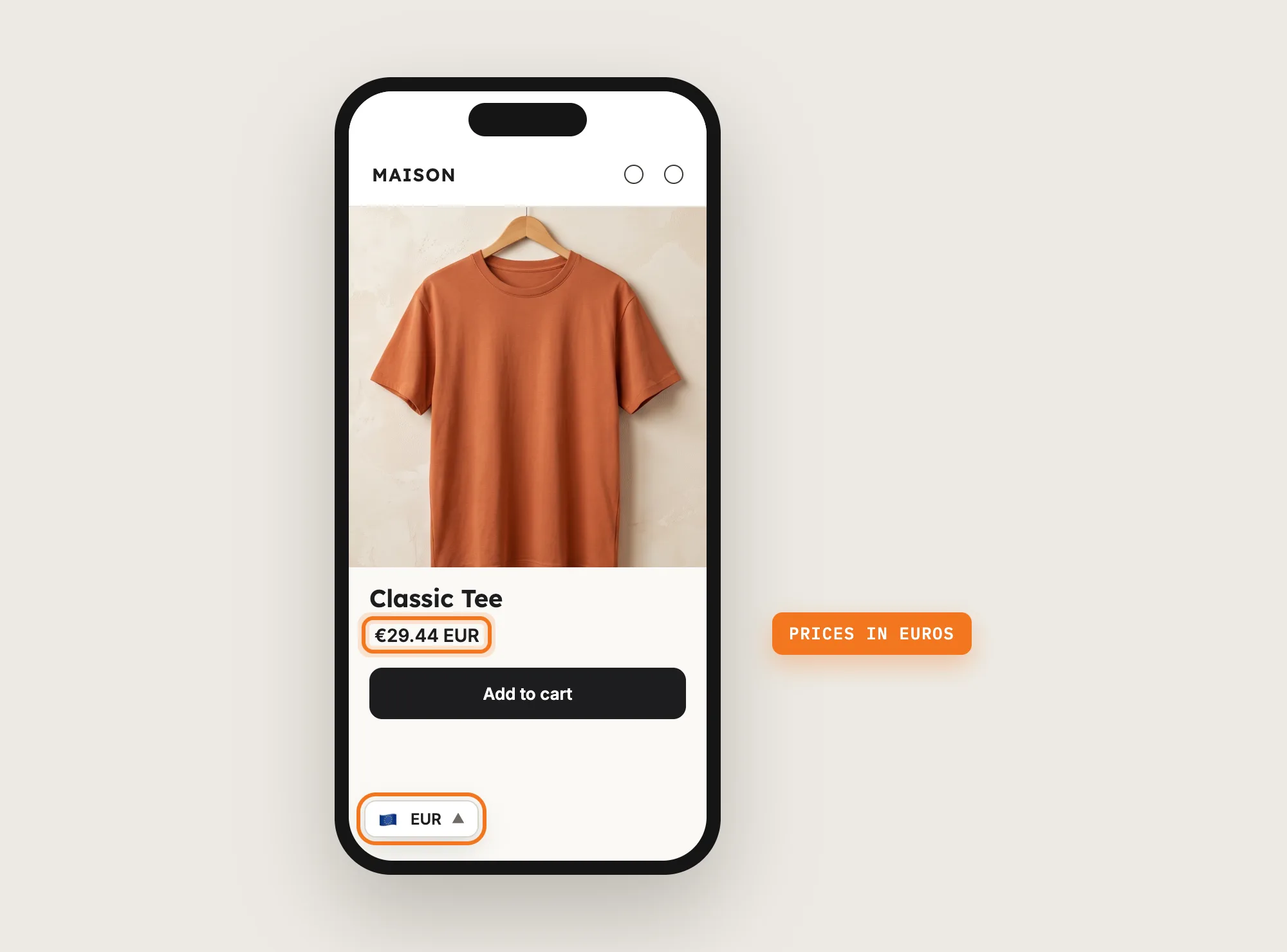
Step 14: Voila, Your Currency Converter Is Live on the Store
Your shoppers now see prices in their own currency on every page, with a switcher one tap away.
How to Add a Currency Converter From Your Theme Settings?
Many Shopify themes include a country or currency selector that lists the countries and currencies you set up in Shopify Markets. To check your theme's settings:
- Open Settings → Markets in Shopify and add the countries and currencies you sell to
- Open Online Store → Themes and click Customize
- Click the header or footer section and turn on the country or currency selector, if your theme offers one, then click Save
The theme's selector uses Shopify's own multi-currency, so with Shopify Payments, shoppers who pay by card check out in their local currency. A display currency converter can't change the checkout currency. Shoppers who pay with another payment provider pay in your store currency. The theme's selector only lists the currencies enabled in Shopify, and most themes don't let you style the selector beyond the theme's design.
The Vitals Currency Converter app works alongside Shopify Markets on its default settings. Currencies Shopify already shows are left to Shopify, so those currencies still check out in the local currency, and the Vitals currency converter converts prices for the other currencies on your list. The Vitals currency converter works only with its own switcher, so hide the theme's selector if you use both. If you set custom prices, taxes or exchange rates per region in Shopify Markets, Shopify controls all conversion and the Vitals currency converter won't work properly.
How to Add a Currency Converter Without an App?
Hire a developer to build a currency converter into your theme with Liquid and JavaScript. The build adds a currency switcher and a script that converts every price on the page.
A custom currency converter usually involves:
- Making a copy of your theme, so the live store stays untouched during testing
- Connecting the theme to an exchange rate source that updates every day
- Writing a script that finds every price on every page, including the cart drawer, and converts the price
- Adding a currency switcher and saving each shopper's choice for the next visit
- Detecting each visitor's country to pick the currency automatically, if you need it
- Testing every page template on desktop and phones, then publishing the theme copy
Custom code means no extra app, but you or your developer have to maintain it. A theme update can replace the files the code is in, and a custom currency converter still can't change the checkout currency. Only Shopify Payments can take payment in the shopper's currency.
How to Increase Sales With a Currency Converter?
A currency converter raises sales by showing shoppers from abroad what each product costs in money they know, so they don't leave the store to work it out. These settings help the currency converter move sales:
- Show local prices from the first page. Keep Automatically convert currency based on location on, so shoppers see their own currency before they click anything
- List the currencies of the countries you sell to. A short list under Currencies lets shoppers find their currency in one glance
- Show the currency switcher on phones. Tick Show on mobile, because the currency switcher is hidden on phones by default
- Tell shoppers which currency they pay in before checkout. A clear Cart notice message means no surprise at checkout, when shoppers decide whether to pay
- Show the store price on mouse over. Show price in the store's currency on mouse over shows shoppers the amount in your currency next to the converted price
- Let shoppers check out in their own currency where Shopify can. Turn on Shopify Payments multi-currency for your main currencies. The Vitals currency converter leaves those currencies to Shopify, so shoppers pay in the currency they saw
Why Isn't My Currency Converter Showing or Working?
These fixes solve most currency converter problems:
- Prices don't convert at all: Set your store's currency format. Open Currency Converter → Settings, copy the formats from the Setup box into Shopify's Change currency formatting and click Verify
- Prices convert on product pages but not in the cart drawer: The cart drawer shows prices without the money format the currency converter looks for. Contact the Vitals support team to fix the cart drawer
- Prices convert twice or change back: Remove any other currency converter app or theme currency switcher. Leftover code from an uninstalled currency converter app can also conflict, so ask your theme developer to remove the leftover code
- The currency switcher doesn't show on phones: Tick Show on mobile under Display settings. Show on mobile is off by default
- The wrong currency shows while testing with a VPN: Turn on the VPN first, then open your live store domain in a new incognito window. Automatic conversion doesn't work on theme preview links, and a currency picked earlier in the switcher can stay saved in your browser
- Prices aren't converted at checkout: Shopify controls the checkout page. Only Shopify Payments can take payment in the shopper's currency, and only for shoppers who pay by card
- Converted prices aren't rounded: Round decimals has no effect on currencies Shopify multi-currency or Shopify Markets converts, because Shopify applies its own rounding rules
Which Currency Converter Method Should You Choose?
Vitals - All in One App suits most stores, but the right method depends on how you take payment and how many currencies you sell in.
- Choose Vitals - All in One App if you want local prices by location in the currencies you pick, a styled currency switcher and a cart notice. It also includes 40+ other apps in one subscription of $29.99/month, so you don't have to install and pay for each app separately
- Choose your theme's setting if you use Shopify Payments, sell in a few currencies set up in Shopify Markets and want shoppers to check out in those currencies
- Choose custom code if you have a developer, want no app at all, and are happy to maintain the exchange rates and the script yourself
Start a 7-day free trial: Install the Vitals - All in One App and add a currency converter
Frequently Asked Questions
1. What is the best way to add a currency converter in Shopify?
Vitals - All in One App is the best way for most stores. Its Currency Converter app shows prices in each visitor's local currency by location, with a currency switcher in the corner you pick, flags, rounding and a cart notice, and works alongside Shopify Markets on default settings.
2. Does Shopify have a built-in currency converter?
Shopify has multi-currency through Shopify Payments and Shopify Markets, and many Shopify themes include a country or currency selector that lists the currencies you enable there. A currency converter app adds automatic conversion by location and currencies beyond the ones enabled in Shopify.
3. Will my customers pay in their own currency?
Only if your store uses Shopify Payments and the shopper pays by card in a currency you have enabled in Shopify. Otherwise the order is paid in your store currency, and the Vitals cart notice tells shoppers this before checkout.
4. Can I set my own exchange rates?
No. The Vitals Currency Converter app uses the same exchange rates Shopify uses, and you can't add a markup to one currency. To adjust prices for one market, use price adjustments in Shopify Markets.
5. Does the currency converter work with Shopify Markets?
Yes, when Shopify Markets uses its default settings. If you set custom prices, taxes or exchange rates per region, Shopify takes over all conversion and the Vitals currency converter won't work properly.
6. Can I put the currency switcher in my menu bar?
Yes, with help from the Vitals support team. The Desktop position and Mobile position settings place the currency switcher in a corner of the screen, and the support team can move the currency switcher into your menu.
7. How can I test the currency converter?
Turn on a VPN set to another country, then open your live store in a new incognito window. Prices should show in that country's currency. Test on your live store domain, because automatic conversion doesn't work on theme preview links.