How to Add Cart Urgency Message in Shopify

Shoppers add products to the cart, then leave to compare prices, check a review or think it over. Many of those carts never come back to checkout.
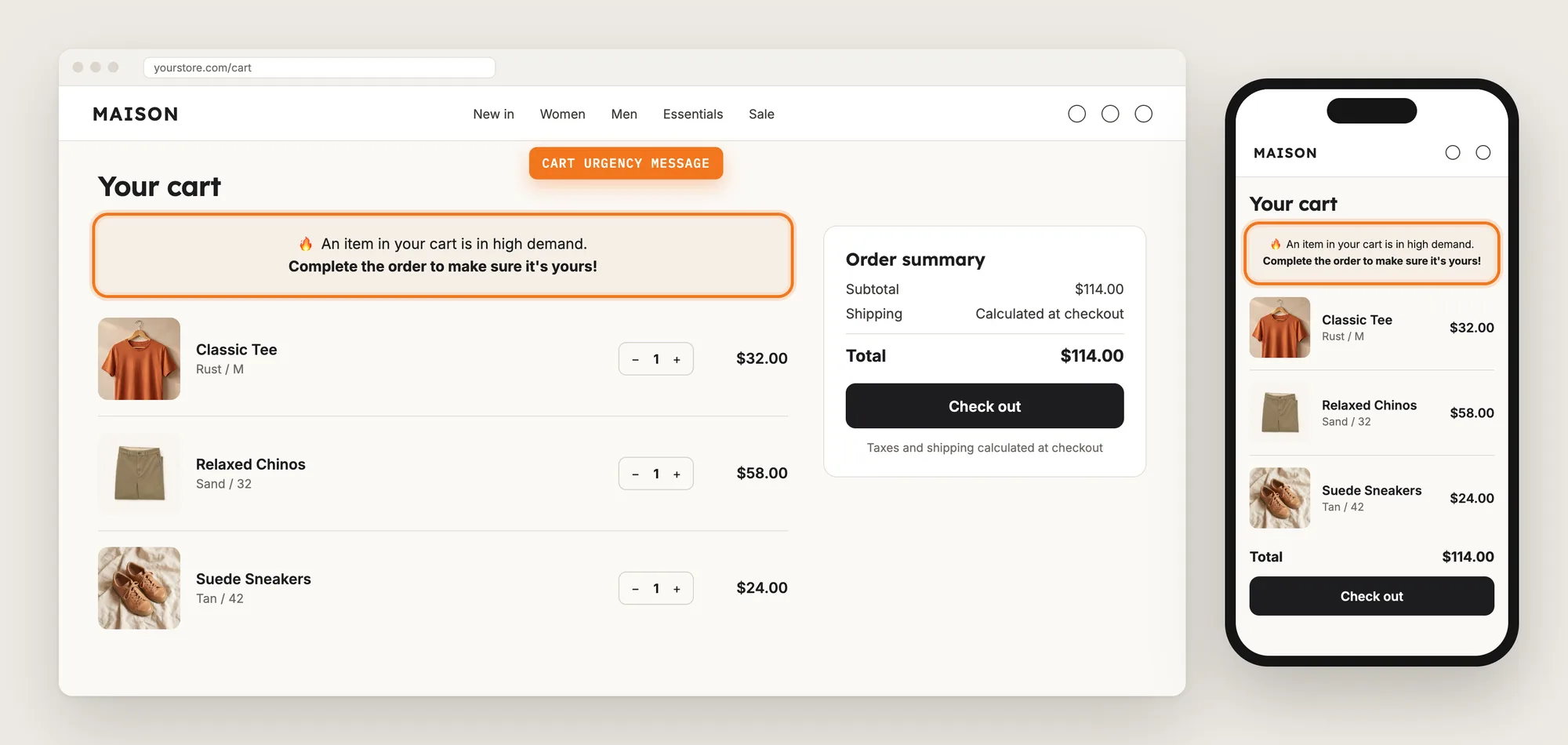
A cart urgency message gives shoppers a reason to finish the order now. The message shows at the top of the cart, the last page shoppers see before checkout.
Here are the three ways to add a cart urgency message in Shopify: with a Cart Urgency app, from your theme settings, or with custom code.
What Is a Cart Urgency Message?
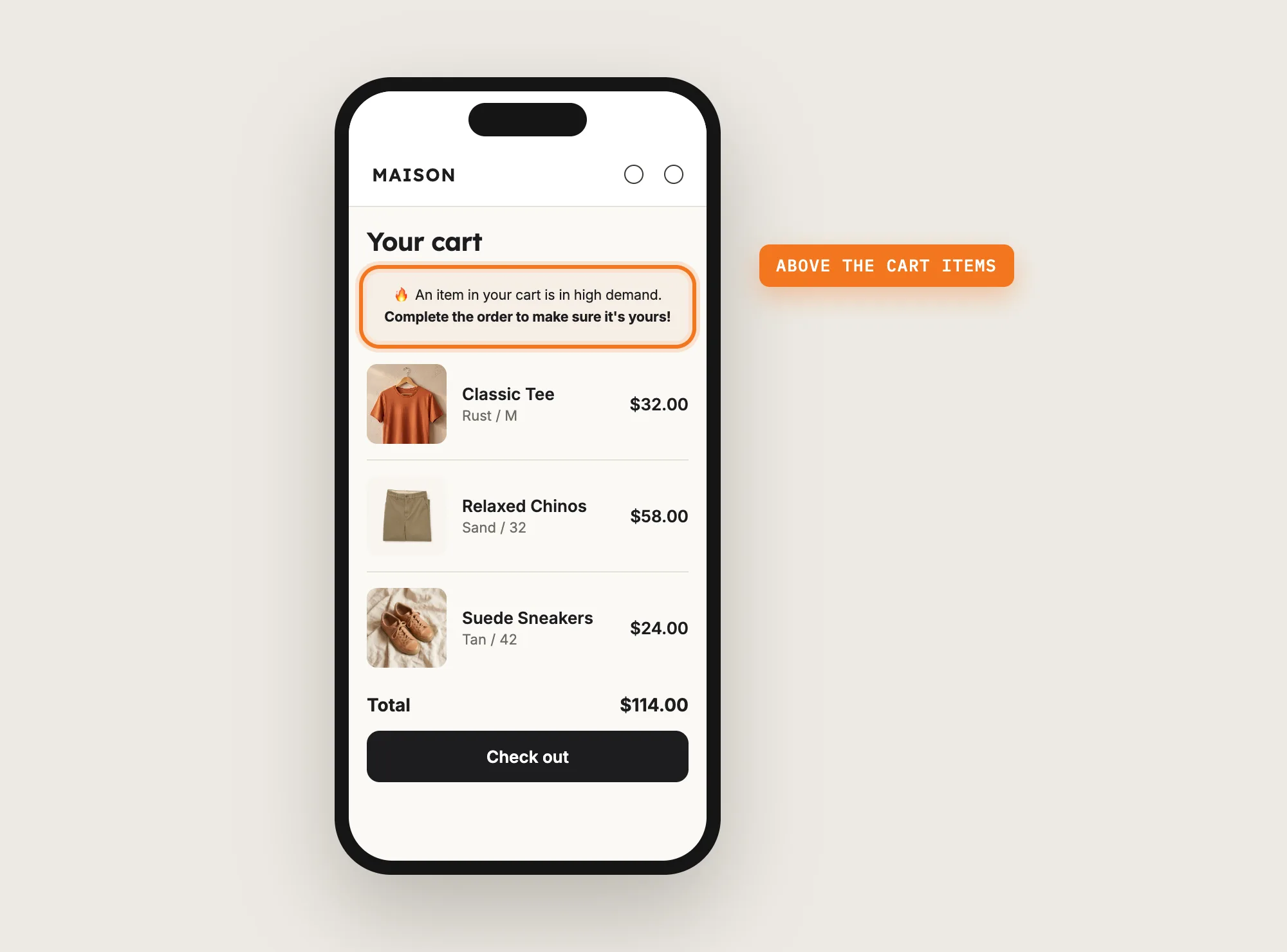
A cart urgency message is a short notice at the top of the cart page that tells shoppers an item in their cart is in demand. The cart urgency message nudges shoppers who are close to buying to complete the order before the item sells out.
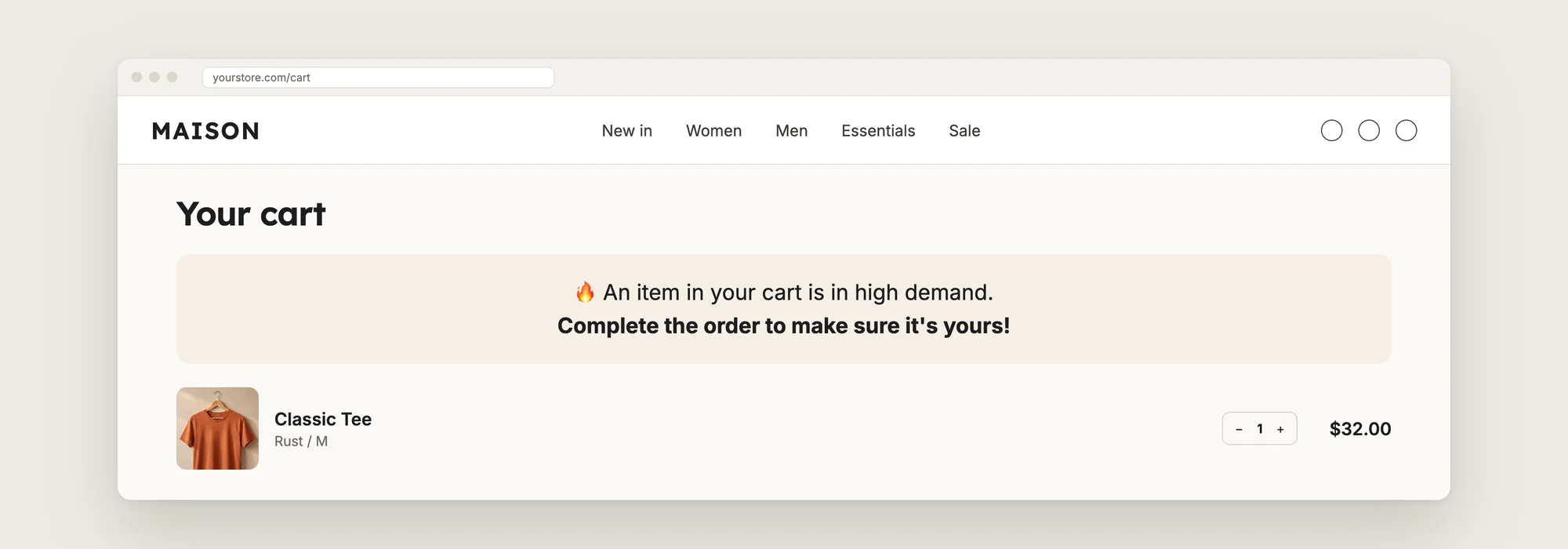
A good cart urgency message includes:
- A clear reason: One line that tells shoppers why to act, such as an item in high demand.
- A next step: A second line that tells shoppers what to do, such as completing the order.
- Colors that stand out: The message contrasts with the cart page, so shoppers notice the message before the checkout button.
- Honest timing: The message shows when the claim is true, such as when stock is low.
A cart urgency message only shows text. It doesn't hold stock or reserve products for the shopper.
What's the Quickest Way to Add a Cart Urgency Message?
- Vitals - All in One App is the quickest way to add a cart urgency message for most stores
- Vitals also offers 40+ apps, such as a cart drawer, a countdown timer and stock scarcity, in one subscription of $29.99/month, so you don't have to install and pay for each app separately
For product-page deadlines, see our roundup of the best Shopify countdown timer apps. Here's how the three methods compare.
How to Add a Cart Urgency Message With a Cart Urgency App?
Install the Vitals - All in One App, open its Cart Notice app and click Activate app. The cart urgency message then shows above the items on your cart page, and the steps below set the text, colors and when the message shows.
Step 1: Install the Vitals - All in One App
Install the Vitals - All in One App from the Shopify App Store. The 7-day free trial includes the Vitals Cart Notice app.
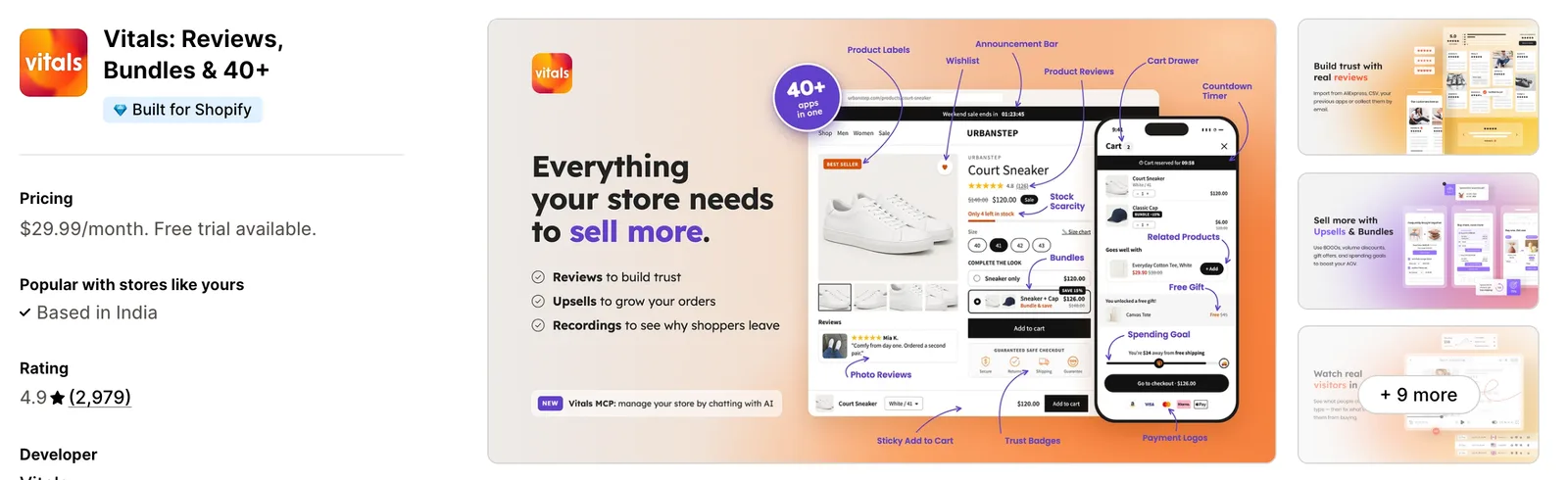
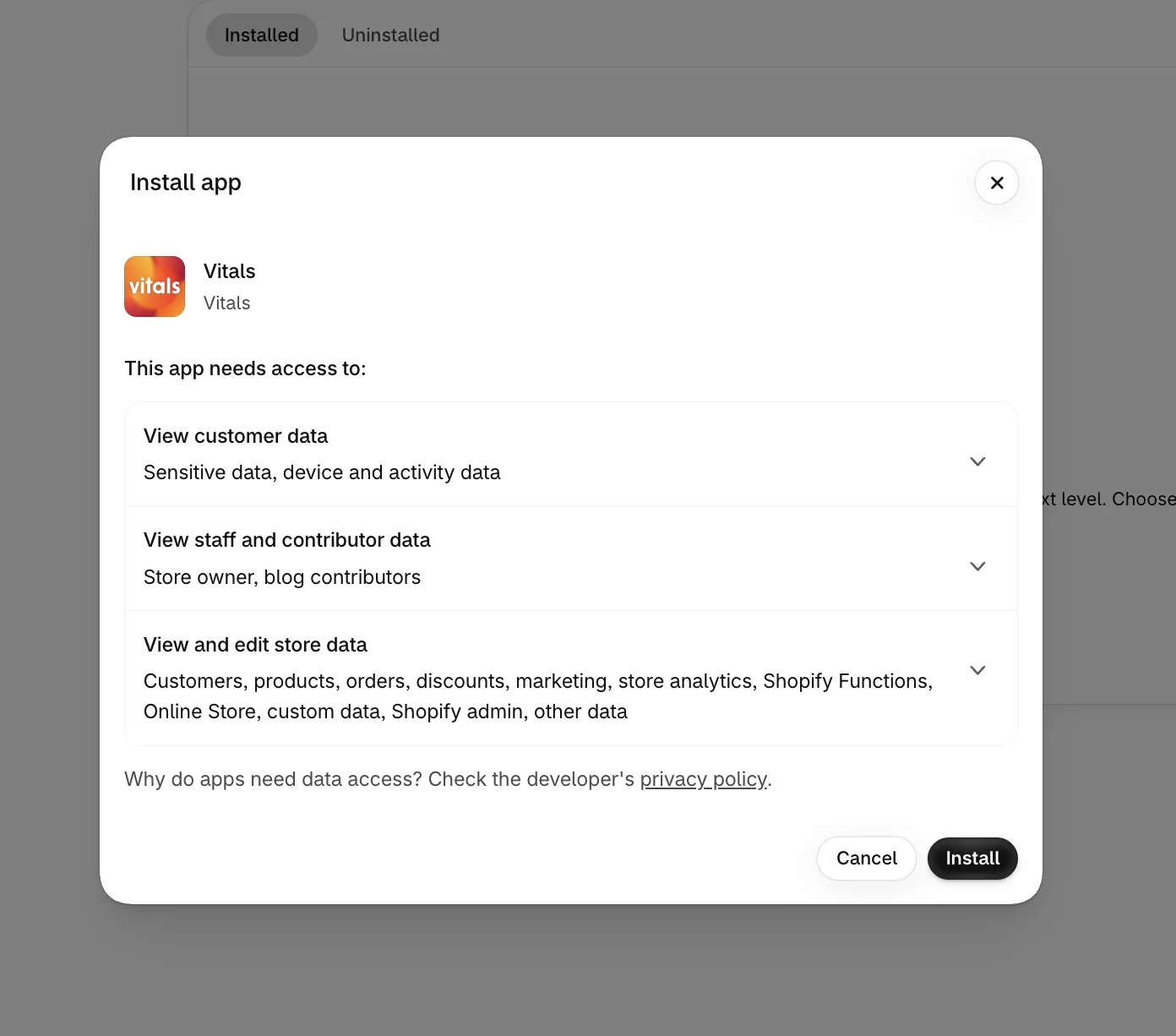
Step 2: Approve the Install in Shopify
Click Install to approve the store data Vitals uses. Shopify then opens the Vitals dashboard.
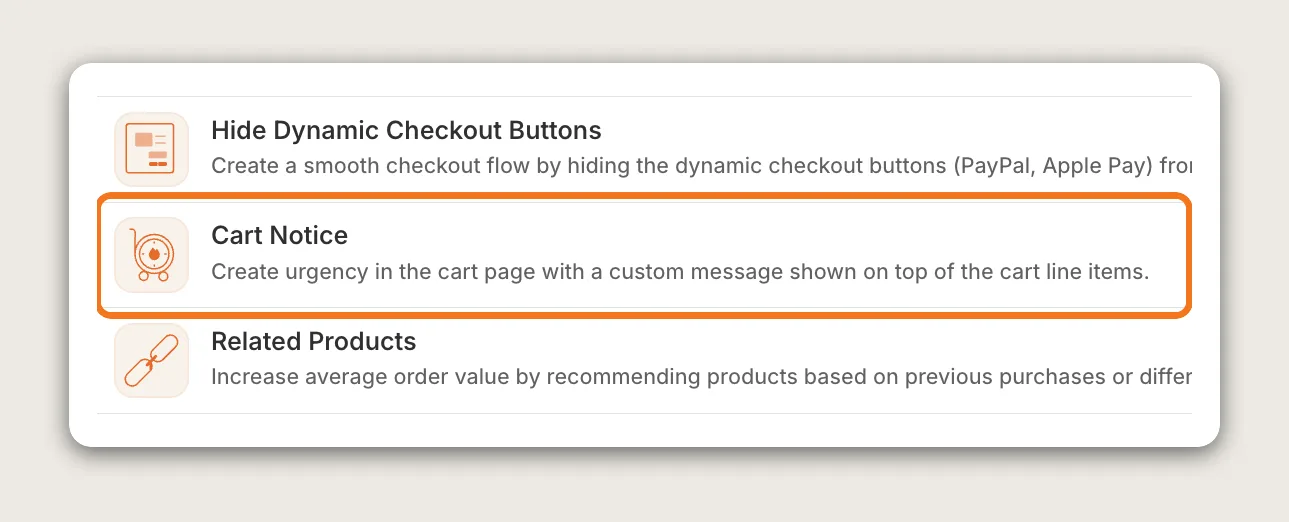
Step 3: Open Cart Notice
In the Vitals dashboard, find Cart Notice in the list of apps and click it.
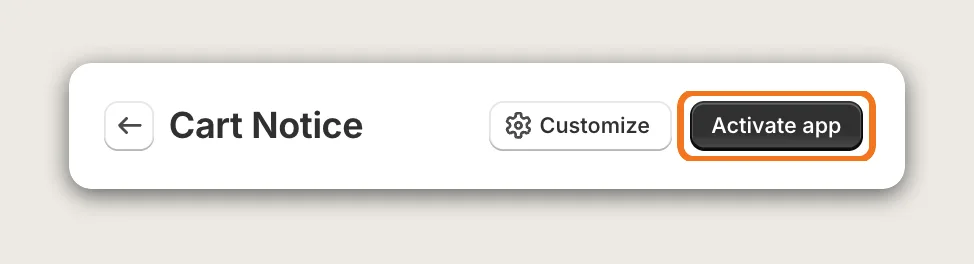
Step 4: Activate the App
Click Activate app at the top right of the Cart Notice page. The button turns into an Active button, and the default text works right away.
Step 5: Write the Primary Text
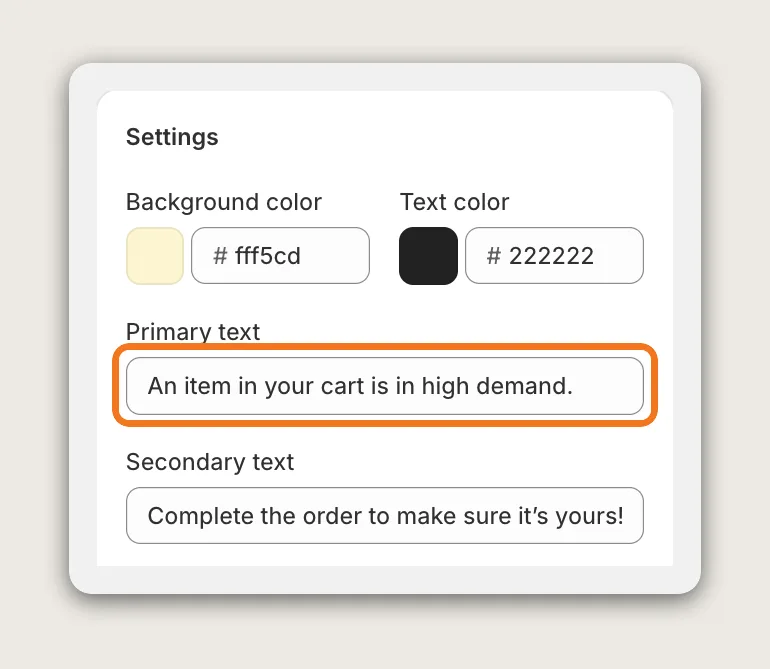
Under Settings, type the first line of the cart urgency message in Primary text. The default reads "An item in your cart is in high demand." Keep the first line to the reason shoppers should act.
Step 6: Write the Secondary Text
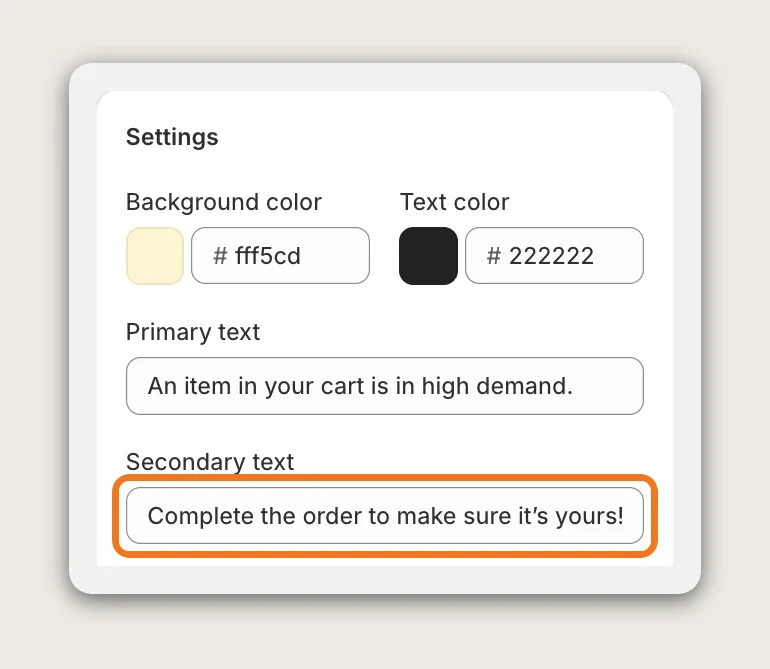
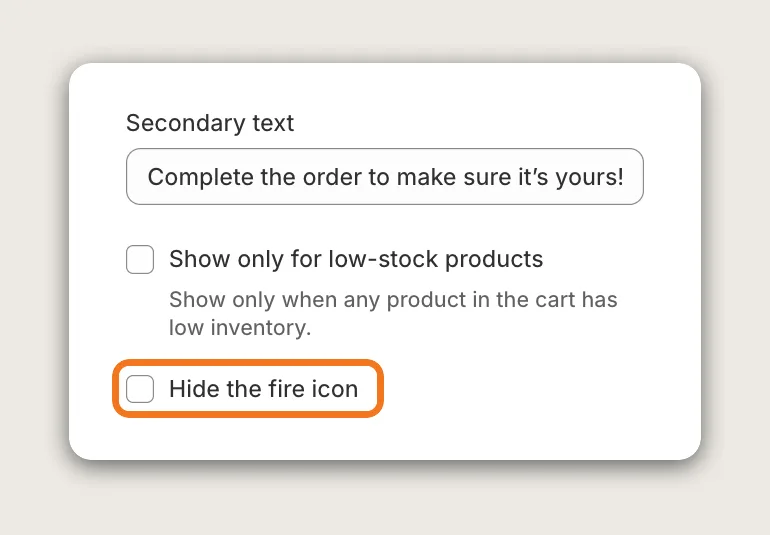
Type the second line in Secondary text. The second line shows in bold, so use the second line for the action, such as "Complete the order to make sure it's yours!"
Step 7: Set the Colors
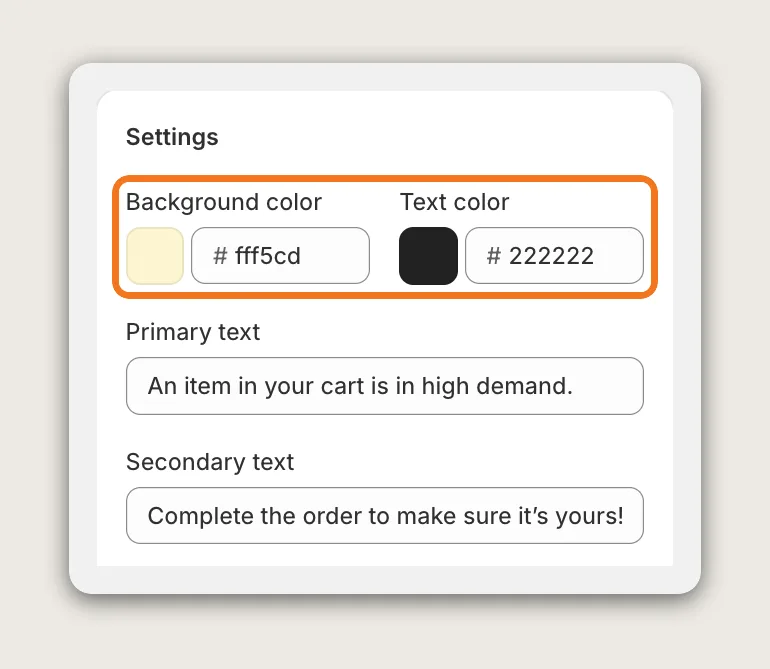
Set Background color and Text color. Pick a background that stands out from your cart page, and a text color that reads clearly on that background. The preview updates as you change the colors.
Step 8: Show the Message Only for Low-Stock Products (Optional)
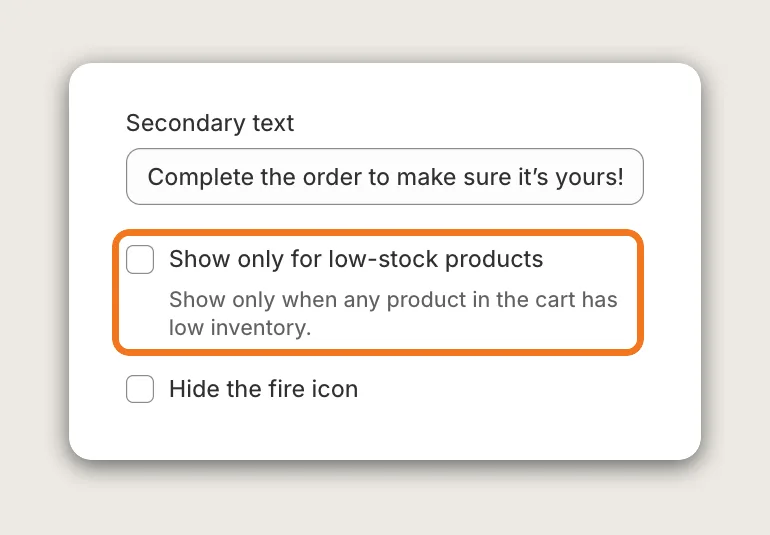
Tick Show only for low-stock products, then set Inventory threshold. The cart urgency message then shows only when a product in the cart has a total stock, across all variants, below the threshold. A threshold of 5 means 4 or fewer in stock.
Step 9: Show or Hide the Fire Icon
Leave Hide the fire icon unticked to show a 🔥 at the start of the cart urgency message. Tick Hide the fire icon for a plain text message.
Step 10: Set the Margin
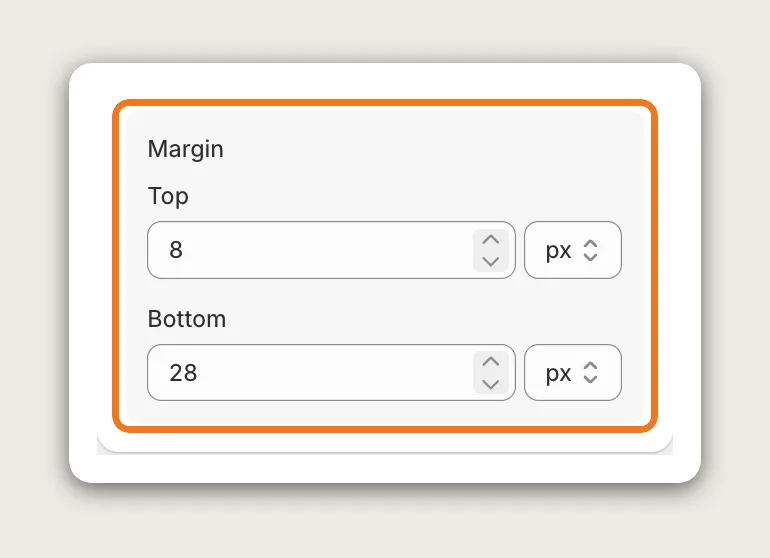
Under Margin, set the Top and Bottom space in pixels. Margin sets the space between the cart urgency message and the rest of the cart page.
Step 11: Show the Message in the Vitals Cart Drawer (Optional)
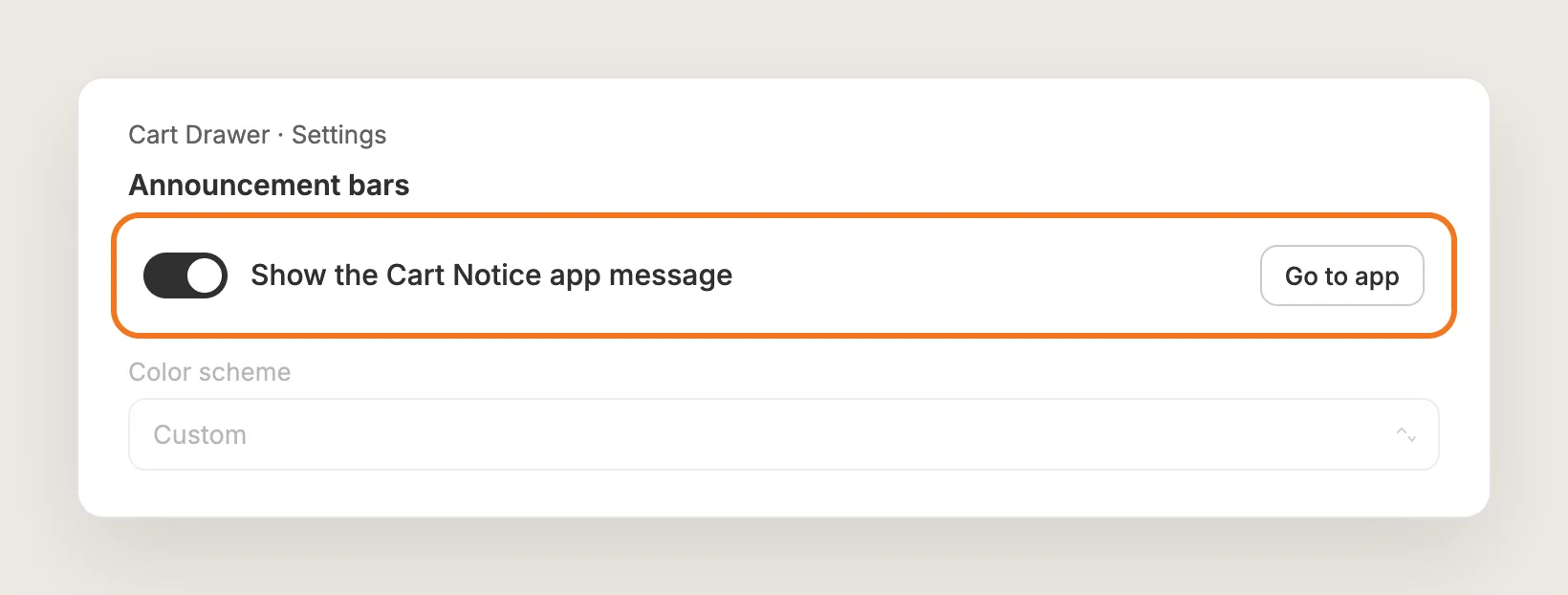
To show the cart urgency message in the Vitals Cart Drawer app too, open the Cart Drawer app, go to Settings → Announcement bars and turn on Show the Cart Notice app message. The text and colors still come from the Cart Notice app.
Step 12: Save and Test on Your Phone
Save your settings. Then add a product to the cart on your phone and open the cart page. Check that the cart urgency message shows above the cart items and that both lines read clearly.
Step 13: Voila, Your Cart Urgency Message Is Live on the Store
Your shoppers now see a reason to complete the order every time they open the cart.
How to Add a Cart Urgency Message From Your Theme Settings?
Most Shopify themes don't include a cart urgency message setting, but many let you add a text section to the cart page. To check your theme's settings:
- Open Online Store → Themes in Shopify and click Customize
- Switch the page selector at the top of the editor to the cart page
- Click Add section, choose a text section such as Rich text, type your message and click Save
A theme text section shows the same fixed message to every shopper, in the theme's own styling. The text can't show only when stock is low, and the text usually doesn't appear in the cart drawer. If a fixed line on the cart page is all you need, the theme setting may be enough.
How to Add a Cart Urgency Message Without an App?
Hire a developer to build a cart urgency message into your theme with Liquid and CSS. The message is a small block added to the cart template, above the cart items.
A custom cart urgency message usually involves:
- Making a copy of your theme, so the live store stays untouched during testing
- Adding the message markup to the cart template, above the cart items
- Adding theme settings for the text and colors, so you can edit the message without code
- Adding a stock check in Liquid, if the message should show only for low-stock products
- Adding the message to the cart drawer, if your theme has a cart drawer
- Testing the message on desktop and phones, then publishing the theme copy
Custom code means no extra app, but you or your developer have to maintain it. A theme update can replace the cart template, and the message has to be added again.
How to Increase Sales With a Cart Urgency Message?
A cart urgency message increases sales by giving shoppers who already chose a product a reason to check out now instead of later. These settings help the cart urgency message move sales:
- Lead with the reason to buy now. Shoppers act on a reason, such as an item in high demand. Put the reason in Primary text
- End with the action. A bold next step tells shoppers what to do. Put the action in Secondary text, such as "Complete the order to make sure it's yours!"
- Show the cart urgency message when stock is really low. A true message keeps shoppers' trust for the next order. Tick Show only for low-stock products and set the Inventory threshold
- Make the cart urgency message stand out from the cart. Shoppers notice a message that contrasts with the page. Set a Background color that differs from your cart page
- Show the cart urgency message in the cart drawer too. Shoppers who check out from the drawer then see the message as well. Turn on Show the Cart Notice app message in the Vitals Cart Drawer app
- Translate the cart urgency message. Shoppers in other markets read the reason in their own language. Click Translate at the top of the Cart Notice page
Why Isn't My Cart Urgency Message Showing or Working?
These fixes solve most cart urgency message problems:
- The message doesn't show at all: Check that the button at the top right of the Cart Notice page reads Active, not Activate app. The cart urgency message only shows when the cart has items
- The message shows only sometimes: With Show only for low-stock products ticked, the message shows only when a product in the cart has a total stock below the Inventory threshold. Untick the option to show the message on every cart
- The message doesn't show for some visitors: Depending on your store's Customer Privacy settings, the Cart Notice app may not show until a visitor gives consent. Test after accepting the cookie banner
- The message doesn't show in my theme's cart drawer: The Cart Notice app doesn't work in theme or third-party cart drawers. Use the Vitals Cart Drawer app and turn on Show the Cart Notice app message
- The message shows in the wrong place on the cart page: Open Online Store → Themes → Customize, go to the cart page and move the Cart Reserved Timer app block where you want the message
- The font doesn't match my store: The Cart Notice app has no font setting, so the message uses your theme's font, and Secondary text is always bold. Contact Vitals support for a different font or weight
Which Cart Urgency Message Method Should You Choose?
Vitals - All in One App suits most stores, but the right method depends on what the cart urgency message needs to do.
- Choose Vitals - All in One App if you want a styled cart urgency message with your own text and colors, a low-stock option and a cart drawer option. It also includes 40+ other apps in one subscription of $29.99/month, so you don't have to install and pay for each app separately
- Choose your theme's setting if a fixed line of text on the cart page is enough
- Choose custom code if you have a developer, want no app at all, and are happy to recheck the code after theme updates
If you already use another urgency app, see our Urgency Plus alternatives, Urgency Bear Countdown Timer alternatives and Hextom Countdown Timer Bar alternatives.
Start a 7-day free trial: Install the Vitals - All in One App and add a cart urgency message
Frequently Asked Questions
1. What is the best way to add a cart urgency message in Shopify?
Vitals - All in One App is the best way for most stores. Its Cart Notice app adds a cart urgency message above the cart items without code, with your own text and colors, a low-stock option and a cart drawer option.
2. Does Shopify have a built-in cart urgency message?
No. Shopify doesn't add a cart urgency message on its own, and most Shopify themes don't include a cart urgency message setting. You can add a fixed text section to the cart page in the theme editor, or use the Vitals Cart Notice app.
3. Can I show the cart urgency message only when stock is low?
Yes. In the Vitals Cart Notice app, tick Show only for low-stock products and set Inventory threshold. The cart urgency message then shows only when a product in the cart has a total stock below that number.
4. Can I show the cart urgency message in the cart drawer?
Yes, in the Vitals Cart Drawer app. Open the Cart Drawer app, go to Settings → Announcement bars and turn on Show the Cart Notice app message. The Cart Notice app doesn't show in theme or third-party cart drawers.
5. Can I add a countdown timer to the cart urgency message?
New stores can't. The Show countdown timer option in the Cart Notice app only shows for stores that already used the timer. For a sale deadline, the Vitals Countdown Timer app counts down to a real end date on the product page.
6. Can I change the font of the cart urgency message?
The Cart Notice app has no font setting, so the cart urgency message uses your theme's font. You can change the Background color and Text color, and Vitals support can apply a different font or weight with custom CSS.
7. Can I translate the cart urgency message?
Yes. Click Translate at the top of the Cart Notice page to add the text in other languages. The Translate button shows when your store has more than one language, or one language other than English.