How to Add a Countdown Timer on Shopify

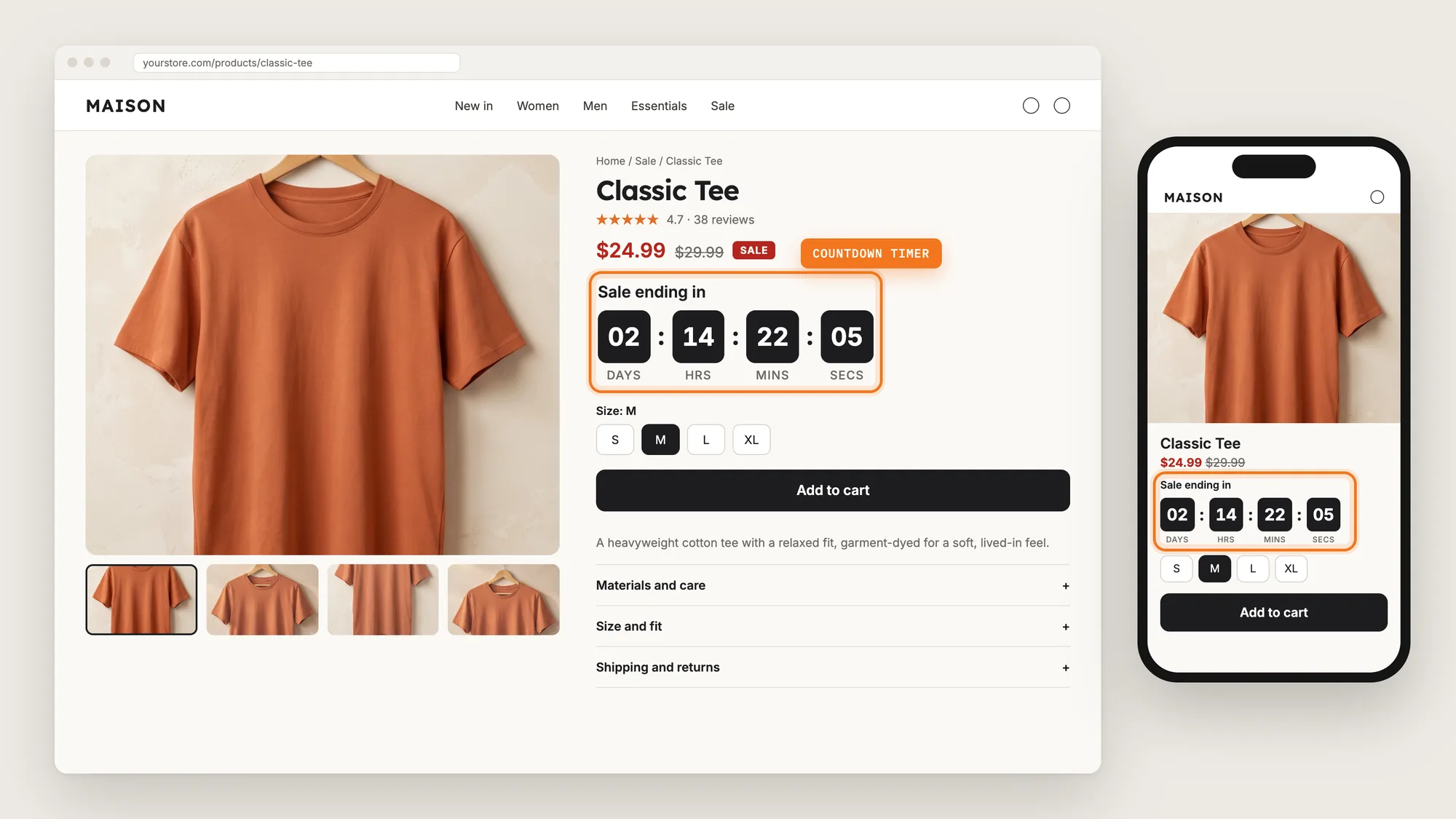
A sale price alone doesn't tell shoppers when the deal ends. Shoppers who think the price will still be there tomorrow often leave to think it over, and many forget to come back before the sale is gone.
A countdown timer shows the time left in the sale right next to the price. Shoppers who want the sale price can see exactly how long they have to buy at that price.
Here are the three ways to add a countdown timer on a Shopify store: with a Countdown Timer app, from your theme settings, or with custom code.
What Is a Countdown Timer?
A countdown timer is a clock on a store page that counts down the days, hours, minutes and seconds to a deadline, such as the end of a sale. Stores show a countdown timer next to the price on product pages, where shoppers decide whether to buy now or later.
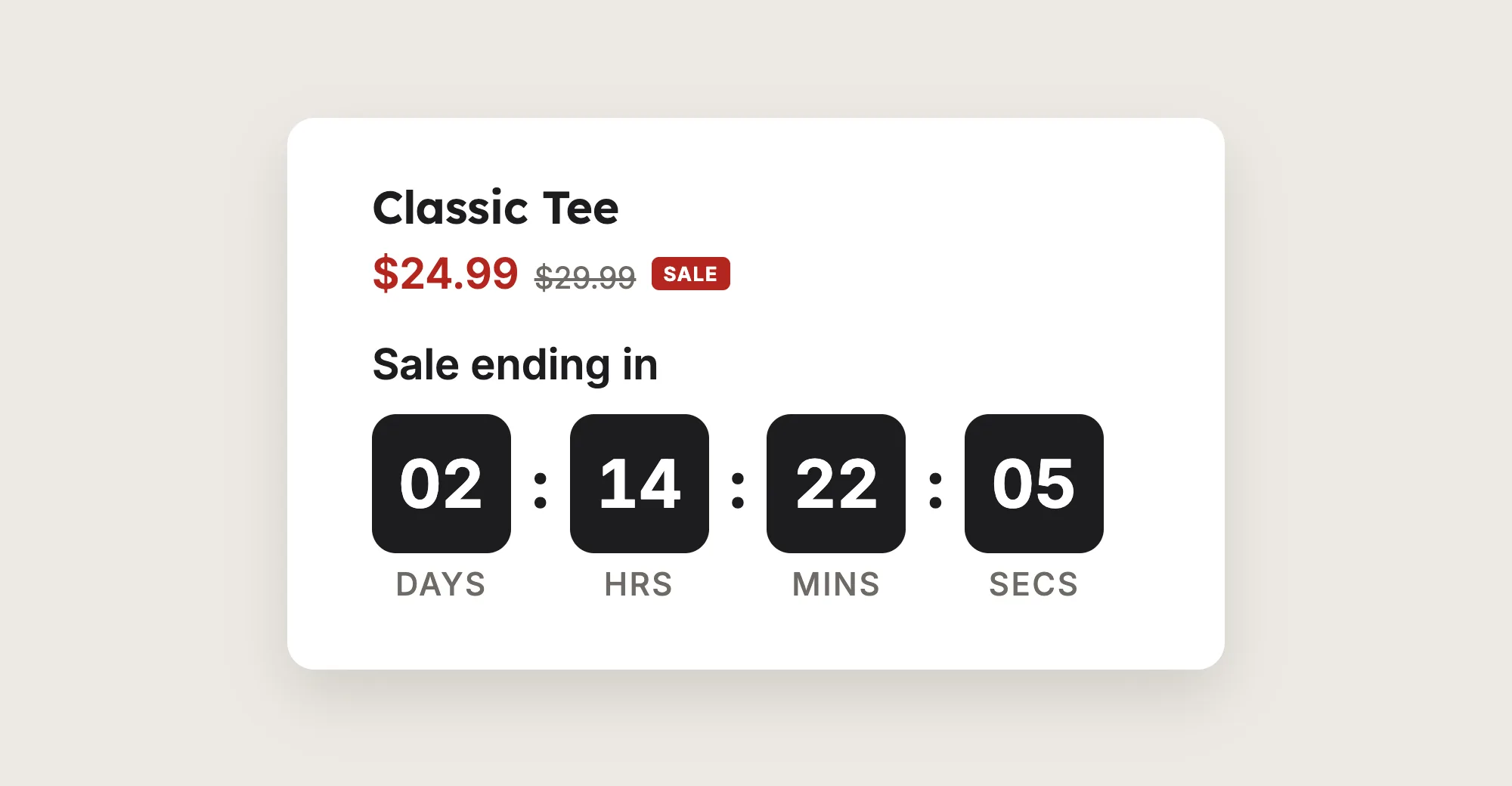
A good countdown timer includes:
- A real end date: The countdown timer counts down to the moment your sale really ends, the same for every shopper.
- A clear title: A short line such as "Sale ending in" says what the countdown timer counts down to.
- A spot near the price: Shoppers see the deadline next to the price they're about to pay.
- A design that matches your store: The countdown timer uses your store's colors, so it looks like part of the page.
A countdown timer that loops or restarts for every visitor shows a deadline that isn't real. Shoppers who come back and see the same timer counting down again stop trusting it, so tie every countdown timer to a real end date.
What's the Quickest Way to Add a Countdown Timer?
- Vitals - All in One App is the quickest way to add a countdown timer for most stores
- Vitals also offers 40+ apps, such as stock scarcity, announcement bars and product bundles, in one subscription of $29.99/month, so you don't have to install and pay for each app separately
Here's how the three methods compare. If you'd rather weigh several apps against each other, see our list of the best countdown timer apps for Shopify.
How to Add a Countdown Timer With a Countdown Timer App?
Install the Vitals - All in One App, open its Countdown Timer app and click Activate app. The countdown timer then shows on your discounted product pages, and the steps below set the sale dates, the products, the design and where the countdown timer shows.
Step 1: Install the Vitals - All in One App
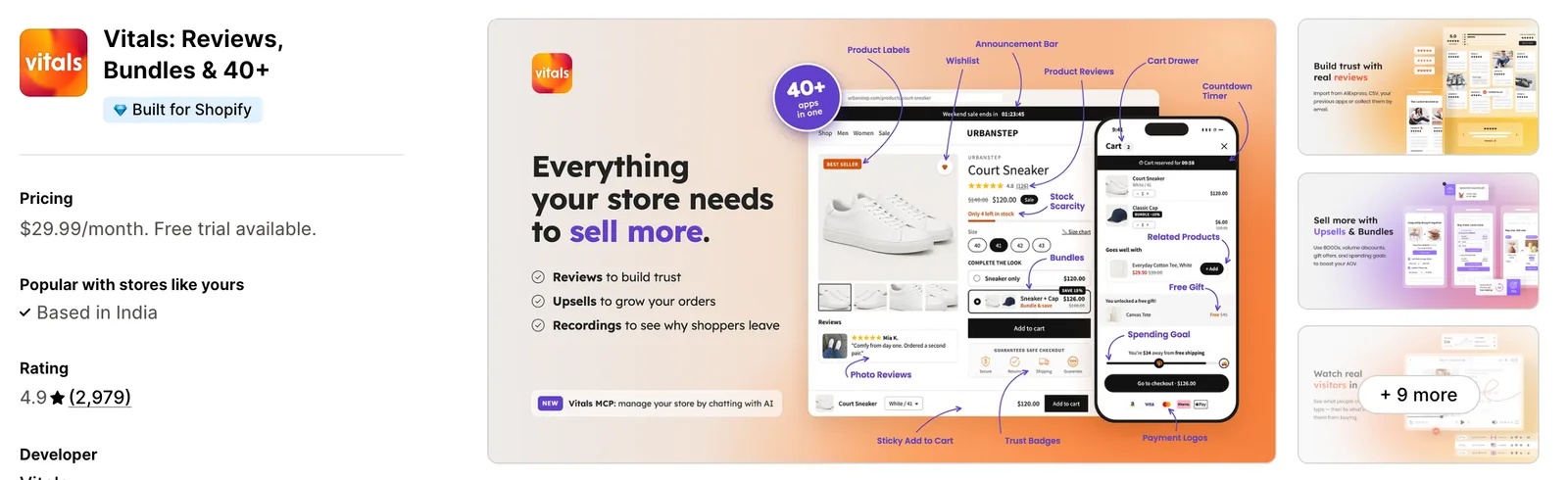
Install the Vitals - All in One App from the Shopify App Store. The 7-day free trial includes the Vitals Countdown Timer app.
Step 2: Approve the Install in Shopify
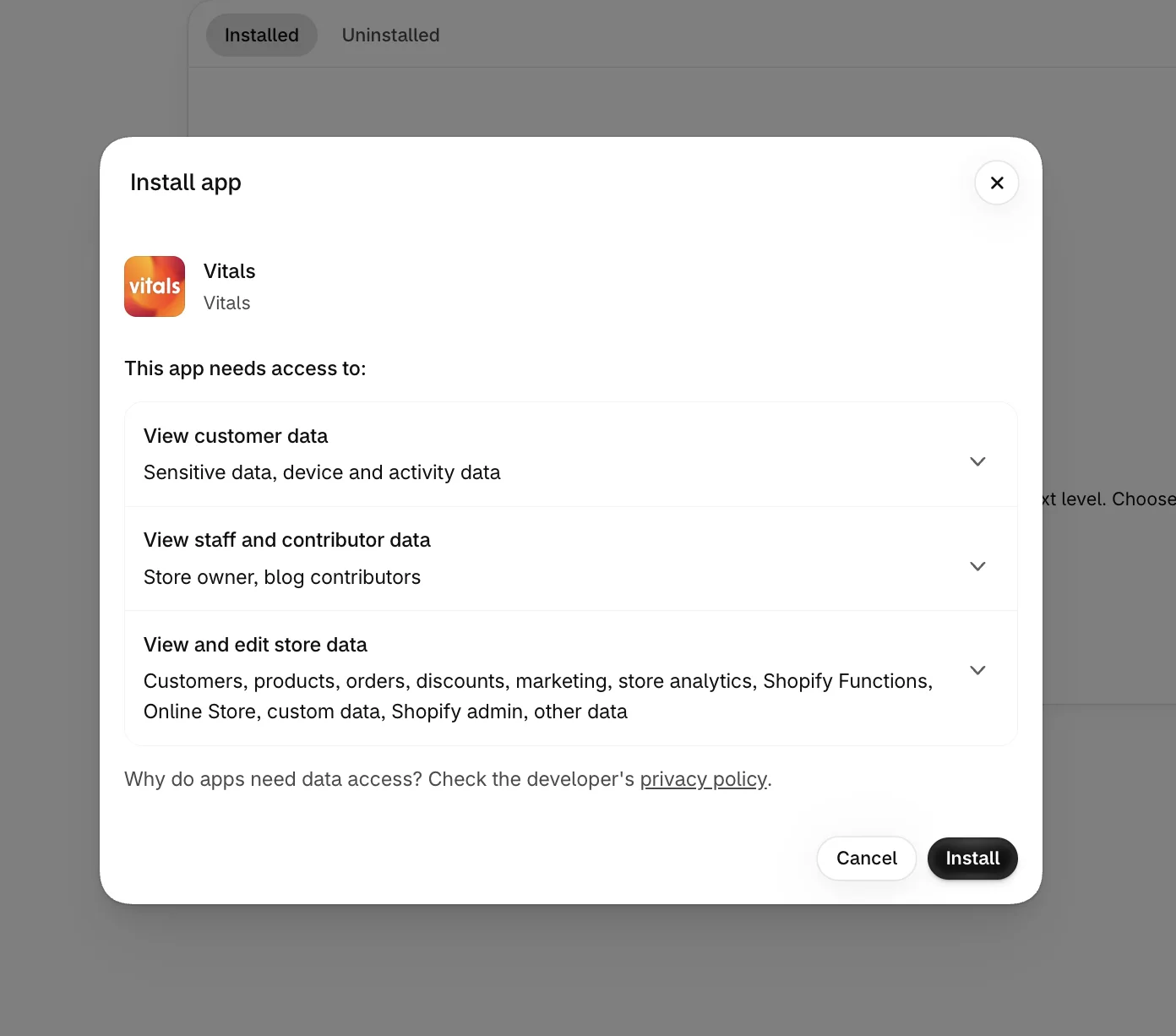
Click Install to approve the store data Vitals uses. Shopify then opens the Vitals dashboard.
Step 3: Open Countdown Timer
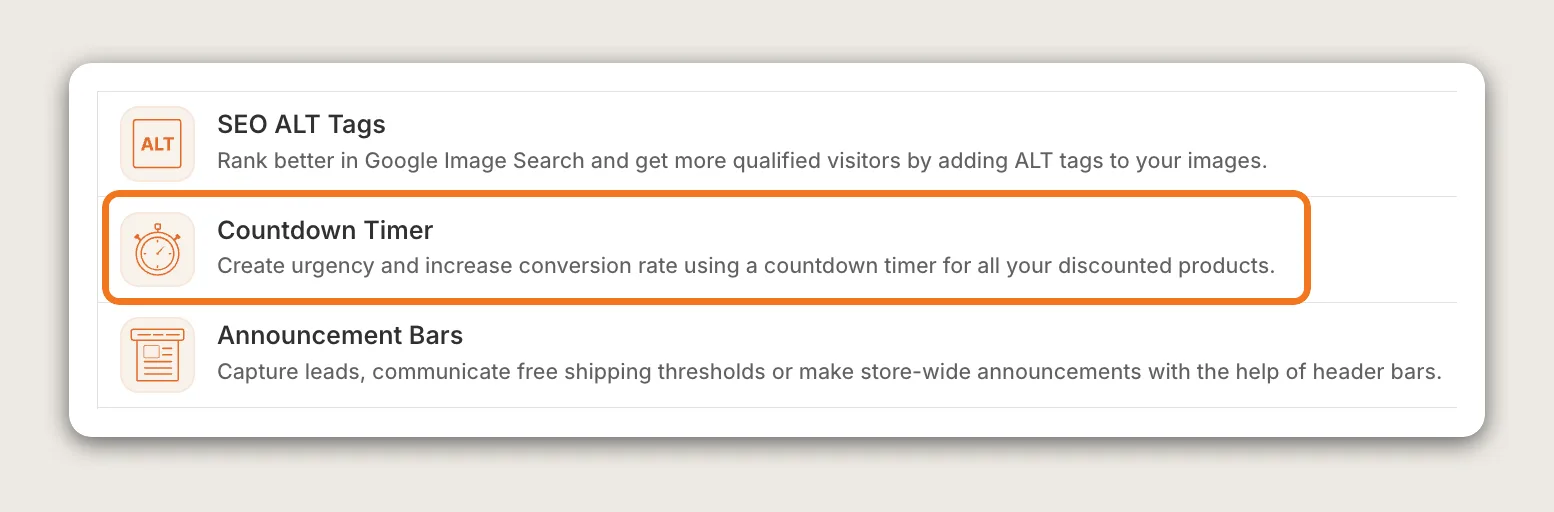
In the Vitals dashboard, find Countdown Timer in the list of apps and click it.
Step 4: Activate the App
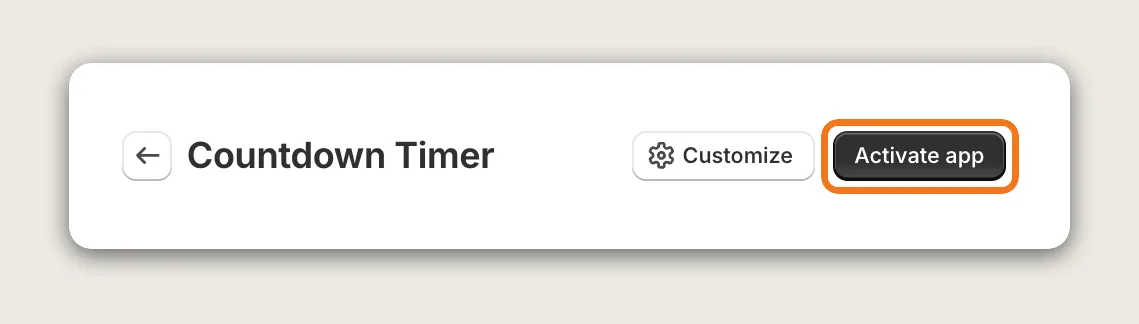
On the Countdown Timer page, click Activate app to turn the countdown timer on. All the settings are on this one page, with a live preview of your product page.
Step 5: Set the Sale Start and End Dates
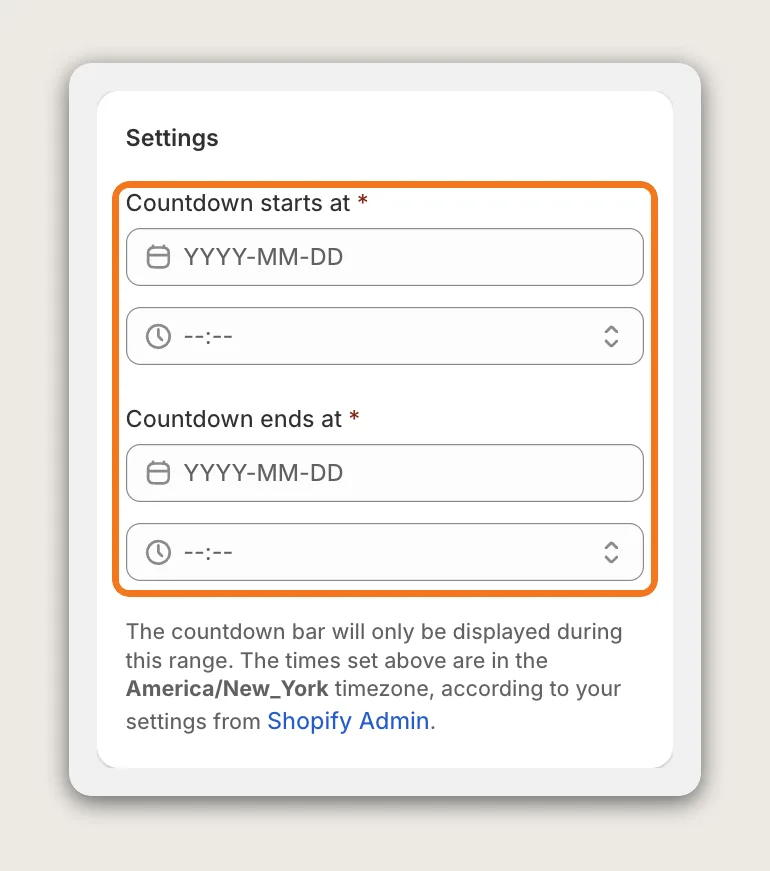
In the Settings card, set Countdown starts at and Countdown ends at to the real start and end of your sale. The countdown timer shows only between those two moments and disappears once the end date passes. Both dates follow your store's timezone, so every shopper sees the same deadline wherever they are.
Step 6: Choose Which Products Show the Countdown Timer
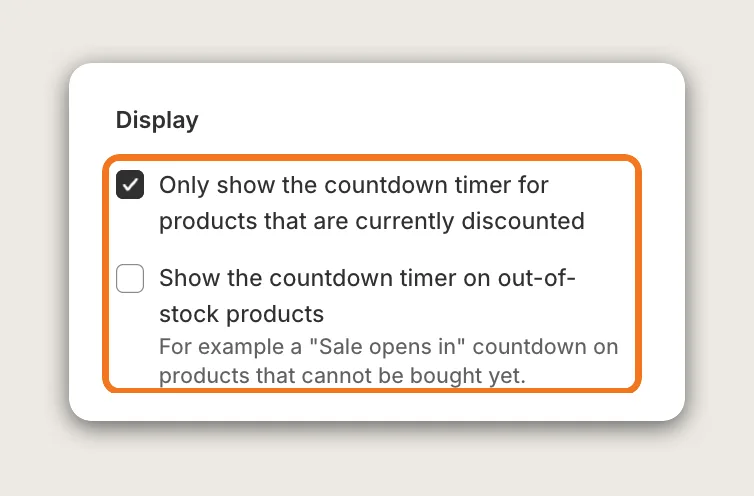
In the Display card, Only show the countdown timer for products that are currently discounted is on by default. With it on, the countdown timer shows only on products with a compare-at price. Untick it to show the countdown timer on every product. Tick Show the countdown timer on out-of-stock products to also show it on sold-out products, for example a "Sale opens in" countdown on a product shoppers can't buy yet.
Step 7: Pick a Theme
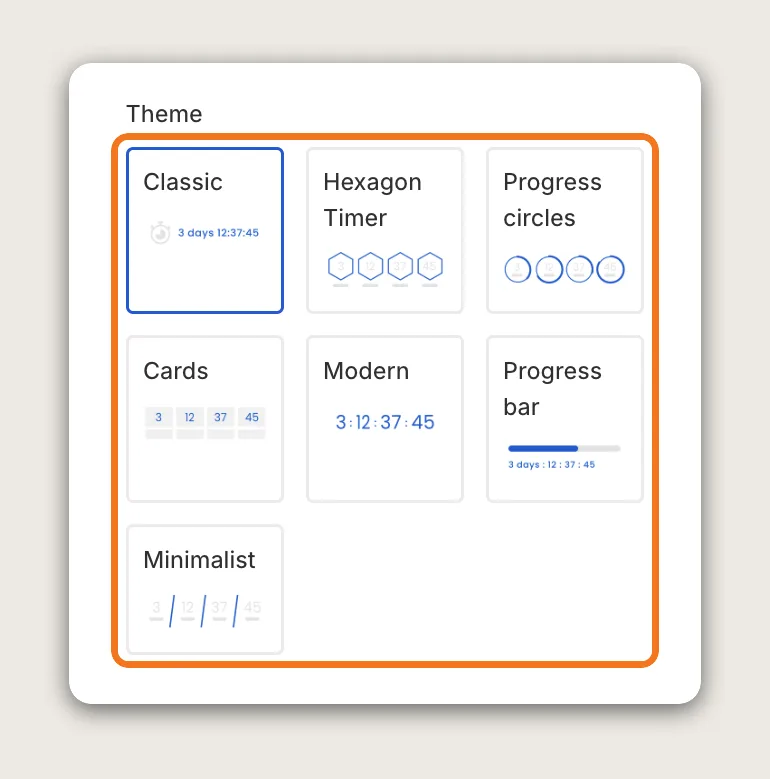
In the Display card, pick one of the 7 designs in Theme: Classic, Hexagon Timer, Progress circles, Cards, Modern, Progress bar and Minimalist. Classic is the default.
Step 8: Set the Title, Alignment and Colors
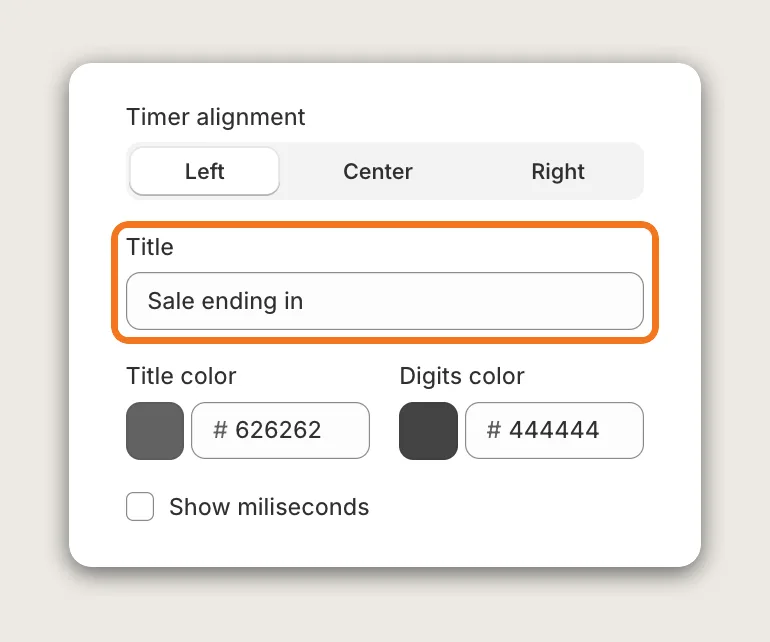
The rest of the Display card sets how the countdown timer looks:
- Title: The line above the countdown timer, "Sale ending in" by default
- Timer alignment: Left, Center or Right
- Colors: Title, digits, border and background colors, depending on the theme
- Show milliseconds: Adds milliseconds to the Classic theme
- Margin: The space around the countdown timer
Edit the Day, Days, Hour, Hours, Minute, Minutes, Second and Seconds labels in the Translations card. To translate the texts into more languages, click translations page in that card.
Step 9: Choose Where the Countdown Timer Shows
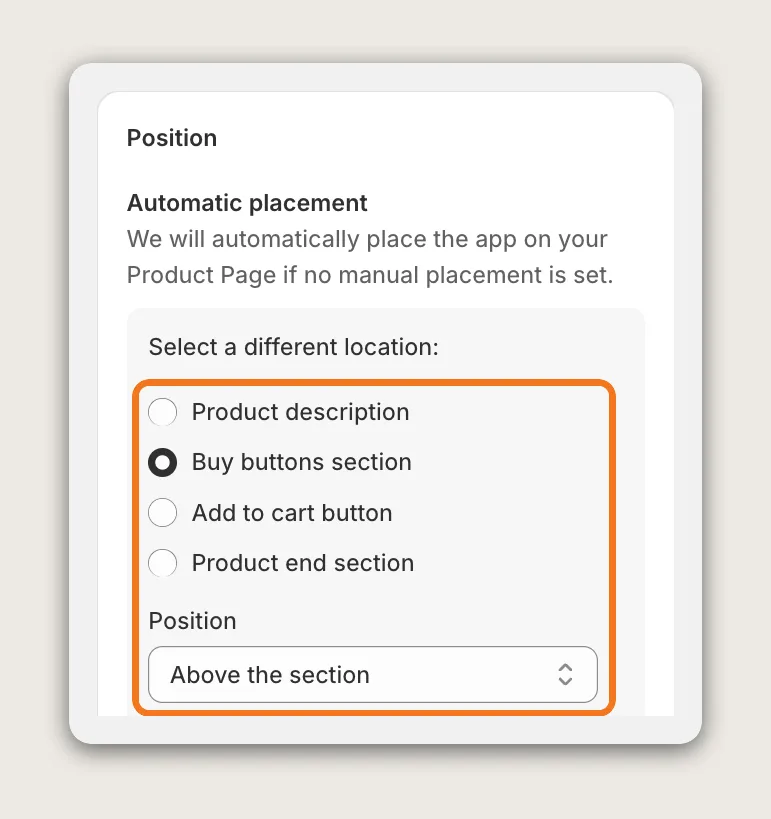
In the Position card, Automatic placement attaches the countdown timer to a part of the product page: Product description, Buy buttons section, Add to cart button or Product end section. Then set Position, such as Above the section, to put the countdown timer between the price and the buy buttons. For Manual placement, click Go to editor and add the Vitals block in the Shopify theme editor.
Step 10: Limit the Countdown Timer to Certain Products (Optional)
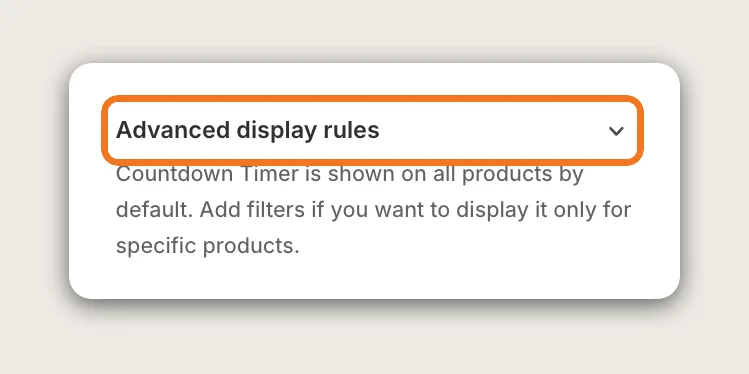
Open Advanced display rules and add filters to limit the countdown timer to the products in your sale. Pick them with Display only on specific products, set a price, discount or inventory range, or exclude the products you don't want.
Step 11: Save and Test on Your Phone
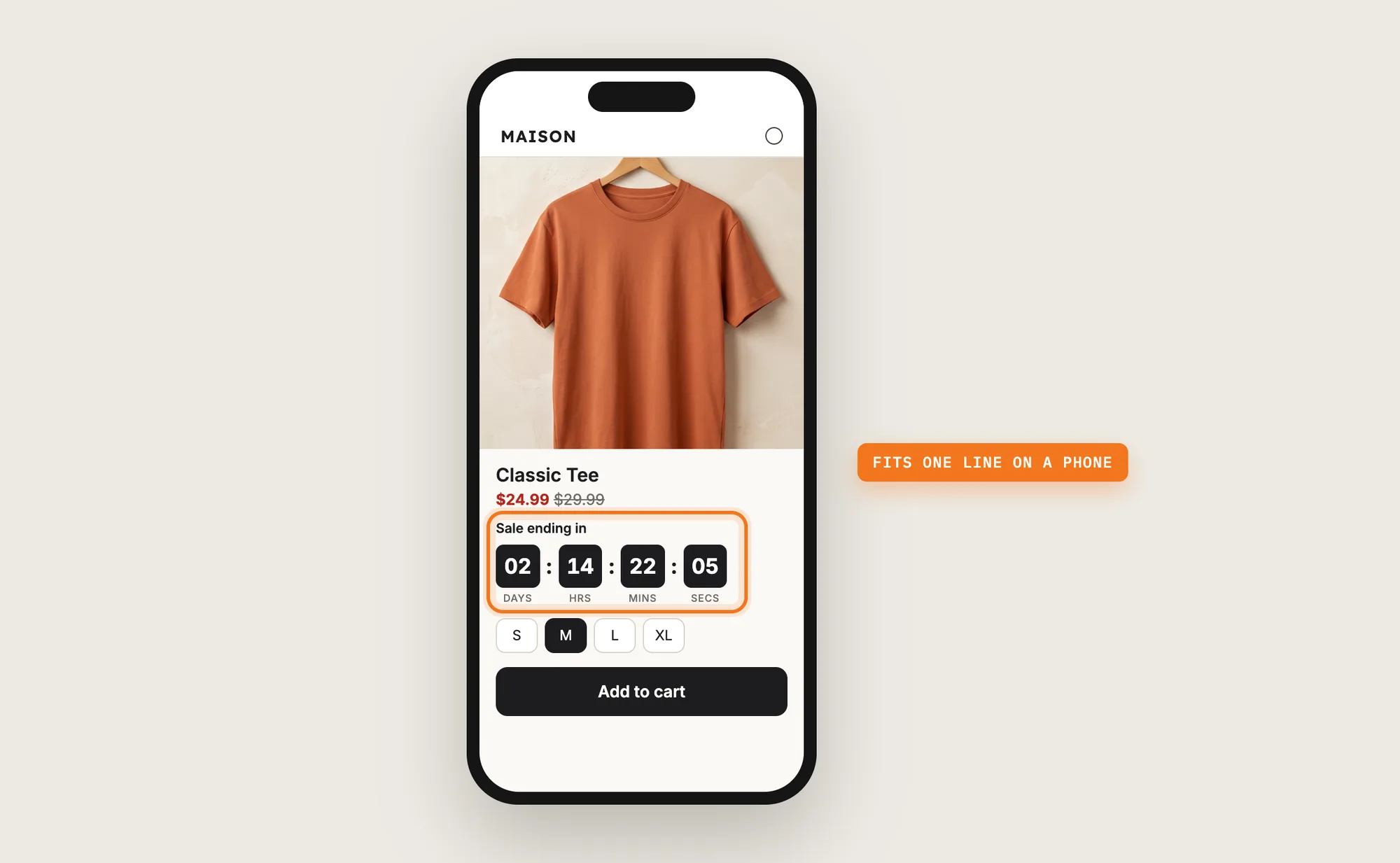
Click Save, then open a discounted product page on your phone and on desktop. Check that the countdown timer fits in one line, that it shows the right time left and that it shows near the price. Then check a full-price product, which shows no countdown timer while Only show the countdown timer for products that are currently discounted is on.
Step 12: Voila, Your Countdown Timer Is Live on the Store
Your shoppers now see exactly how long the sale price lasts, right next to the price.
How to Add a Countdown Timer From Your Theme Settings?
A few Shopify themes include a countdown timer section or block, and many free themes don't. To check your theme's settings:
- Click Customize next to your theme in Online Store → Themes
- Open a product page template or the home page, then click Add section or Add block
- Look for a countdown or timer section, set the end date and the text, then click Save
A theme's countdown section usually has one end date that you type in, and the section may stay on the page after the sale ends until you remove it. It doesn't check whether a product is discounted, so the same countdown shows on every product the template uses. If one countdown on the homepage is all you need, the theme setting may be enough.
How to Add a Countdown Timer Without an App?
Hire a developer to build a countdown timer into your theme with Liquid and JavaScript. Custom code gives you full control over the design and the rules for when the countdown timer shows.
A custom countdown timer usually involves:
- Copying your theme first, so the live store stays untouched during testing
- Storing the sale end date, for example in a theme setting or a product metafield
- Writing JavaScript that counts down to that date in your store's timezone
- Adding the countdown timer to the product page template near the price
- Hiding the countdown timer once the end date passes
- Styling the countdown timer for mobile and desktop, then publishing the theme copy
Custom code means no extra app, but you or your developer have to maintain it. A theme update can replace the files the code is in, so the countdown timer may need adding back after each update. Every new sale also means a new end date in the code or the settings.
How to Increase Sales With a Countdown Timer?
A countdown timer increases sales by giving shoppers who want the sale price a real reason to buy before the deadline. These settings help:
- Count down to the real end of your sale. A true deadline keeps shoppers' trust. Set Countdown ends at to the moment the sale price ends
- Hide the countdown timer until the sale starts. Set Countdown starts at to the first moment of the sale, so the countdown timer never shows before the discount does
- Show the countdown timer only where the price is lower. Keep Only show the countdown timer for products that are currently discounted on, so every countdown timer shows next to a sale price
- Place the countdown timer right under the price. Shoppers read the price and the deadline together. Pick Buy buttons section and Above the section in the Position card
- Say what ends in the title. A title such as "Sale ending in" or "Black Friday price ends in" tells shoppers what they lose by waiting. Write it in Title
- Limit the countdown timer to the products in the sale. Pick them with Display only on specific products in Advanced display rules
- Count down to a launch on sold-out products. Tick Show the countdown timer on out-of-stock products to show a "Sale opens in" countdown timer before a product is back
Why Isn't My Countdown Timer Showing or Working?
These fixes solve most countdown timer problems:
- The countdown timer doesn't show on a product: The product may not be discounted. Give the product a compare-at price, or untick Only show the countdown timer for products that are currently discounted
- The countdown timer disappeared from the store: The end date has passed. Set a new Countdown ends at date in the Settings card
- The countdown timer doesn't show before the sale: The Countdown starts at date is still in the future. The countdown timer shows from that moment
- The countdown timer doesn't show on a sold-out variant: The countdown timer hides on sold-out variants by default. Tick Show the countdown timer on out-of-stock products
- The countdown timer doesn't change when I switch variants: The countdown timer is set when the page loads, so switching variants shows or hides it only after a reload
- The countdown timer shows only after shoppers accept cookies: If your store shows a privacy banner, the countdown timer waits until the visitor accepts tracking
- I can't save the dates: Countdown ends at must be later than Countdown starts at, and in the future
- I can't find a color or milliseconds setting: Some fields show only for certain themes. Show milliseconds is for the Classic theme only
- I want the countdown timer to restart for each visitor: The Vitals Countdown Timer app counts down to a real end date, the same for every shopper. Timers that reset for each visitor show a deadline that isn't real
Which Countdown Timer Method Should You Choose?
Vitals - All in One App suits most stores, but the right method depends on where you want the countdown timer and how often you hold sales.
- Choose Vitals - All in One App if you want a countdown timer to the real end of your sale on discounted product pages, in your colors and your store's languages. It also includes 40+ other apps in one subscription of $29.99/month, so you don't have to install and pay for each app separately
- Choose your theme's setting if your theme has a countdown section and one countdown on the homepage is enough
- Choose custom code if you need special timer rules and have a developer to keep them working through theme updates
If you're comparing other countdown timer apps, see our posts on Hextom Countdown Timer Bar alternatives and Essential Countdown Timer Bar alternatives.
Start a 7-day free trial: Install the Vitals - All in One App from the Shopify App Store
Frequently Asked Questions
1. What is the best way to add a countdown timer on Shopify?
Vitals - All in One App is the best way for most stores. Its Countdown Timer app adds a countdown timer to the real end of your sale on product pages without code, in 7 designs, in your store's colors.
2. Does Shopify have a built-in countdown timer?
Not in Shopify itself. A few Shopify themes include a countdown section, and many free themes don't. For a countdown timer on product pages, use an app or custom code.
3. Can I show a countdown timer on every product?
Yes. In the Vitals Countdown Timer app, untick Only show the countdown timer for products that are currently discounted in the Display card. The countdown timer then shows on full-price products too.
4. What timezone does the countdown timer use?
The Vitals countdown timer uses your store's timezone from your Shopify admin. Every shopper sees the same deadline, wherever they are.
5. Can the countdown timer reset for each visitor?
No. The Vitals Countdown Timer app counts down to the real start and end dates you set, the same for every shopper. A countdown timer that resets for each visitor shows a deadline that isn't real.
6. What happens when the countdown timer reaches zero?
The countdown timer removes itself from the page at zero, and stays hidden until you set new dates. Your sale prices don't change on their own, so end the discount in Shopify at the same time.
7. Can I show a countdown on every page, not only product pages?
Yes. The Vitals Countdown Timer app shows on product pages. For a countdown on every page, use the countdown bar in the Vitals Announcement Bars app, which counts down to the end date you set.