How to Show Estimated Delivery Dates on Shopify

Shoppers want to know when their order arrives before they pay. A shopper who can't find a delivery date on the product page has to guess, open the shipping policy or wait for checkout to find out, and many leave before they get there.
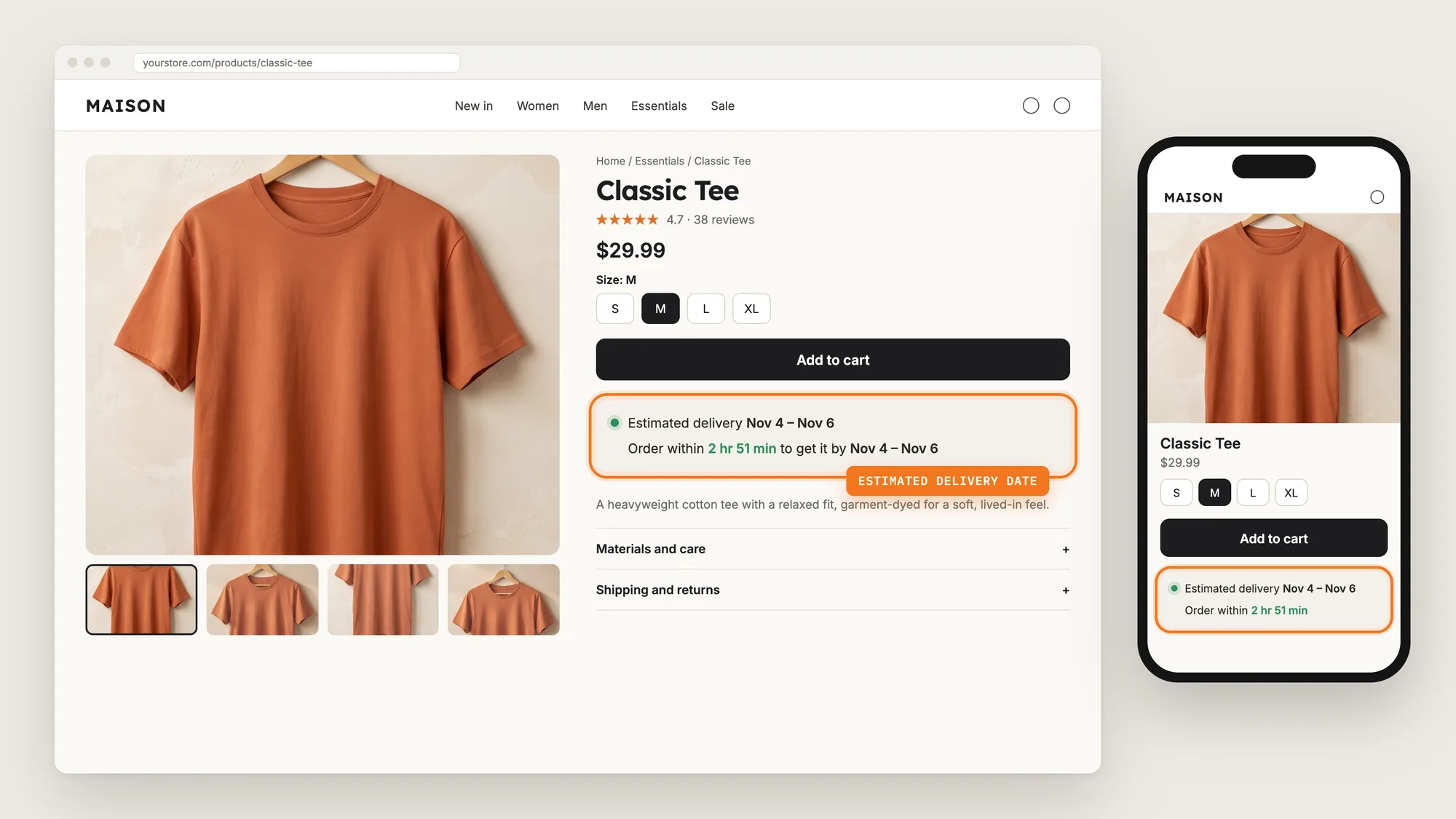
Estimated delivery dates answer that question next to the Add to cart button. A line such as "Estimated delivery Nov 4 – Nov 6" tells shoppers when the order should arrive, at the moment they decide to buy.
Here are the three ways to show estimated delivery dates on a Shopify store: with an Estimated Delivery Date app, from your theme settings, or with custom code.
What Are Estimated Delivery Dates?
Estimated delivery dates are a date range on the product page that tells shoppers when an order placed today should arrive. The range adds the days a store needs to prepare the order to the days the carrier needs to deliver it.
Good estimated delivery dates include:
- Real dates, not durations: "Nov 4 – Nov 6" reads faster than "3 to 5 business days"
- Your working days: The range skips the days your team doesn't pack orders and the days your carrier doesn't deliver
- A daily cut-off time: Orders placed after the cut-off move to the next business day
- A spot near the buy button: Shoppers see the date at the moment they decide
One plain line under the Add to cart button is often all a store needs.
What's the Quickest Way to Show Estimated Delivery Dates?
- Vitals - All in One App is the quickest way to show estimated delivery dates for most stores
- Vitals also offers 40+ apps, such as product reviews, trust badges and a countdown timer, in one subscription of $29.99/month, so you don't have to install and pay for each app separately
Here's how the three methods compare. If you'd rather weigh several apps against each other, see our list of the best estimated delivery date apps for Shopify.
How to Show Estimated Delivery Dates With an Estimated Delivery Date App?
Install the Vitals - All in One App, open its Shipping Information app and click Activate app. Estimated delivery dates then show on your product pages, and the steps below set your processing time, shipping time, countdown, look and position.
Step 1: Install the Vitals - All in One App
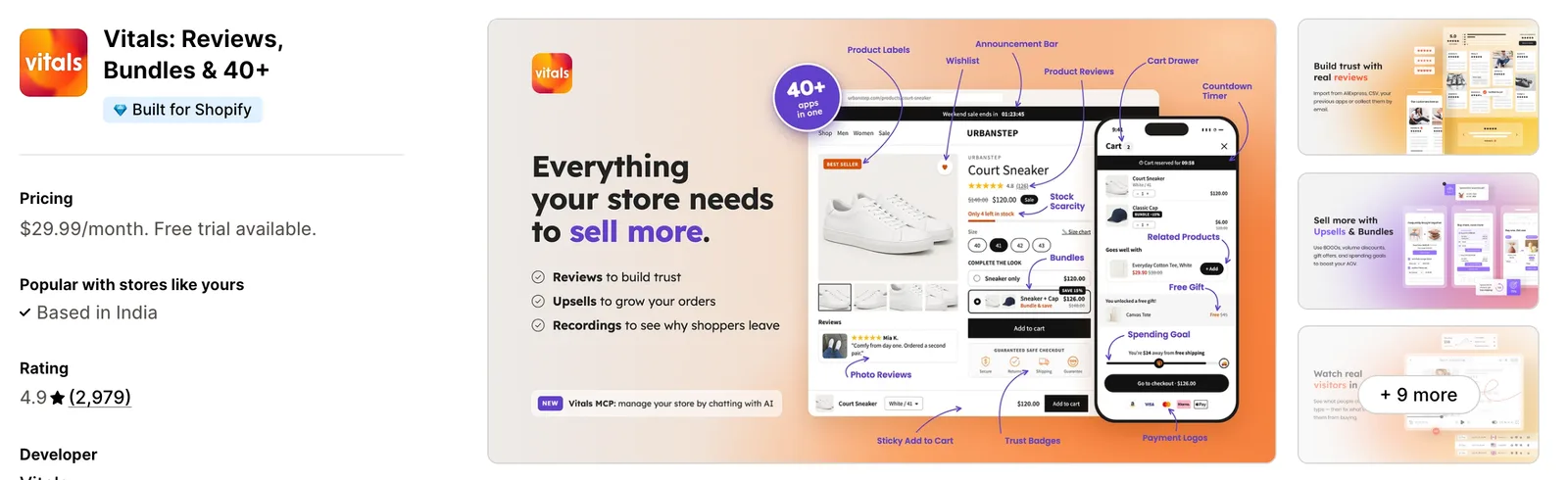
Install the Vitals - All in One App from the Shopify App Store. The 7-day free trial includes the Vitals Shipping Information app.
Step 2: Approve the Install in Shopify
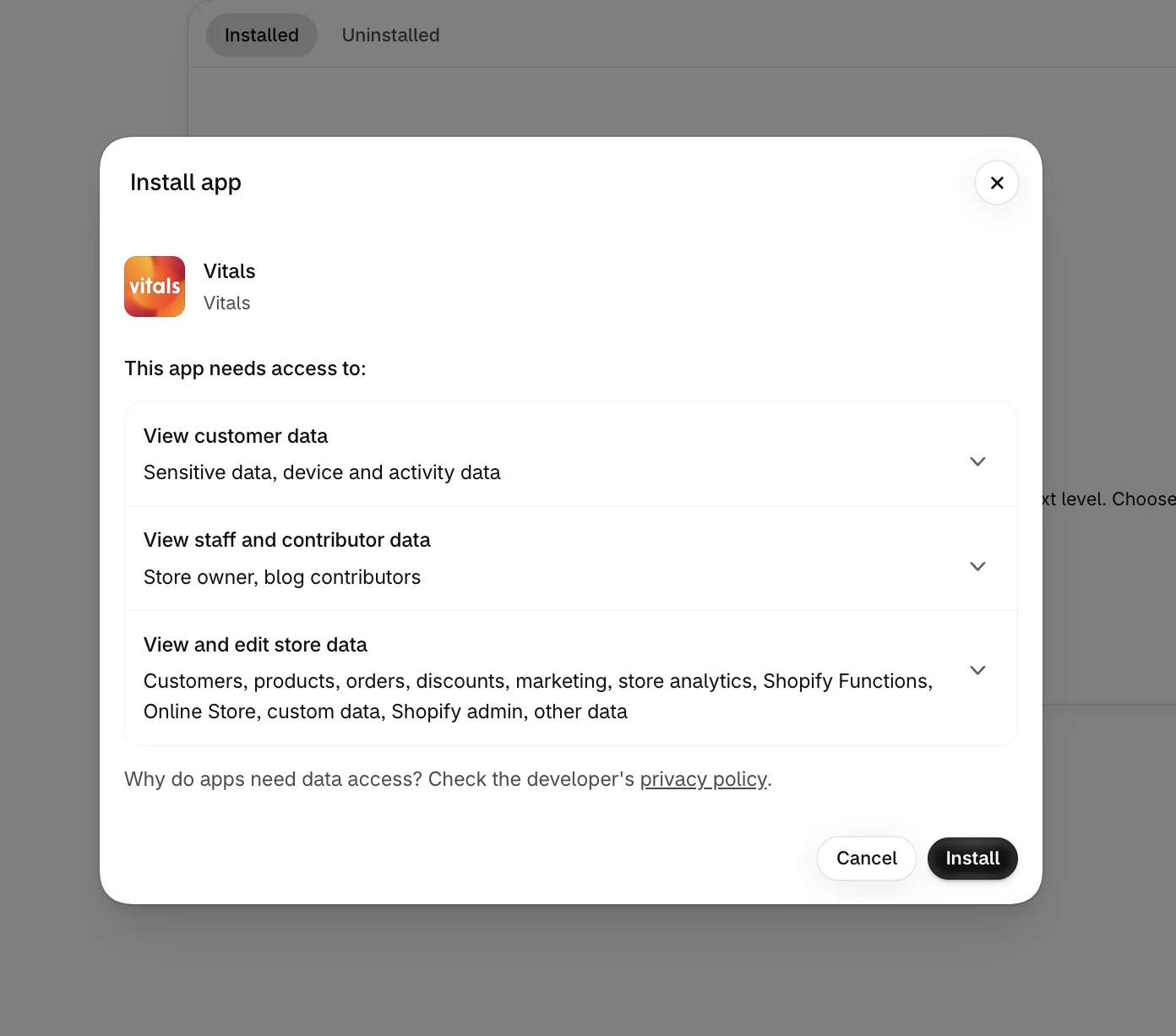
Click Install to approve the store data Vitals uses. Shopify then opens the Vitals dashboard.
Step 3: Open Shipping Information
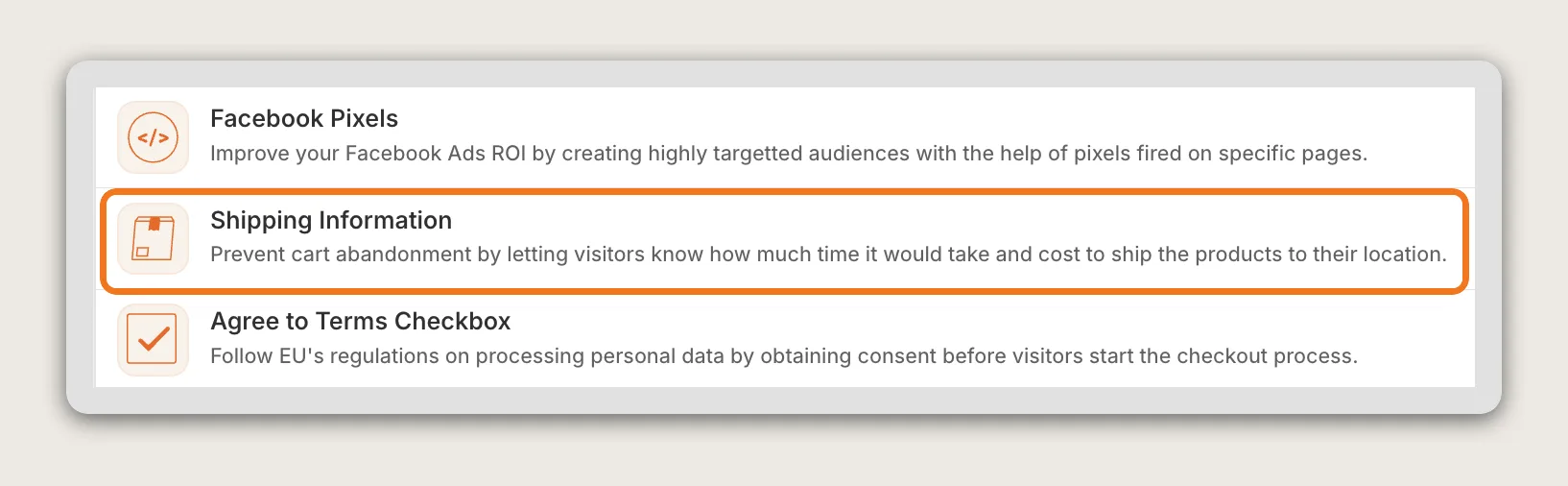
In the Vitals dashboard, find Shipping Information in the list of apps and click it.
Step 4: Activate the App
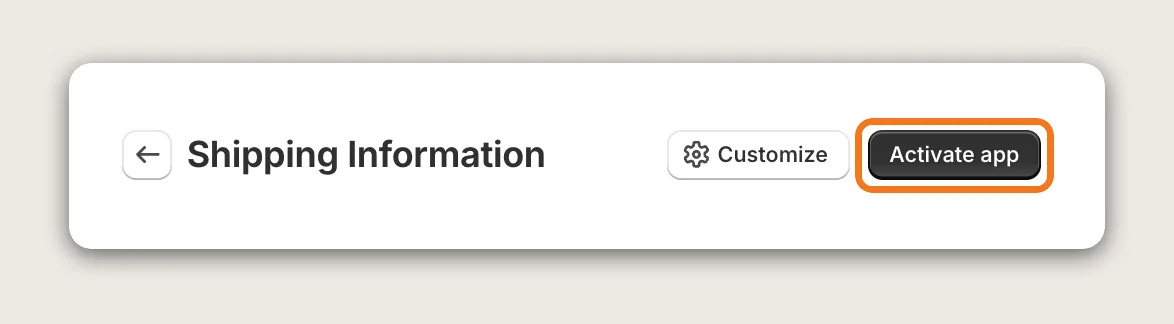
On the Shipping Information page, click Activate app. All the settings are on one Settings page, with a live preview beside them.
Step 5: Choose Delivery Date Mode
In the Mode card at the top of Settings, pick Delivery Date. Delivery Date mode shows an estimated delivery date range to every visitor, with no shipping zones to set up. The other mode, Dynamic Shipping Rates, shows rates and times per country from your Shopify shipping settings, for stores that need different rates and text per zone.
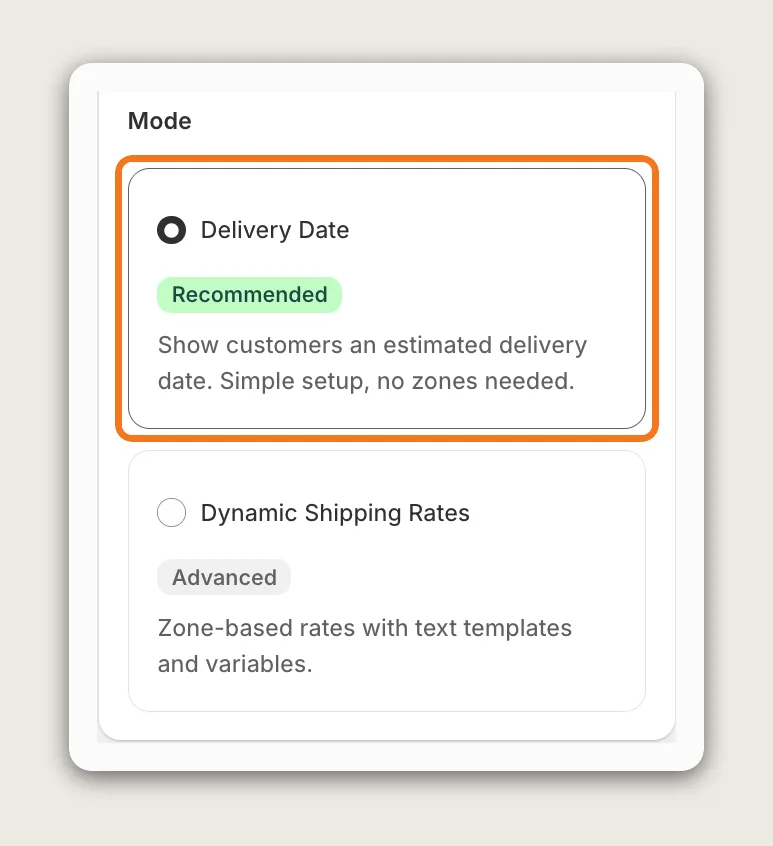
Each mode keeps its own settings, so you can switch later without losing your setup.
Step 6: Set Your Processing Time and Cut-Off
In the Processing time card, enter how many business days you need to prepare an order. Use 0 for same-day processing. Then set:
- Daily cut-off time: Orders placed before this hour count toward today, and later orders move to the next business day. The cut-off follows your store's time zone
- Days we process orders: Tick the days your team packs and ships orders. Monday to Friday is the default
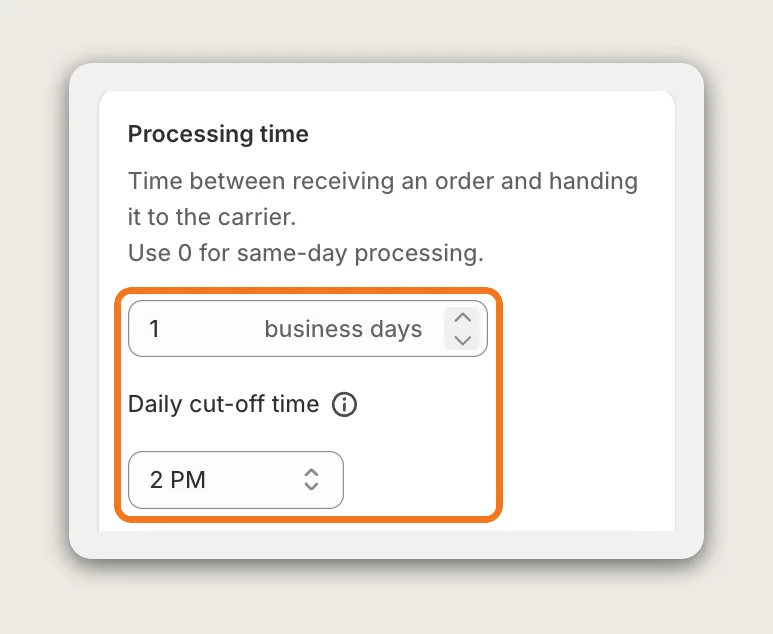
Step 7: Set Your Shipping Time
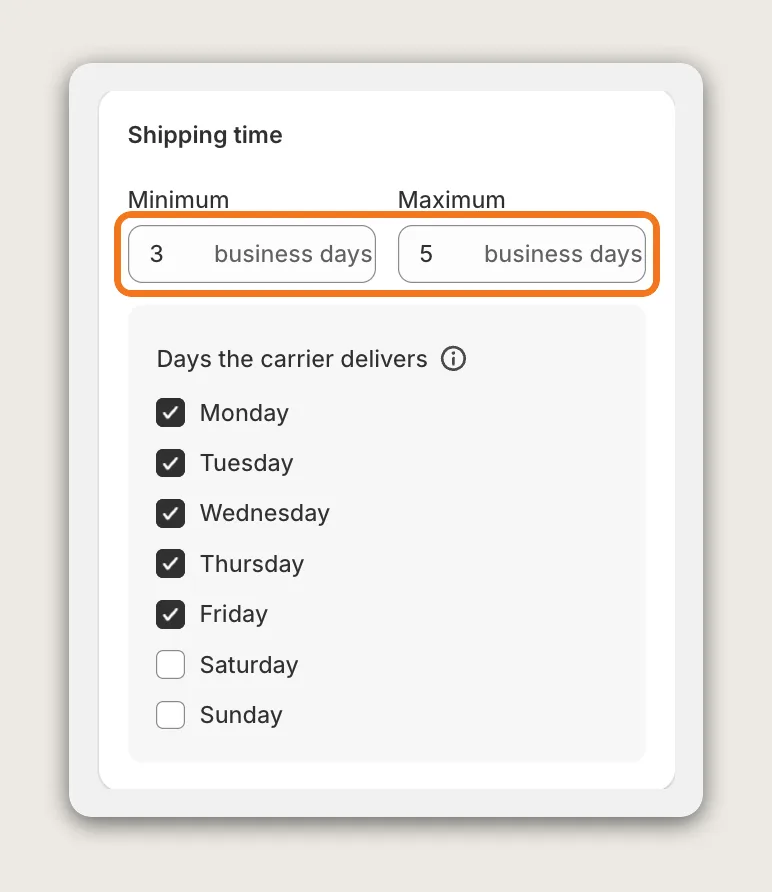
In the Shipping time card, enter the Minimum and Maximum number of business days your carrier needs after you hand the order over, such as 3 and 5. Under Days the carrier delivers, untick the days your carrier doesn't deliver, so the range skips them.
Step 8: Add a Live Countdown (Optional)
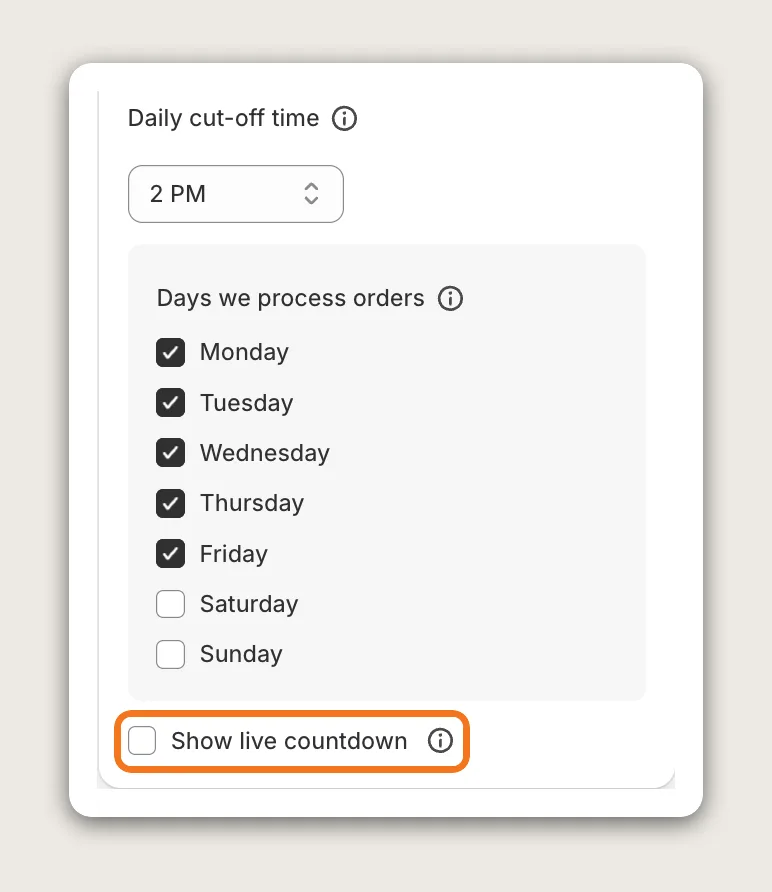
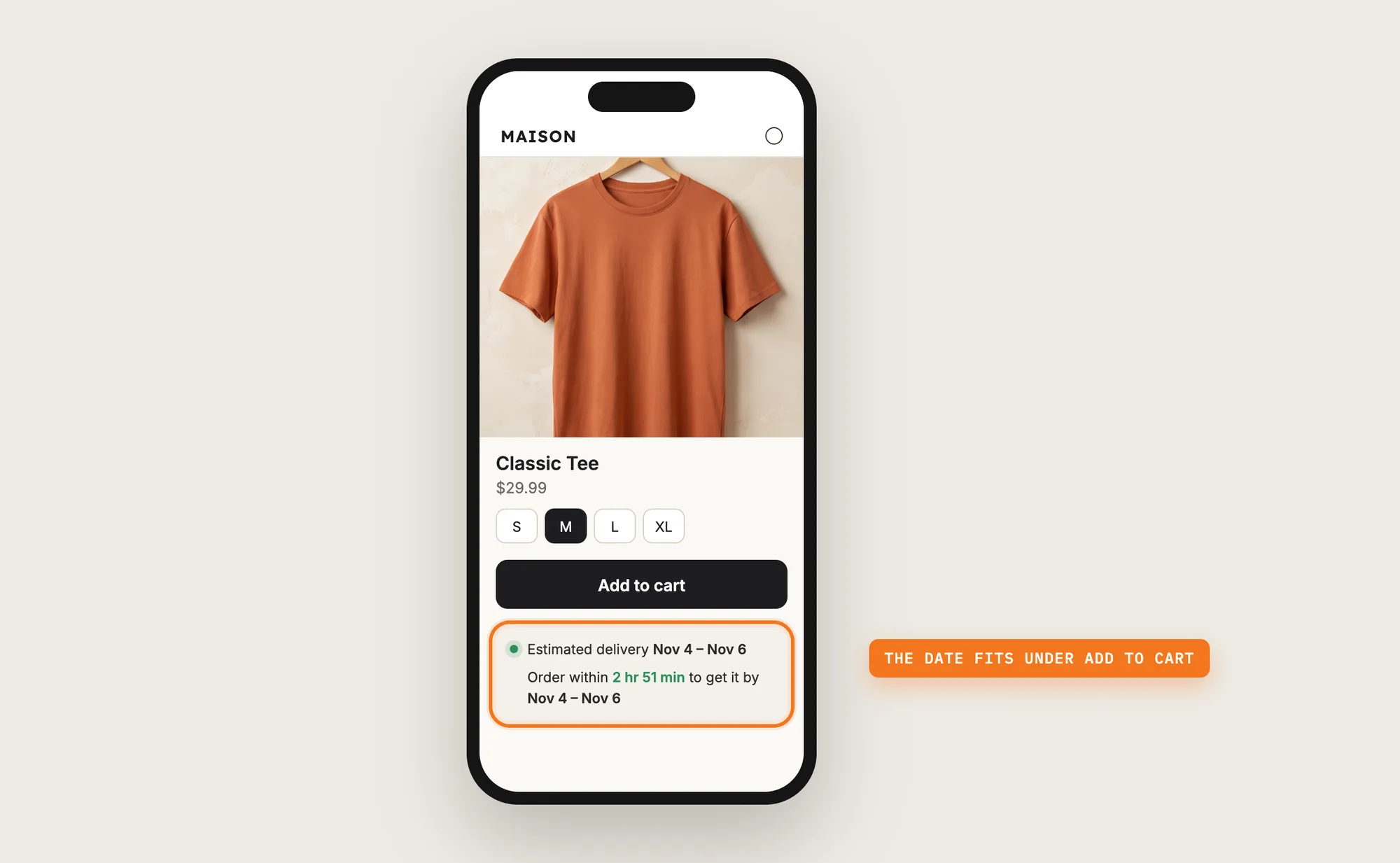
Turn on Show live countdown in the Processing time card to add a line such as "Order within 2 hr 51 min to get it by Nov 4 – Nov 6". The countdown hides after the daily cut-off, and the estimated delivery dates move to the next business day.
Step 9: Add a Free Shipping Message (Optional)
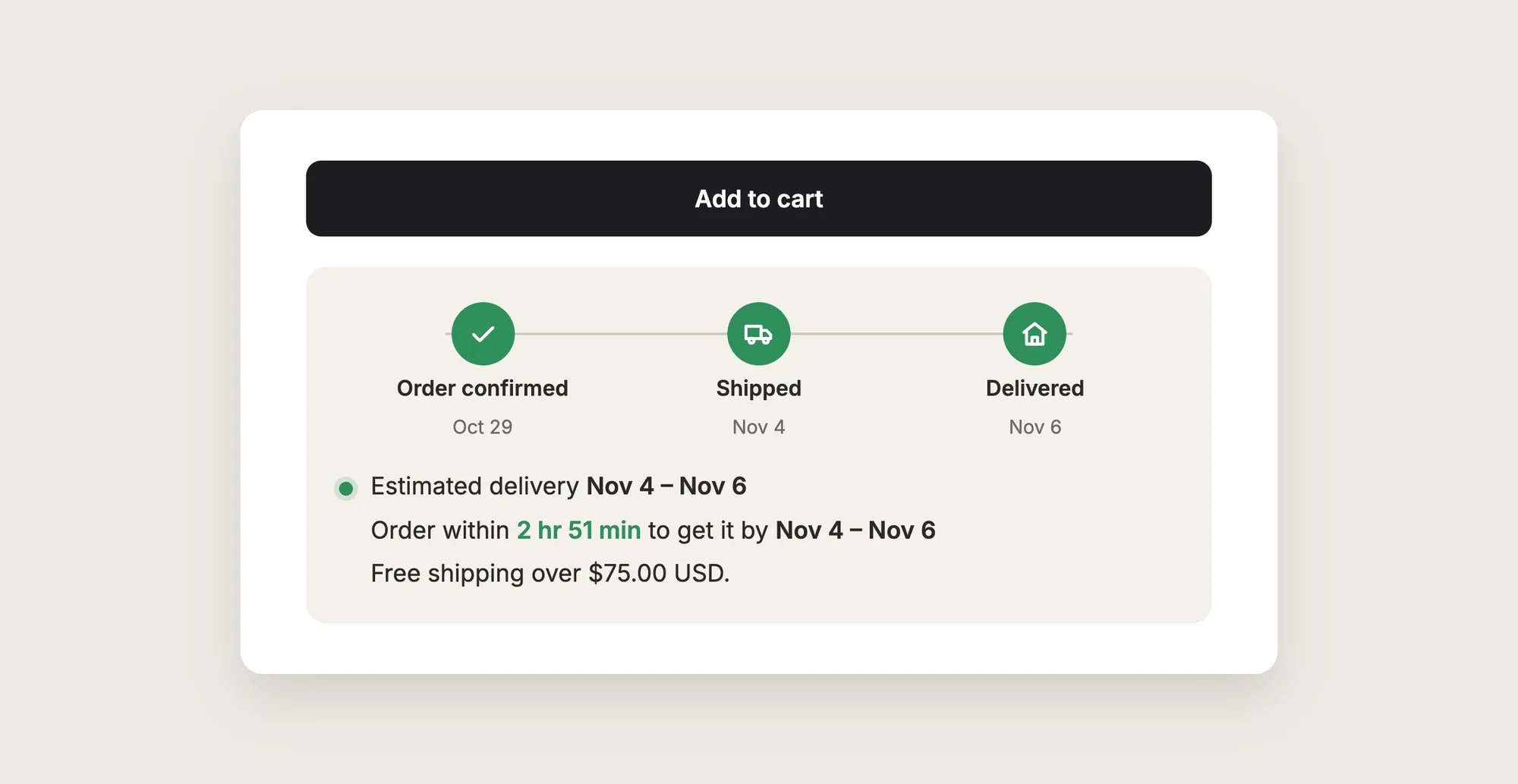
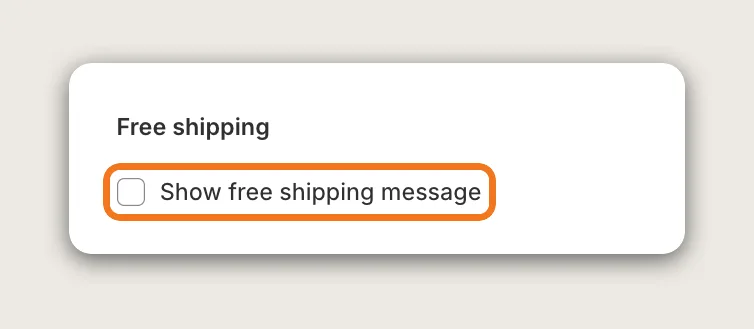
In the Free shipping card, turn on Show free shipping message and enter your Free shipping threshold, such as 75. A line such as "Free shipping over $75.00 USD." then shows under the estimated delivery dates.
Step 10: Choose a Message, a Timeline or Both
In the Appearance card, set Display to Message, Timeline or Both. Message is one line with a small dot. Timeline shows three steps, Order confirmed, Shipped and Delivered, with the delivery date as a heading. Both shows the timeline above the message. The countdown and the free shipping message show with Message or Both, not with Timeline.
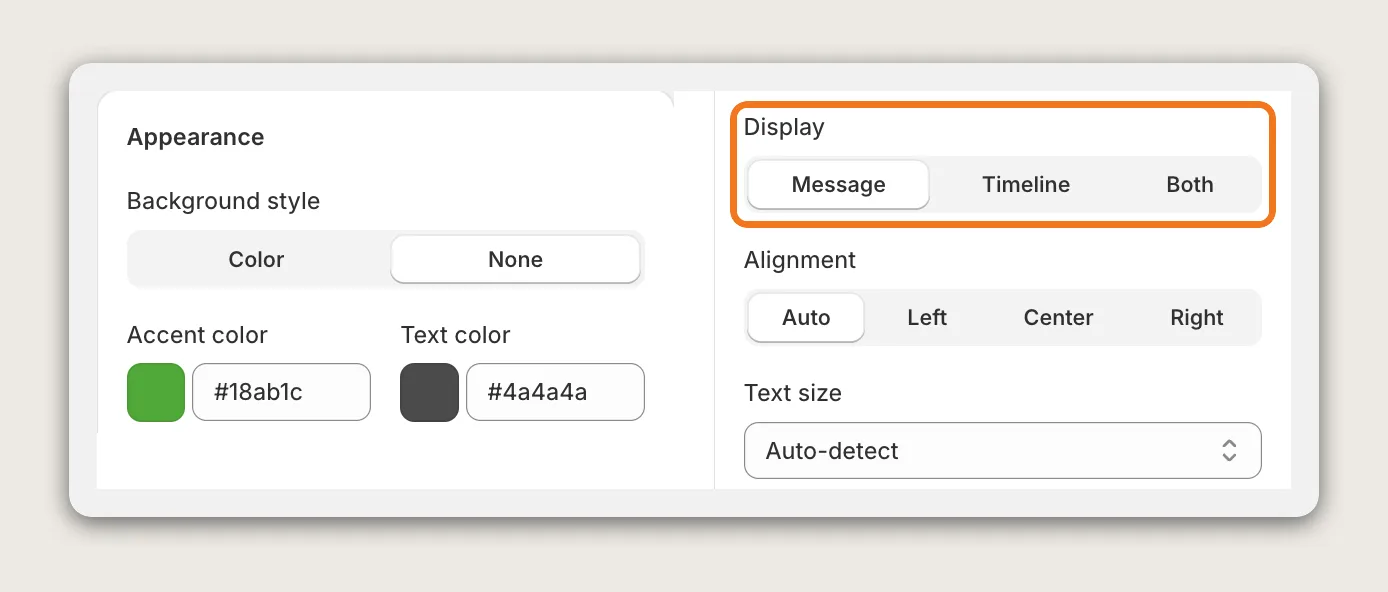
The same card sets the accent color, background color, text color, corner radius, alignment, text size and margin, so the estimated delivery dates match your theme.
Step 11: Pick the Date Format and Edit the Message
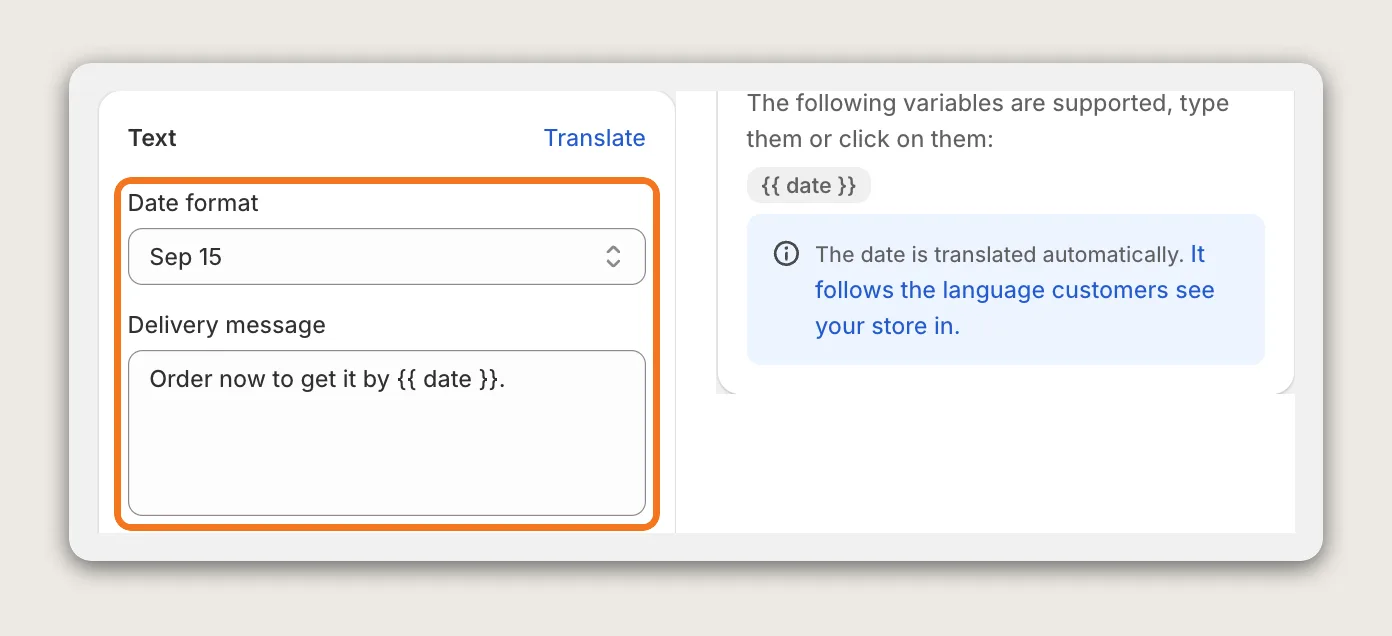
In the Text card, pick a Date format: Sep 15, September 15, 09/15 or Sep 15th. Then edit the Delivery message, keeping `{{ date }}` where the dates go. The month names follow your store's language in Shopify, and Translate in the card header opens the translations for the rest of the text.
Step 12: Choose Where the Dates Show
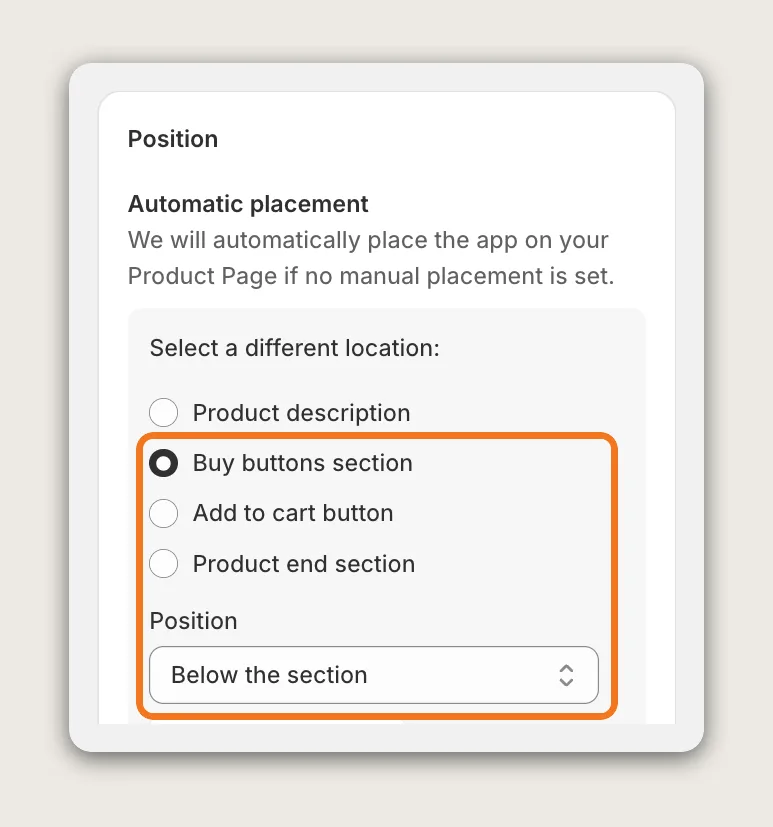
In the Position card, Automatic placement attaches the estimated delivery dates to a part of the product page: Product description, Buy buttons section, Add to cart button or Product end section. Then pick where the widget shows next to that part, such as Below the section. For Manual placement, click Go to editor and add the Vitals block in the Shopify theme editor.
Step 13: Hide the Dates on Some Products (Optional)
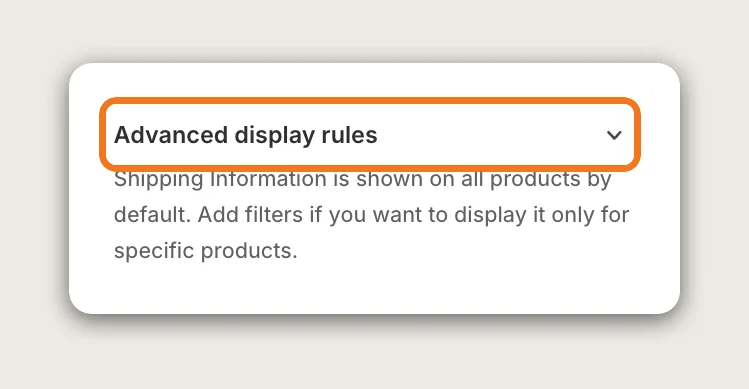
Estimated delivery dates show on every in-stock product by default. Open Advanced display rules and add filters to exclude products that don't ship, such as gift cards and digital products, or to show the dates only on products you pick.
Step 14: Save, Test on Your Phone and Watch the Impressions
Click Save, then open a product page on your phone and on desktop. Check that the dates match what your carrier delivers, that the countdown shows before your cut-off, and that the estimated delivery dates show right under the Add to cart button. The Analytics tab of Shipping Information then shows how often the estimated delivery dates show.
Step 15: Voila, Your Estimated Delivery Dates Are Live on the Store
Your shoppers now see when their order arrives right under the Add to cart button, before they reach checkout.
How to Show Estimated Delivery Dates From Your Theme Settings?
Most Shopify themes don't calculate estimated delivery dates, but many include a text or icon block where you can type a fixed line such as "Ships in 1–2 business days". To check your theme's settings:
- Click Customize next to your theme in Online Store → Themes
- Open a product page template, then click Add block in the product information section
- Look for a text, icon or collapsible row block, type your shipping line, then click Save
A theme block shows the same text every day, so it can't count your cut-off time, your working days or the carrier's days, and it never shows a real date. If a fixed shipping line is all you need, the theme setting may be enough.
How to Show Estimated Delivery Dates Without an App?
Hire a developer to build estimated delivery dates into your theme with Liquid and JavaScript. A custom build gives you full control over the rules and the design.
Custom estimated delivery dates usually involve:
- Copying your theme first, so the live store stays untouched during testing
- Writing the date logic for processing days, the daily cut-off and your store's time zone
- Skipping weekends, holidays and the days the carrier doesn't deliver
- Formatting the dates for each language your store sells in
- Adding the date range under the Add to cart button and styling it for mobile and desktop
- Testing before and after the cut-off, then publishing the theme copy
Custom code means no extra app, but you or your developer have to maintain it. A theme update can replace the files the code is in, and every change to your processing or carrier times means a code change.
How to Increase Sales With Estimated Delivery Dates?
Estimated delivery dates increase sales by answering "when will it arrive?" before the shopper leaves the product page to find out. These settings help:
- Put the estimated delivery dates right under the Add to cart button. Shoppers see the date at the moment they decide. Keep Location on Buy buttons section and Position on Below the section
- Add the live countdown before your cut-off. "Order within 2 hr 51 min" gives shoppers a reason to buy now rather than later. Turn on Show live countdown
- Set the cut-off as late as your team can pack orders. A later cut-off keeps the earlier dates and the countdown on screen for more of the day. Set Daily cut-off time in the Processing time card
- Keep the range honest. Dates your carrier misses cost repeat orders. Set Minimum and Maximum from your real delivery times
- Count only the days you and your carrier work. Untick the other days under Days we process orders and Days the carrier delivers, so the dates stay right on Fridays and weekends
- Add the free shipping threshold to the same widget. A line on when it arrives and a line on what it costs answer both shipping questions at once. Turn on Show free shipping message
- Show the timeline for a clearer picture. Order confirmed, Shipped and Delivered steps show what happens after the order. Set Display to Both to keep the countdown and the timeline together
Why Aren't My Estimated Delivery Dates Showing or Working?
These fixes solve most estimated delivery date problems:
- The estimated delivery dates don't show at all: Check that the app is activated, that the product is in stock, and that Advanced display rules don't exclude the product you're testing
- The dates don't show on the cart page or in the cart drawer: Shipping Information shows on product pages only
- The countdown disappeared: The countdown hides after your daily cut-off by design, and shows again the next business day
- I can't find the countdown or the free shipping message: Both show only when Display in the Appearance card is Message or Both, not Timeline
- The dates count weekends: Untick Saturday and Sunday under Days we process orders and Days the carrier delivers
- The month names are in the wrong language: The date language follows your store's language in Shopify under Settings → Languages. The 09/15 format shows no month names
- The widget shows for some countries but not mine: In Dynamic Shipping Rates mode, the widget shows only for countries in your Shopify shipping zones that have a minimum and maximum delivery time. Switch Mode to Delivery Date to show the estimated delivery dates to every visitor
- My weight-based rates don't show: Dynamic Shipping Rates imports price-based and flat rates from Shopify. Weight-based and carrier-calculated rates are not imported
Which Estimated Delivery Dates Method Should You Choose?
Vitals - All in One App suits most stores, but the right method depends on how exact you want the dates to be.
- Choose Vitals - All in One App if you want live estimated delivery dates under the Add to cart button that count your cut-off, your working days and your carrier's days, with an optional countdown and timeline. It also includes 40+ other apps in one subscription of $29.99/month, so you don't have to install and pay for each app separately
- Choose your theme's setting if a fixed shipping line such as "Ships in 1–2 business days" is enough
- Choose custom code if you have delivery rules no app handles and a developer to keep the code working through theme updates
Start a 7-day free trial: Install the Vitals - All in One App and show estimated delivery dates
Frequently Asked Questions
1. What is the best way to show estimated delivery dates on Shopify?
Vitals - All in One App is the best way for most stores. Its Shipping Information app shows estimated delivery dates under the Add to cart button without code, from your processing time, daily cut-off and shipping time.
2. How are estimated delivery dates calculated?
Processing time plus shipping time gives the estimated delivery dates. Vitals counts only the days you process orders and the days your carrier delivers, and moves orders placed after your daily cut-off to the next business day.
3. Can I show a countdown to the order cut-off?
Yes. Turn on Show live countdown in Shipping Information to show a line such as "Order within 2 hr 51 min to get it by Nov 4 – Nov 6". The countdown hides after the cut-off.
4. Can estimated delivery dates skip weekends?
Yes. Untick Saturday and Sunday under Days we process orders and Days the carrier delivers, and the date range skips them. Any other days you don't work can be unticked too.
5. Can I show estimated delivery dates on the cart page?
No. The Vitals Shipping Information app shows estimated delivery dates on product pages only, not on the cart page or in the cart drawer.
6. Do I need shipping zones to show estimated delivery dates?
No. Delivery Date mode needs no shipping zones and shows the dates to every visitor. Shipping zones are needed only in Dynamic Shipping Rates mode, which shows rates per country.
7. Does Shipping Information track orders?
No. Shipping Information shows estimated delivery dates and shipping rates before the purchase. It doesn't track orders or show tracking numbers.