How to Add a GDPR Cookie Consent Banner on Shopify

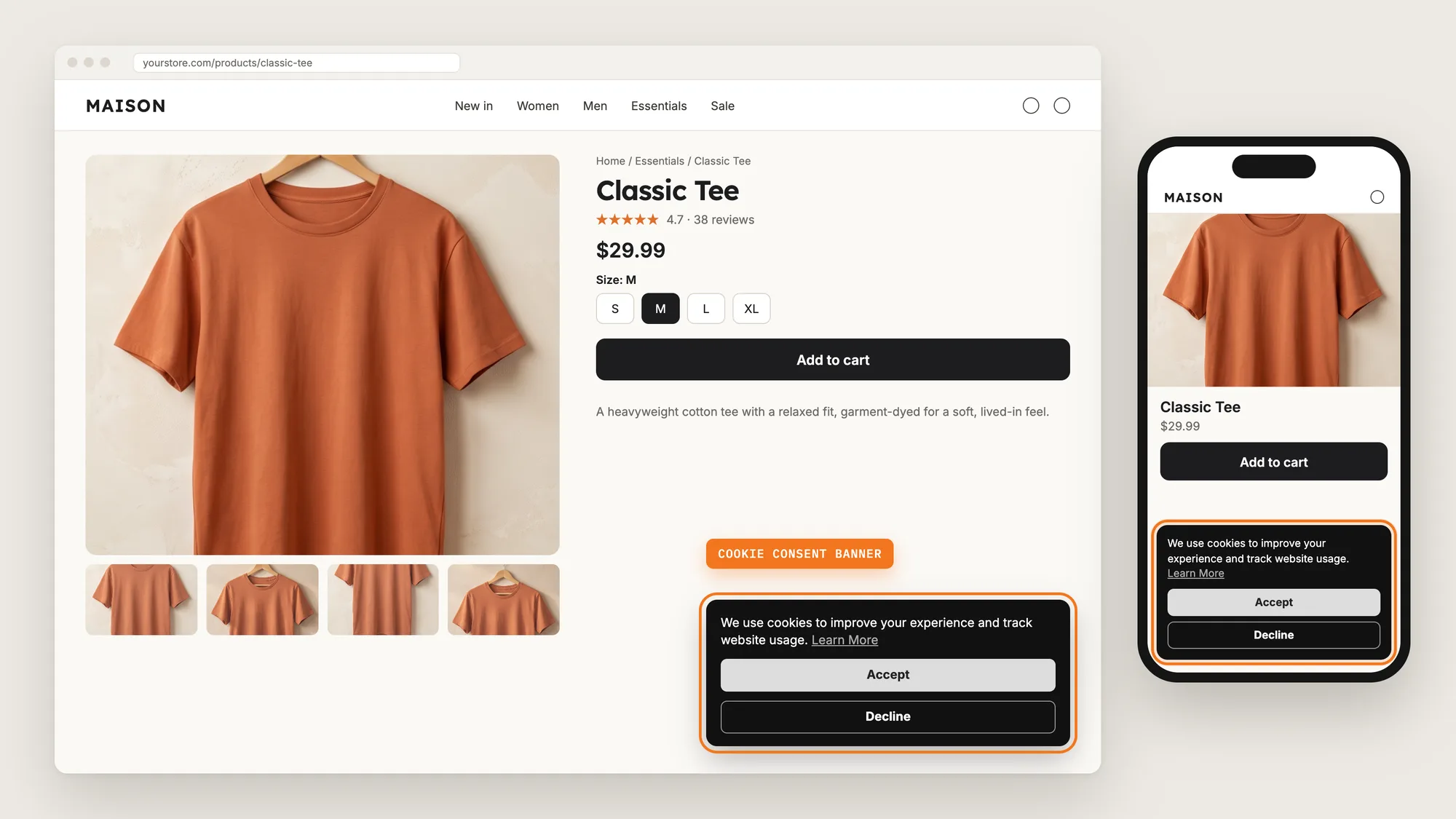
Visitors from the EU, the EEA and the UK expect to choose which cookies a store places on their device. A store that tracks them before they agree, or hides the choice, risks their trust and may fall short of the privacy rules in their country.
A GDPR cookie consent banner asks first. A short message with Accept and Decline buttons lets each visitor choose, and the store then follows that choice.
Here are the three ways to add a GDPR cookie consent banner to a Shopify store: with a Cookie Banner app, from your Shopify settings, or with custom code.
What Is a GDPR Cookie Consent Banner?
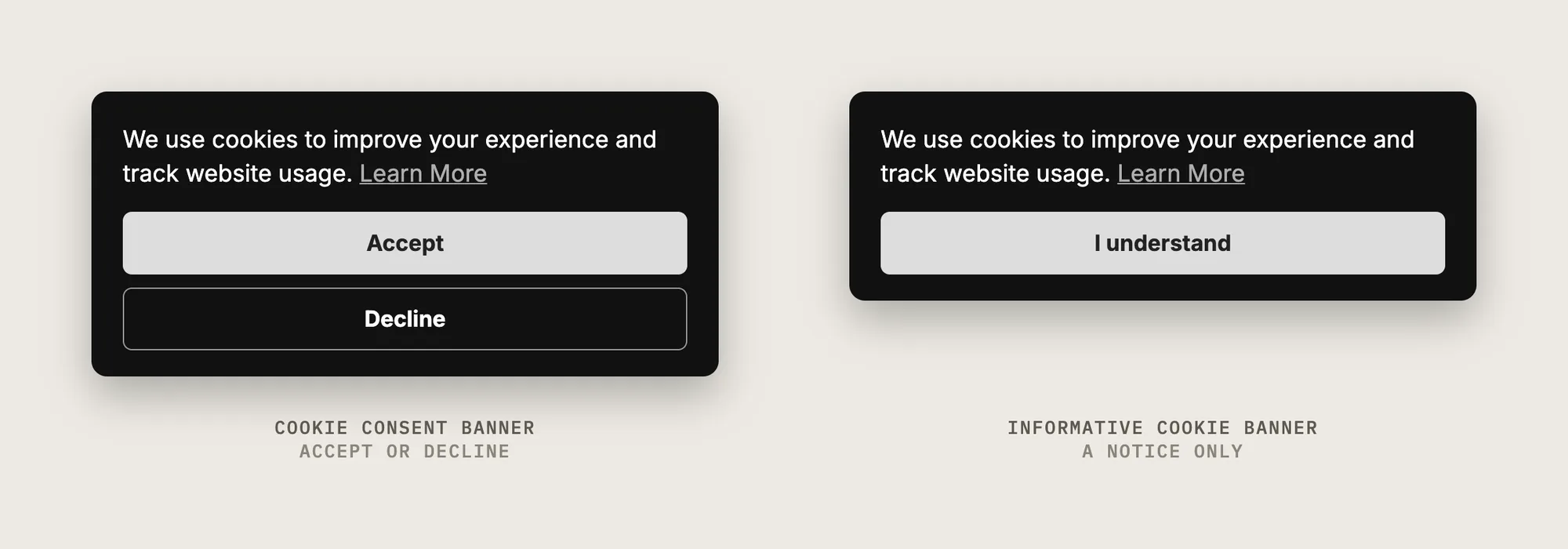
A GDPR cookie consent banner is a message on a store page that asks visitors to accept or decline non-essential cookies, such as analytics and marketing cookies, before the store places them. A plain cookie notice only tells visitors that the store uses cookies, while a GDPR cookie consent banner gives them a real choice.
A good GDPR cookie consent banner includes:
- A Decline button as clear as Accept: Visitors can say no as easily as yes.
- A link to your privacy policy: Visitors can read how the store uses cookies before they choose.
- The right banner for each region: Visitors from regions that require consent see Accept and Decline, and other visitors see a simple notice.
- A way to change the choice later: A link in the footer opens the cookie consent banner again.
The cookie consent banner asks for and records consent. Your privacy policy and the wording of the banner are up to you, so check your store's own legal needs with a privacy professional.
What's the Quickest Way to Add a GDPR Cookie Consent Banner?
- Vitals - All in One App is the quickest way to add a GDPR cookie consent banner for most stores
- Vitals also offers 40+ apps, such as an agree to terms checkbox, trust badges and product reviews, in one subscription of $29.99/month, so you don't have to install and pay for each app separately
Here's how the three methods compare.
How to Add a GDPR Cookie Consent Banner With a Cookie Banner App?
Install the Vitals - All in One App, open its Cookie Banner app and click Activate app. Then choose Use custom cookie banner in Shopify, and the steps below set the regions, the look, the privacy policy link and the two banners.
Step 1: Install the Vitals - All in One App
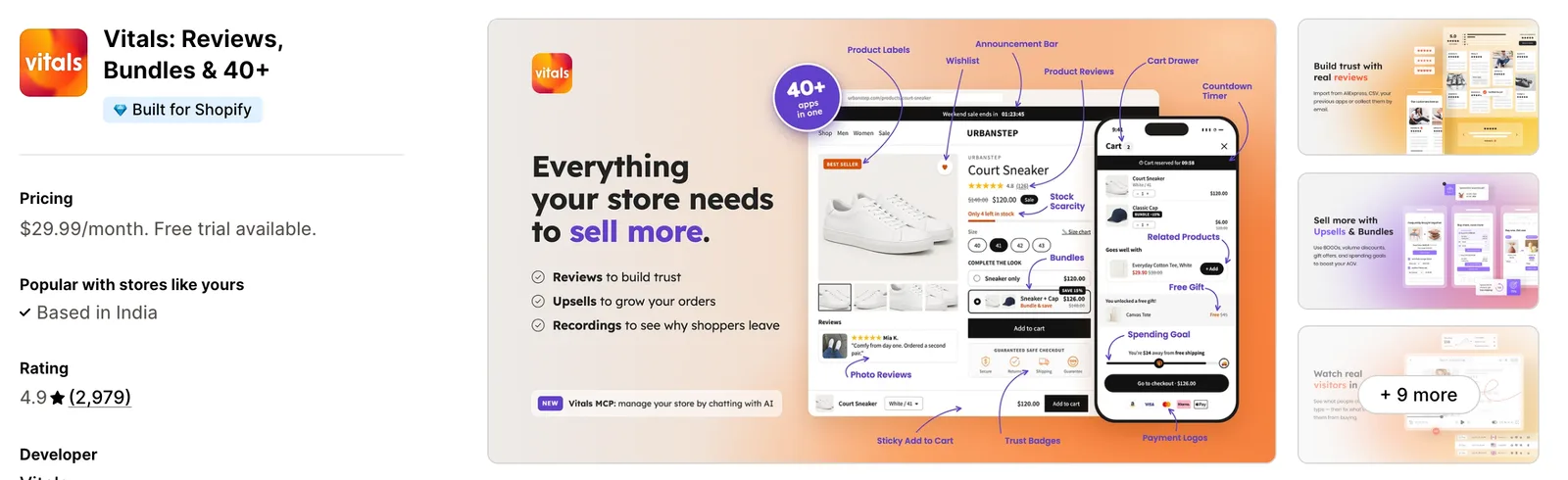
Install the Vitals - All in One App from the Shopify App Store. The 7-day free trial includes the Vitals Cookie Banner app.
Step 2: Approve the Install in Shopify
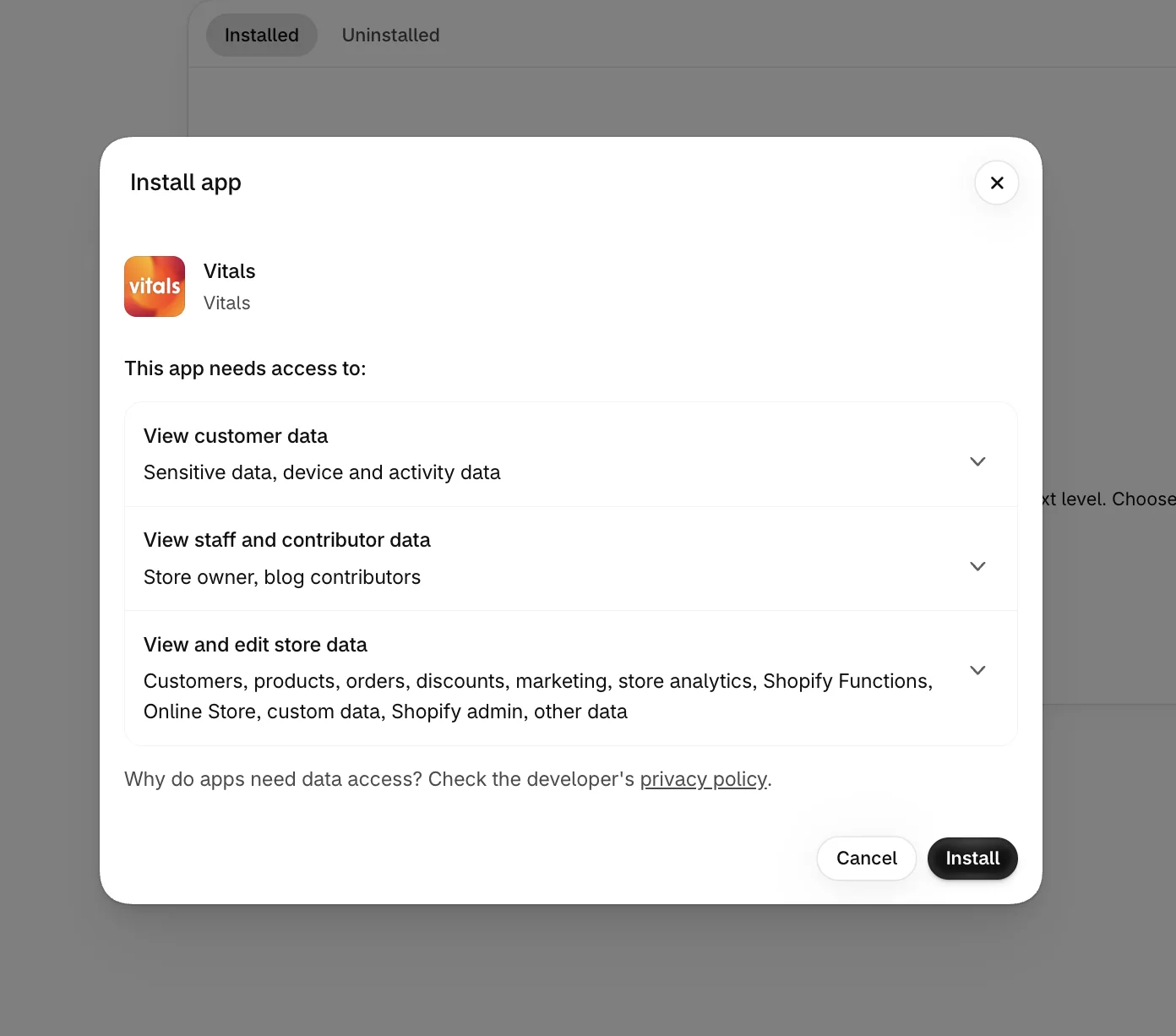
Click Install to approve the store data Vitals uses. Shopify then opens the Vitals dashboard.
Step 3: Open Cookie Banner
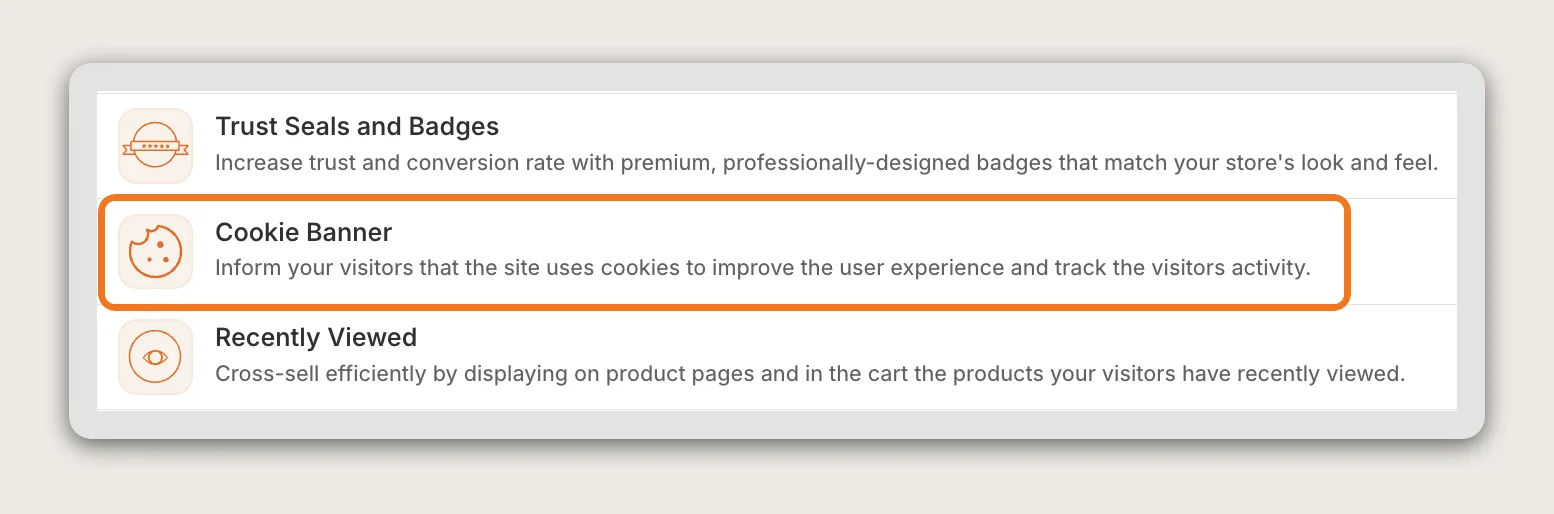
In the Vitals dashboard, click Apps in the sidebar and find Cookie Banner under the Protect category.
Step 4: Activate the App
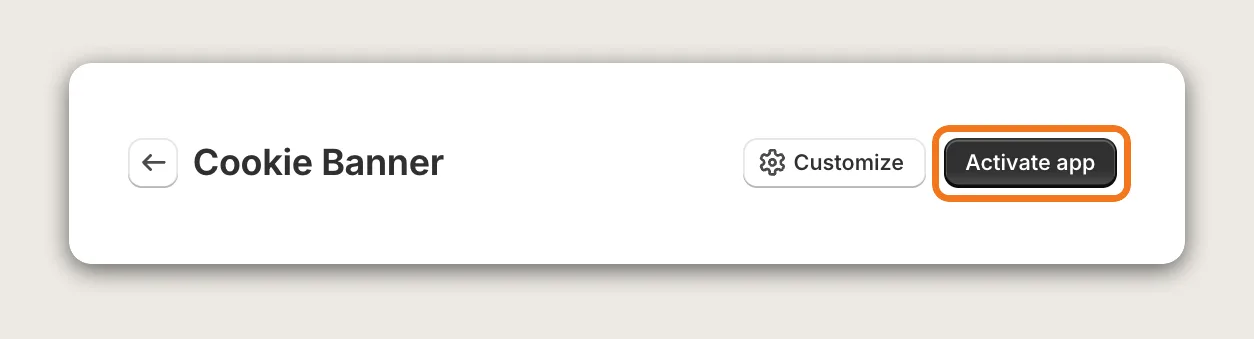
On the Cookie Banner page, click Activate app. All the settings are on one page in three sections, General and design settings, Cookie Consent Banner and Informative Cookie Banner, with a live preview for desktop and mobile.
Step 5: Choose Use Custom Cookie Banner in Shopify
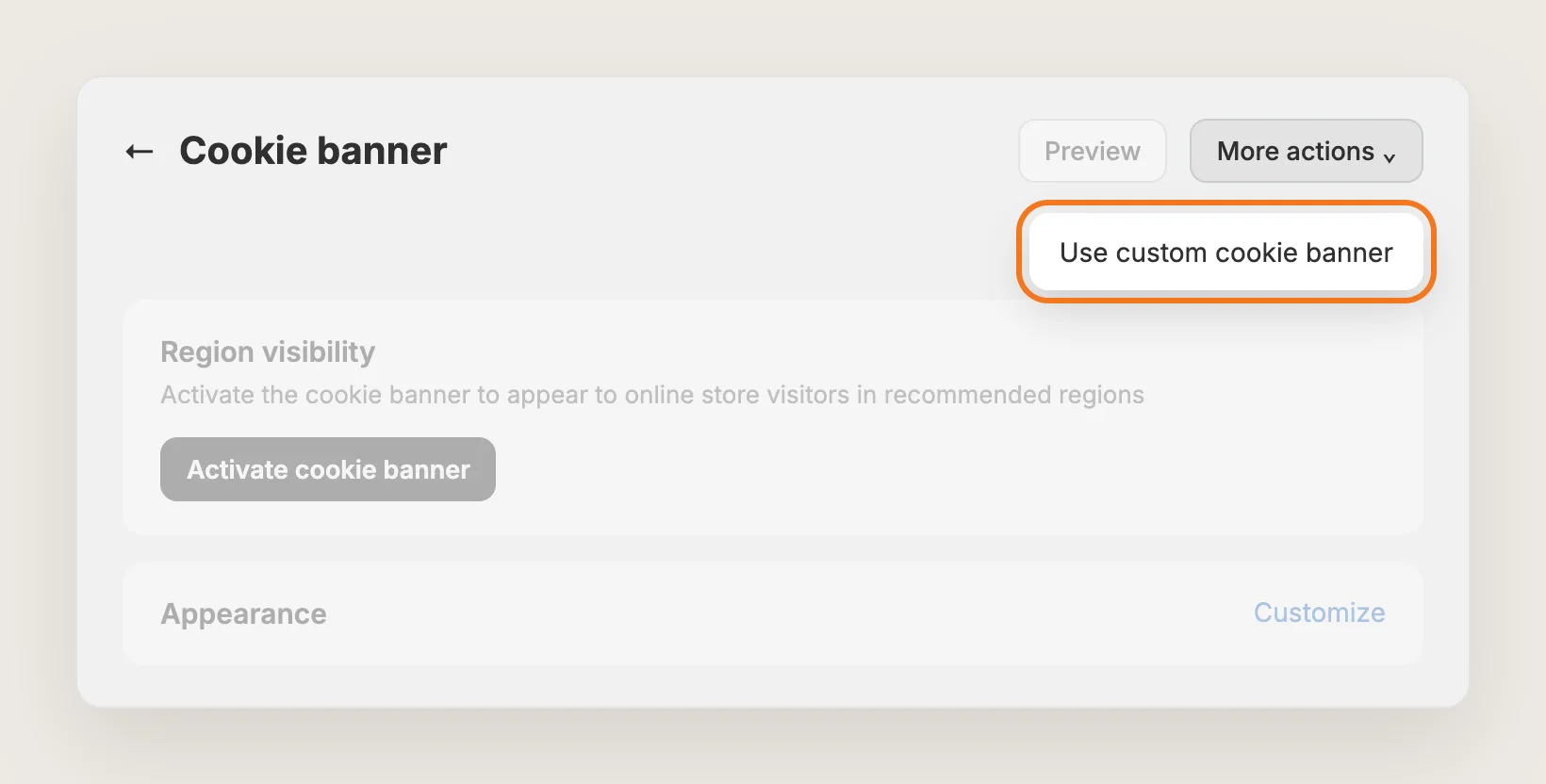
In your Shopify admin, go to Settings → Customer privacy and open the Cookie banner page. Click More actions, then Use custom cookie banner. This tells Shopify to let the Vitals banner ask for consent instead of Shopify's own banner. The Cookie Consent Banner section in Vitals also links to this page with Go to Cookie Banner settings.
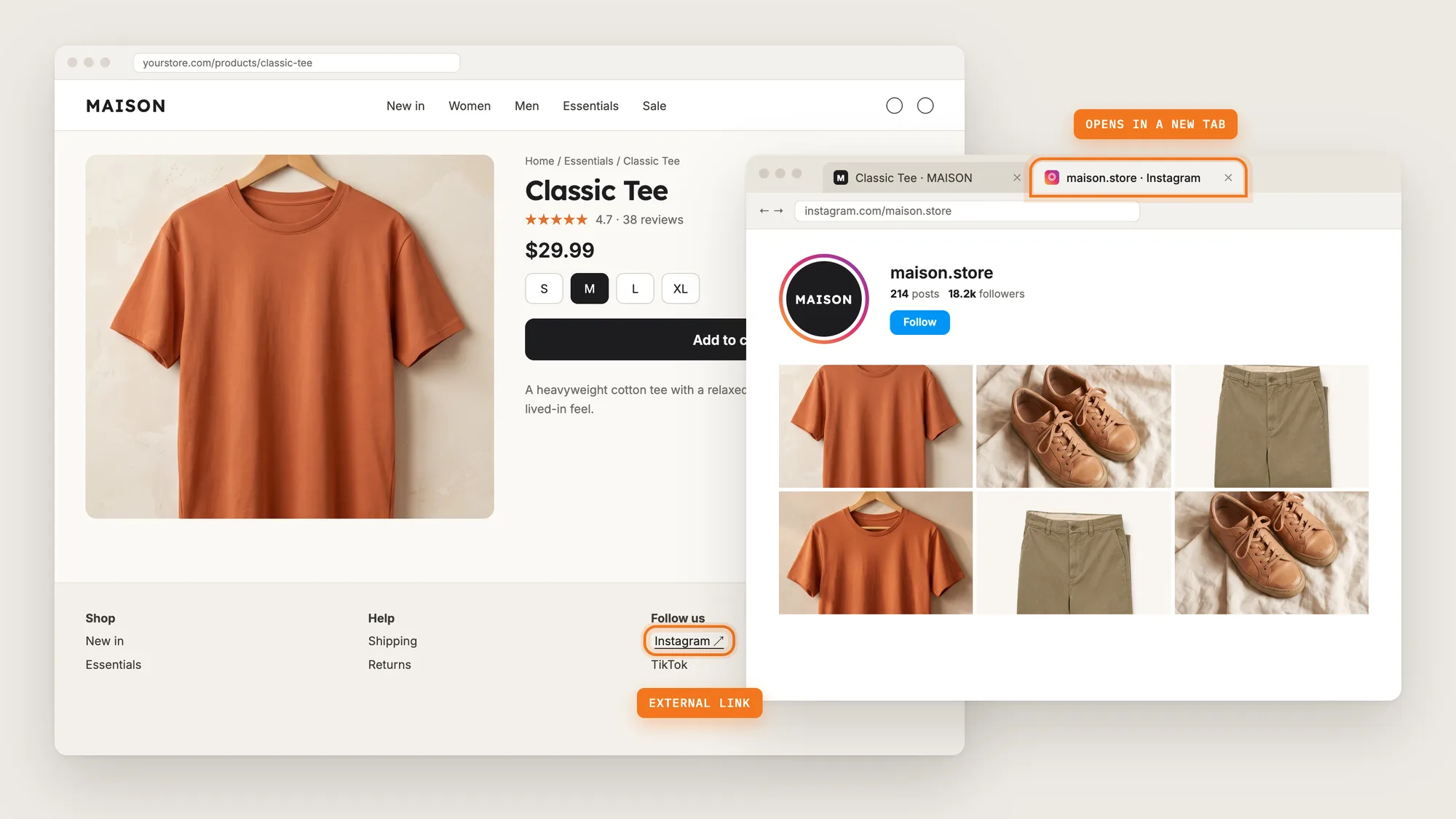
Step 6: Confirm the Regions That Need Consent
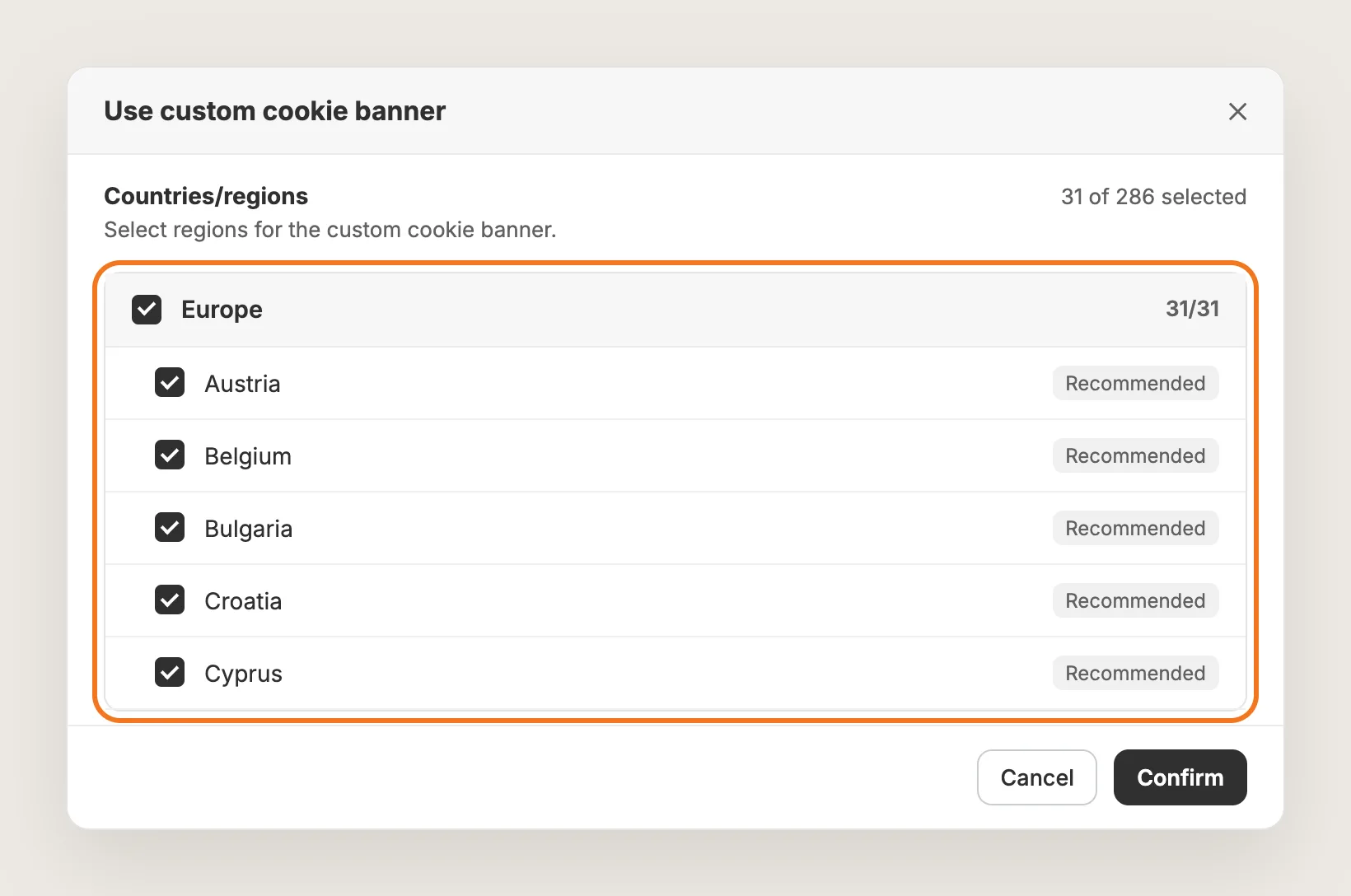
Shopify then lists the countries and regions where the GDPR cookie consent banner shows. Shopify preselects the recommended regions, such as the countries of the EU. Review the list and click Confirm.
Step 7: Choose Floating or Fixed Bottom
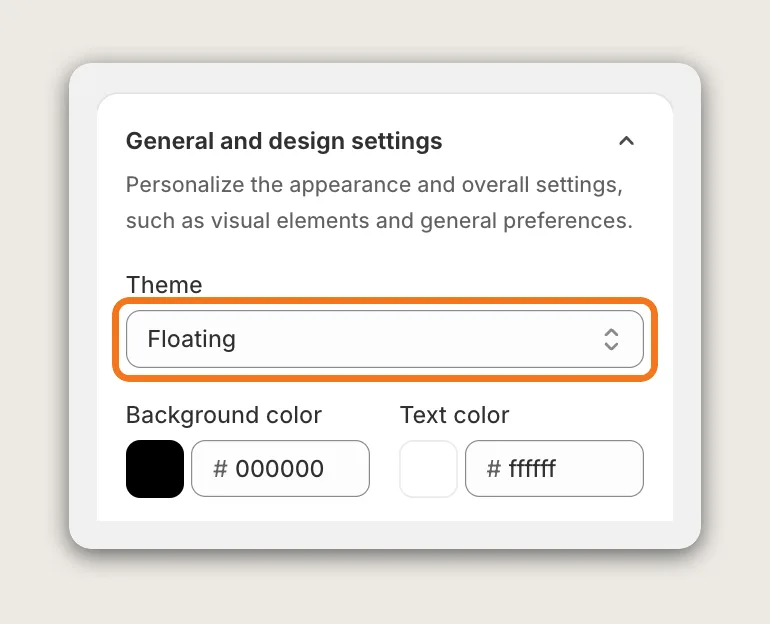
In General and design settings, set Theme to Floating for a card in the corner of the page, or Fixed Bottom for a bar across the bottom of the screen. Floating is the default. The same section sets the banner's background color, text color and the colors of the Accept button.
Step 8: Add Your Privacy Policy Link
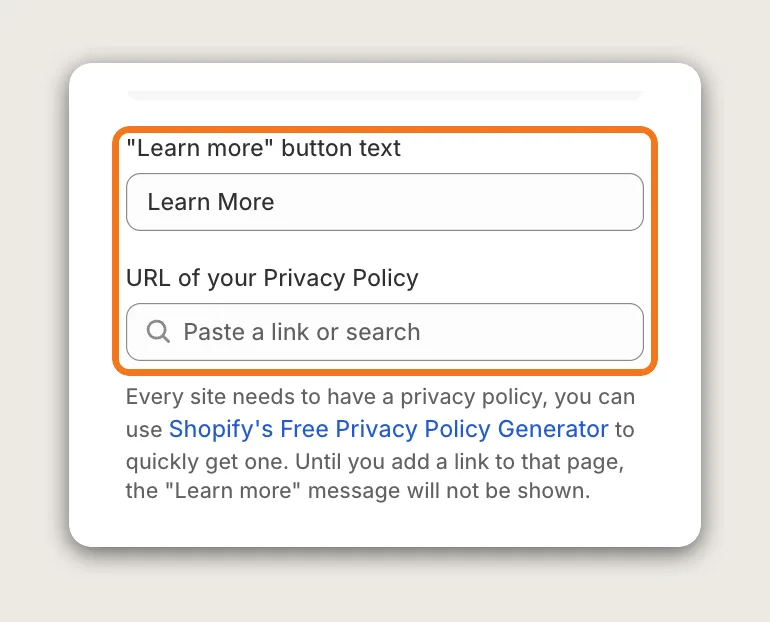
In General and design settings, write the link text in "Learn more" button text and add your page in URL of your Privacy Policy. Enter a page path, a full URL or pick a store page. Both fields are required for the cookie consent banner, and Vitals won't save the settings until they're filled in.
Step 9: Turn On the Cookie Consent Banner
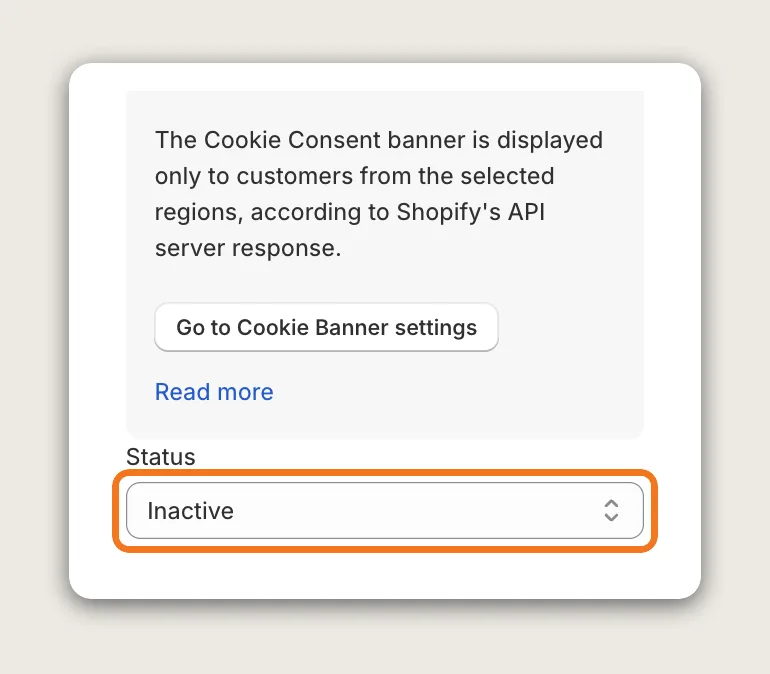
In the Cookie Consent Banner section, set Status to Active. The cookie consent banner is Inactive by default. It shows only when three things are true: you chose Use custom cookie banner in Shopify, the visitor is from one of the selected regions, and the status is Active.
Step 10: Write the Message and Buttons
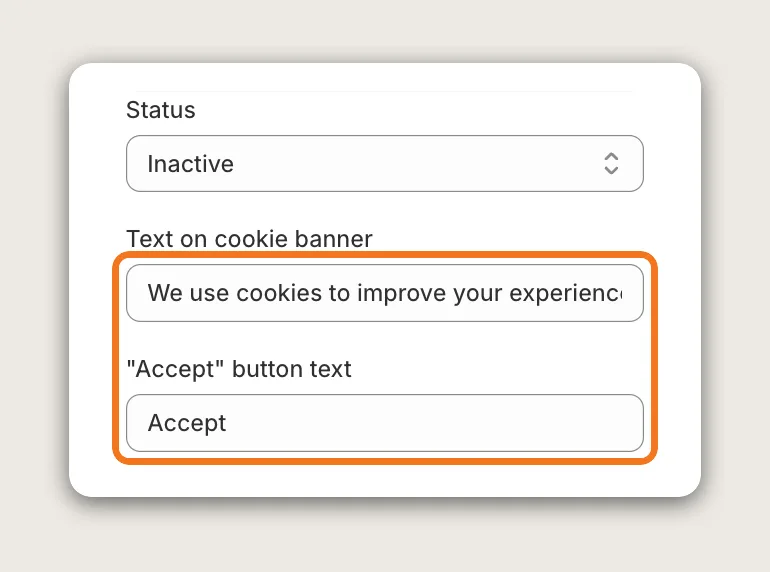
In the same section, write the message in Text on cookie banner and the button labels in "Accept" button text and the "Decline" button text. Set the Decline button's style to Fill, Outline or Text only. Outline is the default.
Step 11: Set Up the Informative Cookie Banner
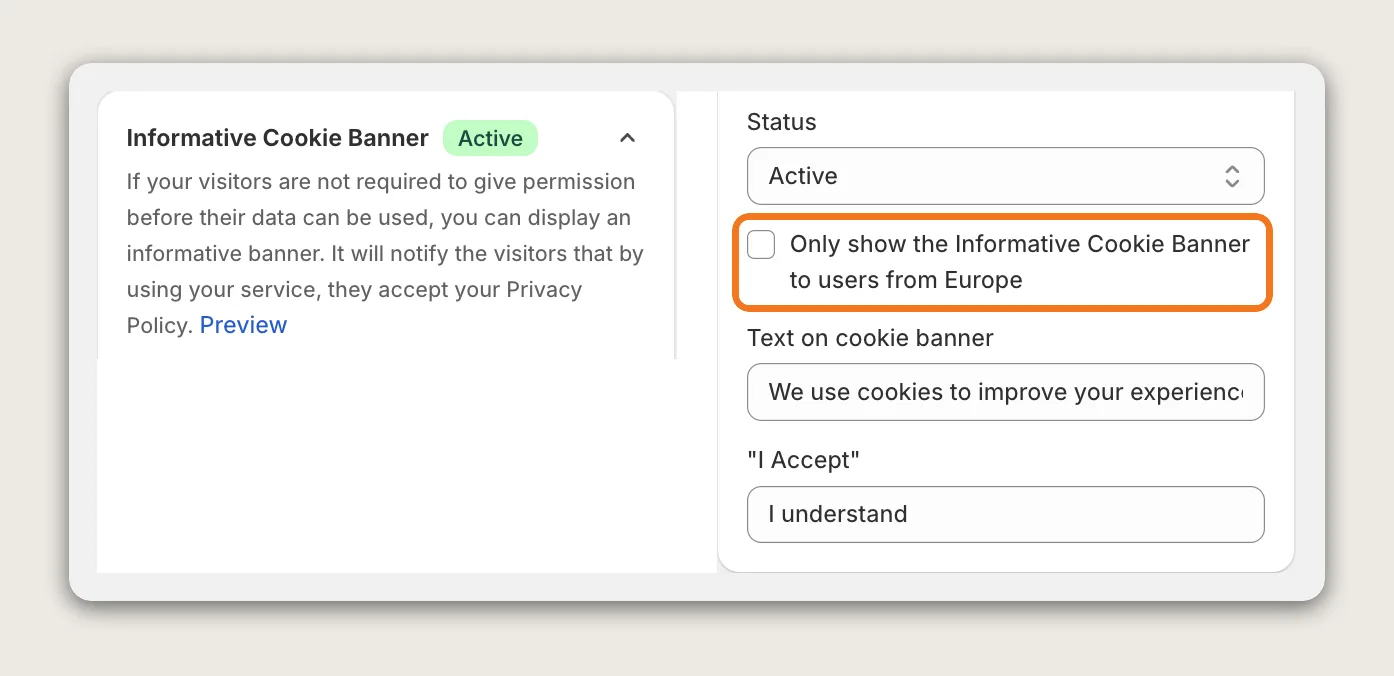
The Informative Cookie Banner shows a simple notice with one button to visitors outside the regions you selected in Shopify. It is Active by default. Edit its Text on cookie banner and the button text in "I Accept", which says "I understand" by default. Tick Only show the Informative Cookie Banner to users from Europe to hide the notice everywhere else, or set Status to Inactive if you only want the cookie consent banner.
Step 12: Let Visitors Change Their Choice
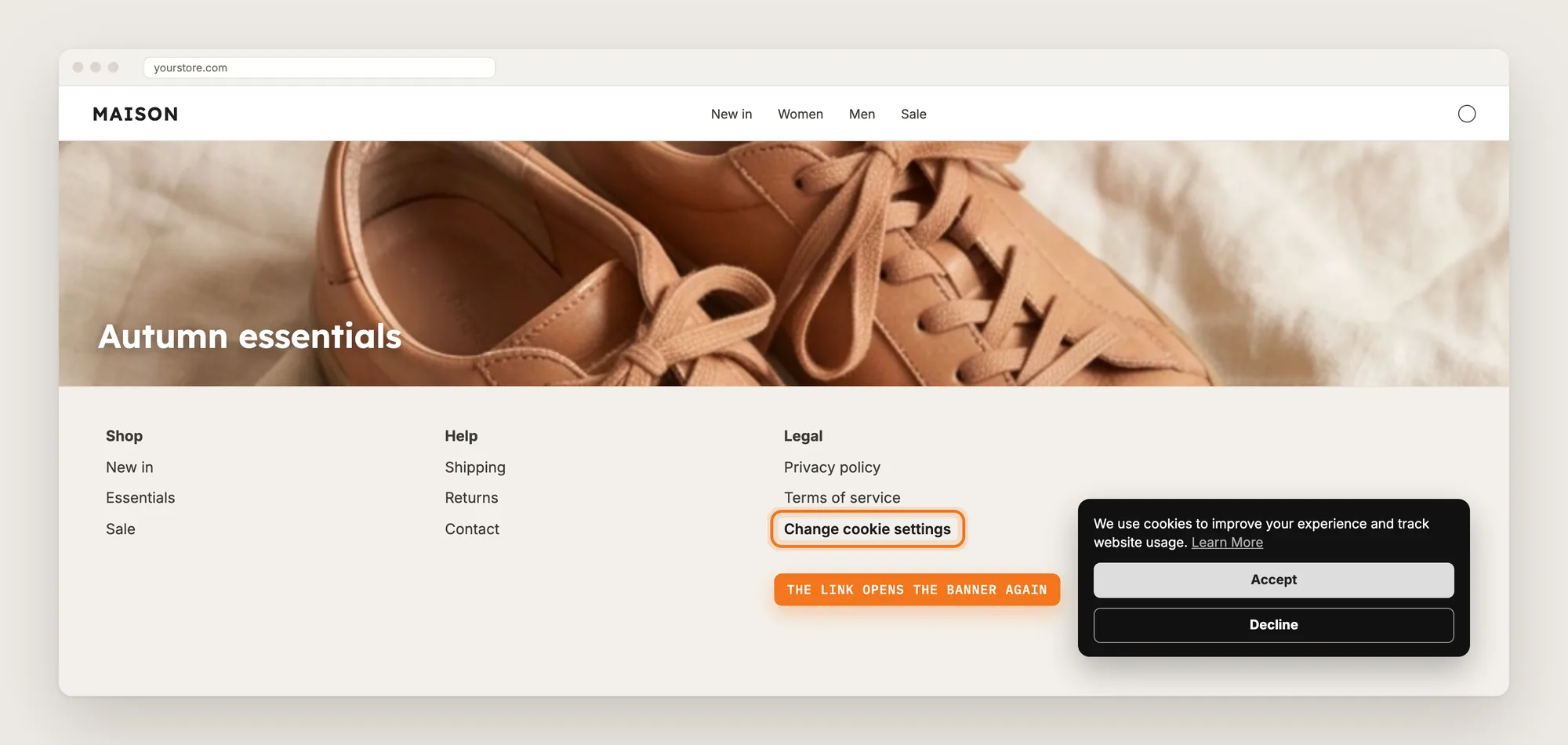
Add a link such as "Change cookie settings" to your footer menu in Content → Menus, or to your privacy policy in Settings → Policies. Use `#vtl:userRequestToChangeConsent` as the link address. When a visitor clicks the link, the cookie consent banner opens again so they can accept or decline. The link works while the cookie consent banner's status is Active.
Step 13: Save and Test on Your Phone
Click Save, then open your store on your phone and on desktop. Shopify decides who sees the cookie consent banner from the visitor's region, so a test from outside the selected regions shows the informative banner instead. Check that the banner doesn't hide the Add to cart button for long, that Decline is easy to find and that Learn More opens your privacy policy.
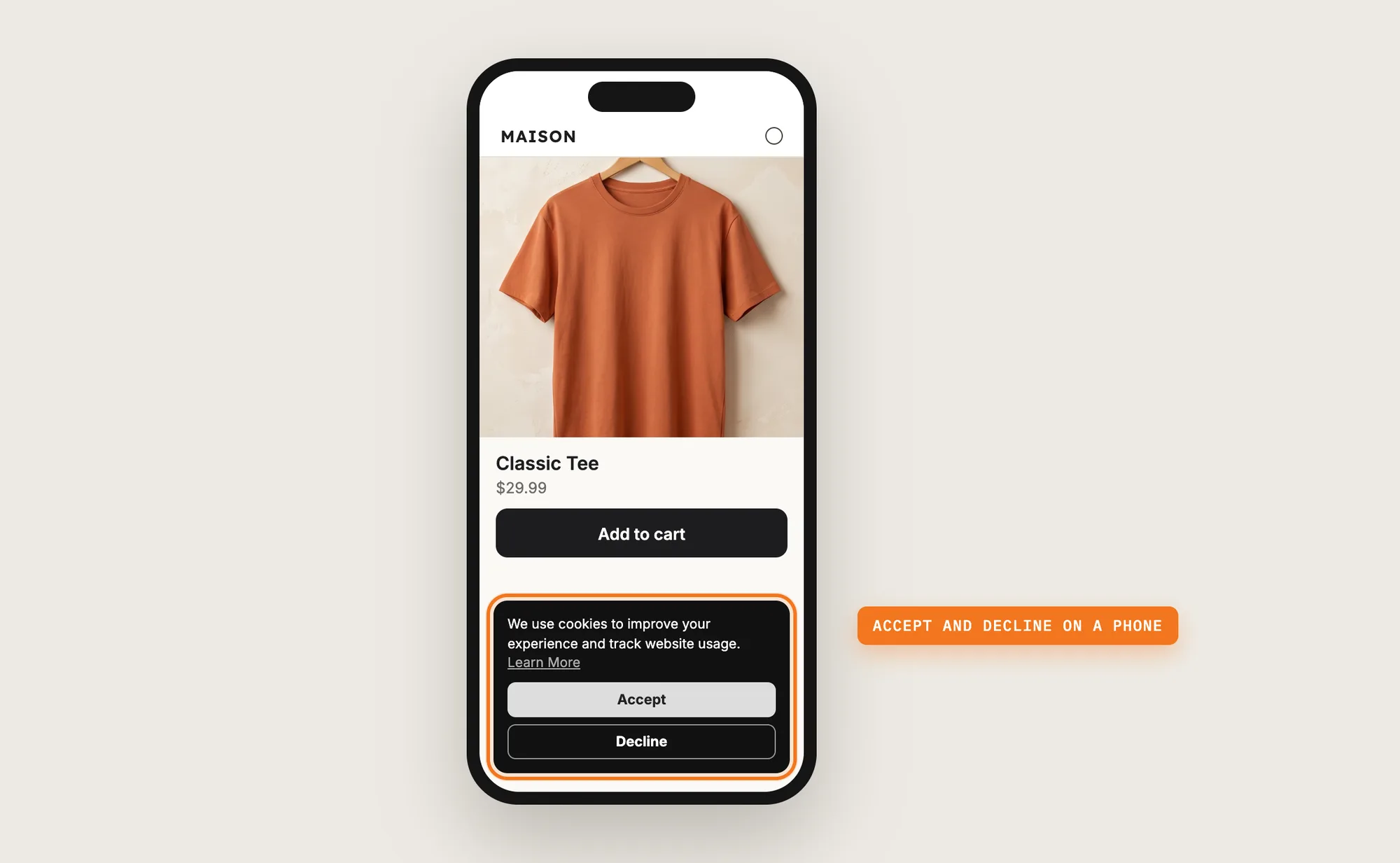
Step 14: Voila, Your GDPR Cookie Consent Banner Is Live on the Store
Visitors from the regions you chose now decide on cookies before the store tracks them, and everyone else sees a simple notice.
How to Add a GDPR Cookie Consent Banner From Your Shopify Settings?
Shopify includes its own cookie banner under Settings → Customer privacy. To turn it on:
- Go to Settings → Customer privacy in your Shopify admin and open Cookie banner
- Click Activate cookie banner to show the banner in Shopify's recommended regions
- Click Customize in the Appearance card to change the colors and text, then save
Shopify's cookie banner saves consent to Shopify and includes a cookie preferences window. It uses Shopify's own layouts and styles. Use one cookie consent banner at a time: two banners on one page can overwrite each other's choice. If Shopify's styles are enough, the Shopify setting may be all you need.
How to Add a GDPR Cookie Consent Banner Without an App?
Hire a developer to build a cookie consent banner into your theme and connect it to Shopify's Customer Privacy API. Without that connection, Shopify and the apps that read the API don't know what the visitor chose.
A custom cookie consent banner usually involves:
- Copying your theme first, so the live store stays untouched during testing
- Building the banner, its Accept and Decline buttons and the privacy policy link with Liquid, CSS and JavaScript
- Saving each visitor's choice through Shopify's Customer Privacy API
- Showing the banner only in the regions that need consent
- Adding a link that opens the banner again, so visitors can change their choice
- Testing in each region and on mobile and desktop, then publishing the theme copy
Custom code means no extra app, but you or your developer have to maintain it. A theme update can replace the files the code is in, and a change to Shopify's Customer Privacy API can break the connection, so the banner needs checking after each update.
How to Increase Trust With a GDPR Cookie Consent Banner?
A GDPR cookie consent banner builds trust by asking before the store tracks visitors and by making the choice easy to change. These settings help:
- Make Decline as easy to find as Accept. Visitors trust a choice they can see. Set the "Decline" button style to Fill or Outline rather than Text only
- Link to a clear privacy policy. Visitors who want to know more can read it before they choose. Add the page in URL of your Privacy Policy
- Write the message in plain words. A short line on what the cookies do reads faster than legal terms. Edit Text on cookie banner
- Match the banner to your brand. A banner in your store's colors looks like part of the store, not a pop-up from somewhere else. Set the colors in General and design settings
- Ask only where consent is needed. Visitors outside the consent regions see a lighter notice instead of a choice. Keep the regions Shopify recommends and leave the Informative Cookie Banner active
- Let visitors change their mind. Add a "Change cookie settings" link with `#vtl:userRequestToChangeConsent` to your footer menu
- Show the banner in the visitor's language. Translate the banner texts from the Cookie Banner page on multi-language stores
Why Isn't My GDPR Cookie Consent Banner Showing or Working?
These fixes solve most cookie consent banner problems:
- The cookie consent banner doesn't show at all: Check that you chose Use custom cookie banner in Settings → Customer privacy, that the cookie consent banner's Status is Active, and that you're testing from one of the selected regions
- Visitors see the informative banner instead of Accept and Decline: The visitor is outside the regions selected in Shopify, or Use custom cookie banner isn't chosen. Without that Shopify setting, every visitor sees the informative banner
- Vitals won't save the settings: Fill in "Learn more" button text and a valid URL of your Privacy Policy in General and design settings
- The Learn More link doesn't show: Add a page in URL of your Privacy Policy. Until then, the Learn More link stays hidden
- Two cookie banners show on the store: Use one cookie consent banner at a time. Choose Use custom cookie banner in Shopify so Shopify's own banner stops showing, and remove any other cookie app's banner
- The Change cookie settings link does nothing: Check that the link address is `#vtl:userRequestToChangeConsent` and that the cookie consent banner's Status is Active
- Vitals analytics shows fewer impressions than your traffic: Vitals doesn't count visitors from the consent regions until they accept cookies, so the counts are lower. This means the cookie consent banner is working
Which GDPR Cookie Consent Banner Method Should You Choose?
Vitals - All in One App suits most stores, but the right method depends on how much control you want over the banner.
- Choose Vitals - All in One App if you want a GDPR cookie consent banner for the regions that need it, a simple notice for everyone else, and your own colors, text and layout. It also includes 40+ other apps in one subscription of $29.99/month, so you don't have to install and pay for each app separately
- Choose your Shopify setting if Shopify's own banner and styles are enough for your store
- Choose custom code if you have a developer and need a consent flow that no app offers
Start a 7-day free trial: Install the Vitals - All in One App and add a GDPR cookie consent banner
Frequently Asked Questions
1. What is the best way to add a GDPR cookie consent banner on Shopify?
Vitals - All in One App is the best way for most stores. Its Cookie Banner app shows a cookie consent banner with Accept and Decline to visitors in the regions you choose in Shopify, and saves each choice to Shopify without code.
2. Does Shopify have its own cookie banner?
Yes. Shopify includes a cookie banner under Settings → Customer privacy. To use the Vitals cookie consent banner instead, click More actions on that page and choose Use custom cookie banner.
3. Does the Vitals cookie consent banner work with Shopify's Customer Privacy API?
Yes. The Vitals cookie consent banner saves each visitor's Accept or Decline choice to Shopify through its Customer Privacy API. Apps that read the API, including Vitals, follow that choice.
4. Who sees the GDPR cookie consent banner?
Visitors from the regions you select under Use custom cookie banner in Shopify see the cookie consent banner. Other visitors see the informative cookie banner, if it's active.
5. Can visitors change their cookie choice later?
Yes. Add a link with the address `#vtl:userRequestToChangeConsent` to your footer menu or privacy policy. Clicking the link opens the cookie consent banner again.
6. Can I translate the cookie consent banner?
Yes. On multi-language stores, translate the banner texts from the Cookie Banner page in Vitals.
7. Does a cookie consent banner make my store GDPR compliant?
A cookie consent banner asks for and records consent, which is one part of GDPR. Your privacy policy and the rest of your setup are up to you, so check your store's legal needs with a privacy professional.