How to Open External Links in a New Tab on Shopify

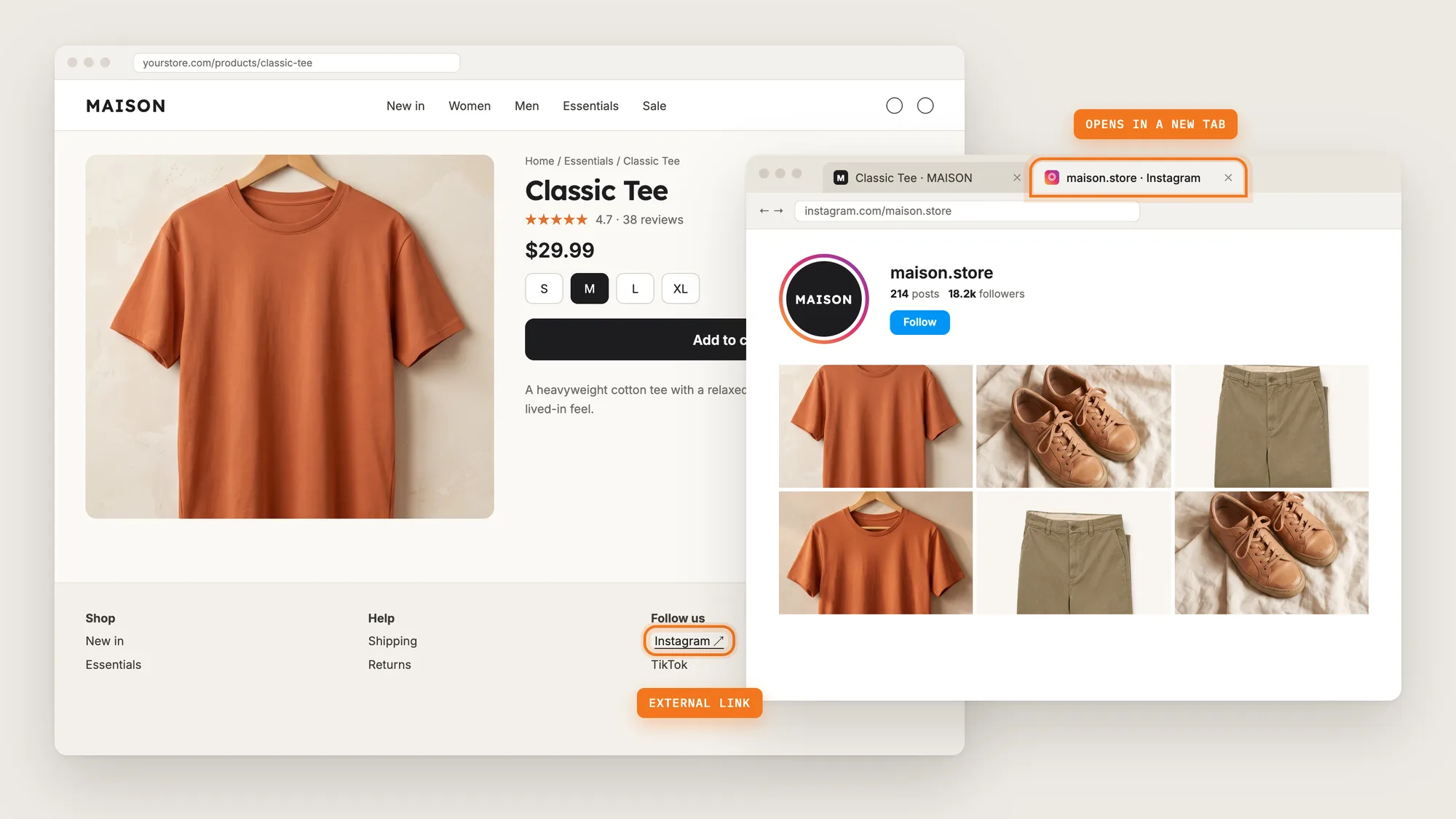
A shopper who clicks your Instagram link, a supplier's care guide or a review site leaves your store when the link opens in the same tab. The external website replaces your product page, and many shoppers never find their way back to the cart.
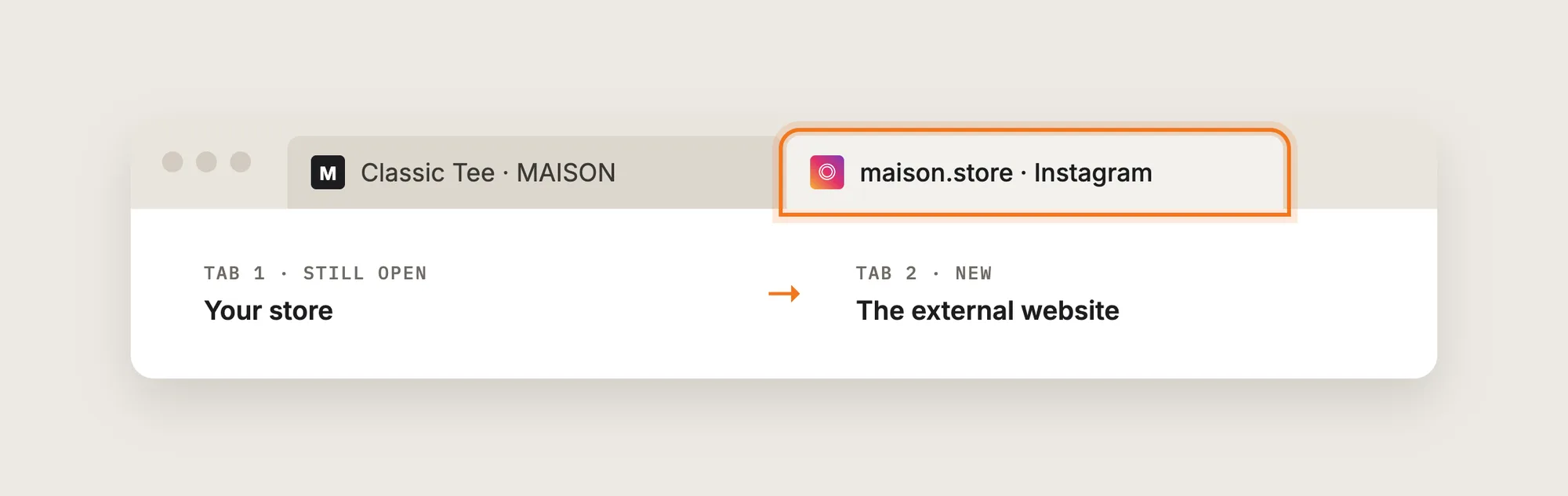
Opening external links in a new tab keeps your store open behind the external website. The shopper reads the other page, closes the tab and lands right back on the product they were looking at.
Here are the three ways to open external links in a new tab on a Shopify store: with an External Links app, from your Shopify admin, or with custom code.
What Does It Mean to Open External Links in a New Tab?
Opening external links in a new tab means every link to another website opens in a separate browser tab, while your store stays open in the first tab. Links to your own store's pages keep opening in the same tab, as shoppers expect.
A good setup to open external links in a new tab includes:
- Every external link: Links in the footer, menus, product descriptions, pages and blog posts all open in a new tab.
- Internal links unchanged: Links to your own products, collections and pages stay in the same tab.
- No link-by-link work: New links you add later follow the same rule without extra steps.
- Phone and desktop: External links open in a new tab on every device.
Social links, size guides from suppliers and press mentions are the most common external links on a Shopify store.
What's the Quickest Way to Open External Links in a New Tab?
- Vitals - All in One App is the quickest way to open external links in a new tab for most stores
- Vitals also offers 40+ apps, such as SEO ALT Tags, Scroll to Top Button and product reviews, in one subscription of $29.99/month, so you don't have to install and pay for each app separately
Here's how the three methods compare.
How to Open External Links in a New Tab With an External Links App?
Install the Vitals - All in One App, open its Auto External Links app and click Activate Auto External Links. Every link on your storefront that points to another website then opens in a new browser tab. The app has no other settings, so the steps below take a couple of minutes.
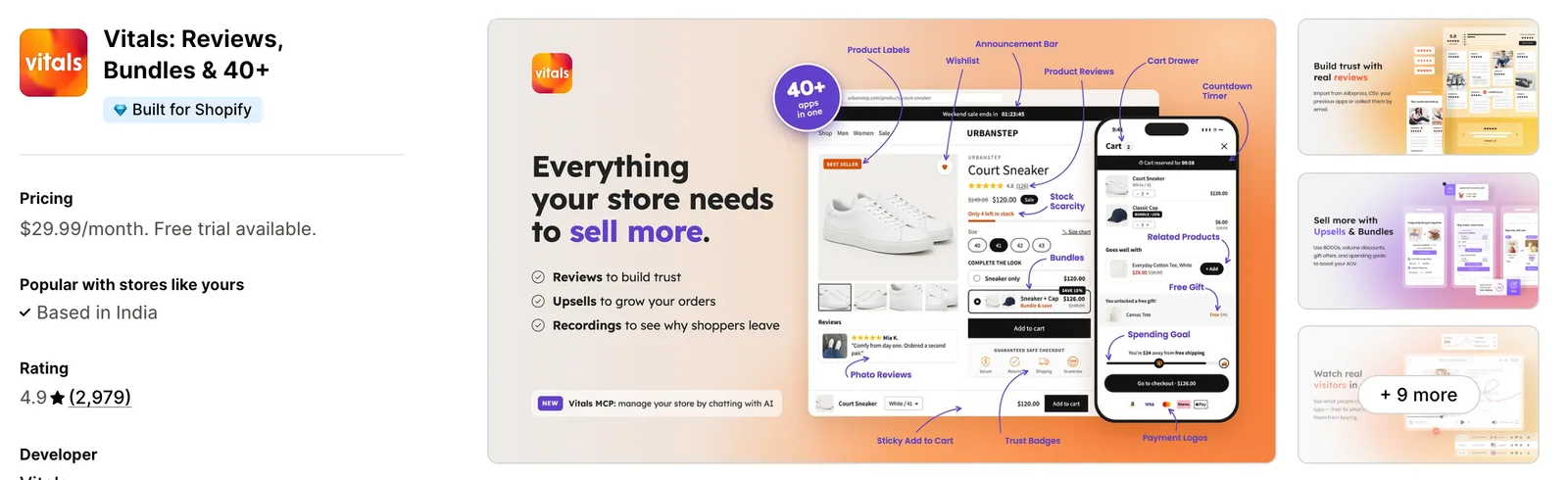
Step 1: Install the Vitals - All in One App
Install the Vitals - All in One App from the Shopify App Store. The 7-day free trial includes the Vitals Auto External Links app.
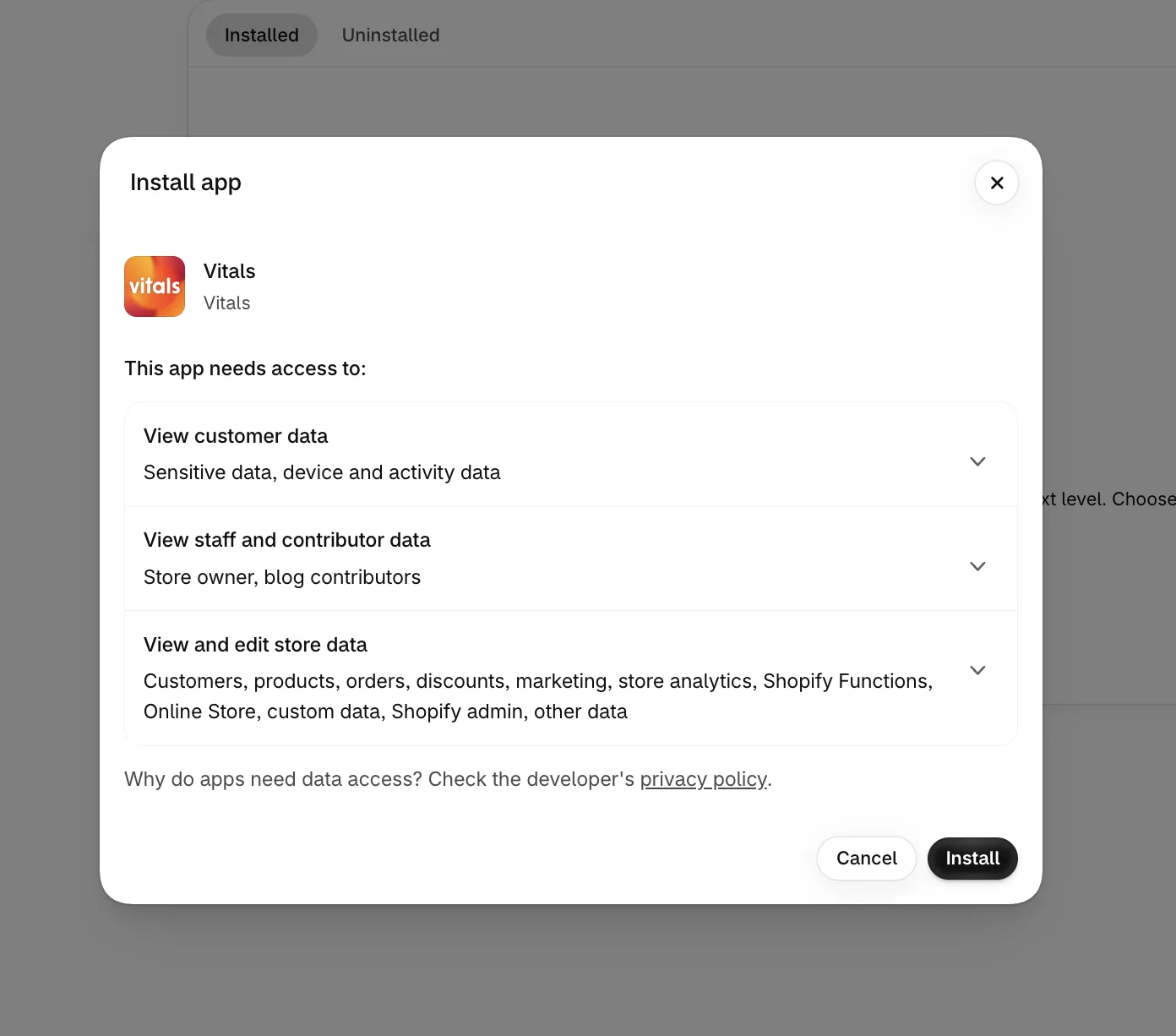
Step 2: Approve the Install in Shopify
Click Install to approve the store data Vitals uses. Shopify then opens the Vitals dashboard.
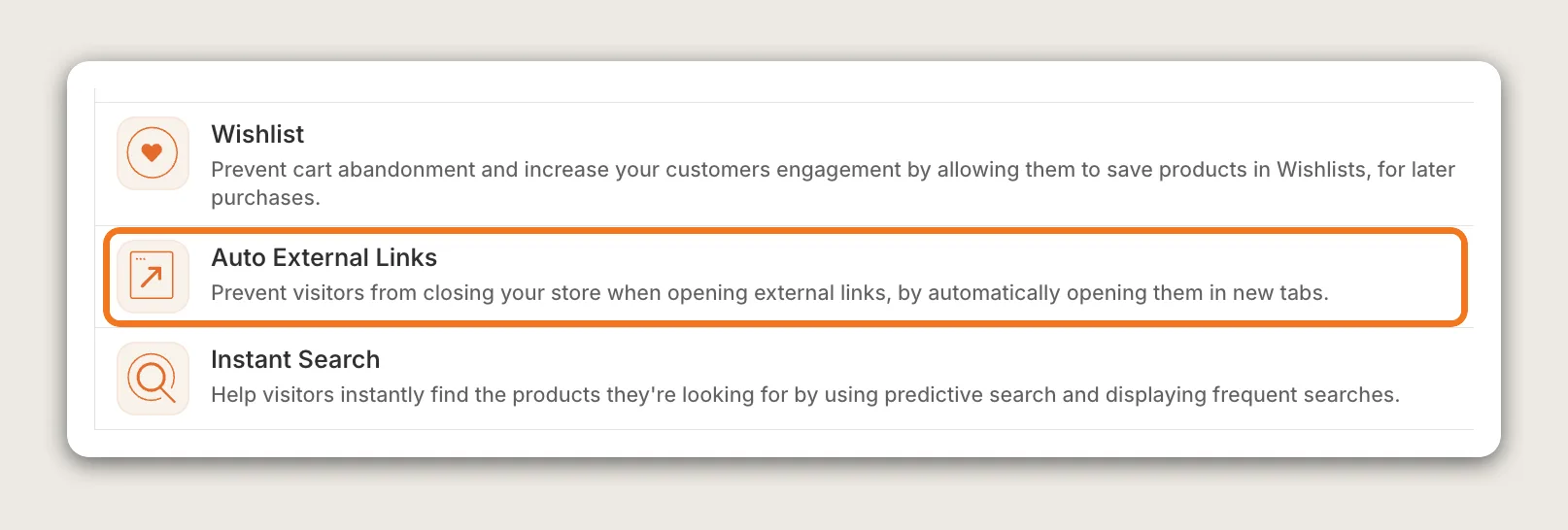
Step 3: Open Auto External Links
In the Vitals dashboard, find Auto External Links in the list of apps and click it.
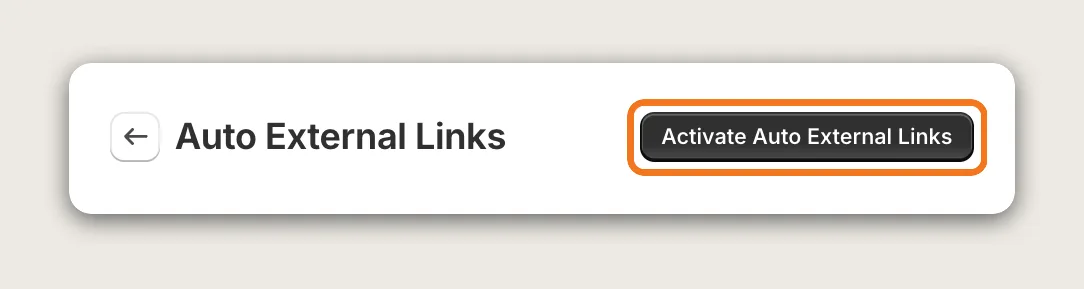
Step 4: Activate the App
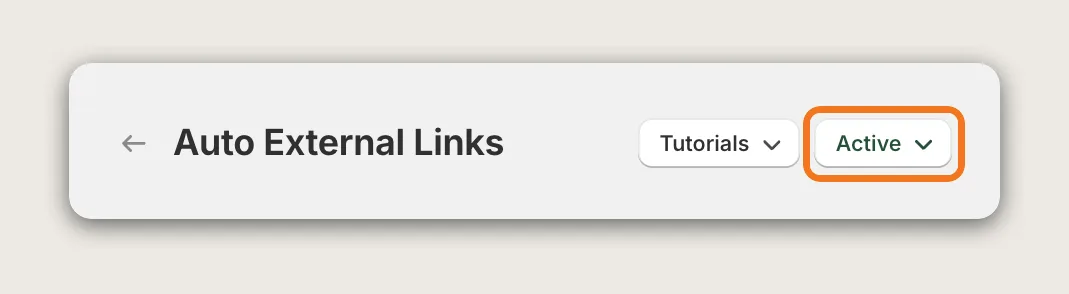
Click Activate Auto External Links at the top right of the Auto External Links page. External links on your storefront then open in a new tab. The app has no other settings, so there is nothing else to set up.
Step 5: Check That the App Shows Active
Check the status menu at the top right of the page. It shows Active once the app is on, and Vitals confirms with an "App activated successfully" message.
Step 6: Check Which Links Open in a New Tab
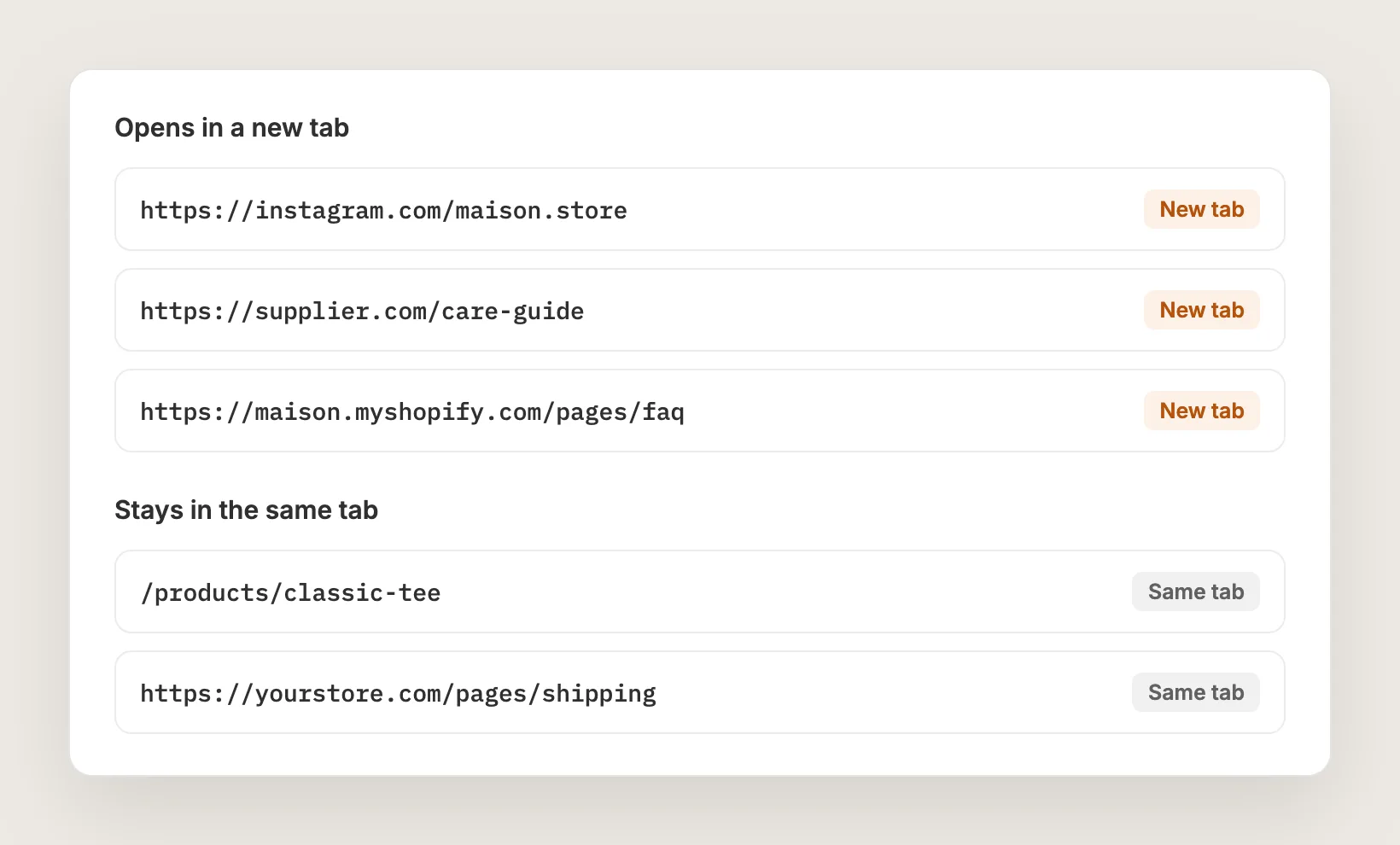
The Auto External Links app changes every full link (starting with http) that doesn't contain the domain the shopper is browsing:
- Links to other websites: Open in a new tab, such as Instagram, TikTok or a supplier's page
- Relative links: Stay in the same tab, such as /products/classic-tee
- Full links to your own domain: Stay in the same tab
- Links to your store's other domain: Open in a new tab, such as a myshopify.com link on a store that uses a custom domain
Step 7: Test on Your Phone
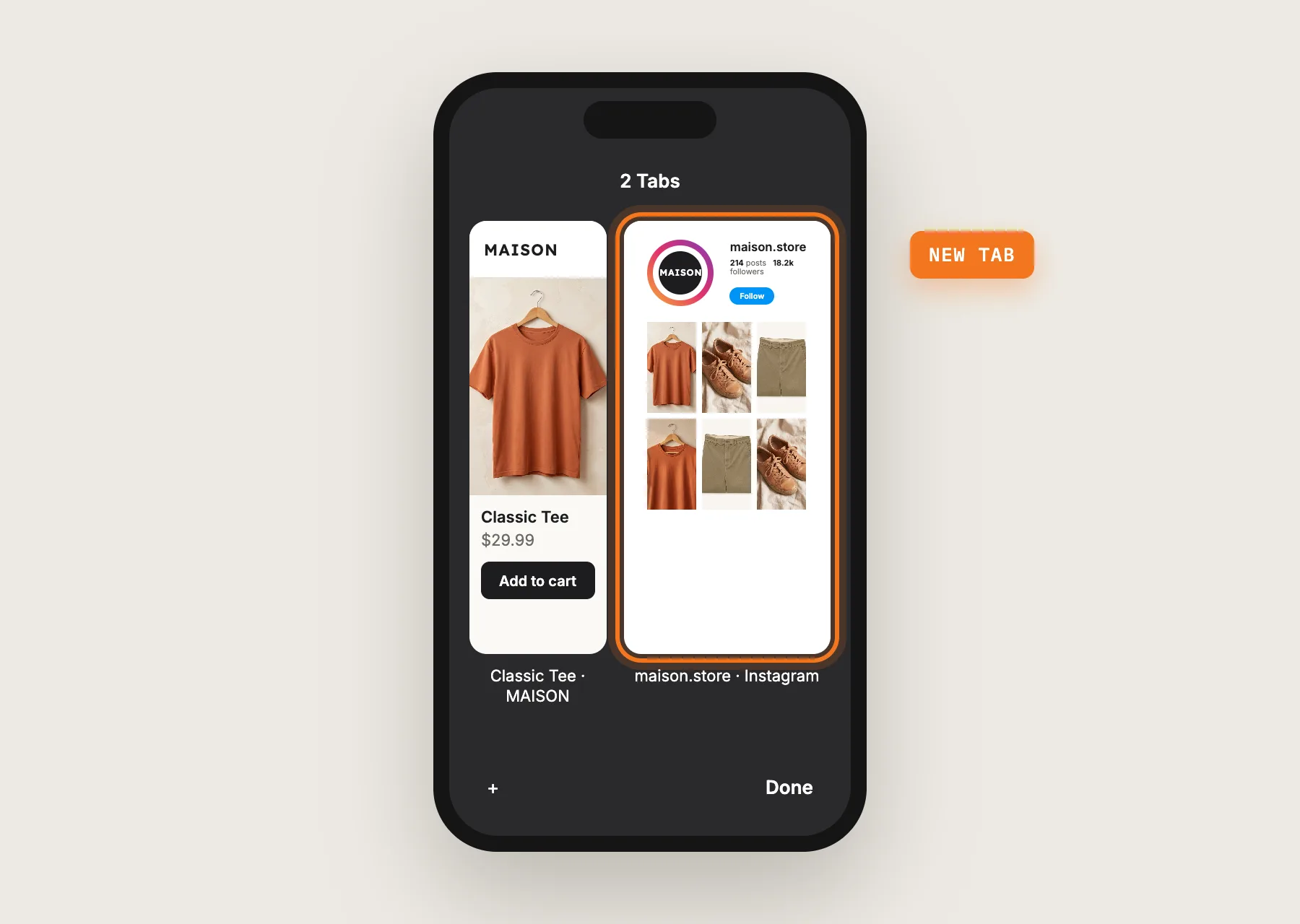
Open your store on your phone and on desktop, then click an external link, such as a social link in the footer. The external website opens in a new tab, and your store stays open in the first tab. Then click a link to one of your own products and check that the link stays in the same tab.
Step 8: Voila, Your External Links Open in a New Tab
Shoppers who click an external link now keep your store open in the first tab, one tap away from the product they were looking at.
How to Open External Links in a New Tab From Your Shopify Admin?
Shopify's rich text editor can open a single link in a new tab. Product descriptions, pages, blog posts and collection descriptions all use this editor. To set one link:
- Open the product, page or blog post in your Shopify admin and select the linked text
- Click the link icon in the rich text editor toolbar, then paste or edit the link address
- Tick the option to open the link in a new window, then click Save
The rich text editor setting works one link at a time, so every new external link needs the same steps. Shopify navigation menus have no option to open a link in a new tab, and theme footer and social link settings depend on the theme. If your store has a few external links inside product descriptions or pages, the Shopify admin setting may be enough.
How to Open External Links in a New Tab Without an App?
Hire a developer to add a short script to your theme that opens external links in a new tab. A custom script can also skip the domains you want to keep in the same tab.
Opening external links in a new tab with custom code usually involves:
- Copying your theme first, so the live store stays untouched during testing
- Writing a script that finds every link to another domain on the page
- Adding a new-tab attribute and a safe rel attribute to each external link
- Adding a list of domains to skip, if some external links should stay in the same tab
- Re-checking links that load later, such as links in lazy-loaded sections or app content
- Testing on phone and desktop, then publishing the theme copy
Custom code means no extra app, but you or your developer have to maintain it. A theme update can replace the file the script is in, so the script may need adding back after each update.
How to Increase Sales by Opening External Links in a New Tab?
Opening external links in a new tab drives sales by keeping your product page and cart one tab away when a shopper checks another website. These habits help:
- Turn on Auto External Links before you add social links. Every Instagram, TikTok and YouTube link in the footer then keeps your store open behind the external website
- Link to supplier and press pages with full links. A full link such as https://supplier.com/care-guide opens in a new tab, so shoppers read the care guide and come back to the product
- Use relative links for your own pages. Links such as /pages/shipping stay in the same tab, so shoppers move around your store as usual
- Link to your custom domain, not your myshopify.com address. A myshopify.com link on a store with a custom domain counts as external and opens in a new tab
- Keep external links out of the checkout path. Links near the Add to cart button send shoppers away at the moment they decide, even in a new tab
Why Aren't My External Links Opening in a New Tab?
These fixes solve most problems with external links that don't open in a new tab:
- No external link opens in a new tab: Check that the status menu at the top of the Auto External Links page shows Active. If the page shows Activate Auto External Links, click it
- One section's links still open in the same tab: The app checks links once, right after the page loads. Links that load later, such as links in lazy-loaded sections or content another app adds late, may not change. Product Description Tabs content is re-checked when the tabs show
- A link to my own store opens in a new tab: The link points to your store's other domain, such as the myshopify.com address. Change the link to your custom domain or to a relative link
- I want one external link to open in the same tab: The app has no exclusion list. It changes every external link, or none when you switch it off
- I want external links to open in a new tab on some pages only: The app has no page targeting. Use the Shopify admin link setting on those pages instead
Which External Links Method Should You Choose?
Vitals - All in One App suits most stores, but the right method depends on how many external links your store has and whether any need to stay in the same tab.
- Choose Vitals - All in One App if you want every external link on your store to open in a new tab with one switch, including links you add later. It also includes 40+ other apps in one subscription of $29.99/month, so you don't have to install and pay for each app separately
- Choose the Shopify admin setting if you have a few external links in product descriptions, pages or blog posts and don't mind setting each link by hand
- Choose custom code if some external links must stay in the same tab and you have a developer to keep the script working through theme updates
Start a 7-day free trial: Install the Vitals - All in One App and open external links in a new tab
Frequently Asked Questions
1. What is the best way to open external links in a new tab on Shopify?
Vitals - All in One App is the best way for most stores. Its Auto External Links app opens every link to another website in a new tab with one switch, with no code and no link-by-link work.
2. Can I make Shopify menu links open in a new tab?
Not from the Shopify navigation menu, which has no new-tab option. The Vitals Auto External Links app opens external menu links in a new tab, along with every other external link on the storefront.
3. Do links to my own products open in a new tab?
No. The Vitals Auto External Links app changes only links to other websites. Relative links and full links to the domain the shopper is browsing keep opening in the same tab.
4. Can I keep one external link opening in the same tab?
Not with the Vitals Auto External Links app, which has no exclusion list. A developer can build a custom script that skips chosen domains.
5. Does opening external links in a new tab work on mobile?
Yes. On a phone, the external website opens in a new browser tab, and your store stays open in the first tab.
6. Should external links open in a new tab?
Yes, for most stores. A shopper who clicks a social or supplier link keeps your store open in the first tab, so the product and the cart stay one tap away.