How to Add Alt Text to Shopify Images

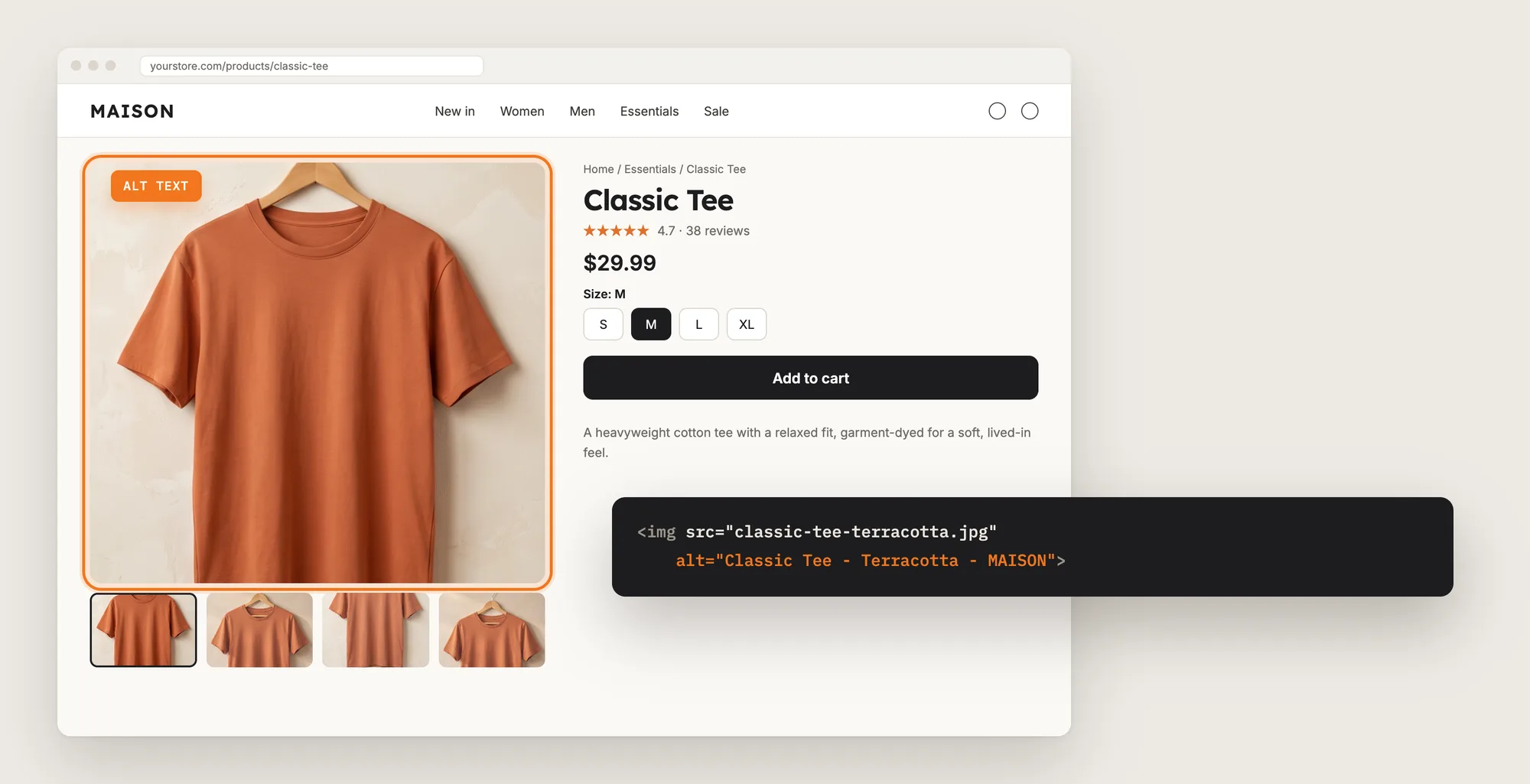
Search engines can't see your product photos. They read the alt text written into each image, and many Shopify stores leave that alt text empty or let it default to a file name.
Adding alt text by hand is quick for one image and slow for a whole catalog. A store with 200 products and five photos each has 1,000 images to describe, and every new product adds more.
Here are the three ways to add alt text to Shopify images: with an Alt Text app, from your Shopify admin, or with custom code.
What Is Alt Text?
Alt text is a short written description of an image, stored with the image and added to the page code as the image's alt attribute. Search engines read alt text to understand what a photo shows, screen readers read it aloud to shoppers who can't see the image, and browsers show it when the image fails to load.
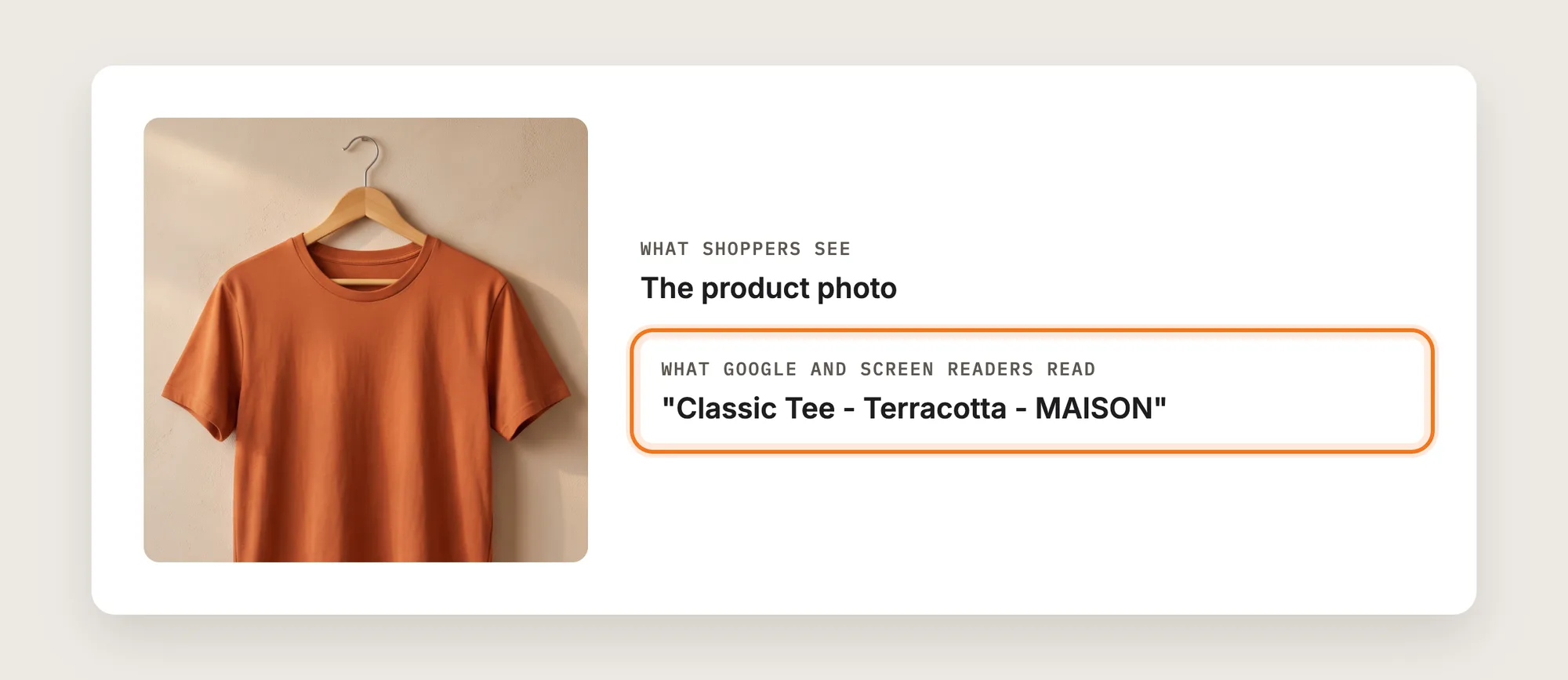
Good alt text includes:
- The product name: The alt text names the product the photo shows, such as "Classic Tee".
- The detail that sets the photo apart: A color, a variant or an angle tells one photo of the product from the next.
- Your store name: The store name ties the image to your brand in image search.
- A short length: One short phrase reads well and avoids the look of keyword stuffing.
Alt text on product images is part of the product data in Shopify, so the same alt text shows in any theme you switch to.
What's the Quickest Way to Add Alt Text?
- Vitals - All in One App is the quickest way to add alt text to every product image for most stores
- Vitals also offers 40+ apps, such as product reviews, a currency converter and an Instagram feed, in one subscription of $29.99/month, so you don't have to install and pay for each app separately
Here's how the three methods compare.
How to Add Alt Text With an Alt Text App?
Install the Vitals - All in One App, open its SEO ALT Tags app and set it to Active. Vitals then writes alt text to your product images from one format, and the steps below set that format, the products it applies to and the update of your existing images.
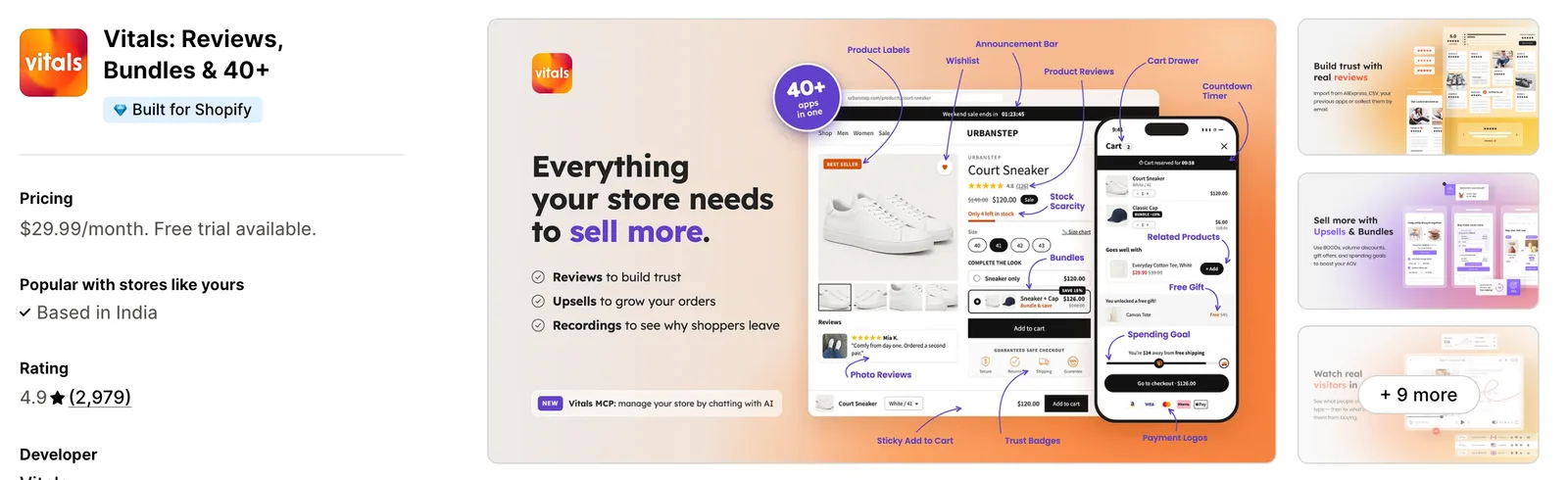
Step 1: Install the Vitals - All in One App
Install the Vitals - All in One App from the Shopify App Store. The 7-day free trial includes the Vitals SEO ALT Tags app.
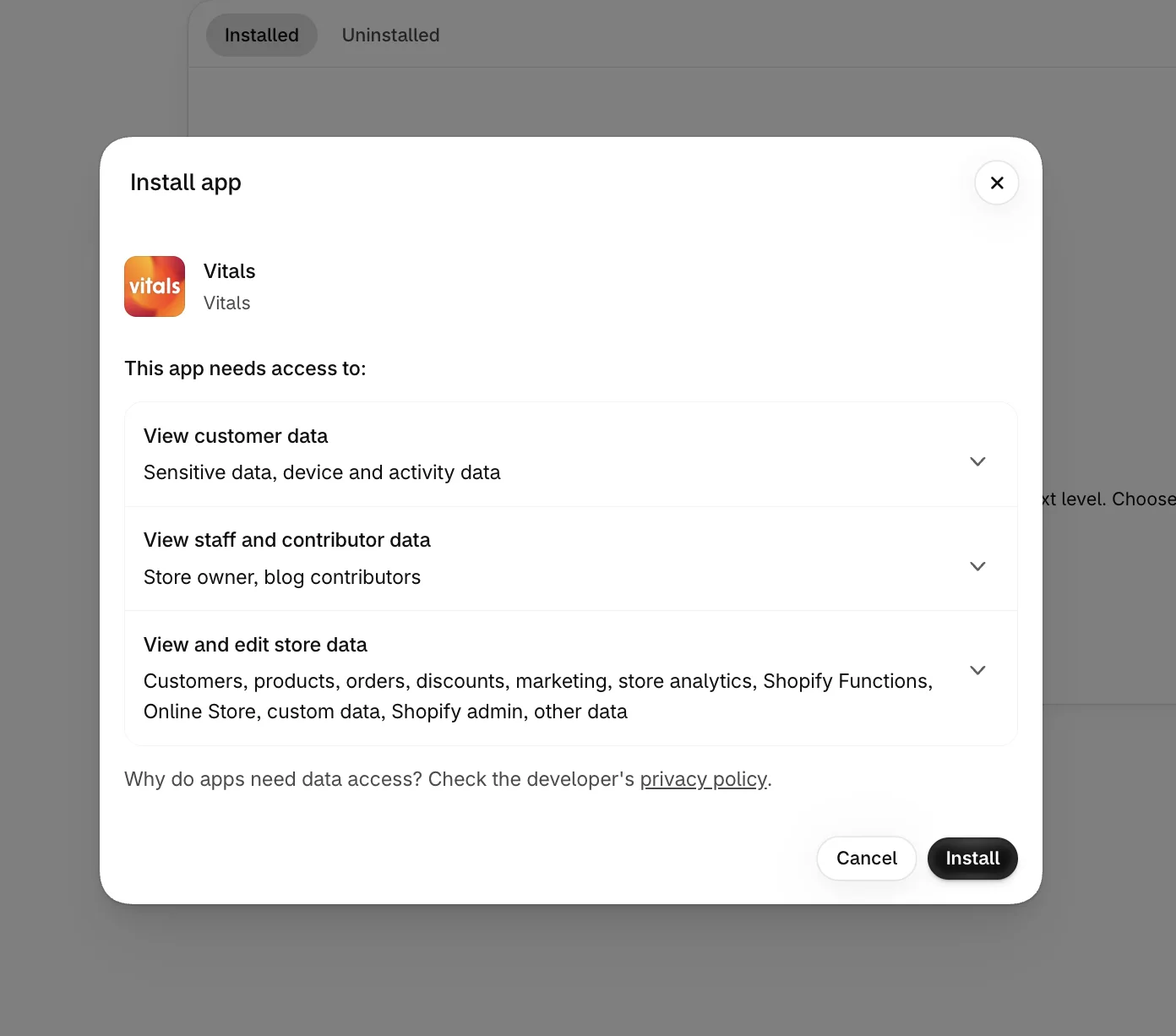
Step 2: Approve the Install in Shopify
Click Install to approve the store data Vitals uses. Shopify then opens the Vitals dashboard.
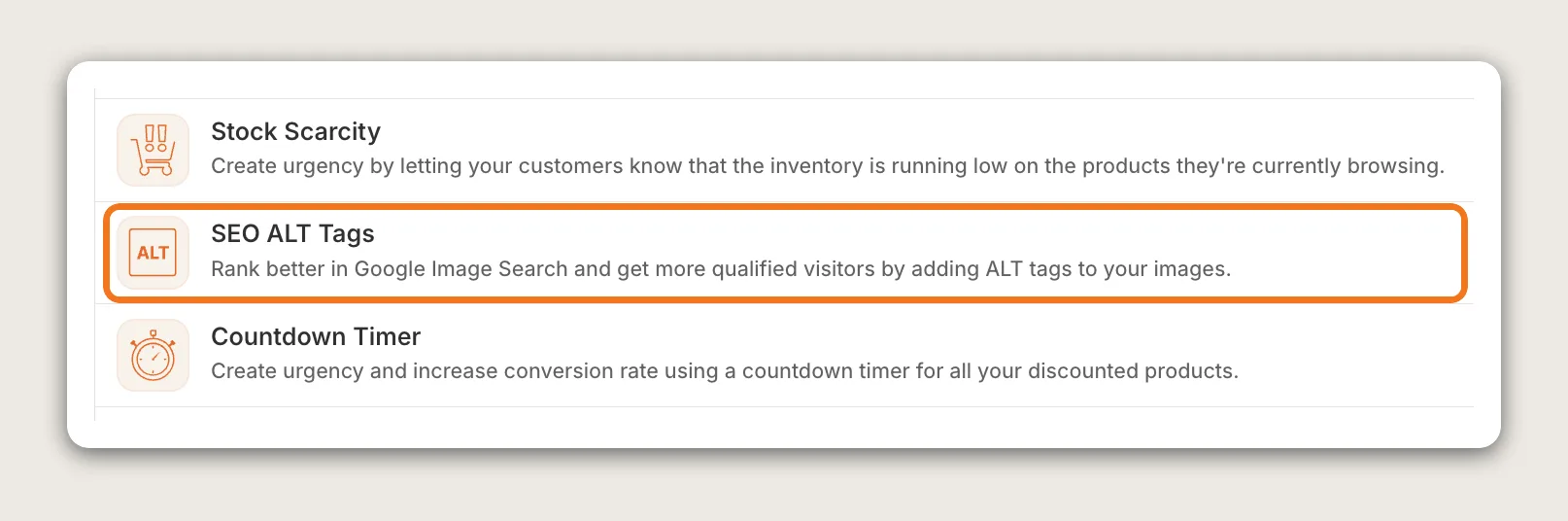
Step 3: Open SEO ALT Tags
In the Vitals dashboard, find SEO ALT Tags in the list of apps and click it.
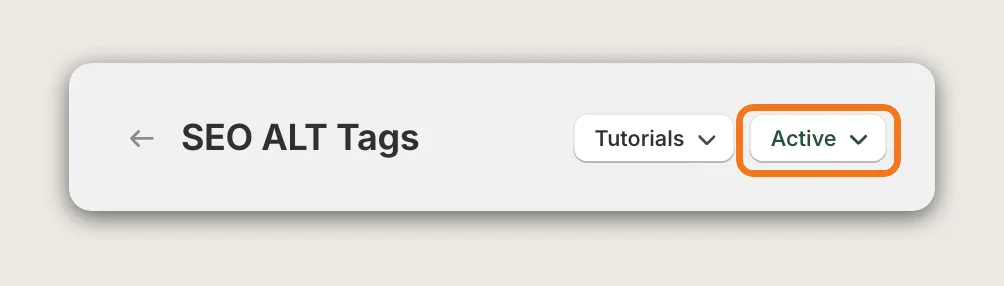
Step 4: Set the App to Active
Check the status menu at the top right of the SEO ALT Tags page. It shows Active when the app is on; if it shows another status, choose Active in that menu. While the app is active, new and edited products get alt text automatically, shortly after you save them.
Step 5: Set the ALT Tags Format
In the Format section, write the alt text template in ALT Tags Format. Type a variable or click one of the chips under the field to add it:
- {{ product_title }}: The product's title
- {{ product_type }}: The product type
- {{ product_vendor }}: The vendor
- {{ variant_title }}: The variant the image belongs to, such as a color
- {{ shop_name }}: Your store name
The default format is `{{ product_title }} - {{ shop_name }}`. A variable is skipped when a product has no value for it, so a product with no vendor gets no vendor in its alt text.
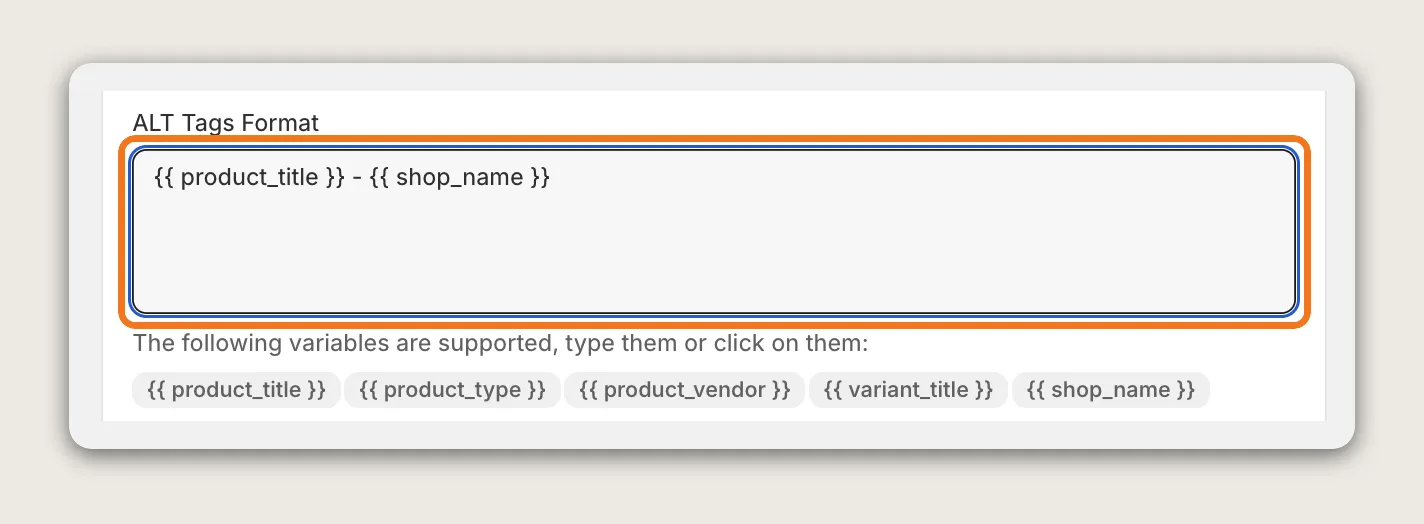
Step 6: Check the Preview
The Preview under the format shows the alt text on a sample product, an iPhone Case, with your store's name, such as "iPhone Case - Silk Cosmetics". Keep the alt text short, since very long alt text can hurt more than it helps.
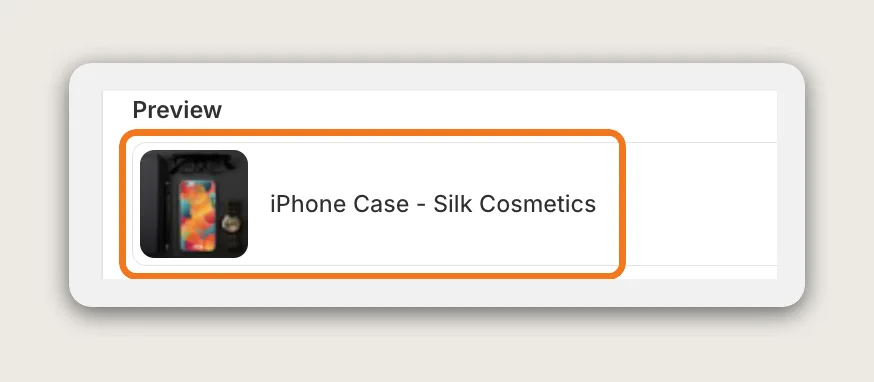
Step 7: Keep Your Own Alt Text on Some Products (Optional)
SEO ALT Tags overwrites any alt text a product image already has. To keep the alt text you wrote by hand, open the Advanced display rules card under the Update history card and choose Exclude products, then pick those products. Choose Update only specific products instead to rewrite only the products you pick. Click Save.
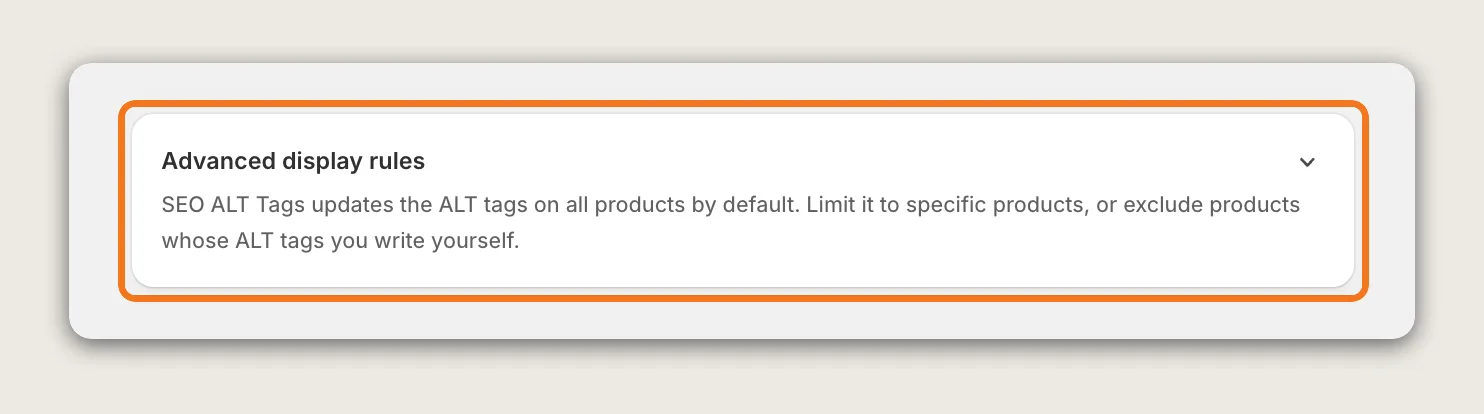
Step 8: Update Your Existing Products
Click Save, then click Update [N] products in the Update history card of the Sync section. The card shows your product count and about how many minutes the update takes. Products your display rules exclude are skipped. The app then writes alt text to the images of your existing products. You only need to update once, since new images get alt text automatically while the app is active.
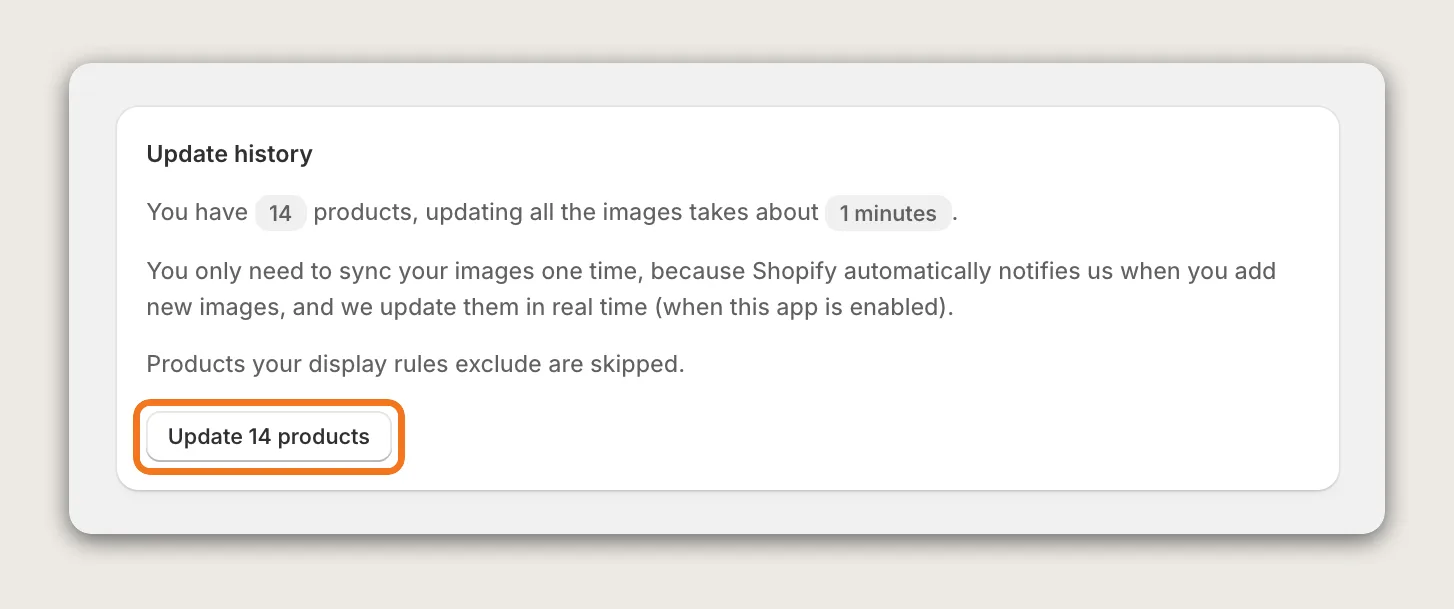
Step 9: Check the Update History
After an update, the Update history card lists each update, with Started, Finished, Products / Updated and Images updated. The newest update is the last row, with the format it used above it. Finished shows Pending until the update is done. Then open one product in your Shopify admin and check the alt text on its images.
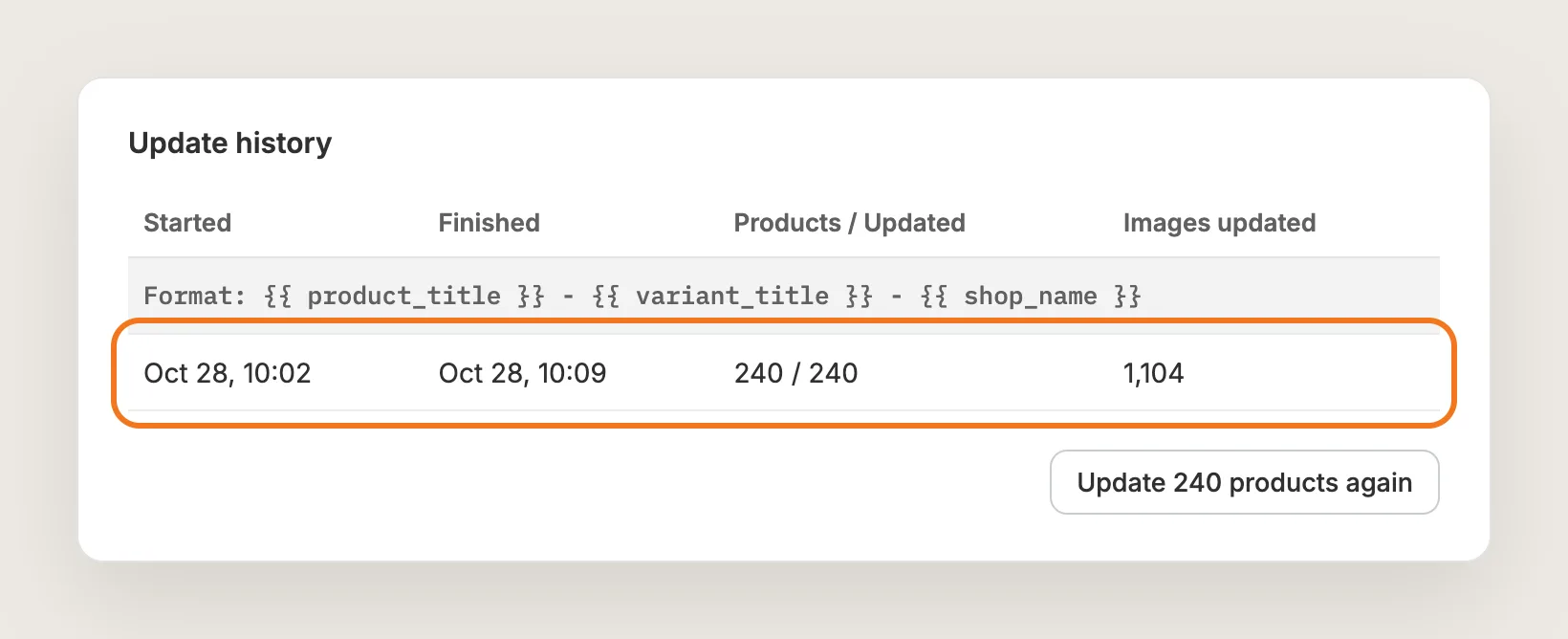
Step 10: Voila, Your Alt Text Is Live on the Store
Every product image now has alt text that search engines and screen readers can read, and new products get alt text on their own.
How to Add Alt Text From Your Shopify Admin?
Shopify lets you add alt text to each image by hand, on products and on any file you upload. To add alt text to a product image:
- Go to Products in your Shopify admin and open a product
- Click an image in the Media section
- Type the description in the alt text field, then click Save
For images outside products, such as banners and blog images, open Content → Files and add the alt text to each file the same way. Hand-written alt text can describe each photo exactly, but it takes one edit per image, and every new product needs the same work. If your catalog is small, the Shopify admin may be enough.
How to Add Alt Text Without an App?
Hire a developer to write the alt text into your product data or into your theme. A script saves alt text to the images in Shopify, while a theme edit only adds alt text to the page code.
Custom alt text usually involves:
- Choosing the rule for the alt text, such as the product title and the variant
- Writing a script with the Shopify Admin API that saves alt text to every product image
- Starting the script once for the existing catalog, then on a schedule or with a webhook for new products
- Or, in the theme, filling the alt attribute with the product title wherever an image has no alt text of its own
- Testing on product pages, collection pages and search results
Custom code means no extra app, but you or your developer have to maintain it. A script stops tagging new products if nobody starts it, and a theme edit can disappear with a theme update or a switch to a new theme.
How to Increase Sales With Alt Text?
Alt text drives sales by helping your product images show up in Google Image Search, where shoppers can find your products and click through to your store. These settings help:
- Start the alt text with the product title. Shoppers search for the product, so `{{ product_title }}` goes first in ALT Tags Format
- Add the variant to tell photos apart. `{{ variant_title }}` gives a red and a blue photo different alt text, so each can match a different search
- End with your store name. `{{ shop_name }}` links the images to your brand when shoppers search for it
- Keep the format short. Two or three variables are enough, and very long alt text can hurt more than it helps
- Put optional variables in the middle. A dash at the very start or end of the format stays in the alt text when that variable is empty
- Update your existing products once. Click Update [N] products so the images already in your catalog get alt text too
- Keep the app active. New products get alt text automatically only while SEO ALT Tags is active
Why Isn't My Alt Text Showing or Working?
These fixes solve most alt text problems:
- My hand-written alt text was replaced: SEO ALT Tags overwrites existing alt text on the products it updates, and the old text can't be restored. Exclude those products under Advanced display rules before the next update
- New products don't get alt text: Check that SEO ALT Tags shows Active at the top of the page. New and edited products get alt text shortly after you save them
- I don't see the Update button: The one-click update works for stores with fewer than 10,000 products. Larger stores still get alt text automatically on new and edited products
- The alt text says "Default Title": A product with no options has one variant called "Default Title", and `{{ variant_title }}` adds it. Remove `{{ variant_title }}` from ALT Tags Format, then click Update [N] products again
- Every photo of a product repeats the same variant: An image not assigned to a variant gets the first variant's title. Assign each image to its variant in Shopify, or remove `{{ variant_title }}`
- The alt text starts or ends with a dash: A variable at the start or end of the format was empty for that product. Move optional variables to the middle of the format
- An update still shows Pending: An update still Pending more than 25 hours after it started has failed. Click Update [N] products again
- Collection, blog or banner images have no alt text: SEO ALT Tags writes alt text to product images only. Add alt text to other images in Content → Files in your Shopify admin
Which Alt Text Method Should You Choose?
Vitals - All in One App suits most stores, but the right method depends on the size of your catalog and how much control you want over each image.
- Choose Vitals - All in One App if you want alt text on every product image from one format, with new products tagged automatically. It also includes 40+ other apps in one subscription of $29.99/month, so you don't have to install and pay for each app separately
- Choose your Shopify admin if you have a few products, or you want to write the alt text for each image by hand
- Choose custom code if you have a developer and need an alt text rule the app's variables can't build
Start a 7-day free trial: Install the Vitals - All in One App and add alt text to your images
Frequently Asked Questions
1. What is the best way to add alt text to Shopify images?
Vitals - All in One App is the best way for most stores. Its SEO ALT Tags app writes alt text to every product image from one format, with the product title, variant and store name, and tags new products automatically.
2. Does alt text help Shopify SEO?
Yes. Alt text tells search engines what an image shows, so your product images can be found in Google Image Search. It also makes your store readable for shoppers who use screen readers.
3. Does the Vitals app change my theme files?
No. SEO ALT Tags saves the alt text to your product images through the Shopify API. You can see the alt text on each image in your Shopify admin, and it stays when you change themes.
4. Will SEO ALT Tags overwrite alt text I already wrote?
Yes, on the products it updates. Use Advanced display rules to exclude the products whose alt text you want to keep, or to update only the products you pick.
5. Does SEO ALT Tags add alt text to new products?
Yes. While the app is active, new and edited products get alt text automatically, shortly after you save them. You only need the one-click update once, for your existing products.
6. Can I add alt text to collection and blog images?
Not with SEO ALT Tags, which writes alt text to product images only. Add alt text to other images by hand in Content → Files in your Shopify admin.
7. Is there a limit on how many products SEO ALT Tags can update?
The one-click update works for stores with fewer than 10,000 products. Stores of any size still get alt text automatically on new and edited products while the app is active.