How to Add Product Description Tabs in Shopify

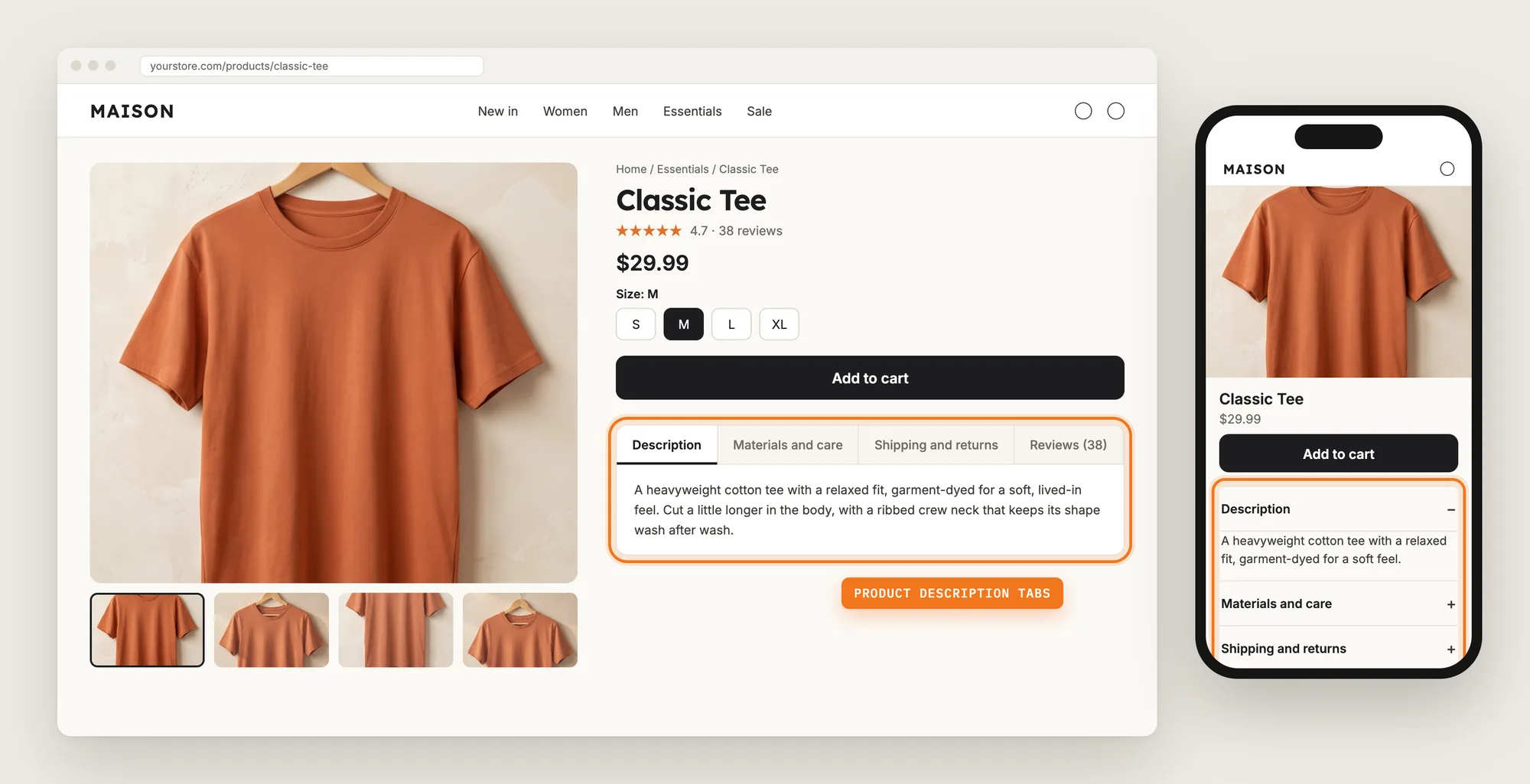
A long product description pushes everything below the Add to cart button out of sight. Shoppers looking for the size guide, the care instructions or the return policy have to scroll through every paragraph, and many give up before they find the answer.
Product description tabs split that text into short, labeled sections such as Description, Materials and care, and Shipping and returns. Shoppers open only the section they need, and the product page stays short on desktop and on a phone.
Here are the three ways to add product description tabs to a Shopify store: with a Product Description Tabs app, from your theme settings, or with custom code.
What Are Product Description Tabs?
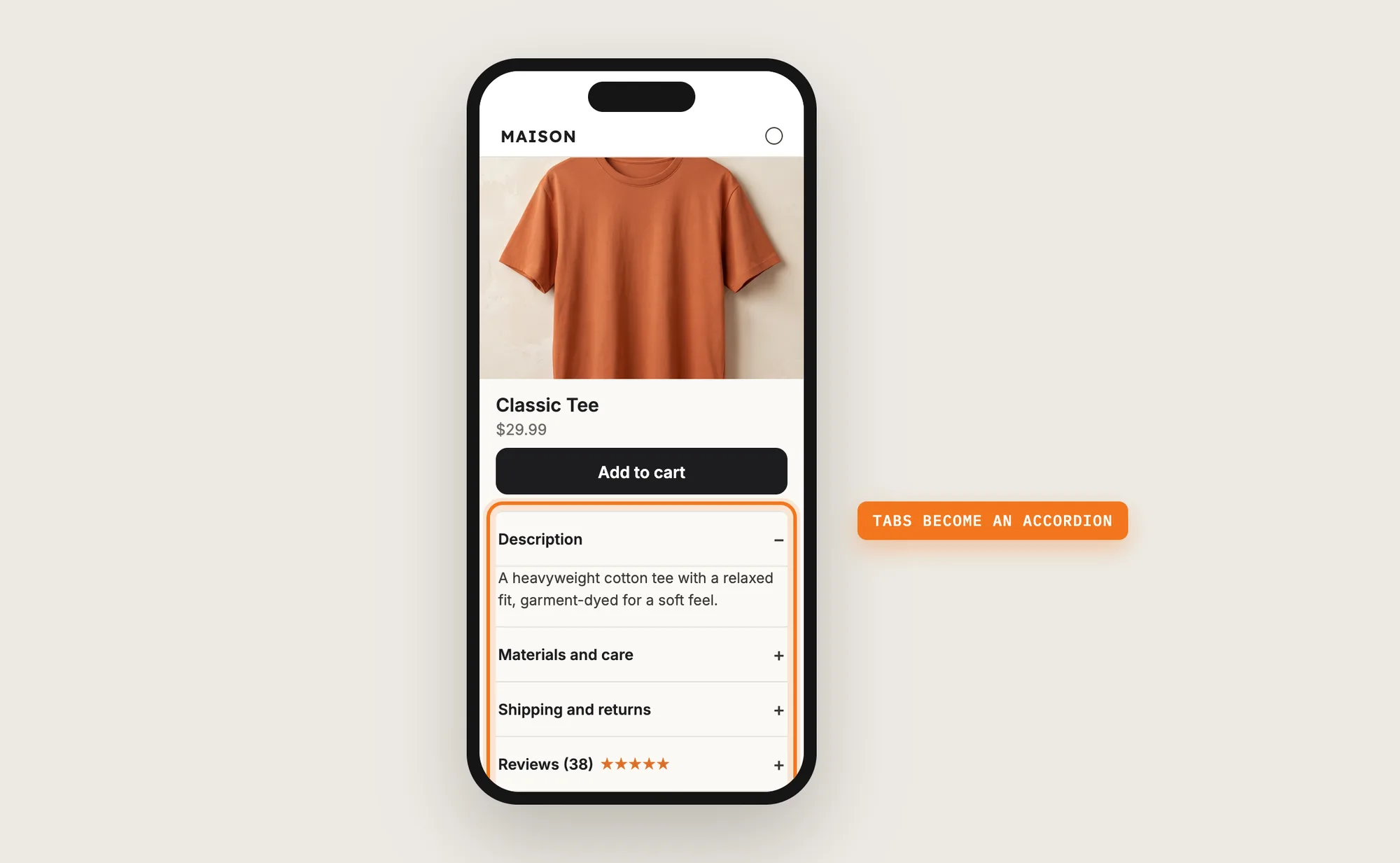
Product description tabs are labeled sections on a product page that each show one part of the product information, such as details, ingredients, specs, shipping or reviews. Shoppers click a tab name to open that section, and the other sections stay closed. On a phone, product description tabs usually show as an accordion, a stack of rows that open one at a time.
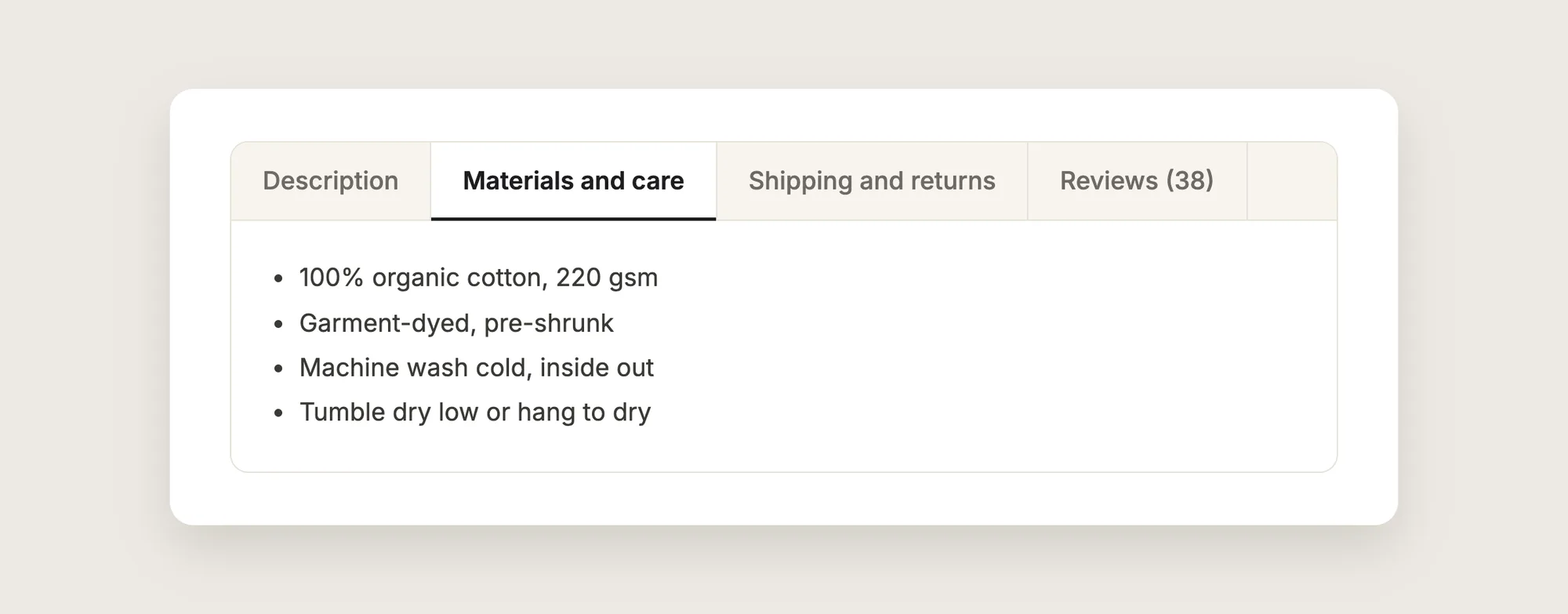
Good product description tabs include:
- Short tab names: Two or three words, such as "Shipping and returns", so every tab name fits on one row.
- One topic per tab: Each tab answers one question a shopper has before buying.
- The main description open first: Shoppers see the key product text without a click.
- Shared tabs for shared information: Store-wide details such as shipping and returns are written once and shown on every product.
The rest of the product page stays the same; only the description area changes.
What's the Quickest Way to Add Product Description Tabs?
- Vitals - All in One App is the quickest way to add product description tabs for most stores
- Vitals also offers 40+ apps, such as product reviews, a size chart and product bundles, in one subscription of $29.99/month, so you don't have to install and pay for each app separately
Here's how the three methods compare. If you'd rather compare apps that help product pages convert, see our list of the best Shopify apps to increase conversion rate.
How to Add Product Description Tabs With a Product Description Tabs App?
Install the Vitals - All in One App, open its Product Description Tabs app and click Activate app. The product description tabs then show on your product pages, and the steps below set how the tabs are split, how they look and which extra tabs show.
Step 1: Install the Vitals - All in One App
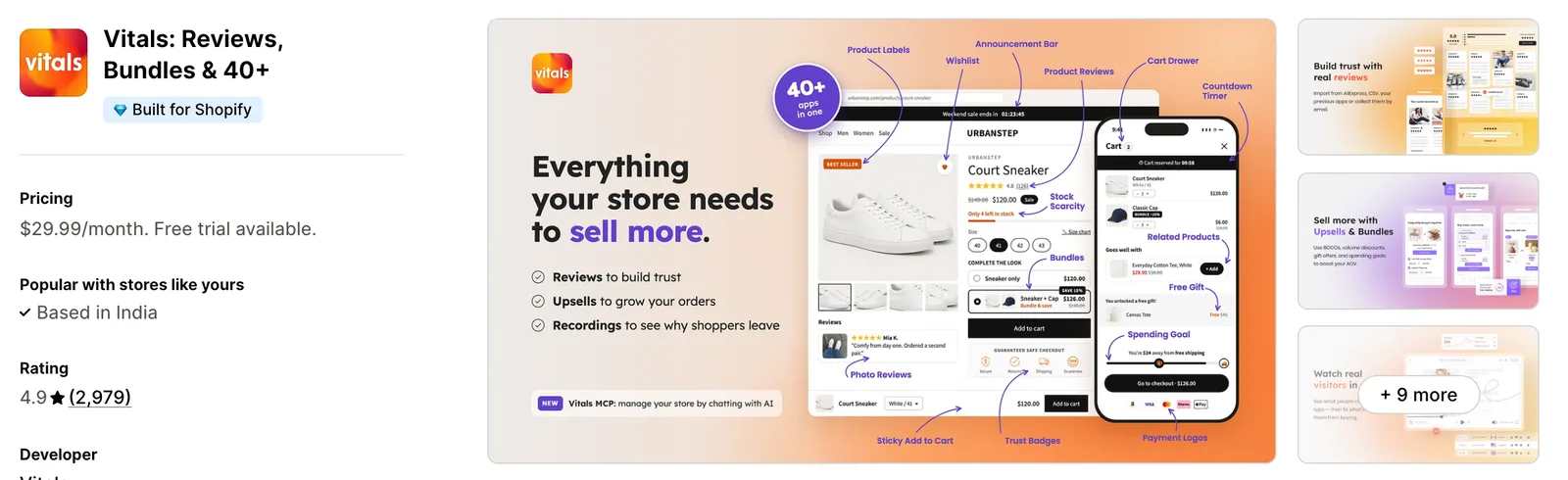
Install the Vitals - All in One App from the Shopify App Store. The 7-day free trial includes the Vitals Product Description Tabs app.
Step 2: Approve the Install in Shopify
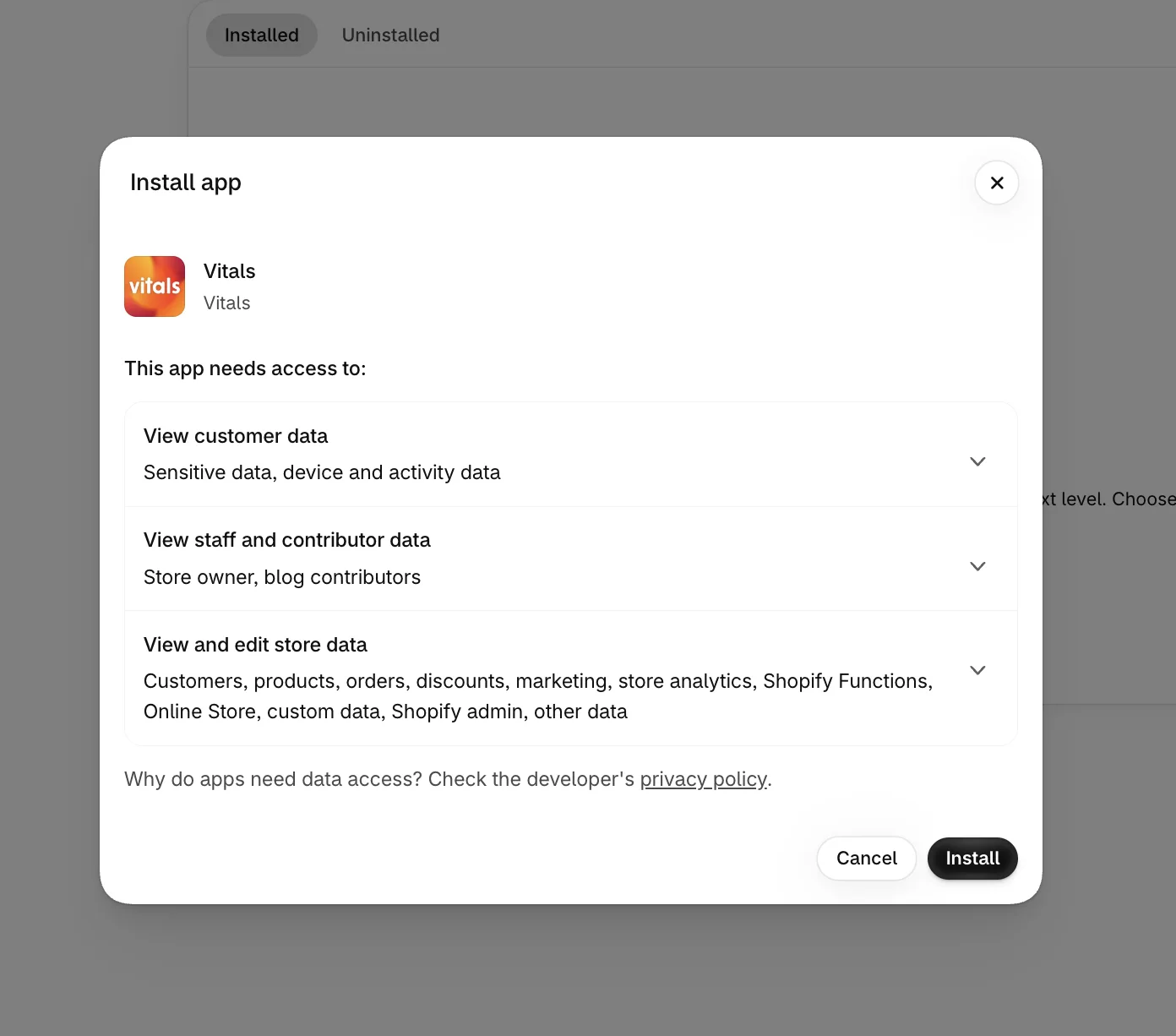
Click Install to approve the store data Vitals uses. Shopify then opens the Vitals dashboard.
Step 3: Open Product Description Tabs
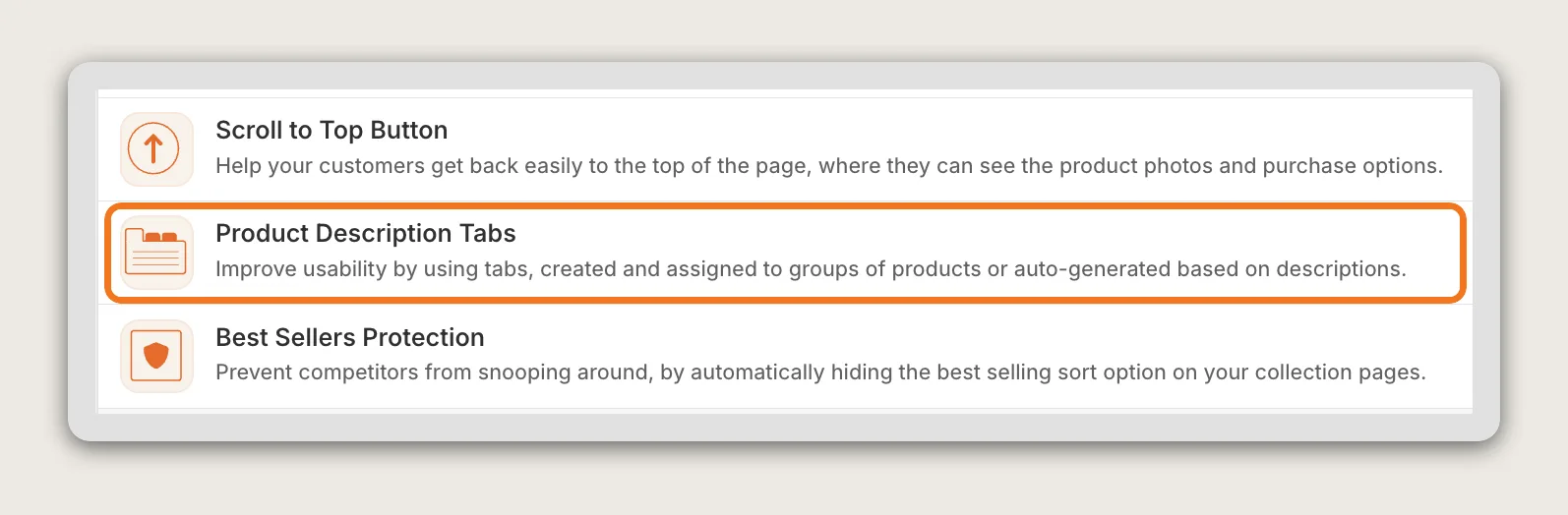
In the Vitals dashboard, find Product Description Tabs in the list of apps and click it.
Step 4: Activate the App
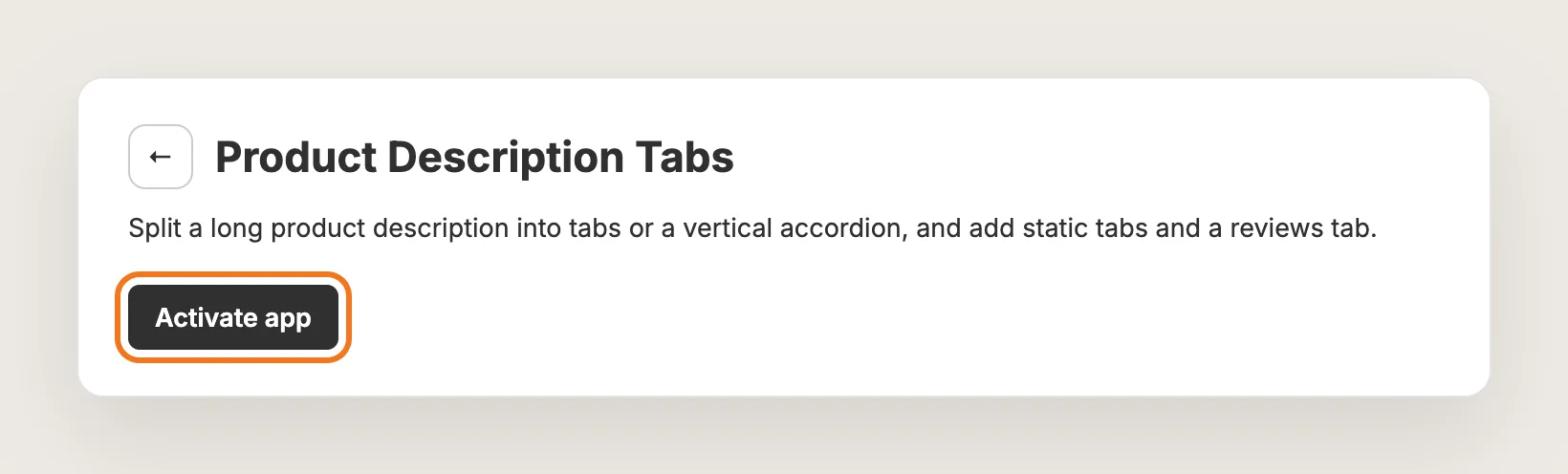
On the Product Description Tabs page, click Activate app to turn the product description tabs on. The app has three tabs of its own: Settings, Static tabs and Analytics.
Step 5: Choose the Heading That Starts Each Tab
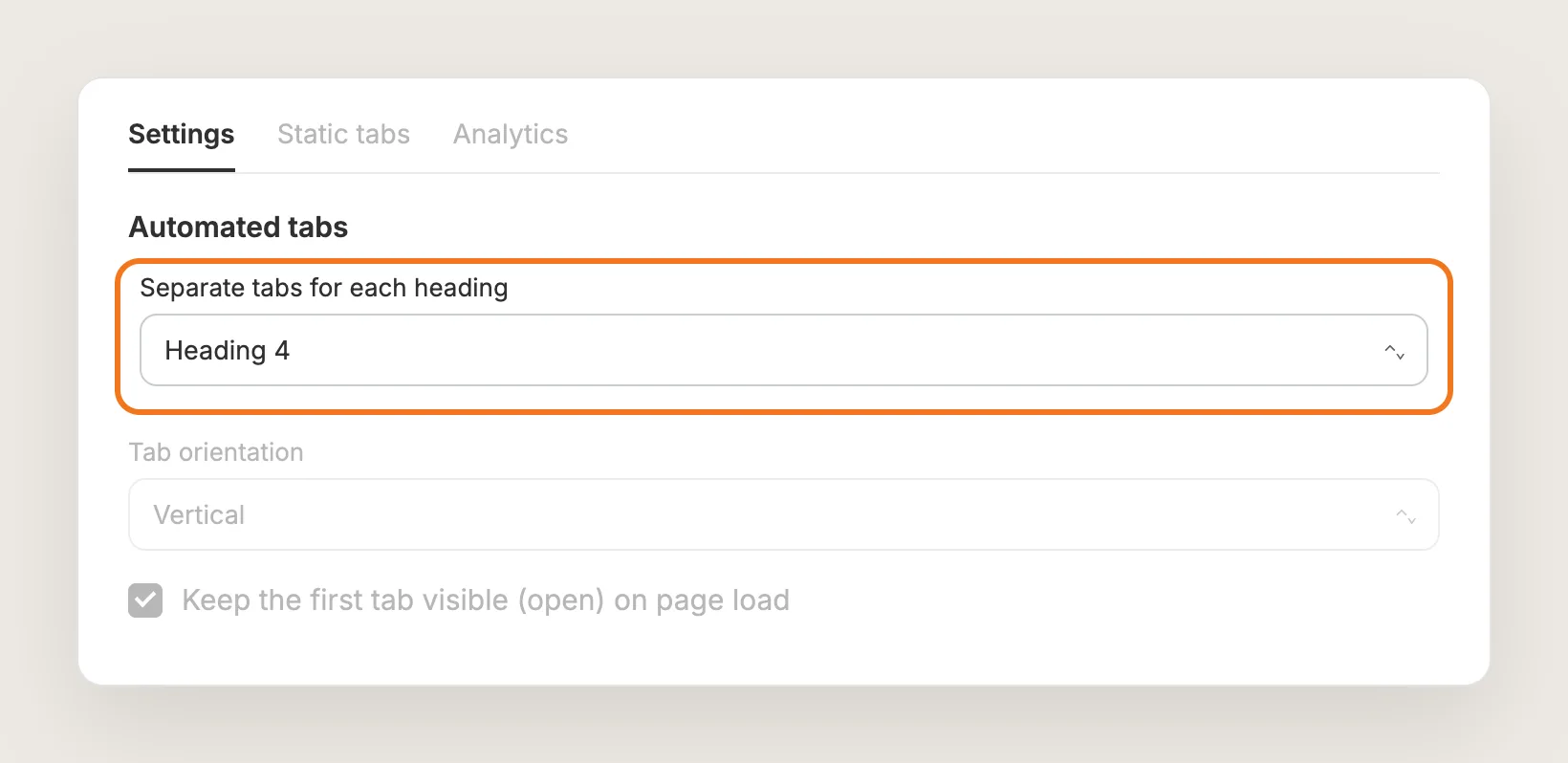
On the Settings tab, in the Automated tabs card, pick a heading level in Separate tabs for each heading. The default is Heading 4, and you can pick any level from Heading 1 to Heading 6. Every heading of that level in a product description starts a new tab, and the heading text becomes the tab name.
Step 6: Add Headings to Your Product Descriptions
Open a product in Products in Shopify. In the description, type the name of the next tab, such as "Materials and care", select the text and set it to the same heading level, here Heading 4. Write that tab's content below the heading, and repeat for every tab. The text above the first heading shows in the first tab, named Description.
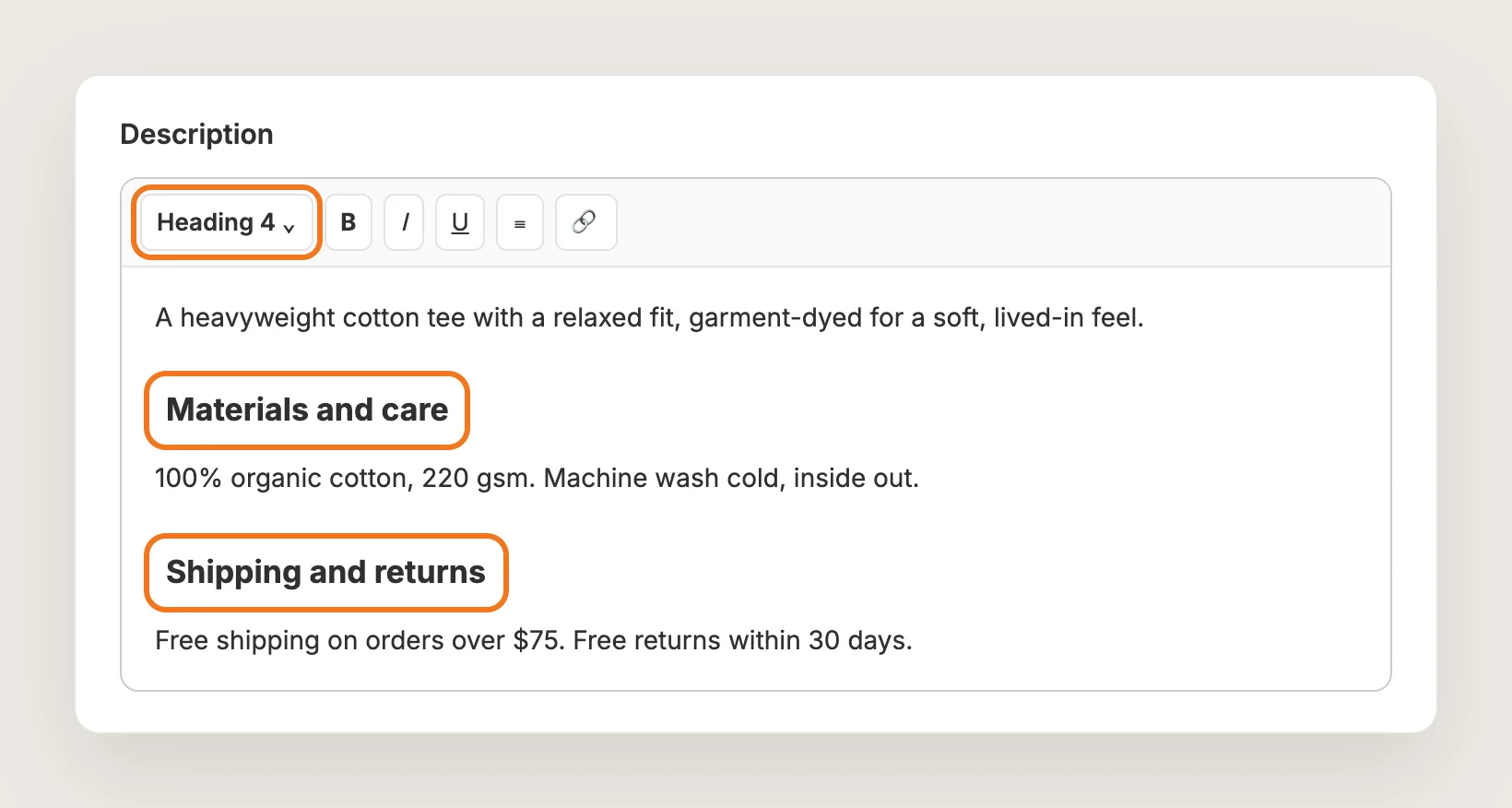
Vitals calls these dynamic tabs, since each product's tabs come from the product's own description.
Step 7: Choose Tabs or an Accordion
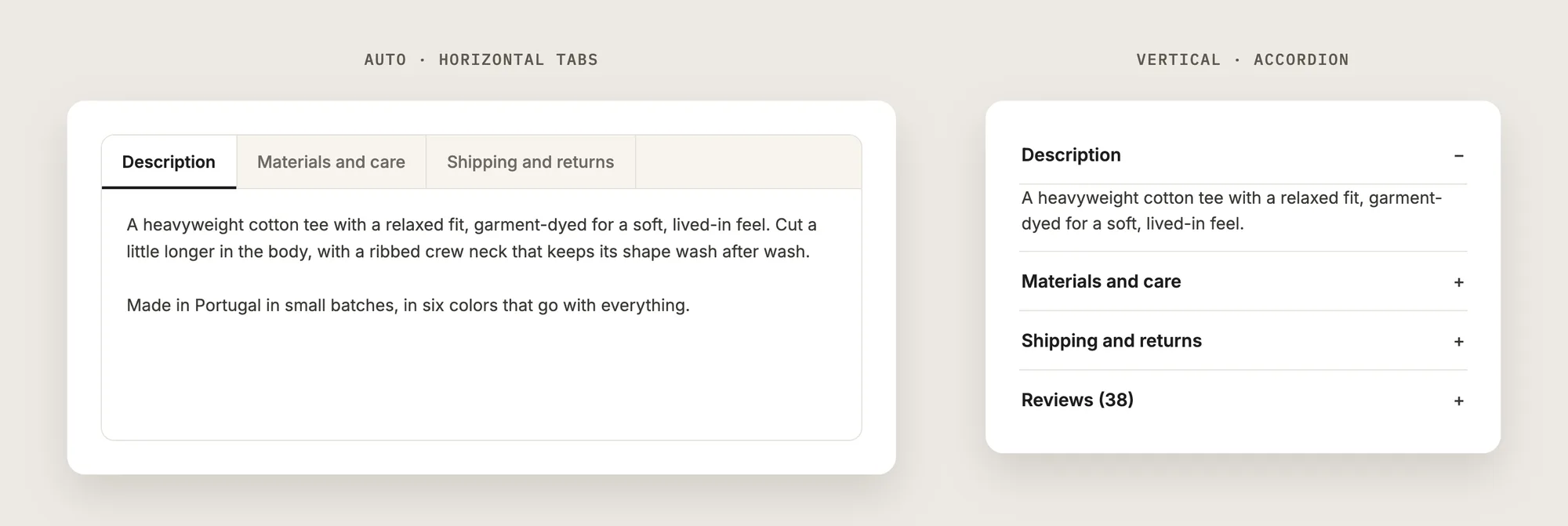
In the Automated tabs card, Tab orientation sets the layout. Vertical, the default, shows the product description tabs as an accordion. Auto shows horizontal tabs when every tab name fits on one row, and switches to the accordion when the names don't fit. Tick Keep the first tab visible (open) on page load so the main description is open when the page loads.
Step 8: Set the Tab Colors
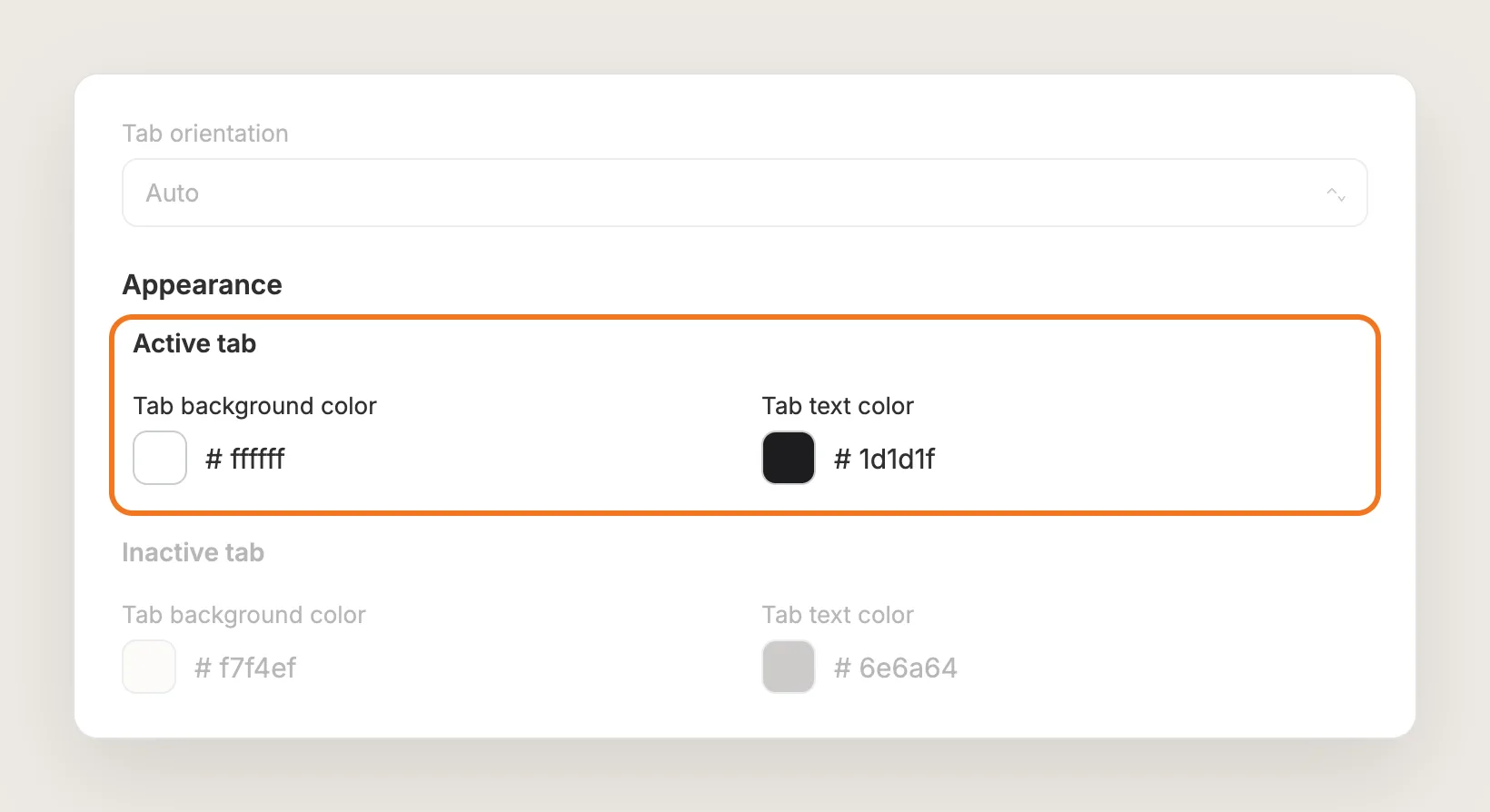
With Tab orientation on Auto, two more cards show: Theme, with 6 tab layouts, and Appearance, with the colors. Set the Tab background color and Tab text color for the Active tab and the Inactive tab to match your store. The fields in Appearance change with the layout you pick in Theme.
Step 9: Add a Static Tab for Shipping and Returns
Open the Static tabs tab and click Add another tab. Enter a Title, such as "Shipping and returns", and the tab's text in Description. Then choose who sees the tab under Visibility: Visible for all products, Visible on selected products pages or Visible on product pages from selected collections. A static tab shows the same content on many products, so you don't add the text to every product description.
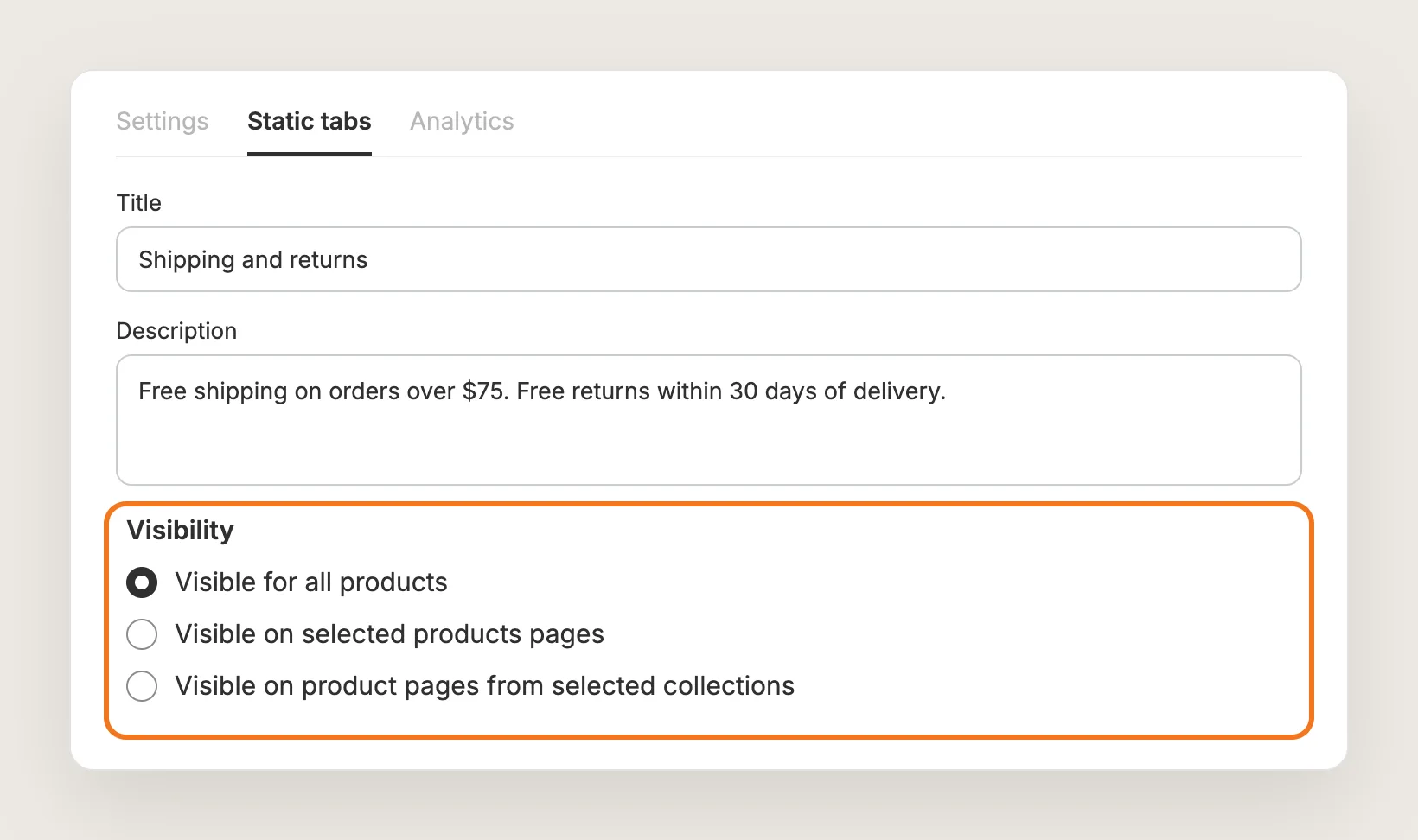
Drag the tabs in the Static tabs list to change their order, or set a tab's Status to Inactive to hide it without deleting it.
Step 10: Show Product Reviews in a Tab (Optional)
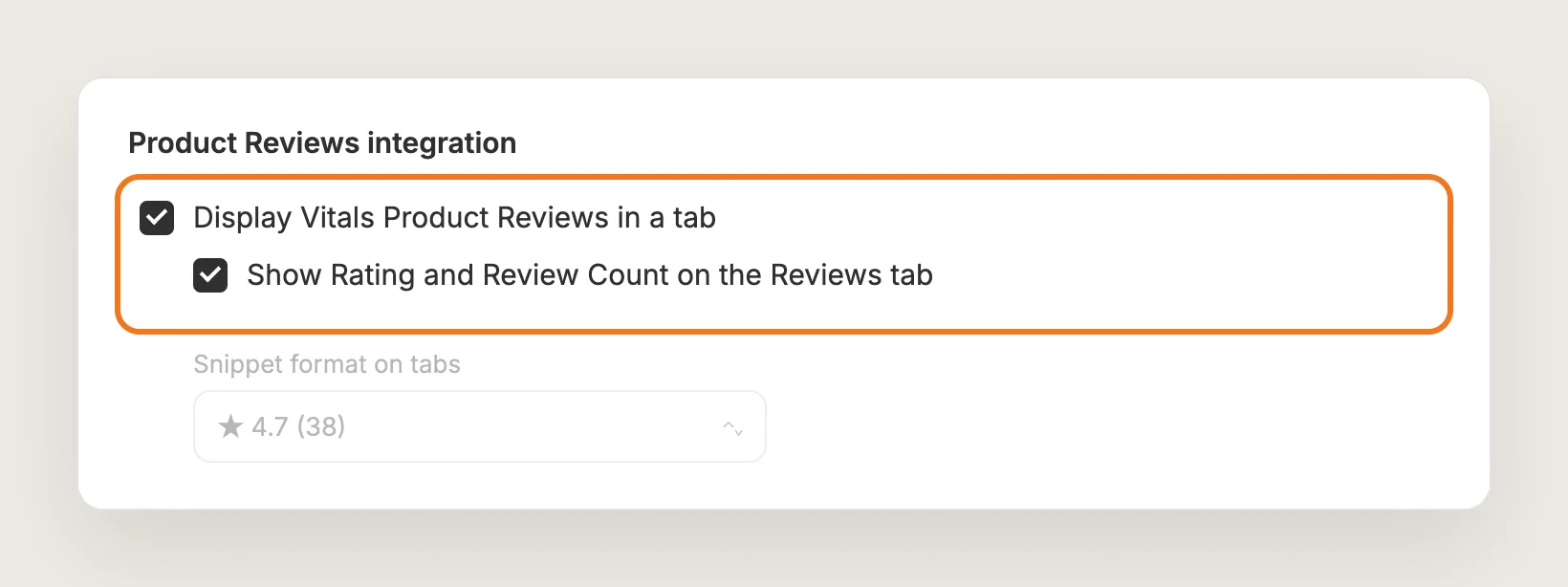
If you also use the Vitals Product Reviews app, move the reviews into a tab. On the Settings tab, in the Product Reviews integration card, tick Display Vitals Product Reviews in a tab. Then tick Show Rating and Review Count on the Reviews tab to show the star rating in the tab name.
Step 11: Limit the Tabs to Certain Products (Optional)
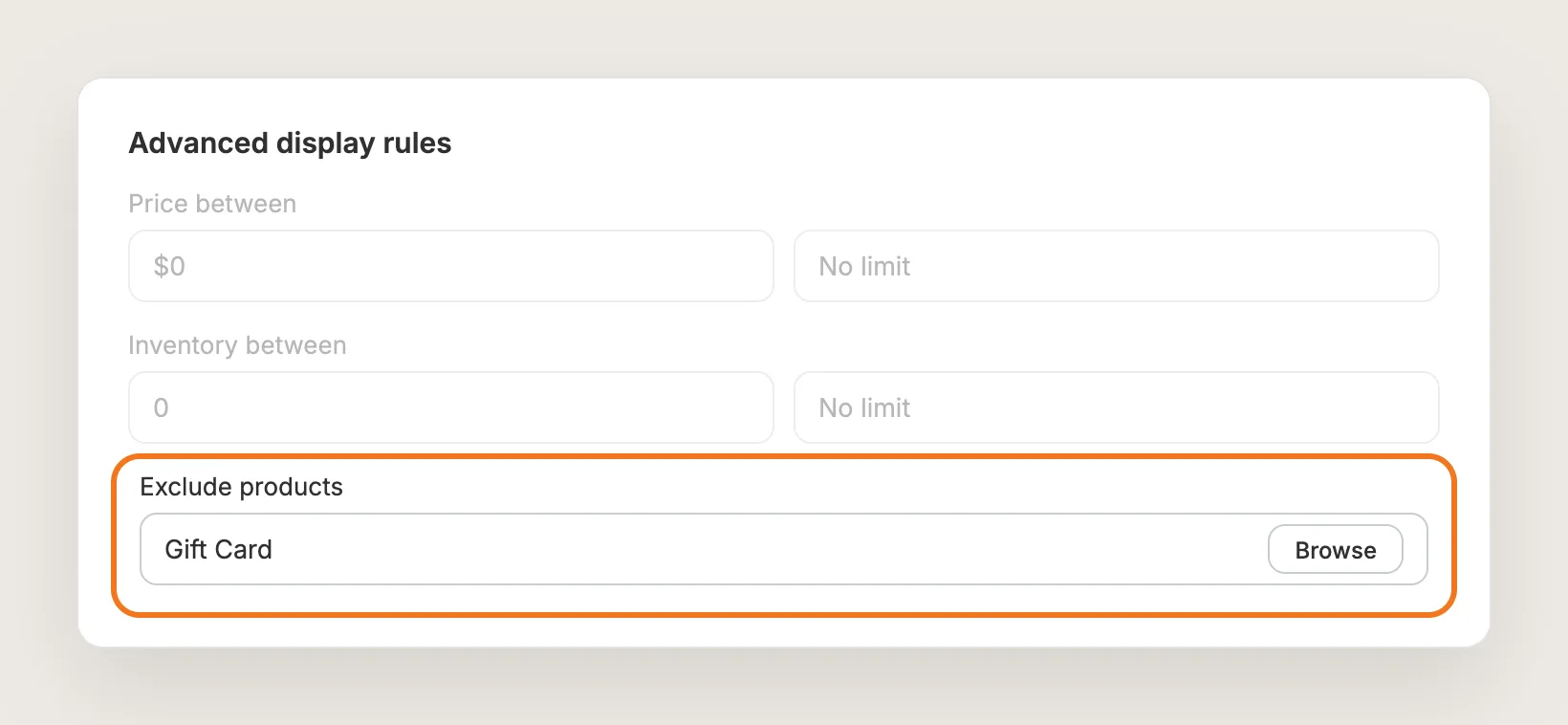
The product description tabs show on every product by default. Use Advanced display rules to show them only on products within a price, discount or inventory range, only on products you pick, or on every product except the products you exclude.
Step 12: Save, Test on Your Phone and Watch the Clicks
Click Save, then open a product page on your phone and on desktop. Check that every tab name is right, that the first tab is open and that no description text shows twice. The Analytics tab then shows how often shoppers see and click the product description tabs.
Step 13: Voila, Your Product Description Tabs Are Live on the Store
Your shoppers now find the details, care instructions and shipping terms in one short, labeled block under the Add to cart button.
How to Add Product Description Tabs From Your Theme Settings?
Many Shopify themes include a collapsible row block that works like product description tabs. To check your theme's settings:
- Click Customize next to your theme in Online Store → Themes
- Open Products → Default product, then click Add block in the product information section
- Look for a collapsible row or collapsible tab block, add a heading and its text, then click Save
A theme's collapsible row shows the same text on every product that uses the template, unless you connect the row to a metafield and fill the metafield for each product. The rows don't split your existing descriptions, so the text has to be moved out of each description by hand. If a few shared rows such as shipping and returns are all you need, the theme setting may be enough.
How to Add Product Description Tabs Without an App?
Hire a developer to build product description tabs into your theme with Liquid, CSS and JavaScript. A custom build gives you full control over the layout and the tab content.
Custom product description tabs usually involve:
- Copying your theme first, so the live store stays untouched during testing
- Deciding where each tab's content comes from, such as headings in the description or product metafields
- Writing the Liquid that splits the content into tabs on the product template
- Adding the CSS for the tab row on desktop and the accordion on mobile
- Adding the JavaScript that opens and closes the tabs
- Testing on every product template, then publishing the theme copy
Custom code means no extra app, but you or your developer have to maintain it. A theme update can replace the files the code is in, so the product description tabs may need adding back after each update.
How to Increase Sales With Product Description Tabs?
Product description tabs help sales by putting the answers shoppers need before buying one click away, right under the Add to cart button. These settings help:
- Keep the main description open on load. Shoppers read the key product text without a click. Tick Keep the first tab visible (open) on page load
- Answer shipping and return questions on every product. Shoppers who check the terms before paying find them in one tab. Add a Static tabs tab set to Visible for all products
- Put size and fit details in their own tab. Shoppers who worry about fit find the answer fast. Add a static tab with Visible on product pages from selected collections for each clothing collection
- Show the star rating in the tab name. Shoppers see social proof before they open the tab. Tick Show Rating and Review Count on the Reviews tab
- Use the accordion on long tab lists. An accordion keeps every tab name readable on a phone. Leave Tab orientation on Vertical
- Watch which tabs get clicked. Shoppers' clicks show which answers matter most. Check the Analytics tab and move the most clicked tab up in the order
Why Aren't My Product Description Tabs Showing or Working?
These fixes solve most product description tab problems:
- The product description tabs don't show at all: Check that the app is activated and that the product has a description in Shopify. The product page also needs your theme's Description block. Add the block in the Shopify theme editor under Products → Default product if it's missing
- Static tabs don't show: Static tabs can show for a product with an empty description, but they still need the theme's Description block on the product page
- The description shows twice: Remove the extra theme block that also shows the description, such as a collapsible row, a metafield block or a second Description block
- The tabs show on some products only: Check Advanced display rules, which may limit the products the tabs show on
- The tabs look broken or doubled: Your theme or another app may already turn the description into tabs. Turn off the theme's own tabs or the other tabs app
- My headings don't become tabs: Set each tab name in the description to the same heading level as Separate tabs for each heading
- I can't find the color settings: The Theme and Appearance cards show only when Tab orientation is Auto
- My product page is built with a page builder: Page builders such as PageFly, Shogun and GemPages change the page structure, so contact Vitals support to set up the product description tabs
Which Product Description Tabs Method Should You Choose?
Vitals - All in One App suits most stores, but the right method depends on where your tab content comes from.
- Choose Vitals - All in One App if you want product description tabs built from the descriptions you already have, plus shared tabs and a reviews tab, without code. It also includes 40+ other apps in one subscription of $29.99/month, so you don't have to install and pay for each app separately
- Choose your theme's setting if a few collapsible rows with the same text on every product are enough
- Choose custom code if you have a custom product page and a developer to keep the tabs working through theme updates
Start a 7-day free trial: Install the Vitals - All in One App and add product description tabs
Frequently Asked Questions
1. What is the best way to add product description tabs in Shopify?
Vitals - All in One App is the best way for most stores. Its Product Description Tabs app splits each product description into tabs at the headings you choose, without code, and adds shared tabs and a reviews tab.
2. Can I add the same Shipping and returns tab to every product?
Yes. In the Vitals Product Description Tabs app, open Static tabs, click Add another tab and set Visibility to Visible for all products. You can also show the tab only on selected products or on products from selected collections.
3. Can I show product description tabs as an accordion?
Yes. Set Tab orientation to Vertical, the default, to show an accordion on every screen. Auto shows horizontal tabs when the tab names fit on one row and the accordion when they don't.
4. Do I have to rewrite my product descriptions?
No. Set the tab names in your descriptions to one heading level, such as Heading 4, and the app splits the text at those headings. For tabs with the same text on many products, use static tabs instead of editing each description.
5. Can I show product reviews in a tab?
Yes, with the Vitals Product Reviews app. Tick Display Vitals Product Reviews in a tab in the Product Reviews integration card, and tick Show Rating and Review Count on the Reviews tab to show the stars in the tab name.
6. Can the product description tabs show a short description with a View More link?
No. The Vitals Product Description Tabs app splits the description into tabs. It doesn't shorten the description behind a View More link.
7. Can I translate static tabs?
Not per language yet. Static tab content can't be translated for each language. The Description label of the first tab can be changed in the Translations card.