How to Show Only X Left in Stock on Shopify

Shoppers who like a product often wait. They add it to a wishlist, open a new tab or plan to come back after payday, and by then many have forgotten the store.
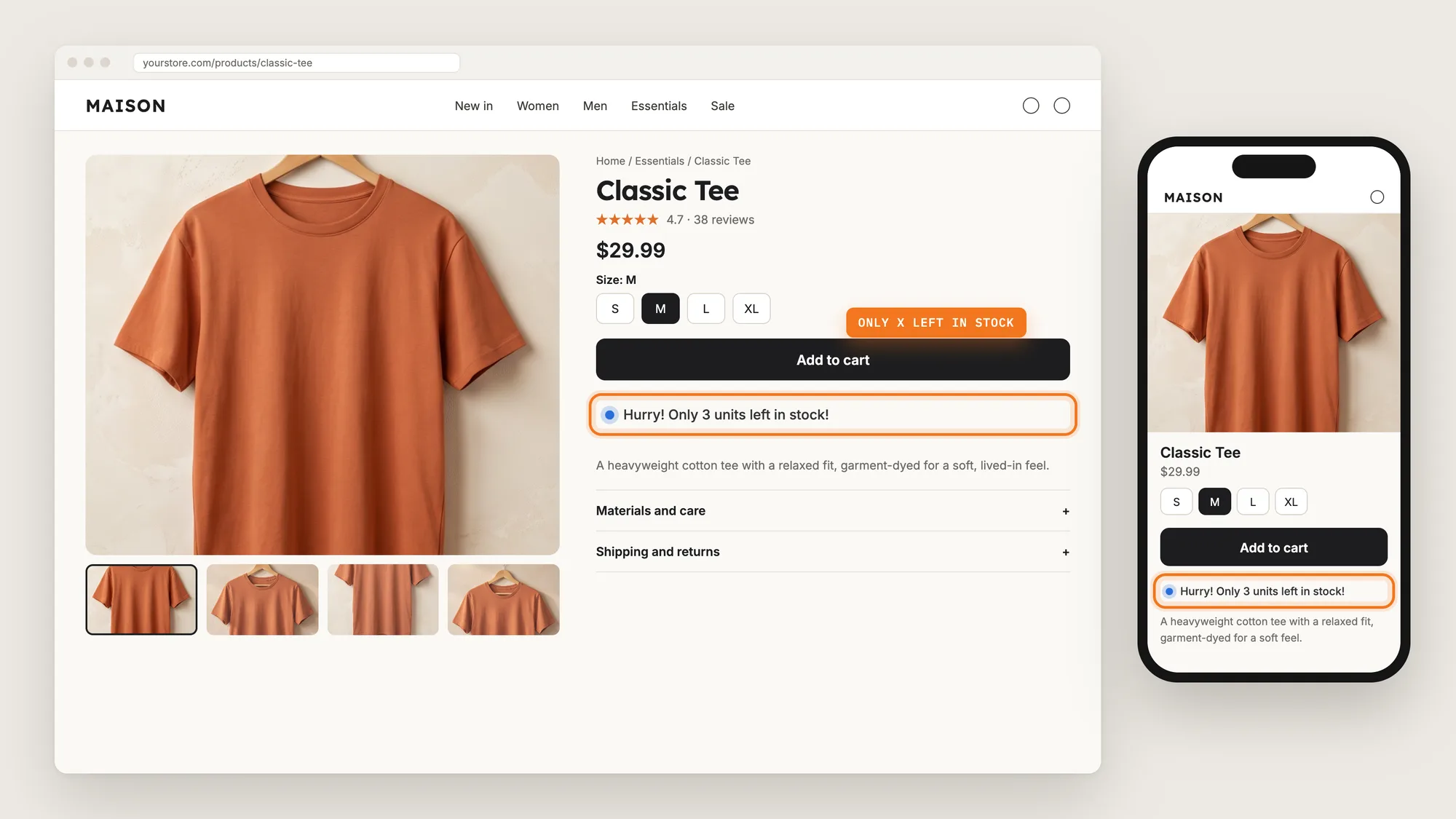
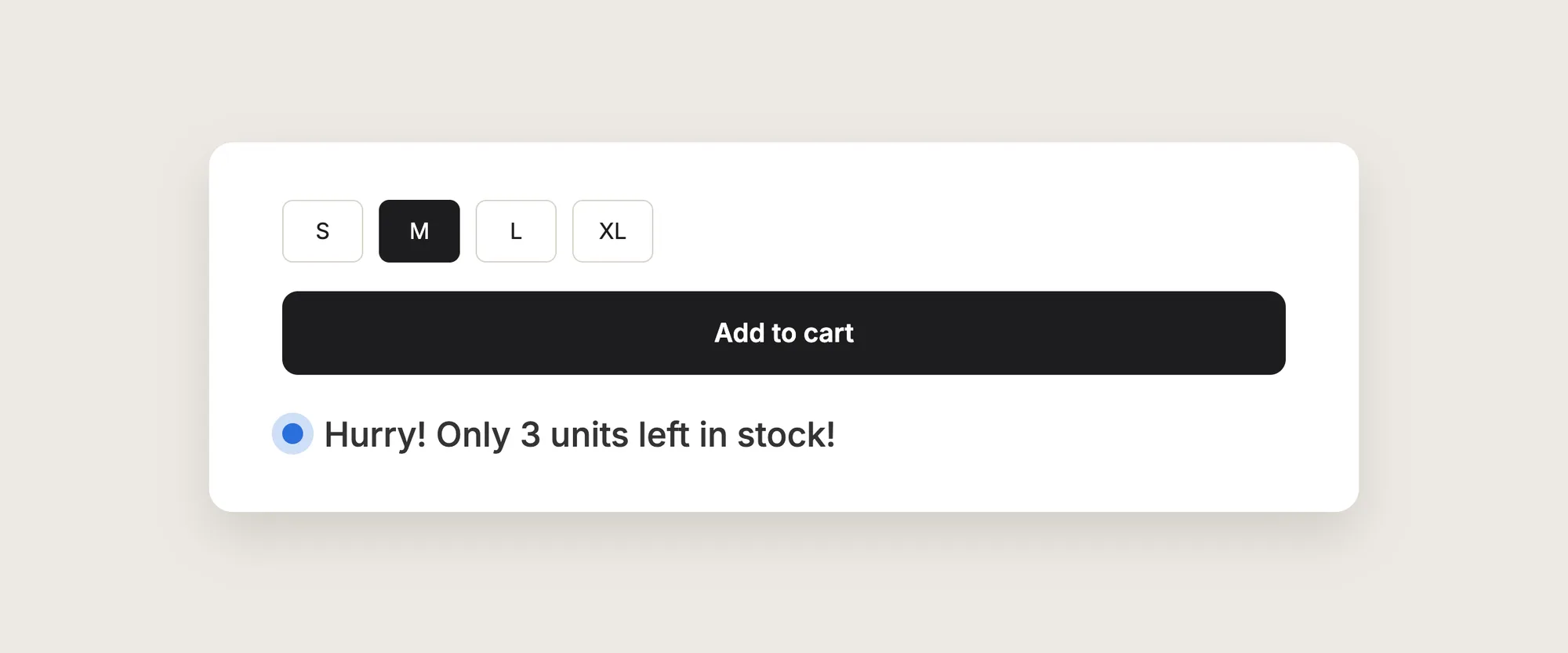
An "only X left in stock" message gives them a real reason to decide now. A line such as "Hurry! Only 3 units left in stock!" under the Add to cart button tells shoppers the size they picked may not be there later.
Here are the three ways to show "only X left in stock" on a Shopify store: with a Low Stock app, from your theme settings, or with custom code.
What Is an "Only X Left in Stock" Message?
An "only X left in stock" message is a short line on the product page that shows how many units of the selected variant are left, once stock drops below a level you set. The number comes from your Shopify inventory, so the message changes as the stock changes and disappears when stock is above that level.
A good "only X left in stock" message includes:
- The real stock number: The count comes from Shopify for the variant the shopper picked.
- A low threshold: The message shows only when stock is truly low, such as 10 units or fewer.
- A spot near the buy button: Shoppers see the stock level at the moment they decide.
- Text in your store's voice: A short line such as "Only 3 left" that fits your brand.
Shopify doesn't allow fake stock information, so the message should always show your real inventory.
What's the Quickest Way to Show Only X Left in Stock?
- Vitals - All in One App is the quickest way to show "only X left in stock" for most stores
- Vitals also offers 40+ apps, such as a countdown timer, product reviews and a sticky add to cart button, in one subscription of $29.99/month, so you don't have to install and pay for each app separately
Here's how the three methods compare. If you'd rather weigh several apps against each other, see our list of the best low stock and scarcity counter apps for Shopify.
How to Show Only X Left in Stock With a Low Stock App?
Install the Vitals - All in One App, open its Stock Scarcity app and click Activate app. The "only X left in stock" message then shows on your product pages, and the steps below set when the message shows, what it says, how it looks and where it goes.
Step 1: Install the Vitals - All in One App
Install the Vitals - All in One App from the Shopify App Store. The 7-day free trial includes the Vitals Stock Scarcity app.
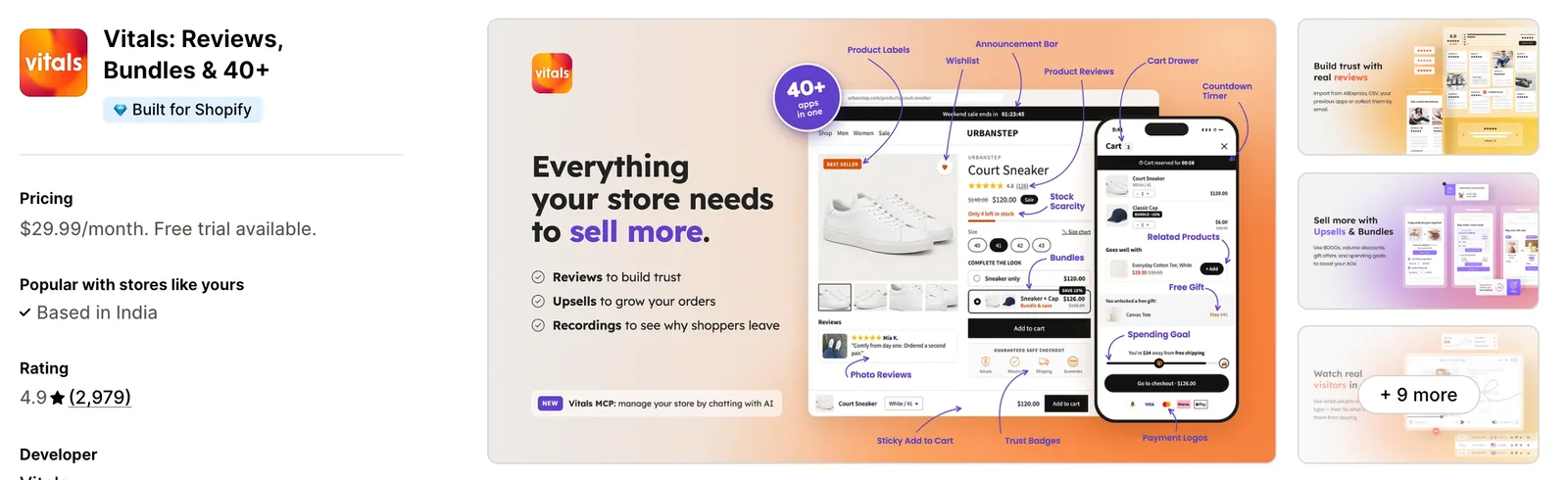
Step 2: Approve the Install in Shopify
Click Install to approve the store data Vitals uses. Shopify then opens the Vitals dashboard.
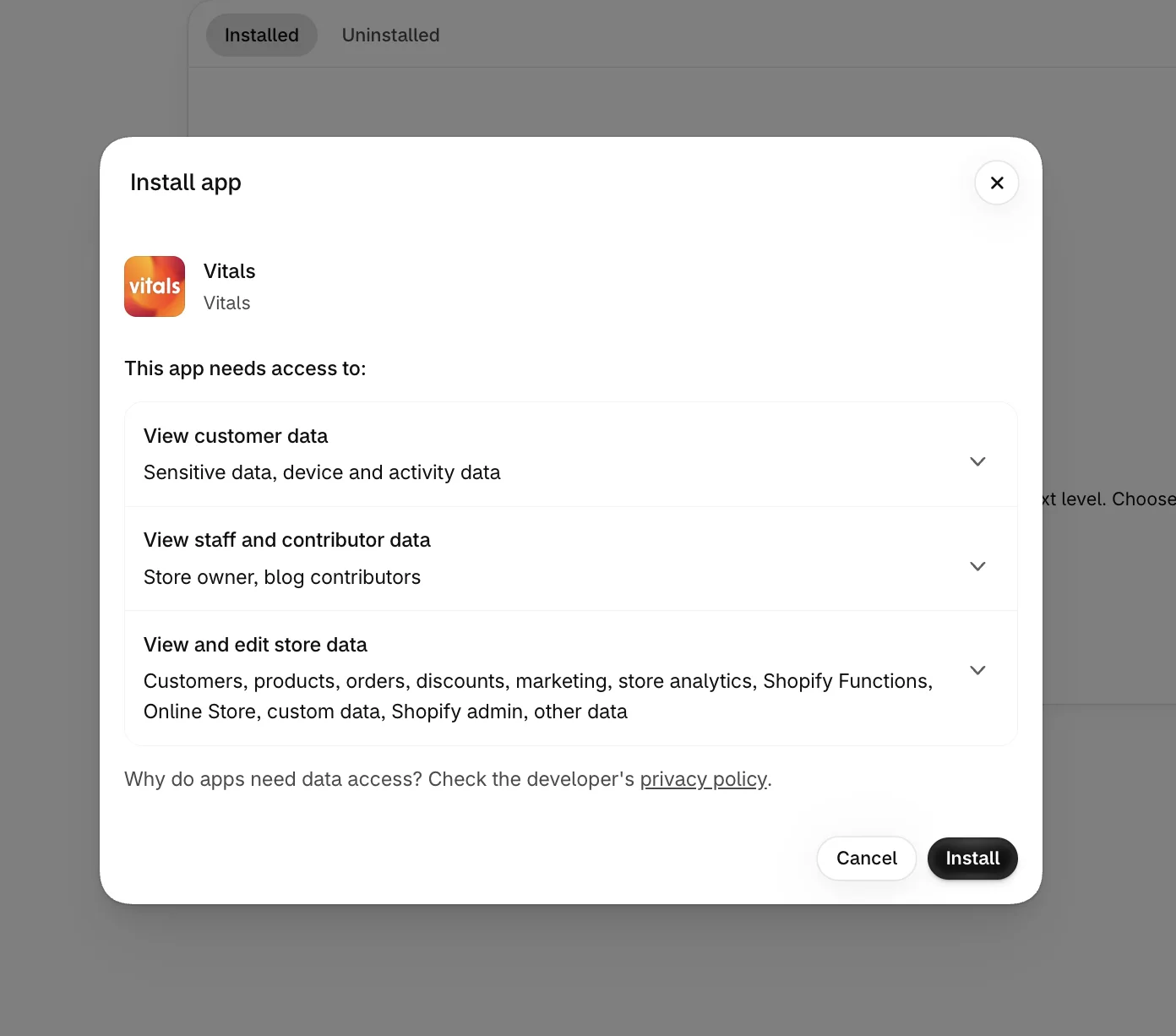
Step 3: Open Stock Scarcity
In the Vitals dashboard, find Stock Scarcity in the list of apps and click it.
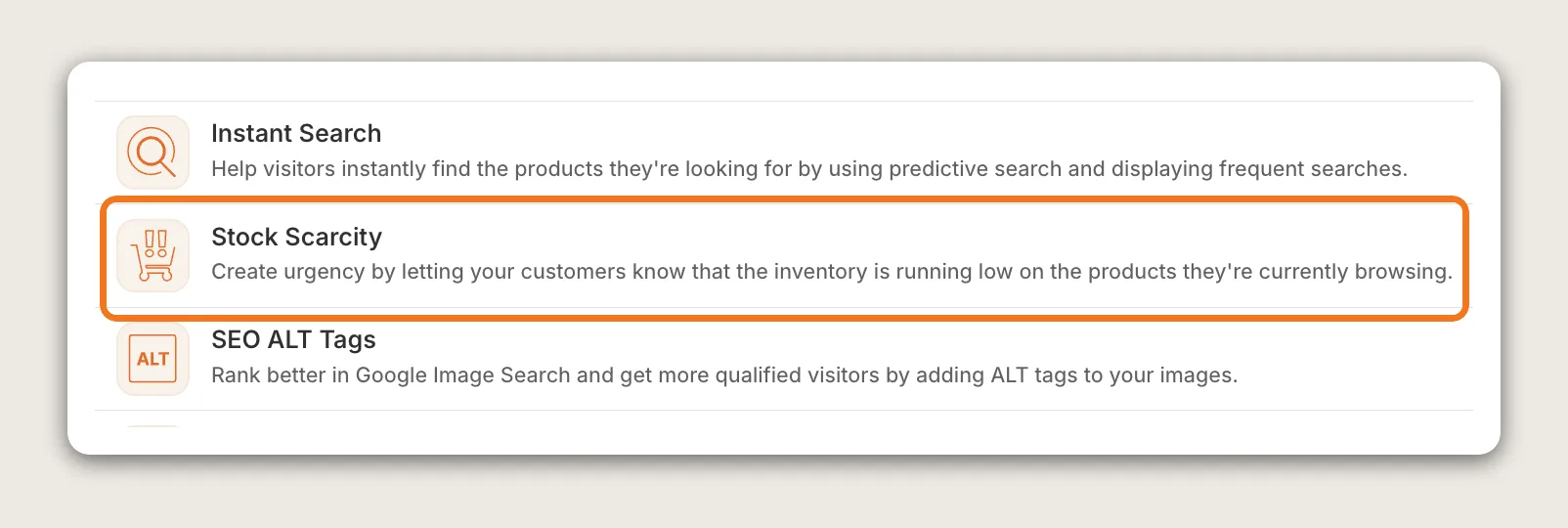
Step 4: Activate the App
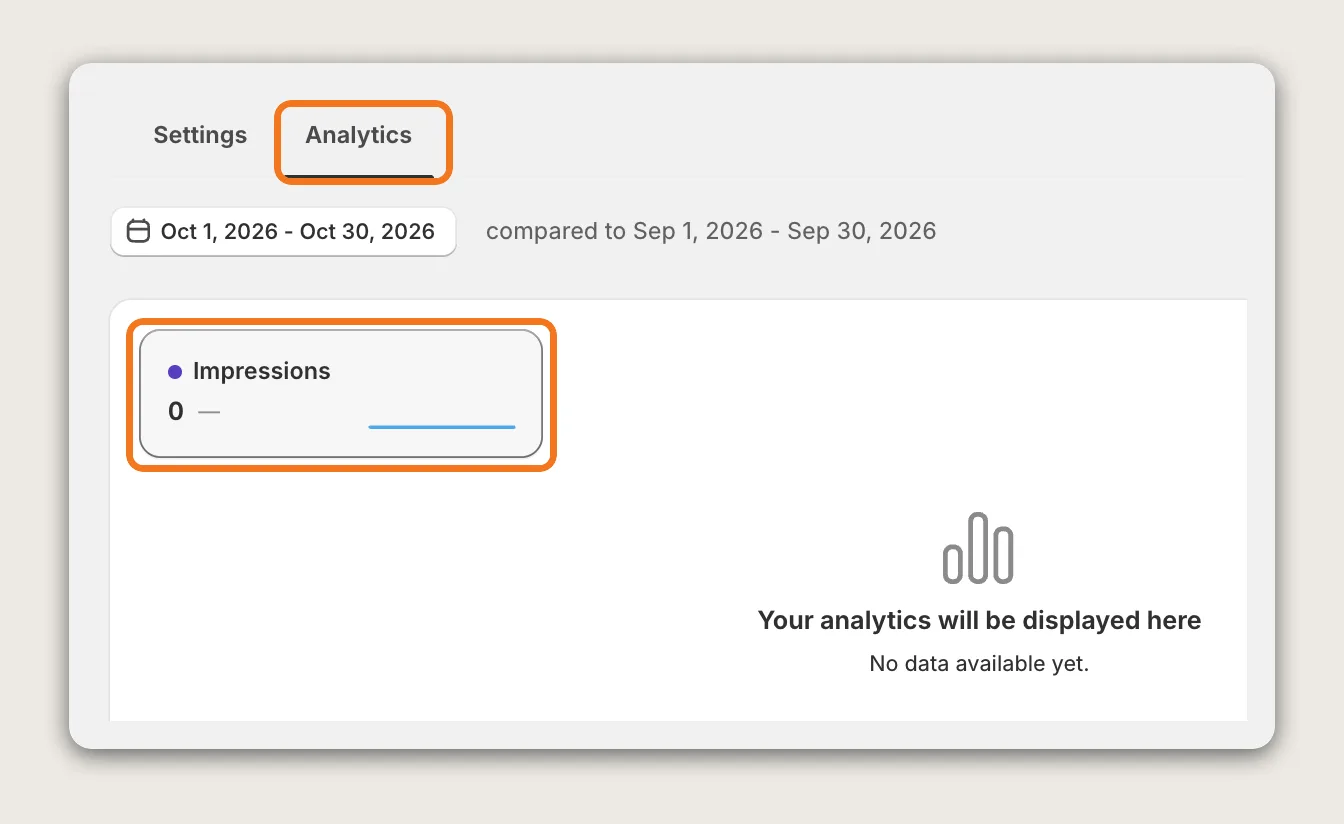
On the Stock Scarcity page, click Activate app in the top right corner to turn the message on. The settings page then opens with two tabs: Settings holds every setting, and Analytics shows how often shoppers see the message.
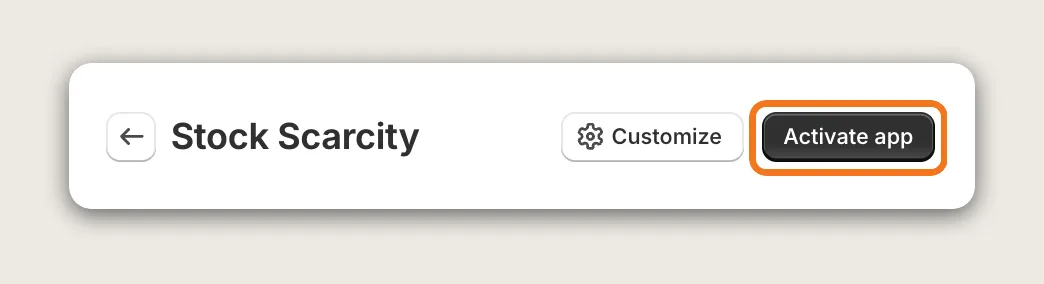
Step 5: Set When the Message Shows
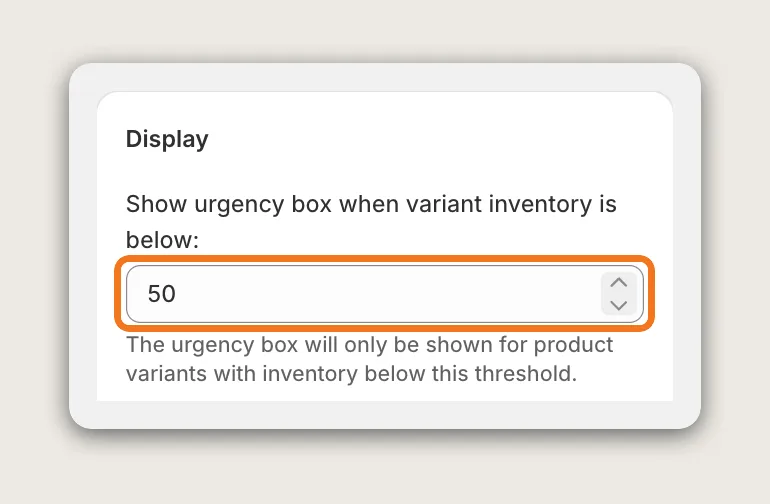
In the Display card, enter a number in Show urgency box when variant inventory is below:. The message shows on any variant with that many units or fewer in stock, and above 0. The default is 50, so lower it to a level that is truly low for your store, such as 10.
Step 6: Write the Message
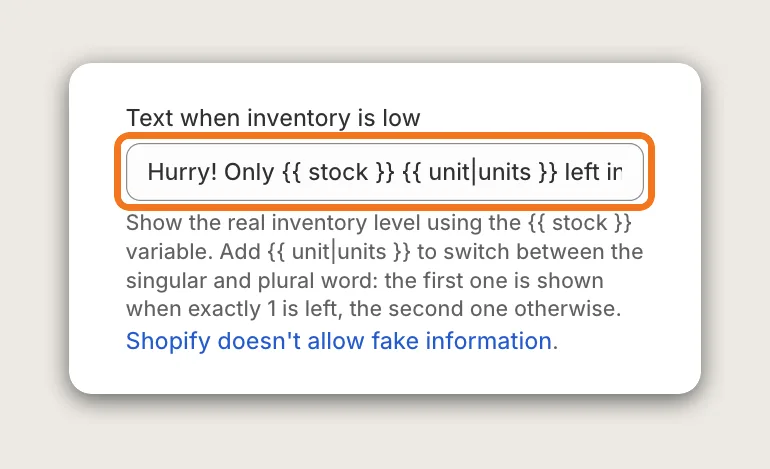
Edit Text when inventory is low. Keep the `{{ stock }}` variable, which shows the real stock of the selected variant from Shopify. The `{{ unit|units }}` variable writes "unit" when exactly 1 is left and "units" otherwise. The default text is "Hurry! Only {{ stock }} {{ unit|units }} left in stock!".
Step 7: Show a Message on Sold-Out Variants That Can Still Be Bought (Optional)
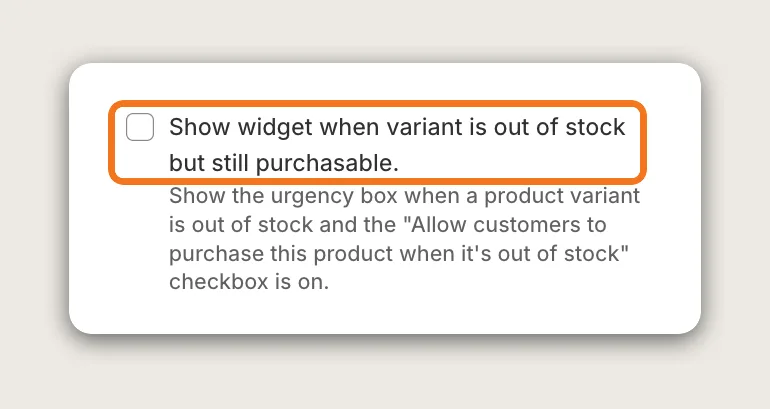
Tick Show widget when variant is out of stock but still purchasable. to show a message on variants with 0 or fewer in stock, then write that message in Text when product is out of stock but still purchasable. The message shows only on products that track inventory in Shopify and have Continue selling when out of stock turned on.
Step 8: Choose Bar or Dot
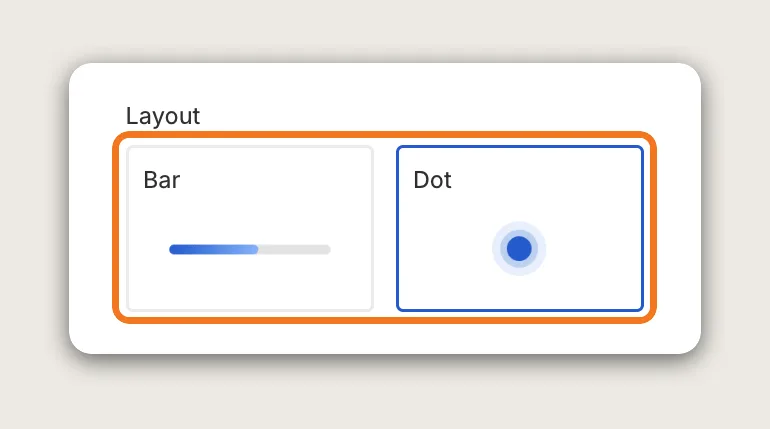
In the Display card, under Layout, click Bar or Dot. Dot is the default and shows a small dot next to the message. Bar shows the message above a colored bar. The bar fill is a visual accent, not a gauge of your stock, so the number in the text is the real stock level.
Step 9: Match the Colors and Font Size
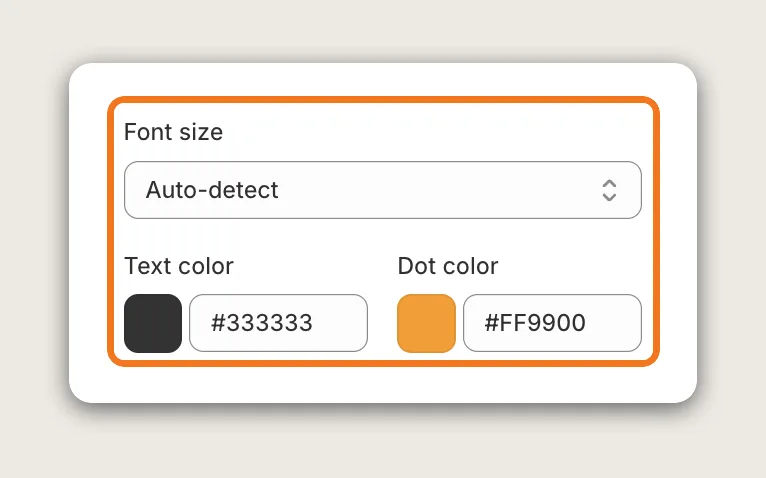
Pick a Font size for the message, which is Auto-detect by default, then set Text color. With Dot, set Dot color. With Bar, set Bar gradient start color, Bar gradient end color and Bar background color instead. Margin sets the space on the left, right, top and bottom of the message in both layouts.
Step 10: Choose Where the Message Shows on the Product Page
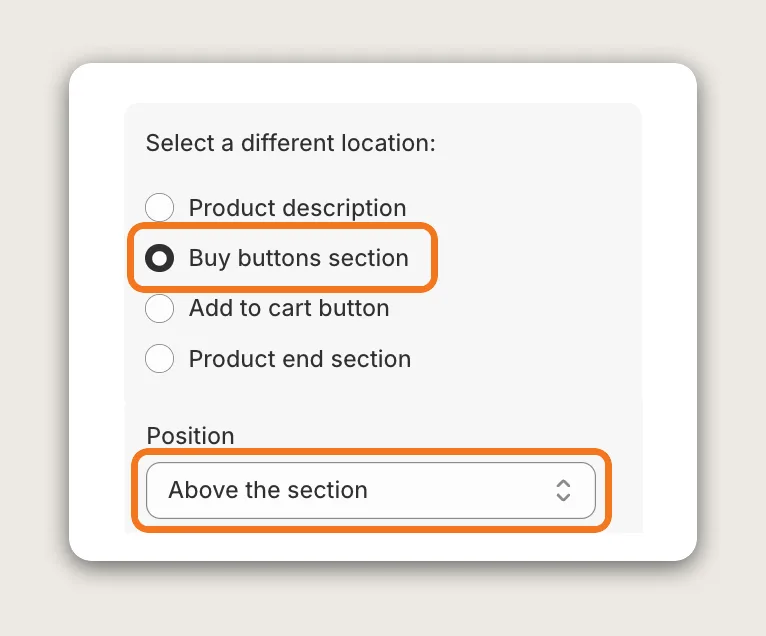
In the Position card, under Automatic placement, pick a part of the product page in Select a different location:, such as Buy buttons section. Then open Position to put the message above or below that part. To place the message yourself, click Go to editor under Manual placement and add the Vitals app block in the Shopify theme editor.
Step 11: Limit the Message to Certain Products (Optional)
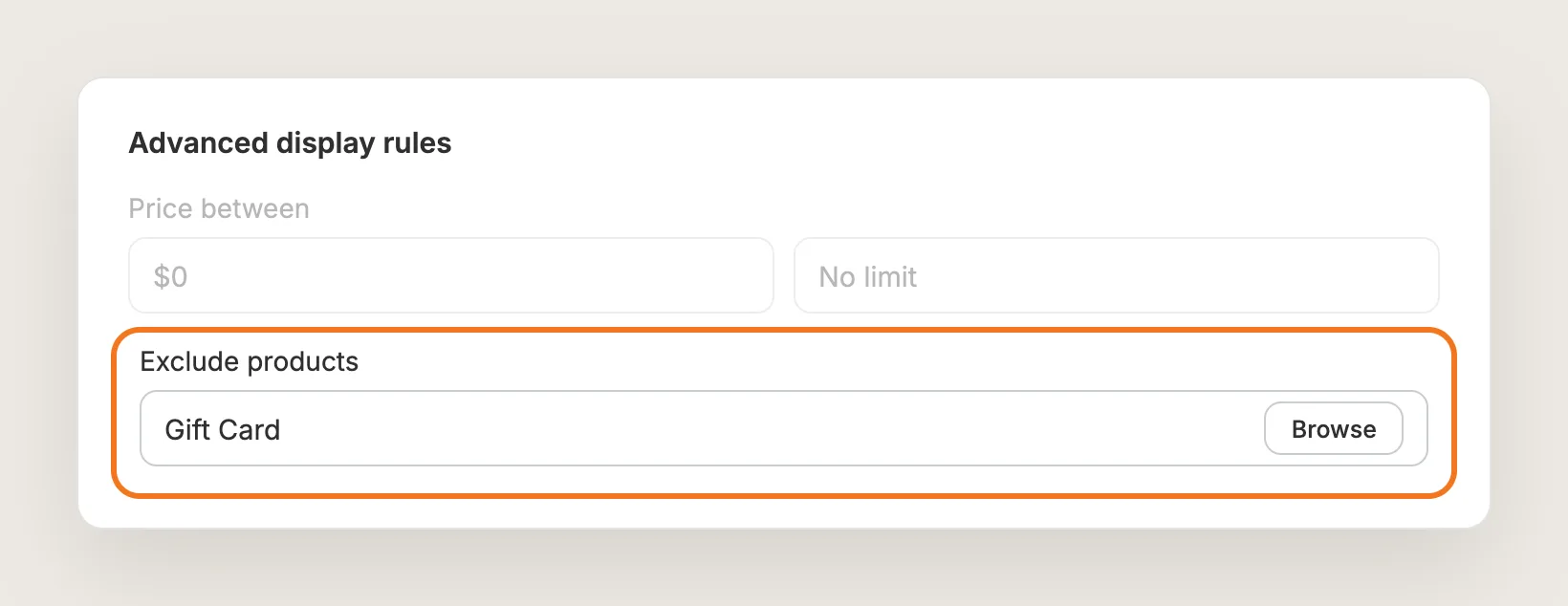
The message shows on every product that matches your stock level. Use Advanced display rules to show it only on products within a price, discount or inventory range, only on products you pick, or on every product except the products you exclude.
Step 12: Save, Test on Your Phone and Watch the Impressions
Click Save, then open a product whose stock is below your level on your phone and on desktop. Switch between variants and check that the number matches your Shopify inventory. Then open the Analytics tab to see how many times shoppers saw the message.
Step 13: Voila, Your "Only X Left in Stock" Message Is Live on the Store
Shoppers now see the real stock level right under the Add to cart button, at the moment they decide to buy.
How to Show Only X Left in Stock From Your Theme Settings?
Some Shopify themes include an inventory status block that shows a low stock line on the product page. To check your theme's settings:
- Click Customize next to your theme in Online Store → Themes
- Open a product page template, then click Add block in the product information section
- Look for an inventory or stock status block, add it, set its low stock level if it has one, then click Save
A theme's inventory block usually shows a fixed line such as "Low stock: 3 left" in the theme's own style. The text, the threshold and the look depend on the theme, and there is no separate message for sold-out variants that can still be ordered. If a plain line is all you need, the theme setting may be enough.
How to Show Only X Left in Stock Without an App?
Hire a developer to add the stock count to your product template with Liquid and JavaScript. Custom code gives you full control over the text and design.
A custom "only X left in stock" message usually involves:
- Copying your theme first, so the live store stays untouched during testing
- Reading each variant's inventory quantity in the product template
- Showing the message only when the quantity is above 0 and below your level
- Updating the number with JavaScript when a shopper picks another variant
- Styling the message for mobile and desktop
- Testing products that don't track inventory, then publishing the theme copy
Custom code means no extra app, but you or your developer have to maintain it. A theme update can replace the files the code is in, so the message may need adding back after each update.
How to Increase Sales With an "Only X Left in Stock" Message?
An "only X left in stock" message increases sales by giving shoppers a true reason to buy now instead of later. These settings help:
- Keep the threshold low. A message on every product stops meaning anything. Set Show urgency box when variant inventory is below: to a level that is truly low for your store
- Always show the real number. Keep the `{{ stock }}` variable in Text when inventory is low. Shopify doesn't allow fake stock information, and the same vague line on every product looks artificial
- Put the message right next to the Add to cart button. Shoppers see the stock level at the moment they decide. Set Select a different location: and Position in the Position card
- Keep selling sold-out variants that can still be ordered. Turn on Show widget when variant is out of stock but still purchasable. so pre-order style products still show a message
- Make the message easy to spot. Pick a Text color and Dot color that stand out from your theme without clashing with the Add to cart button
- Hide the message where stock doesn't matter. Exclude products such as gift cards or made-to-order items with Advanced display rules
Why Isn't My "Only X Left in Stock" Message Showing or Working?
These fixes solve most "only X left in stock" problems:
- The message doesn't show at all: Check that the app is activated and that the selected variant's stock is above 0 and at or below your level in Show urgency box when variant inventory is below: (50 by default)
- The message doesn't show on a sold-out variant: Tick Show widget when variant is out of stock but still purchasable., and check that the product tracks inventory in Shopify and has Continue selling when out of stock turned on
- The message is missing on one product: Check Advanced display rules. Exclude products, Display only on specific products or a price, discount or inventory range can hide the message on that product
- The message shows in the wrong spot: Change Select a different location: and Position in the Position card, or move the app block in the Shopify theme editor
- Two low stock messages show: Your theme has its own inventory status block. Remove one of the two
- The bar doesn't shrink as stock drops: The bar fill is a visual accent. The number in the text is the real stock level
- The text says "1 units left": Use `{{ unit|units }}` in Text when inventory is low so the word changes with the number
- Changes don't show yet: Check your live product page in an incognito window, not Shopify's preview mode
Which "Only X Left in Stock" Method Should You Choose?
Vitals - All in One App suits most stores, but the right method depends on how much control you want over the message.
- Choose Vitals - All in One App if you want an "only X left in stock" message with your own text, threshold, colors and layout, a separate message for sold-out variants and impressions in the app. It also includes 40+ other apps in one subscription of $29.99/month, so you don't have to install and pay for each app separately
- Choose your theme's setting if your theme has an inventory status block and a plain line is enough
- Choose custom code if you need a custom design and have a developer to keep the code working through theme updates
If you're comparing low stock apps, see our Urgency Plus alternatives.
Start a 7-day free trial: Install the Vitals - All in One App and show "only X left in stock"
Frequently Asked Questions
1. What is the best way to show "only X left in stock" on Shopify?
Vitals - All in One App is the best way for most stores. Its Stock Scarcity app shows an "only X left in stock" message under the Add to cart button without code, with your own text, threshold, colors and layout.
2. Does the "only X left in stock" message show my real inventory?
Yes. The `{{ stock }}` variable reads the selected variant's stock from Shopify. Shopify doesn't allow fake stock information on its stores.
3. Can I show "only X left in stock" without the exact number?
You can remove `{{ stock }}` and write a general line such as "Hurry, only a few in stock" with a high threshold, but Vitals recommends against it. It can break Shopify's rules on fake information, and the same line on every product looks artificial.
4. How do I choose when the message appears?
Set Show urgency box when variant inventory is below: in the Display card. The message shows for variants with that many units or fewer, and above 0. The default is 50.
5. Can I show a message when a product is out of stock?
Yes, for variants that can still be bought. Tick Show widget when variant is out of stock but still purchasable. and the product needs inventory tracking and Continue selling when out of stock turned on in Shopify.
6. Does the message update when a shopper picks another variant?
Yes. The message shows the stock of the selected variant, so each size or color shows its own number.
7. Can I translate the "only X left in stock" message?
Yes. Click Translate at the top of the Stock Scarcity page. The button shows when your store has more than one language, or one language other than English.