How to Add a Newsletter Pop Up With Discount on Shopify

Most first-time visitors look around a store and leave without buying. Once they close the tab, the store has no way to reach them again, and a plain "Subscribe to our newsletter" form in the footer gives them little reason to sign up.
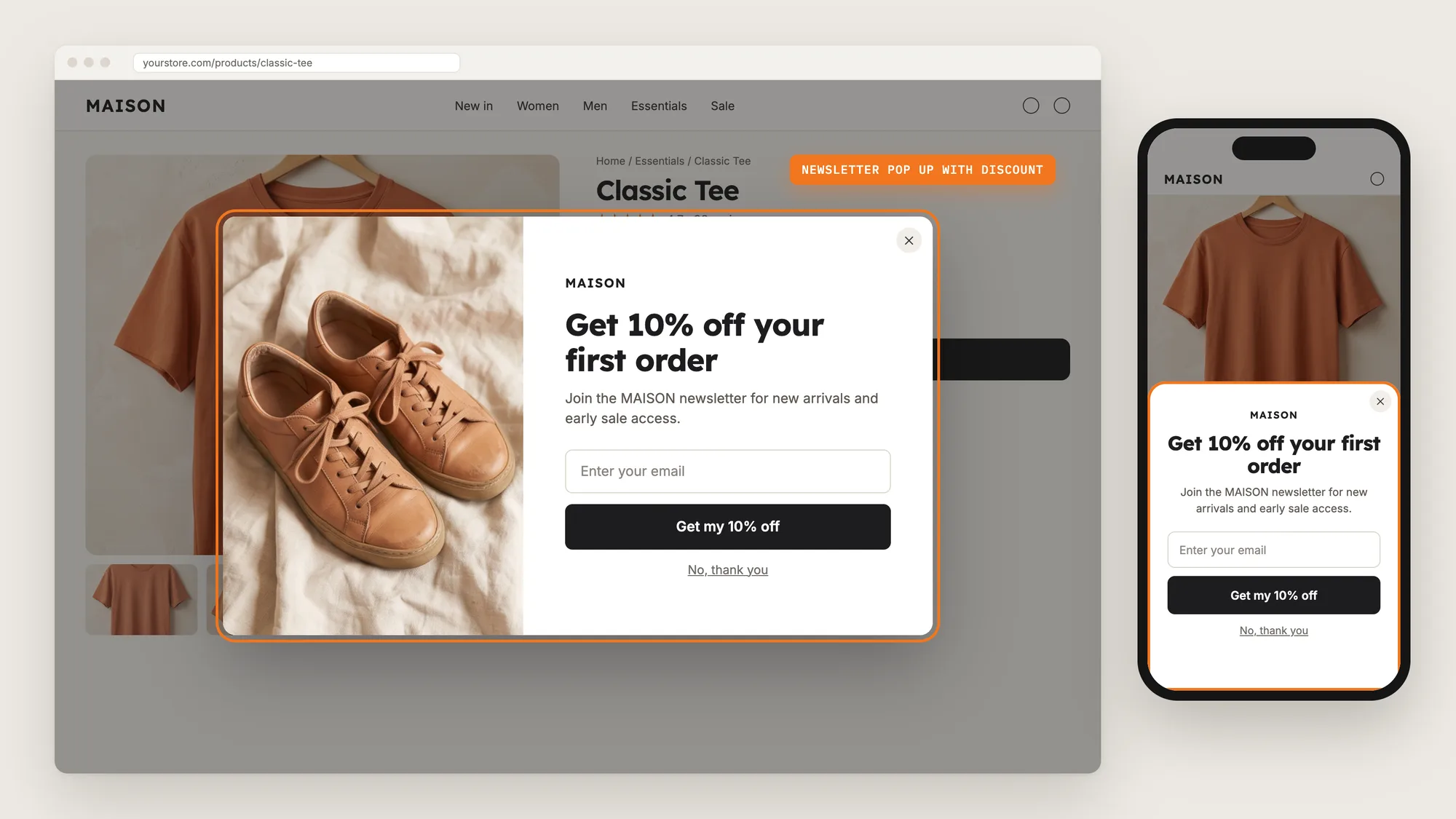
A newsletter pop up with discount gives that reason. The shopper enters an email address, gets a discount code for the first order right away, and the store keeps the contact for the next sale or new arrival.
Here are the three ways to add a newsletter pop up with discount on a Shopify store: with a Pop-up app, from your theme settings, or with custom code.
What Is a Newsletter Pop Up With Discount?
A newsletter pop up with discount is a window that offers shoppers a discount code in return for their email address or phone number. The shopper signs up on the first screen, then sees the discount code on a success screen and uses the code at checkout. It's also called a welcome discount pop-up, an email capture pop-up or a signup discount pop-up.
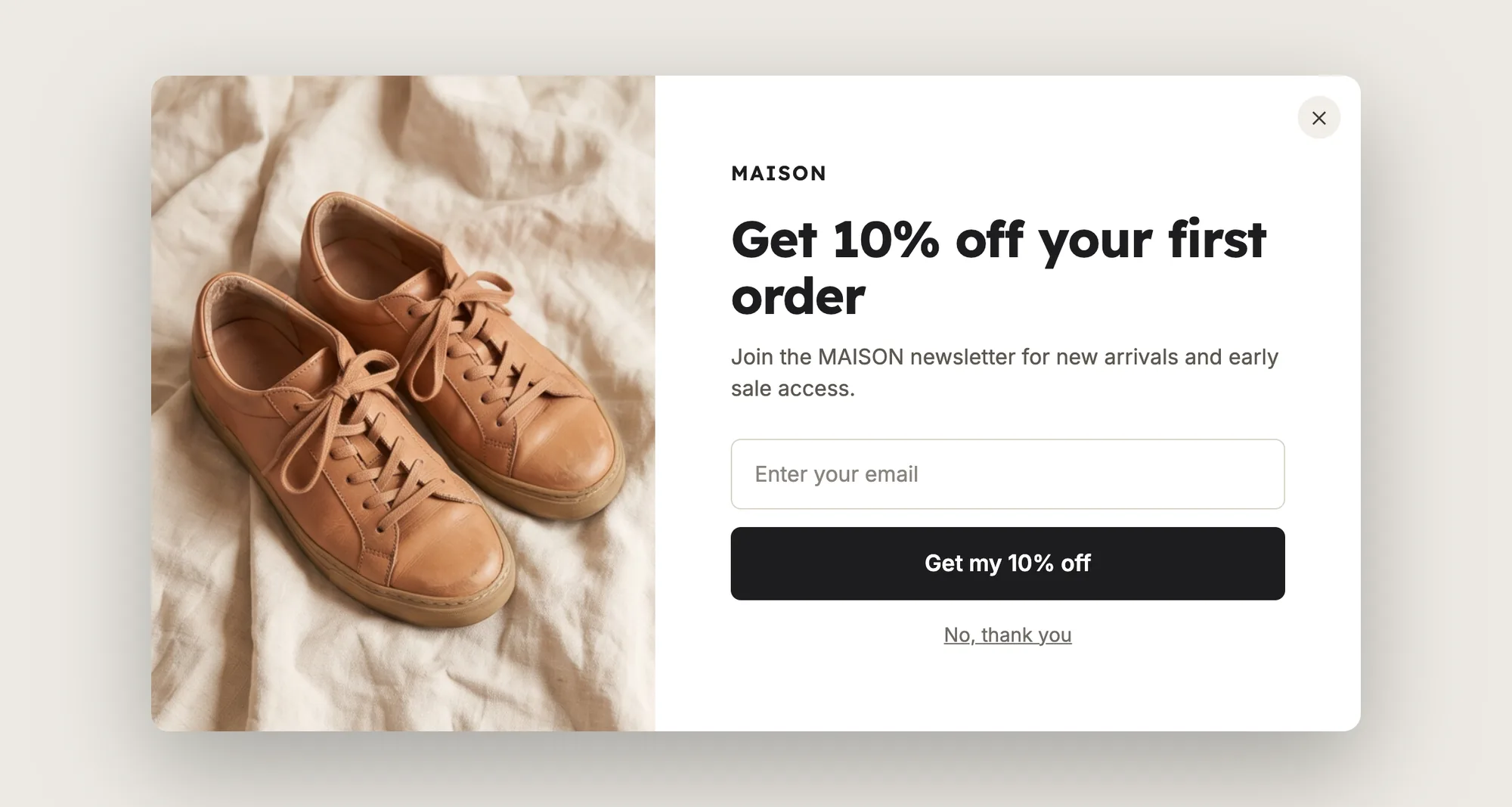
A good newsletter pop up with discount includes:
- A clear offer: The heading names the discount, such as 10% off the first order.
- One short ask: One field for an email address, and one button.
- A real code: The success screen shows a Shopify discount code that works at checkout.
- A way out: A close button and a "No, thank you" link for shoppers who don't want to sign up.
The newsletter pop up doesn't change your checkout. The shopper enters the code at checkout like any other Shopify discount code, unless you set the code to apply on its own.
What's the Quickest Way to Add a Newsletter Pop Up With Discount?
- Vitals - All in One App is the quickest way to add a newsletter pop up with discount for most stores
- Vitals also offers 40+ apps, such as spin the wheel, announcement bars and product reviews, in one subscription of $29.99/month, so you don't have to install and pay for each app separately
Here's how the three methods compare. If you'd rather weigh several pop-up apps against each other, see our list of the best pop-up apps for Shopify.
How to Add a Newsletter Pop Up With Discount With a Pop-up App?
Install the Vitals - All in One App, open its Pop-ups app, click Create pop-up and choose Signup with discount. The newsletter pop up with discount then shows on your store once you publish, and the steps below set the offer, the code, when the pop-up opens and where the emails go.
Step 1: Install the Vitals - All in One App
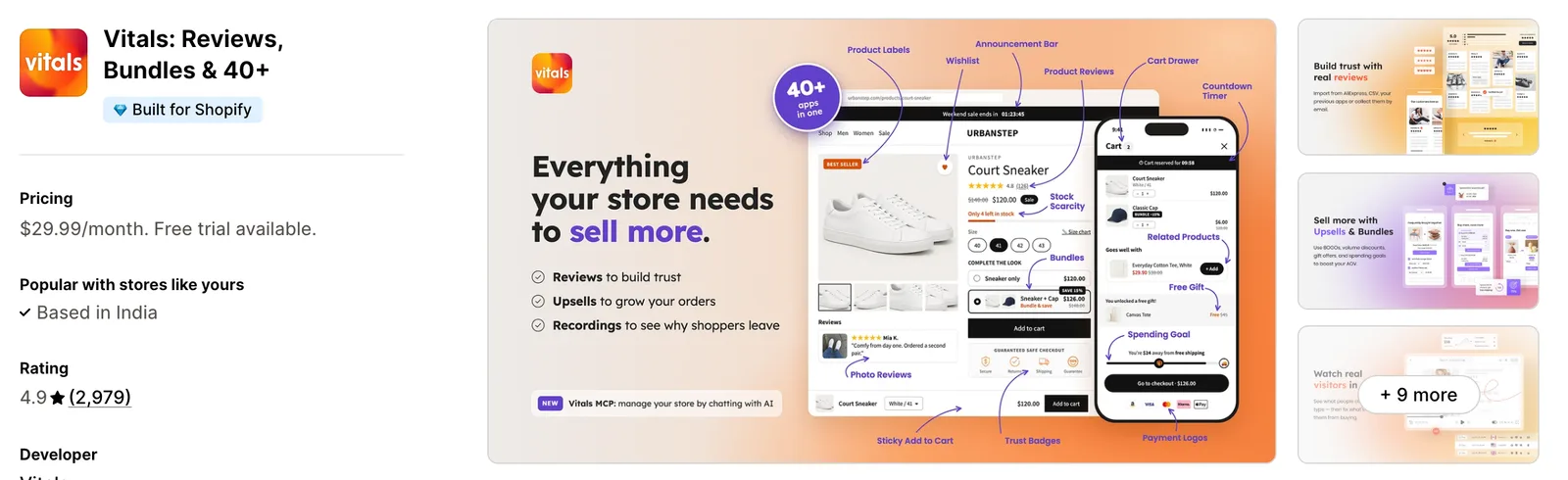
Install the Vitals - All in One App from the Shopify App Store. The 7-day free trial includes the Vitals Pop-ups app.
Step 2: Approve the Install in Shopify
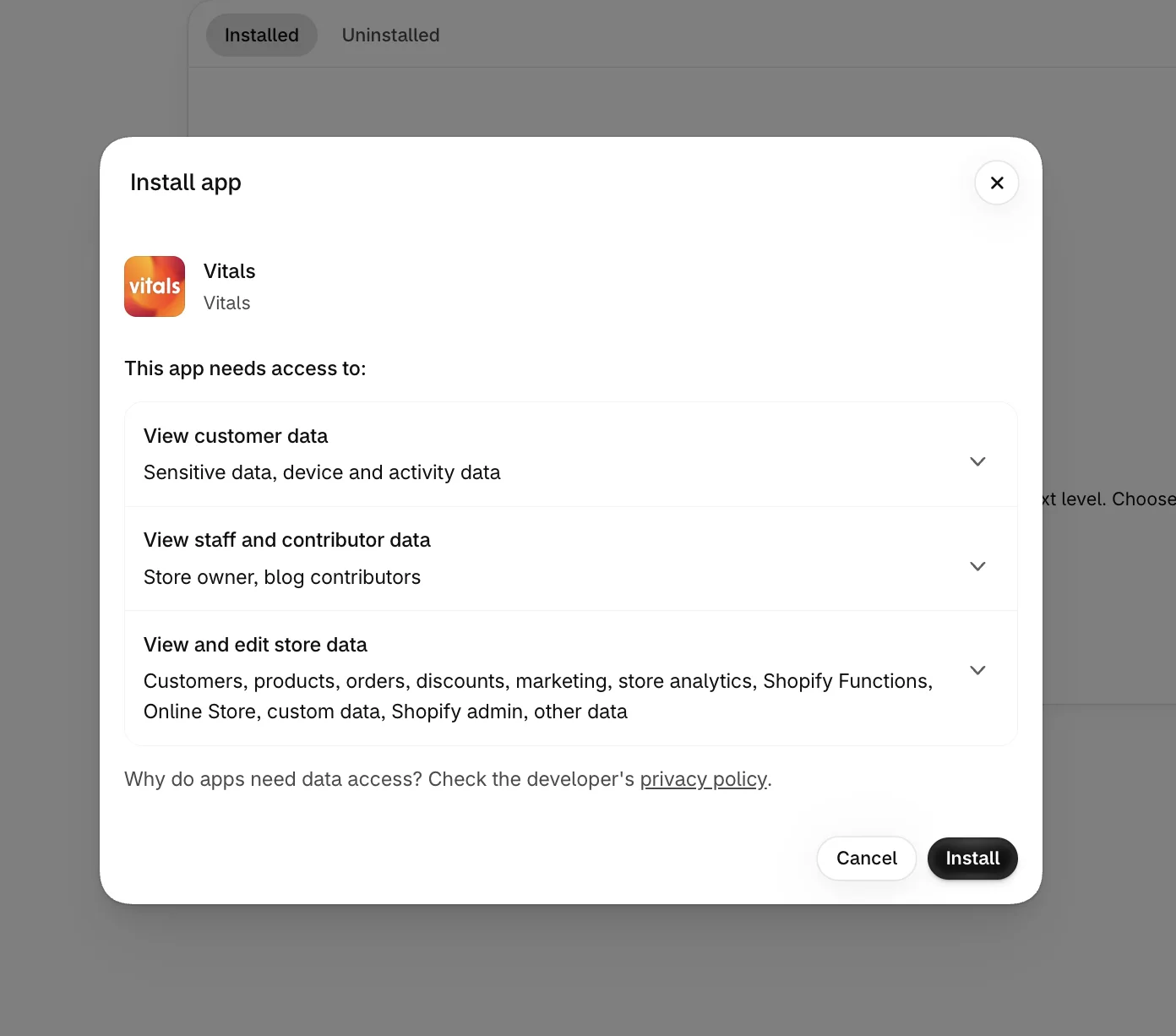
Click Install to approve the store data Vitals uses. Shopify then opens the Vitals dashboard.
Step 3: Open Pop-ups
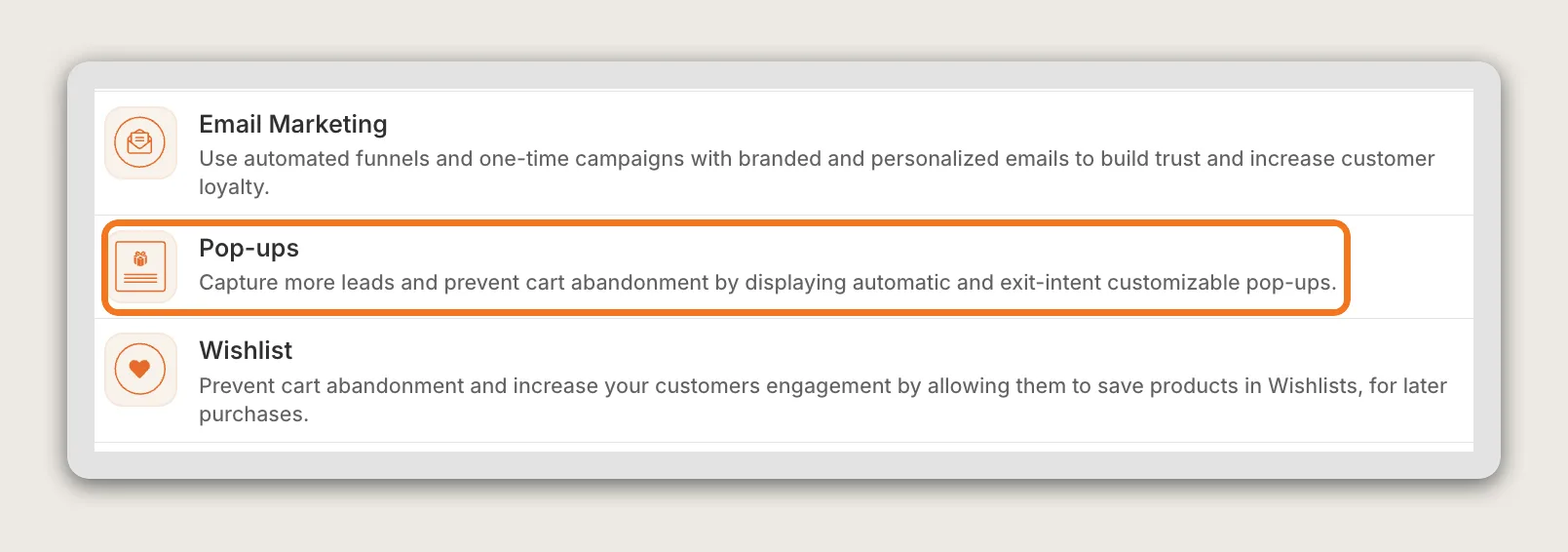
In the Vitals dashboard, find Pop-ups in the list of apps and click it. Pop-ups is in the Marketing category.
Step 4: Create a Signup With Discount Pop-up
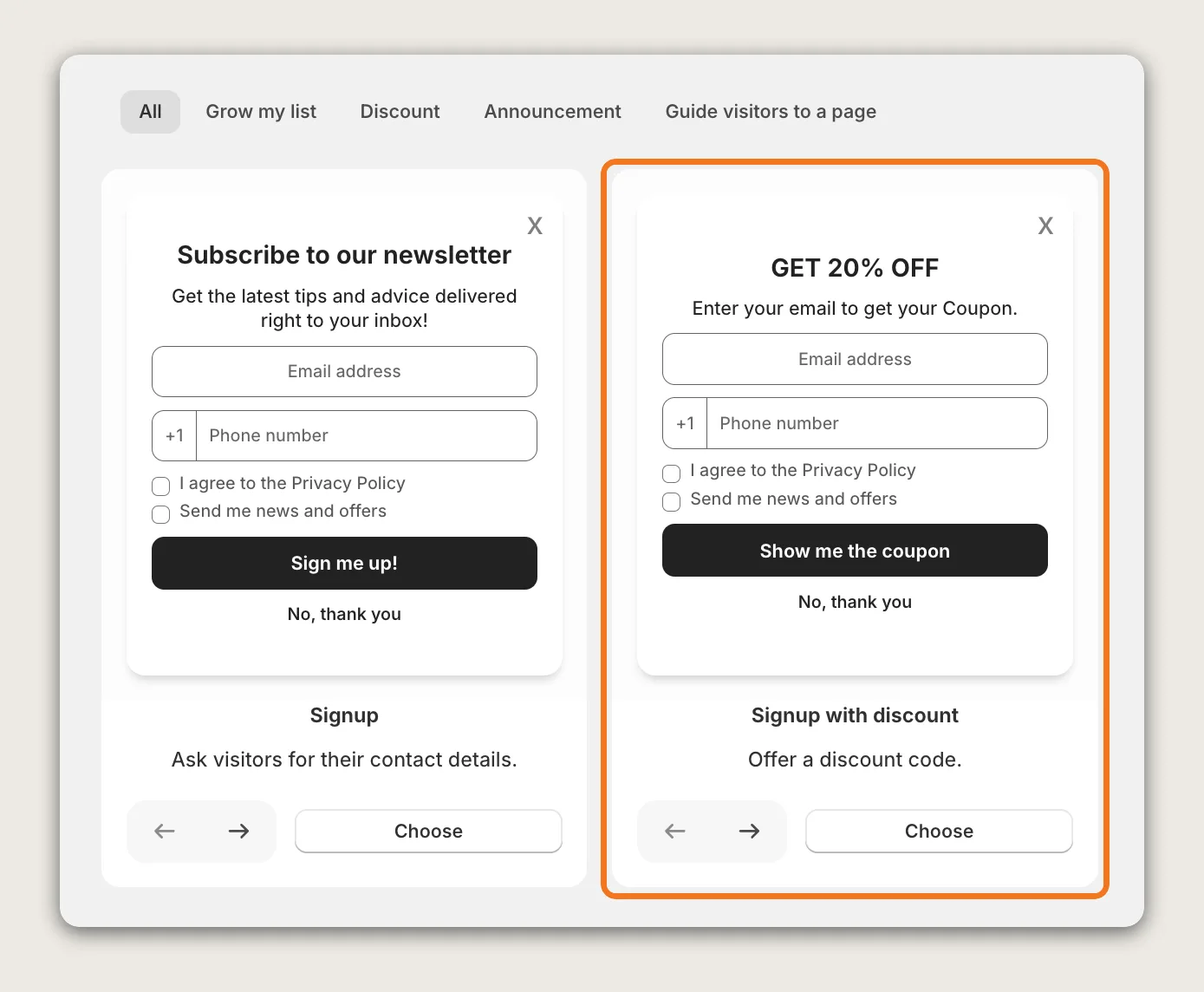
Click Create pop-up, then click Choose on the Signup with discount card. The Signup card collects emails without a code, so pick Signup with discount for a newsletter pop up with discount. The Color theme picker in the top-right corner sets the starting colors, which you can change later.
Step 5: Write the Signup Screen
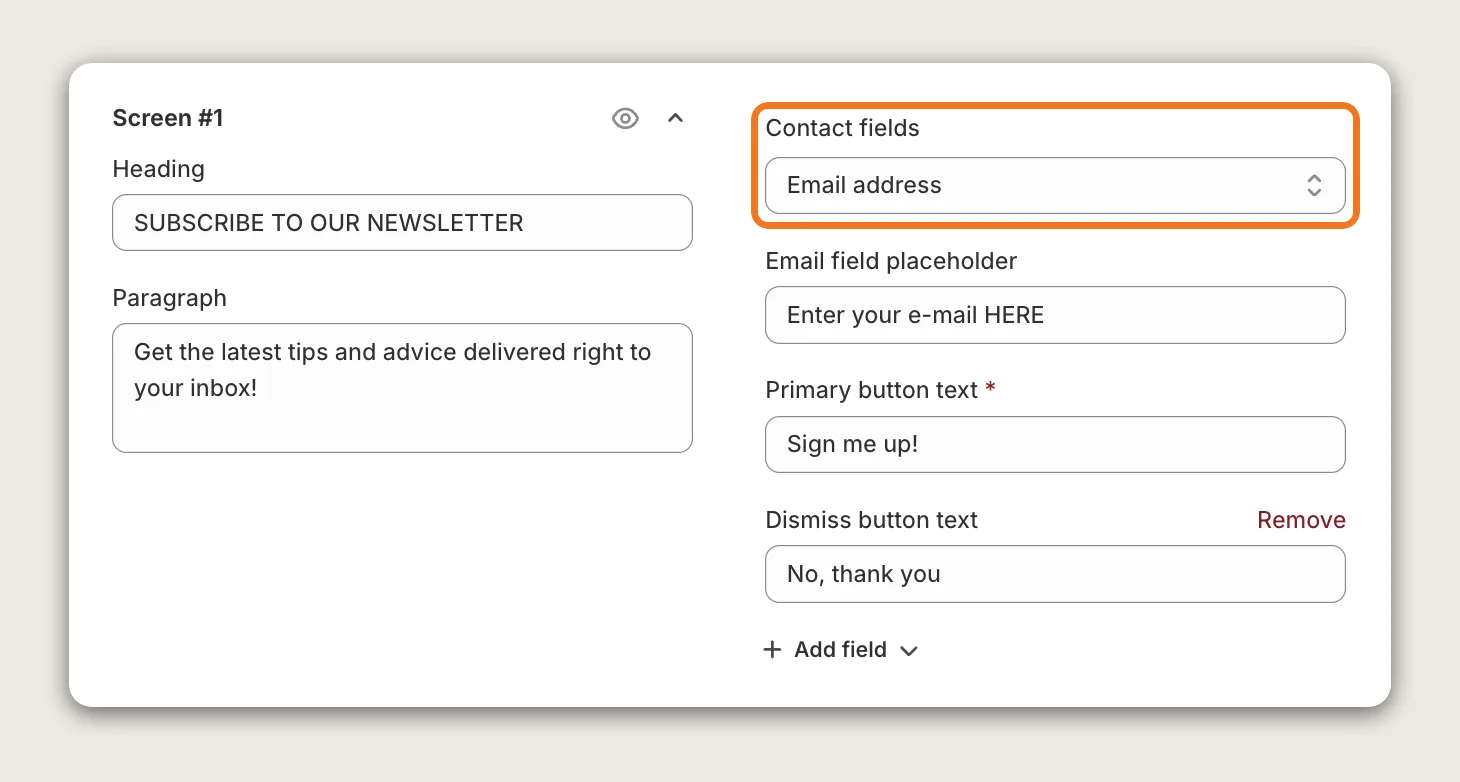
Open Content Screens and stay on Screen #1, the screen shoppers see first. Write the Heading and Paragraph, and put the offer in the heading, such as "Get 10% off your first order". Set Contact fields to Email address, Phone number or Email address and phone number, then write the Email field placeholder and Primary button text.
Dismiss button text sets the "No, thank you" link under the button. Click Remove next to it to drop the link, or Add field to add it back.
Step 6: Add the Discount Code
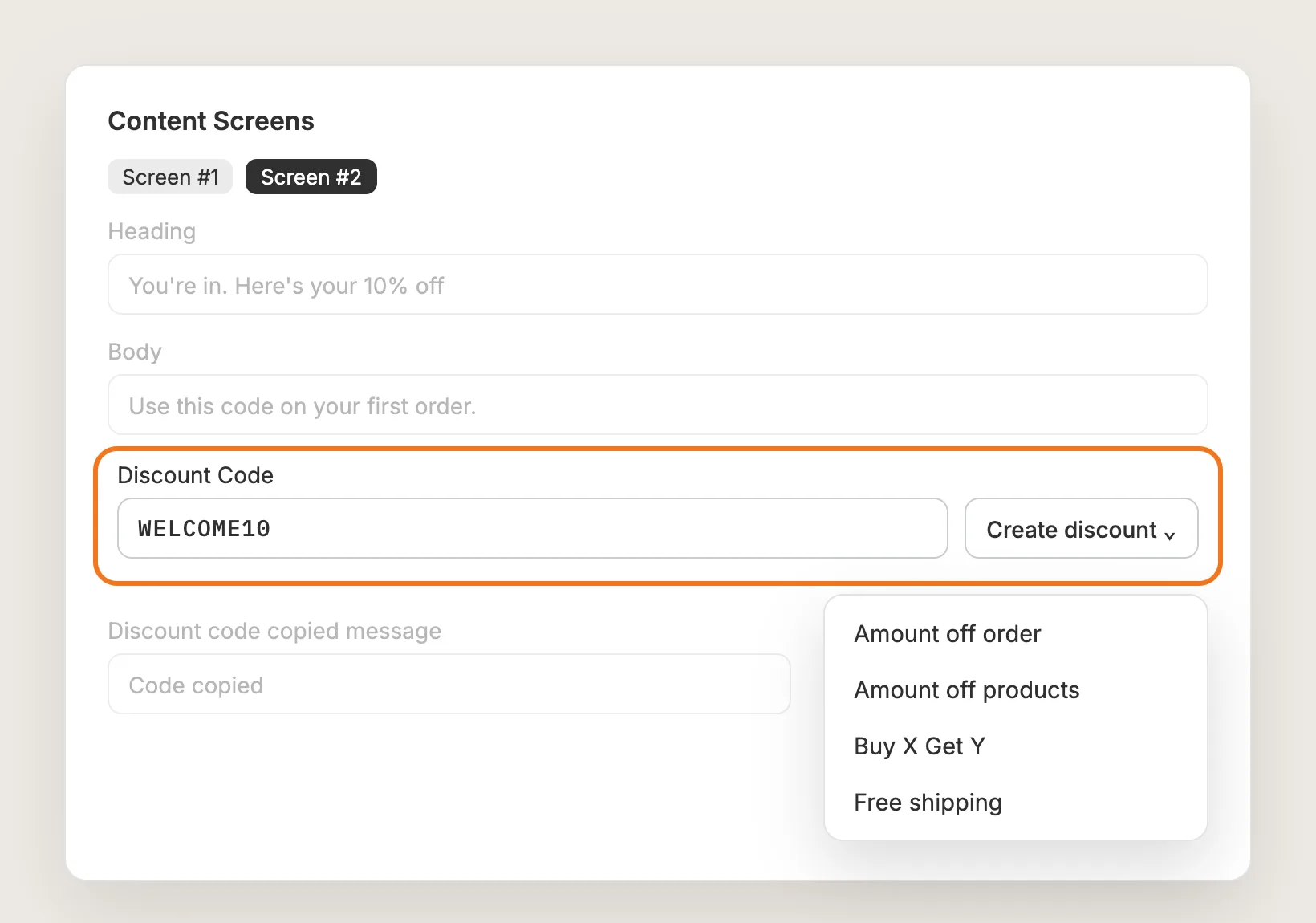
Open Screen #2 and enter a Shopify discount code in Discount Code. Vitals doesn't make a code for you, so the code has to exist in Shopify. To create the code without leaving the editor, click Create discount, choose Amount off order, Amount off products, Buy X Get Y or Free shipping, and fill in Shopify's discount form. Once you save the form, the new code is filled into Discount Code.
Create a discount code, not an automatic discount. An automatic discount has no code, so the newsletter pop up has nothing to show the shopper. The Create discount button shows only when you open Vitals inside your Shopify admin; outside the admin, create the code in Shopify admin > Discounts and paste the code into the field.
Step 7: Write the Success Screen
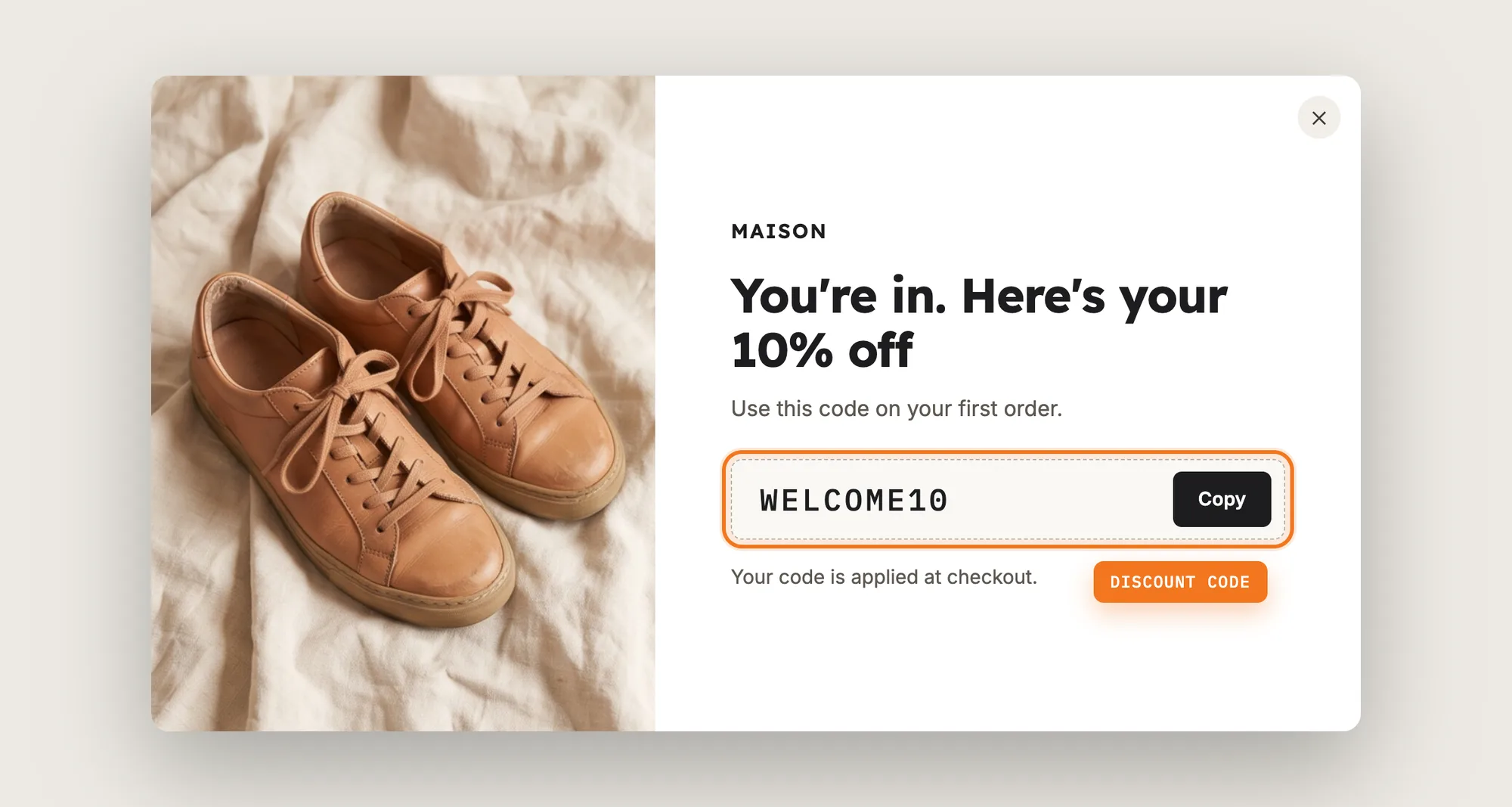
On Screen #2, write the Heading and Body shoppers see after they sign up, such as "You're in. Here's your 10% off". The success screen shows the discount code with a copy button, and Discount code copied message sets the text shoppers see once they copy the code.
Every shopper who signs up through the same pop-up gets the same code. To limit how often the code can be used, set usage limits on the discount in Shopify admin > Discounts.
Step 8: Pick the Colors and Style
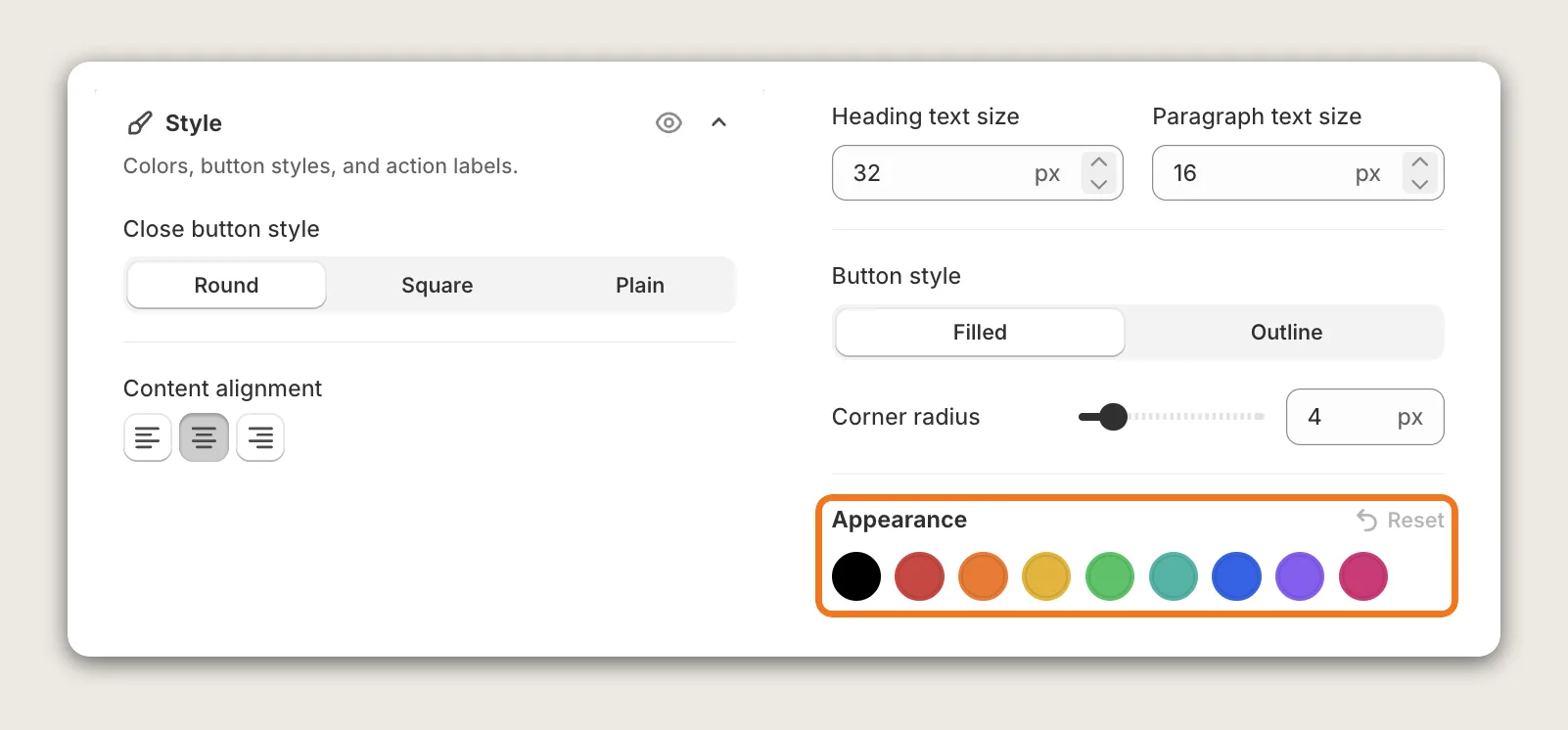
Pick a color in Appearance in the Style card to change the pop-up colors in one click. The same card sets the Close button style, Content alignment, the heading and paragraph text sizes, the Button style and the Corner radius. The Media card adds a logo and a pop-up image, and the Position card sets where the pop-up shows on desktop and on mobile.
Step 9: Apply the Code at Checkout Automatically (Optional)
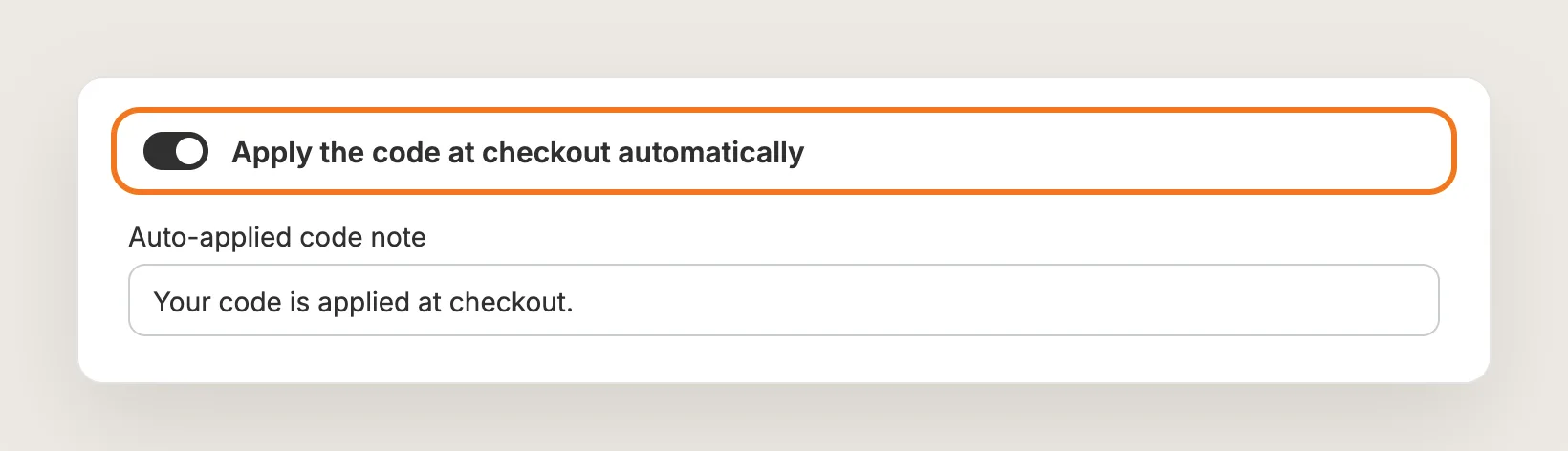
Turn on Apply the code at checkout automatically on Screen #2 to add the code to the shopper's cart right after signup. The discount then comes off at checkout without the shopper typing the code. Write the line shown under the code in Auto-applied code note. This setting is off by default and applies to all of your discount pop-ups.
Step 10: Email the Code to Every Subscriber
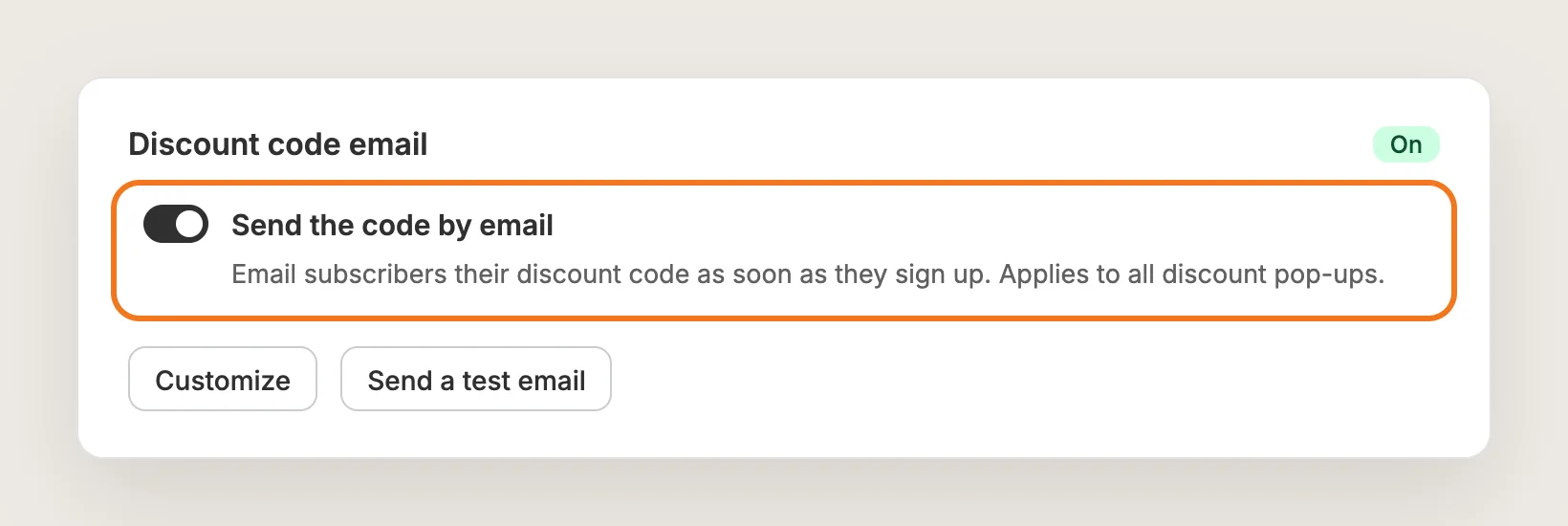
In the Discount code email card, switch on Send the code by email. Every subscriber then gets an email with the code, a button that opens your store with the code already in the cart, and up to four product recommendations. Click Customize to set the sender name, subject and design, and Send a test email to check the email first.
The email goes to every subscriber who enters an email address, whether or not they tick the marketing consent box. Phone-only signups don't get the email. The switch and template apply to all of your discount pop-ups, and the emails don't use your email plan's allowance.
Step 11: Choose When the Pop-up Shows
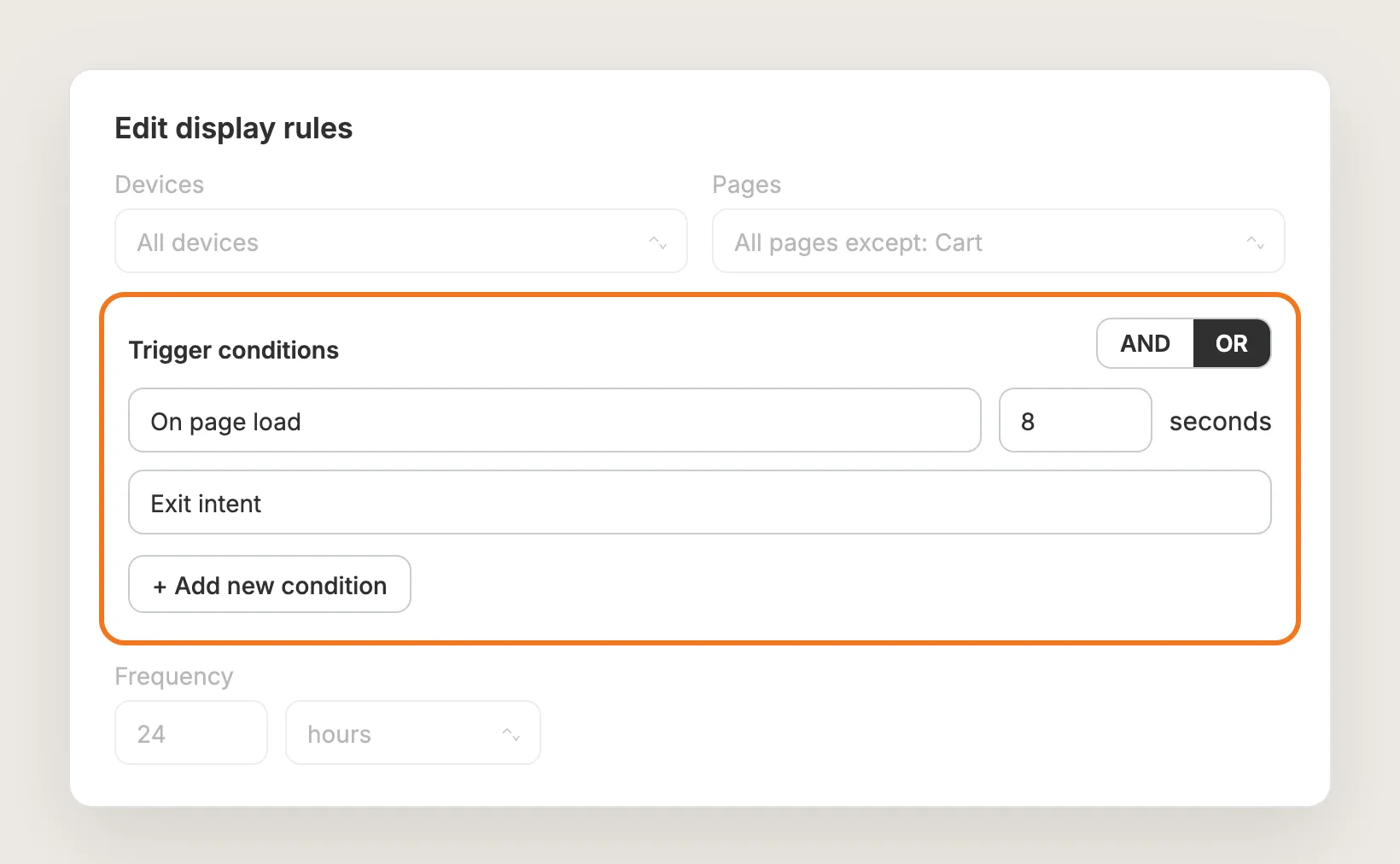
In the Settings card, click Edit display rules. Set Devices and Pages, then use Add new condition under Trigger conditions:
- On page load: Shows the newsletter pop up after the number of seconds you set
- Exit intent: Shows the newsletter pop up when the shopper moves to leave the page, or scrolls up quickly on a phone
- Scroll down: Shows the newsletter pop up once the shopper scrolls past the percentage you set
- Inactivity: Shows the newsletter pop up after the shopper stops interacting for the seconds you set
With more than one condition, choose OR to show the pop-up when any condition is met, or AND when all of them must be met. Frequency sets how long the pop-up waits before showing again to a shopper who closed it, 24 hours by default. Click Done to close the window.
Step 12: Schedule the Pop-up (Optional)
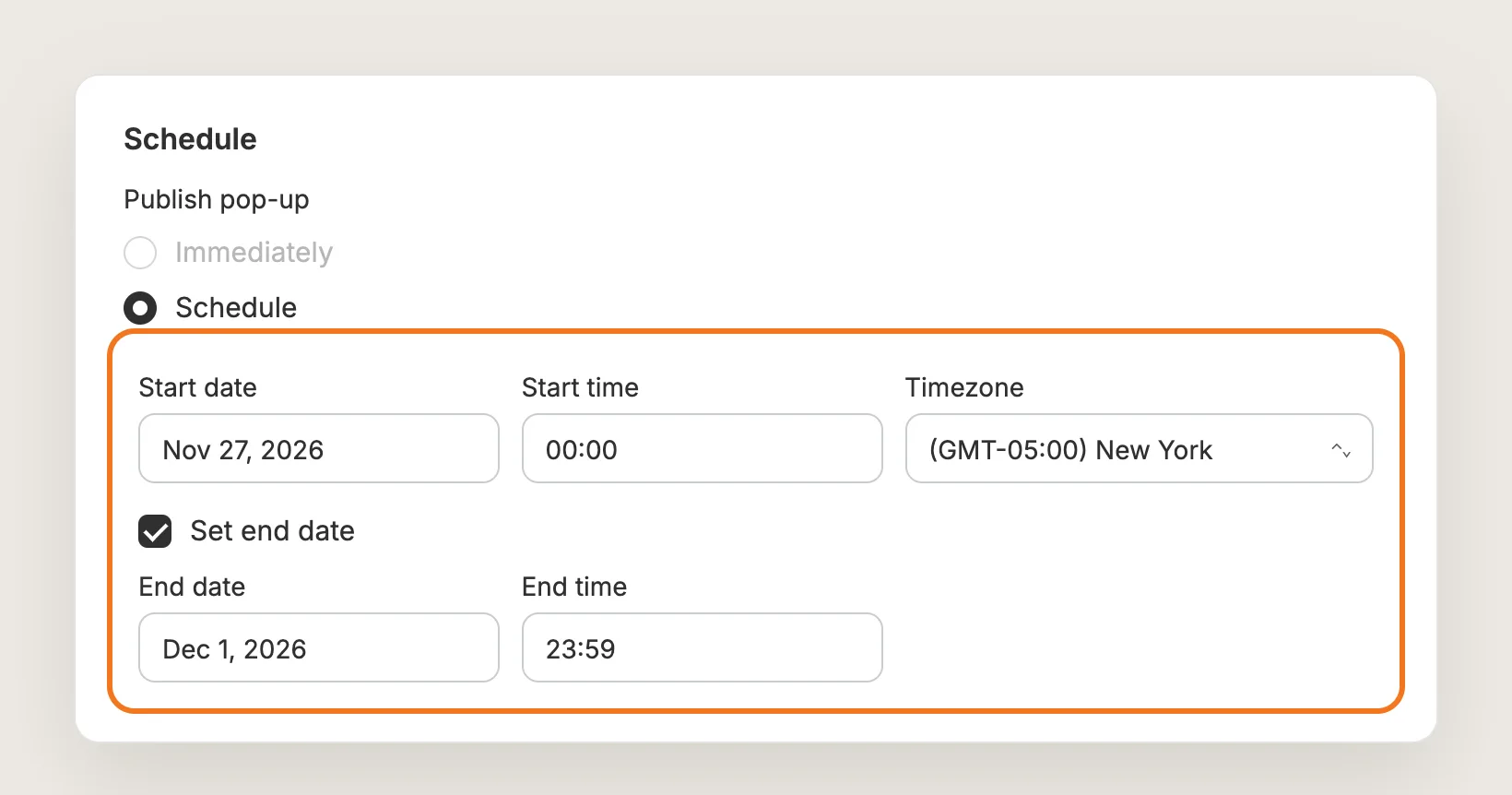
The newsletter pop up goes live as soon as you publish by default. To start the offer on a set day, open Edit display rules, set Publish pop-up to Schedule, then pick the Start date, Start time and Timezone. Tick Set end date to stop the pop-up on its own. With an end date, you can also add a Countdown timer to Screen #1 through Add field.
Step 13: Tag Your New Subscribers
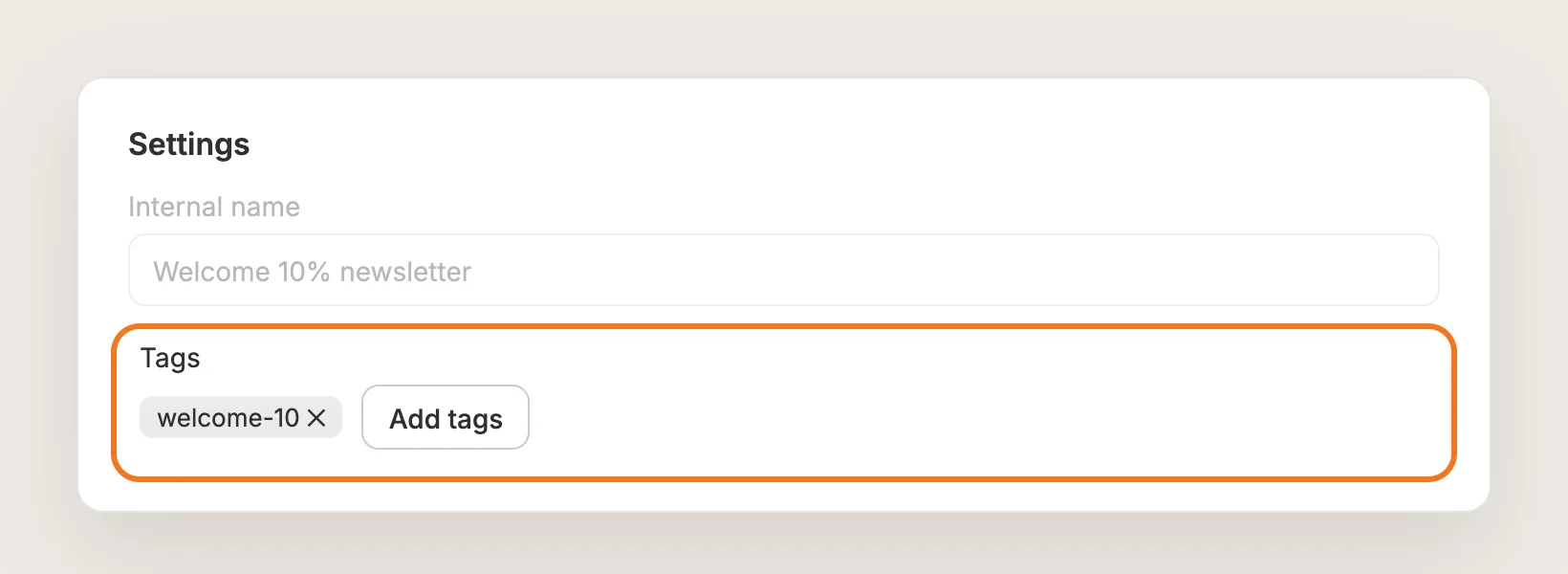
In the Settings card, click Add tags under Tags and type a tag, such as "welcome-10". Everyone who signs up through this pop-up gets that tag in Shopify admin > Customers, on top of the VITALS tag every captured contact gets. A tag per pop-up lets you tell your newsletter signups apart later.
Step 14: Ask for Consent
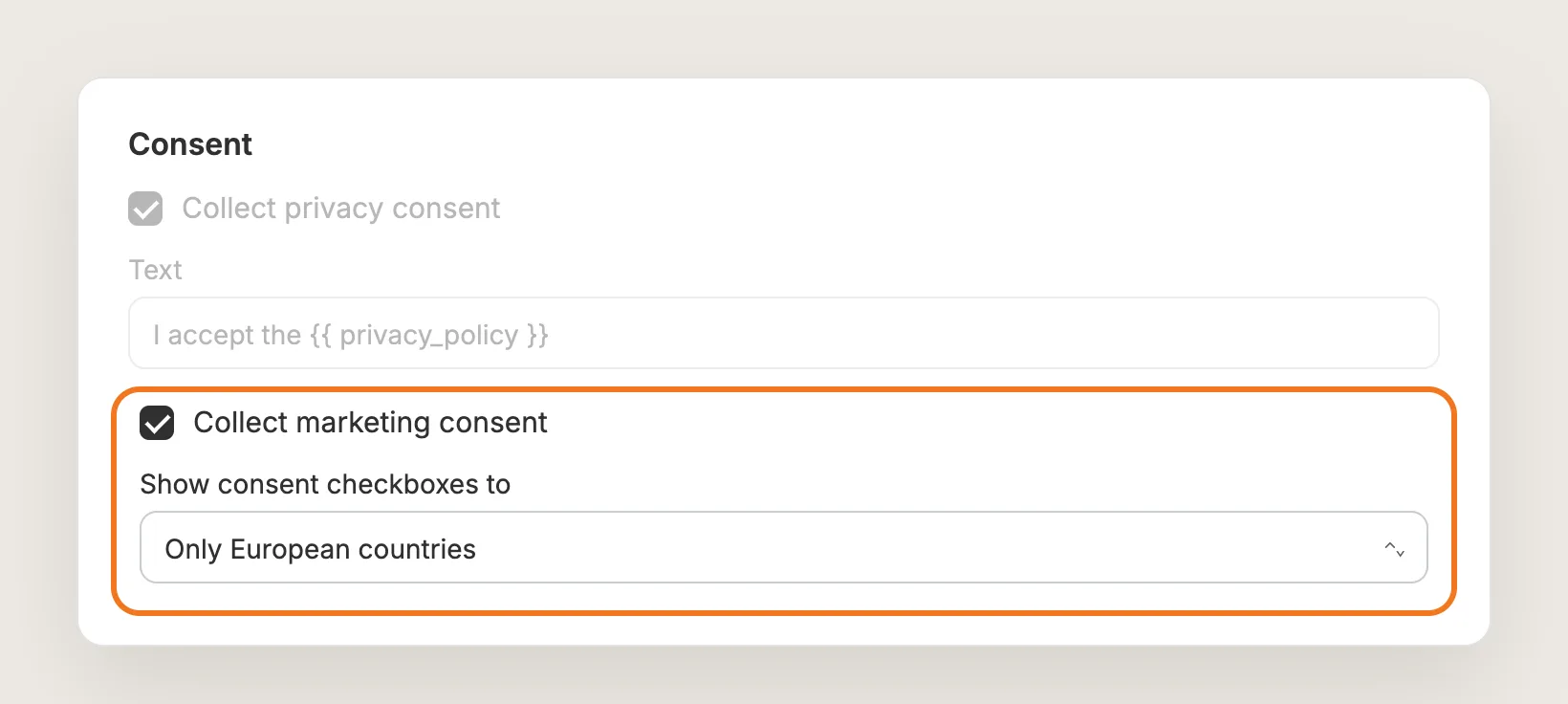
Open the Consent card to add checkboxes under the form. Tick Collect privacy consent to link your privacy policy, and tick Collect marketing consent to ask shoppers to join your marketing list. Show consent checkboxes to sets All countries or Only European countries. Consent settings apply to every pop-up in your store.
Step 15: Send Subscribers to Klaviyo (Optional)
Every email address and phone number the newsletter pop up captures goes to Shopify admin > Customers. Subscribers with an email and consent also go to the list you choose for a connected Klaviyo or Mailchimp account under Integrations in Vitals.
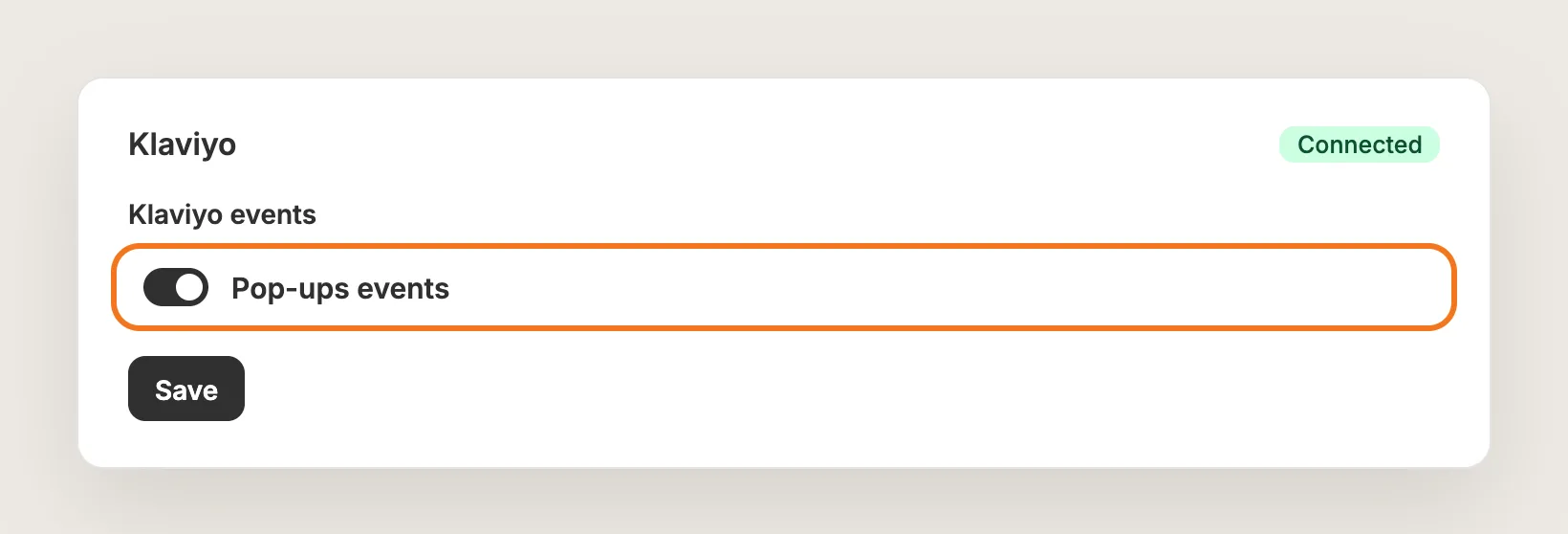
For Klaviyo, open Integrations, find the Klaviyo card and turn on Pop-ups events under Klaviyo events, then click Save. Klaviyo then gets a Pop-up Discount Redeemed event when a shopper uses the pop-up code on an order, so you can send a follow-up email for the second order.
Step 16: Publish, Test on Your Phone and Watch the Orders
Click Publish, then open your store in a new incognito window on your phone and on desktop. Pop-ups don't show in the Shopify theme editor, so test on the live store. Sign up with a new email address, check that the code shows on the success screen and works at checkout.
Then open the Analytics tab in Pop-ups. It shows impressions, clicks, closes and captured emails, plus the orders and revenue from shoppers who used the pop-up code or the code email's link.
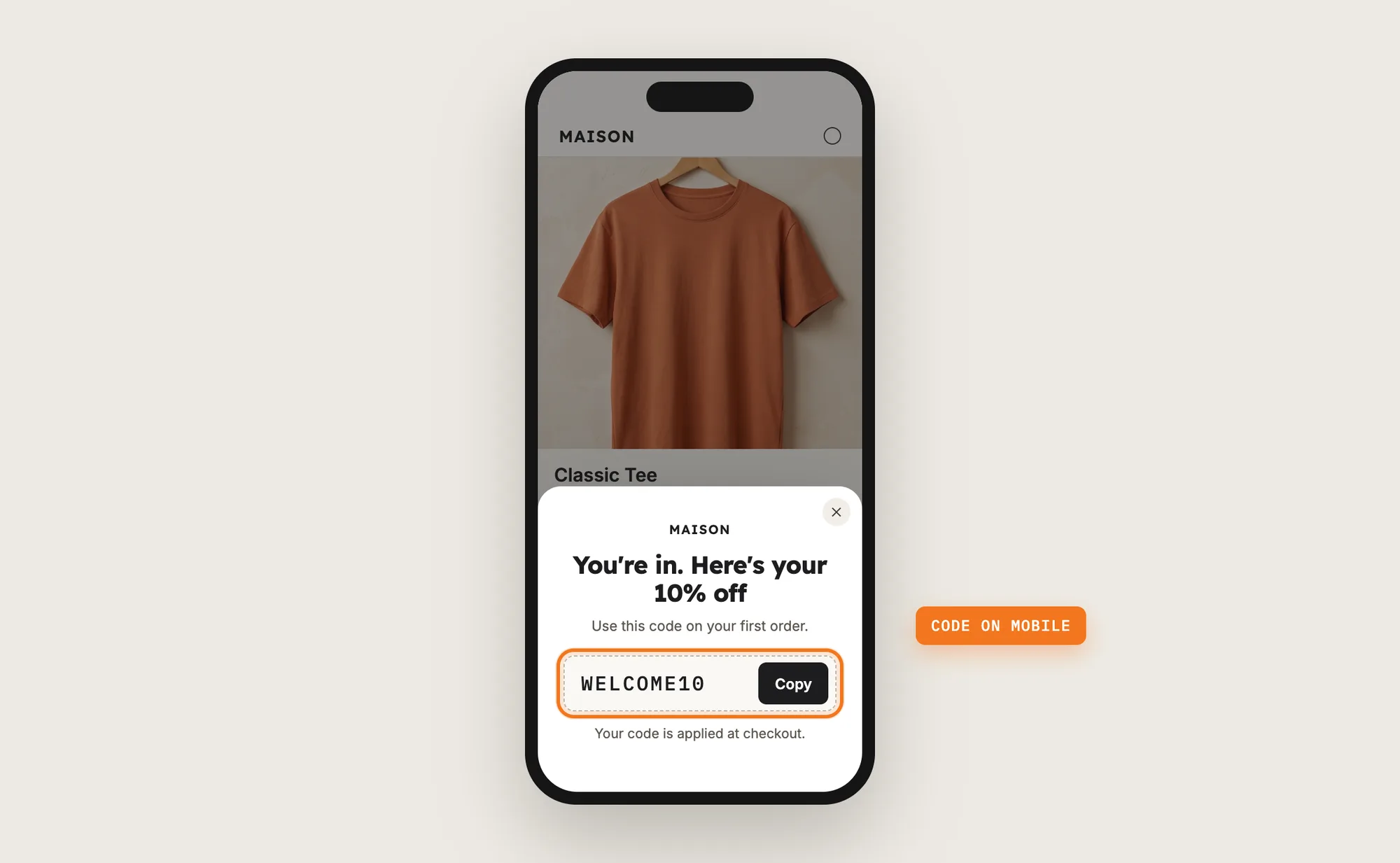
Step 17: Voila, Your Newsletter Pop Up With Discount Is Live on the Store
Your visitors now get a discount code for joining your newsletter, and you get a contact to bring them back.
How to Add a Newsletter Pop Up With Discount From Your Theme Settings?
Many Shopify themes include a newsletter pop-up you can switch on in the theme editor. To check your theme's settings:
- Click Customize next to your theme in Online Store → Themes
- Open Theme settings or look for a Popup or Newsletter popup section in the left sidebar
- Turn the pop-up on, write the heading and text, then click Save
A theme's newsletter pop-up collects emails into Shopify Customers, but the discount is usually a line of text you type into the pop-up. Most themes can't show the code only after signup, email the code, apply the code at checkout or report the orders the code brought in. If a basic signup form is enough, the theme setting may be all you need.
How to Add a Newsletter Pop Up With Discount Without an App?
Hire a developer to build a newsletter pop up with discount into your theme with Liquid, CSS and JavaScript. The pop-up posts the signup to Shopify's customer form and then shows a discount code you created in Shopify.
A custom newsletter pop up with discount usually involves:
- Making a copy of your theme, so the live store stays untouched during testing
- Creating the discount code in Shopify admin > Discounts
- Adding the pop-up's markup and a signup form that saves the email to Shopify Customers
- Showing the discount code only after a successful signup
- Adding a script for the delay or exit intent, and for how often the pop-up shows again
- Styling the pop-up for desktop and phones, with a close button
- Testing the signup and the code at checkout, then publishing the theme copy
Custom code means no extra app, but you or your developer have to maintain the code. Every new offer means editing the code by hand, and a theme update can replace the files the code is in.
How to Increase Sales With a Newsletter Pop Up With Discount?
A newsletter pop up with discount raises sales by turning first-time visitors into subscribers with a reason to place a first order. These settings help the newsletter pop up move sales:
- Apply the code for the shopper. A code already in the cart can't be forgotten at checkout. Turn on Apply the code at checkout automatically on Screen #2
- Email the code to every subscriber. Shoppers who close the pop-up before copying the code still have the code in their inbox. Switch on Send the code by email
- Catch shoppers before they leave. Add the Exit intent trigger condition, so the offer shows when a shopper moves to leave the page
- Add a deadline to the offer. A countdown gives shoppers a reason to use the code now. Tick Set end date, then add a Countdown timer through Add field
- Keep the pop-up away from the cart page. Shoppers on the cart page are close to buying. Set Pages to All pages except and add Cart
- Bring first-time buyers back for a second order. Turn on Pop-ups events for Klaviyo and build a flow on Pop-up Discount Redeemed
- Offer a free product instead of a percentage. Use Create discount with Amount off products to make a code that makes a gift product free, and tell shoppers on Screen #2 to add the product to the cart
Why Isn't My Newsletter Pop Up With Discount Showing or Working?
These fixes solve most newsletter pop up problems:
- The pop-up doesn't show in the theme editor: Pop-ups never show in the Shopify theme editor preview. Test on the live store in an incognito window
- The pop-up doesn't show on the store: Check that the pop-up is Active and that the Vitals app embed is turned on in your theme. Then check Pages and Trigger conditions; with AND, a shopper has to meet every condition
- Another pop-up shows instead: Only one pop-up shows per page view, starting with the highest priority. On the Pop-ups list, click Change priority and drag your newsletter pop up to the top
- The pop-up doesn't show again after I closed it: Frequency makes the pop-up wait, 24 hours by default, after a shopper clicks the close button, the dismiss link or presses Esc. Test in a new incognito window
- I can't publish the pop-up: Discount Code can't be empty on a Signup with discount pop-up. Add your code on Screen #2 and save again
- The code doesn't work at checkout: The code must be a Shopify discount code, not an automatic discount. The editor warns you when Shopify says the code doesn't exist, has expired or isn't active yet
- I don't see the Create discount button: The button shows only when you open Vitals inside your Shopify admin. Create the code in Shopify admin > Discounts and paste the code in
- A subscriber didn't get the code email: Check that Send the code by email is on. Phone-only signups and shoppers who unsubscribed from your emails earlier don't get the email
- A phone number is missing from the Shopify customer: If a customer with that email or phone number already existed, Vitals adds the tags but not the new phone number. Test with a new email and phone number
Which Newsletter Pop Up With Discount Method Should You Choose?
Vitals - All in One App suits most stores, but the right method depends on how much the newsletter pop up needs to do.
- Choose Vitals - All in One App if you want a newsletter pop up with a real discount code, a code email, exit intent and order tracking, with contacts sent straight to Shopify. It also includes 40+ other apps in one subscription of $29.99/month, so you don't have to install and pay for each app separately
- Choose your theme's setting if a basic signup form with the offer in the text is enough
- Choose custom code if you want full control over the pop-up and have a developer to keep the code working through theme updates
Start a 7-day free trial: Install the Vitals - All in One App and add a newsletter pop up with discount
Frequently Asked Questions
1. What is the best way to add a newsletter pop up with discount on Shopify?
Vitals - All in One App is the best way for most stores. Its Pop-ups app adds a Signup with discount pop-up without code, lets you create the Shopify discount code from the editor and can email the code to every subscriber.
2. Does Shopify have a built-in newsletter pop up with discount?
Shopify doesn't add a newsletter pop up on its own, but many Shopify themes include a basic newsletter pop-up. Those usually show the discount as text and can't email the code or apply the code at checkout.
3. Does every subscriber get a unique discount code?
No. Each Signup with discount pop-up hands out one Shopify discount code, so every subscriber of that pop-up gets the same code. Set usage limits on the code in Shopify admin > Discounts.
4. Where do the emails from the newsletter pop up go?
Every email address and phone number goes to Shopify admin > Customers, tagged VITALS plus any tags you add in the pop-up's Tags section. Subscribers with an email and consent also go to Klaviyo or Mailchimp once you connect them under Integrations in Vitals.
5. Can the discount code be sent by email?
Yes. Switch on Send the code by email in the Discount code email card. Each subscriber then gets the code, a button that applies the code at checkout and up to four product recommendations.
6. Can a newsletter pop up give a free product instead of a discount?
Partly. The pop-up always hands out a discount code, but the code can make a product free. Use Create discount with Amount off products or Buy X Get Y, and tell shoppers on Screen #2 to add the gift product to the cart.
7. Can I show the newsletter pop up on certain pages only?
Yes. In Edit display rules, set Pages to Specific pages or All pages except, then pick pages by type, such as the homepage, products, collections or the cart, or search for a product or collection.