How to use a Shopify Theme Detector


TL;DR
A Shopify theme detector takes a store URL and returns its theme name in seconds, no login required. Vitals free Shopify Theme Detector goes further. Paste a URL, run the scan, and you get the theme, a full breakdown of the apps that store runs, and a calculator showing what those same apps would cost through Vitals instead.
I ran a real store through it below so every step in this guide matches what you'll see.
Introduction
You find a Shopify store with a look you want to study, and the first question is always "what theme is that?" A Shopify theme detector answers it in seconds. Most free tools stop there. The more useful question is what apps that store runs to convert visitors, and what it would cost you to run the same setup.
This guide walks through the Vitals Shopify Theme Detector one step at a time, using a real scan I ran while writing it. You'll see the same screens, the same numbers, and the same decision points, so you know what to expect before you paste in your first URL.
How to use the Vitals Shopify theme detector
Vitals is an all-in-one Shopify app built for growing Shopify stores. Its Shopify Theme Detector is free, needs no signup, and returns the theme name, app breakdown, and cost comparison on one page. Every step below is illustrated with a real store I ran through.
1. Paste the store's URL
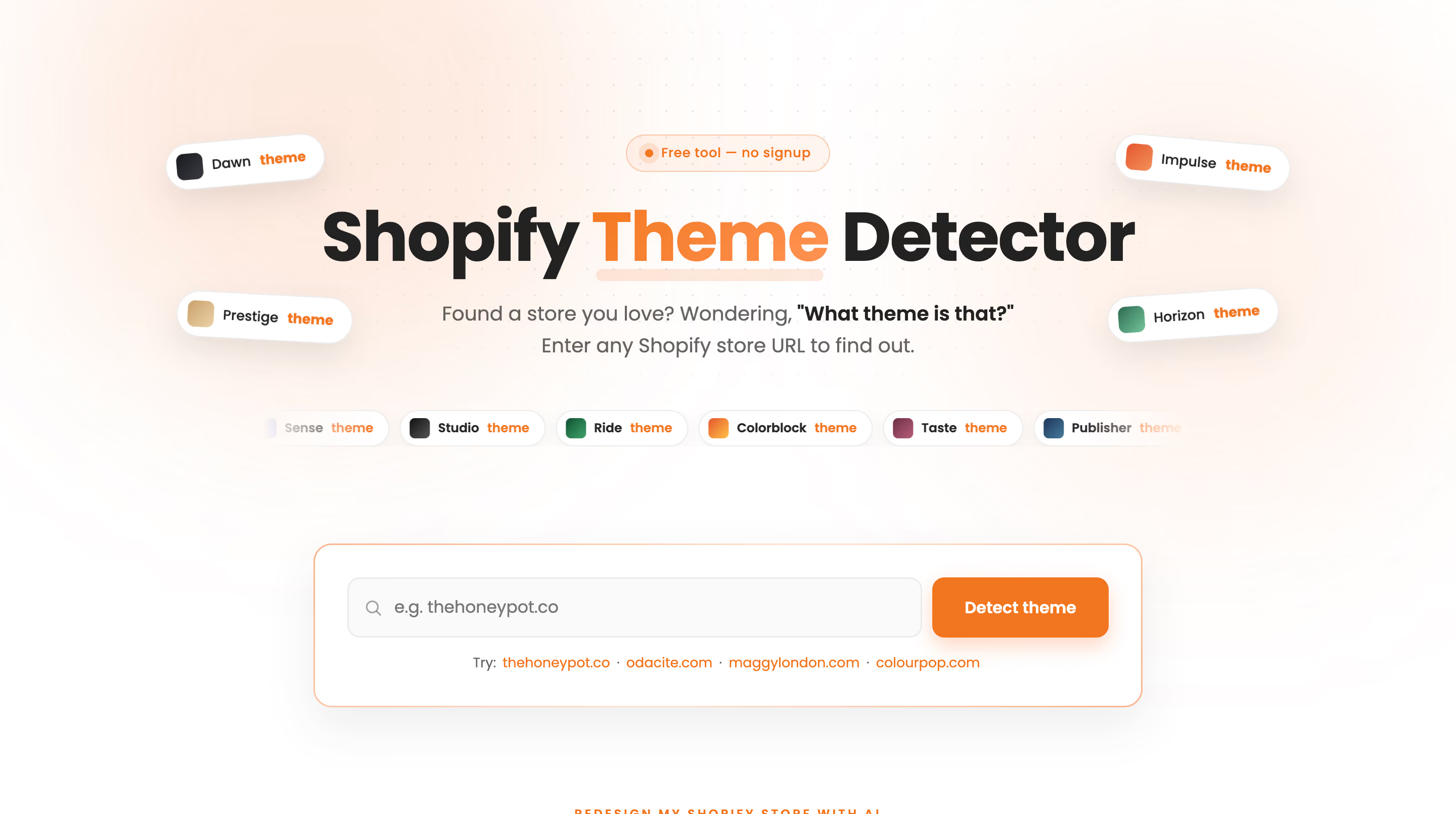
Go to vitals.app/shopify-theme-detector and paste any Shopify store's URL into the search field. You don't need "https://" or "www.", just the domain. If you want to test the tool before committing to a specific competitor, the page suggests four real examples to try: thehoneypot.co, odacite.com, maggylondon.com, and colourpop.com.
Nothing about this step requires an account, a credit card, or a browser extension. You can also run it on your own store's URL, not just a competitor's, if you want to see what your own public app footprint looks like to a stranger.
2. Run the detector
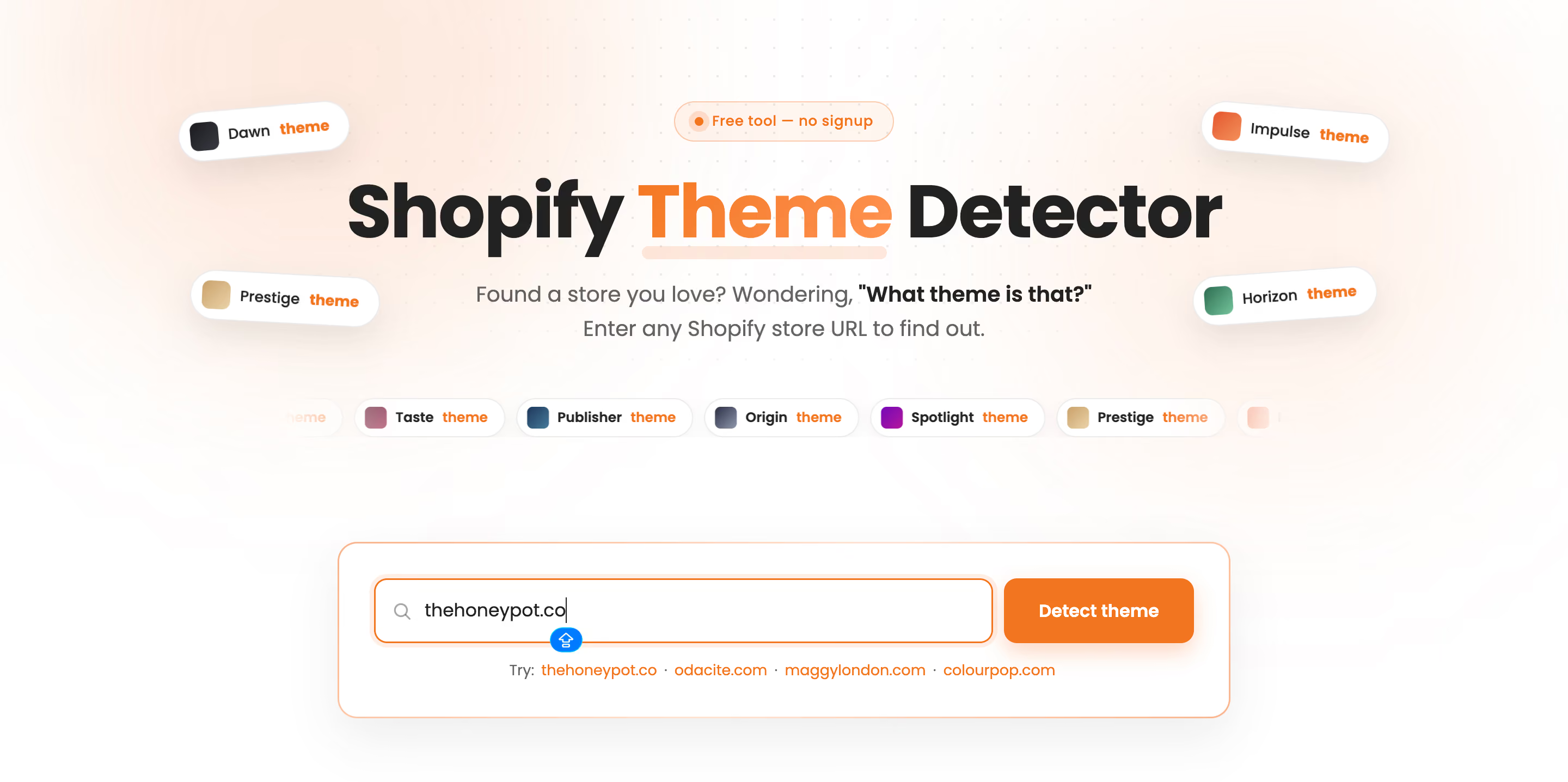
Click "Detect theme." The scan reads the store's public front-end code, the same data every visitor's browser already loads, and returns a result in a few seconds. Nothing is installed on the store you're checking, and the scan doesn't require access to its Shopify admin.
I ran thehoneypot.co, one of the tool's own suggested examples, to show you what comes back.
3. Read the theme result
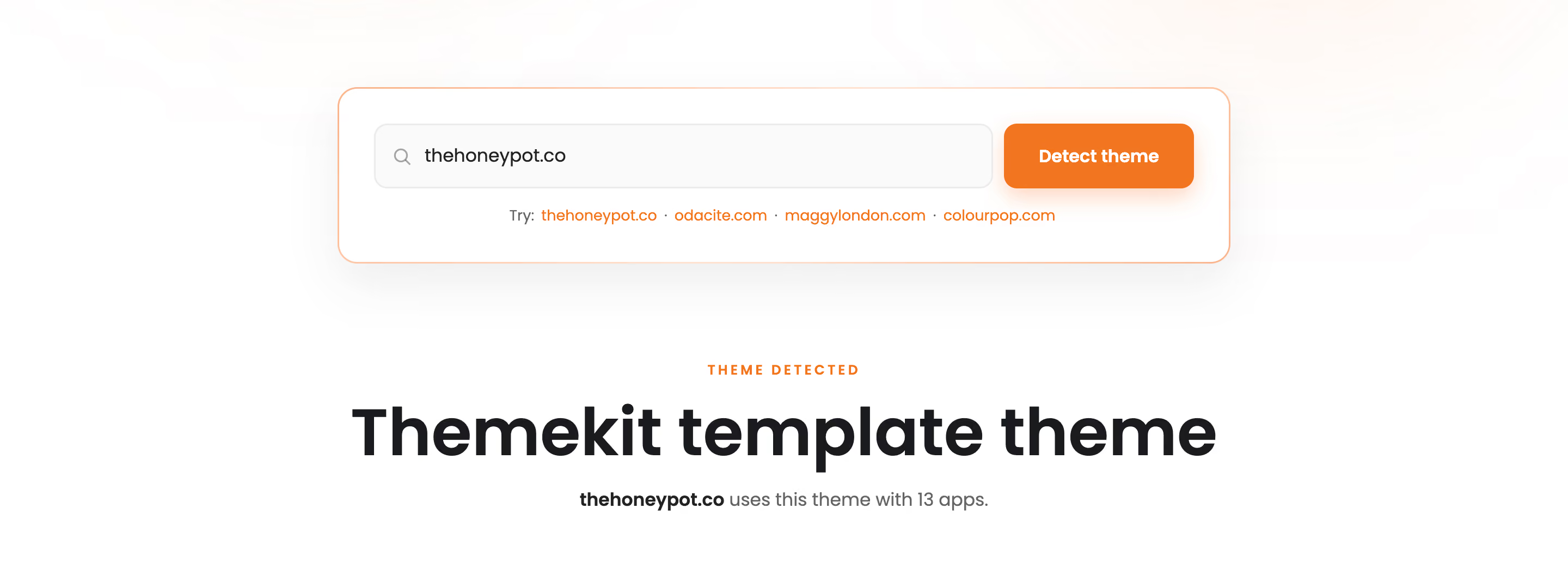
The result opens with "THEME DETECTED" and names the theme. For thehoneypot.co, that came back as a Themekit template theme, meaning the store runs a custom-coded theme deployed through Shopify's own developer tooling rather than a named Theme Store theme like Dawn or Prestige. The detector states this plainly instead of guessing at a named match it can't back up. A tool that forces a false match on a custom build sends you looking for a theme that was never for sale.
Alongside the theme name, the result states how many apps that store runs. Thehoneypot.co's scan returned 13.
4. Review the app breakdown
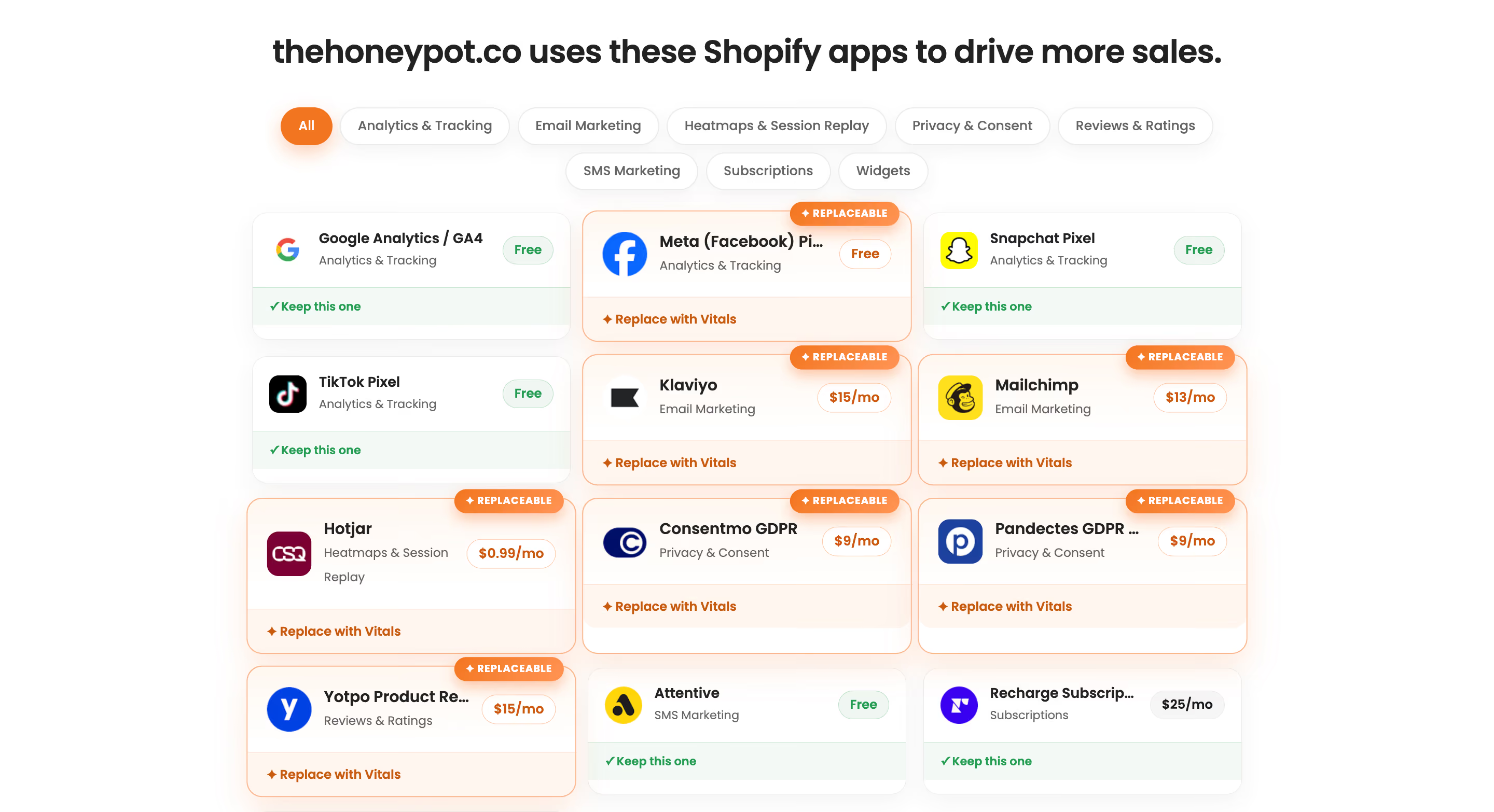
Below the theme result sits the full list of apps the store uses, organized under category tabs: Analytics & Tracking, Email Marketing, Heatmaps & Session Replay, Privacy & Consent, Reviews & Ratings, SMS Marketing, Subscriptions, and Widgets. Each app is listed with its typical monthly Shopify App Store price and one of two tags: "Keep this one" or "Replace with Vitals."
For thehoneypot.co, the email marketing apps Klaviyo ($15/mo) and Mailchimp ($13/mo), the session replay tool Hotjar ($0.99/mo), two GDPR consent apps at $9/mo each, and the review app Yotpo ($15/mo) all came back tagged "Replace with Vitals." Google Analytics, the Snapchat and TikTok pixels, Attentive for SMS, Recharge Subscriptions, and POWR Widgets stayed tagged "Keep this one," since those fall outside what Vitals covers.
This breakdown shows which of a store's apps have a direct Vitals equivalent and which don't, not just how many apps it runs.
5. Calculate your savings
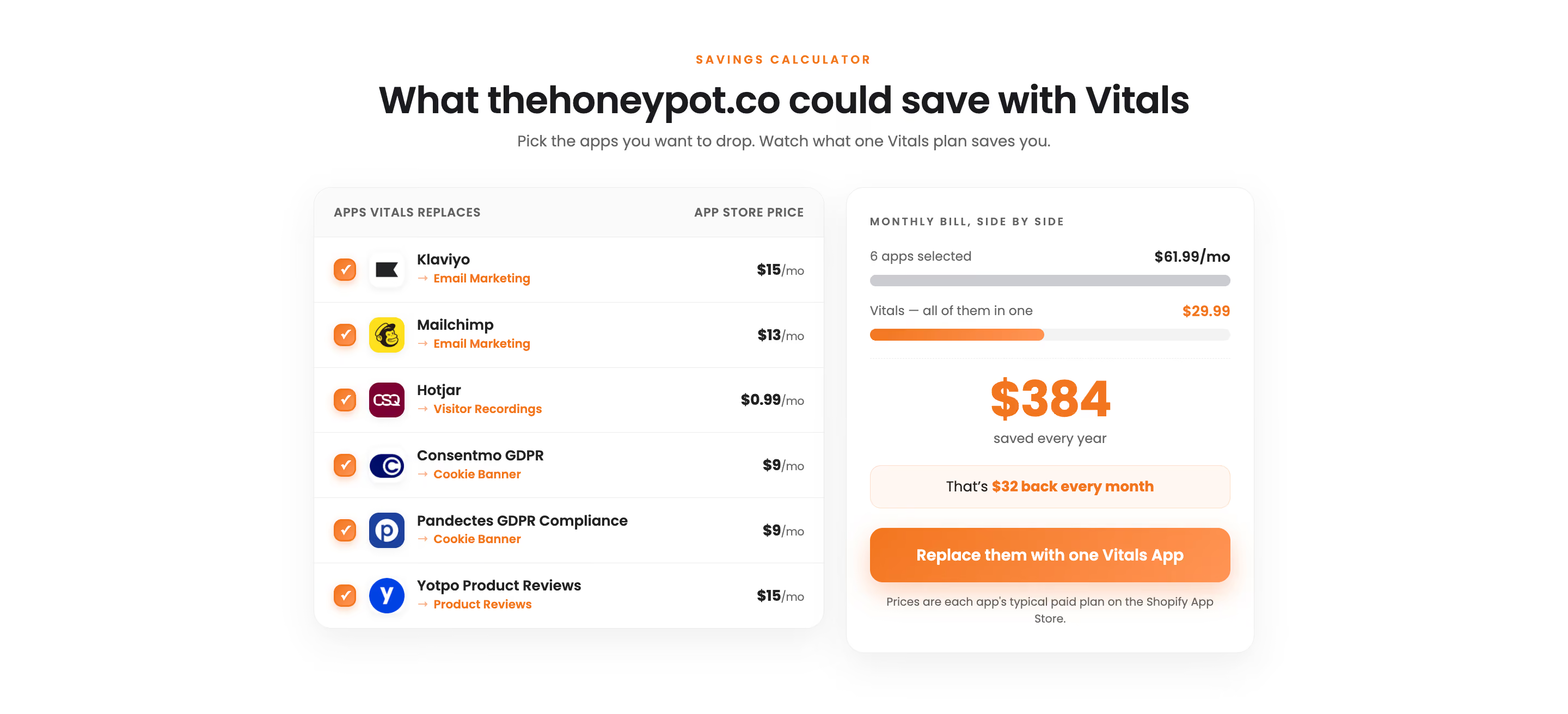
Scroll to the savings calculator. It lists every "Replace with Vitals" app that carries a real price, pre-checked, with a running monthly total next to Vitals' own $29.99/month. Uncheck anything you don't want counted and the total updates.
For thehoneypot.co, six apps were selected: Klaviyo, Mailchimp, Hotjar, the two GDPR apps, and Yotpo, adding up to $61.99/month. Against Vitals' $29.99/month, that's $32 back every month, or $384 over a year. The savings go beyond the dollar total. Consolidating six apps into one means tracking one renewal date and one support inbox instead of six.
6. Act on what you found
If you're comparing your own app costs against Vitals, click "Replace them with one Vitals App" straight from the calculator to start consolidating.

If you found a store's look you want for a brand-new build, use the CreateMyStore card next to your results. It builds a store with the same aesthetic, your own branding, 8 starter products with copy and reviews, and 40+ conversion apps already installed, free and with no credit card required. It's one of the more direct routes among Shopify AI store builders if you want to go from research straight to a live store.
If you already run a Shopify store and just want the redesign, the "Redesign my store for FREE" option runs the same AI Store Builder against your existing store instead of starting fresh. Either path is worth comparing against other Shopify AI website builders or Shopify AI page builders if you're weighing more than one option before you commit.
Final thoughts
A theme name tells you what a store looks like. The app breakdown and savings calculator tell you what it costs to make a store convert like that, which is the harder question to answer on your own. Run your own store through the detector the same way you'd run a competitor's. The app list it returns for your own site shows you which subscriptions you're paying for twice.
As a practical next step, paste in the URL and read the full breakdown before your next redesign or app cleanup, not just the theme name at the top.
Frequently asked questions
1. Do I need to create an account to use the Vitals theme detector?
No account, email, or credit card is required. The scan runs the moment you enter a URL and click "Detect theme."
2. Can I scan my own store, or only competitors?
The field accepts any Shopify store's URL, including your own. Running the scan on your own site shows you the same app breakdown a competitor researching you would see.
3. What happens if the detector can't identify the exact theme?
Fully custom themes built from scratch aren't listed in the Shopify Theme Store, so the detector states that the store runs a custom or unlisted theme rather than guessing at a named match. My test scan of thehoneypot.co returned this kind of result: a Themekit-built custom theme, not a Theme Store name.
4. Do I have to use CreateMyStore or install Vitals to see my results?
No. The theme name, the app breakdown, and the savings calculator all display before you touch either CTA. CreateMyStore and the Vitals install button are options once you've seen the results, not a requirement to get them.
5. How does the savings calculator decide which apps to include?
It pre-selects every detected app tagged "Replace with Vitals" that carries a real Shopify App Store price, then lets you check or uncheck individual apps to see the monthly total change.
6. Can I run the scan again for a different store?
Yes. Clear the field, enter a new URL, and run another scan. Nothing limits how many times you can do this.