How to know what theme a Shopify store is using


TL;DR
The fastest way to know what theme a Shopify store is using is a free theme detector tool. Paste the store's URL and get a theme name back in seconds. Vitals' Shopify Theme Detector does this and adds a breakdown of the apps running alongside that theme. You can also check manually through your browser's inspect tool, though it takes more steps and stumbles on customized code. Every method, tool or manual, shares the same blind spot. A fully custom-built or headless store won't return a name, because there's nothing catalogued to match it against.
Introduction
You land on a Shopify store with a layout you want to study, and there's no obvious way to ask. The theme name isn't printed anywhere on the page, and most merchants don't list it in their footer. A handful of methods exist to find it anyway, some built for speed, some built for people comfortable poking around in a browser's dev tools.
A handful of stores defeat every method here, tool or manual. They were never built on a named theme in the first place.
Why someone would want to identify a Shopify theme
Most reasons trace back to one of four situations. Someone's planning a Shopify redesign and wants to start from a layout that already works. Someone's deciding whether a paid theme is worth buying, and seeing it live on a real store answers that faster than a demo page does. An agency or freelancer is scoping a client project and needs to know what they're working with before they quote it. Or a merchant is researching a competitor and the theme is step one, before digging into what apps that competitor runs to convert its traffic.
That last one matters more than it sounds. A theme sets the layout. It doesn't explain why a store converts well, since that comes down to the reviews, bundles and upsells, and trust signals running on top of it.
Knowing the theme without knowing the apps behind it leaves out how the store converts.
Vitals Shopify Theme Detector is the fastest way to detect
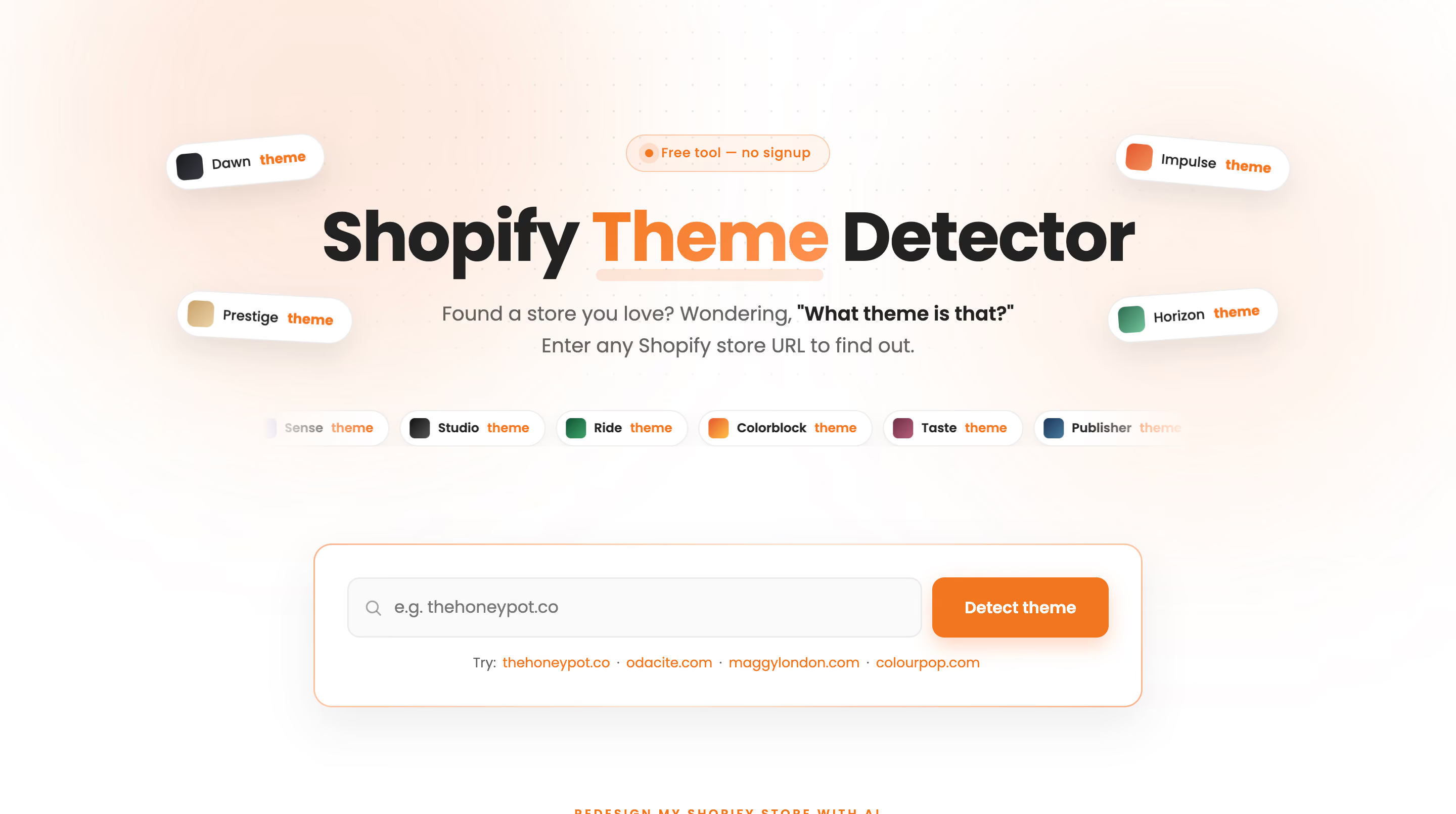
Vitals is an all-in-one Shopify app built for growing Shopify stores. Its Shopify Theme Detector takes a store URL and returns the theme name in seconds, free, with no signup required.
With Vitals, you get more than the theme name. The same scan returns a full breakdown of the apps that store runs, tagged by category, with each app's typical monthly price next to it.
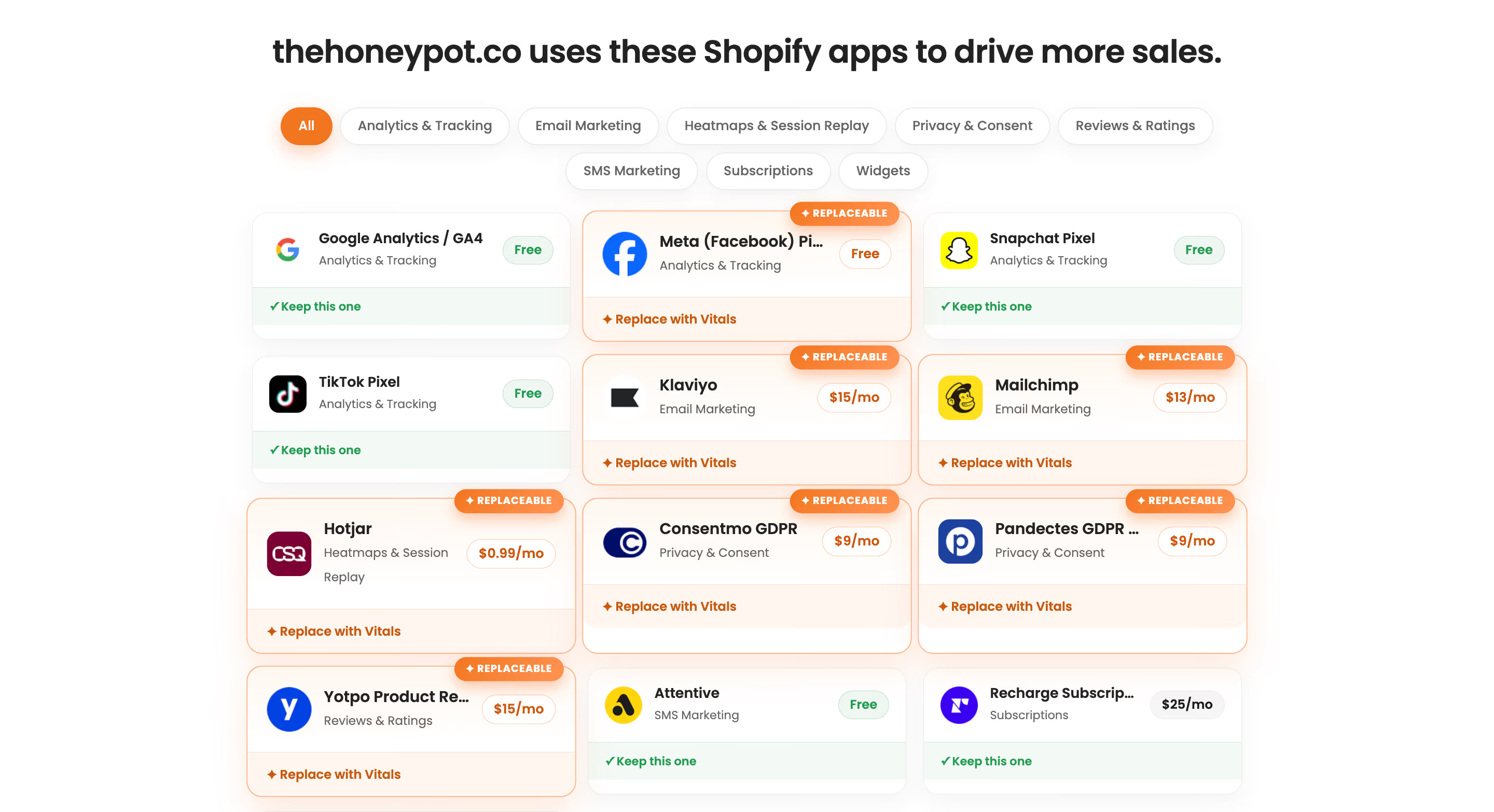
I ran a real store through it while writing the companion step-by-step guide to this tool, and the scan flagged which of that store's apps had a direct Vitals equivalent and calculated what switching would cost against running them separately.
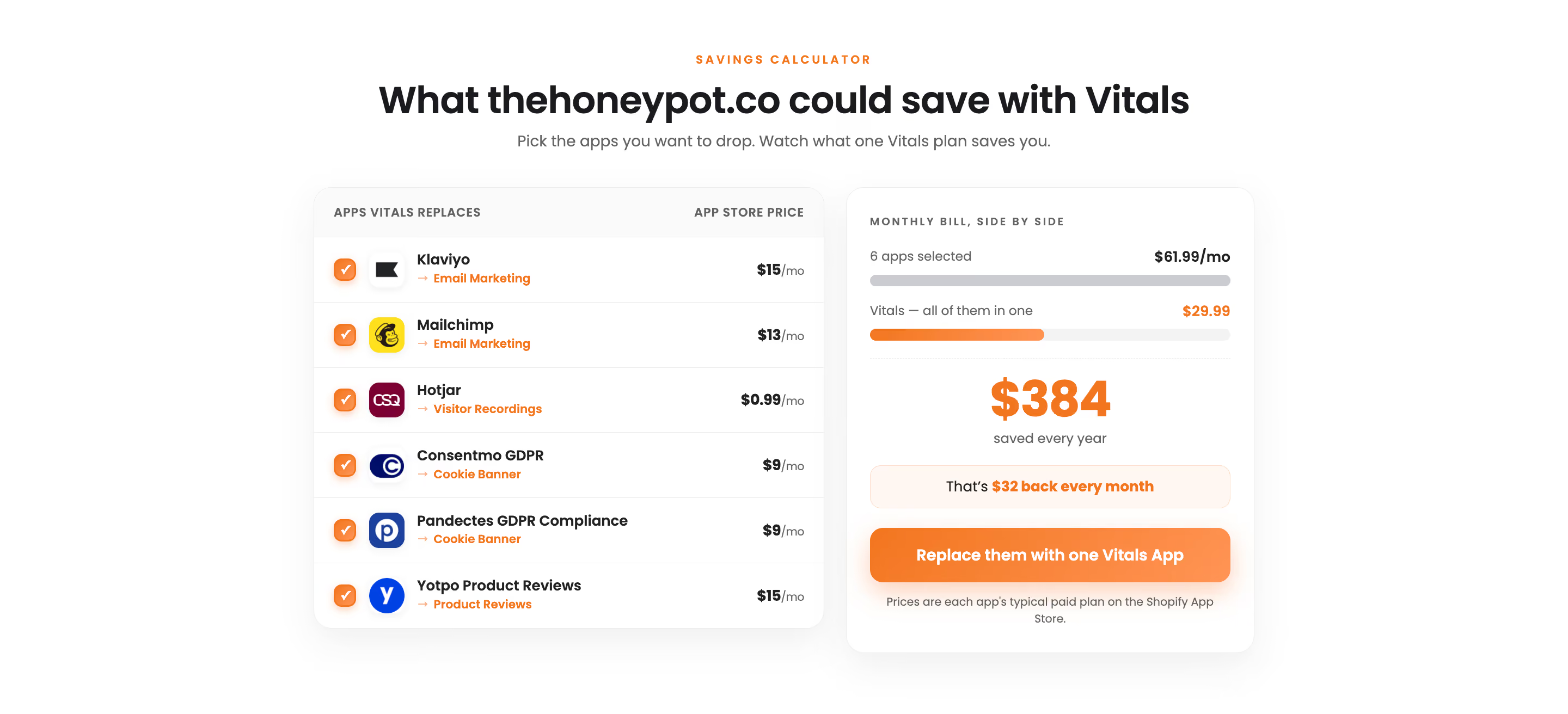
That's the difference between knowing what a store looks like and knowing what it would take to build something like it.
For the full walkthrough, screen by screen, see how to use a Shopify theme detector.
Quick ways to check what theme a Shopify store uses
Beyond Vitals, two broad approaches cover almost every situation. Use a dedicated tool, or check it yourself through the browser you're already using.
1. Theme detector tools
Free theme detector tools work the same way regardless of which one you use. You paste a store's URL, the tool reads the same public code every visitor's browser already loads, and it returns a theme name in a few seconds. No login, no browser extension, and no access to the store's admin required.
Vitals runs this way, and so do several others, including Koala Inspector's detector and True Profit's free tool. Each reads slightly different signals and can return different results on a heavily customized store, which is why it's worth trying more than one if the first result looks off. For a full side-by-side comparison of what each tool adds beyond the theme name, see the 5 best Shopify theme detectors in 2026.
2. Browser inspection
Every browser includes a way to inspect a page's underlying code, and Shopify stores expose their theme information in that code by default. Right-click anywhere on the store's page, select "Inspect," and search the page's scripts for the text Shopify.theme. On most stores, that search turns up a line naming the active theme, formatted roughly like Shopify.theme = {"name":"Theme_Name"...}.
Viewing the page's source works the same way. Search for file paths containing theme.css or theme.scss; the theme's name appears somewhere in that path. This method costs nothing and needs no extra tool, but it takes longer than pasting a URL into a detector, and it asks you to be comfortable poking through a browser's developer console. It also breaks down faster than a dedicated tool on a store that's renamed its theme files or stripped out the identifying text.
Common limitations
Every method here, tool or manual, runs into the same wall eventually. A store built on a fully custom theme, coded from scratch rather than adapted from a Theme Store listing, has no catalogued match to return. A detector states "custom" or "unlisted" instead of a name, and browser inspection turns up custom file paths with no theme name attached to search for. A good tool says so plainly instead of guessing at a match it can't back up.
Headless Shopify storefronts create the same gap. When a store's front end runs on a separate framework instead of Shopify's own theme layer, there's no standard theme signature anywhere in the code for any method to find.
Heavy customization sits in between. A store built on a named theme can still return a partial match or no match at all once it's modified enough. Renamed sections, stripped identifiers, and code run through a minifier all get in the way, even though a real Theme Store theme sits underneath it somewhere.
None of this makes theme identification unreliable for the vast majority of live Shopify stores. It means treating an "unlisted" or "custom" result as accurate information about how that store was built, not as a tool failing to do its job.
Final thoughts
Start with a free Shopify theme detector tool if speed matters, since it takes seconds and needs nothing installed. Fall back to browser inspection if you'd rather not touch a third-party tool at all, or if a detector comes back empty and you want to see what's in the code yourself. Either way, the theme name is only the first useful thing you'll find. What that store runs on top of it, the apps driving reviews, upsells, and trust, is the more useful discovery.
Frequently asked questions
1. Is it legal to check what theme a Shopify store uses?
Yes. Checking a store's theme reads publicly available data that every visitor's browser already loads. It doesn't touch the store's admin, backend, or any private information.
2. Does the store owner get notified when I check their theme?
No. Every method covered here, tool or manual, reads public front-end data passively. There's no action taken against the store's backend for an owner to be alerted to.
3. Can I identify a theme without installing anything?
Yes. Your browser's built-in inspect tool works with nothing extra installed, and most free theme detector tools, including Vitals', run entirely in the browser with no download required either.
4. Why do different tools sometimes return different results for the same store?
Each tool matches against its own set of known theme signatures, so a heavily customized or renamed theme can register with one tool and come back unlisted on another. Trying a second tool is a reasonable next step if the first result looks wrong.
5. What happens if I check a website that isn't built on Shopify?
You'll get no result. Theme detectors and the browser-inspection method both look for Shopify-specific code, so a non-Shopify site simply won't return a match.