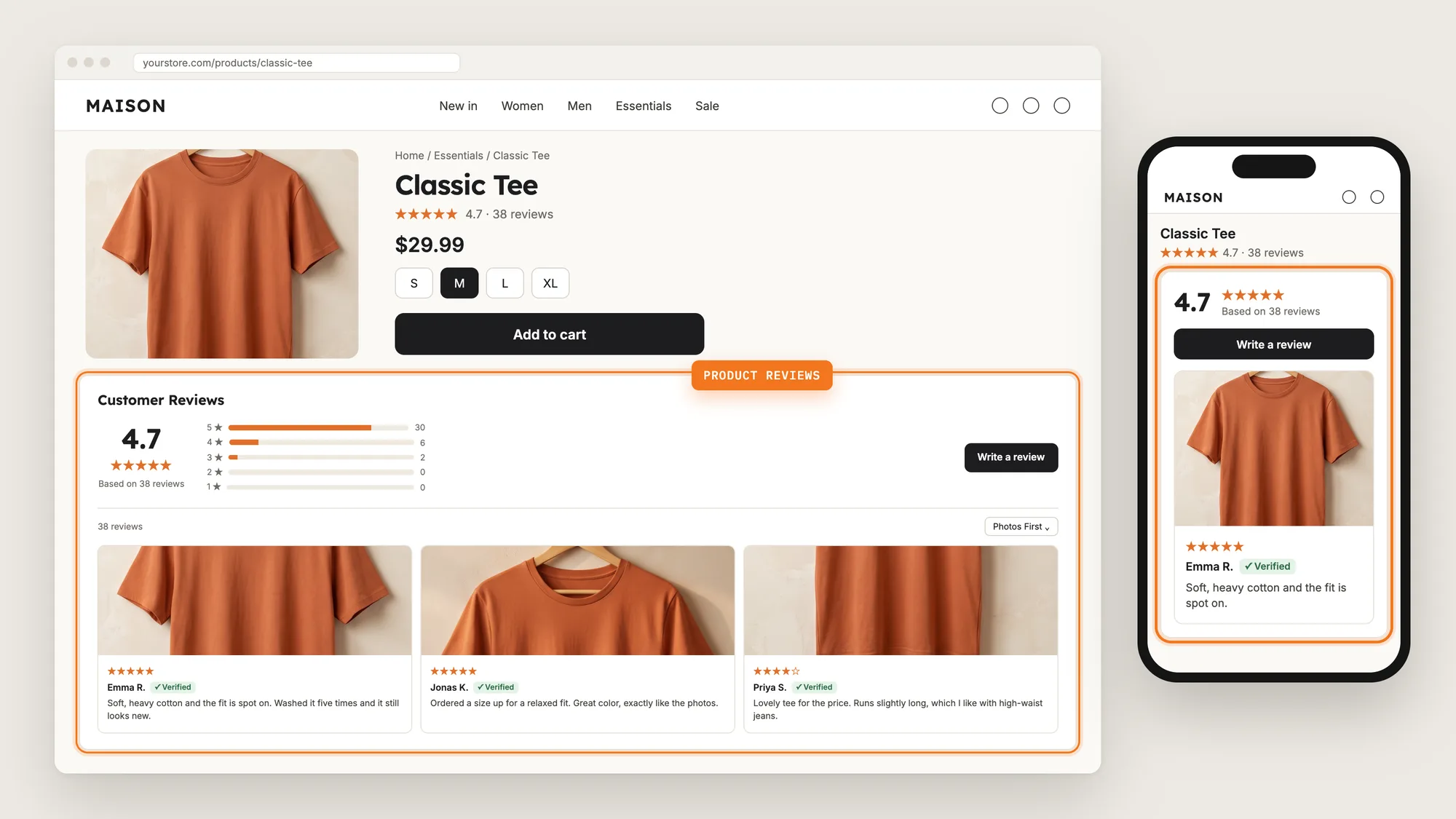
How to Import Product Reviews to Shopify

Your reviews are your proof. When you switch review apps, move from a spreadsheet or start selling a product you also sell on a marketplace, you don't want to start again at zero stars.
Importing product reviews brings the reviews you already have onto your Shopify product pages, with their star ratings, text, photos and dates.
Here are the three ways to import product reviews to a Shopify store: with a Product Reviews app, from your theme settings, or with custom code.
What Is a Product Review Import?
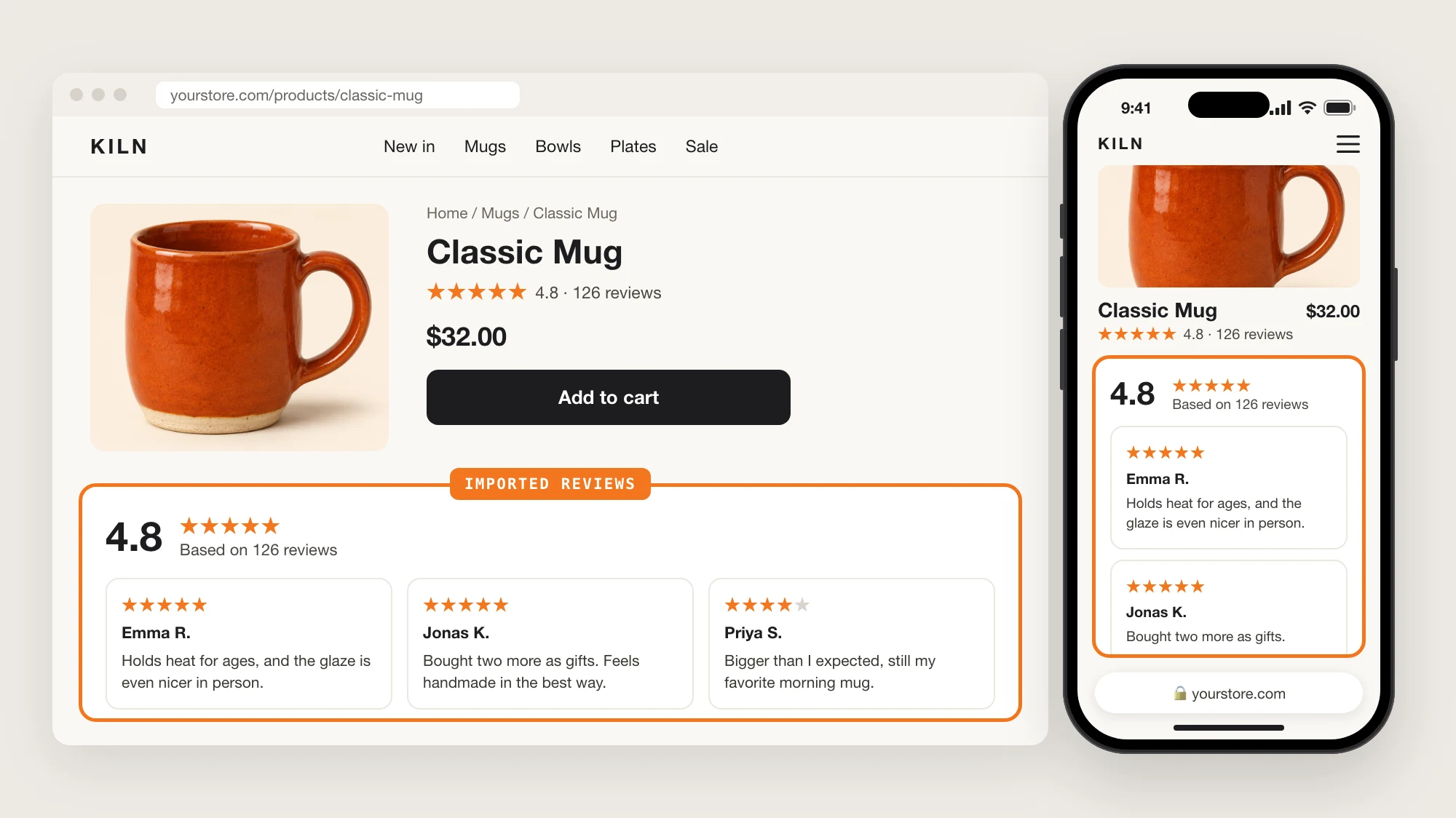
A product review import moves existing reviews into your store from a file or another source, and matches each review to the right product. Once imported, the reviews show on the product page like reviews your customers write today.
A good product review import includes:
- The right product: Each review is matched to a product by its product handle or product ID.
- The full review: The star rating, text, photos, reviewer name and date come along.
- Your replies: Replies you wrote to reviews are imported with them.
- A publish choice: You decide which imported reviews go live and which wait for a check.
You can import product reviews from a CSV file, from another review app, from AliExpress or from Amazon.
What's the Quickest Way to Import Product Reviews?
- Vitals - All in One App is the quickest way to import product reviews for most stores
- Vitals also offers 40+ apps, such as product bundles, trust badges and a sticky add to cart button, in one subscription from $29.99/month, so you don't have to install and pay for each app separately
Here's how the three methods compare. If you'd rather weigh several review apps against each other, see our list of the best review apps for Shopify.
How to Import Product Reviews With a Product Reviews App?
Install the Vitals - All in One App, open its Product Reviews app and go to the Import tab. Pick where your reviews come from, upload the file or paste the link, tick the confirmation box and click Import reviews. The steps below go through each import source.
Step 1: Install the Vitals - All in One App
Install the Vitals - All in One App from the Shopify App Store. The 7-day free trial includes the Vitals Product Reviews app.

Step 2: Approve the Install in Shopify
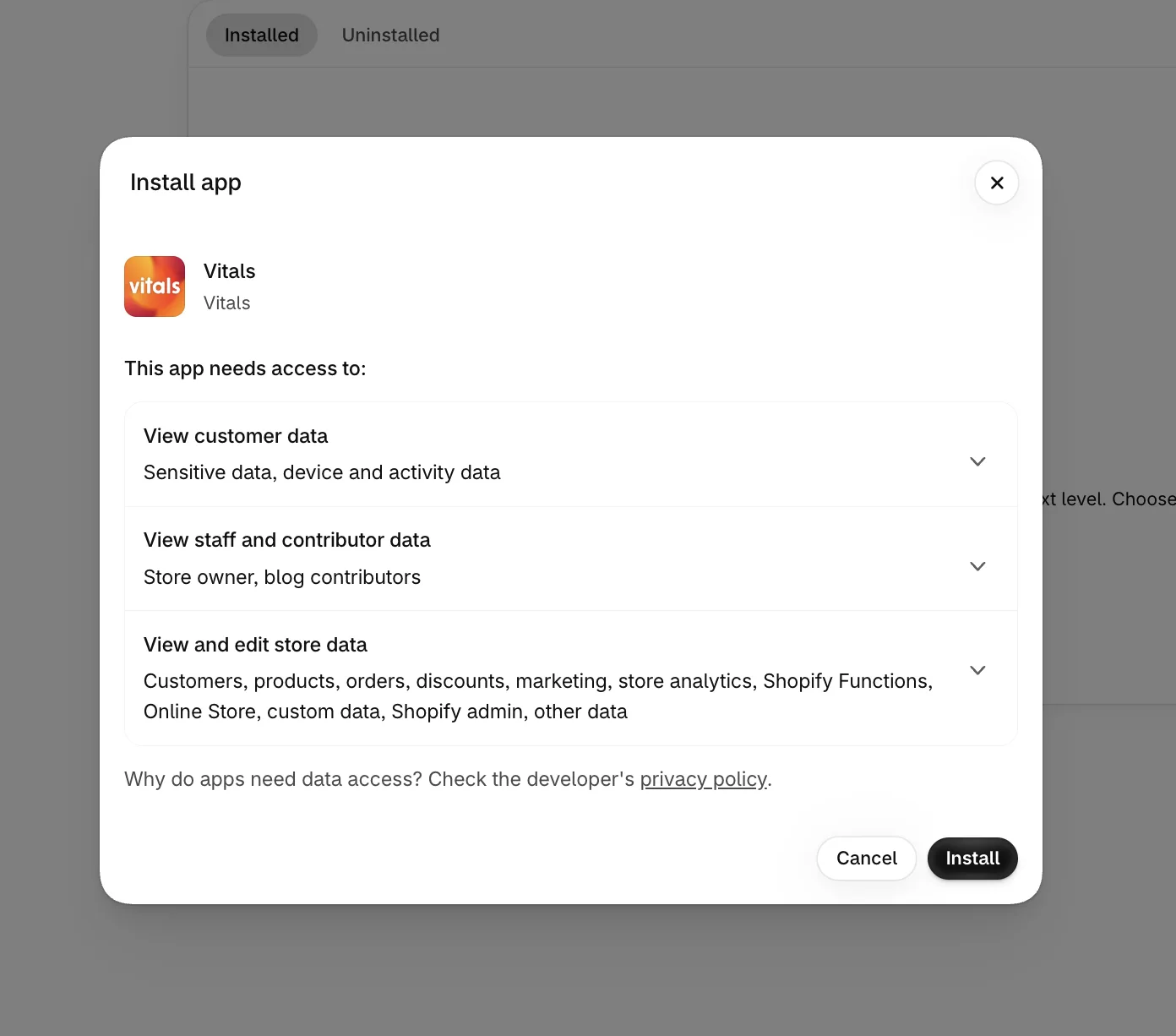
Shopify shows which store data Vitals can use. Click Install, and the Vitals dashboard opens in your Shopify admin.
Step 3: Open Product Reviews
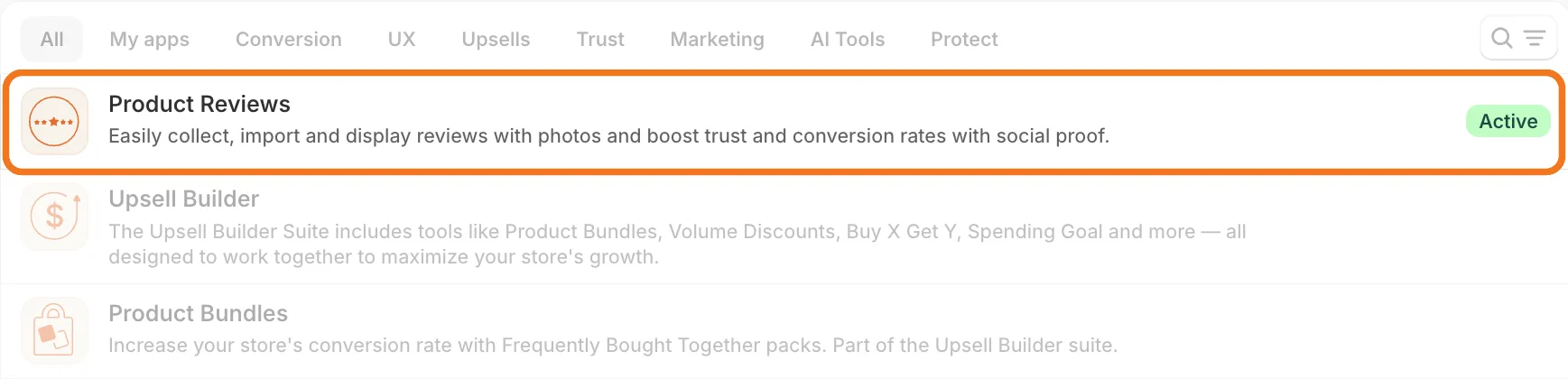
In the Vitals dashboard, find Product Reviews in the list of apps and click it.
Step 4: Open the Import Tab
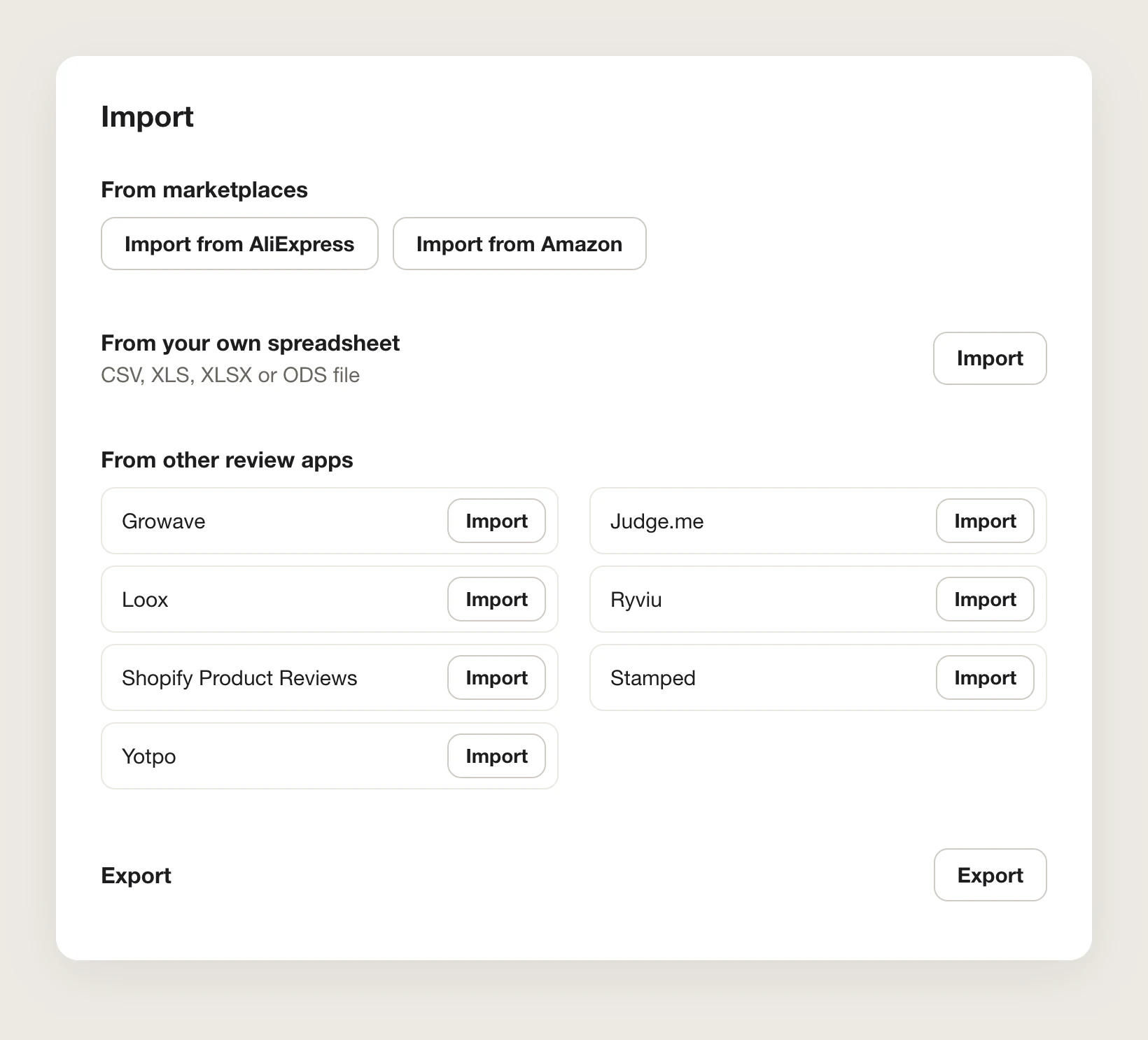
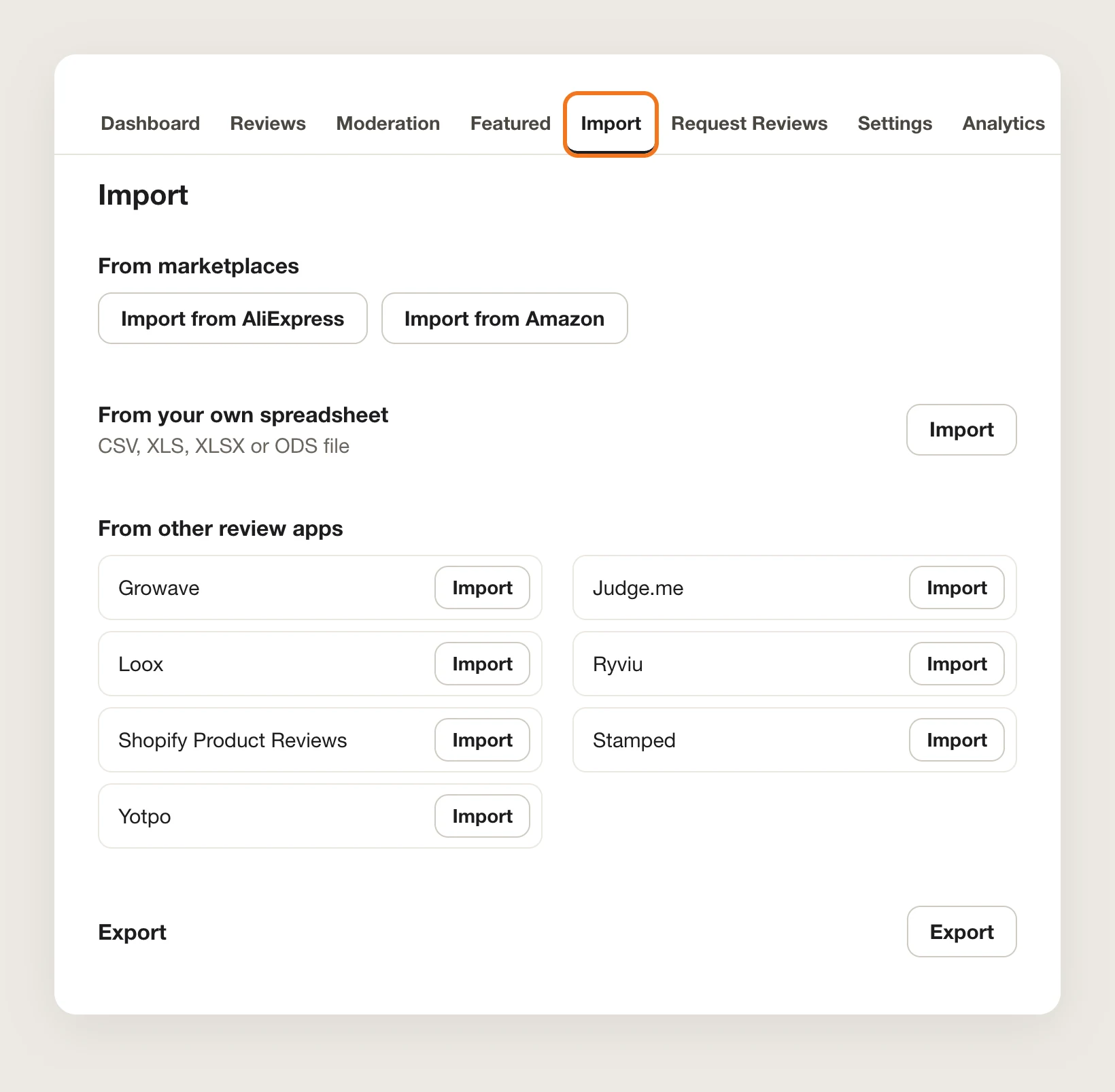
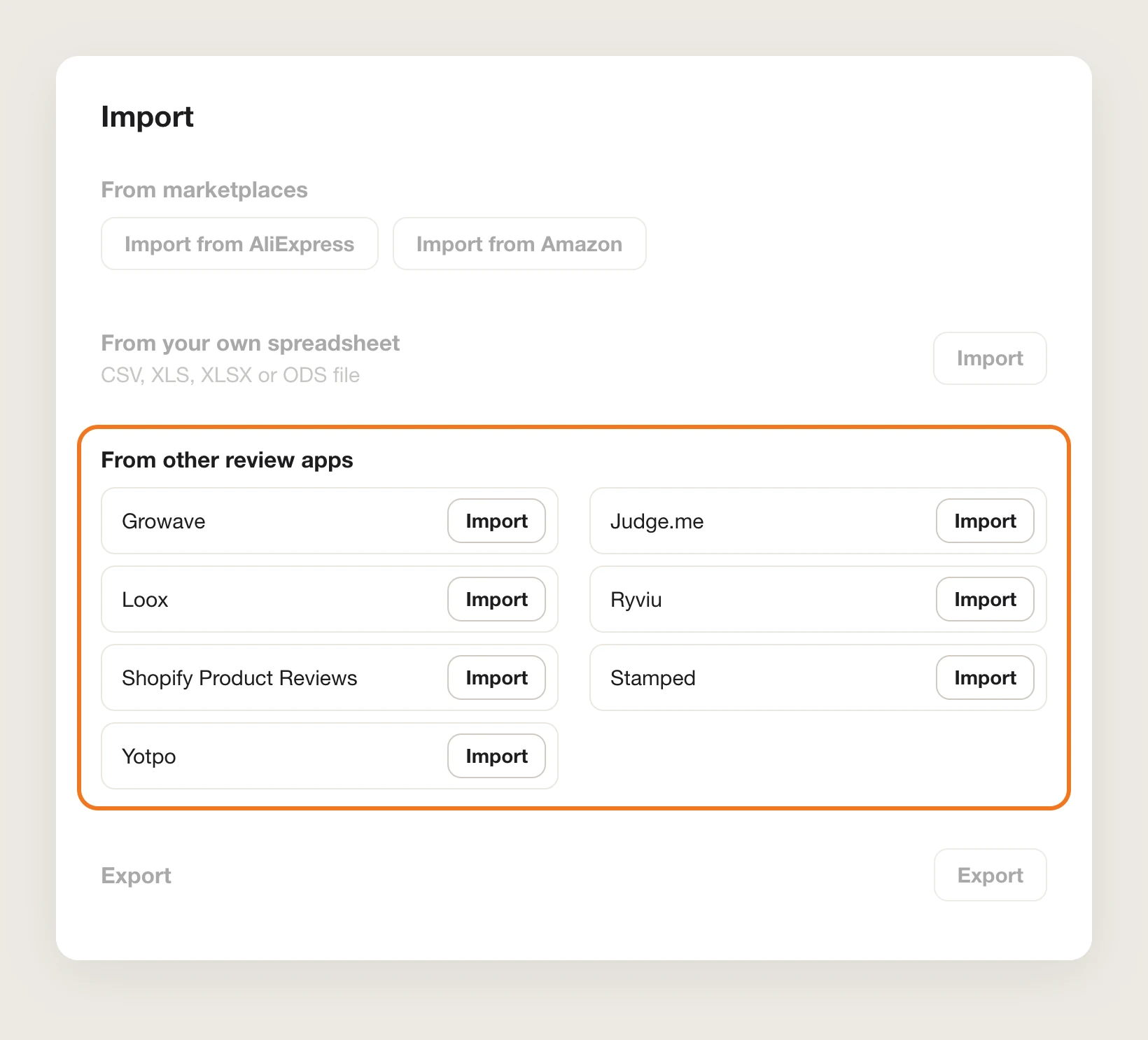
Click the Import tab at the top of the Product Reviews page. The tab lists every import source in three groups: From marketplaces, From your own spreadsheet and From other review apps.
Step 5: Fill In the Vitals CSV Template
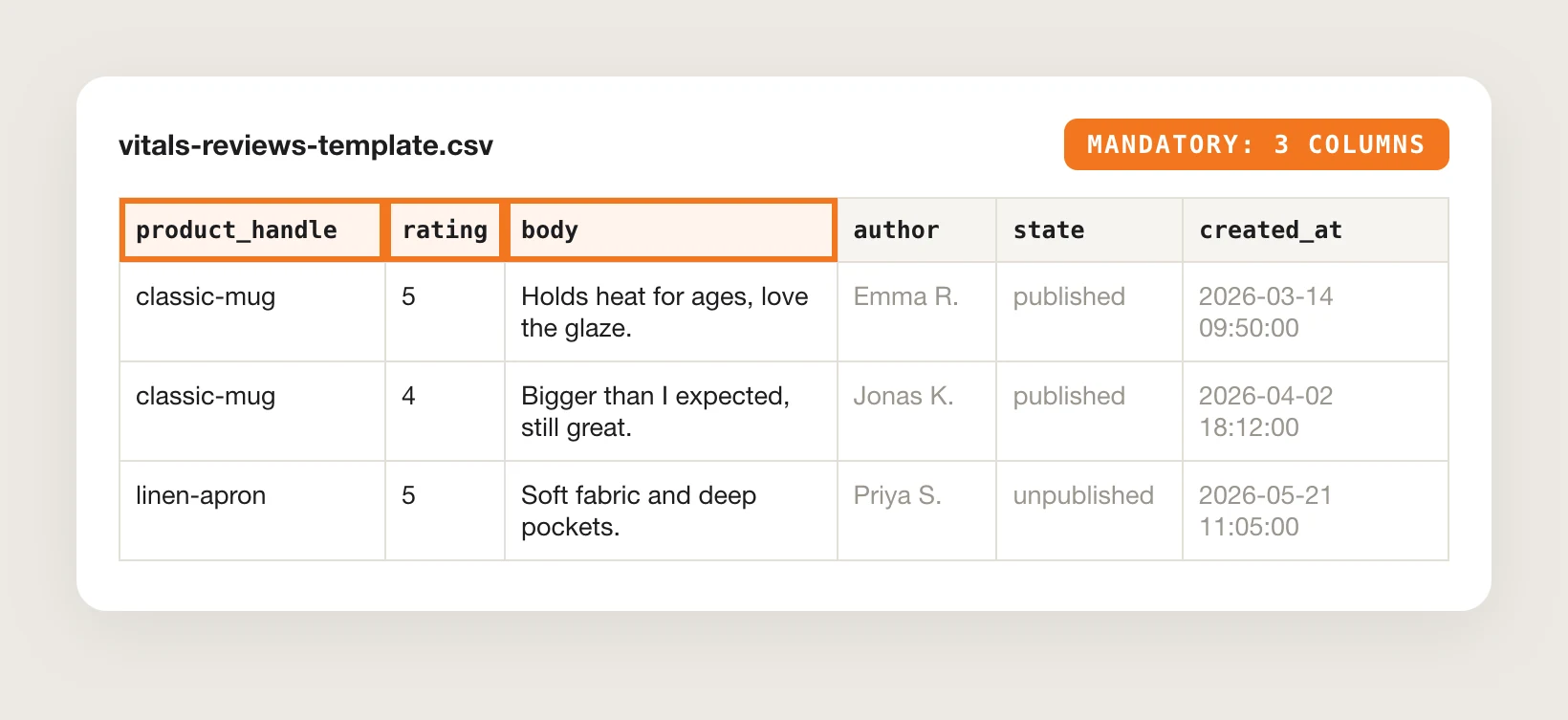
To import product reviews from your own spreadsheet, download the empty Vitals template, vitals-reviews-template.csv, from the Help Center article on CSV imports and add one review per row:
- product_handle: The end of the product URL. For yourshop.com/products/awesome-product, the handle is awesome-product
- rating: A star rating from 1 to 5
- body: The review text
- state: published to show the review, or unpublished to keep it in moderation
- created_at: The date the review was written, as YYYY-MM-DD HH:MM:SS
- imageUrl: Links to the review photos, separated by commas
- verified: true, yes or 1 to show the review as verified
product_handle, rating and body are in the template's mandatory list, but rows without text still import as long as they have a rating and a product. The other columns, such as author, email and reply, can stay empty.
Step 6: Upload Your Spreadsheet
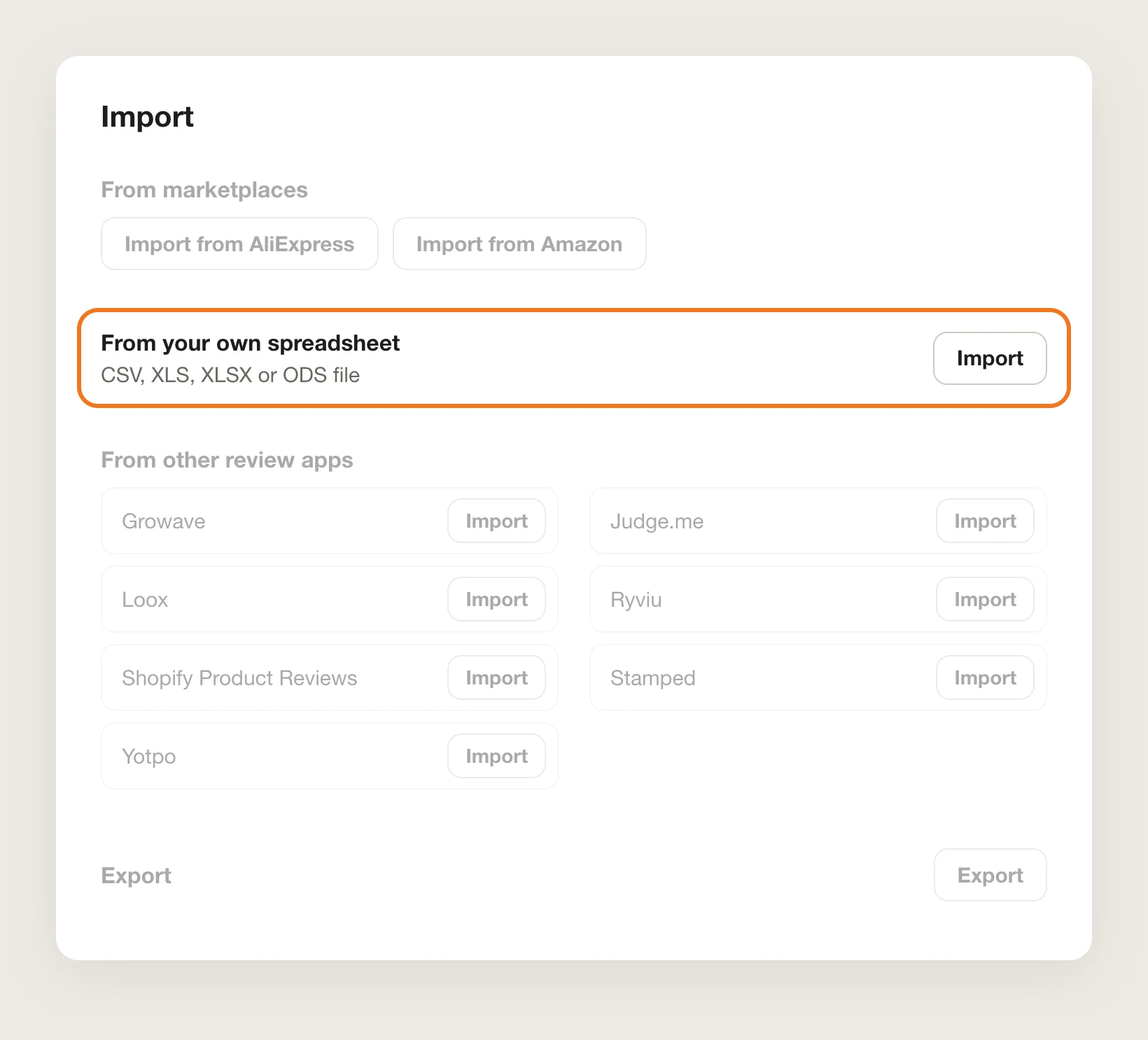
Under From your own spreadsheet, click Import and upload the file. Vitals accepts CSV, XLS, XLSX and ODS files. Tick the box confirming the reviews are for your products or that you have permission to use them, then click Import reviews.
Step 7: Import Product Reviews From Another Review App
Export your reviews to a CSV file from your current review app, then upload that file to Vitals exactly as exported. Vitals reads the exports of Growave, Judge.me, Loox, Ryviu, Shopify Product Reviews, Stamped and Yotpo.
Under From other review apps, click Import next to your current app. Vitals shows how to export the reviews from that app. Click Upload file, tick the confirmation box and click Import reviews. A large import can take a few minutes, and the page shows its progress and a summary when it's done.
If your review app isn't on the list, copy its reviews into the Vitals template from Step 5 and import that file instead.
Step 8: Import Product Reviews From AliExpress
Open the Reviews tab, click Import reviews and choose Import reviews from AliExpress, or click Import from AliExpress under From marketplaces in the Import tab. Select your product, paste the AliExpress product link and set the import:
- Number of reviews to import: 10, 25, 50, 100 or 200 at a time. 50 is the default
- Import reviews as: Published shows the reviews on your store at once. Unpublished keeps them in the app until you publish them
- Content options: All reviews with text or pictures, only the reviews with pictures, or only the reviews without
- Translate to: One of 13 languages, such as English, Spanish, French or German
Tick I confirm that the imported reviews are for my own products or I have permission from the supplier to use them and click Import Reviews.
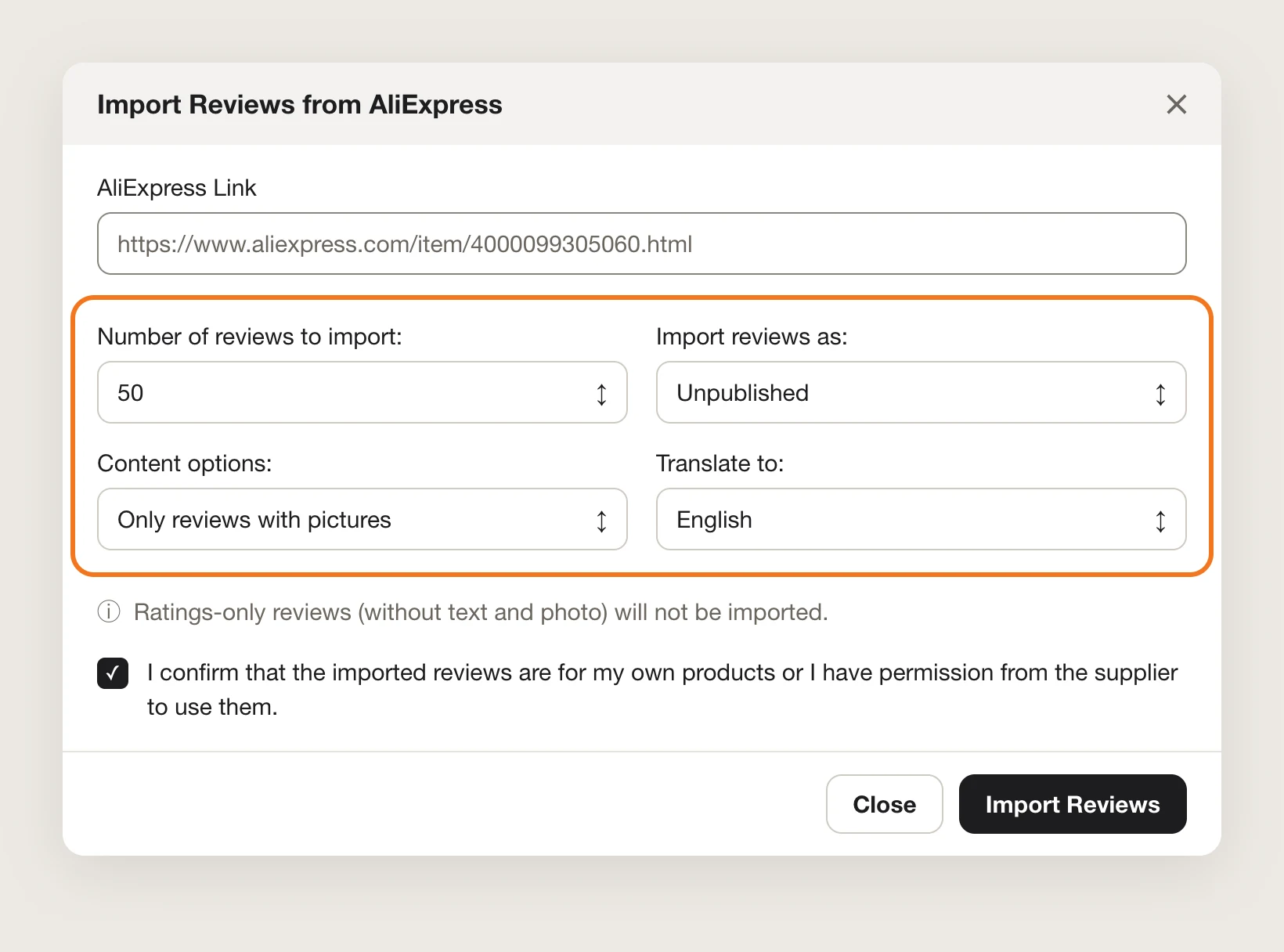
Vitals skips AliExpress reviews that have only a star rating and no text or photo. To import more than 200 reviews, start the import again once it's done; reviews you already imported are skipped.
Step 9: Import Product Reviews From Amazon
Vitals doesn't connect to Amazon directly, so you export the reviews to a CSV file first with a Chrome extension, such as Amazon Reviews Extractor:
- Open the Amazon product page and use the extension to export its reviews as a CSV file
- In the Import tab, click Import from Amazon under From marketplaces
- Select the product the reviews belong to and upload the CSV file
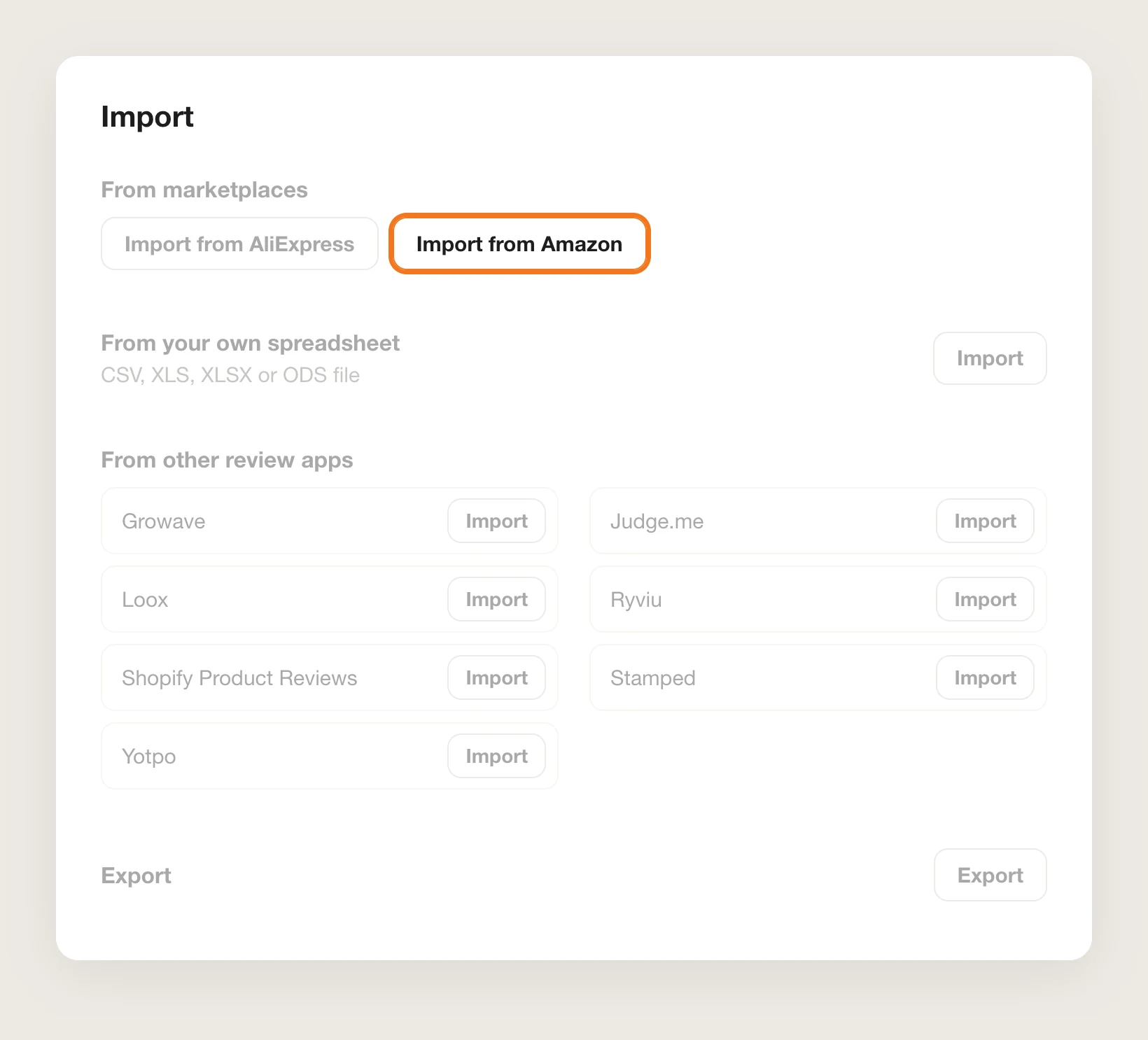
Imported Amazon reviews are published right away. The extension's free plan exports up to 20 reviews per product.
Step 10: Check the Imported Reviews
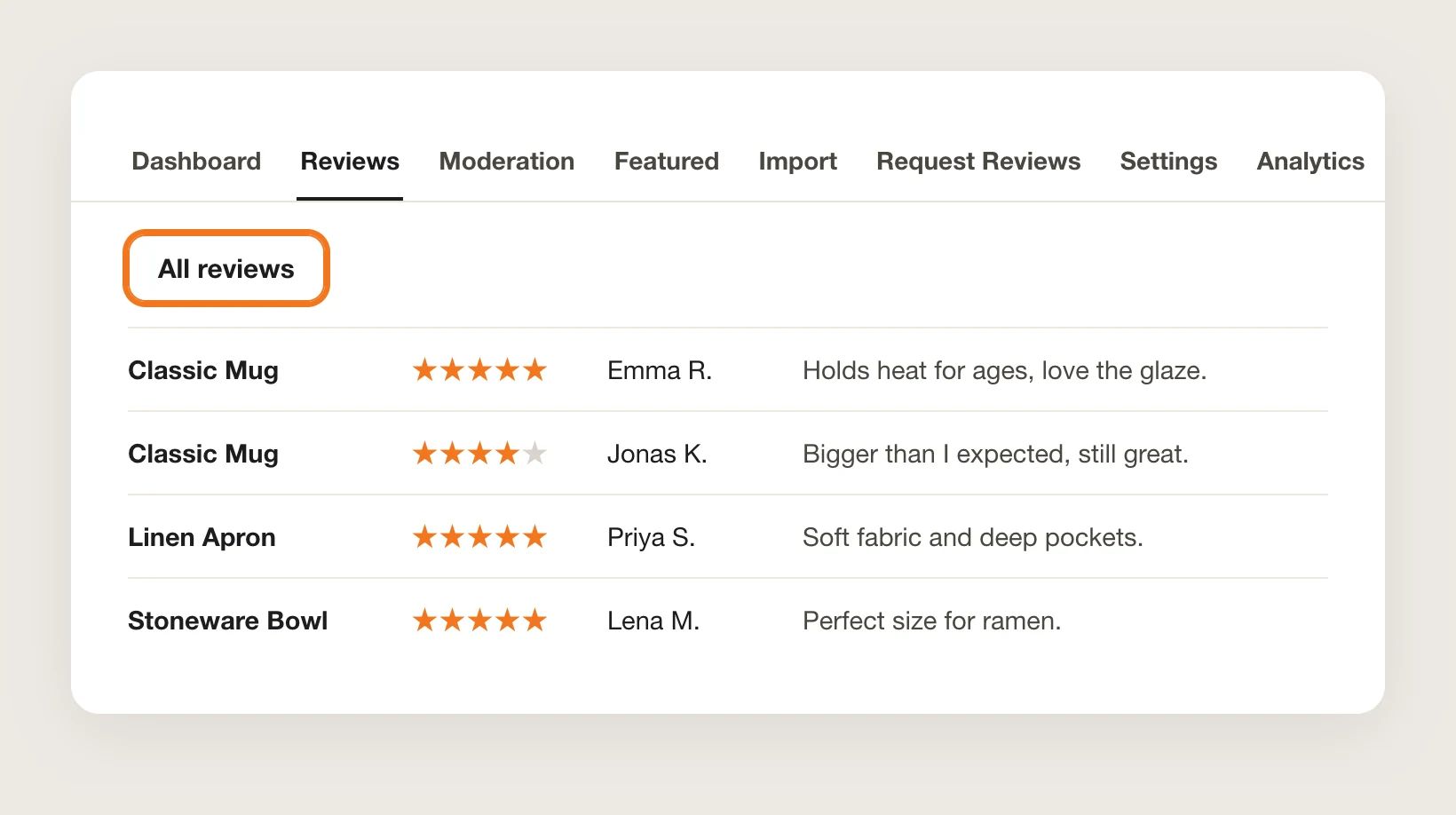
Open the Reviews tab and select All reviews at the top to see the imported product reviews from every product in one table. Publish the ones you imported as Unpublished, then open a product page on your phone and on desktop to see them live.
Step 11: Voila, Your Imported Reviews Are Live on the Store
Your product pages now show the reviews you already earned, with their stars, photos and dates, and new reviews add to them from here.
How to Import Product Reviews From Your Theme Settings?
Shopify themes don't store product reviews, so a theme has no way to import product reviews from a file or another app. Some themes include a section for customer quotes that you type in by hand. To check your theme:
- In Shopify, open Online Store → Themes, then click Customize
- Click Add section on a product page or the homepage
- Look for a section for testimonials or customer quotes
A theme section shows only the quotes you type, one by one, so it has no star ratings tied to products, no review photos and no import from a CSV file. To import product reviews, you need a reviews app or custom code.
How to Import Product Reviews Without an App?
Hire a developer to build a review store and an importer into your theme, with Liquid, JavaScript and a place to keep the reviews, such as Shopify metaobjects.
A custom review import usually involves:
- Duplicating your theme to test the code safely
- Defining where each review is stored, with its rating, text, photos, date and product
- Writing a script that reads your CSV file and creates one entry per review
- Matching each review to its product
- Building the reviews section that shows them on product pages
- Testing it on mobile and desktop, then publishing the theme copy
Custom code means no extra app, but you or your developer have to maintain it. Every new export from another source needs the script again, and new reviews from customers need their own form and storage.
How to Increase Trust With Imported Product Reviews?
Imported product reviews build trust when shoppers see real, recent proof for the product in front of them. These settings make that proof stronger:
- Import AliExpress reviews as Unpublished first. Set Import reviews as to Unpublished, then publish the reviews that answer shoppers' doubts, such as fit, quality or delivery
- Bring the photos along. Choose Only reviews with pictures under Content options, or fill the imageUrl column in your CSV file, so shoppers see the product in real life
- Show reviews in your store's language. Pick your store's language under Translate to when you import product reviews from AliExpress
- Keep the real dates. Fill created_at as YYYY-MM-DD HH:MM:SS, so each review shows the date it was written
- Keep your replies. Fill the reply column, so shoppers see how you answered past customers
- Mark only real buyers as verified. Set verified to true only for reviews from customers who bought the product
Why Isn't My Product Review Import Working?
Check these first when an import fails or the reviews don't show:
- The CSV file shows an error: A file exported from another review app has to be uploaded exactly as exported. Opening and saving it first can break its structure
- The file was saved in Numbers: Mac's Numbers app can corrupt CSV files. Use Excel, LibreOffice or OpenOffice instead, and save as UTF-8 CSV when product handles have special symbols
- Some rows were skipped: Each review needs a rating from 1 to 5 and a product that exists in your store. Check that product_handle matches the end of the product URL
- The dates are wrong: Slash dates such as 03/04/2024 are read month first. Use YYYY-MM-DD HH:MM:SS, then import the same file again through the same import source to correct the matching reviews
- No AliExpress reviews came in: Use the AliExpress link only up to .html, and check that the product has reviews with text or photos that match your Content options
- The same AliExpress link brings nothing new: The link has no reviews left that you haven't imported. Try the AliExpress link of a similar product
- The reviews don't show on the store: Reviews imported as Unpublished stay in the app until you publish them from the Reviews tab
- The import doesn't start: Tick the confirmation box before you click Import reviews
Which Product Review Import Method Should You Choose?
Vitals - All in One App suits most stores, but the right method depends on where your reviews are today.
- Choose Vitals - All in One App if you want to import product reviews from a file, another review app, AliExpress or Amazon with no code. It also includes 40+ other apps in one subscription from $29.99/month, so you don't have to install and pay for each app separately
- Choose your theme's setting if you only want a few customer quotes on the page and are happy to type them by hand
- Choose custom code if you have a developer, want no app at all, and are happy to maintain the importer and the reviews yourself
If you're leaving another review app, see our Judge.me alternatives, Loox alternatives and Yotpo alternatives. For the full reviews setup after the import, read how to add product reviews to Shopify.
Frequently Asked Questions
1. What is the best way to import product reviews to Shopify?
Vitals - All in One App is the best way for most stores. Its Product Reviews app imports product reviews from a CSV, XLS, XLSX or ODS file, from 7 other review apps, from AliExpress and from Amazon, with no code.
2. Which review apps can I import reviews from?
Vitals Product Reviews reads the CSV exports of Growave, Judge.me, Loox, Ryviu, Shopify Product Reviews, Stamped and Yotpo. For any other app, copy the reviews into the Vitals CSV template and import that file.
3. Which columns does the review CSV file need?
product_handle, rating and body are in the template's mandatory list, though rows without text still import. state, title, author, email, location, imageUrl, reply, created_at, replied_at and verified are optional.
4. How many AliExpress reviews can I import at once?
Up to 200 per import, and 50 by default. To import more, start the import again once it's done. Reviews you already imported are skipped.
5. Can I import Amazon reviews to Shopify?
Yes. Export the Amazon reviews to a CSV file with a Chrome extension, such as Amazon Reviews Extractor, then click Import from Amazon in the Import tab of Vitals Product Reviews and upload the file. Amazon reviews are published right away.
6. Can I import reviews without photos or text?
From a CSV file, yes: reviews without text are imported as long as they have a rating and a product. From AliExpress, reviews with only a star rating and no text or photo are skipped.
7. Does importing reviews create Shopify customers?
No. A CSV review import doesn't create Shopify customers from the reviewer email addresses.