How to Add Volume Discount on Shopify

Most shoppers who like a product buy a single unit of it. They add the product to the cart and check out, even when a second or third unit would make sense for them.
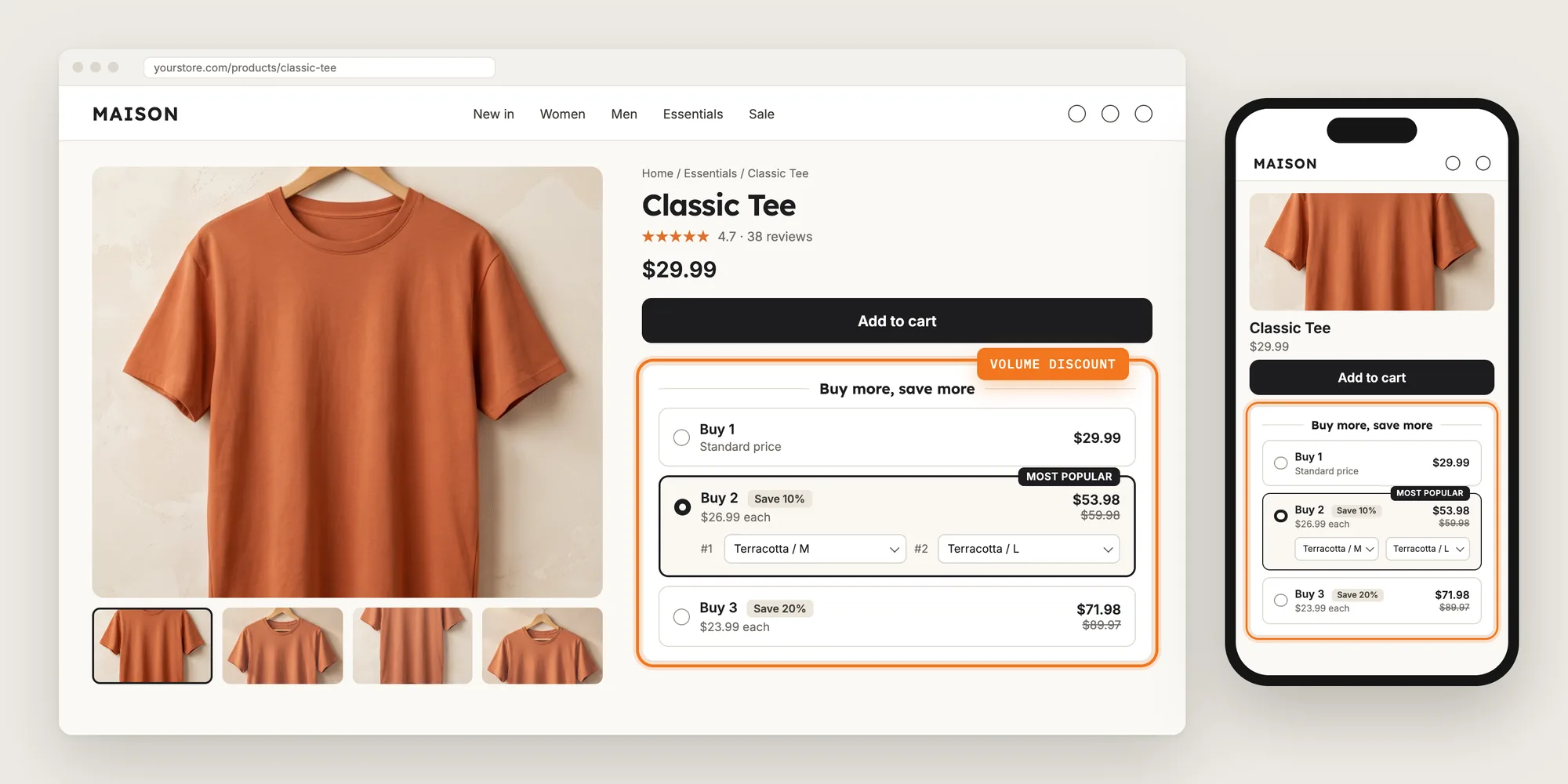
A volume discount gives shoppers a lower price per unit when they buy more, such as 10% off two and 20% off three. Shoppers see the tiers on the product page and pick the quantity that saves them the most.
Here are the three ways to add volume discount on a Shopify store: with a Volume Discounts app, from your theme settings, or with custom code.
What Is a Volume Discount?
A volume discount is a lower price per unit for buying more units of a product, also called quantity breaks or tiered pricing. On a Shopify store, a volume discount usually shows on the product page as a list of tiers, such as "Buy 1", "Buy 2, save 10%" and "Buy 3, save 20%", with the price of each tier.
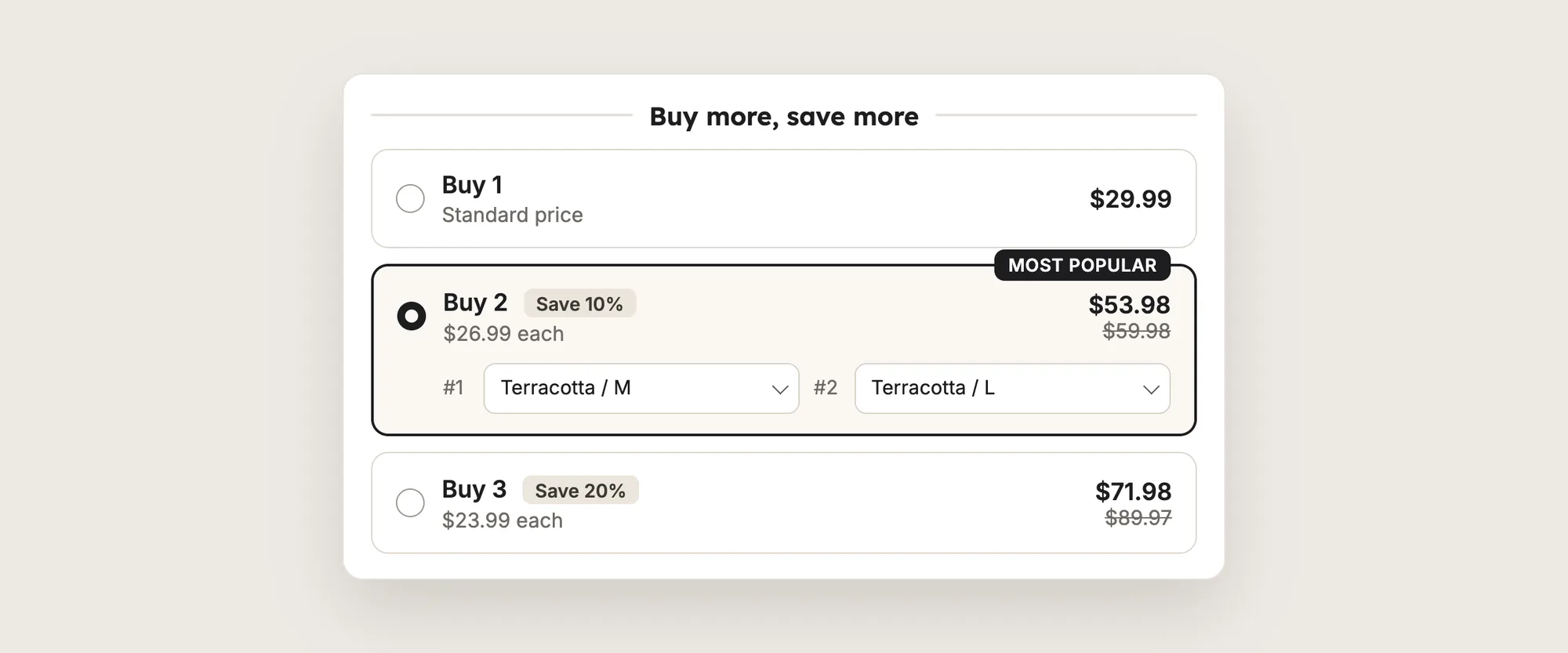
A good volume discount includes:
- Clear tiers: Shoppers see the quantity, the price and the saving of every tier before they click.
- A preselected tier: The tier you want shoppers to buy arrives selected on the page.
- A variant picker for each unit: Shoppers can pick a different size or color for every unit in the tier.
- An automatic discount: The tier price applies at checkout without a discount code.
The volume discount works on a single product or across a collection, so shoppers can mix products to reach a tier.
What's the Quickest Way to Add Volume Discount?
- Vitals - All in One App is the quickest way to add volume discount for most stores
- Vitals also offers 40+ apps, such as product bundles, product reviews and a sticky add to cart button, in one subscription of $29.99/month, so you don't have to install and pay for each app separately
Here's how the three methods compare. If you'd rather weigh several volume discount apps against each other, see our list of the best volume discount apps for Shopify.
How to Add Volume Discount With a Volume Discount App?
Install the Vitals - All in One App, open its Volume Discounts app and click Create Volume Discounts. The offer editor then opens on one page, and the steps below set which products get the volume discount, the tiers and where the tiers show.
Step 1: Install the Vitals - All in One App
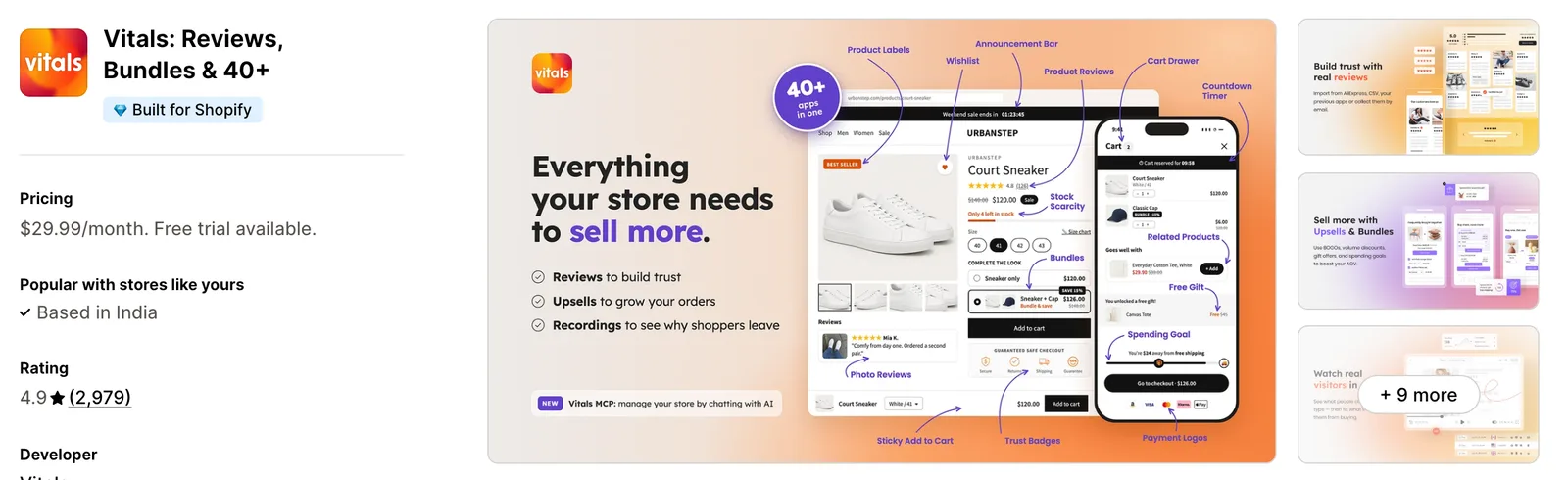
Install the Vitals - All in One App from the Shopify App Store. The 7-day free trial includes the Vitals Volume Discounts app.
Step 2: Approve the Install in Shopify
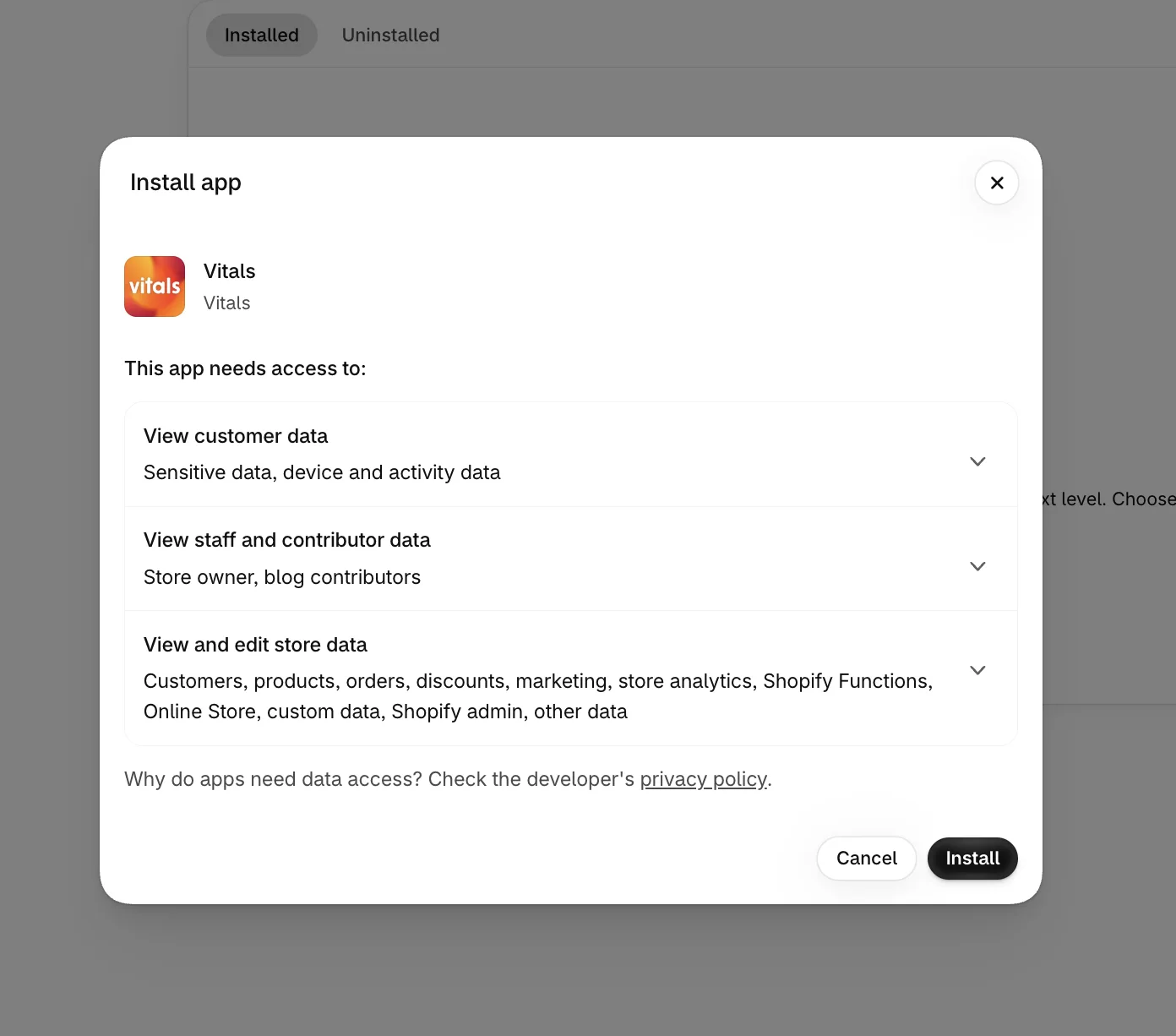
Click Install to give Vitals the store data it needs. Shopify then opens the Vitals dashboard.
Step 3: Open Volume Discounts
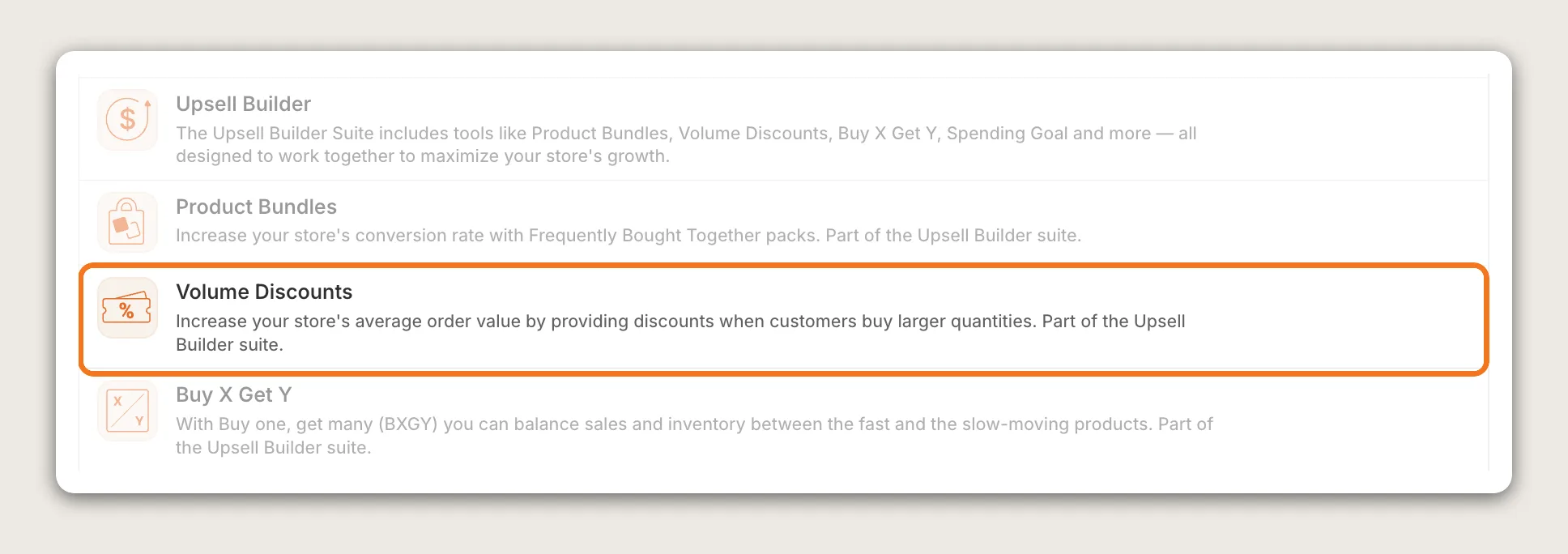
In the Vitals dashboard, find Volume Discounts in the list of apps and click it.
Step 4: Create a New Volume Discount
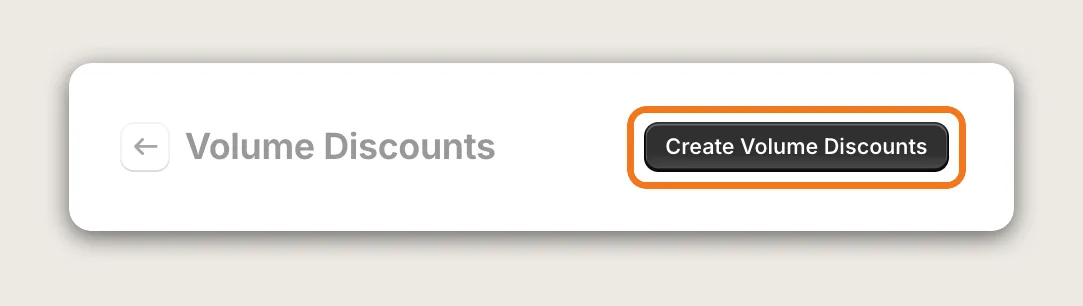
On the Volume Discounts page, click Create Volume Discounts. The offer editor opens with the settings on the left and a live preview on the right.
Step 5: Name the Offer and Choose the Products
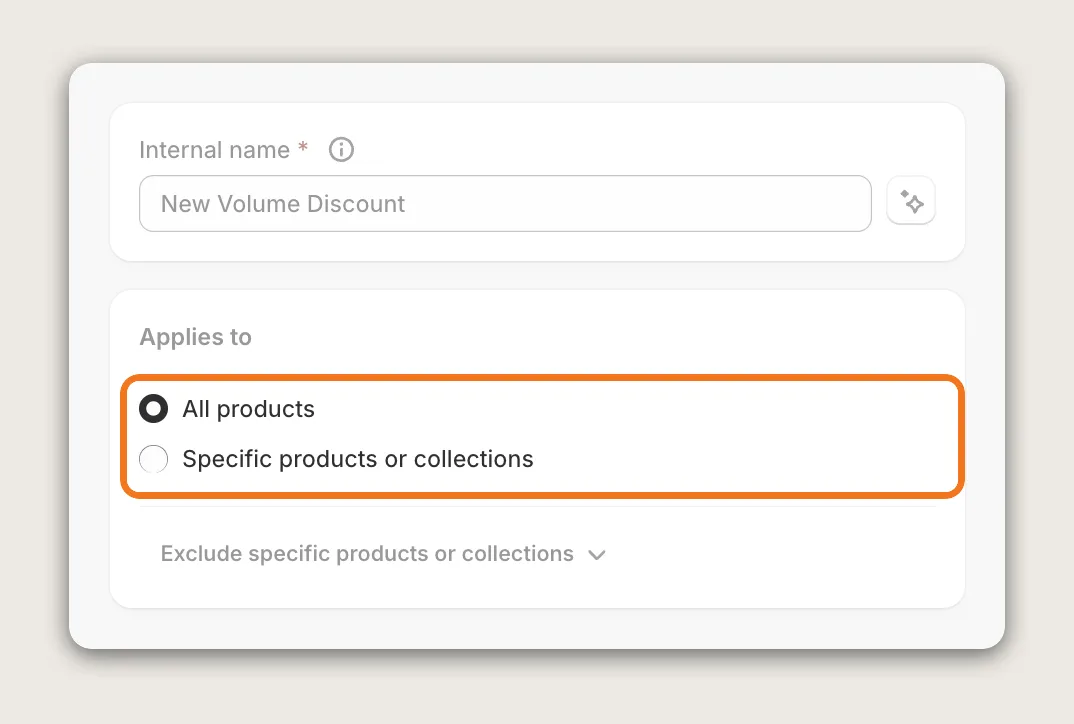
Give the offer an Internal name. Only you see the internal name.
Under Applies to, choose the products that get the volume discount:
- All products: Every product in your store gets the tiers
- Specific products or collections: Pick the products, variants or collections
Use Exclude specific products or collections to keep the volume discount off certain products. One offer holds up to 90 products, 90 variants and 90 collections, so group larger sets into a Shopify collection.
Step 6: Schedule the Offer and Choose Who Sees It (Optional)
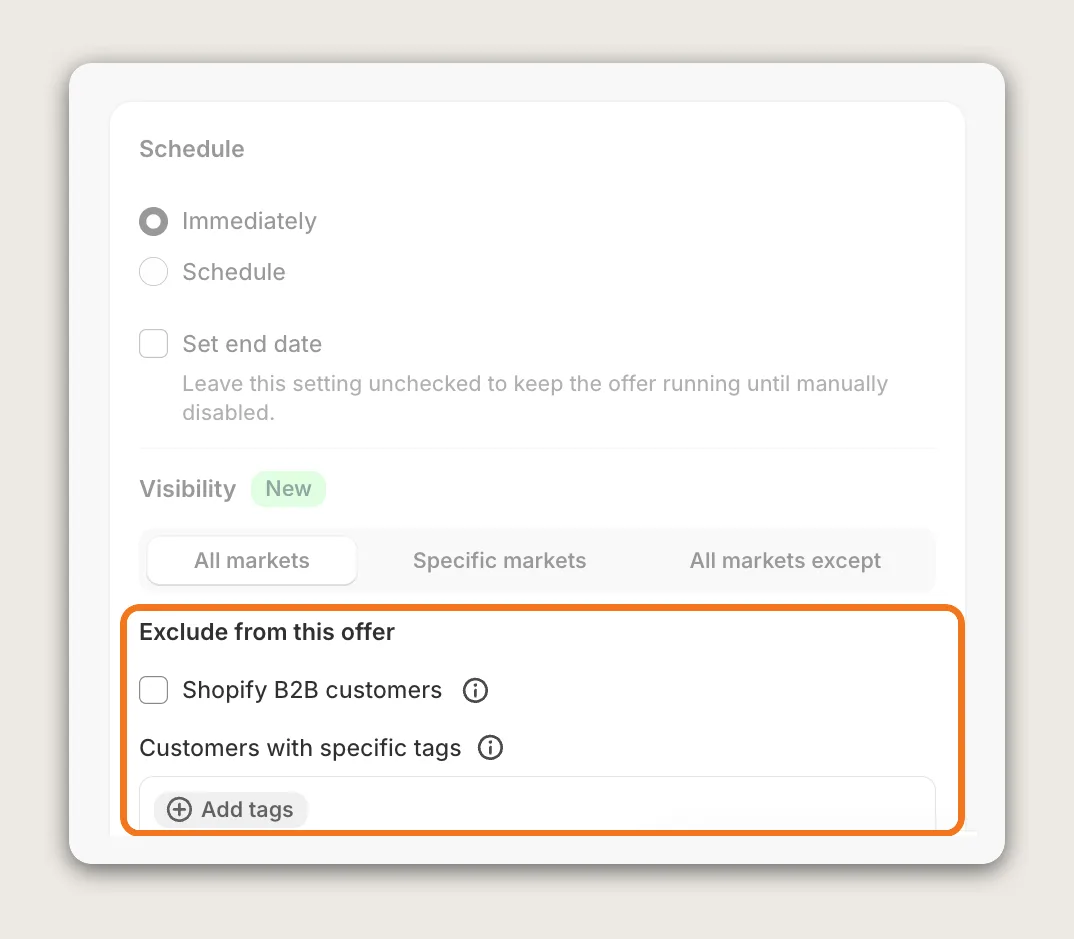
In the Schedule card, Immediately starts the volume discount once you publish it, and Schedule starts it on the date and time you set. Tick Set end date to end the offer on a set day. With no end date, the offer stays live until you turn it off.
Visibility shows the offer in All markets, Specific markets or All markets except the markets you pick. Under Exclude from this offer:
- Shopify B2B customers: Hides the volume discount from customers buying for a company through Shopify B2B
- Customers with specific tags: Click Add tags and pick the customer tags that shouldn't see the offer, such as a wholesale tag
Excluded customers don't get the volume discount at checkout either. A customer is recognized only once logged in, so guest shoppers always see the offer.
Step 7: Set the Discount Rules and Create the Tiers
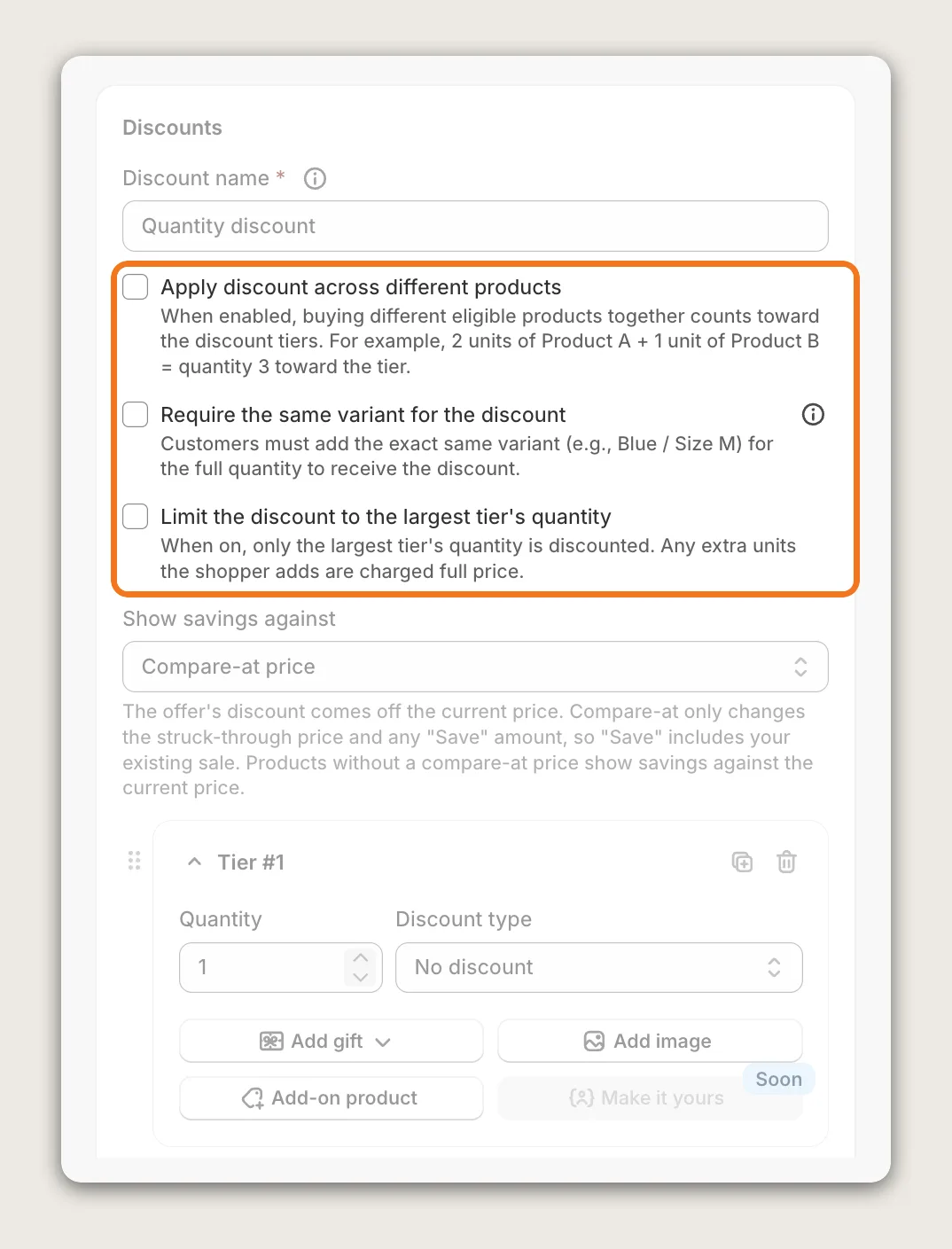
In the Discounts card, the Discount name is the label shoppers see in the cart and at checkout, such as "Quantity discount". Then decide which units count toward a tier:
- Apply discount across different products: Shoppers can mix eligible products, so two units of a tee and one pair of chinos count as three units
- Require the same variant for the discount: Only units of the same variant count, such as three tees in the same size and color
- Limit the discount to the largest tier's quantity: Units above your biggest tier are charged full price
Show savings against decides the struck-through price. With Compare-at price, the "Save" amount includes your existing sale. With Current price, the saving matches the tier discount. The discount itself always comes off the current price.
Below the rules, each tier sets a Quantity and a Discount type: No discount, Percentage off, Amount off or Fixed price. Click Add new tier for every quantity you want to offer, and drag the tiers to change their order. Under each tier, Add gift gives a free product with the tier, Add-on product offers a paid product with it, and Add image shows a picture on it.
Discount combinations at the bottom of the card sets which other discounts your Vitals offers can combine with at checkout. Keep all three types ticked unless you have a reason to stop one.
Step 8: Pick the Layout and Write the Tier Text
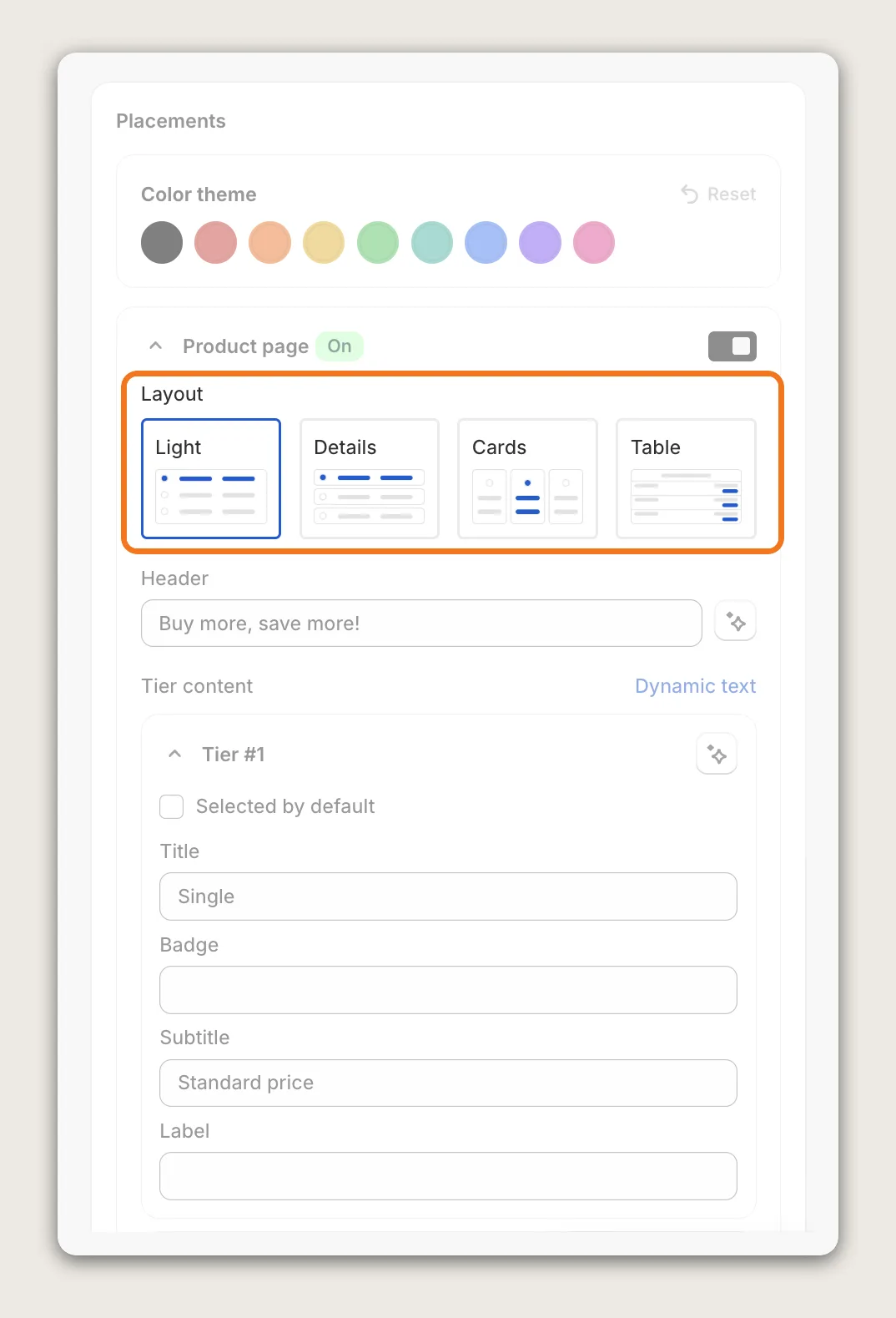
In the Placements card, the Product page placement is on by default. Pick a Layout:
- Light: One row per tier, with a variant picker under the selected tier
- Details: One row per tier, with the selected tier highlighted
- Cards: One card per tier, side by side
- Table: Every tier in a table
The Header is the title above the tiers. Under Tier content, each tier has a Title (such as "Double pack"), a Badge, a Subtitle (such as "Save {{ discount_amount }}" from Dynamic text) and a Label (such as "MOST POPULAR"). Tick Selected by default on the tier you want shoppers to buy, so it arrives selected when the page loads. Color theme sets the offer colors, and Customize appearance opens more settings, such as the position on the product page.
Step 9: Show the Tiers in More Places (Optional)
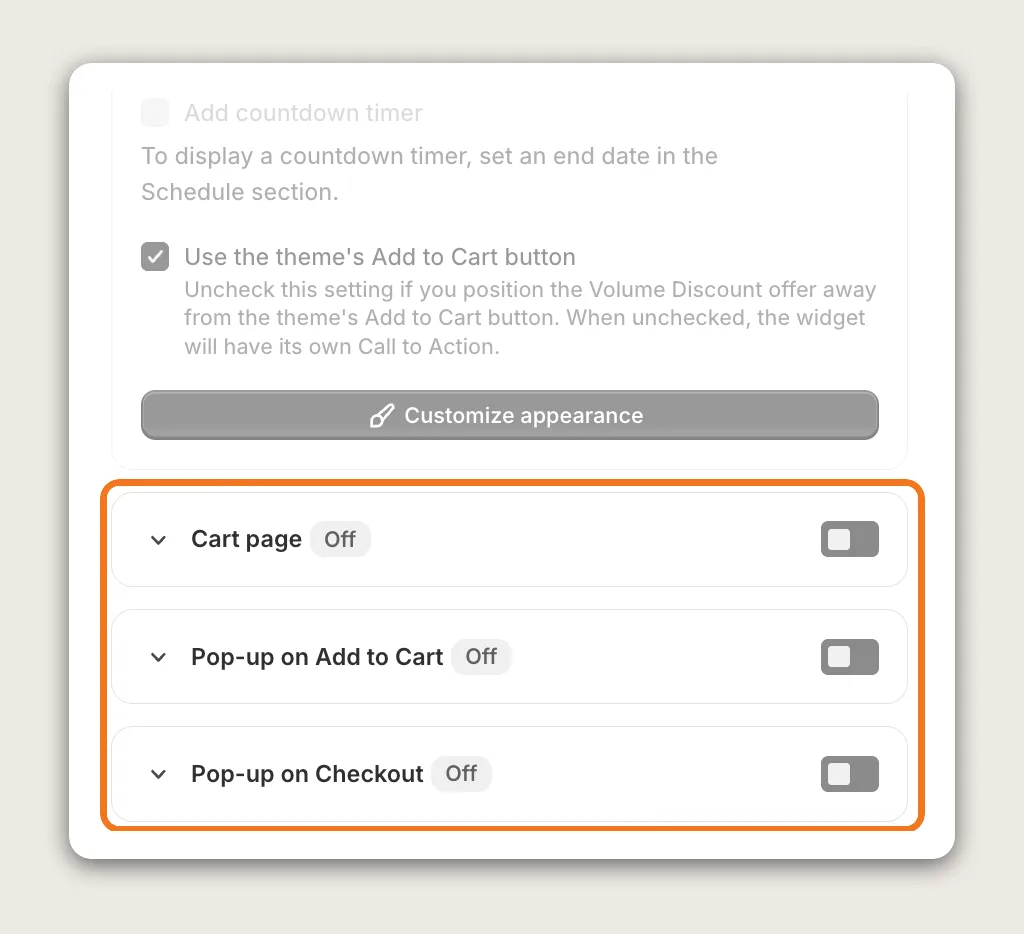
Turn on more placements in the same Placements card:
- Cart page: Shows a message under the product, such as "Add 1 more and save 15%", once the cart holds at least half of the next tier's quantity
- Pop-up on Add to Cart: Offers a bigger tier when a shopper adds the product to the cart
- Pop-up on Checkout: Offers a bigger tier when the shopper clicks the Checkout button
- Thank you page: Offers more units at a tier price after the order is placed. It isn't available while Apply discount across different products is on
Below the placements, Add to cart redirect sets where shoppers go after clicking Add to cart: Use global setting, Auto detect your theme settings (supported themes), Cart page, Checkout page or Stay on the same page.
Step 10: Publish, Test on Your Phone and Watch the Results
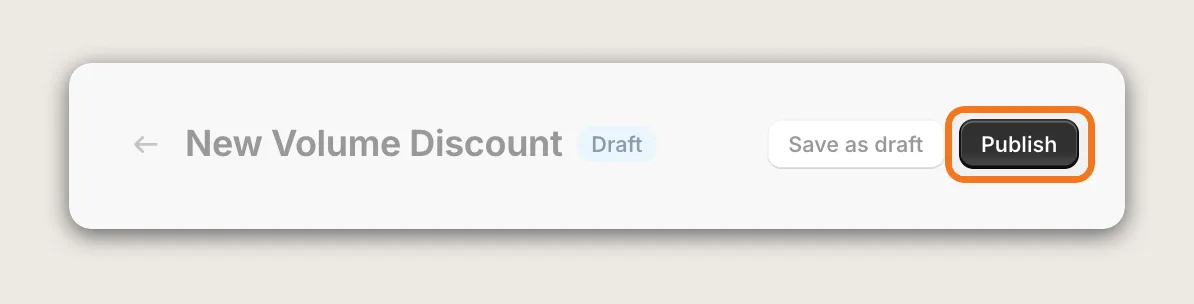
Click Publish to put the volume discount live, or Save as draft to keep it hidden while you work on it. Nothing goes live until you publish.
Open a product page on your phone and on desktop. Check that every tier shows the right price, that the selected tier adds the right quantity to the cart, and that the discount shows at checkout. Once the offer is live, Analytics in the More actions menu shows how the volume discount performs.
Step 11: Voila, Your Volume Discount Is Live on the Store
Your shoppers now see volume discount tiers on your product pages, so they can pick a bigger quantity and pay less per unit.
How to Add Volume Discount From Your Theme Settings?
Most Shopify themes don't include volume discount tiers on the product page. Shopify's own automatic discounts can take money off once the cart holds a minimum quantity of items. To check your theme's settings:
- In the Shopify admin, go to Online Store → Themes and click Customize
- Use the page menu at the top to open a product page
- Click the Product information section and look for a quantity breaks or tiered pricing block
A Shopify automatic discount applies at checkout, but each discount holds a single minimum quantity, and shoppers don't see the tiers or the saving on the product page. If a single checkout discount is all you need, you may not need an app at all.
How to Add Volume Discount Without an App?
Hire a developer to build volume discount tiers into your theme with Liquid, CSS and JavaScript, plus a Shopify discount for each tier price.
A custom volume discount usually involves:
- Duplicating your theme, so the live store keeps working while the code is tested
- Adding the tier picker's markup to the product page template
- Writing a script that adds the selected quantity to the cart and keeps the variant pickers in sync
- Setting up a Shopify discount function or one automatic discount per tier, so the tier price applies at checkout
- Testing every product, variant and quantity, then publishing the theme copy
Custom code means no extra app, but you or your developer have to maintain it. A theme update can replace the files that hold the code, so the tiers may need rebuilding after each update. Cart messages, pop-ups, gifts and volume discount analytics all have to be built by hand too.
How to Increase AOV With a Volume Discount?
A volume discount increases average order value (AOV) by turning single-unit orders into orders of two or three units. A volume discount app gets more of those extra units into the cart with these settings:
- Put the tiers on your best sellers. Set Applies to to the products shoppers already buy most, so the tiers show on the pages with the most orders
- Preselect the tier you want shoppers to buy. Tick Selected by default on the two-unit tier, so shoppers start from a bigger quantity
- Make the saving easy to read. Use the Label field to show "MOST POPULAR" on the tier you want to sell, and Dynamic text to show the saving
- Let shoppers mix products. Turn on Apply discount across different products for a collection, so shoppers can reach a tier with different products
- Add a gift to the top tier. Use Add gift on the biggest tier, so the jump to that quantity feels worth it
- Remind shoppers in the cart. Turn on Cart page to show how many more units reach the next tier
- Offer a bigger tier after Add to Cart. Turn on Pop-up on Add to Cart, so shoppers who added a single unit see the next tier
Why Isn't My Volume Discount Showing or Working?
Most volume discount problems have one of these causes:
- The tiers don't show at all: Check that the offer is published, not saved as a draft, and that the product is in Applies to and not in the excluded products
- The saving on a tier is bigger than the tier discount: Show savings against is set to Compare-at price, so the saving includes the product's own sale. Set it to Current price and click Publish to show the tier discount only. Shoppers are charged the same discount either way
- Different products don't count toward a tier: Turn on Apply discount across different products. Check that Require the same variant for the discount is off, since it counts only units of the same variant
- Shoppers get fewer free gifts above the top tier: A gift tier repeats only in full blocks of its quantity. Click Add new tier for the bigger quantities and set each tier's Gift quantity
- The variant dropdown doesn't show: Only the Light and Details layouts have a variant dropdown. Cards and Table don't
- The Thank you page placement can't be turned on: Turn off Apply discount across different products, since the Thank you page placement doesn't work with it
- You can't publish more offers: Vitals allows up to 100 active discount offers. Turn off or delete offers you no longer use
Which Volume Discount Method Should You Choose?
Vitals - All in One App suits most stores, but the right method depends on your theme and the discount you want to offer.
- Choose Vitals - All in One App if you want volume discount tiers on the product page, with mix-and-match rules, gifts per tier and cart placements. It also includes 40+ other apps in one subscription of $29.99/month, so you don't have to install and pay for each app separately
- Choose your theme's setting if a single quantity discount at checkout is enough and shoppers don't need to see the tiers
- Choose custom code if you have a developer, want no volume discount app, and can recheck the code after theme updates
If you already use another discount app, see our Kaching Bundles alternatives, Discount Ninja alternatives and Discounty alternatives.
Start a 7-day free trial: Install the Vitals - All in One App and add volume discount
Frequently Asked Questions
1. What is the best way to add volume discount on Shopify?
Vitals - All in One App is the best way for most stores. It adds volume discount tiers without code, with four discount types, mix-and-match rules, gifts per tier and placements on the product page, cart page and pop-ups.
2. Does Shopify have a built-in volume discount?
Shopify's automatic discounts can take money off a minimum quantity of items, but Shopify themes don't show volume discount tiers on the product page by default. You'll need a volume discount app or custom code to show the tiers to shoppers.
3. Do shoppers need a discount code for a volume discount?
No. The Vitals volume discount applies automatically at checkout once the cart holds enough units, under the Discount name you set.
4. Can shoppers mix different products to reach a tier?
Yes. Turn on Apply discount across different products and choose the products or collections that count. Shoppers can then combine those products to reach a tier.
5. How many tiers can a volume discount have?
Click Add new tier for every quantity you want to offer. Each tier quantity is a whole number from 1 to 999, and every tier can use a different discount type.
6. Can I stop wholesale customers from getting the volume discount?
Yes. In the Schedule card, under Exclude from this offer, tick Shopify B2B customers. For wholesale customers from another app, add their customer tag under Customers with specific tags.
7. Can I offer a volume discount for a limited time?
Yes. In the Schedule card, choose Schedule to set a start date, then tick Set end date to end the offer on a set day. With an end date set, you can tick Add countdown timer to show a countdown inside the offer.