How to Add Free Gift With Purchase on Shopify

Many shoppers stop at one product, even when one more item would take their order past a round number. A discount code can nudge them, but codes get forgotten, shared and stacked.
A free gift with purchase gives shoppers a clear goal instead. They see the free product they can earn, how much more they need to spend, and the gift goes into the cart free once they reach your amount.
Here are the three ways to add free gift with purchase to a Shopify store: with a Free Gift app, from your theme settings, or with custom code.
What Is Free Gift With Purchase?
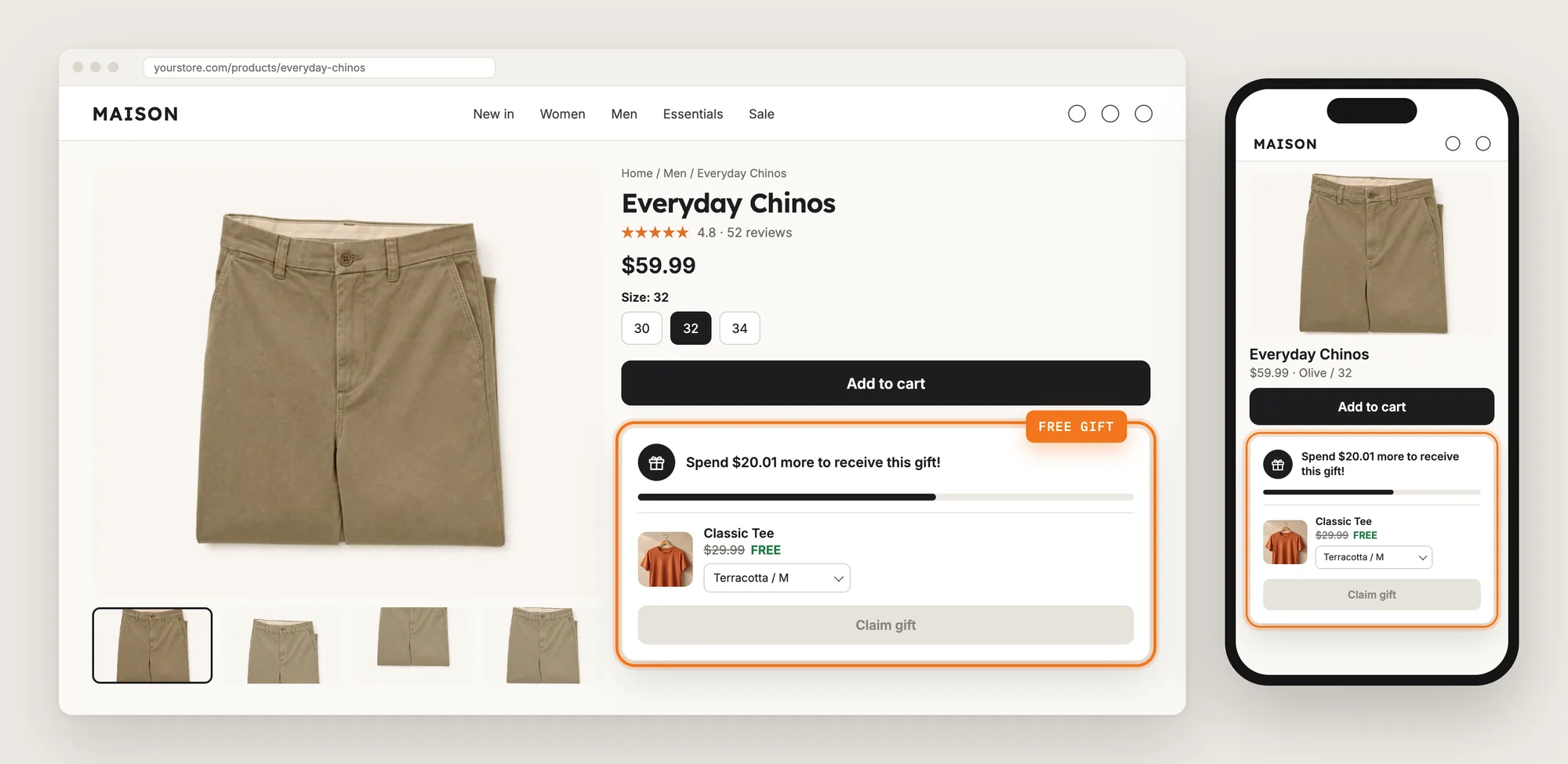
Free gift with purchase is an offer that adds a free product to the order once the cart reaches a spending goal, such as a free tee on orders over $50. On a Shopify store, it usually shows as a gift widget with a progress bar, the gift product and a button to claim it. It's also called a gift with purchase (GWP) or a free gift offer.
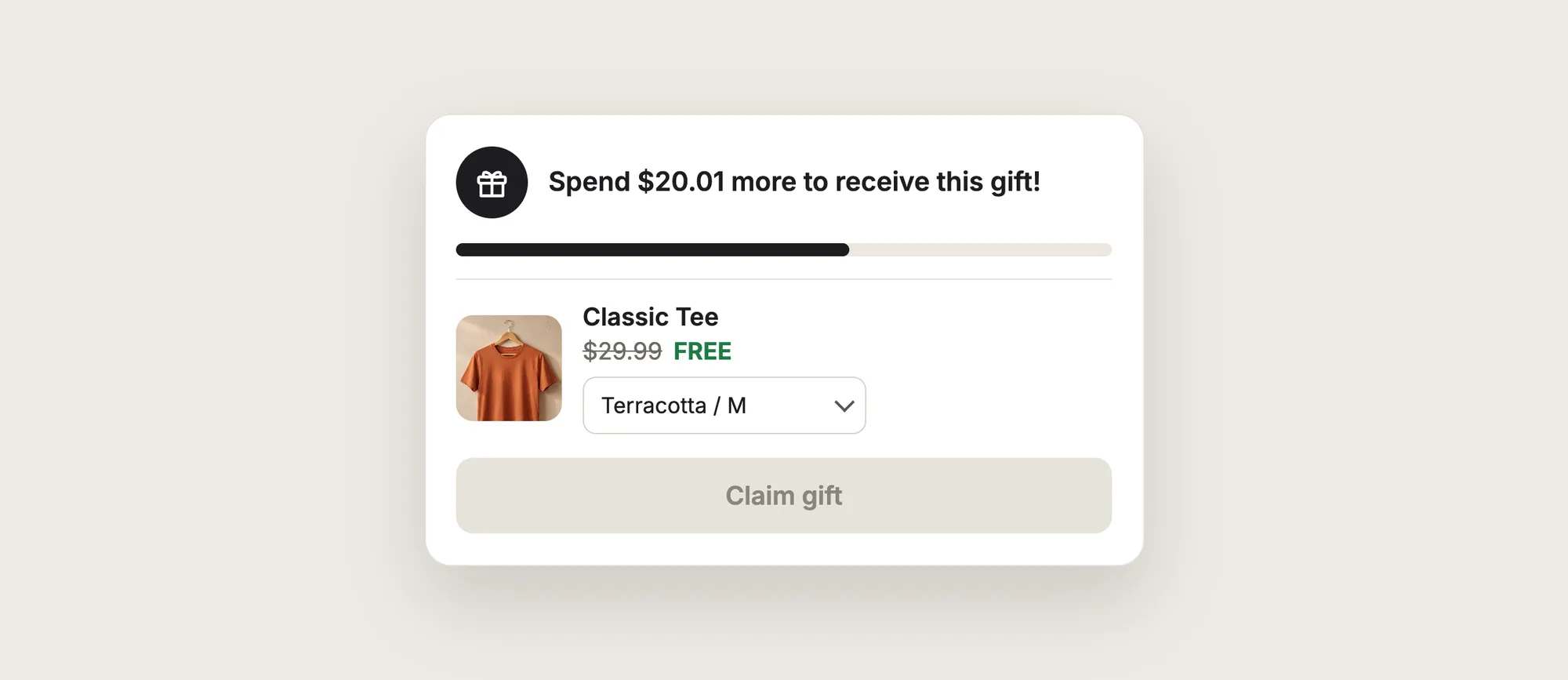
A good free gift with purchase includes:
- A clear spending goal: Shoppers see the amount they need to reach for the gift.
- Live progress: The amount left updates every time the shopper adds a product to the cart.
- A gift with real value: The gift is a product shoppers would pay for, shown with its normal price struck through.
- No code to enter: The gift is free in the cart and at checkout without a discount code.
A free gift with purchase is a real product from your catalog, so the gift goes through your stock and fulfilment like any other order line.
What's the Quickest Way to Add Free Gift With Purchase?
- Vitals - All in One App is the quickest way to add free gift with purchase for most stores
- Vitals also offers 40+ apps, such as a cart drawer, product reviews and announcement bars, in one subscription of $29.99/month, so you don't have to install and pay for each app separately
Here's how the three methods compare. If you'd rather weigh several gift apps against each other, see our list of the best free gift apps for Shopify.
How to Add Free Gift With Purchase With a Free Gift App?
Install the Vitals - All in One App, open its Free Gifts app and click Create Gift. The gift offer editor opens on one page, and the steps below set what counts toward the goal, the gift, where the gift shows and its text.
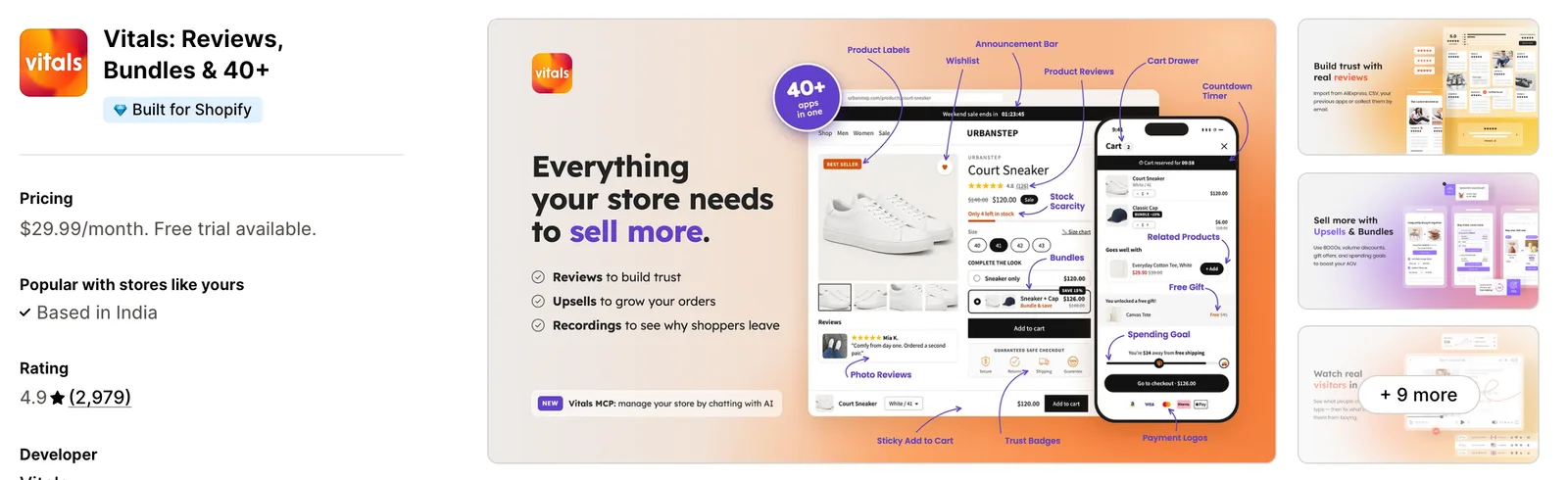
Step 1: Install the Vitals - All in One App
Install the Vitals - All in One App from the Shopify App Store. The 7-day free trial includes the Vitals Free Gifts app.
Step 2: Approve the Install in Shopify
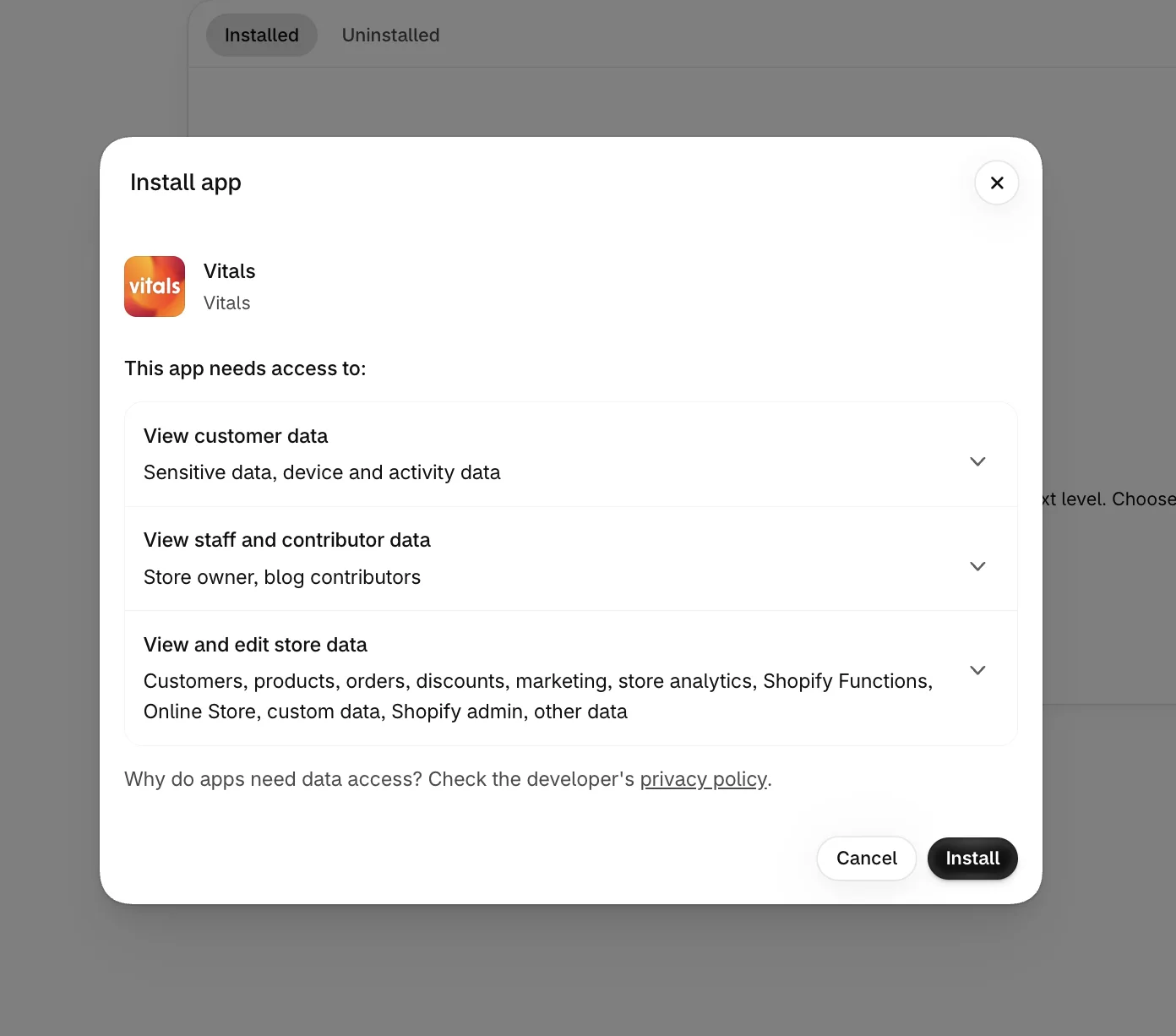
Click Install to approve the store data Vitals uses. Shopify then opens the Vitals dashboard.
Step 3: Open Gift
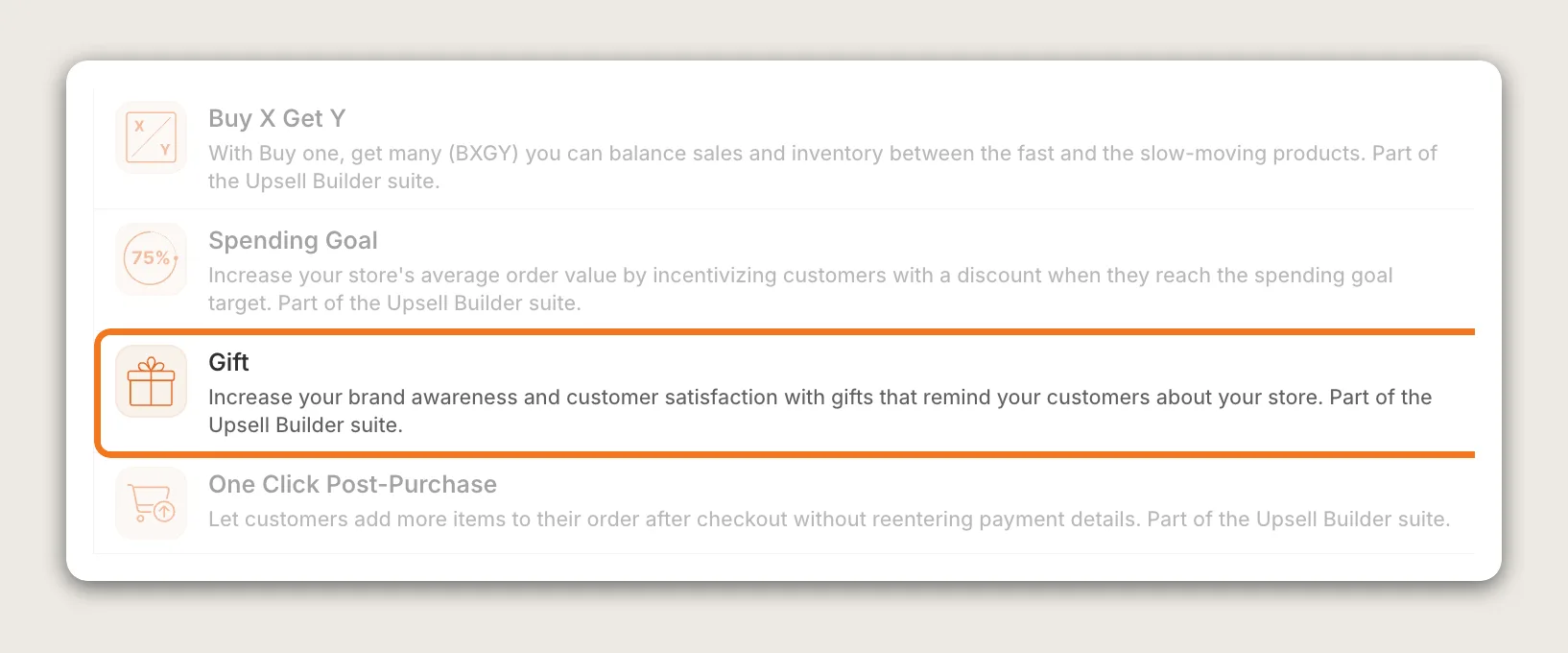
In the Vitals dashboard, find Gift in the list of apps and click it.
Step 4: Create a New Gift Offer
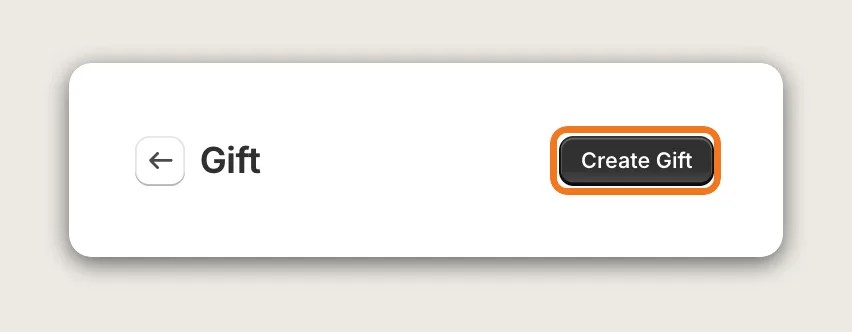
On the Gift page, click Create Gift. The New Gift editor opens with the settings on the left and a Preview on the right, where you can switch between the Product page and Floating offer views.
Step 5: Name the Offer, Choose What Counts and When It Starts
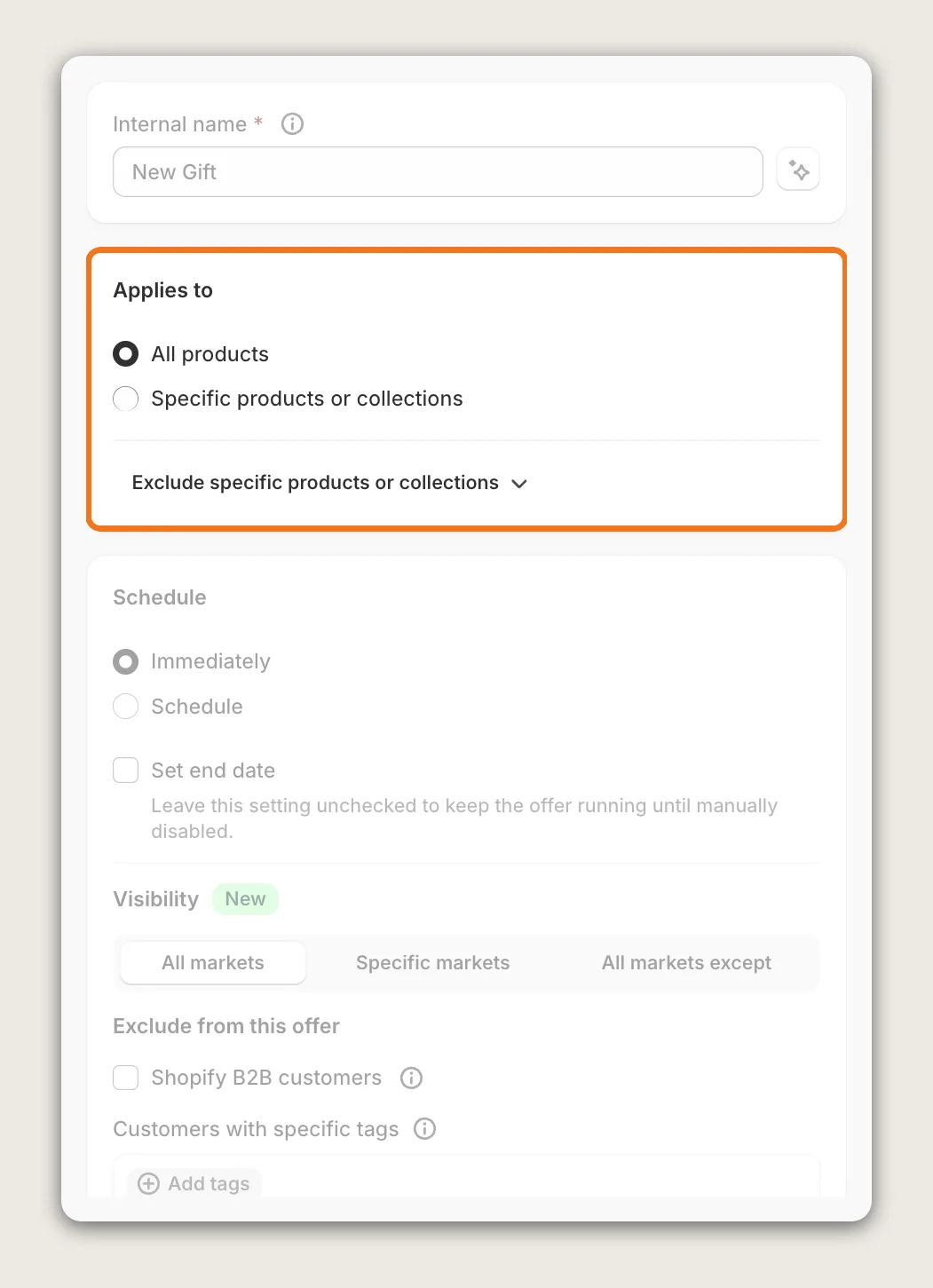
Give the offer an Internal name. Only you see the internal name. Then, in the Applies to card, choose which products count toward the spending goal:
- All products: The whole cart counts toward the gift
- Specific products or collections: Only the products or collections you pick count, up to 90 of each
Use Exclude specific products or collections to keep products out of the count. The free gift itself never counts toward the goal.
In the Schedule card, Immediately starts the offer once you publish it, and Schedule starts it on the date and time you set. Tick Set end date to end the offer on a set day, such as the last day of a holiday sale. In the same card, Visibility shows the gift in All markets, Specific markets or All markets except the ones you pick. Under Exclude from this offer, tick Shopify B2B customers or add Customers with specific tags to hide the gift from those logged-in customers.
Step 6: Set the Gift, the Spending Goal and Auto-Add
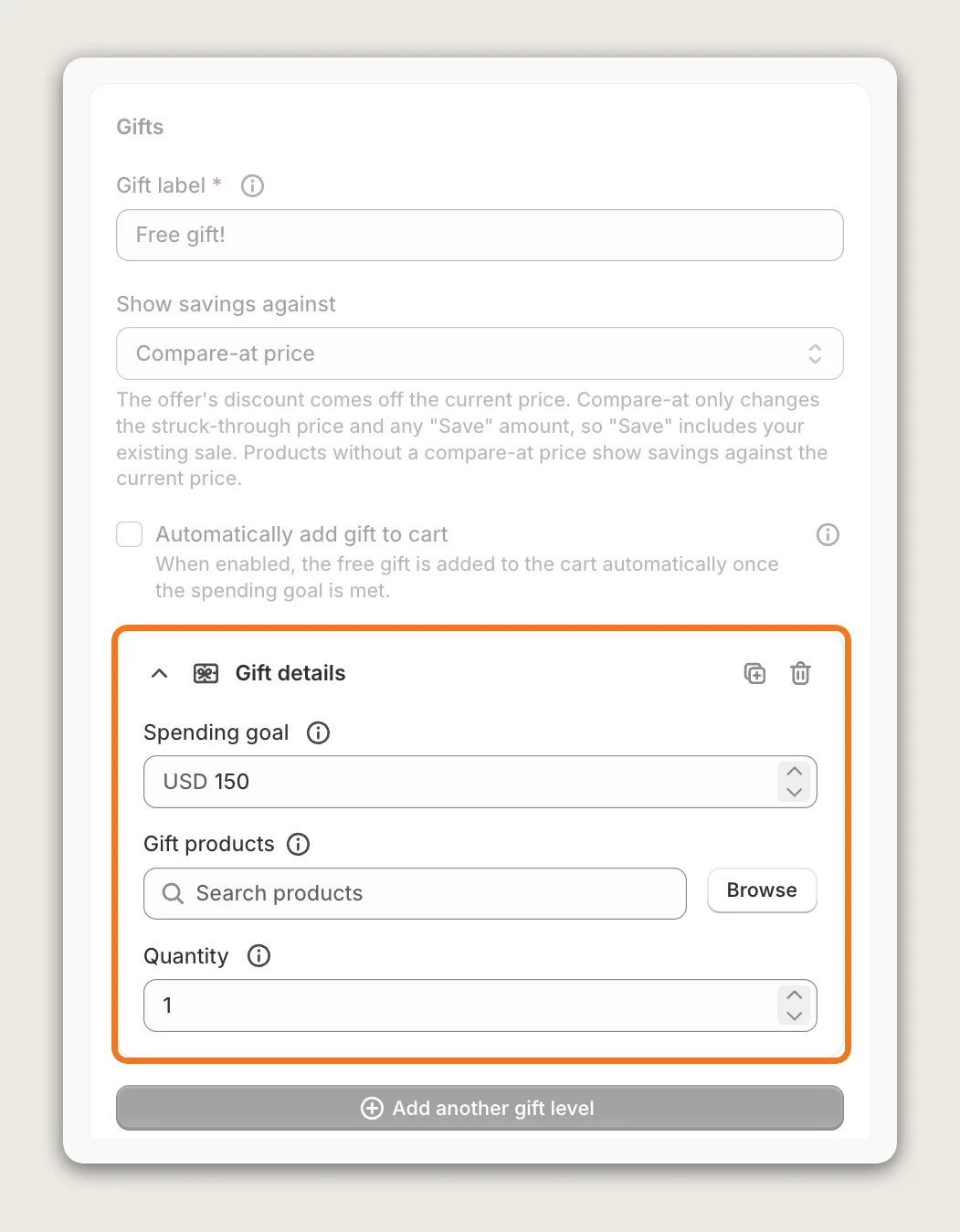
In the Gifts card, the Gift label is the name shoppers see next to the gift in the cart and at checkout, "Free gift!" by default. Show savings against sets which price shows struck through next to the gift, the current price or the Compare-at price. The gift is free either way.
Tick Automatically add gift to cart to put the gift in the cart once the shopper reaches the goal. The box is unticked by default, so shoppers claim the gift from the gift widget instead.
Under Gift details, set the Spending goal, the cart value shoppers need to reach for the gift, such as 150. Click Browse under Gift products to pick the gift, then set the Quantity of free units. Keep the gift product at its normal price in Shopify, since a product priced at $0 can be added to the cart without meeting the goal. Add more than one gift product to let shoppers pick their gift from a dropdown.
Click Add another gift level to reward bigger orders with a better gift, up to 10 levels. With two or more levels, choose Best gift only to give the highest gift reached, or One gift from each level to give a gift for every level.
Step 7: Choose Where the Gift Shows
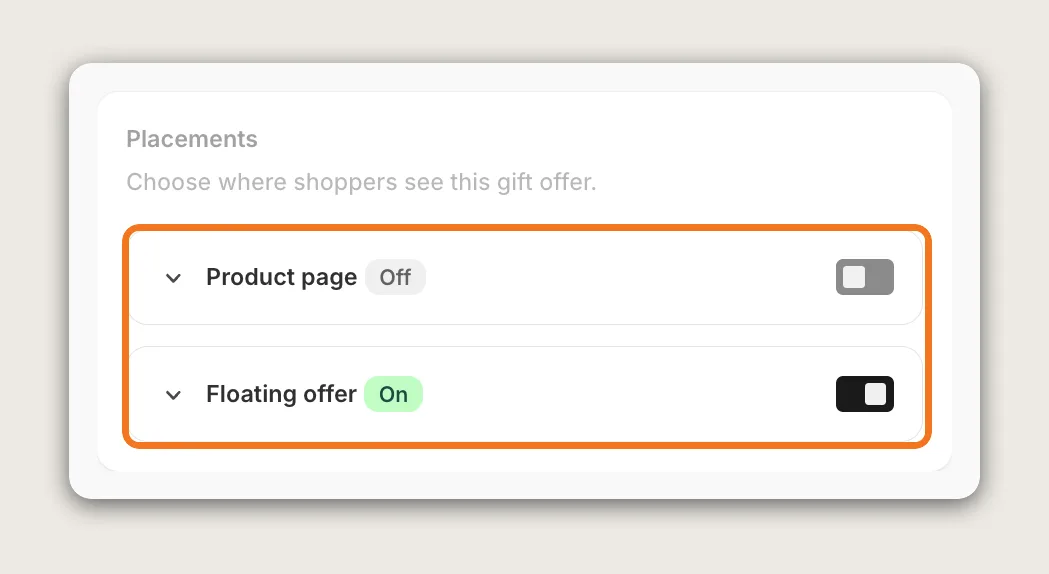
In the Placements card, turn on Product page, Floating offer or both. A new gift offer starts with Floating offer on and Product page off:
- Product page: Shows the gift offer on the product page, below the buy buttons by default
- Floating offer: Shows the gift widget floating at the side of the screen as shoppers browse
Click Customize appearance in a placement to set where and how the gift shows. For the Floating offer, pick Left or Right and the Distance from top, the devices under Show on (Any device, Mobile or Desktop or tablet), and the pages: All pages, All pages except or Specific pages. The same editor sets the icon, Accent color and text size, and Show dismiss button lets shoppers hide the widget until they reach the goal.
Step 8: Write the Gift Text for Each Stage
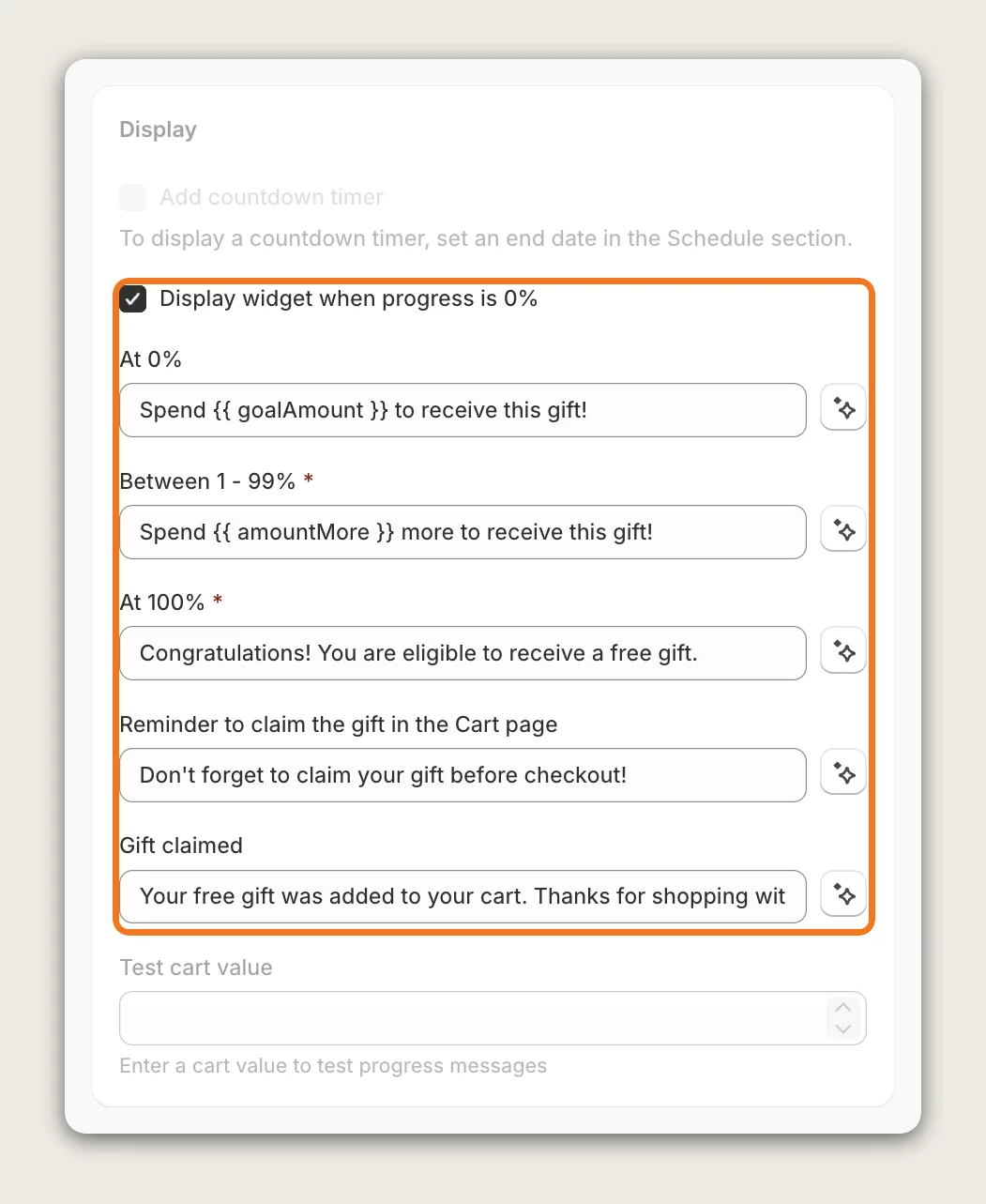
In the Display card, keep Display widget when progress is 0% ticked to show the gift before anything is in the cart. Then edit the text for each stage:
- At 0%: "Spend {{ goalAmount }} to receive this gift!" by default
- Between 1 - 99%: "Spend {{ amountMore }} more to receive this gift!" by default
- At 100%: "Congratulations! You are eligible to receive a free gift." by default
- Reminder to claim the gift in the Cart page: For shoppers who reached the goal but haven't claimed the gift
- Gift claimed: After the gift is in the cart
Type a number in Test cart value to see each message in the preview. If you set an end date in Step 5, tick Add countdown timer to show a countdown in the gift widget until the offer ends.
Step 9: Publish, Test on Your Phone and Watch the Results
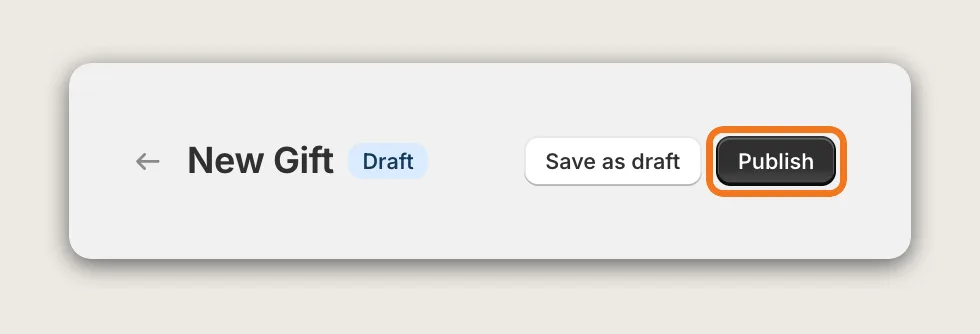
Click Publish to put the gift offer live, or Save as draft to keep it hidden. The offer can't be saved until the Internal name and Gift label are filled in.
Open your store on your phone and on desktop. Add products until the cart passes the spending goal, then check that the gift goes into the cart at $0.00. Once the offer is live, Analytics in the More actions menu shows how the gift performs.
Step 10: Voila, Your Free Gift With Purchase Is Live on the Store
Your shoppers now see how close they are to a free gift as they shop, and the gift goes into the cart free once they reach your amount.
How to Add Free Gift With Purchase From Your Theme Settings?
Most Shopify themes don't include a free gift with purchase setting. The closest built-in option is a Shopify Buy X get Y discount, set up in the Shopify admin rather than in the theme. To check your options:
- In the Shopify admin, go to Online Store → Themes, click Customize and look in Theme settings for a gift or cart offer setting
- If there's none, go to Discounts, click Create discount and choose Buy X get Y
- Set a minimum purchase amount, pick the gift product and set it to free, then save the discount
A Shopify Buy X get Y discount makes the gift free at checkout, but it doesn't add the gift to the cart or show shoppers a progress bar. Shoppers have to know about the offer and add the gift product themselves. If a quiet discount is all you need, the built-in option may be enough.
How to Add Free Gift With Purchase Without an App?
Hire a developer to build free gift with purchase into your theme with Liquid, CSS and JavaScript, plus a Shopify discount that makes the gift free.
A custom free gift with purchase usually involves:
- Duplicating your theme, so the live store keeps working while the code is tested
- Building a gift widget that shows the spending goal and the amount left
- Writing a script that adds the gift to the cart at the goal and removes it when the cart drops below
- Setting up a Shopify automatic discount so the gift is free at checkout
- Testing every page and cart change, then publishing the theme copy
Custom code means no extra app, but you or your developer have to maintain it. A theme update can replace the files that hold the code, so the gift widget may need rebuilding after each update. Gift levels, a choice of gifts and scheduling all have to be built by hand too.
How to Increase AOV With Free Gift With Purchase?
Free gift with purchase increases average order value (AOV) by giving shoppers a reason to add one more product to reach the spending goal. These settings help:
- Set the spending goal just above your usual order. Shoppers who are close to the goal add one more item to reach it. Set the Spending goal a little above what most orders already reach
- Pick a gift shoppers want. A gift with a visible price feels like a reward. Keep the gift at its normal price and set Show savings against to Compare-at price to show the full value struck through
- Reward bigger orders with better gifts. A second level gives shoppers a reason to keep adding. Click Add another gift level and put a better gift on the higher goal
- Show the progress from the first visit. Shoppers aim for a goal they can see. Keep Display widget when progress is 0% ticked so the gift shows before the first add to cart
- Show the gift on the product page. Shoppers see the gift while they decide what to buy. Turn on the Product page placement
- Add a deadline. A countdown gives shoppers a reason to reach the goal today. Set an end date in Schedule and tick Add countdown timer
- Count only the products you want to sell more of. Use Specific products or collections in Applies to, so only those products move shoppers toward the gift
Why Isn't My Free Gift With Purchase Showing or Working?
Most free gift with purchase problems have one of these causes:
- The gift widget doesn't show at all: Check that the offer is published, not saved as a draft, and that at least one placement in Placements is on
- The widget only shows once something is in the cart: Display widget when progress is 0% is off. Tick it in the Display card
- The gift doesn't show on some pages: Check the pages in the placement's Customize appearance editor. With Specific pages, the widget shows only on the pages you pick
- The gift isn't added when the cart reaches the goal: Automatically add gift to cart only works on pages the gift offer shows on. Set the pages to All pages, or add Cart, Collections and Homepage to Specific pages
- Shoppers never see the gift with a cart drawer: A gift shown only on the cart page never appears when the cart opens as a drawer. Show the gift on product pages and the homepage, or use the Vitals Cart Drawer app
- A removed gift doesn't come back: When a shopper removes an auto-added gift, auto-add stops for that offer for the rest of the browser session. Test in a new private window to see the gift added again
- Shoppers get the gift without reaching the goal: The gift product is priced at $0 in Shopify. Set the gift product back to its normal price
- You can't publish more offers: Vitals allows up to 100 active discount offers. Turn off or delete offers you no longer use
Which Free Gift With Purchase Method Should You Choose?
Vitals - All in One App suits most stores, but the right method depends on how you want shoppers to find and claim the gift.
- Choose Vitals - All in One App if you want free gift with purchase with a progress widget, auto-add, gift levels and scheduling. It also includes 40+ other apps in one subscription of $29.99/month, so you don't have to install and pay for each app separately
- Choose your theme's setting if a Shopify Buy X get Y discount is enough and shoppers can add the gift themselves
- Choose custom code if you have a developer, want no gift app, and can recheck the code after theme updates
Start a 7-day free trial: Install the Vitals - All in One App and add free gift with purchase
Frequently Asked Questions
1. What is the best way to add free gift with purchase on Shopify?
Vitals - All in One App is the best way for most stores. Its Free Gifts app adds free gift with purchase without code, with a spending goal, a progress widget, auto-add to cart and up to 10 gift levels.
2. Does Shopify have built-in free gift with purchase?
Not as a gift widget. Shopify's Buy X get Y discount can make a product free above a minimum purchase amount, but it doesn't add the gift to the cart or show shoppers how close they are. You'll need a gift app or custom code for that.
3. Do I set the gift product's price to $0?
No. Keep the gift at its normal price in Shopify. Vitals makes the gift free with an automatic discount at checkout, so shoppers never enter a code, and the gift can't be added to the cart for free without meeting the goal.
4. Can I give a free gift with every order?
Yes. Set Applies to to All products, set the lowest Spending goal, such as 0.01, and tick Automatically add gift to cart. Every order then gets the gift.
5. Can shoppers choose their free gift?
Yes. Add several products under Gift products in the same level, and shoppers pick one from a dropdown, along with its size or color. Leave auto-add off when you want shoppers to choose.
6. Can I offer different gifts at different spending levels?
Yes. Add up to 10 gift levels, each with its own spending goal and gift. Choose Best gift only to give the highest gift reached, or One gift from each level to give a gift for every level.
7. Can I offer free gift with purchase for a limited time?
Yes. In the Schedule card, choose Schedule to set a start date, then tick Set end date to end the offer on a set day. With an end date set, tick Add countdown timer to show a countdown in the gift widget.