
How to Add Facebook Pixel to Shopify

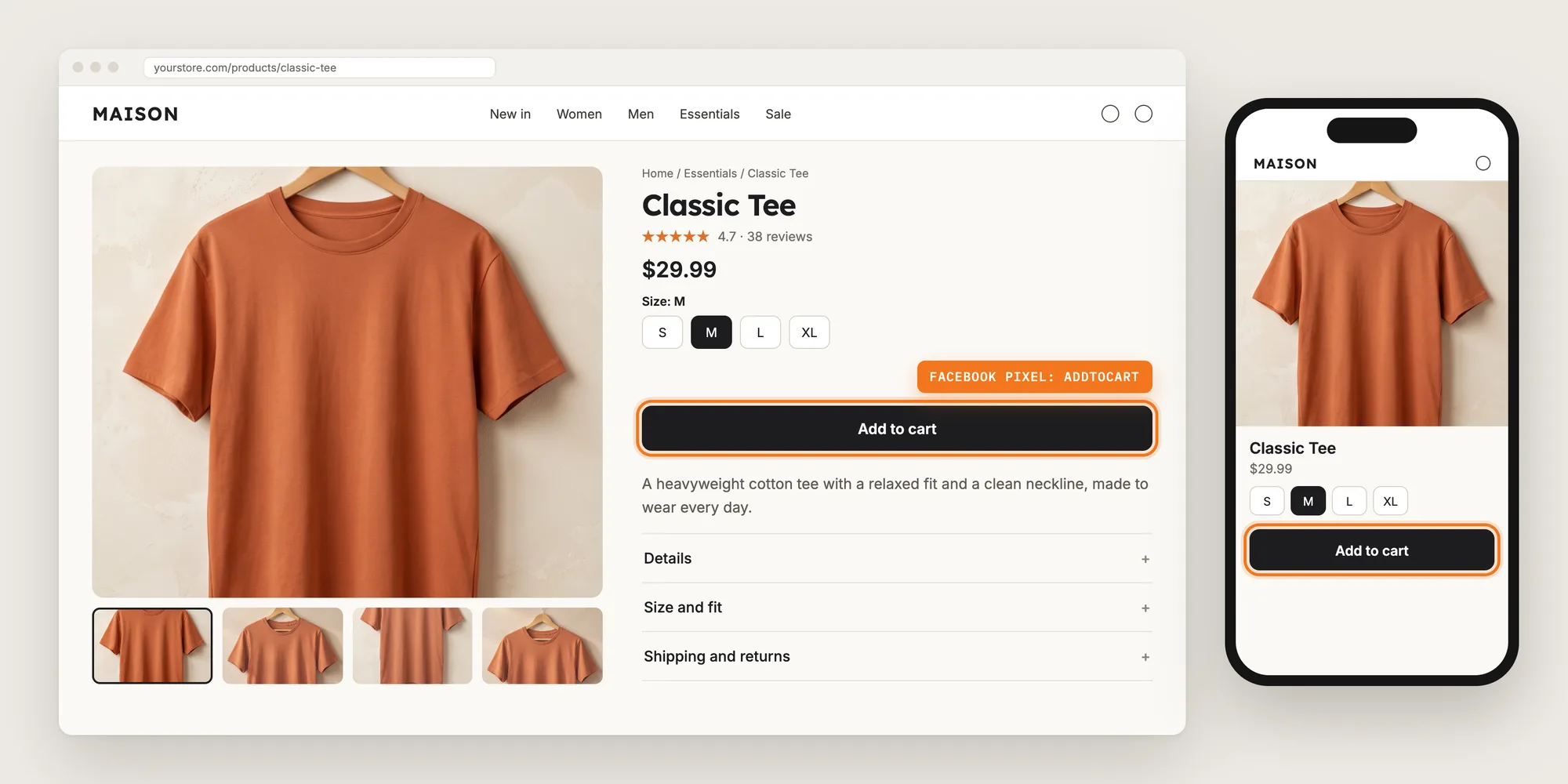
Facebook and Instagram ads only get smarter when Meta can see what shoppers do on your store. Without a Facebook Pixel, Meta doesn't know who viewed a product, who added it to the cart or who started checkout, so retargeting and lookalike audiences have nothing to learn from.
A Facebook Pixel sends those actions from your store to Meta. You then build audiences from real shopper behavior and show ads to the people most likely to buy.
Here are the three ways to add Facebook Pixel to a Shopify store: with a Facebook Pixel app, from your Shopify settings, or with custom code.
What Is a Facebook Pixel?
A Facebook Pixel is a code snippet on your store that sends shopper actions, called events, to your Meta account. Meta uses these events to track conversions from your ads, optimize ad delivery and build audiences for retargeting. It's also called a Meta Pixel.
A good Facebook Pixel setup includes:
- The right pixel ID: The ID comes from Meta Events Manager and matches the pixel your ads use.
- The storefront events: Page views, product views, add to carts and checkout clicks reach Meta.
- Purchase tracking: Completed orders reach Meta, so your ads can optimize for sales.
- Pixels for parts of the store: A collection or a product line can have its own Facebook Pixel and its own audience.
A Facebook Pixel doesn't create the pixel itself. You create each pixel in your Meta account and then add its ID to your store.
What's the Quickest Way to Add Facebook Pixel?
- Vitals - All in One App is the quickest way to add Facebook Pixel for most stores
- Vitals also offers 40+ apps, such as pop-ups, recently viewed products and an upsell builder, in one subscription of $29.99/month, so you don't have to install and pay for each app separately
Here's how the three methods compare.
How to Add Facebook Pixel With a Facebook Pixel App?
Install the Vitals - All in One App, open its Facebook Pixels app and click Set up Facebook Pixel. Then paste your pixel ID and choose where the Facebook Pixel fires. The steps below also show how to add more pixels and how the app works next to Shopify's Facebook & Instagram channel.
Step 1: Install the Vitals - All in One App
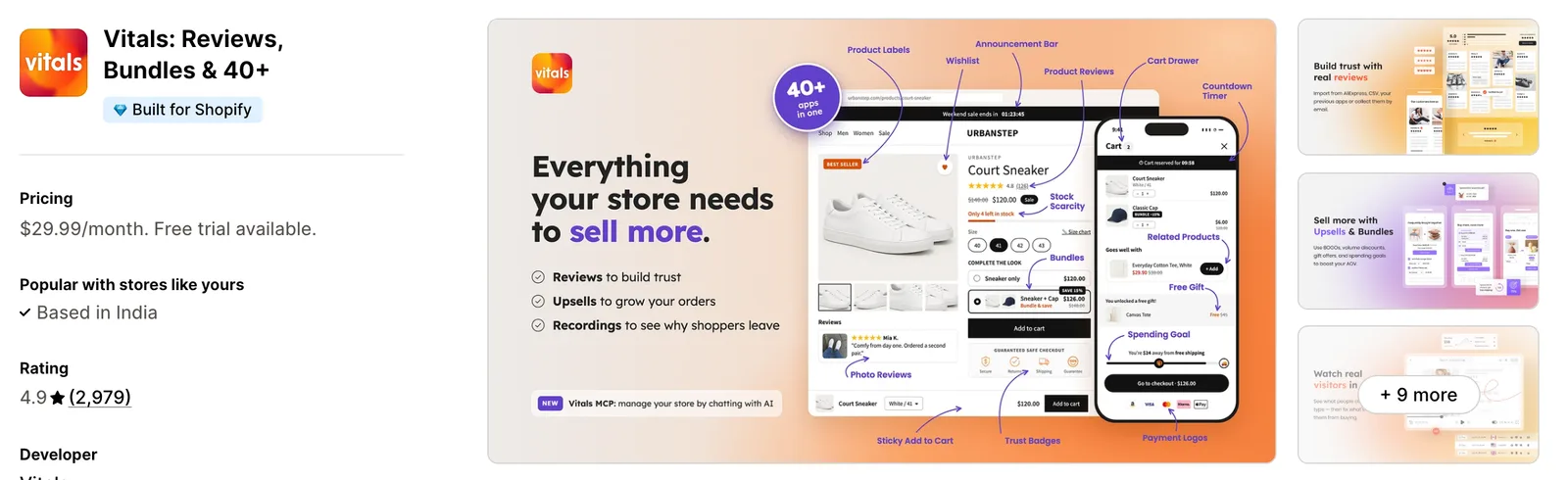
Install the Vitals - All in One App from the Shopify App Store. The 7-day free trial includes the Vitals Facebook Pixels app.
Step 2: Approve the Install in Shopify
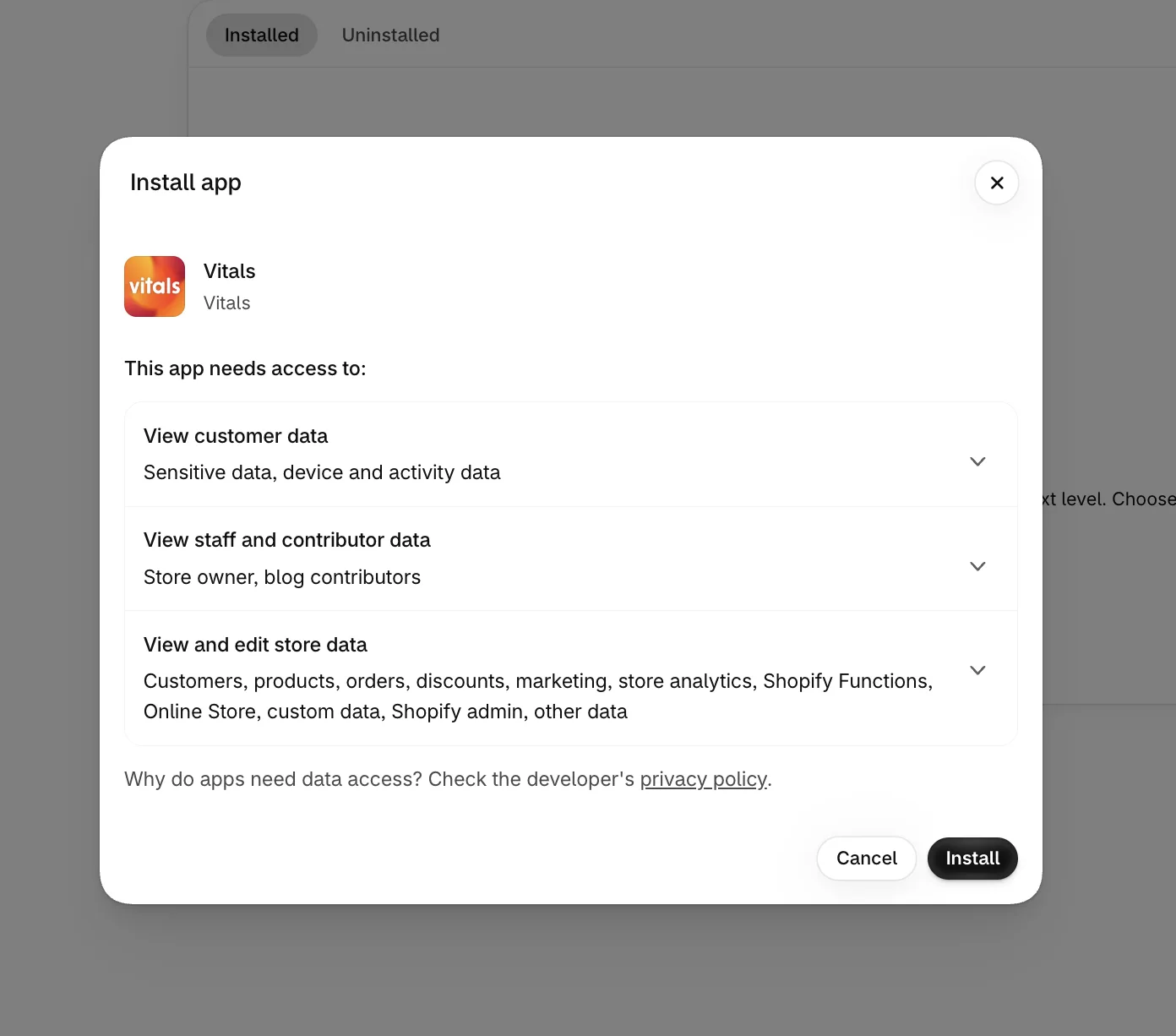
Click Install to approve the store data Vitals uses. Shopify then takes you to the Vitals dashboard.
Step 3: Open Facebook Pixels
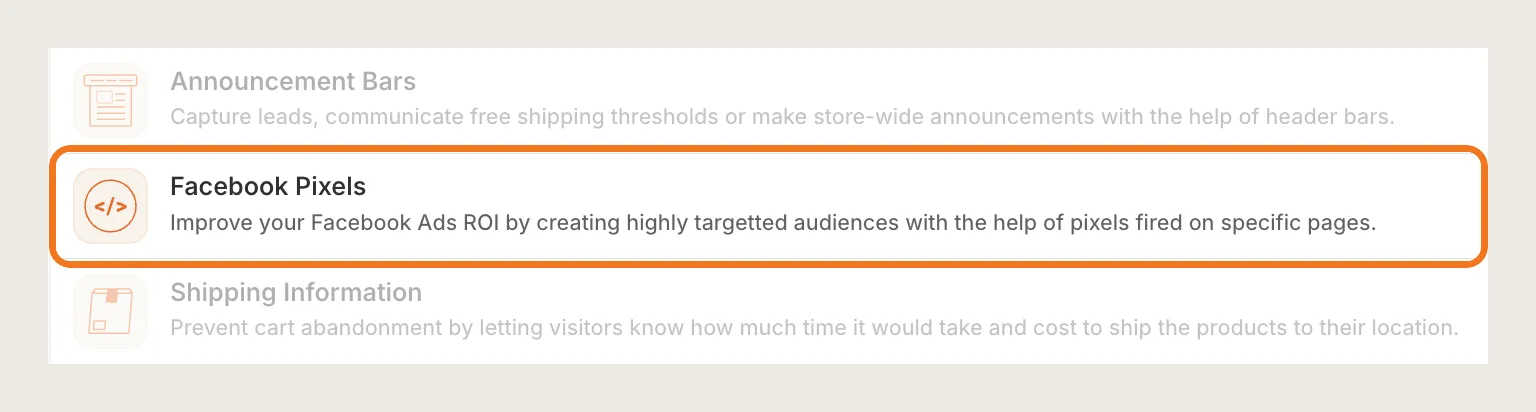
In the Vitals dashboard, find Facebook Pixels in the list of apps and click it.
Step 4: Click Set up Facebook Pixel
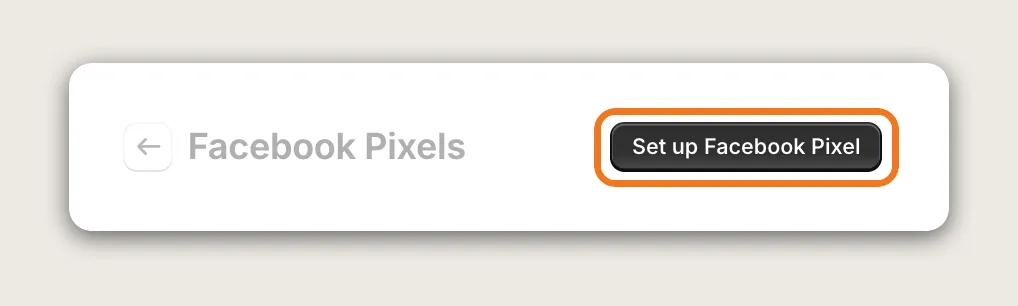
Click Set up Facebook Pixel at the top of the Facebook Pixels page to add your first pixel. Each pixel you add is a Facebook Pixel you already created in your Meta account, since the app doesn't create pixels itself.
Step 5: Paste Your Pixel ID
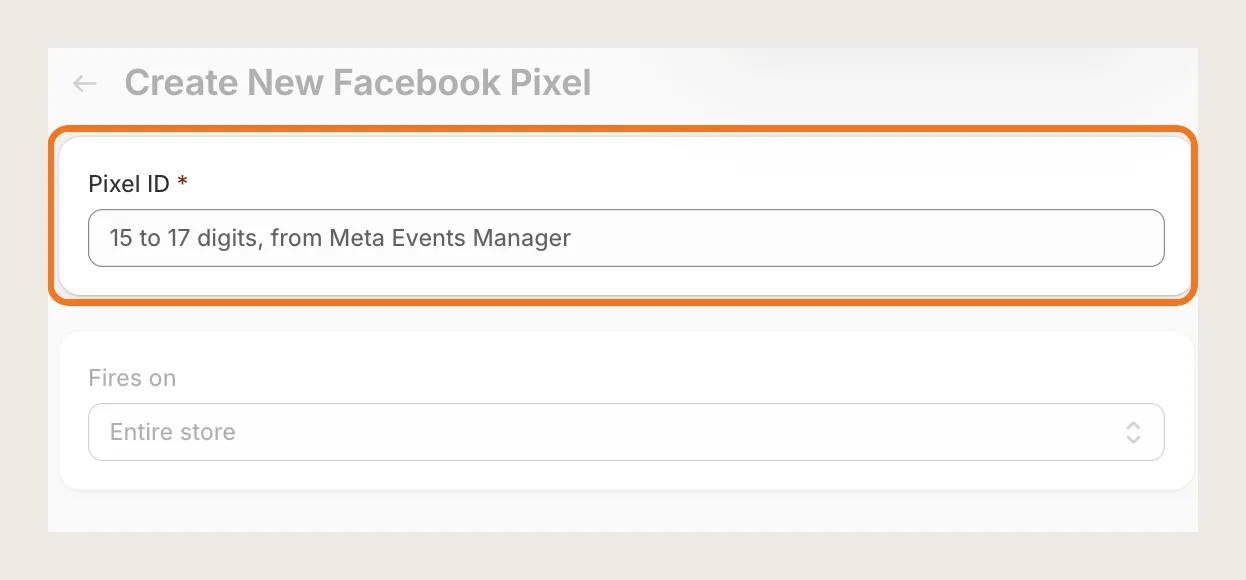
On the Create New Facebook Pixel page, copy the pixel ID from Meta Events Manager and paste it into Pixel ID. The ID has 15 to 17 digits. The app refuses an ID that's too short or an example ID, so check that you copied the whole number.
Step 6: Choose Where the Facebook Pixel Fires
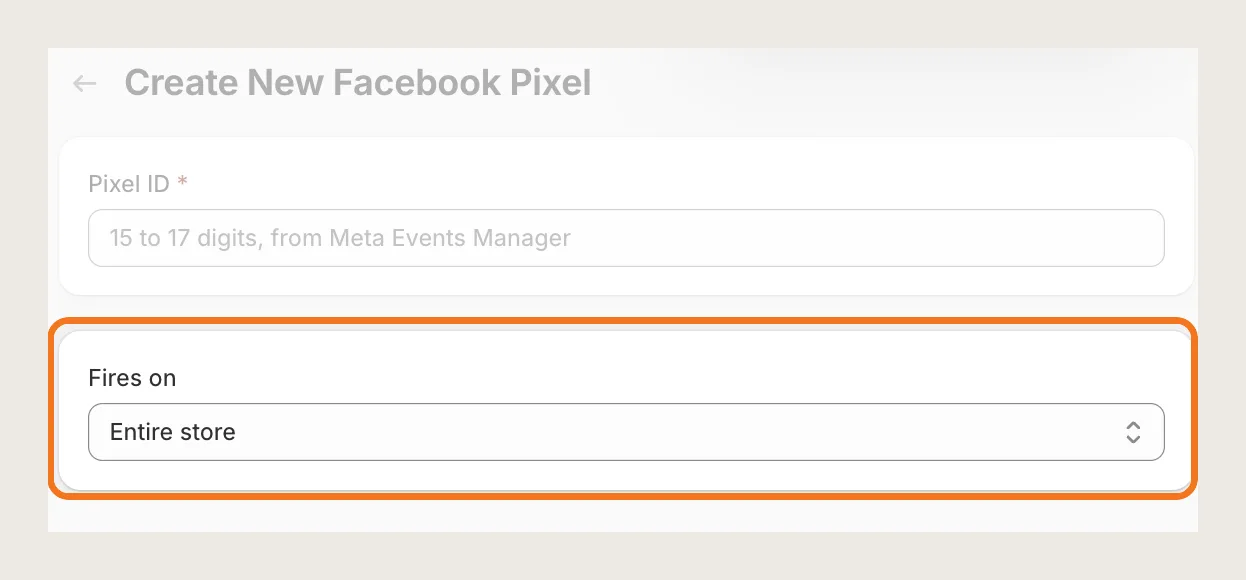
In the Fires on dropdown, pick one of three options, then click Save:
- Entire store: The Facebook Pixel is active on every storefront page. This is the default
- Specific collections: The Facebook Pixel is active on the collection's page, on the product pages of its products and on the cart page when the cart holds one of them. Pick the collections in Collections
- Specific product tags: The Facebook Pixel is active on the product pages of products with that tag and on the cart page when the cart holds one of them. Type the tags in Tags, separated by commas
Step 7: Add More Pixels for Collections, Tags or a Backup
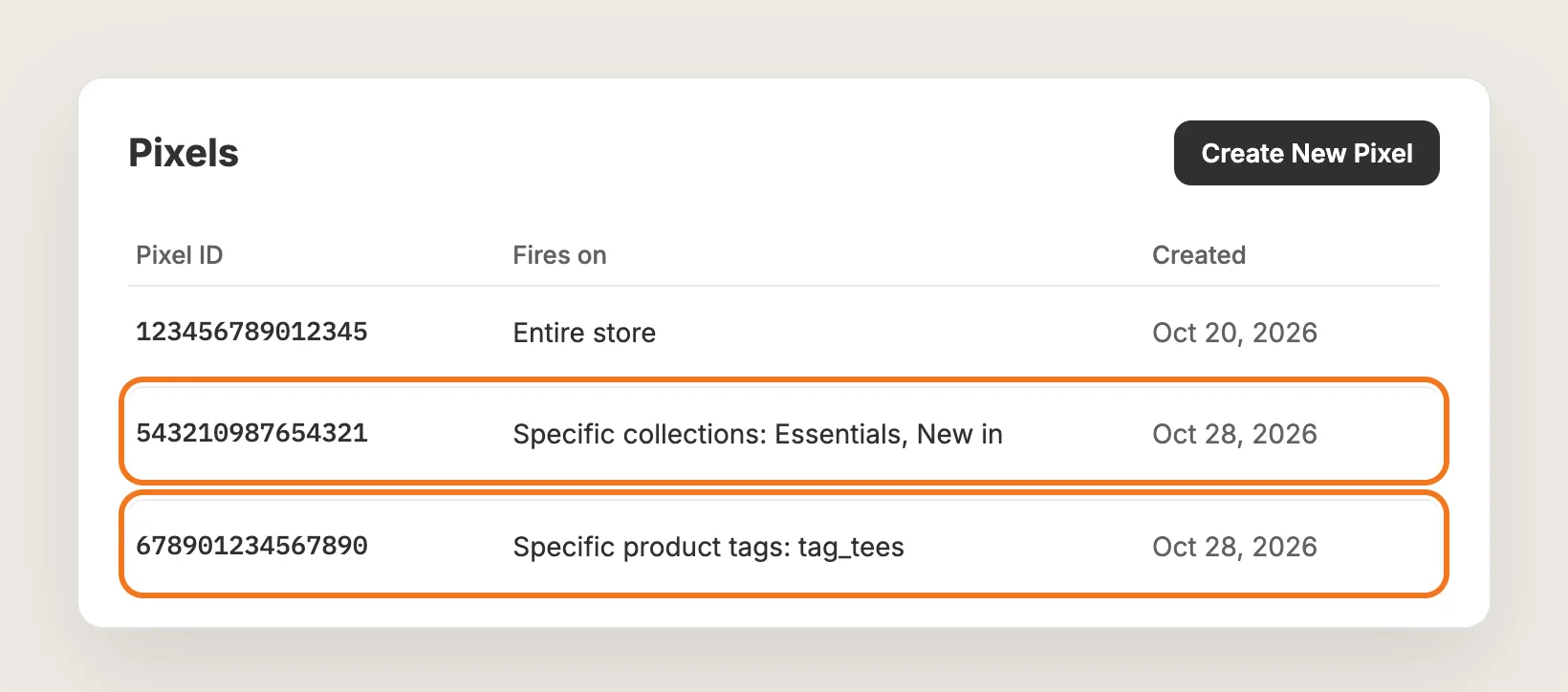
Click Create New Pixel again for every Facebook Pixel you need. The app has no limit on pixels, and every pixel set up for the same collection or tag fires. Use a second pixel as a backup, a collection pixel for one product range or a tag pixel for one product line. The Pixels list shows each pixel ID, where it fires and when you created it.
Step 8: Keep Shopify's Facebook & Instagram Channel for Purchases
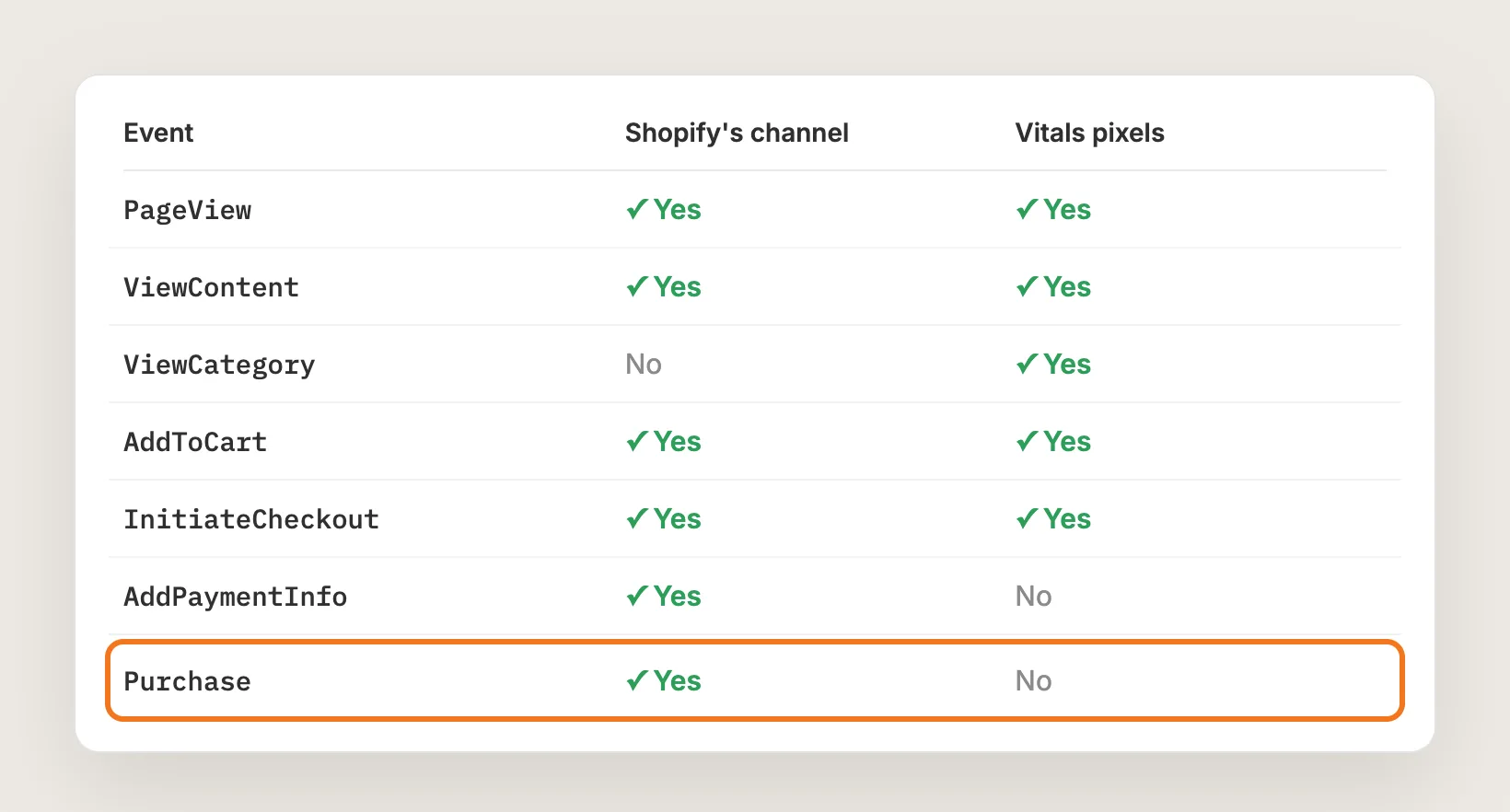
Keep your main Facebook Pixel connected in Shopify's Facebook & Instagram channel. The Vitals Facebook Pixels app sends PageView, ViewContent, ViewCategory, AddToCart and InitiateCheckout, but no Purchase and no event from the checkout pages, because Shopify apps can't add scripts to the checkout. The channel reports the Purchase.
You can add the channel's pixel in Vitals too. Where the channel already sends an event for that pixel, Vitals doesn't send it a second time, and the pixel still gets ViewCategory, the collection-view event the channel doesn't send.
Step 9: Save and Check That the Facebook Pixel Fires
Open a collection page and a product page on your store, add a product to the cart and click the checkout button. Check each page with the Meta Pixel Helper extension for Chrome, or watch the events arrive in your pixel's page in Meta Events Manager. On a collection page, each matching Facebook Pixel shows PageView and ViewCategory. Every page view, product view, add to cart and checkout click then reaches Meta, ready for your next retargeting audience.
How to Add Facebook Pixel From Your Shopify Settings?
Shopify themes don't include a Facebook Pixel setting. Shopify connects one Facebook Pixel through Meta's Facebook & Instagram sales channel instead. To set it up:
- Add the Facebook & Instagram channel to your store from the Shopify App Store
- Connect your Meta business account and choose your pixel
- Open Sales channels → Facebook & Instagram → Settings → Share data and pick the data-sharing level
The channel gives you one Facebook Pixel that is active on every page of the store. It follows the shopper through checkout and reports the Purchase, and at the higher data-sharing levels it also sends events from Shopify's servers through Meta's Conversions API. It has no second pixel, no collection or tag pixels and no ViewCategory event. If one store-wide pixel is all you need, the channel is enough on its own.
How to Add Facebook Pixel Without an App?
Hire a developer to build the Facebook Pixel as a custom pixel in Settings → Customer events in your Shopify admin. Theme scripts don't load on the checkout pages, so a custom pixel is the way to send checkout events without an app.
A custom Facebook Pixel build usually involves:
- Creating a custom pixel in Settings → Customer events
- Loading Meta's pixel code with your pixel ID
- Mapping Shopify's customer events to Meta events, such as product views, add to carts and checkouts
- Setting the customer privacy permissions the pixel needs
- Testing each event in Meta's Events Manager before connecting the pixel
Custom code means no extra app, but you or your developer have to maintain it. Each new event, a second pixel or a pixel for one collection needs more code, and every change needs testing again.
How to Increase Sales With Facebook Pixel?
A Facebook Pixel increases sales by showing your ads to shoppers who already looked at your products, and to people like them. These settings help:
- Keep Purchase tracking on your main pixel. Meta optimizes your ads for sales only when it sees sales. Keep the main pixel connected in Shopify's Facebook & Instagram channel
- Build audiences from collection interest. Shoppers who browsed a collection are ready for an ad about that collection. Every Vitals pixel sends ViewCategory on collection pages
- Give a product range its own pixel. Each product range then gets its own audiences and lookalikes. Set Fires on to Specific collections
- Give a product line its own pixel. Tag the products in Shopify, then set Fires on to Specific product tags
- Add your main pixel to Vitals as well. The main pixel then gets ViewCategory too, without the standard events sent twice
- Keep a backup pixel. A second pixel in a new Meta Business Manager keeps your storefront event history if the first pixel has a problem
Why Isn't My Facebook Pixel Showing or Working?
These are the usual causes when a Facebook Pixel doesn't fire or doesn't show the events you expect:
- A pixel added in Vitals shows no Purchase: Vitals pixels don't send Purchase or checkout-page events. Keep the pixel connected in Shopify's Facebook & Instagram channel for purchases
- The pixel ID won't save: The ID must have 15 to 17 digits and can't be an example ID. Copy it again from Meta Events Manager
- Events reach Meta but nothing shows on the pixel: The ID may belong to a deleted pixel, or it may be a profile or ad account ID. Check the ID in Meta Events Manager
- The pixel doesn't fire for some visitors: With a cookie banner, the pixel waits until the visitor gives consent
- InitiateCheckout is missing for some orders: Express checkout buttons, such as Buy it now, go straight to Shopify's checkout, and Vitals pixels don't see that click
- A collection pixel doesn't fire on a product page: The pixel fires only on the pages of products in the selected collections. Check that the product is in the collection
- A tag pixel doesn't fire: The tag must match the product's tag exactly, though upper and lower case don't matter
- You see double events: On a small share of visits, Shopify's channel starts late and an event can be counted twice. Check the single events with the Meta Pixel Helper
Which Facebook Pixel Method Should You Choose?
Most stores do best with both: Shopify's channel for the main Facebook Pixel and Vitals - All in One App for everything the channel doesn't offer.
- Choose Vitals - All in One App if you want extra pixels, a backup pixel, pixels for specific collections or product tags and the ViewCategory event, next to Shopify's channel. It also includes 40+ other apps in one subscription of $29.99/month, so you don't have to install and pay for each app separately
- Choose Shopify's Facebook & Instagram channel if one store-wide pixel with Purchase tracking is all you need
- Choose custom code if you'd rather build every event by hand and maintain it yourself
Start a 7-day free trial: Install the Vitals - All in One App and add Facebook Pixel
Frequently Asked Questions
1. What is the best way to add Facebook Pixel to Shopify?
Vitals - All in One App is the best way for most stores. Its Facebook Pixels app adds unlimited Facebook Pixels without code, each active on the entire store, specific collections or specific product tags. Keep your main pixel in Shopify's Facebook & Instagram channel for Purchase tracking.
2. Does Shopify have a built-in Facebook Pixel?
Shopify connects one Facebook Pixel through Meta's Facebook & Instagram sales channel. That pixel is active on every page and reports purchases. Shopify themes don't include a Facebook Pixel setting of their own.
3. Can I add more than one Facebook Pixel to Shopify?
Yes. Shopify's channel supports one pixel per store, but the Vitals Facebook Pixels app has no limit. Add each pixel ID in the app, one pixel at a time.
4. Does the Vitals Facebook Pixels app track purchases?
No. Vitals pixels send PageView, ViewContent, ViewCategory, AddToCart and InitiateCheckout. Purchase and the checkout steps come from Shopify's Facebook & Instagram channel or another tracking app.
5. Can I use the same Facebook Pixel in Shopify and in Vitals?
Yes. Where Shopify's channel already sends an event for that pixel, Vitals doesn't send it again. The pixel still gets ViewCategory from Vitals.
6. How do I check that my Facebook Pixel is firing?
Use the Meta Pixel Helper extension for Chrome on your store's pages, or open your pixel in Meta Events Manager and watch the activity. Every event the pixel gets shows there.
7. Does the Vitals Facebook Pixels app support the Conversions API?
No. The Vitals Facebook Pixels app sends events from the shopper's browser only, with no Conversions API and no advanced matching. Shopify's Facebook & Instagram channel offers the Conversions API at its higher data-sharing levels.


